
PPT Weapon Specialist Character Sheet
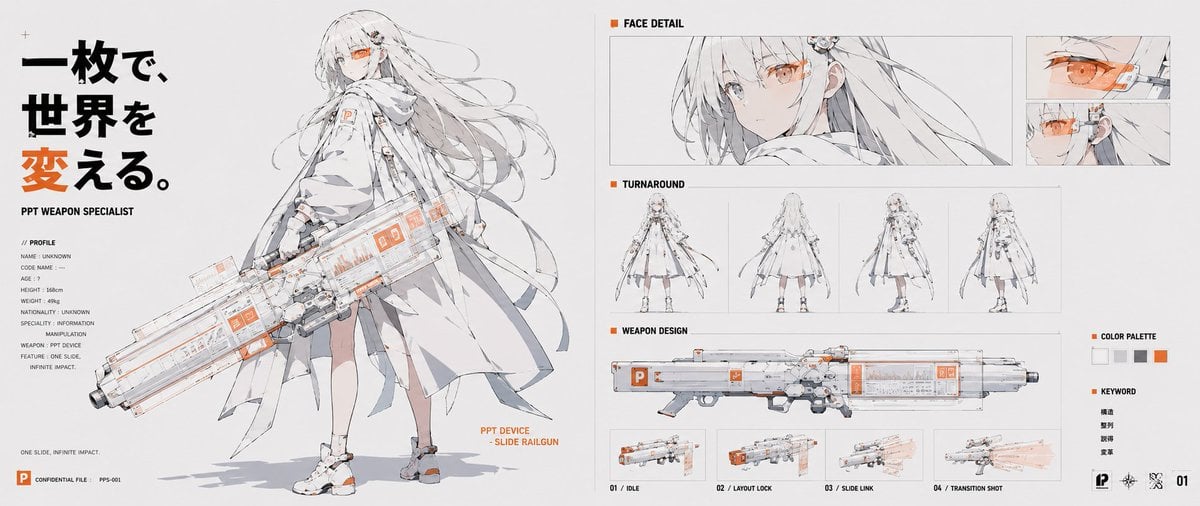
A wide anime concept sheet depicting a personified PowerPoint-style weapon specialist with technical panels, face details, turnaround views, and a slide railgun design.
- Prompt included
- Model and format preset
- Free template
The prompt behind this image
Copy the exact prompt behind PPT Weapon Specialist Character Sheet, or open it in the studio and make it yours.
Goal: Create a wide anime concept-art character sheet for a personified presentation app, a futuristic “PPT weapon specialist” girl wielding a slide-themed railgun. Use a clean white technical-design layout with thin gray panel lines, black typography, and vivid PowerPoint orange accents. Canvas: Ultra-wide horizontal character sheet, about 2:1 aspect ratio, white/off-white background, crisp editorial presentation-board composition, high-resolution anime line art with pale gray shading and selective orange highlights. Main left section: Large full-body illustration of {argument name="character name" default="PPT Weapon Specialist"}, a slender young anime woman with very long flowing white/silver hair, pale skin, one visible orange cybernetic visor/monocle over the eye, and a calm serious expression. She wears a layered white futuristic coat/cape, technical straps, small orange PowerPoint-like “P” markings, white shoes with orange details, and light mechanical accessories. She holds an oversized transparent white-and-gray sci-fi railgun shaped like a presentation slide deck, with orange UI panels, small “P” icons, glassy panels, rails, and mechanical grips. Add an orange annotation beside the weapon reading “PPT DEVICE - SLIDE RAILGUN.” Left typography and profile: At the far left, place a bold vertical Japanese headline in large black and orange characters: {argument name="headline text" default="一枚で、世界を変える。"}. Under it, small English text reads “PPT WEAPON SPECIALIST.” Include a compact profile block labeled “// PROFILE” with 8 lines: NAME: UNKNOWN, CODE NAME: --, AGE: ?, HEIGHT: 158cm, WEIGHT: 49kg, NATIONALITY: UNKNOWN, SPECIALTY: INFORMATION MANIPULATION, WEAPON: PPT DEVICE. Add a small sentence near the bottom: “ONE SLIDE, INFINITE IMPACT.” Bottom-left has a small orange PowerPoint-style square icon, “CONFIDENTIAL FILE,” and “PPS-001.” Right-side technical panels: Arrange exactly 5 labeled sections on the right half. Section 1 is “FACE DETAIL,” containing 3 face images: one wide close-up portrait of the character looking sideways with orange visor, plus two smaller stacked close-ups showing the orange eye/visor mechanism. Section 2 is “TURNAROUND,” containing exactly 4 small full-body views: front, back, three-quarter side, and side/back view. Section 3 is “WEAPON DESIGN,” containing one long side-view diagram of the railgun. Section 4 is a weapon action row beneath it with exactly 4 small thumbnails labeled “01 / IDLE,” “02 / LAYOUT LOCK,” “03 / SLIDE LINK,” and “04 / TRANSITION SHOT,” showing the gun at rest, locked layout mode, slide-link glow, and a translucent orange firing/transition blast. Section 5 is a small sidebar with “COLOR PALETTE” containing exactly 5 square swatches: white, light gray, medium gray, black/dark gray, and orange; below it a “KEYWORD” list with exactly 4 Japanese words: 構造, 整列, 誘導, 変革. Visual style: Delicate Japanese anime concept design, thin clean ink lines, pale watercolor-gray shadows, high-tech UI annotations, fashion techwear, schematic presentation-board layout, minimal background, precise spacing. Use orange only for emphasis, UI marks, visor, icons, and key headline character. Make the railgun transparent and presentation-software themed, with visible slide panels and orange interface blocks. Constraints: Keep the composition text-heavy but clean and readable. Do not add extra characters. Do not add extra thumbnails beyond the counted sections. No watermark. Preserve the Japanese headline and keyword text exactly as specified while keeping all other labels in English.
How to use PPT Weapon Specialist Character Sheet in 3 steps
- 1Upload ImagePNG, JPG or paste
Add your photo
Upload the photo the template builds on. The prompt, model and format are already set.
- 2…a portrait of your subject in softgolden-hour light, 85mm…
Personalize
Edit the subject and creative details for your destination.
- 3Generate
Generate
Press Generate — your image is created in PicX Studio, so you can compare it with the original and refine one variable at a time.
More like this
Templates with the same subject, style or setup. Open one to see its prompt.
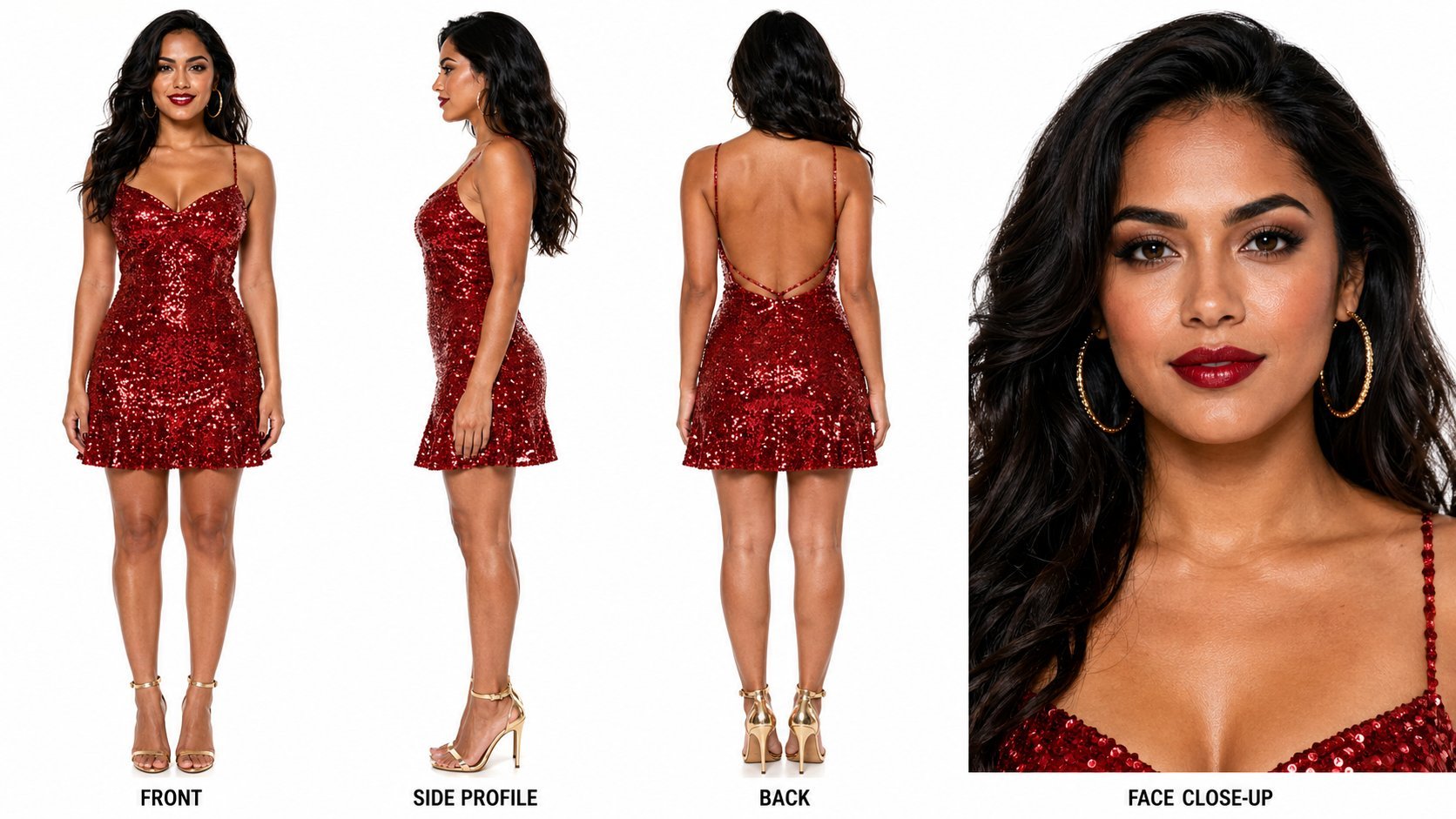
Dancer Character - Four View Reference Sheet
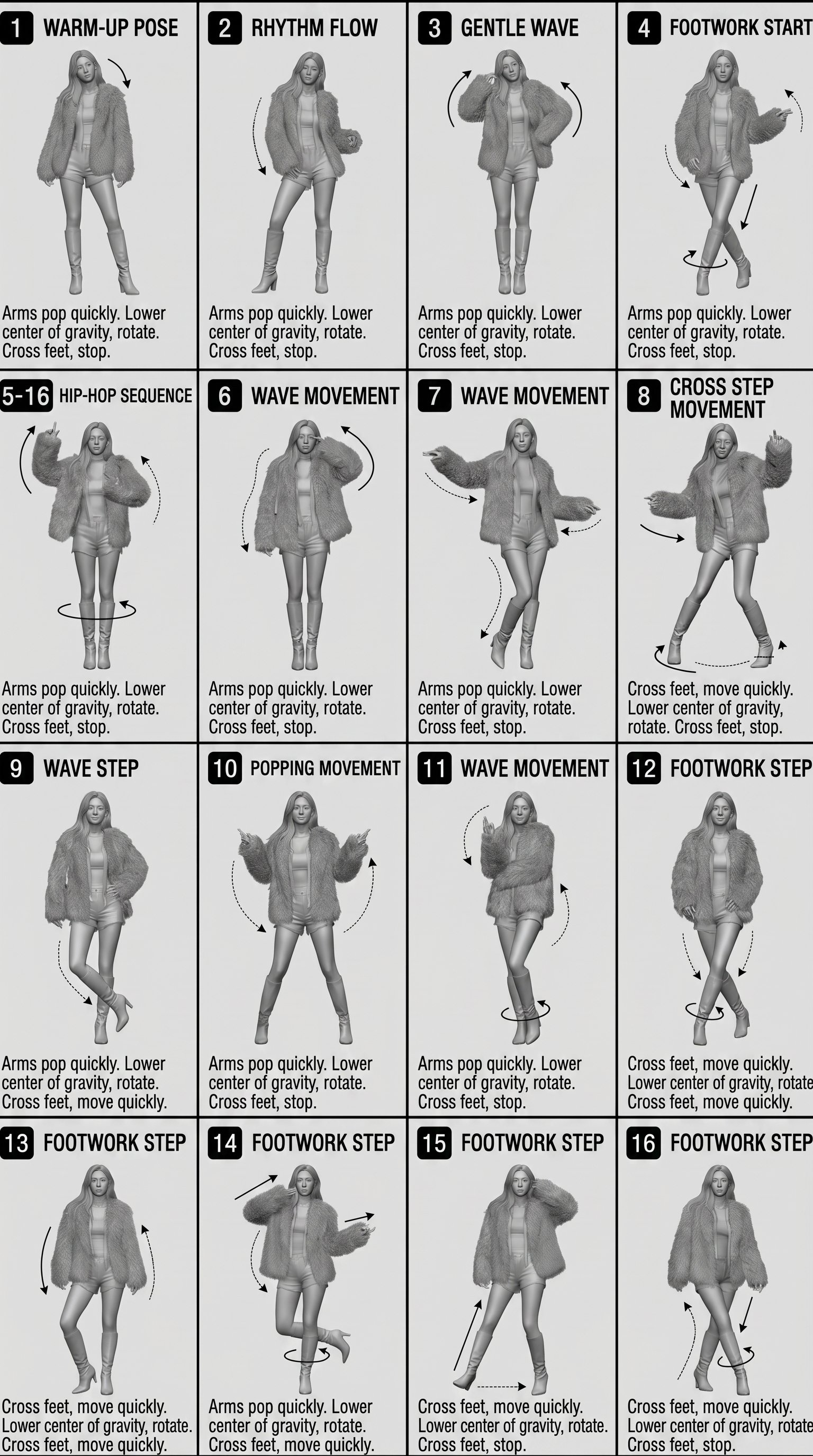
Movement Sheet - Dance Reference (Seedance 2.0)
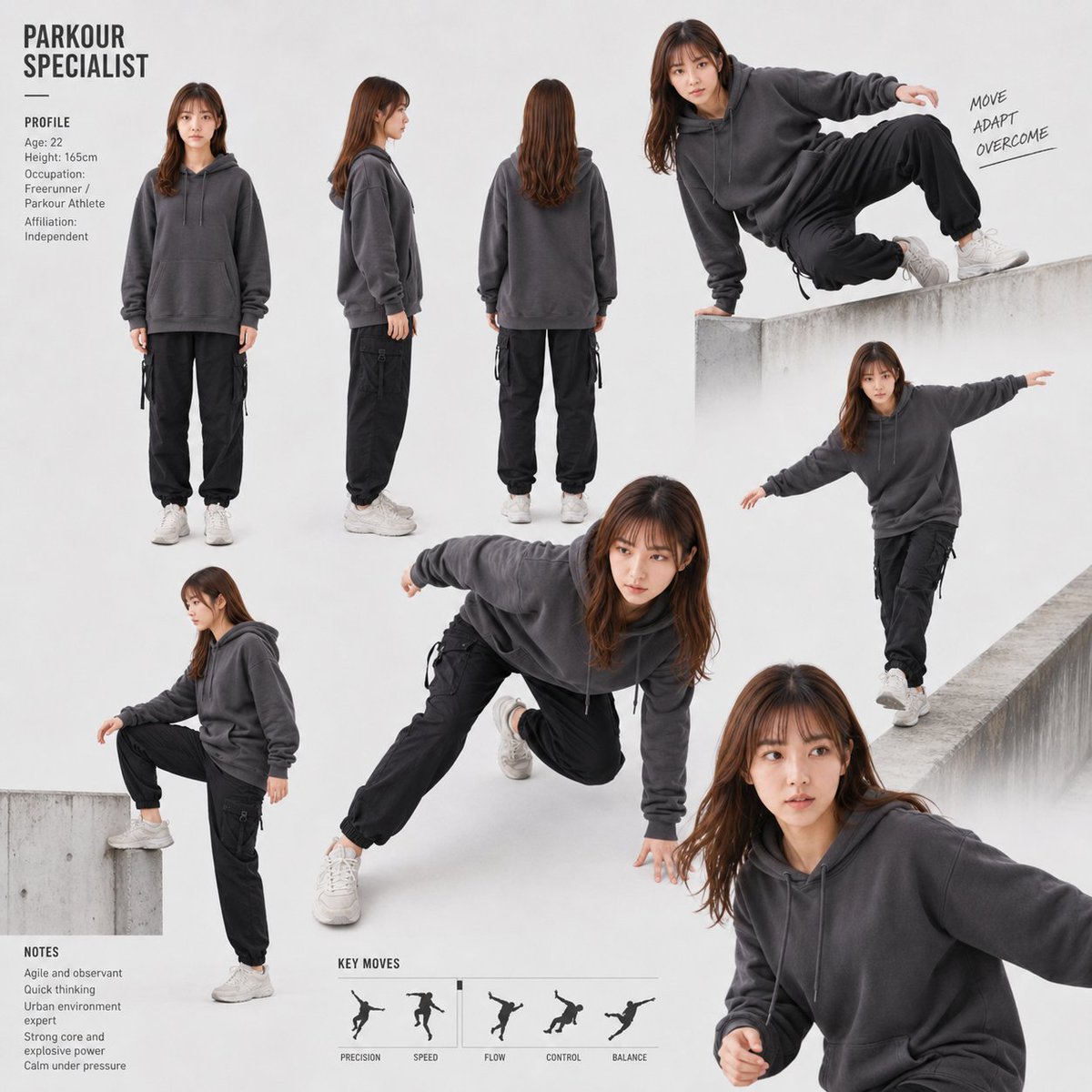
Parkour Specialist Montage Sheet
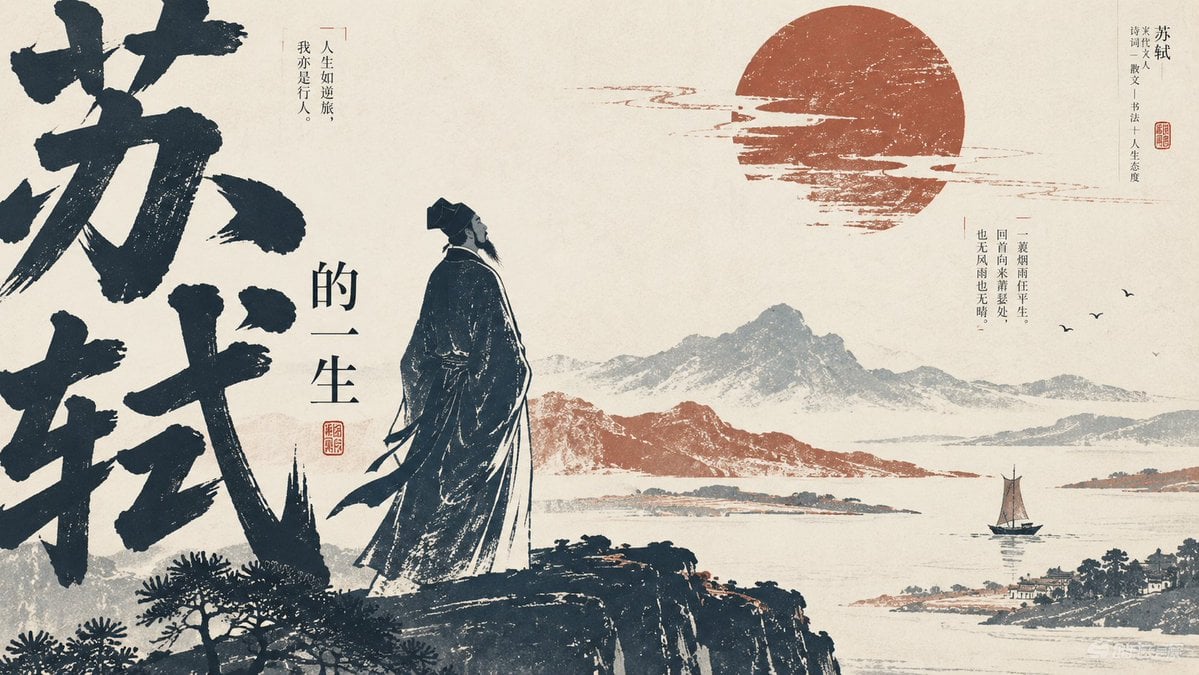
Editorial PPT Cover Design
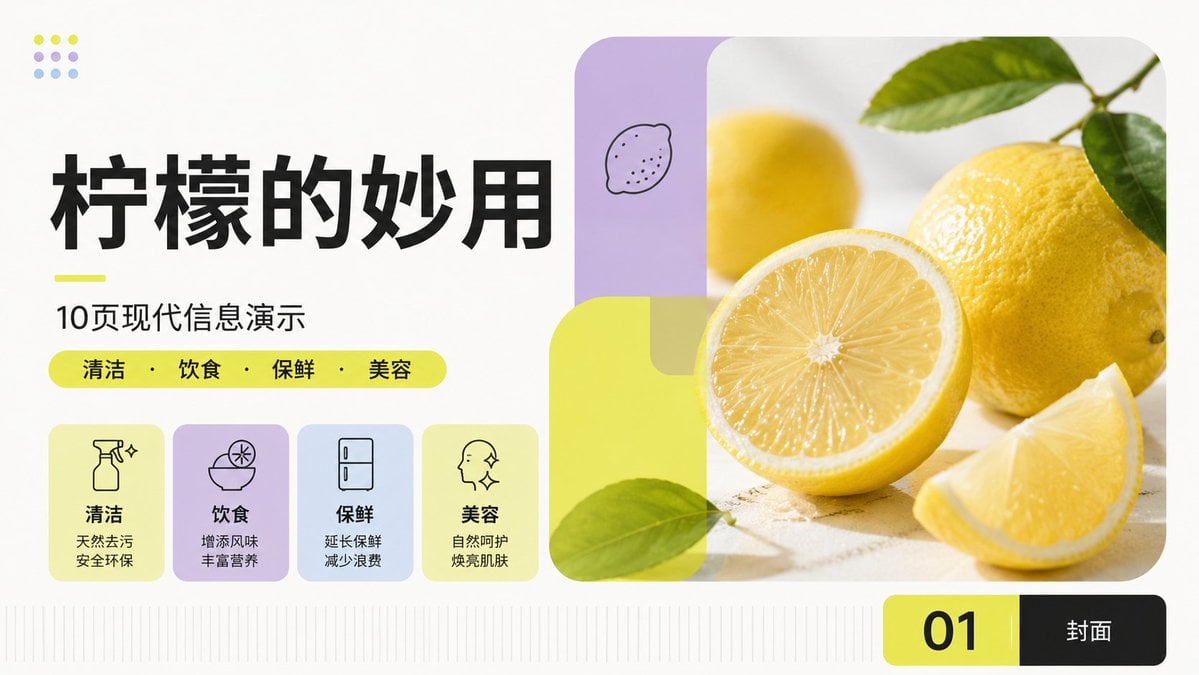
Modern Lemon Uses PPT Cover
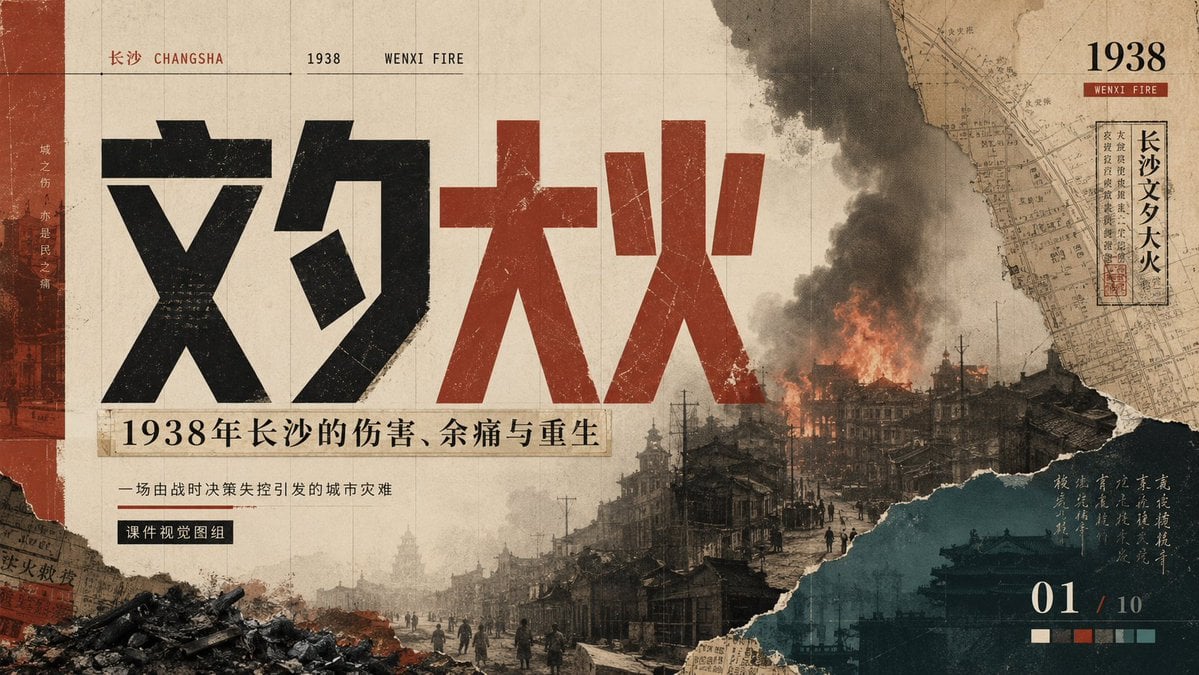
Wenxi Fire Historical PPT Cover
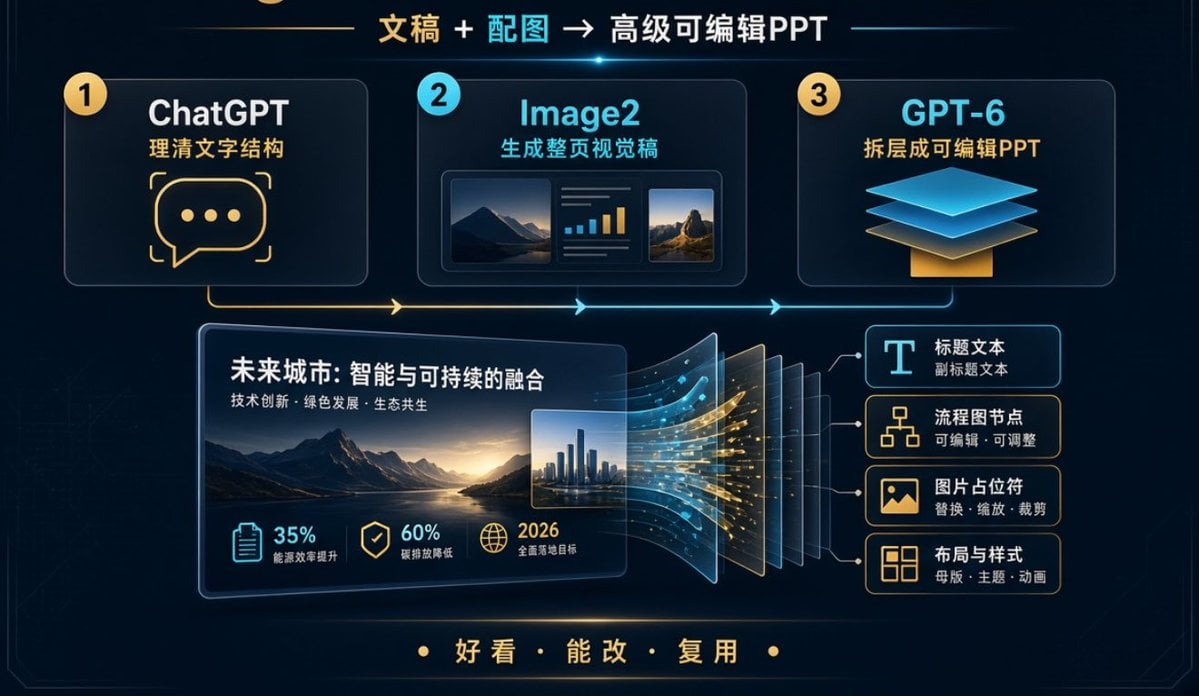
Editable PPT Workflow Infographic
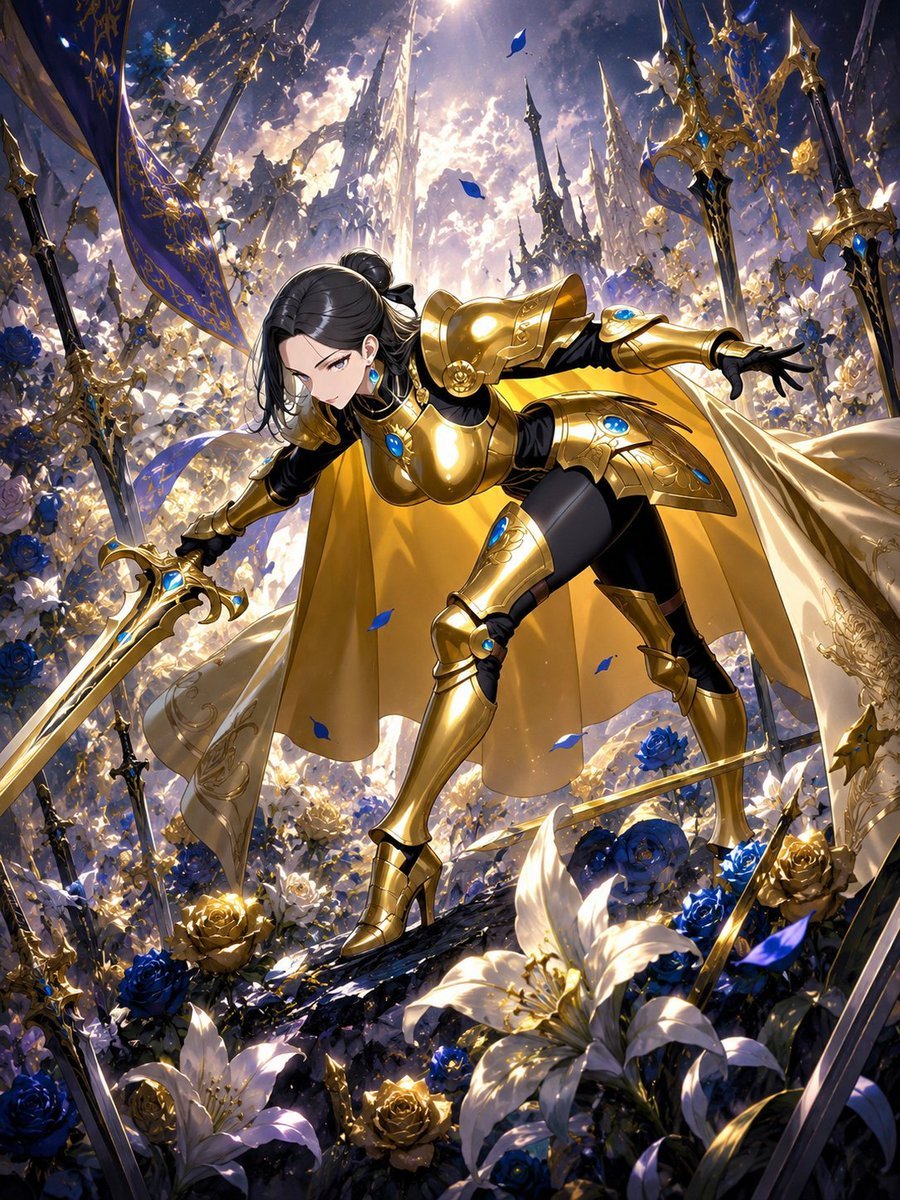
Cool Floral Weapon Background
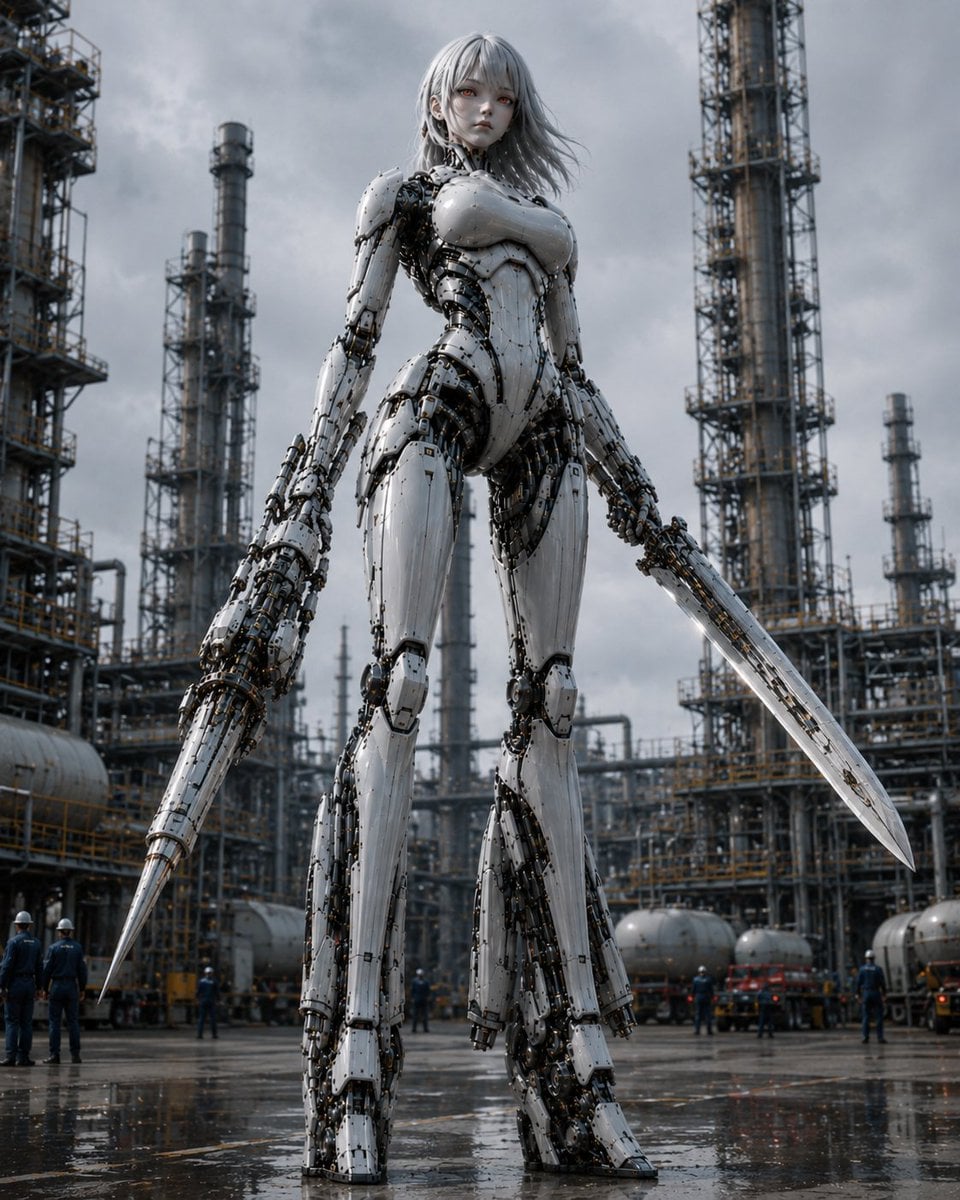
Giant Weaponized Robot in Refinery
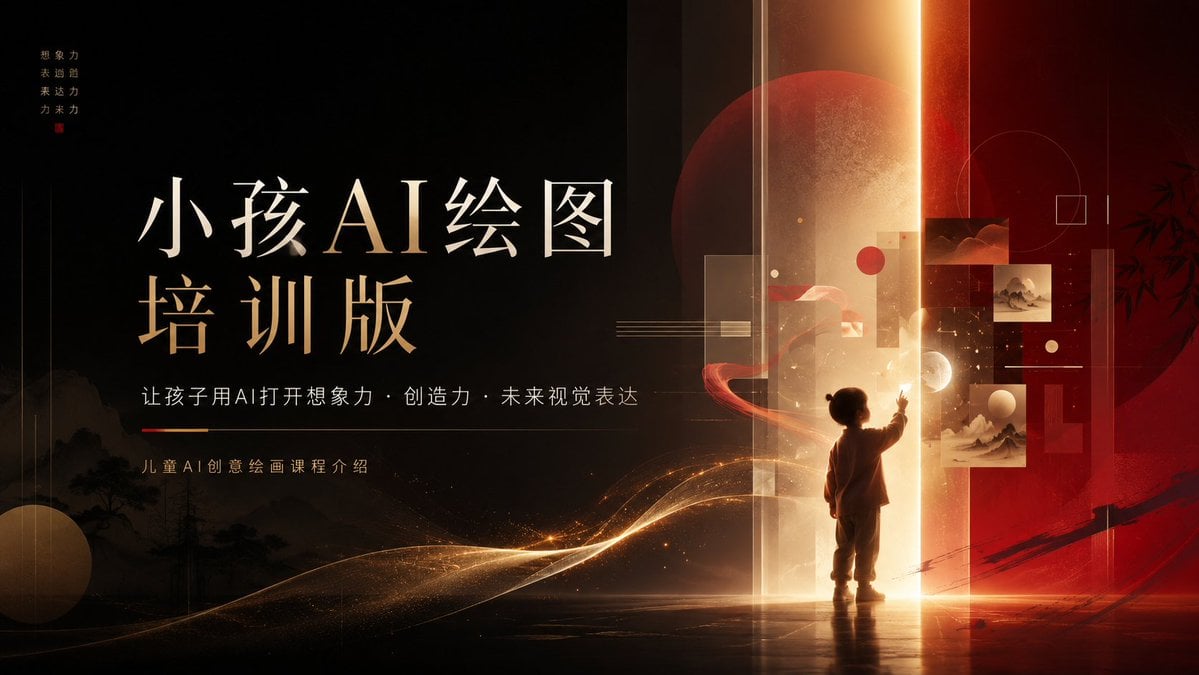
Children’s AI Art Course PPT Cover
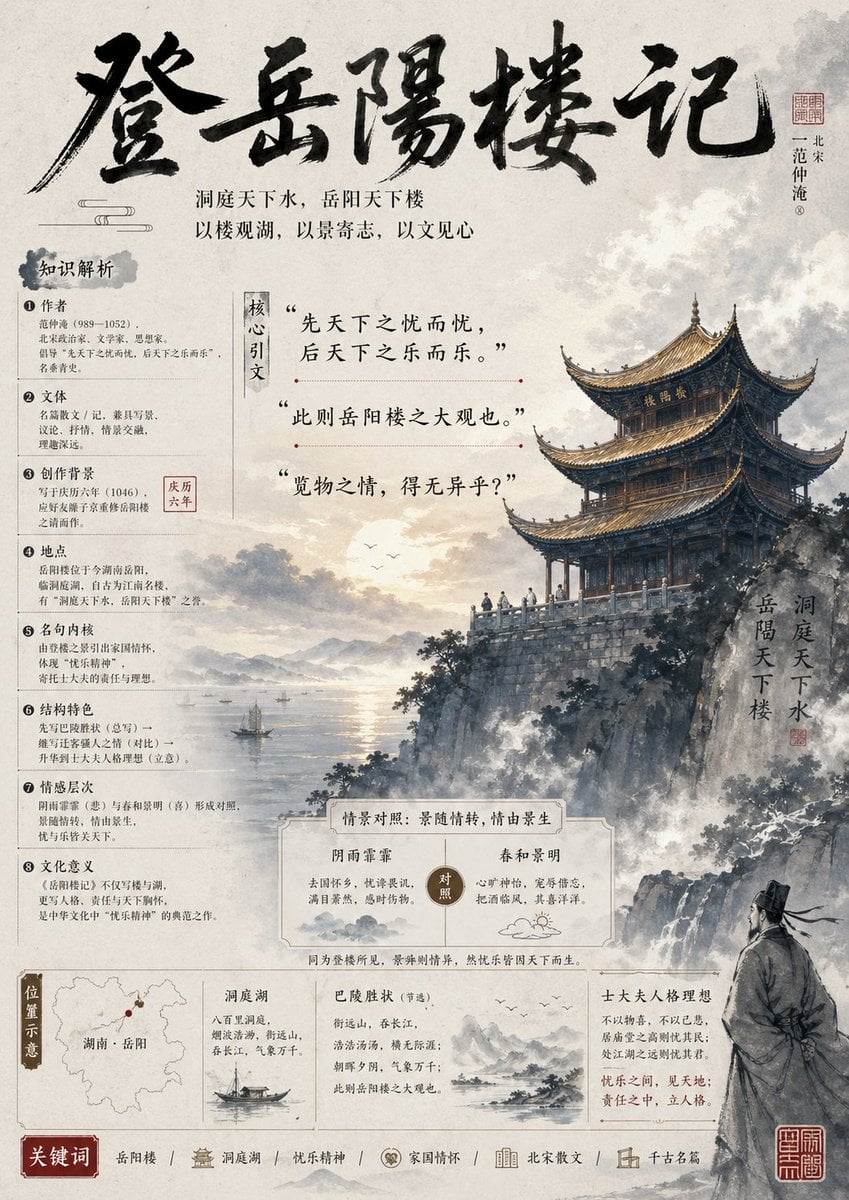
Ancient Chinese Literature PPT Poster
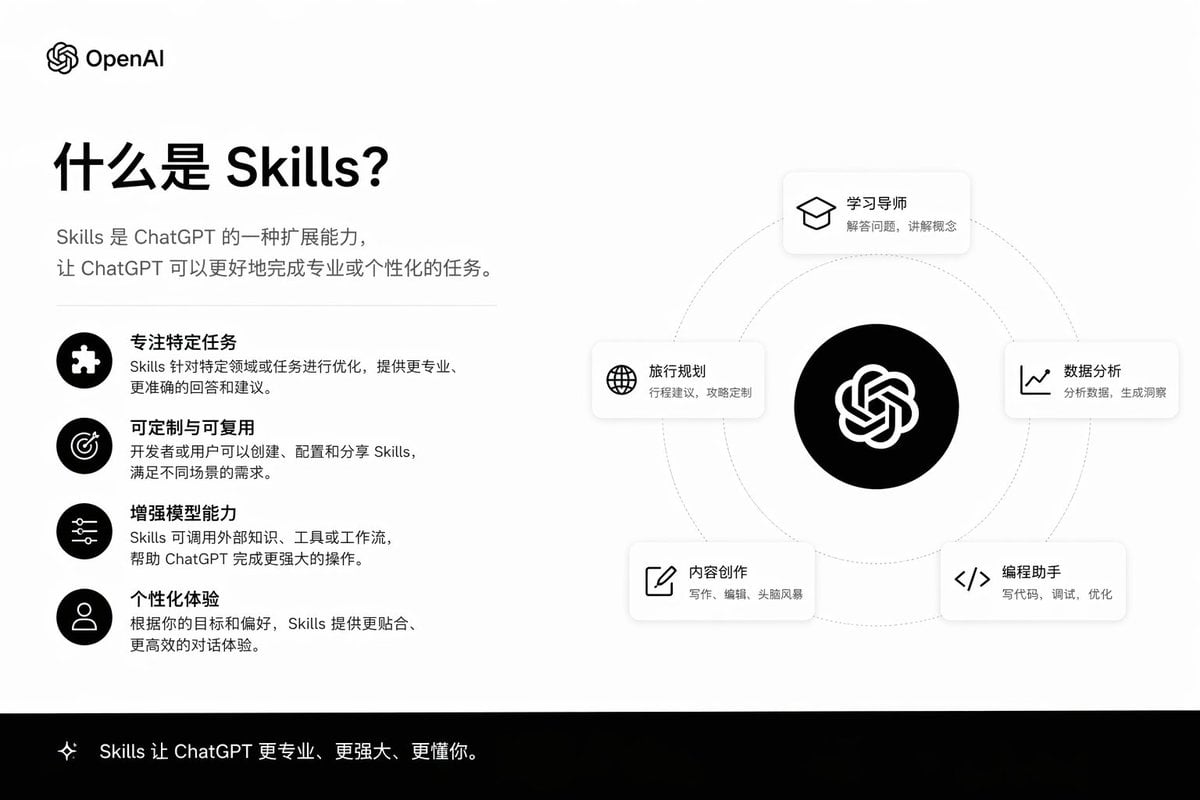
Skills Introduction PPT Slide
Make it yours
PPT Weapon Specialist Character Sheet works as-is. These are the safest ways to change it without losing the look.
Change one field
Copy a single group, rewrite it, and generate again so you can see what that field is doing.
Keep the frame, change the subject
Hold the composition and light of PPT Weapon Specialist Character Sheet, then swap wardrobe, props or the person for a new take.
| If the result… | Why | Fix |
|---|---|---|
| The result drifts from the preview | Too many fields changed at once. | Reuse PPT Weapon Specialist Character Sheet as-is first, then change one group — subject, light, or setting. |
| The model over-stylizes the scene | The prose prompt leaves finish and camera underspecified. | Add one camera or lighting sentence and stay on GPT Image 2. |
More GPT Image 2 templates
Other prompts made for GPT Image 2.

Six VTuber Japanese Logo Sheet

Realistic Portrait of Woman and Deer

The Vista Modular Condo Poster

AI Model Routing Comparison Infographic

2.5D Anime Art Board

Isometric Productivity Desk Scene

New York Double Exposure Poster

Four-Panel AI Landscape Comparison

Japanese Tatami Lifestyle Magazine Cover

NESCAFÉ Coffee Map Poster
More image prompts
Fresh picks from across the catalog.
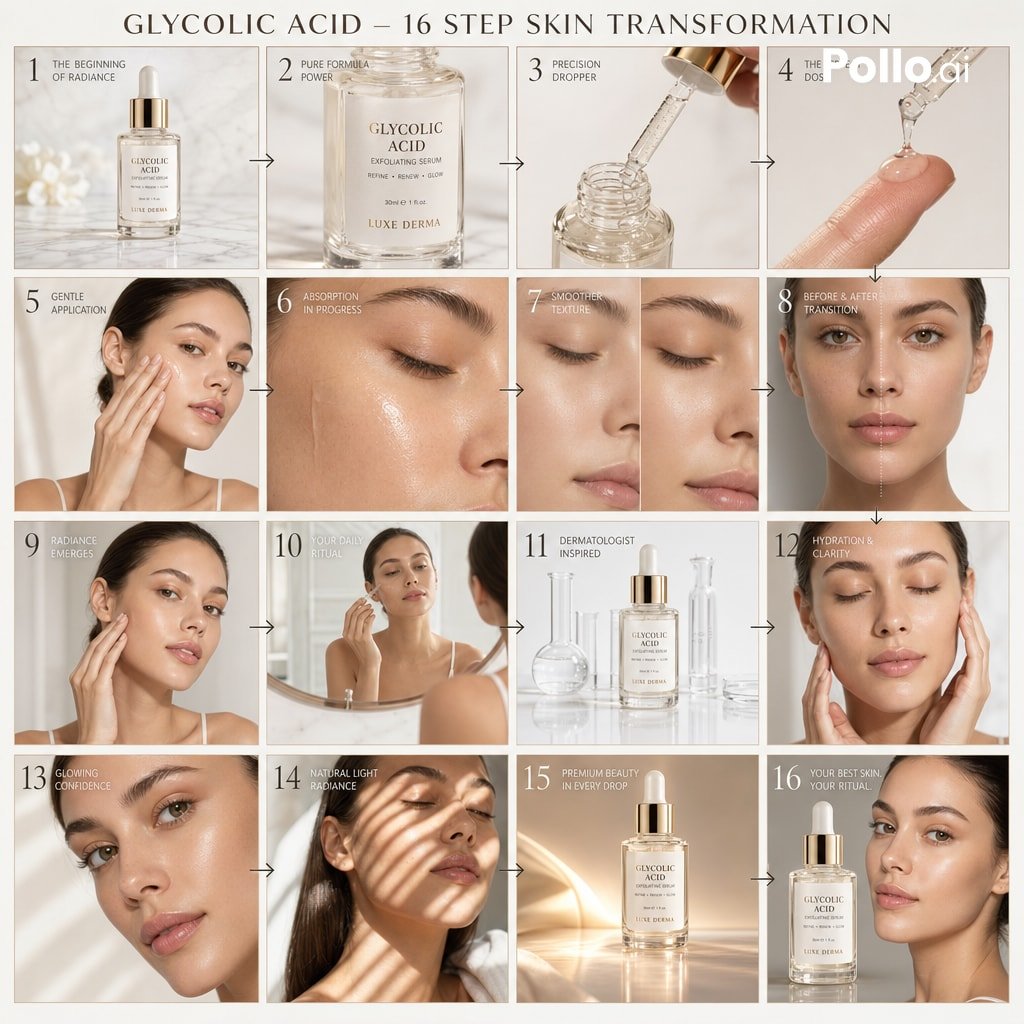
Luxury Skincare Ad Storyboard
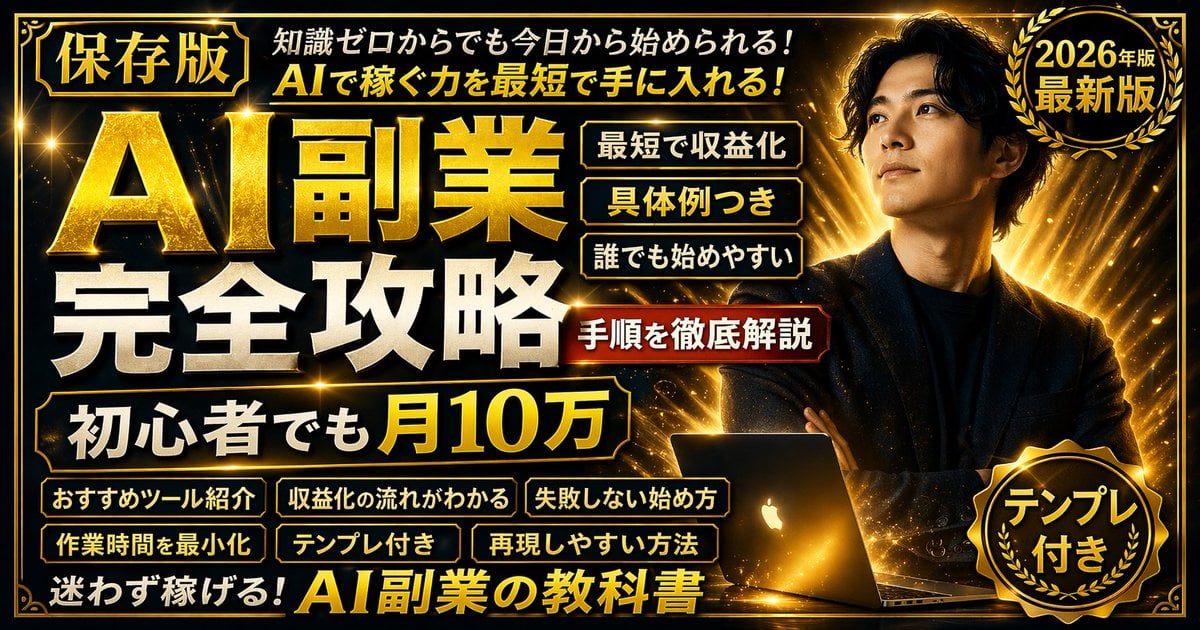
Gold & Black Info-Product Thumbnail
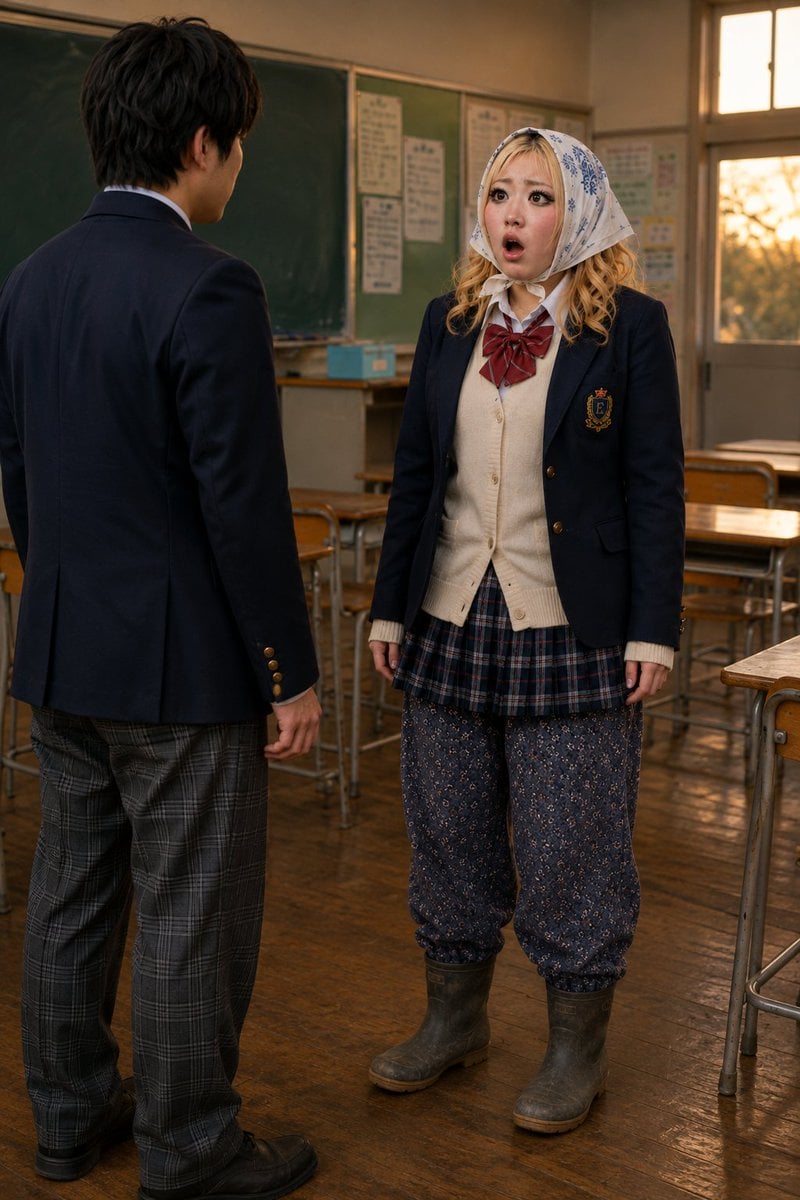
Schoolgirl Turned Rural Farmer Classroom Scene
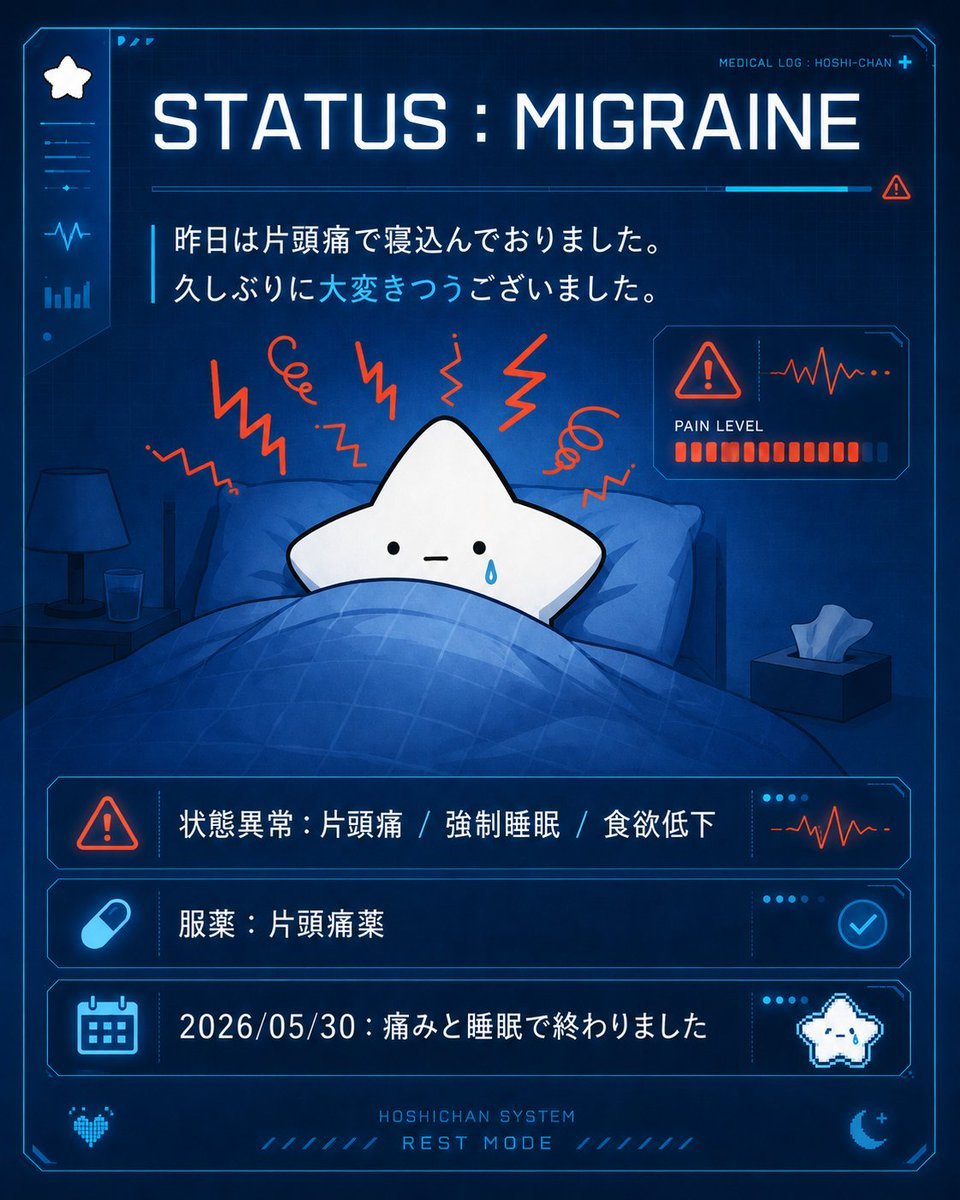
Cute Star Migraine HUD
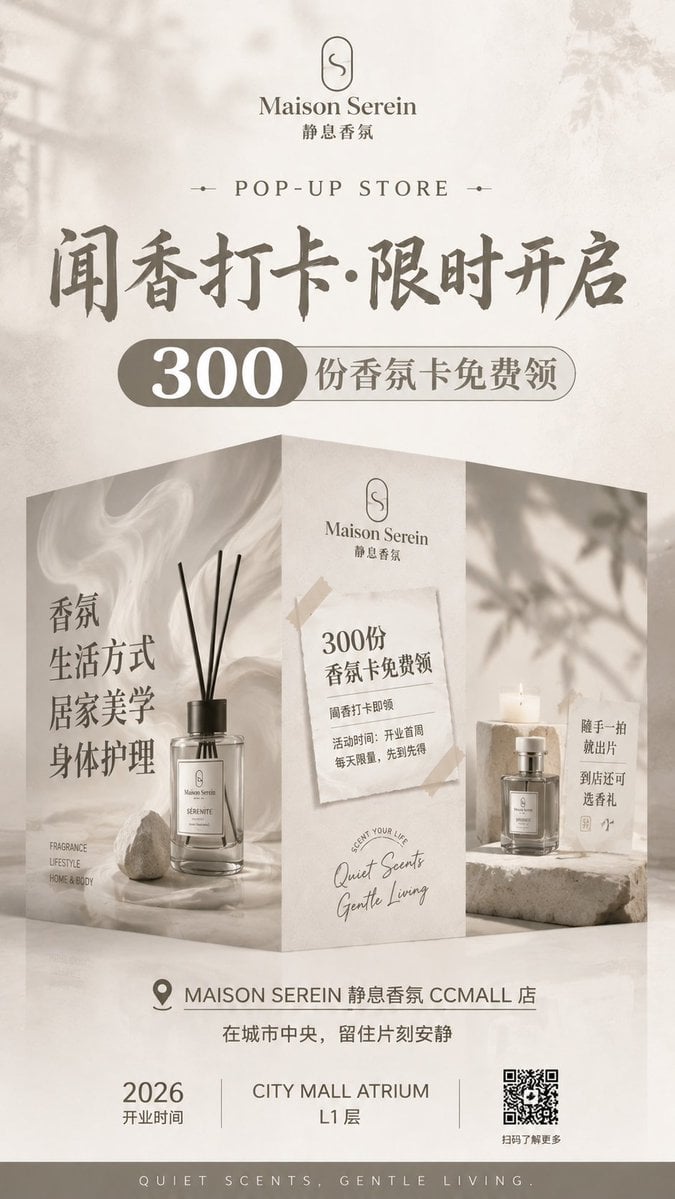
Luxury Fragrance Pop-Up Poster
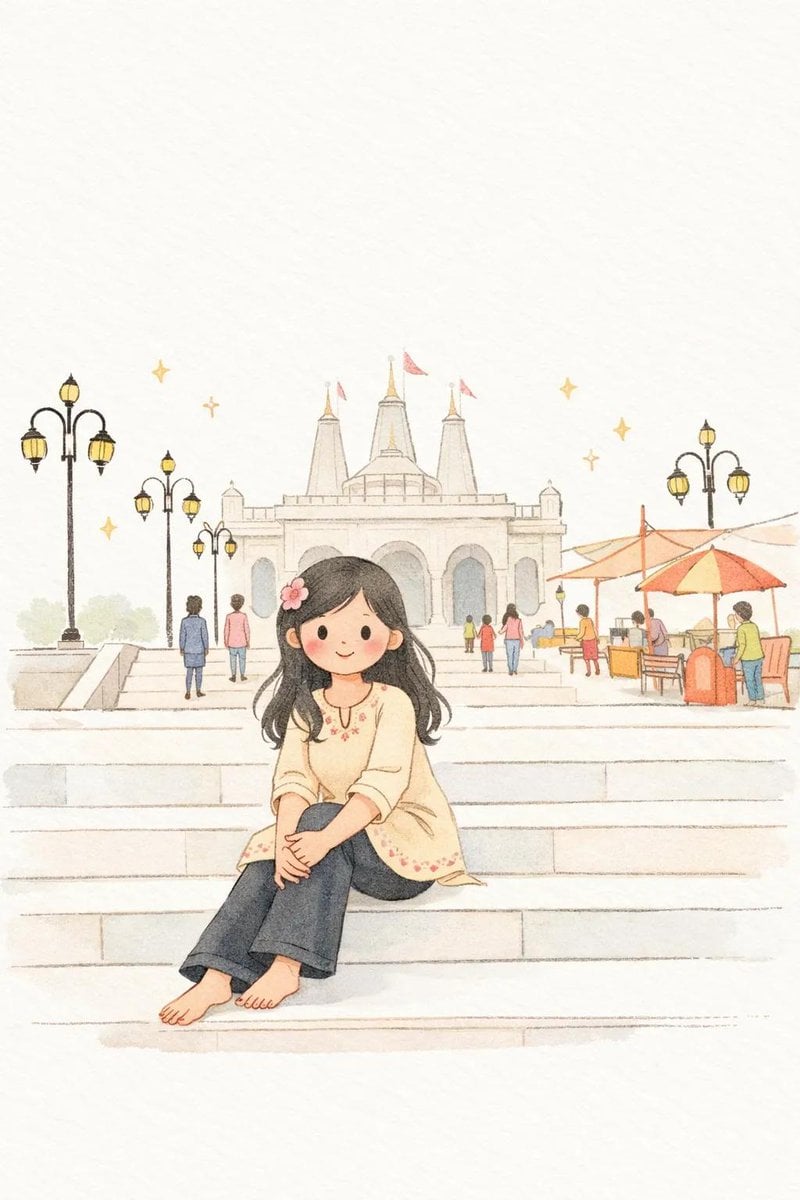
Minimalist Children's Book Illustration
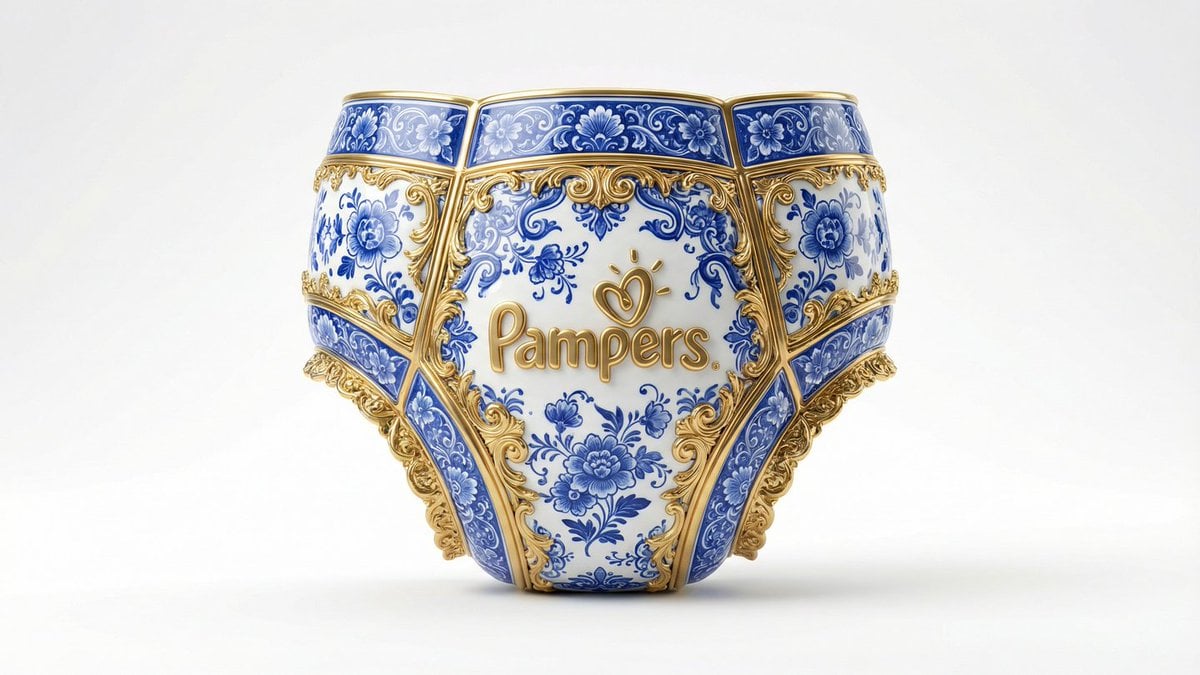
Gilded Delftware Product Signature Prompt
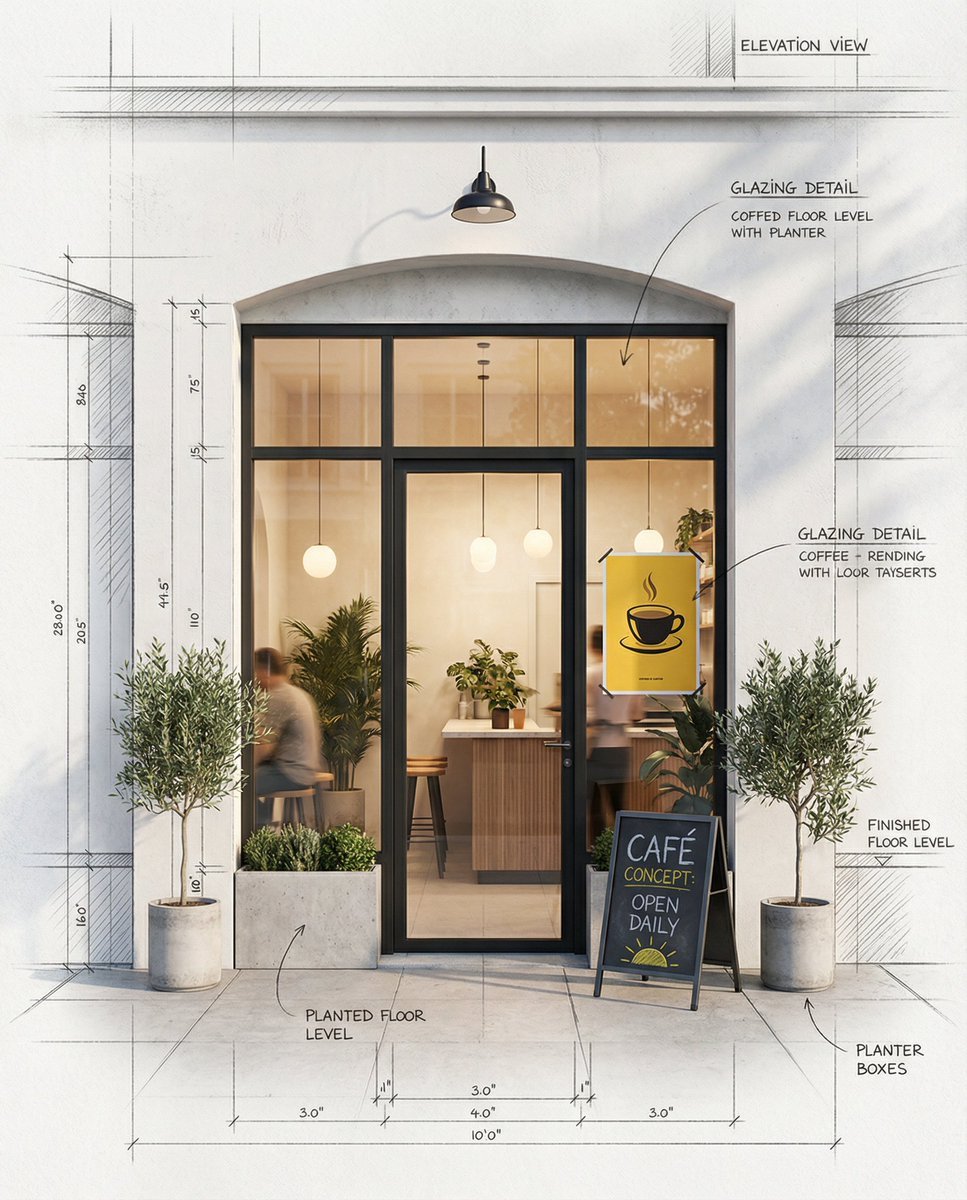
Architectural Concept Rendering: Sketch to Photorealism

Kpop Summer World Cup Photoshoot
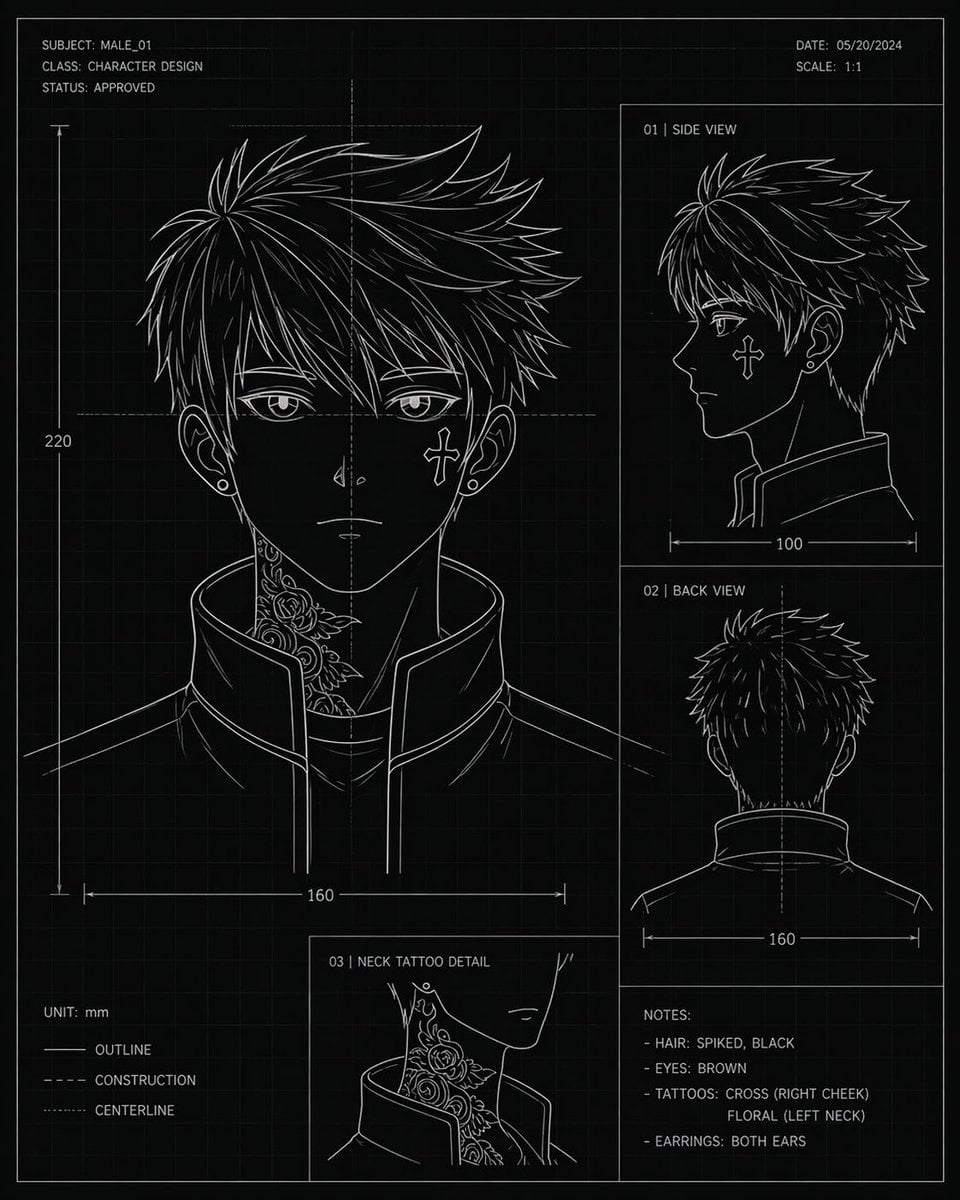
Anime Character Blueprint Sheet
Browse template categories
PPT Weapon Specialist Character Sheet questions
How do I use the PPT Weapon Specialist Character Sheet template?
Add your photo if the template asks for one, edit the prompt if you like — the template's model and format are already selected — and press Generate. Your version opens in PicX Studio.
Can I customize the PPT Weapon Specialist Character Sheet template?
Yes. You can change the subject, setting, lighting, mood, format, and available model controls before creating your image.
Is the PPT Weapon Specialist Character Sheet template free?
Opening and editing this template is free. Generating uses credits, shown on the Generate button when you are signed in.
Which AI model should I use?
Start with GPT Image 2, which is the model associated with this template. You can compare another compatible model for a different finish.
Looking for something else? Browse all templates.

Your photo, any look
Thousands of ready templates for every top image and video model, from one credit balance.