
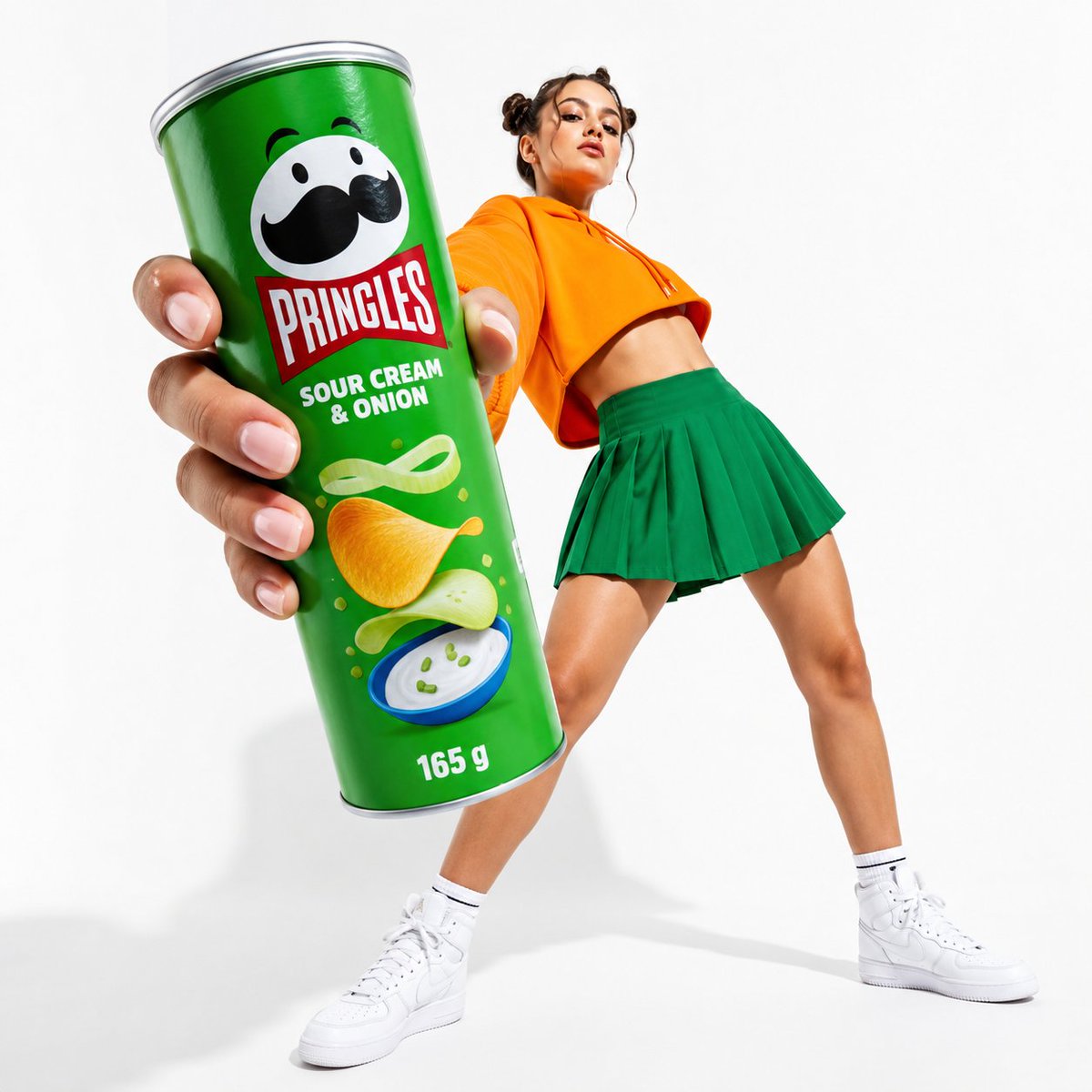
Oversized Pringles Fashion Ad
A high-energy studio product campaign image featuring a giant snack can in the foreground with a stylish model posed behind it.
- Prompt included
- Model and format preset
- Free template
The prompt behind this image
Copy the exact prompt behind Oversized Pringles Fashion Ad, or open it in the studio and make it yours.
Create a polished studio advertising product shot for {argument name="brand and product" default="Pringles Sour Cream & Onion"}, with an oversized green cylindrical snack can held very close to the camera in extreme foreground by a fashion model. The can dominates the left side of the frame, tilted slightly diagonally, with a visible silver rim and bottom edge, realistic hand and fingers gripping it, and crisp label details: Pringles mascot face with mustache at top, red Pringles logo panel, white flavor text reading “SOUR CREAM & ONION,” illustrated potato chips, green onion ribbons, sour cream dip bowl, small garnish dots, and “165 g” near the bottom. In the background on the right, show a full-body young woman in a dynamic low-angle pose leaning backward, face intentionally blurred or obscured, wearing {argument name="hoodie color" default="bright orange"} cropped hoodie, {argument name="skirt color" default="emerald green"} pleated mini skirt, white crew socks, and white high-top sneakers. Use a clean seamless white studio background with soft shadows on the floor, high-key commercial lighting, glossy realistic packaging, saturated brand colors, wide-angle perspective exaggeration, sharp focus on the can and hand, slightly softer model depth, energetic Gen Z fashion campaign mood, no extra text beyond the packaging label, no watermark.
How to use Oversized Pringles Fashion Ad in 3 steps
- 1Upload ImagePNG, JPG or paste
Add your photo
Upload the photo the template builds on. The prompt, model and format are already set.
- 2…a portrait of your subject in softgolden-hour light, 85mm…
Personalize
Edit the subject and creative details for your destination.
- 3Generate
Generate
Press Generate — your image is created in PicX Studio, so you can compare it with the original and refine one variable at a time.
More like this
Templates with the same subject, style or setup. Open one to see its prompt.
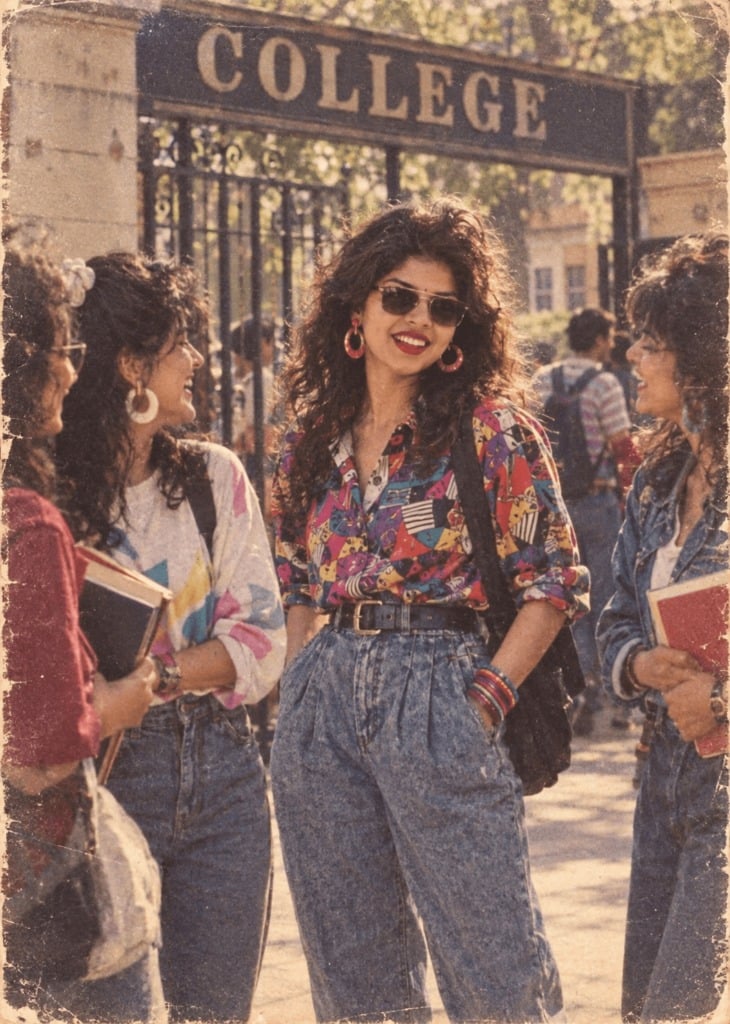
80s College Gate
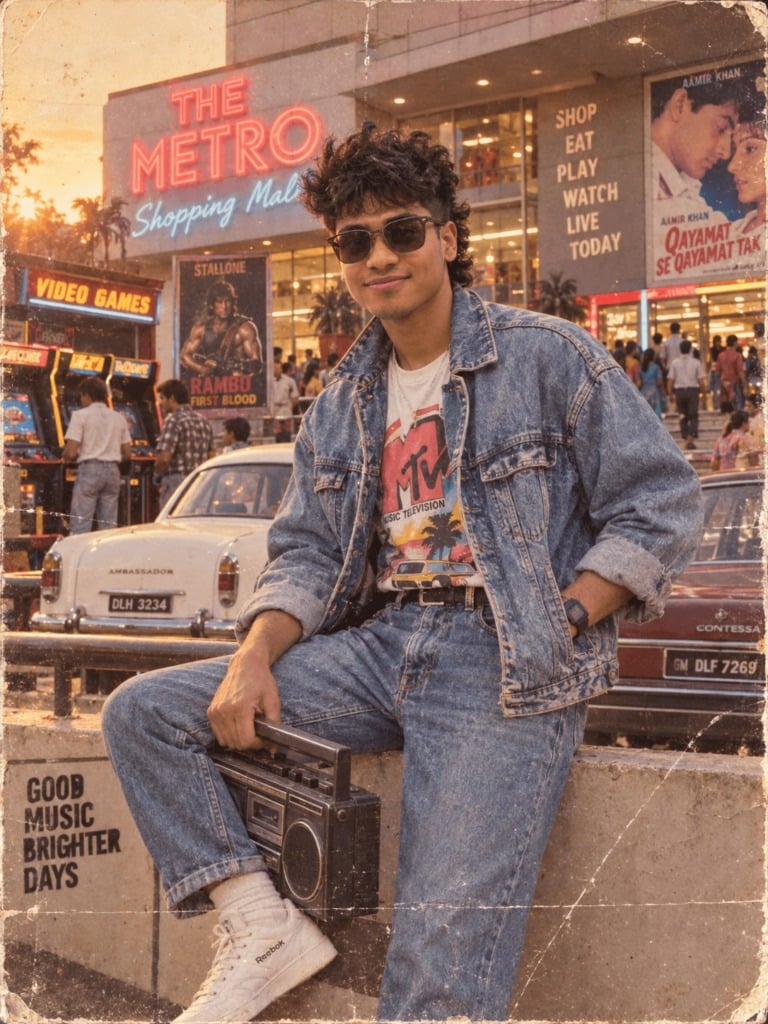
1988 Mall Style
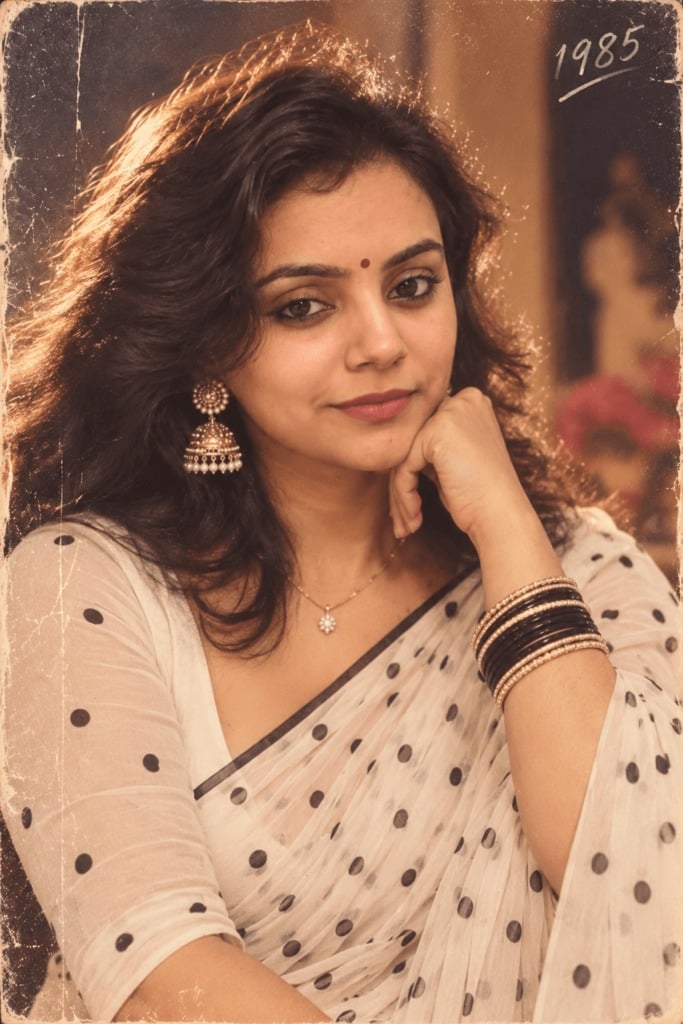
80s Polka Dot Saree
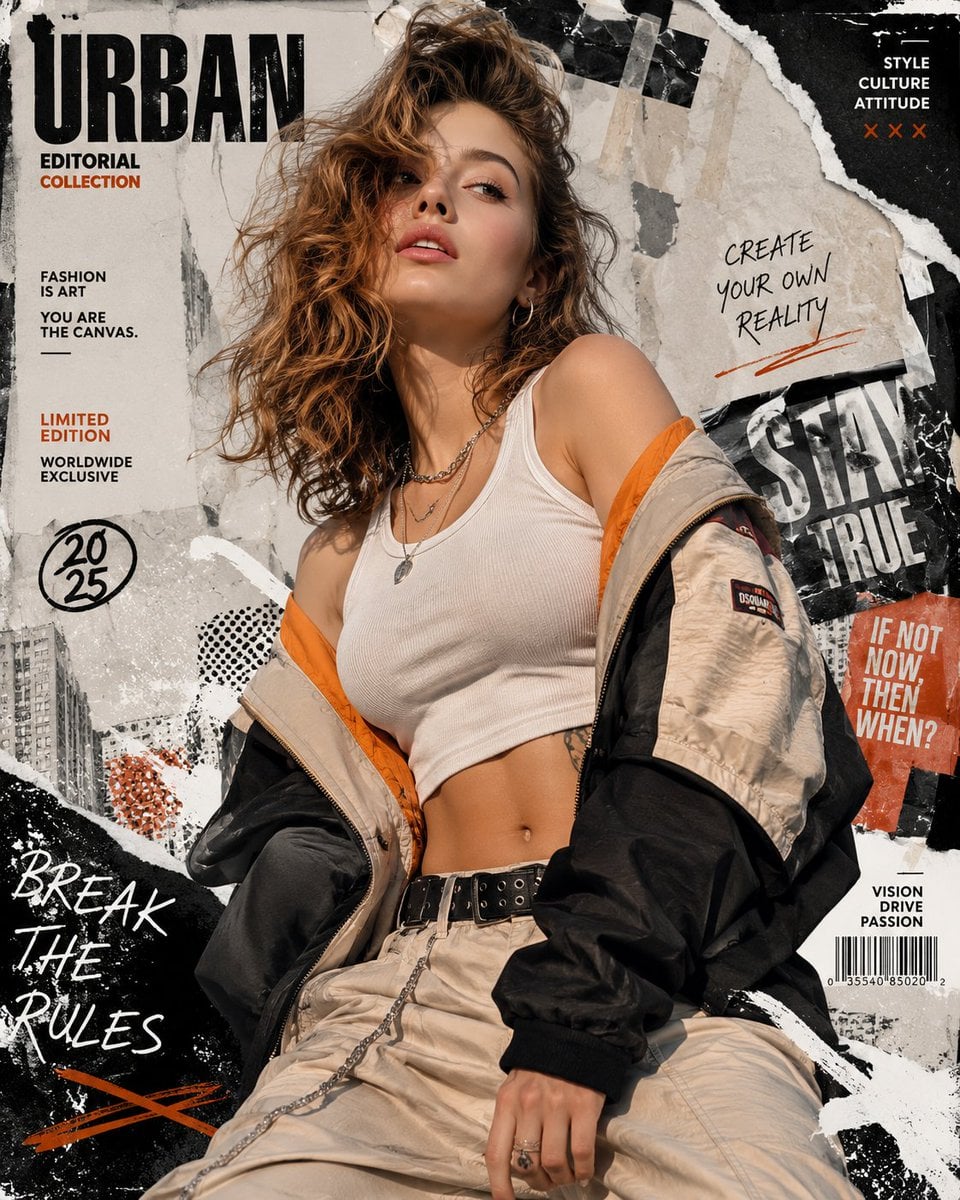
Urban Fashion Editorial Collage Streetwear Poster
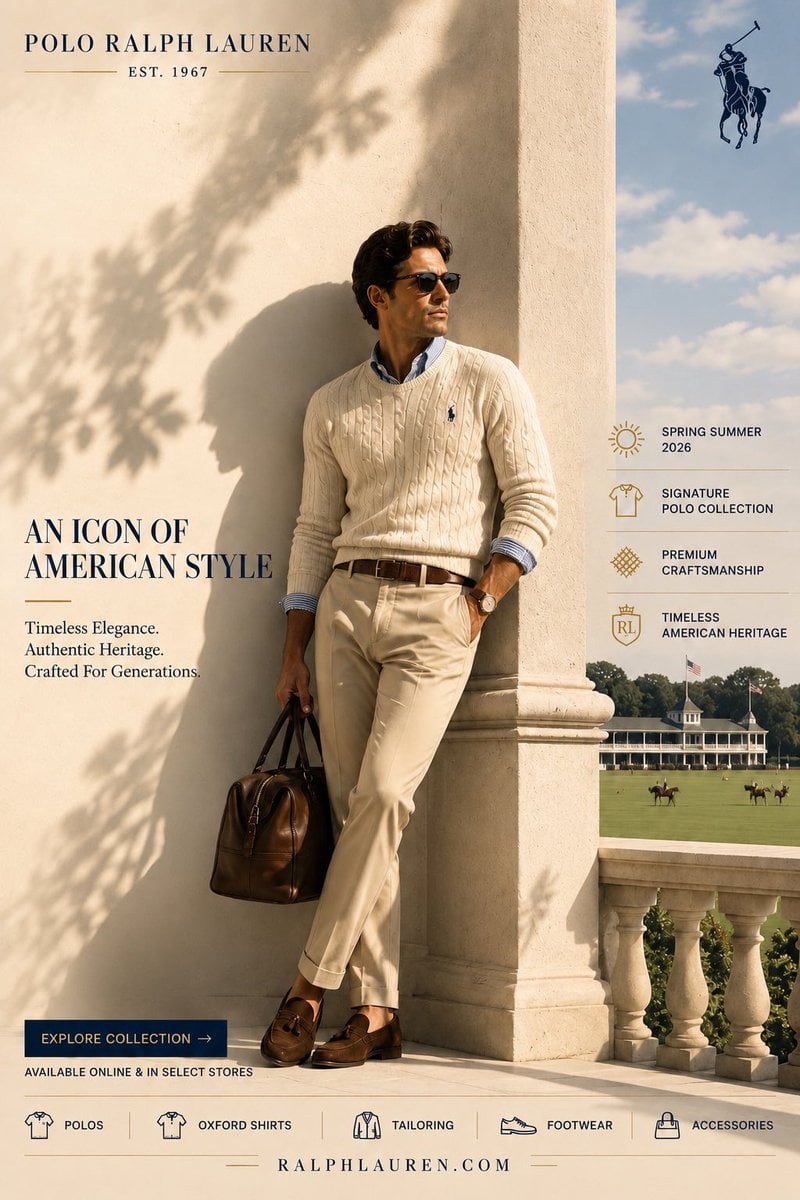
Polo Ralph Lauren Luxury American Heritage Fashion Campaign
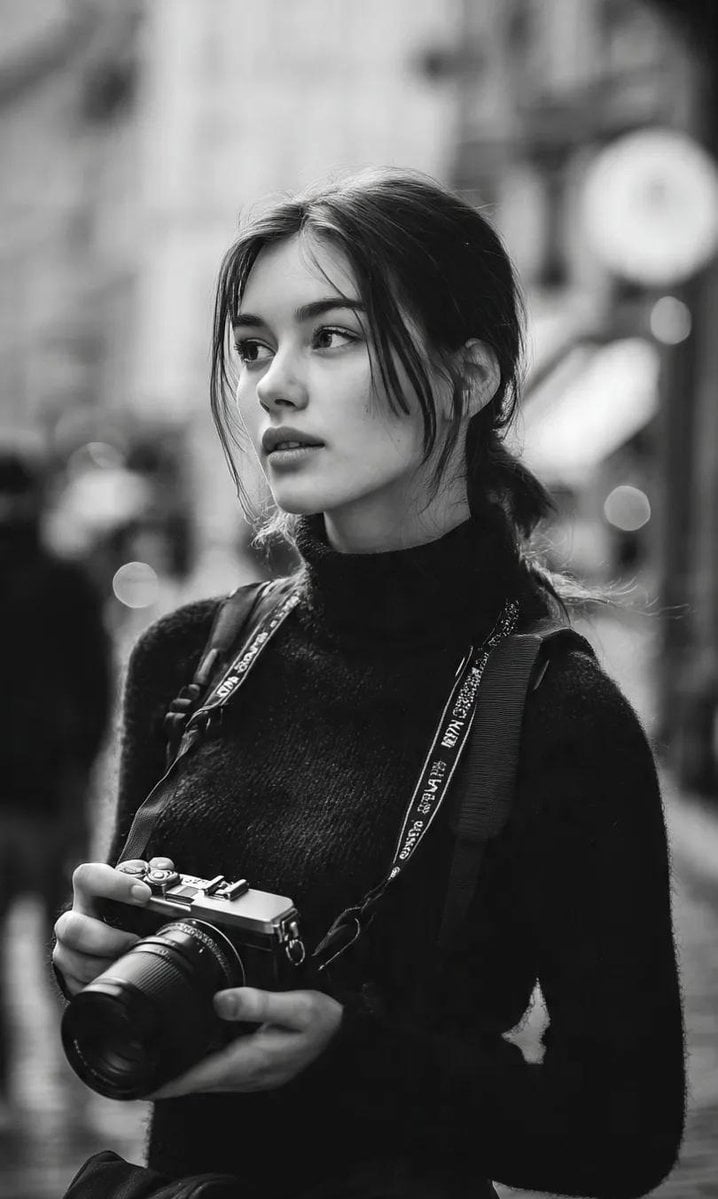
Cinematic Street Fashion Photographer Portrait
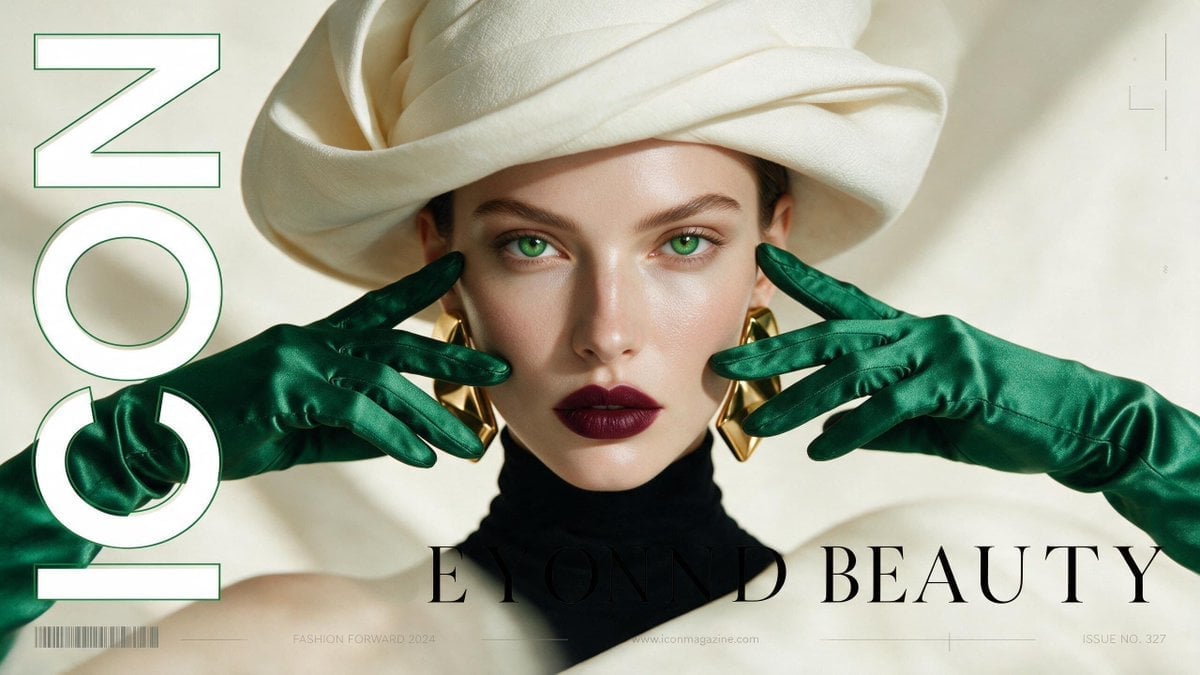
High-Fashion Editorial Magazine Cover ICON
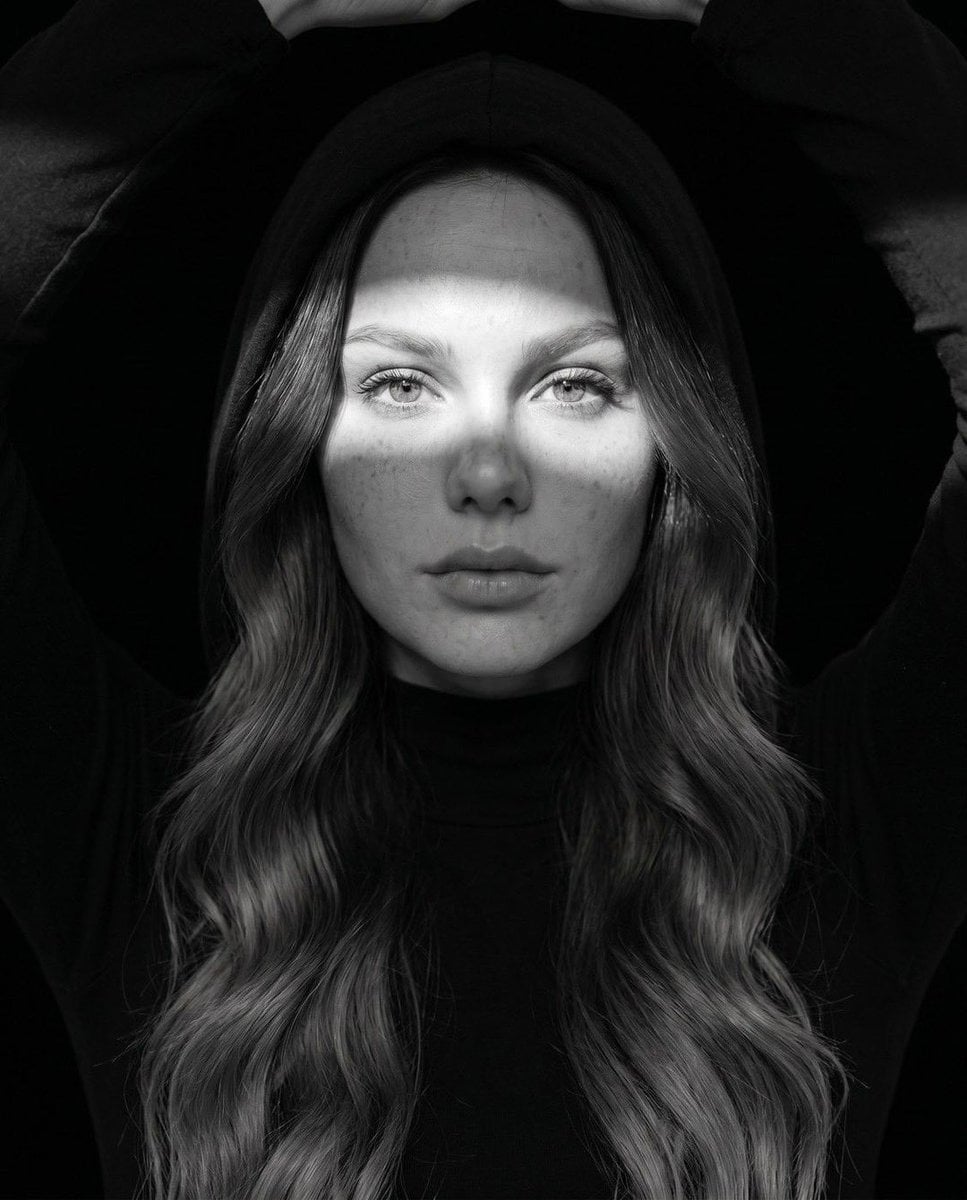
Fine Art Monochrome Fashion Portrait
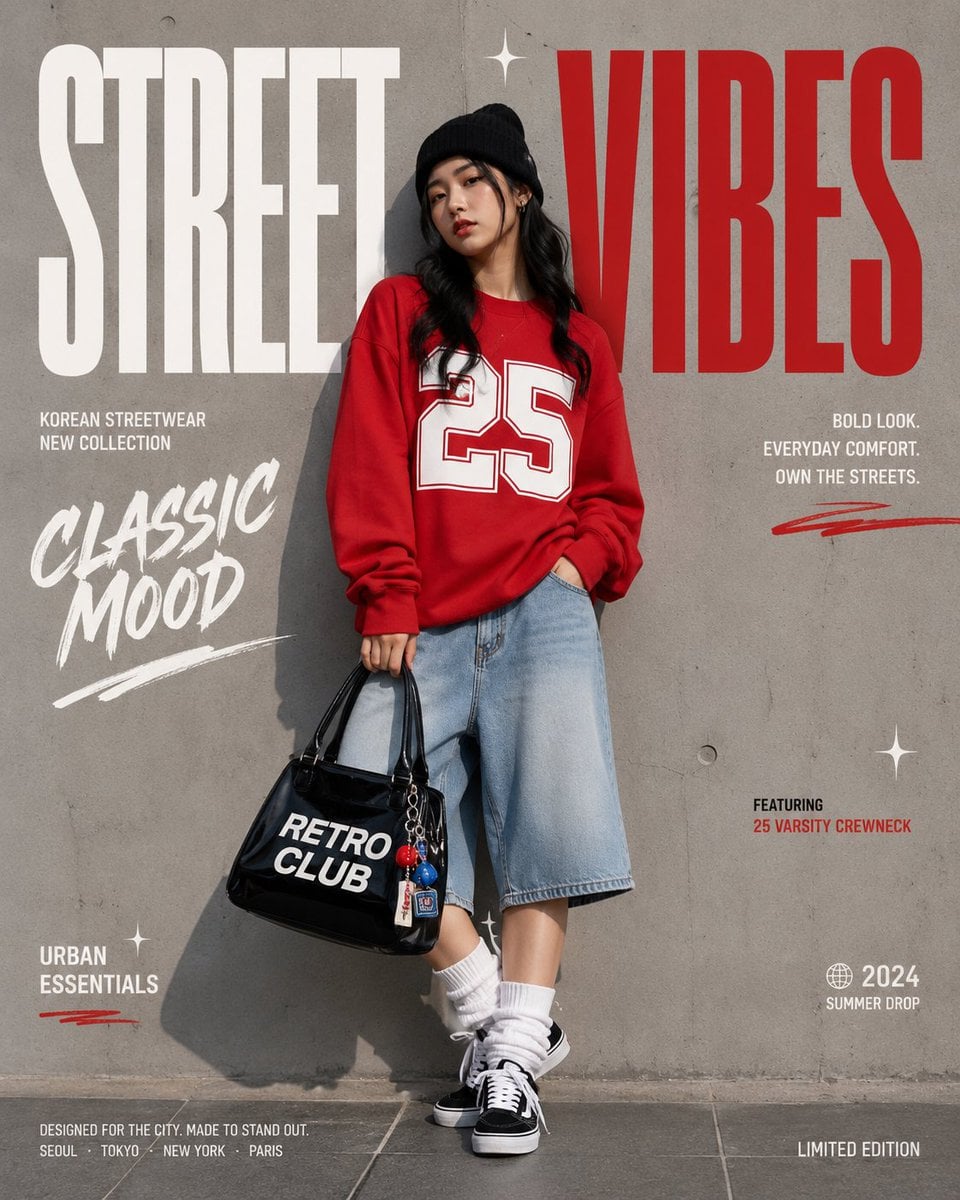
Korean Streetwear Minimalist Campaign Portrait
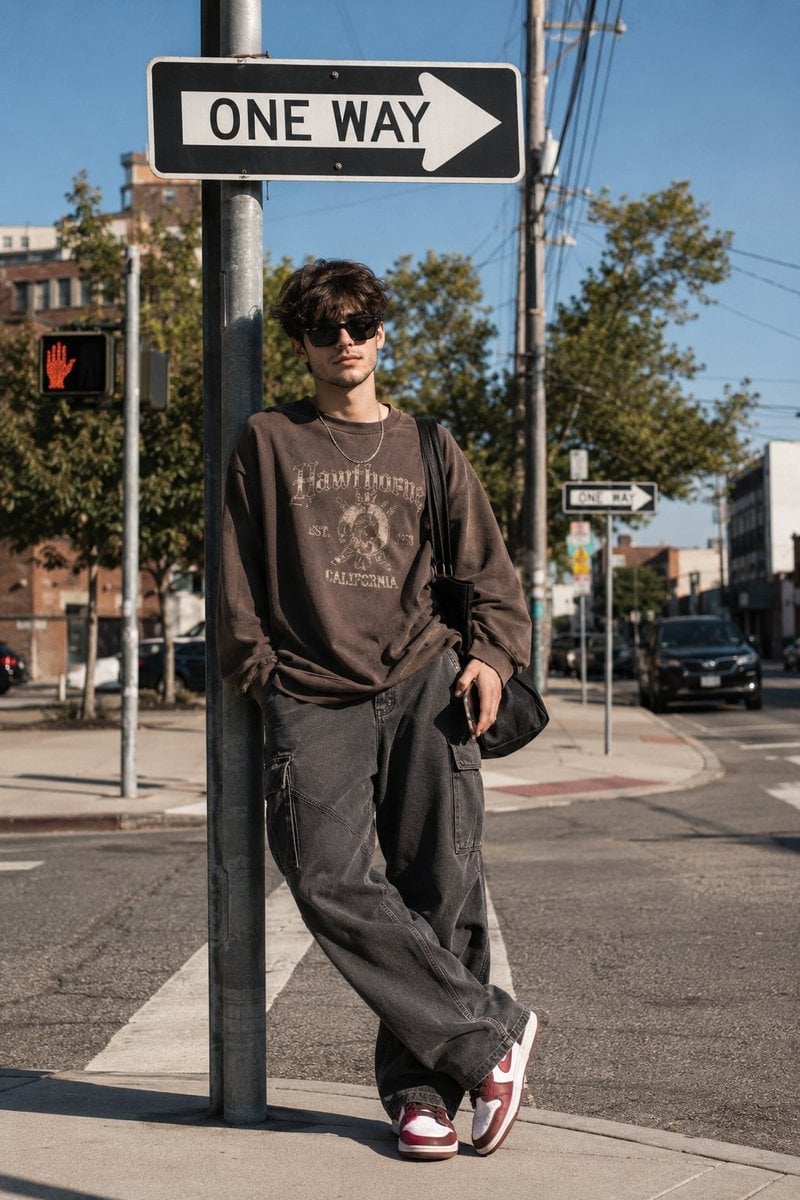
Cinematic Korean Streetwear Street Portrait
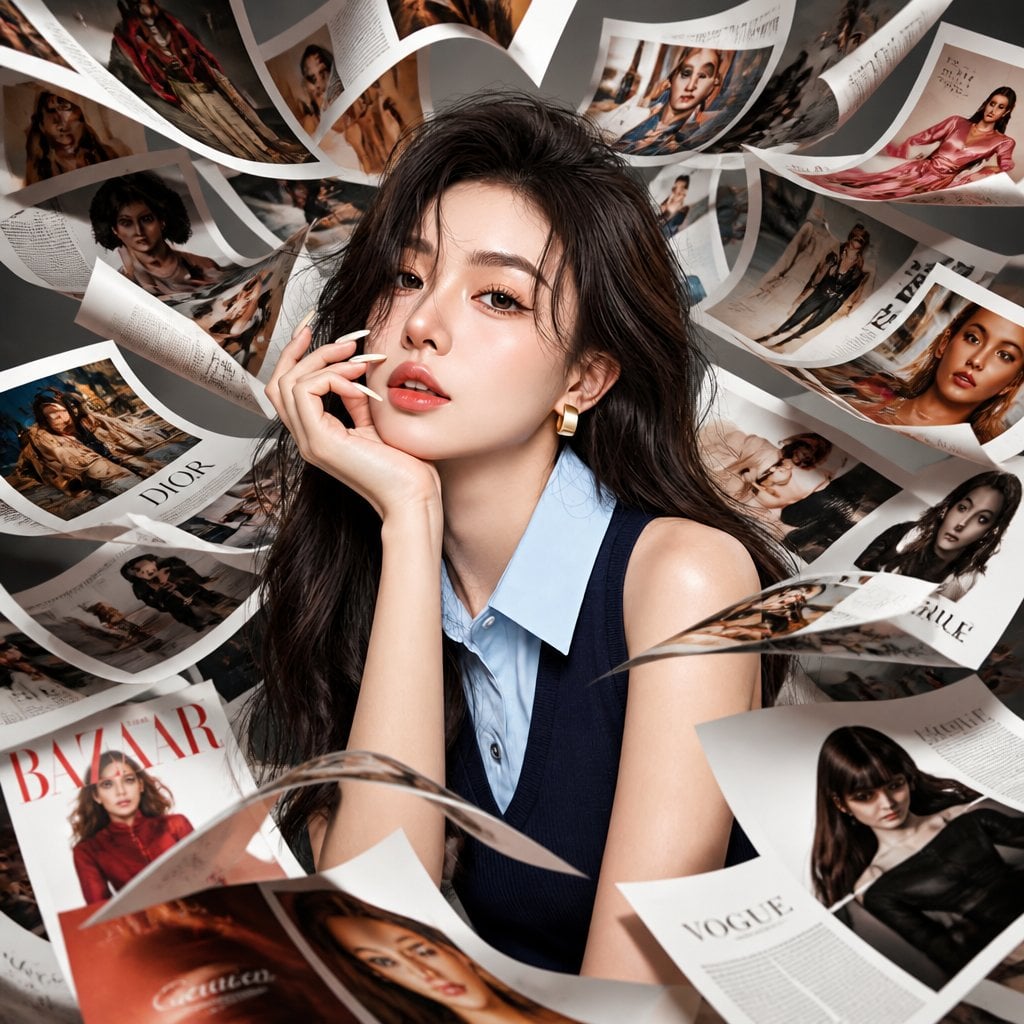
Korean Model Floating Magazine Pages Campaign

Blue Backdrop Luxury Fashion Portrait Campaign
Make it yours
Oversized Pringles Fashion Ad works as-is. These are the safest ways to change it without losing the look.
Change one field
Copy a single group, rewrite it, and generate again so you can see what that field is doing.
Keep the frame, change the subject
Hold the composition and light of Oversized Pringles Fashion Ad, then swap wardrobe, props or the person for a new take.
| If the result… | Why | Fix |
|---|---|---|
| The result drifts from the preview | Too many fields changed at once. | Reuse Oversized Pringles Fashion Ad as-is first, then change one group — subject, light, or setting. |
| The model over-stylizes the scene | The prose prompt leaves finish and camera underspecified. | Add one camera or lighting sentence and stay on GPT Image 2. |
More GPT Image 2 templates
Other prompts made for GPT Image 2.

Six VTuber Japanese Logo Sheet

Realistic Portrait of Woman and Deer

The Vista Modular Condo Poster

AI Model Routing Comparison Infographic

2.5D Anime Art Board

Isometric Productivity Desk Scene

New York Double Exposure Poster

Four-Panel AI Landscape Comparison

Japanese Tatami Lifestyle Magazine Cover

NESCAFÉ Coffee Map Poster
More image prompts
Fresh picks from across the catalog.
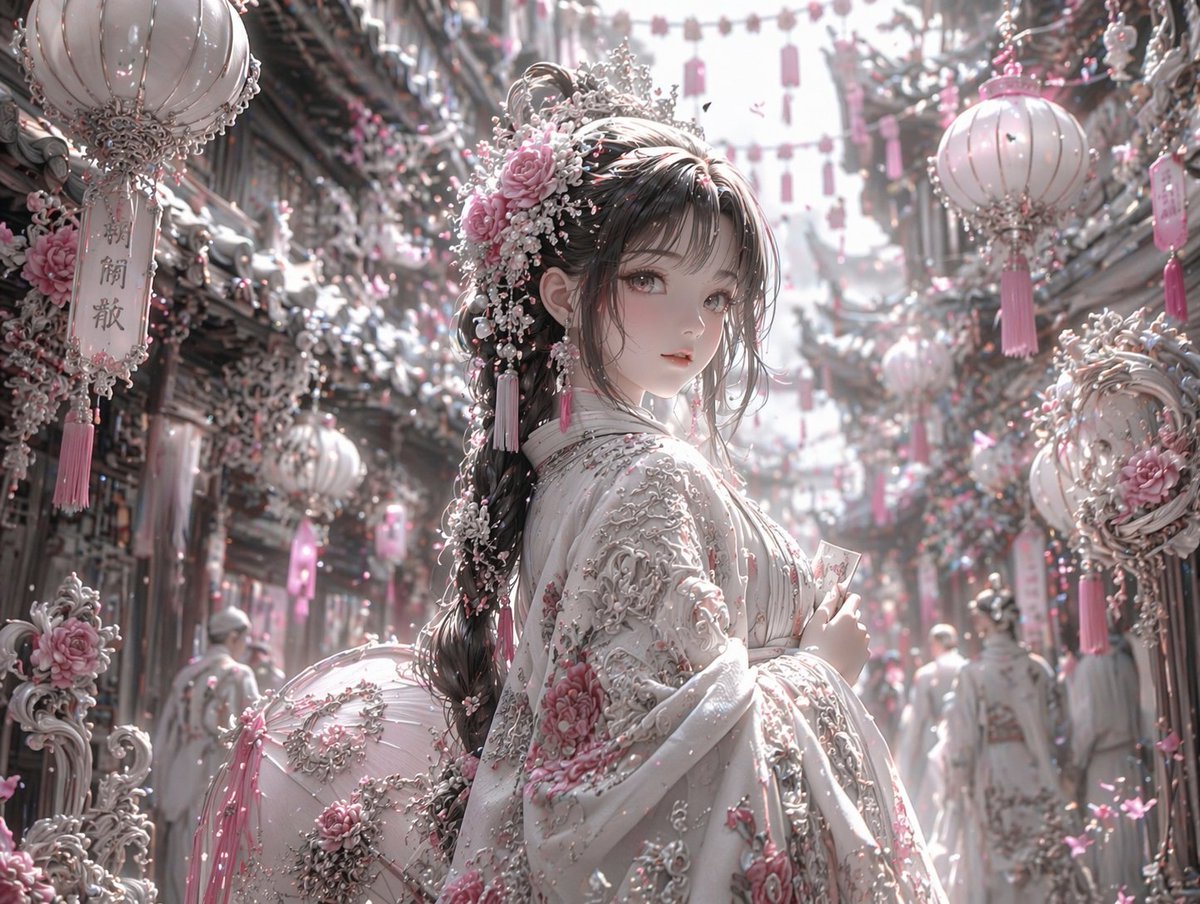
Pastel Pink and Silver Ornate Style Transfer
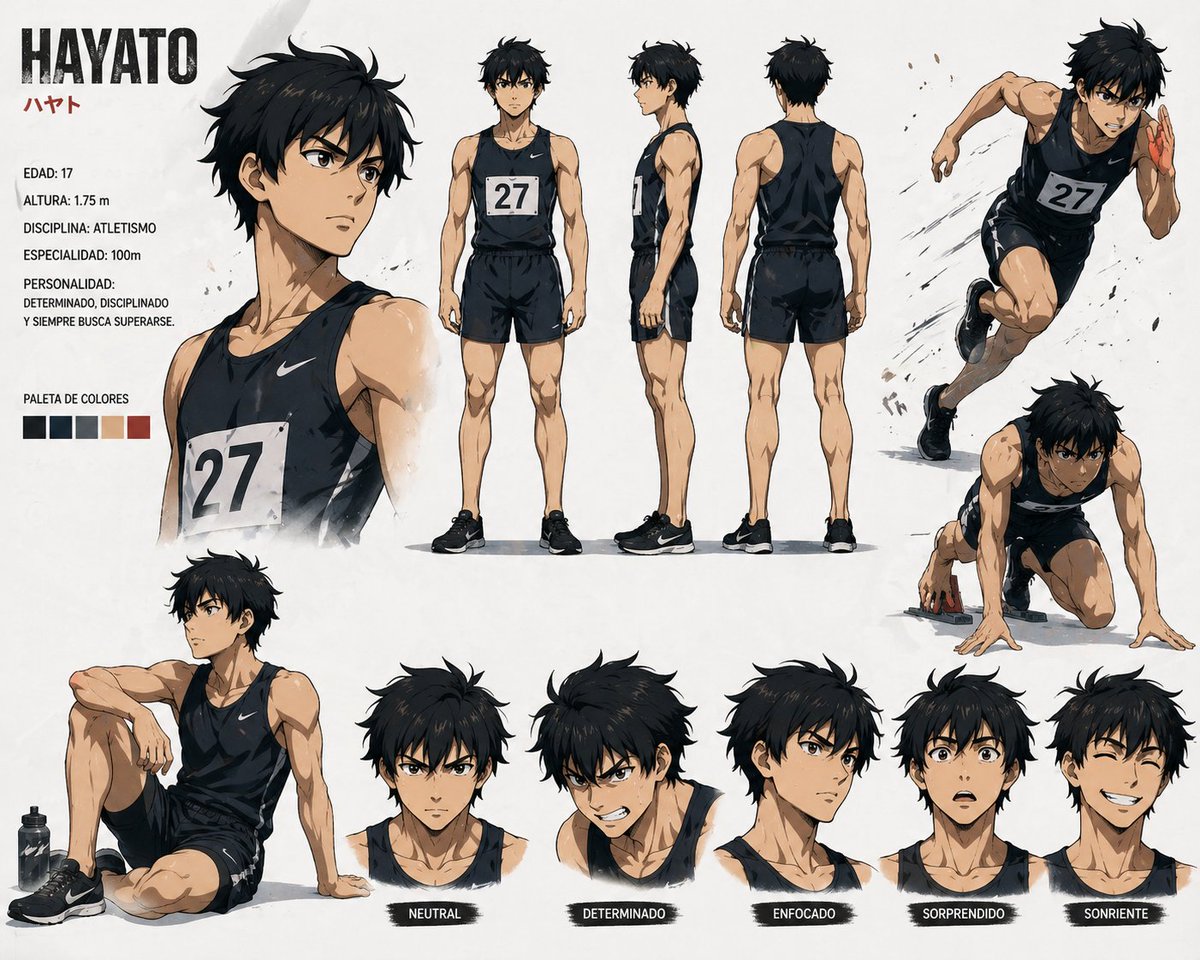
Anime Sprinter Character Sheet
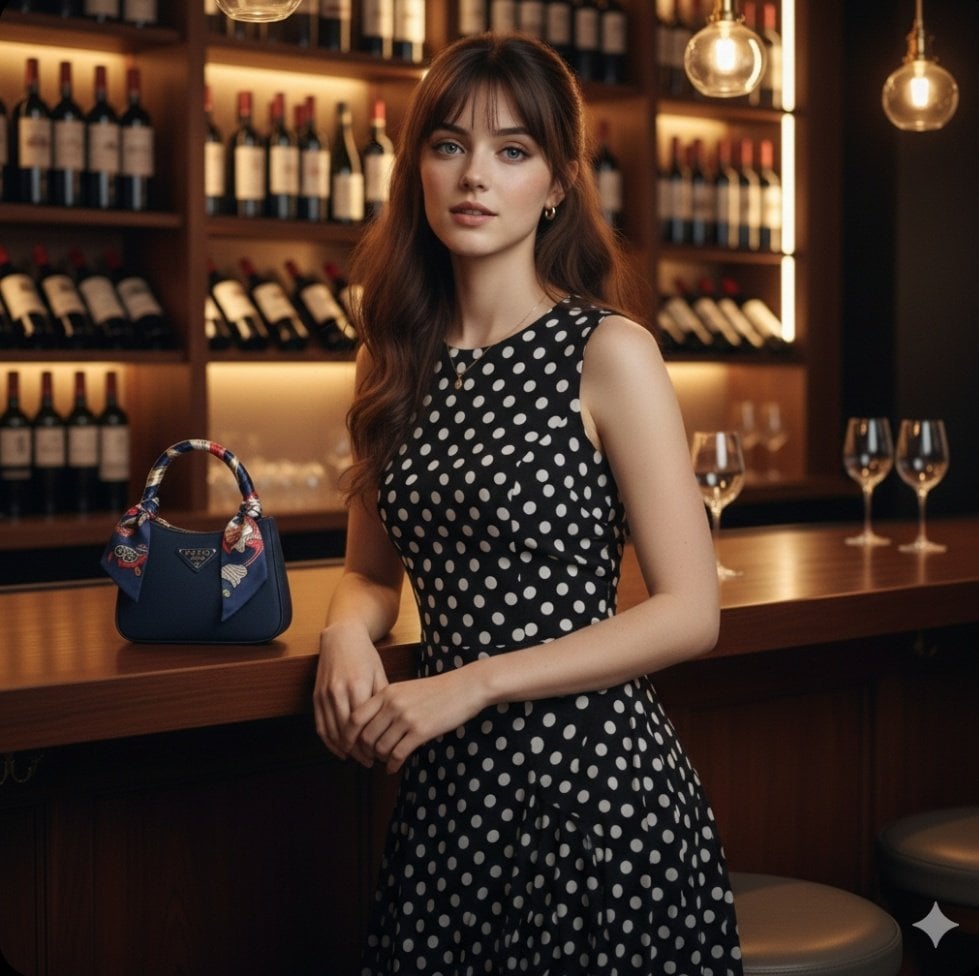
Ultra Realistic Fashion Portrait
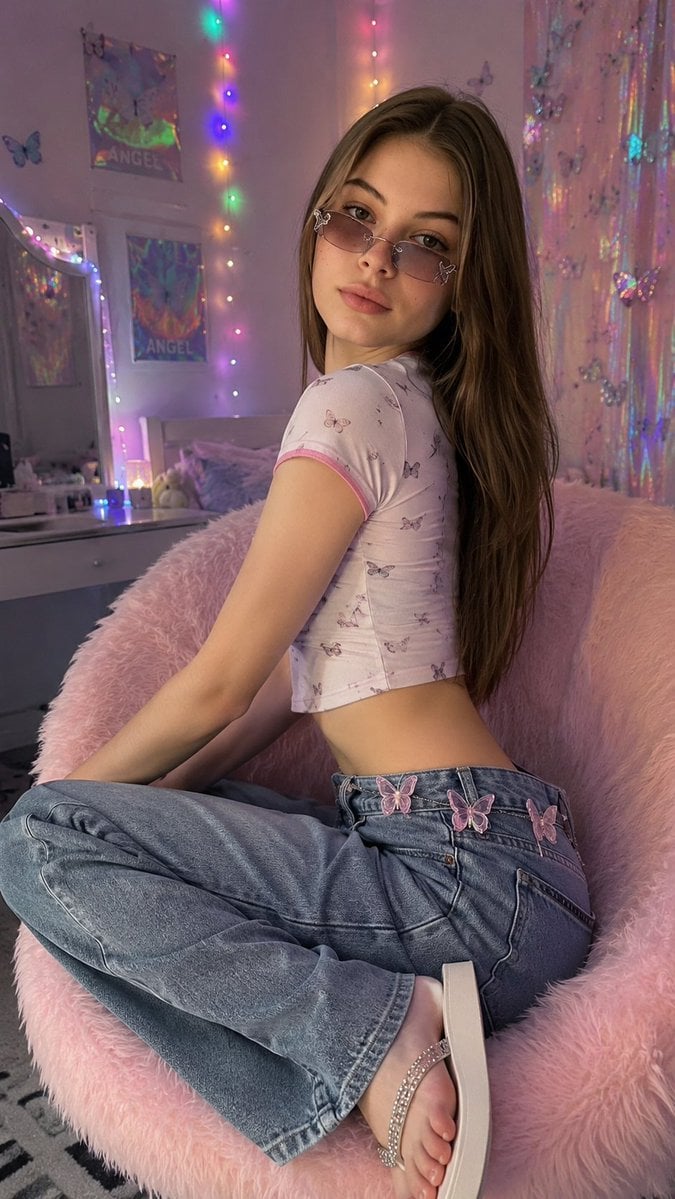
Y2K Aesthetic Bedroom Portrait
JSON Prompt for Minimalist Mirror Selfie
Multi-Exposure Indian Woman Fashion Poster
Lounge Portrait in Champagne Coupe Swing Chair
3D Animated Tourism Infographic Poster
Epic Milestone X Poster
Nighttime Flash Portrait in Car Backseat (iPhone Style)
Browse template categories
Oversized Pringles Fashion Ad questions
How do I use the Oversized Pringles Fashion Ad template?
Add your photo if the template asks for one, edit the prompt if you like — the template's model and format are already selected — and press Generate. Your version opens in PicX Studio.
Can I customize the Oversized Pringles Fashion Ad template?
Yes. You can change the subject, setting, lighting, mood, format, and available model controls before creating your image.
Is the Oversized Pringles Fashion Ad template free?
Opening and editing this template is free. Generating uses credits, shown on the Generate button when you are signed in.
Which AI model should I use?
Start with GPT Image 2, which is the model associated with this template. You can compare another compatible model for a different finish.
Looking for something else? Browse all templates.

Your photo, any look
Thousands of ready templates for every top image and video model, from one credit balance.