
Horned Five-Tailed Leopard Beast
A photorealistic collectible wildlife scene of a mythical horned leopard with five tails standing among crystal-studded mountain rocks.
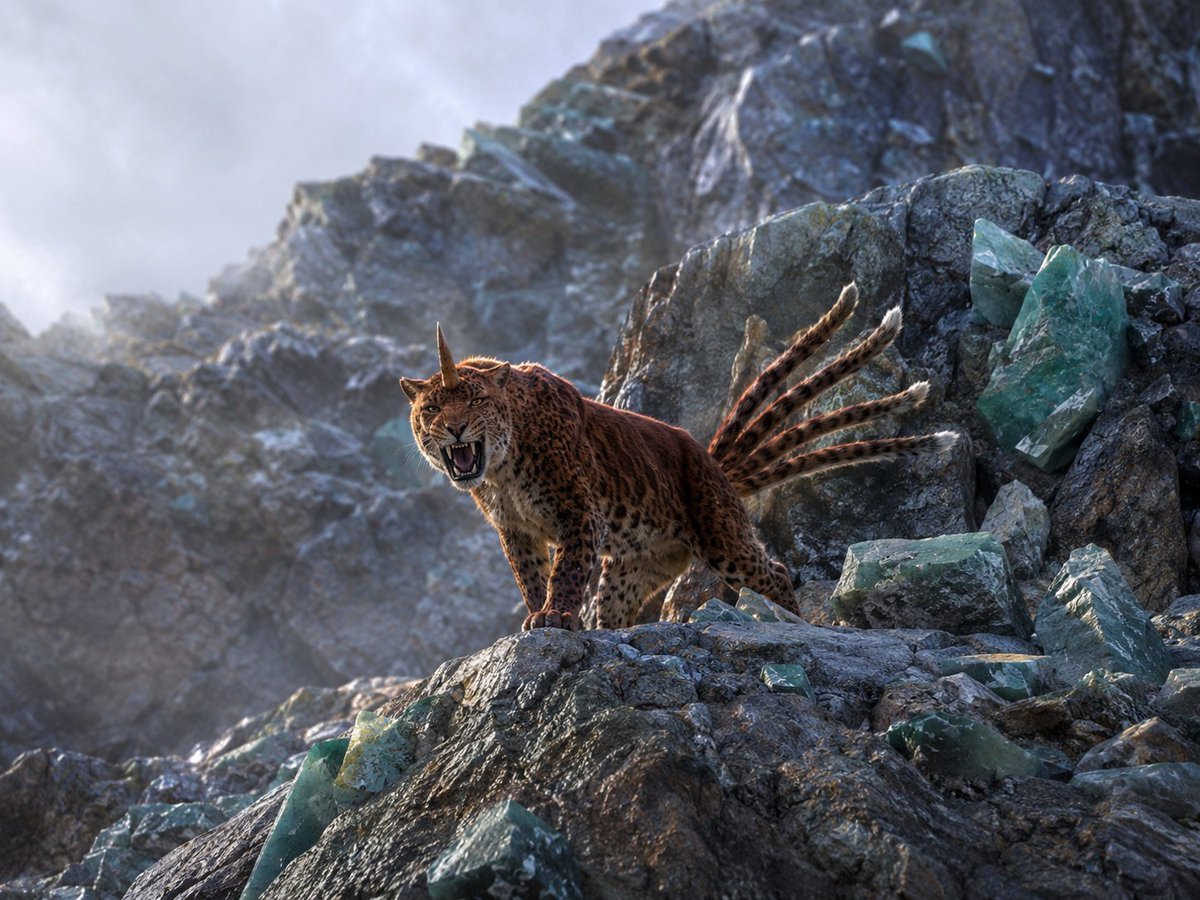
- Prompt included
- Model and format preset
- Free template
The prompt behind this image
Copy the exact prompt behind Horned Five-Tailed Leopard Beast, or open it in the studio and make it yours.
Create a museum-quality wildlife photograph of a mythical creature from ancient Chinese bestiary lore: {argument name="creature description" default="a red leopard-like beast with one horn and five tails"}. The scene is a realistic high-altitude rocky mountain slope covered with dark gray fractured stone and scattered translucent blue-green crystal boulders. Place exactly one creature standing on a foreground ledge, facing slightly left toward the camera, body like a muscular spotted leopard with warm russet-brown fur, black rosettes, pale underbelly, powerful paws, and a single straight horn rising from the center of its forehead. Show exactly five long spotted tails fanning upward and backward behind it, each with a pale white tufted tip. The animal is snarling with its mouth open, teeth and tongue visible, ears alert, eyes intense, as if defending its territory. Use dramatic natural backlight from the upper left, cool misty mountain air, shallow atmospheric haze, rugged crystal-studded cliffs receding into the background, and highly detailed fur, stone, and mineral textures. Style it as a real photograph captured by a top National Geographic wildlife photographer using a telephoto lens, cinematic realism, crisp subject detail, natural color grading, no painterly effect, no illustration, no text, no humans, no watermark. Aspect ratio 4:3.
How to use Horned Five-Tailed Leopard Beast in 3 steps
- 1Upload ImagePNG, JPG or paste
Add your photo
Upload the photo the template builds on. The prompt, model and format are already set.
- 2…a portrait of your subject in softgolden-hour light, 85mm…
Personalize
Edit the subject and creative details for your destination.
- 3Generate
Generate
Press Generate — your image is created in PicX Studio, so you can compare it with the original and refine one variable at a time.
More like this
Templates with the same subject, style or setup. Open one to see its prompt.
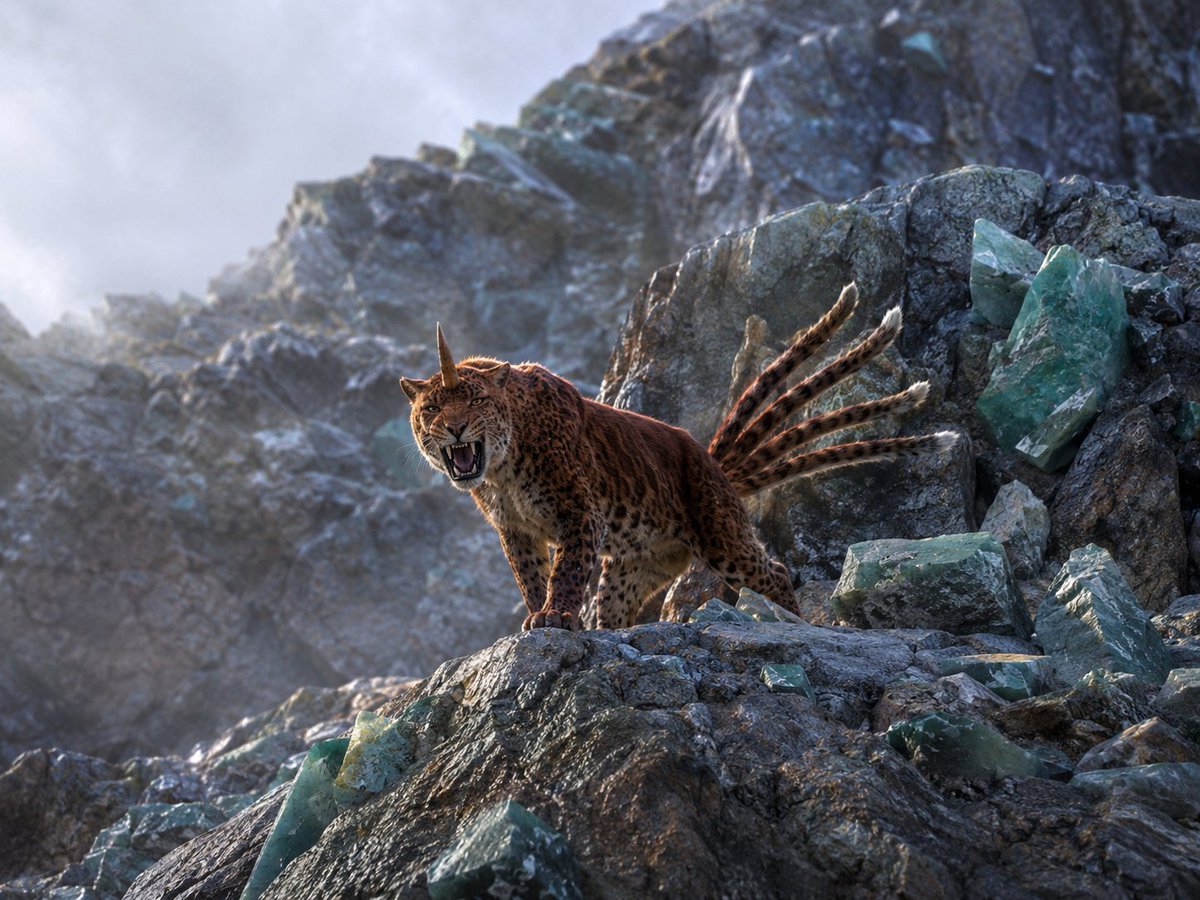
Horned Six-Tailed Mountain Beast
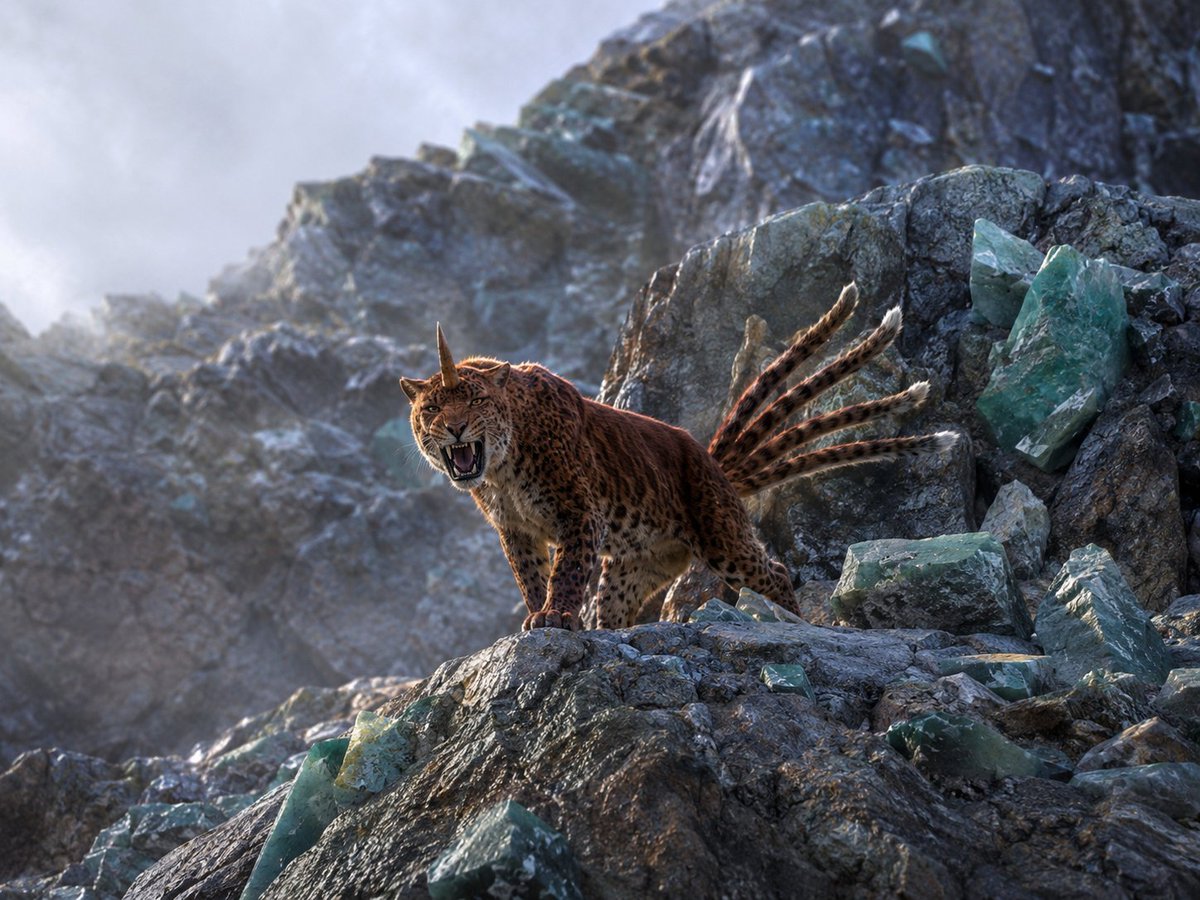
Horned Seven-Tailed Mountain Beast
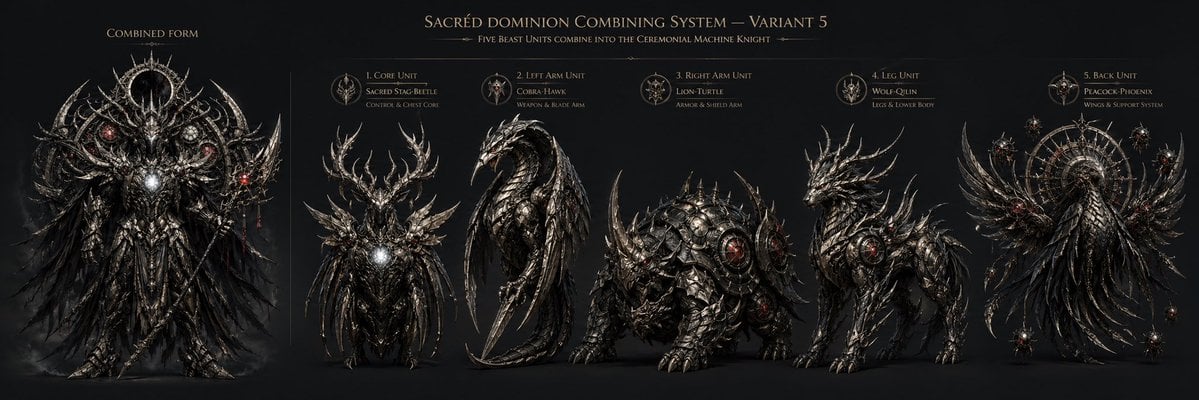
Gothic Five-Beast Combining Mecha Sheet
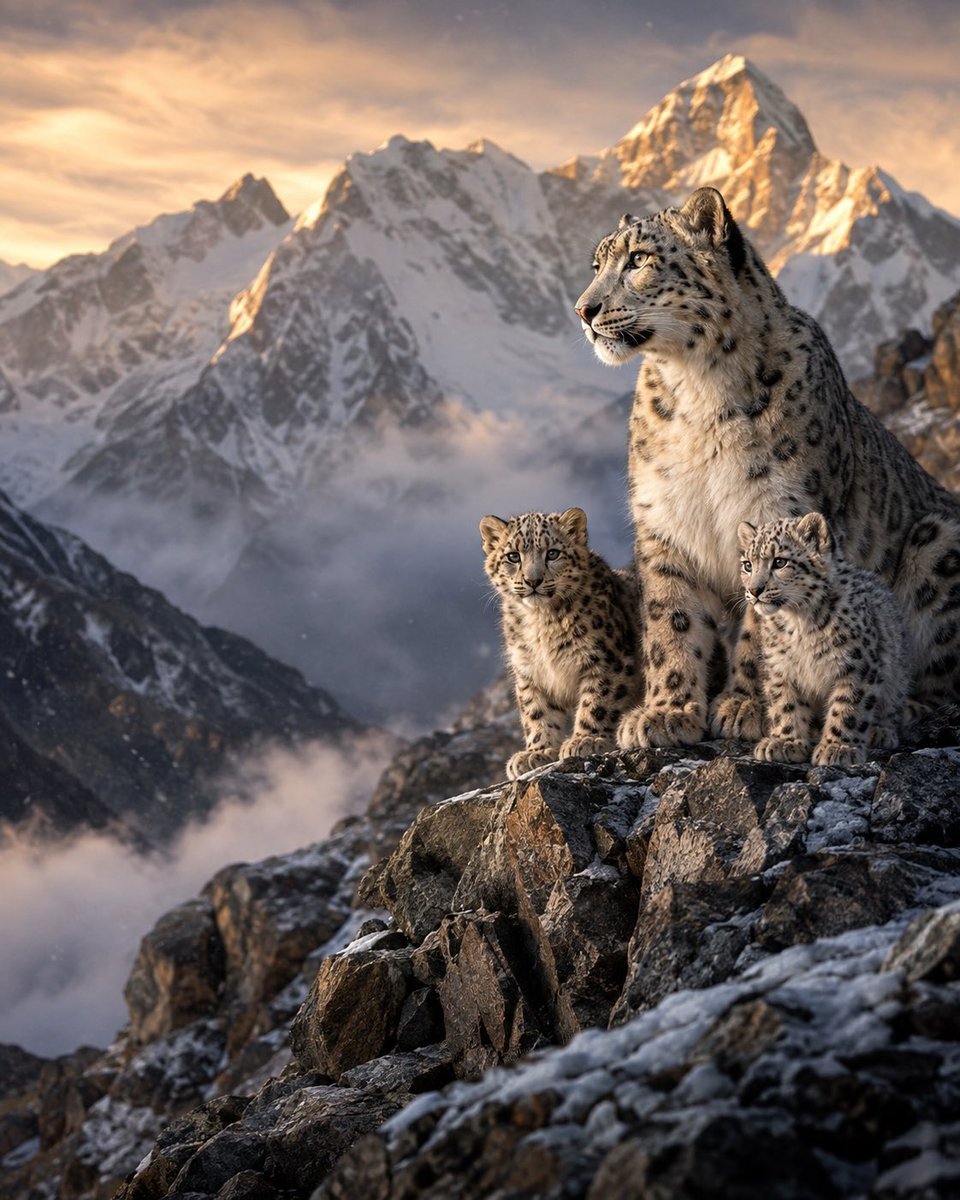
Snow Leopards in Himalayan Mountains
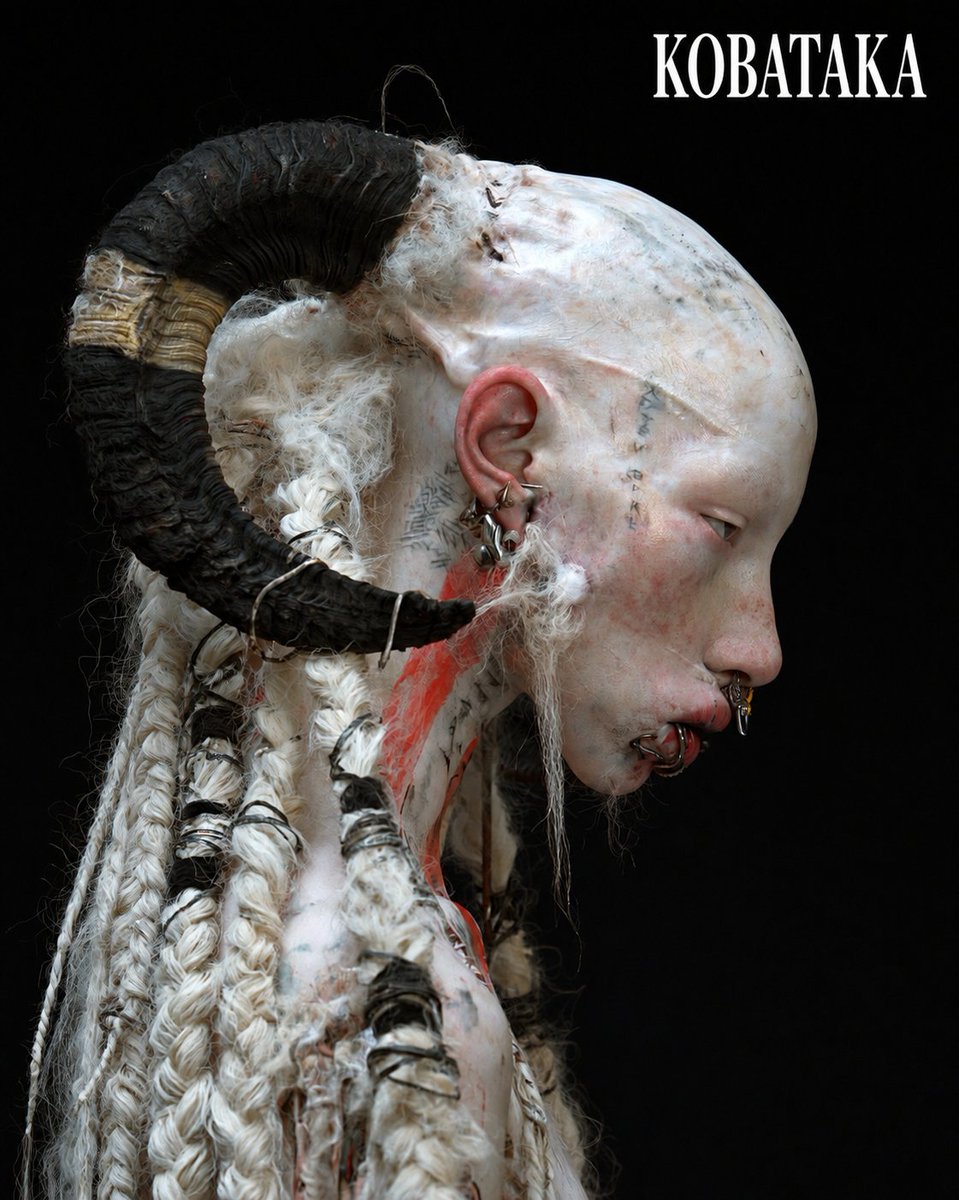
Albino Ram-Horned Gothic Portrait
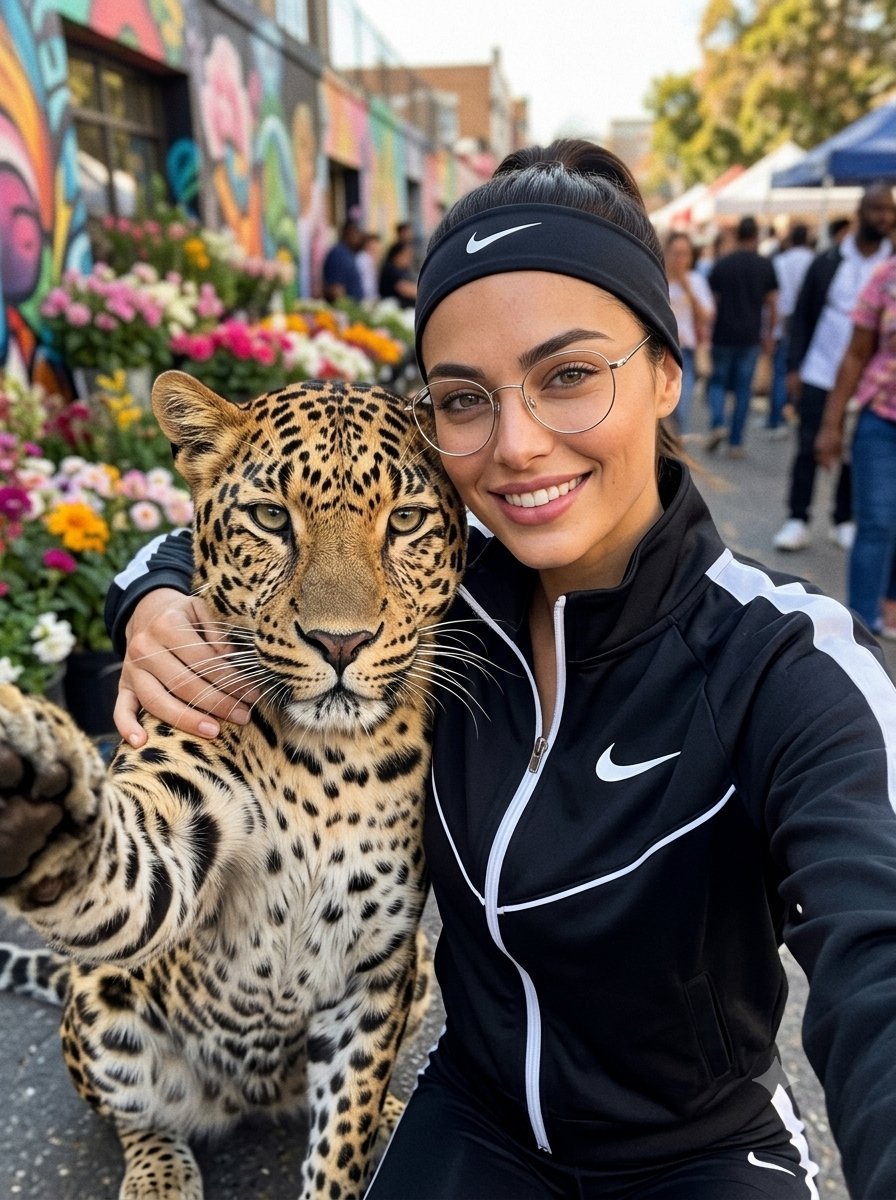
Leopard Selfie Street Market Portrait
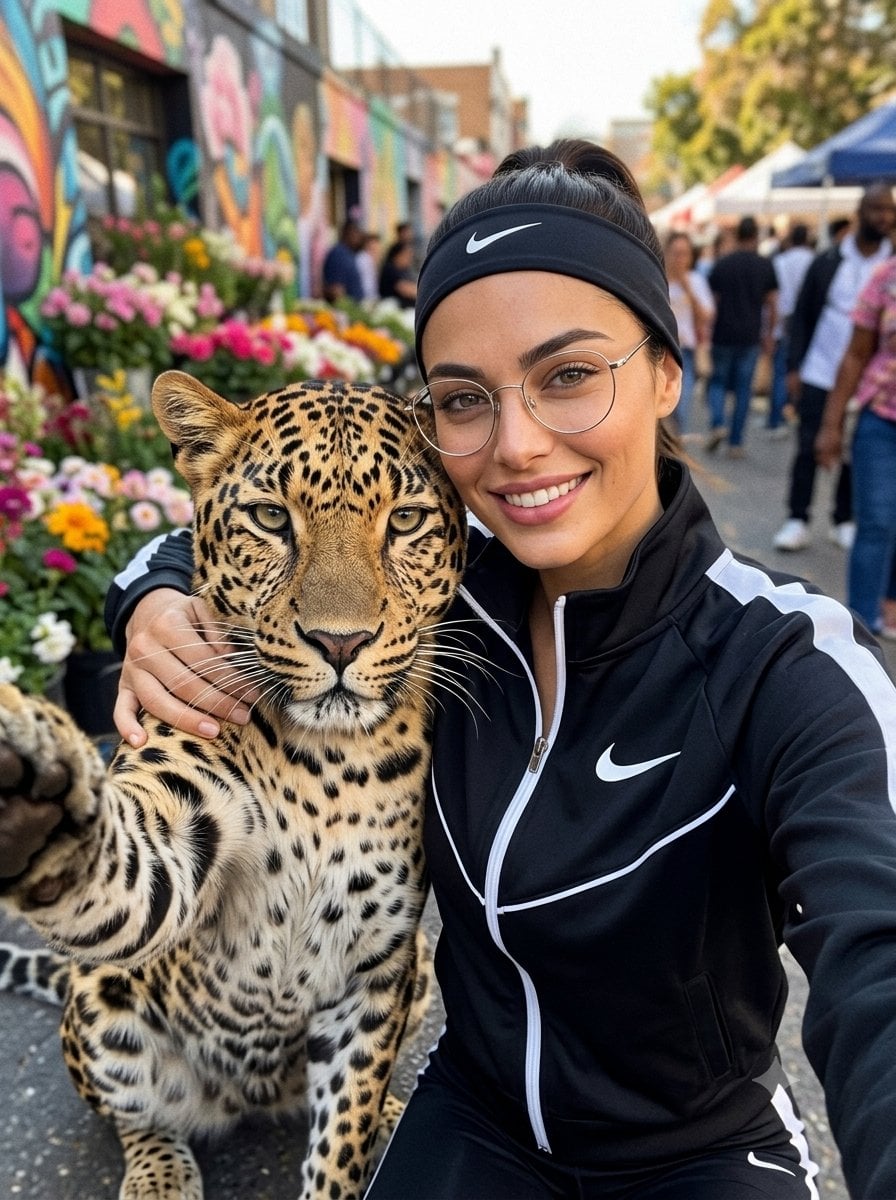
Leopard Selfie Streetwear Portrait
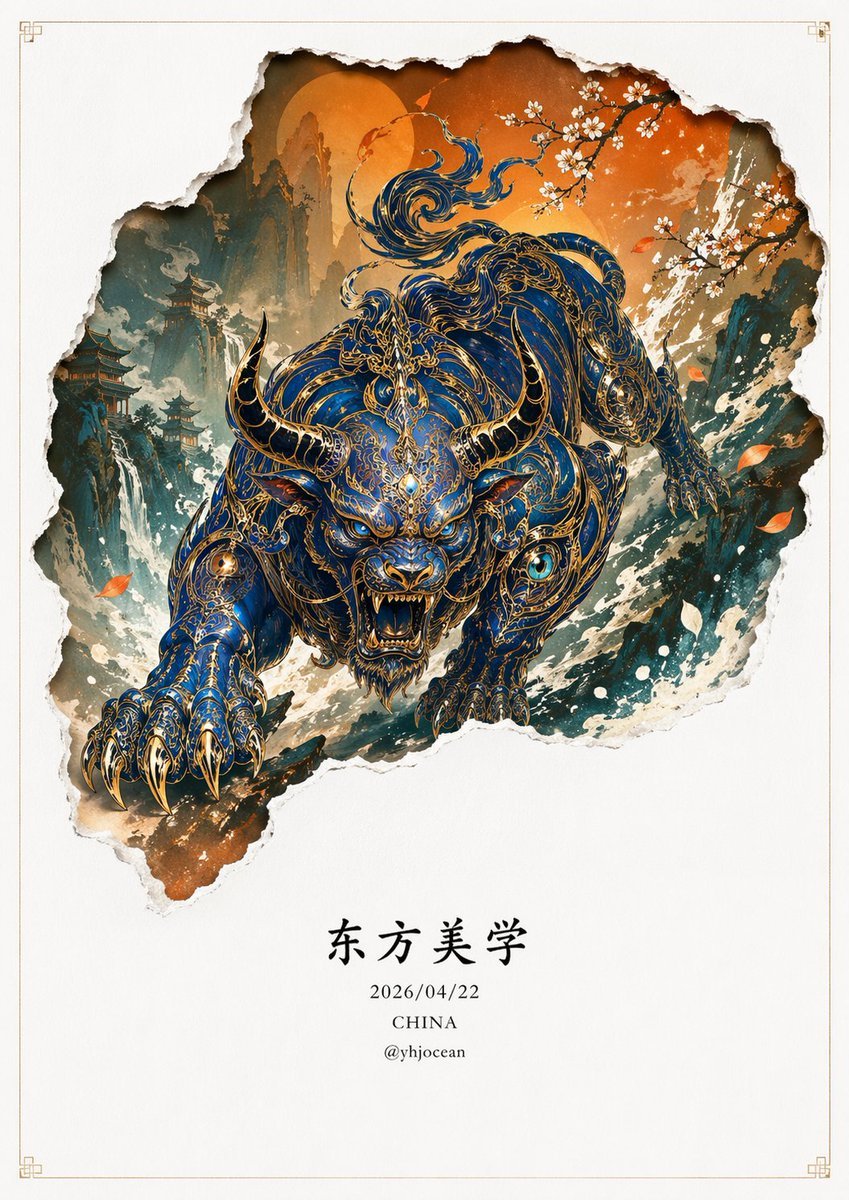
Mythical Beast Character Personality Prompt
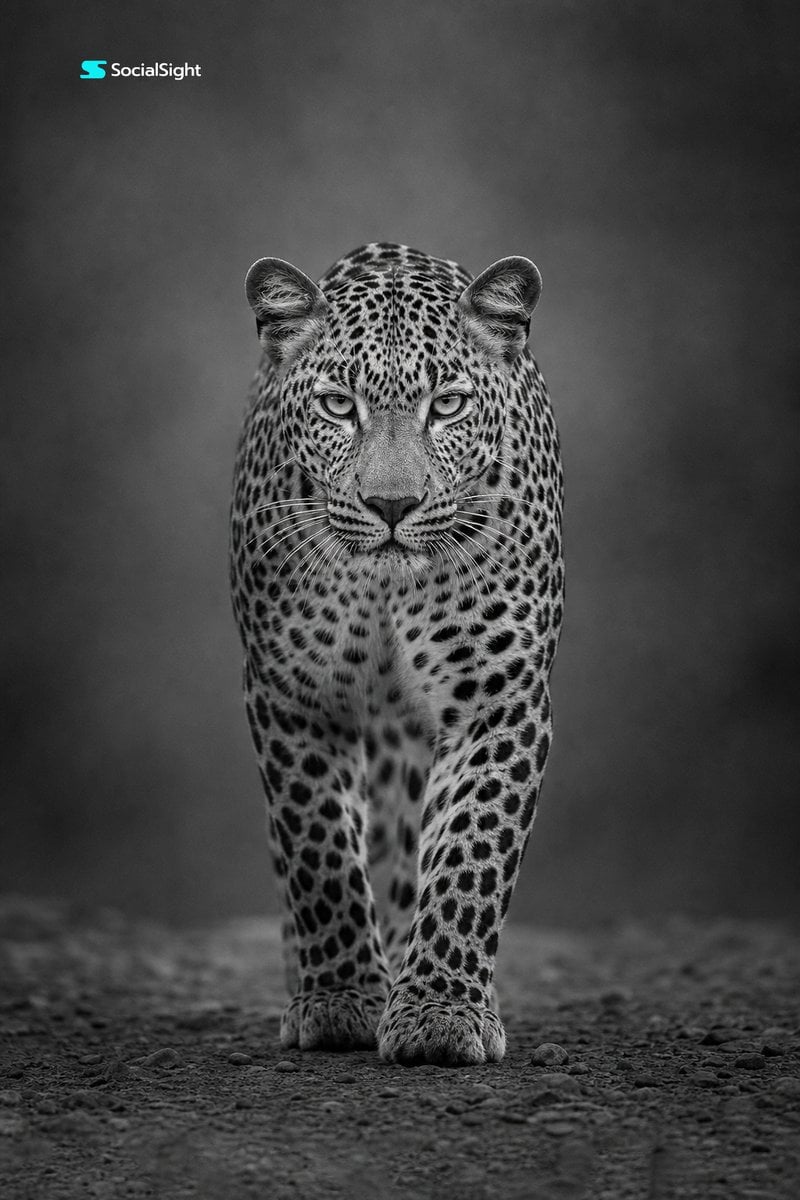
Monochrome Leopard Wildlife Portrait

Five Expression Monochrome Portrait
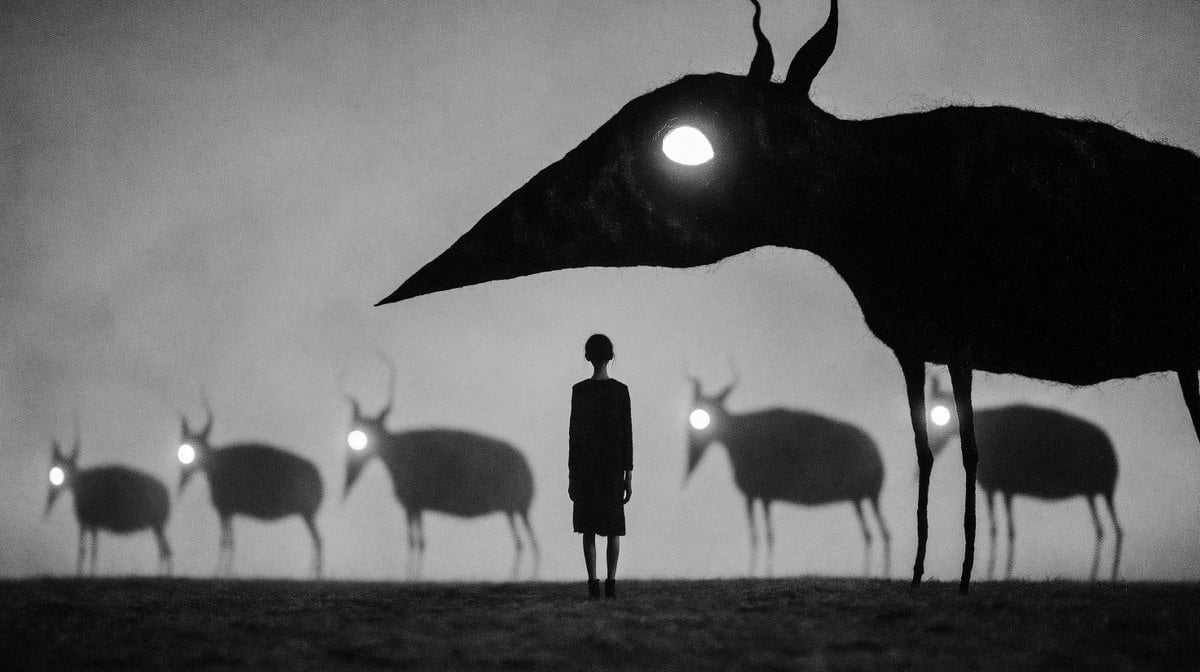
Monochrome Surreal Bird-Beast Encounter
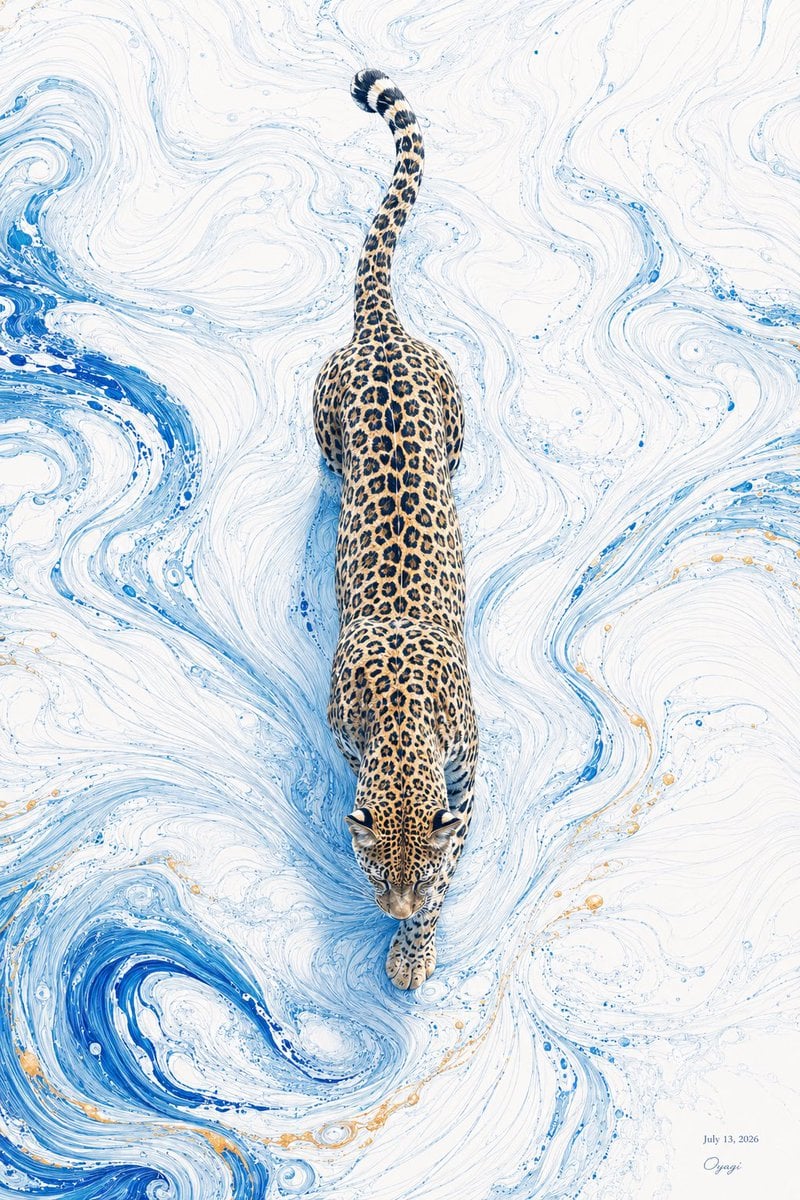
Overhead Leopard in Blue Marble Swirls
Make it yours
Horned Five-Tailed Leopard Beast works as-is. These are the safest ways to change it without losing the look.
Change one field
Copy a single group, rewrite it, and generate again so you can see what that field is doing.
Keep the frame, change the subject
Hold the composition and light of Horned Five-Tailed Leopard Beast, then swap wardrobe, props or the person for a new take.
| If the result… | Why | Fix |
|---|---|---|
| The result drifts from the preview | Too many fields changed at once. | Reuse Horned Five-Tailed Leopard Beast as-is first, then change one group — subject, light, or setting. |
| The model over-stylizes the scene | The prose prompt leaves finish and camera underspecified. | Add one camera or lighting sentence and stay on GPT Image 2. |
More GPT Image 2 templates
Other prompts made for GPT Image 2.

Six VTuber Japanese Logo Sheet

Realistic Portrait of Woman and Deer

The Vista Modular Condo Poster

AI Model Routing Comparison Infographic

2.5D Anime Art Board

Isometric Productivity Desk Scene

New York Double Exposure Poster

Four-Panel AI Landscape Comparison

Japanese Tatami Lifestyle Magazine Cover

NESCAFÉ Coffee Map Poster
More image prompts
Fresh picks from across the catalog.
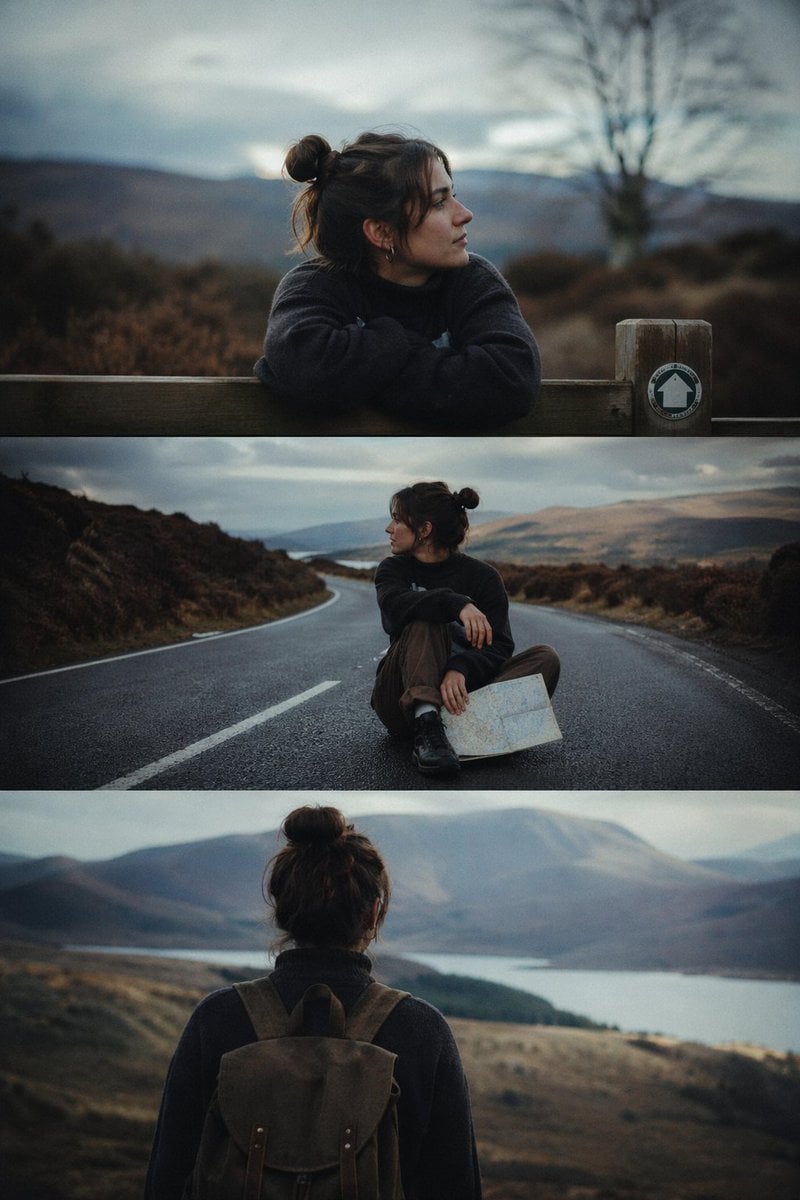
Cinematic 3-Frame Solo Travel Stills
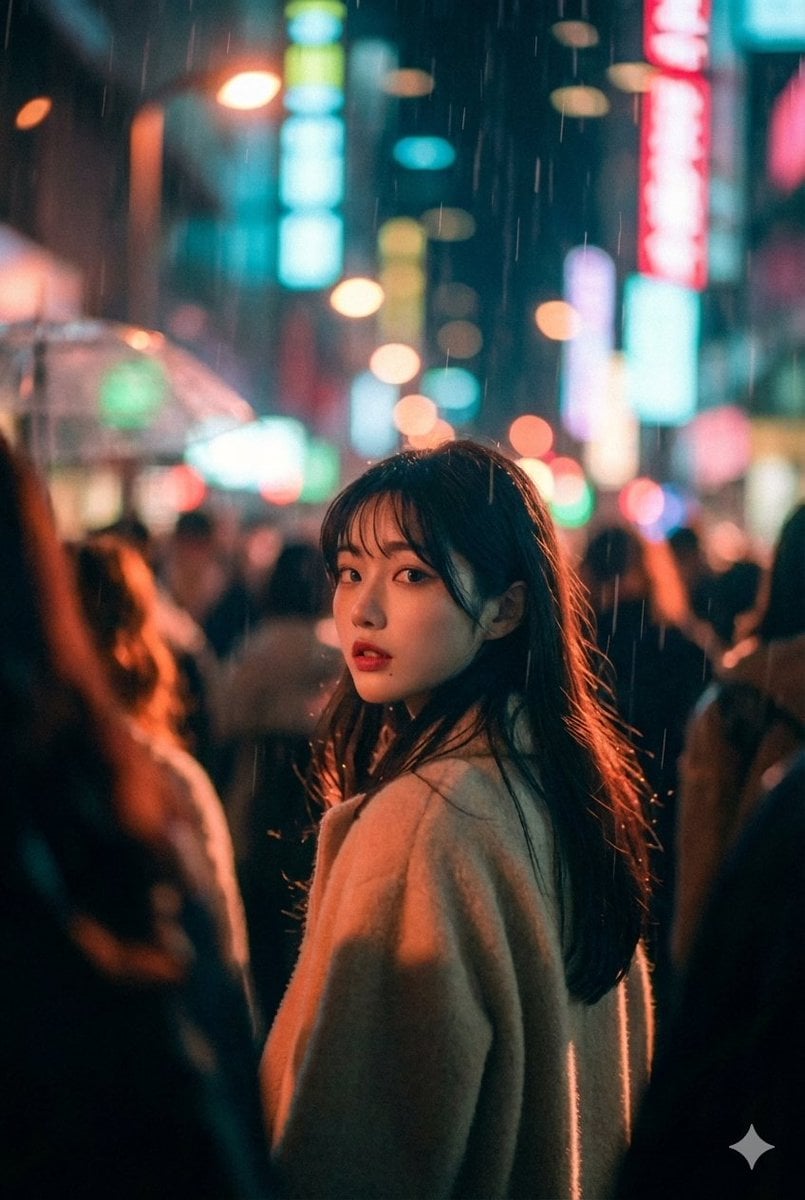
Cinematic Street Photo in Neon Rain

Split-Screen Dinner Date Composition
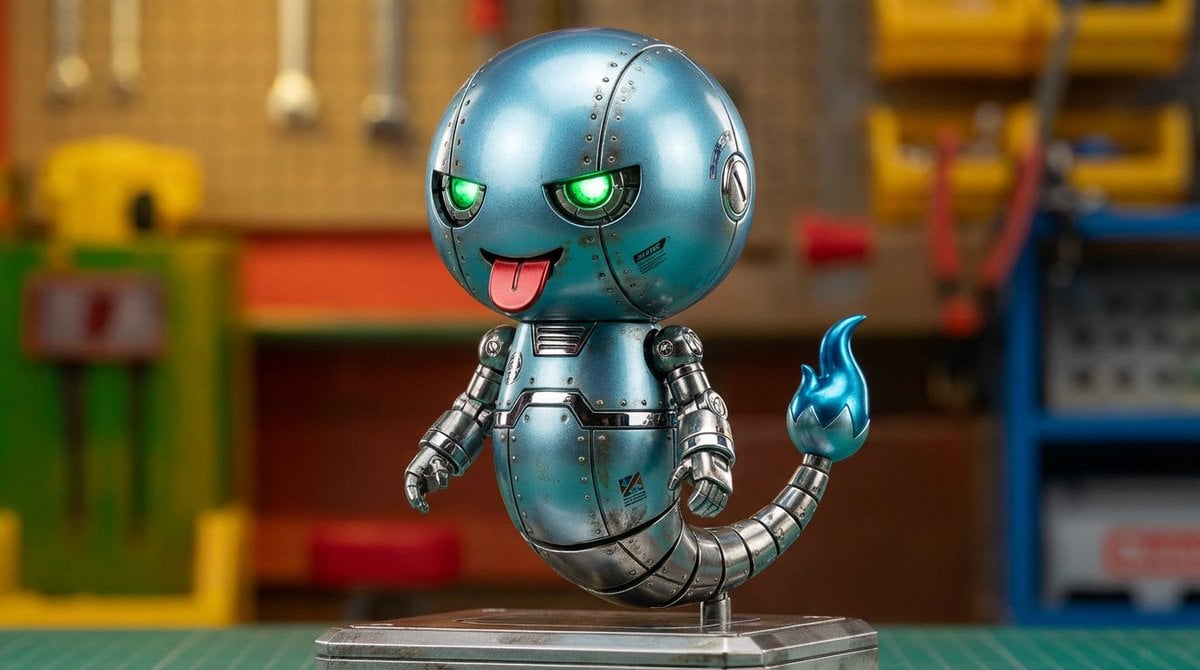
Character transformed into superalloy robot style
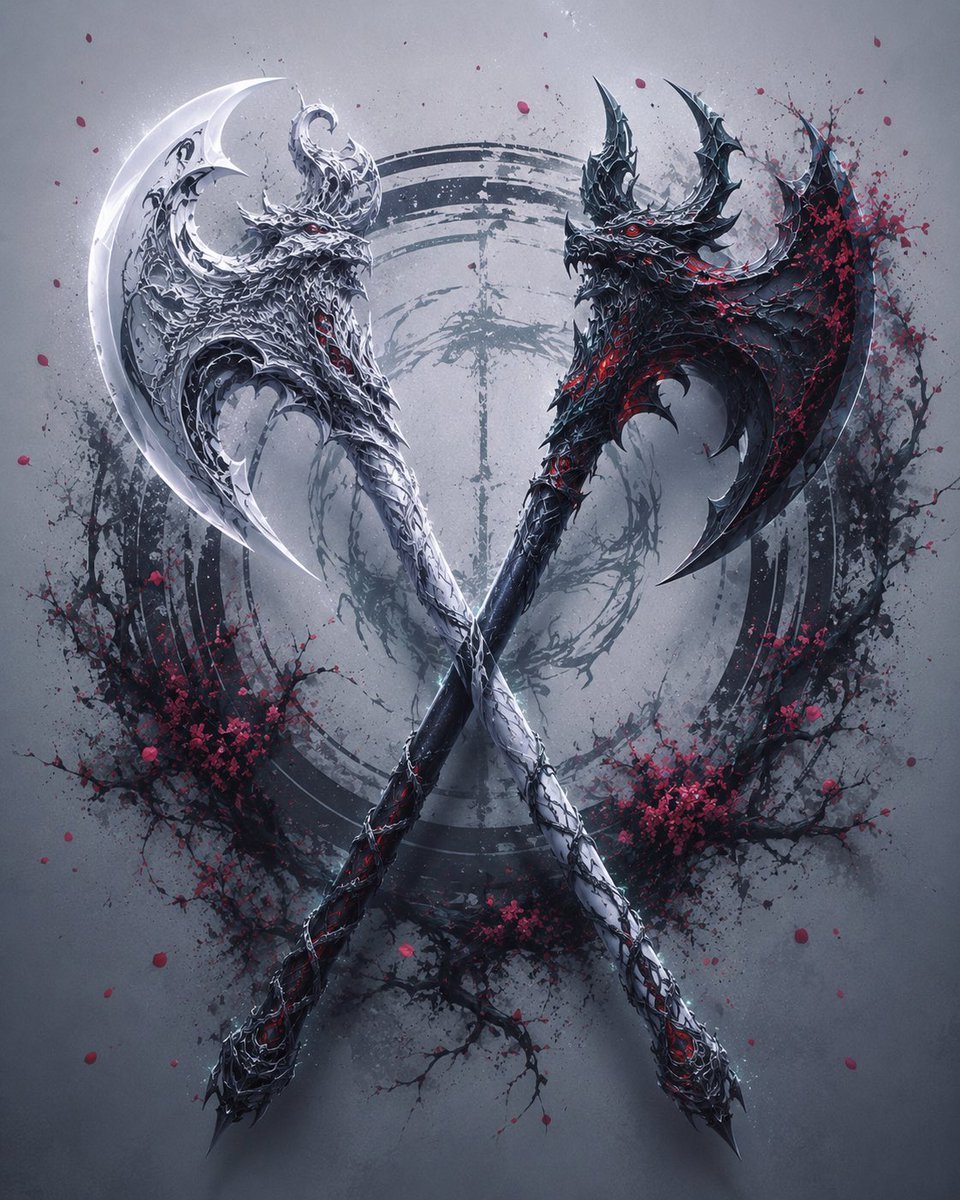
Crossed Eastern Dark Fantasy Polearms
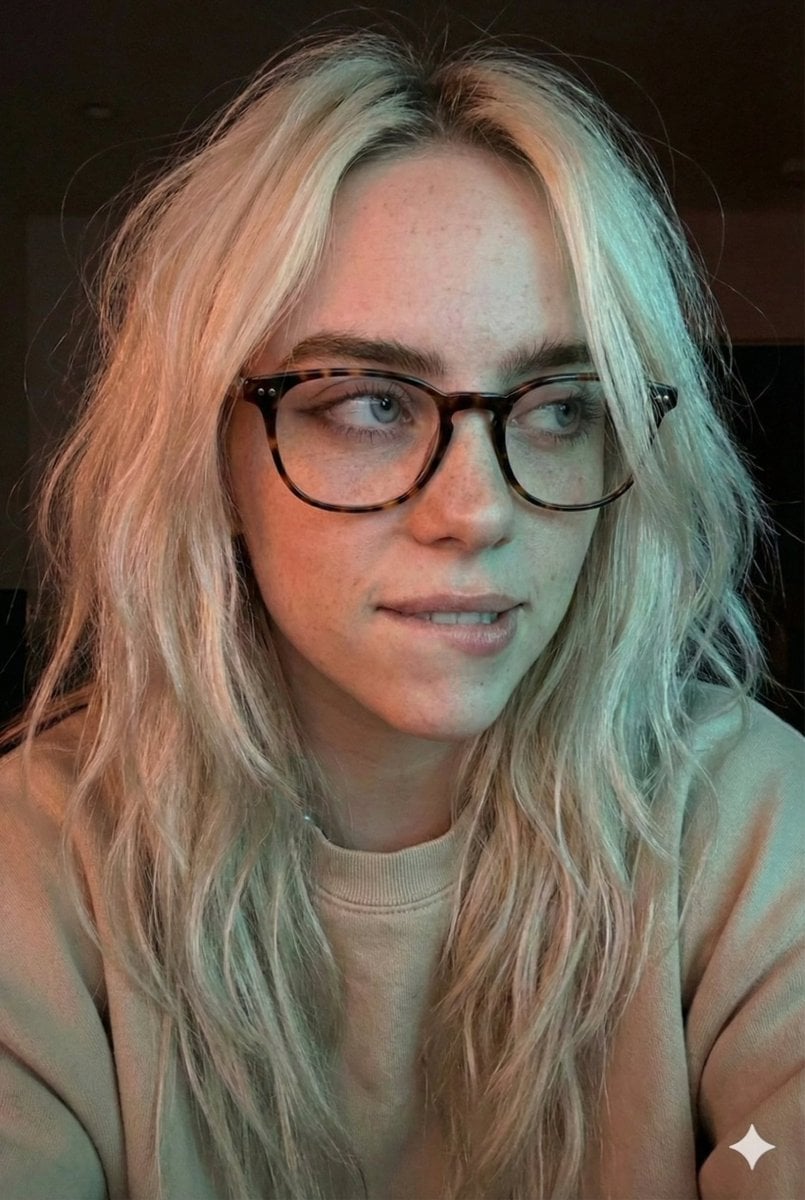
Moody Dual-Tone Selfie Portrait
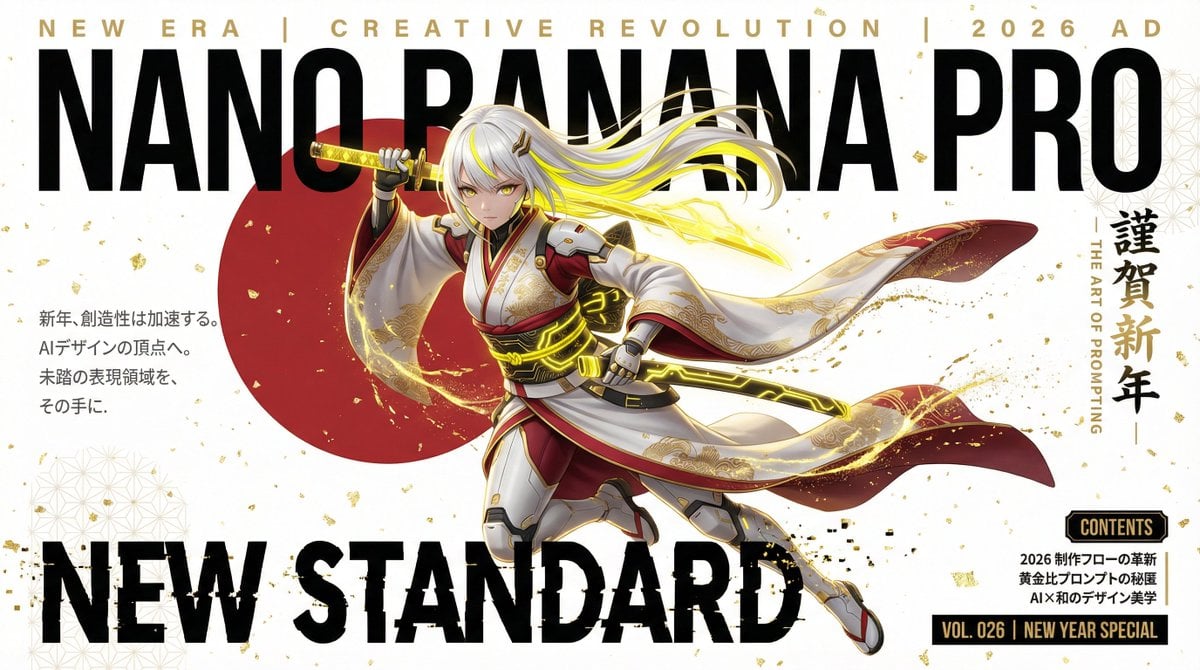
Futuristic New Year Magazine Cover Design Prompt

Turn a reference image into a realistic Christmas cake
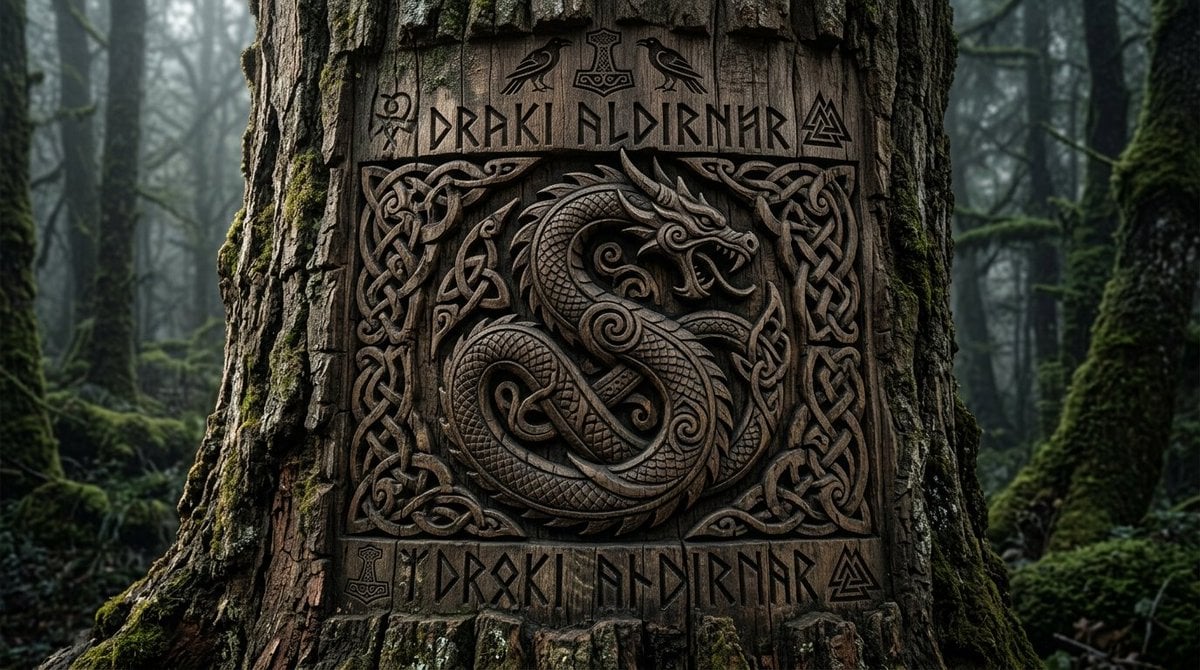
Viking Tree Carvings

Combustion Freeze: Object Frozen at Ignition
Browse template categories
Horned Five-Tailed Leopard Beast questions
How do I use the Horned Five-Tailed Leopard Beast template?
Add your photo if the template asks for one, edit the prompt if you like — the template's model and format are already selected — and press Generate. Your version opens in PicX Studio.
Can I customize the Horned Five-Tailed Leopard Beast template?
Yes. You can change the subject, setting, lighting, mood, format, and available model controls before creating your image.
Is the Horned Five-Tailed Leopard Beast template free?
Opening and editing this template is free. Generating uses credits, shown on the Generate button when you are signed in.
Which AI model should I use?
Start with GPT Image 2, which is the model associated with this template. You can compare another compatible model for a different finish.
Looking for something else? Browse all templates.

Your photo, any look
Thousands of ready templates for every top image and video model, from one credit balance.