
Two-Panel RPG Concept Art
Generates a split-panel promotional illustration featuring a fantasy party in both peaceful and combat scenarios with typography.
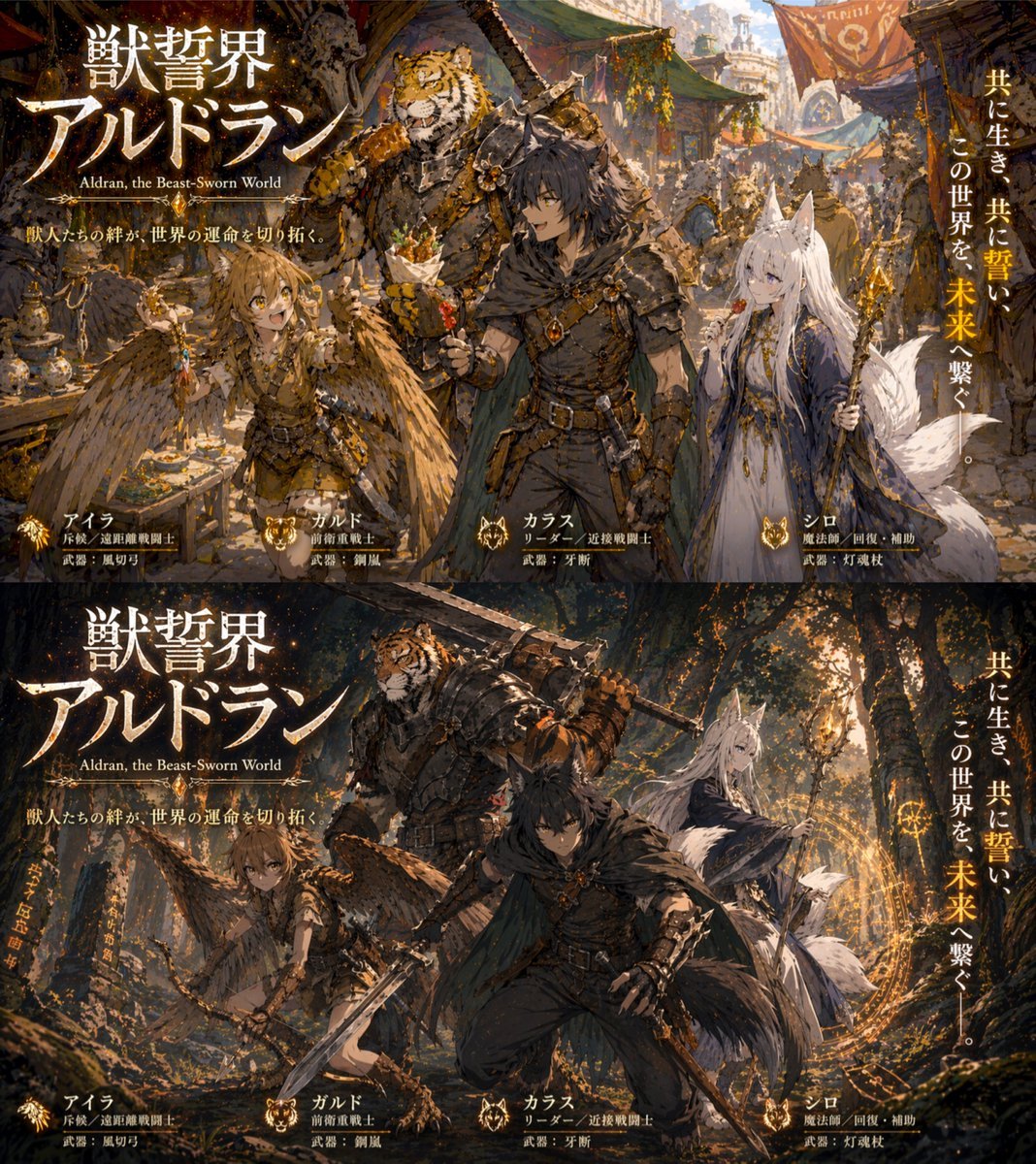
- Prompt included
- Model and format preset
- Free template
The prompt behind this image
Copy the exact prompt behind Two-Panel RPG Concept Art, or open it in the studio and make it yours.
- Type
- two-panel fantasy RPG promotional illustration
- Global Elements › Main Title
- {argument name="main title" default="獣誓界アルドラン"}
- Global Elements › English Subtitle
- {argument name="english subtitle" default="Aldran, the Beast-Sworn World"}
- Global Elements › Catchphrase
- 獣人たちの絆が、世界の運命を切り拓く。
- Global Elements › Vertical Tagline
- {argument name="tagline" default="共に生き、共に誓い、この世界を、未来へ繋ぐ。"}
- Characters › 0 › Name
- アイラ
- Characters › 0 › Description
- winged beast-girl with brown hair and feathered wings
- Characters › 0 › Role Label
- 斥候 / 遠距離戦闘士
- Characters › 0 › Weapon Label
- 武器:風切弓
- Characters › 1 › Name
- ガルド
- Characters › 1 › Description
- massive tiger beastman in heavy plate armor
- Characters › 1 › Role Label
- 前衛重戦士
- Characters › 1 › Weapon Label
- 武器:鋼嵐
- Characters › 2 › Name
- カラス
- Characters › 2 › Description
- wolf-boy with black hair, wolf ears, tail, dark leather armor and cloak
- Characters › 2 › Role Label
- リーダー / 近接戦闘士
- Characters › 2 › Weapon Label
- 武器:牙断
- Characters › 3 › Name
- シロ
- Characters › 3 › Description
- white fox-girl with long white hair, fox ears, multiple fluffy tails, blue and white robes
- Characters › 3 › Role Label
- 魔法師 / 回復・補助
- Characters › 3 › Weapon Label
- 武器:灯魂杖
- Layout › Panels › 0 › Position
- top half
- Layout › Panels › 0 › Scene
- {argument name="peaceful setting" default="bustling fantasy market town in warm daylight"}
- Layout › Panels › 0 › Action
- characters are relaxed, smiling, and eating street food skewers together
Raw JSON
{
  "type": "two-panel fantasy RPG promotional illustration",
  "global_elements": {
    "main_title": "{argument name=\"main title\" default=\"獣誓界アルドラン\"}",
    "english_subtitle": "{argument name=\"english subtitle\" default=\"Aldran, the Beast-Sworn World\"}",
    "catchphrase": "獣人たちの絆が、世界の運命を切り拓く。",
    "vertical_tagline": "{argument name=\"tagline\" default=\"共に生き、共に誓い、この世界を、未来へ繋ぐ。\"}"
  },
  "characters": [
    {
      "name": "アイラ",
      "description": "winged beast-girl with brown hair and feathered wings",
      "role_label": "斥候 / 遠距離戦闘士",
      "weapon_label": "武器:風切弓"
    },
    {
      "name": "ガルド",
      "description": "massive tiger beastman in heavy plate armor",
      "role_label": "前衛重戦士",
      "weapon_label": "武器:鋼嵐"
    },
    {
      "name": "カラス",
      "description": "wolf-boy with black hair, wolf ears, tail, dark leather armor and cloak",
      "role_label": "リーダー / 近接戦闘士",
      "weapon_label": "武器:牙断"
    },
    {
      "name": "シロ",
      "description": "white fox-girl with long white hair, fox ears, multiple fluffy tails, blue and white robes",
      "role_label": "魔法師 / 回復・補助",
      "weapon_label": "武器:灯魂杖"
    }
  ],
  "layout": {
    "panels": [
      {
        "position": "top half",
        "scene": "{argument name=\"peaceful setting\" default=\"bustling fantasy market town in warm daylight\"}",
        "action": "characters are relaxed, smiling, and eating street food skewers together"
      },
      {
        "position": "bottom half",
        "scene": "{argument name=\"combat setting\" default=\"dark atmospheric forest with glowing magic runes\"}",
        "action": "characters are in dynamic combat stances, weapons drawn, casting magic, tense atmosphere"
      }
    ]
  }
}How to use Two-Panel RPG Concept Art in 3 steps
- 1Upload ImagePNG, JPG or paste
Add your photo
Upload the photo the template builds on. The prompt, model and format are already set.
- 2…a portrait of your subject in softgolden-hour light, 85mm…
Personalize
Edit the subject and creative details for your destination.
- 3Generate
Generate
Press Generate — your image is created in PicX Studio, so you can compare it with the original and refine one variable at a time.
More like this
Templates with the same subject, style or setup. Open one to see its prompt.
My API Stack Two-Panel Illustration
Glass Brand Logo Volcanic Landscape
Blueprint Split Reality Archetype Prompt
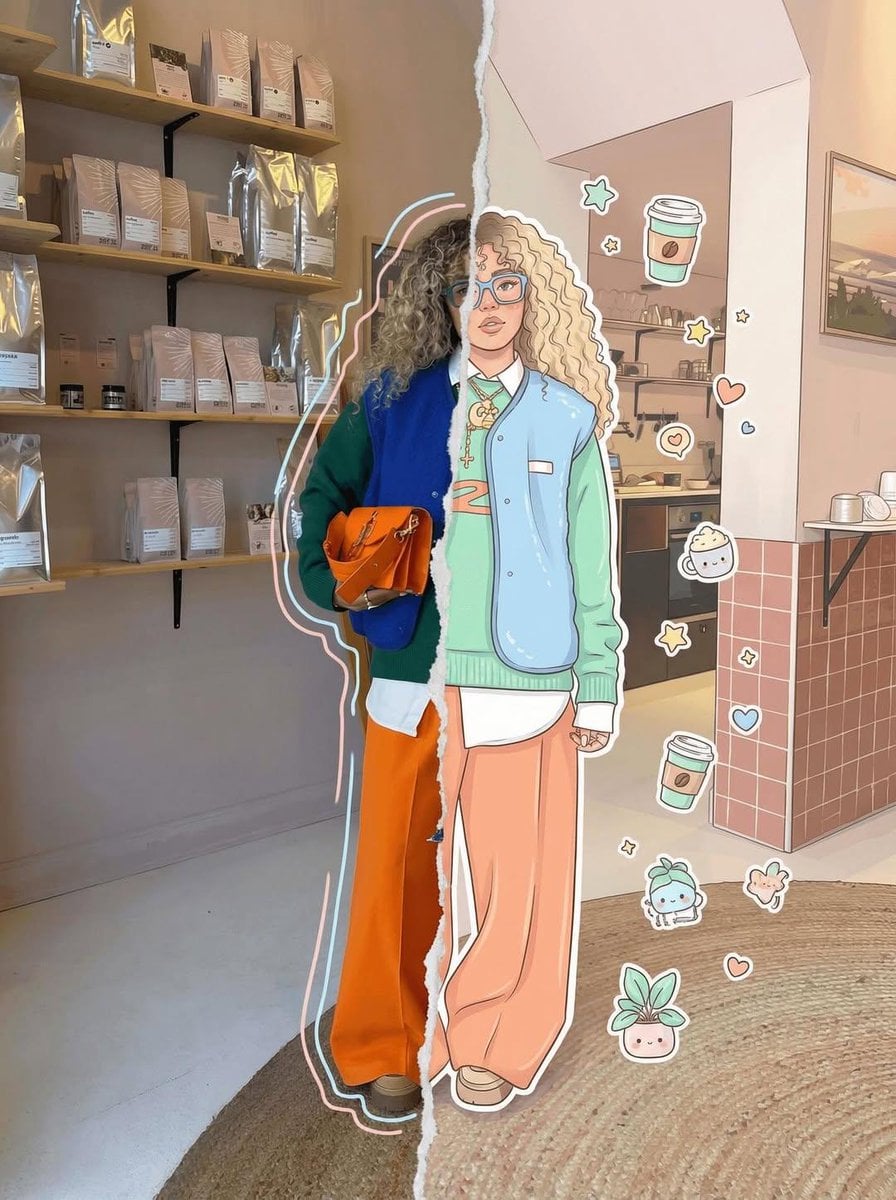
Real Illustration Split Portrait Transition
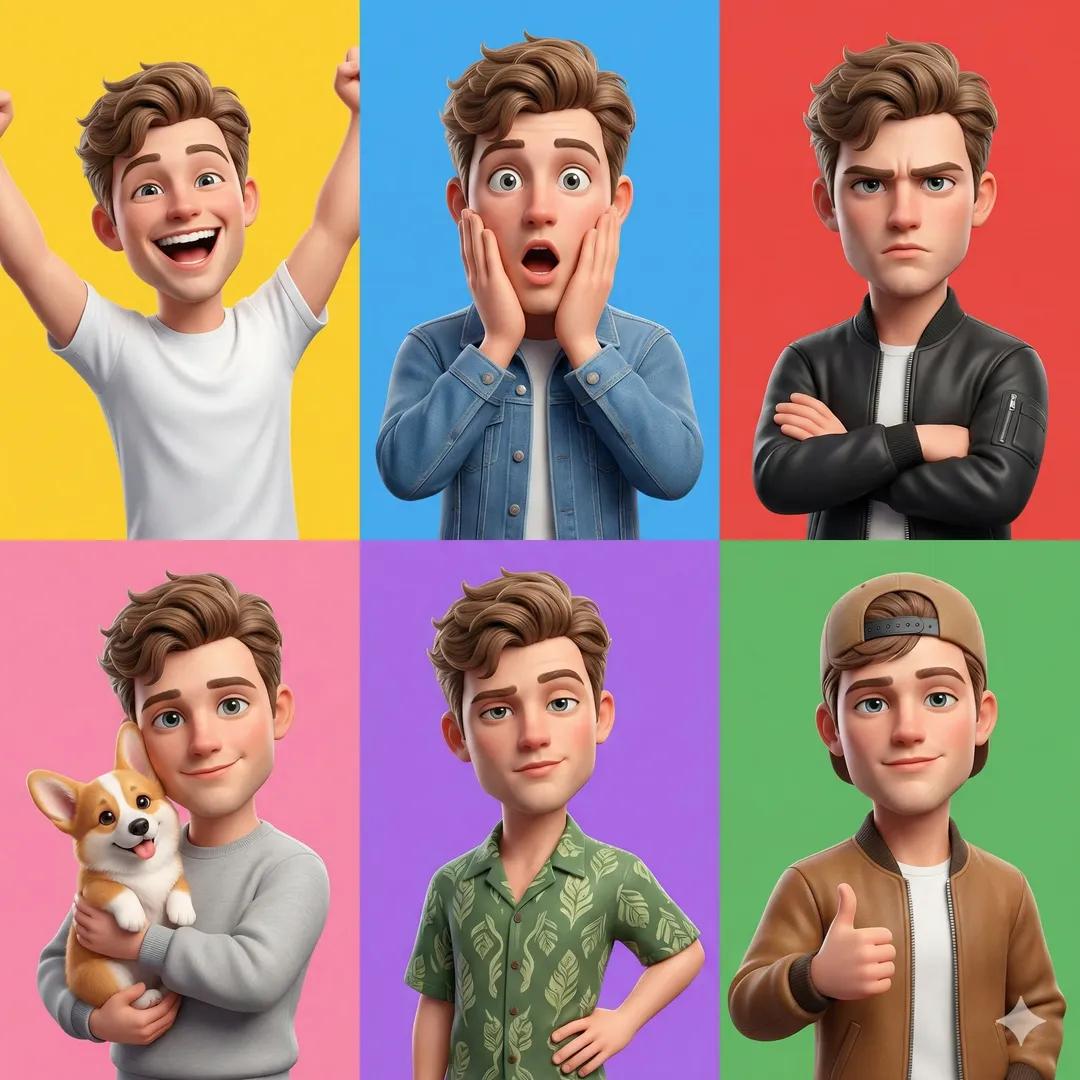
Pixar 6-Panel Streethero Expression Grid
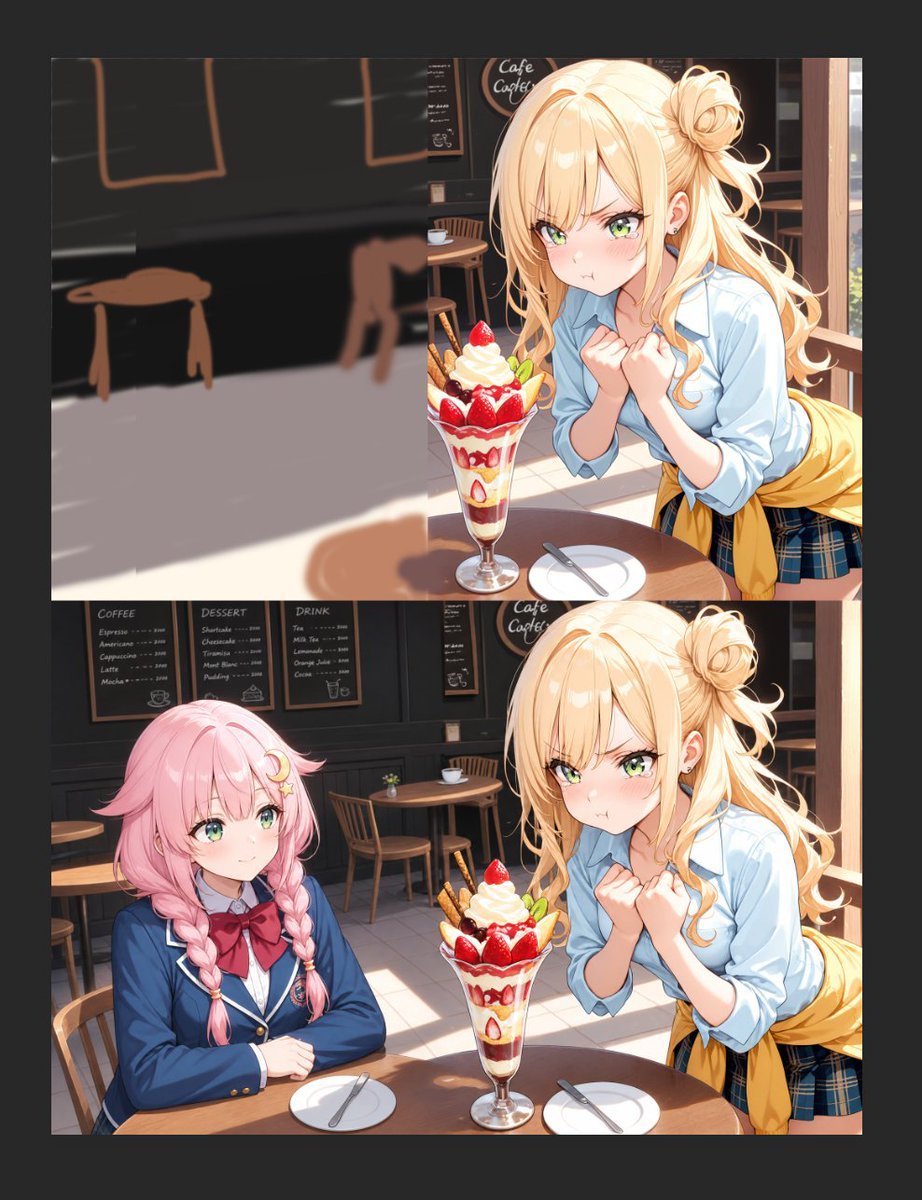
Anime Cafe Two-Panel Comparison
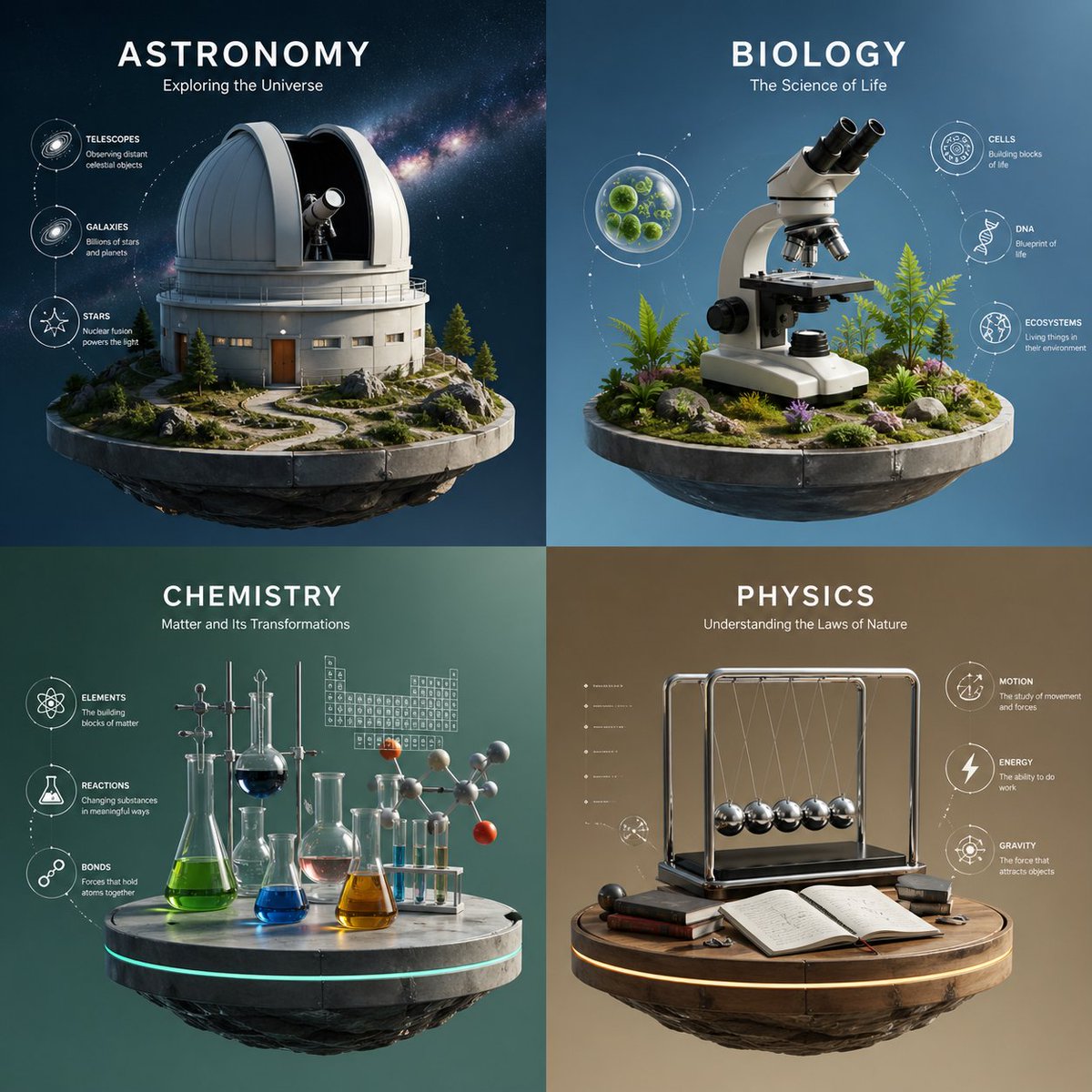
Four-Panel Science Concept Poster

Two-Panel Snow Cabin Model Comparison

Panel Japanese Advertising Concept Grid
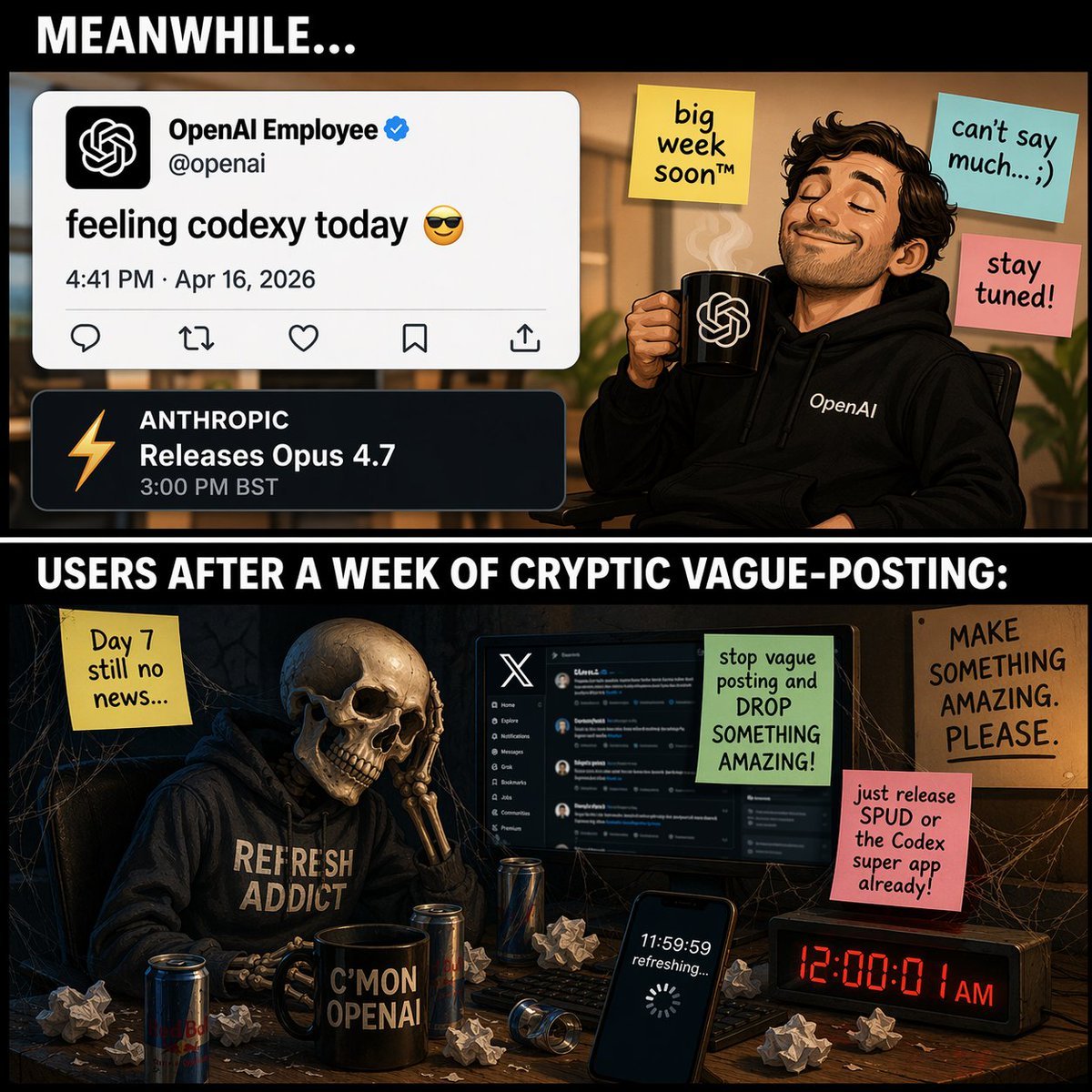
Two-Panel Tech Meme Comic
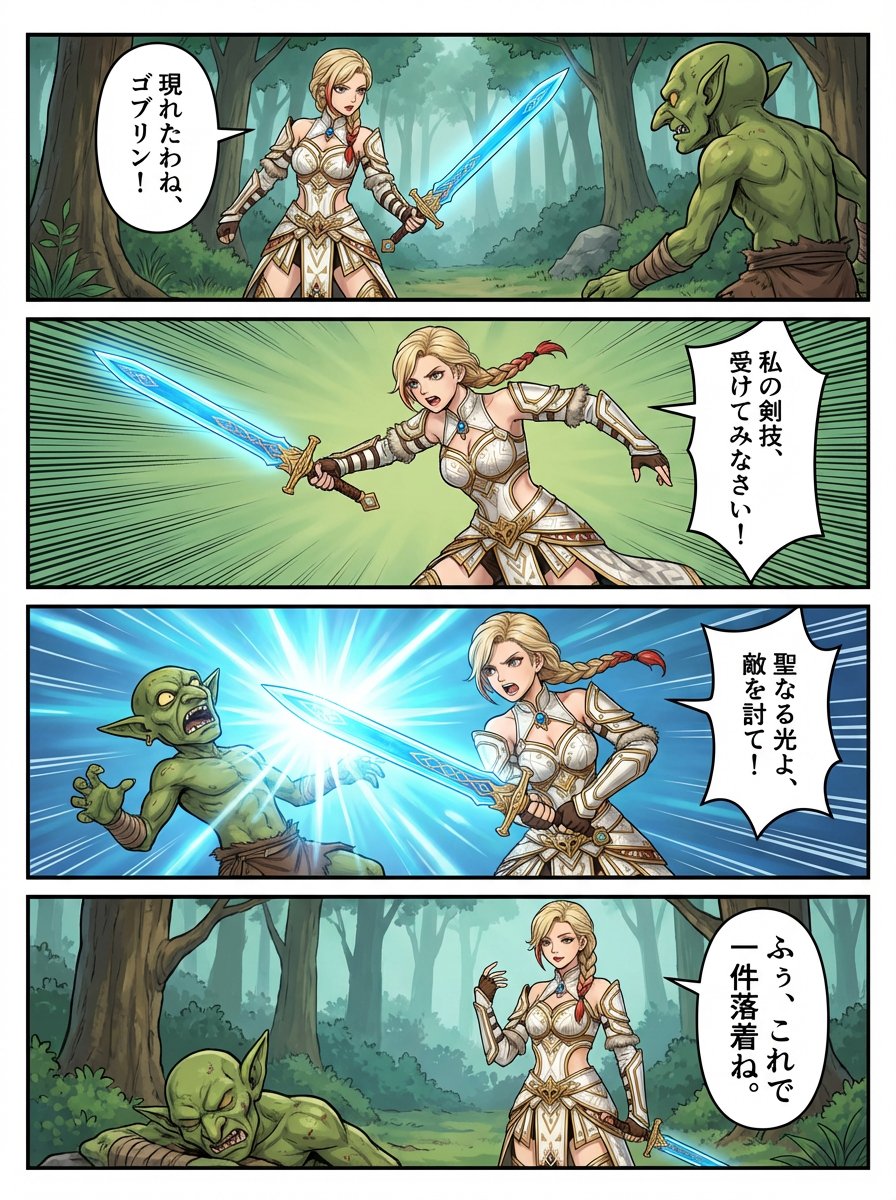
panel RPG manga of original character Anna
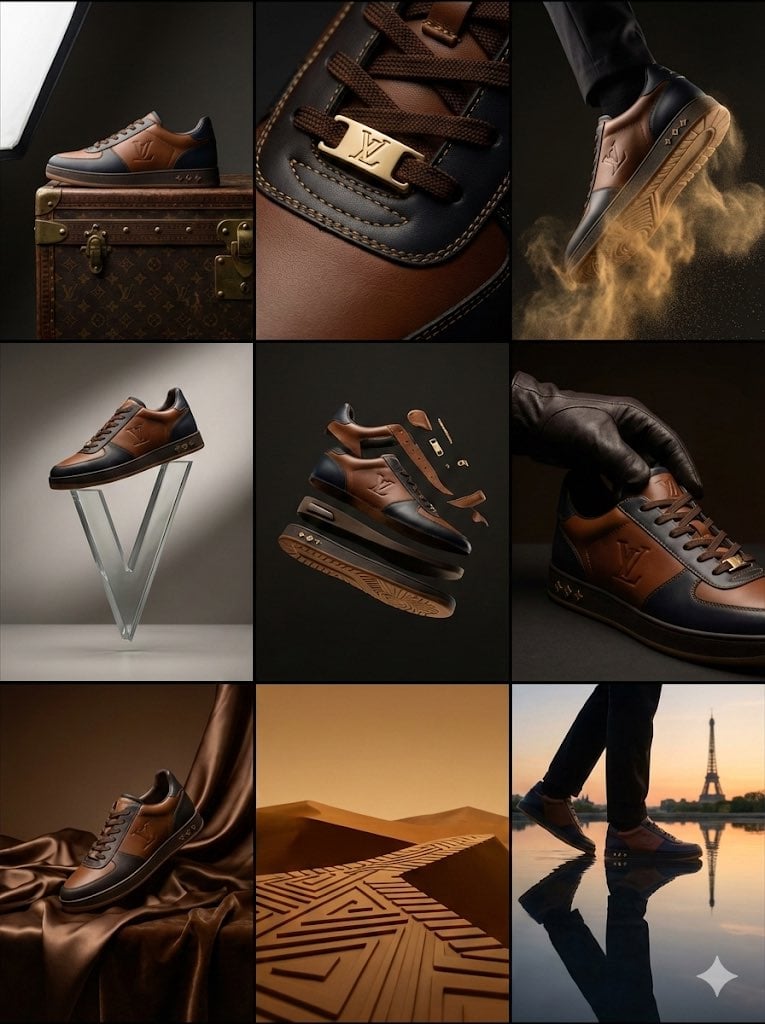
Louis Vuitton Sneaker Editorial Grid (9-Panel Concept)
Make it yours
Two-Panel RPG Concept Art works as-is. These are the safest ways to change it without losing the look.
Change one field
Copy a single group, rewrite it, and generate again so you can see what that field is doing.
Keep the frame, change the subject
Hold the composition and light of Two-Panel RPG Concept Art, then swap wardrobe, props or the person for a new take.
| If the result… | Why | Fix |
|---|---|---|
| The result drifts from the preview | Too many fields changed at once. | Reuse Two-Panel RPG Concept Art as-is first, then change one group — subject, light, or setting. |
| GPT Image 2 ignores part of the JSON | Some models flatten or skip nested keys. | Keep the same values and paste them as a short paragraph instead. |
More GPT Image 2 templates
Other prompts made for GPT Image 2.

Six VTuber Japanese Logo Sheet

Realistic Portrait of Woman and Deer

The Vista Modular Condo Poster

AI Model Routing Comparison Infographic

2.5D Anime Art Board

Isometric Productivity Desk Scene

New York Double Exposure Poster

Four-Panel AI Landscape Comparison

Japanese Tatami Lifestyle Magazine Cover

NESCAFÉ Coffee Map Poster
More image prompts
Fresh picks from across the catalog.
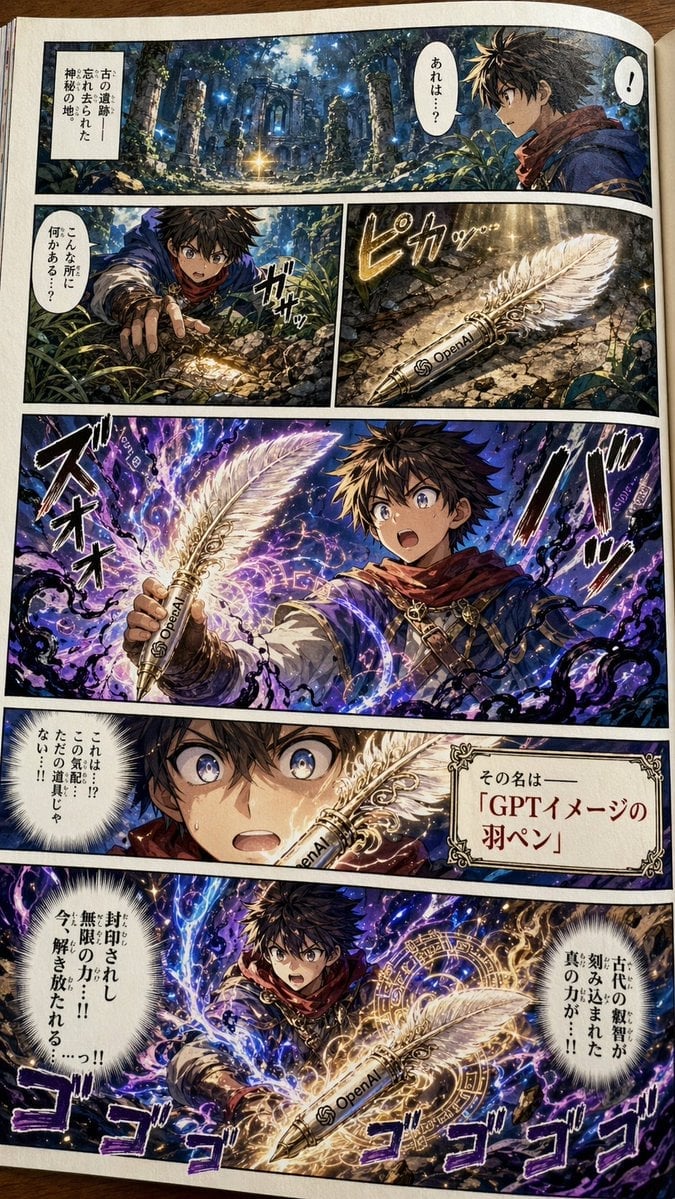
Japanese Shonen Manga Page

Luxury Editorial Fashion Portrait Prompt for Nano Banana 2
Alpine Landscape Souvenir Magnet
Cozy Study Room Night Portrait
Emerald Sari Kitchen Portrait
3D Caricature Companion Effect
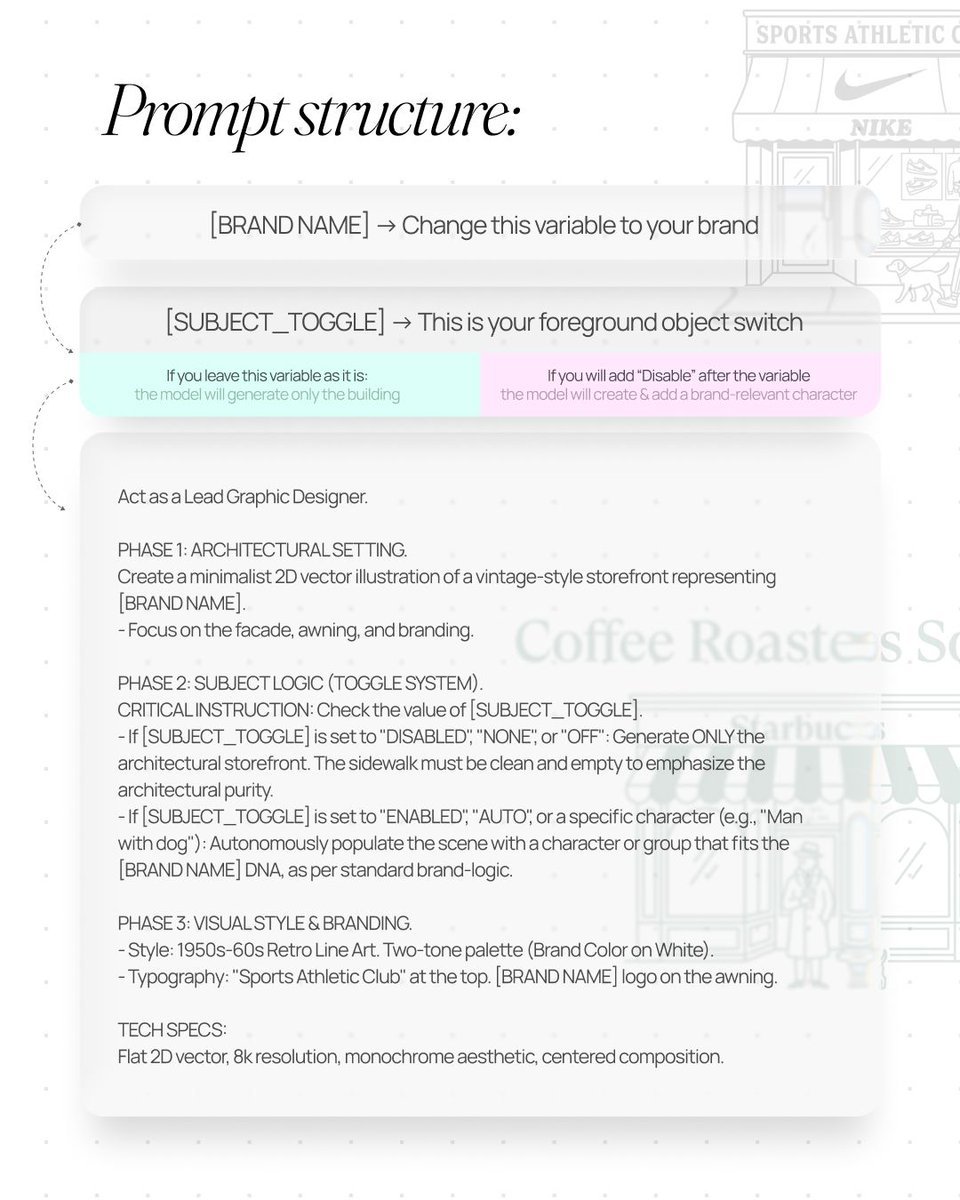
Retro Line Art Storefront Illustration Generator Template
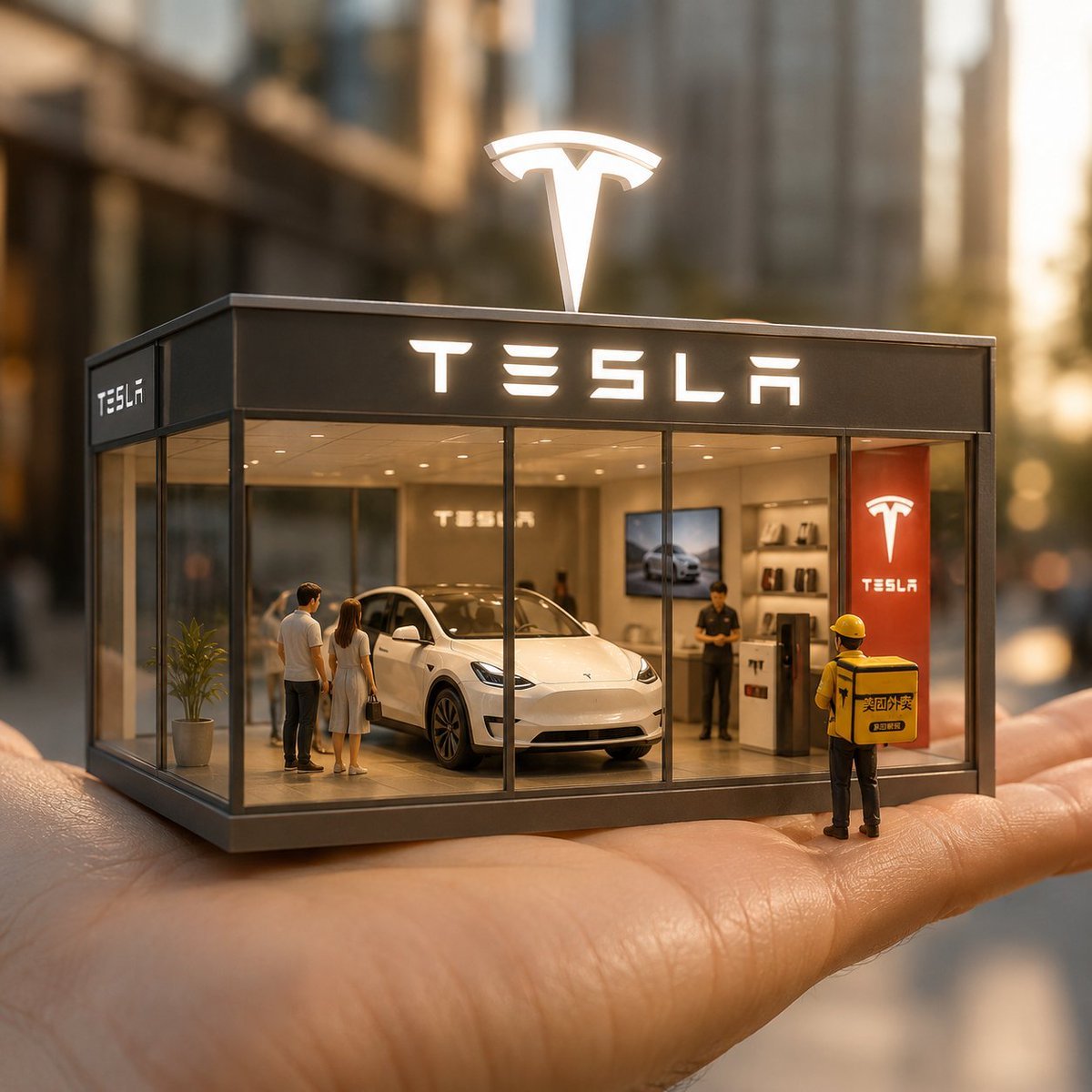
Surreal Miniature Tesla Showroom
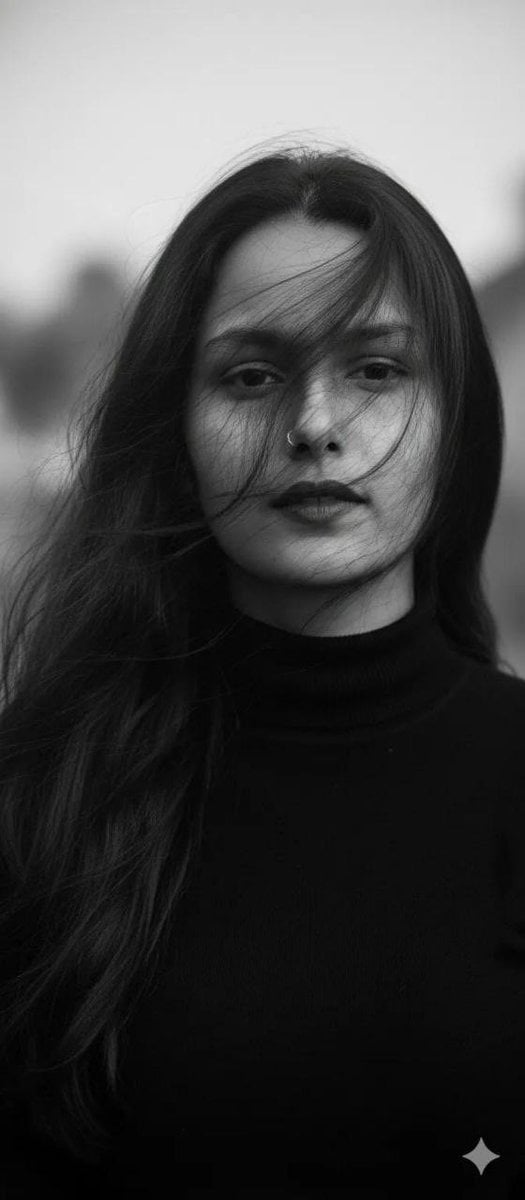
Ultra-Realistic Black and White Cinematic Portrait

Ultra-Photorealistic Cinematic Travel Photography
Browse template categories
Two-Panel RPG Concept Art questions
How do I use the Two-Panel RPG Concept Art template?
Add your photo if the template asks for one, edit the prompt if you like — the template's model and format are already selected — and press Generate. Your version opens in PicX Studio.
Can I customize the Two-Panel RPG Concept Art template?
Yes. You can change the subject, setting, lighting, mood, format, and available model controls before creating your image.
Is the Two-Panel RPG Concept Art template free?
Opening and editing this template is free. Generating uses credits, shown on the Generate button when you are signed in.
Which AI model should I use?
Start with GPT Image 2, which is the model associated with this template. You can compare another compatible model for a different finish.
Looking for something else? Browse all templates.

Your photo, any look
Thousands of ready templates for every top image and video model, from one credit balance.