
Cinematic Daisangen Mahjong Hand
Generates a dramatic anime-realistic 3D mahjong scene featuring a Big Three Dragons hand on green felt.
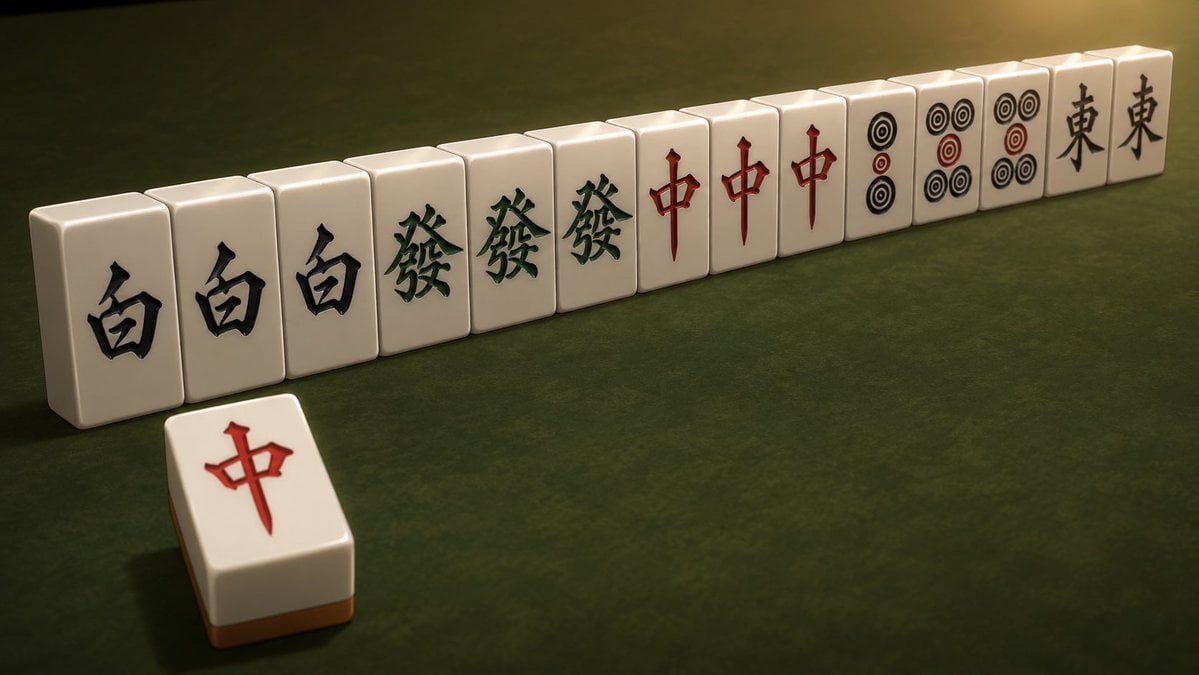
- Prompt included
- Model and format preset
- Free template
The prompt behind this image
Copy the exact prompt behind Cinematic Daisangen Mahjong Hand, or open it in the studio and make it yours.
Create a cinematic semi-realistic 3D anime-style shot of a Japanese mahjong hand on a dark green felt table, showing {argument name="winning hand" default="Big Three Dragons / Daisangen"} as a row of exactly 14 upright ivory tiles viewed in shallow perspective from the front-left, receding toward the right. The standing row contains exactly 3 white dragon tiles with large black 白 characters, exactly 3 green dragon tiles with green 發 characters, exactly 3 red dragon tiles with red 中 characters, exactly 3 circle-suit tiles with black and red ring patterns, and exactly 2 east wind tiles with black 東 characters at the far right. Place exactly 1 extra discarded tile in the foreground left-center, lying flat and slightly angled, showing a red 中 character, with a warm brown tile side visible. Use glossy rounded ceramic tiles with beveled edges, subtle wear, soft shadows, and warm dramatic overhead lighting from the upper right. The background should be minimal and out of focus, with the green felt surface filling the frame, a low camera angle, realistic depth of field, and a moody mahjong-anime atmosphere. No people, no hands, no labels, no UI, no extra tiles beyond the exact 15 visible tiles.
How to use Cinematic Daisangen Mahjong Hand in 3 steps
- 1Upload ImagePNG, JPG or paste
Add your photo
Upload the photo the template builds on. The prompt, model and format are already set.
- 2…a portrait of your subject in softgolden-hour light, 85mm…
Personalize
Edit the subject and creative details for your destination.
- 3Generate
Generate
Press Generate — your image is created in PicX Studio, so you can compare it with the original and refine one variable at a time.
More like this
Templates with the same subject, style or setup. Open one to see its prompt.
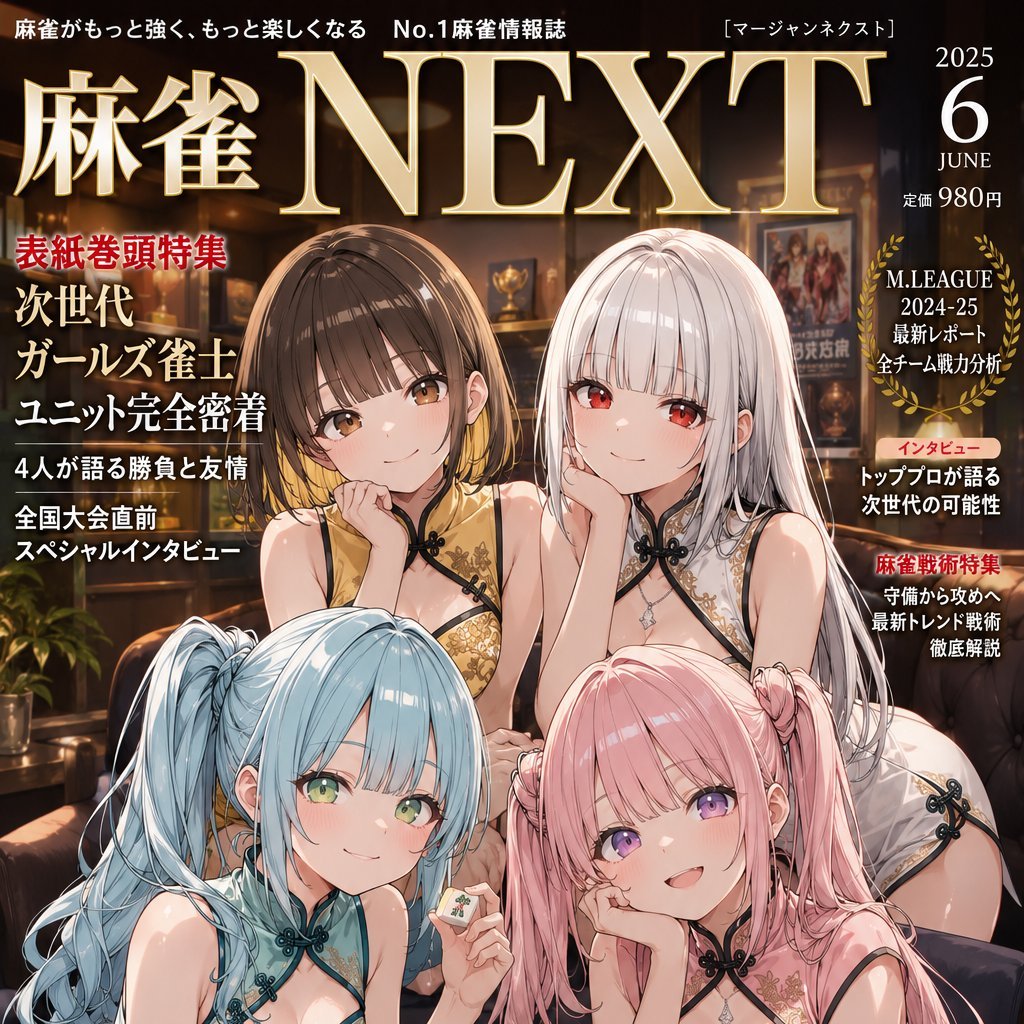
Anime Mahjong Magazine Cover
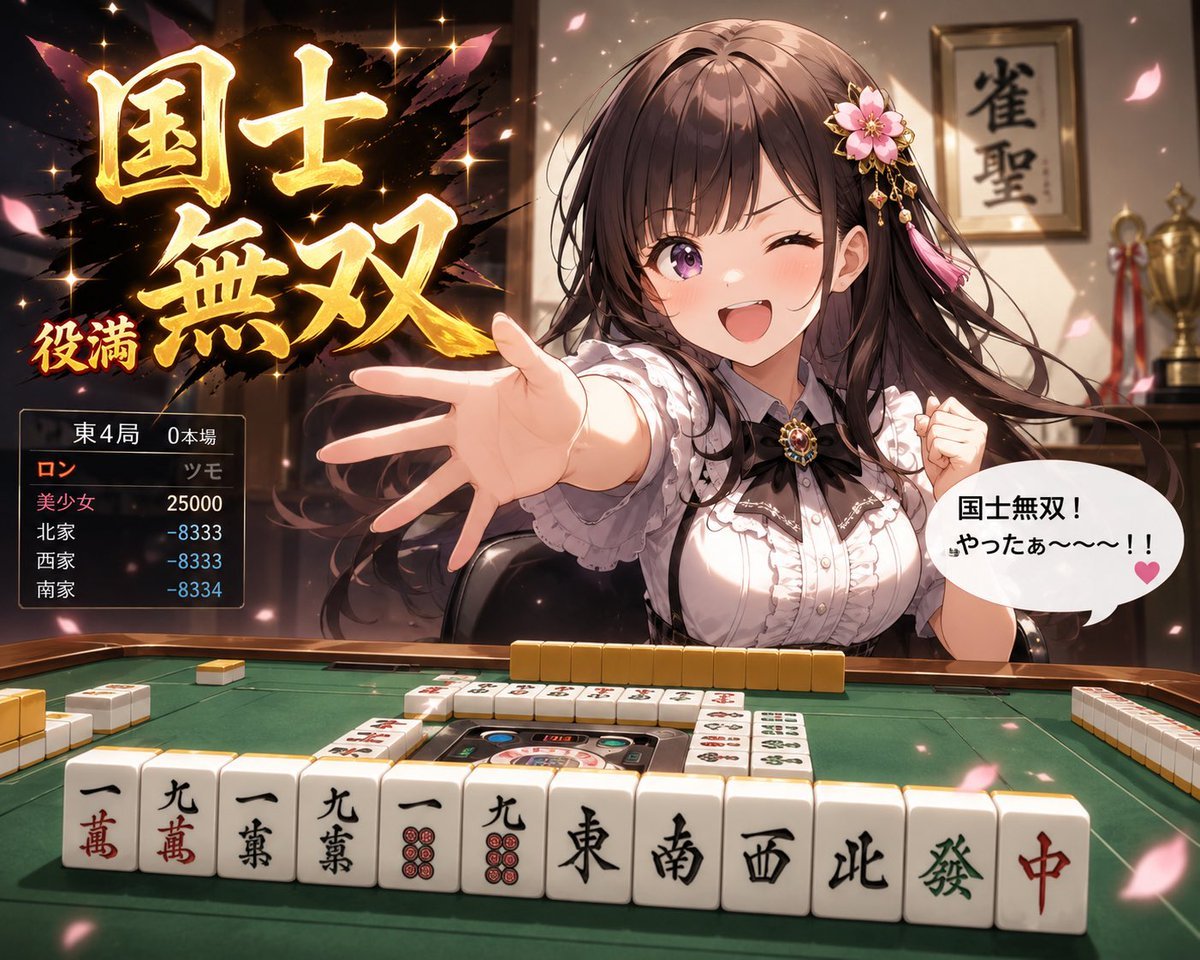
Anime Mahjong Yakuman Victory Scene
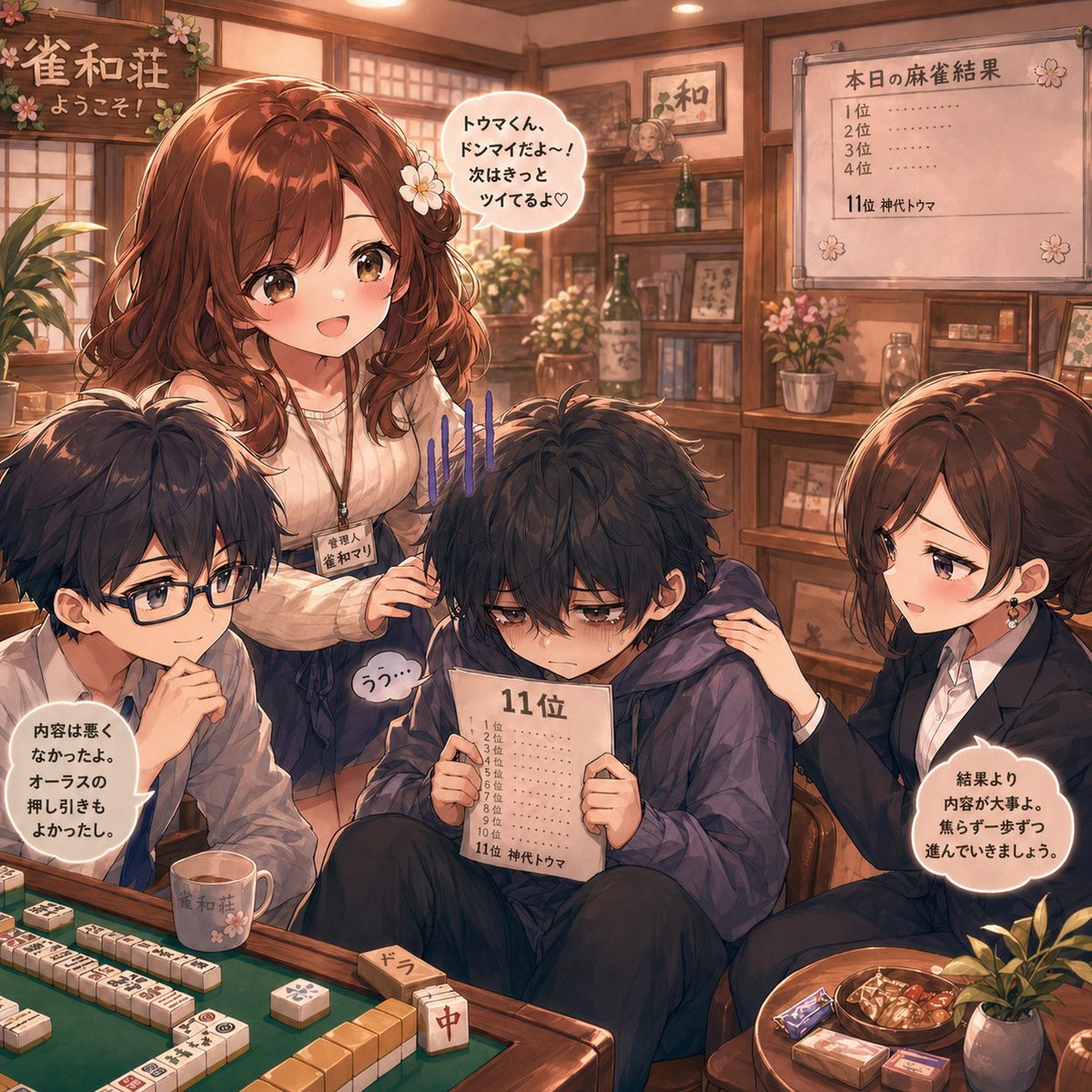
Anime Mahjong Loss Consolation Scene
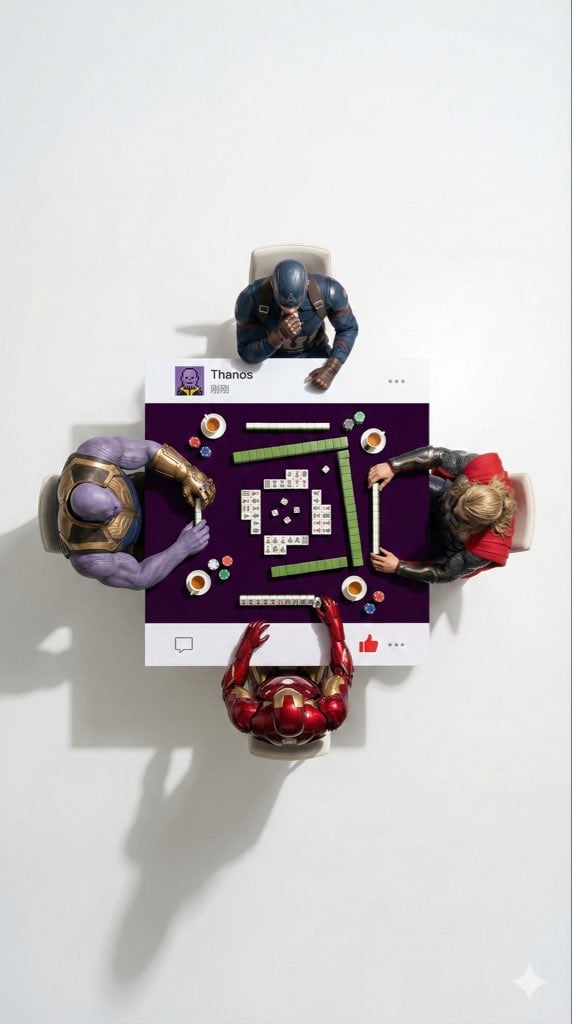
Overhead Superhero Mahjong Scene Prompt (WeChat Moments Style)
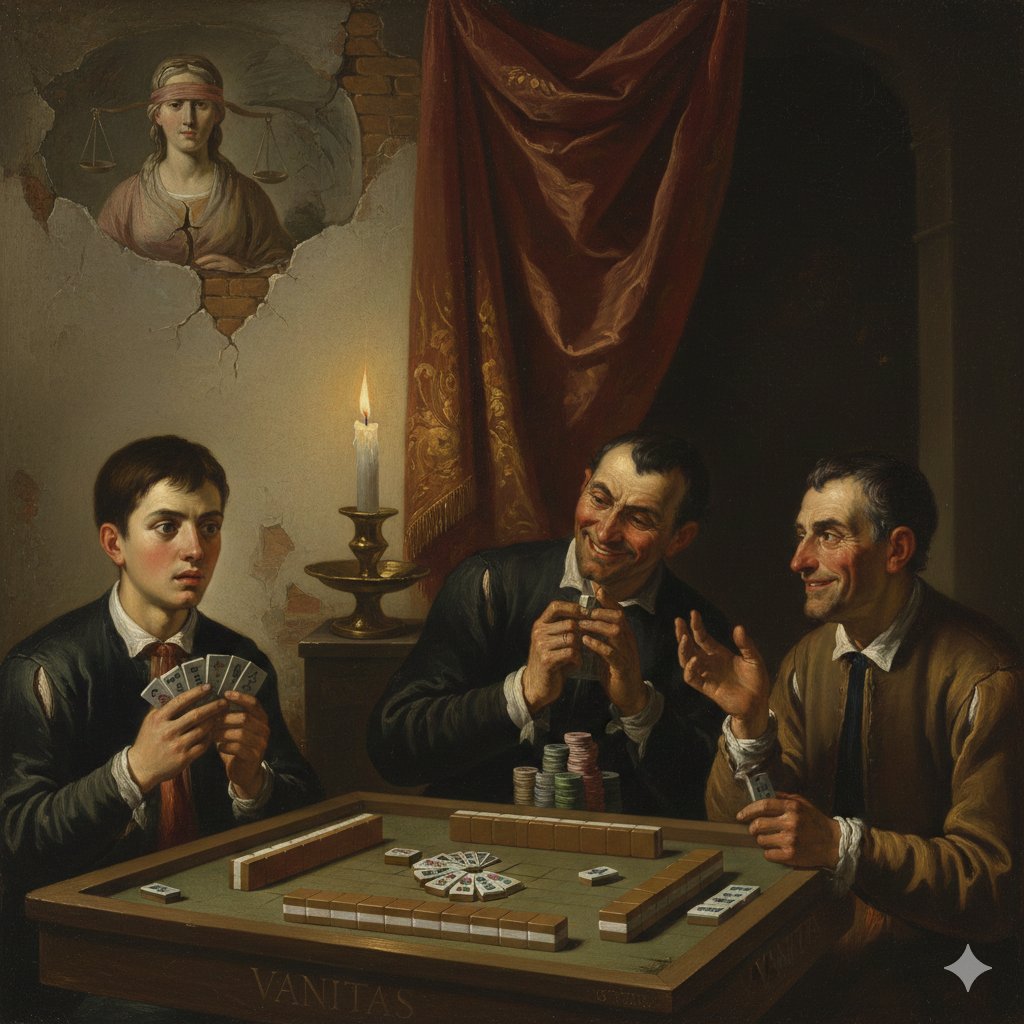
Caravaggio-style Moral Painting of Cheating at Mahjong
Simple Hand-Drawn Koala Mascot
Teal Japanese Handwritten Lyric Card

Handmade Torn Paper Poster Style
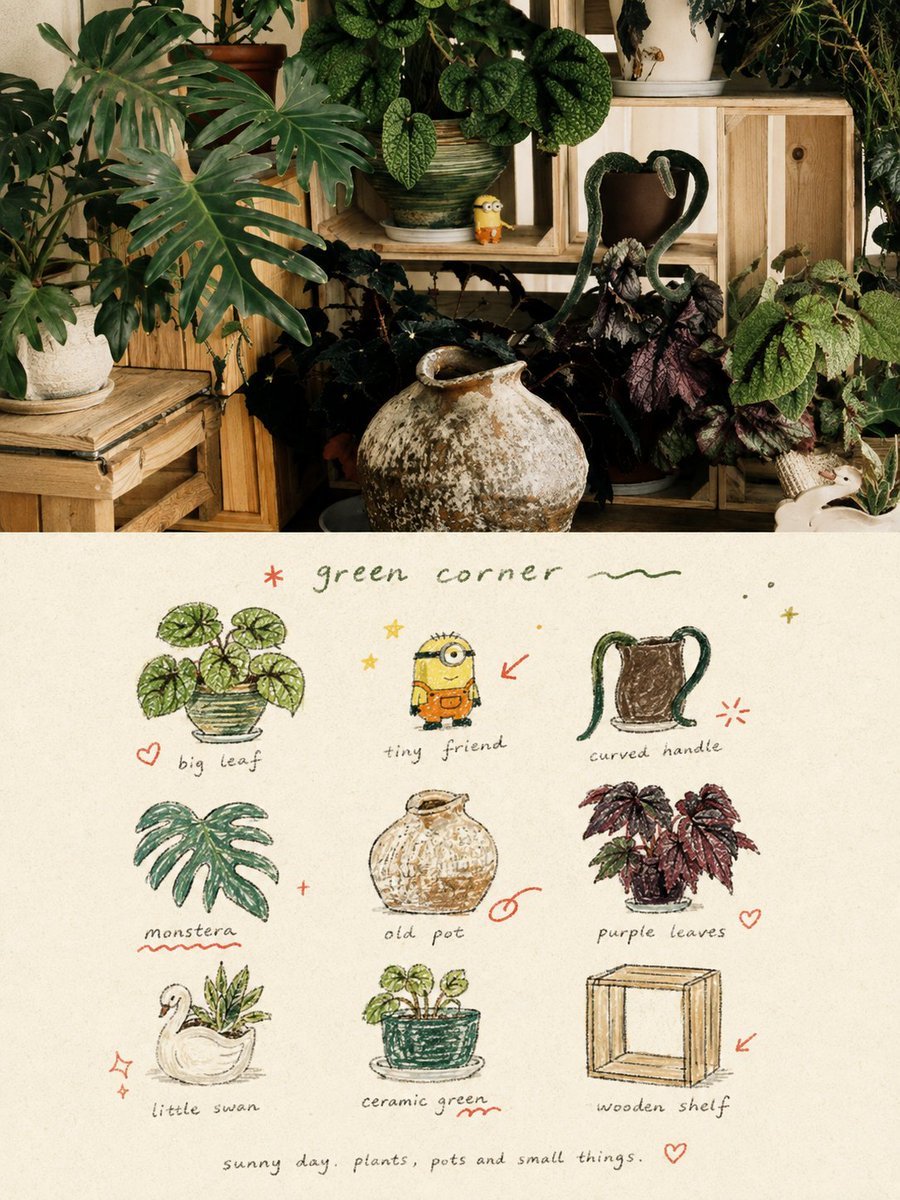
Hand-Drawn Doodle Grid Poster
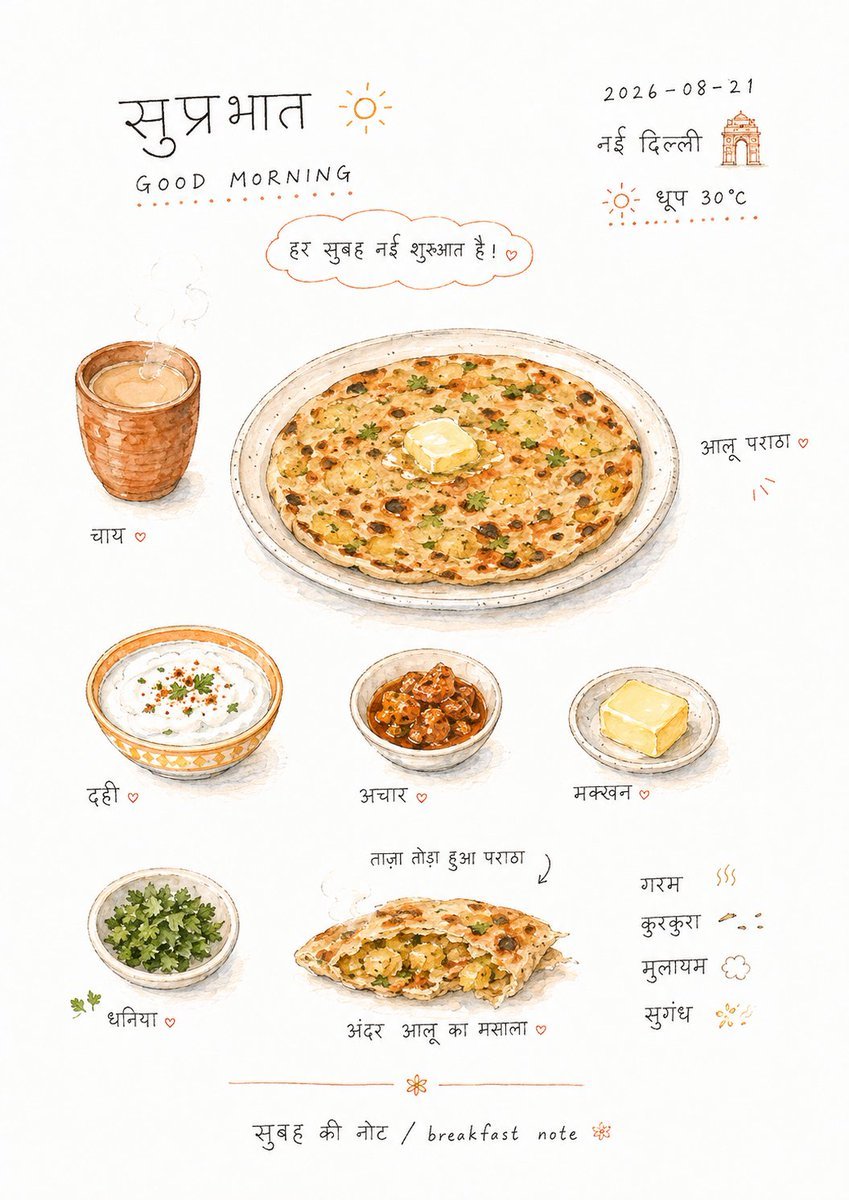
Hand-drawn Breakfast Journal Aesthetic Poster
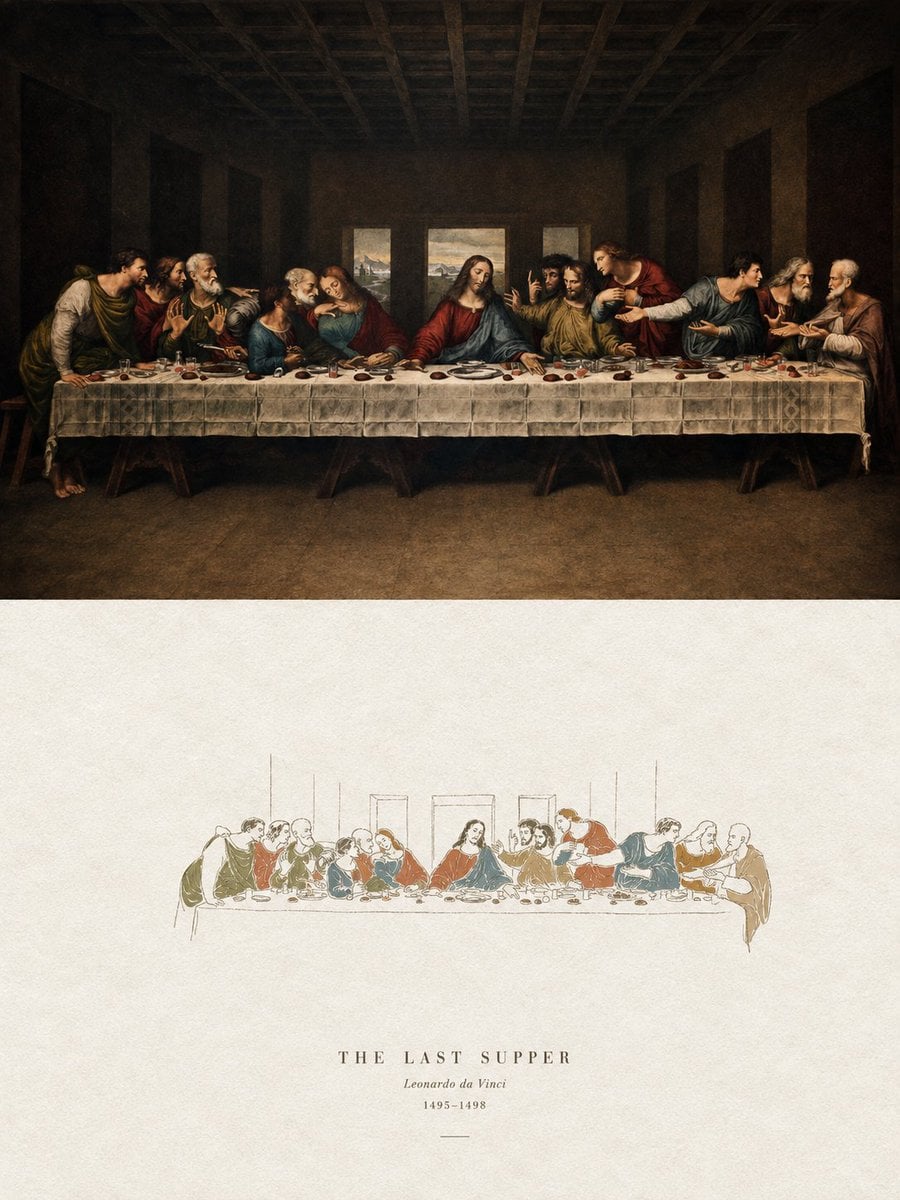
Acrylic Hand-Painted Style Poster Design
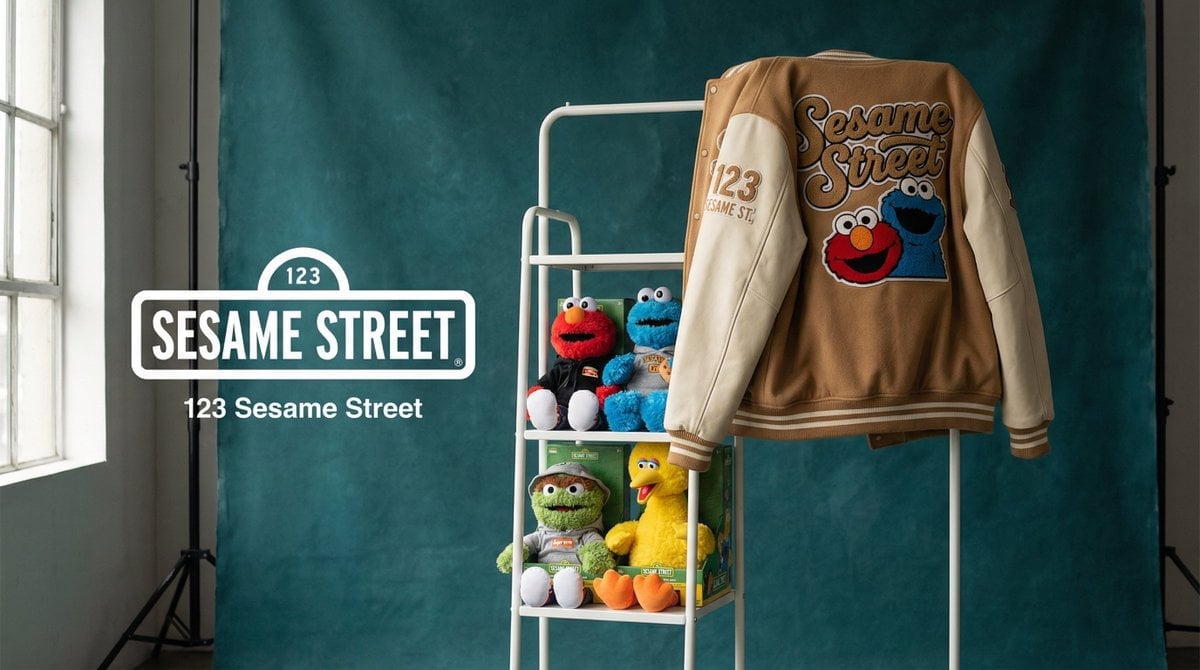
Photograph announcing a limited merchandise drop
Make it yours
Cinematic Daisangen Mahjong Hand works as-is. These are the safest ways to change it without losing the look.
Change one field
Copy a single group, rewrite it, and generate again so you can see what that field is doing.
Keep the frame, change the subject
Hold the composition and light of Cinematic Daisangen Mahjong Hand, then swap wardrobe, props or the person for a new take.
| If the result… | Why | Fix |
|---|---|---|
| The result drifts from the preview | Too many fields changed at once. | Reuse Cinematic Daisangen Mahjong Hand as-is first, then change one group — subject, light, or setting. |
| The model over-stylizes the scene | The prose prompt leaves finish and camera underspecified. | Add one camera or lighting sentence and stay on GPT Image 2. |
More GPT Image 2 templates
Other prompts made for GPT Image 2.

Six VTuber Japanese Logo Sheet

Realistic Portrait of Woman and Deer

The Vista Modular Condo Poster

AI Model Routing Comparison Infographic

2.5D Anime Art Board

Isometric Productivity Desk Scene

New York Double Exposure Poster

Four-Panel AI Landscape Comparison

Japanese Tatami Lifestyle Magazine Cover

NESCAFÉ Coffee Map Poster
More image prompts
Fresh picks from across the catalog.
Scandinavian Interior Editorial Portrait Prompt
Technical Outerwear Campaign Poster Generation Prompt
Whimsical Paper-Cut Travel Illustration
Minimalist Illustration of Girl and Cat
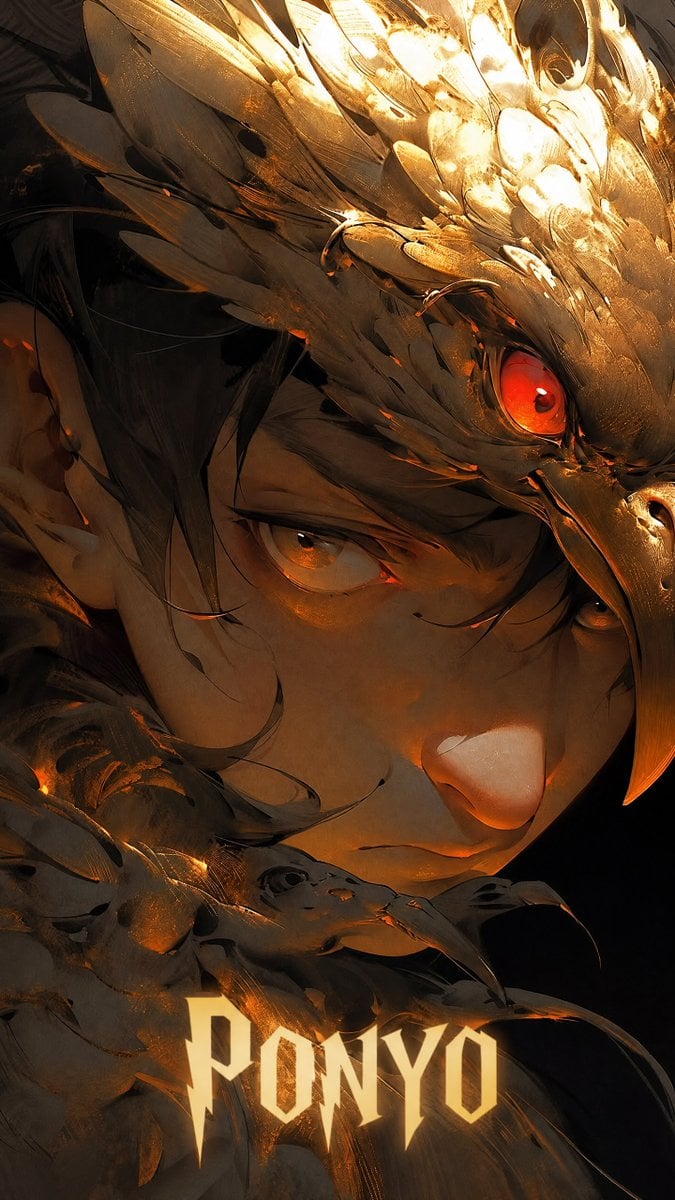
Dark Fantasy Ponyo Warrior Poster
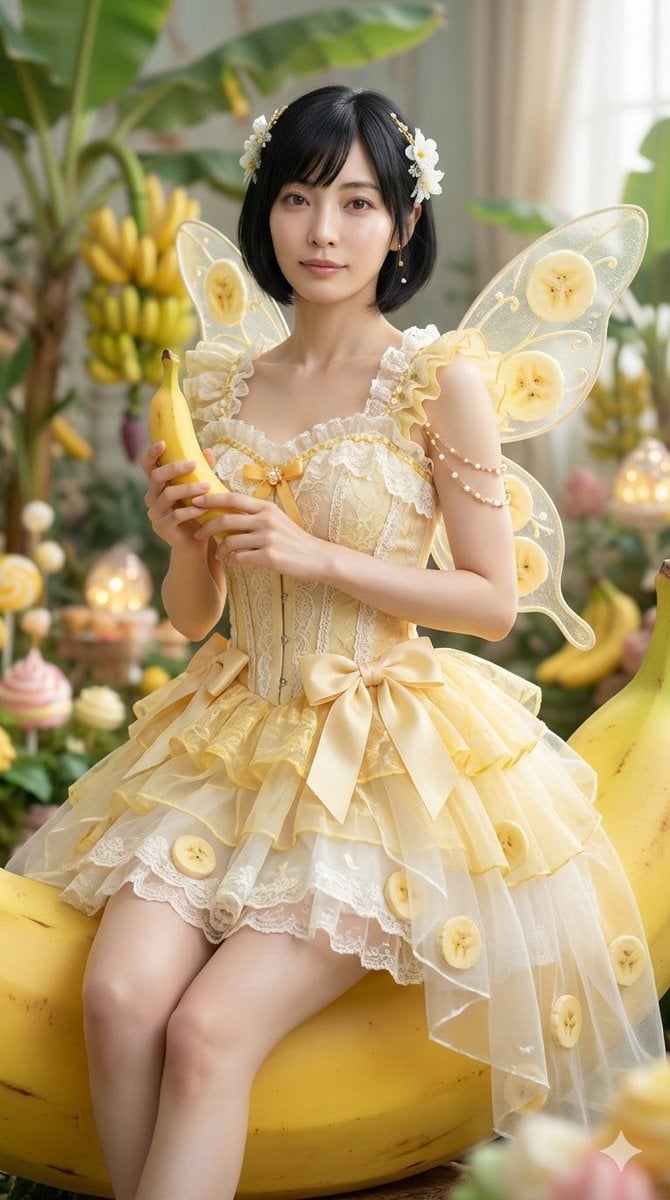
Cinematic Action Video Prompt: Banana Fairy vs. Zombies
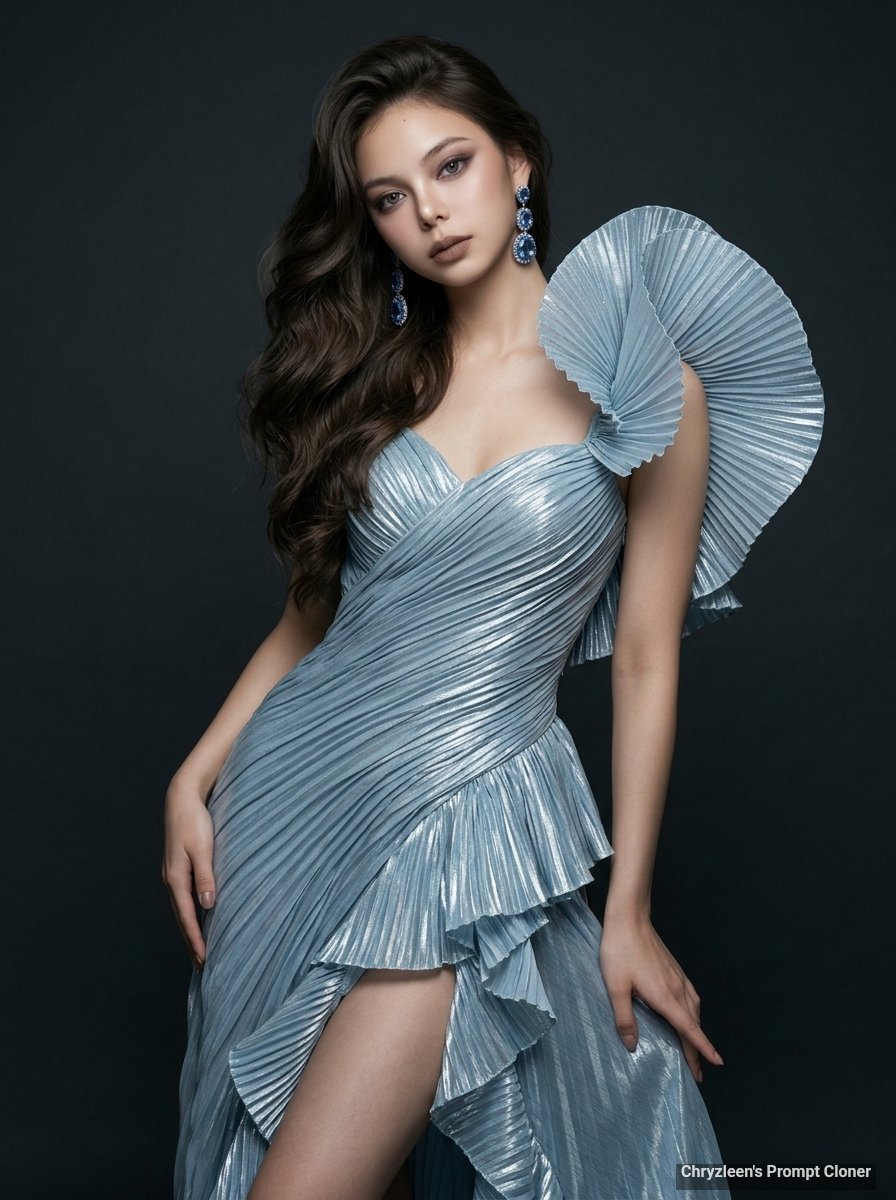
Hyper-Realistic Fashion Portrait with Reference Image
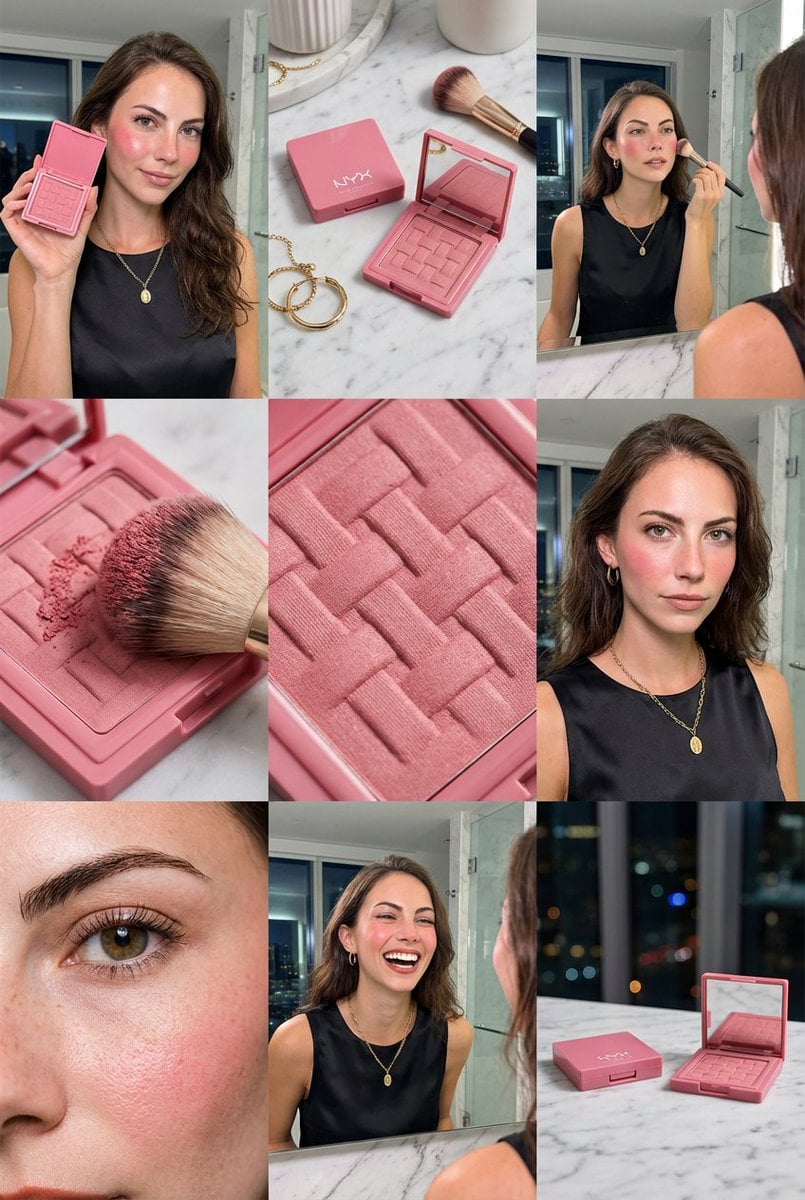
3x3 Grid Makeup Product Advertisement
Canyon Train Action Hero

Cute Subscription Celebration Illustration
Browse template categories
Cinematic Daisangen Mahjong Hand questions
How do I use the Cinematic Daisangen Mahjong Hand template?
Add your photo if the template asks for one, edit the prompt if you like — the template's model and format are already selected — and press Generate. Your version opens in PicX Studio.
Can I customize the Cinematic Daisangen Mahjong Hand template?
Yes. You can change the subject, setting, lighting, mood, format, and available model controls before creating your image.
Is the Cinematic Daisangen Mahjong Hand template free?
Opening and editing this template is free. Generating uses credits, shown on the Generate button when you are signed in.
Which AI model should I use?
Start with GPT Image 2, which is the model associated with this template. You can compare another compatible model for a different finish.
Looking for something else? Browse all templates.

Your photo, any look
Thousands of ready templates for every top image and video model, from one credit balance.