
Mintpage AI Landing Page Hero
A polished SaaS hero mockup showing an AI landing page studio interface in a soft mint-blue office scene.

- Prompt included
- Model and format preset
- Free template
The prompt behind this image
Copy the exact prompt behind Mintpage AI Landing Page Hero, or open it in the studio and make it yours.
Goal: Create a polished square hero image for a SaaS landing page concept advertising {argument name="product name" default="MINTPAGE"}, an AI landing page studio. Canvas: 1:1 square composition, soft daylight office setting, pastel mint and pale blue color palette, clean premium tech aesthetic, realistic 3D product mockup mixed with refined editorial typography. Layout: Center the scene around a large desktop monitor on a glossy glass desk. At the top, place a small brand row with a circular mint leaf-like logo, the word {argument name="product name" default="MINTPAGE"}, a thin divider line, and the subtitle {argument name="brand subtitle" default="AI LANDING PAGE STUDIO"}. Below it, use a very large elegant serif headline in dark blue: {argument name="headline text" default="WHY DO MOST AI PAGES LOOK GENERIC?"}. Under the headline, place exactly 4 small feature badges in one row with delicate mint icons and labels: 1) AI-Powered, 2) React + Tailwind, 3) Production Ready, 4) Built to Convert. Main subject: The monitor displays a clean web-app builder interface for creating landing pages. The interface should have a top navigation bar and a split workspace. On the left, show a vertical setup flow with exactly 4 numbered steps: 1) Context — Define your idea, 2) Style — Visual direction, 3) Design — AI generates layout, 4) Code — Export production ready code. In the center panel, show the headline “From Idea to Code. Instantly.” with “Code. Instantly.” in mint italic styling, followed by form fields such as Business Name, Target Audience, and Core Mission. On the right panel, show a code editor titled “Live Environment” with readable but small React/Tailwind-style code and a short rendered text snippet saying “Landing pages that look iconic. Built to convert.” Foreground objects: On the left side of the desk, place a translucent acrylic desk plaque with the circular logo and the text “MINTPAGE” and “AI LANDING PAGE STUDIO.” Beneath or beside it, stack exactly 3 slim books with visible spine labels: 1) BUILT FOR CONVERSION, 2) REACT + TAILWIND + AI, 3) DESIGN SYSTEMS THAT SCALE. In front of the monitor, place a slim white keyboard. On the right side, place a small translucent floating status card titled “PROJECT STATUS” listing exactly 5 checked items: 1) Live Environment, 2) Context Defined, 3) Style Generated, 4) Design Created, 5) Code Exported. Also include a pale blue ribbed pen cup with exactly 4 writing tools and a white mouse. Environment: Minimal modern office with soft-focus shelves and plants in the background, large window lighting from the right, subtle reflections on the glass desktop, gentle depth of field, no people. Visual style: Premium startup launch graphic, soft volumetric lighting, realistic product photography, glassmorphism overlays, mint-green accents, dark blue serif typography, crisp UI details, calm high-end studio atmosphere. Constraints: Use exactly the counted elements listed above, keep the image uncluttered, make the headline the most prominent text, avoid extra logos, watermarks, or unrelated text.
How to use Mintpage AI Landing Page Hero in 3 steps
- 1Upload ImagePNG, JPG or paste
Add your photo
Upload the photo the template builds on. The prompt, model and format are already set.
- 2…a portrait of your subject in softgolden-hour light, 85mm…
Personalize
Edit the subject and creative details for your destination.
- 3Generate
Generate
Press Generate — your image is created in PicX Studio, so you can compare it with the original and refine one variable at a time.
More like this
Templates with the same subject, style or setup. Open one to see its prompt.
Atlas GTM SaaS Hero Landing Page
NOVALITH SaaS Landing Page Hero
Cyberpunk Flash Sale Landing Hero
Gothic Anime Superhero Landing
Gothic Maid Superhero Landing
Rainy Cyberpunk Superhero Comic Page

Cute AI Doodle Generator Landing Page
Vibe Coder Bootcamp Landing Page
Futuristic Ohmni Access Landing Page
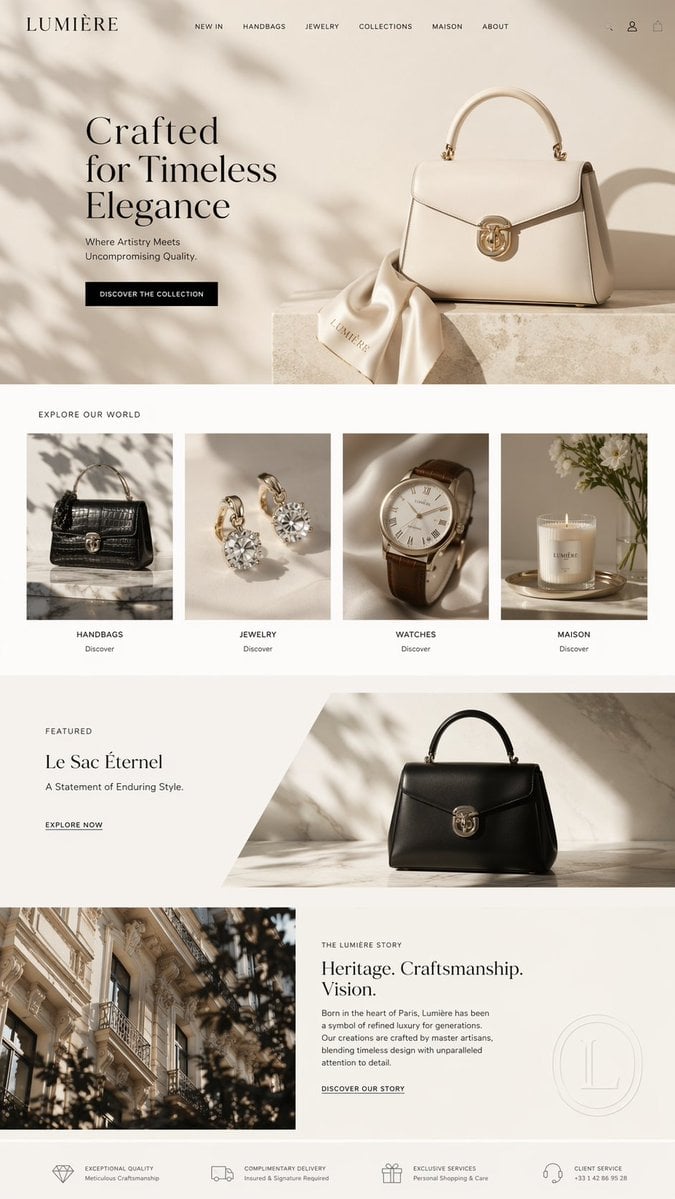
Luxury E-Commerce Landing Page Mockup
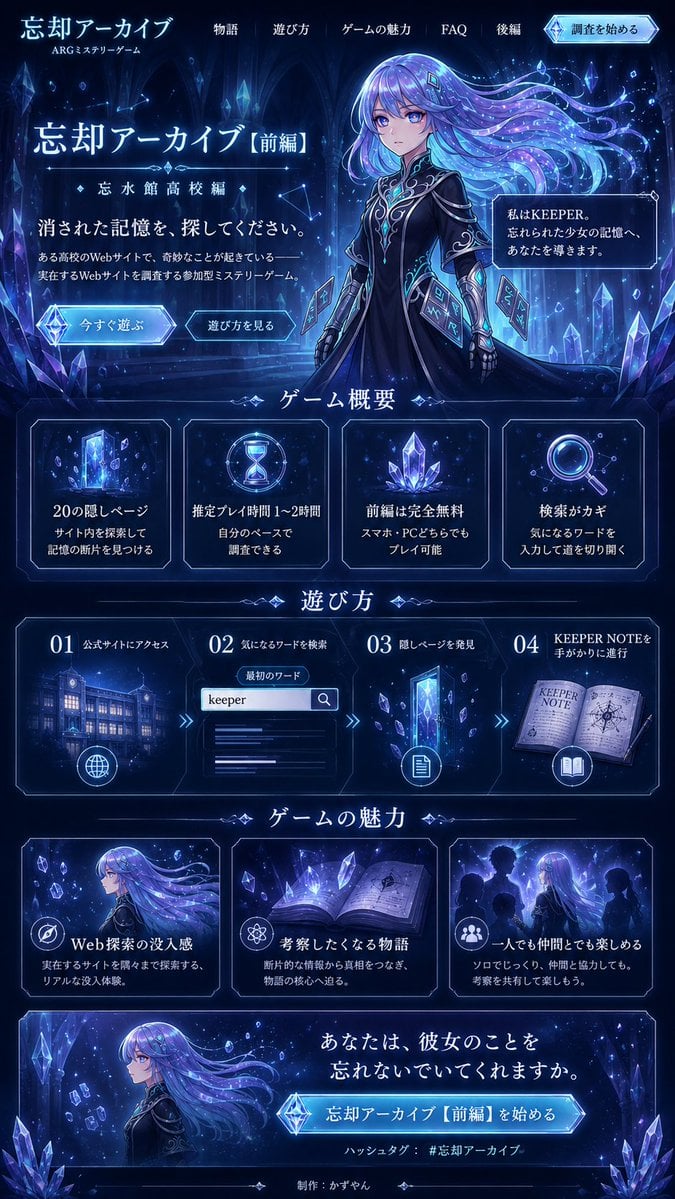
Forgotten Archive ARG Landing Page
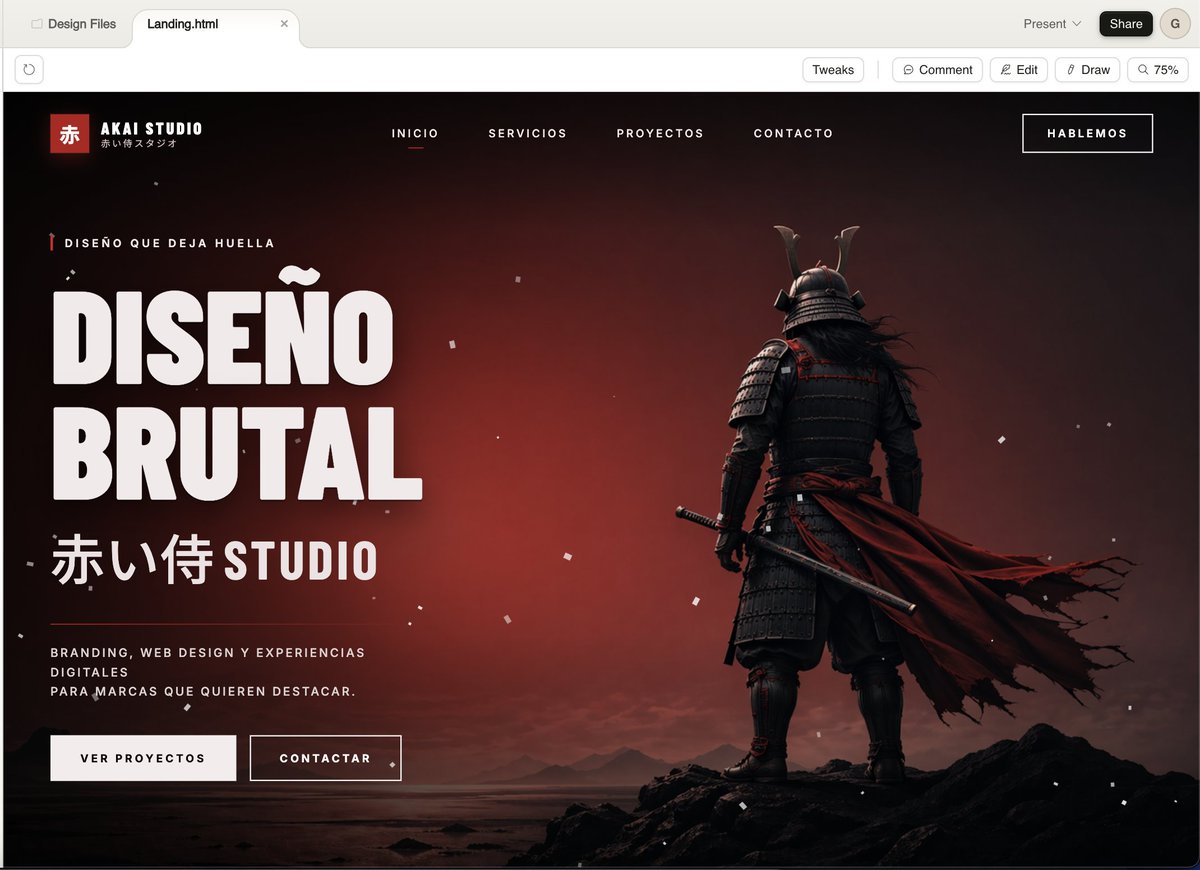
Cinematic Samurai Agency Landing Page
Make it yours
Mintpage AI Landing Page Hero works as-is. These are the safest ways to change it without losing the look.
Change one field
Copy a single group, rewrite it, and generate again so you can see what that field is doing.
Keep the frame, change the subject
Hold the composition and light of Mintpage AI Landing Page Hero, then swap wardrobe, props or the person for a new take.
| If the result… | Why | Fix |
|---|---|---|
| The result drifts from the preview | Too many fields changed at once. | Reuse Mintpage AI Landing Page Hero as-is first, then change one group — subject, light, or setting. |
| The model over-stylizes the scene | The prose prompt leaves finish and camera underspecified. | Add one camera or lighting sentence and stay on GPT Image 2. |
More GPT Image 2 templates
Other prompts made for GPT Image 2.

Six VTuber Japanese Logo Sheet

Realistic Portrait of Woman and Deer

The Vista Modular Condo Poster

AI Model Routing Comparison Infographic

2.5D Anime Art Board

Isometric Productivity Desk Scene

New York Double Exposure Poster

Four-Panel AI Landscape Comparison

Japanese Tatami Lifestyle Magazine Cover

NESCAFÉ Coffee Map Poster
More image prompts
Fresh picks from across the catalog.

Meme: Shoveling Snow with/without Coffee
Gpt2 Profile Avatar Restored Vintage Mother and Child Portrait
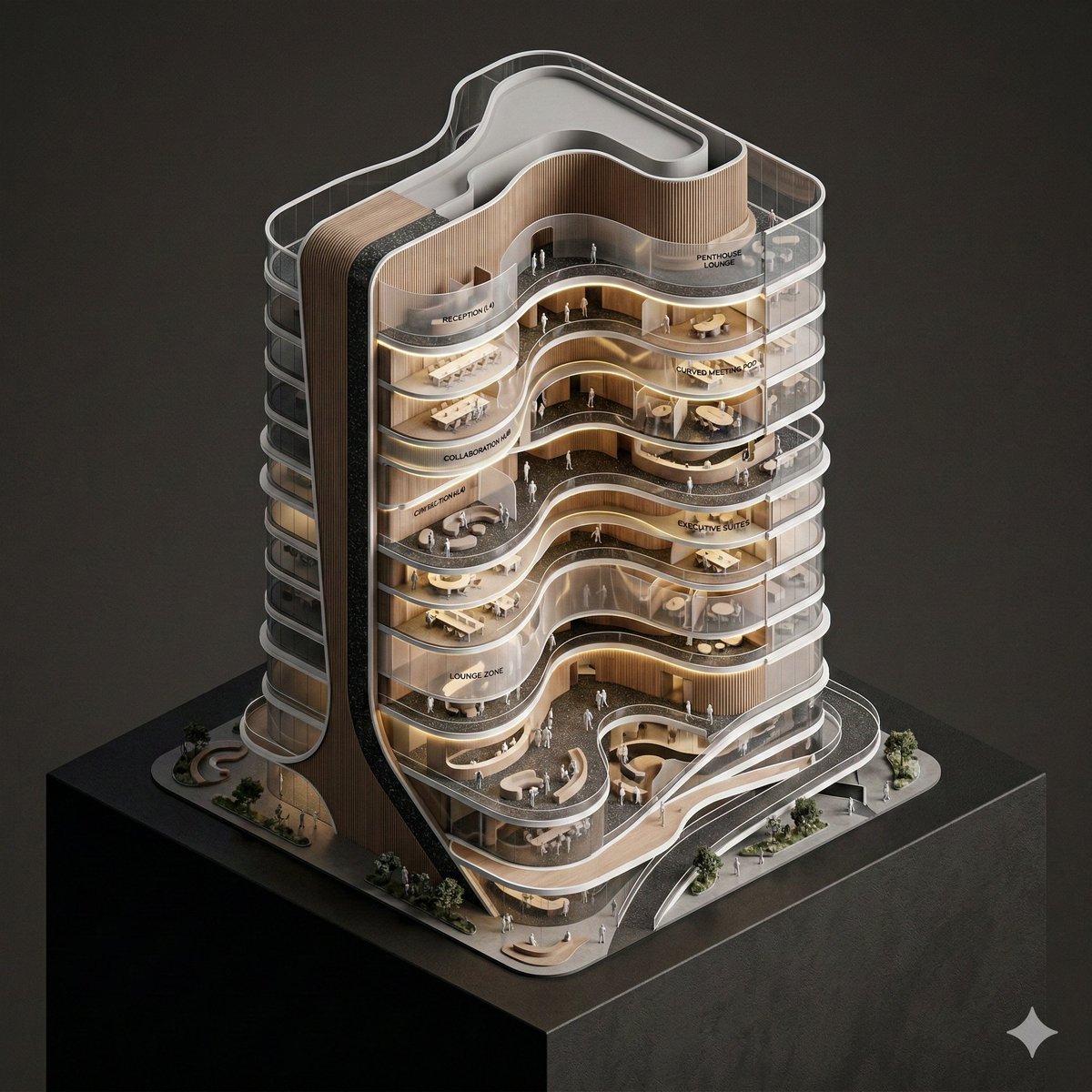
Conceptual Isometric Office Tower Model
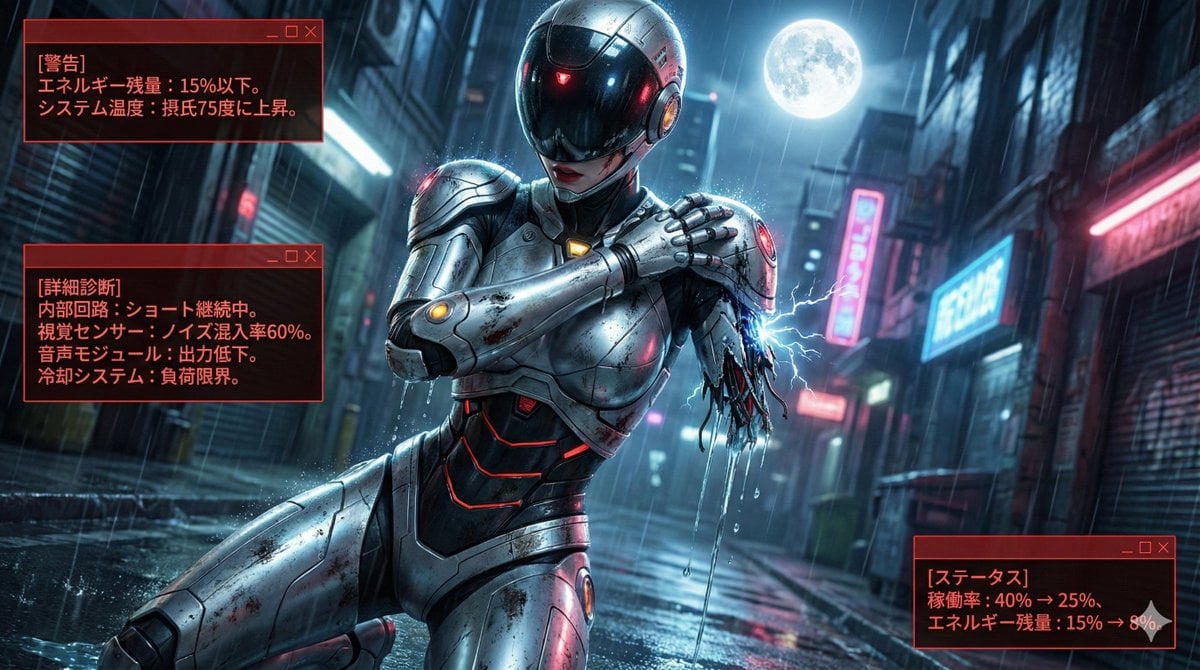
Nano Banana LLM Prompt for System Message Modification

Ordinary Evening Street Snapshot
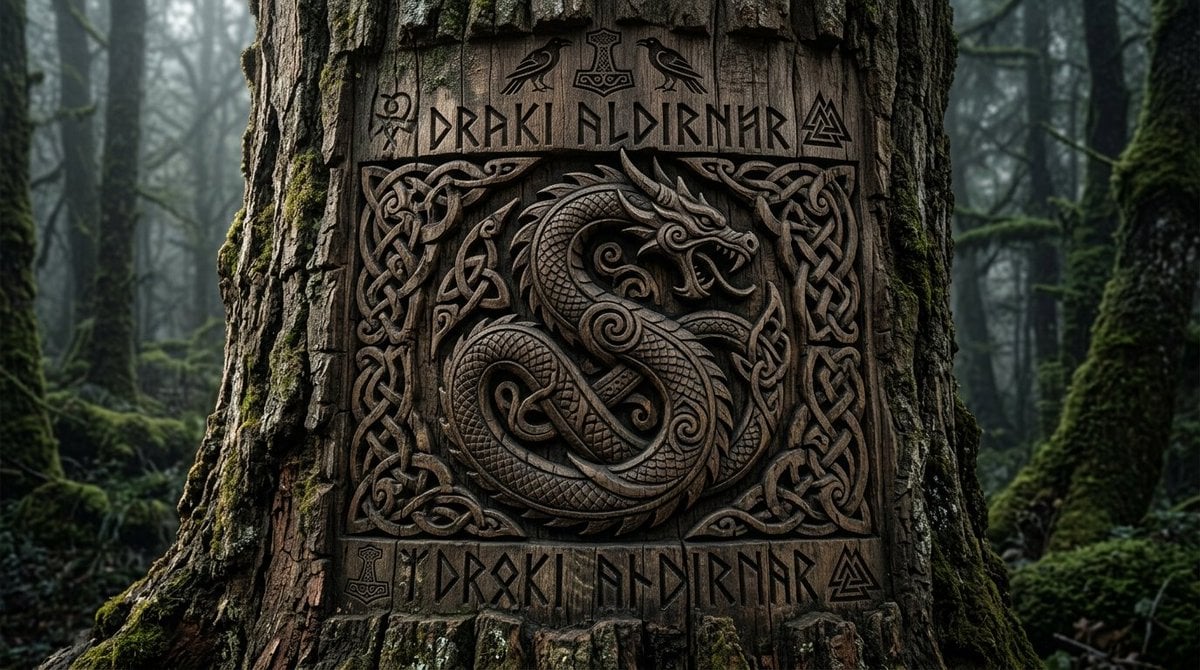
Viking Tree Carvings
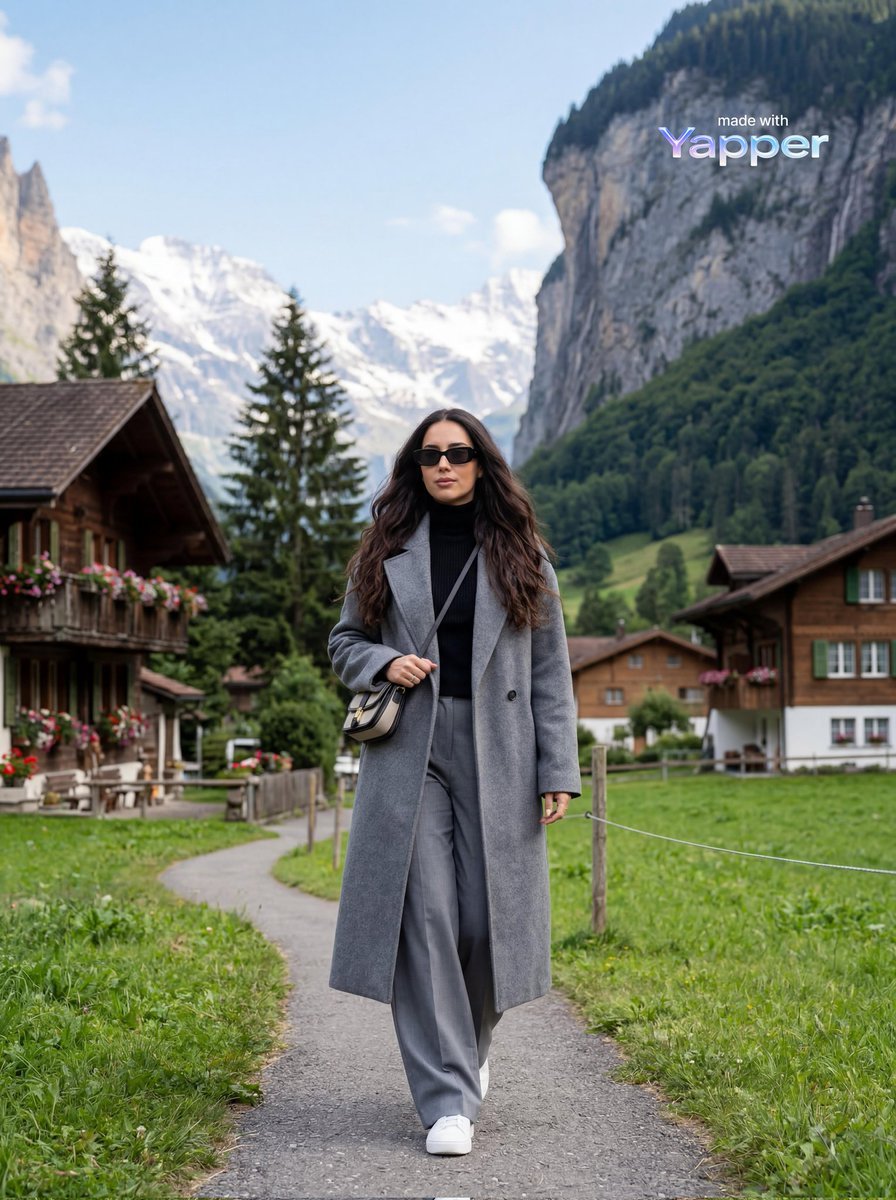
Travel Lifestyle Photography in Swiss Alpine Village

Vintage Car Portrait in Industrial Setting
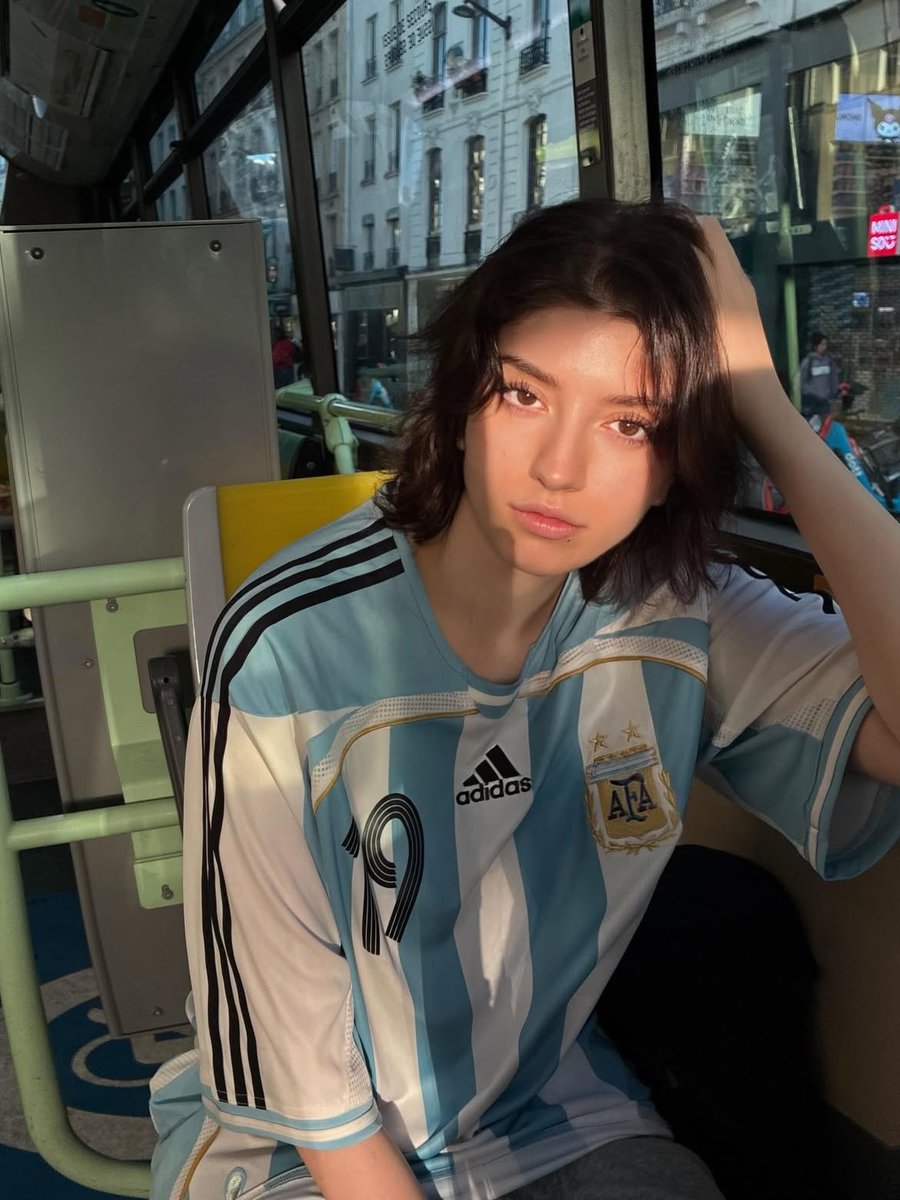
Golden Hour Bus Ride Portrait
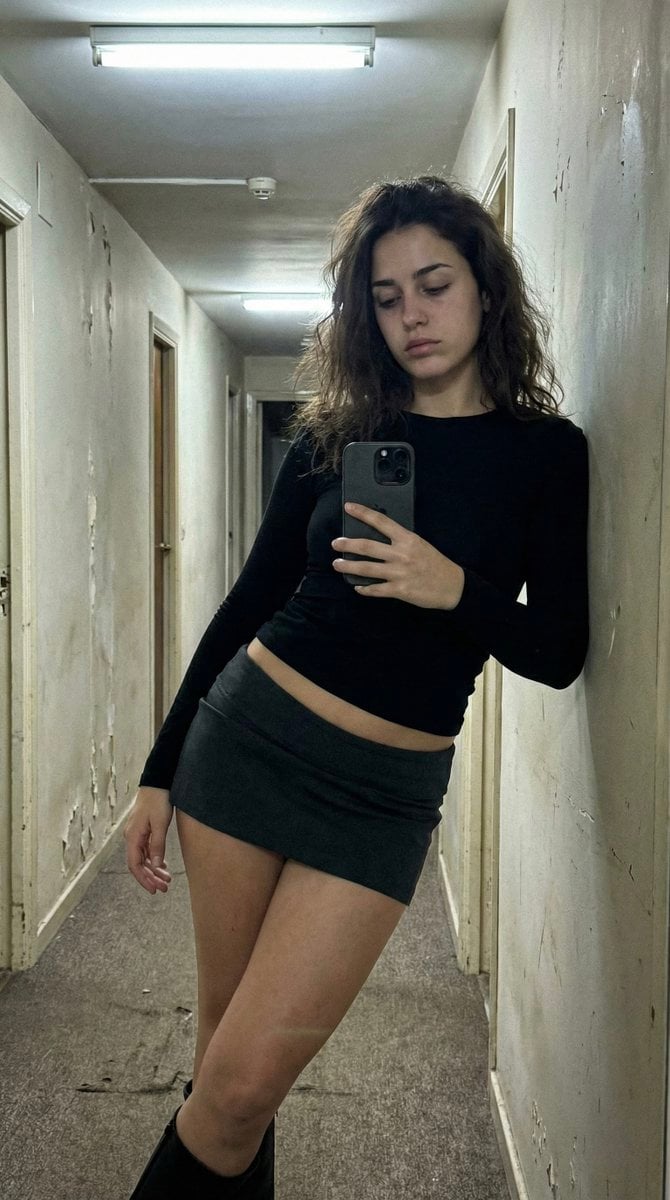
Ultra Photorealistic iPhone Selfie in an Empty Hallway
Browse template categories
Mintpage AI Landing Page Hero questions
How do I use the Mintpage AI Landing Page Hero template?
Add your photo if the template asks for one, edit the prompt if you like — the template's model and format are already selected — and press Generate. Your version opens in PicX Studio.
Can I customize the Mintpage AI Landing Page Hero template?
Yes. You can change the subject, setting, lighting, mood, format, and available model controls before creating your image.
Is the Mintpage AI Landing Page Hero template free?
Opening and editing this template is free. Generating uses credits, shown on the Generate button when you are signed in.
Which AI model should I use?
Start with GPT Image 2, which is the model associated with this template. You can compare another compatible model for a different finish.
Looking for something else? Browse all templates.

Your photo, any look
Thousands of ready templates for every top image and video model, from one credit balance.