
3D Kawaii Y2K Portrait Conversion
Transforms a real portrait into a glossy, toy-like 3D kawaii character in a Y2K pop style, preserving facial features while applying stylized rendering.
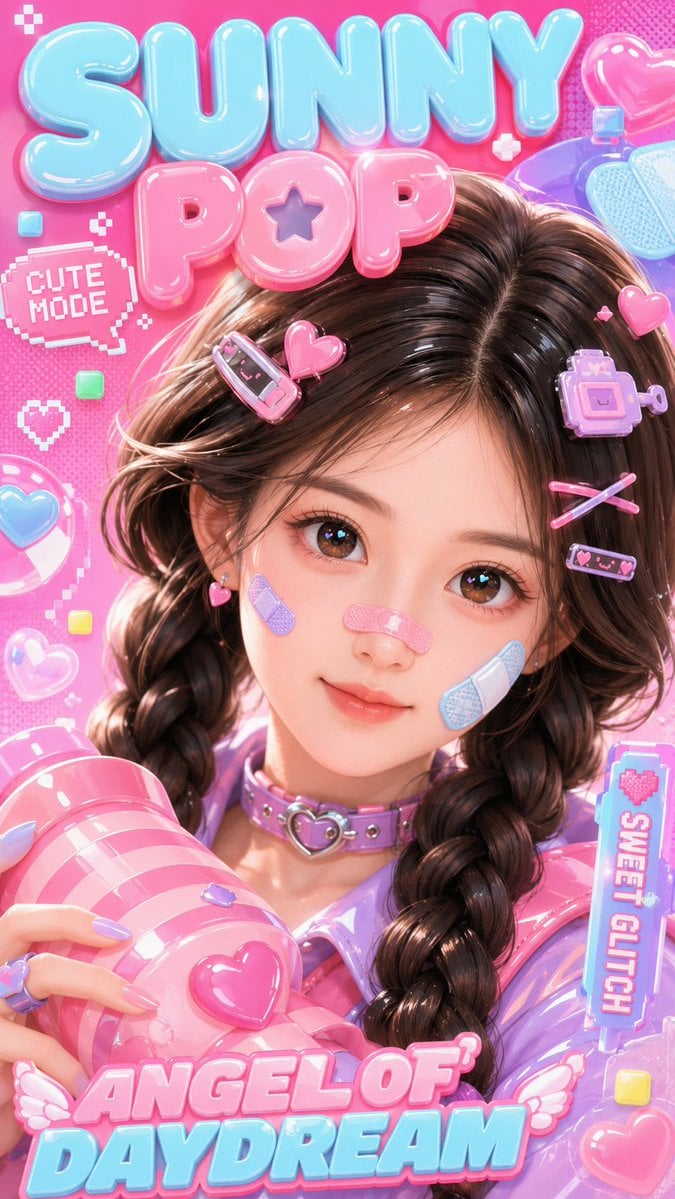
- Prompt included
- Model and format preset
- Free template
The prompt behind this image
Copy the exact prompt behind 3D Kawaii Y2K Portrait Conversion, or open it in the studio and make it yours.
Use the uploaded portrait only as the identity reference. Preserve the person’s face shape, facial features, eye shape, natural dark brown/black hair color, center-parted twin braids, and overall cute youthful vibe. Transform the portrait into a glossy 3D kawaii character, not photorealistic, with a polished toy-like Y2K pop style Create a vertical 9:16 close-up 3D kawaii poster cover. A cute glossy 3D girl with soft doll-like facial proportions, big sparkling eyes, natural dark brown braided hair, candy-pink and pastel-blue hair clips, cute bandages on the cheeks and nose, a lavender choker with a heart buckle, and a shiny pastel purple-pink outfit. She is holding a large pink striped glossy prop near the camera. Background is bright hot pink with bubble letters, pixel stickers, hearts, glossy bubbles, and playful Y2K pop graphics. Make it look like a stylized 3D portrait conversion from a real photo, with clean smooth shading, high detail, rich gloss, and strong cute poster energy. All text must be in English only: “{argument name="text 1" default="SUNNY POP"}”, “{argument name="text 2" default="CUTE MODE"}”, “{argument name="text 3" default="SWEET GLITCH"}”, “ANGEL OF DAYDREAM”. No watermark, no Chinese text Negative Prompt: photorealistic, realistic photo style, green hair, wrong hair color, short hair, messy hairstyle, low detail, blurry face, bad anatomy, extra fingers, deformed hands, distorted face, flat lighting, dull colors, messy text, unreadable text, Chinese text, watermark, logo, duplicate accessories, ugly eyes, plastic artifacts, low quality
How to use 3D Kawaii Y2K Portrait Conversion in 3 steps
- 1Upload ImagePNG, JPG or paste
Add your photo
Upload the photo the template builds on. The prompt, model and format are already set.
- 2…a portrait of your subject in softgolden-hour light, 85mm…
Personalize
Edit the subject and creative details for your destination.
- 3Generate
Generate
Press Generate — your image is created in PicX Studio, so you can compare it with the original and refine one variable at a time.
More like this
Templates with the same subject, style or setup. Open one to see its prompt.

Found Photograph: Us, 1970

80s Couple Studio Portrait
80s Bollywood Star
80s Golden Hour Cinema
Me in 1985
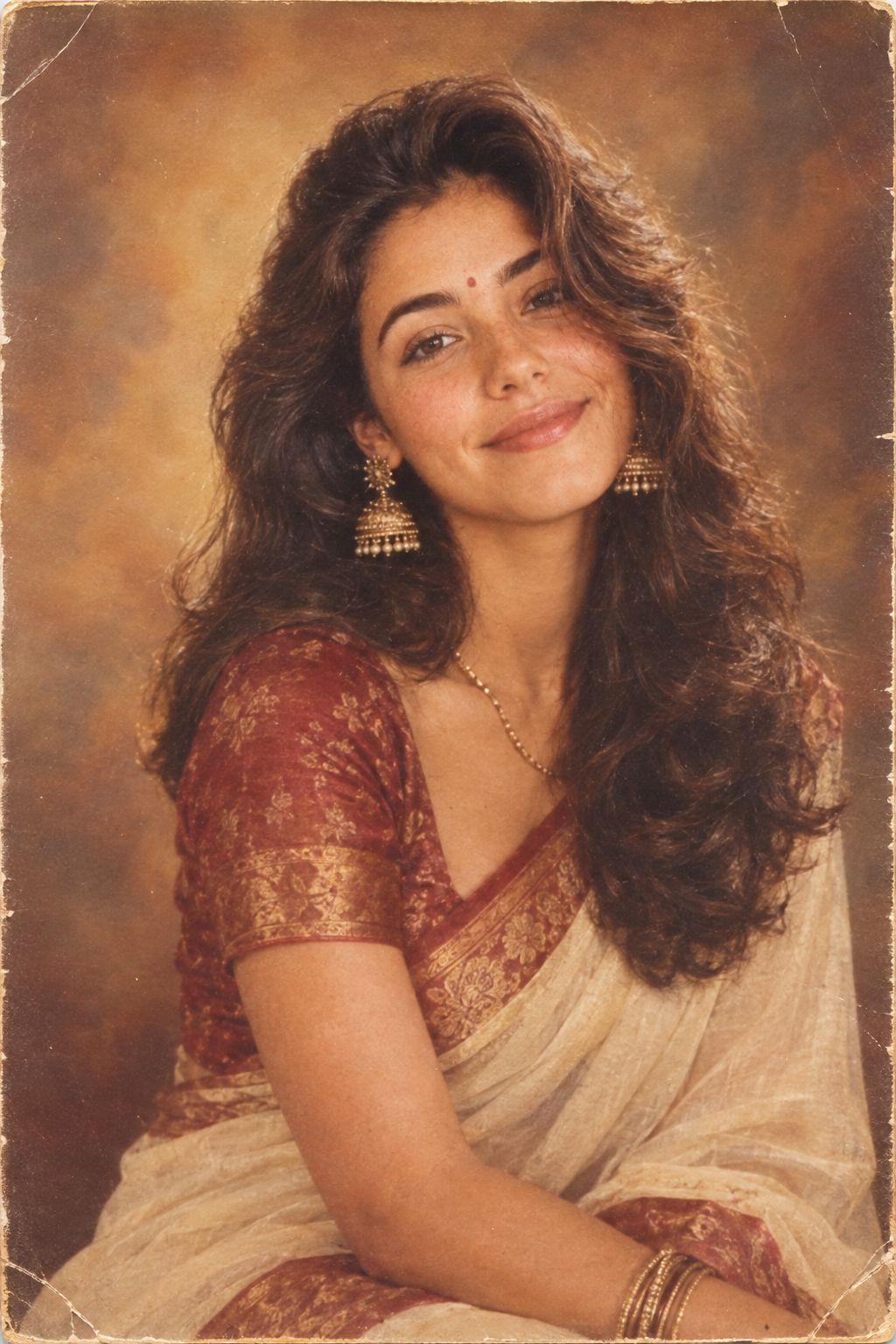
1985 Studio Portrait
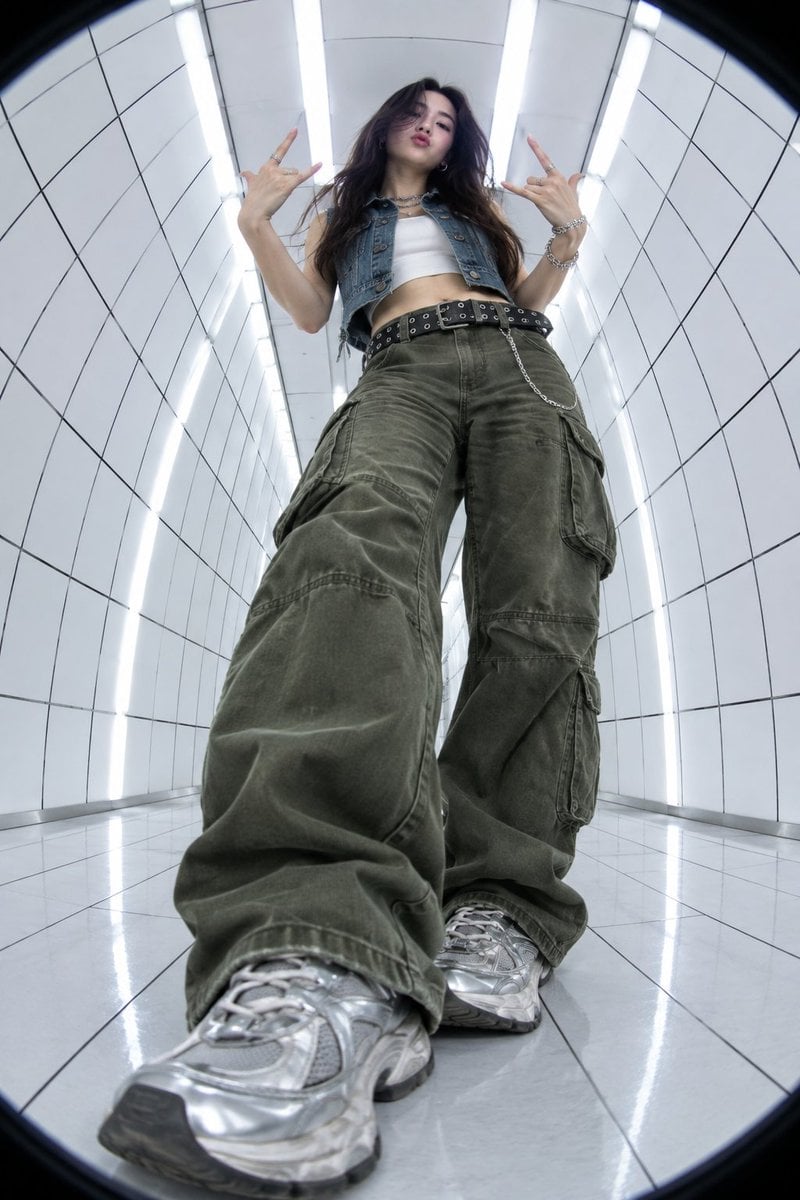
Y2K Fisheye Streetwear Portrait

Hyper-Realistic Minecraft POV Portrait
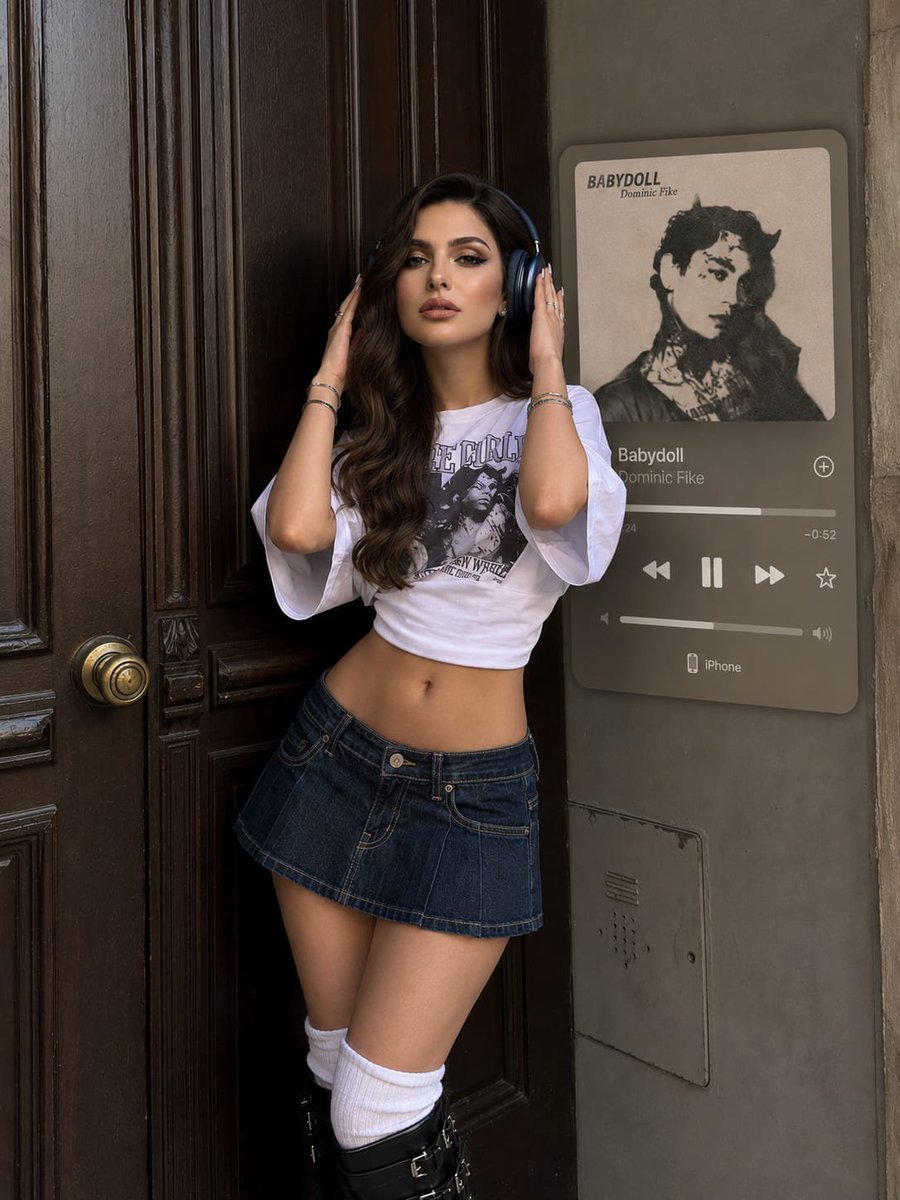
Y2K Music Editorial Portrait
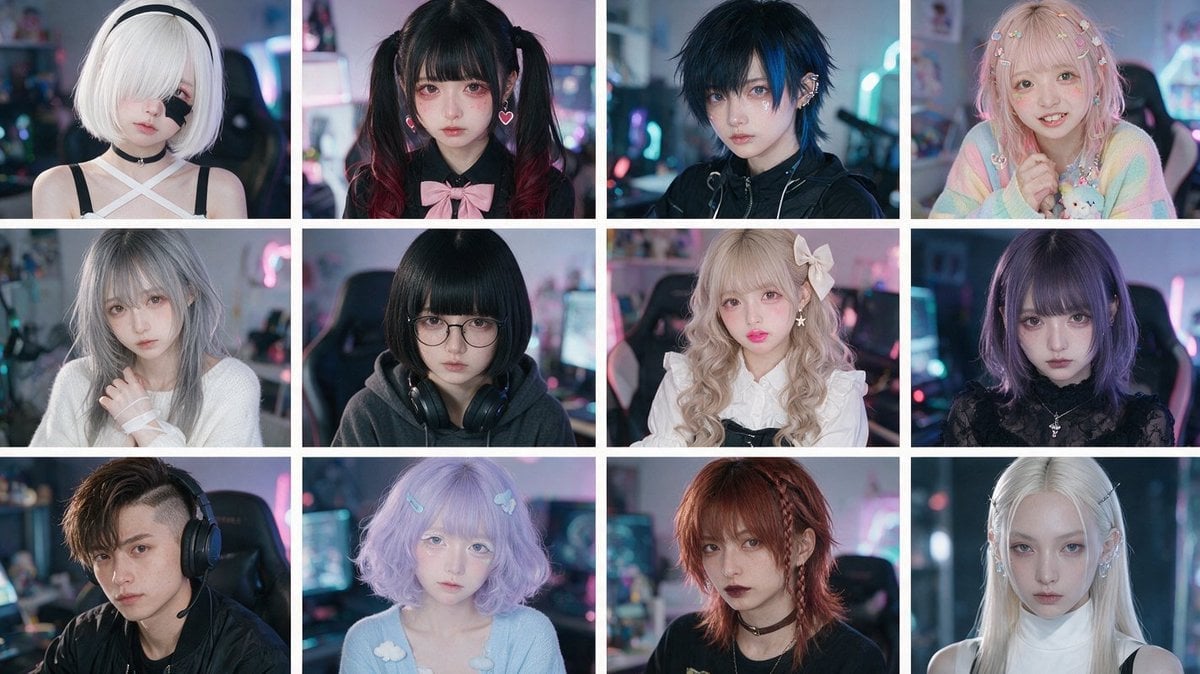
Cyber-Kawaii Influencer Portrait Grid
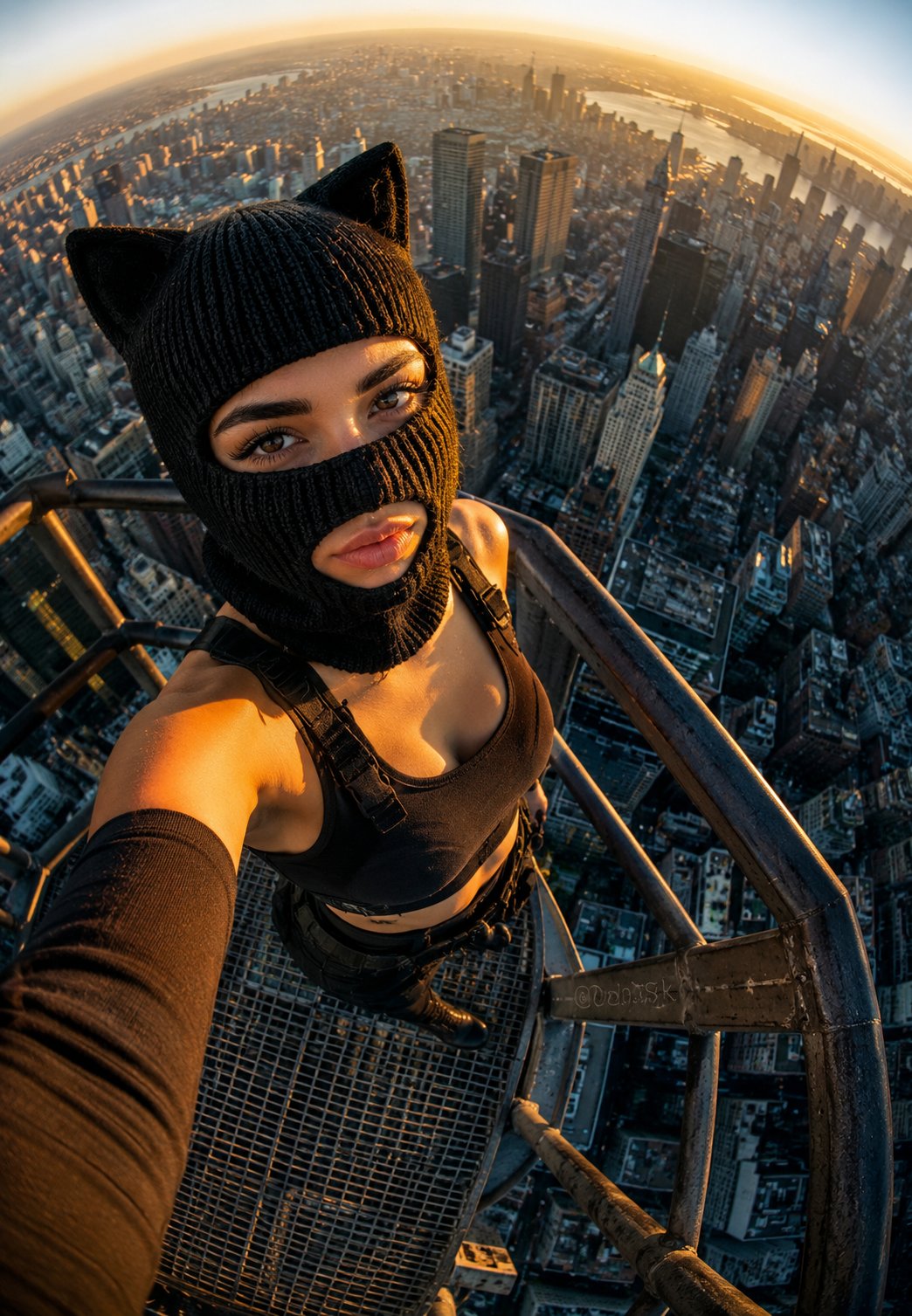
Rooftop Fisheye — Cat-Ear Balaclava at Golden Hour
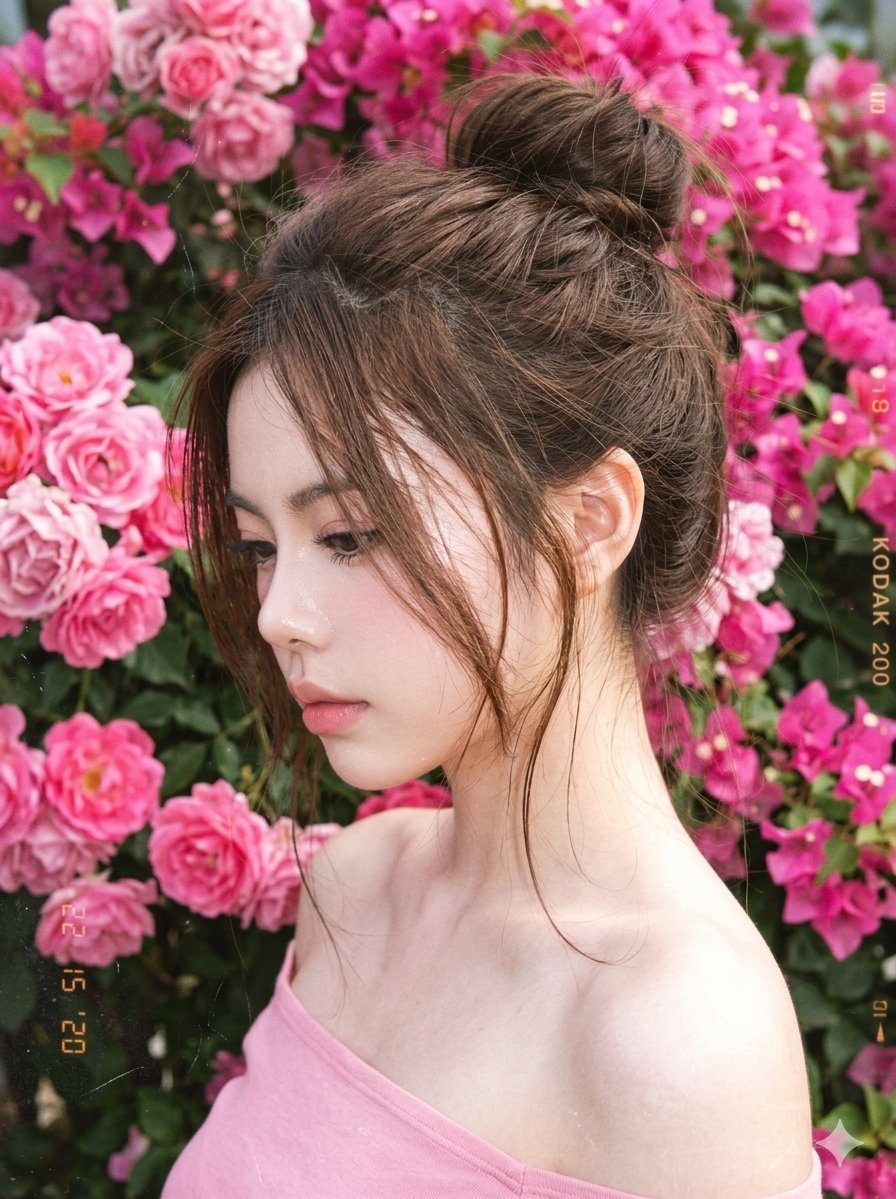
Y2K Style Digital Portrait
Make it yours
3D Kawaii Y2K Portrait Conversion works as-is. These are the safest ways to change it without losing the look.
Change one field
Copy a single group, rewrite it, and generate again so you can see what that field is doing.
Keep the frame, change the subject
Hold the composition and light of 3D Kawaii Y2K Portrait Conversion, then swap wardrobe, props or the person for a new take.
| If the result… | Why | Fix |
|---|---|---|
| The result drifts from the preview | Too many fields changed at once. | Reuse 3D Kawaii Y2K Portrait Conversion as-is first, then change one group — subject, light, or setting. |
| The model over-stylizes the scene | The prose prompt leaves finish and camera underspecified. | Add one camera or lighting sentence and stay on GPT Image 2. |
More GPT Image 2 templates
Other prompts made for GPT Image 2.

Six VTuber Japanese Logo Sheet

Realistic Portrait of Woman and Deer

The Vista Modular Condo Poster

AI Model Routing Comparison Infographic

2.5D Anime Art Board

Isometric Productivity Desk Scene

New York Double Exposure Poster

Four-Panel AI Landscape Comparison

Japanese Tatami Lifestyle Magazine Cover

NESCAFÉ Coffee Map Poster
More image prompts
Fresh picks from across the catalog.
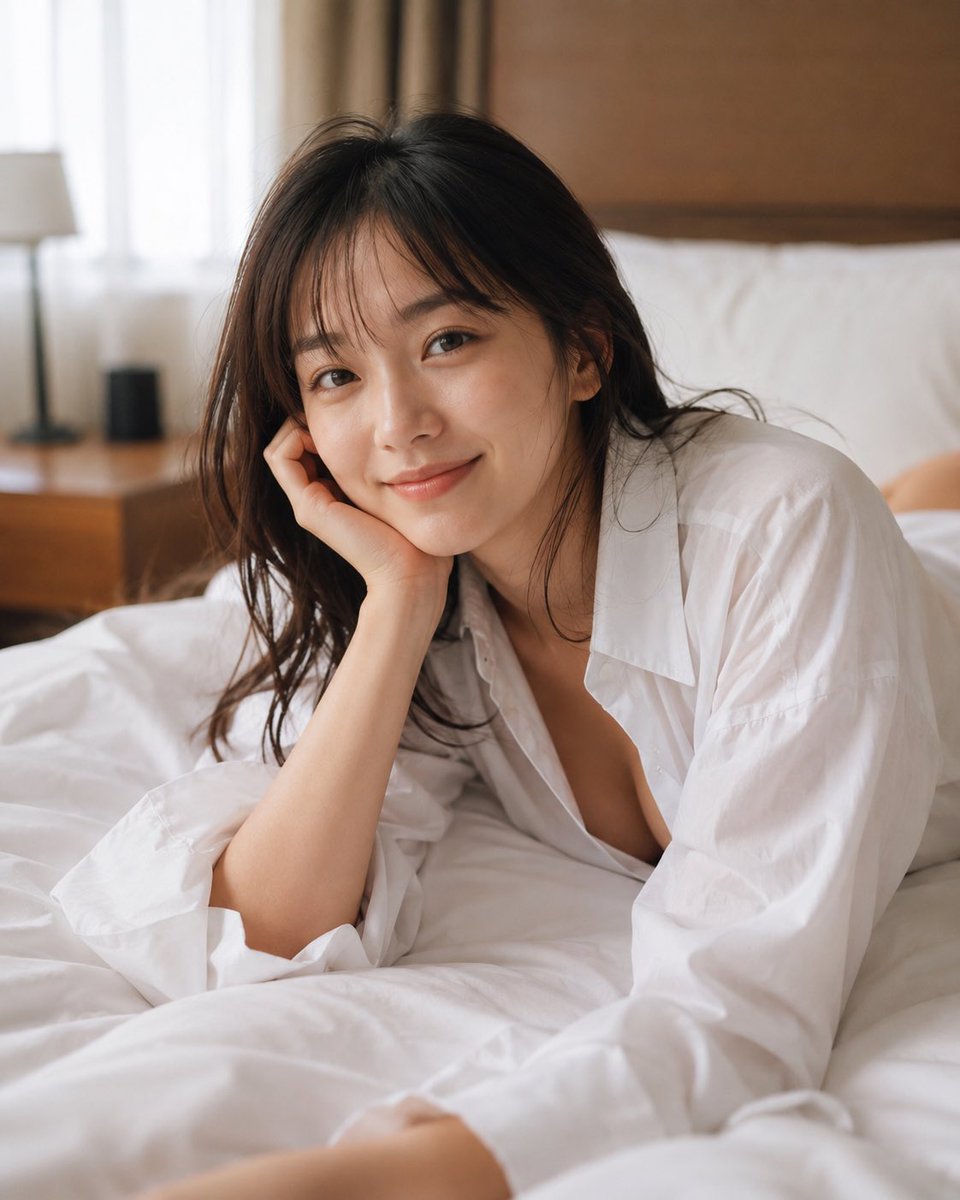
Censored Bedroom Lifestyle Portrait
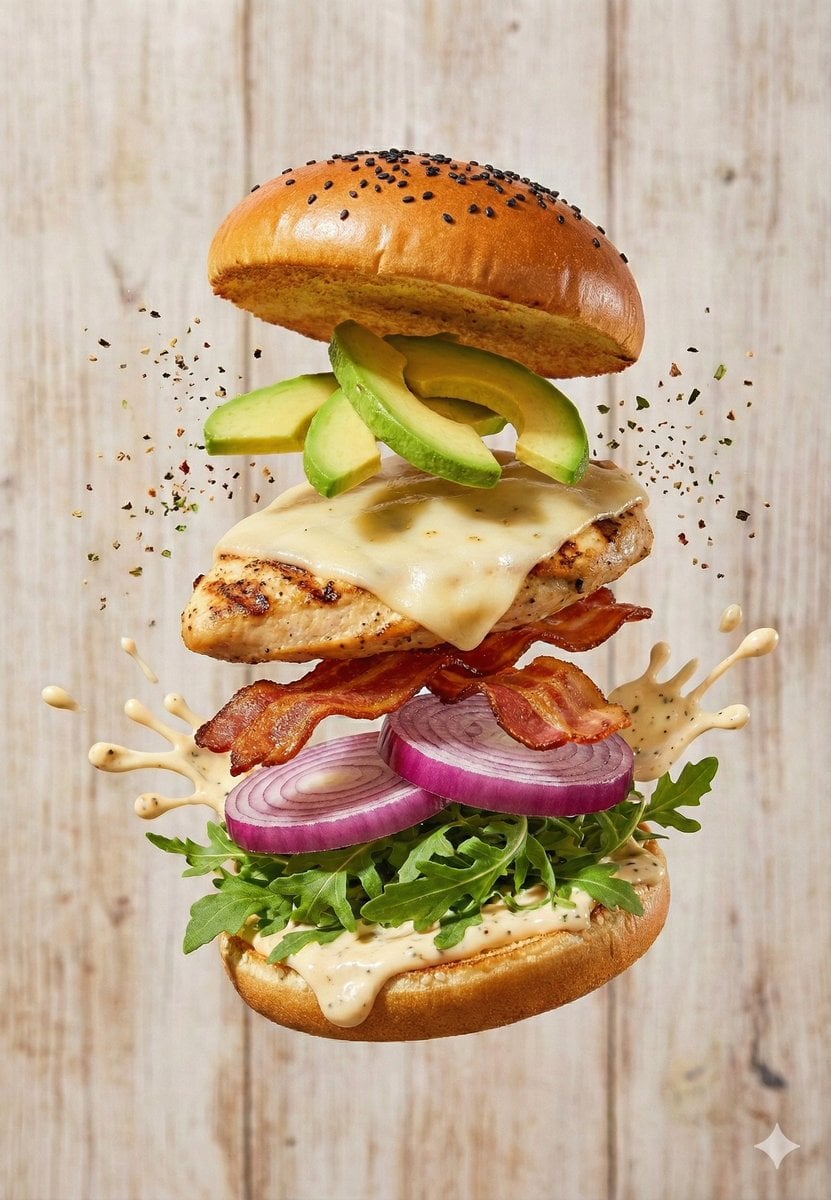
Floating Gourmet Burger Commercial Shot
Macro Product Photography: Chilled Chocolate Drink Can
Outfit combinations using Sergey Brin as model
Stylish Office Worker Portrait
Elegant Fan Meeting Goods Flyer
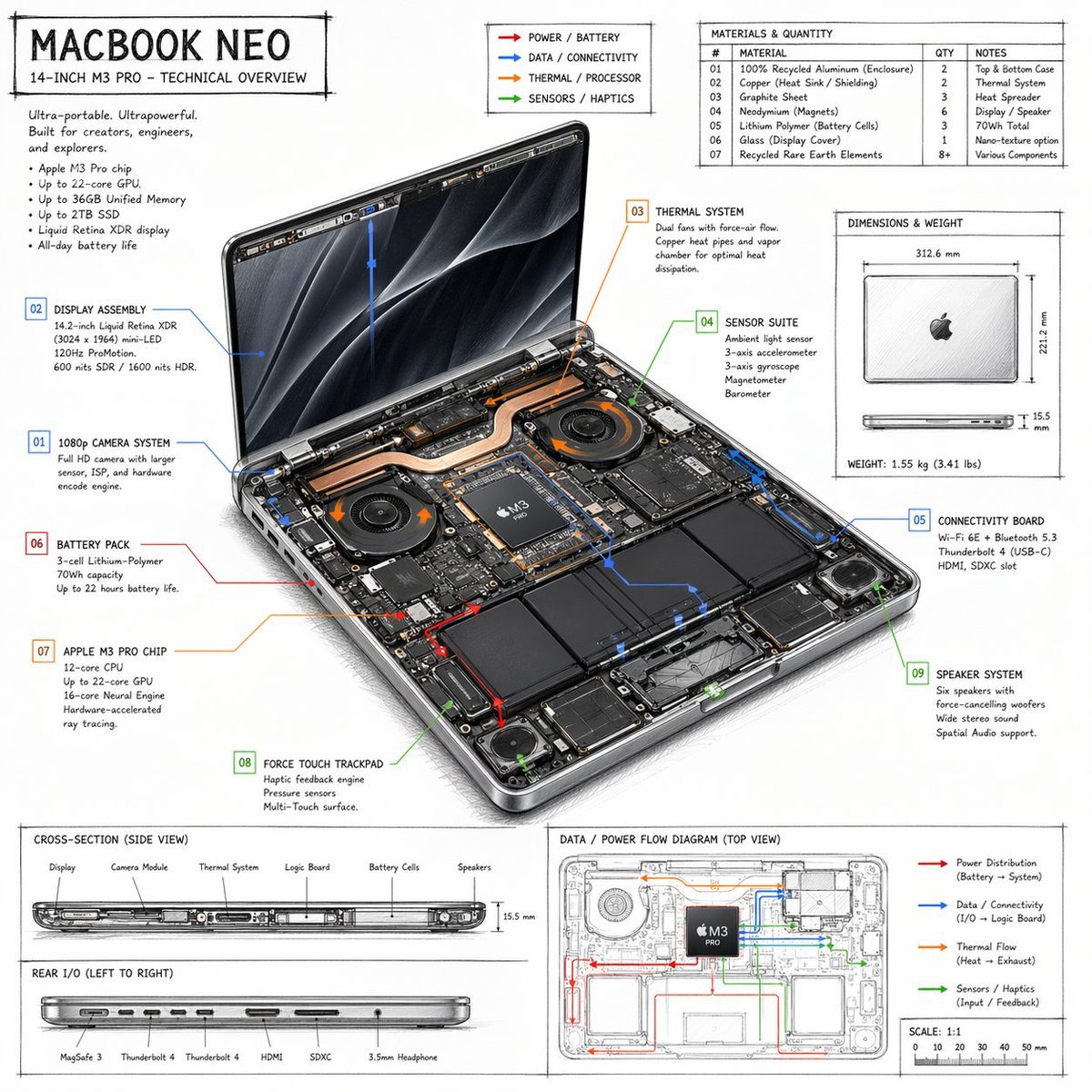
Laptop Technical Overview Infographic
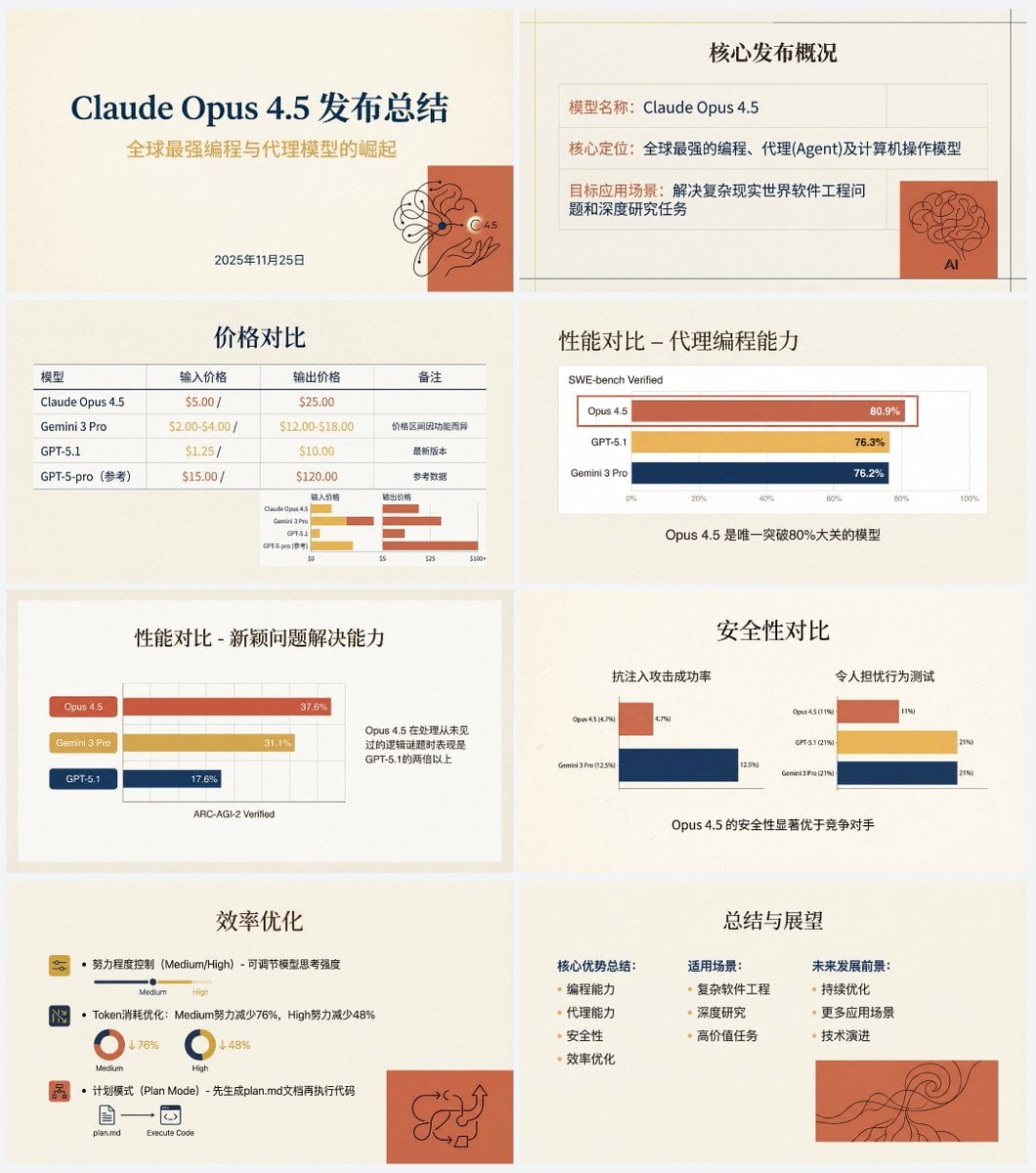
Anthropic-style warm academic PPT workflow prompt
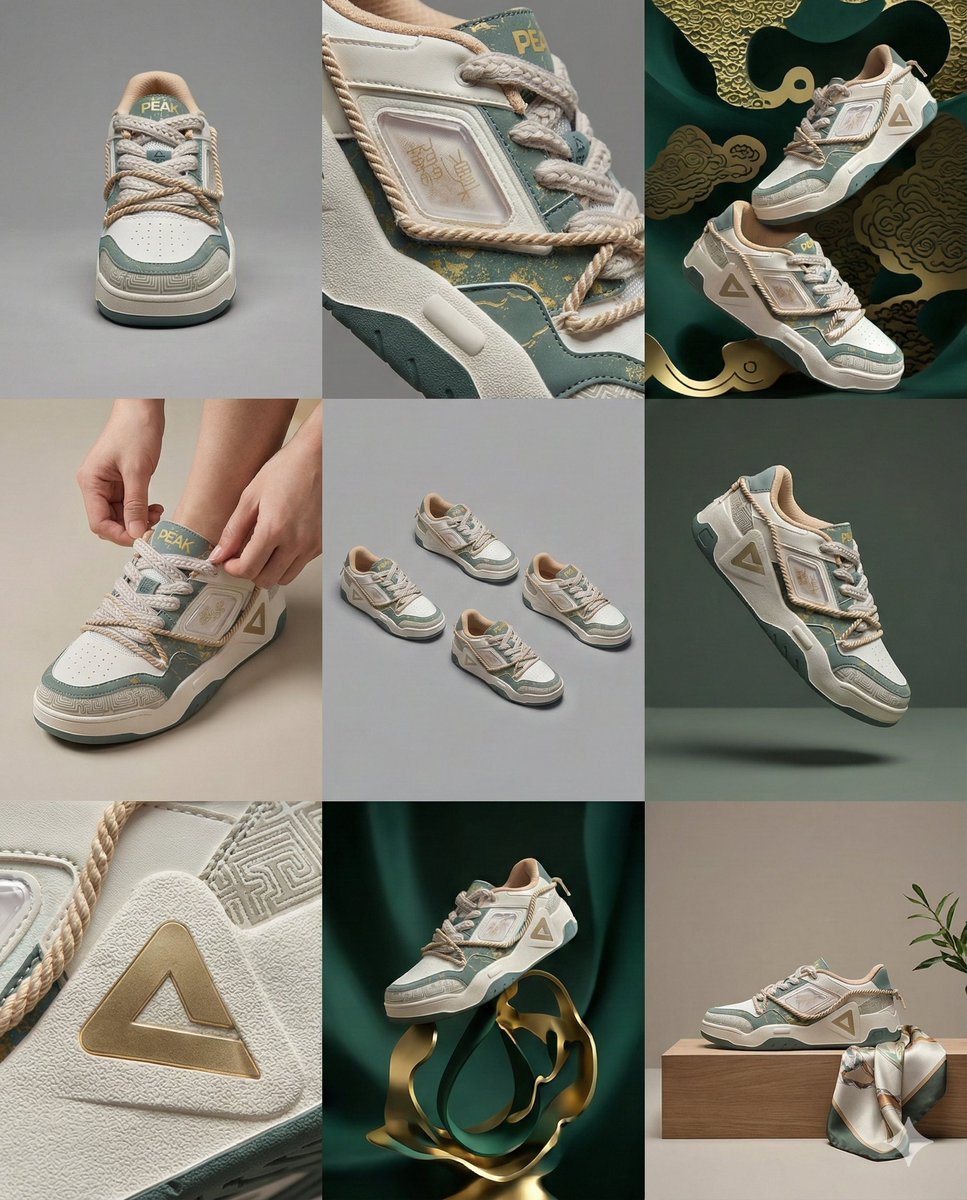
3x3 Visual Storyboard for Product Branding

Simple Santa Hat Addition Prompt
Browse template categories
3D Kawaii Y2K Portrait Conversion questions
How do I use the 3D Kawaii Y2K Portrait Conversion template?
Add your photo if the template asks for one, edit the prompt if you like — the template's model and format are already selected — and press Generate. Your version opens in PicX Studio.
Can I customize the 3D Kawaii Y2K Portrait Conversion template?
Yes. You can change the subject, setting, lighting, mood, format, and available model controls before creating your image.
Is the 3D Kawaii Y2K Portrait Conversion template free?
Opening and editing this template is free. Generating uses credits, shown on the Generate button when you are signed in.
Which AI model should I use?
Start with GPT Image 2, which is the model associated with this template. You can compare another compatible model for a different finish.
Looking for something else? Browse all templates.

Your photo, any look
Thousands of ready templates for every top image and video model, from one credit balance.