
Manus GPT Image 2.0 Comparison Slide
A Japanese corporate infographic slide comparing AI slide-generation methods and tools, ideal for social posts or presentation decks.
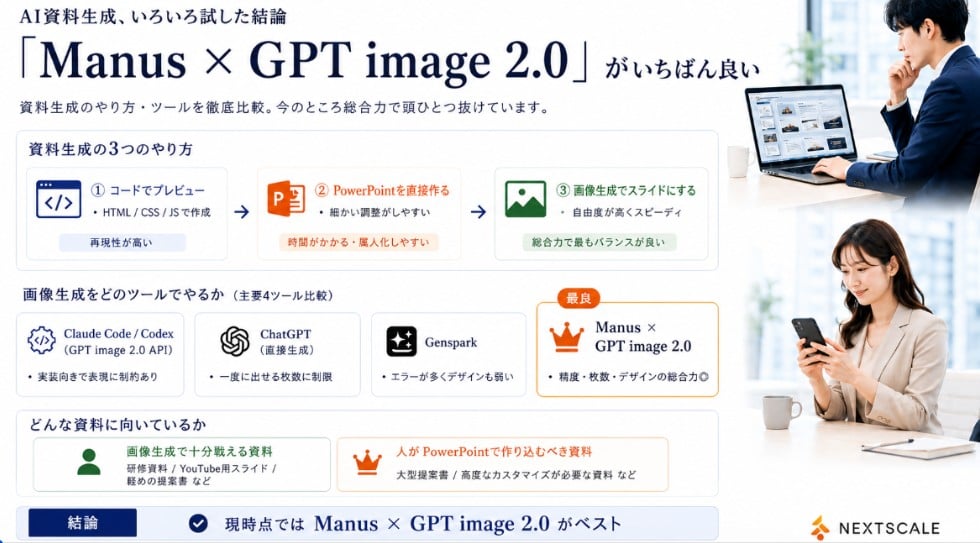
- Prompt included
- Model and format preset
- Free template
The prompt behind this image
Copy the exact prompt behind Manus GPT Image 2.0 Comparison Slide, or open it in the studio and make it yours.
Goal: Create a polished Japanese business infographic slide comparing AI presentation-material generation methods and tools, with a corporate white, navy, orange, and green palette. The main message is that Manus × GPT image 2.0 is currently the best overall option. Canvas: Wide 16:9 landscape slide, clean white background, thin light-gray card borders, deep navy typography, subtle blue-gray shadows. Leave a right-side vertical photo strip occupying about 24% of the canvas. Header: At top left, small Japanese lead-in text using {argument name="small header text" default="We tried many ways to generate AI presentation materials — here's the conclusion"}. Below it, a very large elegant serif headline using {argument name="main headline text" default="\"Manus × GPT image 2.0\" is the best"}. Under the headline, add a smaller subtitle using {argument name="subtitle text" default="A thorough comparison of methods and tools for generating presentation materials. Right now, it's a clear step ahead of the rest in overall capability."}. Right photo area: Add exactly 2 realistic business lifestyle photos stacked vertically with soft bright office lighting. Top photo: a Japanese businessman in a navy suit working at a laptop showing slide thumbnails, seated near a window, face softly blurred. Bottom photo: a Japanese businesswoman in a beige blazer looking at a smartphone at a desk, face softly blurred. Keep the photos cropped cleanly with white margins, matching the slide’s corporate look. Section 1 layout: Create a large rounded rectangle card titled "資料生成の3つのやり方". Inside it place exactly 3 horizontal method cards connected by two right-pointing arrows. Method 1: blue code icon, label "① コードでプレビュー", small text "HTML / CSS / JSで作成", bottom pill "再現性が高い". Method 2: orange PowerPoint icon, label "② PowerPointを直接作る", small text "細かい調整がしやすい", bottom pill "時間がかかる・属人化しやすい". Method 3: green image icon, label "③ 画像生成でスライドにする", small text "自由度が高くスピーディ", bottom pill "総合力で最もバランスが良い". Section 2 layout: Below, add a title "画像生成をどのツールでやるか(主要4ツール比較)" and exactly 4 equal comparison cards in a row. Card 1: Claude Code / Codex, gear/code icon, sublabel "(GPT image 2.0 API)", bullet "実装向きで表現に制約あり". Card 2: ChatGPT, OpenAI knot icon, sublabel "(直接生成)", bullet "一度に出せる枚数に制限". Card 3: Genspark, sparkle icon, bullet "エラーが多くデザインも弱い". Card 4: highlighted best card with orange border and crown icon, small orange badge "最良", title using {argument name="best tool name" default="Manus × GPT image 2.0"}, bullet "精度・枚数・デザインの総合力◎". Section 3 layout: Add a rounded box titled "どんな資料に向いているか" with exactly 2 side-by-side suitability cards. Left card with green person icon: title "画像生成で十分戦える資料", examples "研修資料 / YouTube用スライド / 軽めの提案書 など". Right card with orange crown icon: title "人がPowerPointで作り込むべき資料", examples "大型提案書 / 高度なカスタマイズが必要な資料 など". Bottom conclusion bar: Full-width light-blue conclusion strip with a navy label box reading "結論", a circular check icon, and large conclusion text using {argument name="conclusion text" default="At this point, Manus × GPT image 2.0 is the best"}. Branding: Bottom right place a small orange abstract mark and the word "NEXTSCALE" in dark gray. Keep all text crisp and aligned, use Japanese business-slide typography, avoid clutter, and do not add any extra cards beyond the counted 3 method cards, 4 tool cards, 2 suitability cards, and 2 photos.
How to use Manus GPT Image 2.0 Comparison Slide in 3 steps
- 1Upload ImagePNG, JPG or paste
Add your photo
Upload the photo the template builds on. The prompt, model and format are already set.
- 2…a portrait of your subject in softgolden-hour light, 85mm…
Personalize
Edit the subject and creative details for your destination.
- 3Generate
Generate
Press Generate — your image is created in PicX Studio, so you can compare it with the original and refine one variable at a time.
More like this
Templates with the same subject, style or setup. Open one to see its prompt.
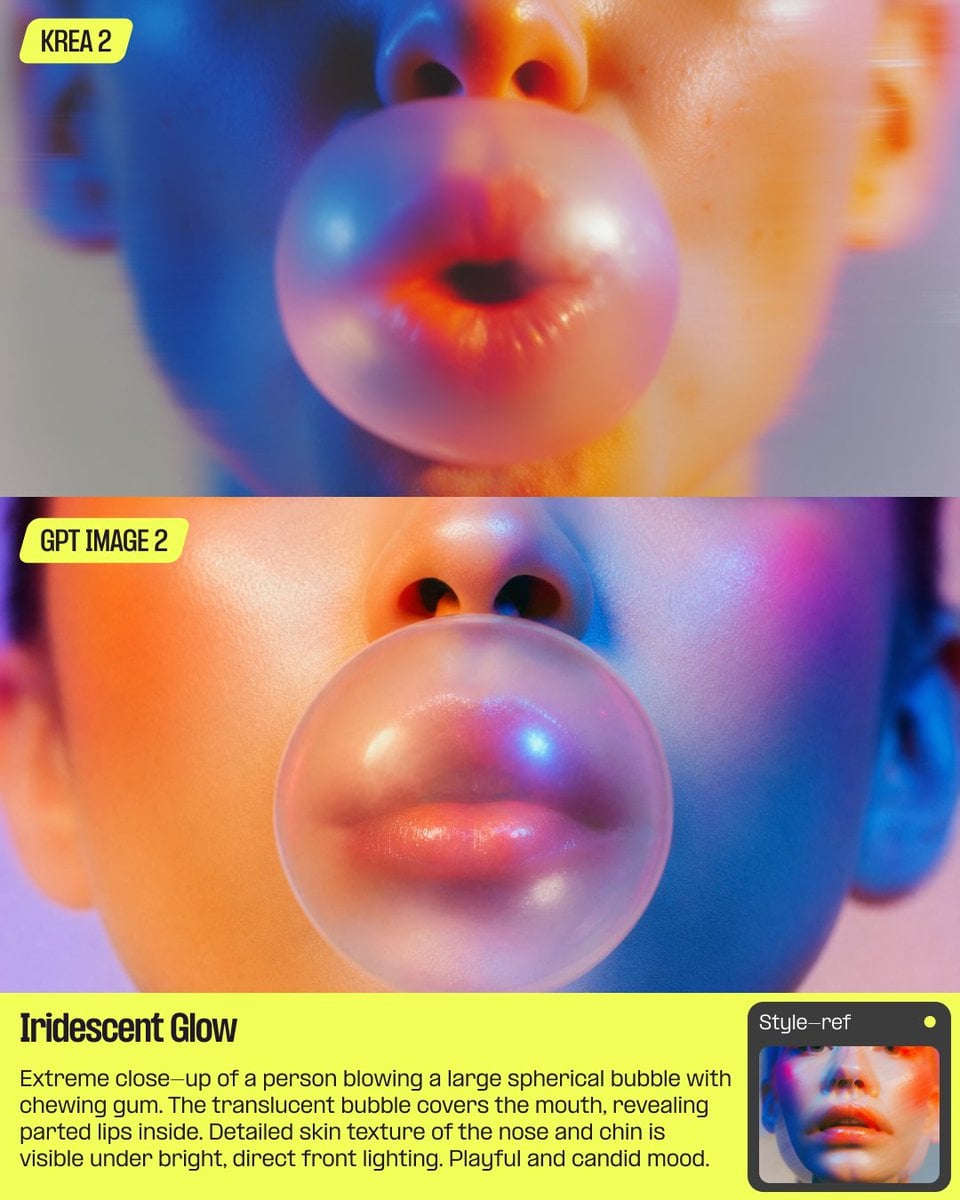
AI Bubblegum Style Comparison Slide
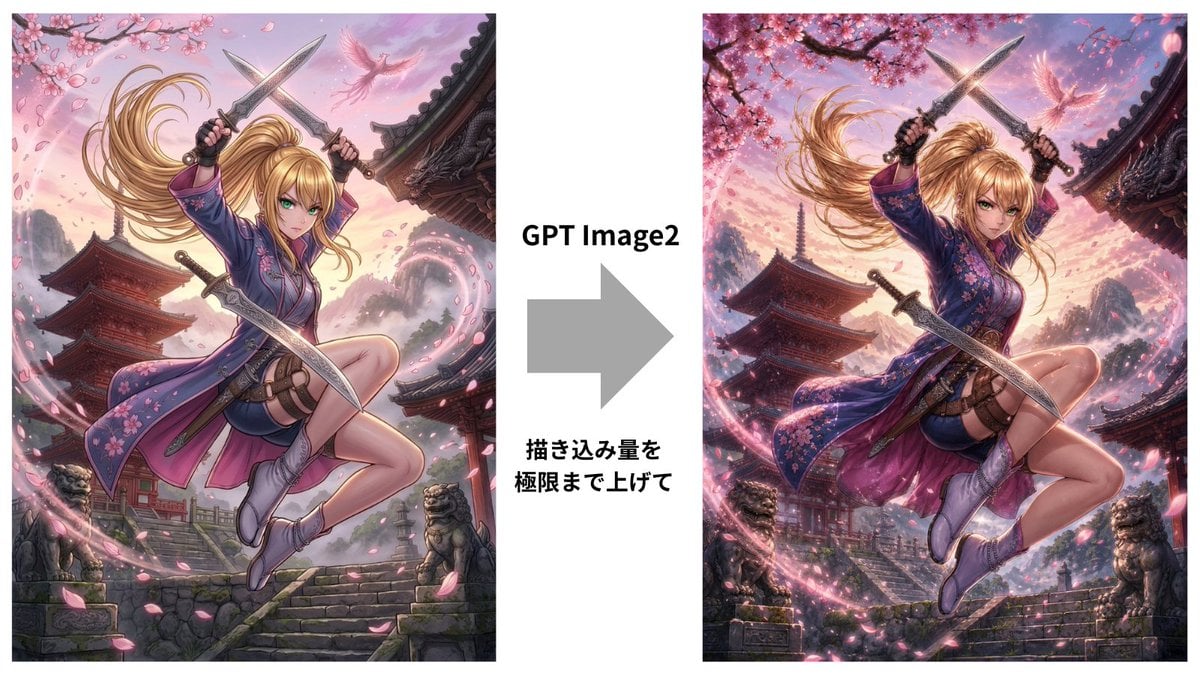
GPT Image 2 Kunoichi Comparison
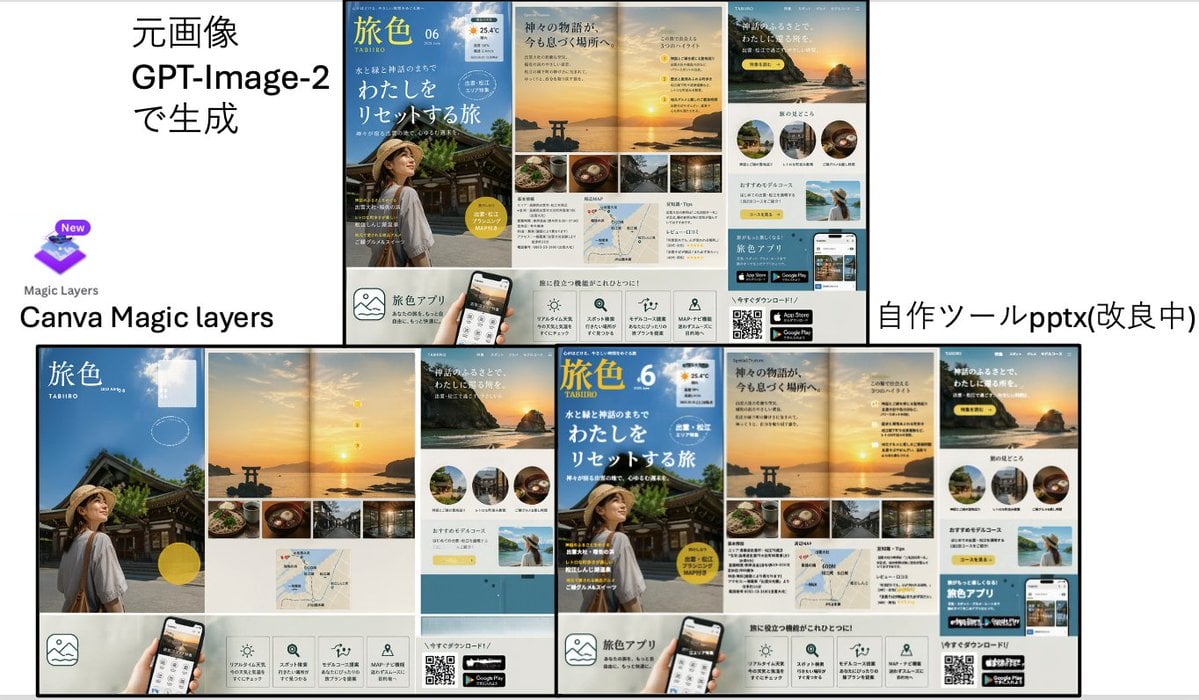
Travel Ad Conversion Comparison Slide
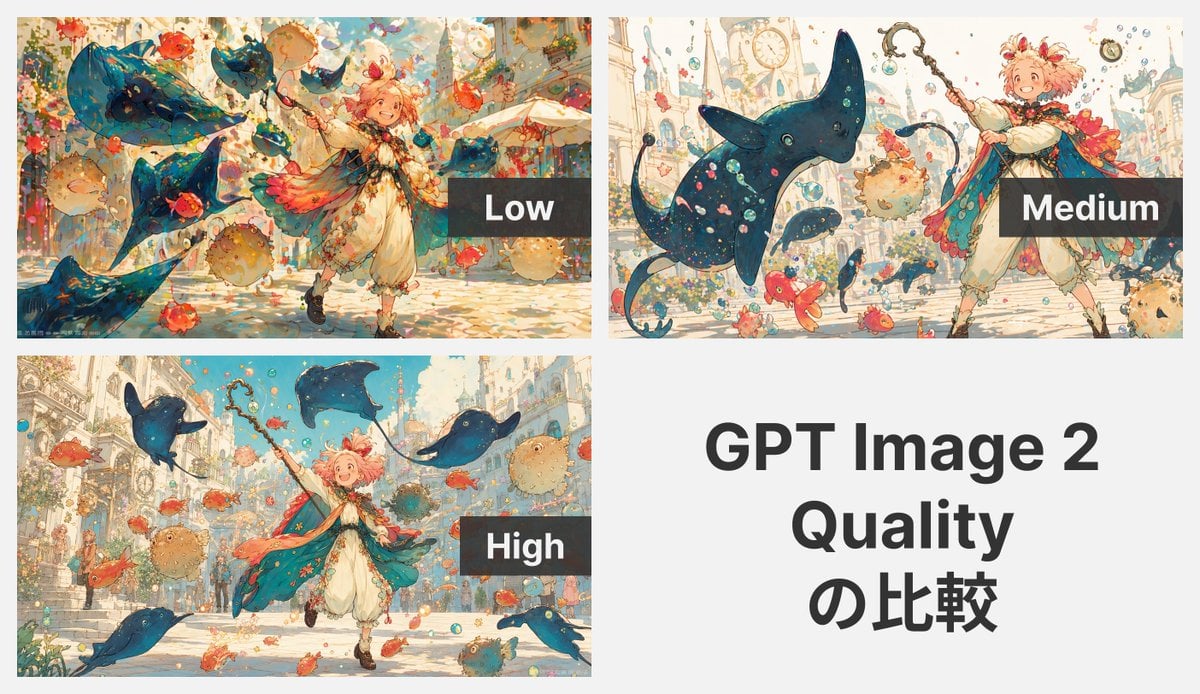
GPT Image 2 Quality Comparison Grid

GPT Image 2 Comparison Poster
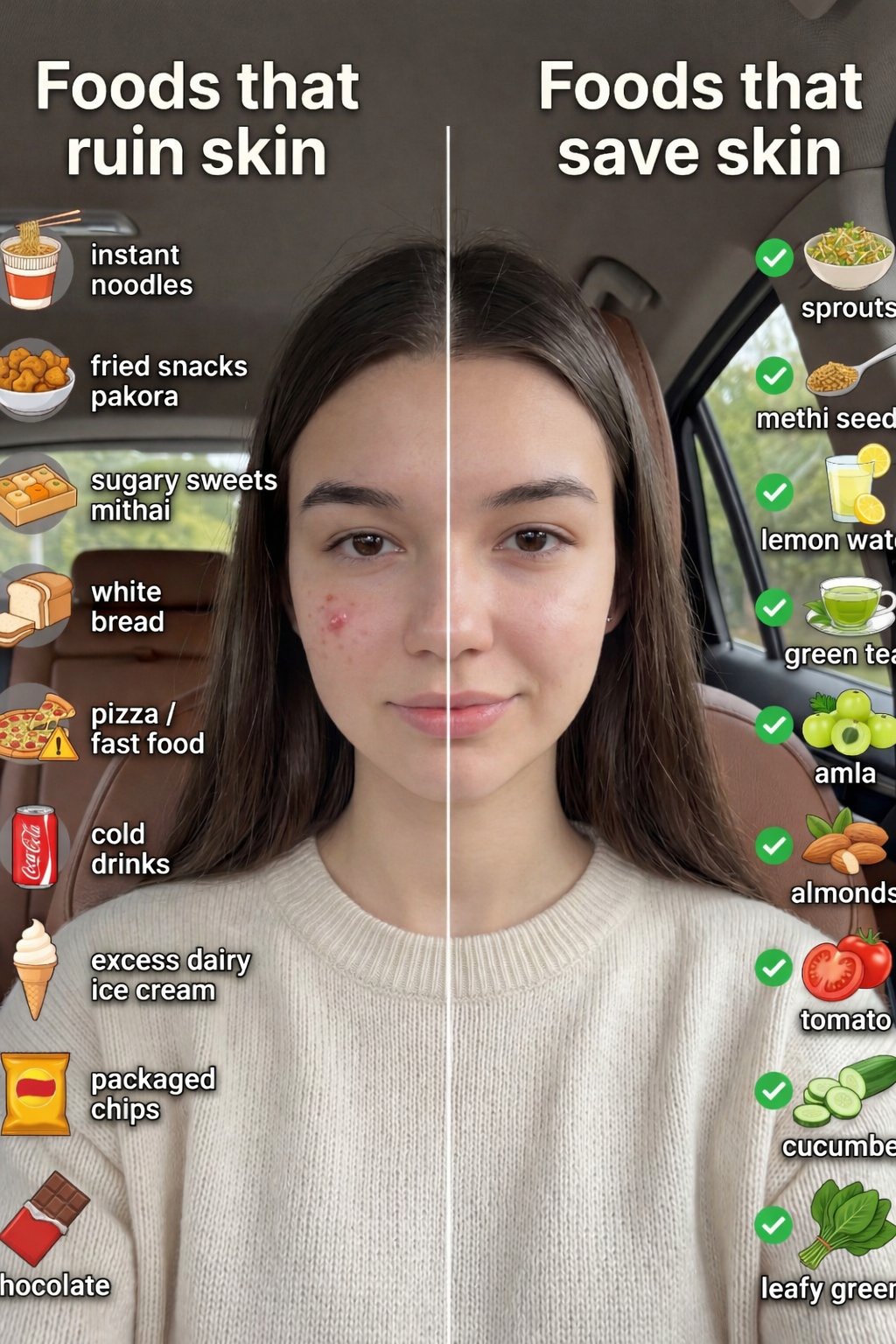
Skin Comparison Portrait — Nano Banana Pro

ChatGPT Image 1 5 Google Veo 3 1

Premium 4 3 presentation cover slide introducing Chronicle
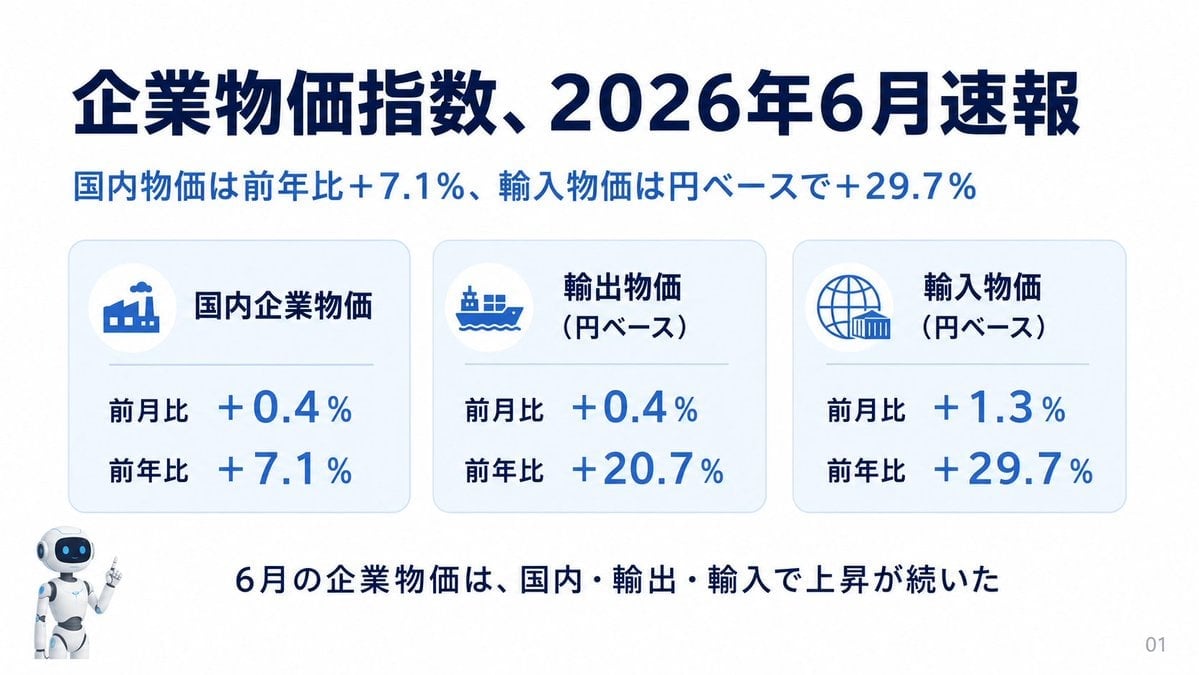
Japanese Corporate Price Index Slide
Japanese Golden Egg Design Slide
Korean GPT Image Prompt Gallery

AI Model Routing Comparison Infographic
Make it yours
Manus GPT Image 2.0 Comparison Slide works as-is. These are the safest ways to change it without losing the look.
Change one field
Copy a single group, rewrite it, and generate again so you can see what that field is doing.
Keep the frame, change the subject
Hold the composition and light of Manus GPT Image 2.0 Comparison Slide, then swap wardrobe, props or the person for a new take.
| If the result… | Why | Fix |
|---|---|---|
| The result drifts from the preview | Too many fields changed at once. | Reuse Manus GPT Image 2.0 Comparison Slide as-is first, then change one group — subject, light, or setting. |
| The model over-stylizes the scene | The prose prompt leaves finish and camera underspecified. | Add one camera or lighting sentence and stay on GPT Image 2. |
More GPT Image 2 templates
Other prompts made for GPT Image 2.

Six VTuber Japanese Logo Sheet

Realistic Portrait of Woman and Deer

The Vista Modular Condo Poster

2.5D Anime Art Board

Isometric Productivity Desk Scene

New York Double Exposure Poster

Japanese Tatami Lifestyle Magazine Cover

NESCAFÉ Coffee Map Poster

Brutalist Cogito Chinese Typography Poster
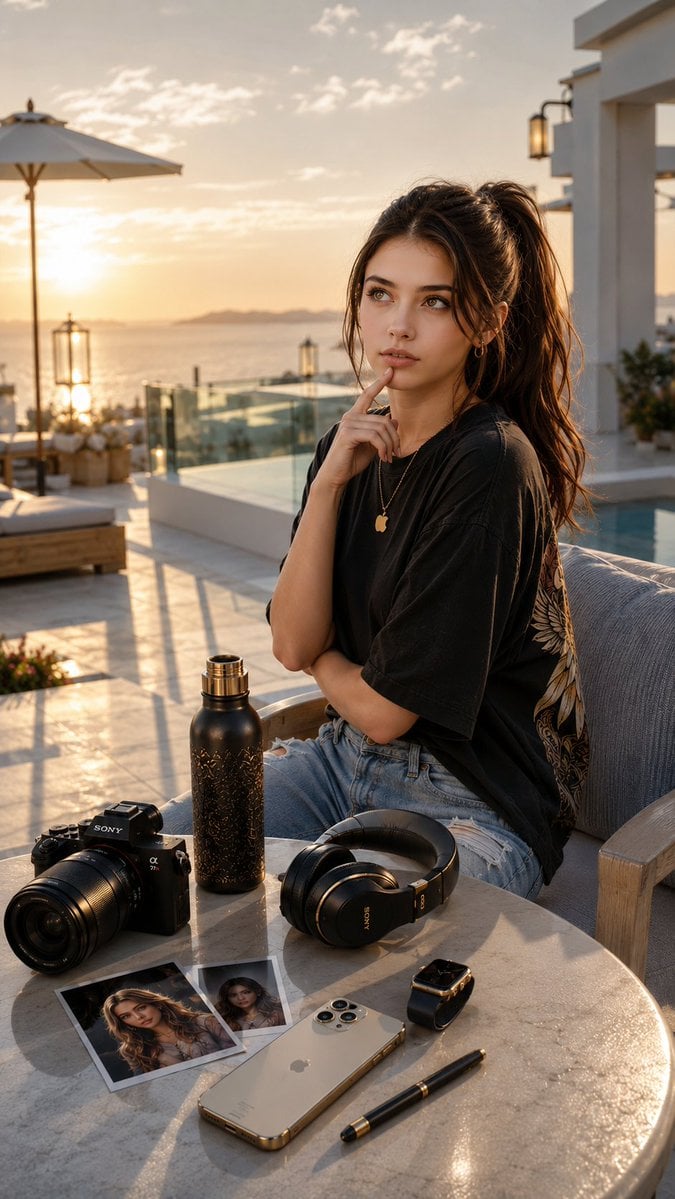
Cinematic Luxury Terrace Portrait
More image prompts
Fresh picks from across the catalog.
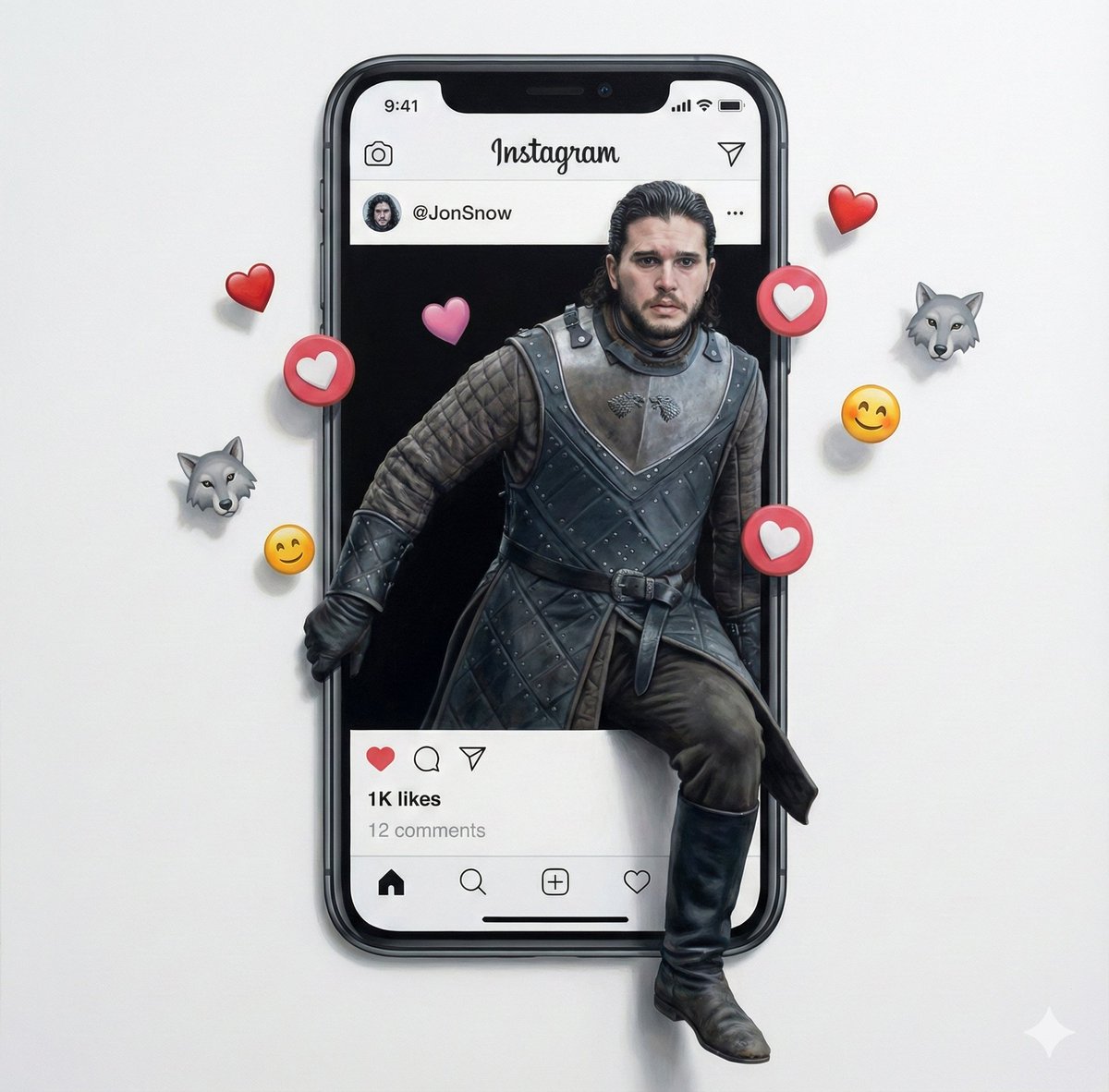
Trompe l'oeil subject stepping out of social media screen
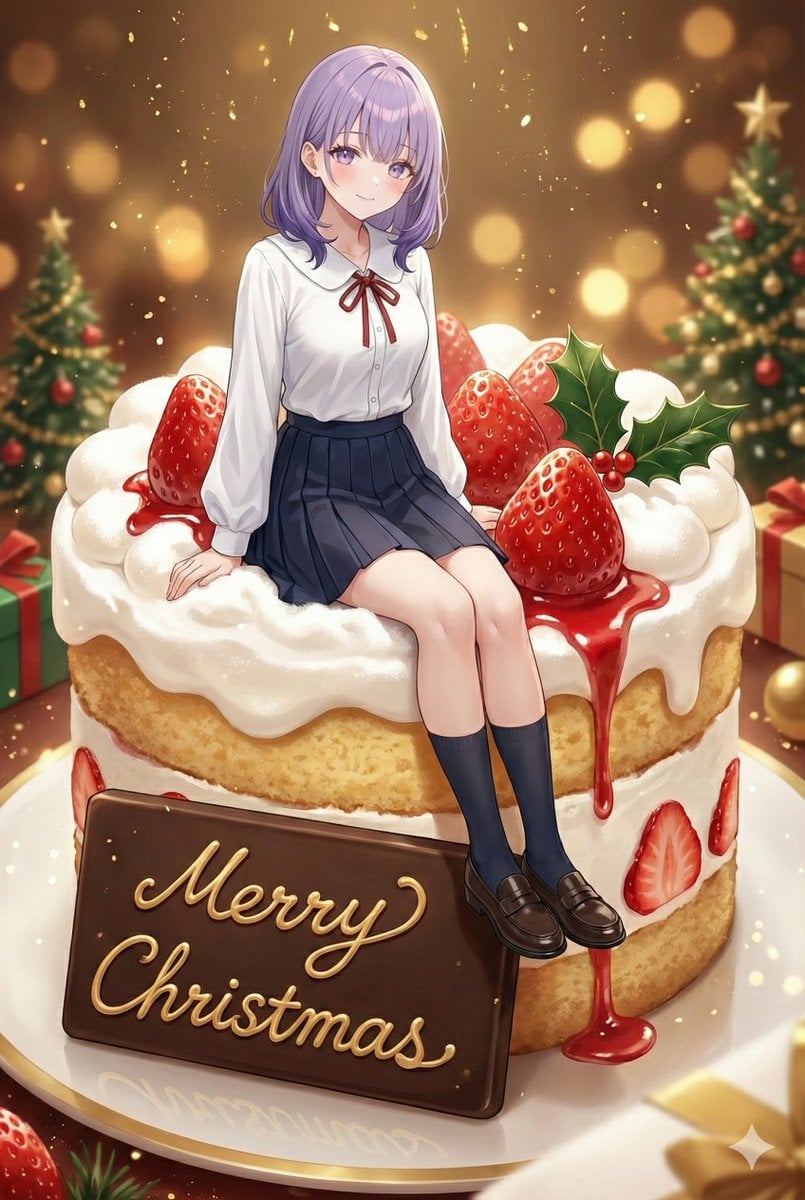
Christmas Cake with Text Plate Prompt
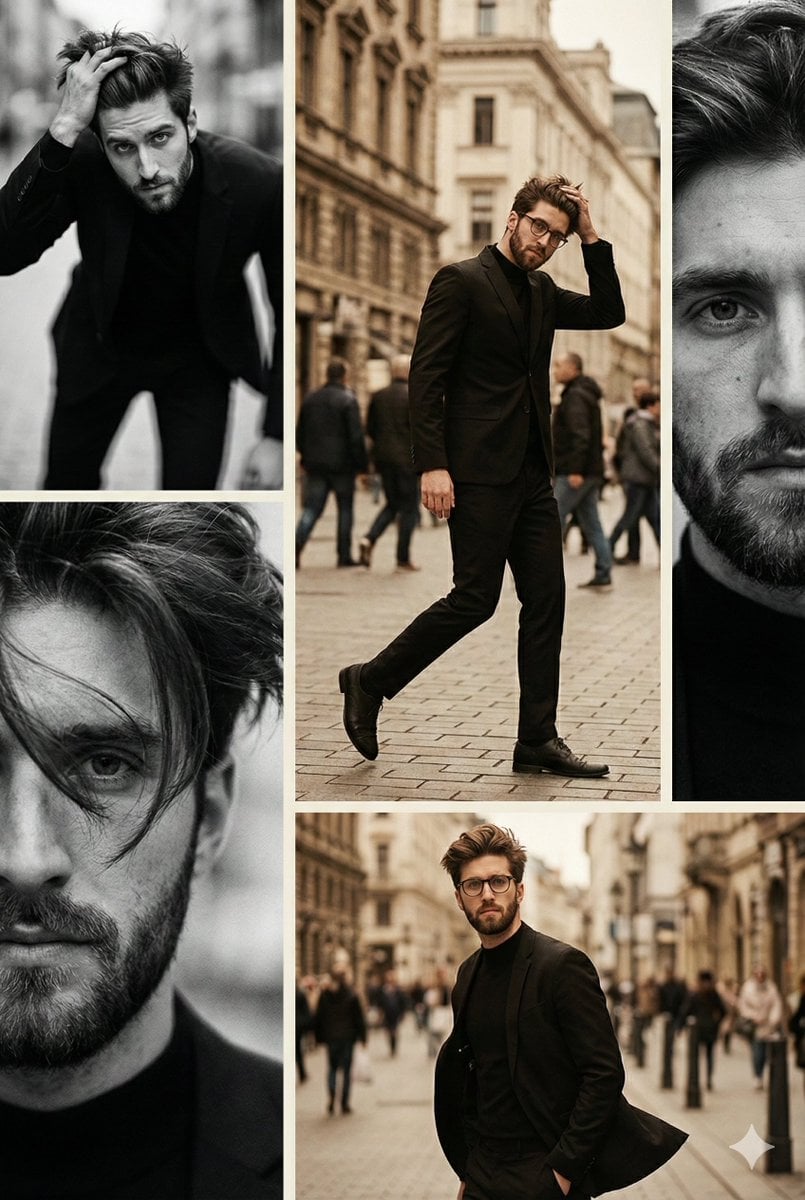
Vintage Editorial Collage from Reference Image

Noir Elderly Man by Window
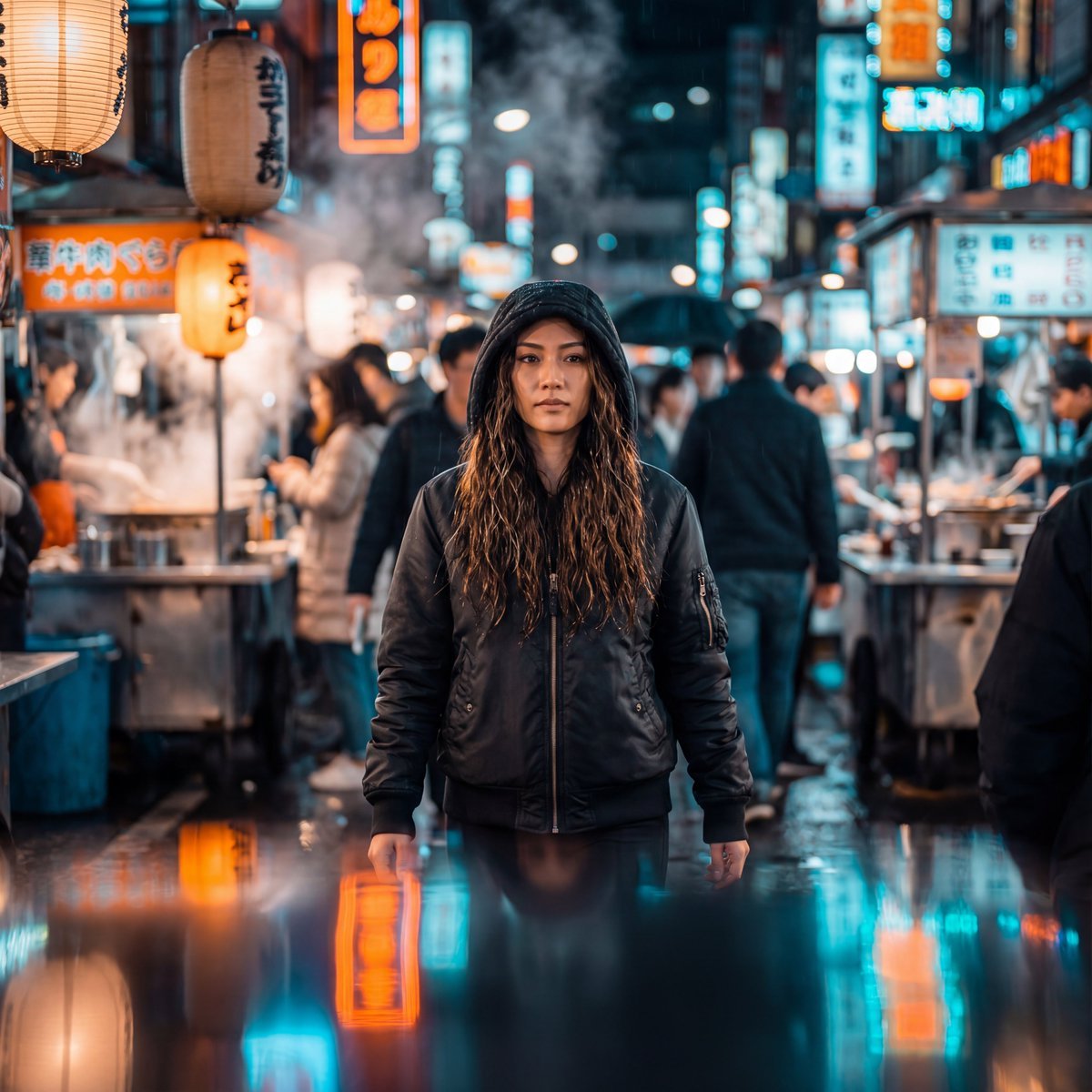
Neon-Lit Night Market Cinematic Portrait

Black and White Dynamic Street Fashion Prompt
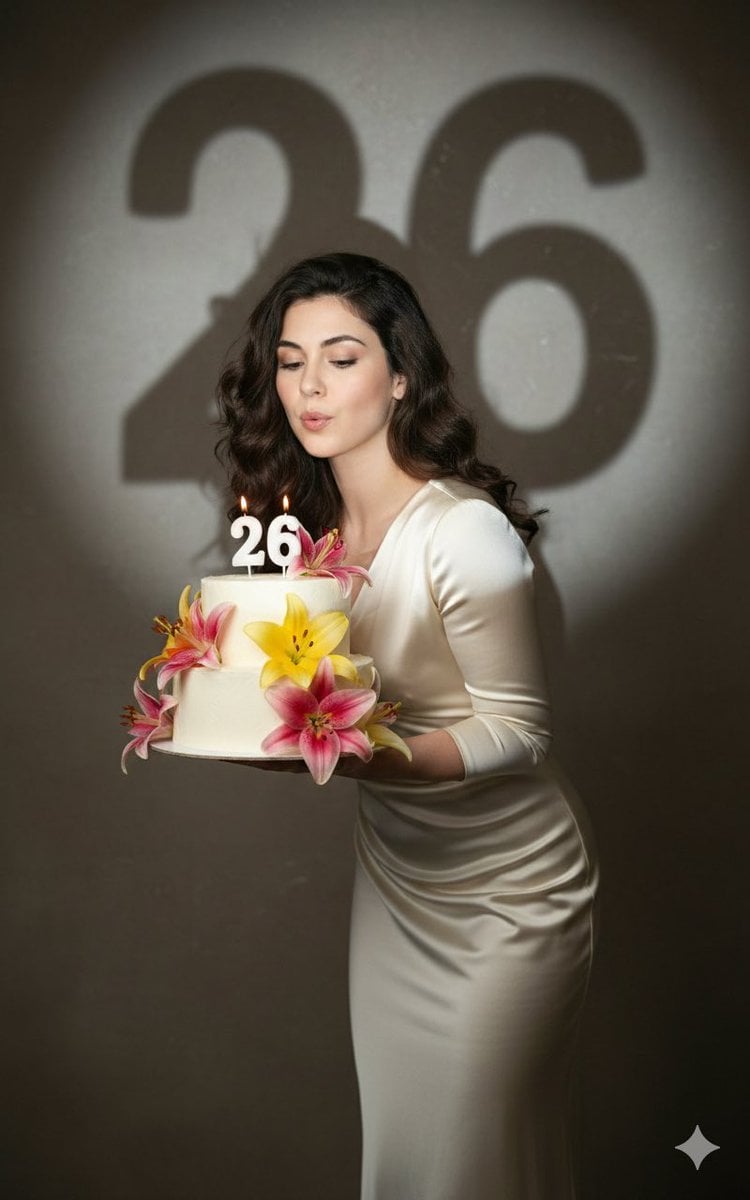
Cinematic Birthday Portrait Template
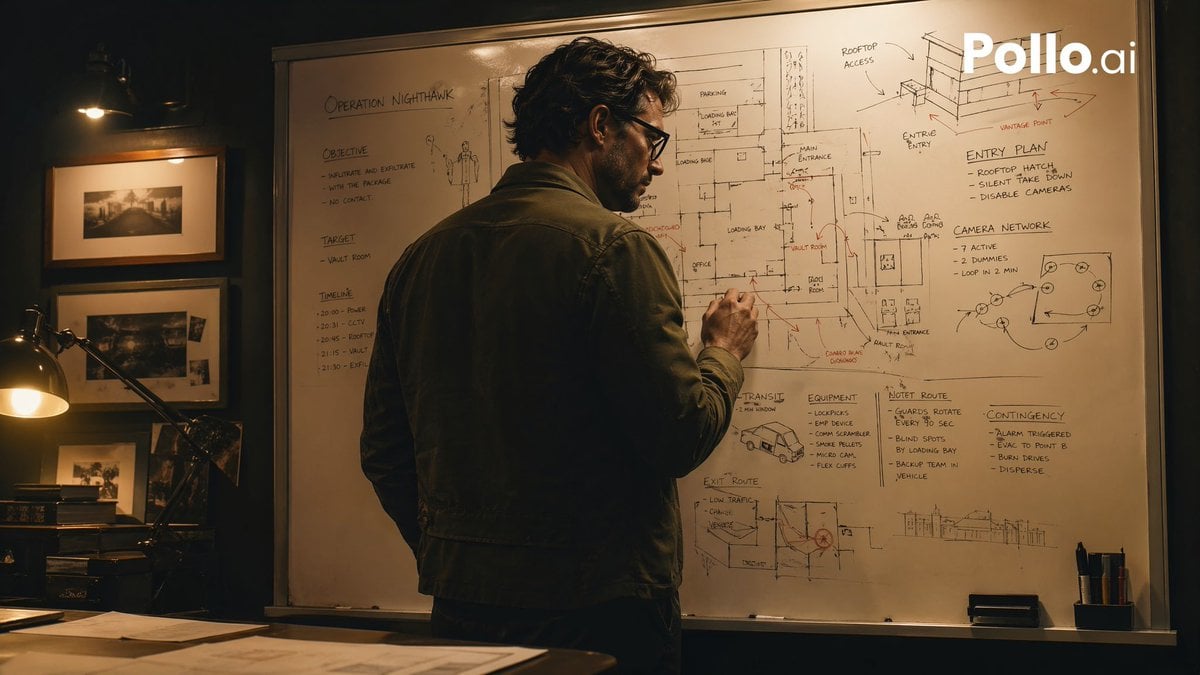
Cinematic Heist Mastermind at Whiteboard
Atmospheric Portrait with Flowers and Warm Lighting
untitled
Browse template categories
Manus GPT Image 2.0 Comparison Slide questions
How do I use the Manus GPT Image 2.0 Comparison Slide template?
Add your photo if the template asks for one, edit the prompt if you like — the template's model and format are already selected — and press Generate. Your version opens in PicX Studio.
Can I customize the Manus GPT Image 2.0 Comparison Slide template?
Yes. You can change the subject, setting, lighting, mood, format, and available model controls before creating your image.
Is the Manus GPT Image 2.0 Comparison Slide template free?
Opening and editing this template is free. Generating uses credits, shown on the Generate button when you are signed in.
Which AI model should I use?
Start with GPT Image 2, which is the model associated with this template. You can compare another compatible model for a different finish.
Looking for something else? Browse all templates.

Your photo, any look
Thousands of ready templates for every top image and video model, from one credit balance.