
Architectural Blueprint to Render Split
Generates a split visualization of a house showing a technical blueprint on the top and a photorealistic 3D render on the bottom.
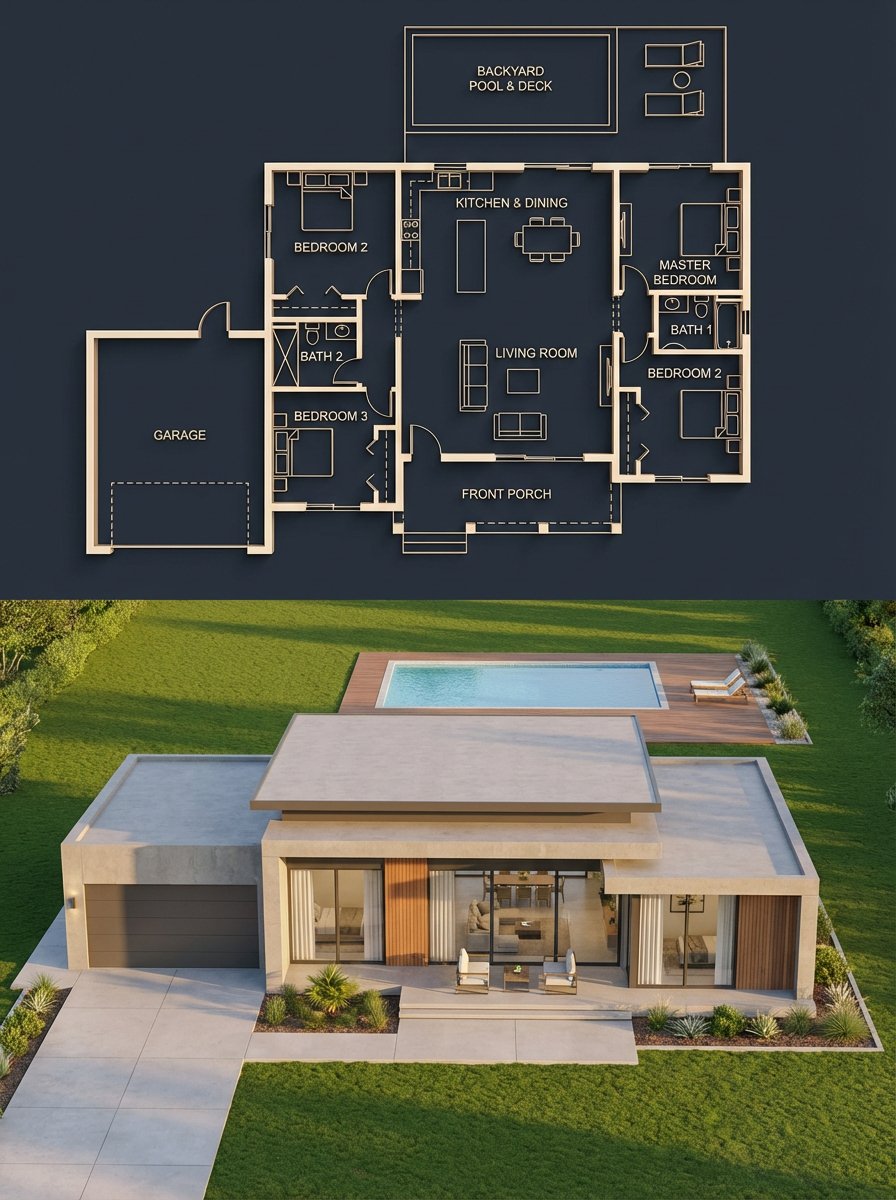
- Prompt included
- Model and format preset
- Free template
The prompt behind this image
Copy the exact prompt behind Architectural Blueprint to Render Split, or open it in the studio and make it yours.
Split architectural visualization, vertical 3:4 composition, perfect structural alignment between the two halves. Top half, {argument name="blueprint style" default="dark luxury blueprint"}: deep navy / charcoal blue background, thin glowing beige-gold lines, walls drawn with a slight 3D extrusion, clean modern sans-serif labels, soft ambient glow. Floor plan shows 3 bedrooms (left, right, bottom-right), a central living room, kitchen plus dining at top center, 2 bathrooms, a garage connected on the left side, a front porch, and a backyard pool with deck. Include furniture outlines (beds, sofa, dining table), door swings, window placements, circulation paths, and exact proportions. Bottom half, photorealistic render of the same {argument name="building type" default="house"}: modern single-story design, flat layered roof, smooth concrete walls with wood panel accents, large glass windows. Layout must match the blueprint exactly, garage on the left, main entrance aligned with the living room, pool in the backyard matching the blueprint footprint, window placements corresponding to each room, bedroom volumes visible externally in correct positions. Suburban neighborhood setting with green lawn, minimal landscaping, a clean driveway leading to the garage, and a matching pool deck. Golden hour lighting, soft natural light with realistic shadows. Slightly elevated front perspective, 35mm architectural lens. Hard rules: room positions identical between blueprint and render, no extra structures, all doors and windows align logically, pool size and placement match exactly. Avoid mismatch, fantasy elements, unrealistic proportions, or a cluttered environment.
How to use Architectural Blueprint to Render Split in 3 steps
- 1
Open
The prompt is already in the box next to the preview, with the template's model and format selected.
- 2…a portrait of your subject in softgolden-hour light, 85mm…
Personalize
Edit the subject and creative details for your destination.
- 3Generate
Generate
Press Generate — your image is created in PicX Studio, so you can compare it with the original and refine one variable at a time.
More like this
Templates with the same subject, style or setup. Open one to see its prompt.
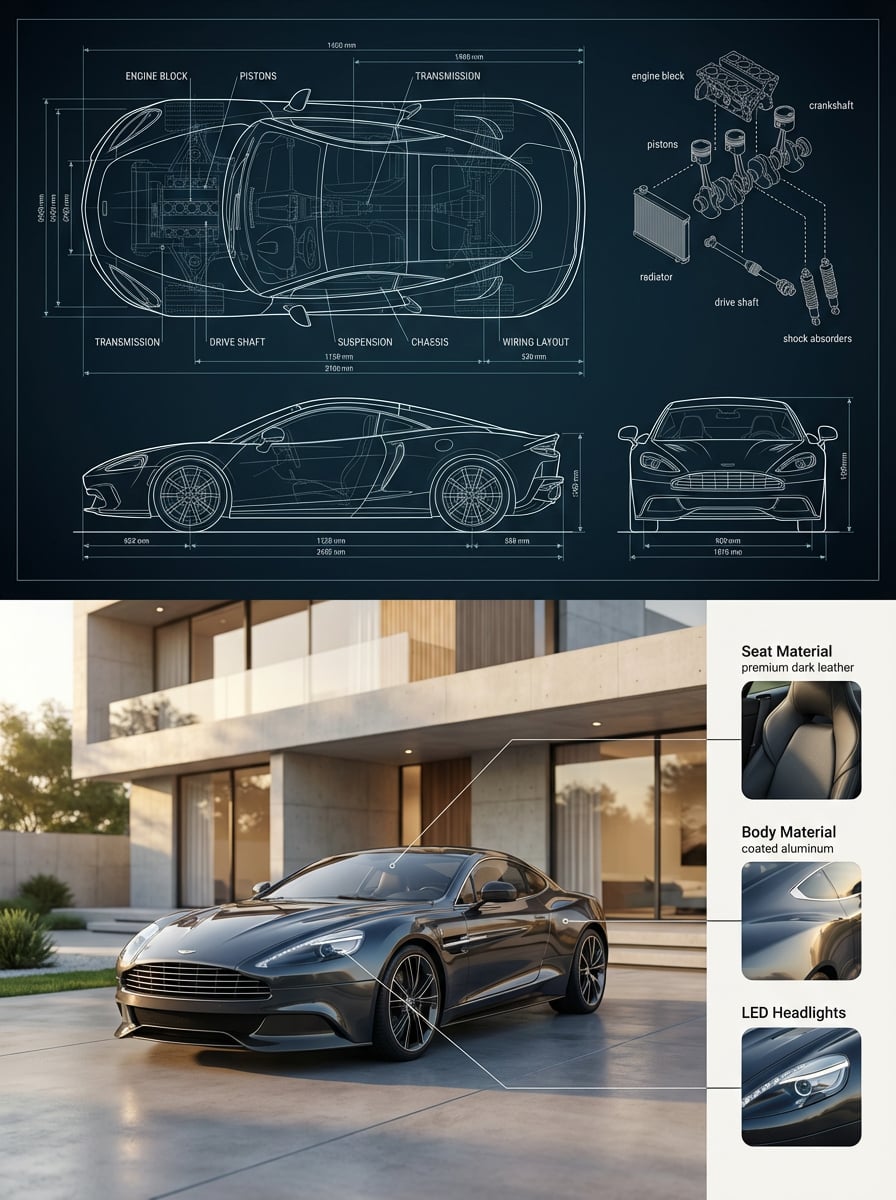
Automotive Blueprint Split Composition

Blueprint Split Reality Archetype Prompt
Automotive Blueprint Split Composition
Blueprint Split Reality Archetype Prompt
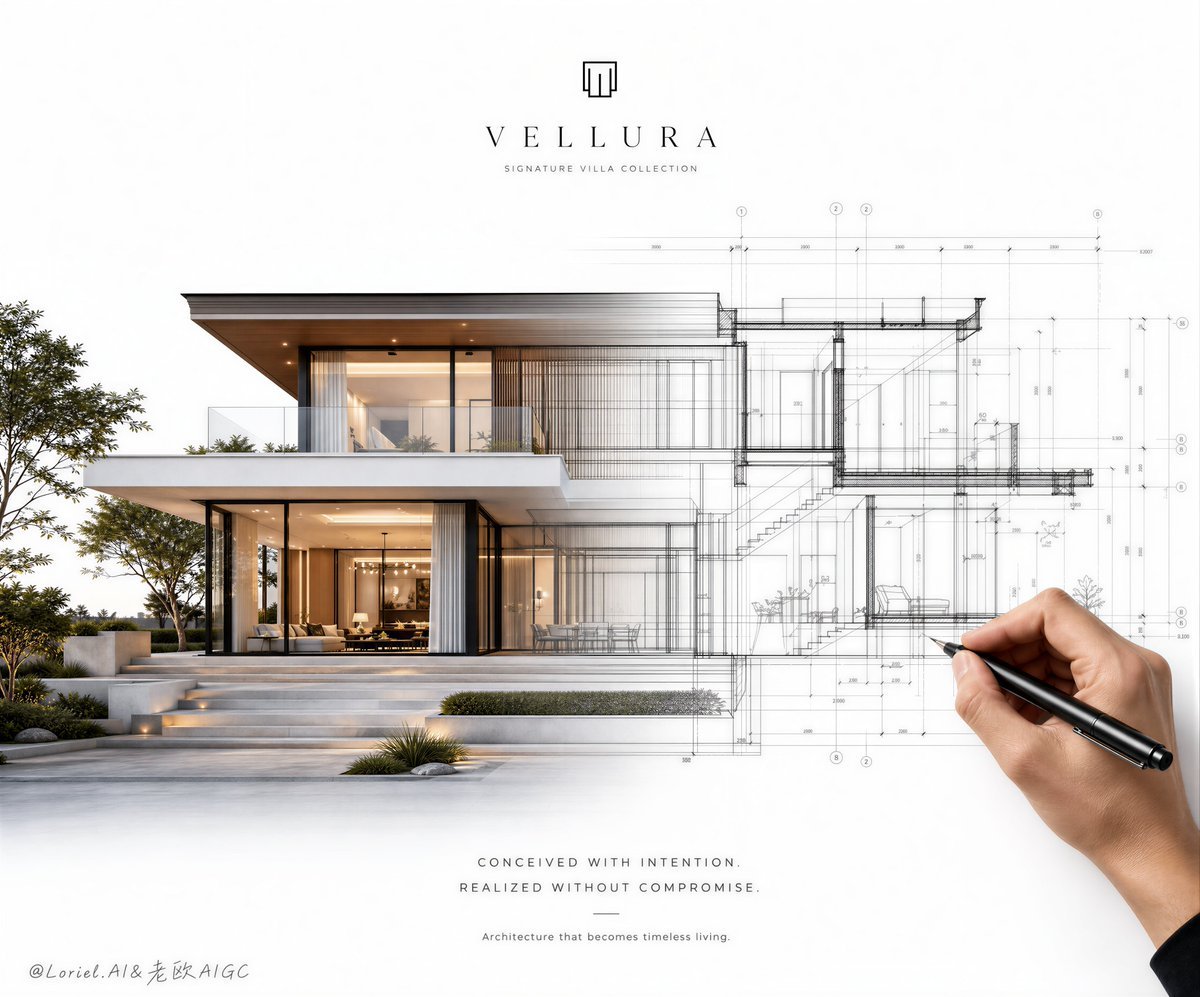
Architectural Villa Blueprint Poster
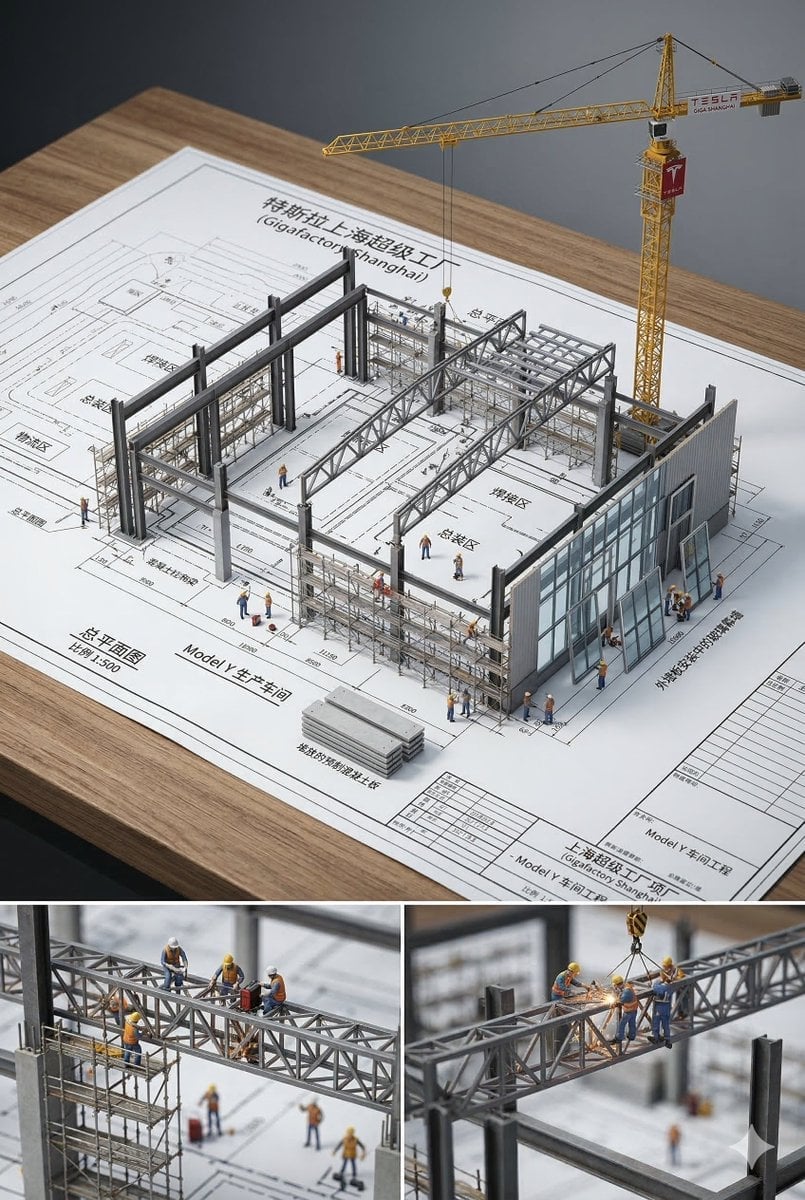
Paper Tunnel Book Architecture
FIFA 2026 England — Blueprint Heritage
FIFA 2026 USA — Blueprint Host Nation
3D Architectural Diorama Blueprint
Architectural Blueprint Face Portrait
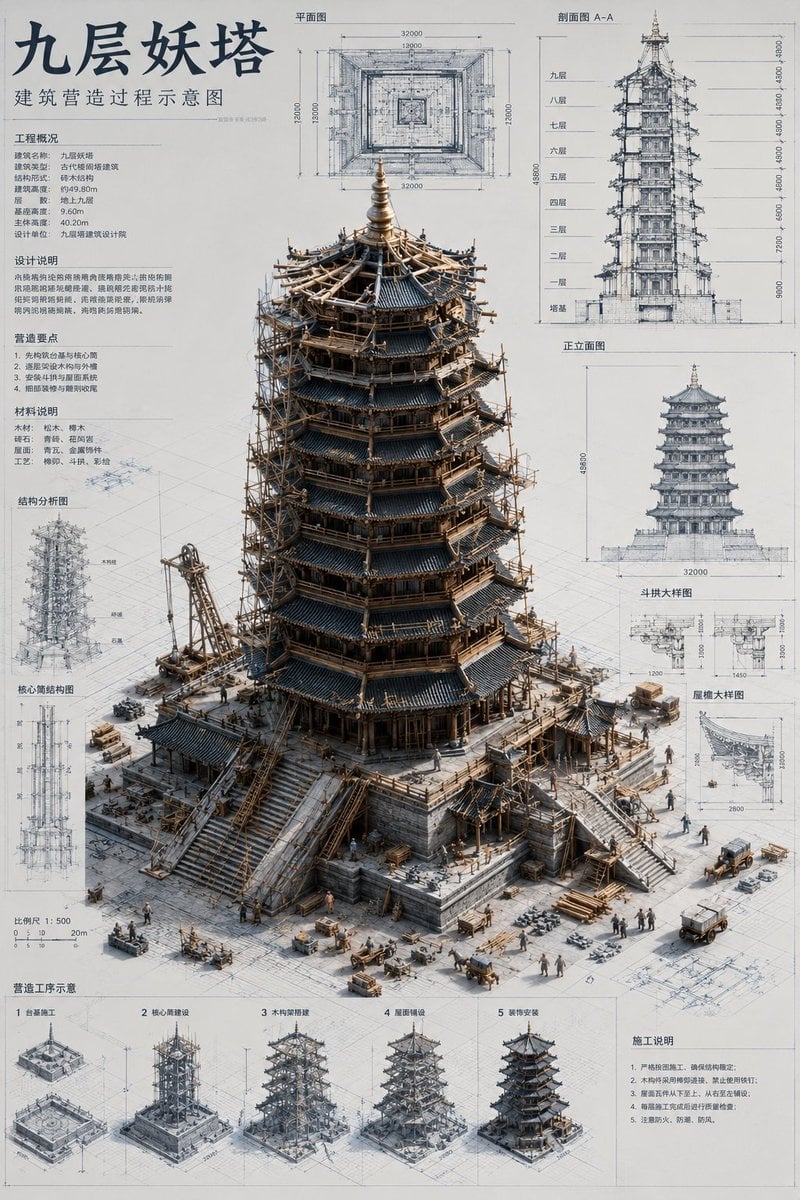
Architectural Miniature Blueprint Draft
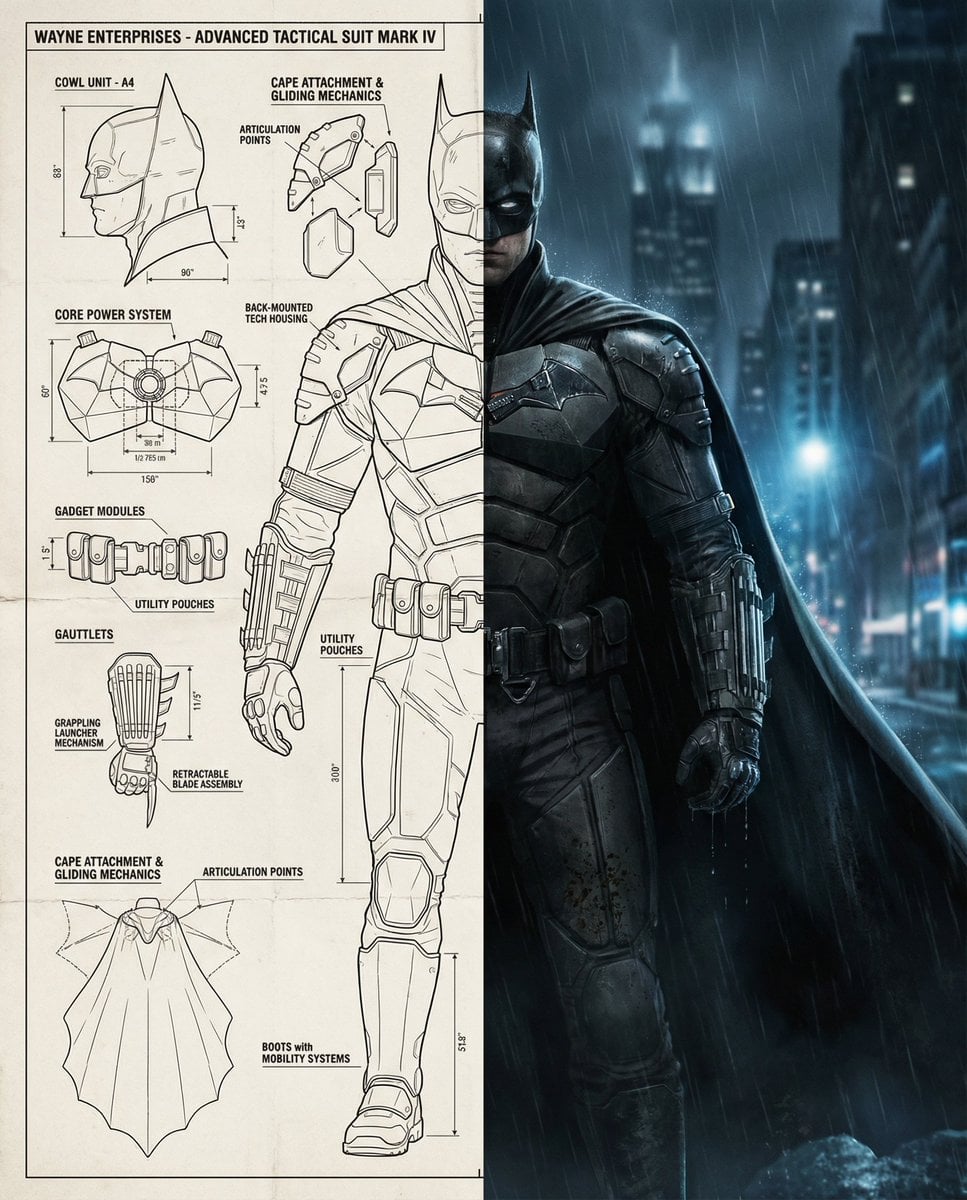
Split-Screen Cinematic Batman Blueprint
Make it yours
Architectural Blueprint to Render Split works as-is. These are the safest ways to change it without losing the look.
Change one field
Copy a single group, rewrite it, and generate again so you can see what that field is doing.
Keep the frame, change the subject
Hold the composition and light of Architectural Blueprint to Render Split, then swap wardrobe, props or the person for a new take.
| If the result… | Why | Fix |
|---|---|---|
| The result drifts from the preview | Too many fields changed at once. | Reuse Architectural Blueprint to Render Split as-is first, then change one group — subject, light, or setting. |
| The model over-stylizes the scene | The prose prompt leaves finish and camera underspecified. | Add one camera or lighting sentence and stay on GPT Image 2. |
More GPT Image 2 templates
Other prompts made for GPT Image 2.

Six VTuber Japanese Logo Sheet

Realistic Portrait of Woman and Deer

The Vista Modular Condo Poster

AI Model Routing Comparison Infographic

2.5D Anime Art Board

Isometric Productivity Desk Scene

New York Double Exposure Poster

Four-Panel AI Landscape Comparison

Japanese Tatami Lifestyle Magazine Cover

NESCAFÉ Coffee Map Poster
More image prompts
Fresh picks from across the catalog.
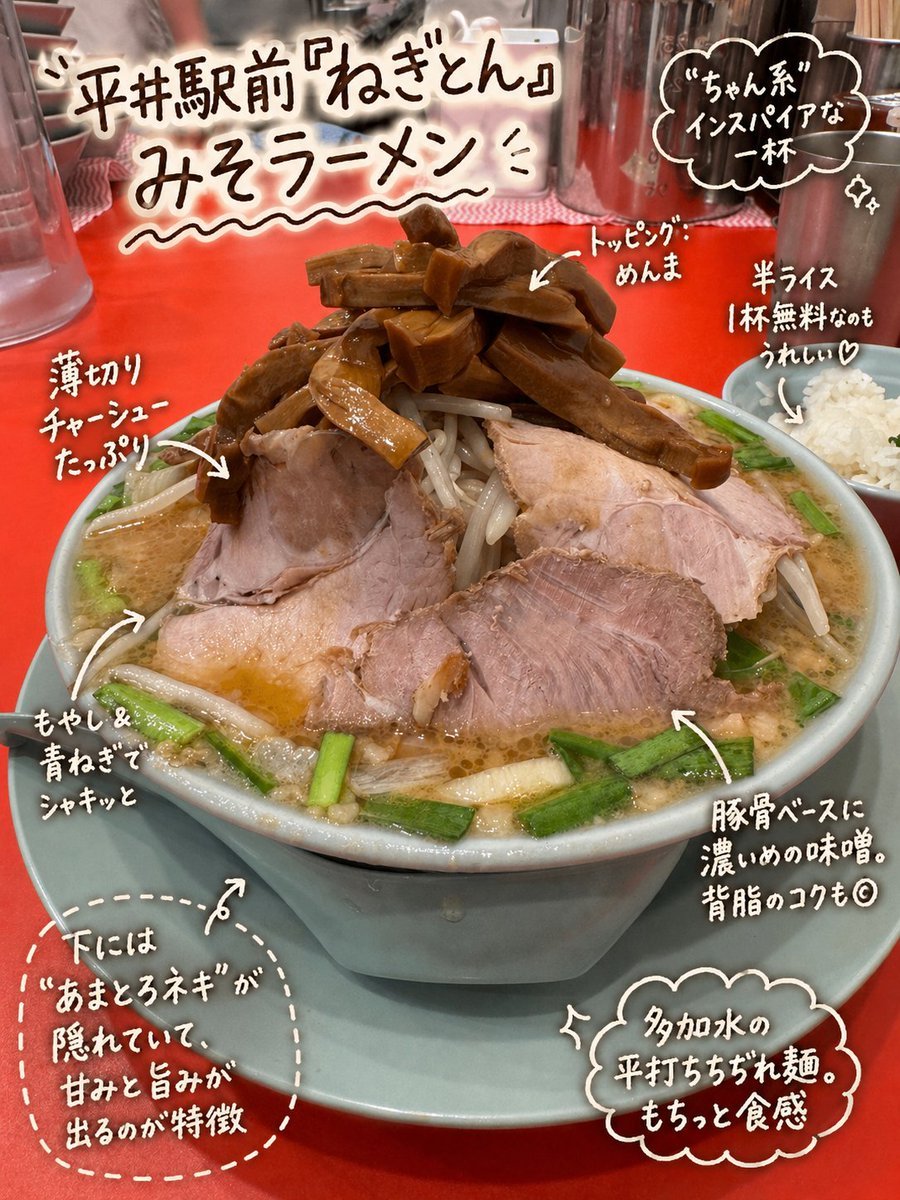
Annotated Japanese Miso Ramen Photo

Miniature Toy Soldiers on a Giant Eggshell

Fantasy Duck Alliance Goods Catalog

News Reporter Toy Store Scene

Low-Angle Sports Sneaker Advertisement

Request for Beach Selfie Prompt
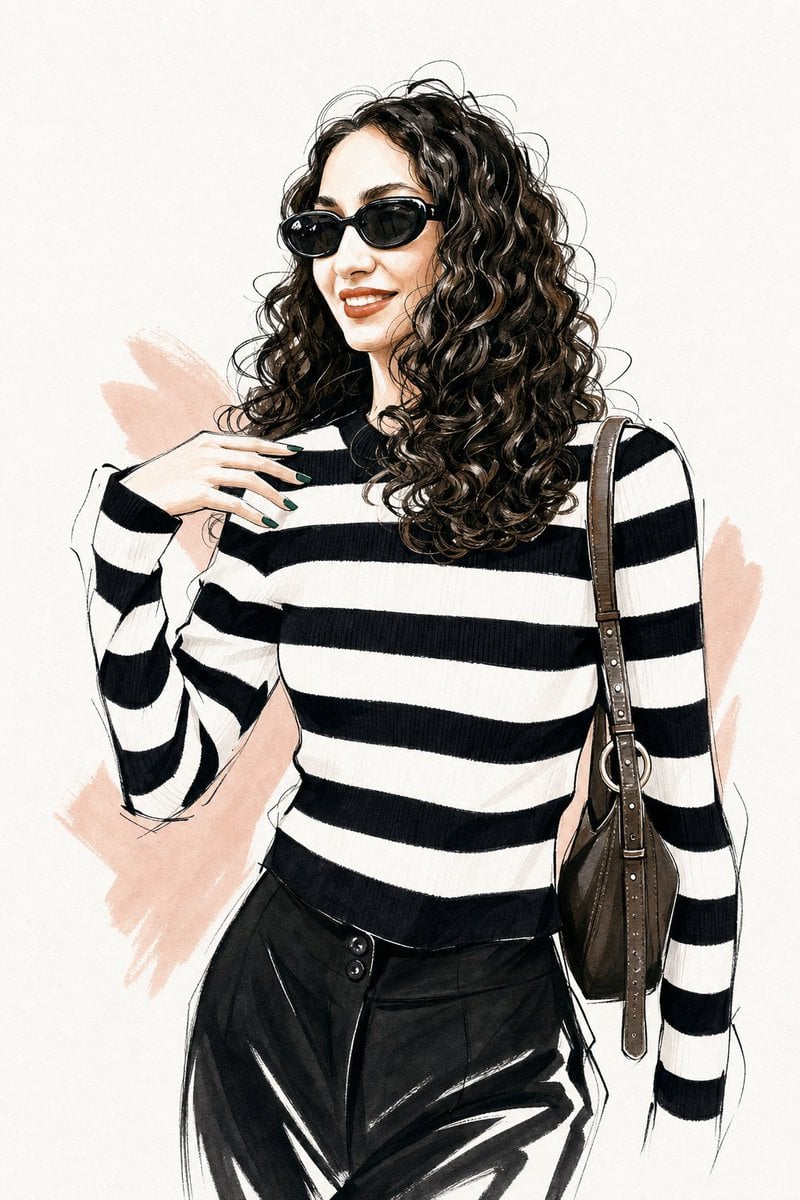
Vogue Style Fashion Illustration

Cinematic Exploded-View Middle Eastern Food Scene

Texas-Style Pork Poster

JSON Prompt Template for Camera and Lighting Control
Browse template categories
Architectural Blueprint to Render Split questions
How do I use the Architectural Blueprint to Render Split template?
Add your photo if the template asks for one, edit the prompt if you like — the template's model and format are already selected — and press Generate. Your version opens in PicX Studio.
Can I customize the Architectural Blueprint to Render Split template?
Yes. You can change the subject, setting, lighting, mood, format, and available model controls before creating your image.
Is the Architectural Blueprint to Render Split template free?
Opening and editing this template is free. Generating uses credits, shown on the Generate button when you are signed in.
Which AI model should I use?
Start with GPT Image 2, which is the model associated with this template. You can compare another compatible model for a different finish.
Looking for something else? Browse all templates.

Your photo, any look
Thousands of ready templates for every top image and video model, from one credit balance.