
Cinematic Group in Front of Green Screen
This prompt generates a realistic behind-the-scenes studio photo of four young adults in front of a chroma green background, useful for cinematic production or AI video workflow visuals.
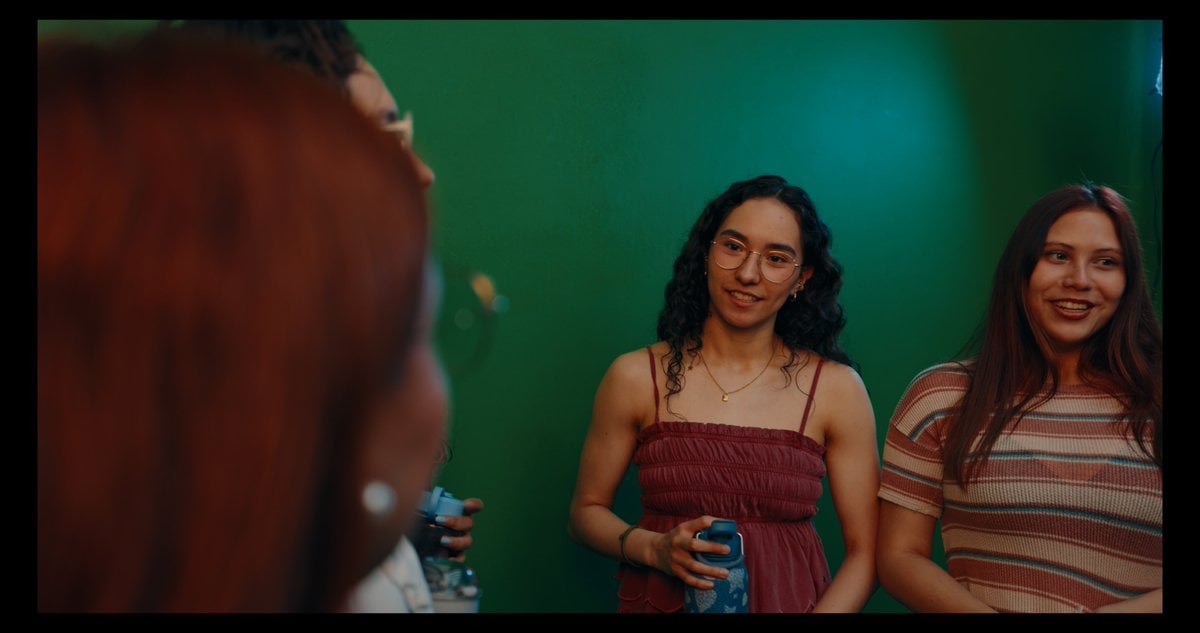
- Prompt included
- Model and format preset
- Free template
The prompt behind this image
Copy the exact prompt behind Cinematic Group in Front of Green Screen, or open it in the studio and make it yours.
A cinematic candid photo of 4 young adults standing in front of a smooth studio green screen wall, framed like a behind-the-scenes chroma key test. In the extreme left foreground, a woman with vivid copper-red hair is very close to the lens and heavily out of focus, showing the back and partial side of her head and shoulder, creating strong depth and an over-the-shoulder composition. Slightly left of center in the background, a partially visible man with short curly dark hair and glasses is cropped so only part of his face and torso are visible. He holds 1 blue water bottle near his chest. At center, a woman with medium-brown skin and dark curly shoulder-length hair faces the camera with a neutral expression, wearing a burgundy smocked spaghetti-strap dress and a delicate gold necklace, holding 1 blue patterned water bottle in both hands at waist level. On the right, another woman with long straight dark brown hair faces the camera in a fitted short-sleeve knit top with horizontal beige, brown, and muted red stripes. The lighting is moody and cinematic with teal-green and warm reddish tones, soft shadows, shallow depth of field, realistic skin texture, subtle film grain, and a casual documentary feel. Medium shot, eye-level framing, indoor studio environment, no props besides the 2 visible bottles, plain green chroma background filling the scene, natural posture, realistic photography, anamorphic-style color grading.
How to use Cinematic Group in Front of Green Screen in 3 steps
- 1Upload ImagePNG, JPG or paste
Add your photo
Upload the photo the template builds on. The prompt, model and format are already set.
- 2…a portrait of your subject in softgolden-hour light, 85mm…
Personalize
Edit the subject and creative details for your destination.
- 3Generate
Generate
Press Generate — your image is created in PicX Studio, so you can compare it with the original and refine one variable at a time.
More like this
Templates with the same subject, style or setup. Open one to see its prompt.
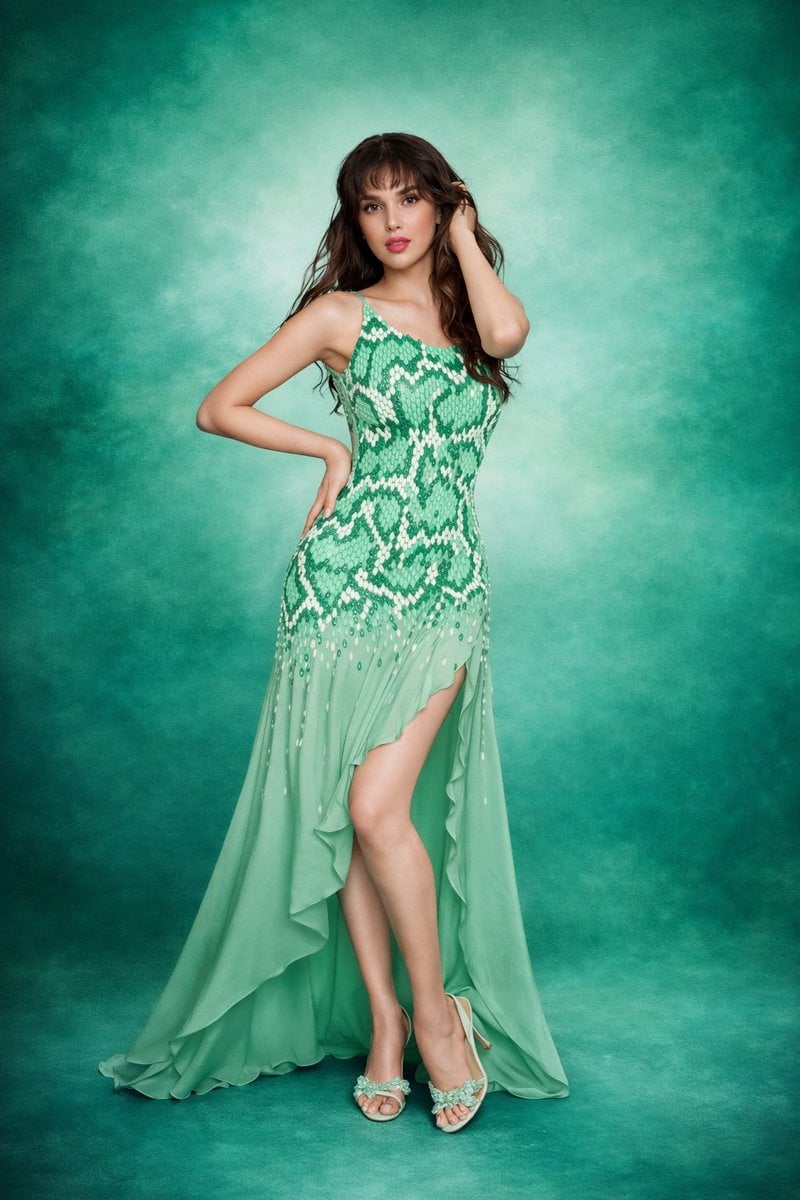
Elegant Green Evening Gown Studio Fashion Portrait
Elegant Green Evening Gown Studio Fashion Portrait
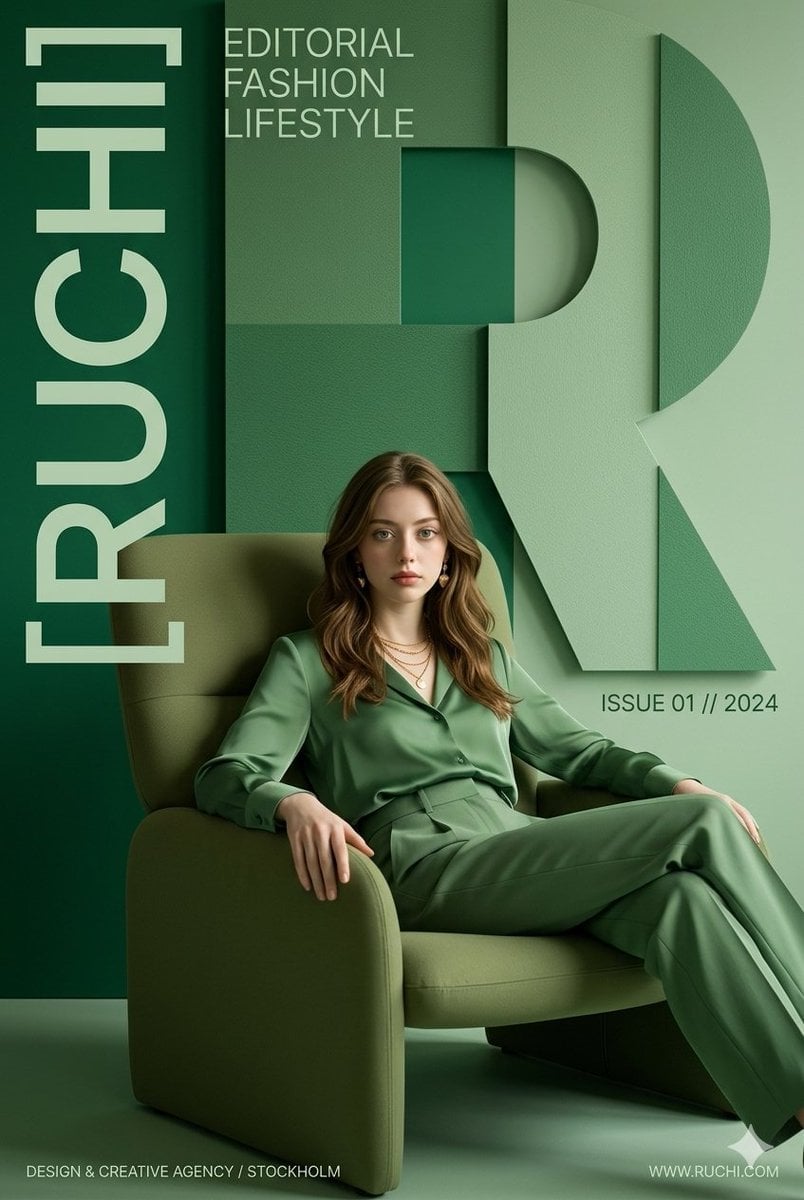
Premium Editorial Branding Poster Charcoal Green
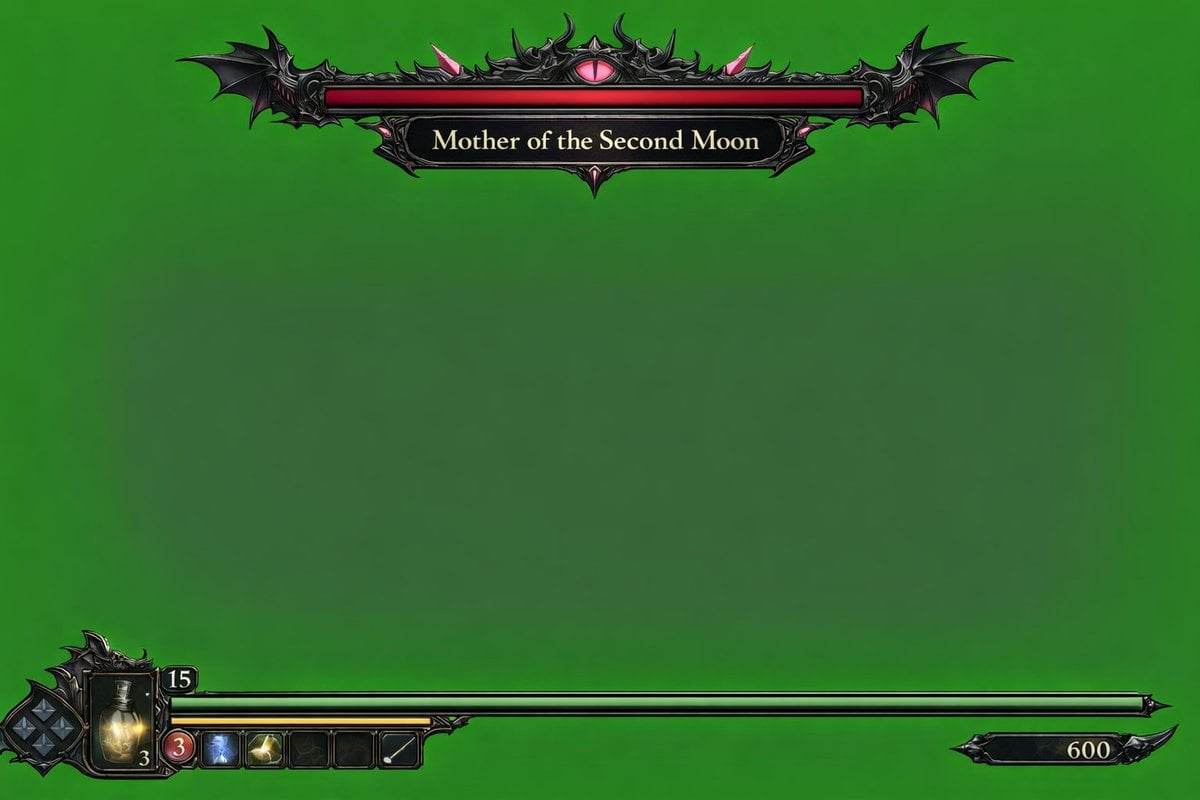
Dark Fantasy Game HUD on Green Screen
Anime Split-Screen Sword Confrontation
Dancer Character - Four View Reference Sheet
Japanese Newspaper Cat Hero Front Page
Dramatic Manga Money Confrontation
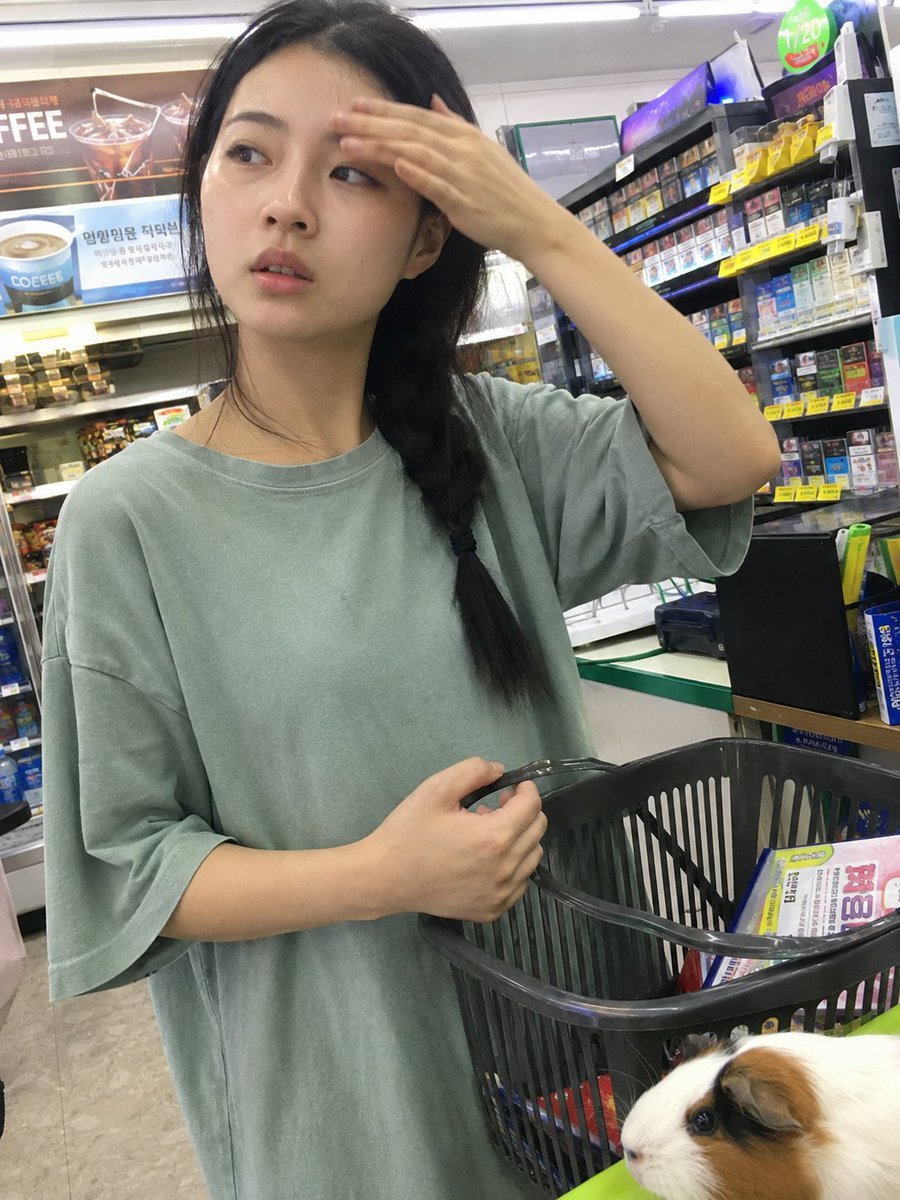
Candid Store Front-Camera Photo
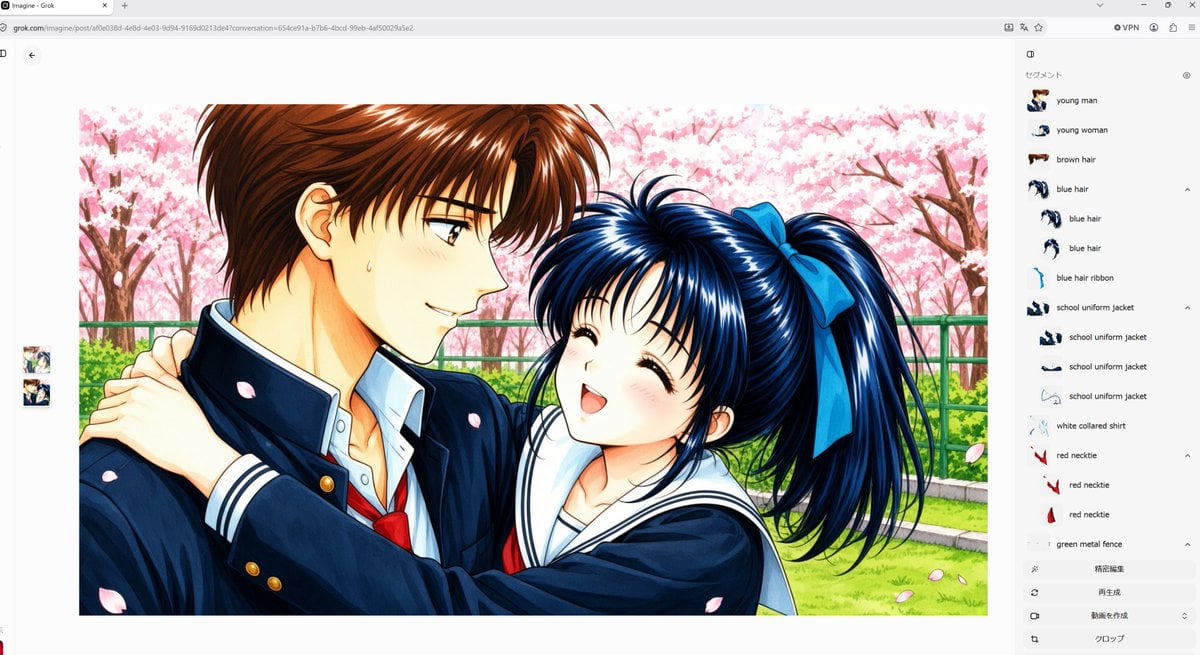
Anime Couple Segmentation UI Screenshot

Graphic Screen-Print Human-Animal Illustration
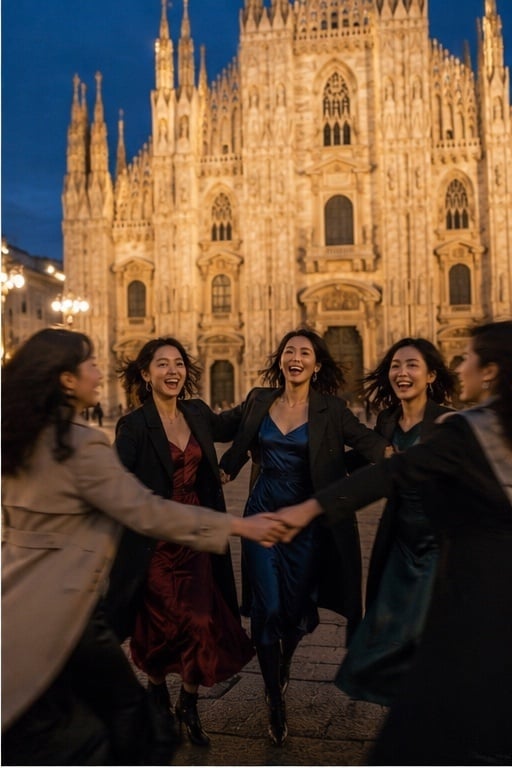
Cinematic Group Portrait in Milan
Make it yours
Cinematic Group in Front of Green Screen works as-is. These are the safest ways to change it without losing the look.
Change one field
Copy a single group, rewrite it, and generate again so you can see what that field is doing.
Keep the frame, change the subject
Hold the composition and light of Cinematic Group in Front of Green Screen, then swap wardrobe, props or the person for a new take.
| If the result… | Why | Fix |
|---|---|---|
| The result drifts from the preview | Too many fields changed at once. | Reuse Cinematic Group in Front of Green Screen as-is first, then change one group — subject, light, or setting. |
| The model over-stylizes the scene | The prose prompt leaves finish and camera underspecified. | Add one camera or lighting sentence and stay on GPT Image 2. |
More GPT Image 2 templates
Other prompts made for GPT Image 2.
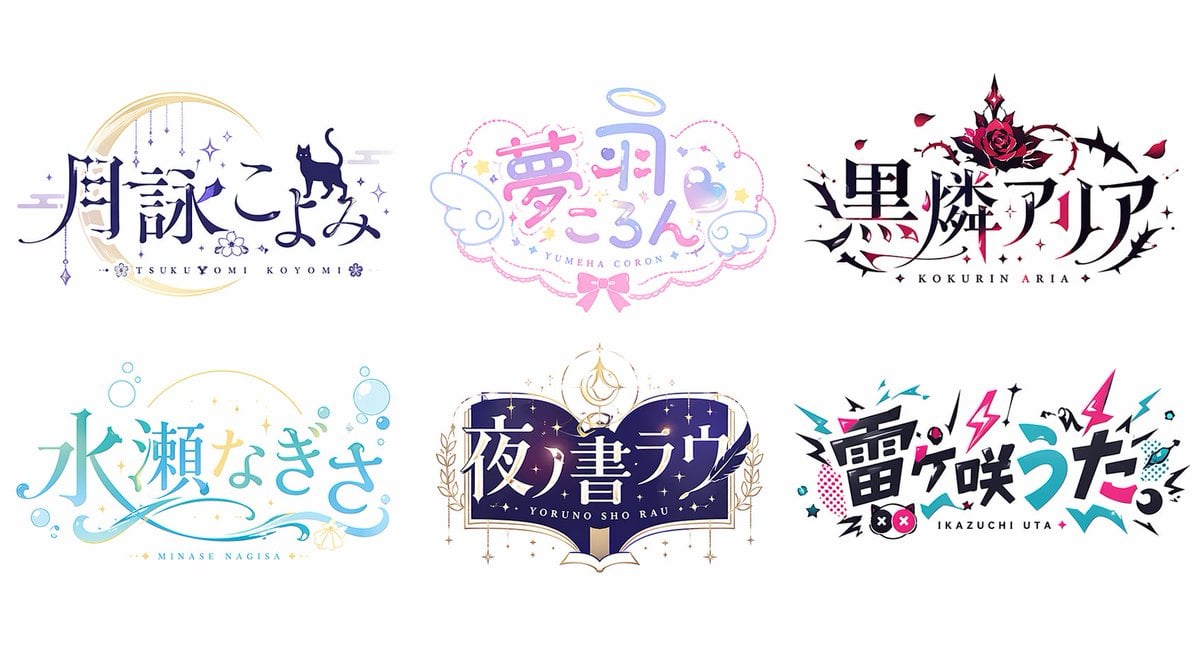
Six VTuber Japanese Logo Sheet
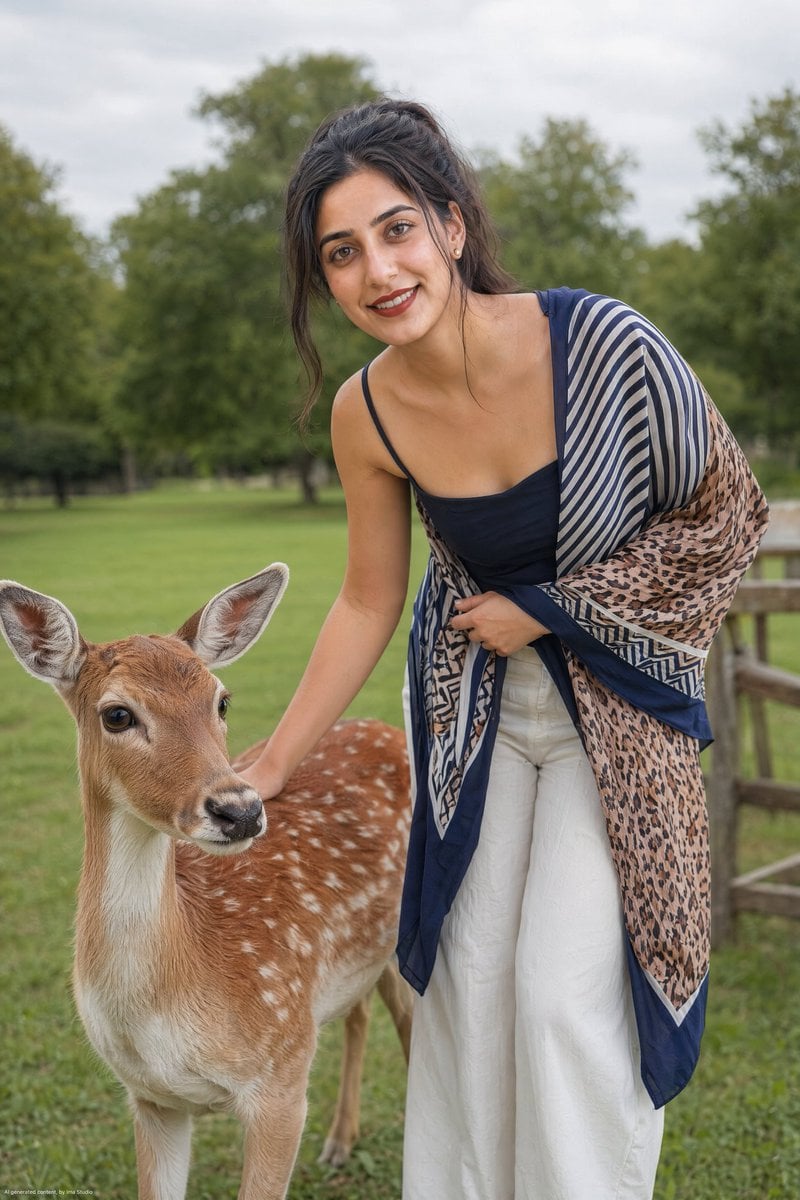
Realistic Portrait of Woman and Deer
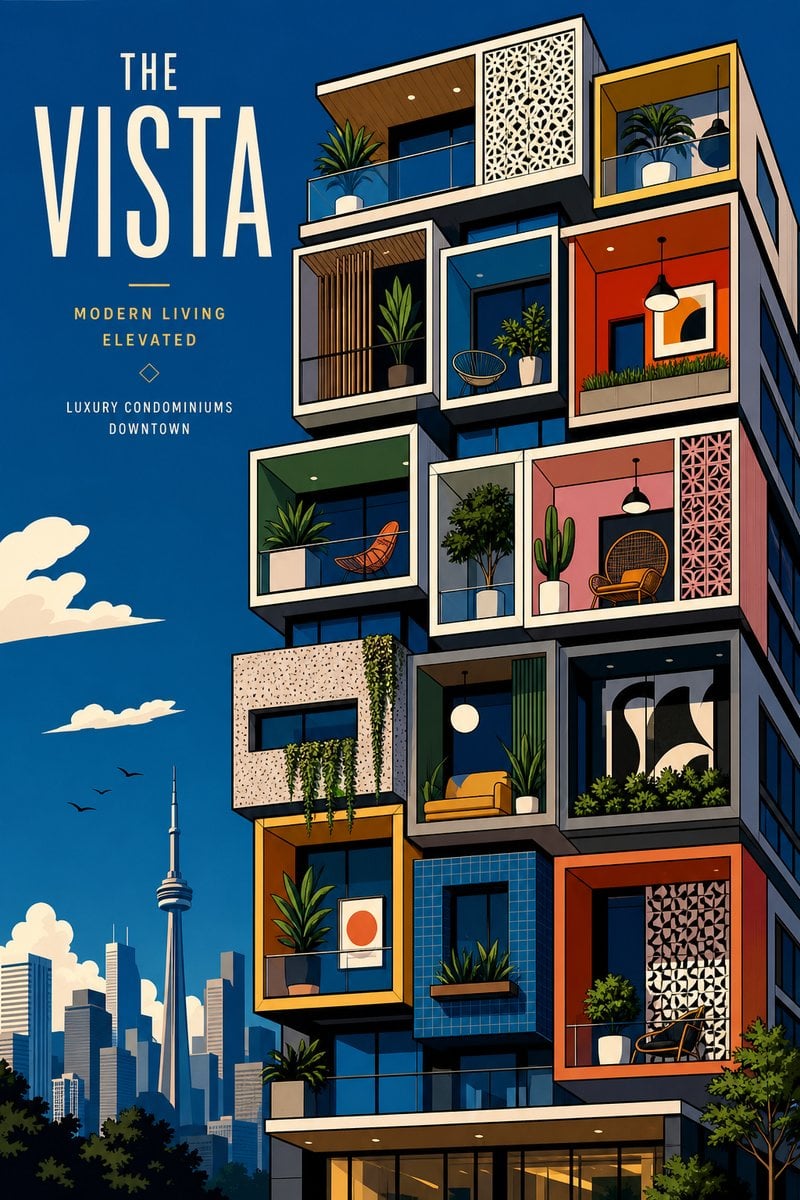
The Vista Modular Condo Poster
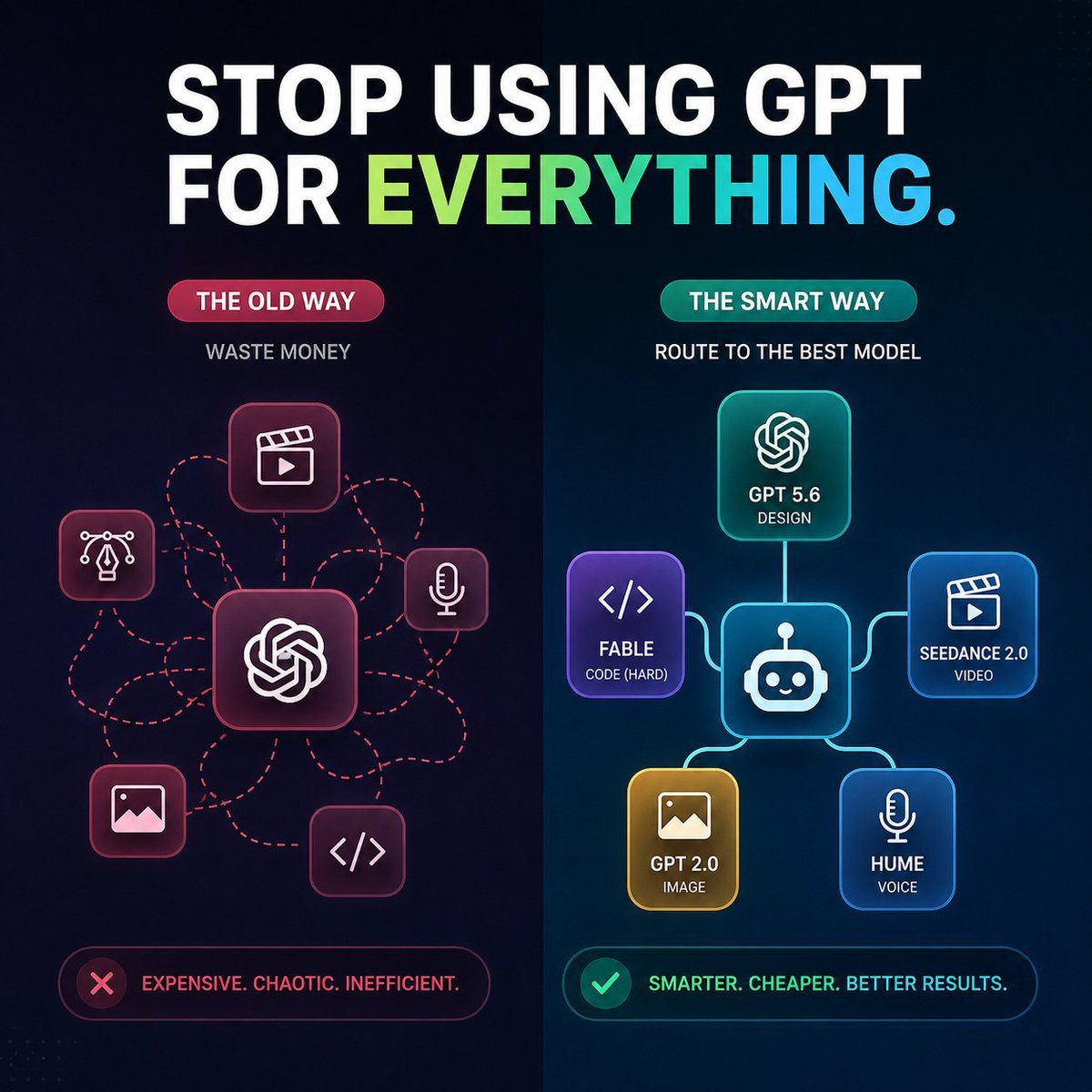
AI Model Routing Comparison Infographic
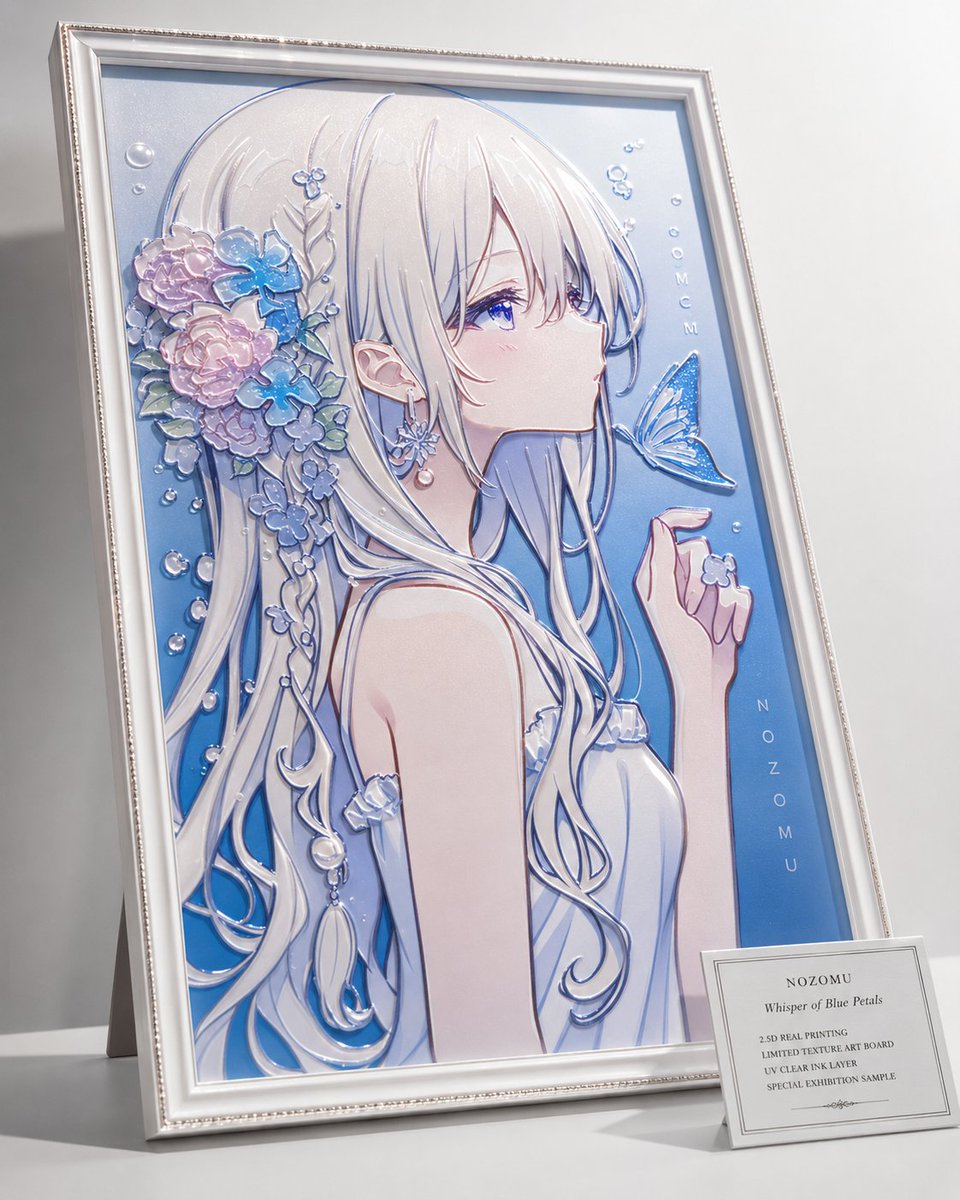
2.5D Anime Art Board

Isometric Productivity Desk Scene
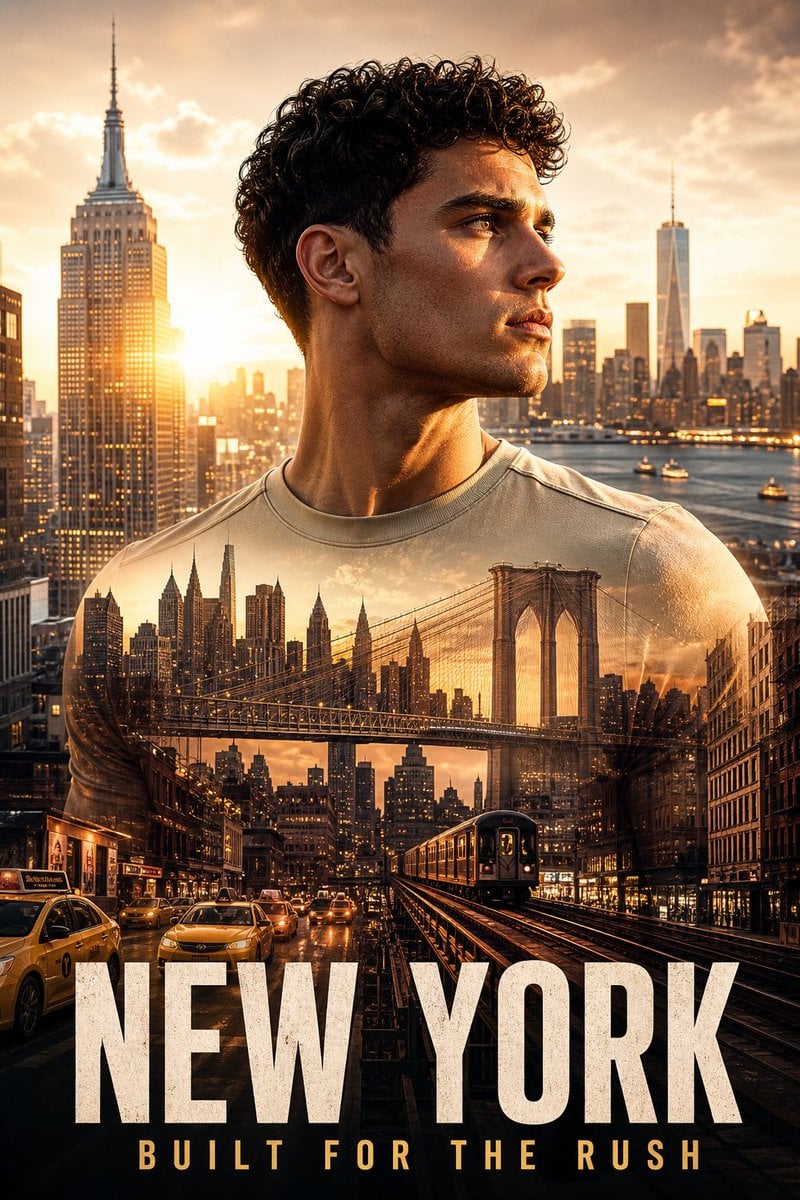
New York Double Exposure Poster
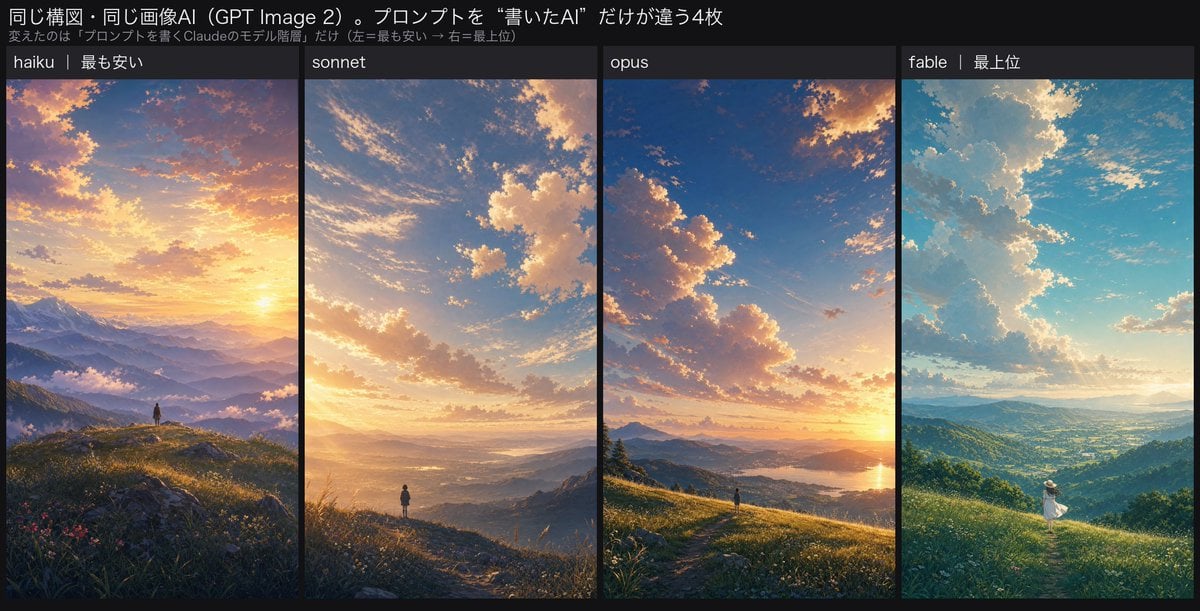
Four-Panel AI Landscape Comparison
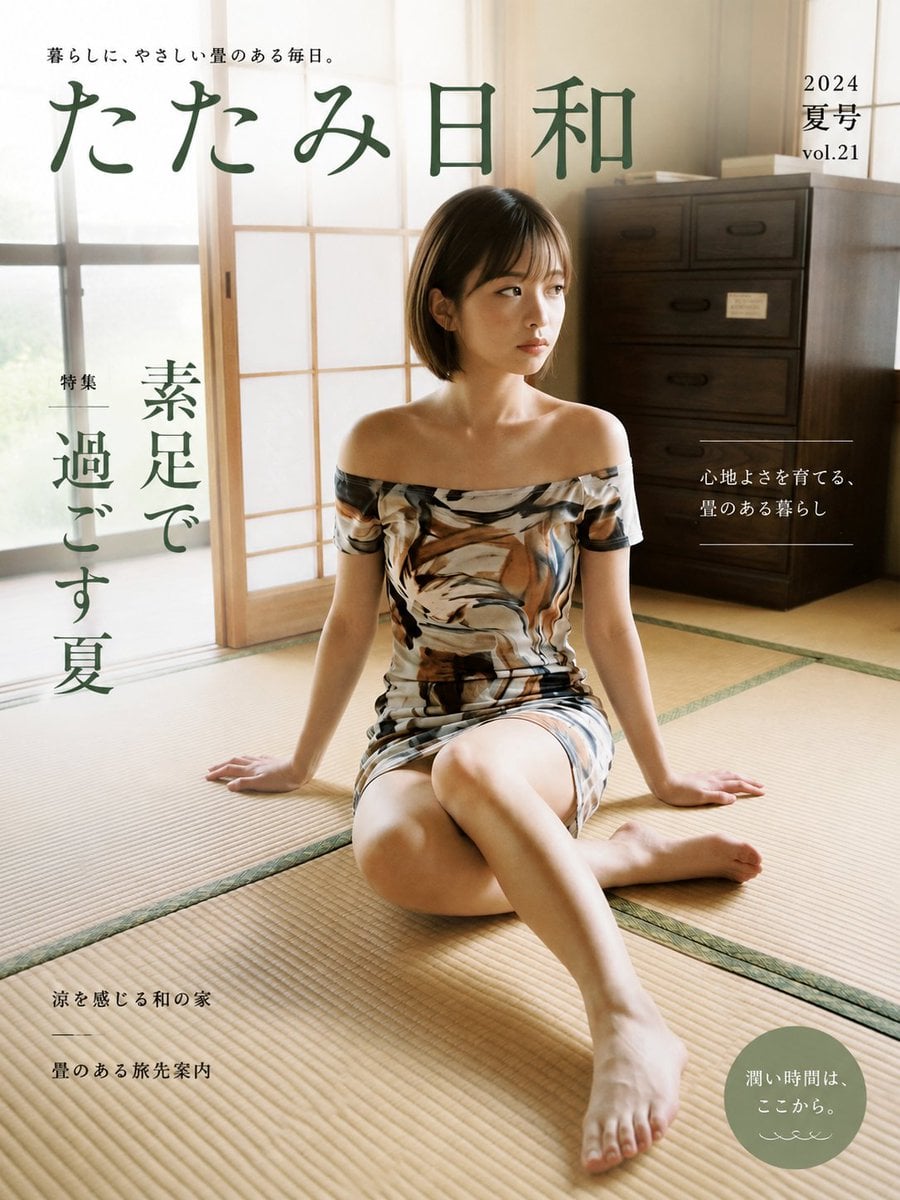
Japanese Tatami Lifestyle Magazine Cover

NESCAFÉ Coffee Map Poster
More image prompts
Fresh picks from across the catalog.
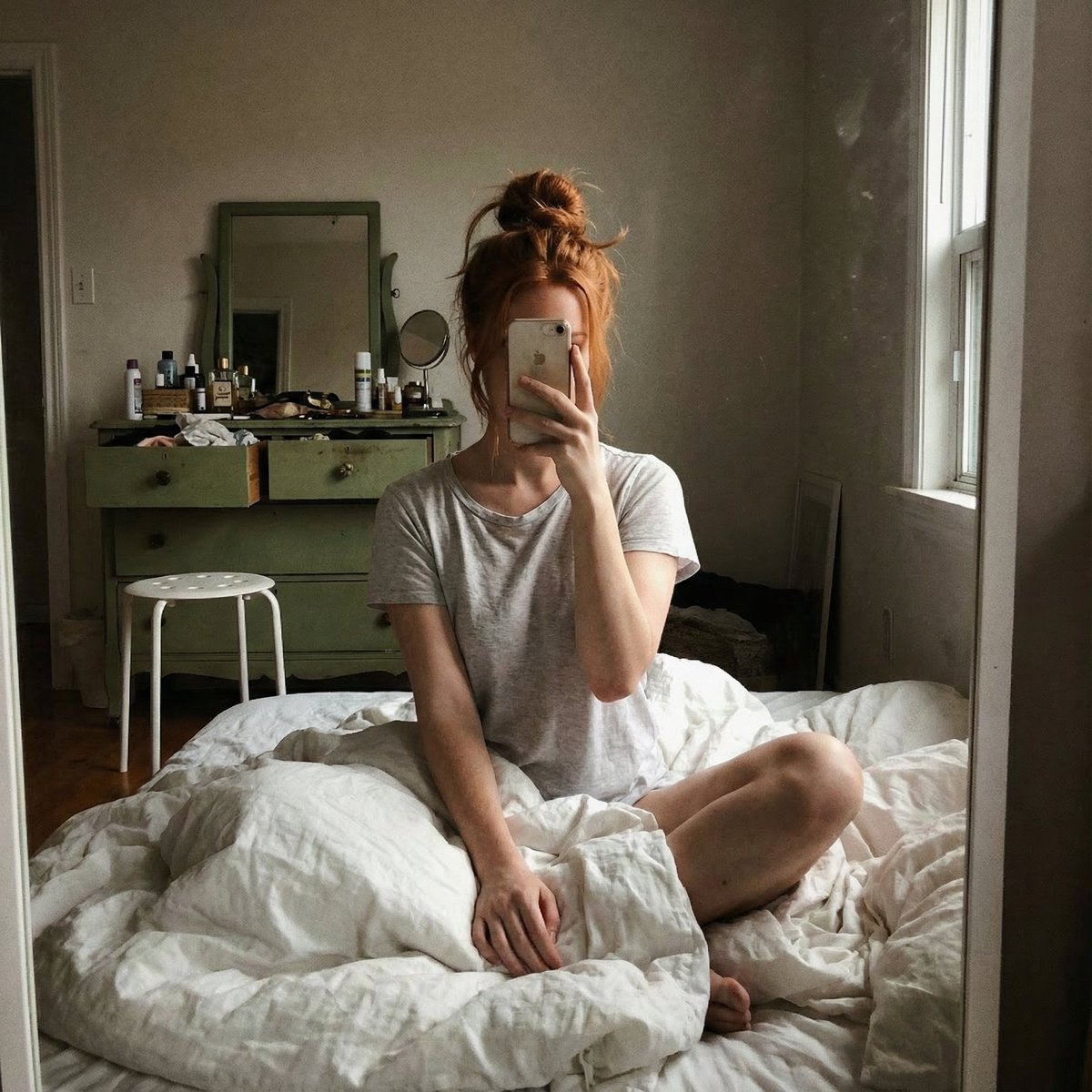
Structured JSON Prompt for Candid Mirror Selfie in a Bohemian Bedroom
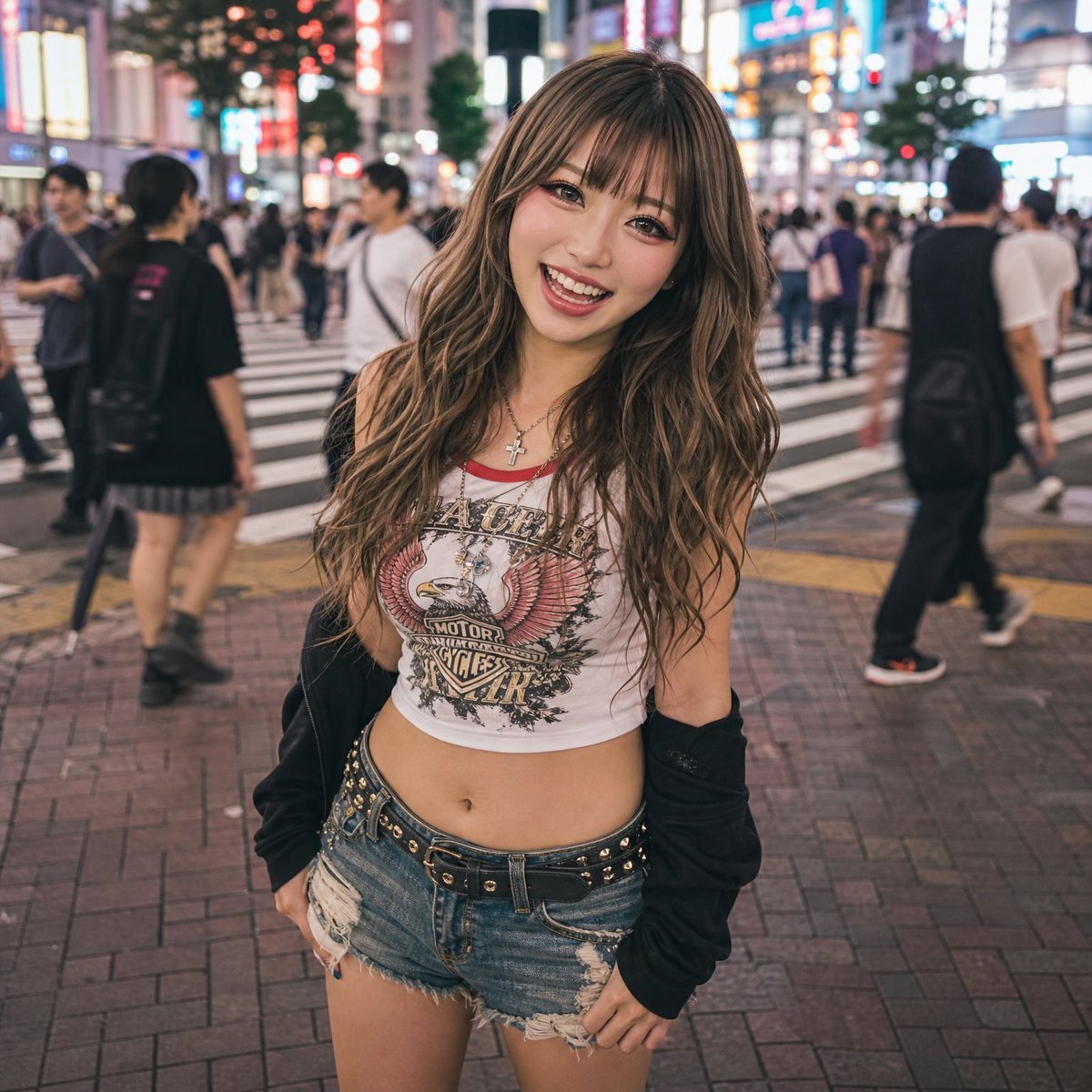
Tokyo Night Street Fashion Portrait
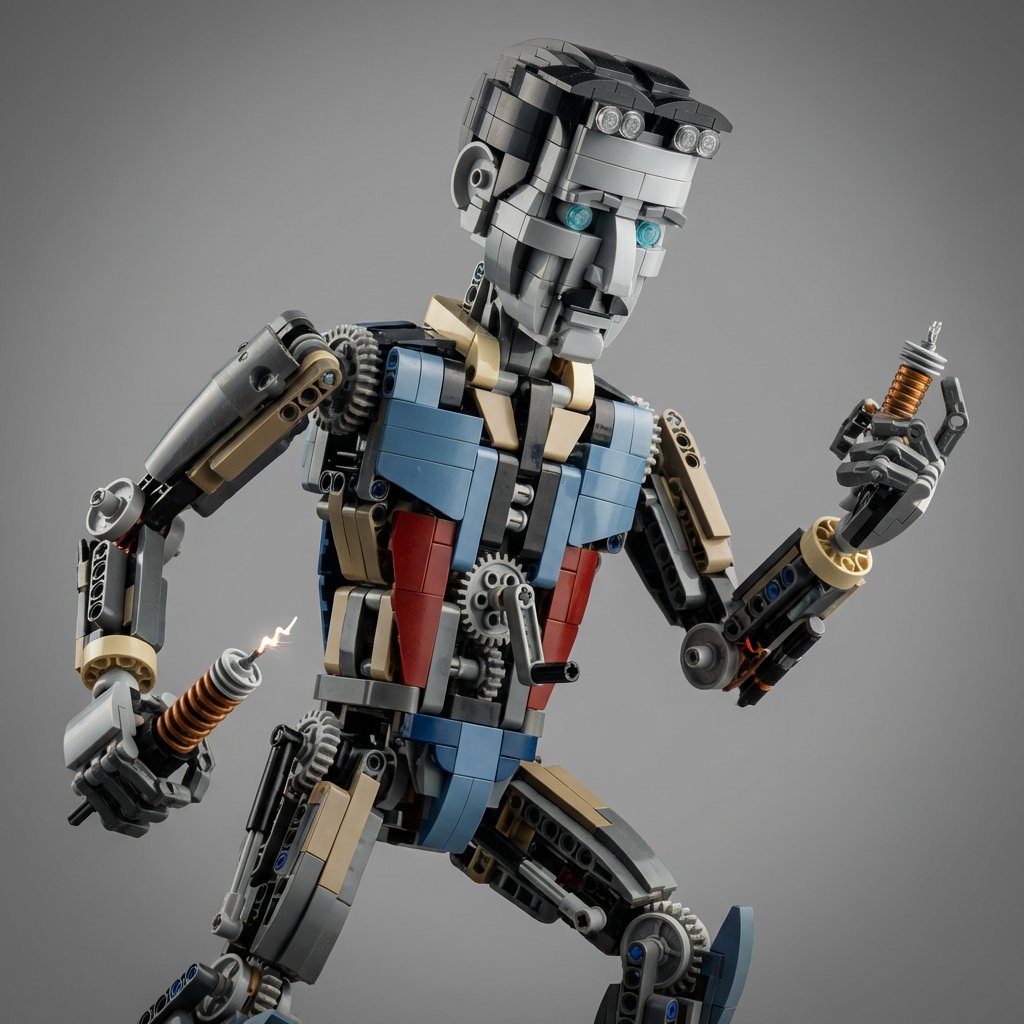
Hyper-Real Macro Studio Shot of a LEGO Technic Kitbash
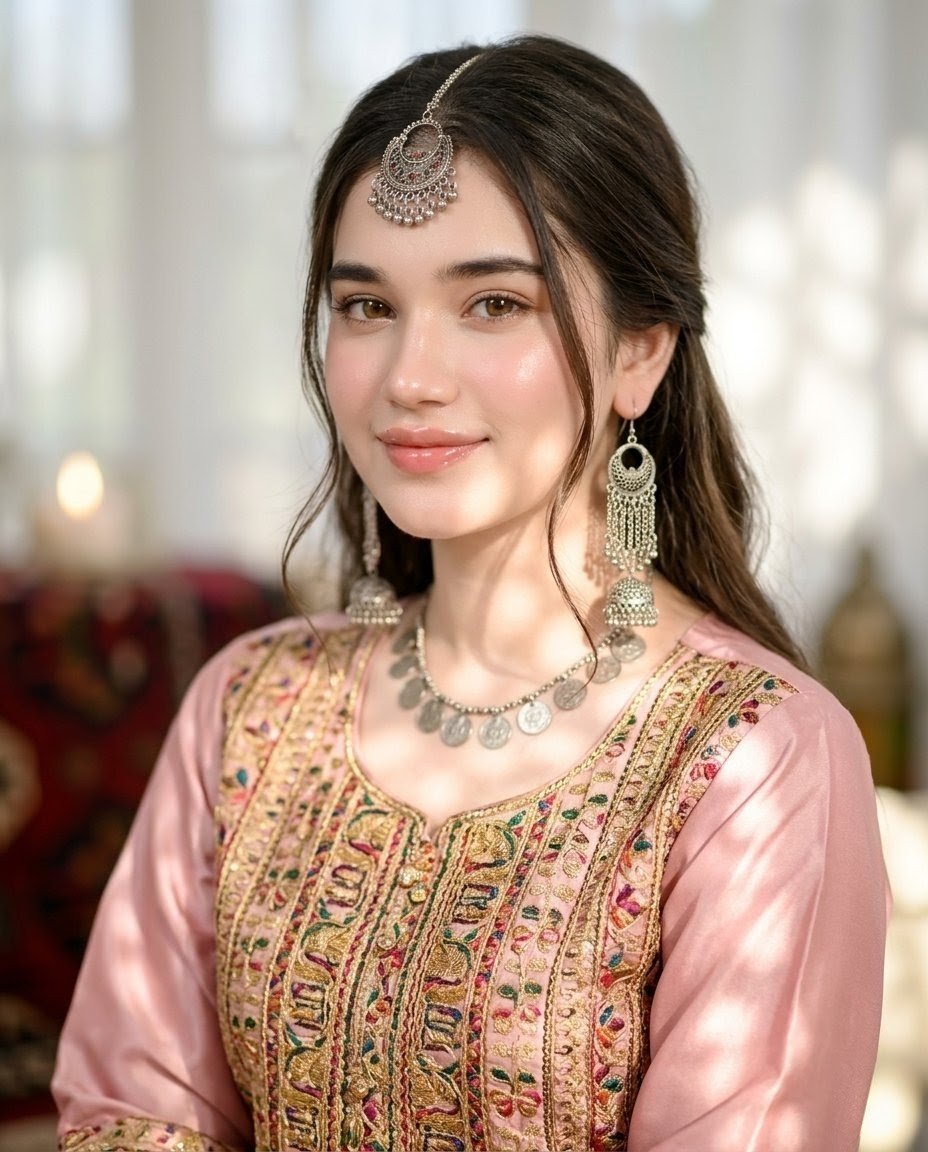
Pashtoon Dress Portrait with Obscured Face
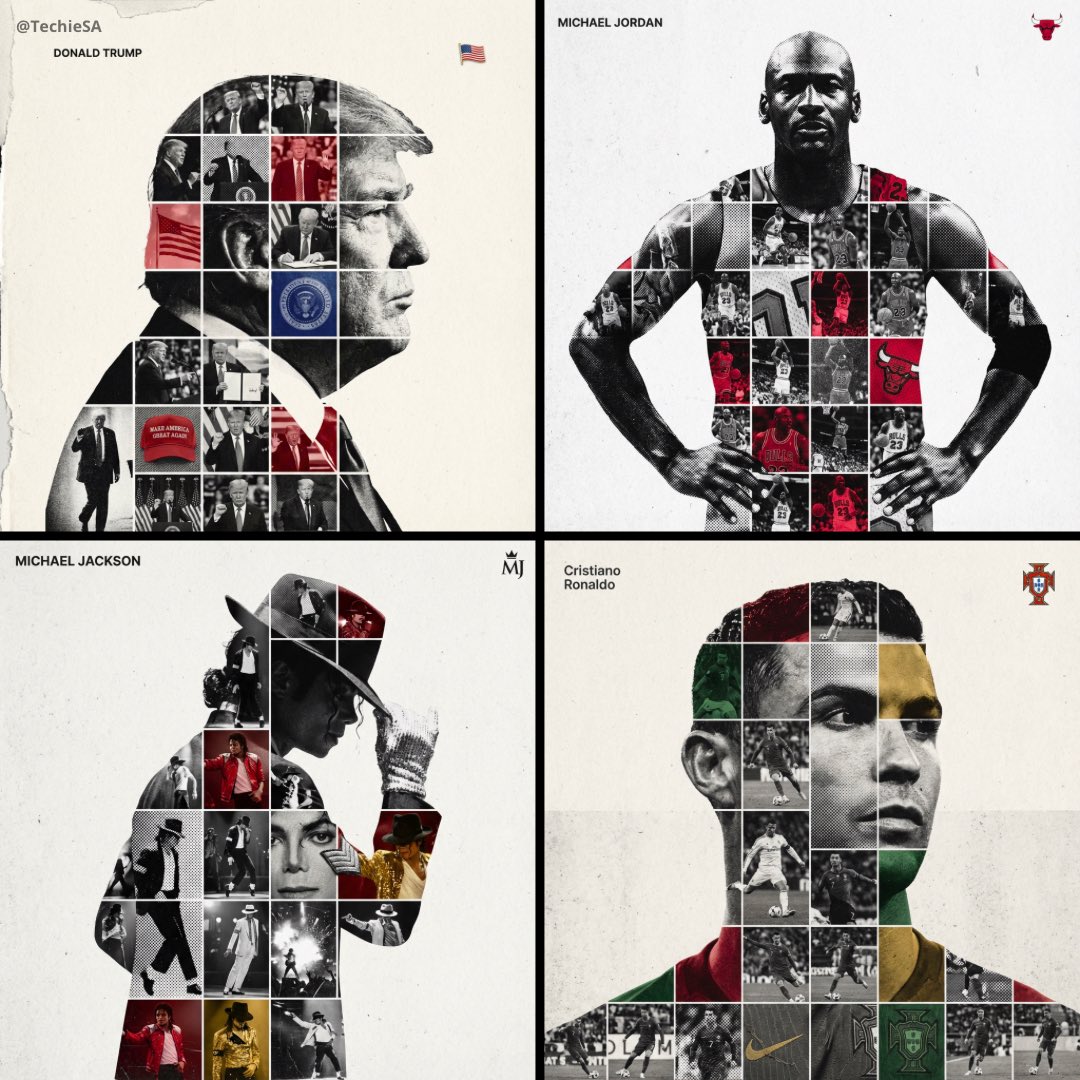
Mixed Media Sports Tribute
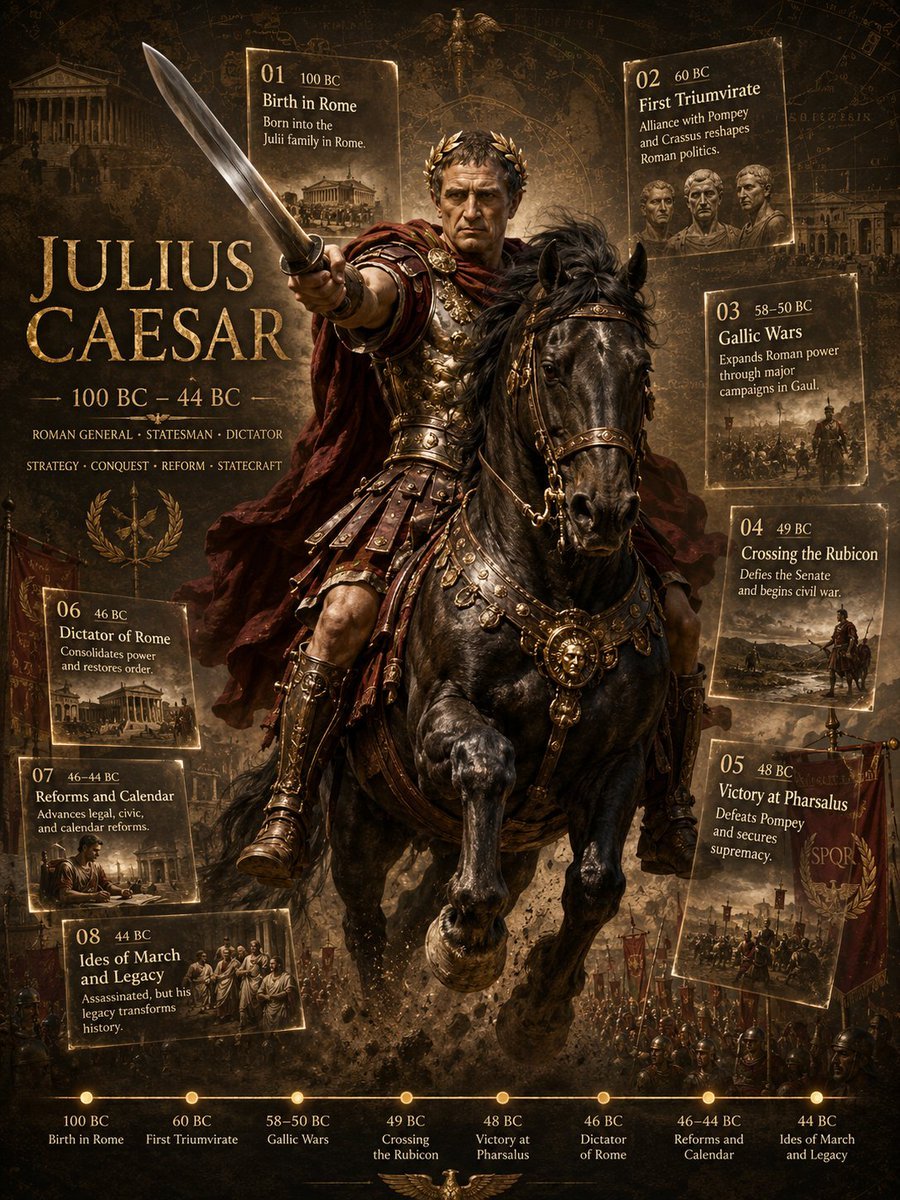
Julius Caesar Epic Timeline Poster
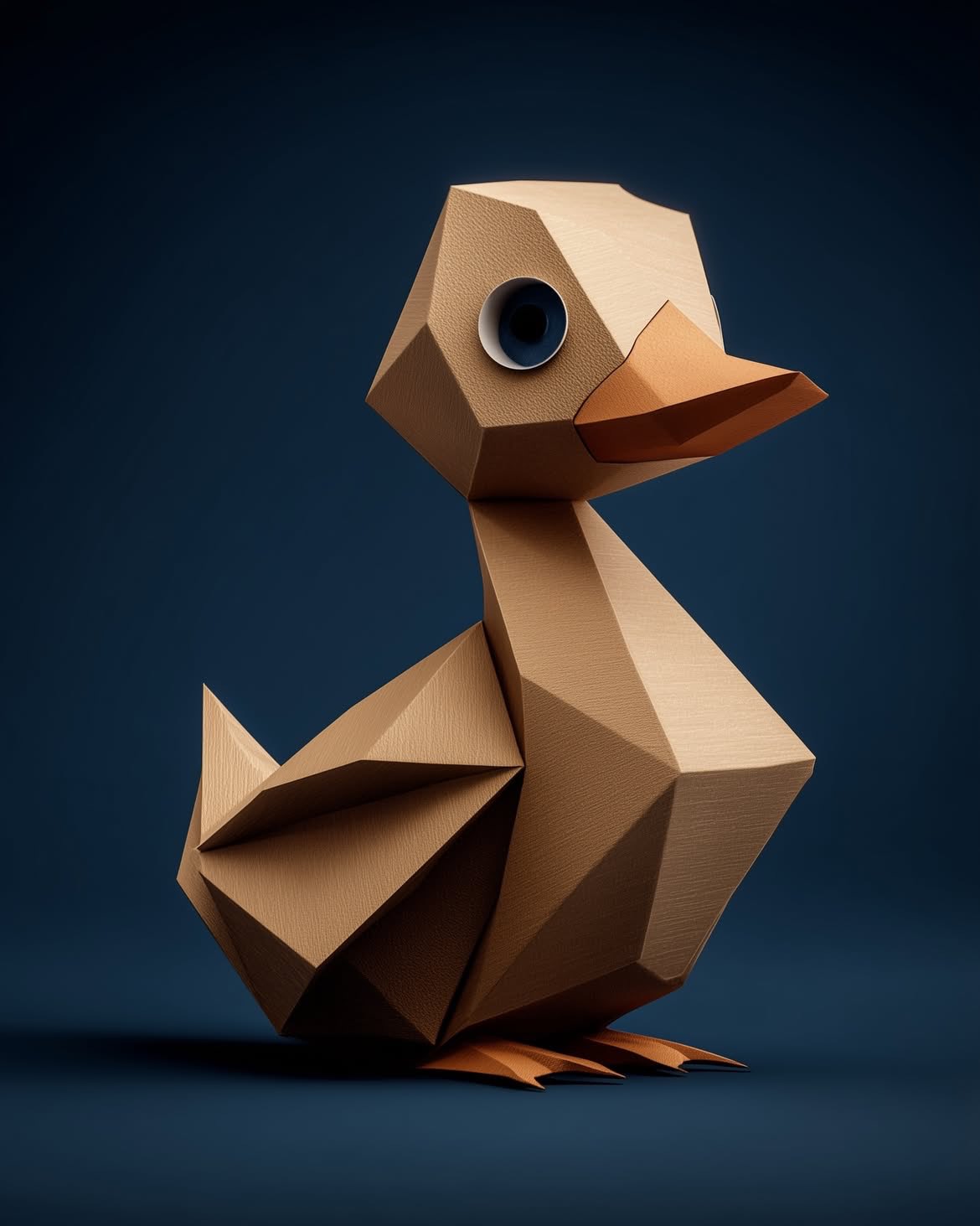
Google Gemini Nano Banana Pro
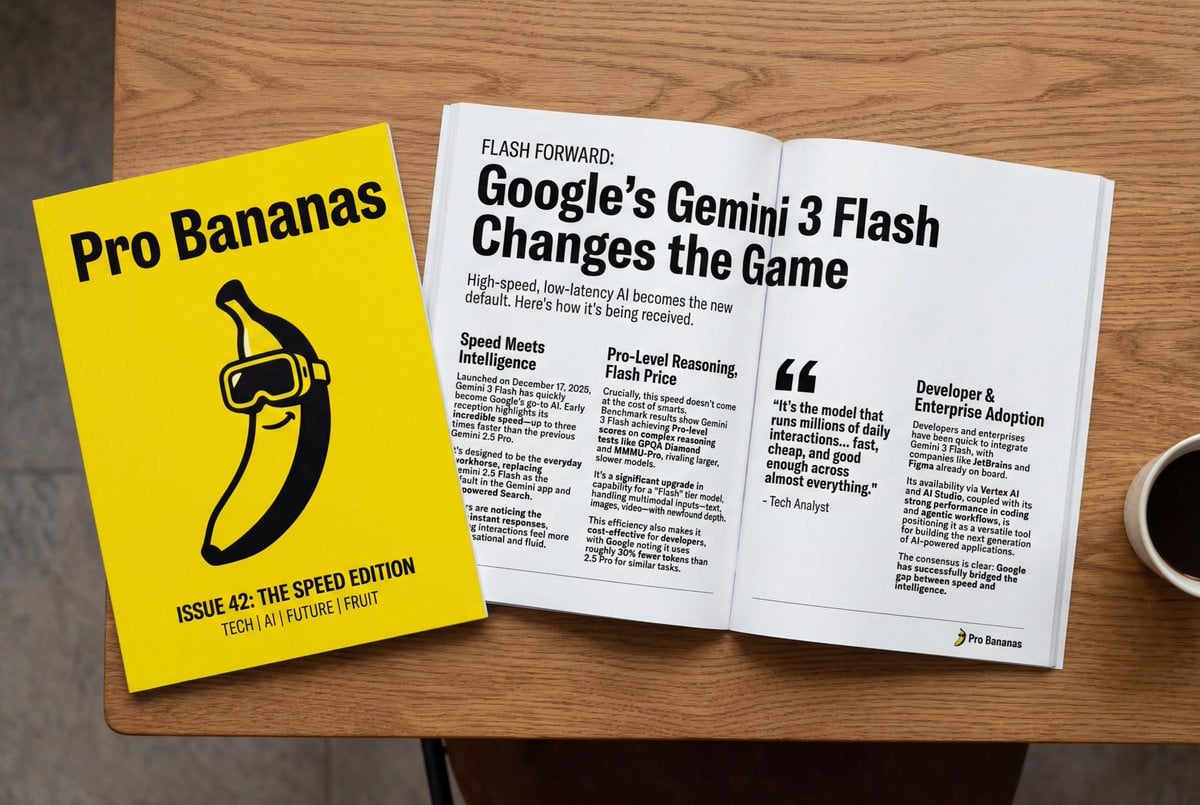
Generate Magazine Article and Cover (LLM/Image)
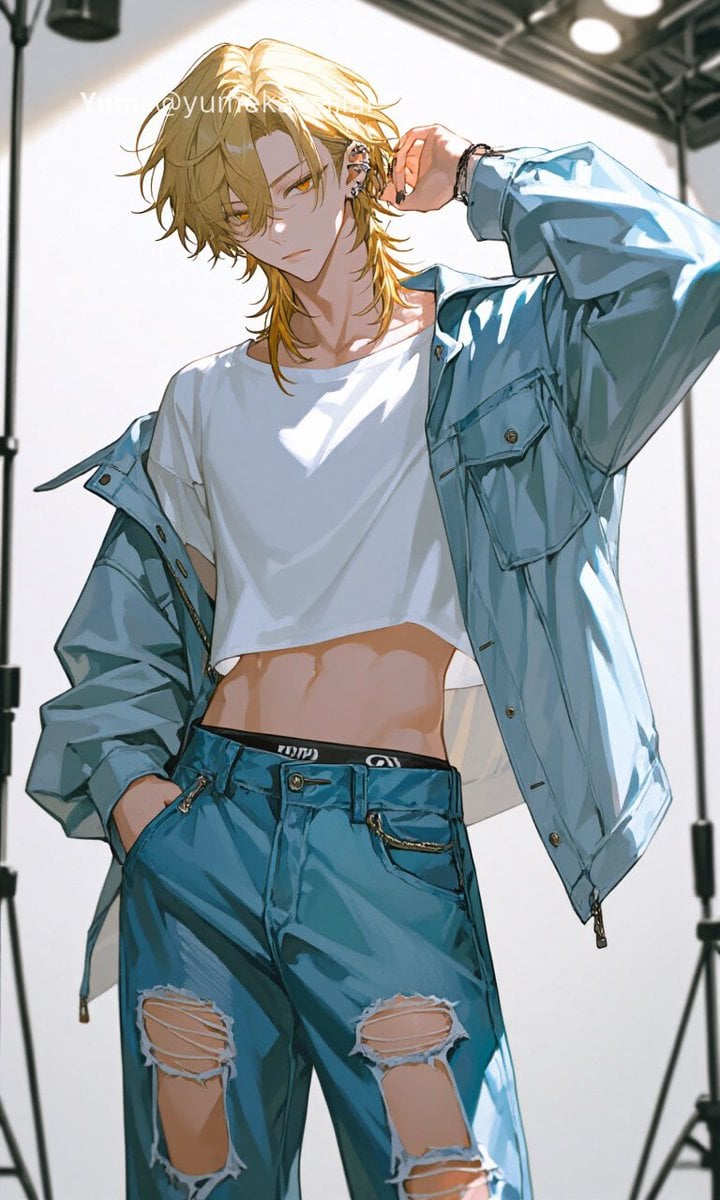
Y2K Anime Streetwear Model
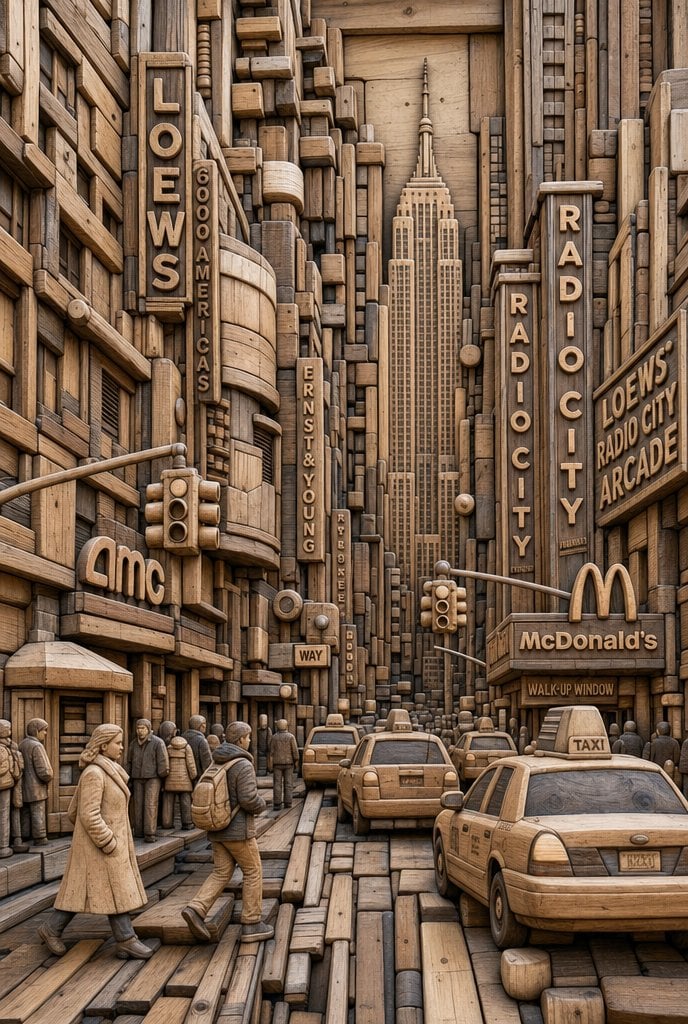
Carved Wood Block Relief
Browse template categories
Cinematic Group in Front of Green Screen questions
How do I use the Cinematic Group in Front of Green Screen template?
Add your photo if the template asks for one, edit the prompt if you like — the template's model and format are already selected — and press Generate. Your version opens in PicX Studio.
Can I customize the Cinematic Group in Front of Green Screen template?
Yes. You can change the subject, setting, lighting, mood, format, and available model controls before creating your image.
Is the Cinematic Group in Front of Green Screen template free?
Opening and editing this template is free. Generating uses credits, shown on the Generate button when you are signed in.
Which AI model should I use?
Start with GPT Image 2, which is the model associated with this template. You can compare another compatible model for a different finish.
Looking for something else? Browse all templates.
Your photo, any look
Thousands of ready templates for every top image and video model, from one credit balance.