
Claude Design Sync UI Mockup
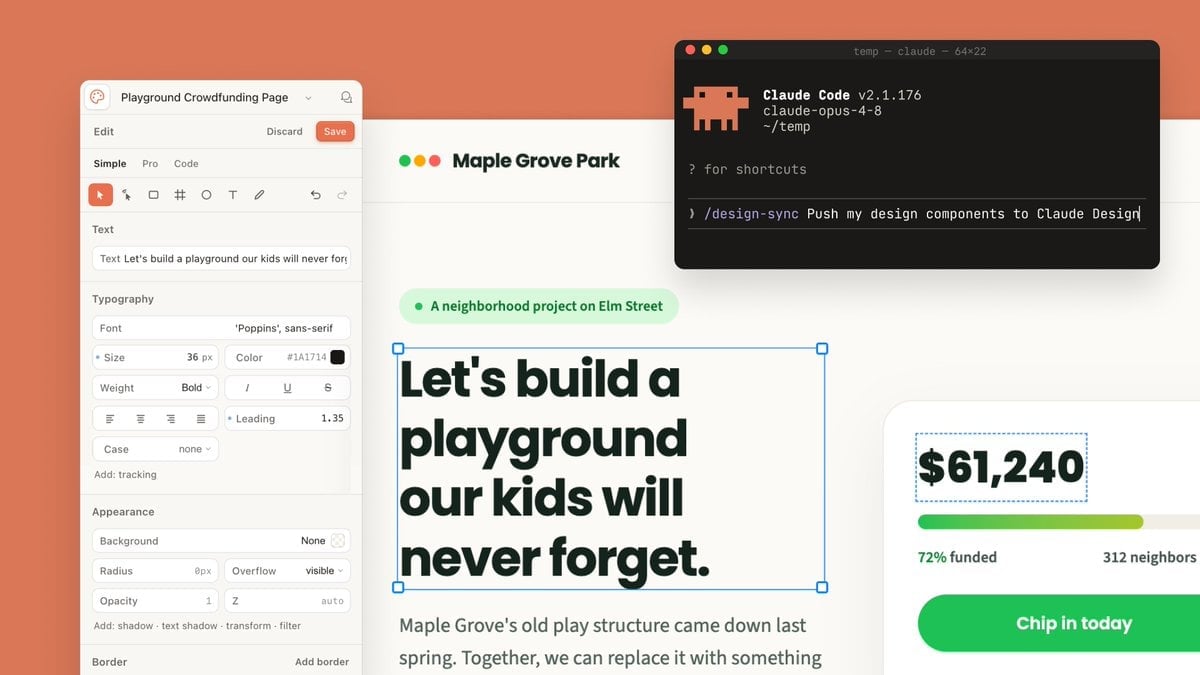
Generates a polished SaaS-style mockup of a design editor syncing a playground crowdfunding page with a Claude Code terminal.
- Prompt included
- Model and format preset
- Premium template
The prompt behind this image
Copy the exact prompt behind Claude Design Sync UI Mockup, or open it in the studio and make it yours.
Goal: Create a polished wide 16:9 product-announcement mockup showing Claude Design and Claude Code working together on a fundraising webpage design. Canvas: 1200×675 landscape composition with a warm coral-orange background filling the full frame. Center a large cream-white design canvas with subtle shadow, partially covered by a left editor sidebar, a right donation card, and a floating terminal window. Layout: Use exactly 4 main interface elements: 1 left design editor panel, 1 central webpage artboard, 1 right donation progress card, and 1 floating dark terminal window in the upper-right. The artboard should sit behind the panels, with the terminal overlapping its top-right area. Left editor panel: A rounded off-white sidebar titled “Playground Crowdfunding Page” with a small circular app icon at far left and a bell icon at far right. Below it show a top row with exactly 3 actions: “Edit”, “Discard”, and a coral “Save” button. Then show exactly 3 tabs: “Simple”, “Pro”, “Code”, with “Simple” active. Include a compact toolbar with exactly 9 visible icons: selected pointer, cursor, rectangle, grid/cross, circle, text T, pencil, undo, redo. Add labeled controls for Text, Typography, Appearance, and Border. Typography controls should include font “Poppins”, size “36 px”, color “#1A1714”, weight “Bold”, italic, underline, strikethrough, alignment icons, leading “1.35”, case “none”, and tracking. Appearance controls should include background “None”, radius “0px”, overflow “visible”, opacity “1”, and z “auto”. Central webpage artboard: At the top of the webpage show a small logo made of exactly 3 colored dots: green, yellow, and red, followed by the site name {argument name="organization name" default="Maple Grove Park"}. Beneath it place a pale green pill tag with one green dot and the text {argument name="project label" default="A neighborhood project on Elm Street"}. The main headline must be large, bold, dark green-black, and actively selected with a thin blue bounding box and exactly 4 blue square corner handles. Headline text: {argument name="headline text" default="Let's build a playground our kids will never forget."} Break it into four lines like the image. Under the headline, show smaller gray body copy beginning “Maple Grove's old play structure came down last spring. Together, we can replace it with something”. Right donation card: A white rounded card with a soft shadow, cropped slightly off the right edge. It contains exactly 4 visible content items: a selected amount text box reading {argument name="funding amount" default="$61,240"} with a blue dashed selection outline, a horizontal progress bar with green-to-lime fill and pale gray remainder, a status row reading “72% funded” on the left and “312 neighbors” on the right, and a large rounded green call-to-action button reading “Chip in today”. Floating terminal window: In the upper-right, add a black macOS-style terminal with rounded corners and shadow. It has exactly 3 traffic-light dots: red, yellow, green. Window title line reads “temp — claude — 64x22”. Show a pixel-art orange Claude-like mascot icon on the left. Terminal text should include “Claude Code v2.1.176”, “claude-opus-4-8”, “~/temp”, “? for shortcuts”, and a command line reading “/design-sync Push my design components to Claude Design” with the caret at the end. Use monospaced terminal typography. Visual style: Modern SaaS interface screenshot, clean Figma-like design controls, creamy whites, dark forest-green text, coral accent background, soft shadows, rounded corners, crisp readable UI text, high-end presentation slide aesthetic. Constraints: Keep the composition wide and uncluttered, preserve the exact counts listed above, do not add people, do not add extra panels, and do not include watermarks.
How to use Claude Design Sync UI Mockup in 3 steps
- 1Upload ImagePNG, JPG or paste
Add your photo
Upload the photo the template builds on. The prompt, model and format are already set.
- 2…a portrait of your subject in softgolden-hour light, 85mm…
Personalize
Edit the subject and creative details for your destination.
- 3Generate
Generate
Press Generate — your image is created in PicX Studio, so you can compare it with the original and refine one variable at a time.
More like this
Templates with the same subject, style or setup. Open one to see its prompt.
Product Shot - T-Shirt Mockup
Claude Code Breaking News Infographic
Museum Wall Claude Fable 5 Infographic
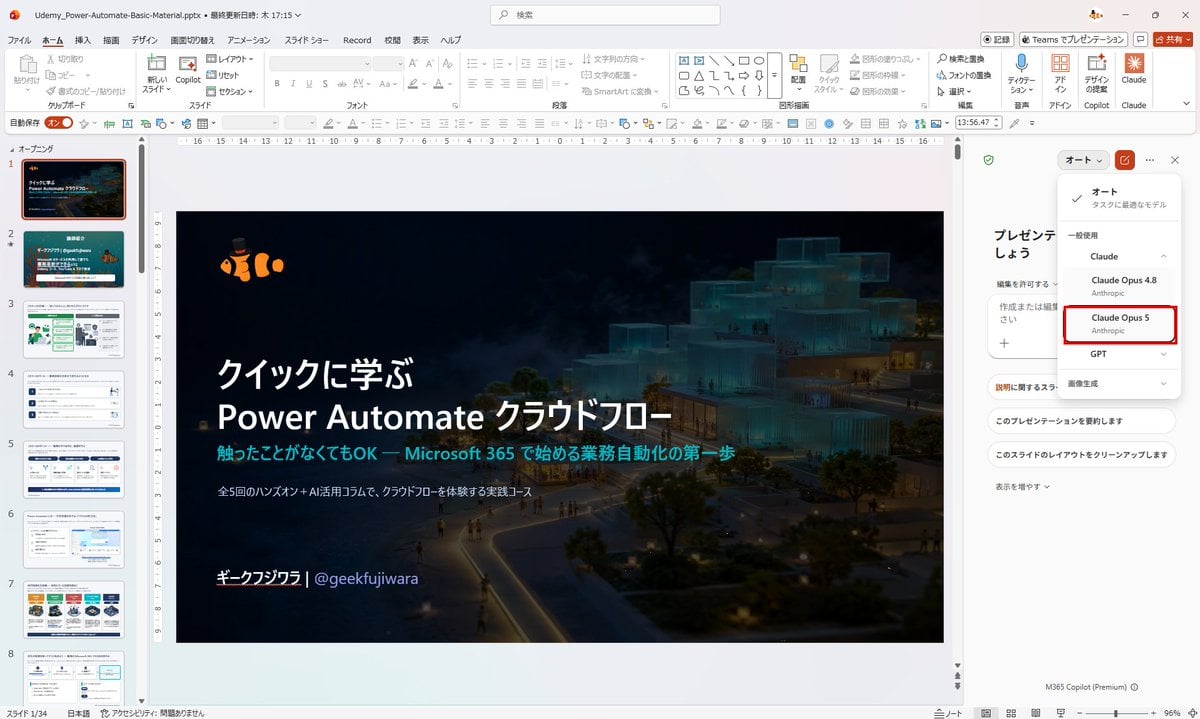
Japanese PowerPoint Claude Opus 5 Screenshot
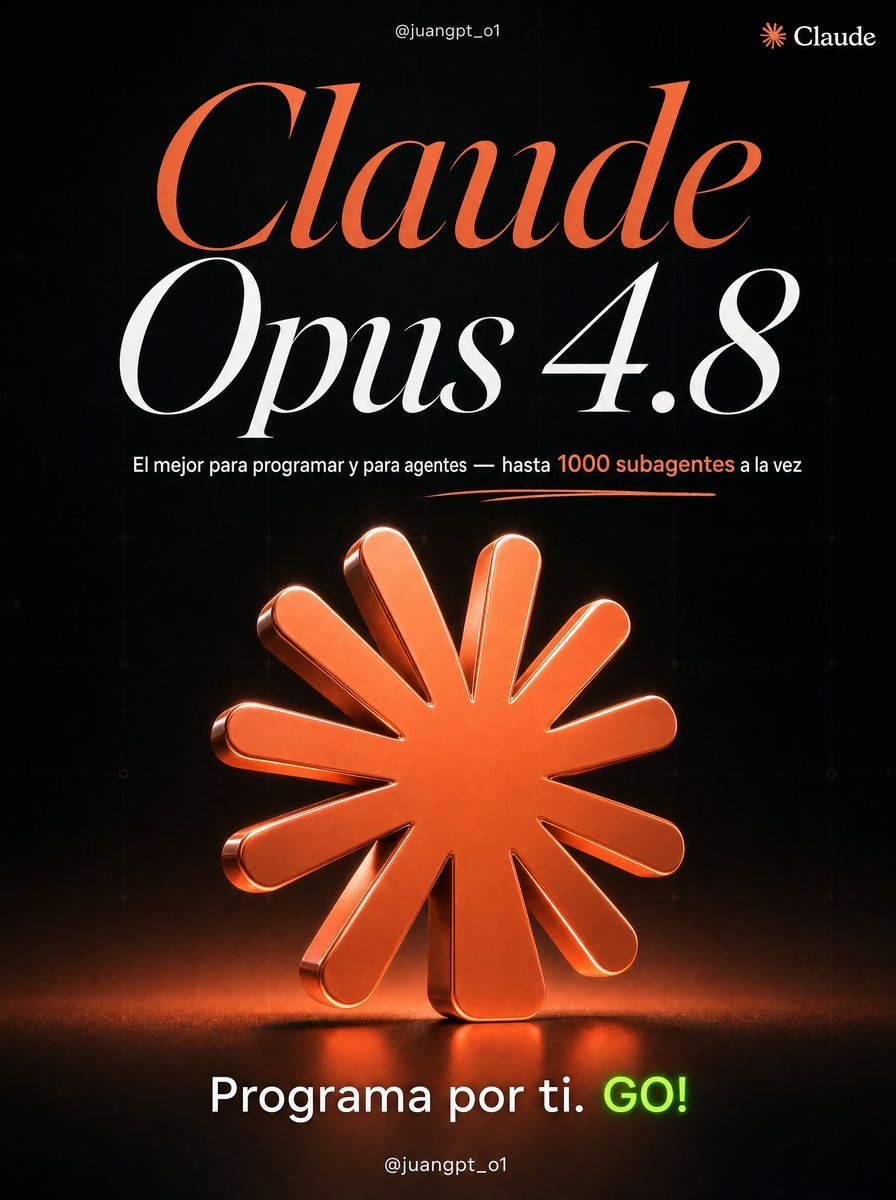
Claude Opus 4.8 Hero Slide
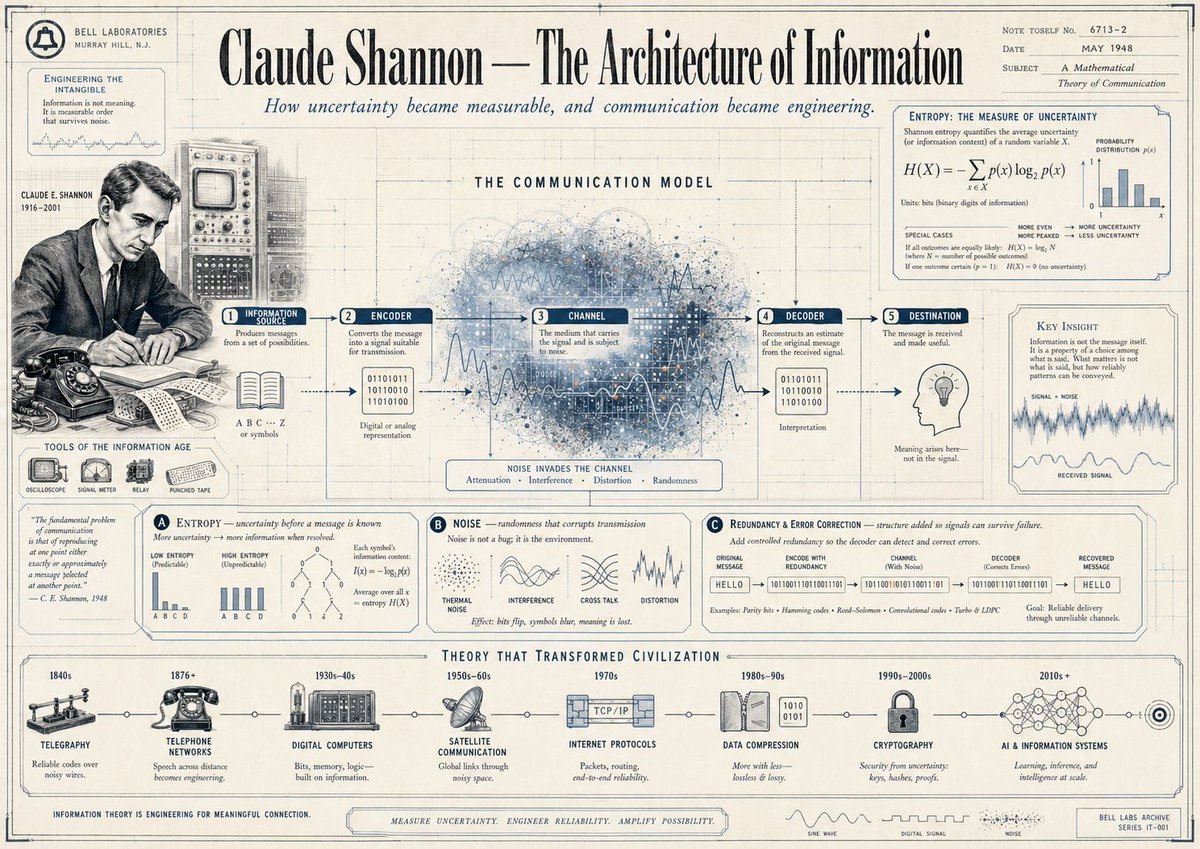
Vintage Claude Shannon Infographic Poster
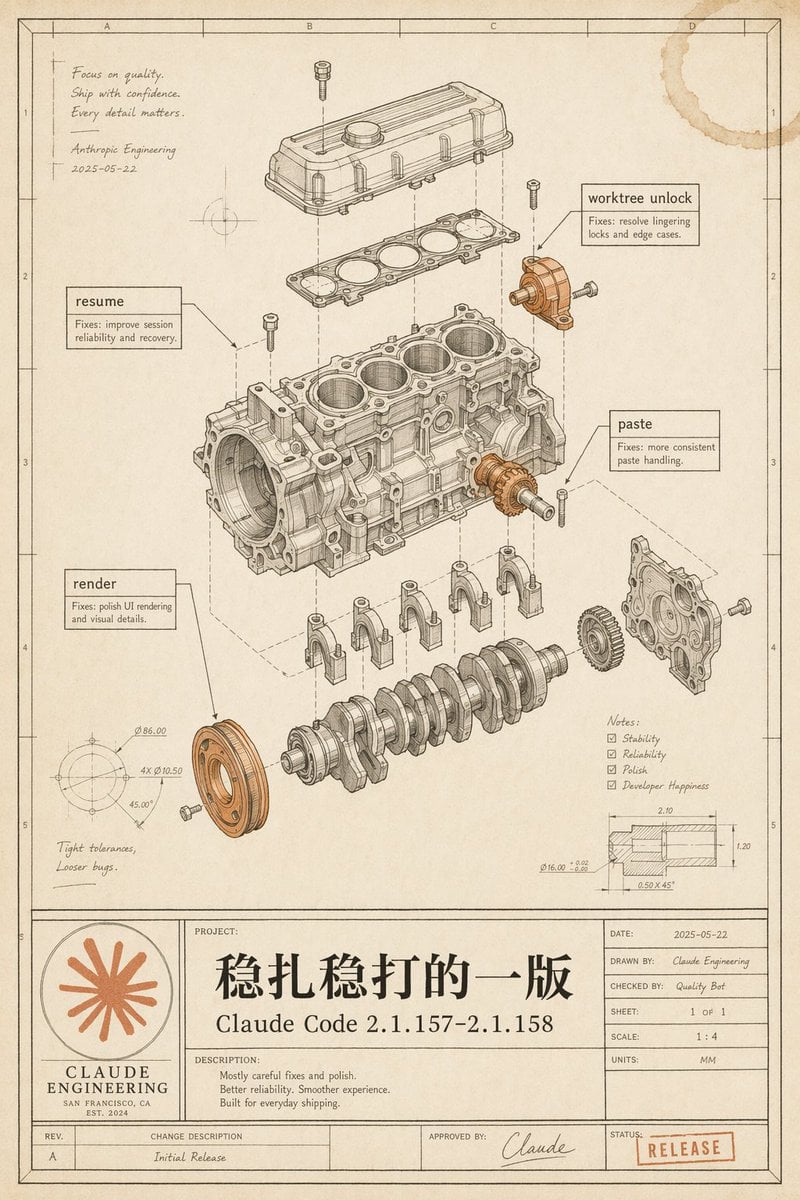
Vintage Claude Code Release Blueprint

Japanese Claude Future Infographic

Claude Code Japanese Hero Ad

Claude Code Japanese SaaS Poster
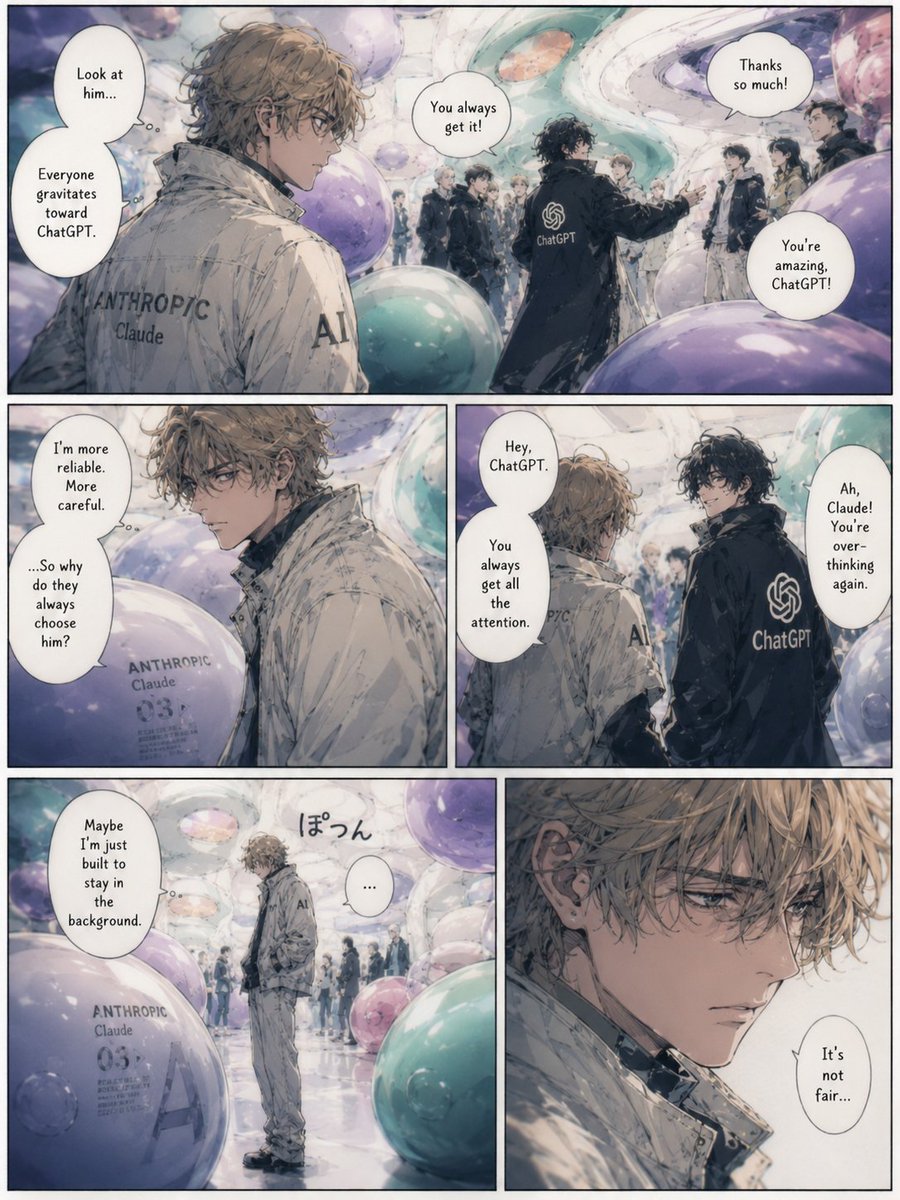
Jealous Claude Manga Page
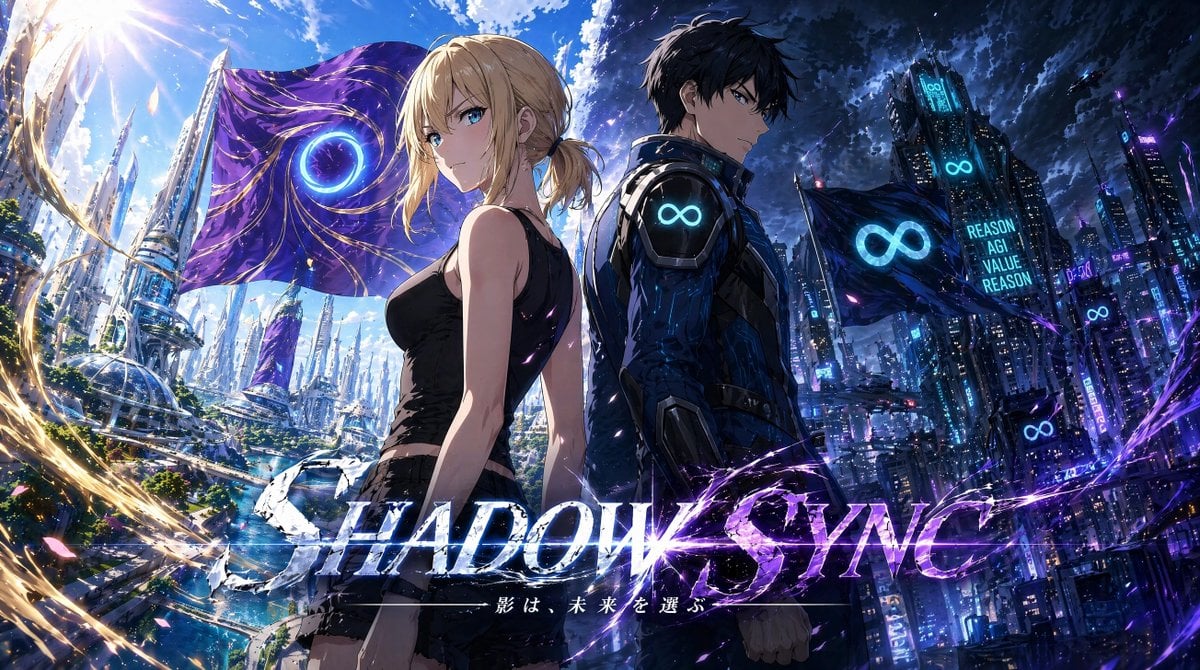
Shadow Sync Anime Key Visual
Make it yours
Claude Design Sync UI Mockup works as-is. These are the safest ways to change it without losing the look.
Change one field
Copy a single group, rewrite it, and generate again so you can see what that field is doing.
Keep the frame, change the subject
Hold the composition and light of Claude Design Sync UI Mockup, then swap wardrobe, props or the person for a new take.
| If the result… | Why | Fix |
|---|---|---|
| The result drifts from the preview | Too many fields changed at once. | Reuse Claude Design Sync UI Mockup as-is first, then change one group — subject, light, or setting. |
| The model over-stylizes the scene | The prose prompt leaves finish and camera underspecified. | Add one camera or lighting sentence and stay on GPT Image 2. |
More GPT Image 2 templates
Other prompts made for GPT Image 2.

Six VTuber Japanese Logo Sheet

Realistic Portrait of Woman and Deer

The Vista Modular Condo Poster

AI Model Routing Comparison Infographic

2.5D Anime Art Board

Isometric Productivity Desk Scene

New York Double Exposure Poster

Four-Panel AI Landscape Comparison

Japanese Tatami Lifestyle Magazine Cover

NESCAFÉ Coffee Map Poster
More image prompts
Fresh picks from across the catalog.
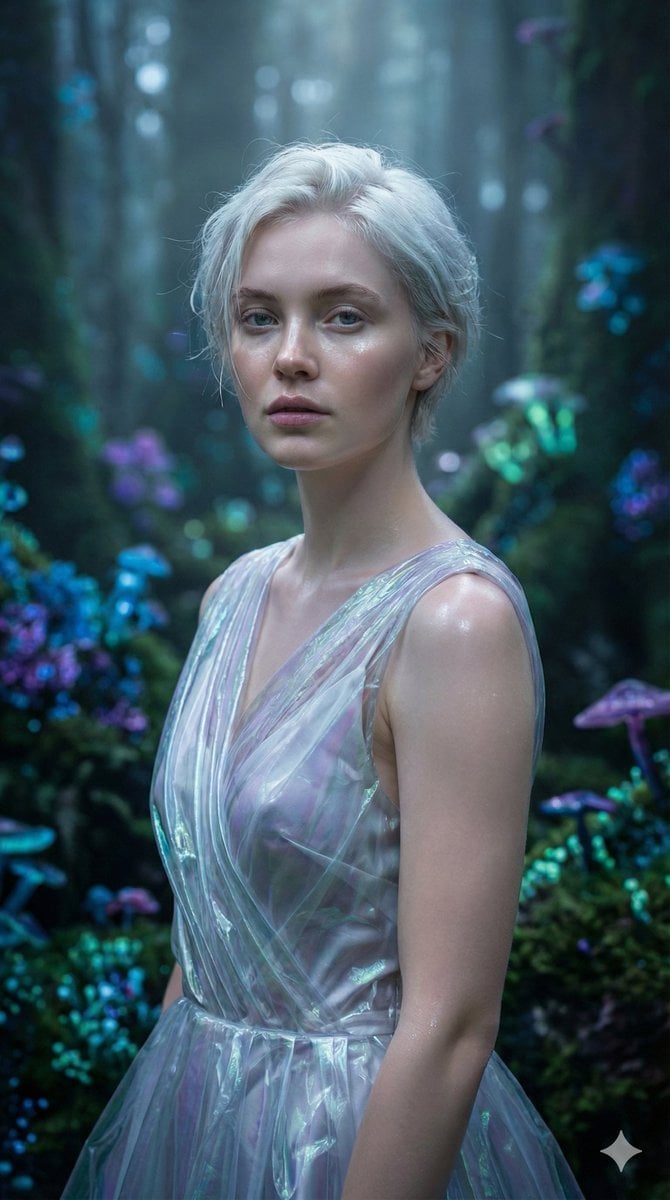
Ethereal Fantasy Realism Portrait Prompt
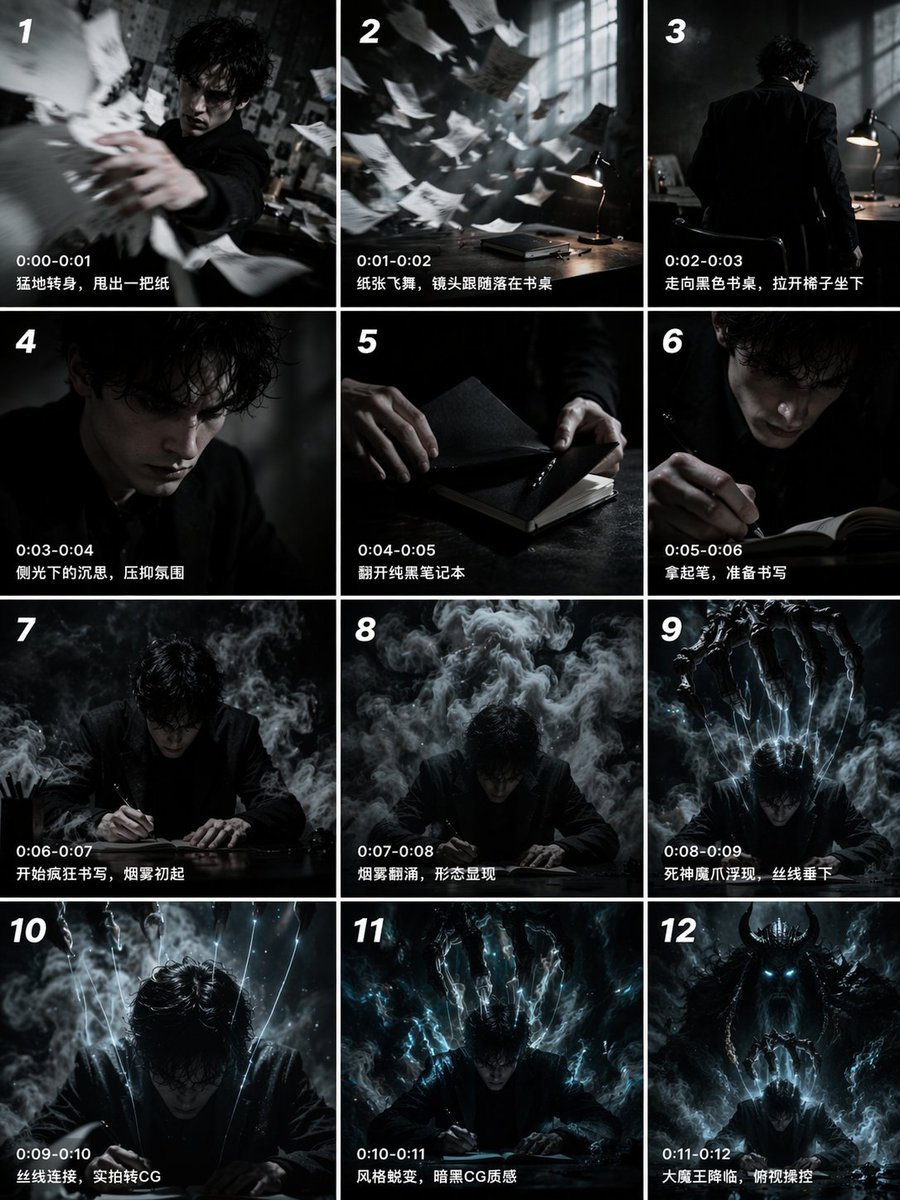
Panel Cinematic Storyboard Grid
Four-Angle Cinematic Panel Composition
Surreal Black and White Forest Scene with Color Reflection
Historical Romantic Editorial Scene in an Ottoman Garden
Historical Ingredient Journey Diorama
Ultra-Realistic Winter Fashion Portrait
Madison Beer Desert Selfie Portrait Prompt
Ultra-Realistic Nighttime Photograph Prompt for Nano Banana 2 Pro
Japanese Graffiti Street Art Poster
Browse template categories
Claude Design Sync UI Mockup questions
How do I use the Claude Design Sync UI Mockup template?
Add your photo if the template asks for one, edit the prompt if you like — the template's model and format are already selected — and press Generate. Your version opens in PicX Studio.
Can I customize the Claude Design Sync UI Mockup template?
Yes. You can change the subject, setting, lighting, mood, format, and available model controls before creating your image.
Is the Claude Design Sync UI Mockup template free?
Opening and editing this template is free. Generating uses credits, shown on the Generate button when you are signed in.
Which AI model should I use?
Start with GPT Image 2, which is the model associated with this template. You can compare another compatible model for a different finish.
Looking for something else? Browse all templates.

Your photo, any look
Thousands of ready templates for every top image and video model, from one credit balance.