
Museum Wall Claude Fable 5 Infographic
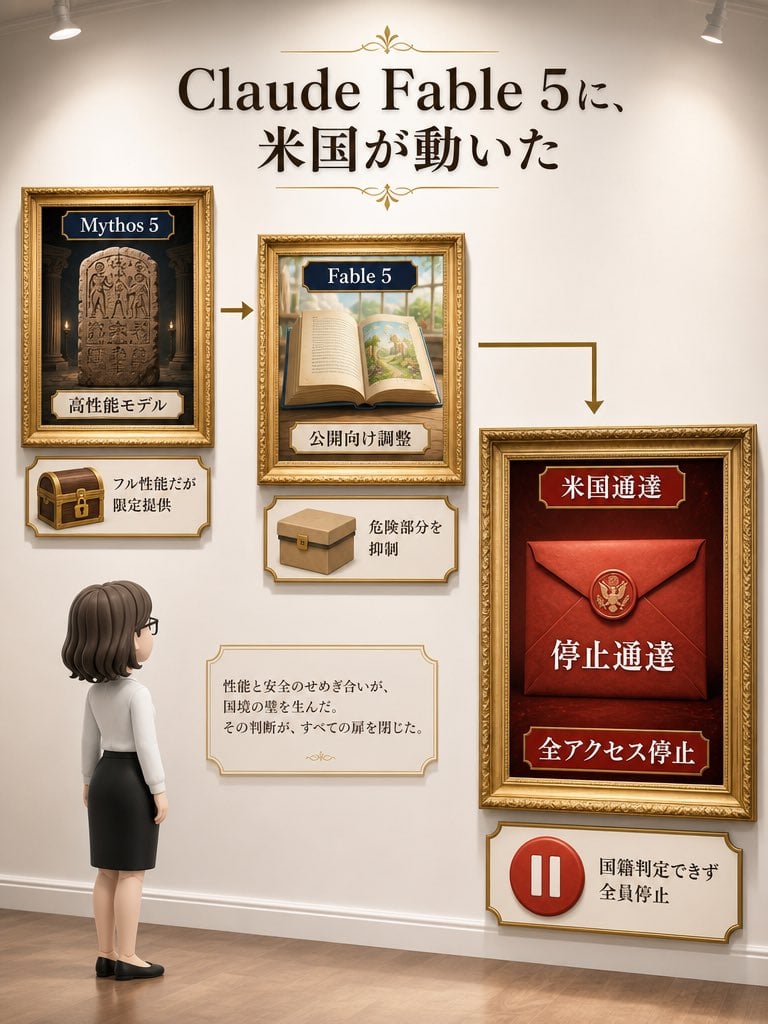
A vertical Japanese museum-style infographic explaining a left-to-right model restriction narrative using ornate framed exhibits and a viewer character.
- Prompt included
- Model and format preset
- Premium template
The prompt behind this image
Copy the exact prompt behind Museum Wall Claude Fable 5 Infographic, or open it in the studio and make it yours.
Goal: Create a vertical museum-gallery style Japanese explainer infographic about {argument name="headline text" default="Claude Fable 5に、米国が動いた"}, shown as a curated wall exhibit with ornate gold picture frames, warm spotlights, and a small viewer character observing the display. Canvas: Portrait 3:4 composition, warm cream gallery wall, wooden floor, subtle shadows, two ceiling spotlights at the upper left and upper right, realistic 3D-rendered infographic style with elegant editorial lighting. Layout: Large centered headline at the top in bold black serif Japanese typography, with small gold ornamental flourishes above and below. Beneath it, arrange exactly 3 main ornate framed exhibits connected left-to-right by exactly 2 gold arrows: one straight arrow from the left frame to the center frame, then an L-shaped arrow from the center frame down/right to the large right frame. Main framed exhibits, exactly 3: 1. Left frame: small gold frame with a dark temple-like background and a carved stone tablet. Top navy label reads {argument name="left frame label" default="Mythos 5"}. Bottom ivory label reads 「高性能モデル」. Below this frame, attach one ornate ivory plaque containing a small brown treasure chest with a gold lock and the text 「フル性能だが限定提供」. 2. Center frame: medium gold frame showing an open illustrated storybook on a table, with a bright landscape illustration on the right page. Top navy label reads {argument name="center frame label" default="Fable 5"}. Bottom ivory label reads 「公開向け調整」. Below this frame, attach one ornate ivory plaque containing a simple cardboard box icon and the text 「危険部分を抑制」. 3. Right frame: largest gold frame on the right, deep red background, containing a sealed red envelope with a gold U.S. eagle seal. Top red label reads 「米国通達」, large central text reads 「停止通達」, and bottom red label reads 「全アクセス停止」. Below this frame, attach one ornate ivory plaque containing a red circular pause icon and the text 「国籍判定できず 全員停止」. Additional text box: Place one small ornate ivory note card near the lower center-left, between the viewer and the right frame. It should contain exactly this Japanese body text: 「性能と安全のせめぎ合いが、国境の壁を生んだ。その判断が、すべての扉を閉じた。」 with a tiny gold ornament beneath. Viewer character: Add exactly 1 chibi-style adult woman standing at the lower left, seen from behind in three-quarter view, looking up at the exhibit. She has {argument name="hair color" default="dark brown"} shoulder-length bobbed hair, glasses, a white blouse, black pencil skirt, and black flats. Keep her small relative to the wall display. Visual style: Premium museum infographic, ornate gold frames, cream and burgundy palette, serif typography, soft realistic shadows, polished wood floor, balanced negative space, subtle depth-of-field, high-resolution vertical poster design. Constraints: Use exactly 3 main framed exhibits, exactly 3 lower explanatory plaques attached to those exhibits, exactly 1 separate note card, exactly 2 directional arrows, exactly 1 viewer character, and exactly 2 ceiling spotlights. Preserve the Japanese text as written, avoid extra labels, avoid watermarks or logos, and keep all text legible.
How to use Museum Wall Claude Fable 5 Infographic in 3 steps
- 1Upload ImagePNG, JPG or paste
Add your photo
Upload the photo the template builds on. The prompt, model and format are already set.
- 2…a portrait of your subject in softgolden-hour light, 85mm…
Personalize
Edit the subject and creative details for your destination.
- 3Generate
Generate
Press Generate — your image is created in PicX Studio, so you can compare it with the original and refine one variable at a time.
More like this
Templates with the same subject, style or setup. Open one to see its prompt.
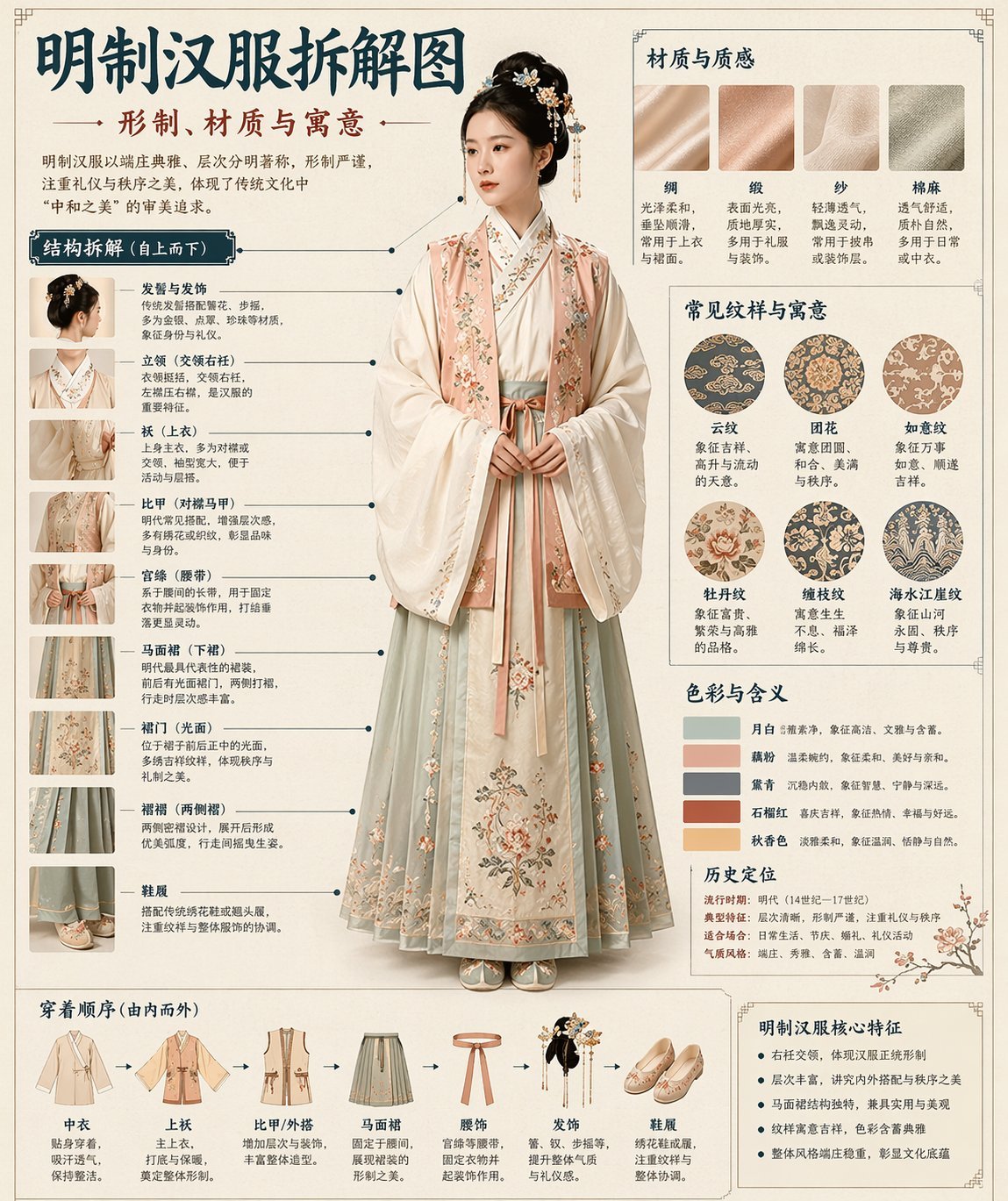
博物馆图鉴式汉服拆解图 — GPT-image-2
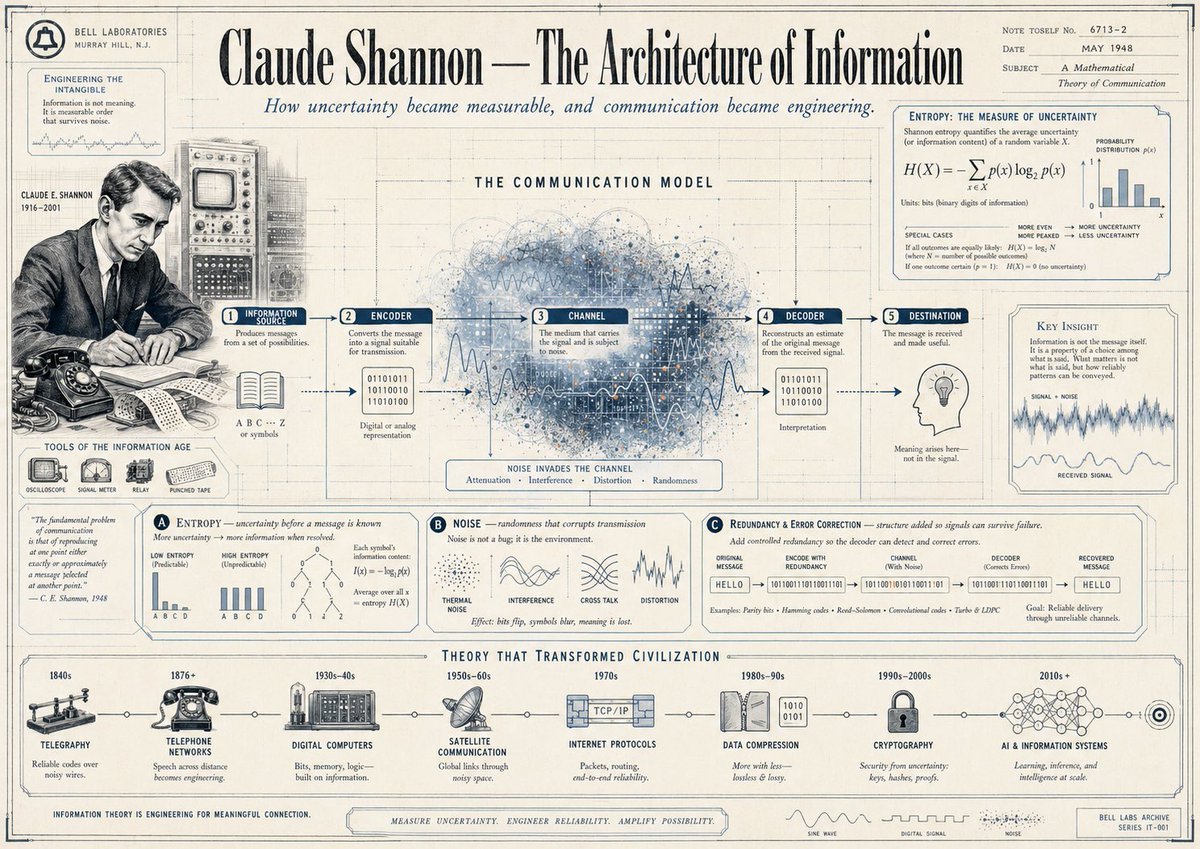
Gpt2 Infographic Edu Visual Vintage Claude Shannon Infographic Poster

Japan Travel Brochure Poster
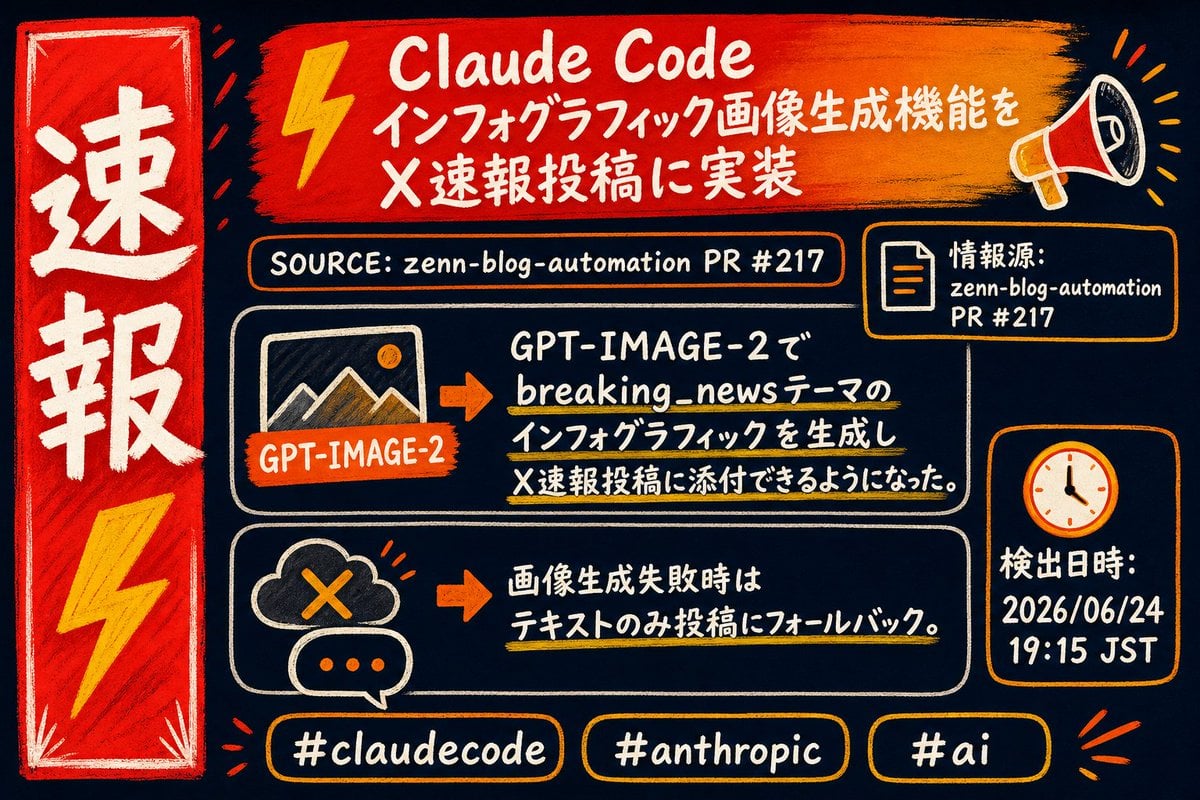
Claude Code Breaking News Infographic

Isometric Process Educational Diorama

Isometric Vehicle Teardown Infographic Template
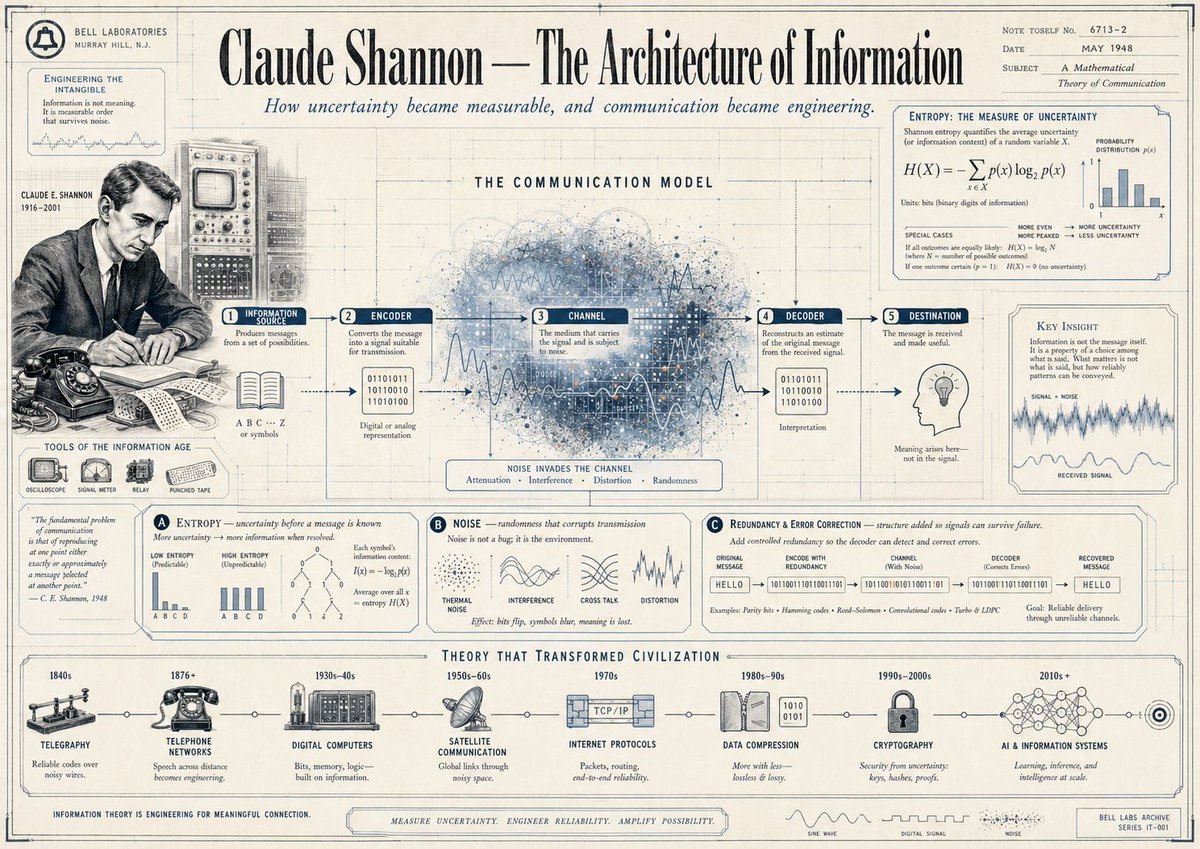
Vintage Claude Shannon Infographic Poster

Japanese Claude Future Infographic
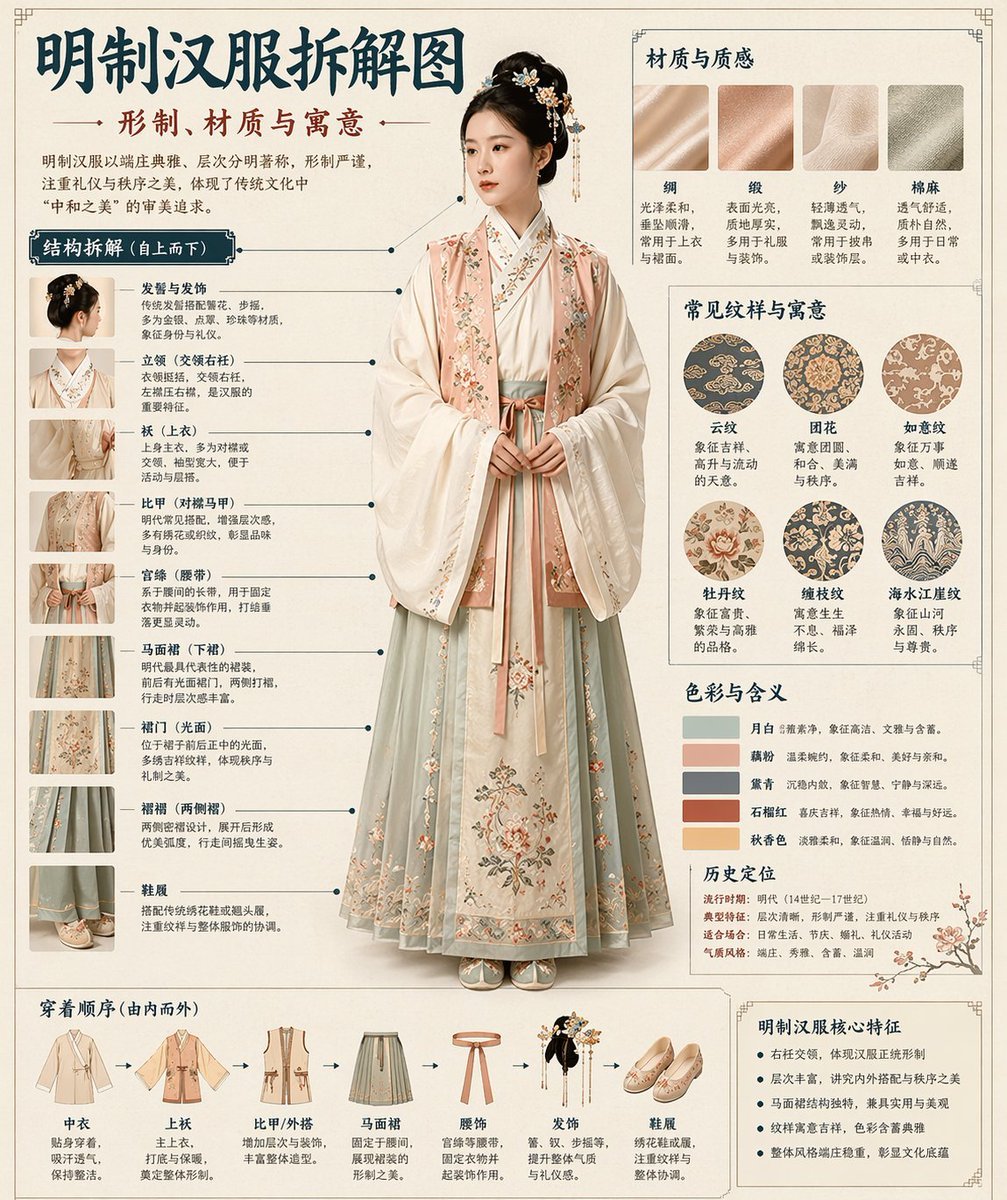
Chinese Museum Deconstruction Infographic
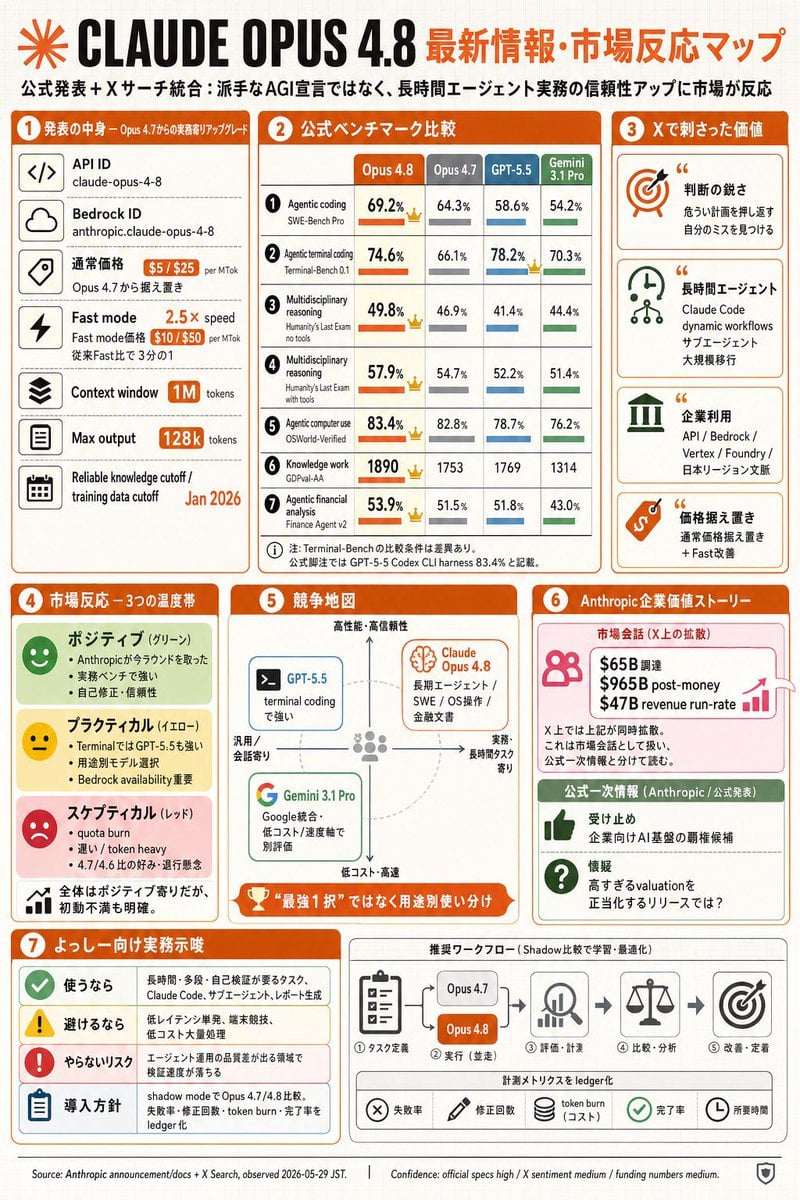
Claude Opus 4.8 Market Infographic
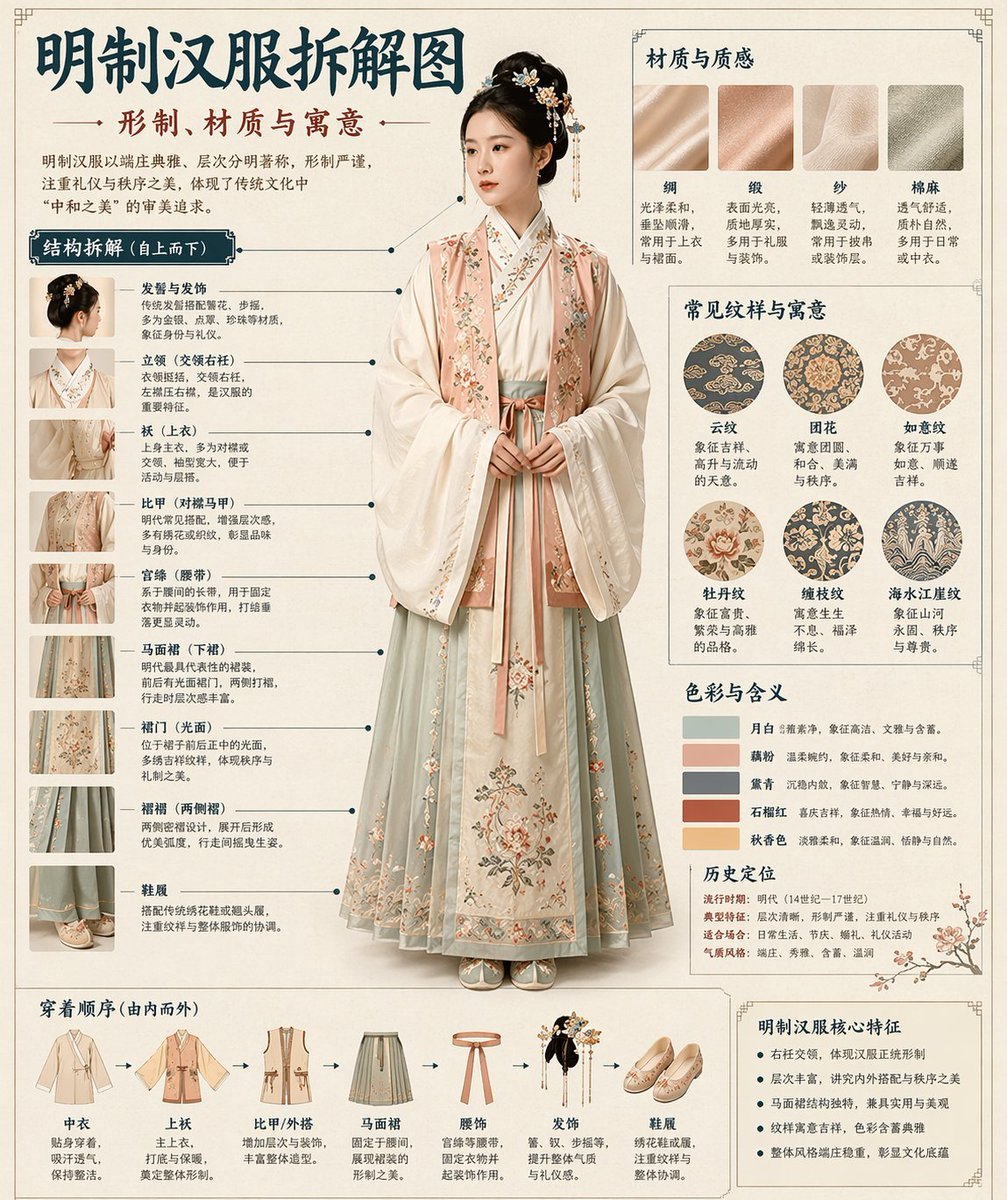
Museum Style Infographic Breakdown

Gpt2 E Commerce Main Image Earbuds E Commerce Infographic
Make it yours
Museum Wall Claude Fable 5 Infographic works as-is. These are the safest ways to change it without losing the look.
Change one field
Copy a single group, rewrite it, and generate again so you can see what that field is doing.
Keep the frame, change the subject
Hold the composition and light of Museum Wall Claude Fable 5 Infographic, then swap wardrobe, props or the person for a new take.
| If the result… | Why | Fix |
|---|---|---|
| The result drifts from the preview | Too many fields changed at once. | Reuse Museum Wall Claude Fable 5 Infographic as-is first, then change one group — subject, light, or setting. |
| The model over-stylizes the scene | The prose prompt leaves finish and camera underspecified. | Add one camera or lighting sentence and stay on GPT Image 2. |
More GPT Image 2 templates
Other prompts made for GPT Image 2.

Six VTuber Japanese Logo Sheet

Realistic Portrait of Woman and Deer

The Vista Modular Condo Poster

AI Model Routing Comparison Infographic

2.5D Anime Art Board

Isometric Productivity Desk Scene

New York Double Exposure Poster

Four-Panel AI Landscape Comparison

Japanese Tatami Lifestyle Magazine Cover

NESCAFÉ Coffee Map Poster
More image prompts
Fresh picks from across the catalog.
Exploded View Product Visualization Prompt
Fantasy Character Archive Sheet

Dynamic Beach Action Selfie
Serene Monument Valley Poster

KitKat Dark Chocolate Product Advertisement

Spicy Nacho Tornado Ad

Lo-Fi Warm Studio Motion Contact Sheet 3x3 Grid

Dark Fairytale Cinematic Diptych
3D Packaging to 2D Net Unfolding
4K Wildlife Habitat Diorama Prompt
Browse template categories
Museum Wall Claude Fable 5 Infographic questions
How do I use the Museum Wall Claude Fable 5 Infographic template?
Add your photo if the template asks for one, edit the prompt if you like — the template's model and format are already selected — and press Generate. Your version opens in PicX Studio.
Can I customize the Museum Wall Claude Fable 5 Infographic template?
Yes. You can change the subject, setting, lighting, mood, format, and available model controls before creating your image.
Is the Museum Wall Claude Fable 5 Infographic template free?
Opening and editing this template is free. Generating uses credits, shown on the Generate button when you are signed in.
Which AI model should I use?
Start with GPT Image 2, which is the model associated with this template. You can compare another compatible model for a different finish.
Looking for something else? Browse all templates.

Your photo, any look
Thousands of ready templates for every top image and video model, from one credit balance.