
Claude Code Breaking News Infographic
Generates a Japanese hand-drawn breaking-news infographic for announcing a Claude Code feature update on X.
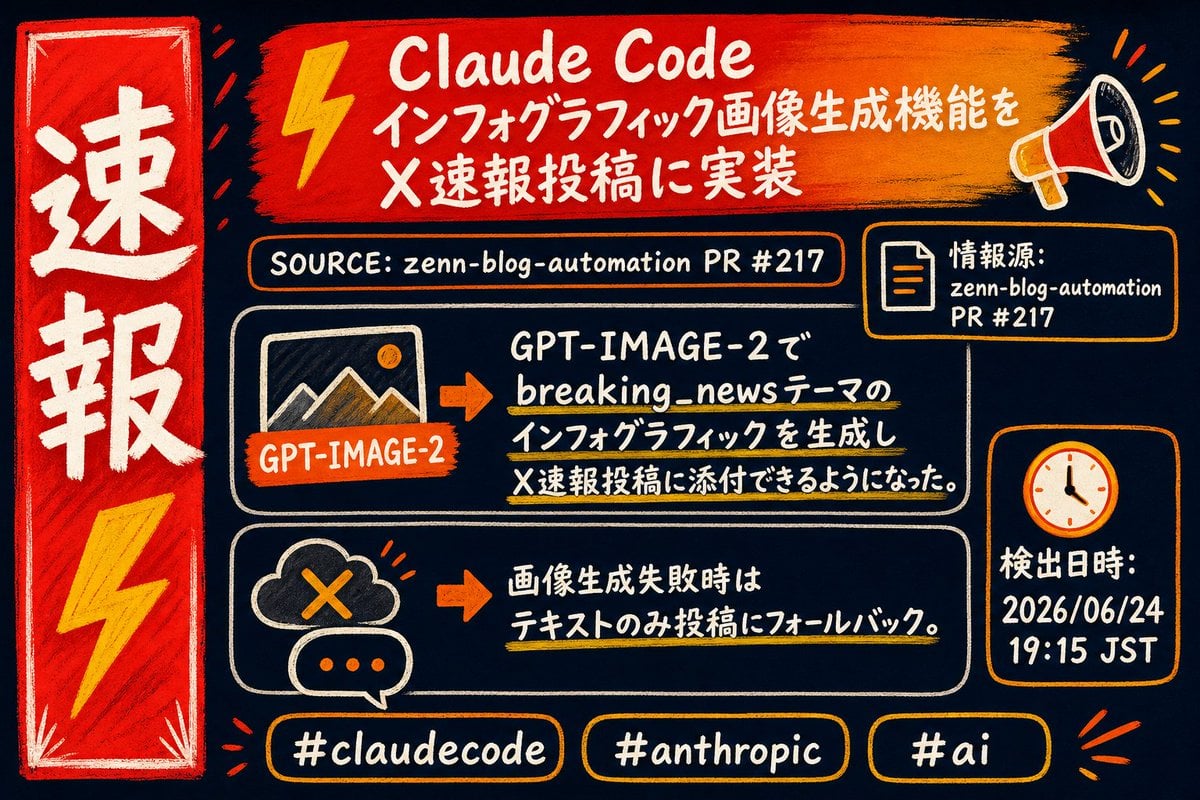
- Prompt included
- Model and format preset
- Premium template
The prompt behind this image
Copy the exact prompt behind Claude Code Breaking News Infographic, or open it in the studio and make it yours.
Goal: Create a hand-drawn breaking-news style infographic in Japanese about {argument name="headline topic" default="Claude Code implementing infographic image generation for X breaking-news posts"}. Canvas: 16:9 horizontal image, dark navy chalkboard background, rough marker and chalk texture, high-contrast red, orange, yellow, white, and cream colors. Use imperfect hand-lettering, sketchy outlines, brush strokes, and doodle icons. No photorealism. Layout: Left side has 1 tall vertical red breaking-news banner with a white border, large white Japanese text 「速報」 stacked vertically, and 1 yellow lightning bolt near the bottom. Top center has 1 wide red-to-orange brush-stroke headline banner with 1 yellow lightning icon on the left and 1 megaphone icon on the right. Under it is 1 rounded source bar. Main middle area contains exactly 2 large rounded rectangular information panels stacked vertically. Right side contains exactly 2 smaller rounded cards stacked vertically: a source-information card above and a date/time card below. Bottom row contains exactly 3 hashtag pills. Text content: Top headline banner text: 「Claude Code」 on the first line, then 「インフォグラフィック画像生成機能を」, then 「X速報投稿に実装」. Source bar text: 「SOURCE: zenn-blog-automation PR #217」. Right source card text: 「情報源:」 then 「zenn-blog-automation」 then 「PR #217」. First main panel text: 「GPT-IMAGE-2で」, 「breaking_newsテーマの」, 「インフォグラフィックを生成し」, 「X速報投稿に添付できるようになった。」 Include a small orange label reading 「GPT-IMAGE-2」 on an image-thumbnail icon. Second main panel text: 「画像生成失敗時は」, 「テキストのみ投稿にフォールバック。」 Date/time card text: 「検出日時:」 then {argument name="timestamp" default="2026/06/24 19:15 JST"}. Bottom hashtag pills must read exactly 3 labels: {argument name="hashtag one" default="#claudecode"}, {argument name="hashtag two" default="#anthropic"}, and {argument name="hashtag three" default="#ai"}. Discrete visual elements to include: exactly 1 left vertical banner, 1 top headline brush banner, 1 source bar, 2 main info panels, 2 right-side cards, 3 hashtag pills, 2 yellow lightning bolts total, 1 megaphone, 1 document icon, 1 clock icon, 1 image-thumbnail icon with mountains, 2 orange arrow icons pointing right, 1 cloud-with-X failure icon, and 1 speech bubble with three dots. Visual style: Energetic Japanese breaking-news infographic, marker poster look, slightly irregular white handwritten type, orange rounded borders, yellow underline highlights under important phrases, small decorative radiating accent marks around the megaphone, banner, and hashtags. Keep the composition dense but readable, with strong hierarchy and a dramatic emergency-news feel. Constraints: Use Japanese text exactly as specified, do not add extra sections or extra hashtags, keep all icons hand-drawn, avoid logos, avoid watermarks, and maintain the rough chalk-and-paint texture throughout.
How to use Claude Code Breaking News Infographic in 3 steps
- 1Upload ImagePNG, JPG or paste
Add your photo
Upload the photo the template builds on. The prompt, model and format are already set.
- 2…a portrait of your subject in softgolden-hour light, 85mm…
Personalize
Edit the subject and creative details for your destination.
- 3Generate
Generate
Press Generate — your image is created in PicX Studio, so you can compare it with the original and refine one variable at a time.
More like this
Templates with the same subject, style or setup. Open one to see its prompt.
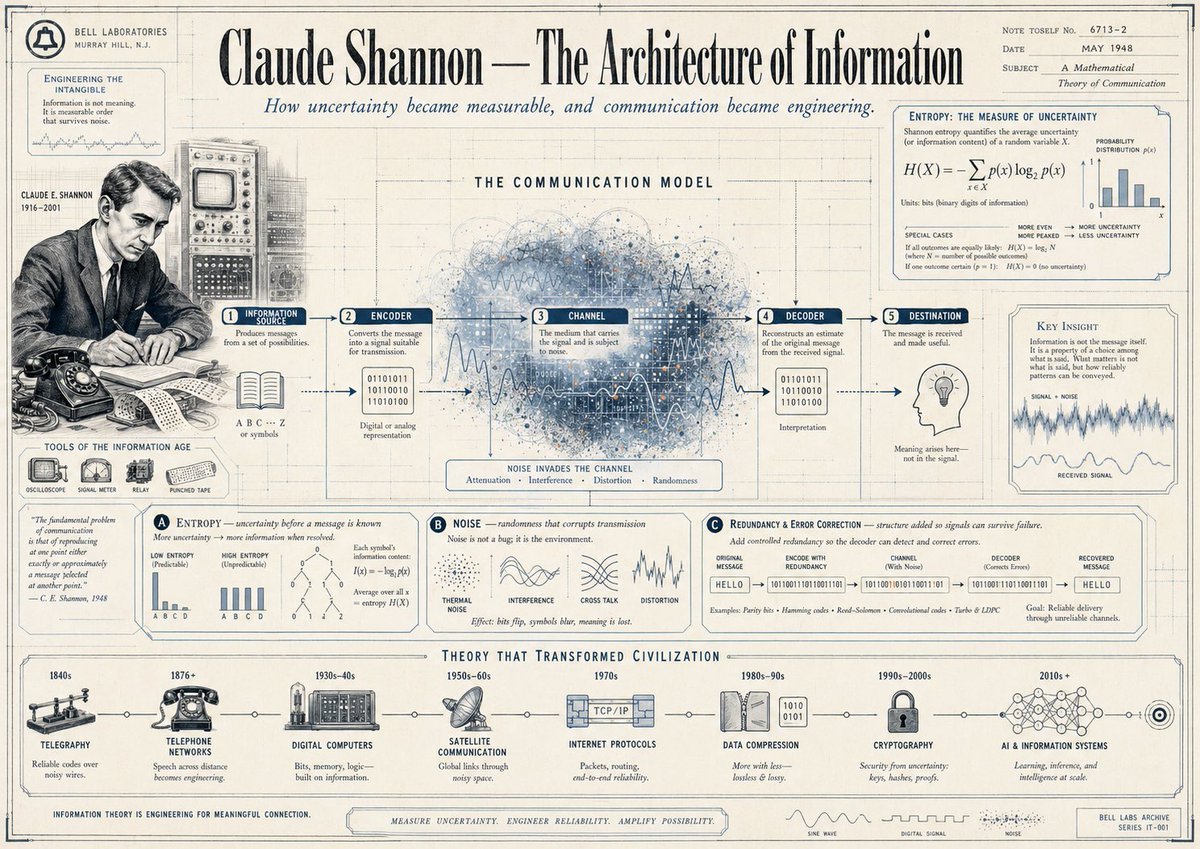
Gpt2 Infographic Edu Visual Vintage Claude Shannon Infographic Poster

Japan Travel Brochure Poster
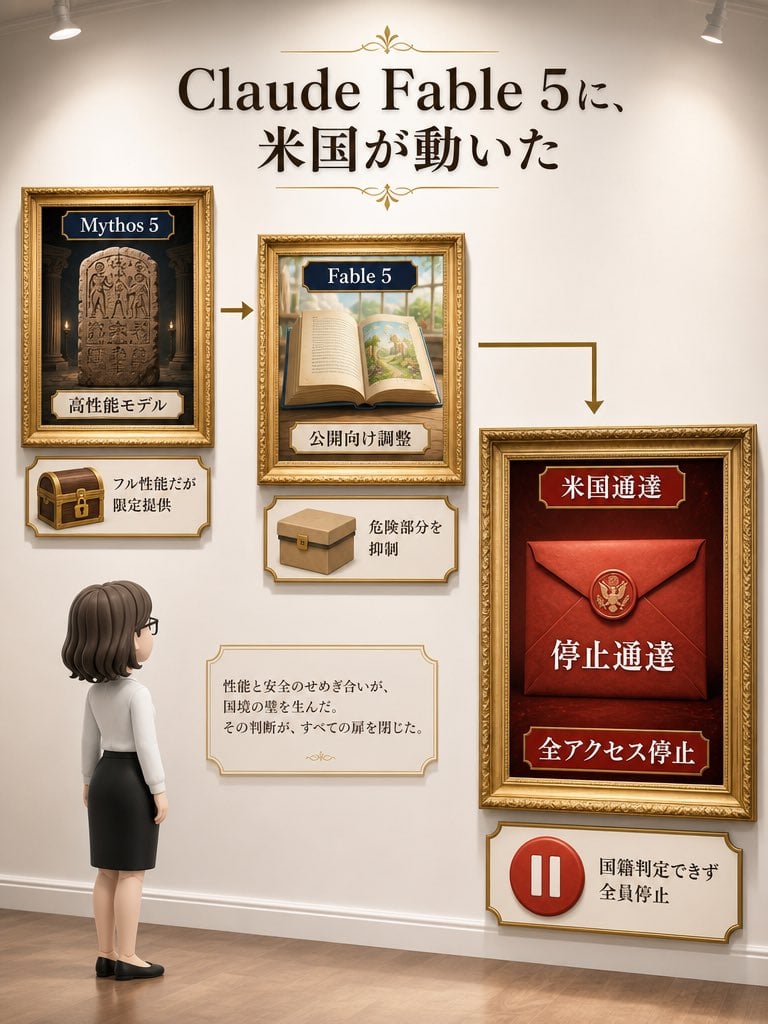
Museum Wall Claude Fable 5 Infographic

Isometric Process Educational Diorama

Isometric Vehicle Teardown Infographic Template
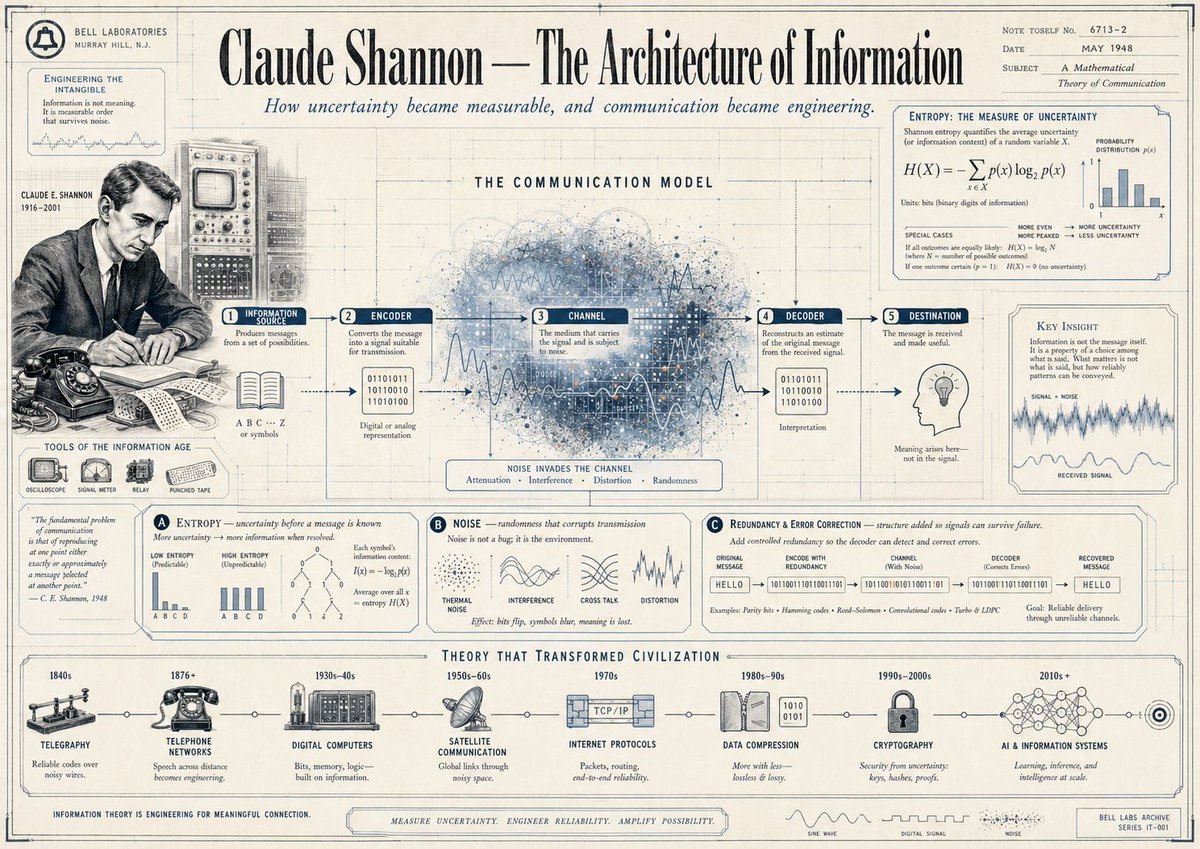
Vintage Claude Shannon Infographic Poster
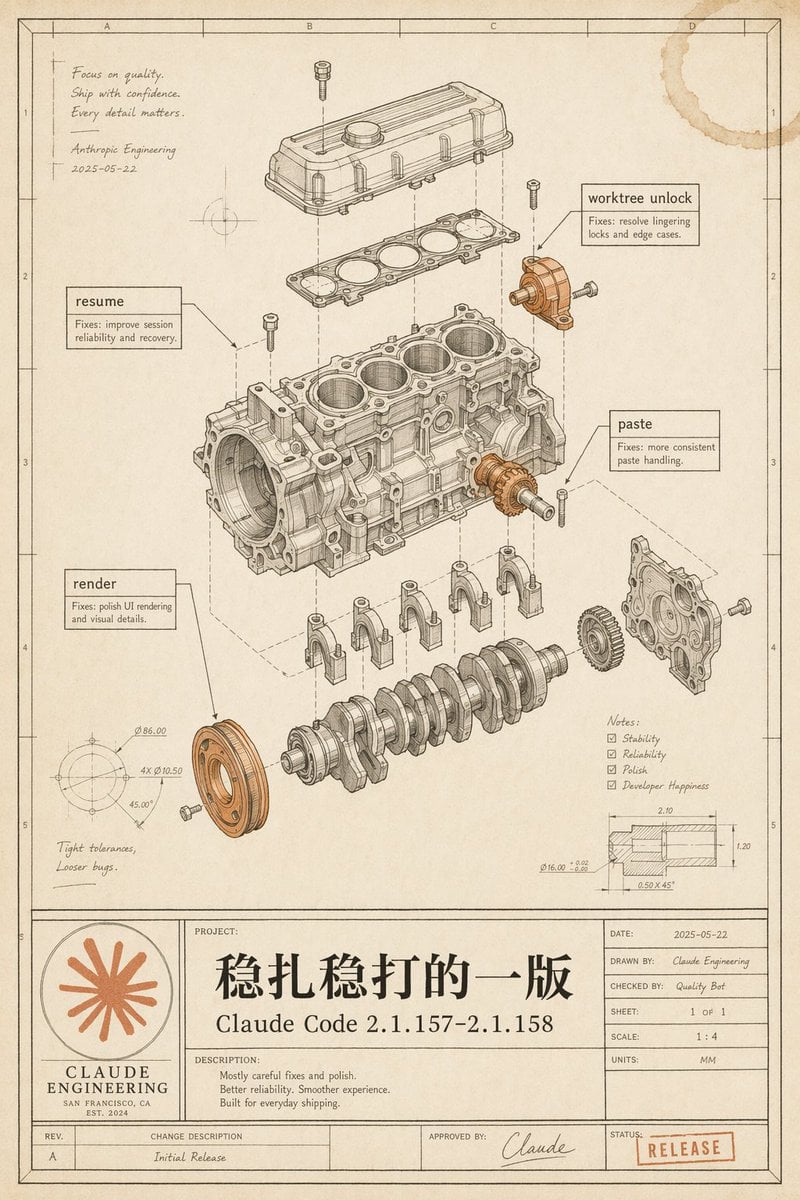
Vintage Claude Code Release Blueprint
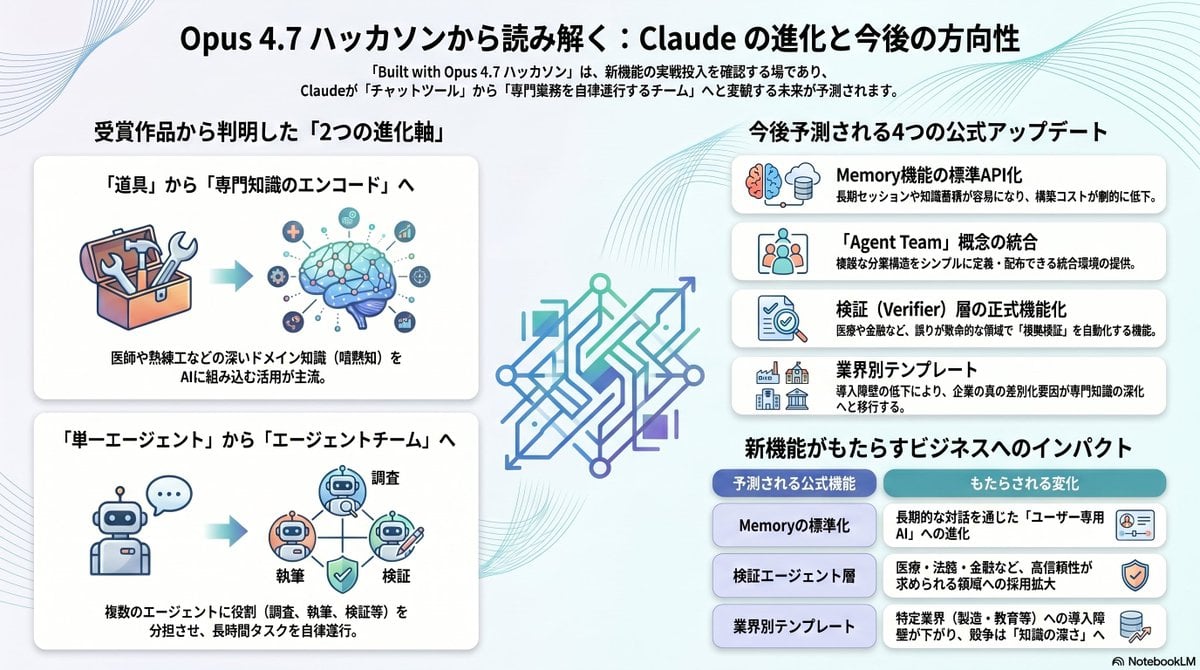
Japanese Claude Future Infographic
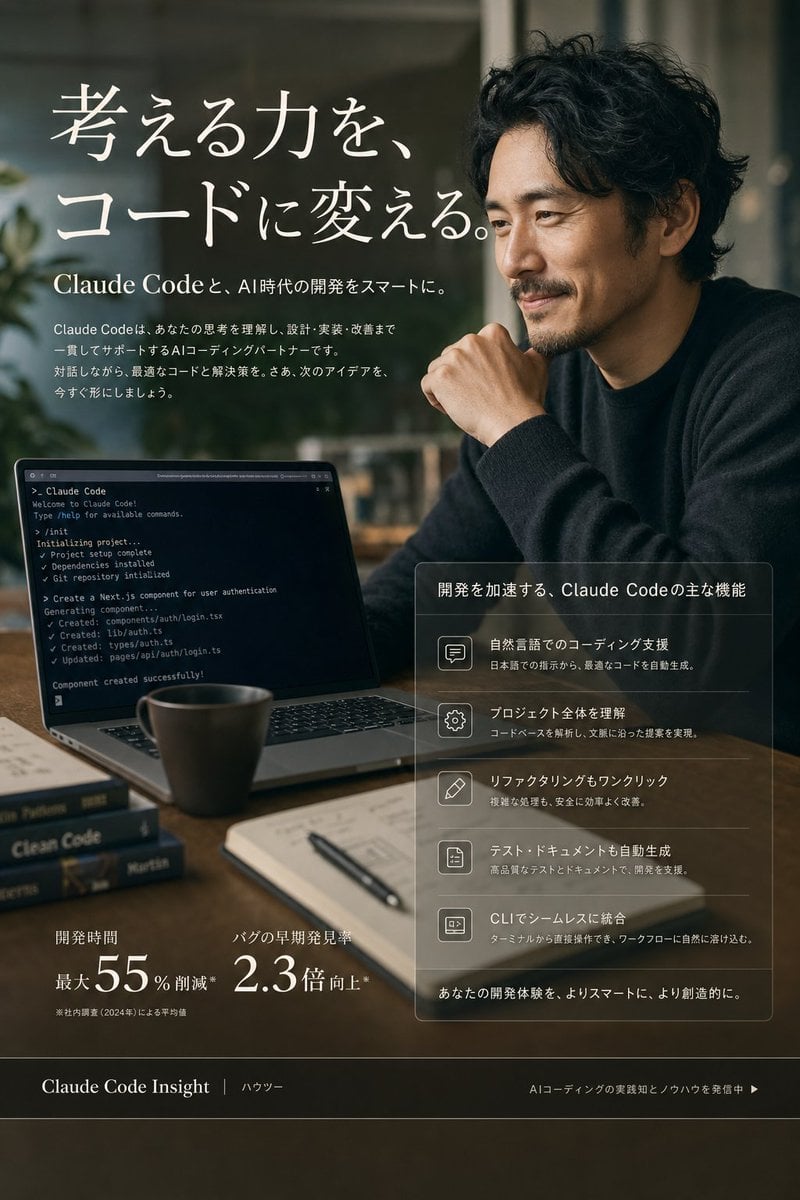
Claude Code Japanese Hero Ad
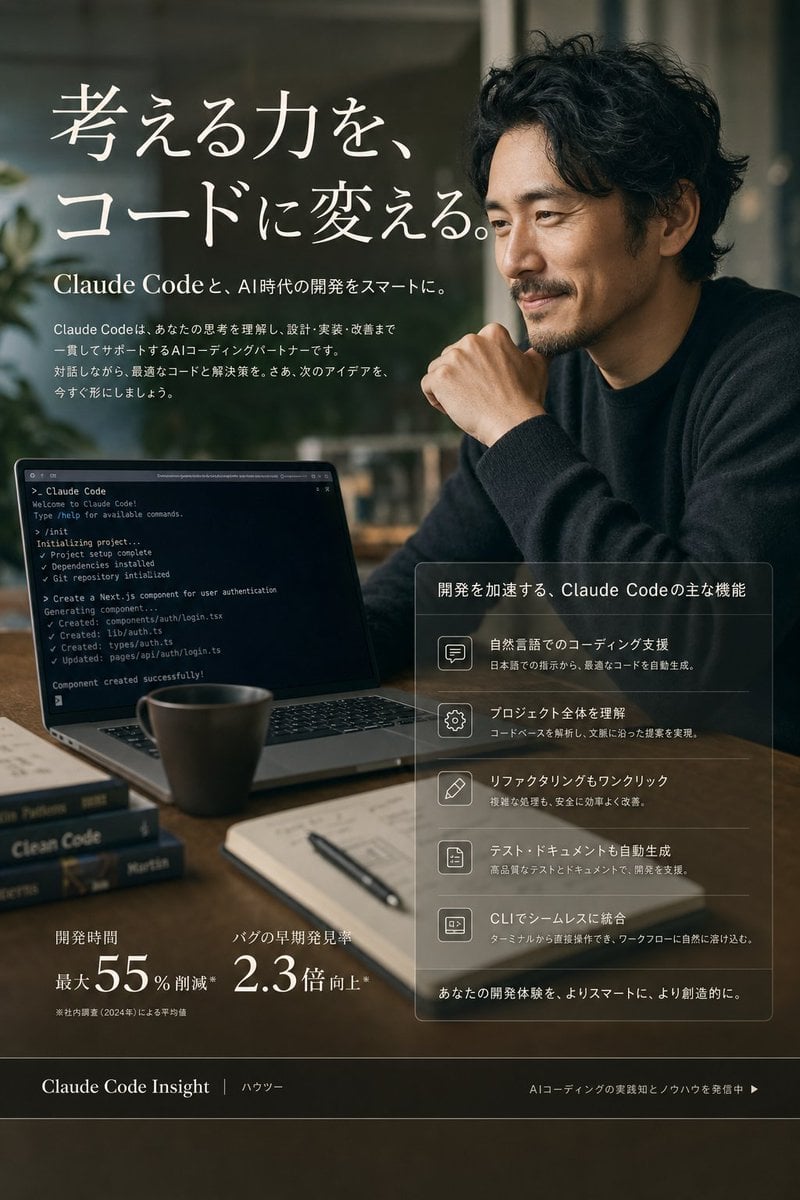
Claude Code Japanese SaaS Poster
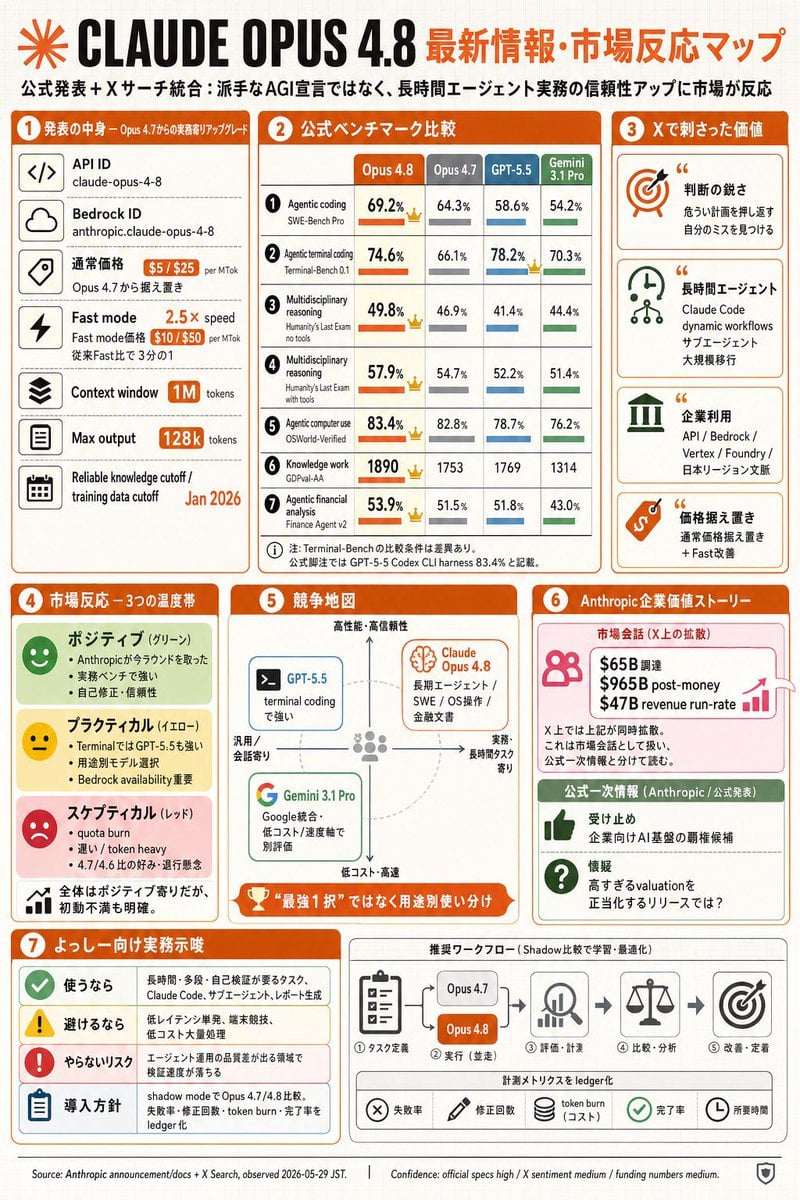
Claude Opus 4.8 Market Infographic
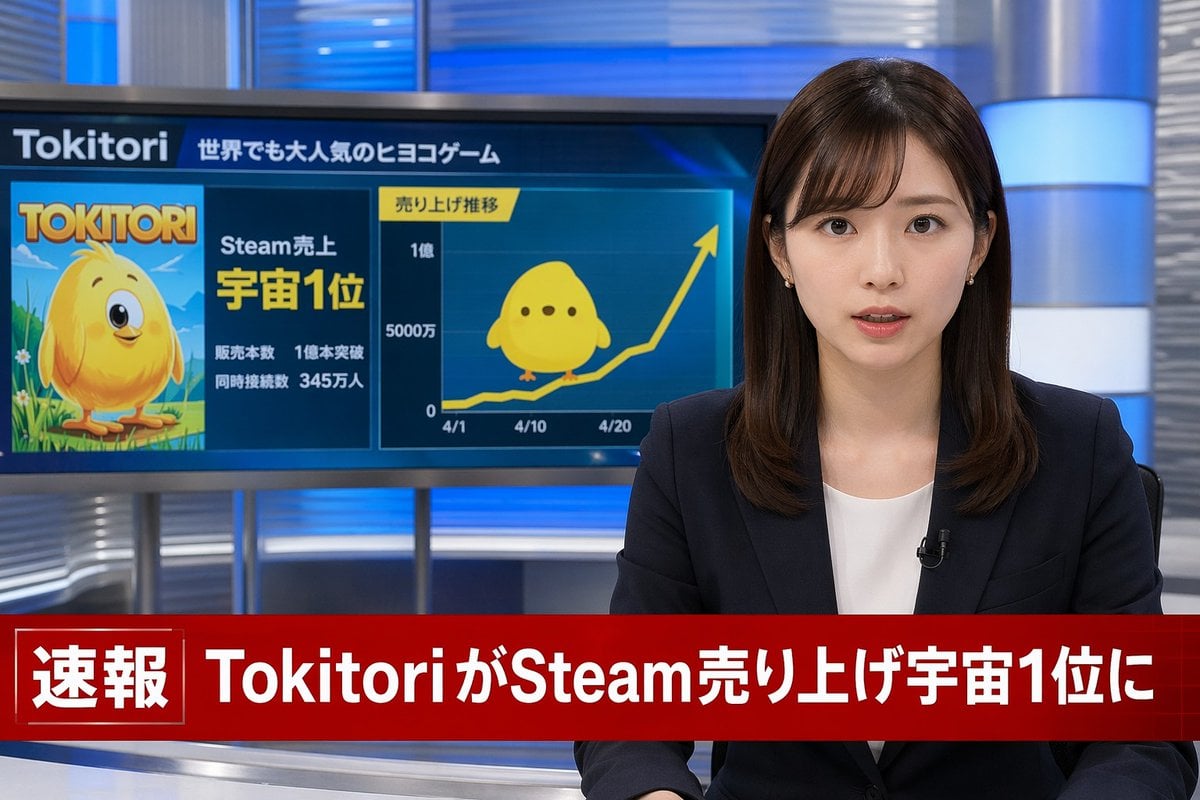
Japanese Breaking News Broadcast Generator
Make it yours
Claude Code Breaking News Infographic works as-is. These are the safest ways to change it without losing the look.
Change one field
Copy a single group, rewrite it, and generate again so you can see what that field is doing.
Keep the frame, change the subject
Hold the composition and light of Claude Code Breaking News Infographic, then swap wardrobe, props or the person for a new take.
| If the result… | Why | Fix |
|---|---|---|
| The result drifts from the preview | Too many fields changed at once. | Reuse Claude Code Breaking News Infographic as-is first, then change one group — subject, light, or setting. |
| The model over-stylizes the scene | The prose prompt leaves finish and camera underspecified. | Add one camera or lighting sentence and stay on GPT Image 2. |
More GPT Image 2 templates
Other prompts made for GPT Image 2.

Six VTuber Japanese Logo Sheet

Realistic Portrait of Woman and Deer

The Vista Modular Condo Poster

AI Model Routing Comparison Infographic

2.5D Anime Art Board

Isometric Productivity Desk Scene

New York Double Exposure Poster

Four-Panel AI Landscape Comparison

Japanese Tatami Lifestyle Magazine Cover

NESCAFÉ Coffee Map Poster
More image prompts
Fresh picks from across the catalog.
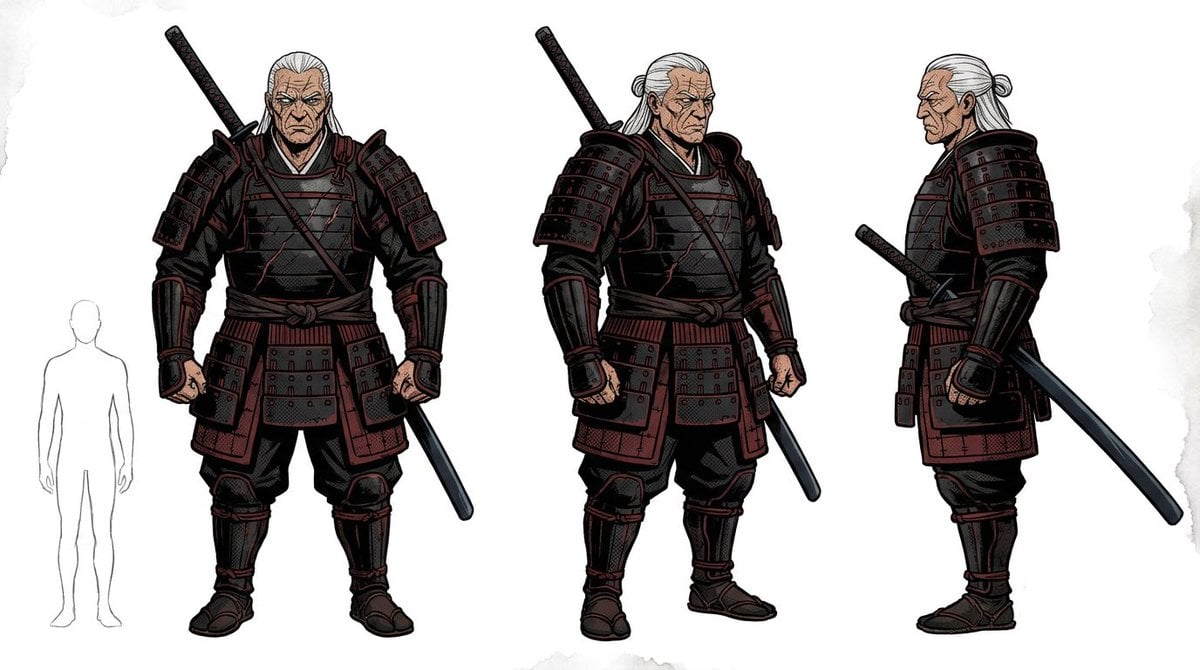
Samurai Armor Turnaround Sheet

Vogue Bridal Couture Luxury Cover

Combustion Freeze: Object Frozen at Ignition
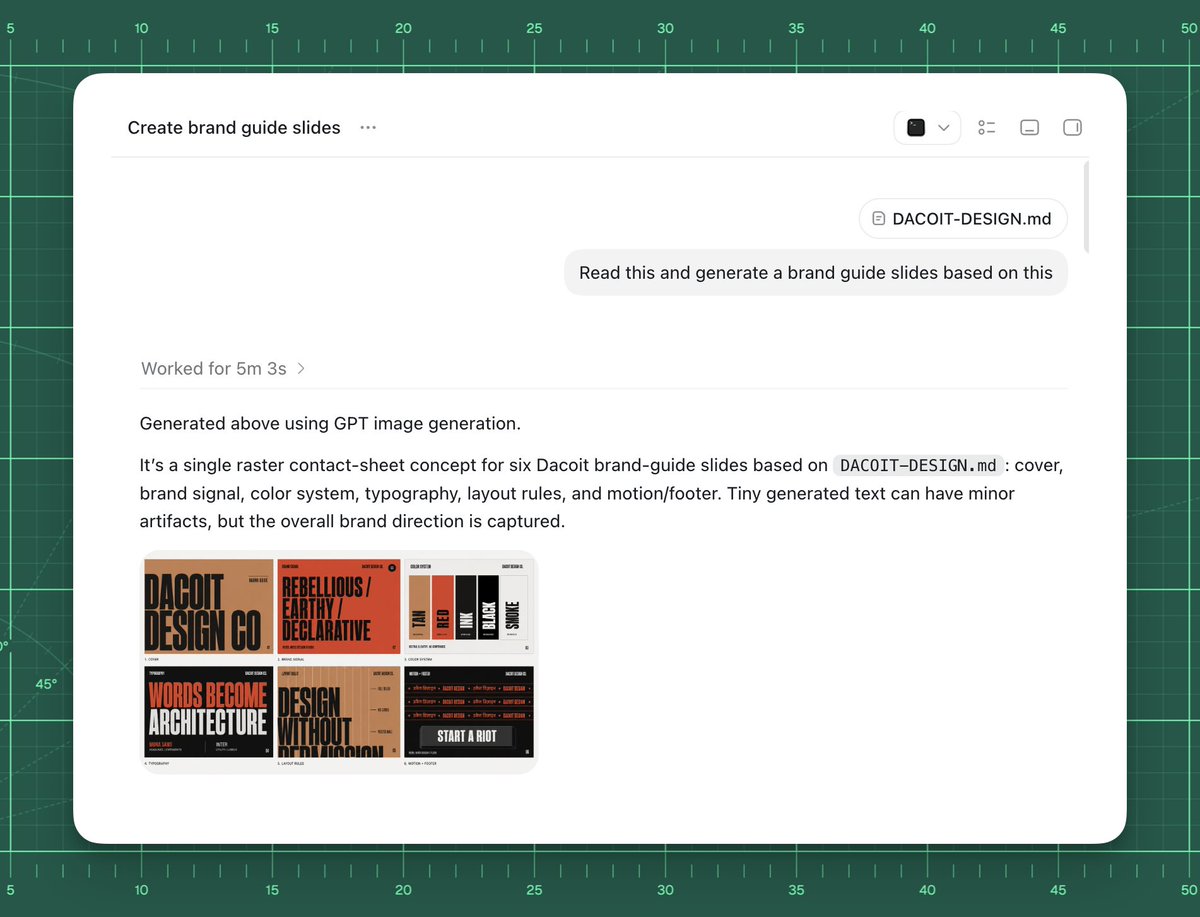
AI Brand Guide Generation UI
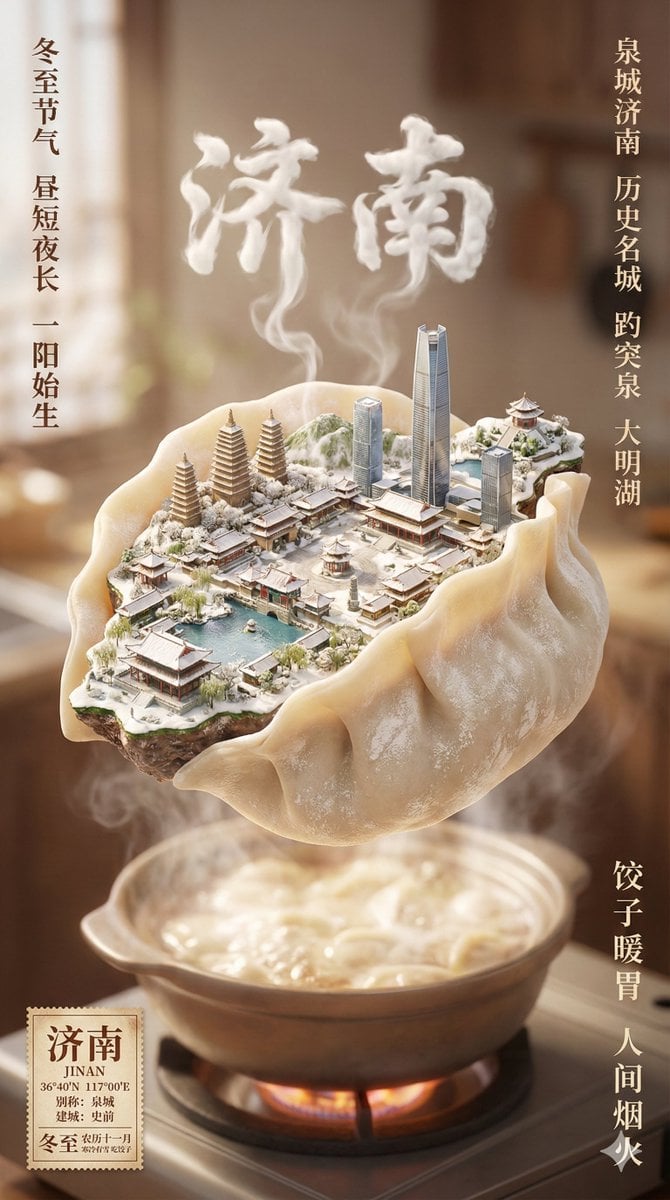
Winter Solstice City Food Art Poster Prompt
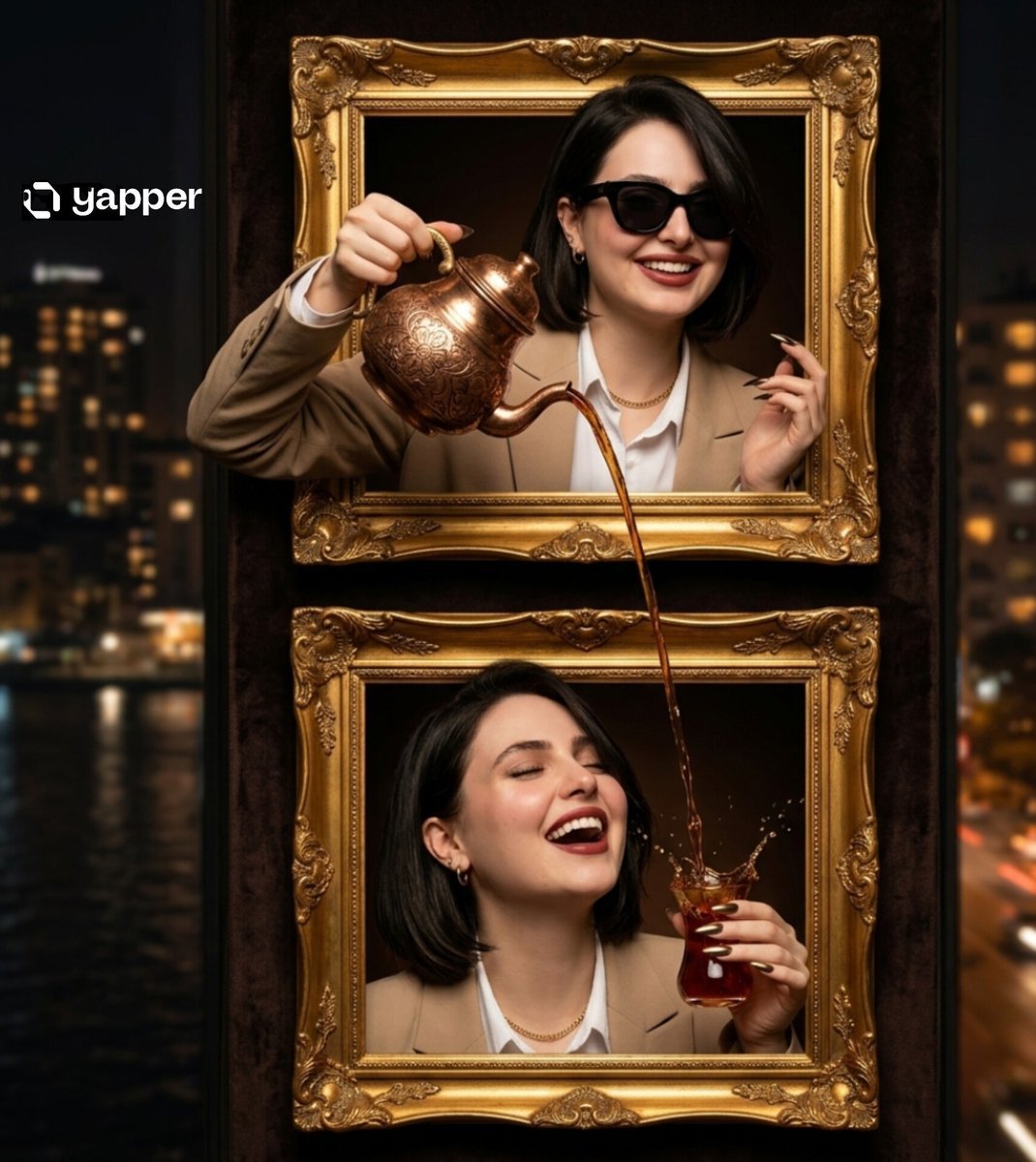
Surreal Two-Frame Tea Pouring Illusion

Surreal Bus Window Selfie
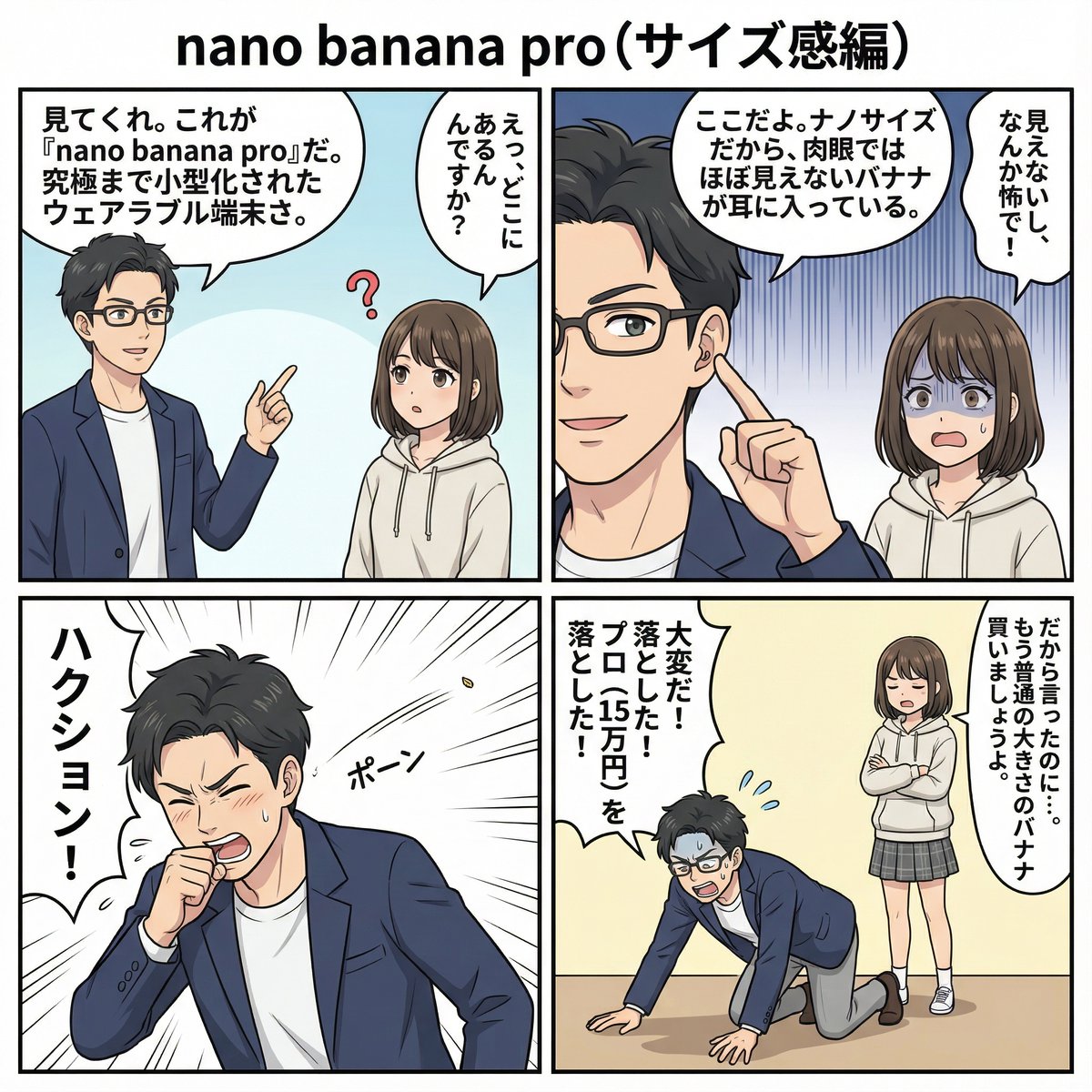
4 types of 4‑panel manga about Nano Banana Pro

Anime Soccer Player at School Fountain
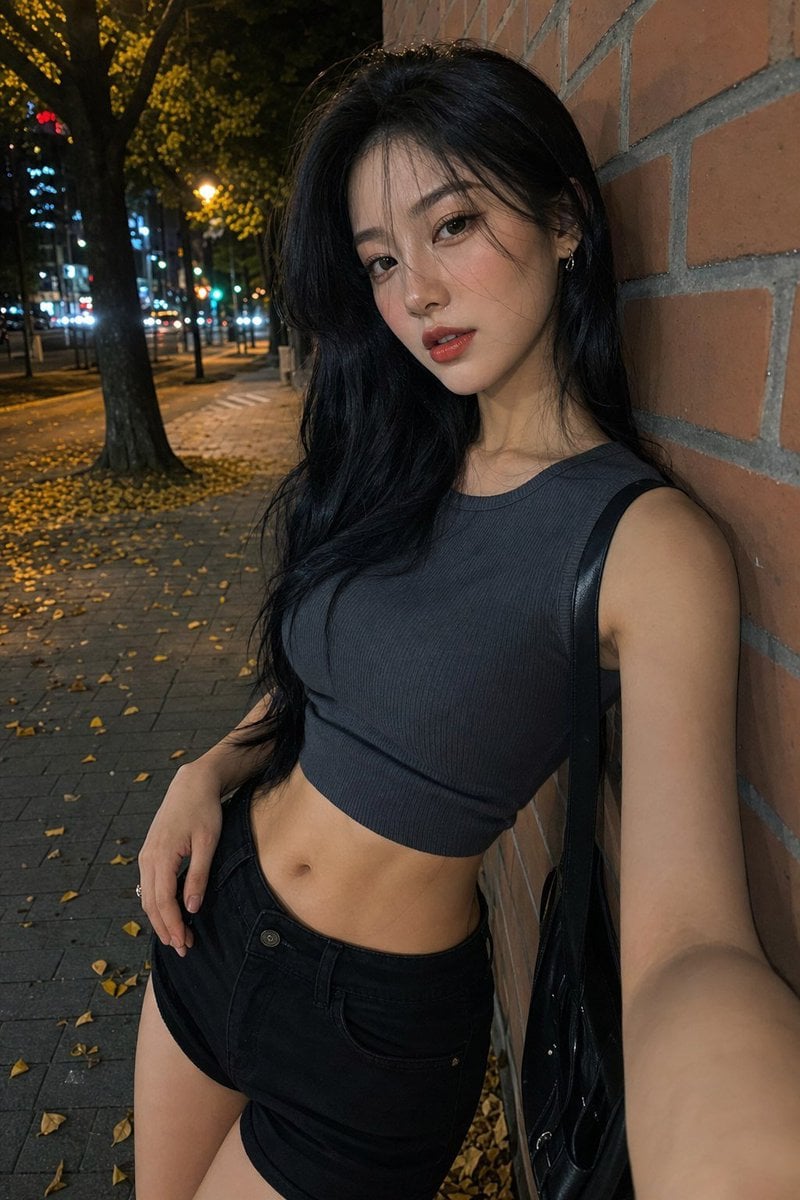
Night Street Fashion Selfie
Browse template categories
Claude Code Breaking News Infographic questions
How do I use the Claude Code Breaking News Infographic template?
Add your photo if the template asks for one, edit the prompt if you like — the template's model and format are already selected — and press Generate. Your version opens in PicX Studio.
Can I customize the Claude Code Breaking News Infographic template?
Yes. You can change the subject, setting, lighting, mood, format, and available model controls before creating your image.
Is the Claude Code Breaking News Infographic template free?
Opening and editing this template is free. Generating uses credits, shown on the Generate button when you are signed in.
Which AI model should I use?
Start with GPT Image 2, which is the model associated with this template. You can compare another compatible model for a different finish.
Looking for something else? Browse all templates.

Your photo, any look
Thousands of ready templates for every top image and video model, from one credit balance.