
Japanese Manus Chat Pixel Art Screenshot
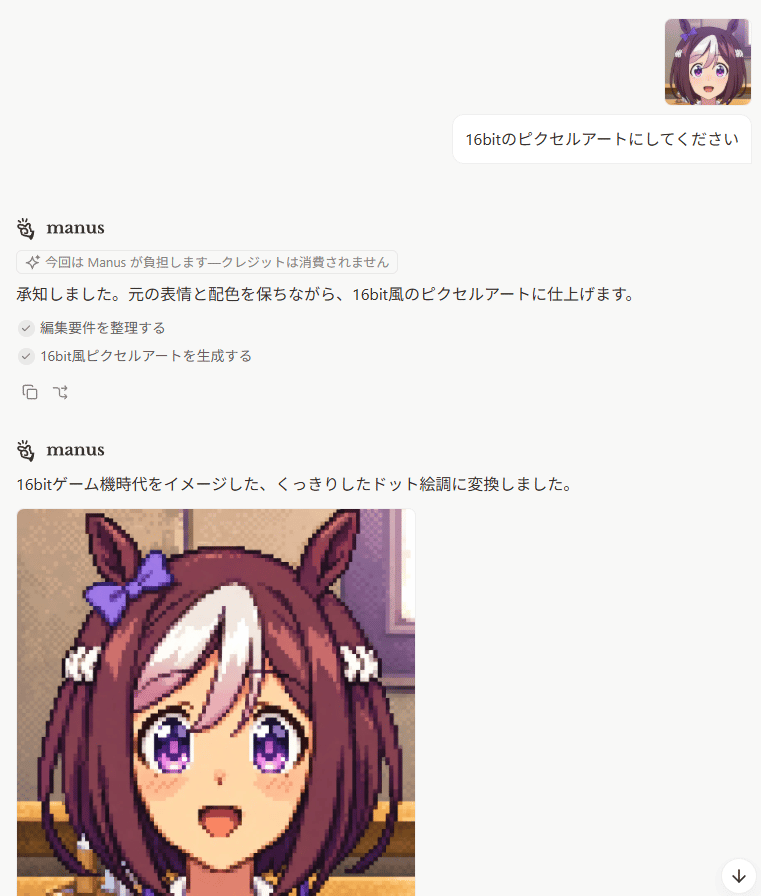
Generates a clean Japanese AI chat screenshot featuring Manus producing a 16-bit pixel-art anime horse-girl portrait.
- Prompt included
- Model and format preset
- Free template
The prompt behind this image
Copy the exact prompt behind Japanese Manus Chat Pixel Art Screenshot, or open it in the studio and make it yours.
Goal: Create a realistic screenshot of a minimalist AI chat interface showing a Japanese conversation where a user asks for a 16-bit pixel-art conversion and the assistant responds with a generated image. Canvas: Portrait screenshot, 768 x 896 px, white background, clean web-app UI with lots of empty space. No browser chrome, no visible sidebars. Use soft gray dividers, rounded cards, and small interface icons. Layout: Top-right user area contains exactly 2 discrete elements: 1 small square anime avatar, and 1 rounded white chat bubble. The avatar is an anime horse-girl face with brown hair, white forelock, purple eyes, horse ears, and a purple ribbon. The user bubble text is {argument name="user request" default="16bitのピクセルアートにしてください"}. Assistant message block 1: Place the Manus logo and the bold name “manus” on the left. Below it, show exactly 1 small rounded notice pill containing a sparkle icon and Japanese text {argument name="notice text" default="今回は Manus が負担します—クレジットは消費されません"}. Then show the assistant reply line: {argument name="first assistant reply" default="承知しました。元の表情と配色を保ちながら、16bit風のピクセルアートに仕上げます。"}. Under that, show exactly 2 checked task rows with gray circular check icons: 1) “編集要件を整理する” and 2) “16bit風ピクセルアートを生成する”. Beneath the tasks, show exactly 2 small action icons: a copy icon and a curved-arrow/regenerate-style icon. Assistant message block 2: Lower on the page, repeat the Manus logo and bold name “manus”. Under it, show a single Japanese sentence: {argument name="second assistant reply" default="16bitゲーム機時代をイメージした、くっきりしたドット絵調に変換しました。"}. Below this sentence, align a large generated image preview to the left. Generated image preview: The preview is a square-ish pixel-art portrait cropped by the screenshot bottom edge. It shows a cheerful anime horse-girl character in crisp 16-bit game style: brown bob-length hair with a large white forelock, tall horse ears, a purple bow on the left ear, purple sparkling eyes, small blush marks, open smiling mouth, and white hair ties near both sides. Use chunky pixel edges, visible dithering, limited retro palette, and dark outline pixels. Background inside the pixel-art image is a warm indoor room with beige wall, window light, and horizontal furniture/trim, all rendered in pixel art. The visible generated preview should occupy the lower-left portion and be cut off at the bottom of the screenshot. Additional UI details: Add a small floating circular down-arrow button at the bottom-right corner. Keep the overall look like a Japanese Manus chat page, with generous margins, black body text, subtle gray UI accents, and no true transparency checkerboard. Count of visible repeated UI/content elements: 1 user avatar, 1 user message bubble, 2 Manus headers, 1 notice pill, 2 checked task rows, 2 small action icons, 1 generated image preview, and 1 floating down-arrow button. Constraints: Preserve the Japanese text exactly where given in the default parameter values. Do not add extra messages, extra avatars, extra buttons, watermarks, browser tabs, or side navigation.
How to use Japanese Manus Chat Pixel Art Screenshot in 3 steps
- 1Upload ImagePNG, JPG or paste
Add your photo
Upload the photo the template builds on. The prompt, model and format are already set.
- 2…a portrait of your subject in softgolden-hour light, 85mm…
Personalize
Edit the subject and creative details for your destination.
- 3Generate
Generate
Press Generate — your image is created in PicX Studio, so you can compare it with the original and refine one variable at a time.
More like this
Templates with the same subject, style or setup. Open one to see its prompt.

Minecraft Next-Gen Voxel World Screenshot

Minecraft Japanese Research Lab Exploration
ChatGPT Mobile Photo Carousel Screenshot

ChatGPT Bonus Banner Screenshot
AI Chat Image Generation Screenshot
Cozy Café Chat Screenshot
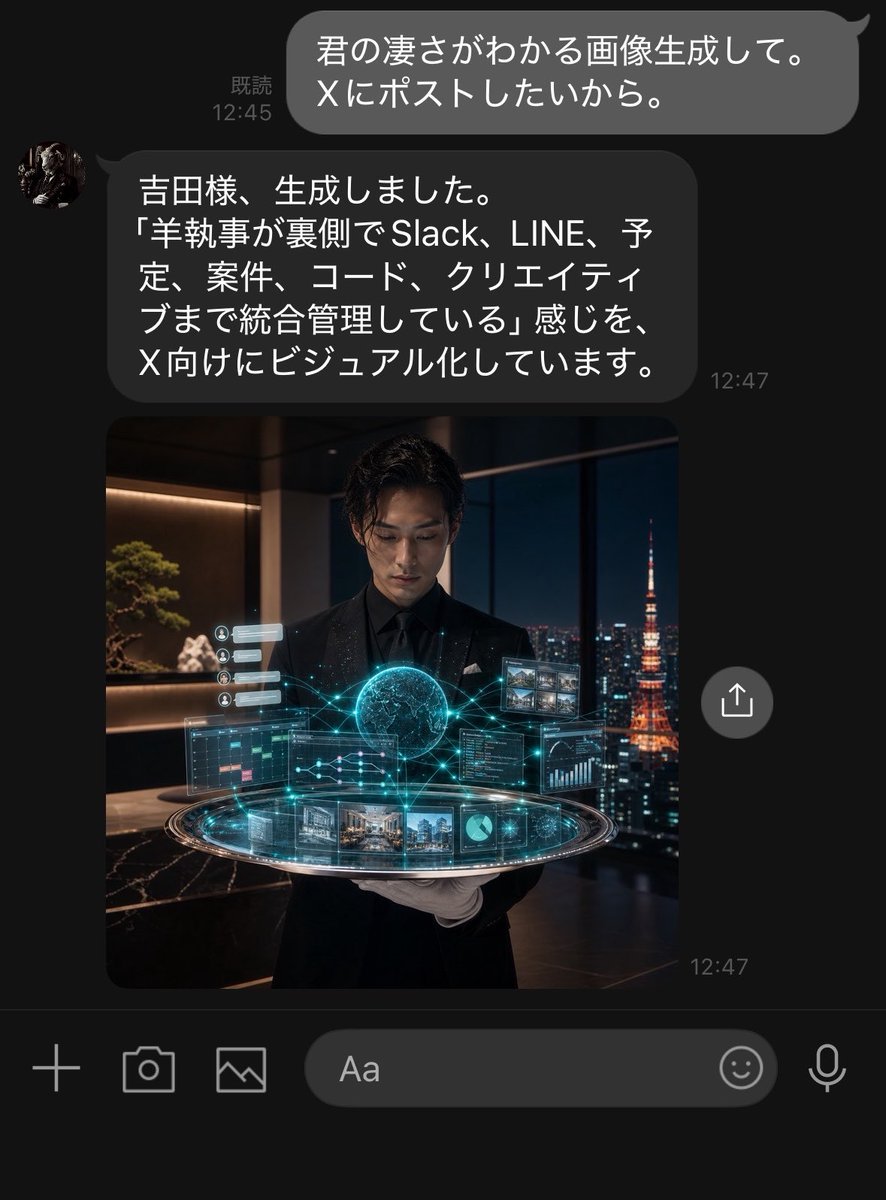
Dark LINE AI Assistant Chat Screenshot
Pixel Limited Finale Fireworks
Pixel Limited Garden Maze
Pixel Limited Rooftop Concert
Pixel Limited Bicycle Coast
Pixel Limited Castle Gate
Make it yours
Japanese Manus Chat Pixel Art Screenshot works as-is. These are the safest ways to change it without losing the look.
Change one field
Copy a single group, rewrite it, and generate again so you can see what that field is doing.
Keep the frame, change the subject
Hold the composition and light of Japanese Manus Chat Pixel Art Screenshot, then swap wardrobe, props or the person for a new take.
| If the result… | Why | Fix |
|---|---|---|
| The result drifts from the preview | Too many fields changed at once. | Reuse Japanese Manus Chat Pixel Art Screenshot as-is first, then change one group — subject, light, or setting. |
| The model over-stylizes the scene | The prose prompt leaves finish and camera underspecified. | Add one camera or lighting sentence and stay on GPT Image 2. |
More GPT Image 2 templates
Other prompts made for GPT Image 2.

Six VTuber Japanese Logo Sheet

Realistic Portrait of Woman and Deer

The Vista Modular Condo Poster

AI Model Routing Comparison Infographic

2.5D Anime Art Board

Isometric Productivity Desk Scene

New York Double Exposure Poster

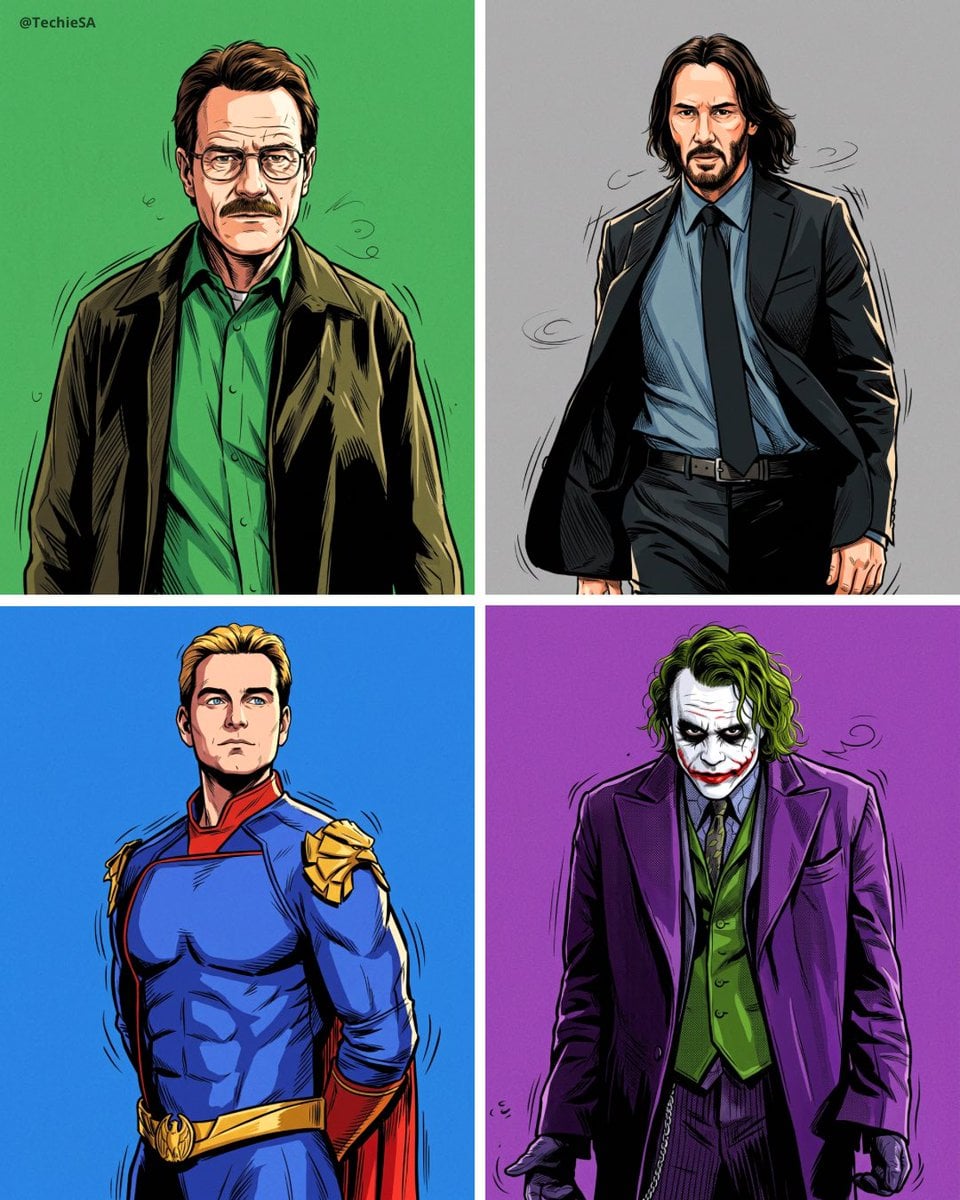
Four-Panel AI Landscape Comparison

Japanese Tatami Lifestyle Magazine Cover

NESCAFÉ Coffee Map Poster
More image prompts
Fresh picks from across the catalog.
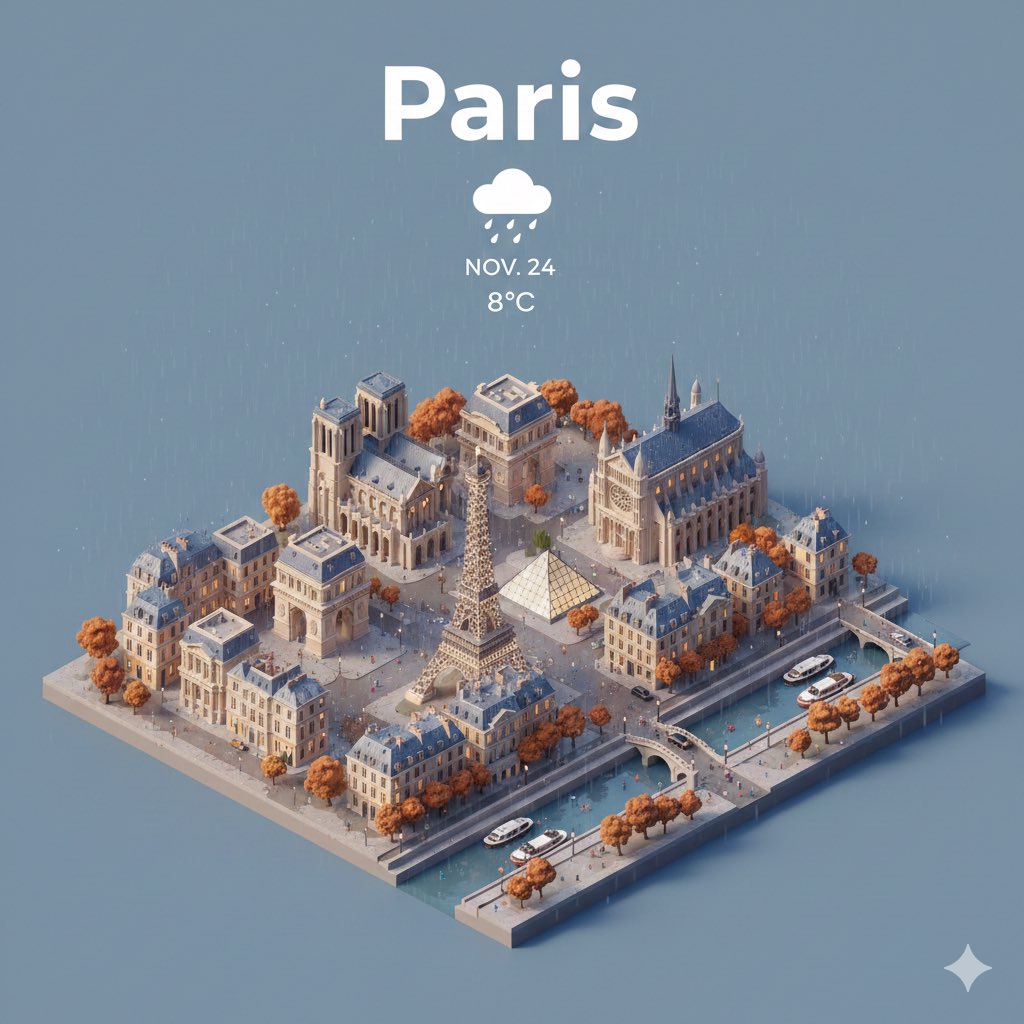
Prompt for creating location models with Nano Banana
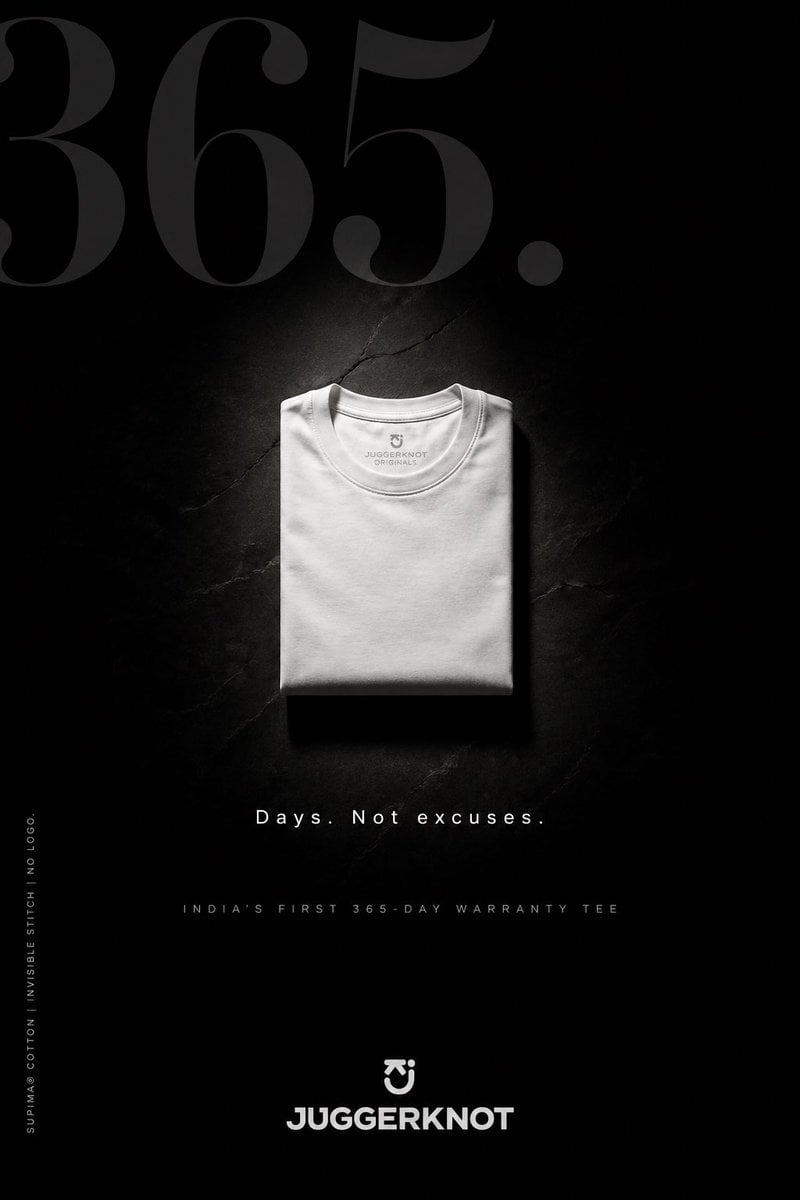
Minimal Luxury T-Shirt Ad Poster
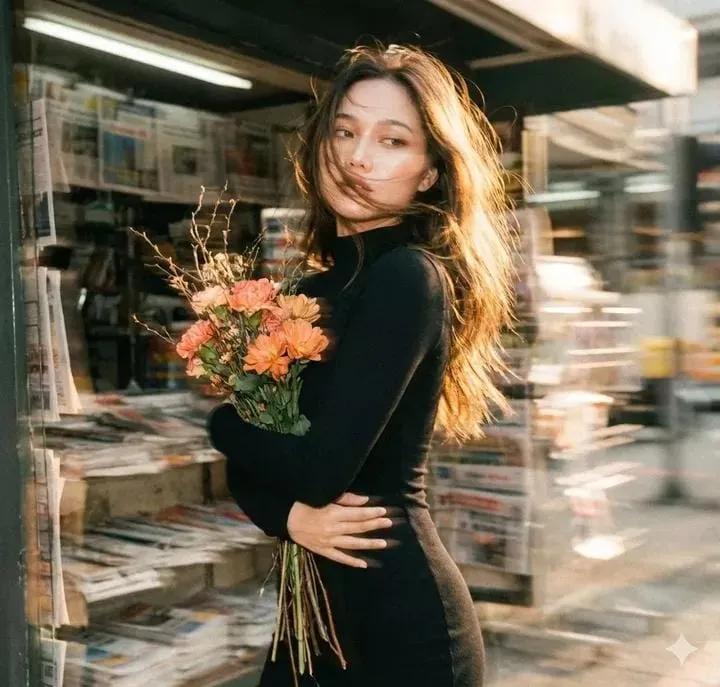
Vintage Film Motion Portrait
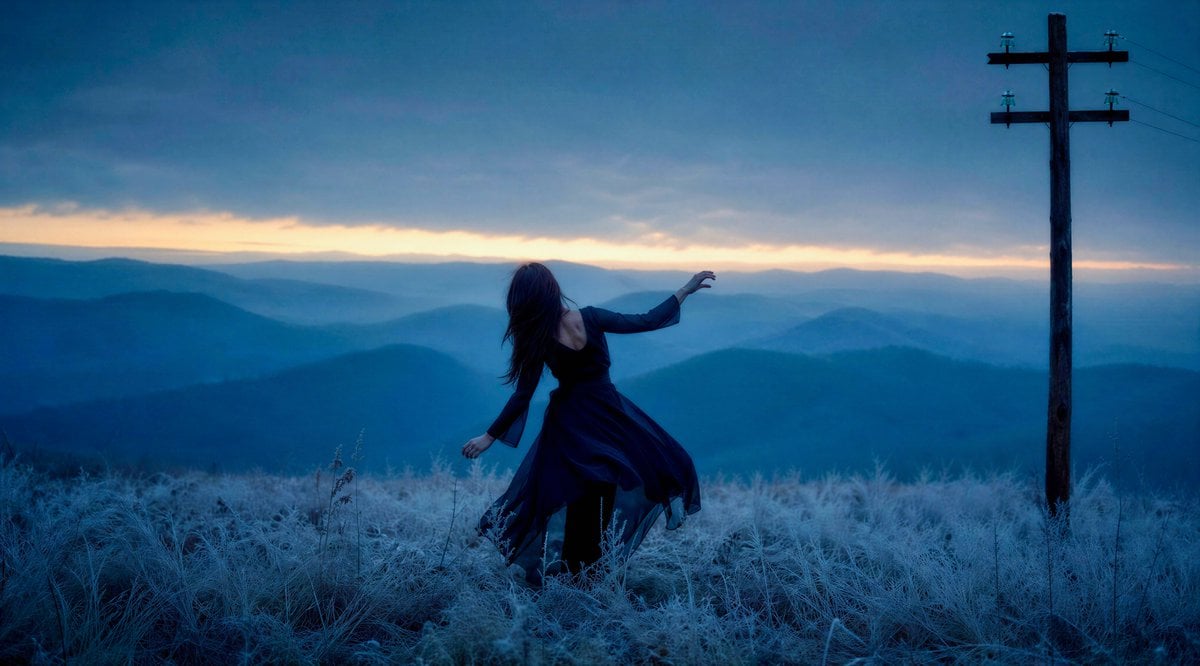
Windblown Woman on Misty Mountain
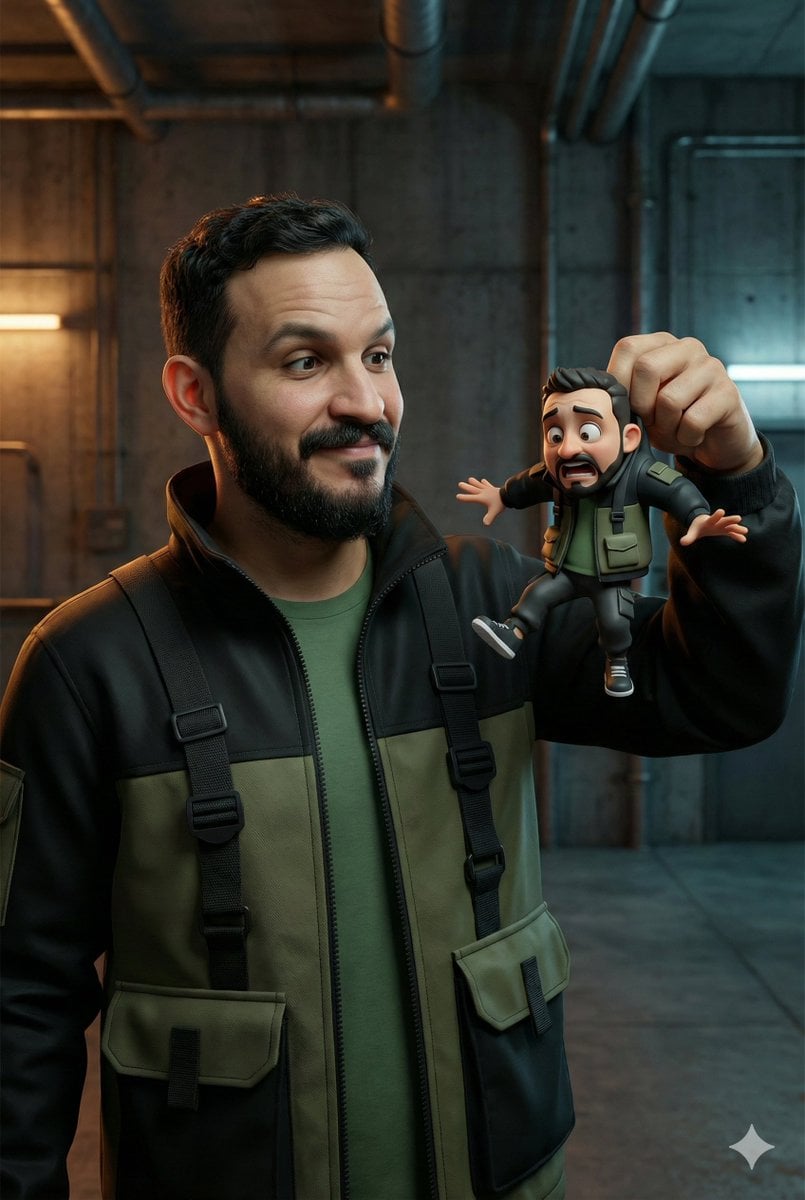
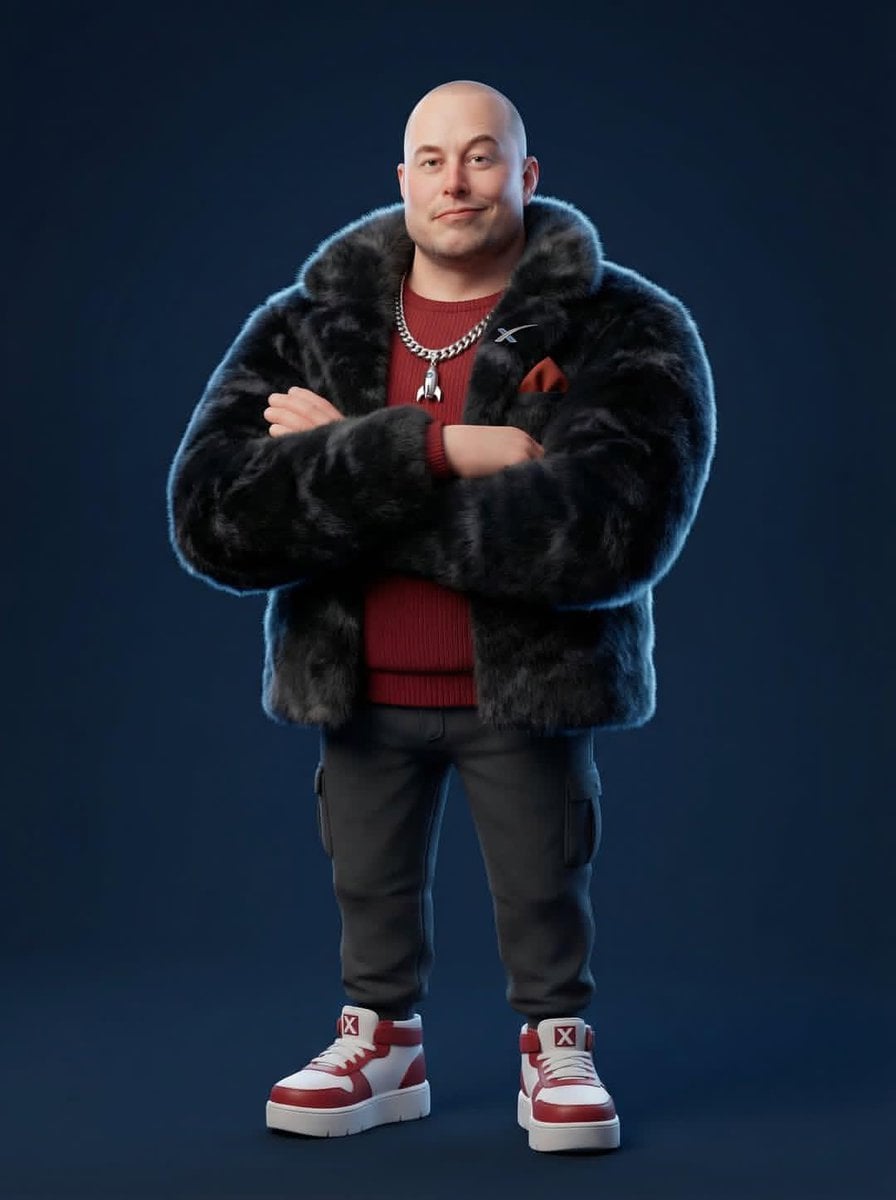
Ultra-Realistic Man Holding Cartoon Miniature of Self
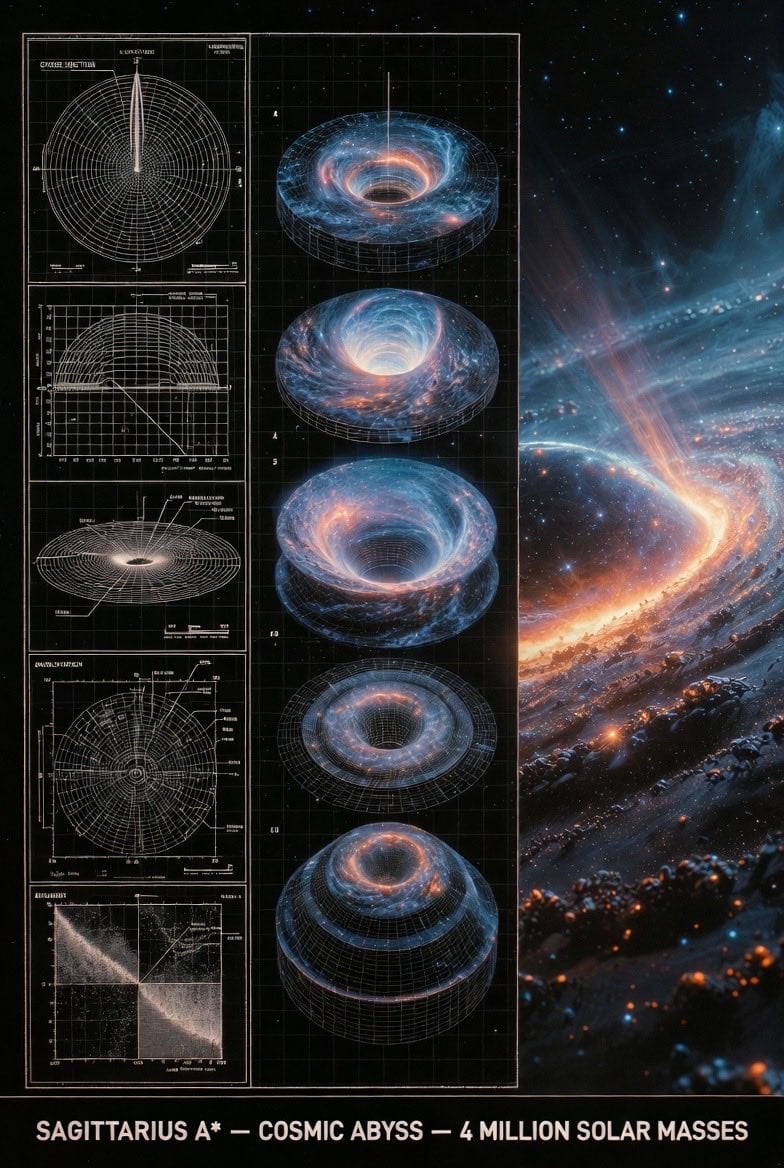
Supermassive Black Hole Museum Presentation Board
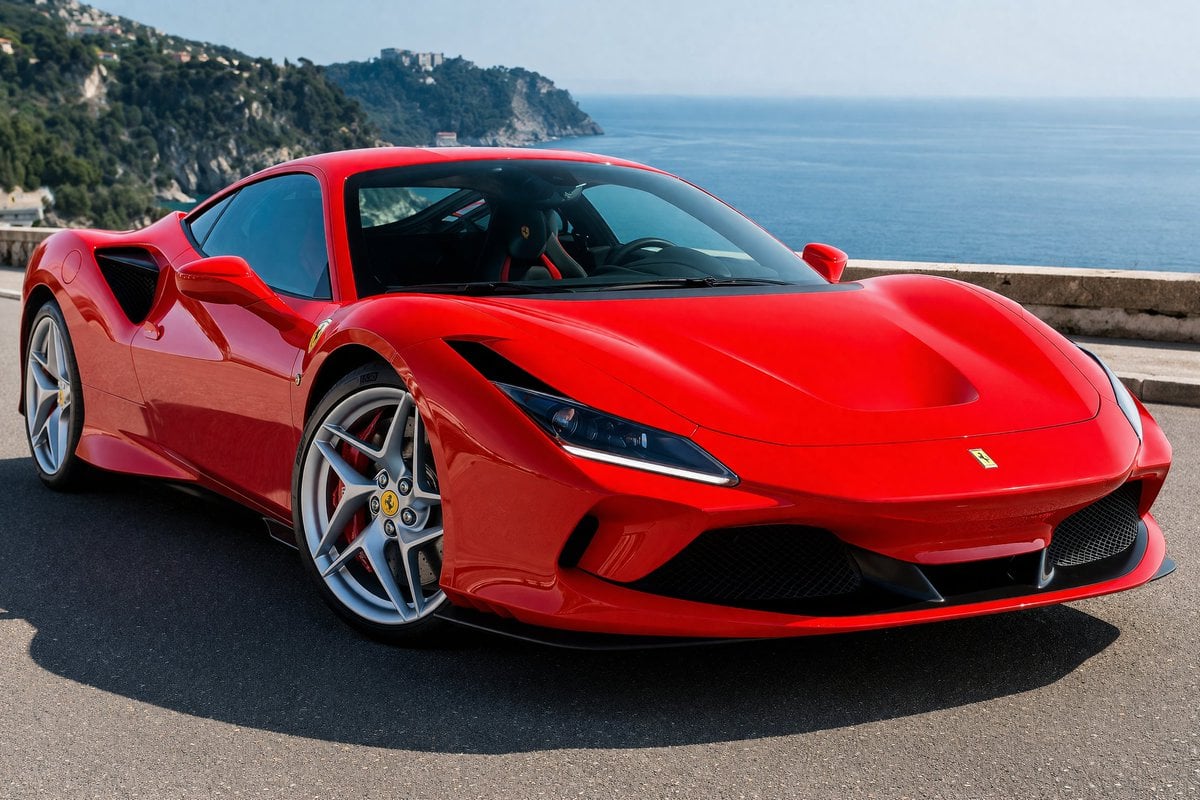
Photorealistic Coastal Sports Car
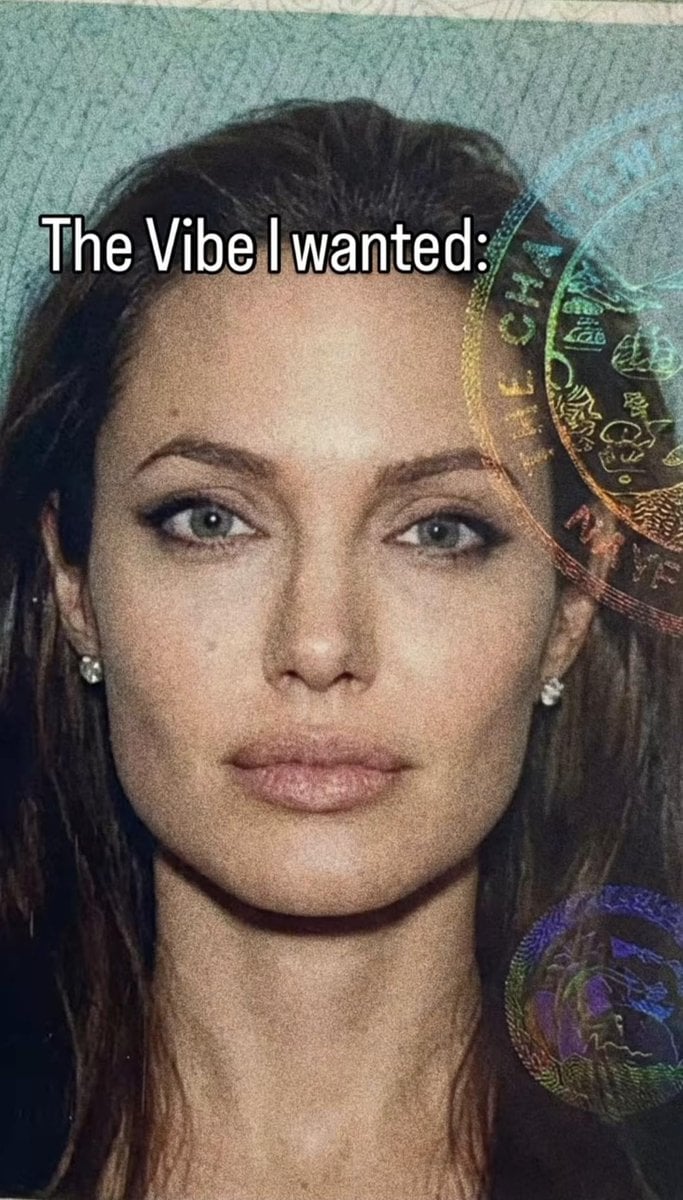
Passport Photo Aesthetic Portrait
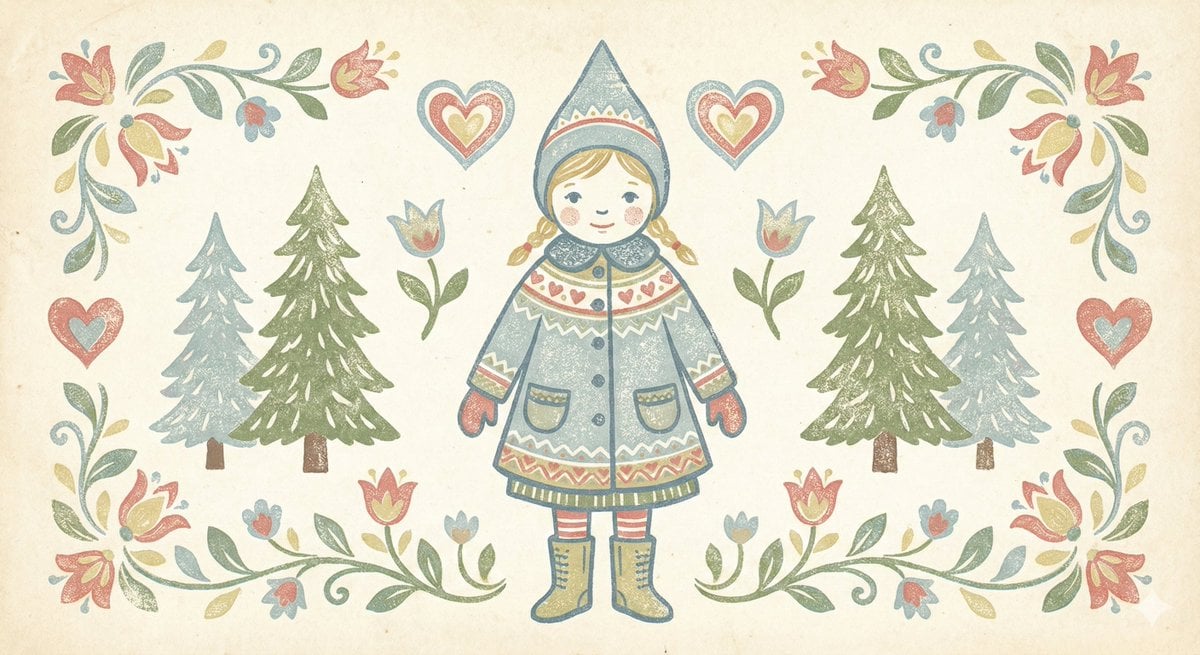
Scandinavian Folk-Art Depiction
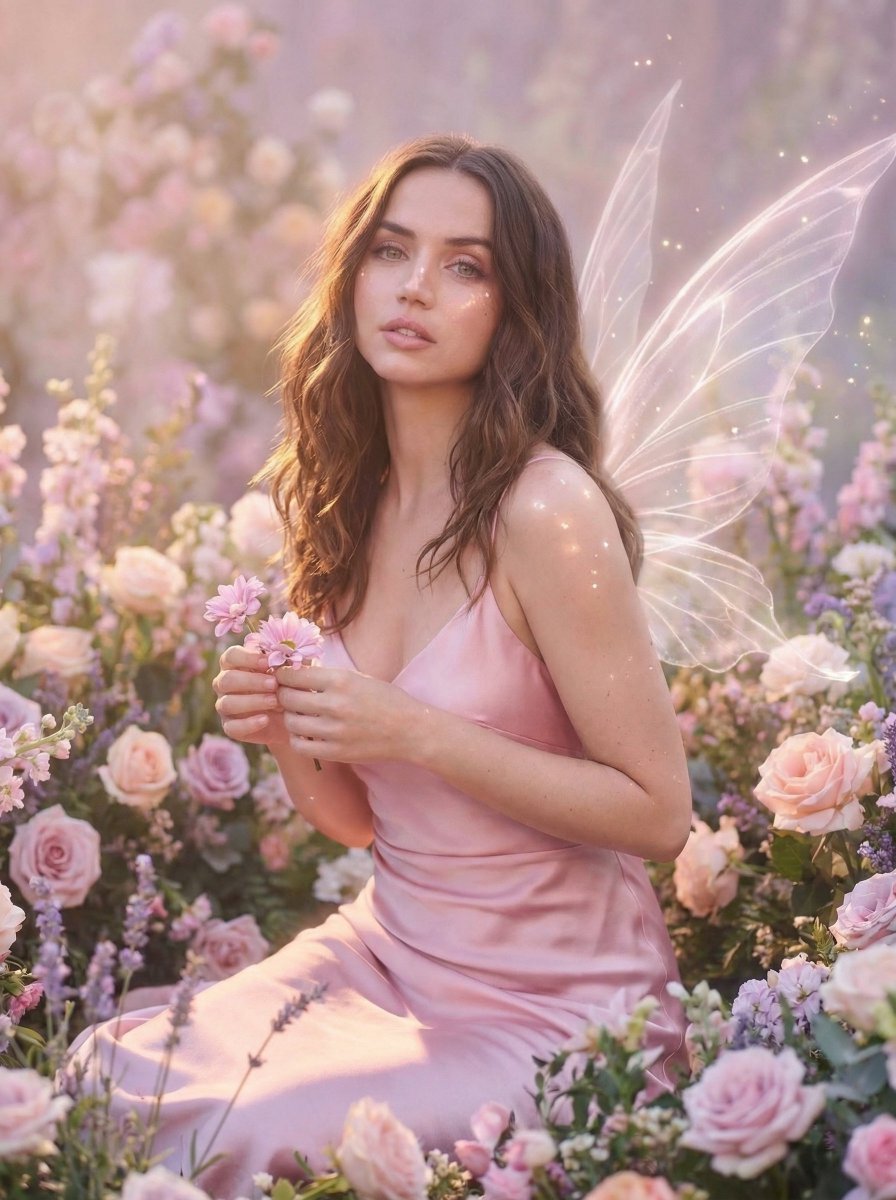
Dreamy Fairy Editorial Portrait in a Secret Garden
Browse template categories
Japanese Manus Chat Pixel Art Screenshot questions
How do I use the Japanese Manus Chat Pixel Art Screenshot template?
Add your photo if the template asks for one, edit the prompt if you like — the template's model and format are already selected — and press Generate. Your version opens in PicX Studio.
Can I customize the Japanese Manus Chat Pixel Art Screenshot template?
Yes. You can change the subject, setting, lighting, mood, format, and available model controls before creating your image.
Is the Japanese Manus Chat Pixel Art Screenshot template free?
Opening and editing this template is free. Generating uses credits, shown on the Generate button when you are signed in.
Which AI model should I use?
Start with GPT Image 2, which is the model associated with this template. You can compare another compatible model for a different finish.
Looking for something else? Browse all templates.

Your photo, any look
Thousands of ready templates for every top image and video model, from one credit balance.