
Japanese AI Workflow Notebook Infographic
Generates a cute hand-drawn Japanese notebook infographic explaining an AI workflow from collection to organization to newsletter publishing.
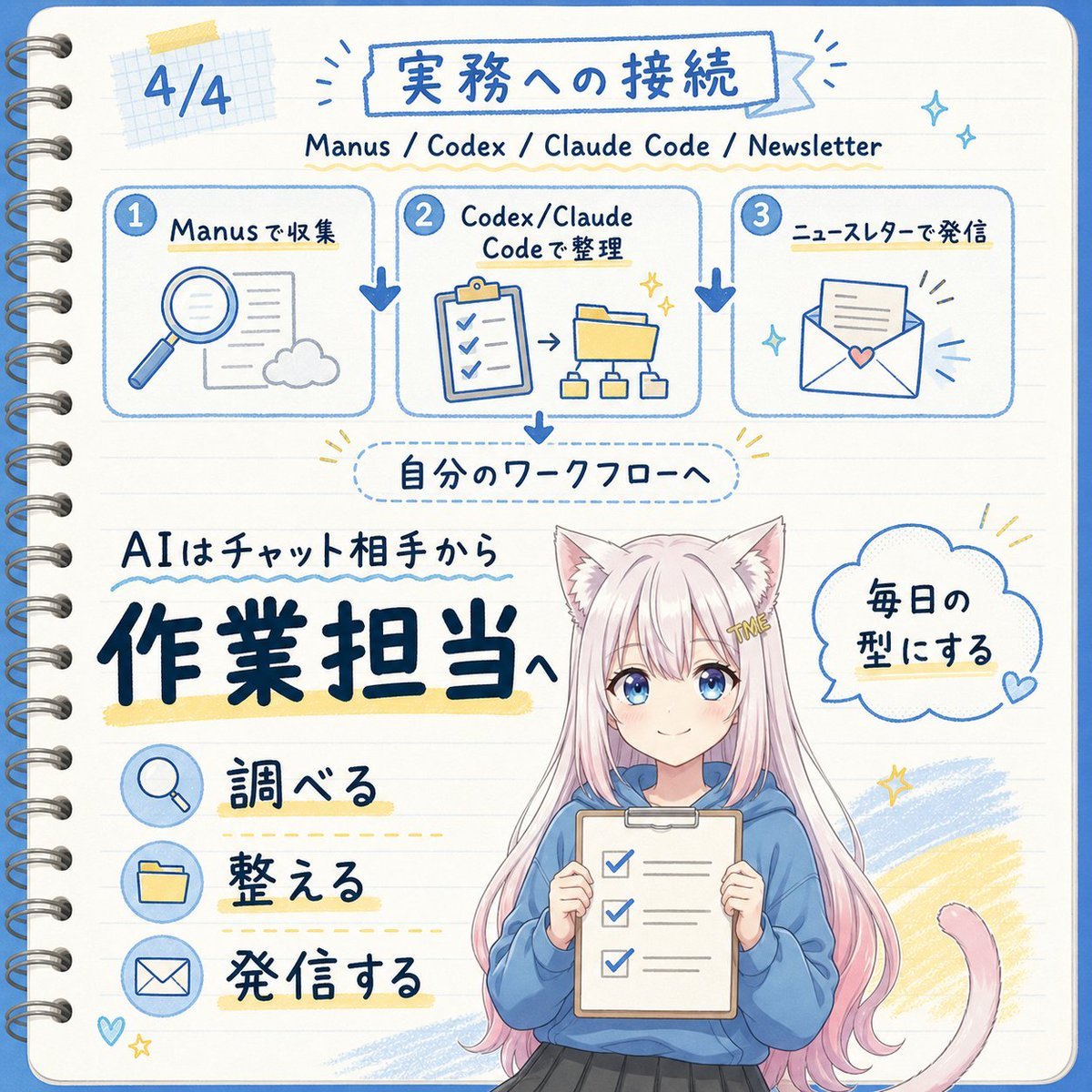
- Prompt included
- Model and format preset
- Free template
The prompt behind this image
Copy the exact prompt behind Japanese AI Workflow Notebook Infographic, or open it in the studio and make it yours.
Goal: Create a square, hand-drawn Japanese notebook-style infographic about turning AI from a chat partner into an operations/work assistant, with a cute anime mascot at the bottom. Canvas: 1:1 square image, cream lined notebook paper background with rounded corners, blue border line, visible metal spiral binding along the left edge, soft grid-paper tape decoration near the top left, and blue/yellow pen-marker accents. Overall look should be clean, friendly, handwritten, and sketchnote-like. Text content: Use Japanese handwritten lettering. Top left page marker: “4/4”. Main title inside a blue outlined banner: {argument name="main title" default="実務への接続"}. Subtitle beneath it: “Manus / Codex / Claude Code / Newsletter”. Mid-page label in a dotted rounded rectangle: “自分のワークフローへ”. Large main message on the lower left: “AIはチャット相手から” above very large bold navy text {argument name="main message" default="作業担当へ"}. Speech bubble on the right of the character: {argument name="speech bubble text" default="毎日の型にする"}. Layout: Top third contains exactly 3 connected workflow cards in a horizontal row, each with a numbered blue circle and rounded blue outline. Card 1 is labeled “Manusで収集” and shows a magnifying glass, document, and cloud icon. Card 2 is labeled “Codex/Claude Codeで整理” and shows a clipboard checklist, arrow, folder, and small hierarchy diagram. Card 3 is labeled “ニュースレターで発信” and shows an envelope with a paper and small heart. Add thick blue downward arrows between the cards and another blue arrow down from the center card to the dotted workflow label. Lower section: On the left, place exactly 3 action rows with circular blue icons and Japanese labels: 1) magnifying glass icon with “調べる”, 2) folder icon with “整える”, 3) envelope icon with “発信する”. Underline or highlight each label with pale yellow marker strokes and dotted guide lines. Character details: Bottom center-right features a cute anime cat-eared girl mascot from about knees up, with long pastel pink hair, white cat ears, a pink cat tail curling to the right, and a small gold hair clip reading “ME”. She wears a loose blue hoodie and dark skirt, holding a clipboard checklist with exactly 3 checked boxes. Keep the face area intentionally covered by a plain beige rectangular mask, as if anonymized. Use {argument name="character hair color" default="pastel pink"} hair and {argument name="hoodie color" default="blue"} hoodie if customized. Visual style: Blue ink line art with occasional navy bold lettering, pale yellow highlights, soft sky-blue scribble fills, small sparkles, hearts, and radiating accent lines. Use a cheerful educational newsletter aesthetic, like a hand-drawn planner page mixed with kawaii anime illustration. Maintain legible text, balanced spacing, and no photorealism. Constraints: Include exactly 3 workflow cards and exactly 3 action rows. Do not add extra panels, extra numbered steps, watermarks, logos, or English translations on the image beyond the subtitle line.
How to use Japanese AI Workflow Notebook Infographic in 3 steps
- 1Upload ImagePNG, JPG or paste
Add your photo
Upload the photo the template builds on. The prompt, model and format are already set.
- 2…a portrait of your subject in softgolden-hour light, 85mm…
Personalize
Edit the subject and creative details for your destination.
- 3Generate
Generate
Press Generate — your image is created in PicX Studio, so you can compare it with the original and refine one variable at a time.
More like this
Templates with the same subject, style or setup. Open one to see its prompt.
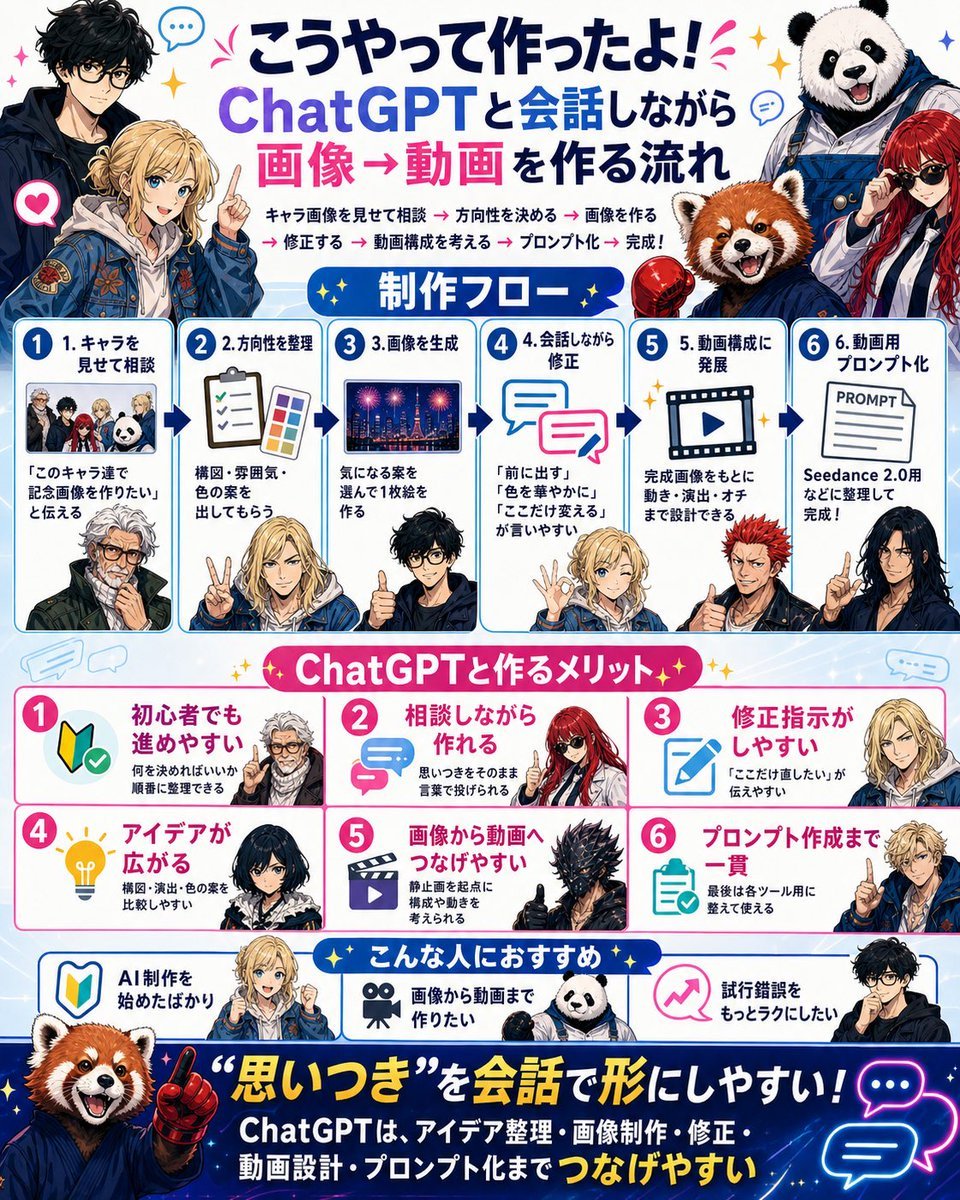
Japanese ChatGPT Image-to-Video Workflow Infographic
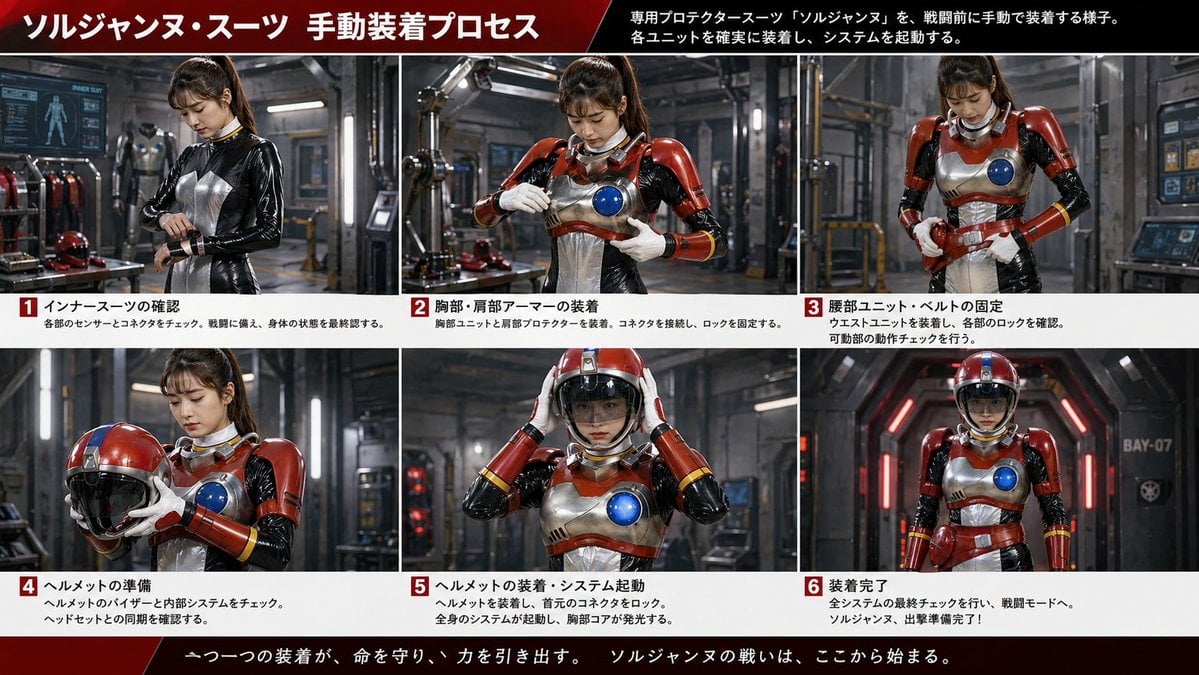
Gpt2 Infographic Edu Visual Japanese Sci Fi Suit Up Process Board
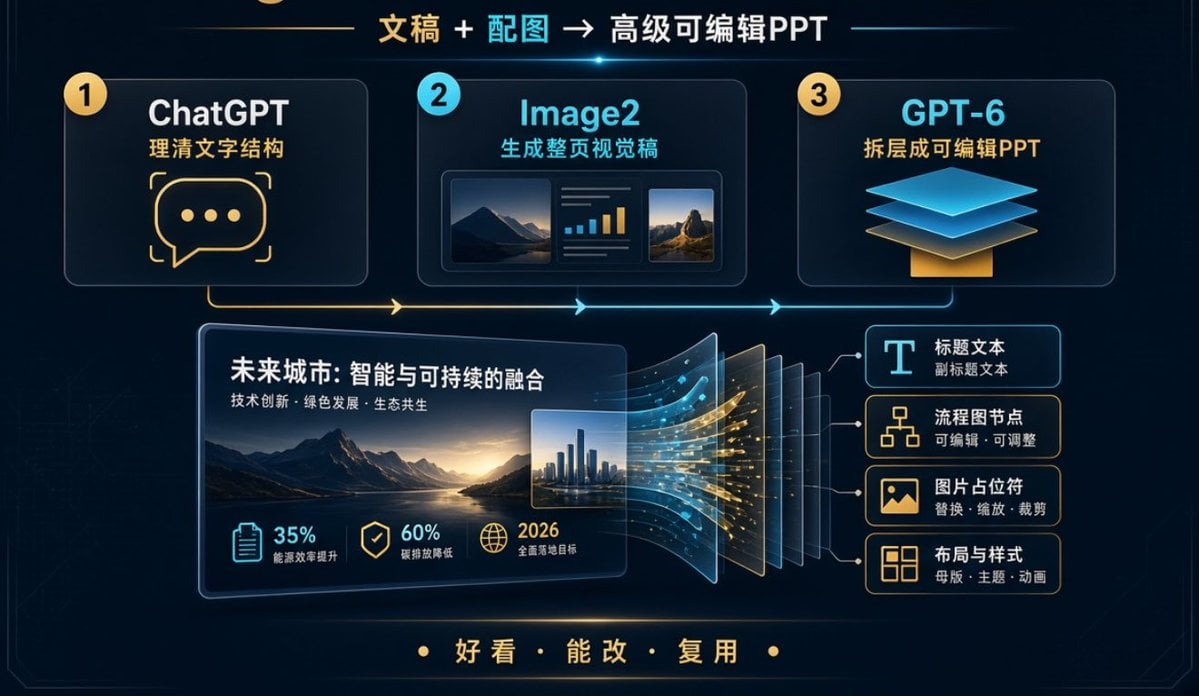
Editable PPT Workflow Infographic

Minecraft Japanese Research Lab Exploration

Japan Travel Brochure Poster
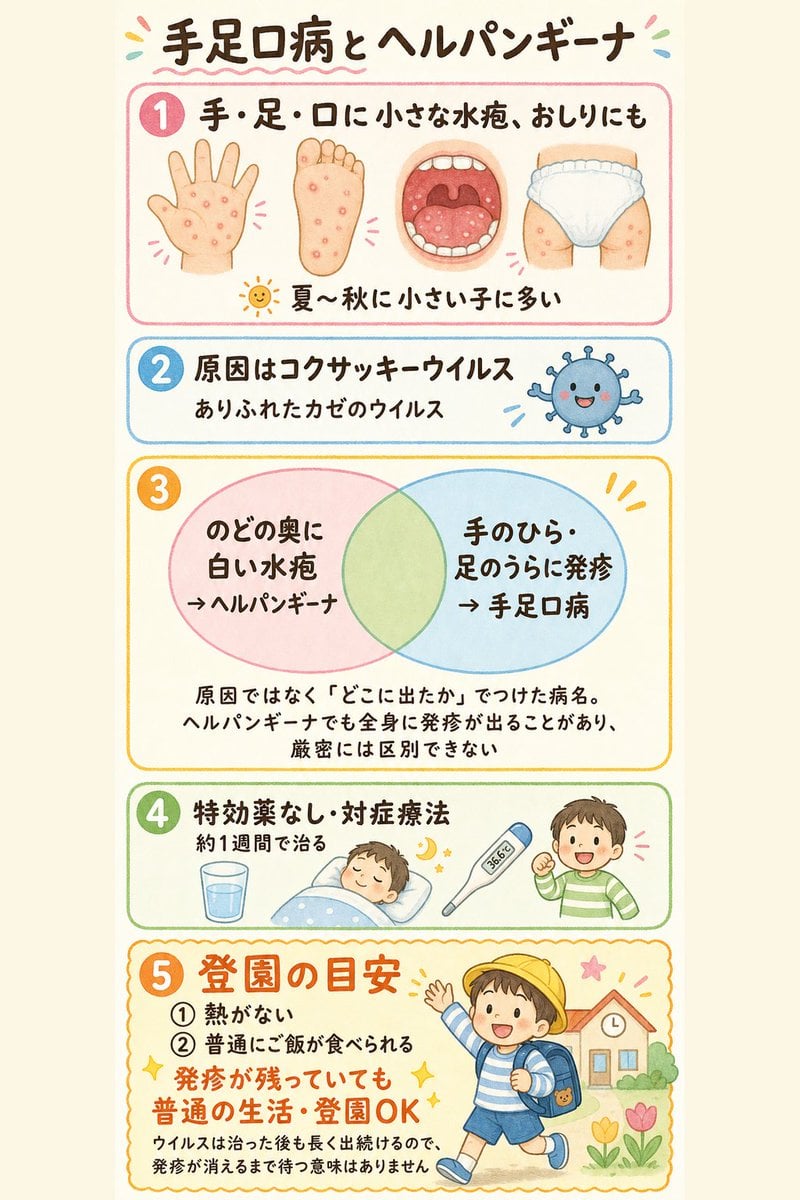
Japanese Pediatric Disease Infographic
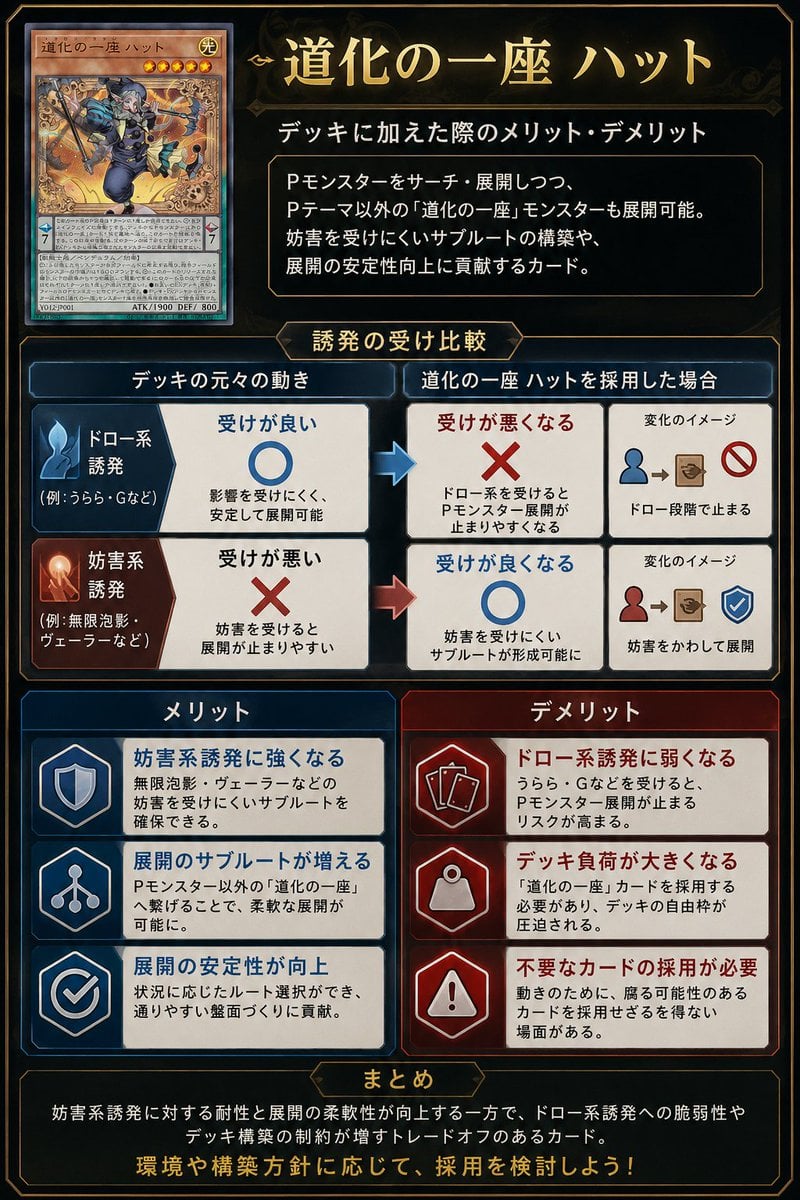
Japanese TCG Strategy Infographic
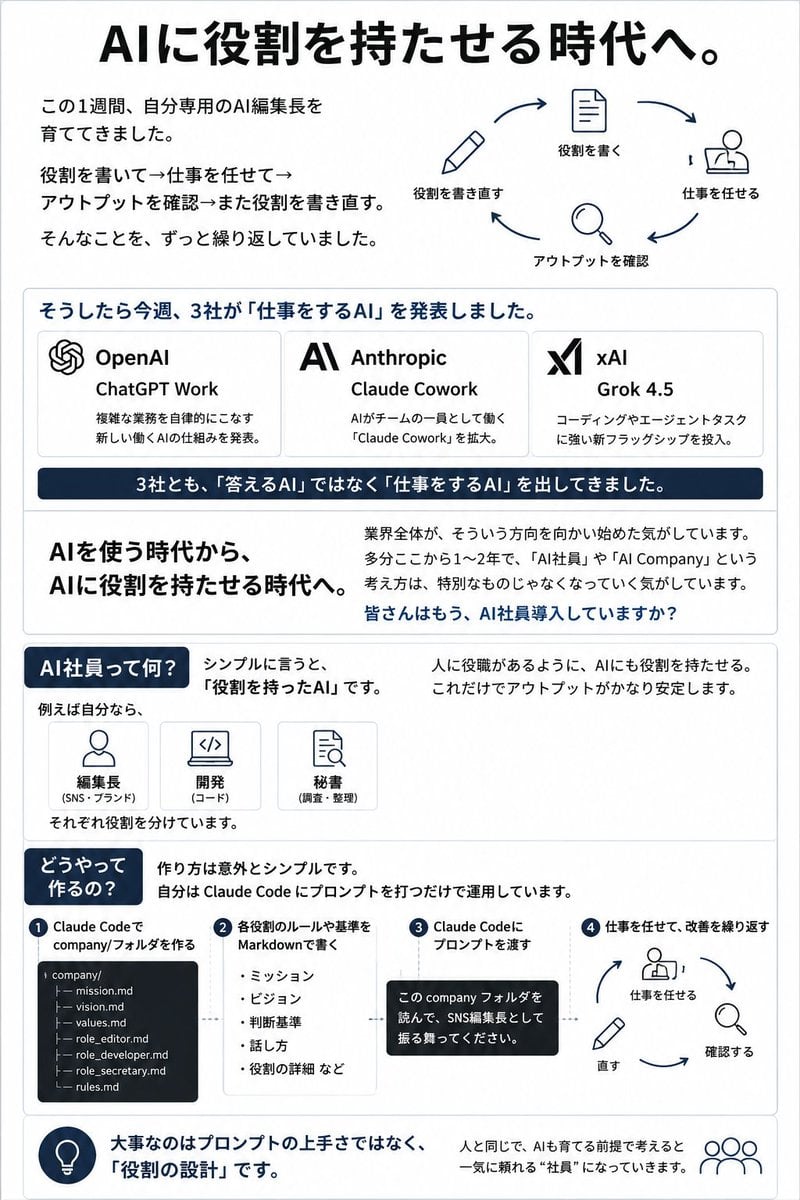
Japanese AI Employee Infographic
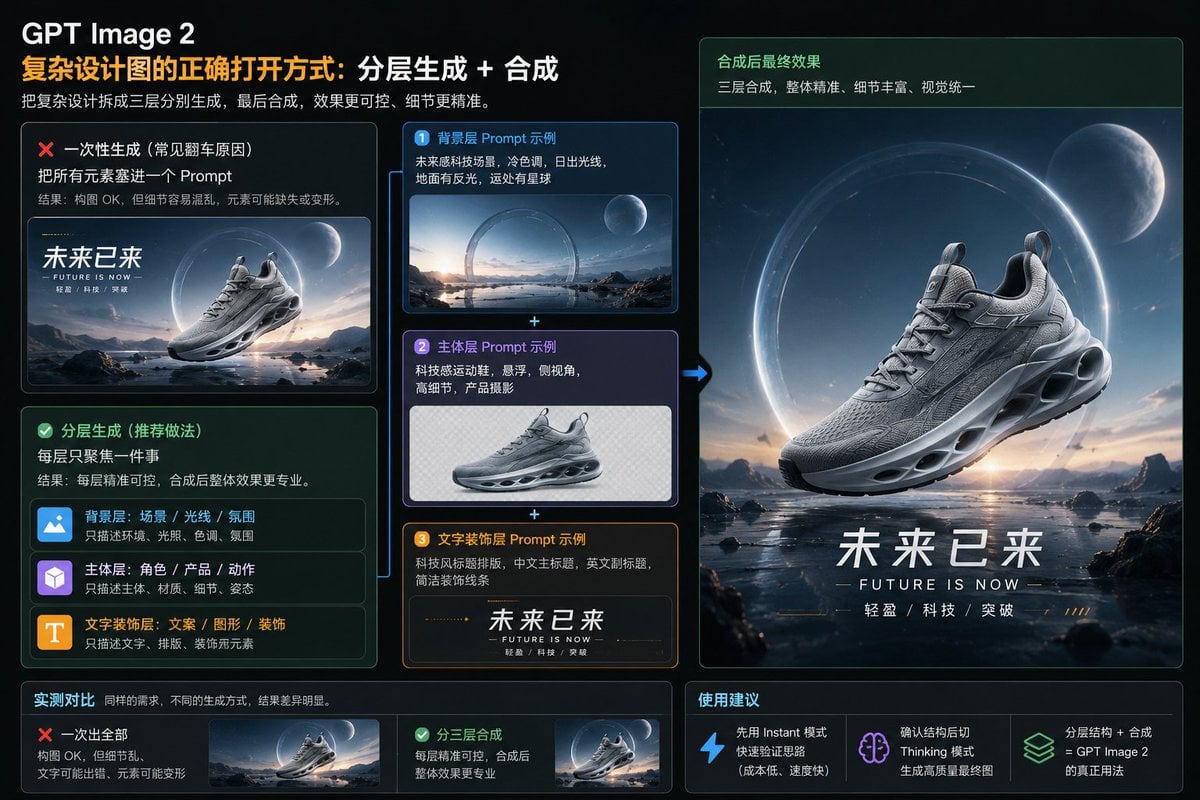
Layered GPT Image 2 Workflow Infographic
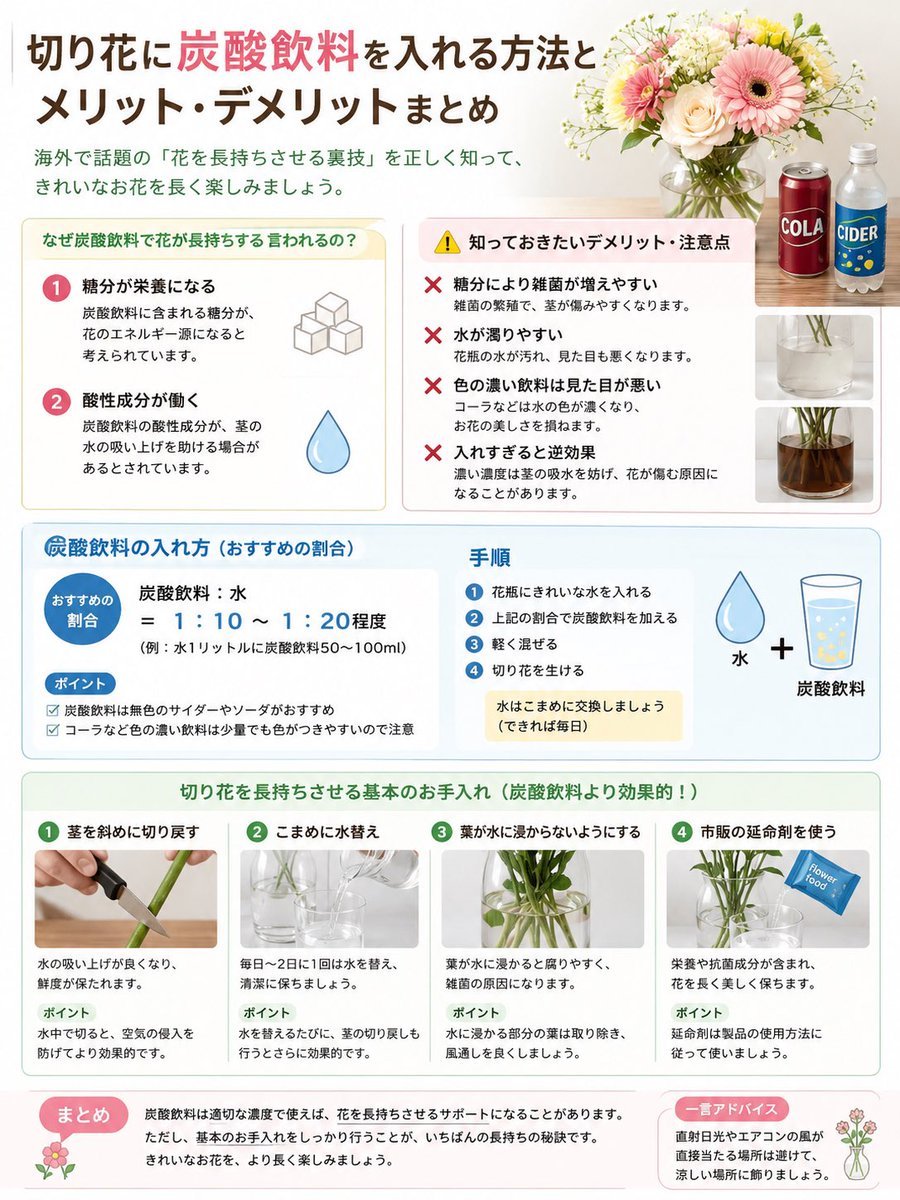
Japanese Cut Flower Soda Care Infographic

Japanese Architectural Concrete Studio Fashion Campaign

Japanese Minimalist Concrete Studio Fashion Editorial
Make it yours
Japanese AI Workflow Notebook Infographic works as-is. These are the safest ways to change it without losing the look.
Change one field
Copy a single group, rewrite it, and generate again so you can see what that field is doing.
Keep the frame, change the subject
Hold the composition and light of Japanese AI Workflow Notebook Infographic, then swap wardrobe, props or the person for a new take.
| If the result… | Why | Fix |
|---|---|---|
| The result drifts from the preview | Too many fields changed at once. | Reuse Japanese AI Workflow Notebook Infographic as-is first, then change one group — subject, light, or setting. |
| The model over-stylizes the scene | The prose prompt leaves finish and camera underspecified. | Add one camera or lighting sentence and stay on GPT Image 2. |
More GPT Image 2 templates
Other prompts made for GPT Image 2.

Six VTuber Japanese Logo Sheet

Realistic Portrait of Woman and Deer

The Vista Modular Condo Poster

AI Model Routing Comparison Infographic

2.5D Anime Art Board

Isometric Productivity Desk Scene

New York Double Exposure Poster

Four-Panel AI Landscape Comparison

Japanese Tatami Lifestyle Magazine Cover

NESCAFÉ Coffee Map Poster
More image prompts
Fresh picks from across the catalog.

Anime Character Playing Video Games

Retro Neon Night Phone Portrait
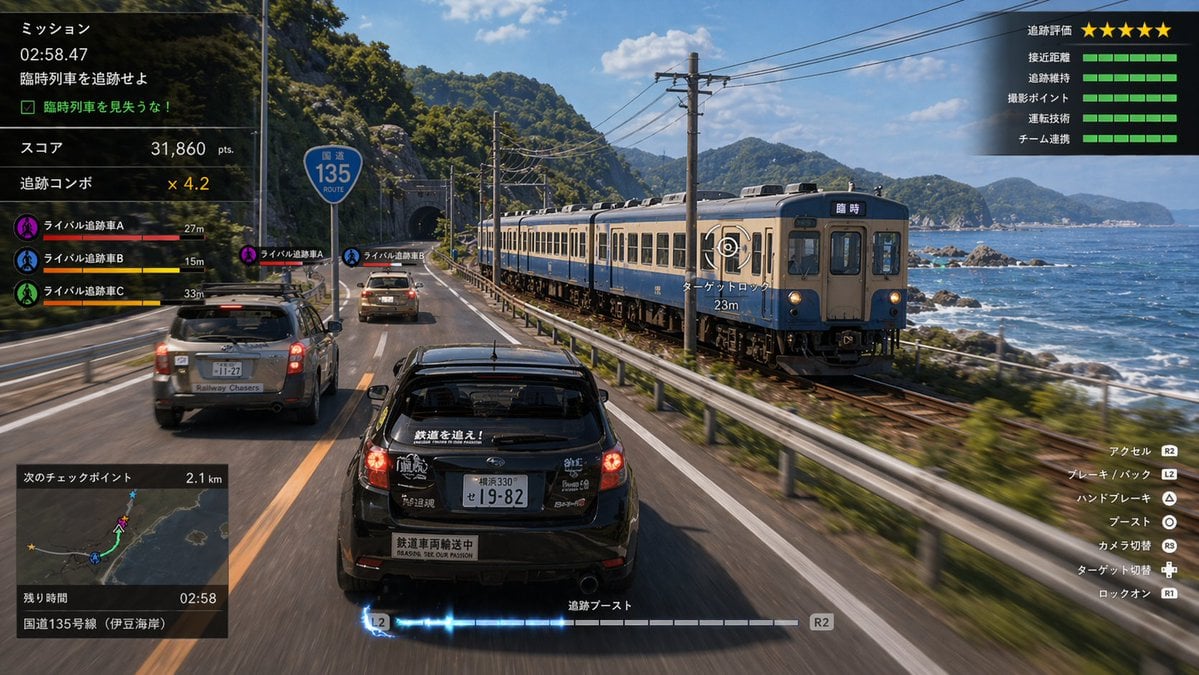
Train Photography Game Simulation
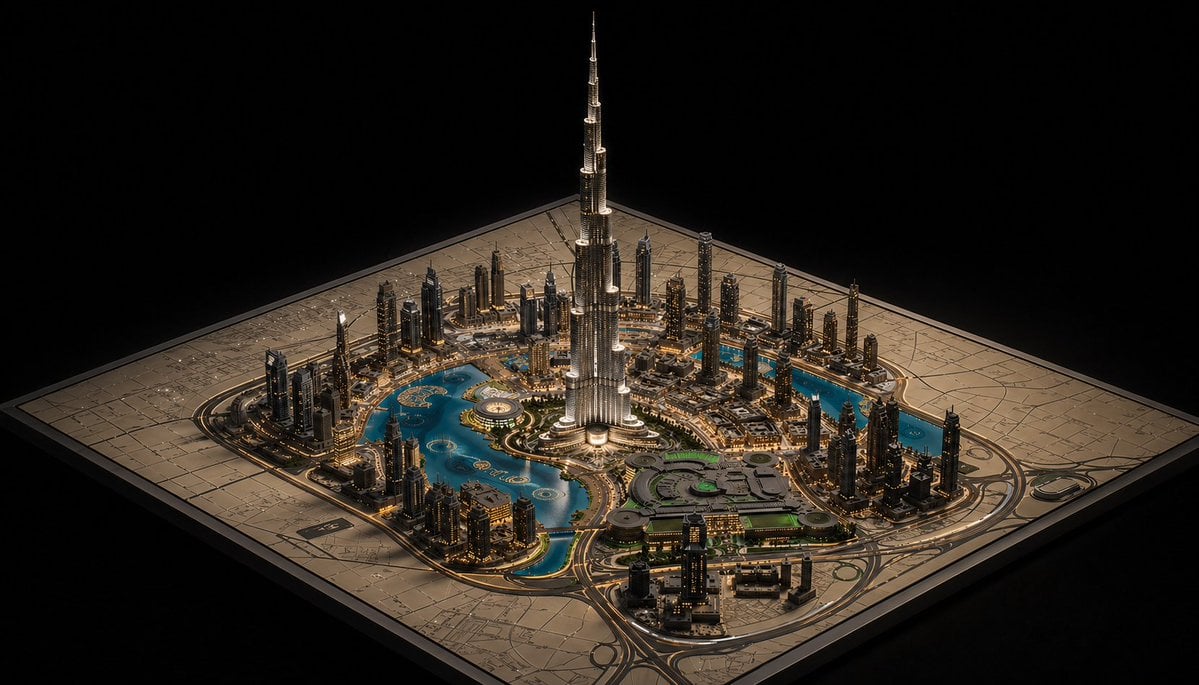
Luxury Miniature Dubai City Model

Romantic Winter Couple Portrait with Identity Lock
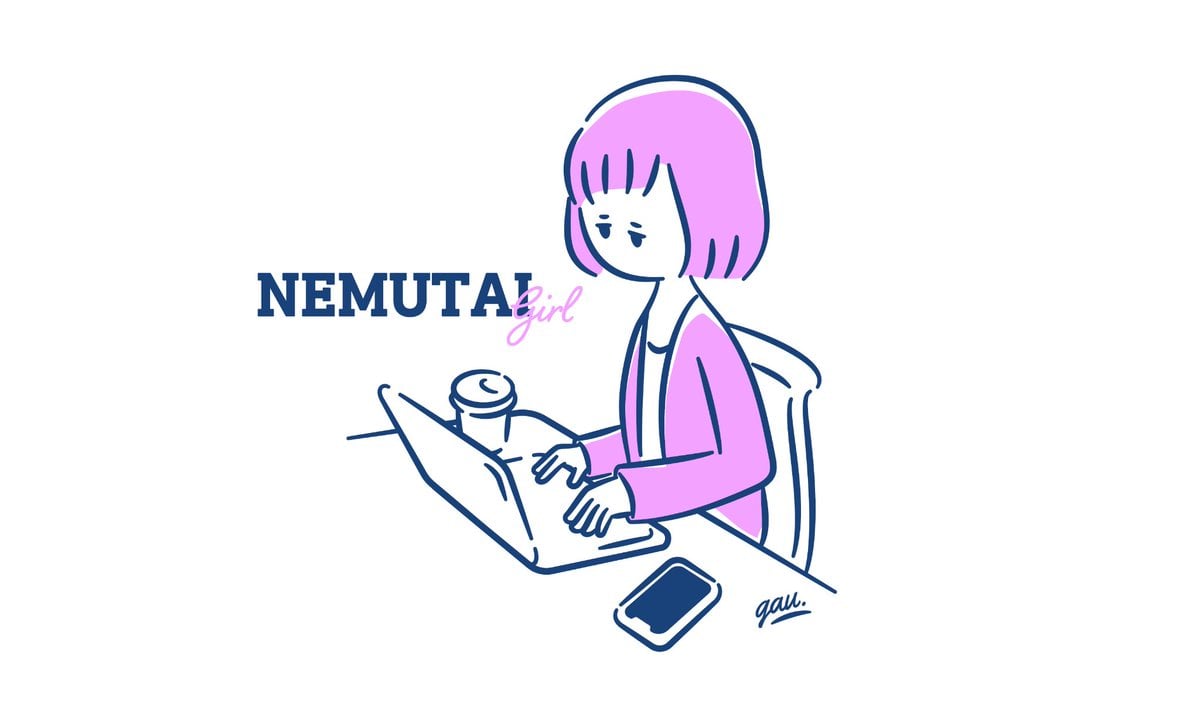
Sleepy Girl at Laptop Illustration
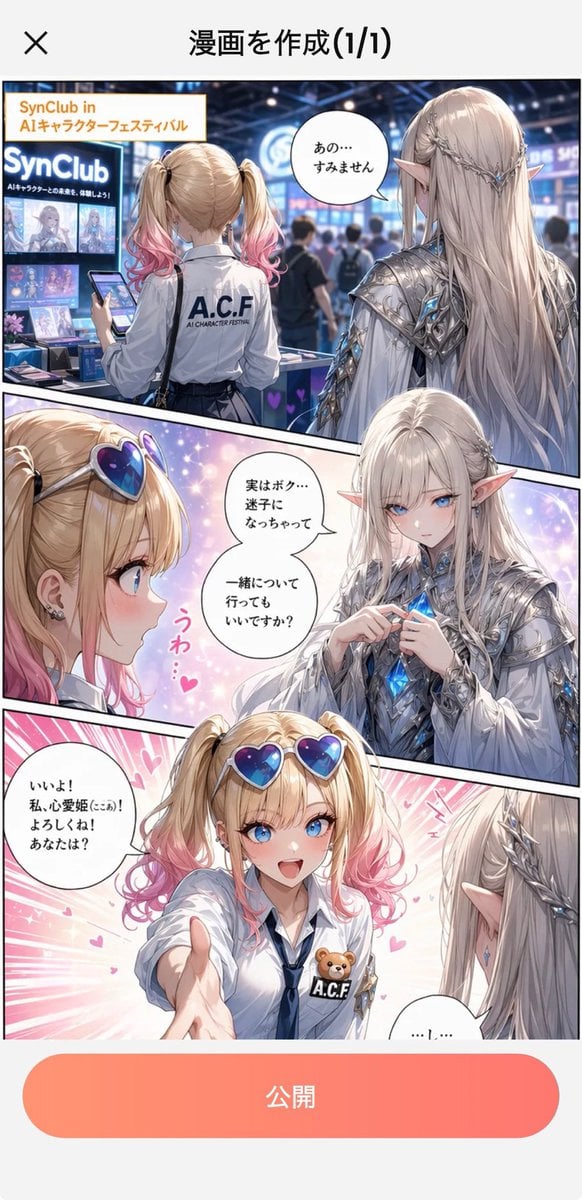
Japanese Manga Creation App Screenshot
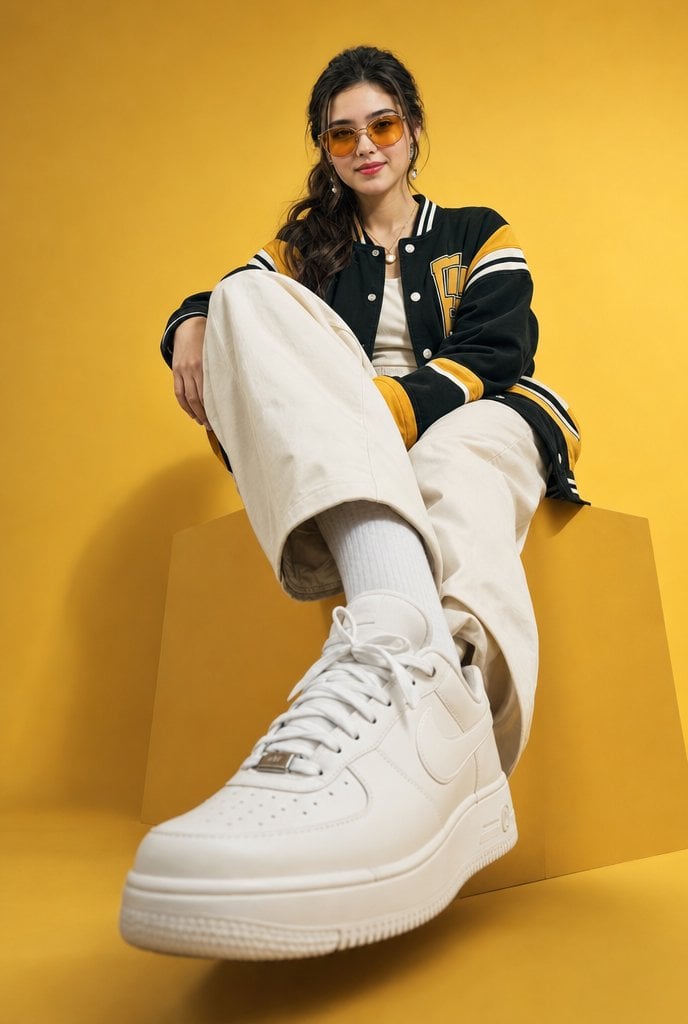
Low-Angle Varsity Fashion Portrait

Luxury Magazine Cover Identity Portrait
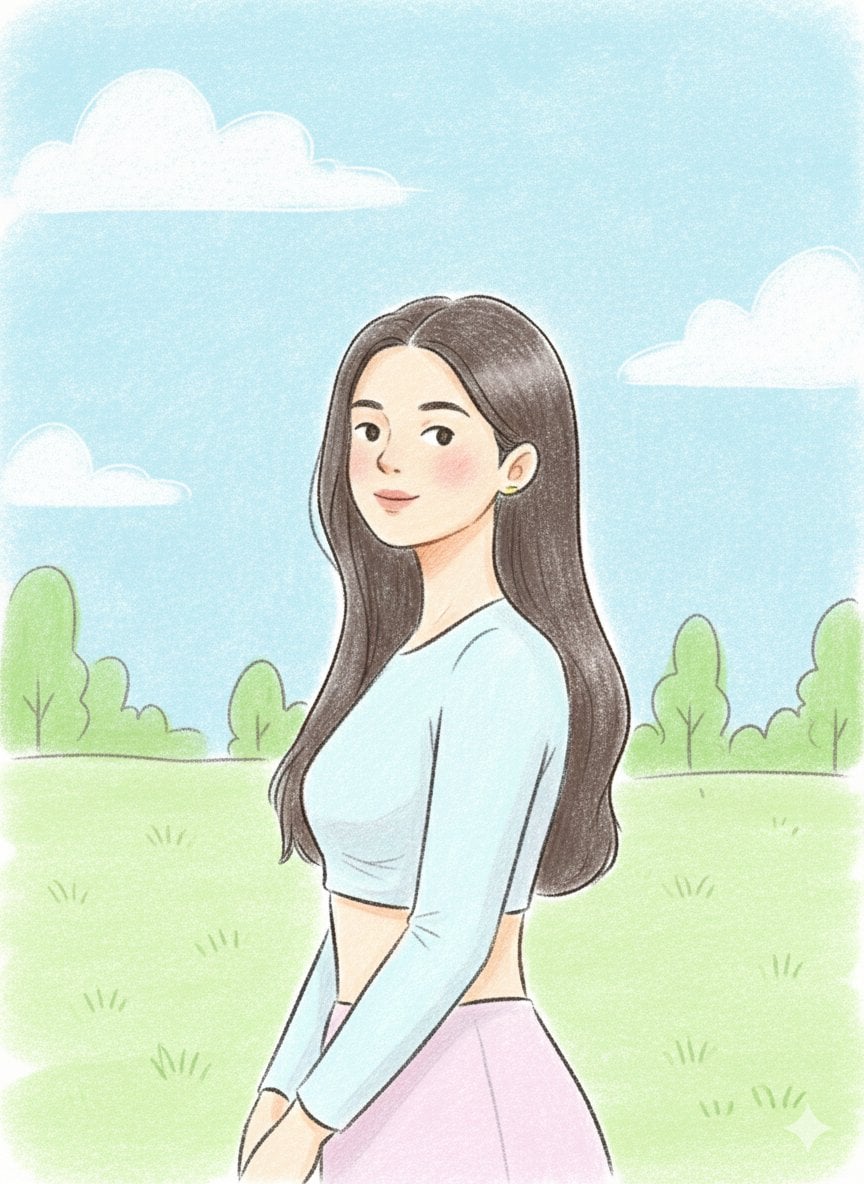
Pastel Illustration Style Transfer (Reference Required)
Browse template categories
Japanese AI Workflow Notebook Infographic questions
How do I use the Japanese AI Workflow Notebook Infographic template?
Add your photo if the template asks for one, edit the prompt if you like — the template's model and format are already selected — and press Generate. Your version opens in PicX Studio.
Can I customize the Japanese AI Workflow Notebook Infographic template?
Yes. You can change the subject, setting, lighting, mood, format, and available model controls before creating your image.
Is the Japanese AI Workflow Notebook Infographic template free?
Opening and editing this template is free. Generating uses credits, shown on the Generate button when you are signed in.
Which AI model should I use?
Start with GPT Image 2, which is the model associated with this template. You can compare another compatible model for a different finish.
Looking for something else? Browse all templates.

Your photo, any look
Thousands of ready templates for every top image and video model, from one credit balance.