
YouTube Live Stream Announcement Mockup
Generates a realistic YouTube dark mode interface showing a live product announcement presentation.
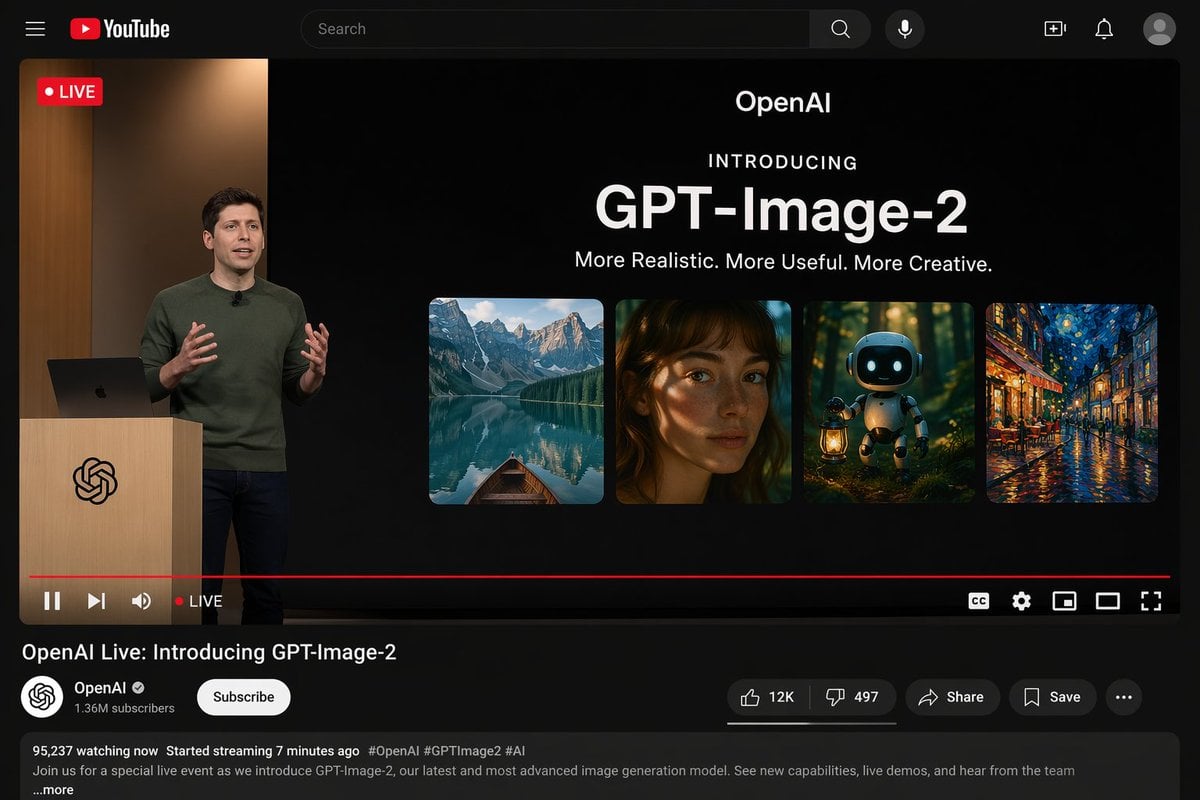
- Prompt included
- Model and format preset
- Free template
The prompt behind this image
Copy the exact prompt behind YouTube Live Stream Announcement Mockup, or open it in the studio and make it yours.
- Type
- YouTube Live Stream UI mockup
- Theme
- dark mode
- Layout › Top Bar › Components
- hamburger menu, YouTube logo, search bar, microphone icon, create icon, notifications icon, profile avatar
- Layout › Video Player › Status
- LIVE badge in top left
- Layout › Video Player › Left Side
- A {argument name="presenter description" default="man in a green sweater"} standing at a wooden podium with a spiral logo, gesturing with hands, laptop on podium.
- Layout › Video Player › Right Side Presentation › Text Elements
- OpenAI, INTRODUCING, {argument name="product name" default="GPT-Image-2"}, {argument name="tagline" default="More Realistic. More Useful. More Creative."}
- Layout › Video Player › Right Side Presentation › Image Gallery › Count
- 4
- Layout › Video Player › Right Side Presentation › Image Gallery › Panels
- mountain lake with a boat, close-up portrait of a woman with dappled lighting, cute robot holding a lantern in a dark forest, impressionist painting of a glowing city street at night
- Layout › Video Player › Bottom Controls › Components
- play/pause, next, volume, LIVE text, red progress bar, CC, settings gear, miniplayer, theater mode, fullscreen
- Layout › Video Info › Title
- {argument name="video title" default="OpenAI Live: Introducing GPT-Image-2"}
- Layout › Video Info › Channel Section › Name
- {argument name="channel name" default="OpenAI"}
- Layout › Video Info › Channel Section › Badge
- verified checkmark
- Layout › Video Info › Channel Section › Subscribers
- 1.36M subscribers
- Layout › Video Info › Channel Section › Button
- Subscribe (white pill button)
- Layout › Video Info › Action Buttons › Count
- 5
- Layout › Video Info › Action Buttons › Labels
- Like (12K), Dislike (497), Share, Save, ...
- Layout › Video Info › Description Box › Metadata
- 95,237 watching now, Started streaming 7 minutes ago
- Layout › Video Info › Description Box › Hashtags
- #OpenAI #GPTImage2 #AI
- Layout › Video Info › Description Box › Body Text
- Join us for a special live event as we introduce GPT-Image-2, our latest and most advanced image generation model. See new capabilities, live demos, and hear from the team ...more
Raw JSON
{"type": "YouTube Live Stream UI mockup", "theme": "dark mode", "layout": {"top_bar": {"components": ["hamburger menu", "YouTube logo", "search bar", "microphone icon", "create icon", "notifications icon", "profile avatar"]}, "video_player": {"status": "LIVE badge in top left", "left_side": "A {argument name=\"presenter description\" default=\"man in a green sweater\"} standing at a wooden podium with a spiral logo, gesturing with hands, laptop on podium.", "right_side_presentation": {"text_elements": ["OpenAI", "INTRODUCING", "{argument name=\"product name\" default=\"GPT-Image-2\"}", "{argument name=\"tagline\" default=\"More Realistic. More Useful. More Creative.\"}"], "image_gallery": {"count": 4, "panels": ["mountain lake with a boat", "close-up portrait of a woman with dappled lighting", "cute robot holding a lantern in a dark forest", "impressionist painting of a glowing city street at night"]}}, "bottom_controls": {"components": ["play/pause", "next", "volume", "LIVE text", "red progress bar", "CC", "settings gear", "miniplayer", "theater mode", "fullscreen"]}}, "video_info": {"title": "{argument name=\"video title\" default=\"OpenAI Live: Introducing GPT-Image-2\"}", "channel_section": {"name": "{argument name=\"channel name\" default=\"OpenAI\"}", "badge": "verified checkmark", "subscribers": "1.36M subscribers", "button": "Subscribe (white pill button)"}, "action_buttons": {"count": 5, "labels": ["Like (12K)", "Dislike (497)", "Share", "Save", "..."]}, "description_box": {"metadata": "95,237 watching now, Started streaming 7 minutes ago", "hashtags": "#OpenAI #GPTImage2 #AI", "body_text": "Join us for a special live event as we introduce GPT-Image-2, our latest and most advanced image generation model. See new capabilities, live demos, and hear from the team ...more"}}}}How to use YouTube Live Stream Announcement Mockup in 3 steps
- 1Upload ImagePNG, JPG or paste
Add your photo
Upload the photo the template builds on. The prompt, model and format are already set.
- 2…a portrait of your subject in softgolden-hour light, 85mm…
Personalize
Edit the subject and creative details for your destination.
- 3Generate
Generate
Press Generate — your image is created in PicX Studio, so you can compare it with the original and refine one variable at a time.
More like this
Templates with the same subject, style or setup. Open one to see its prompt.
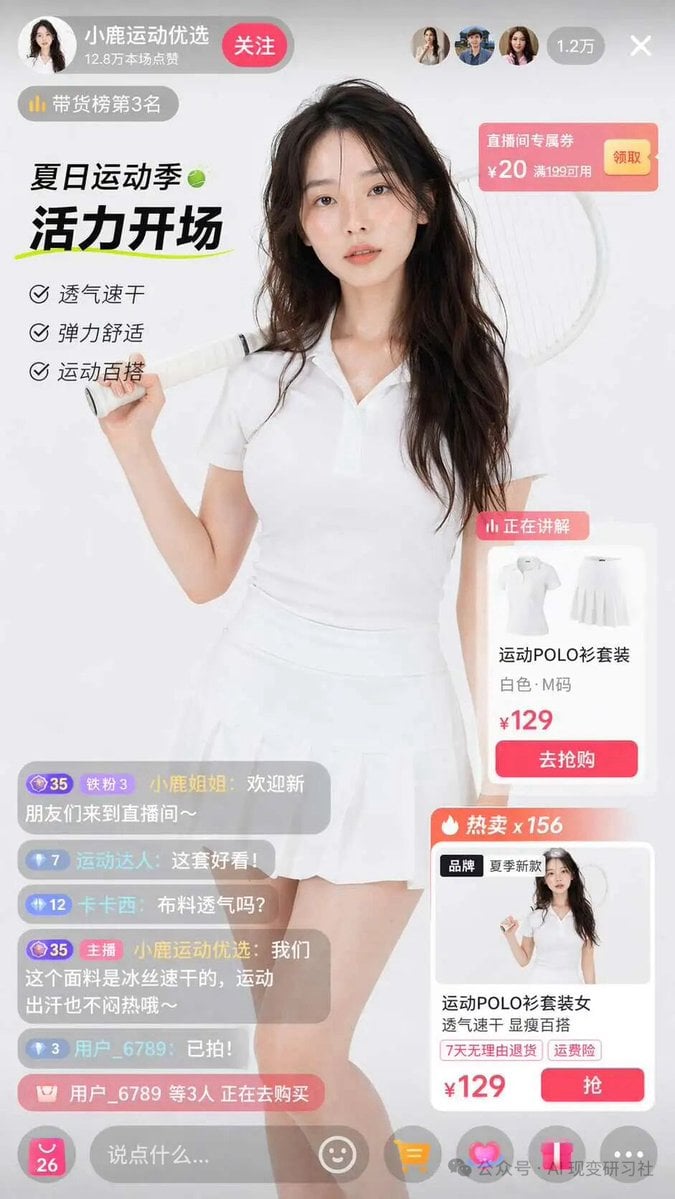
E-commerce Live Stream UI Mockup
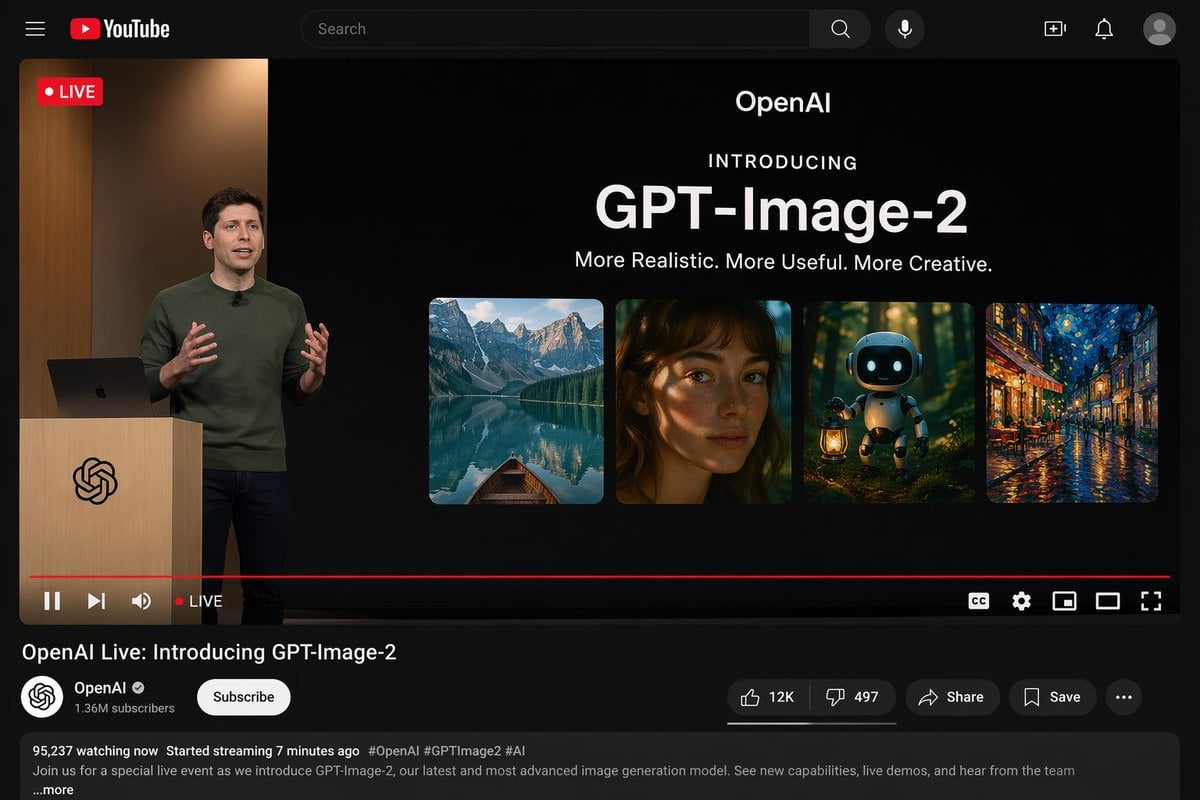
YouTube Live Presentation UI Mockup
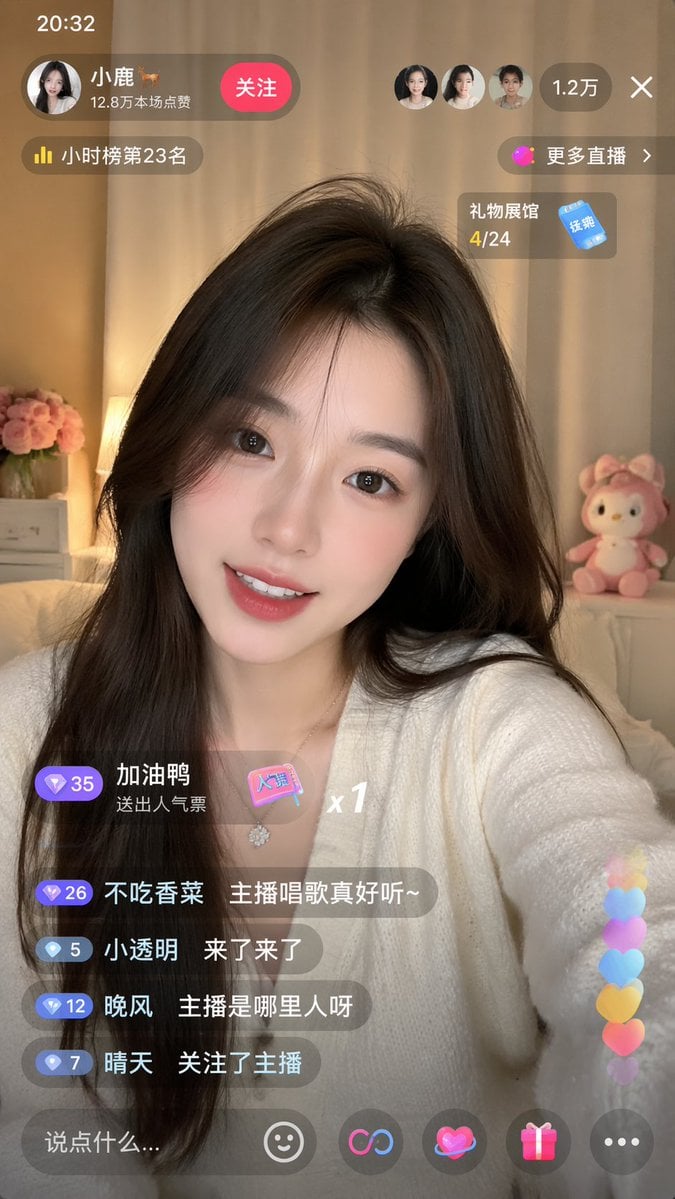
Live-Streaming App Interface Mockup
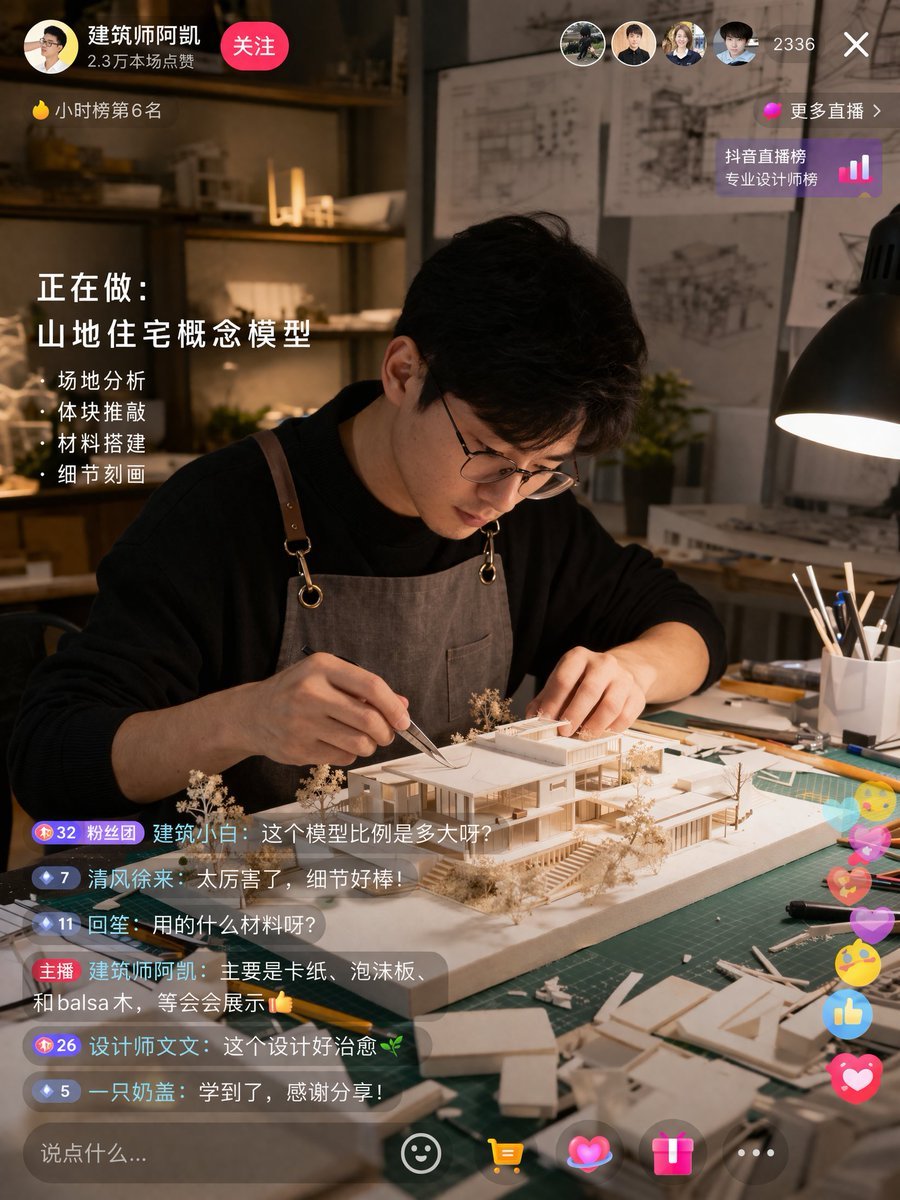
Architect Live Stream UI Mockup
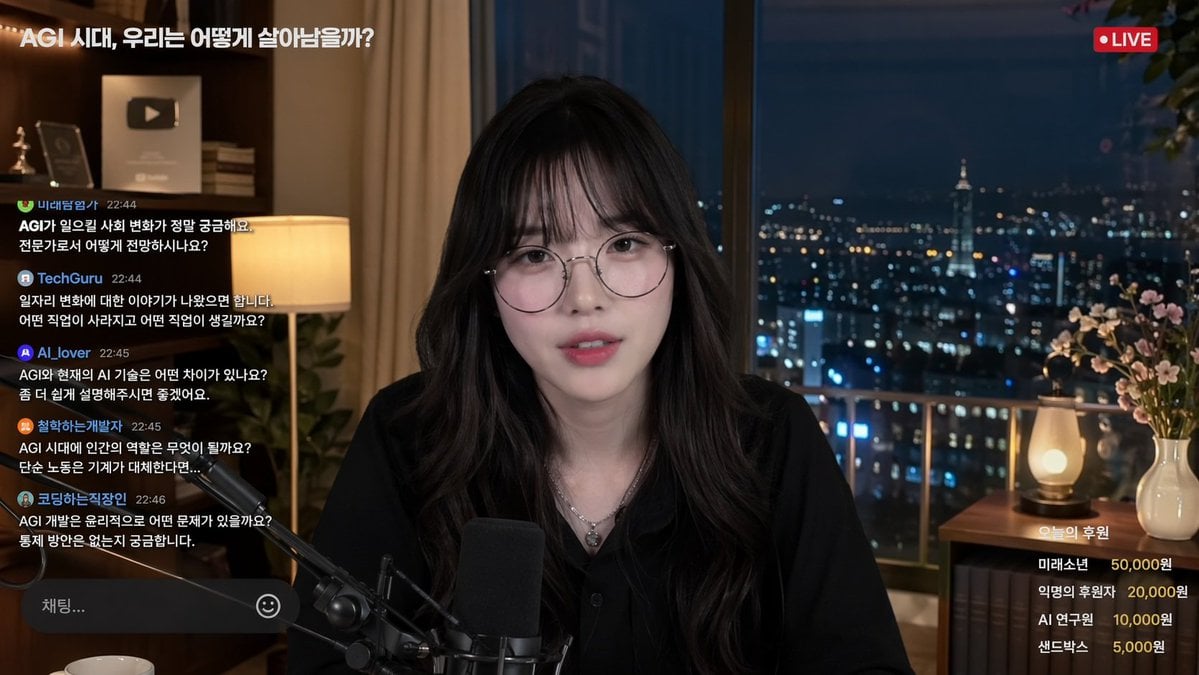
Livestream Interface Mockup
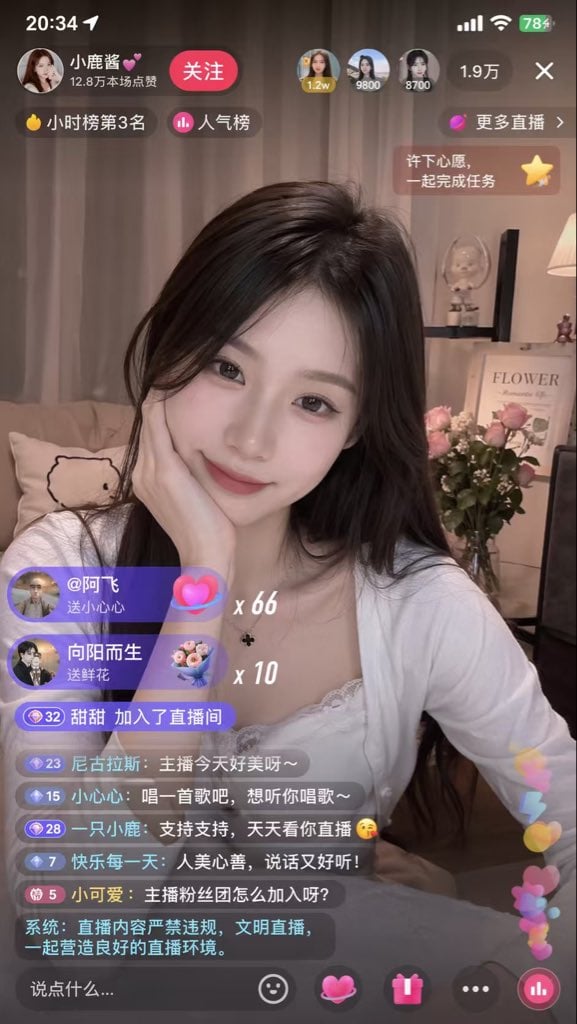
Live Streaming App UI Mockup
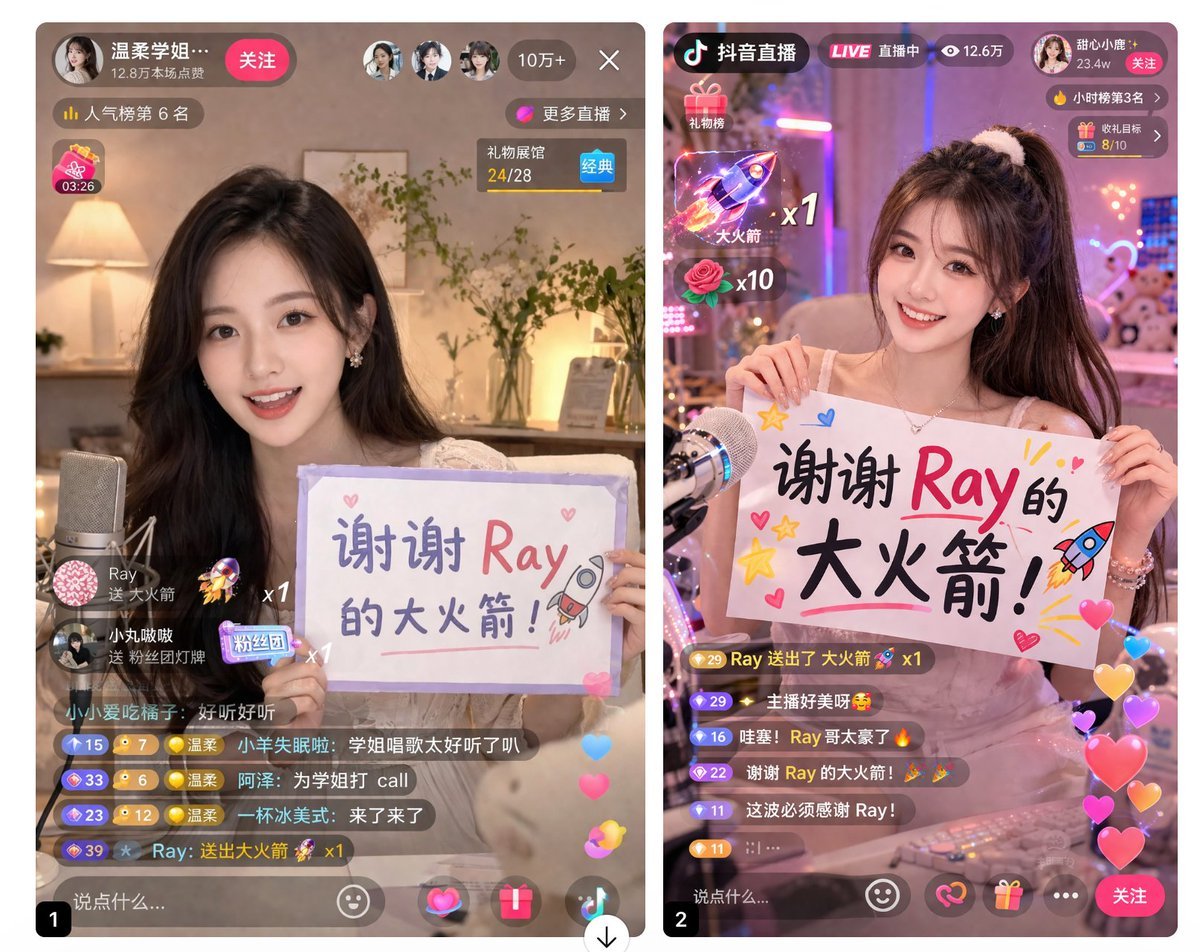
Live Stream App UI Mockup
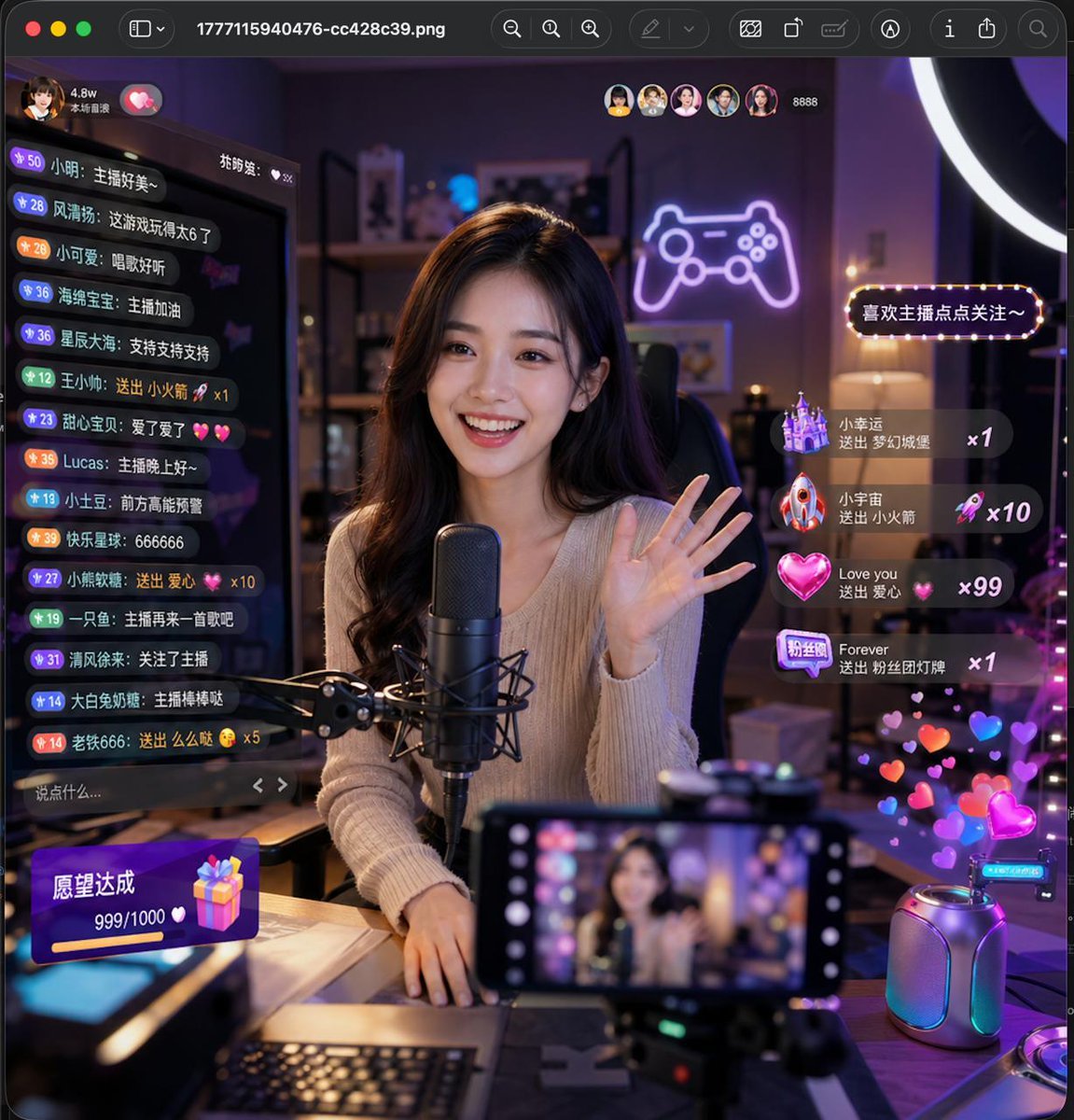
Lively Live Streaming Scene
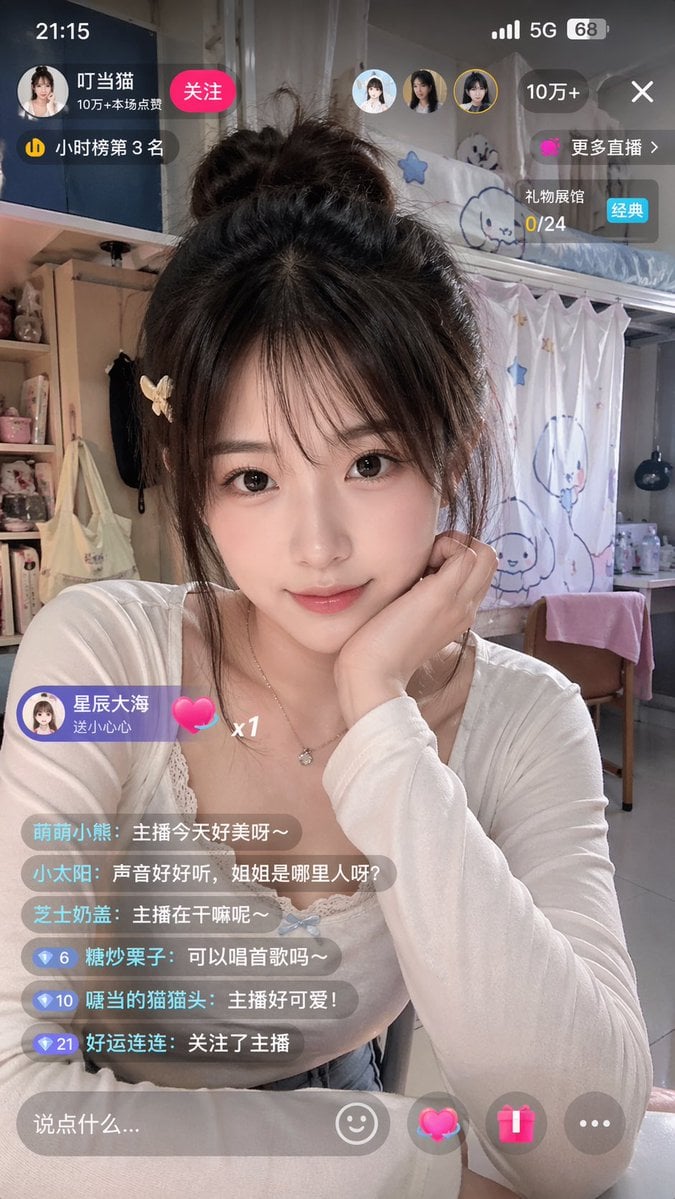
Chinese Livestream Dorm Selfie UI
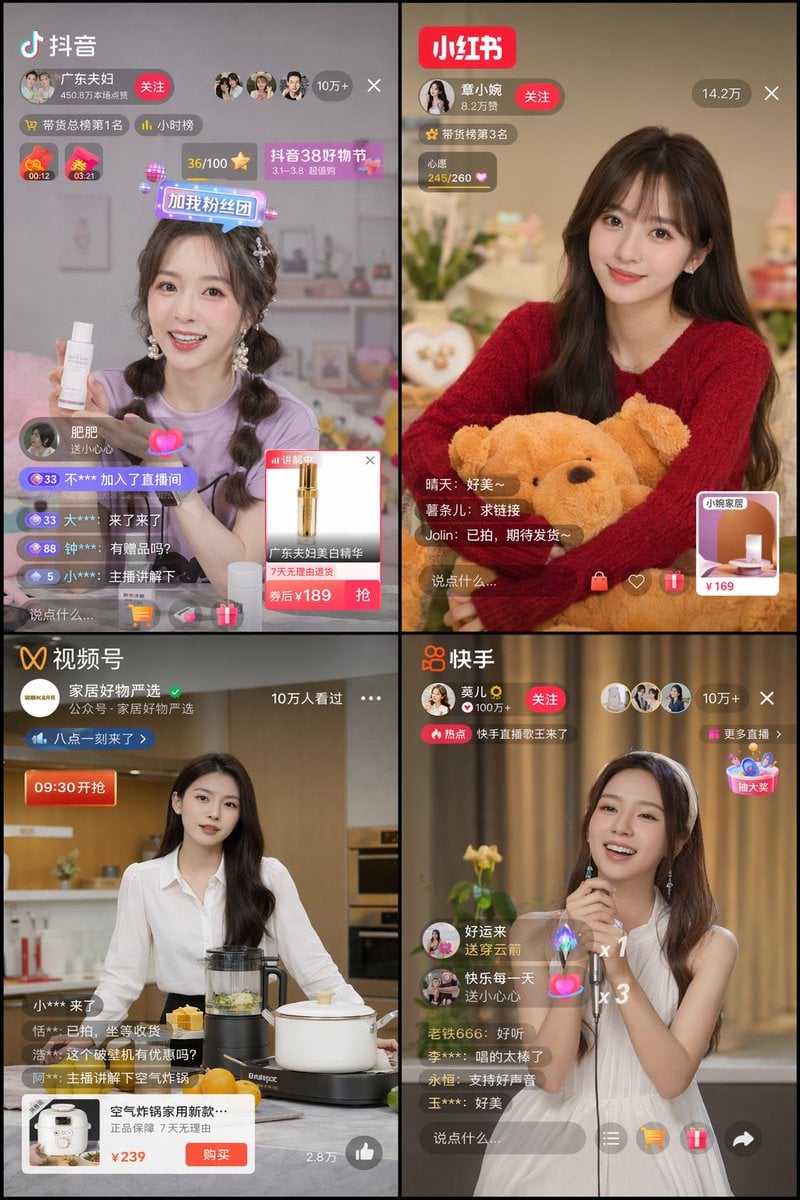
Chinese Livestreaming App UI Grid
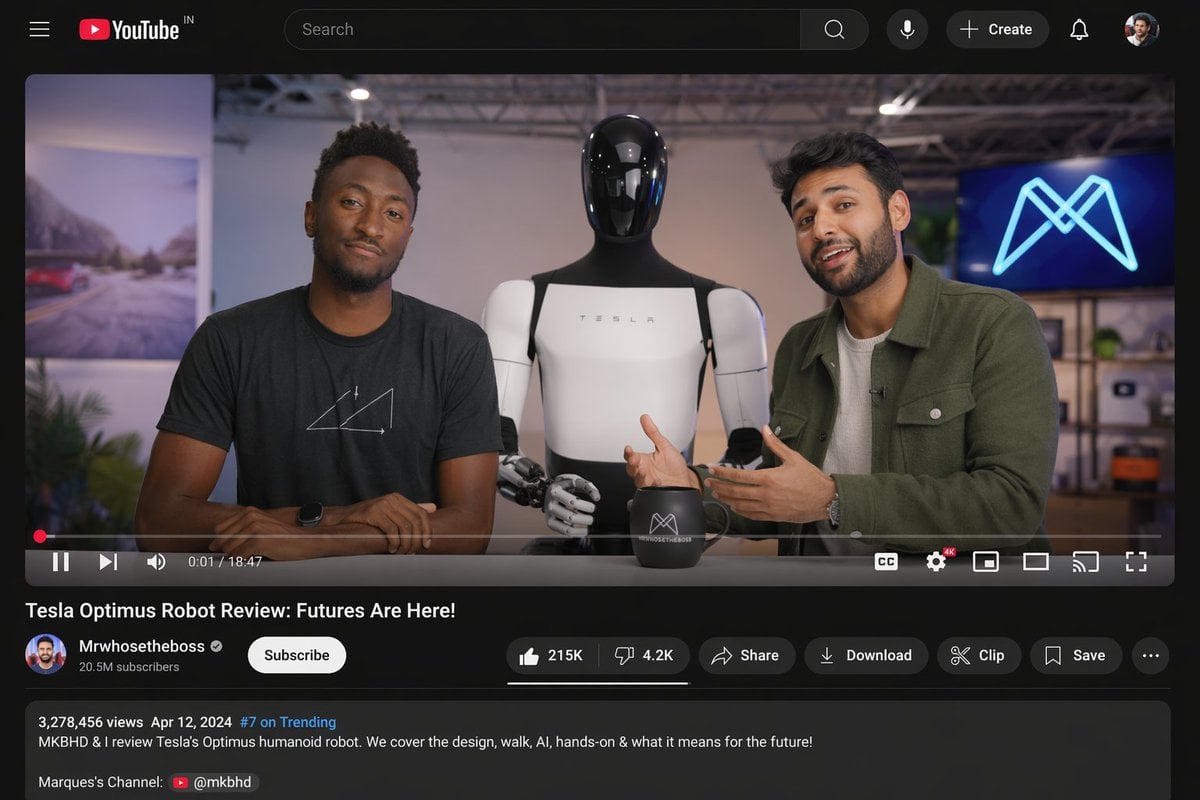
YouTube Video Interface Mockup
Social Media Product Announcement Mockup
Make it yours
YouTube Live Stream Announcement Mockup works as-is. These are the safest ways to change it without losing the look.
Change one field
Copy a single group, rewrite it, and generate again so you can see what that field is doing.
Keep the frame, change the subject
Hold the composition and light of YouTube Live Stream Announcement Mockup, then swap wardrobe, props or the person for a new take.
| If the result… | Why | Fix |
|---|---|---|
| The result drifts from the preview | Too many fields changed at once. | Reuse YouTube Live Stream Announcement Mockup as-is first, then change one group — subject, light, or setting. |
| GPT Image 2 ignores part of the JSON | Some models flatten or skip nested keys. | Keep the same values and paste them as a short paragraph instead. |
More GPT Image 2 templates
Other prompts made for GPT Image 2.

Six VTuber Japanese Logo Sheet

Realistic Portrait of Woman and Deer

The Vista Modular Condo Poster

AI Model Routing Comparison Infographic

2.5D Anime Art Board

Isometric Productivity Desk Scene

New York Double Exposure Poster

Four-Panel AI Landscape Comparison

Japanese Tatami Lifestyle Magazine Cover

NESCAFÉ Coffee Map Poster
More image prompts
Fresh picks from across the catalog.
Celestial Anime Idol Collage
Social Media Screenshot Generator

Urban Street Portrait with Cartoon Inner Self Duo
Illustration-to-Clock Transformation Prompt
Character Headshot Comparison Prompt
Ultra-Realistic Beverage Product Photography
Venice Café Diorama Display
Serene Lakeside Pier Portrait Prompt
Anime Style Infographic Catalog
Sticker Pack Facial Expressions Grid
Browse template categories
YouTube Live Stream Announcement Mockup questions
How do I use the YouTube Live Stream Announcement Mockup template?
Add your photo if the template asks for one, edit the prompt if you like — the template's model and format are already selected — and press Generate. Your version opens in PicX Studio.
Can I customize the YouTube Live Stream Announcement Mockup template?
Yes. You can change the subject, setting, lighting, mood, format, and available model controls before creating your image.
Is the YouTube Live Stream Announcement Mockup template free?
Opening and editing this template is free. Generating uses credits, shown on the Generate button when you are signed in.
Which AI model should I use?
Start with GPT Image 2, which is the model associated with this template. You can compare another compatible model for a different finish.
Looking for something else? Browse all templates.

Your photo, any look
Thousands of ready templates for every top image and video model, from one credit balance.