
Chibi Rabbit OpenPose Diagram
A clean cartoon prompt for generating a front-facing chibi animal character with a visible OpenPose-style keypoint skeleton, useful for pose-estimation demos, dataset examples, or AI vision illustrations.
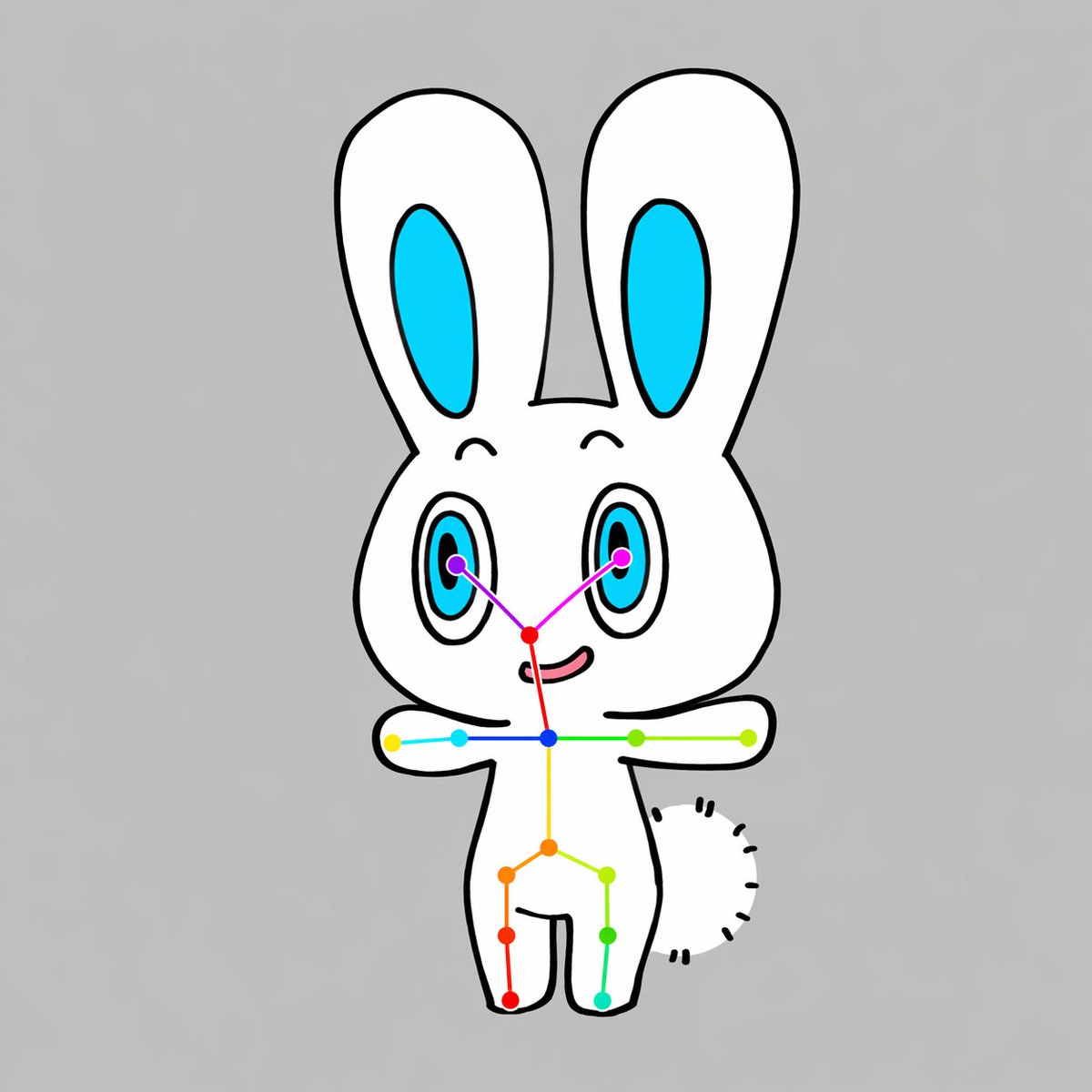
- Prompt included
- Model and format preset
- Free template
The prompt behind this image
Copy the exact prompt behind Chibi Rabbit OpenPose Diagram, or open it in the studio and make it yours.
A simple centered full-body illustration of a cute chibi {argument name="animal type" default="rabbit"} character on a plain {argument name="background color" default="light gray"} background, drawn in a flat cartoon style with thick clean black outlines and minimal shading. The character has a white body, a large rounded head, 2 tall upright ears with bright cyan inner ear shapes, 2 large oval eyes with cyan irises, black pupils, and small highlights, tiny curved eyebrows, a small red-pink nose area, and a slight smiling mouth. The pose is front-facing with both arms stretched straight out horizontally to the sides, legs apart in a simple standing pose, and a short fluffy tail visible on the right side of the body as a curved semicircle made of short black dash marks. Overlay a clear OpenPose-style skeleton marker system on top of the character: 2 purple eye keypoints, 1 red nose keypoint, 1 blue neck keypoint, 2 shoulder keypoints, 2 elbow keypoints, 2 wrist keypoints, 1 yellow spine or pelvis center point, 2 hip keypoints, 2 knee keypoints, and 2 ankle keypoints, for a total of 17 colored points connected by thin colored lines across the face, shoulders, torso, arms, and legs. Use vivid point colors including purple, magenta, red, blue, cyan, green, yellow, orange, and teal so the pose overlay is clearly visible. Keep the composition vertically centered, symmetrical, clean, and diagram-like, with the cute mascot character and pose-estimation overlay as the sole subject.
How to use Chibi Rabbit OpenPose Diagram in 3 steps
- 1Upload ImagePNG, JPG or paste
Add your photo
Upload the photo the template builds on. The prompt, model and format are already set.
- 2…a portrait of your subject in softgolden-hour light, 85mm…
Personalize
Edit the subject and creative details for your destination.
- 3Generate
Generate
Press Generate — your image is created in PicX Studio, so you can compare it with the original and refine one variable at a time.
More like this
Templates with the same subject, style or setup. Open one to see its prompt.
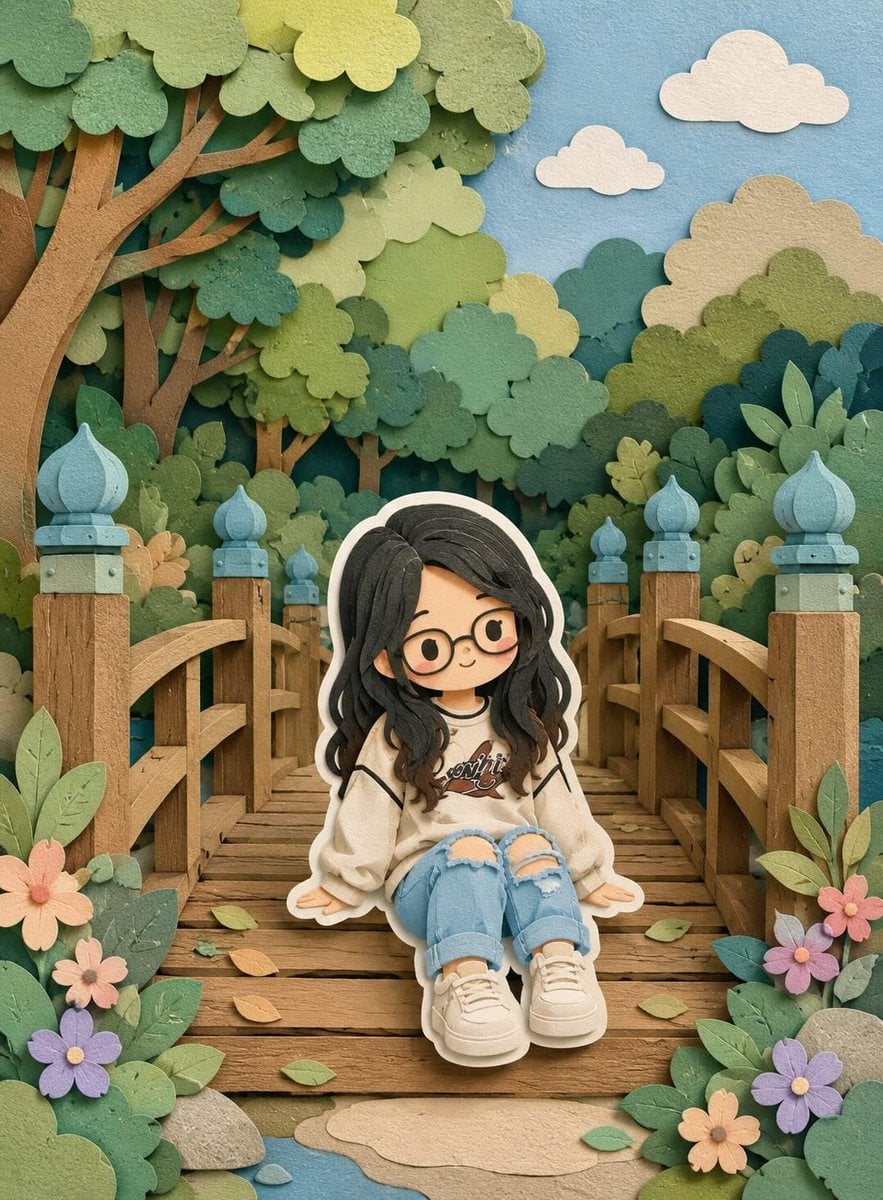
Cute Layered Paper Cut Chibi Girl
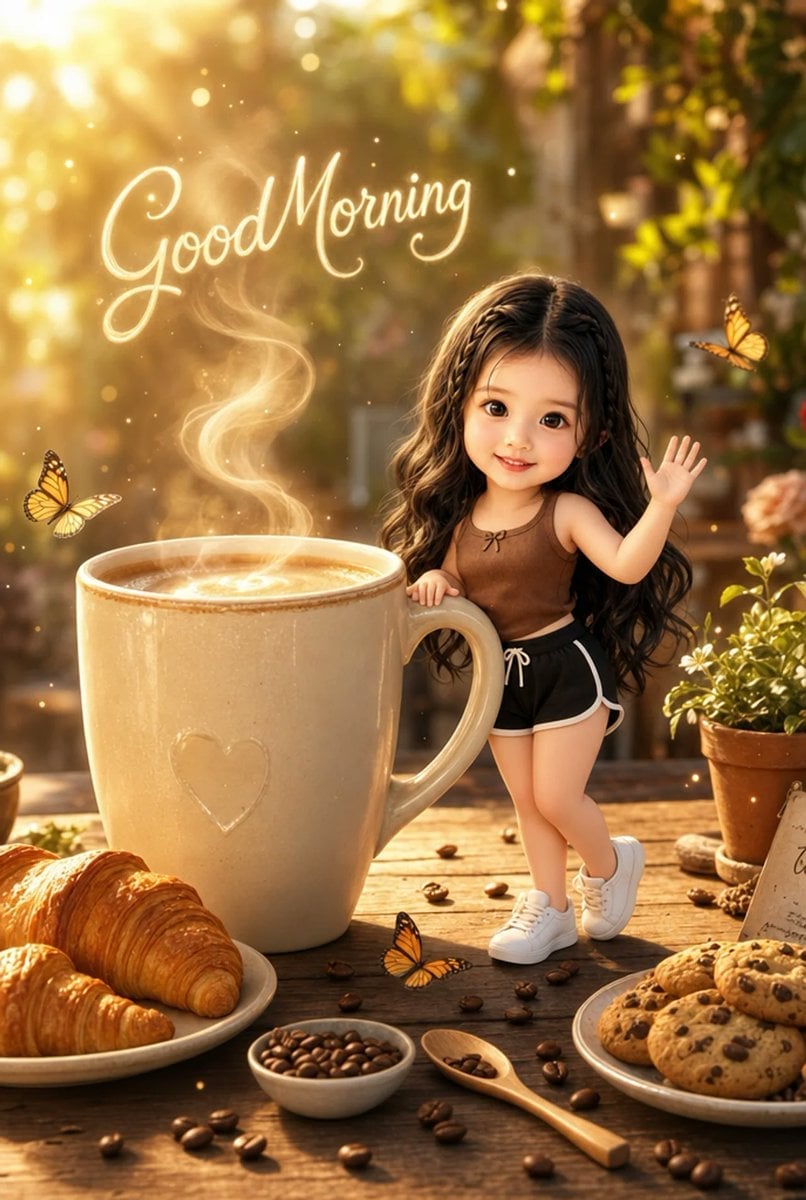
Pixar-Style Chibi Café Morning Scene
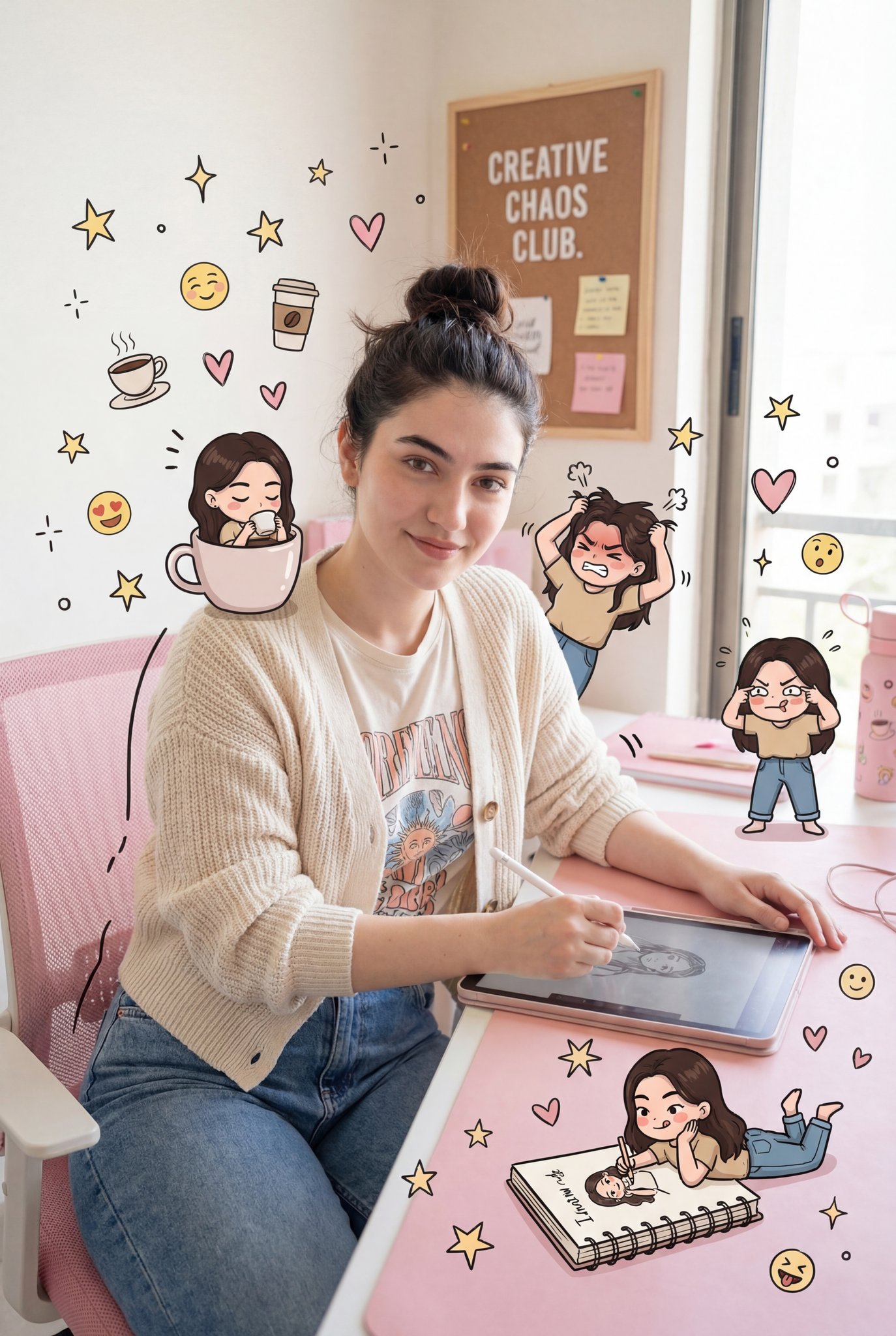
Nano Banana Pro Pink Office Chibi
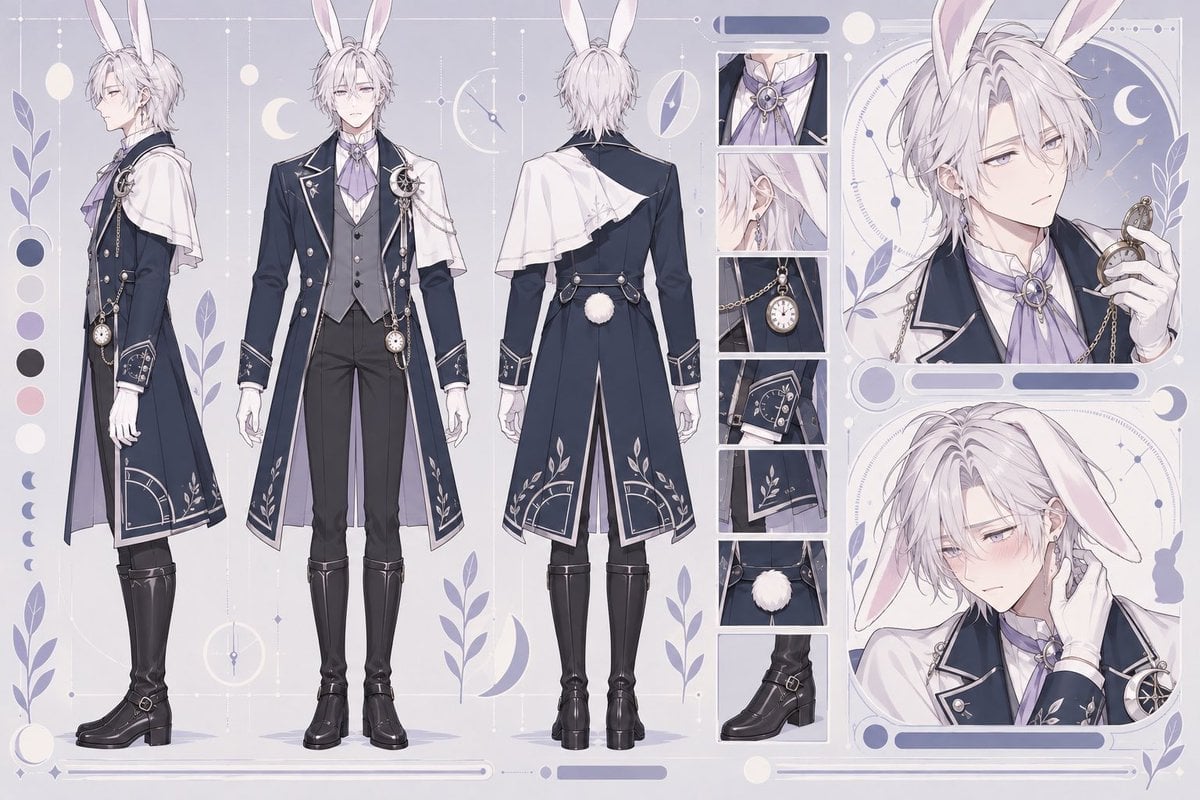
Rabbit Gentleman Character Sheet
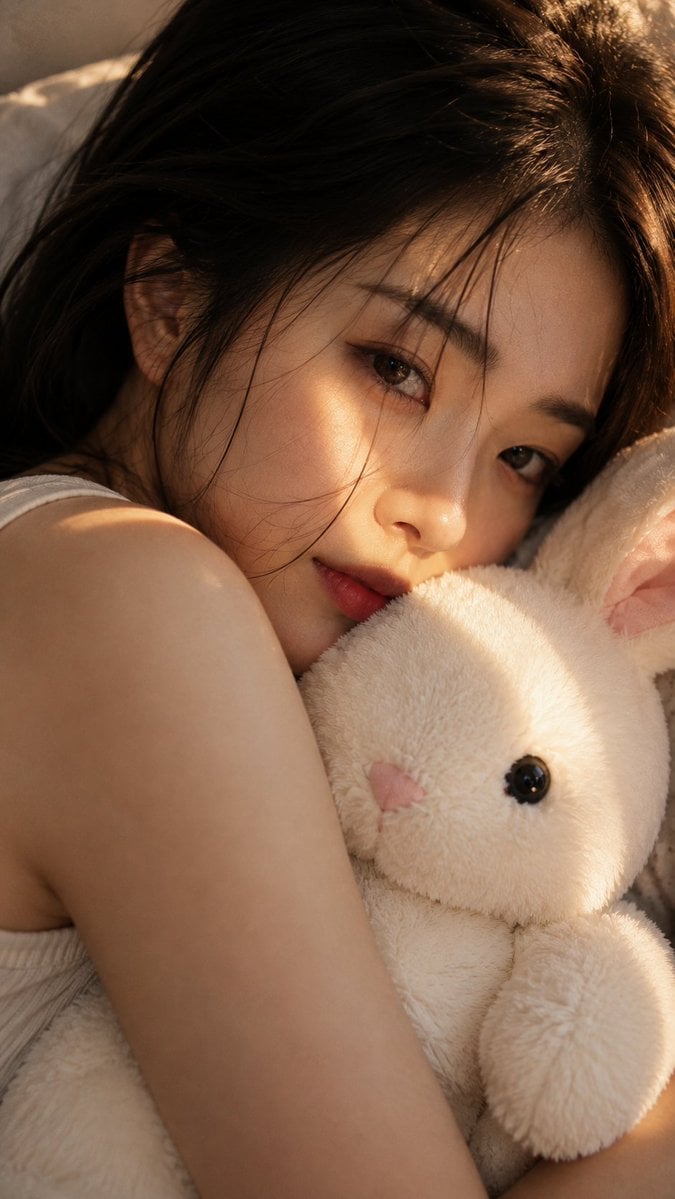
Woman with Plush Rabbit Close-up
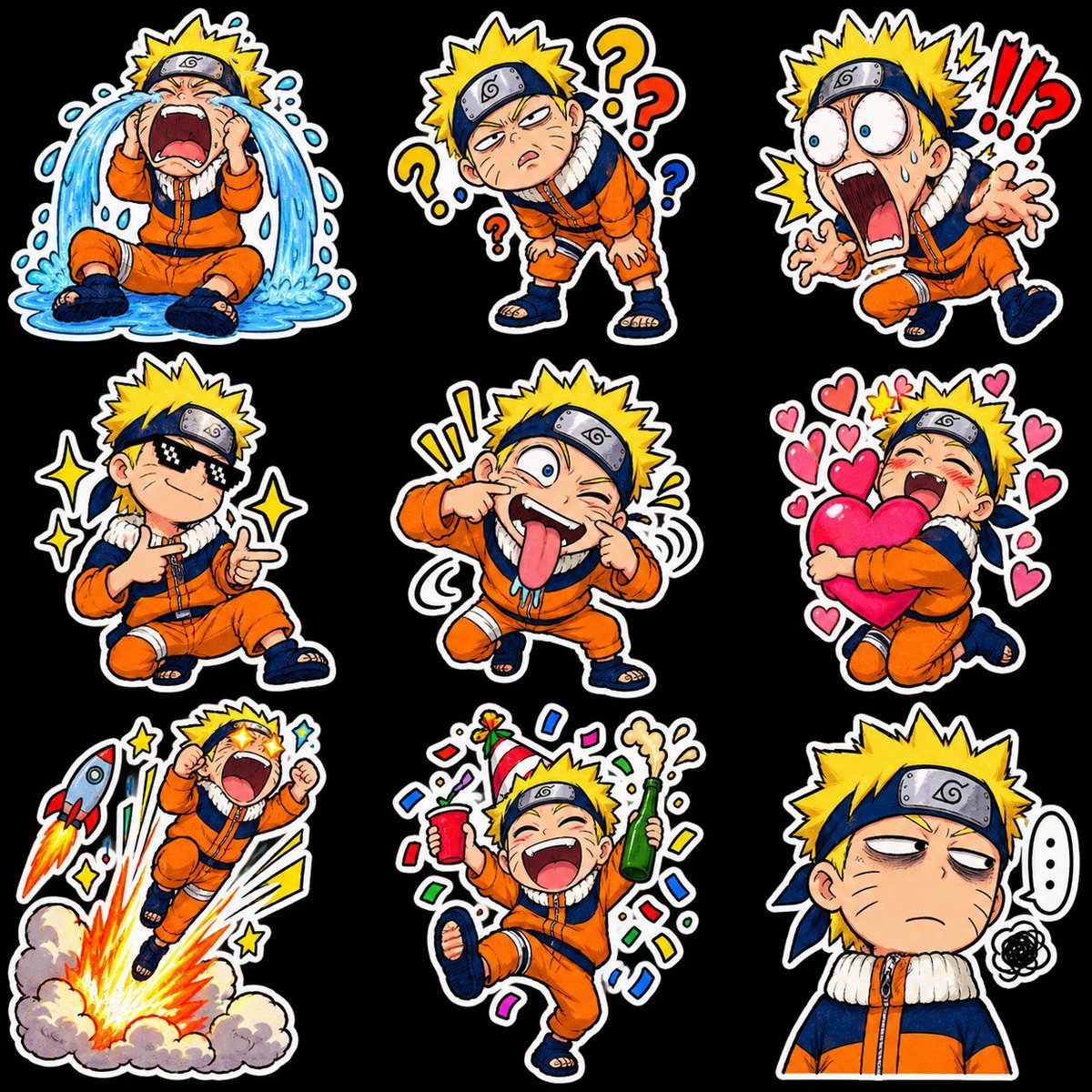
Chibi Anime Ninja Sticker Sheet
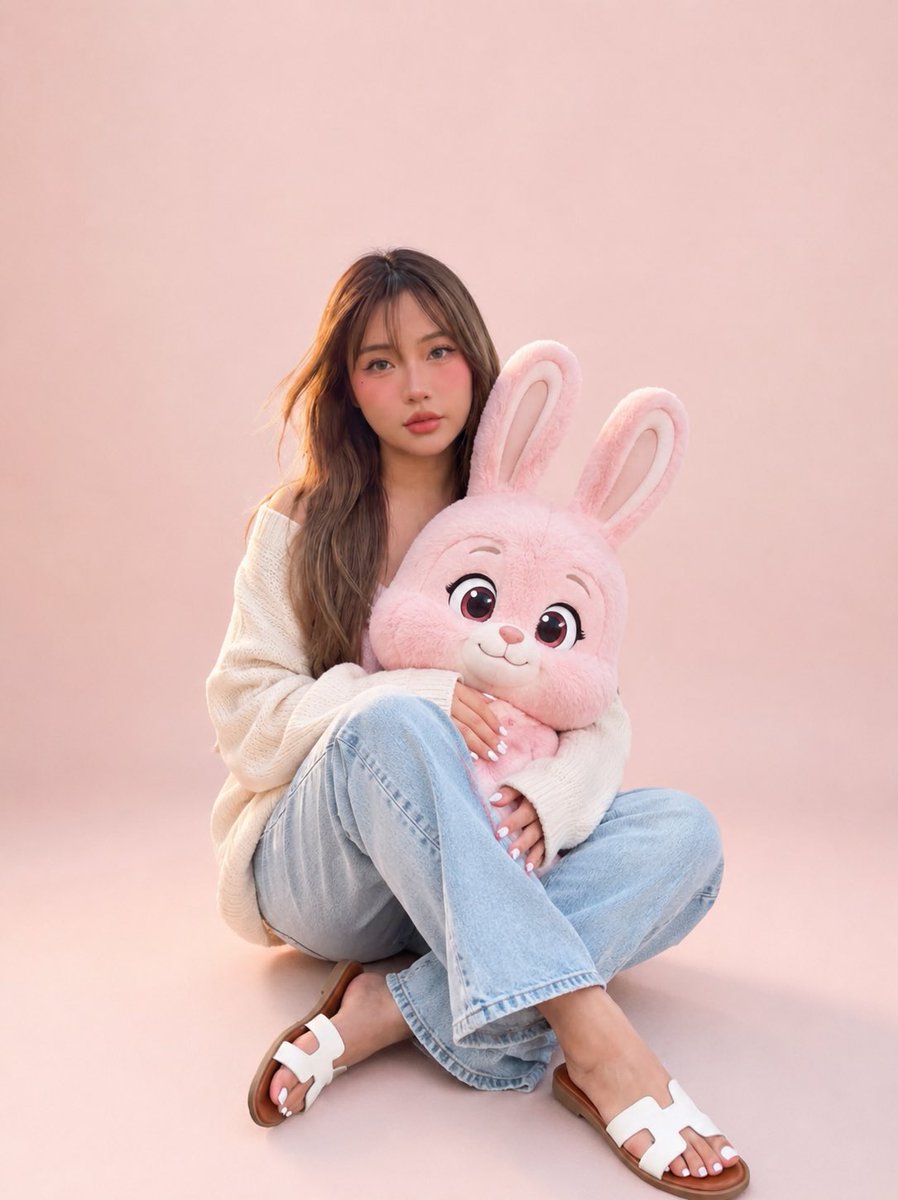
Portrait with Cartoon Pink Rabbit
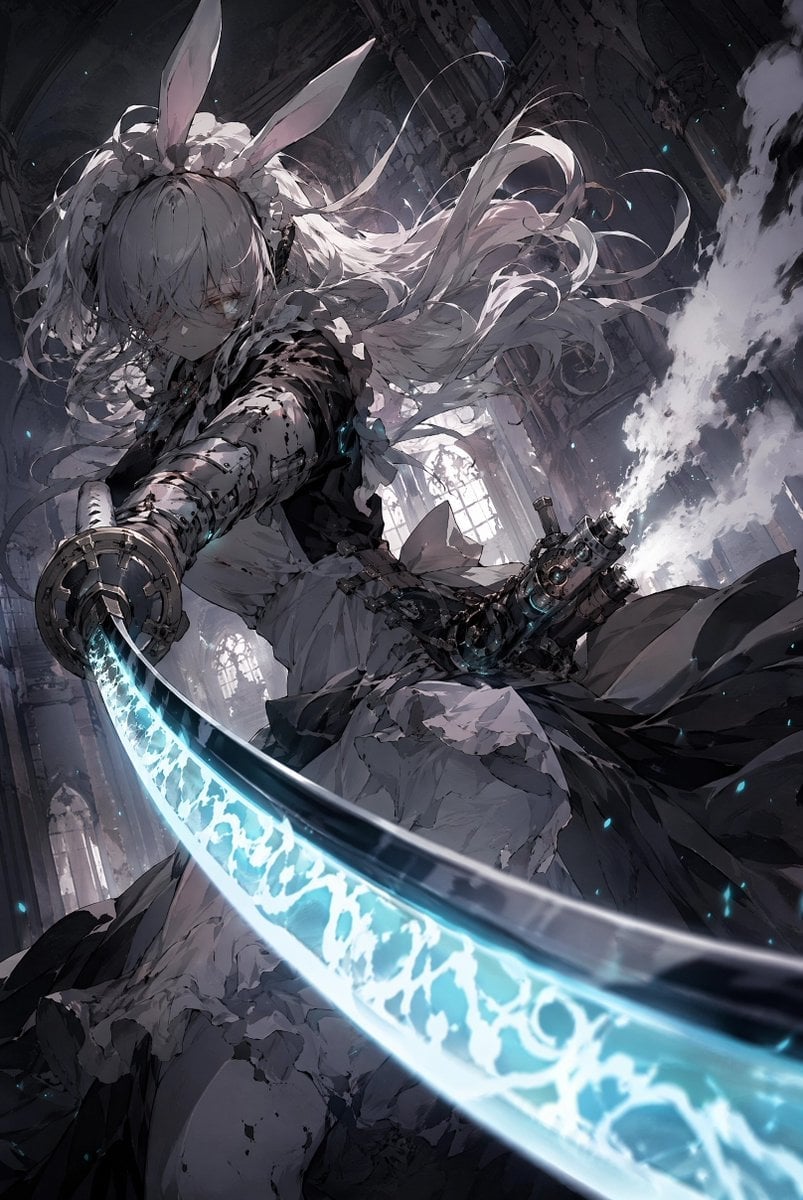
Rabbit-Eared Swordswoman in Ruined Cathedral
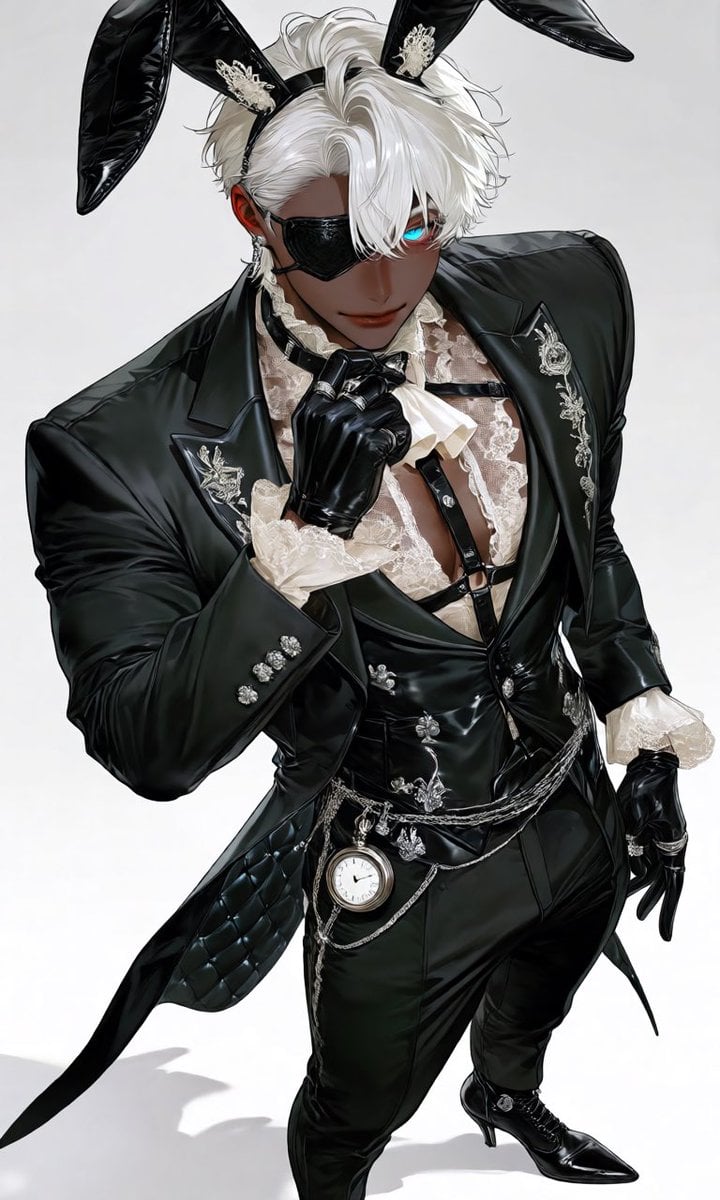
Luxury Rabbit Suit Fashion
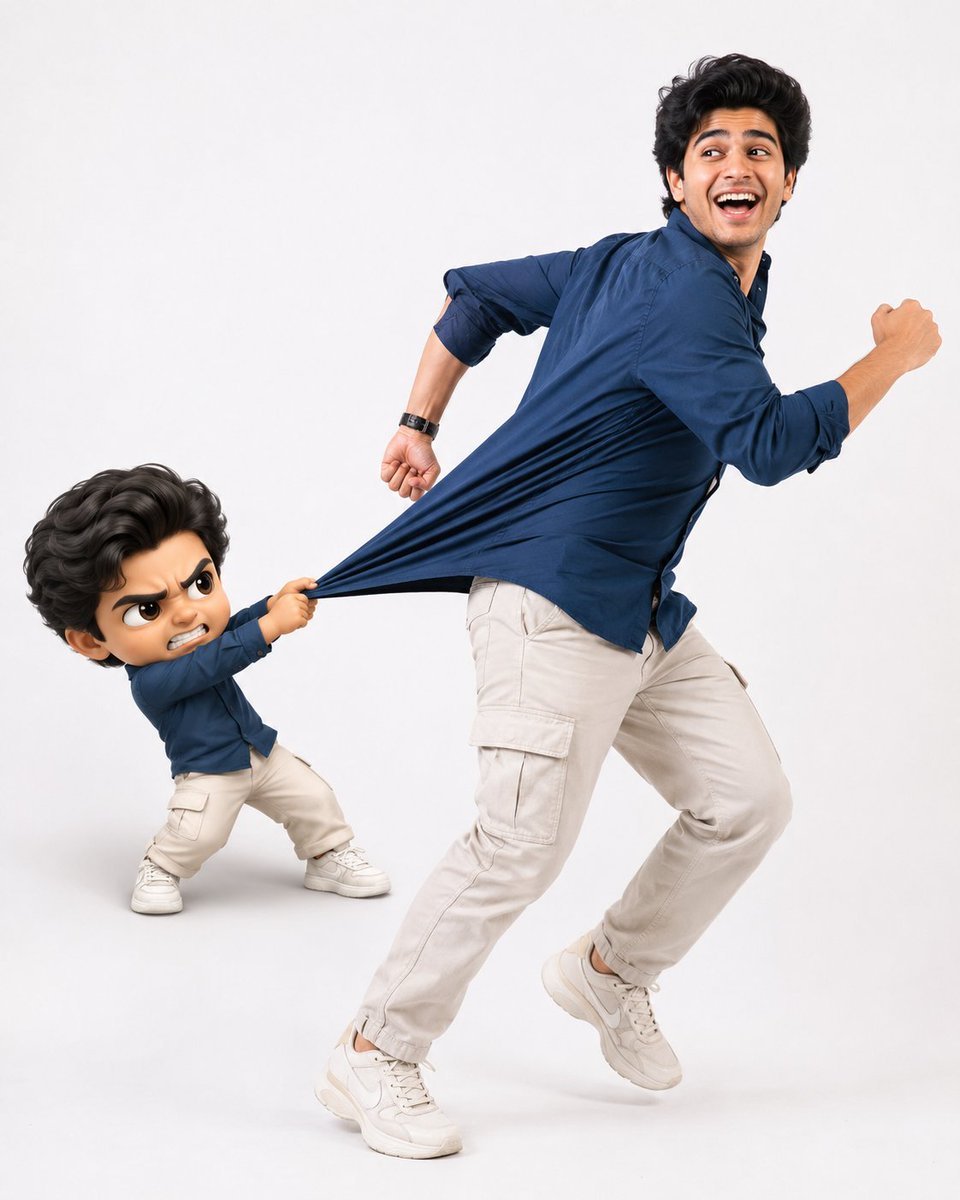
Playful Semi-Chibi Lifestyle Editorial
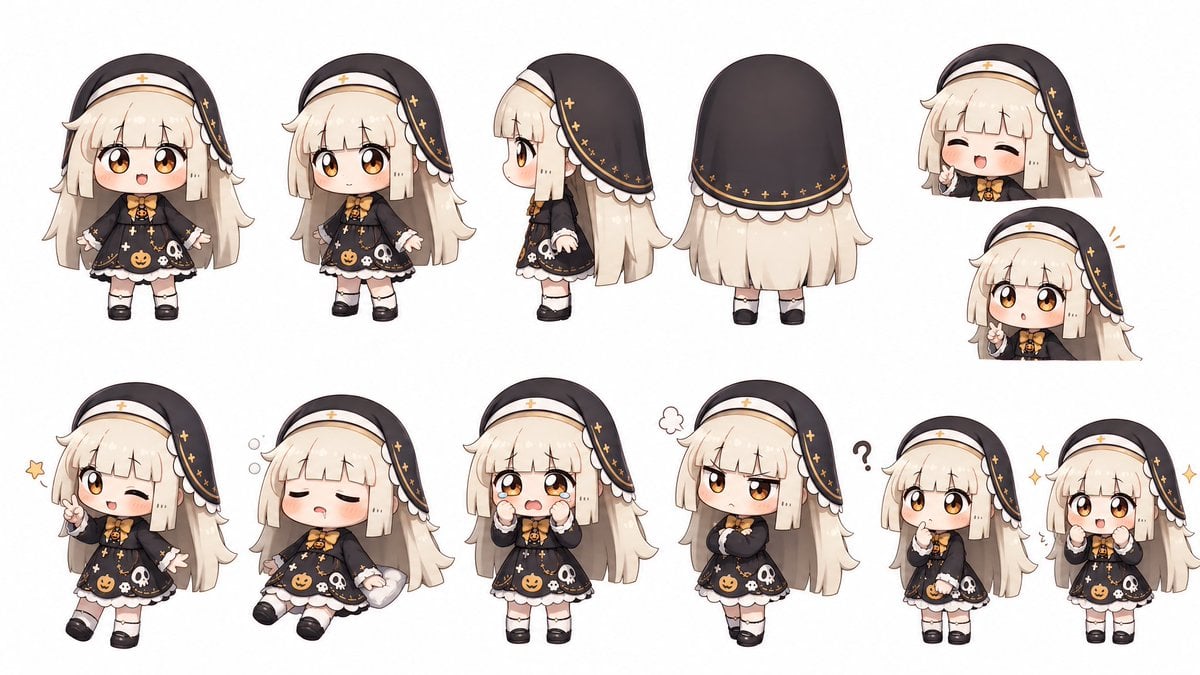
Halloween Nun Chibi Character Sheet
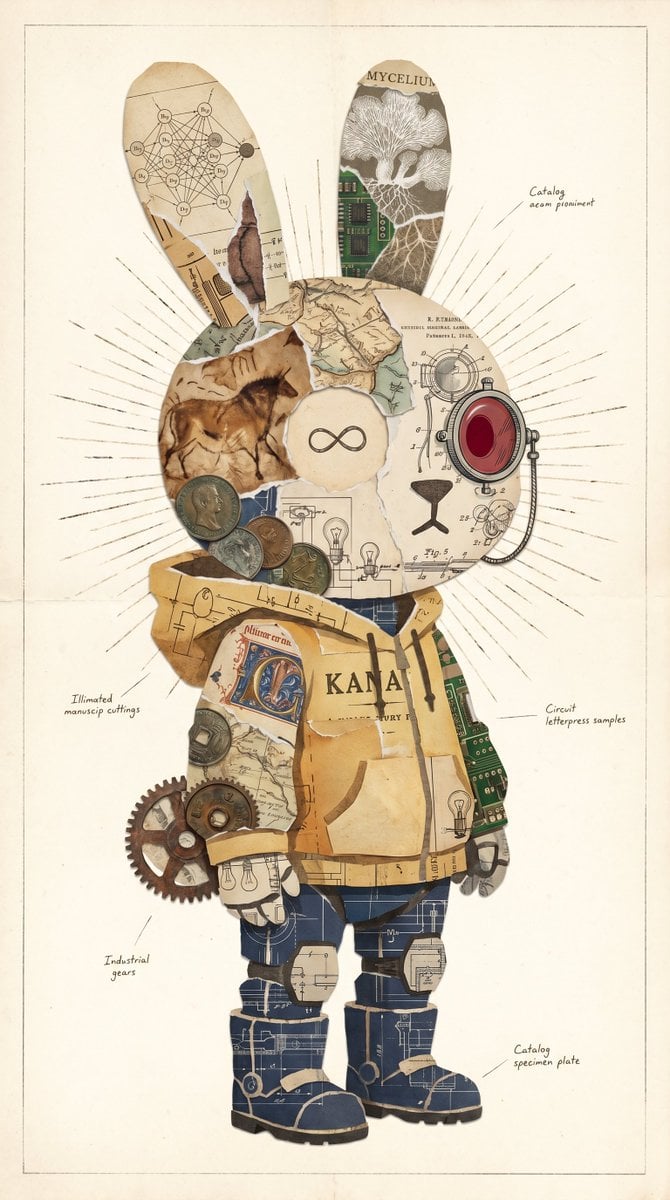
Vintage Rabbit Collage Specimen
Make it yours
Chibi Rabbit OpenPose Diagram works as-is. These are the safest ways to change it without losing the look.
Change one field
Copy a single group, rewrite it, and generate again so you can see what that field is doing.
Keep the frame, change the subject
Hold the composition and light of Chibi Rabbit OpenPose Diagram, then swap wardrobe, props or the person for a new take.
| If the result… | Why | Fix |
|---|---|---|
| The result drifts from the preview | Too many fields changed at once. | Reuse Chibi Rabbit OpenPose Diagram as-is first, then change one group — subject, light, or setting. |
| The model over-stylizes the scene | The prose prompt leaves finish and camera underspecified. | Add one camera or lighting sentence and stay on GPT Image 2. |
More GPT Image 2 templates
Other prompts made for GPT Image 2.

Six VTuber Japanese Logo Sheet

Realistic Portrait of Woman and Deer

The Vista Modular Condo Poster

AI Model Routing Comparison Infographic

2.5D Anime Art Board

Isometric Productivity Desk Scene

New York Double Exposure Poster

Four-Panel AI Landscape Comparison

Japanese Tatami Lifestyle Magazine Cover

NESCAFÉ Coffee Map Poster
More image prompts
Fresh picks from across the catalog.
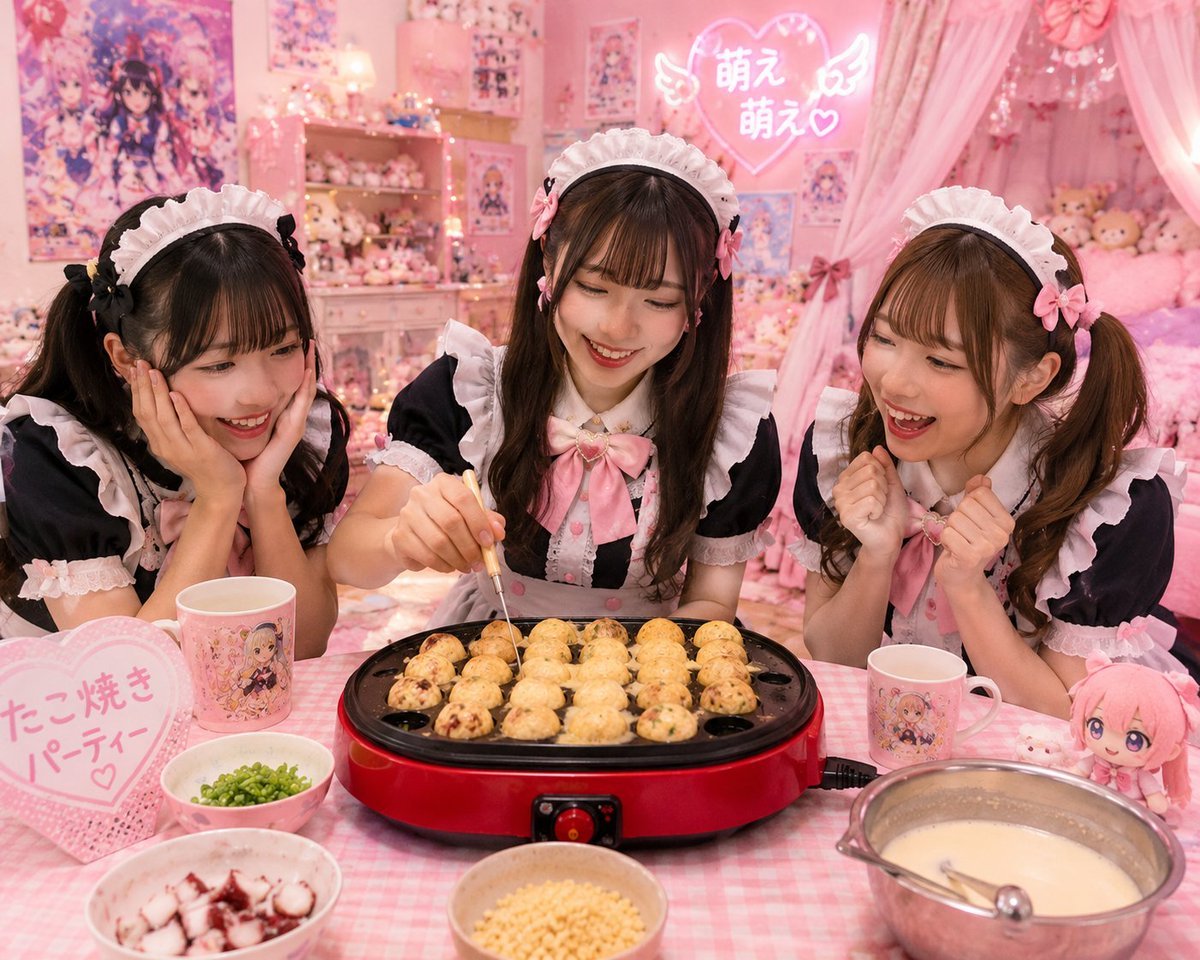
Kawaii Takoyaki Maid Party
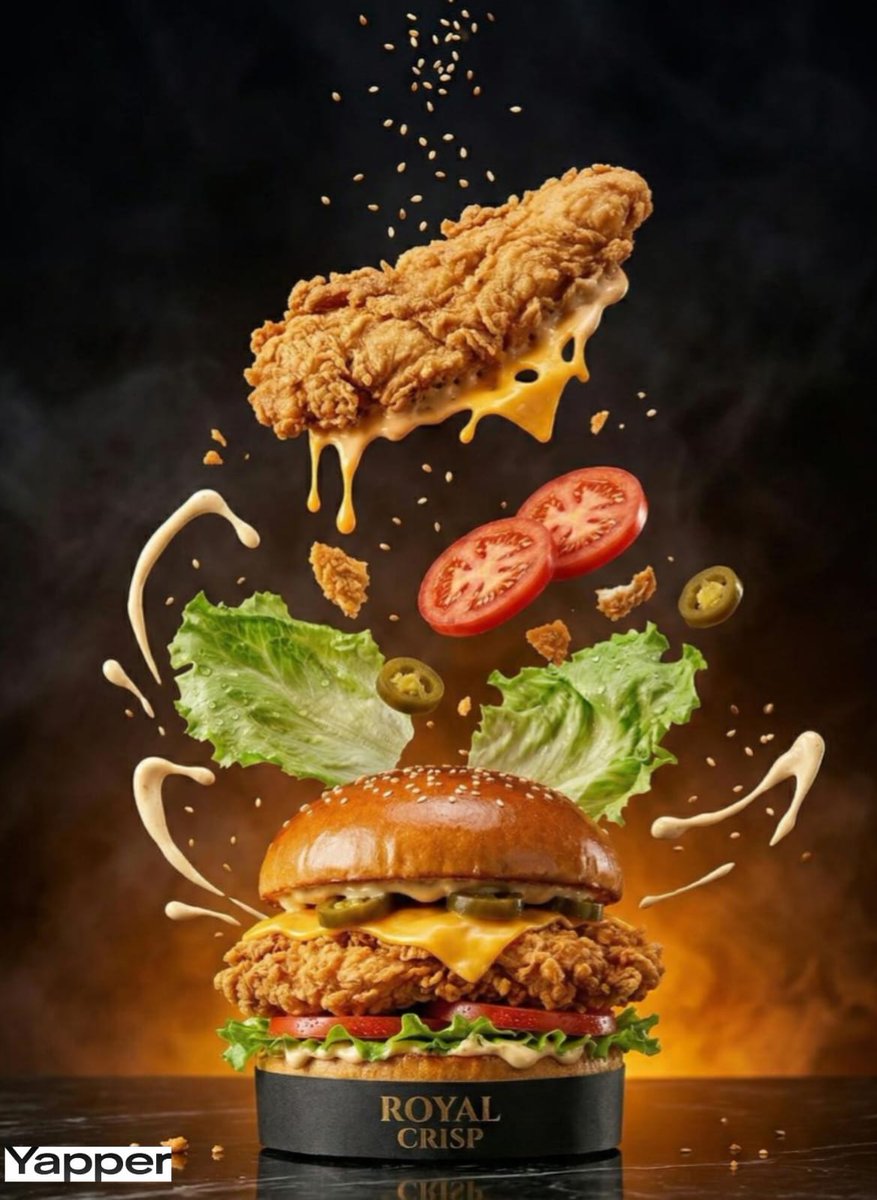
Luxury Chicken Burger Ingredient Explosion Commercial
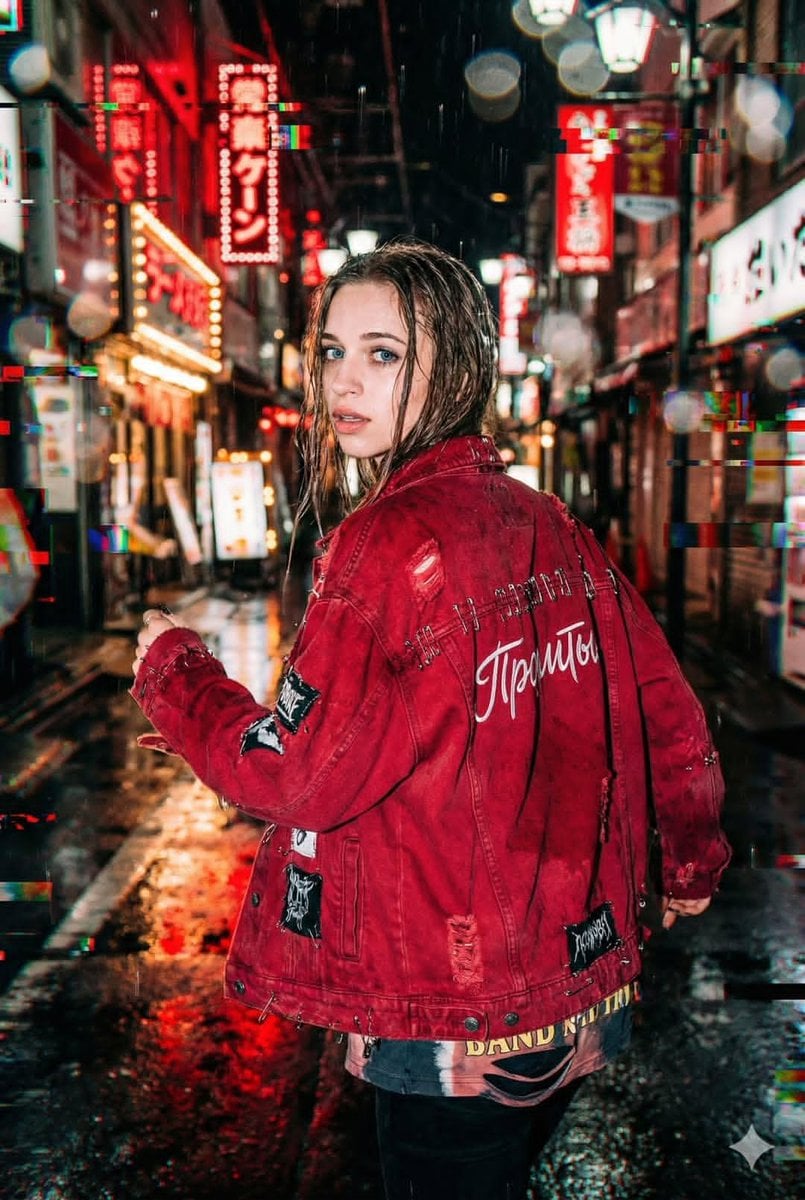
Neo-Tokyo Street Style Portrait Prompt with Glitch Effects
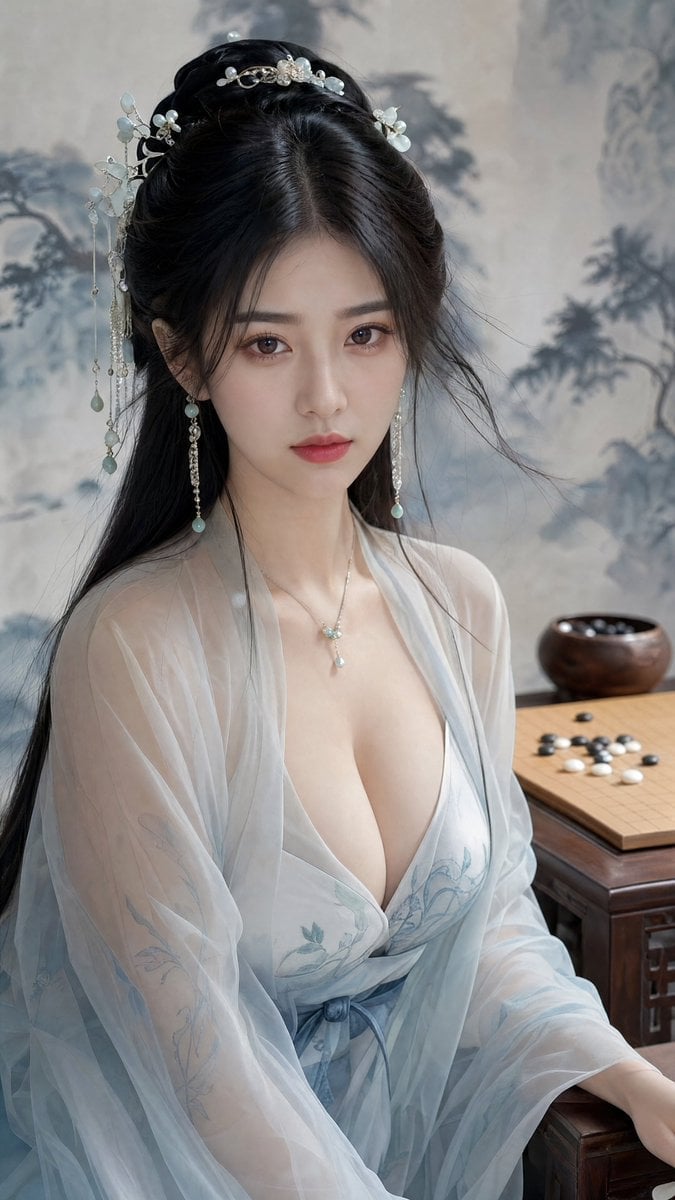
Classical Chinese Go Portrait
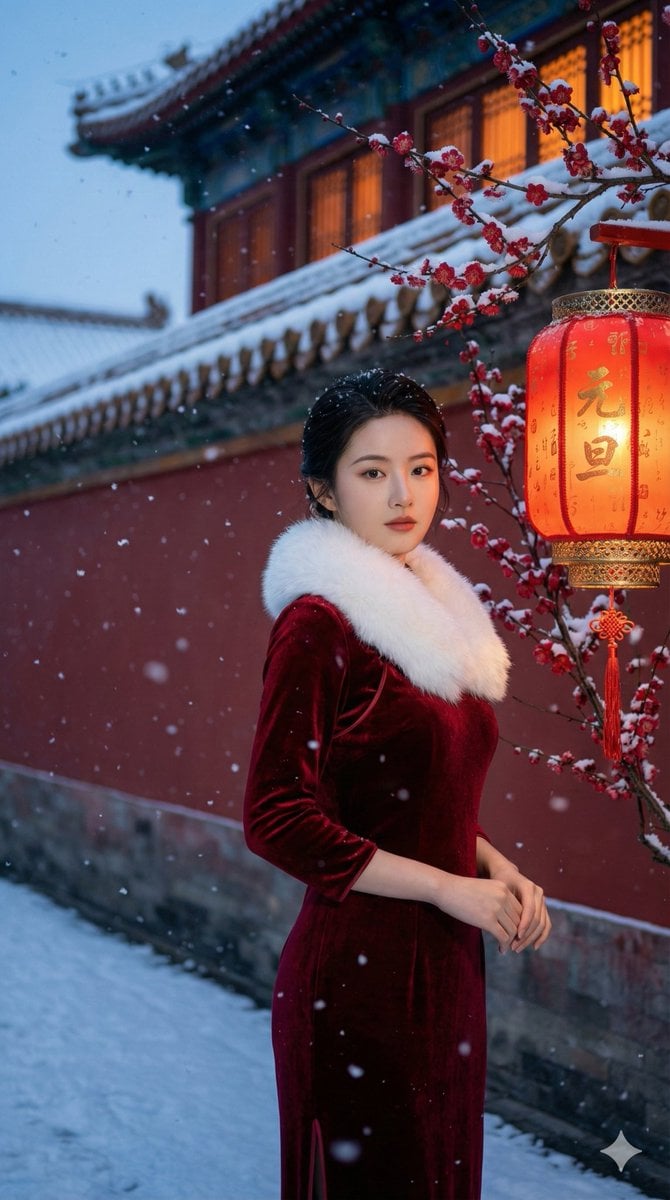
New Year's Day Special: Forbidden City in Snow
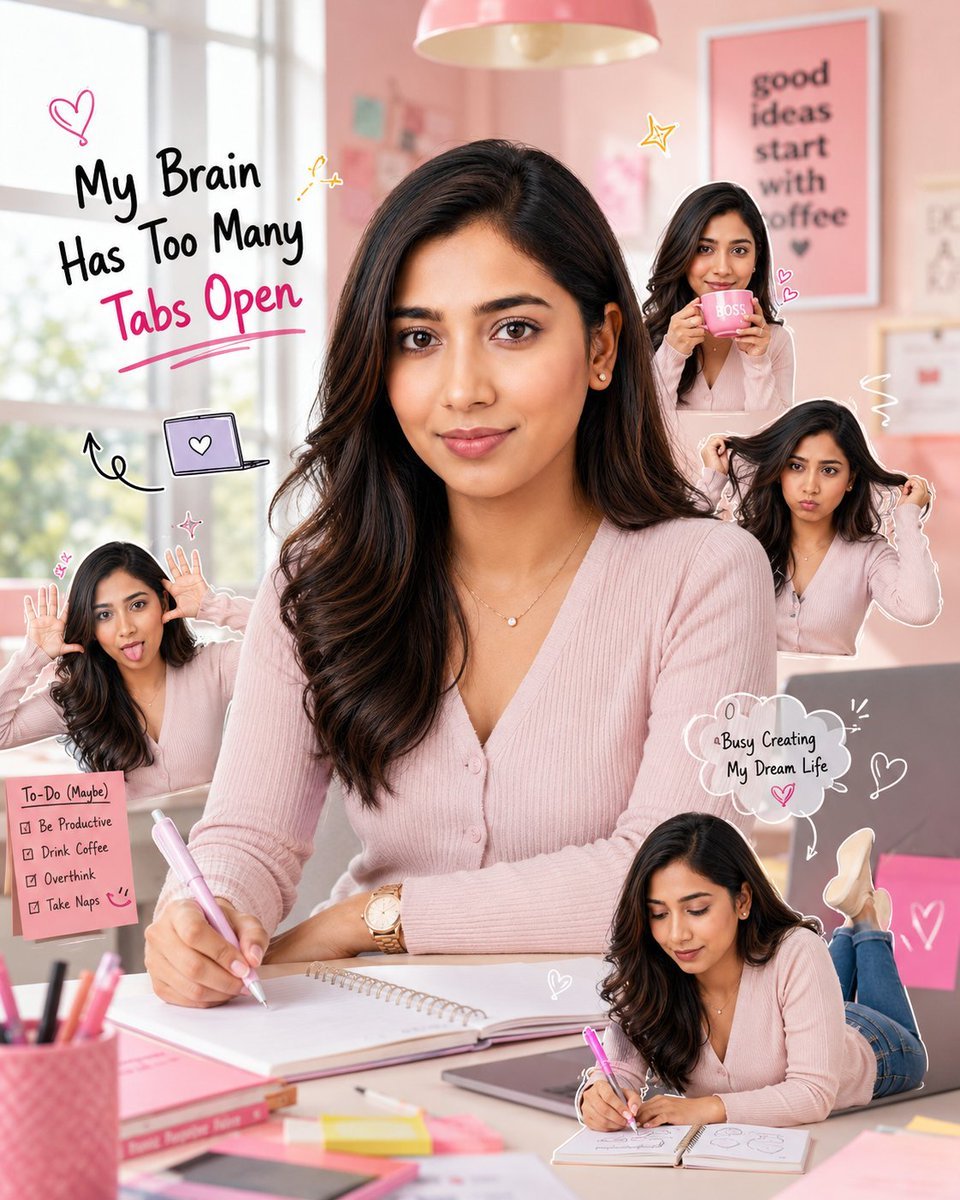
Creative Pink Office Portrait with Chibi Characters
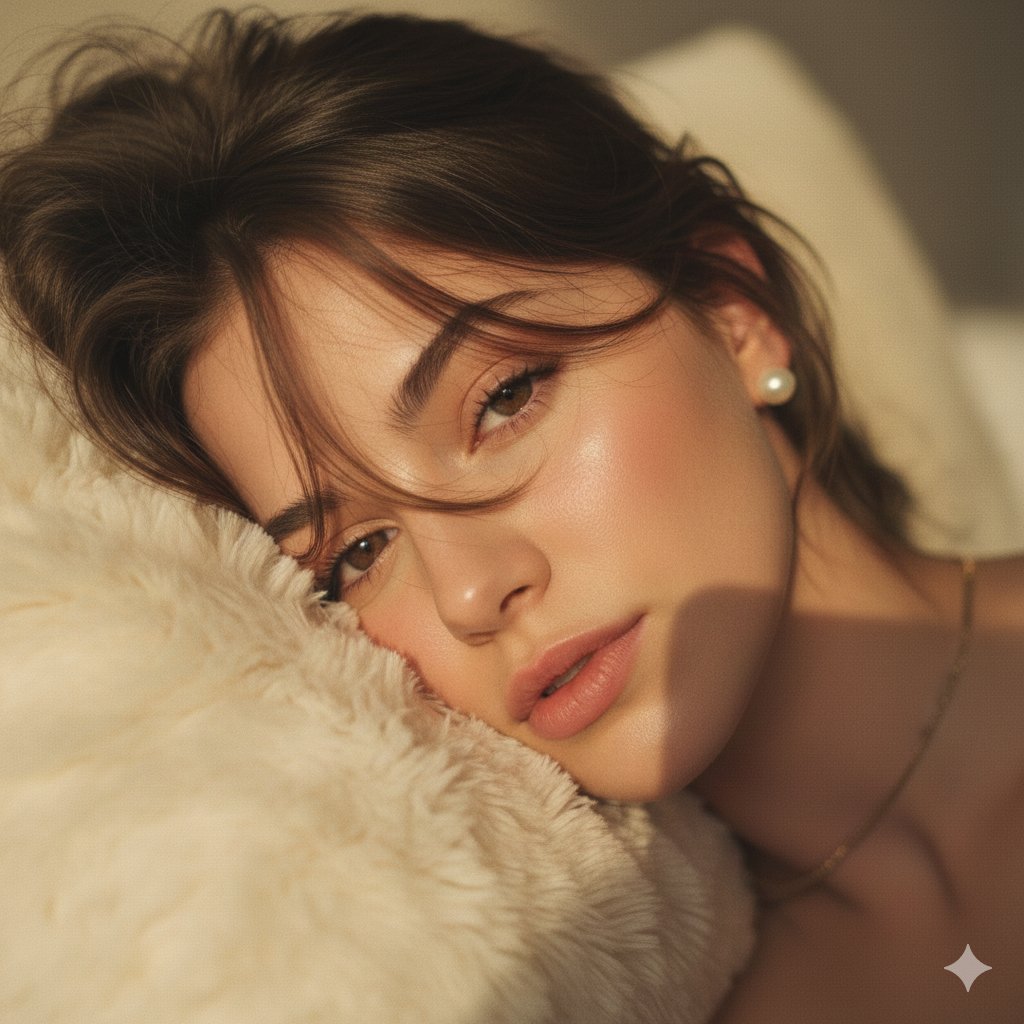
Hyper-Realistic POV Selfie with Bedhead Aesthetic
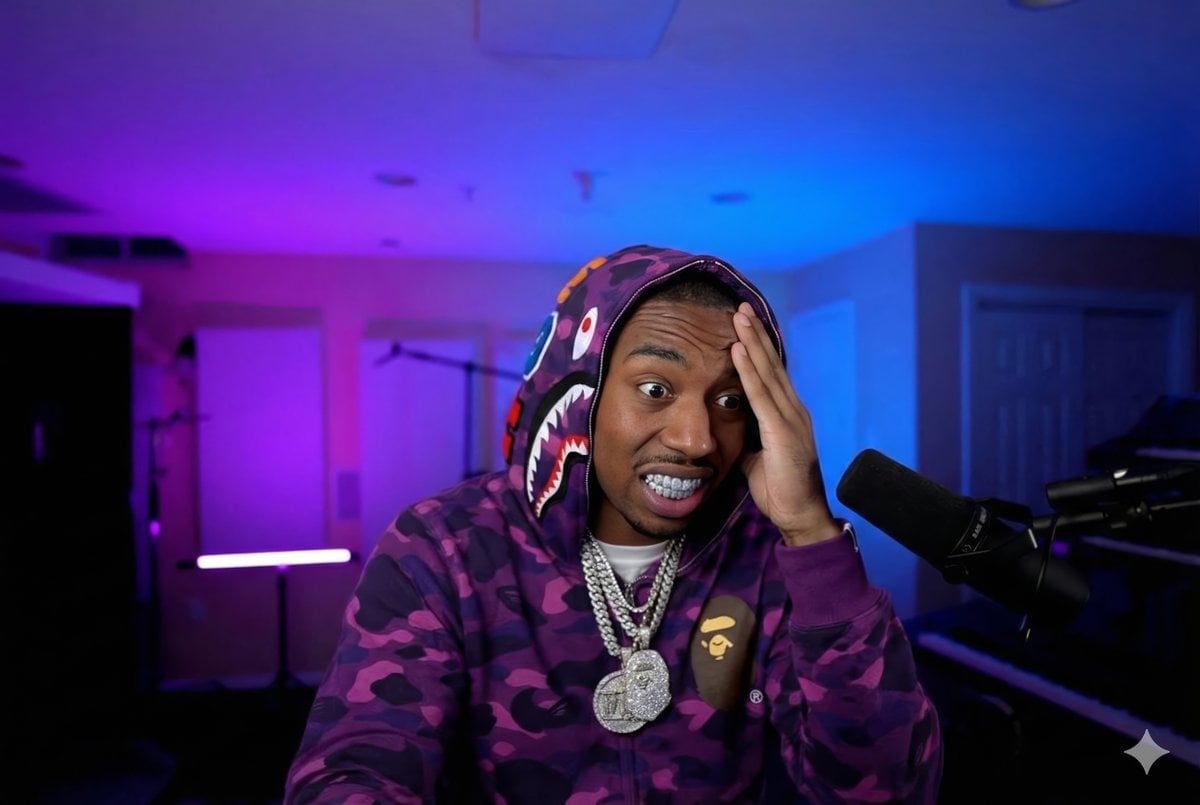
Rapper Transformation Prompt
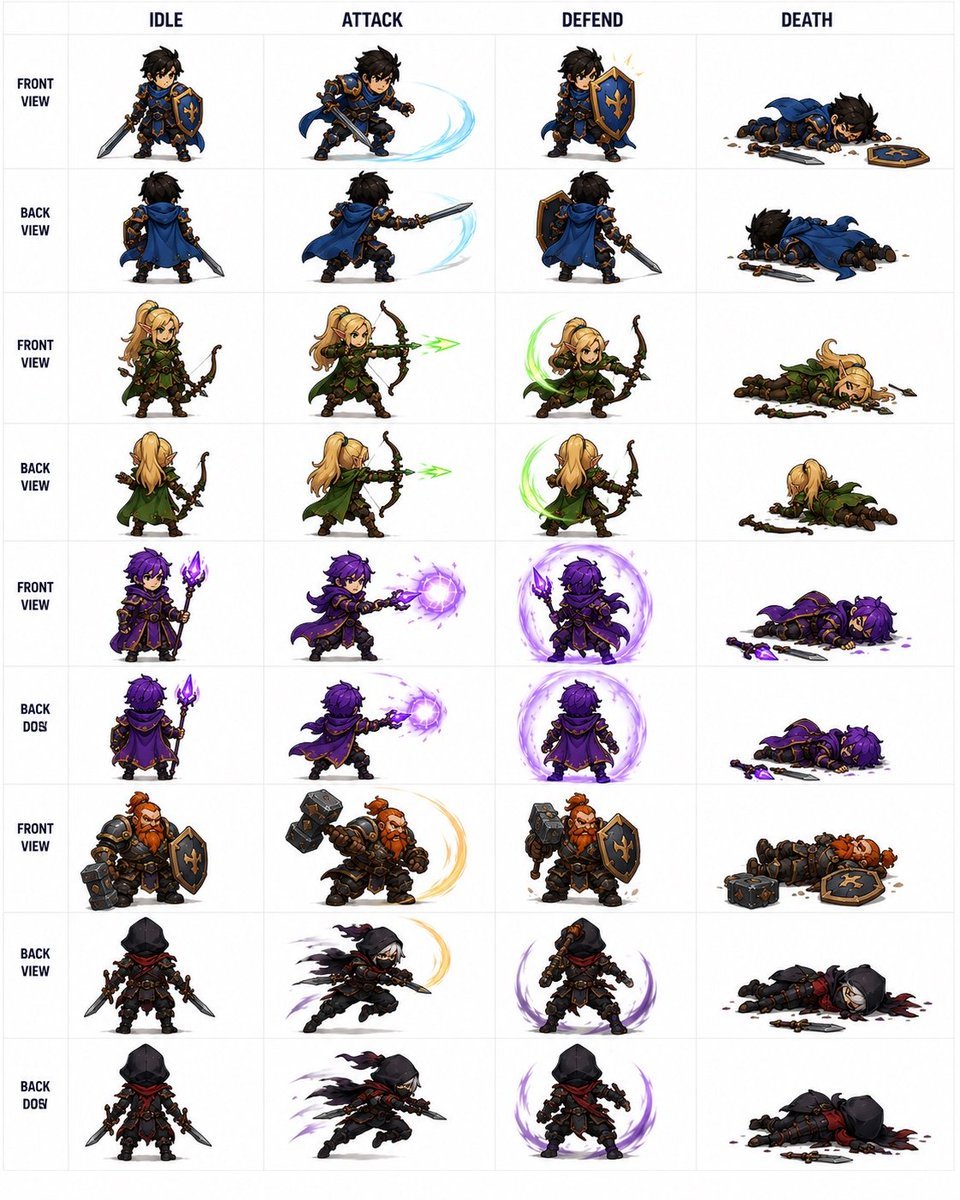
Fantasy RPG Character Sprite Sheet
Simple image integration prompt
Browse template categories
Chibi Rabbit OpenPose Diagram questions
How do I use the Chibi Rabbit OpenPose Diagram template?
Add your photo if the template asks for one, edit the prompt if you like — the template's model and format are already selected — and press Generate. Your version opens in PicX Studio.
Can I customize the Chibi Rabbit OpenPose Diagram template?
Yes. You can change the subject, setting, lighting, mood, format, and available model controls before creating your image.
Is the Chibi Rabbit OpenPose Diagram template free?
Opening and editing this template is free. Generating uses credits, shown on the Generate button when you are signed in.
Which AI model should I use?
Start with GPT Image 2, which is the model associated with this template. You can compare another compatible model for a different finish.
Looking for something else? Browse all templates.

Your photo, any look
Thousands of ready templates for every top image and video model, from one credit balance.