
Anime Idol Guitarist Contact Sheet
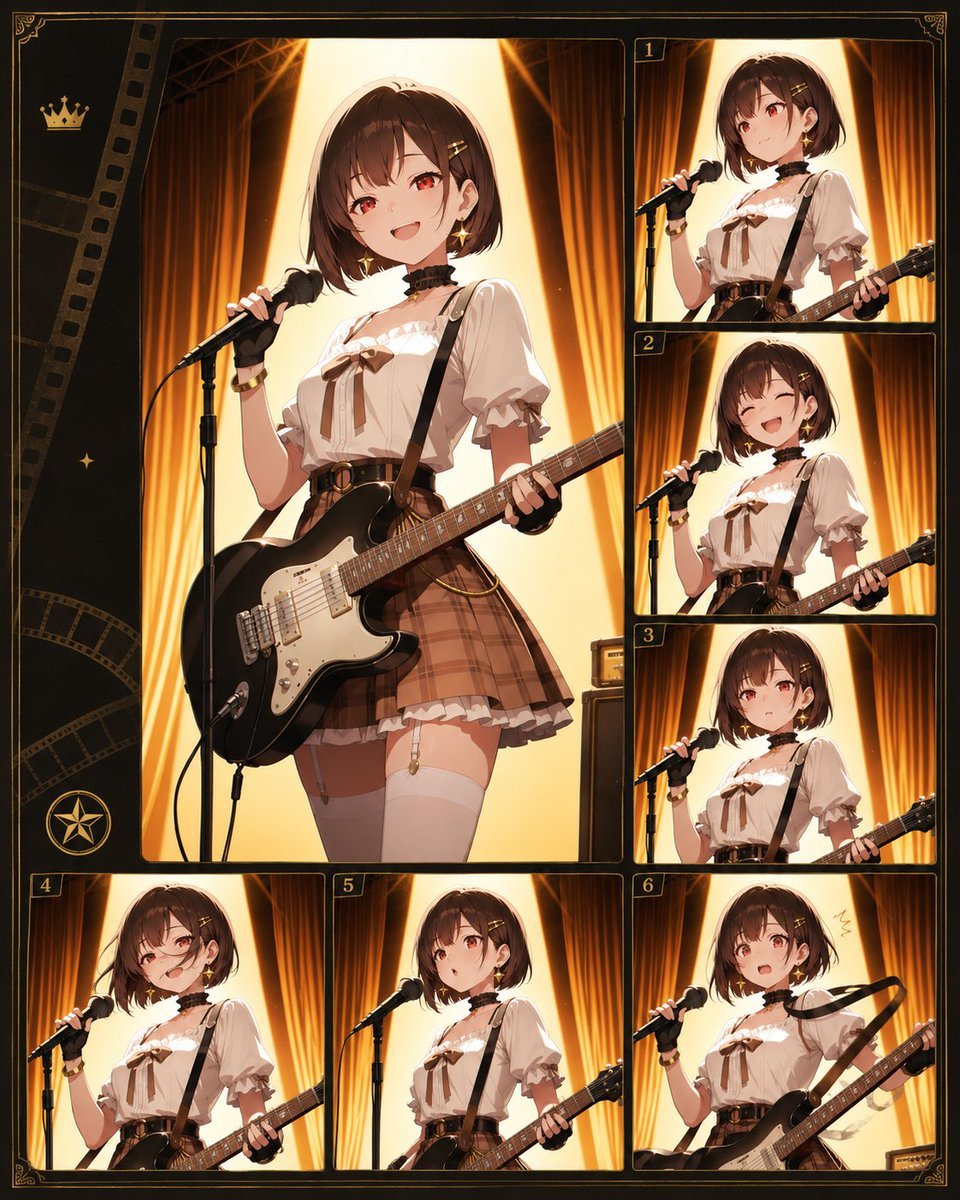
A structured prompt for generating an ornate anime stage-performance character collage with one large main panel and six numbered thumbnail panels.
- Prompt included
- Model and format preset
- Free template
The prompt behind this image
Copy the exact prompt behind Anime Idol Guitarist Contact Sheet, or open it in the studio and make it yours.
Goal: Create an ornate anime-style character sheet collage of {argument name="character name" default="an anonymous idol guitarist"} performing on a warm theatrical stage, with the character's face deliberately obscured by a soft square blur in every panel. Canvas: Vertical 4:5 composition, dark vintage film-contact-sheet design with thin gold borders, decorative corner flourishes, and a black-gold cinematic frame. Use a warm amber, brown, cream, and black palette with glowing stage light. Layout: Use exactly 7 image panels total: 1 large dominant portrait panel on the left occupying most of the canvas, and 6 smaller numbered panels arranged around it. The small panels are labeled with gold numbers 1, 2, 3 on the right column from top to middle, and 4, 5, 6 along the bottom row. Include decorative filmstrip motifs on the far left, a small gold crown icon near the upper left, a small sparkle icon mid-left, and a circular star emblem near the lower left. Every panel has rounded black borders with fine gold outlines. Subject details: The same anime young woman appears in all 7 panels. She has {argument name="hair color" default="short chestnut-brown bob hair"} with bangs and small hair clips, a blurred square face, slim build, and idol-band styling. Outfit: cream puff-sleeve blouse with ruffled neckline, brown ribbon bow at the chest, black choker, black guitar strap, high-waisted brown plaid pleated skirt, belt with round buckle, white thigh-high stockings, small gold accessories, and wrist cuffs. She holds a {argument name="guitar color" default="glossy black electric guitar with white pickguard"} and sings into a black microphone on a stand. Panel count and contents: Panel 1 large left panel shows a three-quarter full-body pose with microphone in her left hand, guitar across her hips, confident stage stance. Panel 2 top-right shows a closer waist-up singing pose with the guitar neck extending right. Panel 3 mid-right shows a similar waist-up pose with the microphone angled toward her mouth. Panel 4 lower-right-middle shows the character slightly lower in frame with warm curtains behind her. Panel 5 bottom-left small panel shows a close crop with microphone and guitar body. Panel 6 bottom-center small panel shows her centered with microphone stand and guitar neck. Panel 7 bottom-right small panel, labeled 6, shows a more energetic pose with the guitar raised diagonally and a small drawn motion mark near her head. Background and lighting: Each panel shows the same stage setting with tall golden-orange curtains, dark stage rigging, and a bright triangular spotlight behind the performer creating a halo-like backlight. Use dramatic rim light, glossy highlights on the guitar, cinematic shadows, and fine anime illustration detail. Constraints: Keep the composition as a polished character reference/contact sheet, not a real photograph. Preserve exactly 6 numbered thumbnail labels plus the large unnumbered main panel. Do not add extra characters, extra text, logos, watermarks, or readable captions beyond the small gold numbers.
How to use Anime Idol Guitarist Contact Sheet in 3 steps
- 1Upload ImagePNG, JPG or paste
Add your photo
Upload the photo the template builds on. The prompt, model and format are already set.
- 2…a portrait of your subject in softgolden-hour light, 85mm…
Personalize
Edit the subject and creative details for your destination.
- 3Generate
Generate
Press Generate — your image is created in PicX Studio, so you can compare it with the original and refine one variable at a time.
More like this
Templates with the same subject, style or setup. Open one to see its prompt.
Anime Guitar Idol Contact Sheet
Anime Character Charm Analysis Sheet
Cyberpunk Anime Hero Contact Sheet
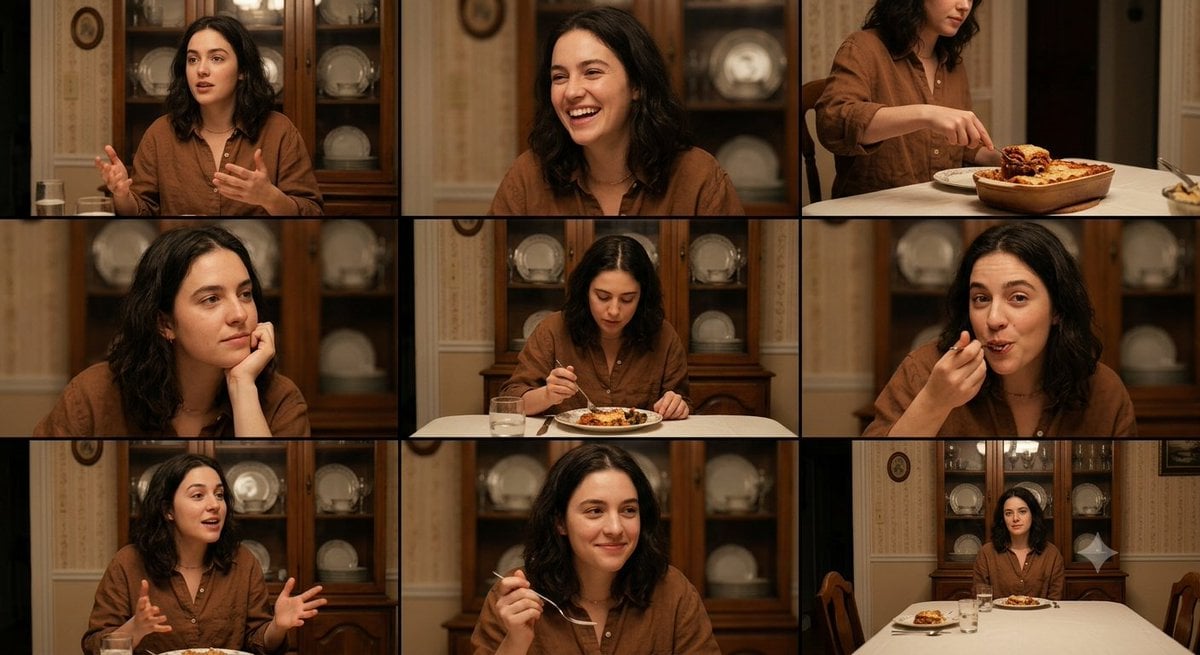
Family Dinner Cinematic Contact Sheet

A 3x3 grid storyboard contact sheet comprised of nine candid, cinematic
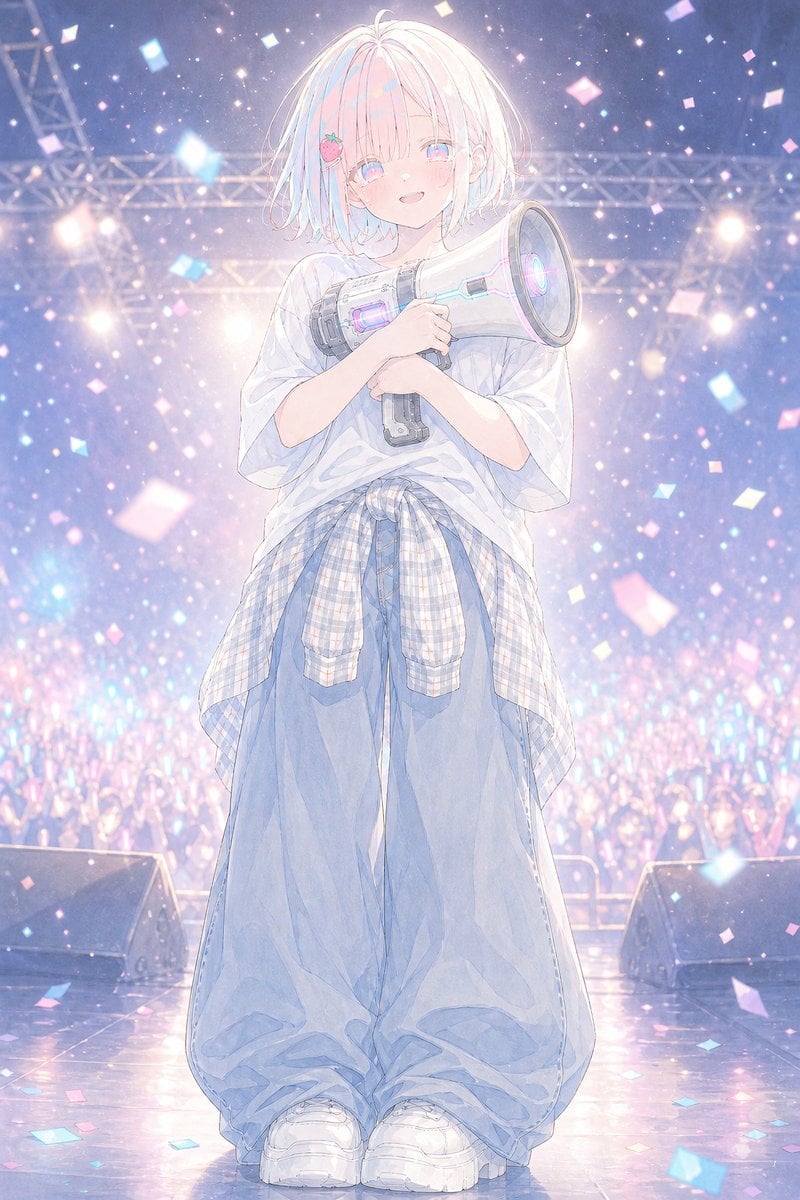
Pastel Anime Idol Concert Finale
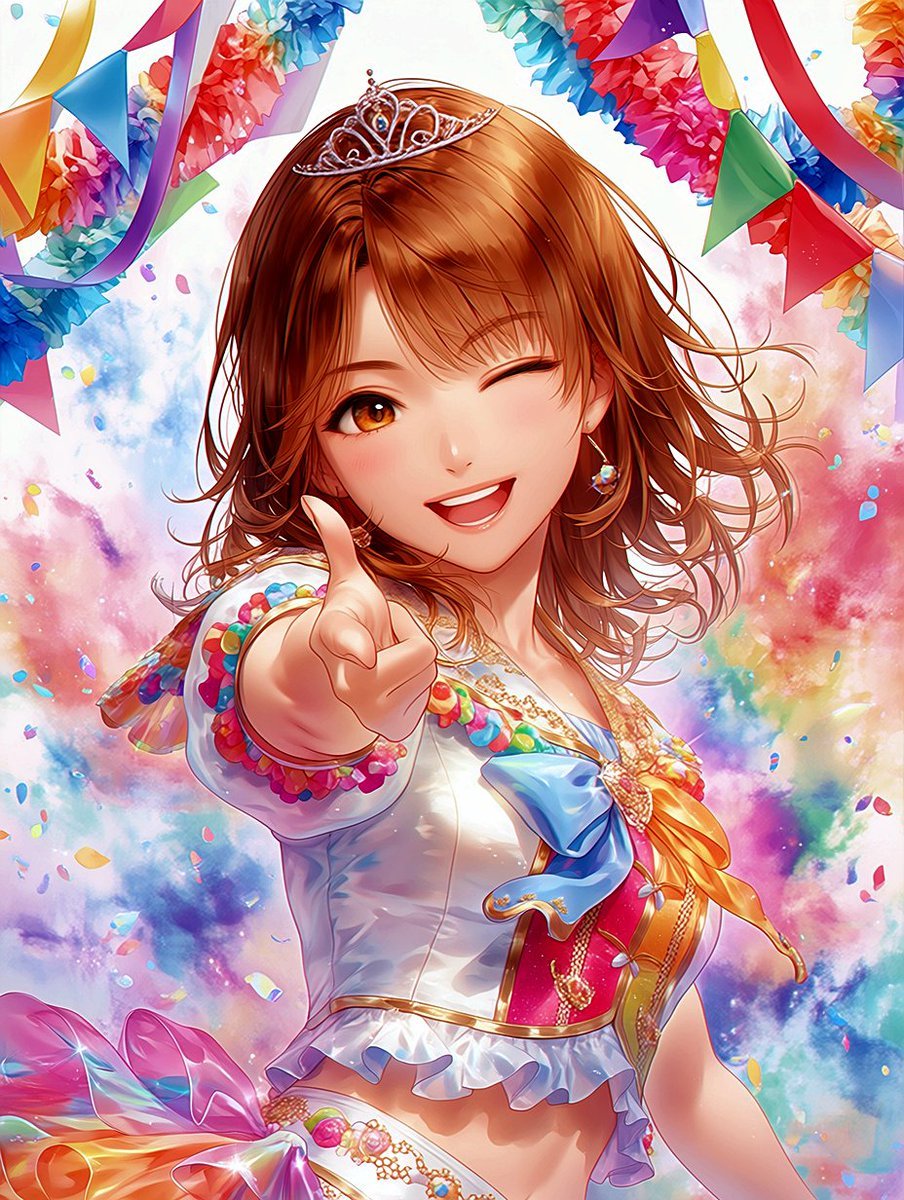
Winking Anime Idol Festival Portrait
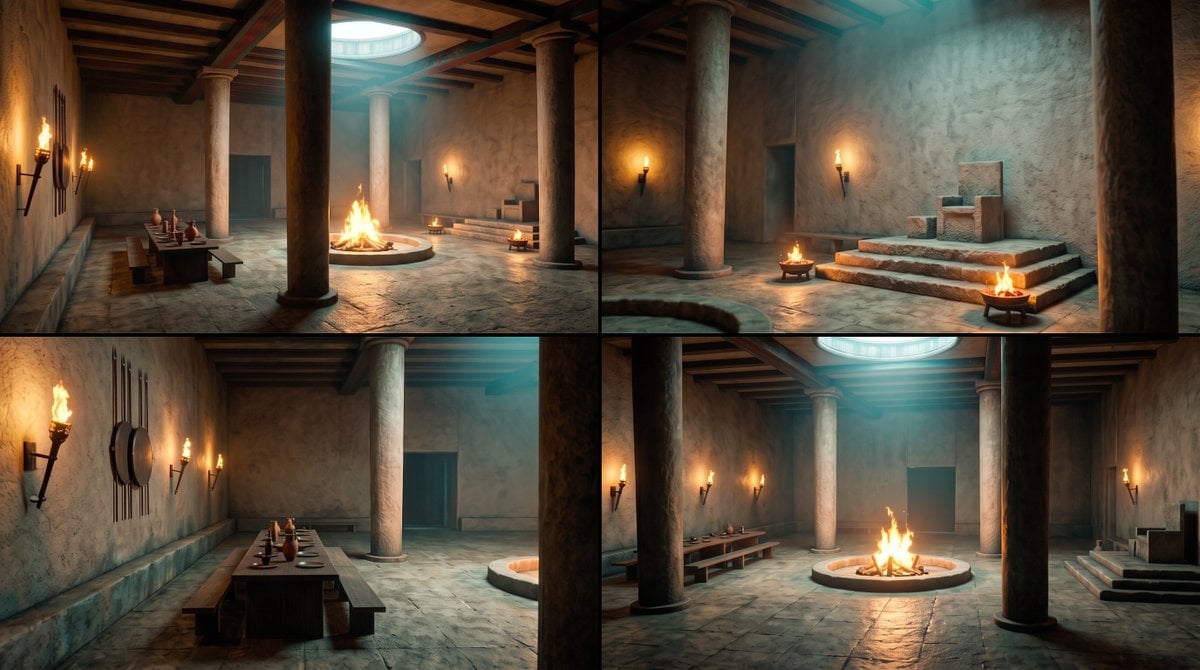
Ancient Temple Interior Contact Sheet
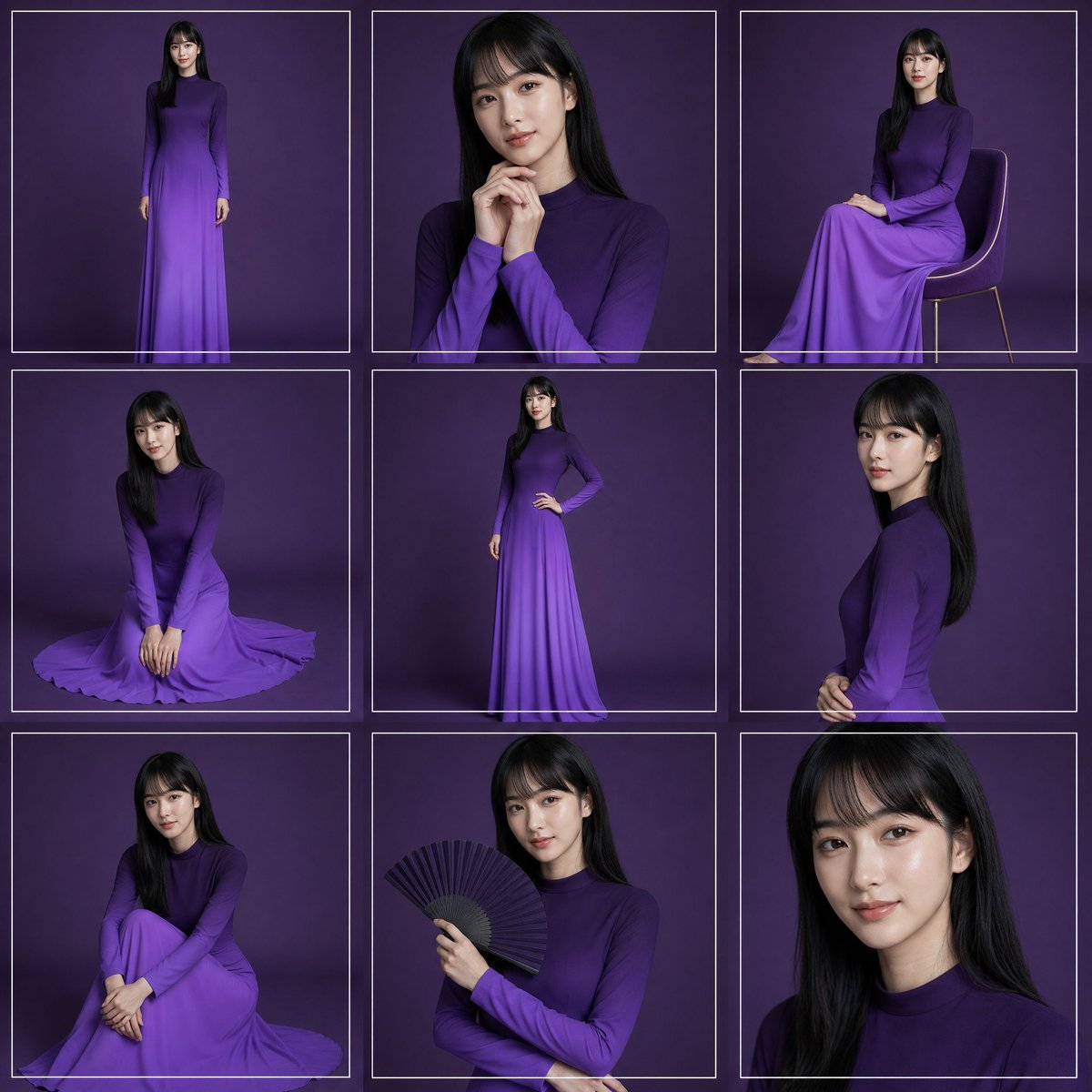
Purple Gown Fashion Contact Sheet
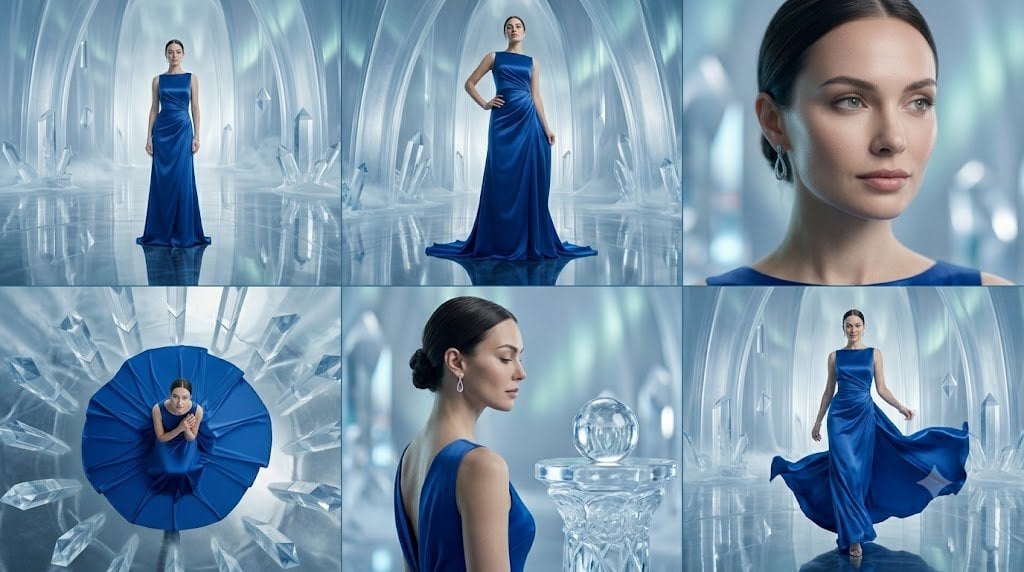
Crystal Palace Blue Gown Contact Sheet
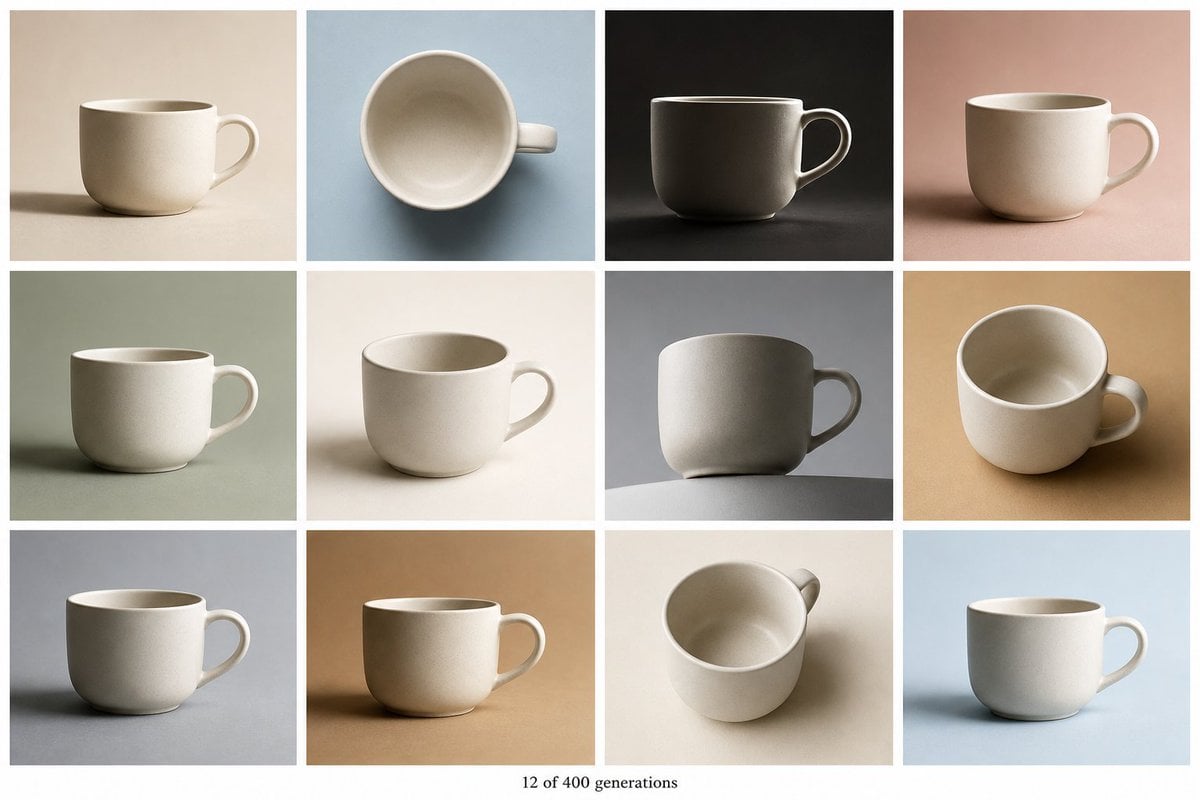
Tile Ceramic Mug Contact Sheet
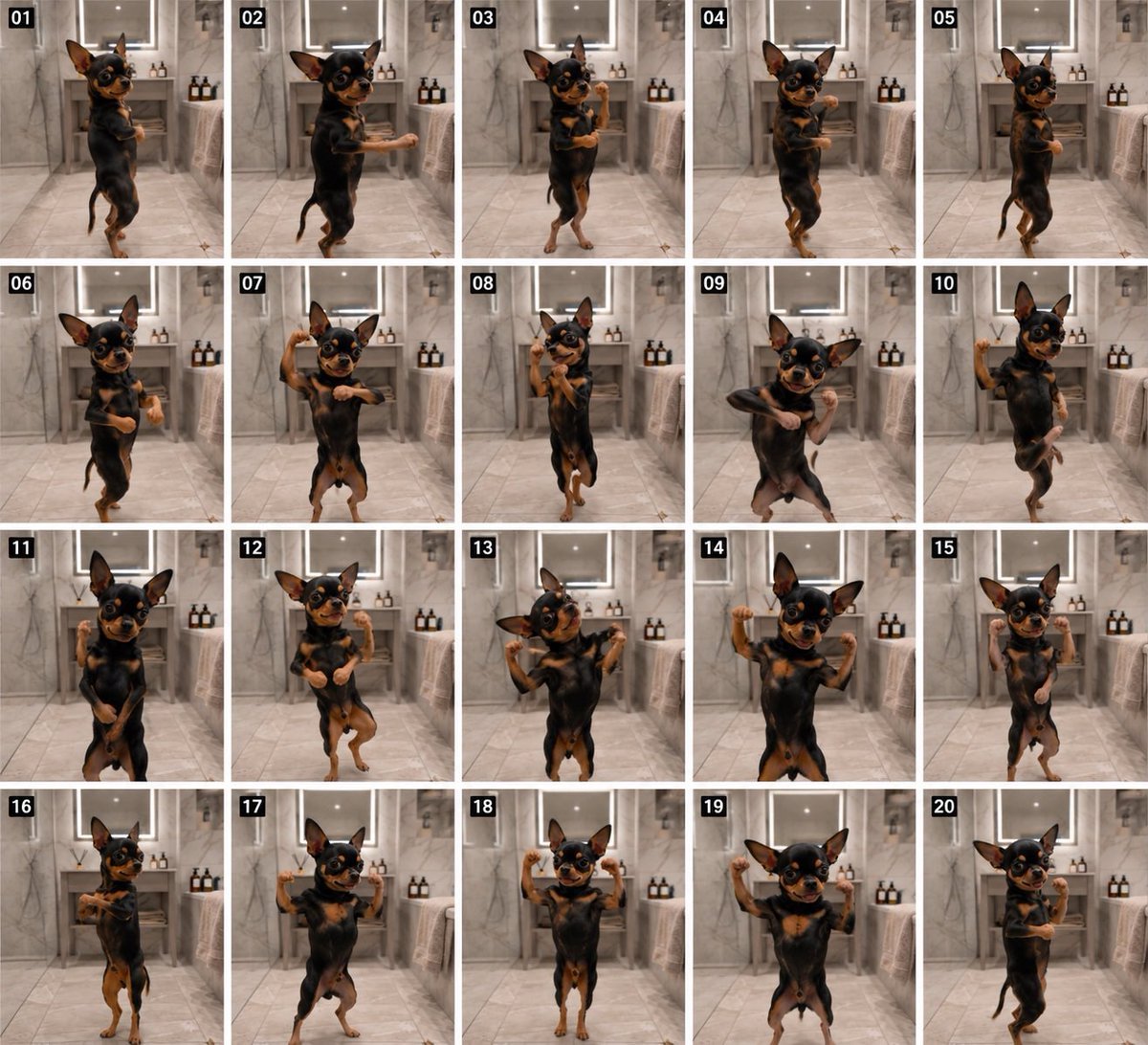
Dancing Chihuahua 20-Frame Contact Sheet
Make it yours
Anime Idol Guitarist Contact Sheet works as-is. These are the safest ways to change it without losing the look.
Change one field
Copy a single group, rewrite it, and generate again so you can see what that field is doing.
Keep the frame, change the subject
Hold the composition and light of Anime Idol Guitarist Contact Sheet, then swap wardrobe, props or the person for a new take.
| If the result… | Why | Fix |
|---|---|---|
| The result drifts from the preview | Too many fields changed at once. | Reuse Anime Idol Guitarist Contact Sheet as-is first, then change one group — subject, light, or setting. |
| The model over-stylizes the scene | The prose prompt leaves finish and camera underspecified. | Add one camera or lighting sentence and stay on GPT Image 2. |
More GPT Image 2 templates
Other prompts made for GPT Image 2.

Six VTuber Japanese Logo Sheet

Realistic Portrait of Woman and Deer

The Vista Modular Condo Poster

AI Model Routing Comparison Infographic

2.5D Anime Art Board

Isometric Productivity Desk Scene

New York Double Exposure Poster

Four-Panel AI Landscape Comparison

Japanese Tatami Lifestyle Magazine Cover

NESCAFÉ Coffee Map Poster
More image prompts
Fresh picks from across the catalog.

Surreal Wireless Headphones Poster

Premium Streetwear Sneaker Poster
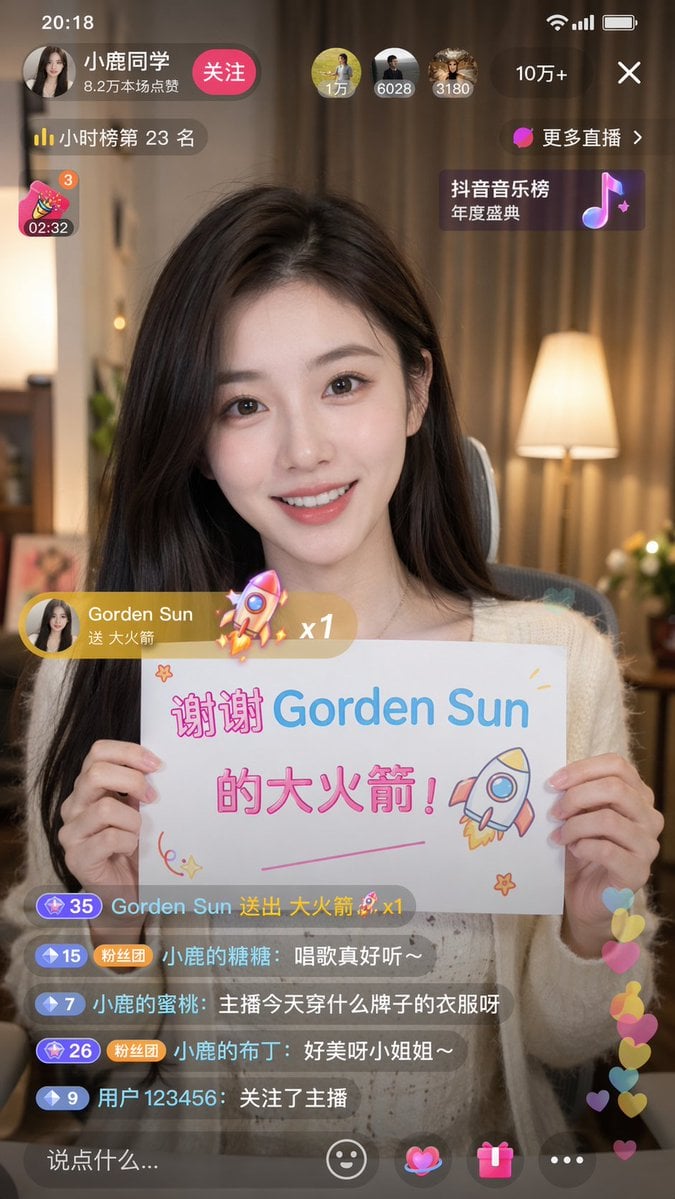
Douyin Live Stream Screenshot
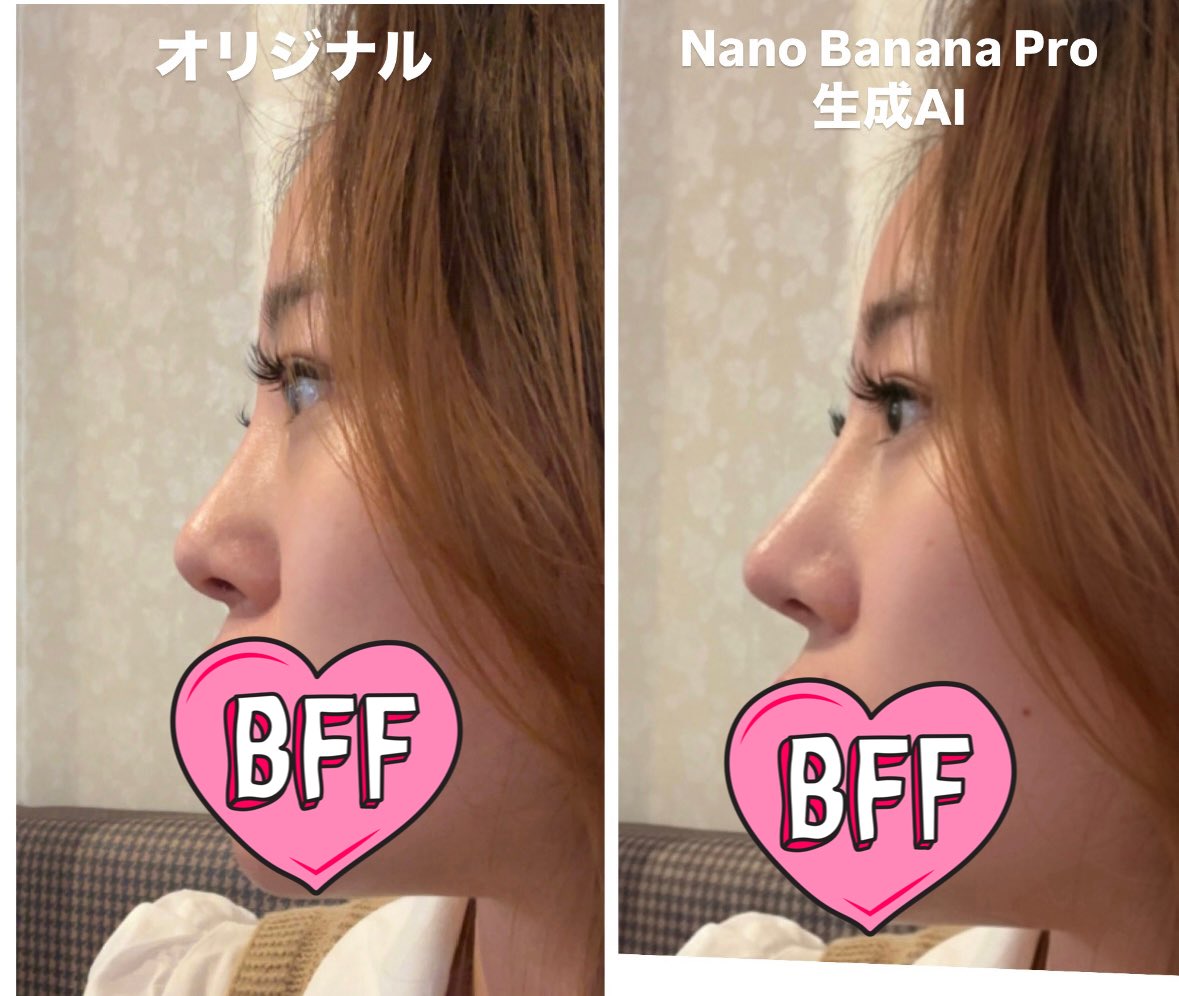
Generating Ideal Nose Shapes for Cosmetic Surgery Consultation

Kona-Monde Okonomiyaki Ladies Poster
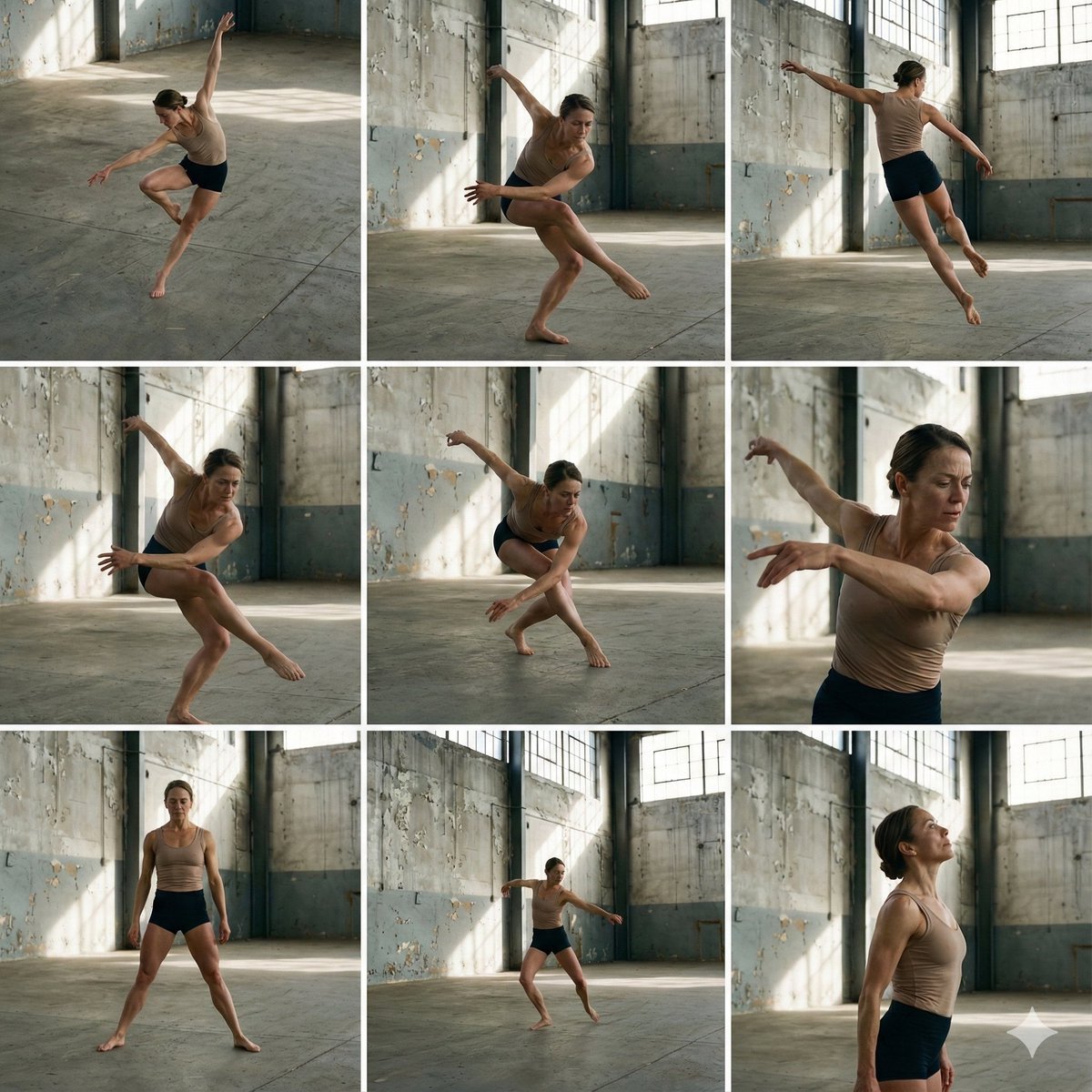
3x3 Grid of Dancer in Random Poses

Dramatic Cinematic Portrait of a Rugged Young Man

Gemini Nano Banana Pro Golden Sunset Por
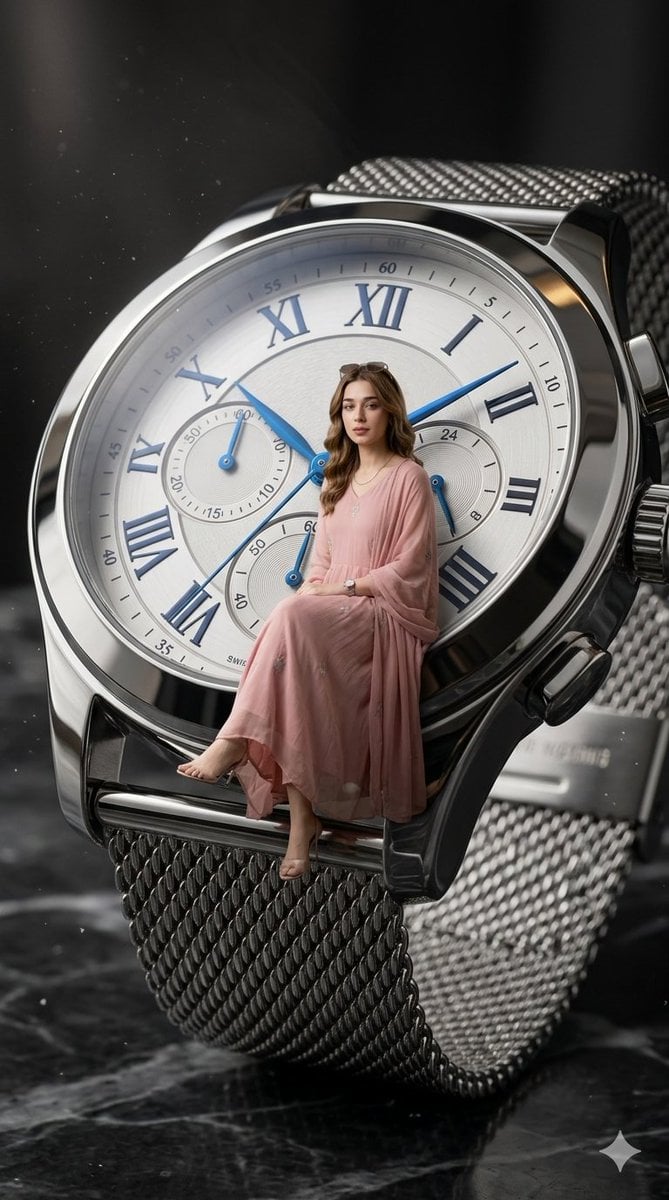
X Aiwithlariab Image on Nano Banana 2
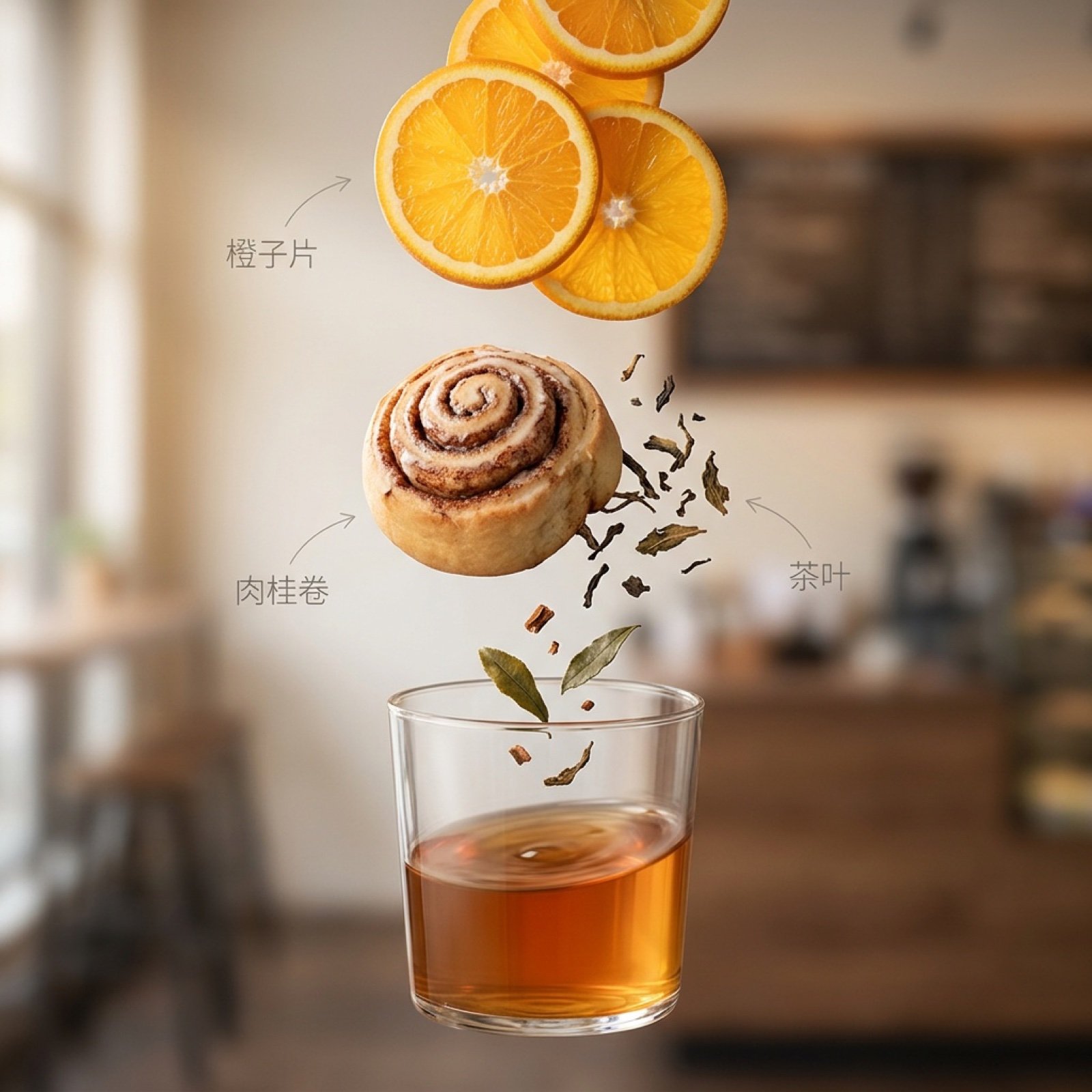
Exploded Ingredient Diagram and Motion Video Prompt for Drinks
Browse template categories
Anime Idol Guitarist Contact Sheet questions
How do I use the Anime Idol Guitarist Contact Sheet template?
Add your photo if the template asks for one, edit the prompt if you like — the template's model and format are already selected — and press Generate. Your version opens in PicX Studio.
Can I customize the Anime Idol Guitarist Contact Sheet template?
Yes. You can change the subject, setting, lighting, mood, format, and available model controls before creating your image.
Is the Anime Idol Guitarist Contact Sheet template free?
Opening and editing this template is free. Generating uses credits, shown on the Generate button when you are signed in.
Which AI model should I use?
Start with GPT Image 2, which is the model associated with this template. You can compare another compatible model for a different finish.
Looking for something else? Browse all templates.

Your photo, any look
Thousands of ready templates for every top image and video model, from one credit balance.