How do I use the Scrapbook Byte-level BPE Explainer template?
Choose the primary action to open PicX Studio with the available template settings. Review the model and format, personalize the creative direction, and generate when ready.
This prompt generates a wide hand-drawn educational infographic with cute mascot characters to explain byte-level BPE tokenization in a friendly Chinese science-pop style. Change the subject, setting, or lighting one variable at a time.
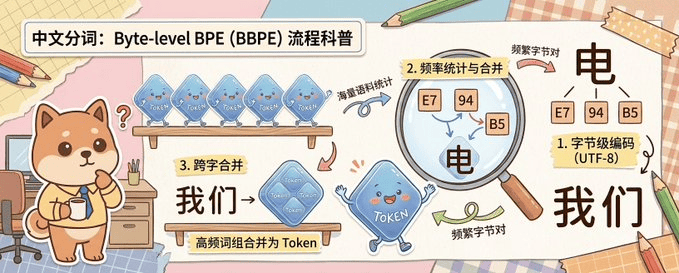
A cute horizontal educational infographic in a hand-drawn scrapbook style on a pastel desk-and-paper collage background, explaining Chinese word segmentation with byte-level BPE. The scene is divided into 3 clearly separated instructional sections arranged from left to right across a wide banner. On the far left stands a chibi Shiba Inu mascot, {argument name="character name" default="柴小七"}, with warm tan and cream fur, round face, small triangular ears, rosy cheeks, and a curious expression, holding a cup and standing beside a small desk with drawers, pencils, and a chair. Above the dog is a bold rounded white title box with black Chinese text: {argument name="headline text" default="中文分词:Byte-level BPE(BBPE)流程科普"}. In the first teaching section near the upper middle, show 4 small translucent blue token-shaped tiles lined up on a wooden shelf, each labeled “Token”, with a curved arrow and small handwritten Chinese note “词频语料统计” pointing toward the next step. In the second section, place a large magnifying glass highlighting 3 small frequency tiles labeled exactly “E7”, “94”, and “B5”, with the section label in a yellow note reading “2. 频率统计与合并”; beneath and inside the magnified area include a large black Chinese character “电”, and nearby a handwritten note “频繁字节对”. In the third section at lower middle-left, add a wooden sign and a larger merged translucent blue token tile labeled “Token”, with a small yellow note reading “3. 跨字合并”, large black Chinese text “我们→”, and a caption strip below that says “高频词组合并为 Token”. On the far right, show the final explanatory result with 3 small byte boxes labeled “E7”, “94”, and “B5” above a large black Chinese character “电”, then a note card reading “1. 字节级编码(UTF-8)”, and below that the large black Chinese word “我们”. Connect the sections with curved arrows in pink, blue, and green to show process flow. Include 1 animated blue token mascot with tiny arms and legs near the center-bottom, smiling and waving. Use soft cream, pink, beige, and light blue colors, thick clean outlines, sticker-like cutout shapes, taped paper corners, notebook textures, pencils around the edges, and a friendly hand-account illustration style suitable for a science explainer graphic.
Choose the primary action to open PicX Studio with the available template settings. Review the model and format, personalize the creative direction, and generate when ready.
Yes. You can change the subject, setting, lighting, mood, format, and available model controls before creating your image.
This template is free to open and customize. Generation usage is shown in PicX Studio before you create.
Start with GPT Image 2, which is the model associated with this template. You can compare another compatible model for a different finish.
© 2026 PicX Studio. All rights reserved.

Follow a topic to a crawlable collection of related PicX Studio templates.
43,474 public templates available. Verified via the PicX Studio public templates API; refreshed hourly.













![Minimalist Flat Vector Travel Poster — Premium minimalist flat-vector travel poster for {argument name="city name" default="[CITY_NAME]"}, 3:4 vertical format.](https://cms-assets.youmind.com/media/1787917359711_3ug846_HQX205cbMAA6F6S-300x400.jpg)