
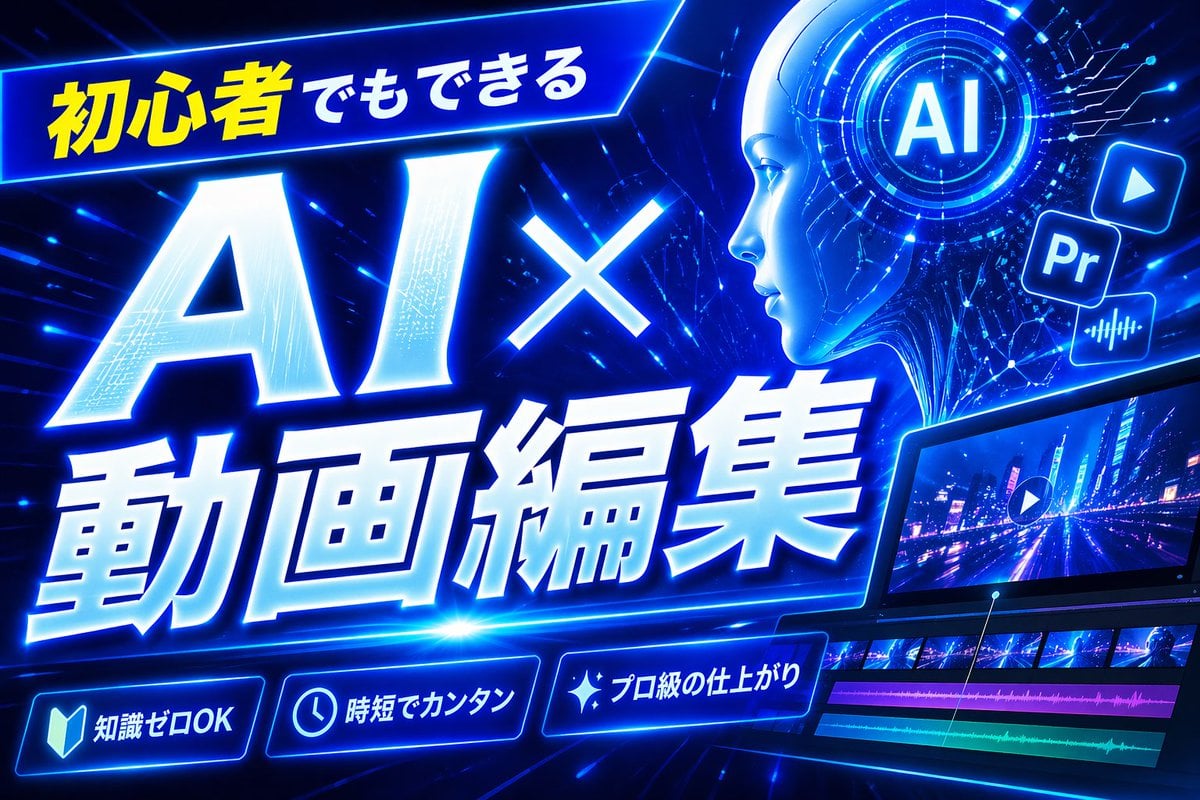
Neon Blue AI Video Editing Thumbnail
A high-impact futuristic Japanese YouTube thumbnail for AI-powered video editing tutorials, ideal for beginner-focused tech and creator content.
- Prompt included
- Model and format preset
- Free template
The prompt behind this image
Copy the exact prompt behind Neon Blue AI Video Editing Thumbnail, or open it in the studio and make it yours.
Create a bold Japanese YouTube thumbnail for the theme {argument name="headline text" default="初心者でもできる AI×動画編集"}, in a futuristic neon-blue cyberpunk style. Use a wide 16:9 composition with a dark electric-blue background filled with glowing circuit lines, digital streaks, lens flares, and high-energy motion. Place a slanted glowing banner in the upper left containing the Japanese text {argument name="top banner text" default="初心者でもできる"}, with the first part in bright yellow and the rest in white. Make the main headline dominate the left and center: gigantic white glowing text “AI×” above even larger white glowing text “動画編集”, with thick blue neon outer glow, slight italic forward motion, beveled 3D shading, and dramatic perspective. In the upper right, add a circular holographic interface with the letters {argument name="ai badge text" default="AI"} in the center, surrounded by concentric rings and tiny HUD marks. Near it, include exactly 3 floating app-style icons: a play button icon, a square “Pr” icon, and an audio waveform icon, all glowing blue. Across the lower right, show a sleek angled video editing monitor displaying a neon city night road scene with a play symbol overlay; beneath the preview, include a timeline with exactly 4 visible tracks: 2 rows of video thumbnails and 2 colored audio bars, one magenta and one cyan-green. Along the bottom, add exactly 3 glowing rounded feature badges with icons and Japanese text: a book icon with “知識ゼロOK”, a clock icon with “時短でカンタン”, and a sparkle icon with “プロ級の仕上がり”. Add a tall solid blue vertical rectangle near the top center-right as a placeholder block. Overall design should feel dynamic, high-contrast, polished, techy, and optimized for maximum click-through as a modern AI and video-editing tutorial thumbnail.
How to use Neon Blue AI Video Editing Thumbnail in 3 steps
- 1Upload ImagePNG, JPG or paste
Add your photo
Upload the photo the template builds on. The prompt, model and format are already set.
- 2…a portrait of your subject in softgolden-hour light, 85mm…
Personalize
Edit the subject and creative details for your destination.
- 3Generate
Generate
Press Generate — your image is created in PicX Studio, so you can compare it with the original and refine one variable at a time.
More like this
Templates with the same subject, style or setup. Open one to see its prompt.
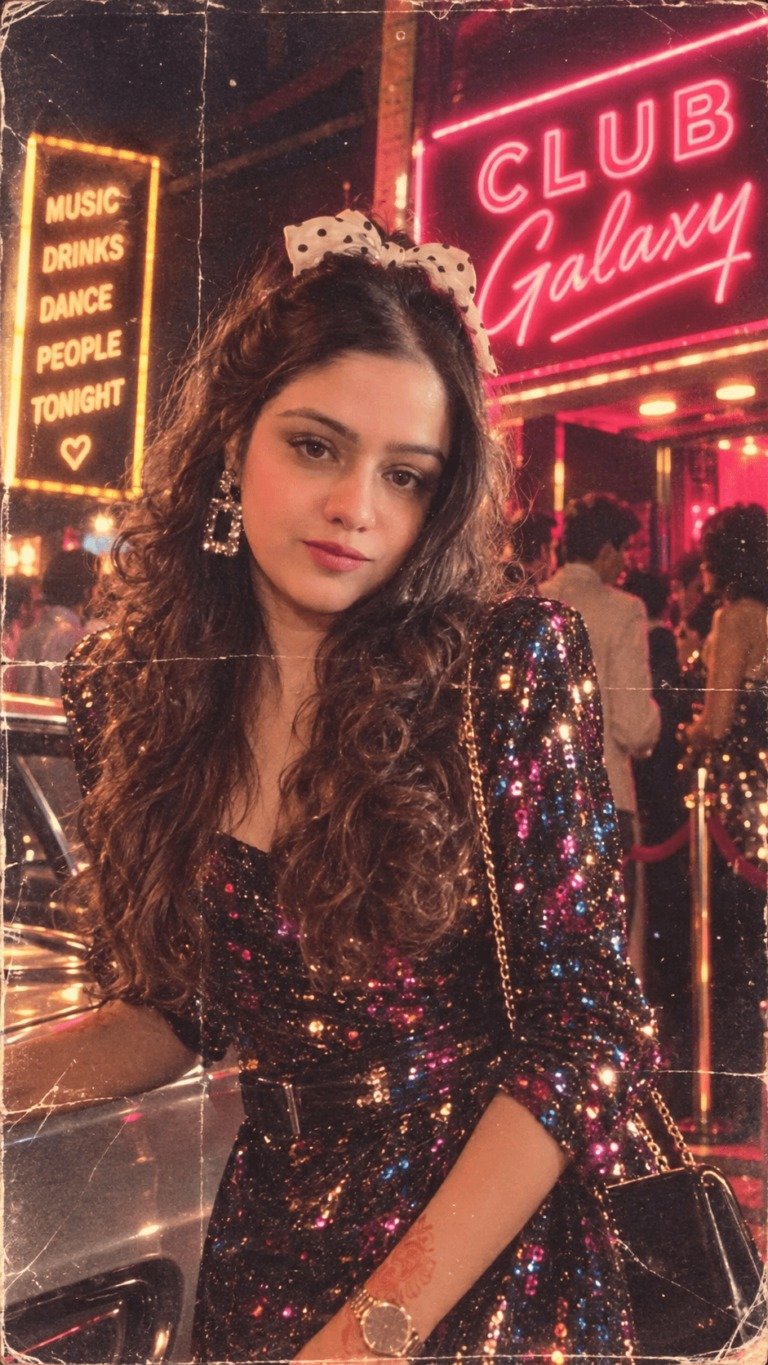
80s Neon Disco Night
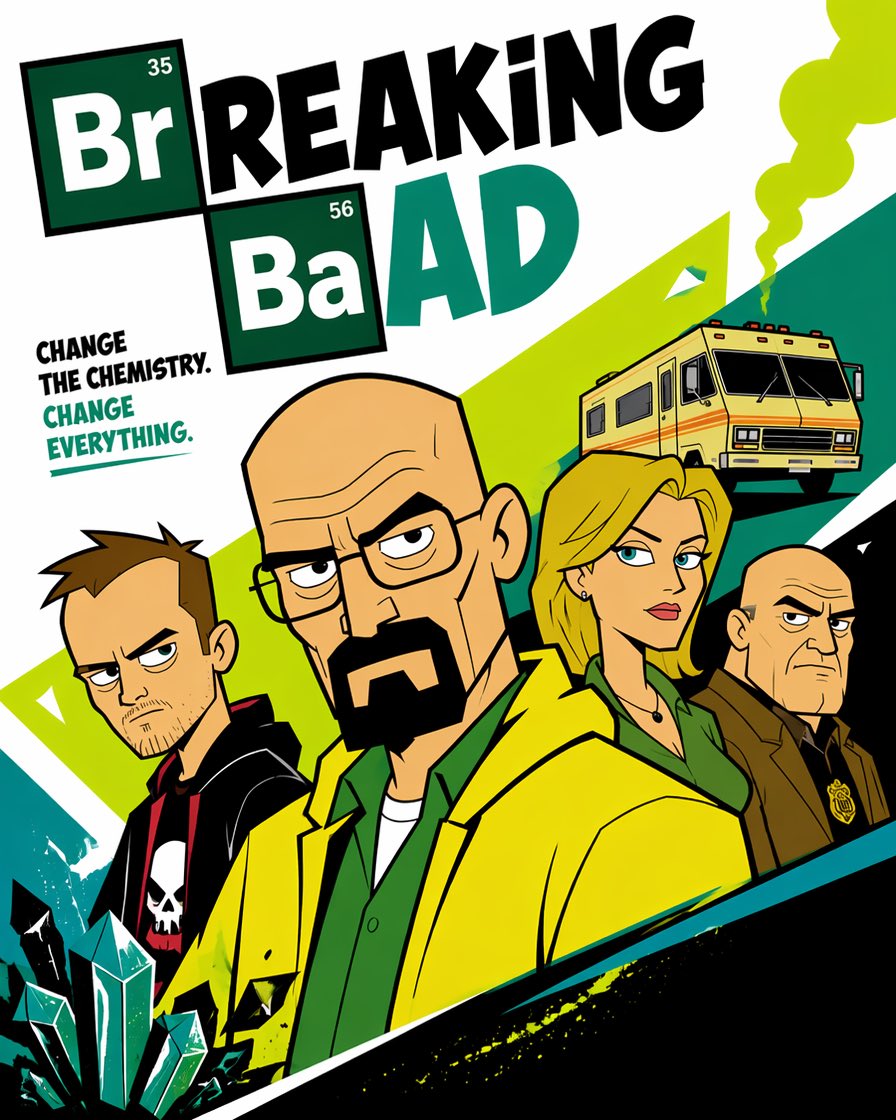
Cartoon TV Show Poster Pack
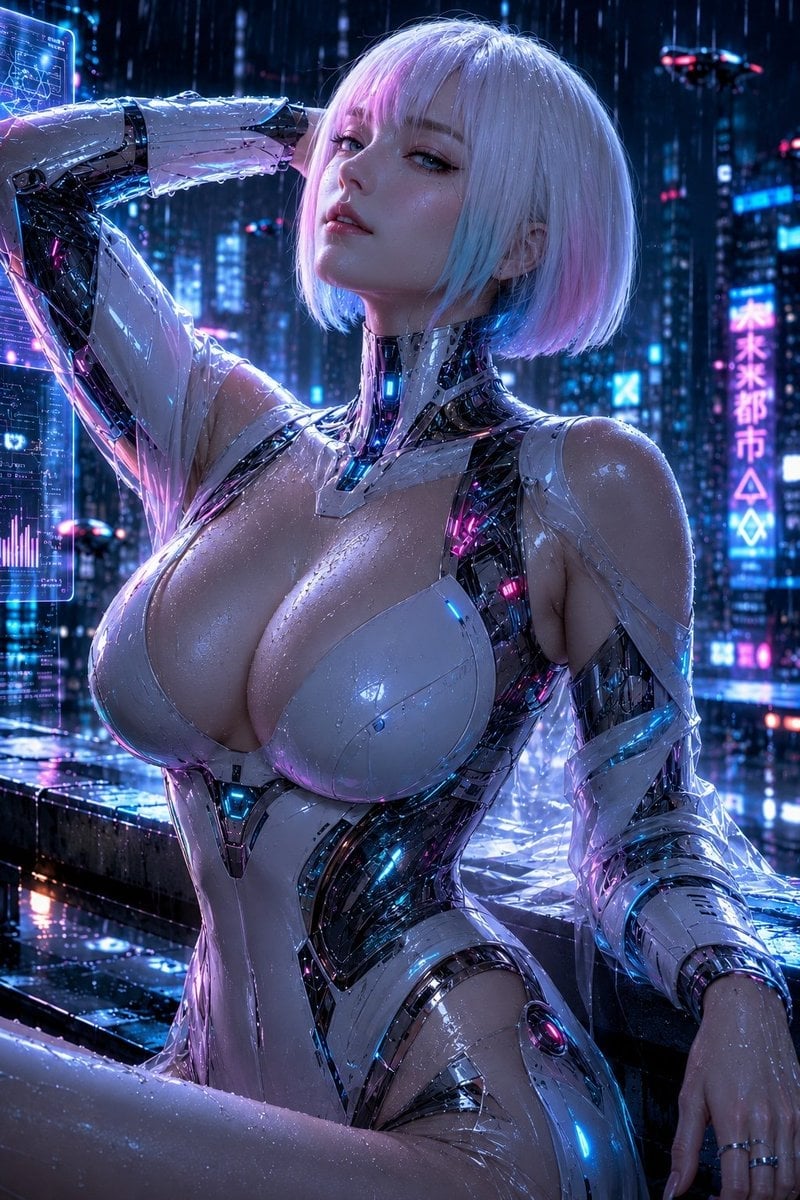
Rainy Night Android Cyberpunk Portrait
Korean Idol Partial Shadow Editorial Portrait
Cyberpunk Neon Profile Fashion Portrait
Neon Night Crosswalk Candid Portrait
Subway Platform Quiet Introspective Portrait
Rainy Night Android Cyberpunk Portrait
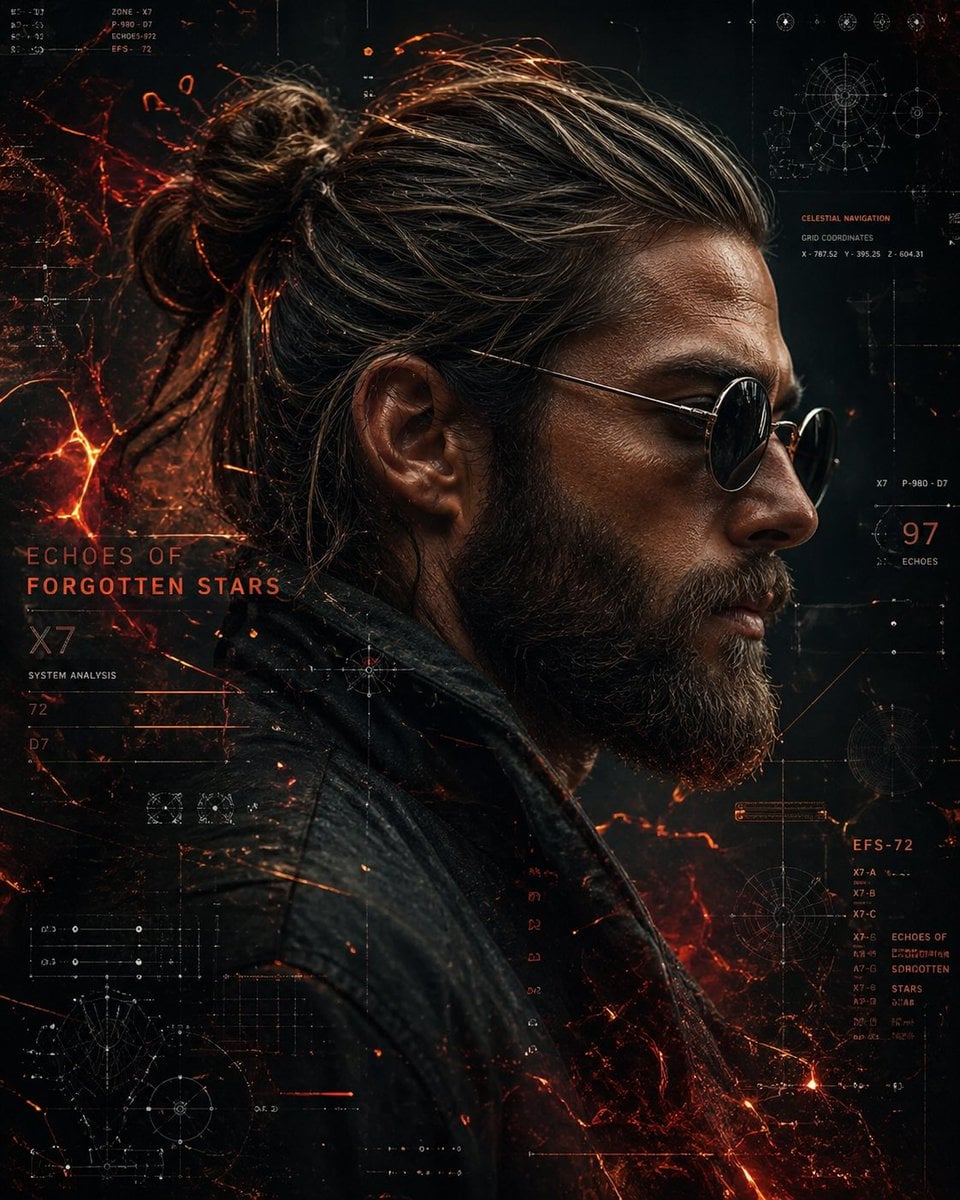
Cinematic Sci-Fi Commander Side Profile Portrait
Low-Angle Cyberpunk Neon Profile Portrait
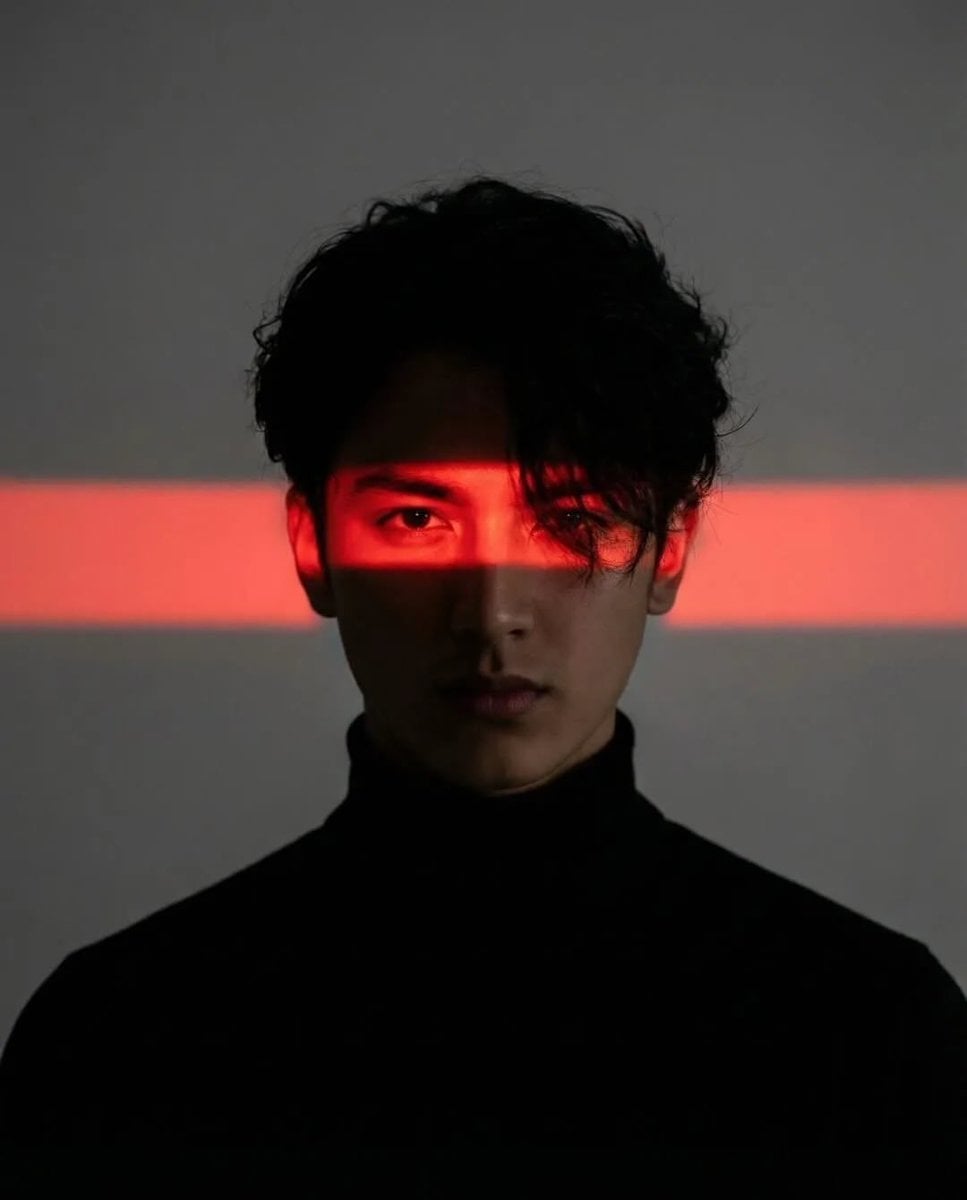
Cinematic Neon Light Strip Studio Portrait
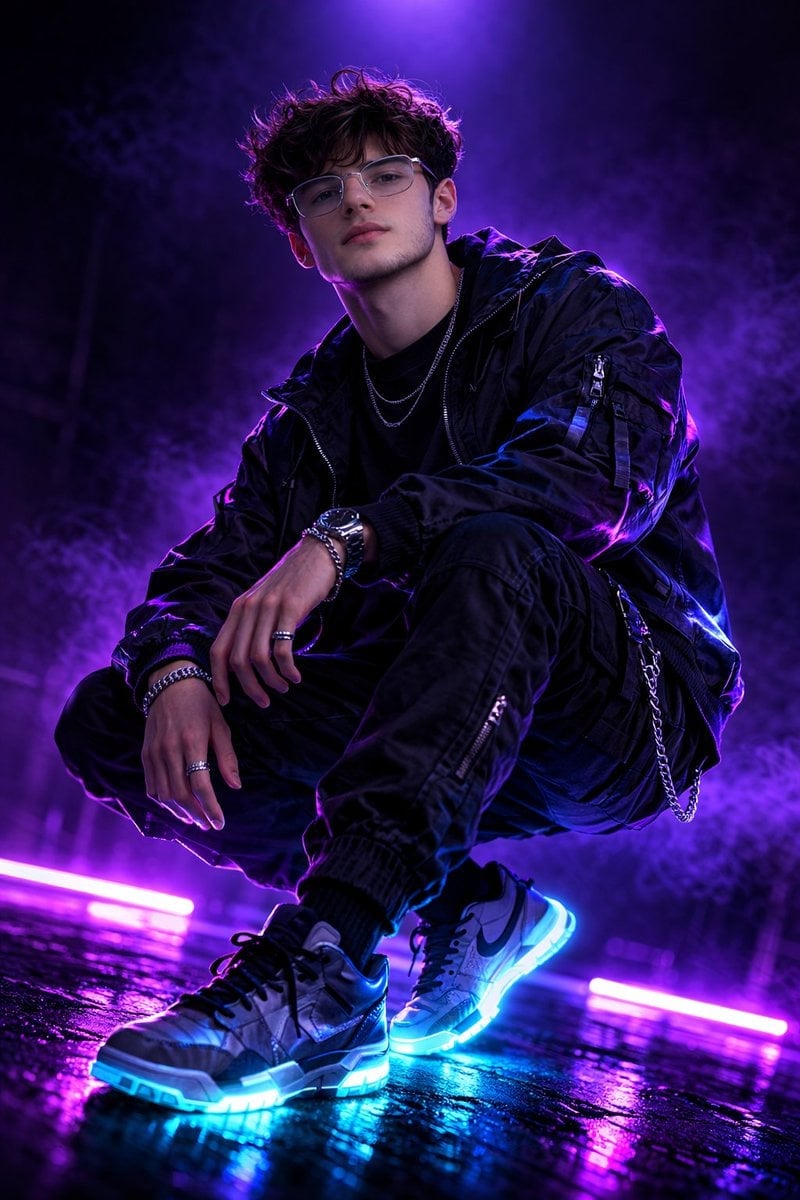
Neon Violet Streetwear Fashion Portrait
Make it yours
Neon Blue AI Video Editing Thumbnail works as-is. These are the safest ways to change it without losing the look.
Change one field
Copy a single group, rewrite it, and generate again so you can see what that field is doing.
Keep the frame, change the subject
Hold the composition and light of Neon Blue AI Video Editing Thumbnail, then swap wardrobe, props or the person for a new take.
| If the result… | Why | Fix |
|---|---|---|
| The result drifts from the preview | Too many fields changed at once. | Reuse Neon Blue AI Video Editing Thumbnail as-is first, then change one group — subject, light, or setting. |
| The model over-stylizes the scene | The prose prompt leaves finish and camera underspecified. | Add one camera or lighting sentence and stay on GPT Image 2. |
More GPT Image 2 templates
Other prompts made for GPT Image 2.

Six VTuber Japanese Logo Sheet

Realistic Portrait of Woman and Deer

The Vista Modular Condo Poster

AI Model Routing Comparison Infographic

2.5D Anime Art Board

Isometric Productivity Desk Scene

New York Double Exposure Poster

Four-Panel AI Landscape Comparison

Japanese Tatami Lifestyle Magazine Cover

NESCAFÉ Coffee Map Poster
More image prompts
Fresh picks from across the catalog.
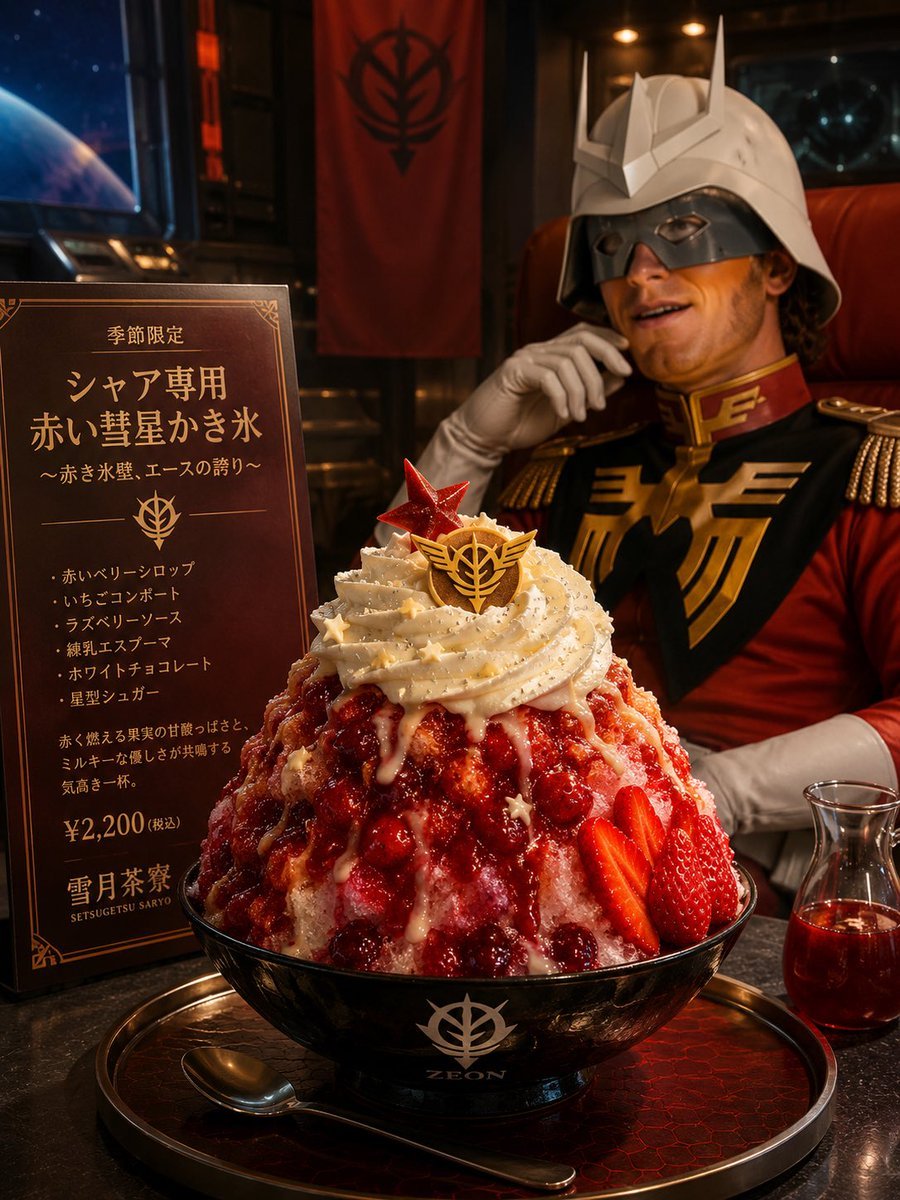
Char-Inspired Red Kakigori Café Photo
Humorous AI Medical Prescription Design
Gpt2 Comic Storyboard Soft Pastel Anime Girl Full Body
3D Screen Burst Fashion Ad
Luxury Fitness Editorial Layout
Identity-Locked Mirror Selfie Pose Recreation Prompt
Cinematic Noir Prompt for a Man and a Sports Car
Experimental Chinese Typography Design
Retro 90s Disposable Camera Flash Portrait

Cinematic Editorial Portrait of a Young Man in a Tuxedo
Browse template categories
Neon Blue AI Video Editing Thumbnail questions
How do I use the Neon Blue AI Video Editing Thumbnail template?
Add your photo if the template asks for one, edit the prompt if you like — the template's model and format are already selected — and press Generate. Your version opens in PicX Studio.
Can I customize the Neon Blue AI Video Editing Thumbnail template?
Yes. You can change the subject, setting, lighting, mood, format, and available model controls before creating your image.
Is the Neon Blue AI Video Editing Thumbnail template free?
Opening and editing this template is free. Generating uses credits, shown on the Generate button when you are signed in.
Which AI model should I use?
Start with GPT Image 2, which is the model associated with this template. You can compare another compatible model for a different finish.
Looking for something else? Browse all templates.

Your photo, any look
Thousands of ready templates for every top image and video model, from one credit balance.