
GPT Image 2.0 Japanese Thumbnail
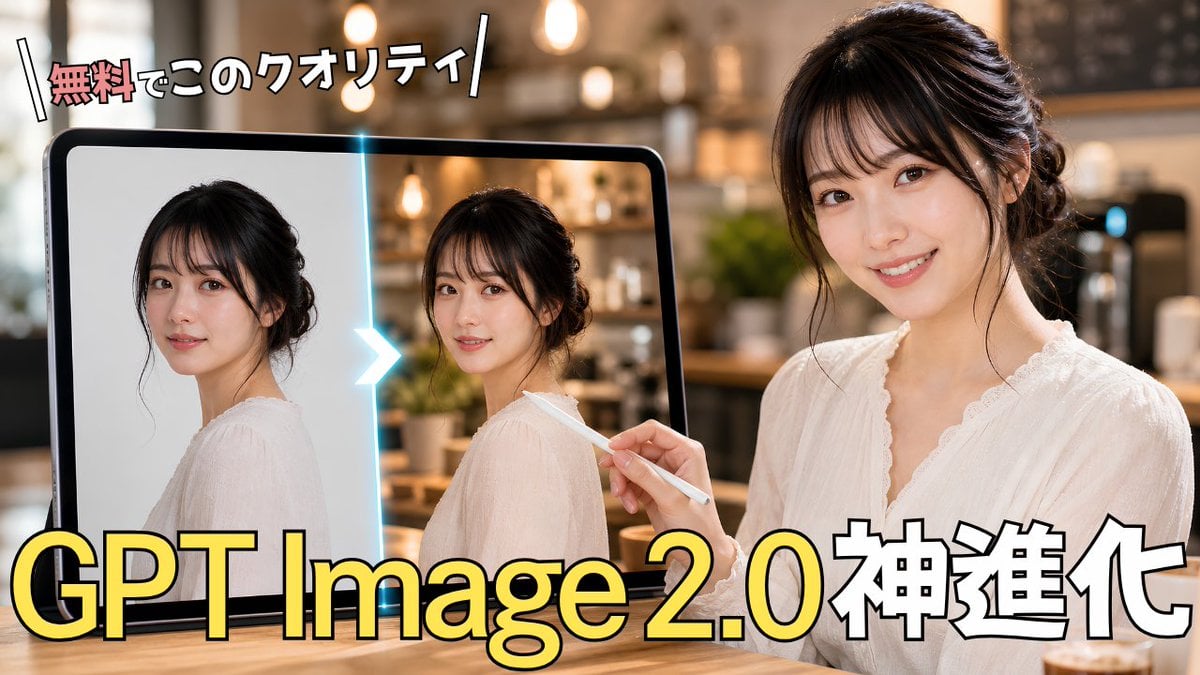
Generates a bold Japanese YouTube thumbnail showing a before-and-after AI photo enhancement scene for GPT Image 2.0 content.
- Prompt included
- Model and format preset
- Free template
The prompt behind this image
Copy the exact prompt behind GPT Image 2.0 Japanese Thumbnail, or open it in the studio and make it yours.
Create a high-impact Japanese YouTube thumbnail about AI image generation improvement. Canvas: 16:9 horizontal thumbnail, photorealistic with bold creator-thumbnail typography. Scene: a warm, softly blurred cafe interior with pendant lights and bokeh in the background, wooden table foreground. On the right side, show 1 young Japanese woman in a white lace blouse, hair in a loose elegant updo, seated and facing slightly left; her face is covered by a flat rectangular beige blur/mosaic block to anonymize her. She holds 1 white stylus in her right hand, pointing toward a large tablet on the left. On the left side, show 1 large black-framed tablet standing upright; on its screen are exactly 2 side-by-side portrait images of the same woman in a white blouse, each with a beige rectangular blur over the face. The left portrait looks like a simpler original image on a light plain background, and the right portrait looks enhanced, with more realistic cafe lighting and detail. Between the 2 tablet portraits, place 1 glowing cyan vertical divider with 1 bright white-blue chevron arrow pointing from left to right, indicating before-to-after enhancement. Text: place a small energetic Japanese headline at the top left reading {argument name="top headline text" default="無料でこのクオリティ"}, with the first word in red/pink and the remaining characters in white, thick black outline, slightly tilted, with decorative diagonal slash marks on both sides. Place the main headline across the bottom in huge bold lettering reading {argument name="main headline text" default="GPT Image 2.0神進化"}; make “GPT Image 2.0” bright yellow with black outline and subtle shadow, and make “神進化” white with black outline. Keep exactly 2 visible text blocks: the top headline and the bottom headline. Overall style: glossy, professional Japanese tech tutorial thumbnail, strong contrast, warm cinematic lighting, shallow depth of field, clean composition, no logos or watermarks, no extra text. Customization: the woman should appear as {argument name="subject description" default="a young Japanese woman with dark hair in a loose updo wearing a white lace blouse"}, the setting should be {argument name="background setting" default="a cozy modern cafe with warm pendant lights"}, and the topic should visually imply {argument name="topic" default="GPT Image 2.0 photo enhancement"}.
How to use GPT Image 2.0 Japanese Thumbnail in 3 steps
- 1Upload ImagePNG, JPG or paste
Add your photo
Upload the photo the template builds on. The prompt, model and format are already set.
- 2…a portrait of your subject in softgolden-hour light, 85mm…
Personalize
Edit the subject and creative details for your destination.
- 3Generate
Generate
Press Generate — your image is created in PicX Studio, so you can compare it with the original and refine one variable at a time.
More like this
Templates with the same subject, style or setup. Open one to see its prompt.

Gpt2 Youtube Thumbnail Japanese Ai Battle Youtube Thumbnail

Minecraft Japanese Research Lab Exploration

Japanese Architectural Concrete Studio Fashion Campaign

Japanese Minimalist Concrete Studio Fashion Editorial

Blue Backdrop Luxury Fashion Portrait Campaign

Japanese SNS Automation Thumbnail

Surreal Japanese Meme Thumbnail at Pyramid
Japanese AI Tool Comparison Thumbnail

Explosive Japanese X Monetization Thumbnail

Japanese X Monetization Thumbnail
GPT 2 Day 500 Gaming Thumbnail
Three Japanese Note GPT Cover Proposals
Make it yours
GPT Image 2.0 Japanese Thumbnail works as-is. These are the safest ways to change it without losing the look.
Change one field
Copy a single group, rewrite it, and generate again so you can see what that field is doing.
Keep the frame, change the subject
Hold the composition and light of GPT Image 2.0 Japanese Thumbnail, then swap wardrobe, props or the person for a new take.
| If the result… | Why | Fix |
|---|---|---|
| The result drifts from the preview | Too many fields changed at once. | Reuse GPT Image 2.0 Japanese Thumbnail as-is first, then change one group — subject, light, or setting. |
| The model over-stylizes the scene | The prose prompt leaves finish and camera underspecified. | Add one camera or lighting sentence and stay on GPT Image 2. |
More GPT Image 2 templates
Other prompts made for GPT Image 2.

Six VTuber Japanese Logo Sheet

Realistic Portrait of Woman and Deer

The Vista Modular Condo Poster

AI Model Routing Comparison Infographic

2.5D Anime Art Board

Isometric Productivity Desk Scene

New York Double Exposure Poster

Four-Panel AI Landscape Comparison

Japanese Tatami Lifestyle Magazine Cover

NESCAFÉ Coffee Map Poster
More image prompts
Fresh picks from across the catalog.
Detailed JSON Prompt for Gamer Girl Selfie
Surreal Forced Perspective Composite Prompt for Nano Banana Pro
Vintage Cinematic Travel Poster
Persian Carpet Inspired Portrait Prompt

X Chatgptpaglu Gpt Image 2 on Yapper So
Candid Bathroom Mirror Selfie Portrait
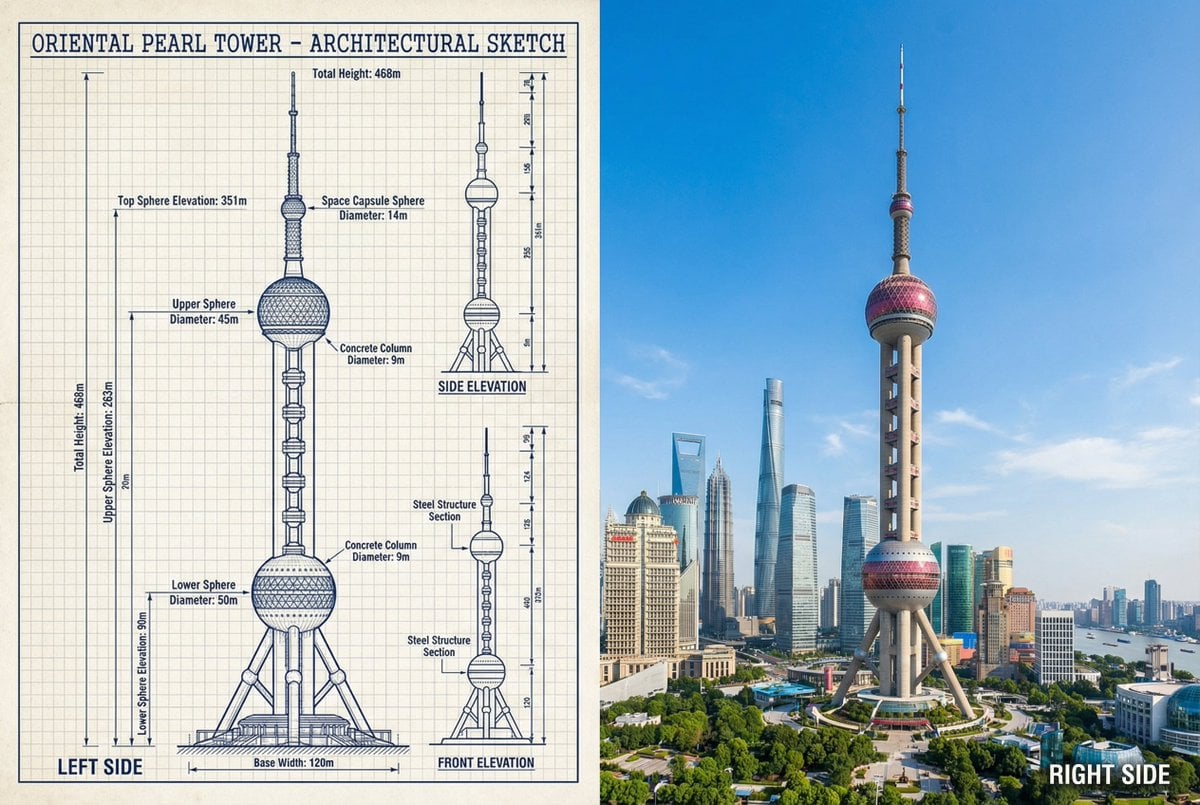
JSON Prompt for Side-by-Side Architectural Comparison of Oriental Pearl Tower

Tropical Resort Travel Ad Banner
Retro CRT TV Display Portrait Collage
Ultra-Photorealistic Group Portrait: New Year's Eve Party
Browse template categories
GPT Image 2.0 Japanese Thumbnail questions
How do I use the GPT Image 2.0 Japanese Thumbnail template?
Add your photo if the template asks for one, edit the prompt if you like — the template's model and format are already selected — and press Generate. Your version opens in PicX Studio.
Can I customize the GPT Image 2.0 Japanese Thumbnail template?
Yes. You can change the subject, setting, lighting, mood, format, and available model controls before creating your image.
Is the GPT Image 2.0 Japanese Thumbnail template free?
Opening and editing this template is free. Generating uses credits, shown on the Generate button when you are signed in.
Which AI model should I use?
Start with GPT Image 2, which is the model associated with this template. You can compare another compatible model for a different finish.
Looking for something else? Browse all templates.

Your photo, any look
Thousands of ready templates for every top image and video model, from one credit balance.