How do I use the Retro Claude Code Usage Gauge template?
Choose the primary action to open PicX Studio with the available template settings. Review the model and format, personalize the creative direction, and generate when ready.
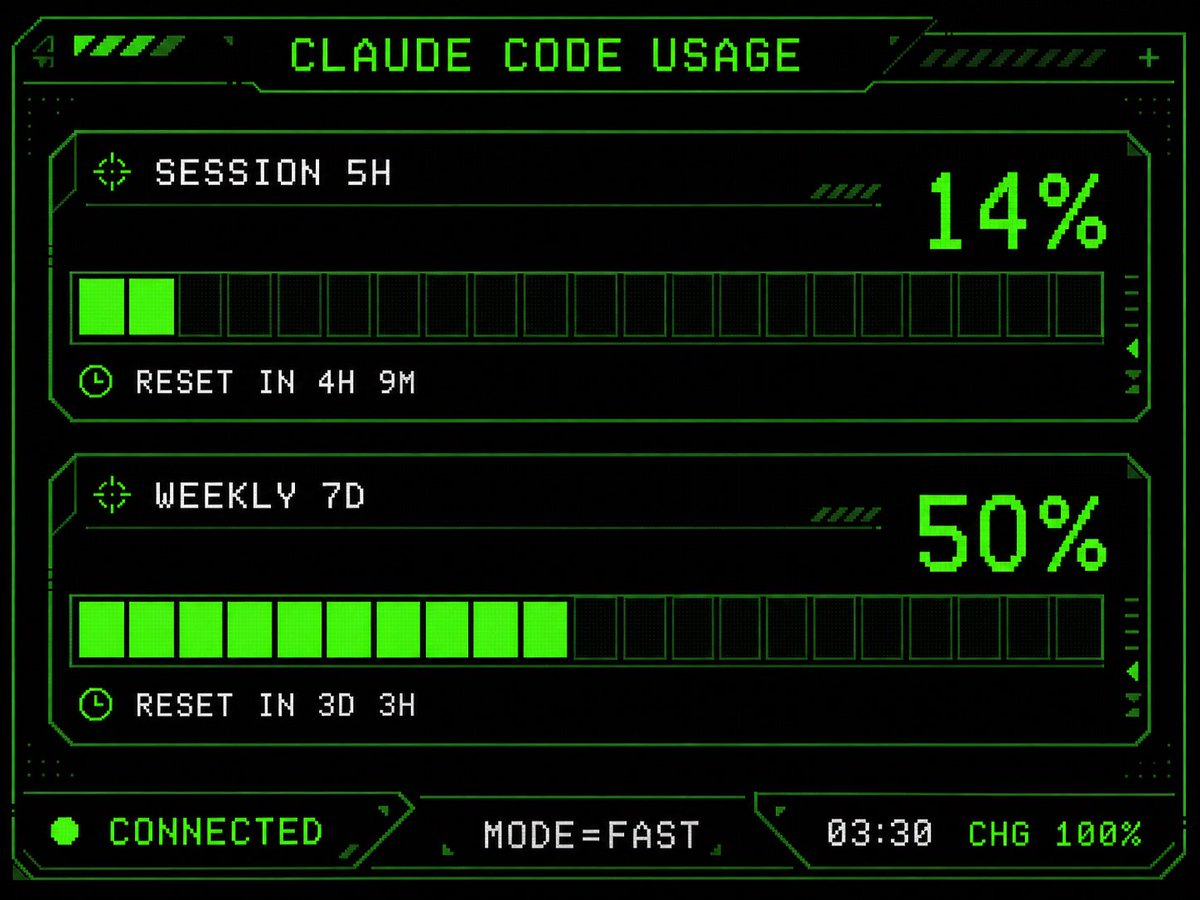
Transforms a simple usage meter reference into a neon-green pixel terminal dashboard suitable for an M5Stack-style device UI. Change the subject, setting, or lighting one variable at a time.
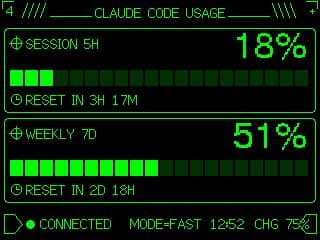
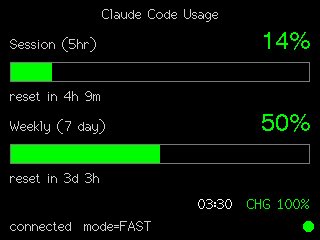
Using REFERENCE_0 as the functional layout and data source, redesign it as a polished monochrome neon-green retro terminal UI for an M5Stack-style low-resolution display. Keep the same concept of a Claude Code usage gauge with 2 usage panels: SESSION 5H and WEEKLY 7D. Convert the plain progress bars into segmented pixel bars with 24 rectangular blocks each, preserve the approximate usage values but update the visible numbers to {argument name="session percentage" default="18%"} and {argument name="weekly percentage" default="51%"}. Add thin glowing green borders around each panel, pixel/bitmap typography, small target/crosshair icons beside the panel titles, and clock icons beside the reset lines. Replace the simple title with a decorative header reading {argument name="headline text" default="CLAUDE CODE USAGE"}, flanked by terminal-like slashes and line ornaments. At the bottom, add a retro status row with a flag/terminal outline icon, green connection dot, {argument name="connection label" default="CONNECTED"}, MODE=FAST, {argument name="time" default="12:52"}, and CHG 75% with a small battery/charging icon. Use a black background, bright CRT green lines, crisp pixel art styling, and make the result look like a refined embedded-device dashboard rather than a flat chart.
Retro Claude Code Usage Gauge needs input media to work. Open it in the studio and these load alongside the prompt — pick whichever ones your chosen model can take.
Choose the primary action to open PicX Studio with the available template settings. Review the model and format, personalize the creative direction, and generate when ready.
Yes. You can change the subject, setting, lighting, mood, format, and available model controls before creating your image.
This template is free to open and customize. Generation usage is shown in PicX Studio before you create.
Start with GPT Image 2, which is the model associated with this template. You can compare another compatible model for a different finish.
© 2026 PicX Studio. All rights reserved.

Follow a topic to a crawlable collection of related PicX Studio templates.
43,474 public templates available. Verified via the PicX Studio public templates API; refreshed hourly.









![Minimalist Flat Vector Travel Poster — Premium minimalist flat-vector travel poster for {argument name="city name" default="[CITY_NAME]"}, 3:4 vertical format.](https://cms-assets.youmind.com/media/1787917359711_3ug846_HQX205cbMAA6F6S-300x400.jpg)


























![Encyclopedia of Flavor Diorama Generator — Input Variable: [{argument name="cuisine or dish" default="INSERT CUISINE OR DISH"}] (e.g., Persia…](https://pbs.twimg.com/media/G_O9zLEXkAArj0J.jpg)