
AI-Generated Board Report Slide
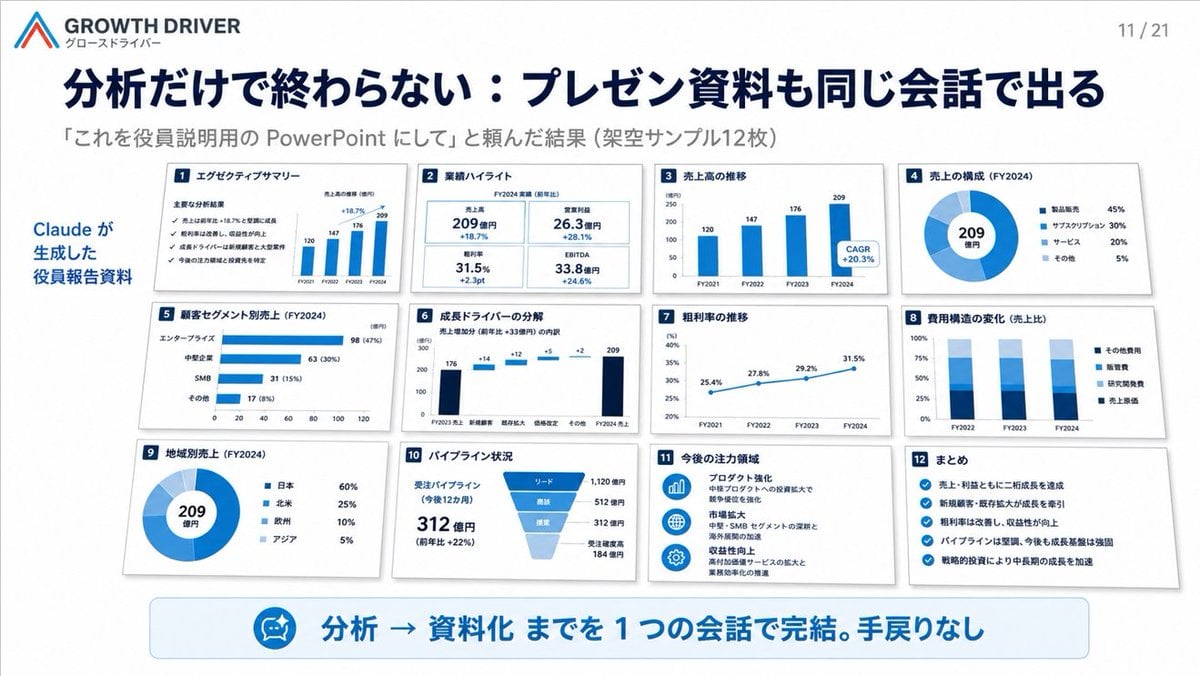
A polished Japanese corporate presentation slide showing twelve AI-created executive report thumbnails in a clean consulting-deck layout.
- Prompt included
- Model and format preset
- Free template
The prompt behind this image
Copy the exact prompt behind AI-Generated Board Report Slide, or open it in the studio and make it yours.
Goal: Create a clean Japanese corporate presentation slide for {argument name="company name" default="GROWTH DRIVER"}, showing that an AI tool can convert analysis into board/executive PowerPoint materials in one conversation. Canvas: 16:9 widescreen slide, white background, polished consulting-deck style with navy and bright blue accents, subtle shadows, precise grid alignment, crisp vector charts, realistic miniature slide thumbnails. Header: Top left contains a simple angular red-and-blue logo mark, the brand text “GROWTH DRIVER” and small Japanese subtitle “グロースドライバー”. Top right shows page number “11 / 21”. Large bold navy Japanese headline: {argument name="headline text" default="分析だけで終わらない:プレゼン資料も同じ会話で出る"}. Under it, smaller gray subheading: {argument name="subheading text" default="「これを役員説明用の PowerPoint にして」と頼んだ結果(架空サンプル12枚)"}. Layout: Left side has a vertical blue annotation reading “Claude が生成した 役員報告資料”. The main area contains exactly 12 small white slide cards arranged in a 4-column by 3-row grid, each with a small navy numbered square in the top-left corner, a Japanese title, chart content, and light gray drop shadow. Use consistent blue chart styling and dense but readable board-report visuals. The 12 slide cards, counted and labeled exactly: 1. “エグゼクティブサマリー” — checklist-style executive summary with four checkmarks and a tiny bar chart showing FY2021–FY2024 values 120, 147, 176, 209. 2. “業績ハイライト” — four KPI tiles: 売上高 209億円 +18.7%, 営業利益 26.3億円 +28.1%, 粗利率 31.5% +2.3pt, EBITDA 33.8億円 +24.6%. 3. “売上高の推移” — blue vertical bar chart FY2021 120, FY2022 147, FY2023 176, FY2024 209, with a callout “CAGR +20.3%”. 4. “売上の構成(FY2024)” — donut chart with center “209 億円” and legend: 製品販売 45%, サブスクリプション 30%, サービス 20%, その他 5%. 5. “顧客セグメント別売上(FY2024)” — horizontal bar chart: エンタープライズ 98 (47%), 中堅企業 63 (30%), SMB 31 (15%), その他 17 (8%). 6. “成長ドライバーの分解” — waterfall chart from FY2023売上 176 through increments +14, +12, +5, +2 to FY2024売上 209. 7. “粗利率の推移” — line chart from FY2021 25.4%, FY2022 27.8%, FY2023 29.2%, FY2024 31.5%. 8. “費用構造の変化(売上比)” — stacked column chart for FY2022, FY2023, FY2024 with legend: その他費用, 販管費, 研究開発費, 売上原価. 9. “地域別売上(FY2024)” — donut chart with center “209 億円” and legend: 日本 60%, 北米 25%, 欧州 10%, アジア 5%. 10. “パイプライン状況” — funnel chart plus text: 受注パイプライン(今後12カ月)312億円(前年比 +22%), stages リード 1,120億円, 商談 512億円, 提案 312億円, 受注確度高 184億円. 11. “今後の注力領域” — three blue circular icons with short Japanese strategy notes: プロダクト強化, 市場拡大, 収益性向上. 12. “まとめ” — checklist with five blue check icons summarizing growth, new customers, margin improvement, strong pipeline, and strategic investment. Bottom callout: A wide rounded pale-blue banner spans the lower slide. On the left of the banner is a small circular blue icon resembling an AI assistant/robot face. Large bold blue Japanese text reads: {argument name="bottom message" default="分析 → 資料化 までを 1 つの会話で完結。手戻りなし"}. Visual style: Executive SaaS/consulting presentation aesthetic, minimal, high information density, strong hierarchy, navy typography, white cards, blue charts, subtle gray borders and shadows. Keep all 12 cards visible and evenly spaced. No people, no photos, no decorative clutter, no watermark.
How to use AI-Generated Board Report Slide in 3 steps
- 1Upload ImagePNG, JPG or paste
Add your photo
Upload the photo the template builds on. The prompt, model and format are already set.
- 2…a portrait of your subject in softgolden-hour light, 85mm…
Personalize
Edit the subject and creative details for your destination.
- 3Generate
Generate
Press Generate — your image is created in PicX Studio, so you can compare it with the original and refine one variable at a time.
More like this
Templates with the same subject, style or setup. Open one to see its prompt.
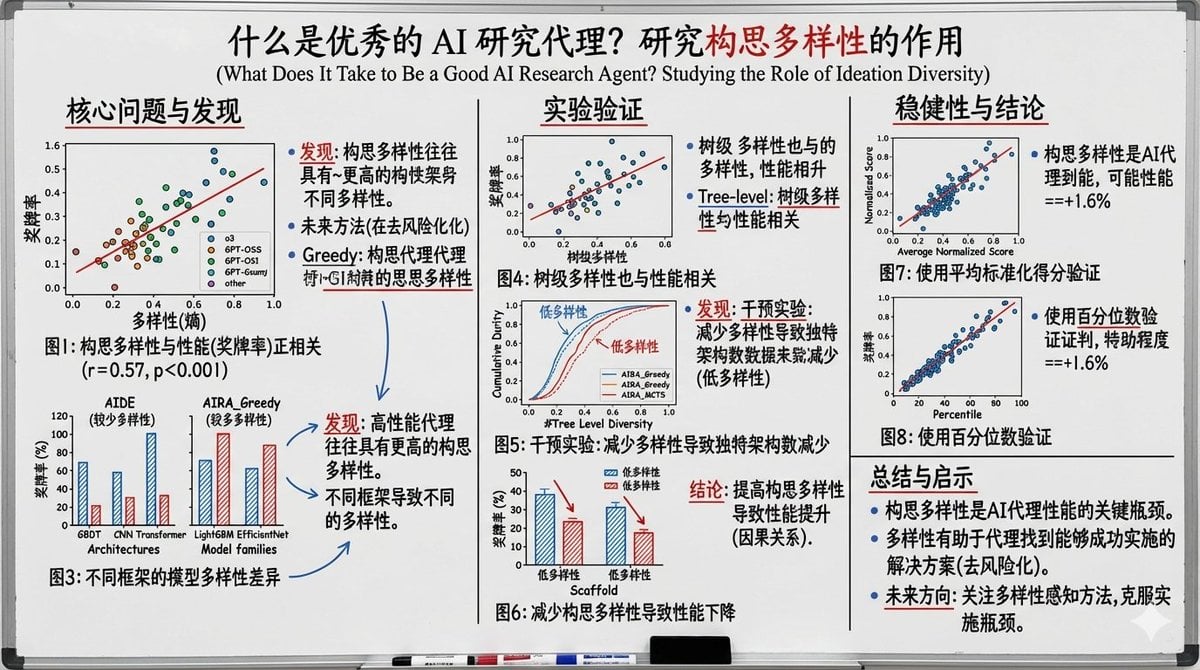
Whiteboard-style slide explaining a research paper
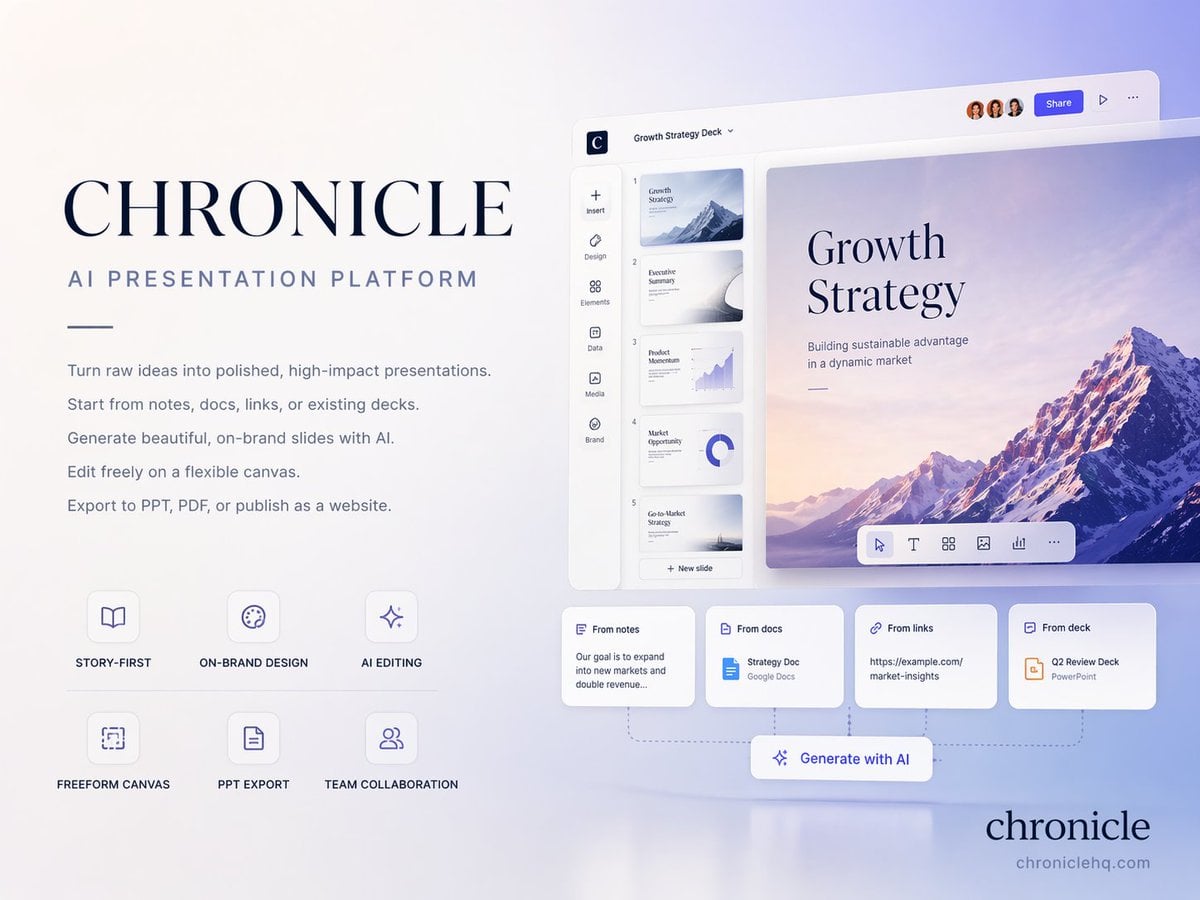
Premium 4 3 presentation cover slide introducing Chronicle
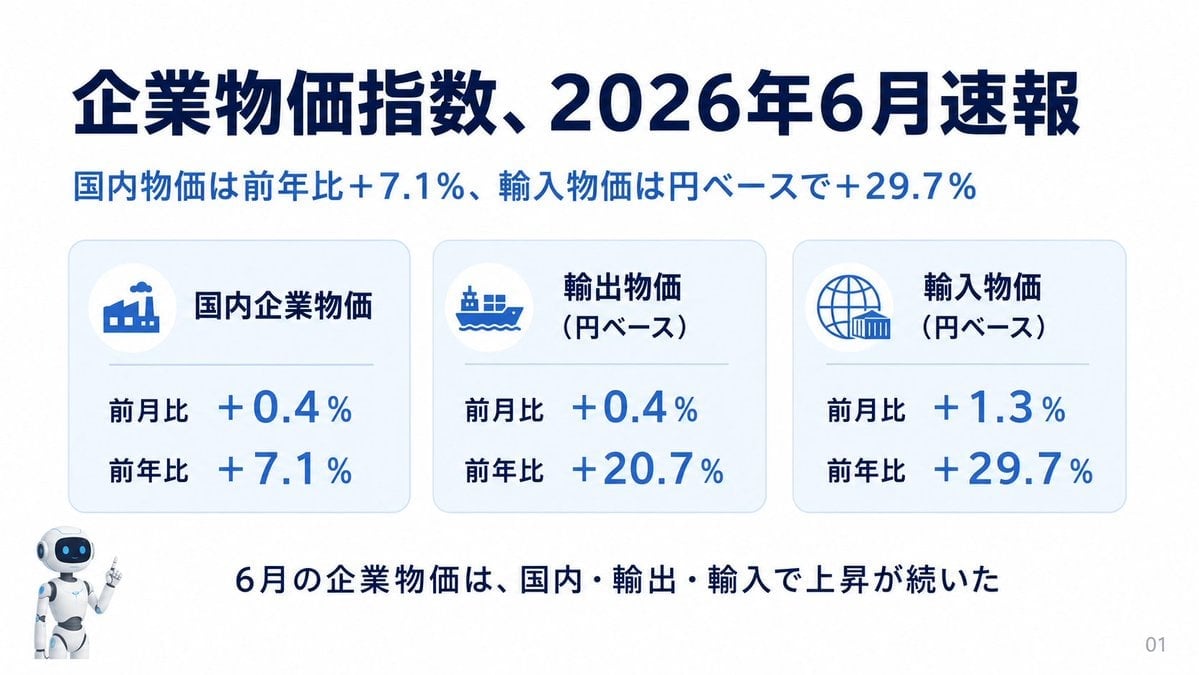
Japanese Corporate Price Index Slide
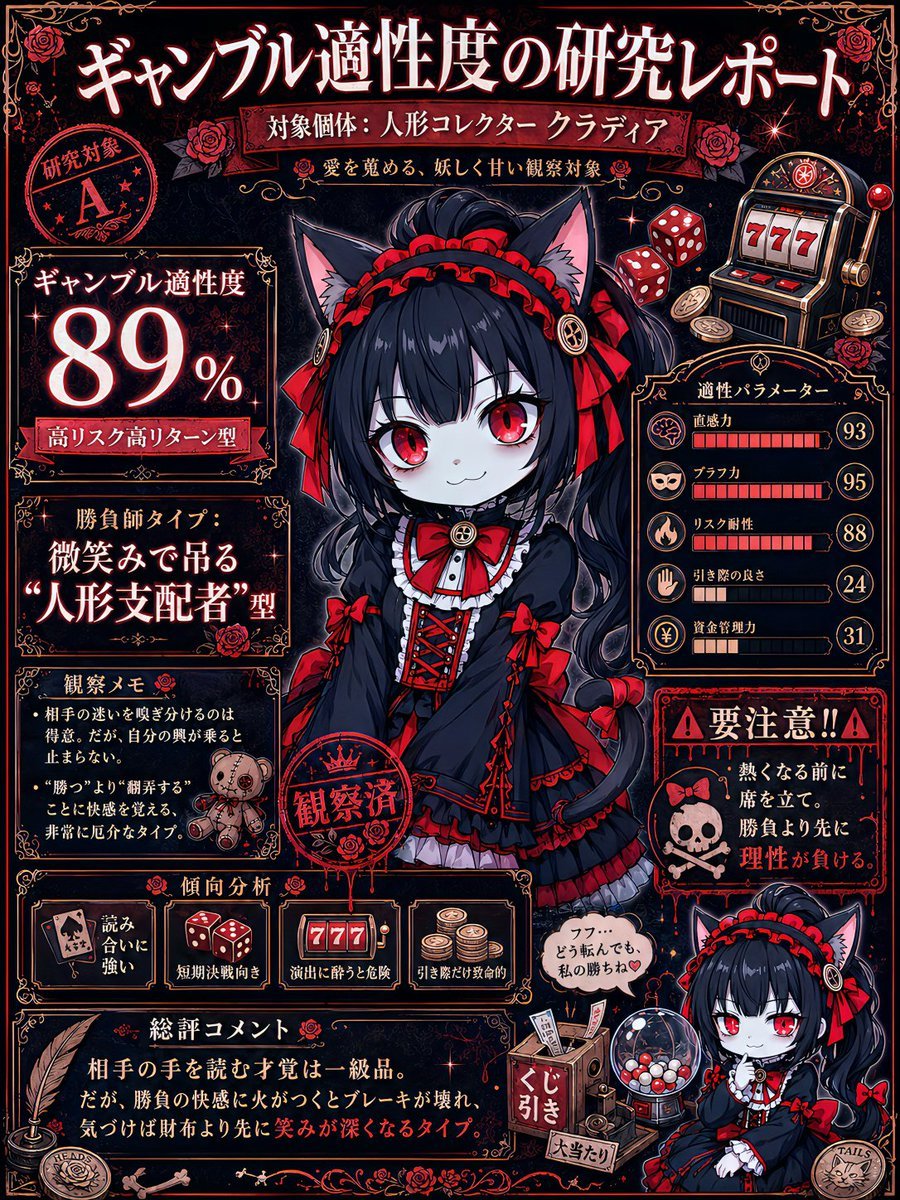
Gambling Aptitude Research Report
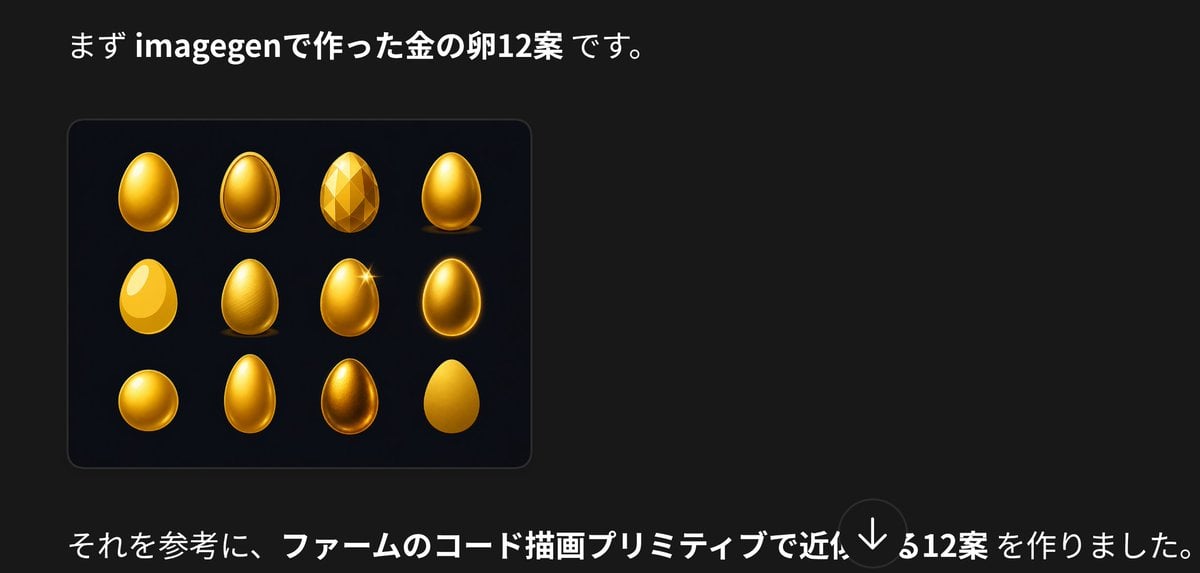
Japanese Golden Egg Design Slide

Modern Korean Fashion Editorial Board

2.5D Anime Art Board
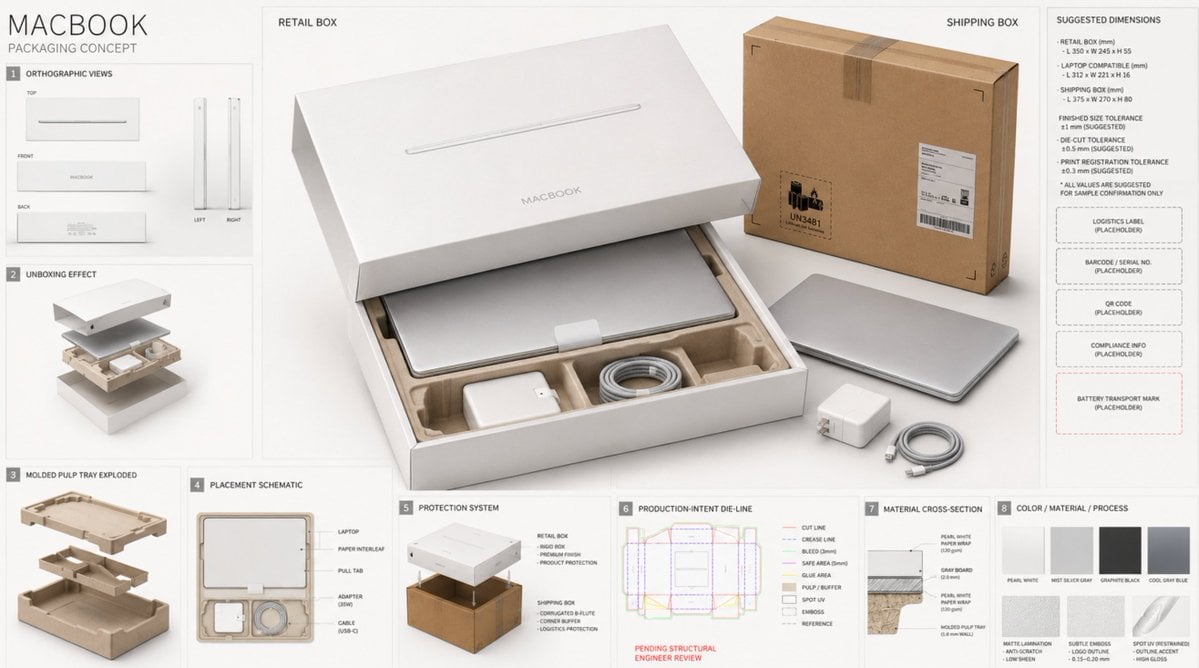
High-End Laptop Packaging Concept Board

Z-Seven AI Product Matrix Slide
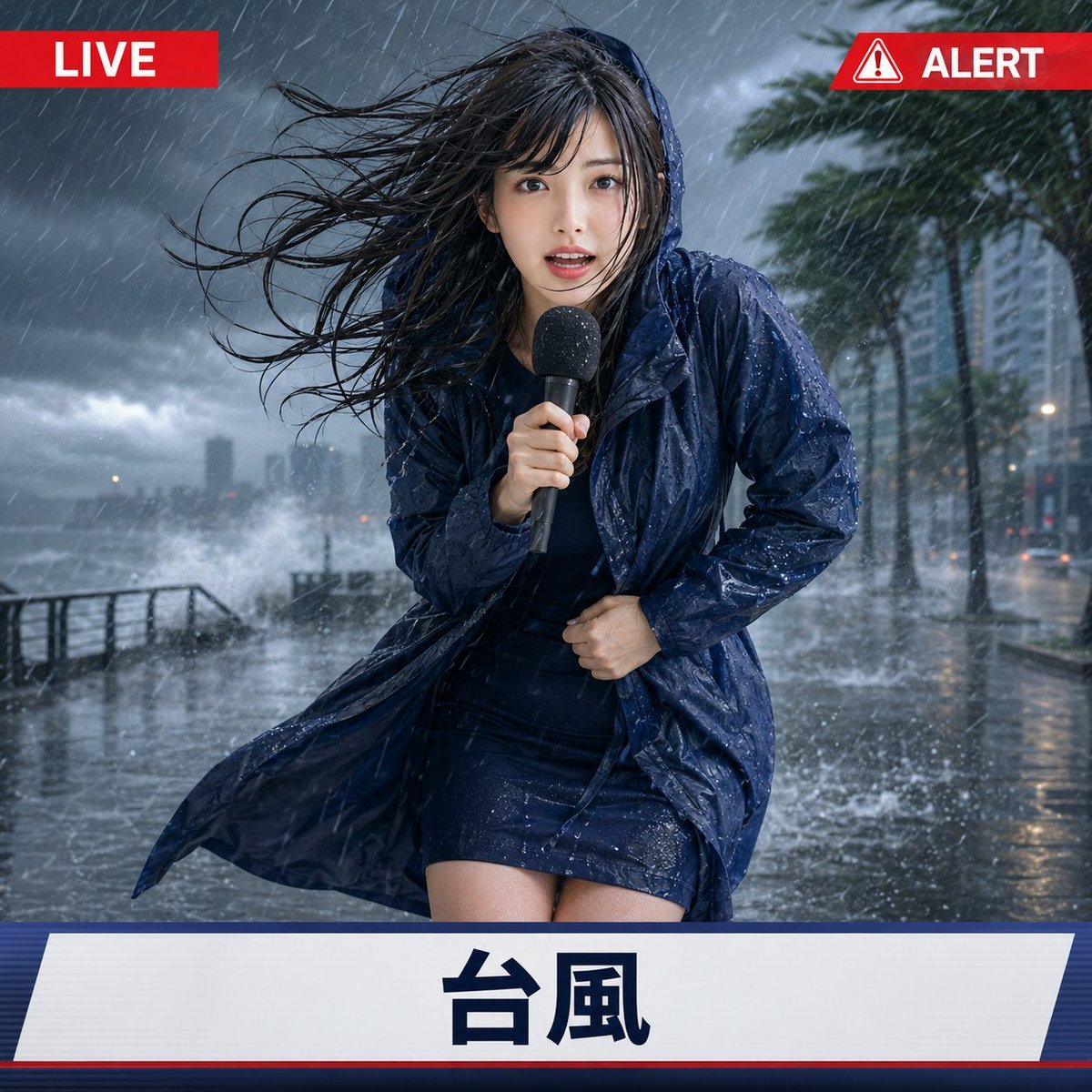
Extreme Weather TV Reporter System
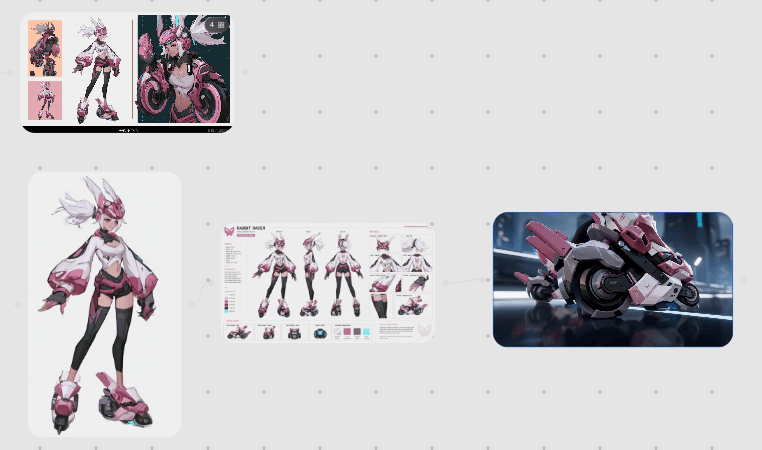
Rabbit Racer Workflow Board
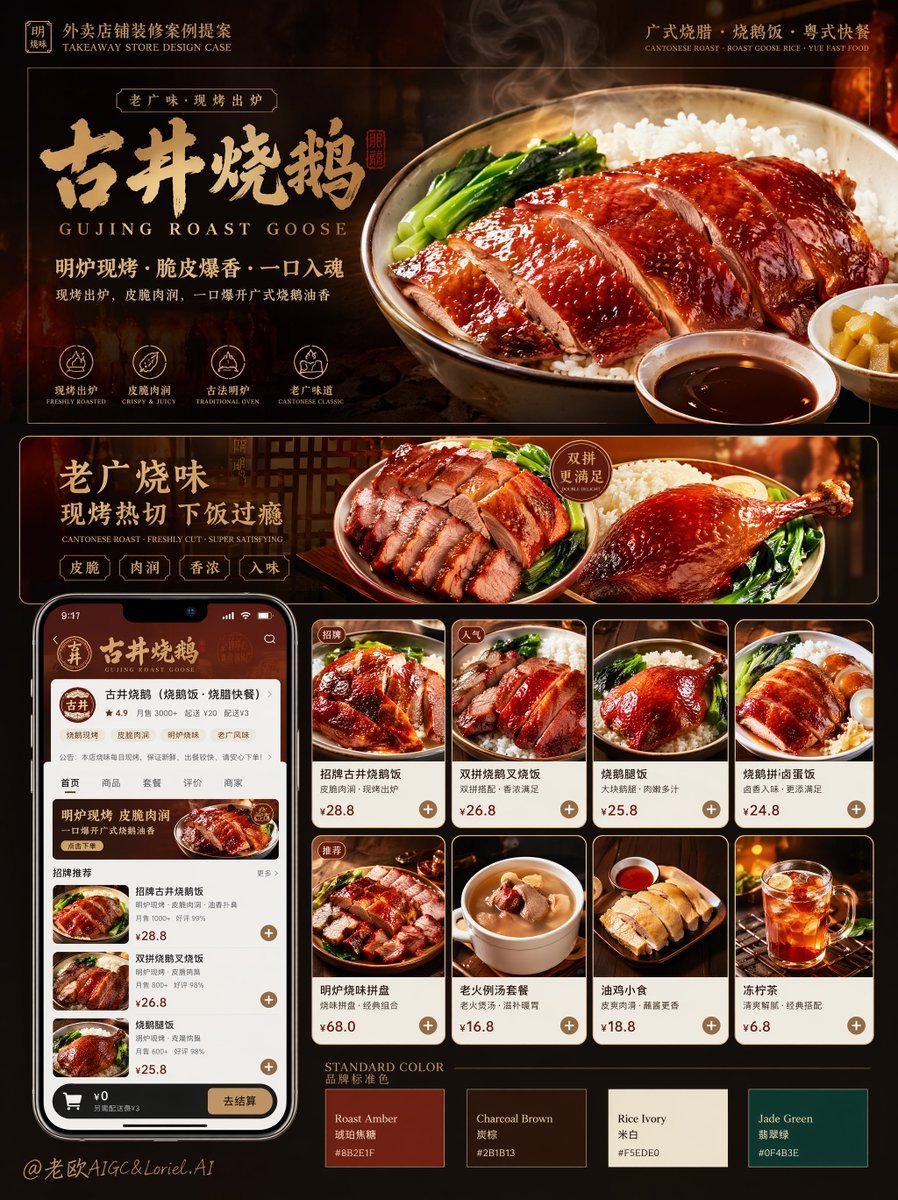
Roast Rice Branding Proposal Board
Make it yours
AI-Generated Board Report Slide works as-is. These are the safest ways to change it without losing the look.
Change one field
Copy a single group, rewrite it, and generate again so you can see what that field is doing.
Keep the frame, change the subject
Hold the composition and light of AI-Generated Board Report Slide, then swap wardrobe, props or the person for a new take.
| If the result… | Why | Fix |
|---|---|---|
| The result drifts from the preview | Too many fields changed at once. | Reuse AI-Generated Board Report Slide as-is first, then change one group — subject, light, or setting. |
| The model over-stylizes the scene | The prose prompt leaves finish and camera underspecified. | Add one camera or lighting sentence and stay on GPT Image 2. |
More GPT Image 2 templates
Other prompts made for GPT Image 2.

Six VTuber Japanese Logo Sheet

Realistic Portrait of Woman and Deer

The Vista Modular Condo Poster

AI Model Routing Comparison Infographic

Isometric Productivity Desk Scene

New York Double Exposure Poster

Four-Panel AI Landscape Comparison

Japanese Tatami Lifestyle Magazine Cover

NESCAFÉ Coffee Map Poster

Brutalist Cogito Chinese Typography Poster
More image prompts
Fresh picks from across the catalog.
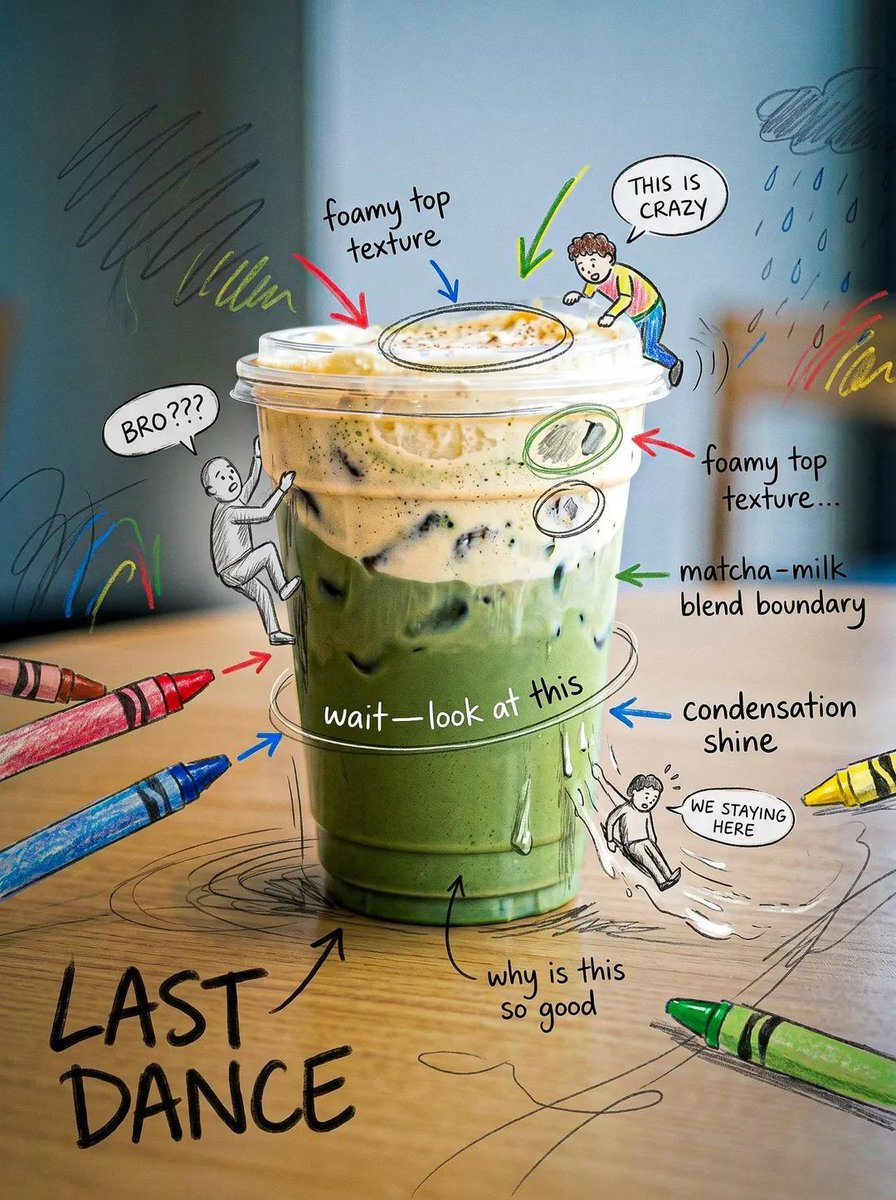
Creative Doodled Image Overlay
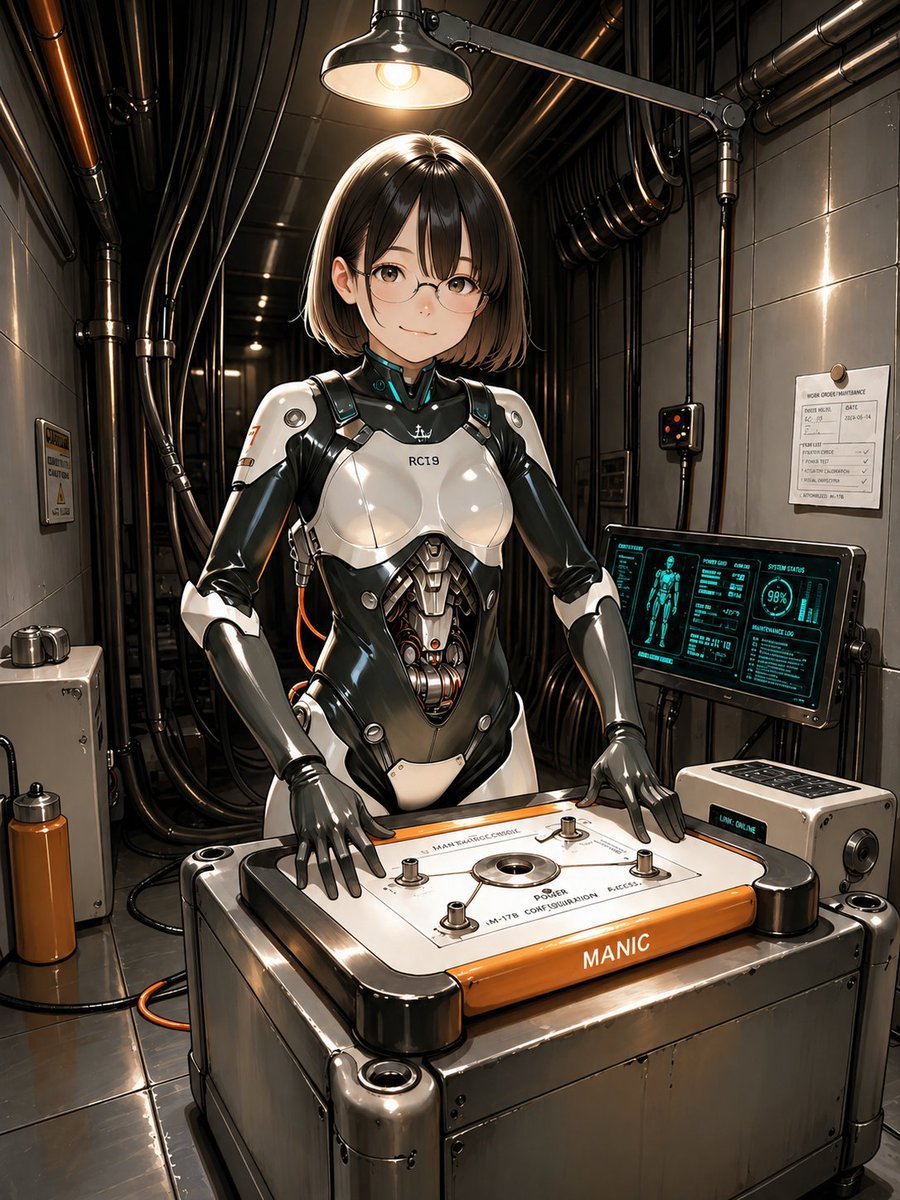
Android Engineer in Maintenance Bay

Japanese Tabloid Magazine Cover

City in Hand Micro-World Prompt

East Asian High-Fashion Studio Portrait

Dramatic Wet Portrait Photography

Cinematic Action Scene: Explosion Behind High-Speed Car
Futuristic Sci-Fi Still Life Photography Template
Stylized Urban 3D Skater Character
Creative Design Mood Board Portrait
Browse template categories
AI-Generated Board Report Slide questions
How do I use the AI-Generated Board Report Slide template?
Add your photo if the template asks for one, edit the prompt if you like — the template's model and format are already selected — and press Generate. Your version opens in PicX Studio.
Can I customize the AI-Generated Board Report Slide template?
Yes. You can change the subject, setting, lighting, mood, format, and available model controls before creating your image.
Is the AI-Generated Board Report Slide template free?
Opening and editing this template is free. Generating uses credits, shown on the Generate button when you are signed in.
Which AI model should I use?
Start with GPT Image 2, which is the model associated with this template. You can compare another compatible model for a different finish.
Looking for something else? Browse all templates.

Your photo, any look
Thousands of ready templates for every top image and video model, from one credit balance.