How do I use the Backstage Pop Star Selfie template?
Choose the primary action to open PicX Studio with the available template settings. Review the model and format, personalize the creative direction, and generate when ready.
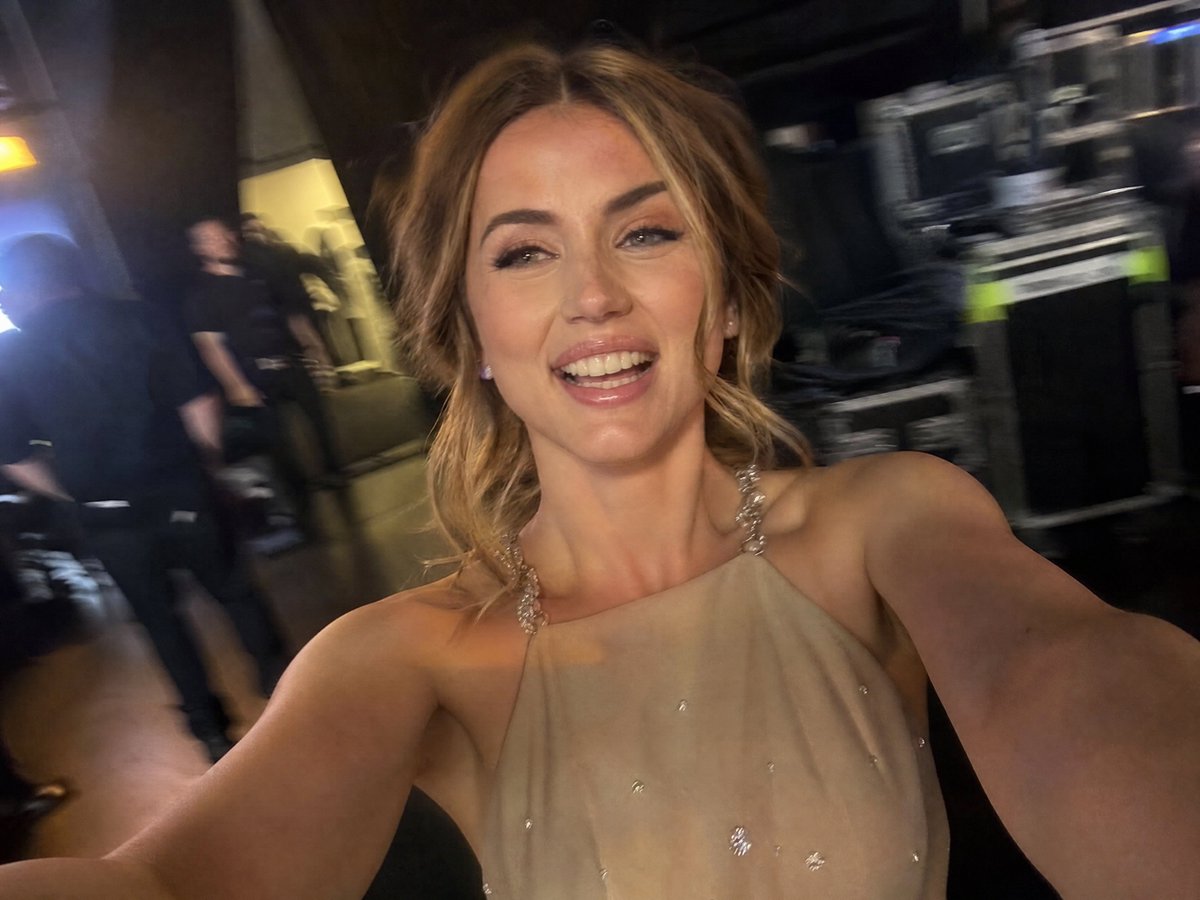
A realistic concert backstage selfie with two pop stars and a prompt input bar overlay, useful for showcasing text-to-image generation. Change the subject, setting, or lighting one variable at a time.
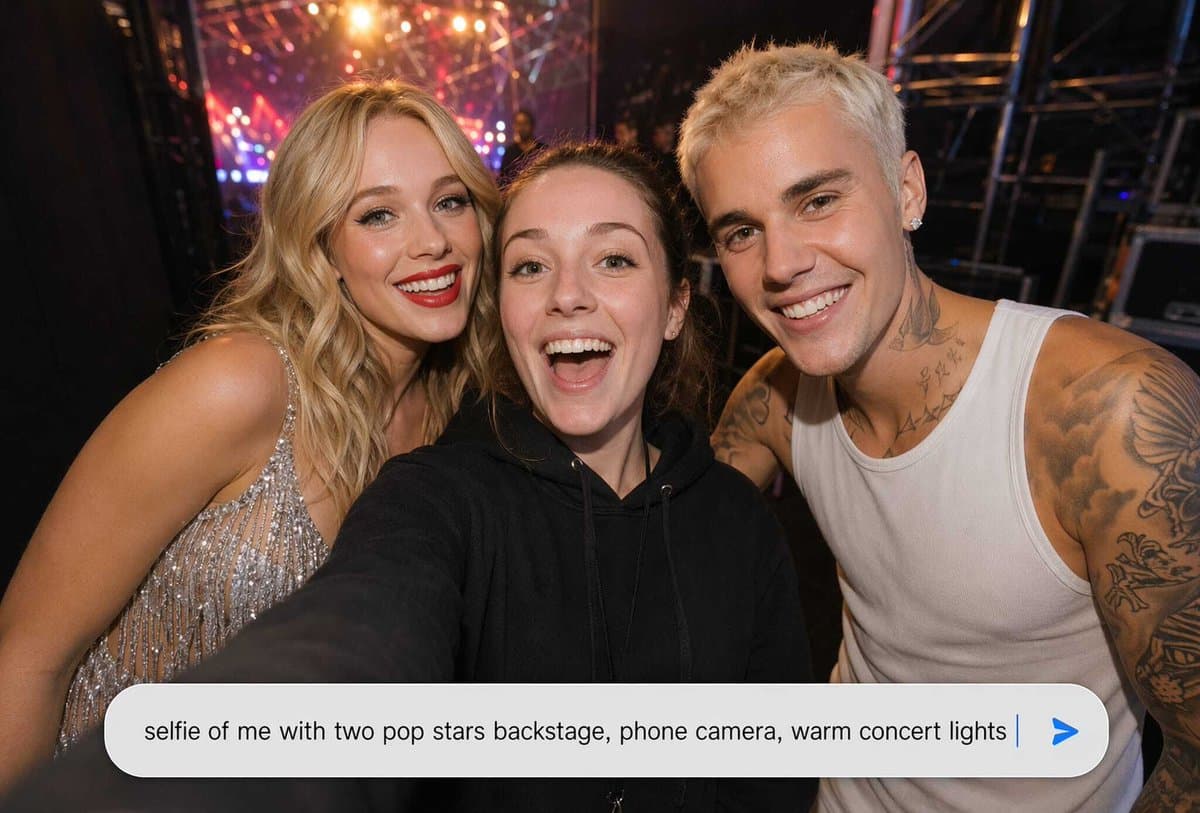
Create a realistic horizontal phone-camera selfie taken backstage at a concert, as if the viewer is holding the camera at arm's length. Show exactly three people crowded together: the central person is the selfie-taker in a black hoodie with one arm extended toward the lens, the left person is a glamorous blonde female pop star in a sparkling silver fringed dress leaning in, and the right person is a muscular male pop star with short bleached hair, earrings, visible neck and arm tattoos, and a white ribbed tank top leaning in. Cover each of the three faces with a simple opaque skin-toned rectangular censor block, exactly 3 blocks total. The background is a dark backstage area with metal scaffolding, stage rigging, blurred crew silhouettes, and warm colorful concert lights in red, orange, pink, and purple creating bokeh and lens flare. Use a wide-angle smartphone flash/selfie look, candid celebrity backstage vibe, realistic skin, shallow depth of field, high detail, slight motion blur at the edges. Across the bottom, overlay a large rounded white chat-style prompt input bar with soft shadow; inside it, display the exact typed text: “{argument name="prompt text" default="selfie of me with two pop stars backstage, phone camera, warm concert lights"}” in dark gray sans-serif, followed by a thin blue vertical cursor and a blue paper-plane/send arrow icon at the far right. Keep the composition tight and intimate, with the input bar covering the lower part of the bodies, and no extra logos, watermarks, captions, or additional people.
Choose the primary action to open PicX Studio with the available template settings. Review the model and format, personalize the creative direction, and generate when ready.
Yes. You can change the subject, setting, lighting, mood, format, and available model controls before creating your image.
This template is free to open and customize. Generation usage is shown in PicX Studio before you create.
Start with GPT Image 2, which is the model associated with this template. You can compare another compatible model for a different finish.
© 2026 PicX Studio. All rights reserved.

Follow a topic to a crawlable collection of related PicX Studio templates.
43,474 public templates available. Verified via the PicX Studio public templates API; refreshed hourly.









![Minimalist Flat Vector Travel Poster — Premium minimalist flat-vector travel poster for {argument name="city name" default="[CITY_NAME]"}, 3:4 vertical format.](https://cms-assets.youmind.com/media/1787917359711_3ug846_HQX205cbMAA6F6S-300x400.jpg)