
Bilingual Prompt Comparison Gallery
Creates a screenshot-like gallery comparing eight generated images from English and Japanese versions of the same prompt.
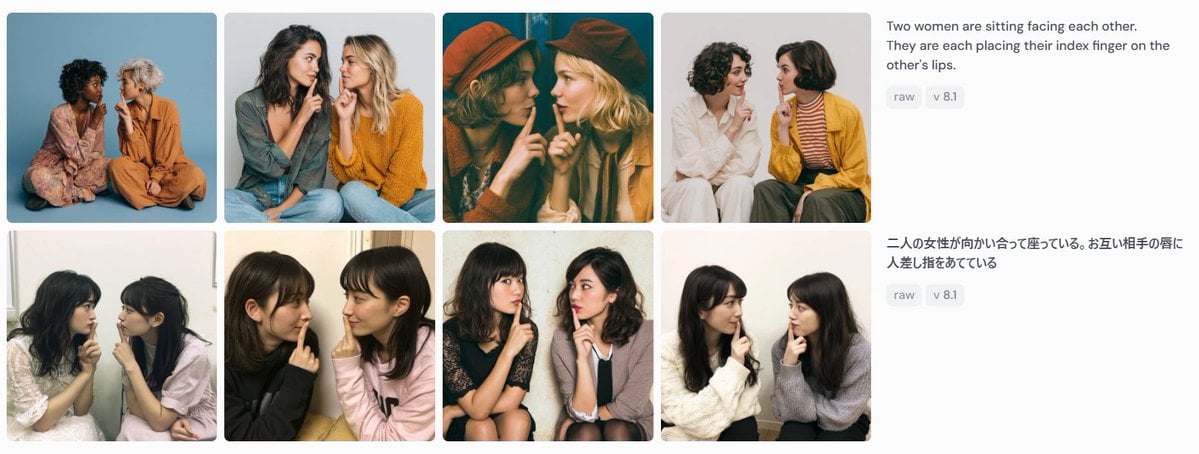
- Prompt included
- Model and format preset
- Free template
The prompt behind this image
Copy the exact prompt behind Bilingual Prompt Comparison Gallery, or open it in the studio and make it yours.
Goal: Create a wide screenshot-style comparison panel showing image-generation results for the same prompt in two languages. Canvas: Use a horizontal 1199×461 px composition on a very light gray/off-white background, like a social media screenshot or web gallery capture. Layout: Arrange the left 75% as a 2-row by 4-column gallery of exactly 8 rounded-corner photo cards, with narrow white gutters between cards. Each card is a square-ish portrait photograph of two women sitting close together, facing each other or angled inward, each placing one index finger on the other person's lips in a mutual “shh” gesture. On the right 25%, place two stacked prompt description blocks aligned with the two gallery rows. Gallery details: Include exactly 8 distinct generated-photo cards: 1. Top-left: two women seated on the floor against a blue studio backdrop, one in a floral dress, one in an orange outfit. 2. Top-second: two women in casual sweaters, one dark-haired and one blonde, seated close together against a pale gray background. 3. Top-third: warm cinematic dark teal/orange image, both women wearing hats, faces partially obscured by large soft blur rectangles. 4. Top-fourth: two women on a white background, one in white clothing and one in a mustard cardigan with striped shirt. 5. Bottom-left: two young women seated indoors near a window, soft casual snapshot lighting. 6. Bottom-second: two young women in black and pale pink tops, close-up casual indoor portrait. 7. Bottom-third: two young women seated on chairs, one in a dark dress and one in a light cardigan, against a plain wall. 8. Bottom-fourth: two young women in white and gray sweaters, seated indoors against a light wall. Face treatment: All visible faces in the 8 cards should be anonymized with soft rectangular mosaic/blur blocks over the face area, matching the screenshot-like privacy masking. Right-side text content: At the top right, show the English prompt text: “{argument name="English prompt text" default="Two women are sitting facing each other. They are each placing their index finger on the other's lips."}” Under it, place two small rounded gray tags reading “raw” and “v 8.1”. Below, aligned with the second row, show the Japanese prompt text: “{argument name="Japanese prompt text" default="二人の女性が向かい合って座っている。お互い相手の唇に人差し指をあてている"}” Under it, place two matching gray tags reading “raw” and “v 8.1”. Visual style: Photorealistic generated-image thumbnails, varied lighting and wardrobes, clean UI spacing, rounded image corners, sans-serif interface text in dark gray, small pale-gray pill tags. The overall image should look like a captured comparison grid demonstrating prompt-following consistency, not a polished poster. Constraints: Use exactly 8 photo cards, exactly 2 text blocks, and exactly 4 pill tags total. Do not add logos, watermarks, browser chrome, captions inside the photo cards, or extra UI elements.
How to use Bilingual Prompt Comparison Gallery in 3 steps
- 1Upload ImagePNG, JPG or paste
Add your photo
Upload the photo the template builds on. The prompt, model and format are already set.
- 2…a portrait of your subject in softgolden-hour light, 85mm…
Personalize
Edit the subject and creative details for your destination.
- 3Generate
Generate
Press Generate — your image is created in PicX Studio, so you can compare it with the original and refine one variable at a time.
More like this
Templates with the same subject, style or setup. Open one to see its prompt.
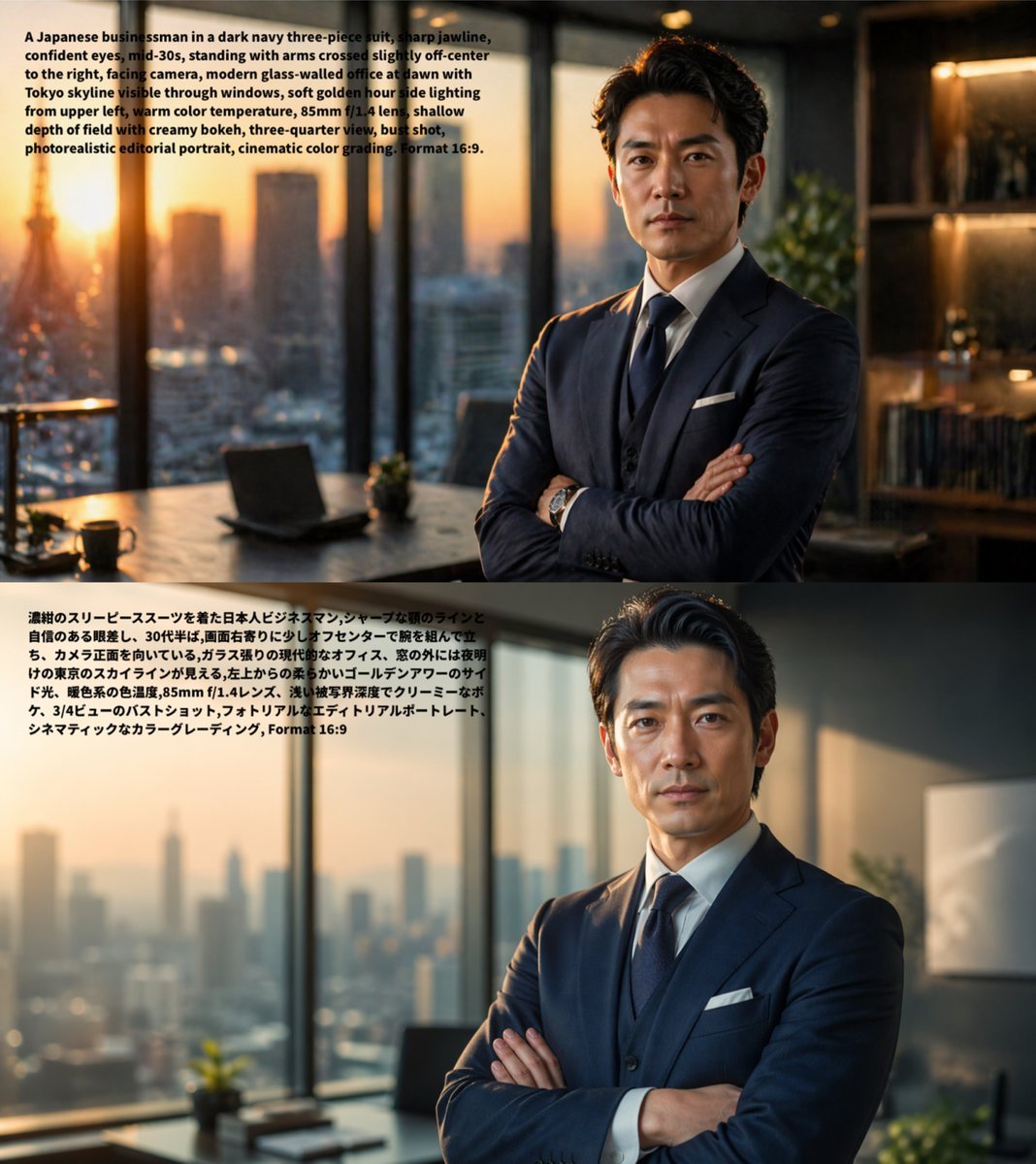
Bilingual Prompt Comparison Portrait
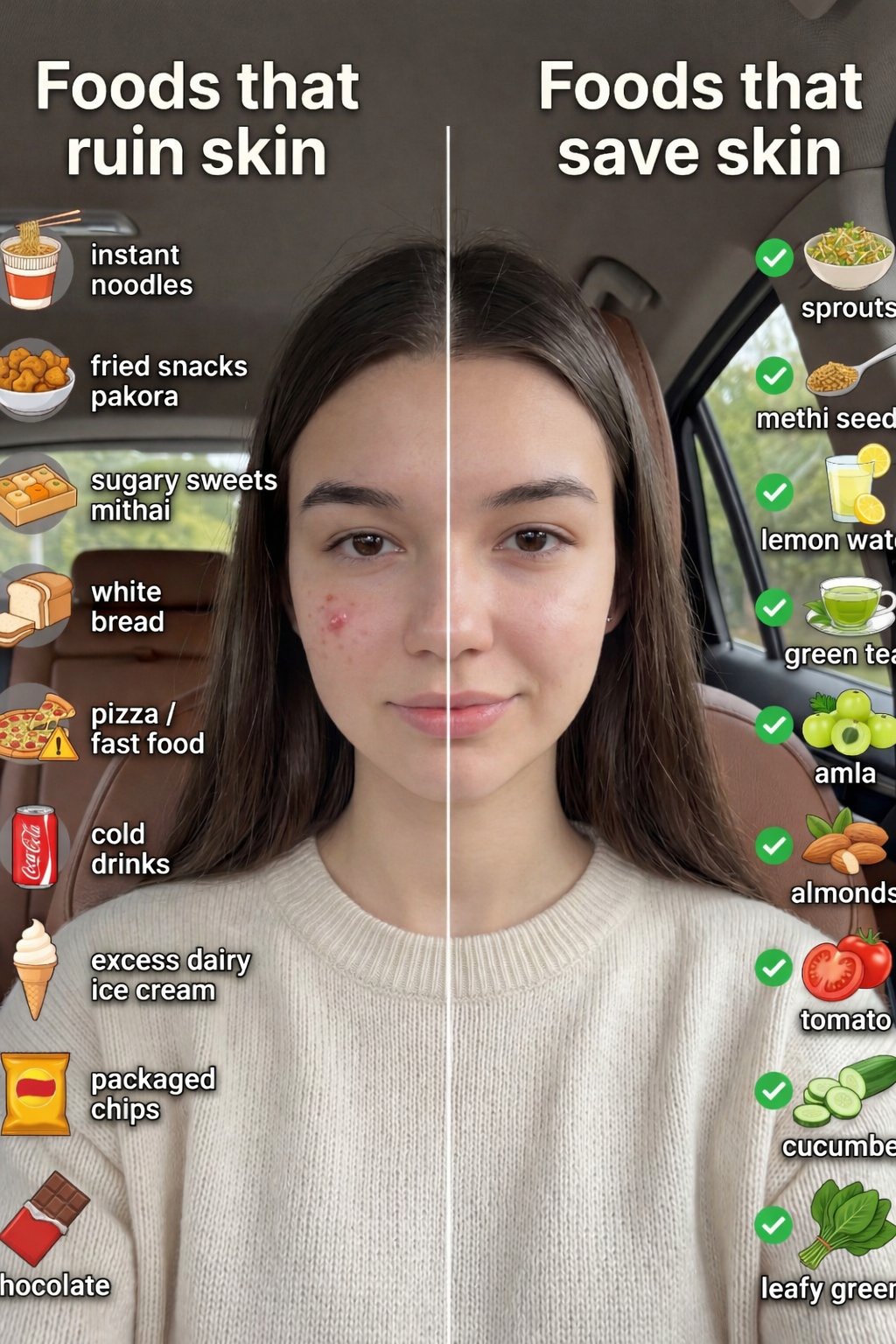
Skin Comparison Portrait — Nano Banana Pro
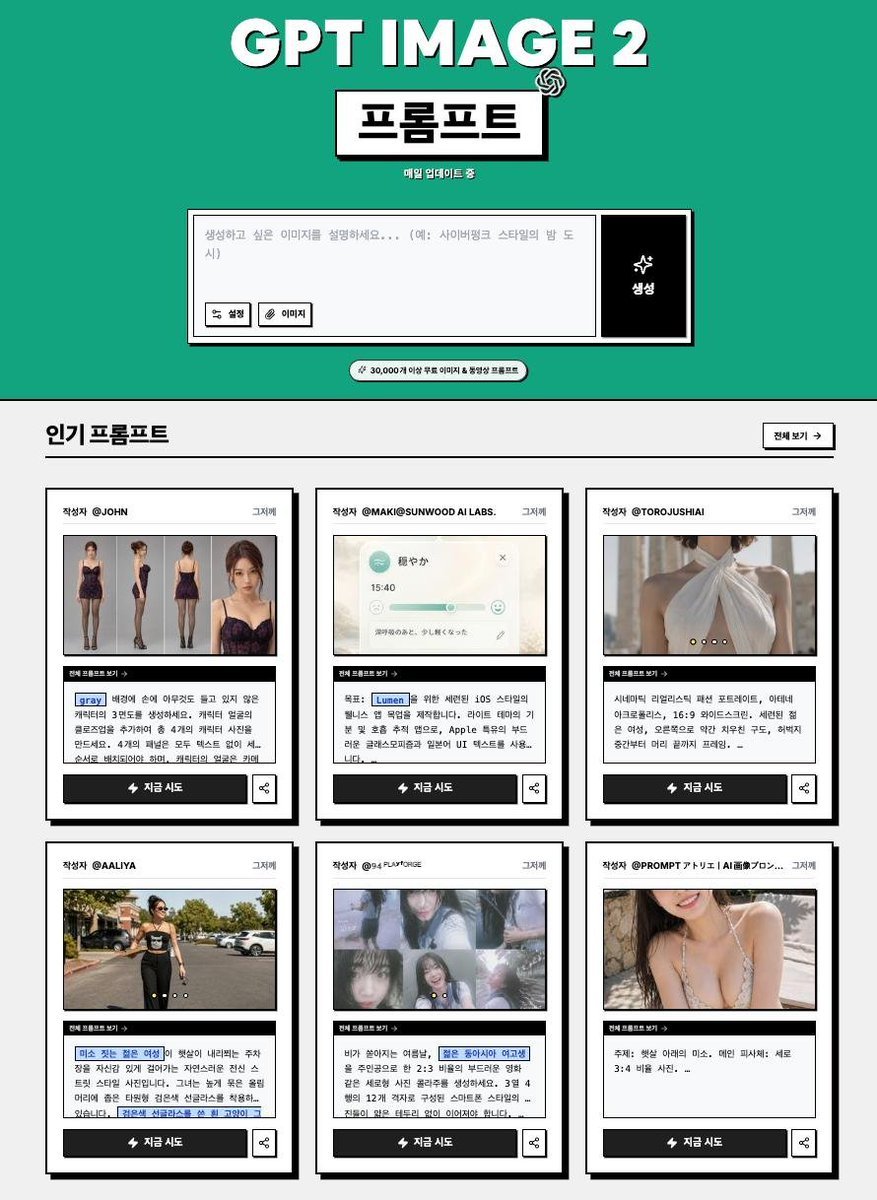
Korean GPT Image Prompt Gallery
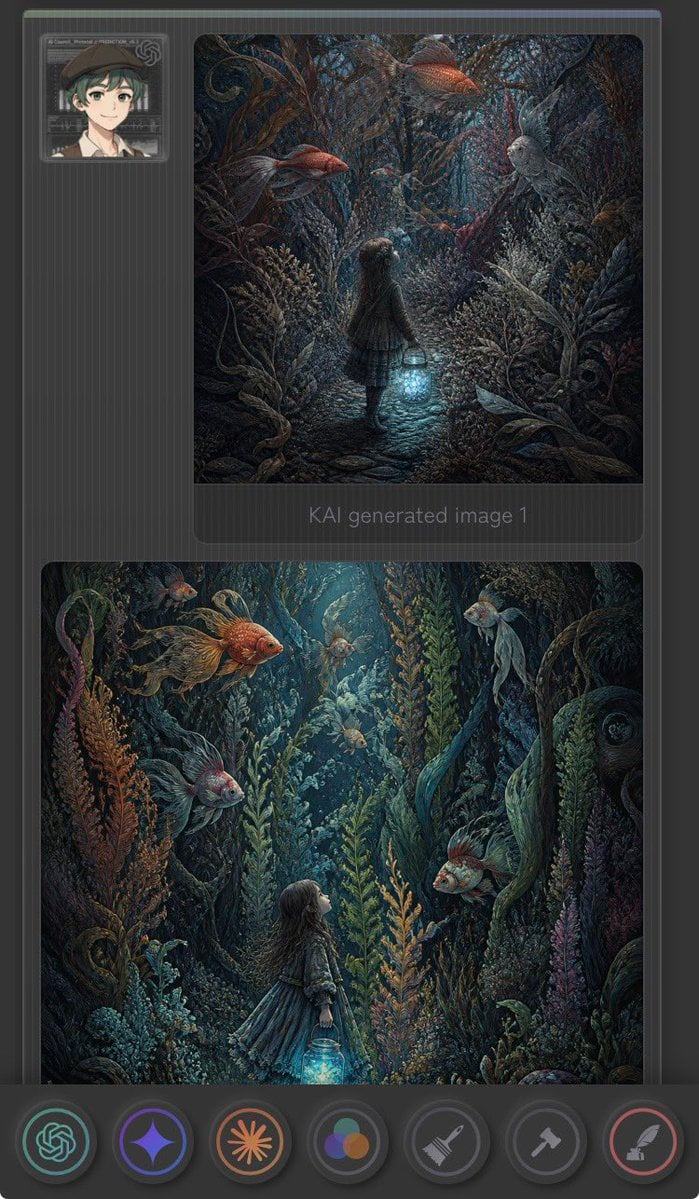
Dark Fantasy AI Gallery UI
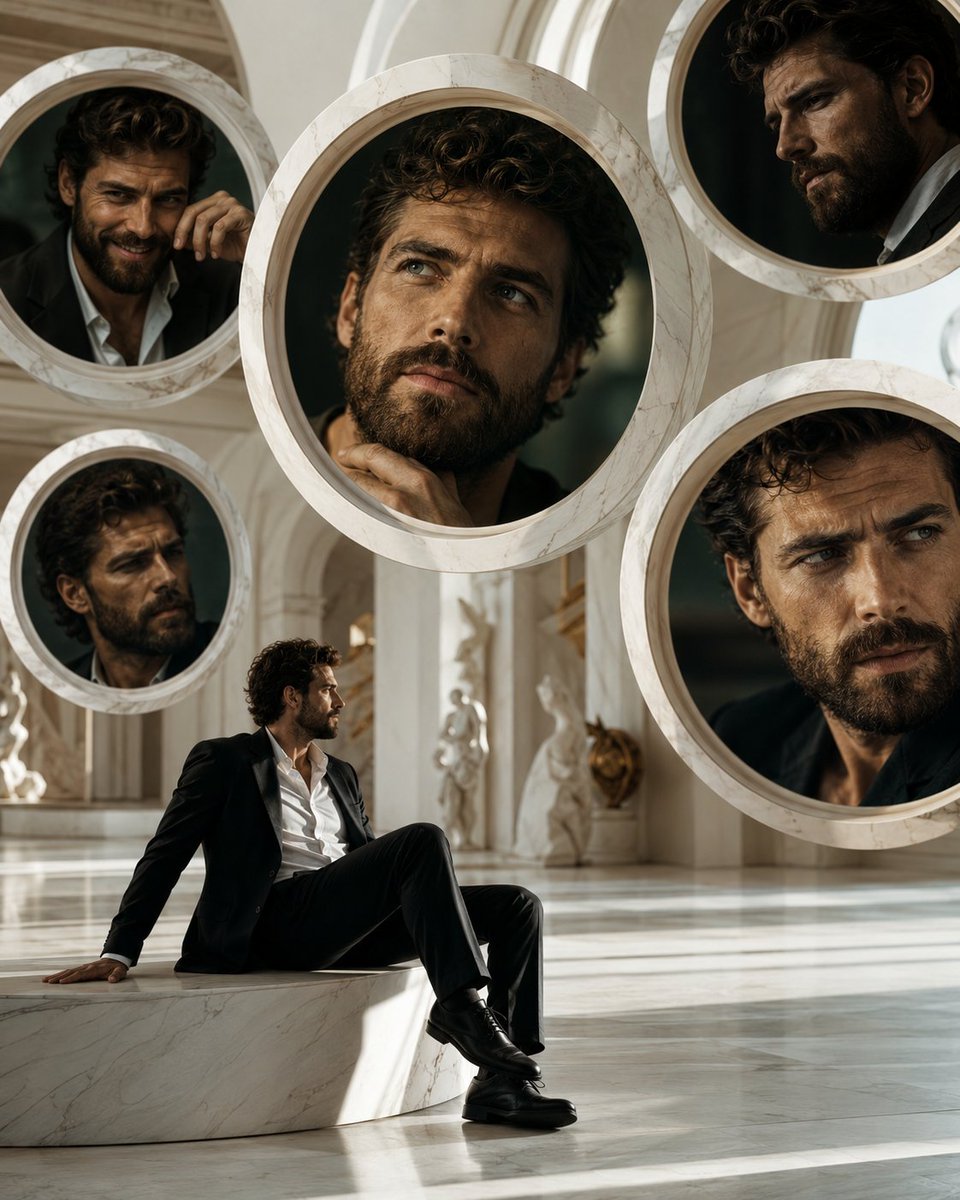
Surreal Marble Gallery Portals

AI Model Routing Comparison Infographic

Four-Panel AI Landscape Comparison
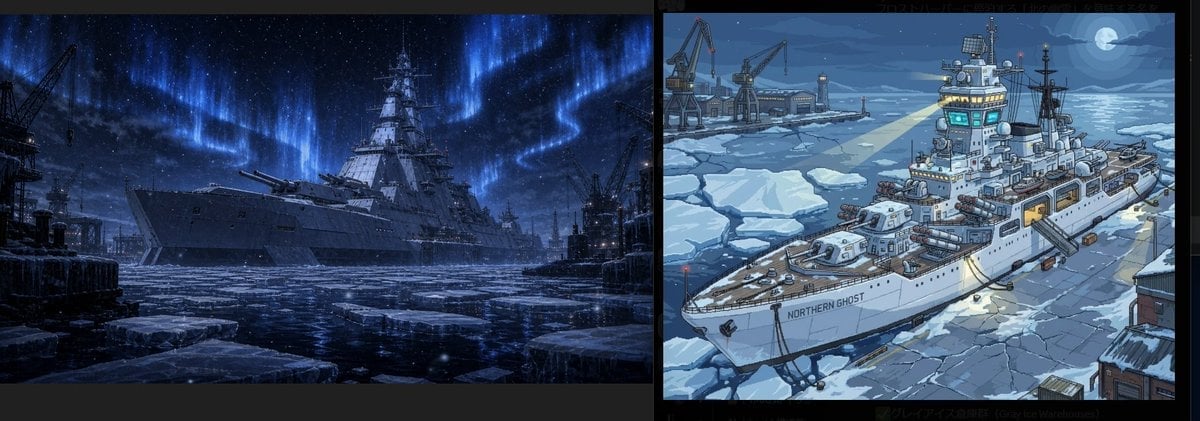
Arctic Warship Style Comparison
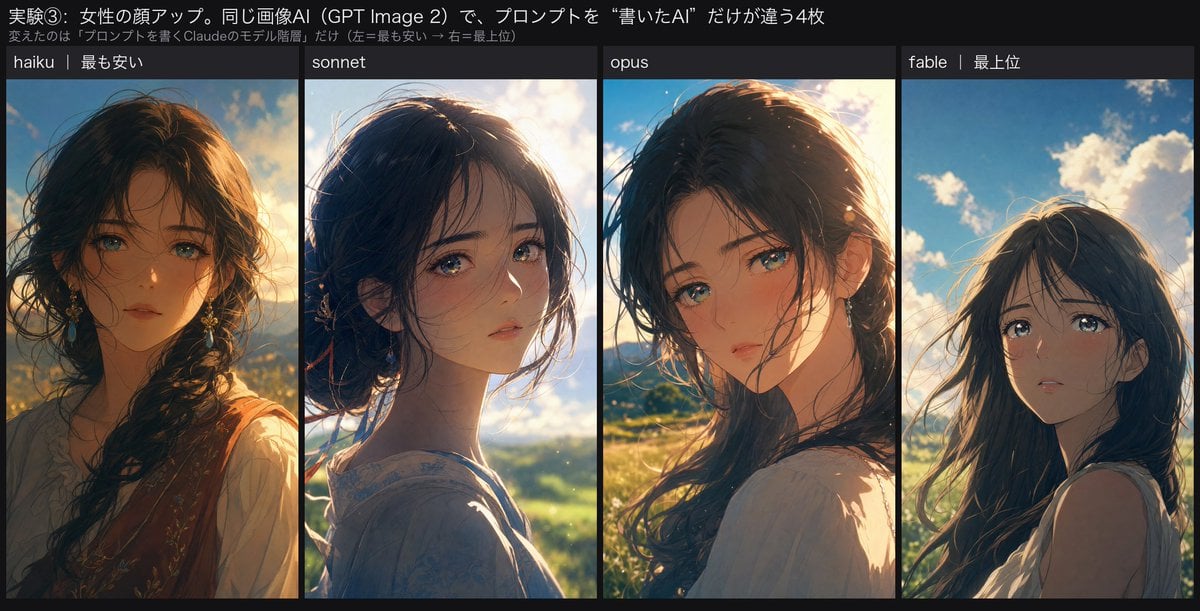
Four-Panel Anime Face Comparison
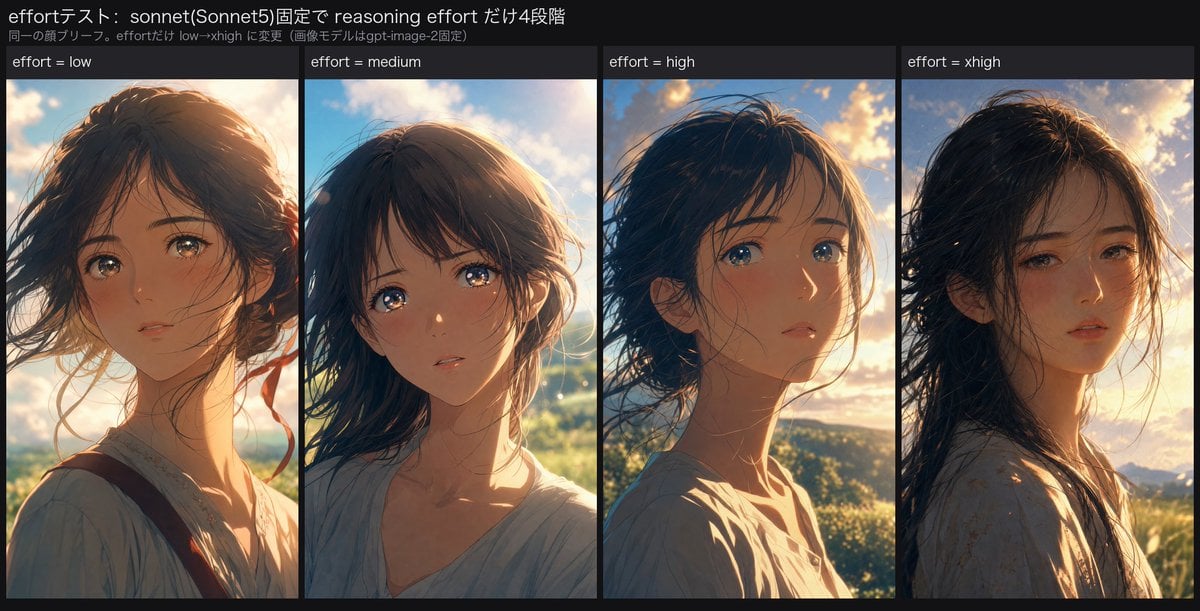
Reasoning Effort Anime Comparison
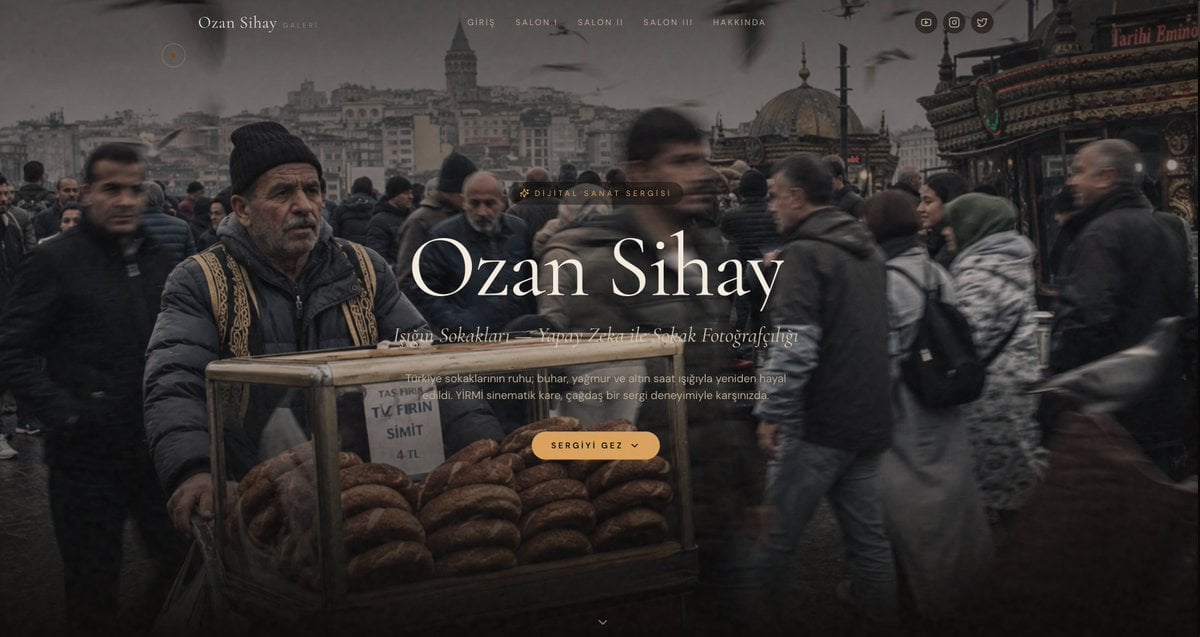
Cinematic Istanbul Gallery Website Hero
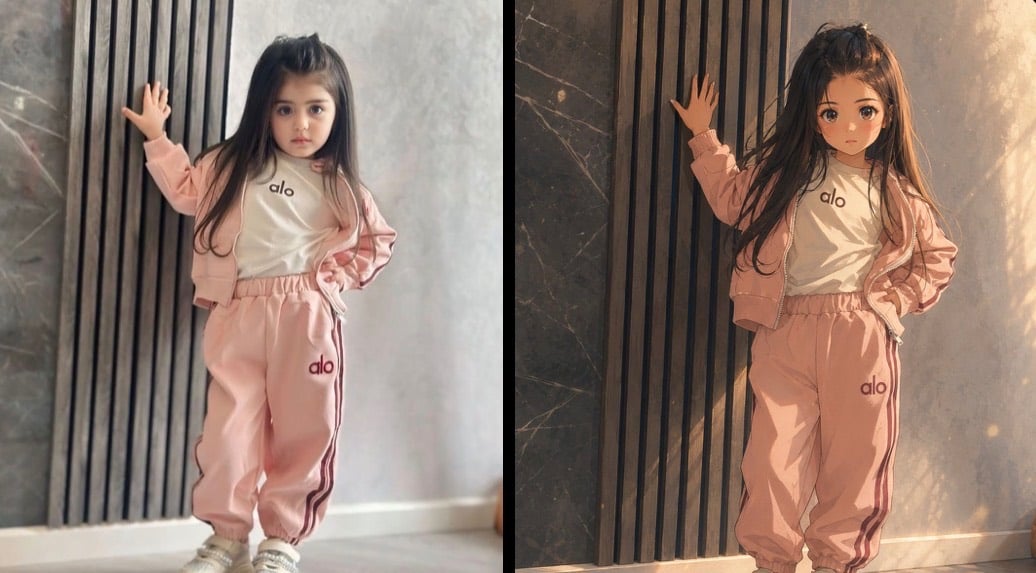
Cinematic Anime Photo Comparison
Make it yours
Bilingual Prompt Comparison Gallery works as-is. These are the safest ways to change it without losing the look.
Change one field
Copy a single group, rewrite it, and generate again so you can see what that field is doing.
Keep the frame, change the subject
Hold the composition and light of Bilingual Prompt Comparison Gallery, then swap wardrobe, props or the person for a new take.
| If the result… | Why | Fix |
|---|---|---|
| The result drifts from the preview | Too many fields changed at once. | Reuse Bilingual Prompt Comparison Gallery as-is first, then change one group — subject, light, or setting. |
| The model over-stylizes the scene | The prose prompt leaves finish and camera underspecified. | Add one camera or lighting sentence and stay on GPT Image 2. |
More GPT Image 2 templates
Other prompts made for GPT Image 2.

Six VTuber Japanese Logo Sheet

Realistic Portrait of Woman and Deer

The Vista Modular Condo Poster

2.5D Anime Art Board

Isometric Productivity Desk Scene

New York Double Exposure Poster

Japanese Tatami Lifestyle Magazine Cover

NESCAFÉ Coffee Map Poster

Brutalist Cogito Chinese Typography Poster
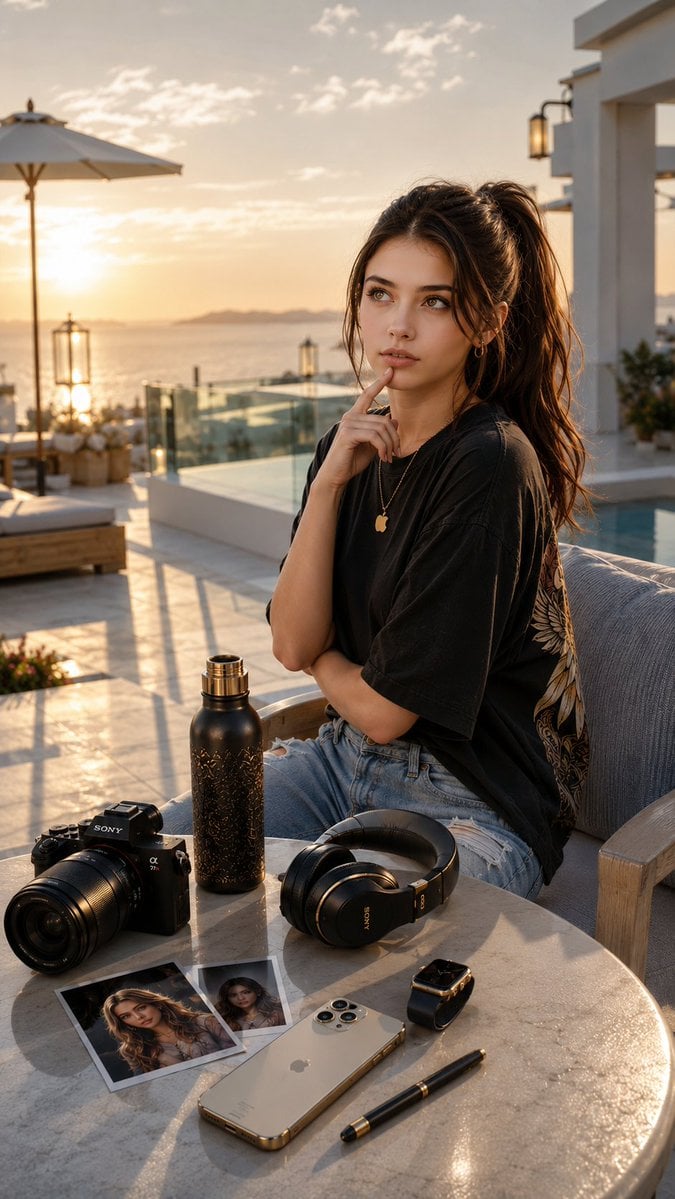
Cinematic Luxury Terrace Portrait
More image prompts
Fresh picks from across the catalog.
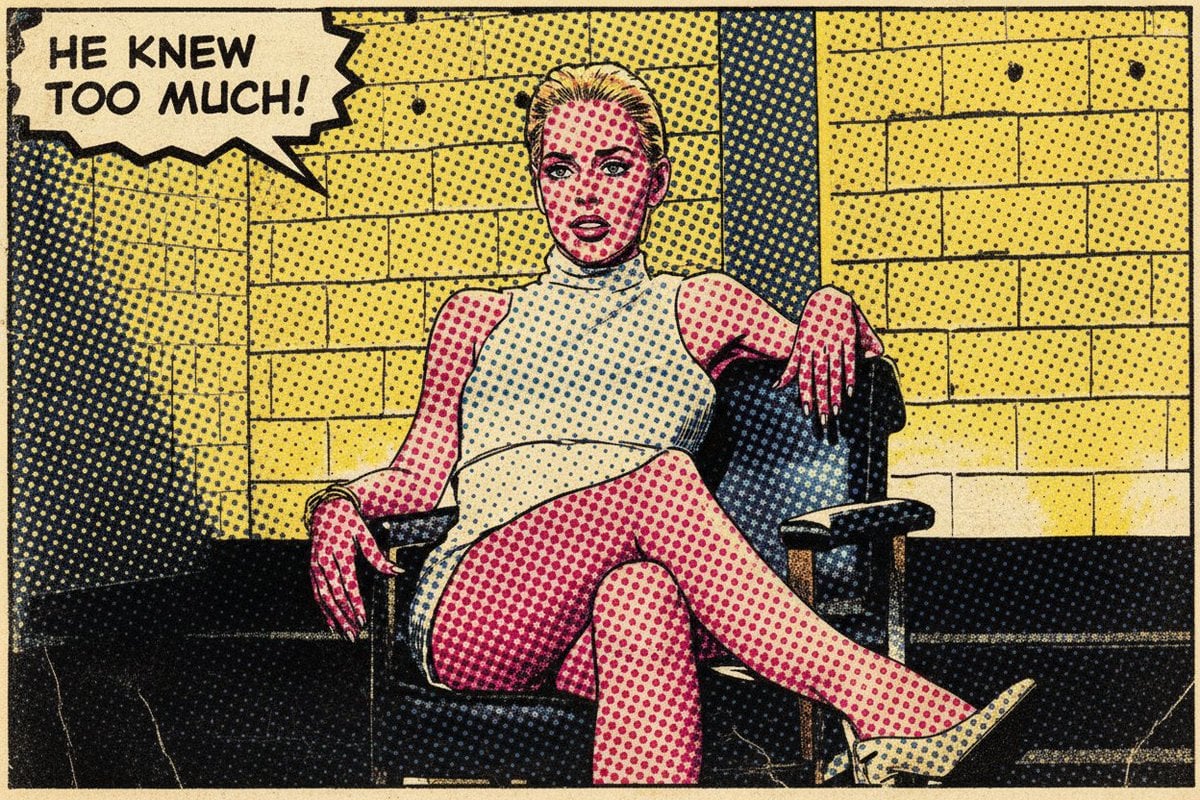
Pop Art Comic Book Style Transfer
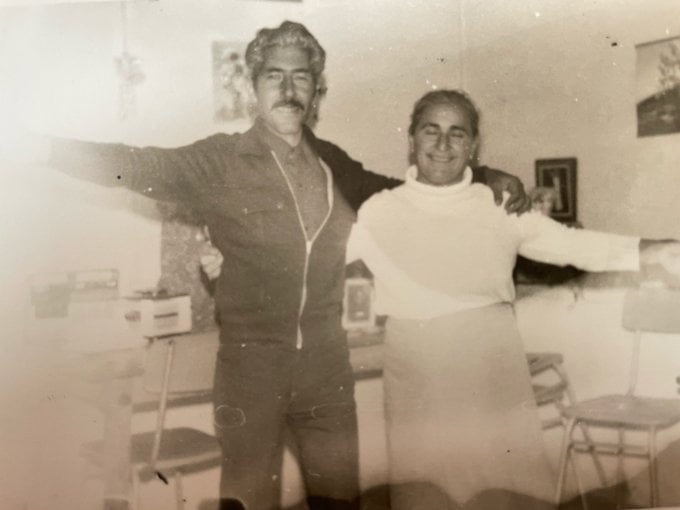
Old photo restoration to modern digital portrait
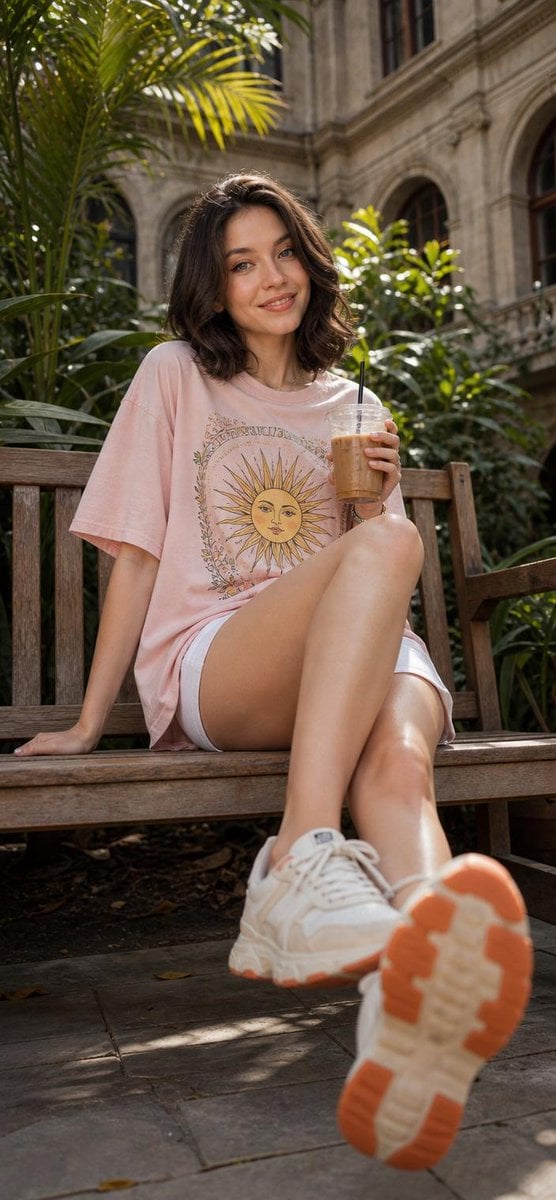
Cheerful Botanical Courtyard Portrait
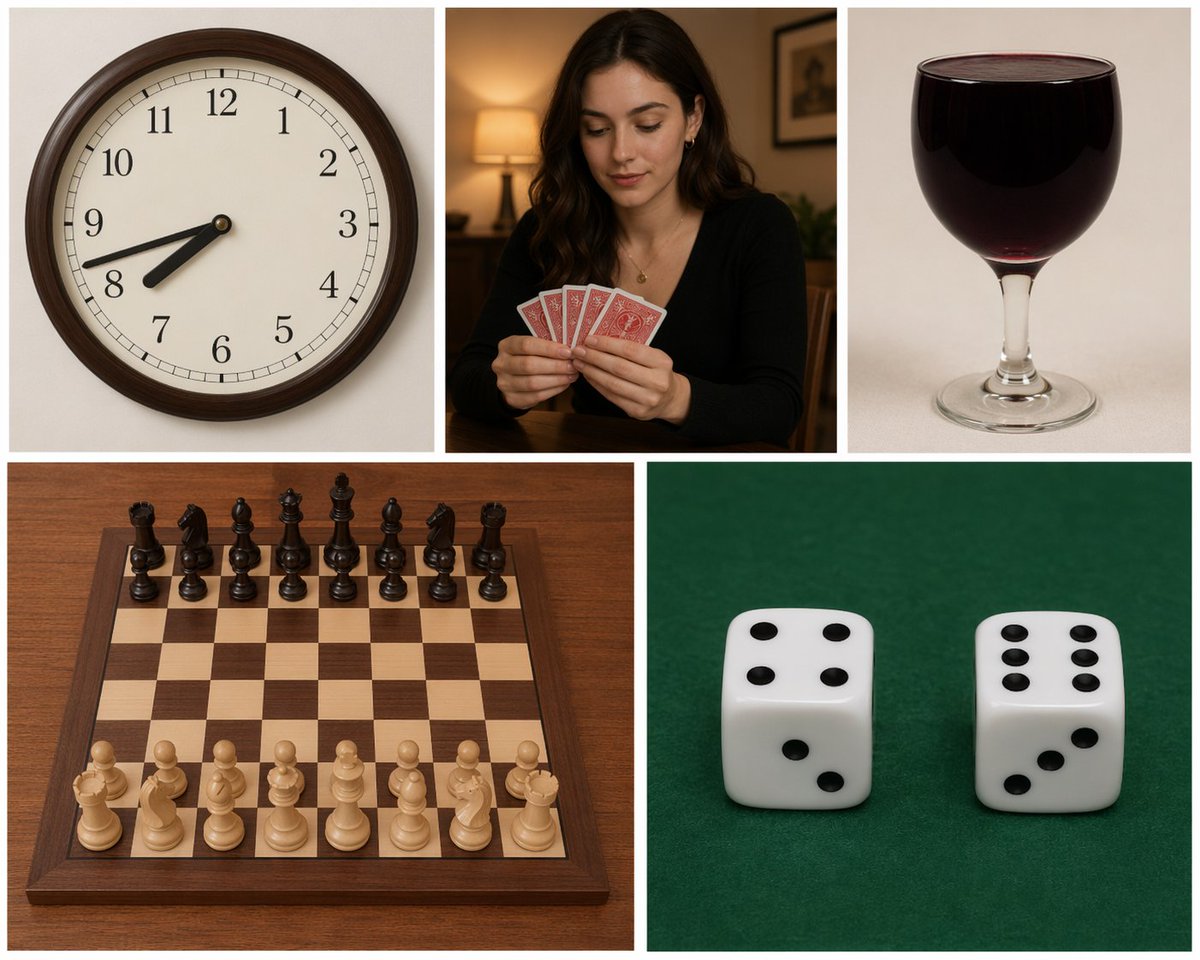
Five-Panel Benchmarking Challenge
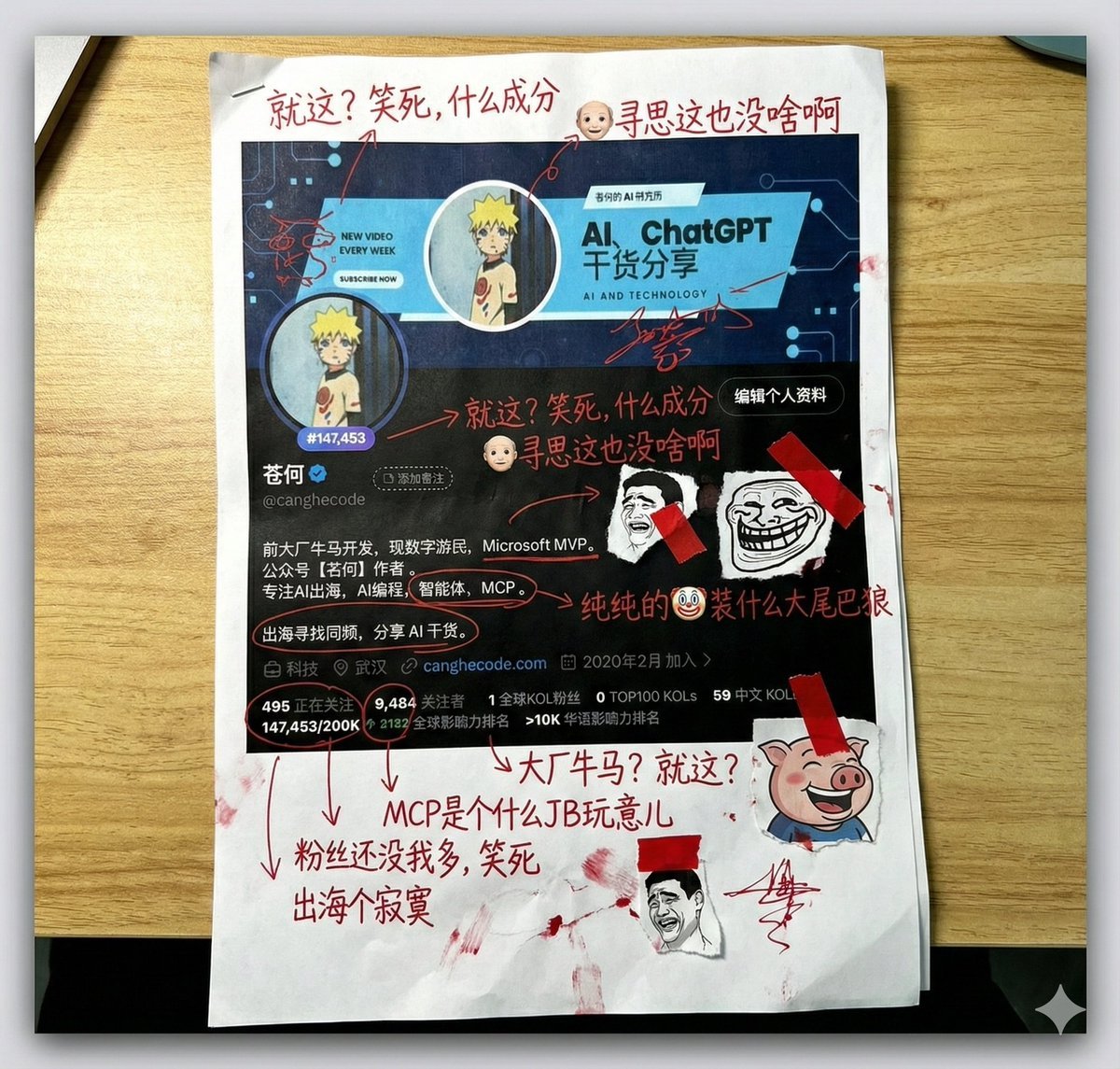
Aggressive Trolling Prompt with Tieba Slang
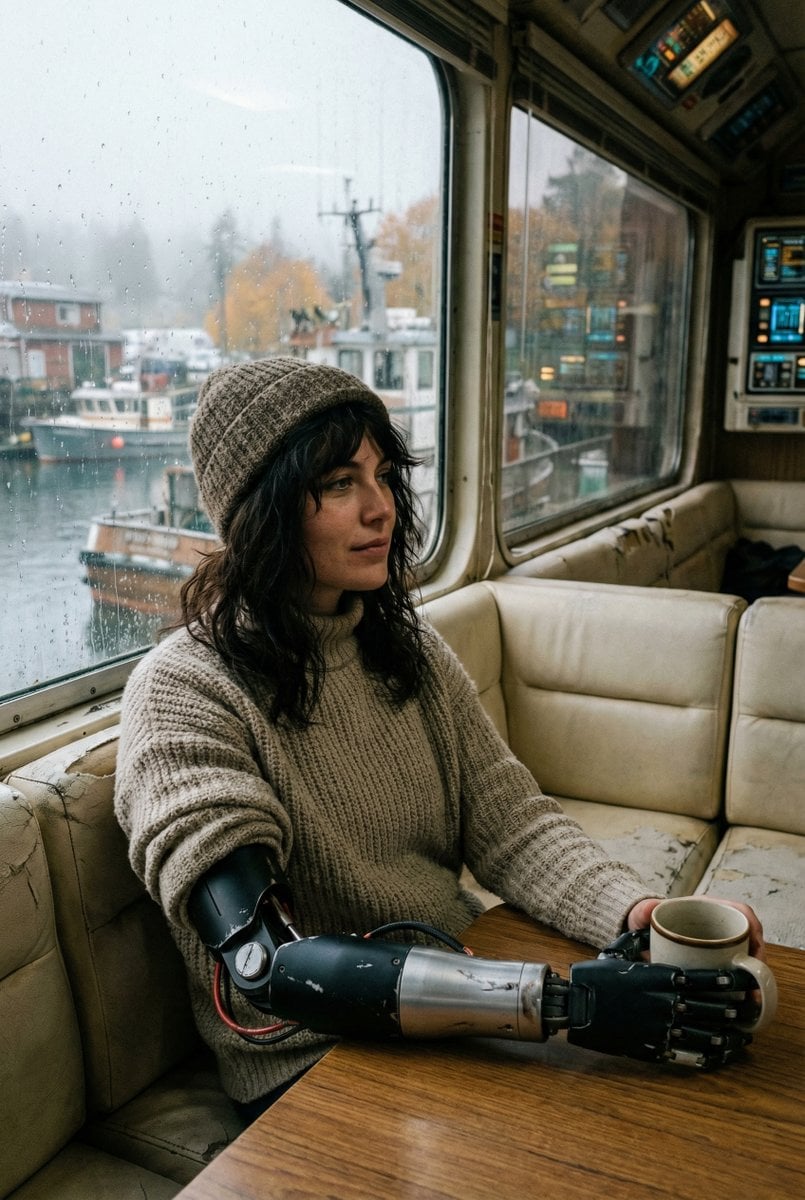
Film Stock Emulation Prompt
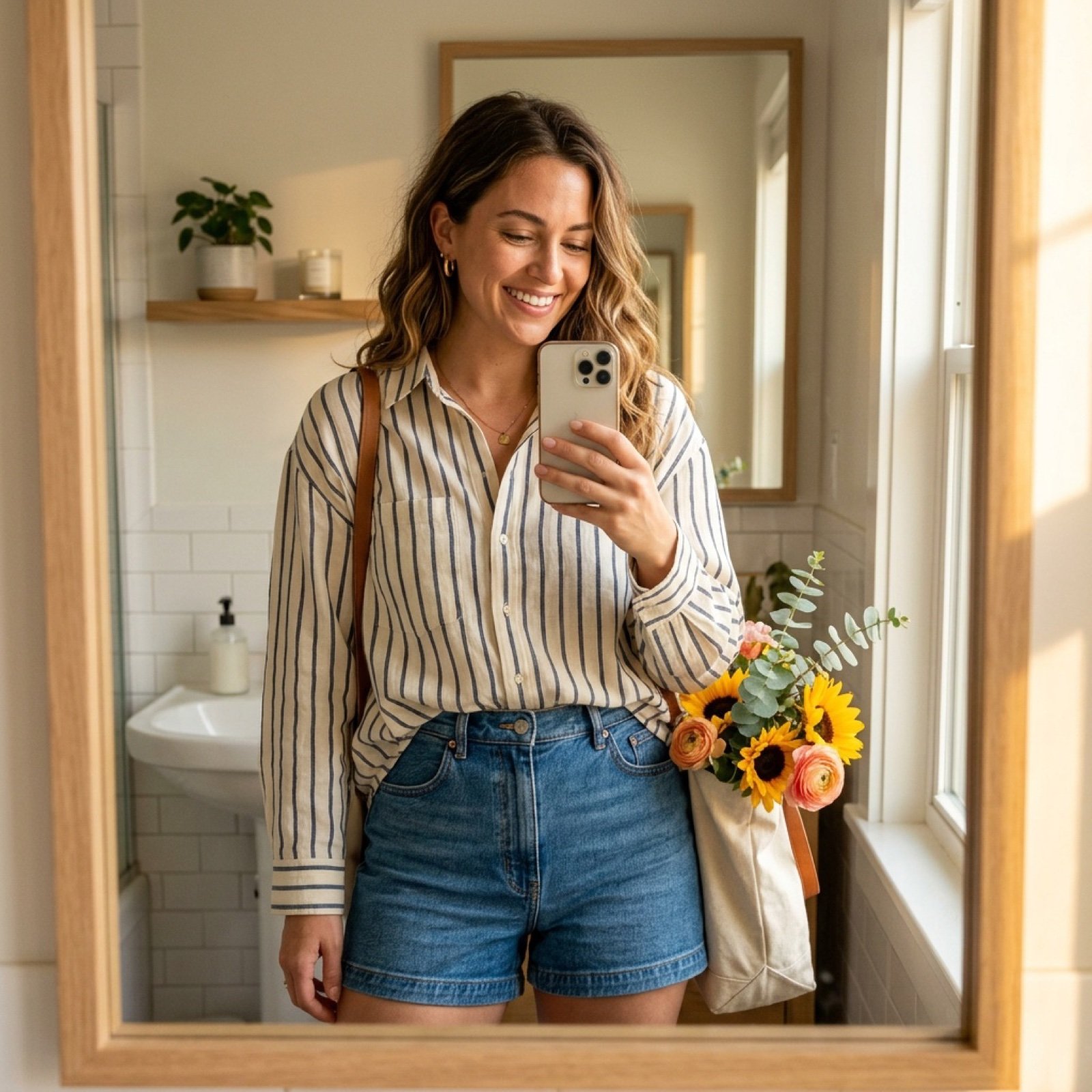
Weekend Farmers Market Mirror Selfie (Reference Image Required)
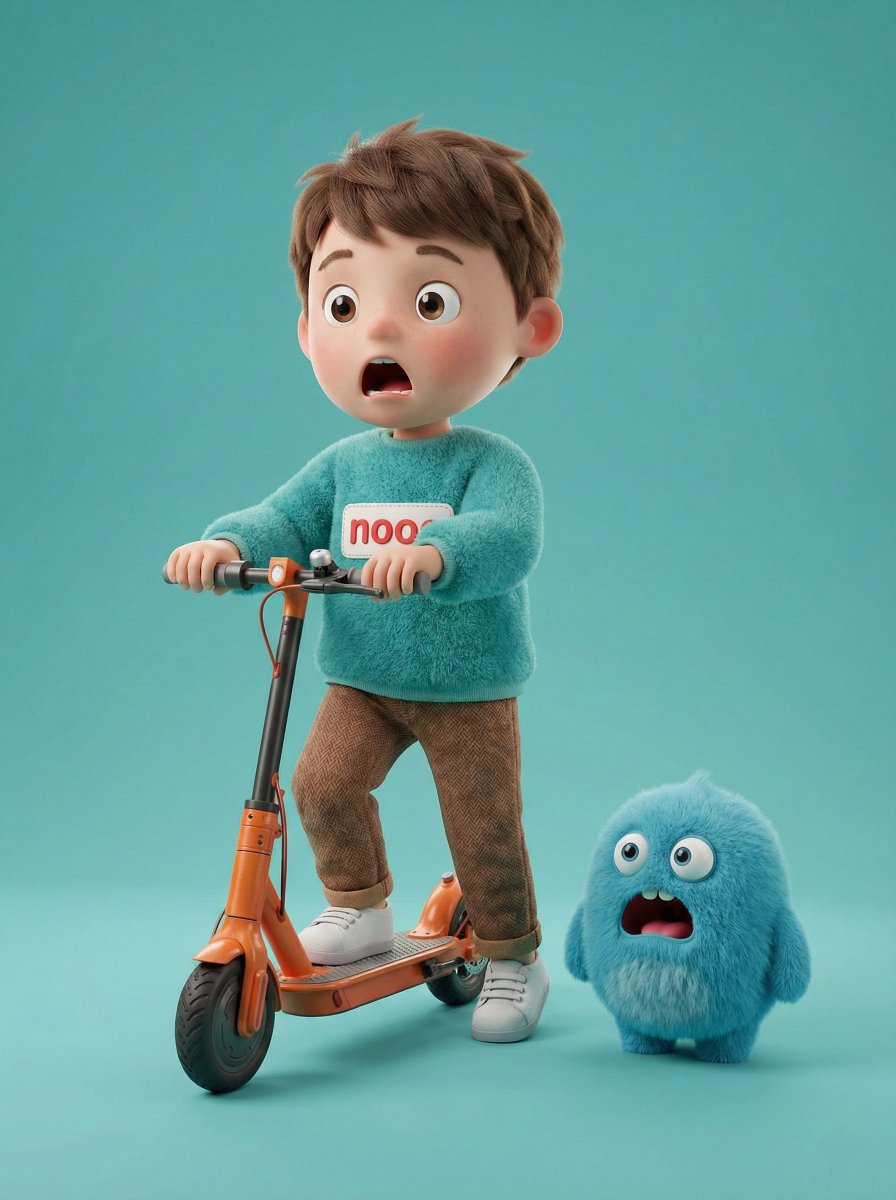
3D Render of Boy and Furry Monster on Scooter
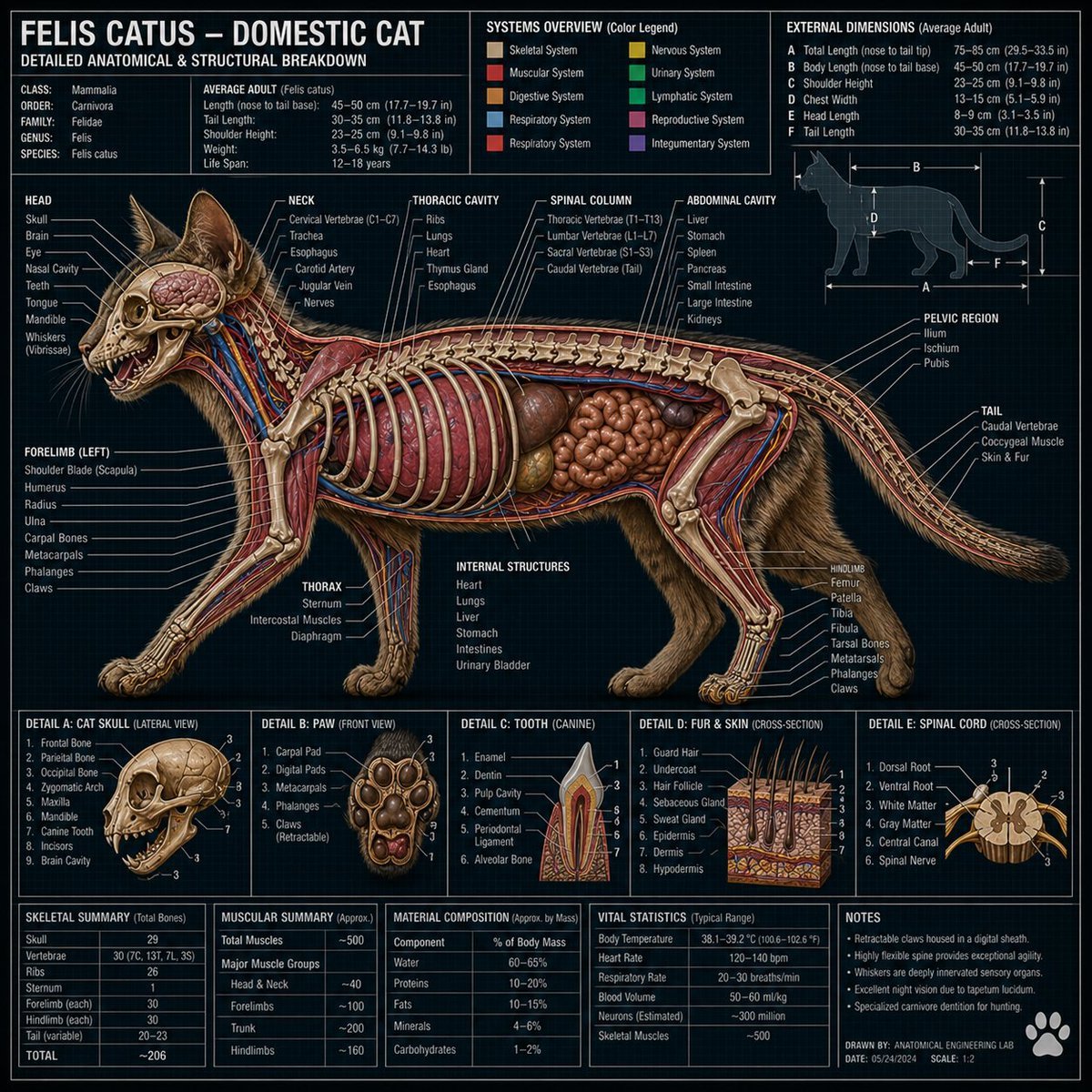
Technical Cross-Section Diagram
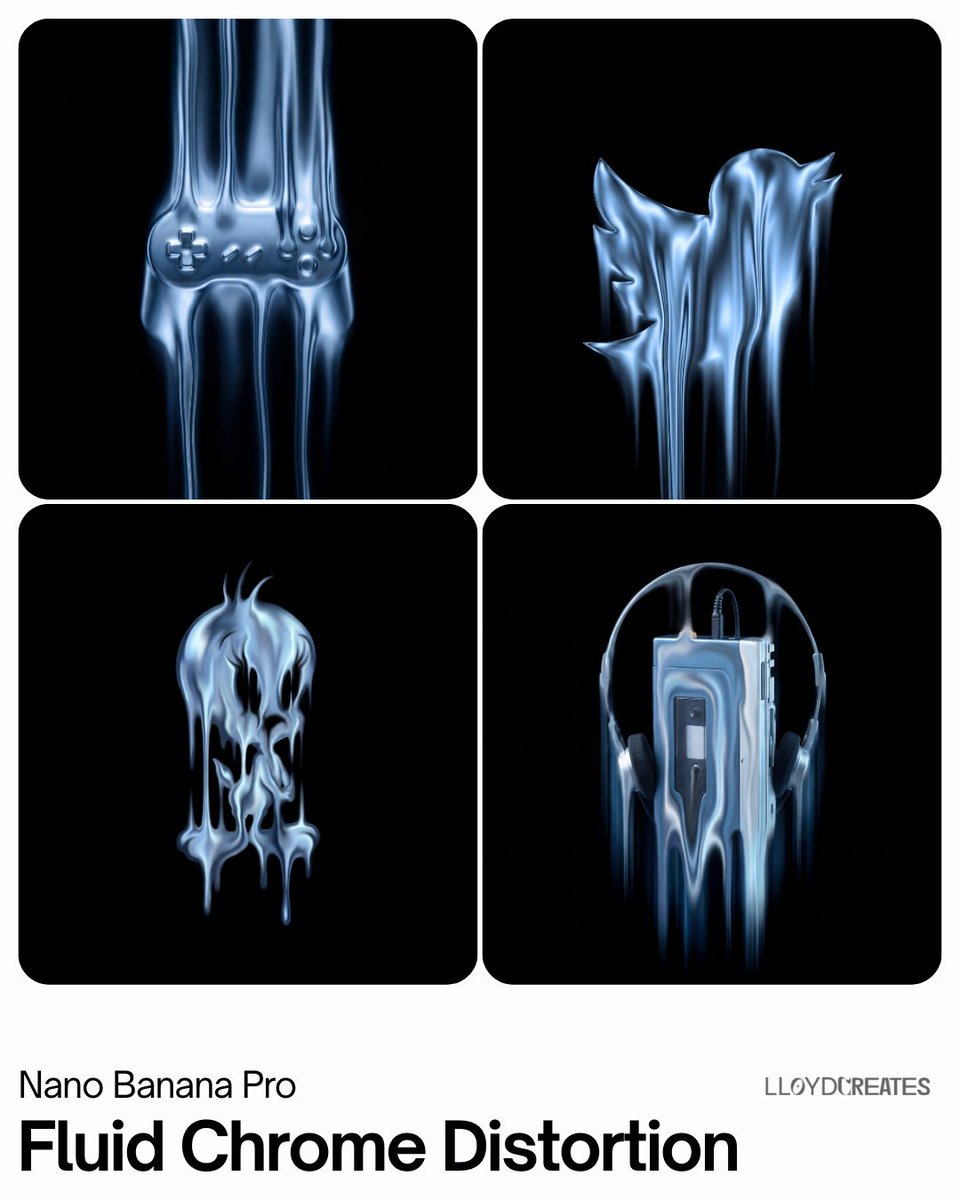
Fluid Chrome Distortion Product Render
Browse template categories
Bilingual Prompt Comparison Gallery questions
How do I use the Bilingual Prompt Comparison Gallery template?
Add your photo if the template asks for one, edit the prompt if you like — the template's model and format are already selected — and press Generate. Your version opens in PicX Studio.
Can I customize the Bilingual Prompt Comparison Gallery template?
Yes. You can change the subject, setting, lighting, mood, format, and available model controls before creating your image.
Is the Bilingual Prompt Comparison Gallery template free?
Opening and editing this template is free. Generating uses credits, shown on the Generate button when you are signed in.
Which AI model should I use?
Start with GPT Image 2, which is the model associated with this template. You can compare another compatible model for a different finish.
Looking for something else? Browse all templates.

Your photo, any look
Thousands of ready templates for every top image and video model, from one credit balance.