
Clay Toy Landing Page UI
A handcrafted clay-style Japanese e-commerce landing page mockup for a children's toy brand, ideal for concept design, playful UI exploration, and ad-style product presentation.
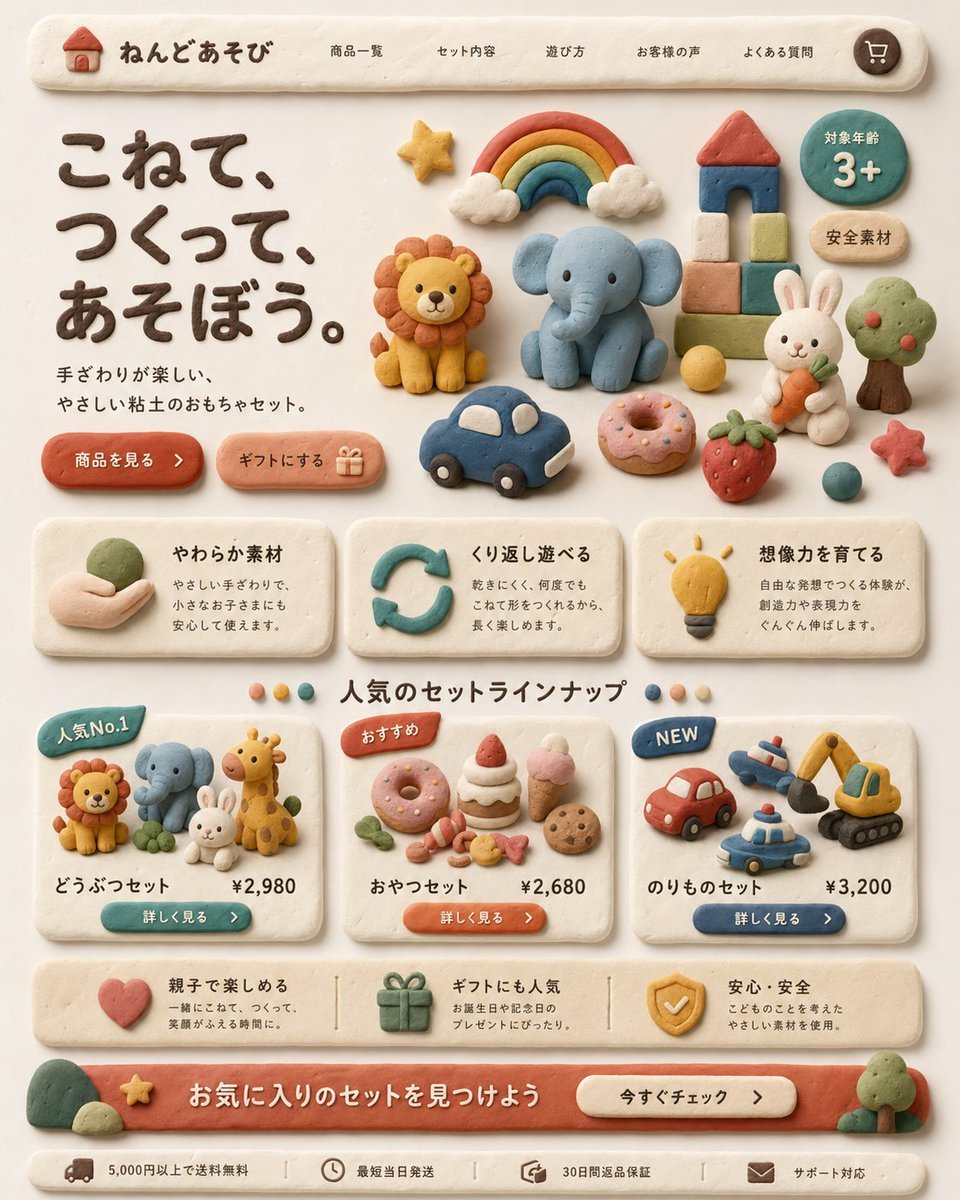
- Prompt included
- Model and format preset
- Premium template
The prompt behind this image
Copy the exact prompt behind Clay Toy Landing Page UI, or open it in the studio and make it yours.
Create a warm, playful Japanese landing page for a children's clay toy brand, designed entirely in a handmade soft clay diorama style. The whole interface should look sculpted from pastel modeling clay with rounded edges, slight finger-pressed imperfections, matte texture, soft shadows, and a cozy cream background. At the top, show a pill-shaped navigation bar with a small clay house logo and the brand name "ねんどあそび", followed by 5 navigation items: "商品一覧", "セット内容", "遊び方", "お客様の声", "よくある質問", plus a round cart icon on the far right. In the hero section, place a large dark-brown clay headline on the left reading "こねて、つくって、あそぼう。" and a smaller supporting sentence beneath it reading "手ざわりが楽しい、やさしい粘土のおもちゃセット。" Add 2 rounded clay call-to-action buttons below: "商品を見る" and "ギフトにする" with a small gift icon. On the right side of the hero area, arrange 12 clay toy illustrations: a rainbow with clouds, a lion, an elephant, a block tower with red roof, a green circular badge reading "対象年齢 3+", a beige oval badge reading "安全素材", a white rabbit holding a carrot, a tree, a yellow ball, a blue toy car, a pink donut, and a strawberry, plus a small red star near the lower right. Below, create a 3-card benefits row, each card made from off-white clay with icon, title, and short Japanese description. Card 1 title: "やわらか素材" with a hand holding clay icon. Card 2 title: "くり返し遊べる" with a circular arrow icon. Card 3 title: "想像力を育てる" with a lightbulb icon. Under that, add a centered section title "人気のセットラインナップ" with 4 small colored dots around it. Then show 3 product cards. Card 1 has a blue badge "人気No.1", shows 4 animal figures: lion, elephant, rabbit, giraffe, and includes the title "どうぶつセット" and price "¥2,980" with a teal button "詳しく見る". Card 2 has an orange badge "おすすめ", shows 7 snack items: donut, cake slice, strawberry shortcake, pink ice cream cone, cookie, candy pieces, and small leaves, and includes the title "おやつセット" and price "¥2,680" with an orange button "詳しく見る". Card 3 has a blue badge "NEW", shows 4 vehicle toys: red car, airplane, police car, excavator, and includes the title "のりものセット" and price "¥3,200" with a navy button "詳しく見る". Add a horizontal reassurance strip with 3 items: a heart icon with text about parent-child fun, a gift icon with text about gift popularity, and a shield icon with text about safety and安心・安全. At the bottom, create a large coral clay banner with the headline "お気に入りのセットを見つけよう" and a cream button reading "今すぐチェック". Finally add a slim footer bar with 4 compact items and icons: "5,000円以上で送料無料", "最短当日発送", "30日間返品保証", and "サポート対応". Use a balanced, grid-based web layout, front-facing view, soft natural lighting, subtle shadows, highly polished product-design mockup quality, charming handcrafted claymation aesthetic, and a premium yet child-friendly feel.
How to use Clay Toy Landing Page UI in 3 steps
- 1Upload ImagePNG, JPG or paste
Add your photo
Upload the photo the template builds on. The prompt, model and format are already set.
- 2…a portrait of your subject in softgolden-hour light, 85mm…
Personalize
Edit the subject and creative details for your destination.
- 3Generate
Generate
Press Generate — your image is created in PicX Studio, so you can compare it with the original and refine one variable at a time.
More like this
Templates with the same subject, style or setup. Open one to see its prompt.
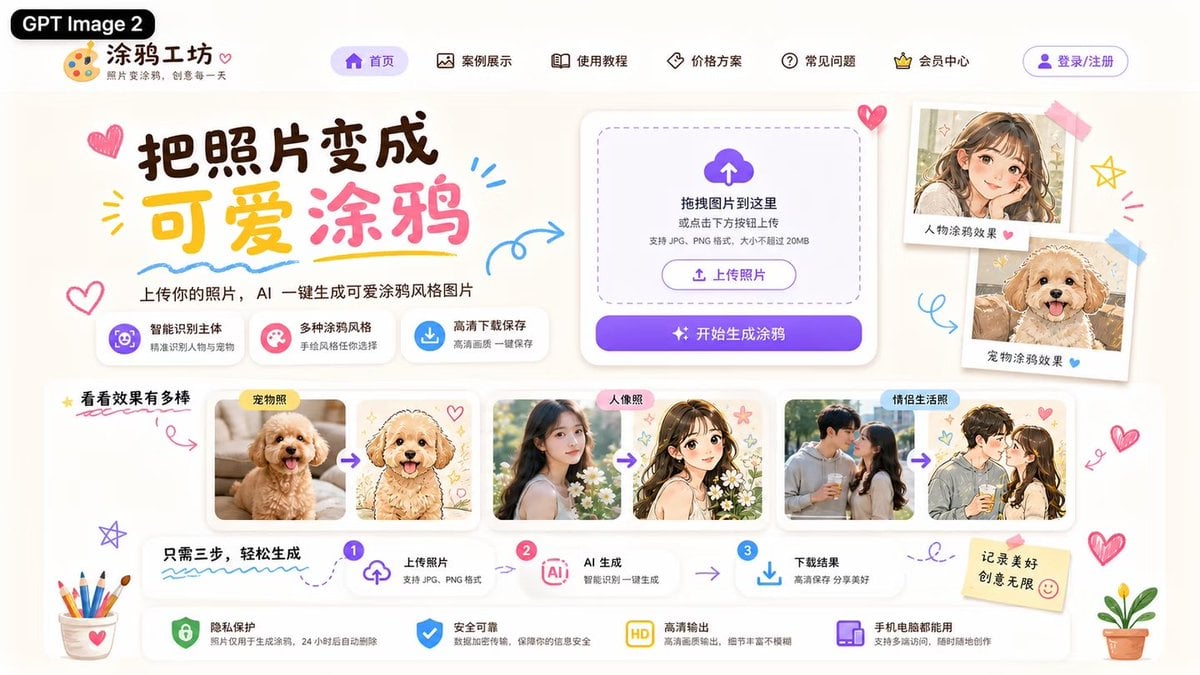
Cute AI Doodle Generator Landing Page
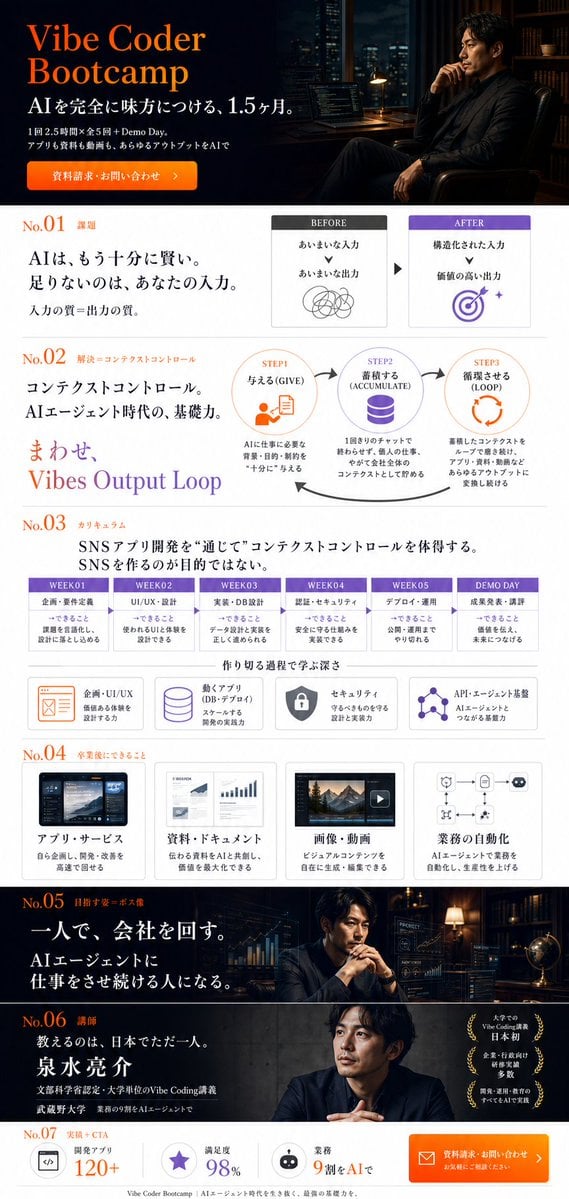
Vibe Coder Bootcamp Landing Page
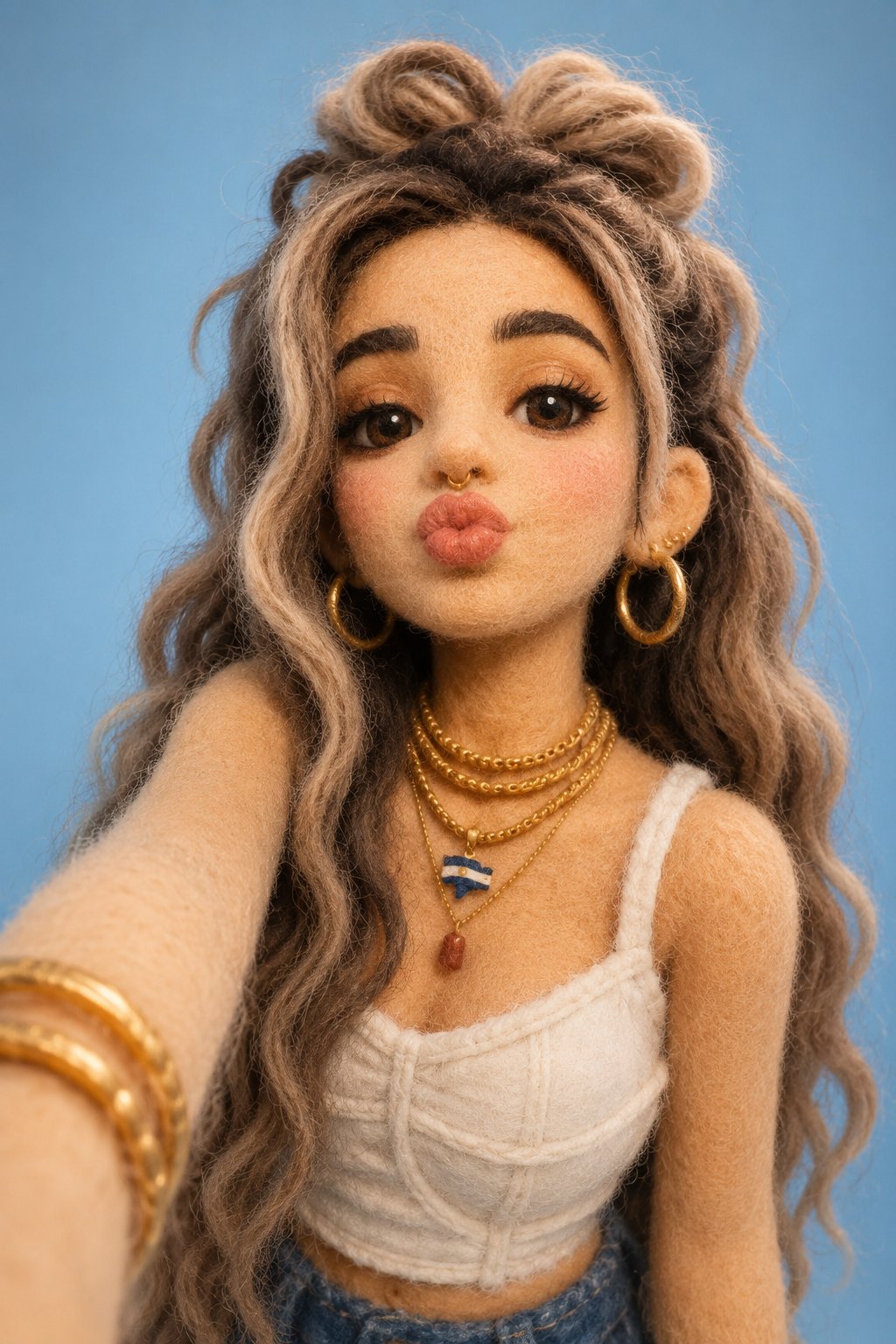
Felt & Knit 3D Character — Photo-Exact Face, Pixar-Quality Plush Figurine
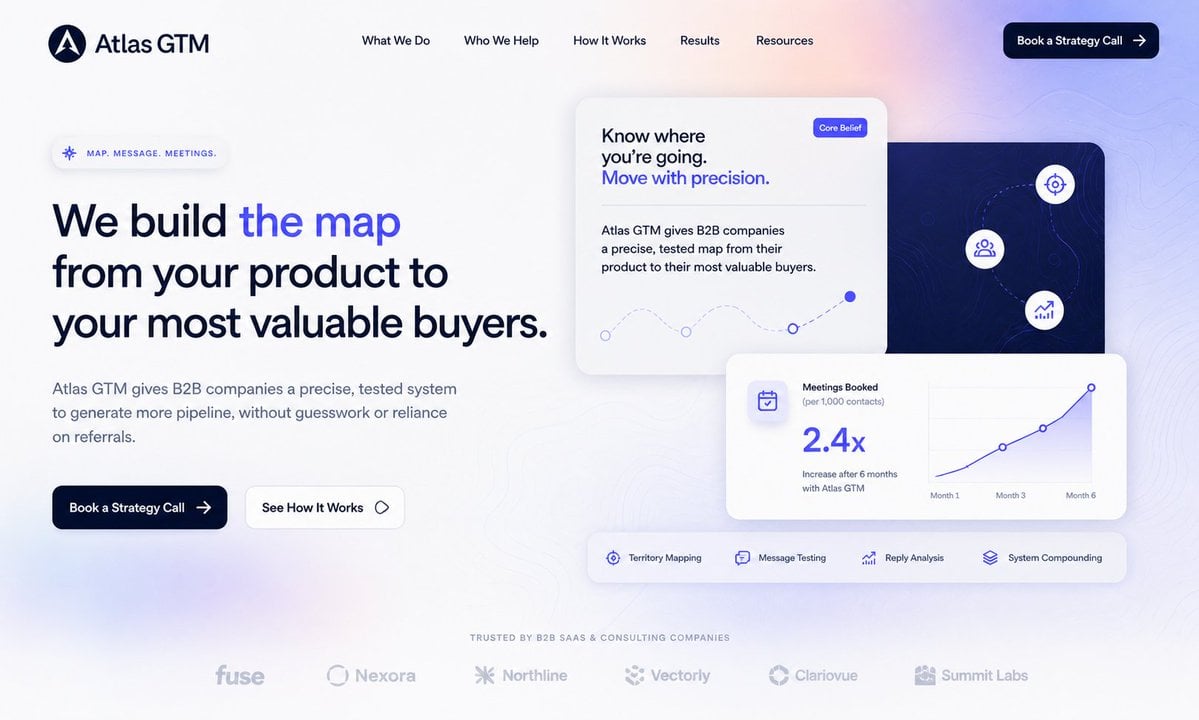
Atlas GTM SaaS Hero Landing Page
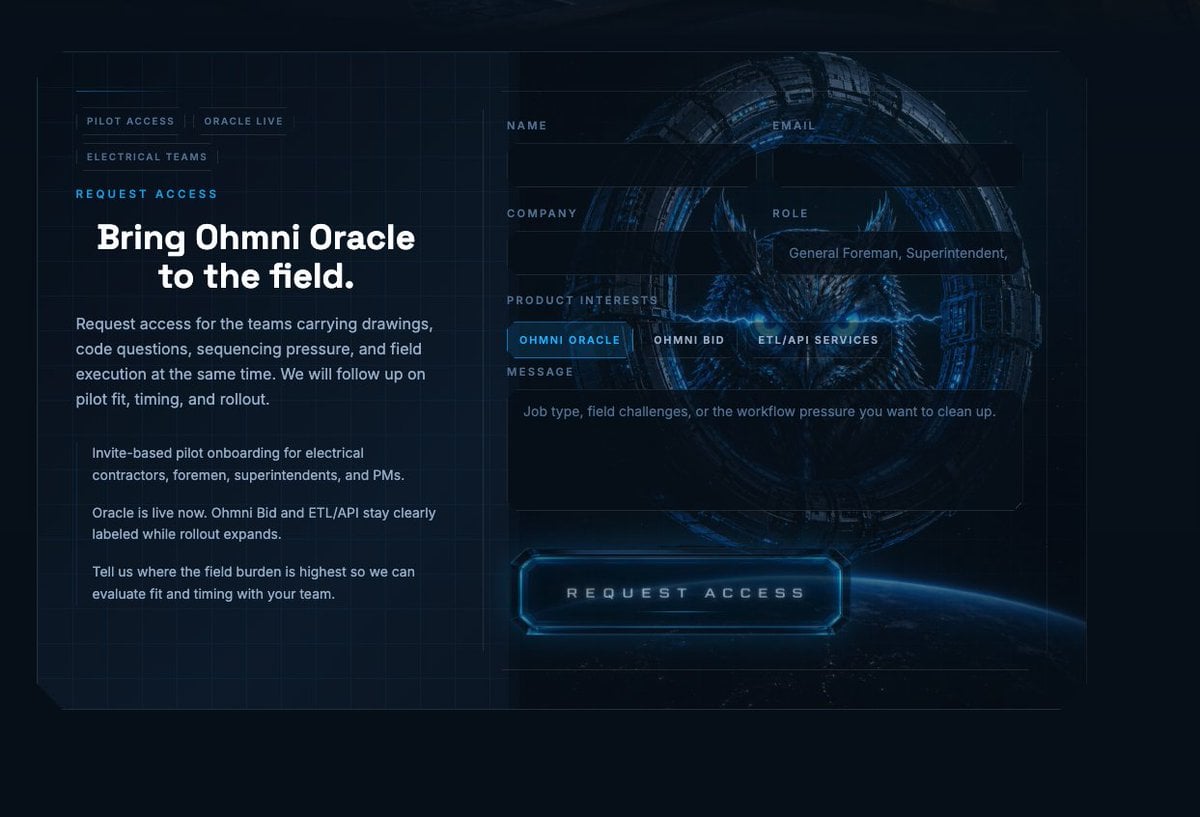
Futuristic Ohmni Access Landing Page
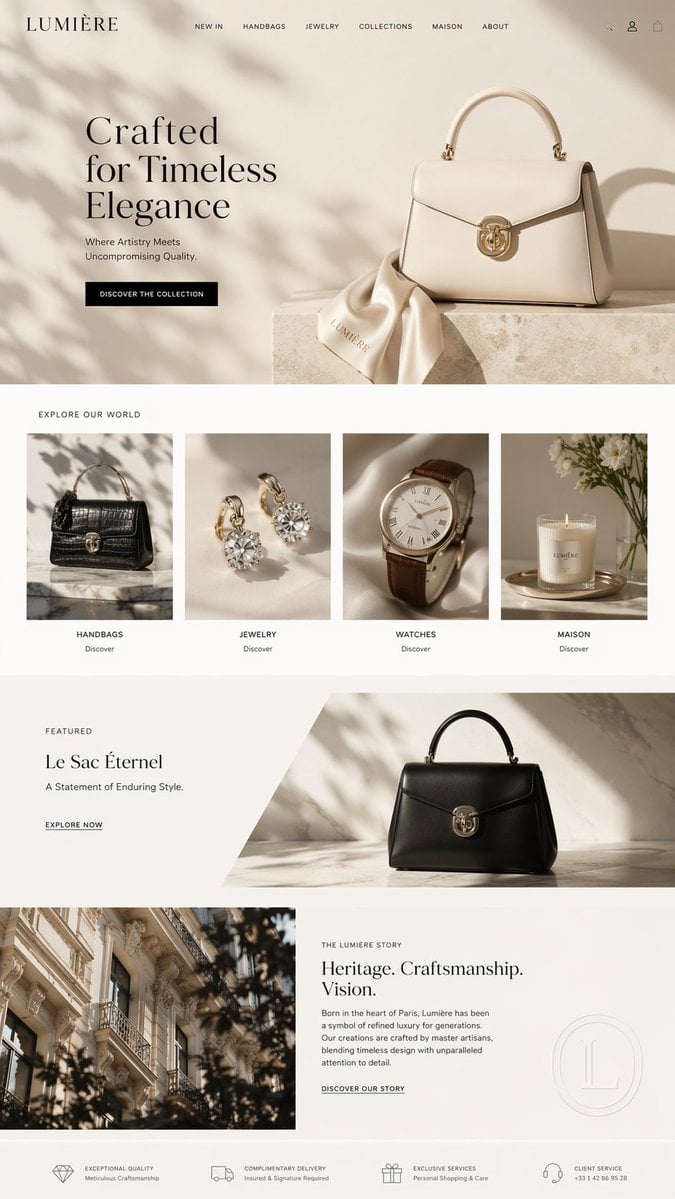
Luxury E-Commerce Landing Page Mockup
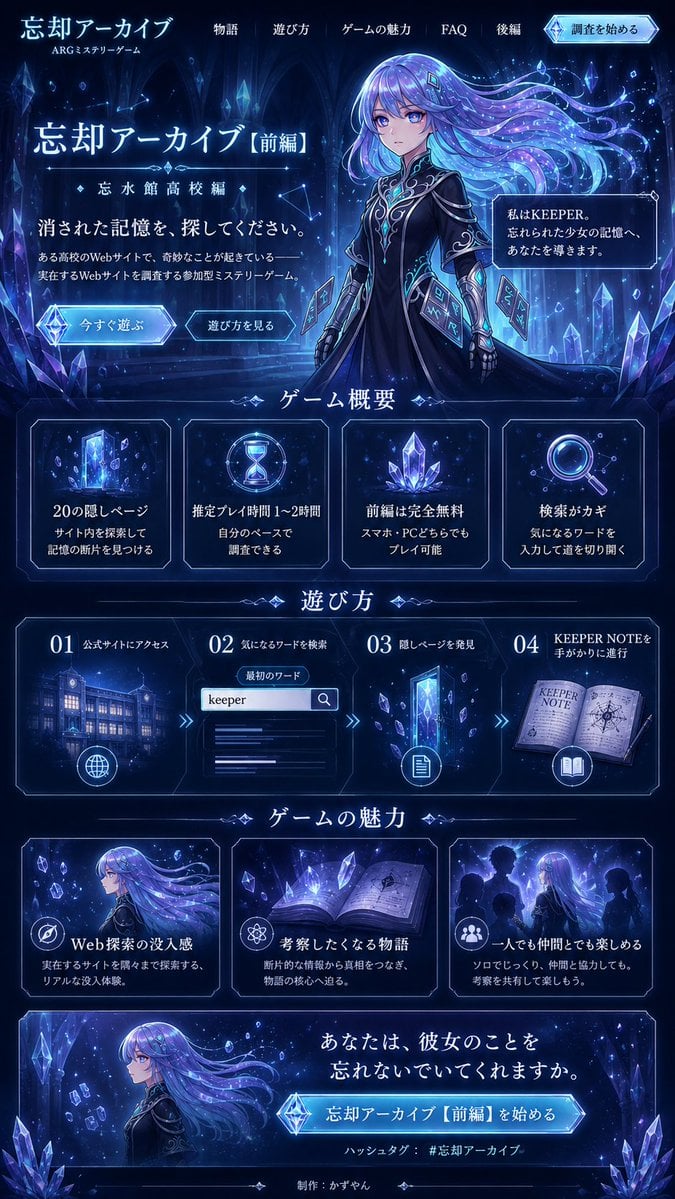
Forgotten Archive ARG Landing Page
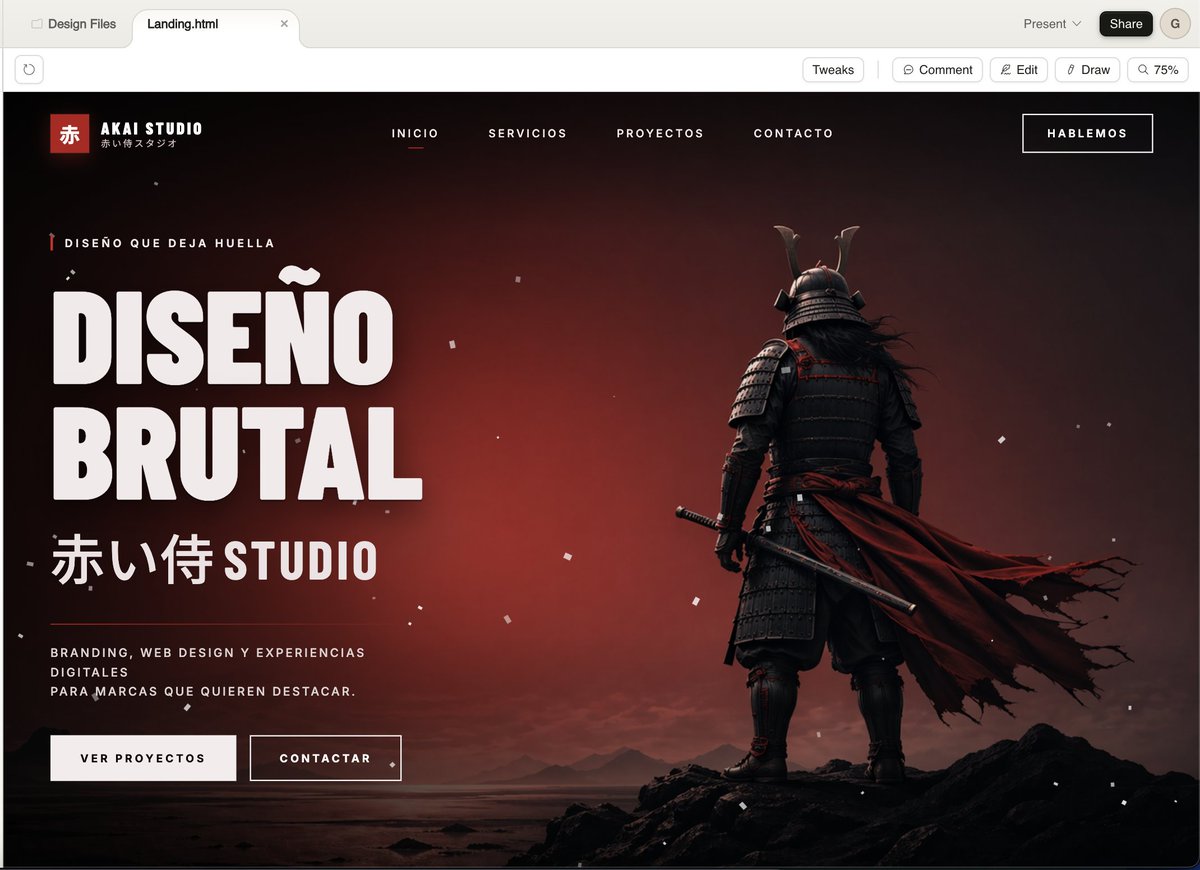
Cinematic Samurai Agency Landing Page
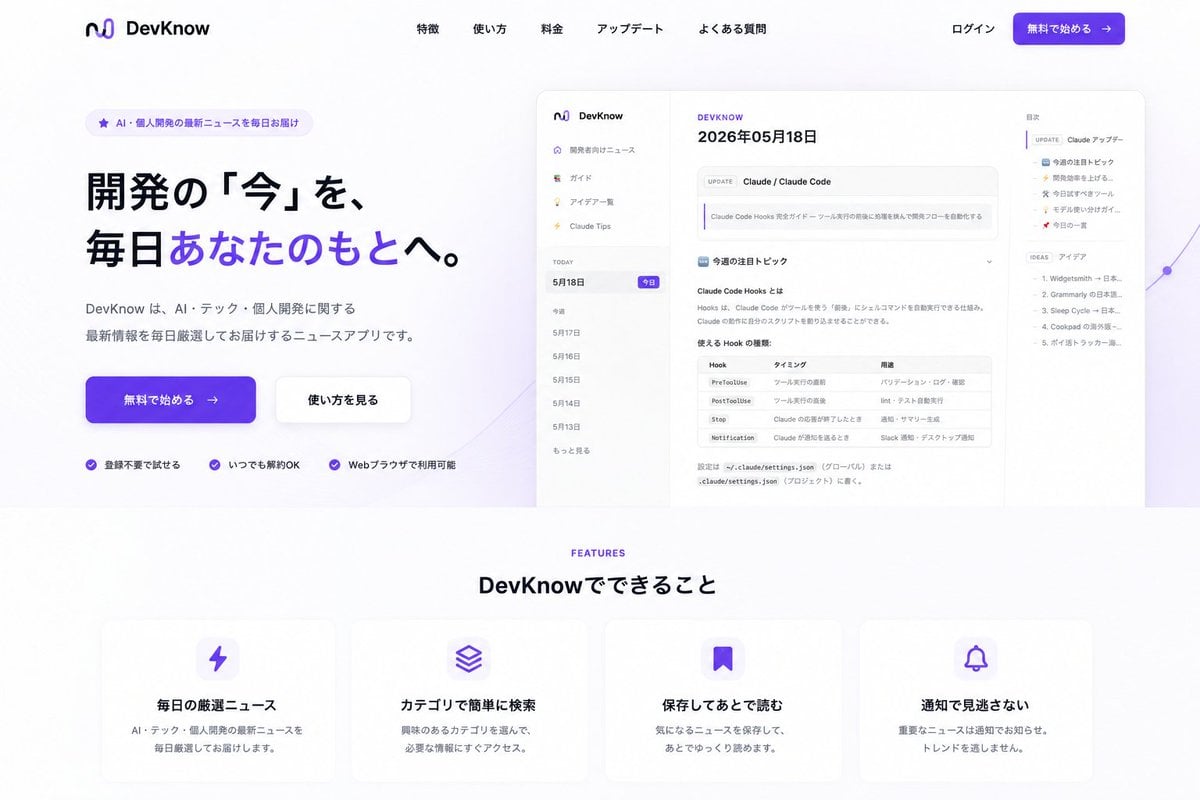
NOVALITH SaaS Landing Page Hero
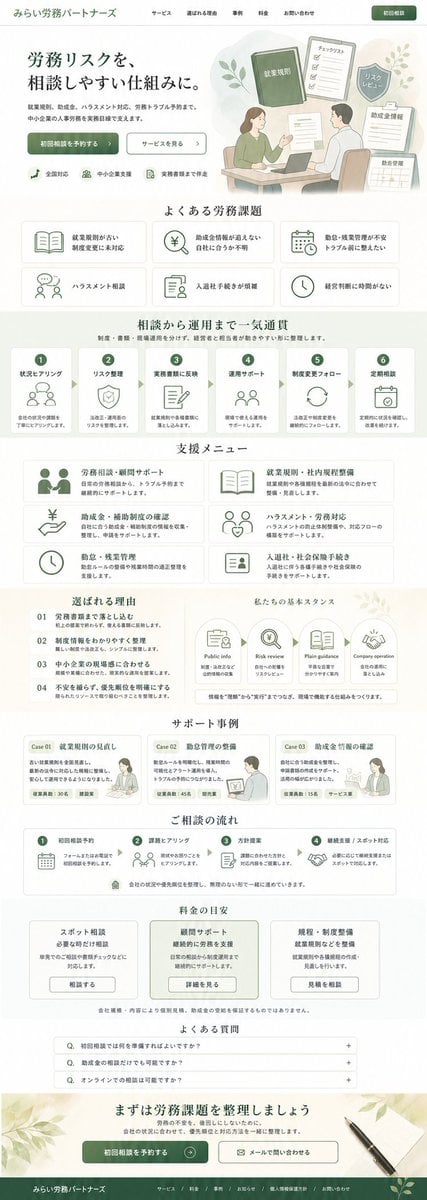
ASCII Layout Landing Page Generator

SaaS AI Dashboard Landing Page

Mintpage AI Landing Page Hero
Make it yours
Clay Toy Landing Page UI works as-is. These are the safest ways to change it without losing the look.
Change one field
Copy a single group, rewrite it, and generate again so you can see what that field is doing.
Keep the frame, change the subject
Hold the composition and light of Clay Toy Landing Page UI, then swap wardrobe, props or the person for a new take.
| If the result… | Why | Fix |
|---|---|---|
| The result drifts from the preview | Too many fields changed at once. | Reuse Clay Toy Landing Page UI as-is first, then change one group — subject, light, or setting. |
| The model over-stylizes the scene | The prose prompt leaves finish and camera underspecified. | Add one camera or lighting sentence and stay on GPT Image 2. |
More GPT Image 2 templates
Other prompts made for GPT Image 2.
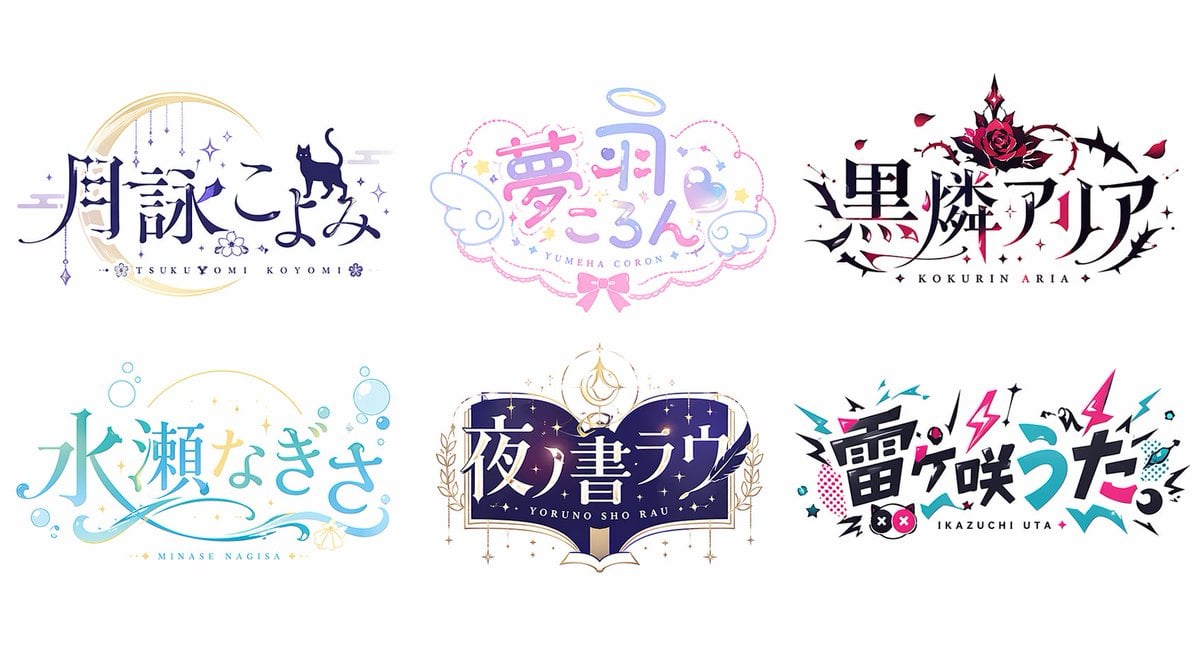
Six VTuber Japanese Logo Sheet

Realistic Portrait of Woman and Deer
The Vista Modular Condo Poster
AI Model Routing Comparison Infographic
2.5D Anime Art Board

Isometric Productivity Desk Scene

New York Double Exposure Poster
Four-Panel AI Landscape Comparison
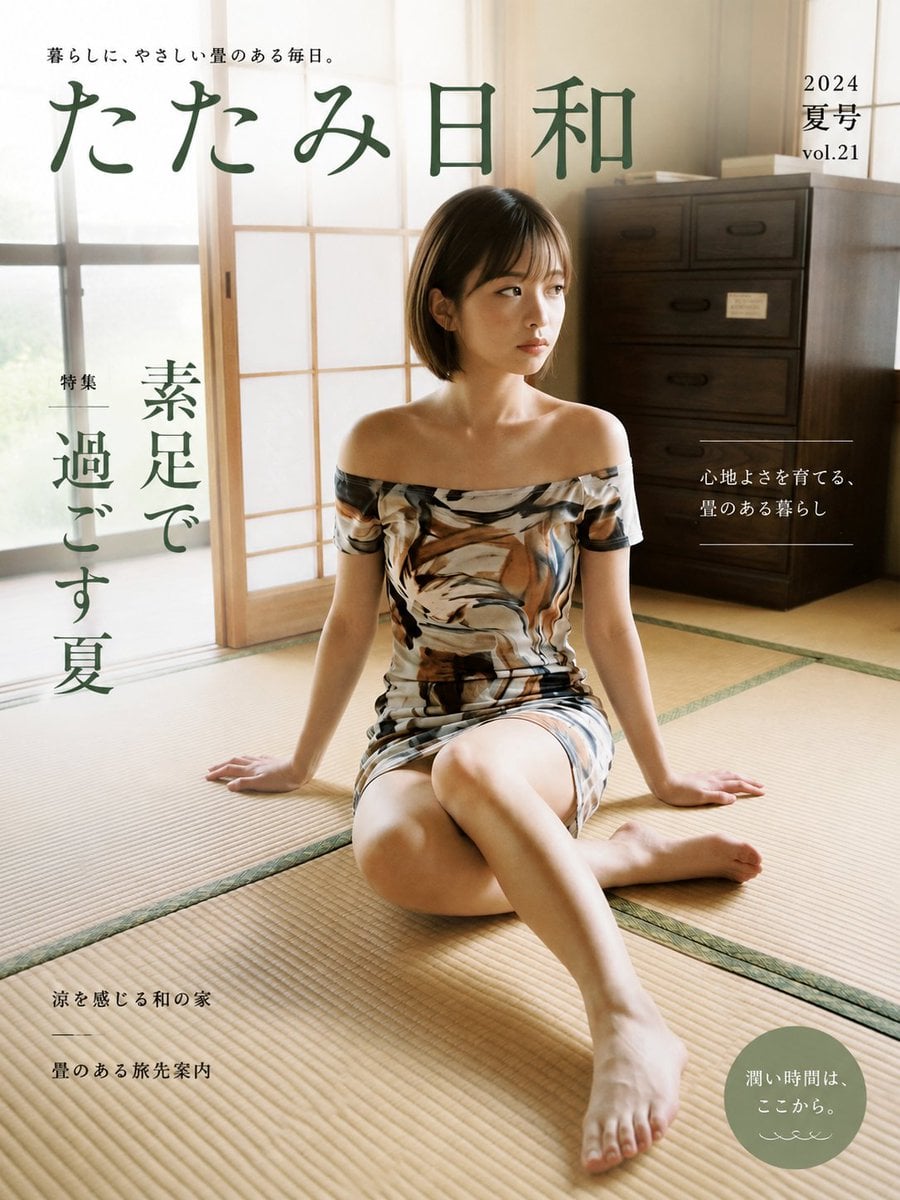
Japanese Tatami Lifestyle Magazine Cover
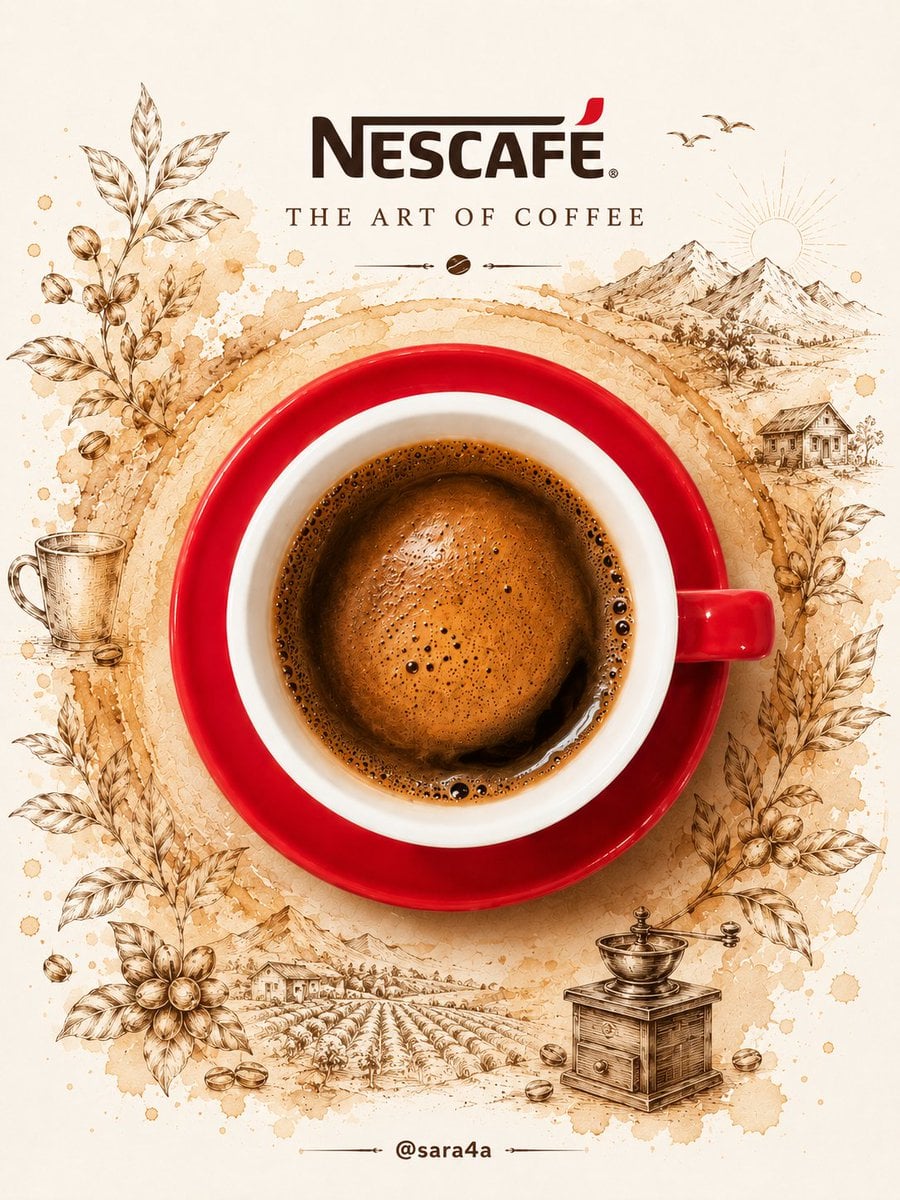
NESCAFÉ Coffee Map Poster
More image prompts
Fresh picks from across the catalog.

Arctic Explorer Close-Up Portrait
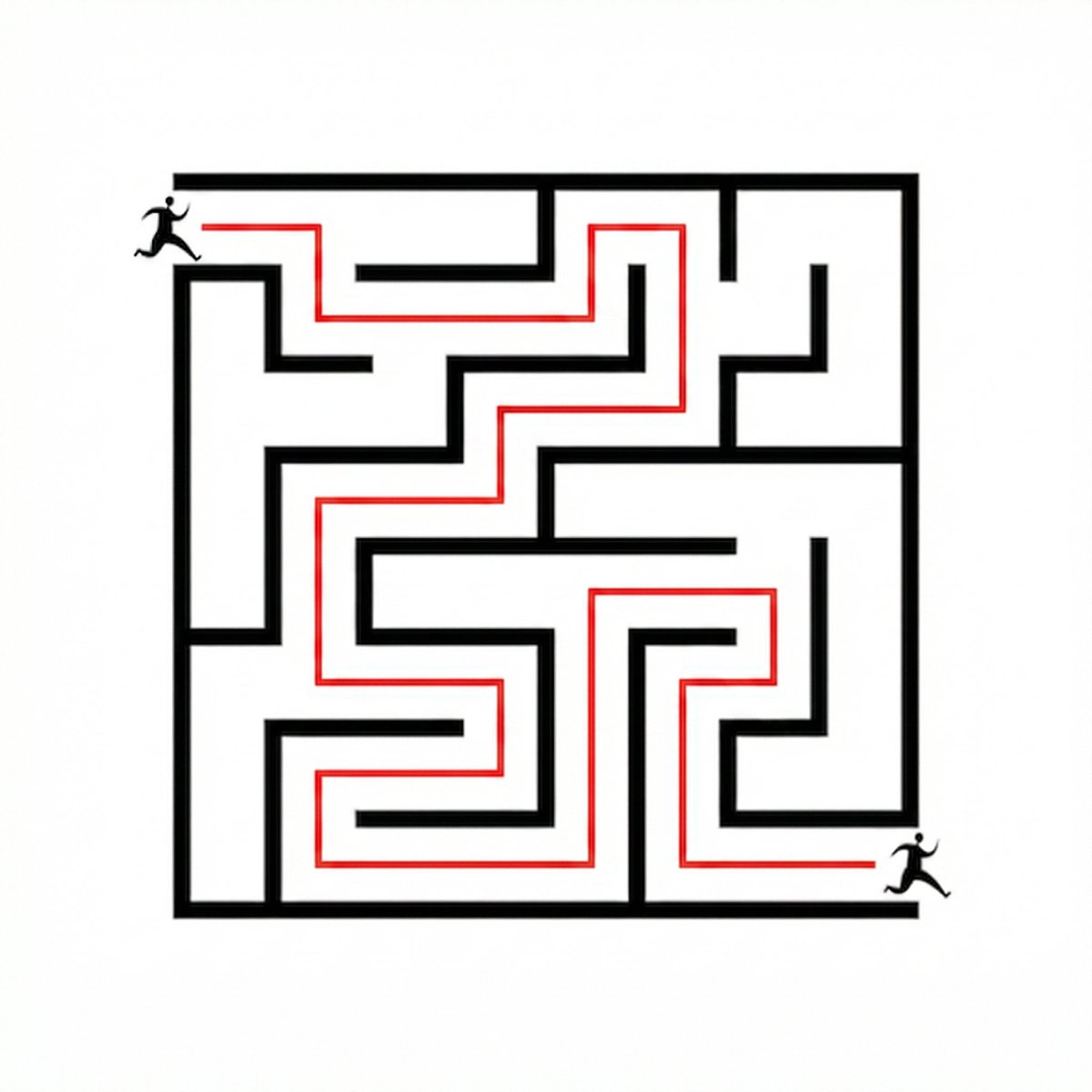
Maze Solver Transformation

Bold Winter Fashion Portrait (Ester Expósito)

Pokémon World Icon Generation Prompt

Moody Street Portrait at Dusk

Rugged Adventure Outdoor Ad Poster

Comical Portrait of Woman with Winking Cat
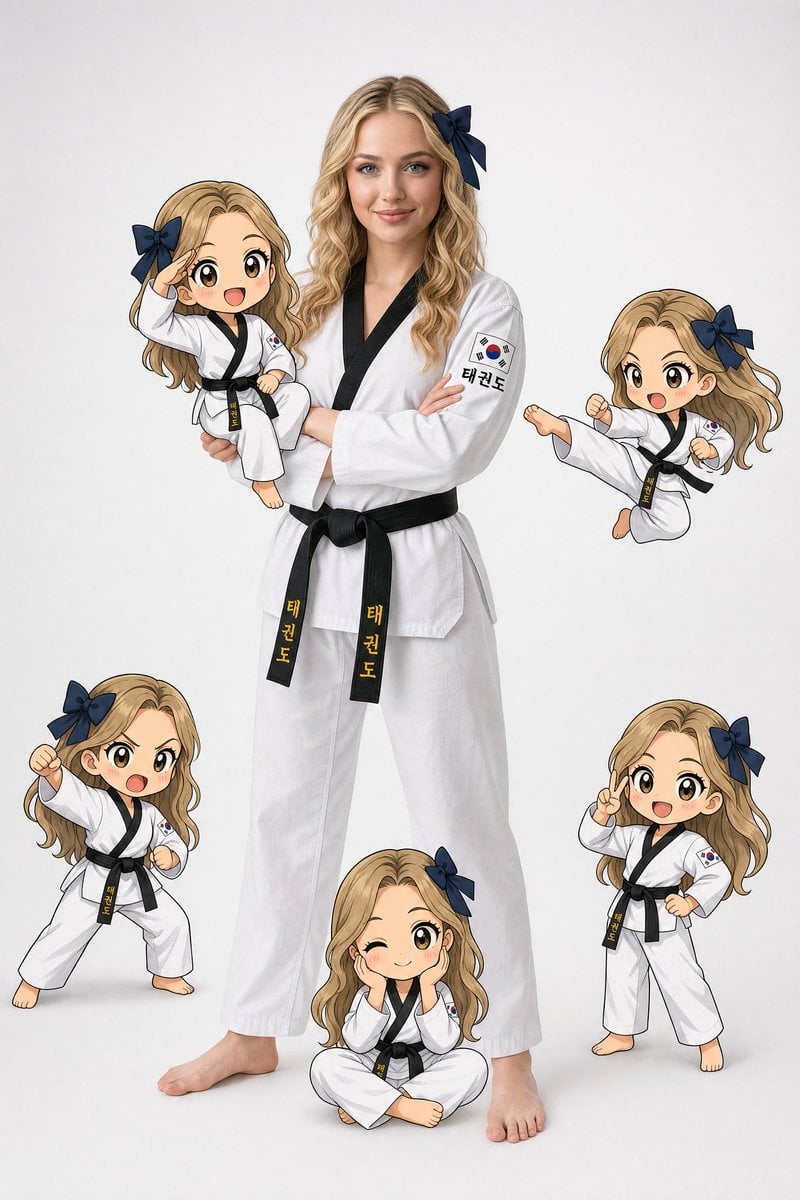
Taekwondo Woman and Chibi Versions

Aesthetic Side-Profile Portrait Generator

Shraddha Kapoor Black Turtleneck Studio Portrait Prompt
Browse template categories
Clay Toy Landing Page UI questions
How do I use the Clay Toy Landing Page UI template?
Add your photo if the template asks for one, edit the prompt if you like — the template's model and format are already selected — and press Generate. Your version opens in PicX Studio.
Can I customize the Clay Toy Landing Page UI template?
Yes. You can change the subject, setting, lighting, mood, format, and available model controls before creating your image.
Is the Clay Toy Landing Page UI template free?
Opening and editing this template is free. Generating uses credits, shown on the Generate button when you are signed in.
Which AI model should I use?
Start with GPT Image 2, which is the model associated with this template. You can compare another compatible model for a different finish.
Looking for something else? Browse all templates.

Your photo, any look
Thousands of ready templates for every top image and video model, from one credit balance.