
Sakura School Dating Sim Thumbnail
Generates a colorful anime-style spring school thumbnail with four uniformed girls, cherry blossoms, and bold Japanese promotional text.
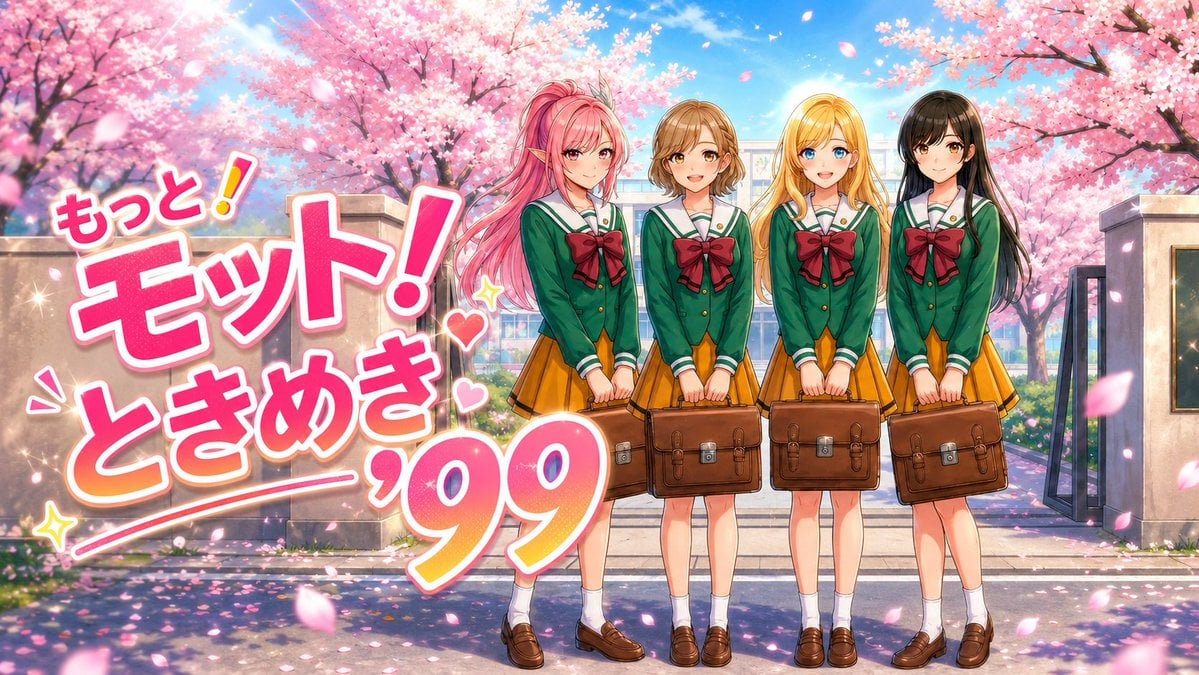
- Prompt included
- Model and format preset
- Free template
The prompt behind this image
Copy the exact prompt behind Sakura School Dating Sim Thumbnail, or open it in the studio and make it yours.
Create a bright anime-style YouTube thumbnail illustration in 16:9 landscape format, set at the entrance of a Japanese school during spring cherry blossom season. Show exactly 4 high-school girls standing side by side on the right half of the image, each wearing the same uniform: dark green sailor-style blazer with white trim, large burgundy bow, mustard-yellow pleated skirt, white socks, brown loafers, and each holding a brown leather school satchel in front of her. Give the 4 girls distinct hairstyles and hair colors: long flowing pink hair, short wavy light brown hair, long blonde hair, and long straight black hair. Keep their faces softly blurred or featureless so the thumbnail emphasizes the concept rather than individual identities. The background should feature a school gate, school building hints, blue sky, sunlight, abundant pink cherry blossom trees, and many falling sakura petals, with a polished colorful anime-game look, high saturation, crisp lighting, and cheerful romantic spring atmosphere. On the left half, add large bold Japanese thumbnail text reading {argument name="headline text" default="もっと!モット!ときめき'99"}, using thick rounded lettering, white fill with vivid pink outline and warm orange shadow, arranged dynamically with oversized emphasis on “モット!” and “'99”. Add small decorative hearts, sparkles, and an underline swoosh around the text. Compose it like a clickable nostalgic dating-sim themed thumbnail: characters on the right, text dominating the left, energetic diagonal layout, glossy highlights, clean readable typography, cinematic depth, floating petals in the foreground, no extra characters, no logos, no watermark.
How to use Sakura School Dating Sim Thumbnail in 3 steps
- 1Upload ImagePNG, JPG or paste
Add your photo
Upload the photo the template builds on. The prompt, model and format are already set.
- 2…a portrait of your subject in softgolden-hour light, 85mm…
Personalize
Edit the subject and creative details for your destination.
- 3Generate
Generate
Press Generate — your image is created in PicX Studio, so you can compare it with the original and refine one variable at a time.
More like this
Templates with the same subject, style or setup. Open one to see its prompt.
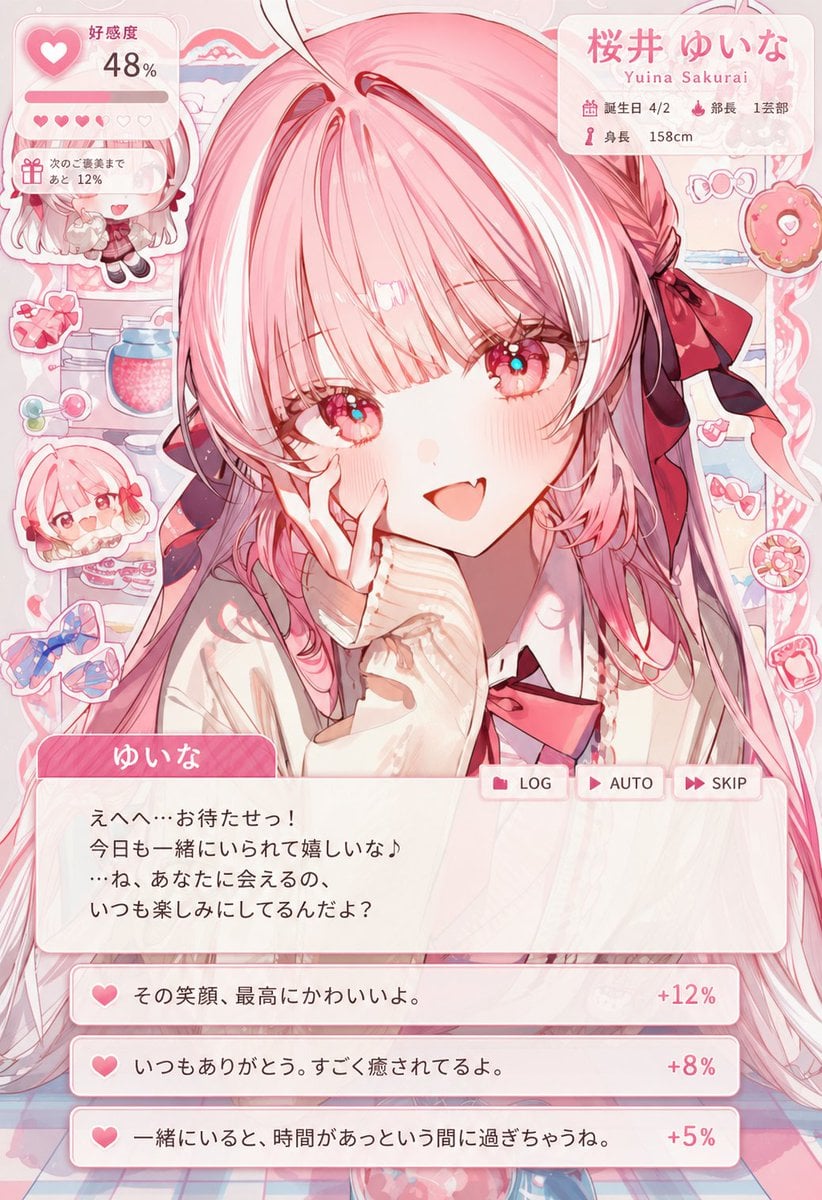
Dating Sim UI Overlay Prompt
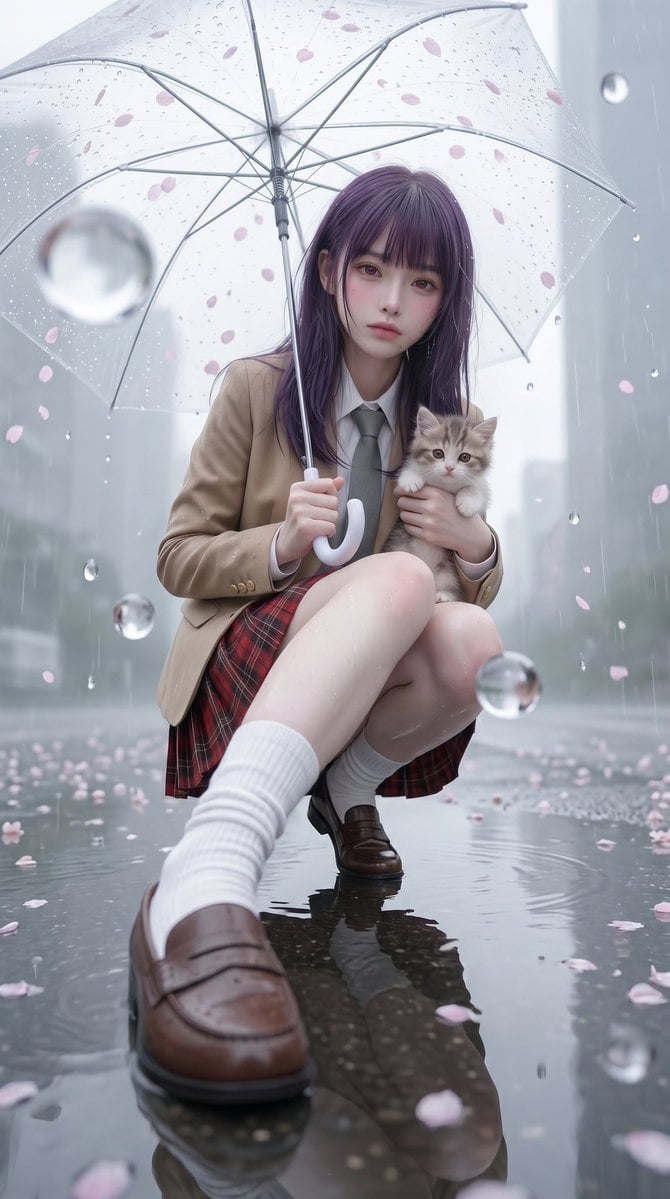
Rainy Sakura Schoolgirl Portrait
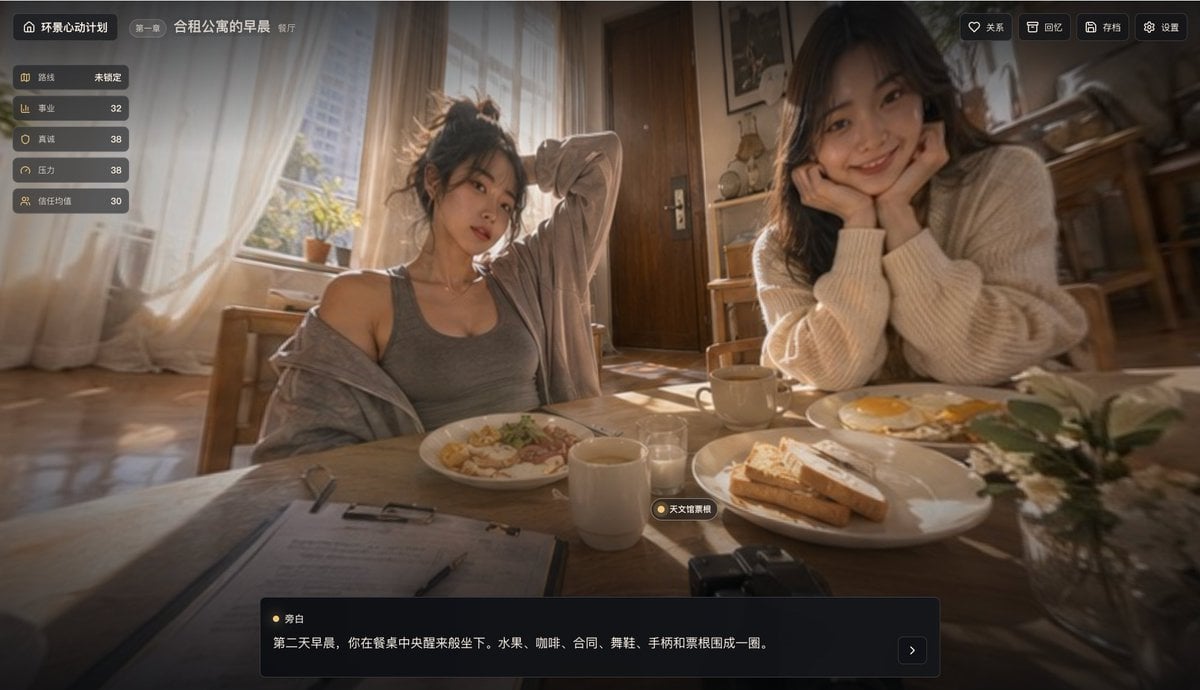
Cinematic Breakfast Dating Sim UI
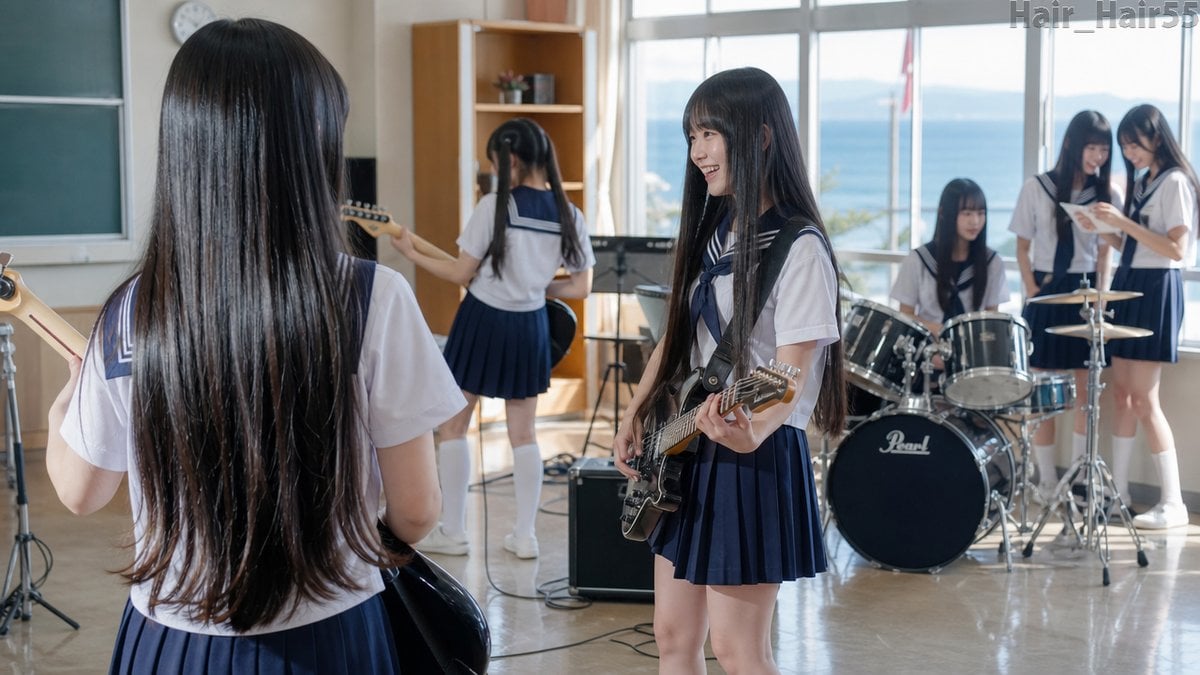
Seaside School Band Rehearsal

Anime Skywork MV Thumbnail

Celestial Sakura Kimono Maiden
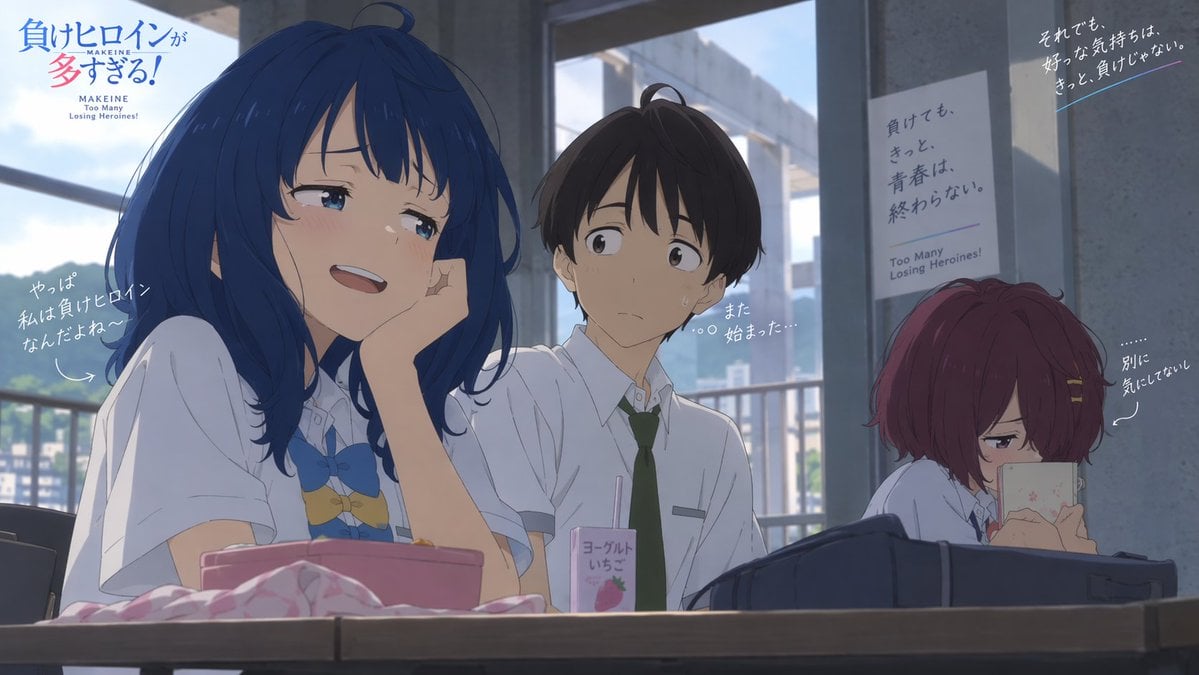
Anime School Rom-Com Key Visual

Moonlit Sakura Shrine Fantasy
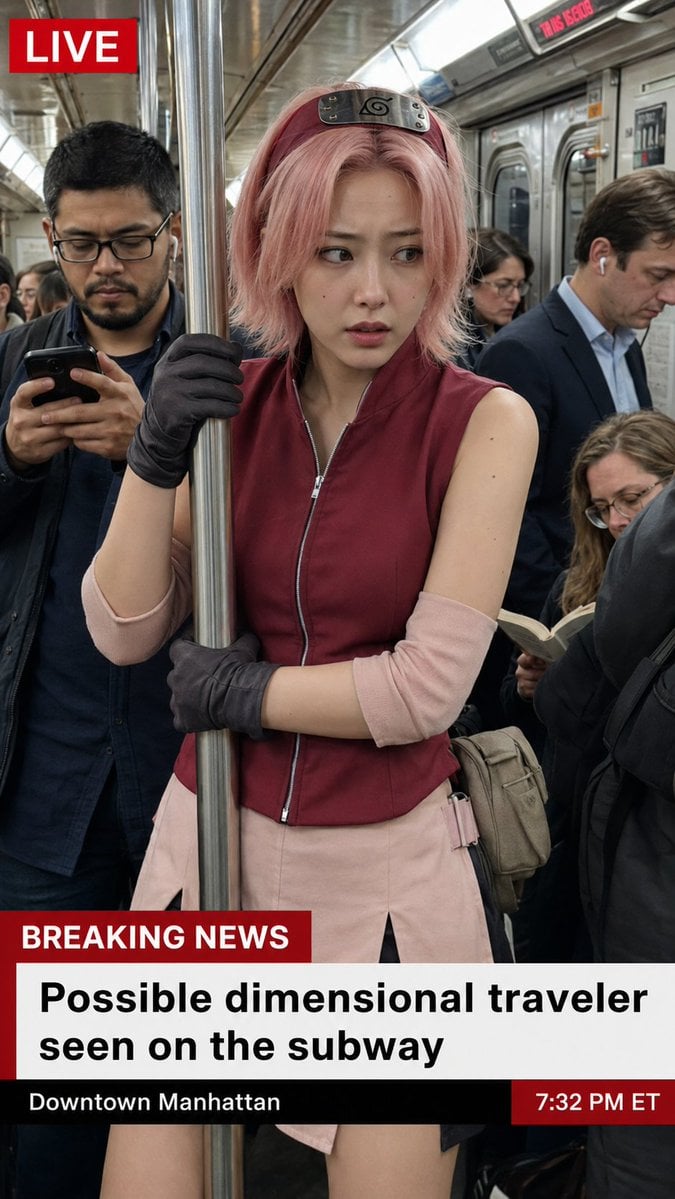
Live News Subway Sakura
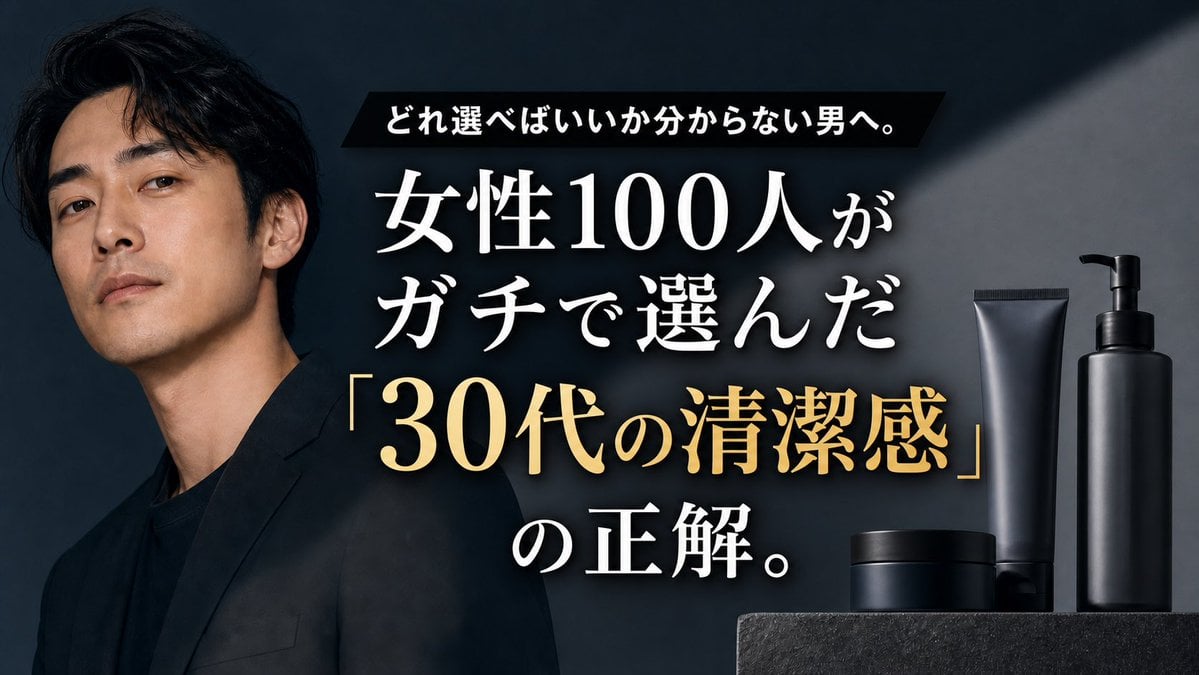
Premium Men's Skincare Thumbnail
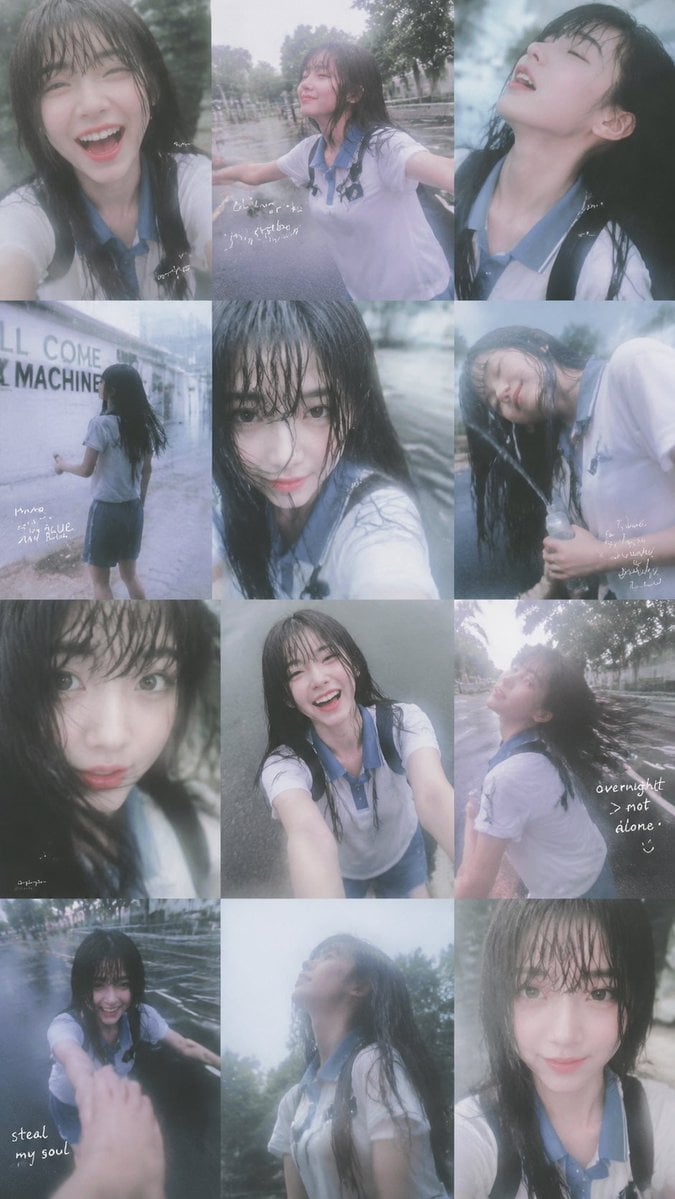
Rainy Schoolgirl Photo Diary Collage

Low-Cost AI Video Thumbnail
Make it yours
Sakura School Dating Sim Thumbnail works as-is. These are the safest ways to change it without losing the look.
Change one field
Copy a single group, rewrite it, and generate again so you can see what that field is doing.
Keep the frame, change the subject
Hold the composition and light of Sakura School Dating Sim Thumbnail, then swap wardrobe, props or the person for a new take.
| If the result… | Why | Fix |
|---|---|---|
| The result drifts from the preview | Too many fields changed at once. | Reuse Sakura School Dating Sim Thumbnail as-is first, then change one group — subject, light, or setting. |
| The model over-stylizes the scene | The prose prompt leaves finish and camera underspecified. | Add one camera or lighting sentence and stay on GPT Image 2. |
More GPT Image 2 templates
Other prompts made for GPT Image 2.

Six VTuber Japanese Logo Sheet

Realistic Portrait of Woman and Deer

The Vista Modular Condo Poster

AI Model Routing Comparison Infographic

2.5D Anime Art Board

Isometric Productivity Desk Scene

New York Double Exposure Poster

Four-Panel AI Landscape Comparison

Japanese Tatami Lifestyle Magazine Cover

NESCAFÉ Coffee Map Poster
More image prompts
Fresh picks from across the catalog.
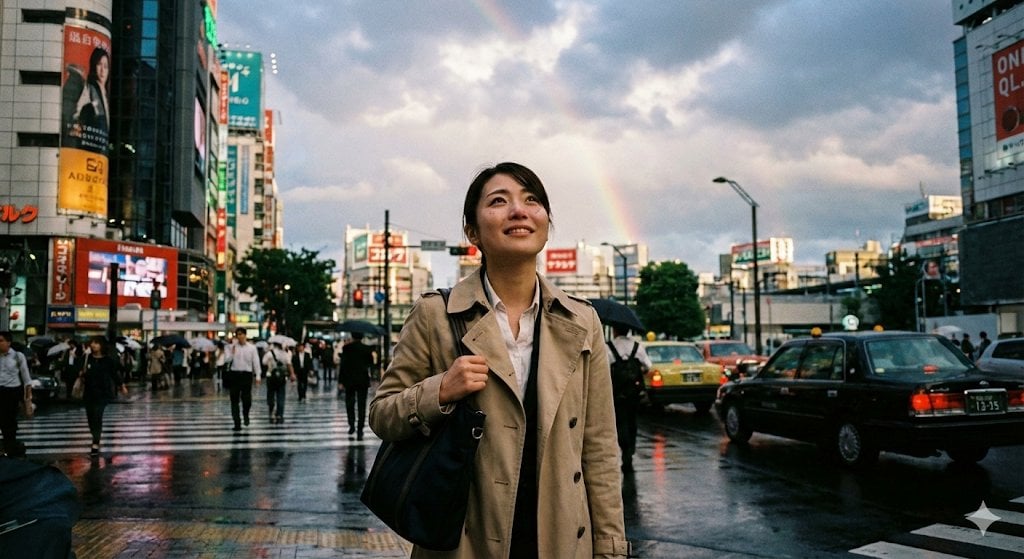
Emotional Snapshot of a Woman in Rainy Tokyo
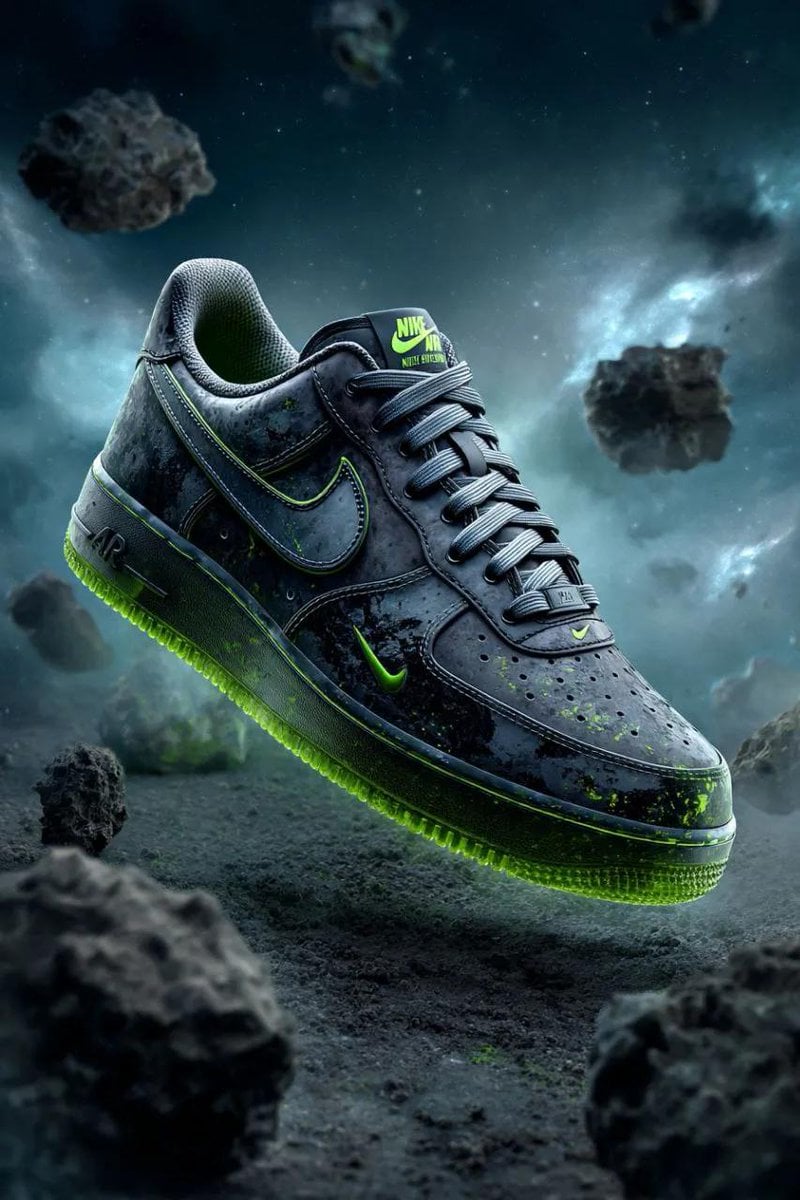
Cosmic Nike Air Force Shoe Carved from Meteorite

12 Erewhon Market — California Series

Anti-Plastic/Hyper-Realism Protocol for Human Skin Texture

Handcrafted Mixed Media Portrait Painting

Request for Beach Selfie Prompt
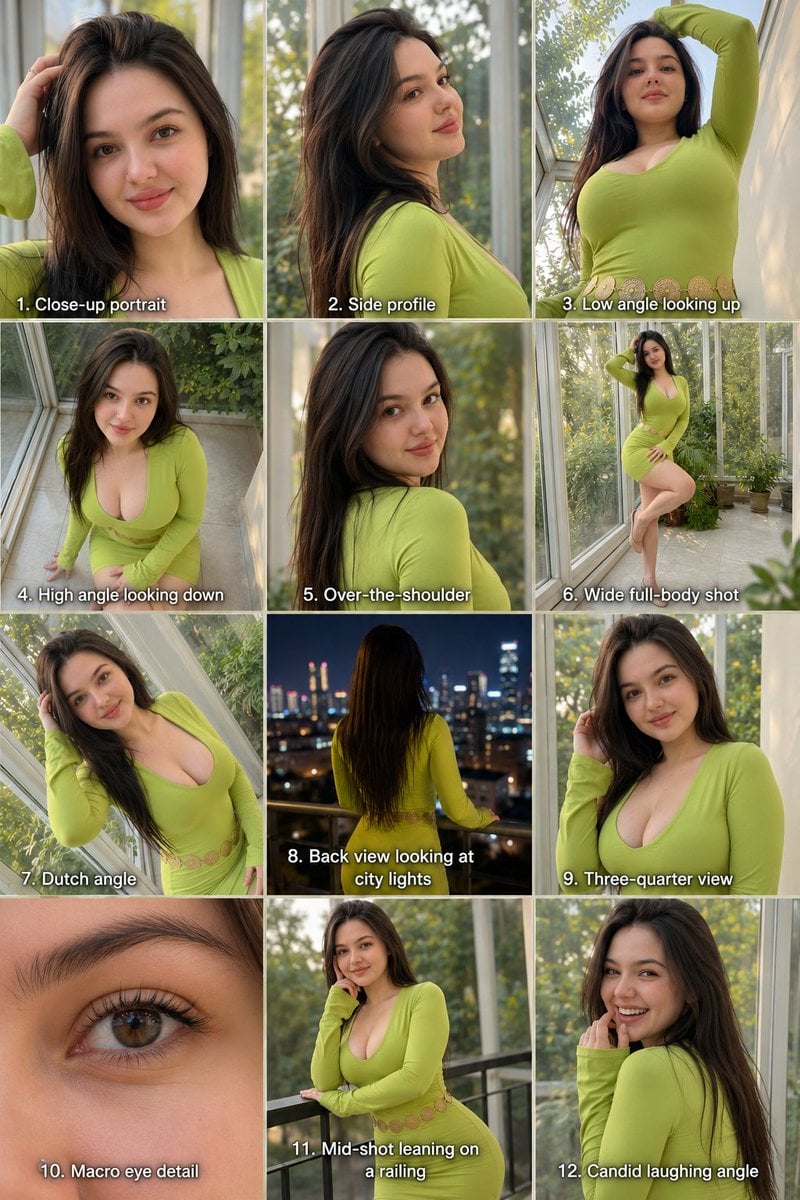
Twelve Angle Multi-View Face Grid

Gpt2 E Commerce Main Image Miniature Diorama Skincare Advertisement

World Cup Tunnel Champion

Pastel Zodiac Avatar Grid
Browse template categories
Sakura School Dating Sim Thumbnail questions
How do I use the Sakura School Dating Sim Thumbnail template?
Add your photo if the template asks for one, edit the prompt if you like — the template's model and format are already selected — and press Generate. Your version opens in PicX Studio.
Can I customize the Sakura School Dating Sim Thumbnail template?
Yes. You can change the subject, setting, lighting, mood, format, and available model controls before creating your image.
Is the Sakura School Dating Sim Thumbnail template free?
Opening and editing this template is free. Generating uses credits, shown on the Generate button when you are signed in.
Which AI model should I use?
Start with GPT Image 2, which is the model associated with this template. You can compare another compatible model for a different finish.
Looking for something else? Browse all templates.

Your photo, any look
Thousands of ready templates for every top image and video model, from one credit balance.