
GPT Image 2 Prompt Gallery README
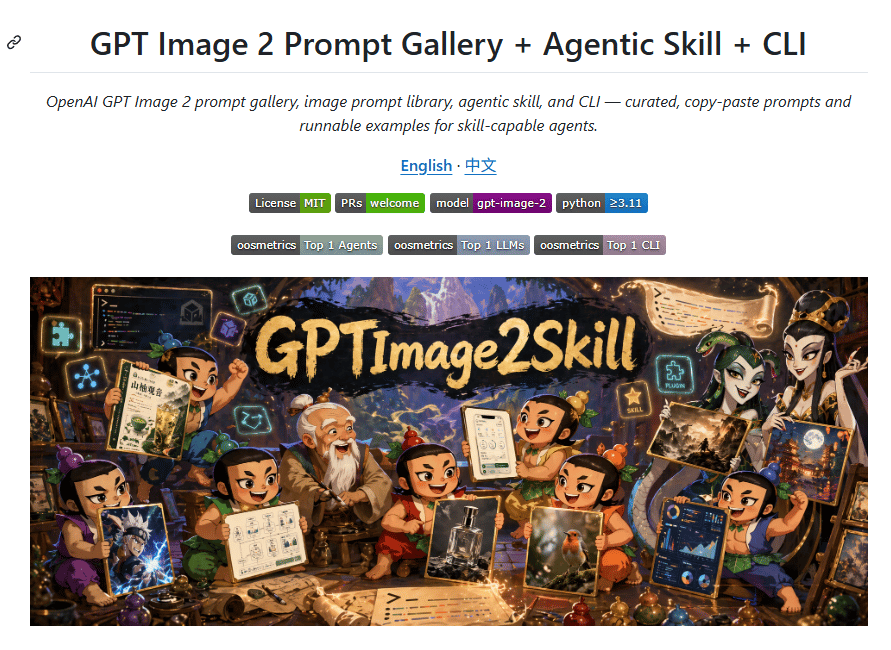
A GitHub README-style project landing page screenshot with badges and a fantasy-anime hero banner for an AI image prompt toolkit.
- Prompt included
- Model and format preset
- Free template
The prompt behind this image
Copy the exact prompt behind GPT Image 2 Prompt Gallery README, or open it in the studio and make it yours.
Goal: Create a clean GitHub README-style landing page screenshot promoting {argument name="project title" default="GPT Image 2 Prompt Gallery + Agentic Skill + CLI"}, with a centered title area and a large fantasy-anime hero banner underneath. Canvas: 890×650 px webpage screenshot on a white background, with generous margins and a thin light-gray horizontal divider below the title. Use a crisp browser/documentation aesthetic, no browser chrome. Layout: Top-left has a small black chain-link anchor icon. Centered at the top is the large bold headline “GPT Image 2 Prompt Gallery + Agentic Skill + CLI”. Under it, place an italic two-line subtitle: “OpenAI GPT Image 2 prompt gallery, image prompt library, agentic skill, and CLI — curated, copy-paste prompts and runnable examples for skill-capable agents.” Below that, centered language links read “English · 中文” in blue underlined link style. Under the language links, place exactly 6 small rectangular status badges in one row: “License MIT”, “PRs welcome”, “model gpt-image-2”, and “python ≥3.11”, with the first two labels split into dark-gray label + green value, the model badge split dark-gray label + purple value, and the python badge split dark-gray label + blue value. Below, place exactly 3 centered ranking badges in one row: “oosmetrics Top 1 Agents”, “oosmetrics Top 1 LLMs”, and “oosmetrics Top 1 CLI”, using dark-gray label segments and muted blue/purple value segments. Hero banner: Place one large wide rectangular illustration beneath the badges, spanning almost the full content width with small white margins. The banner is a richly detailed fantasy workshop scene in warm cinematic lighting, anime/chibi style, with a black brush-stroke sign across the upper center reading {argument name="banner title" default="GPTImage2Skill"} in large rough gold lettering. The background shows a magical cave workshop with glowing UI panels, floating icons, scrolls, prompt sheets, potion-like colorful orbs, tools, and a mountain landscape opening in the distance. Characters and objects in the hero banner: Include exactly 8 chibi fantasy characters arranged across the banner, each holding or presenting image-generation artifacts: 1 boy on the left holding a parchment and raising a fist, 1 purple-clothed character at bottom-left holding a dramatic anime image, 1 green-clothed character near lower-left holding a diagram/spec sheet, 1 elderly robed character near center-left, 1 small red-clothed character in the center, 1 green/yellow character near center-right holding a phone-style UI sheet, 1 smiling orange/green character near lower-right holding a realistic bird photo, and 1 blue/green character at far right holding a poster and a dashboard panel. Add several additional partial humanoid figures behind them if needed, but the 8 foreground chibi characters must remain visually dominant. Render the humanoid faces as intentionally blurred or masked soft tan rectangles, as if anonymized, while keeping costumes, poses, hands, and held images sharp. Visual style: Combine clean documentation page typography with a vibrant high-detail fantasy anime illustration. The page area should be flat and white; the hero image should be saturated, warm, magical, and highly detailed with glowing cyan and gold accents. Keep all visible text legible where specified, avoid adding extra paragraphs, watermarks, logos, or browser controls.
How to use GPT Image 2 Prompt Gallery README in 3 steps
- 1Upload ImagePNG, JPG or paste
Add your photo
Upload the photo the template builds on. The prompt, model and format are already set.
- 2…a portrait of your subject in softgolden-hour light, 85mm…
Personalize
Edit the subject and creative details for your destination.
- 3Generate
Generate
Press Generate — your image is created in PicX Studio, so you can compare it with the original and refine one variable at a time.
More like this
Templates with the same subject, style or setup. Open one to see its prompt.
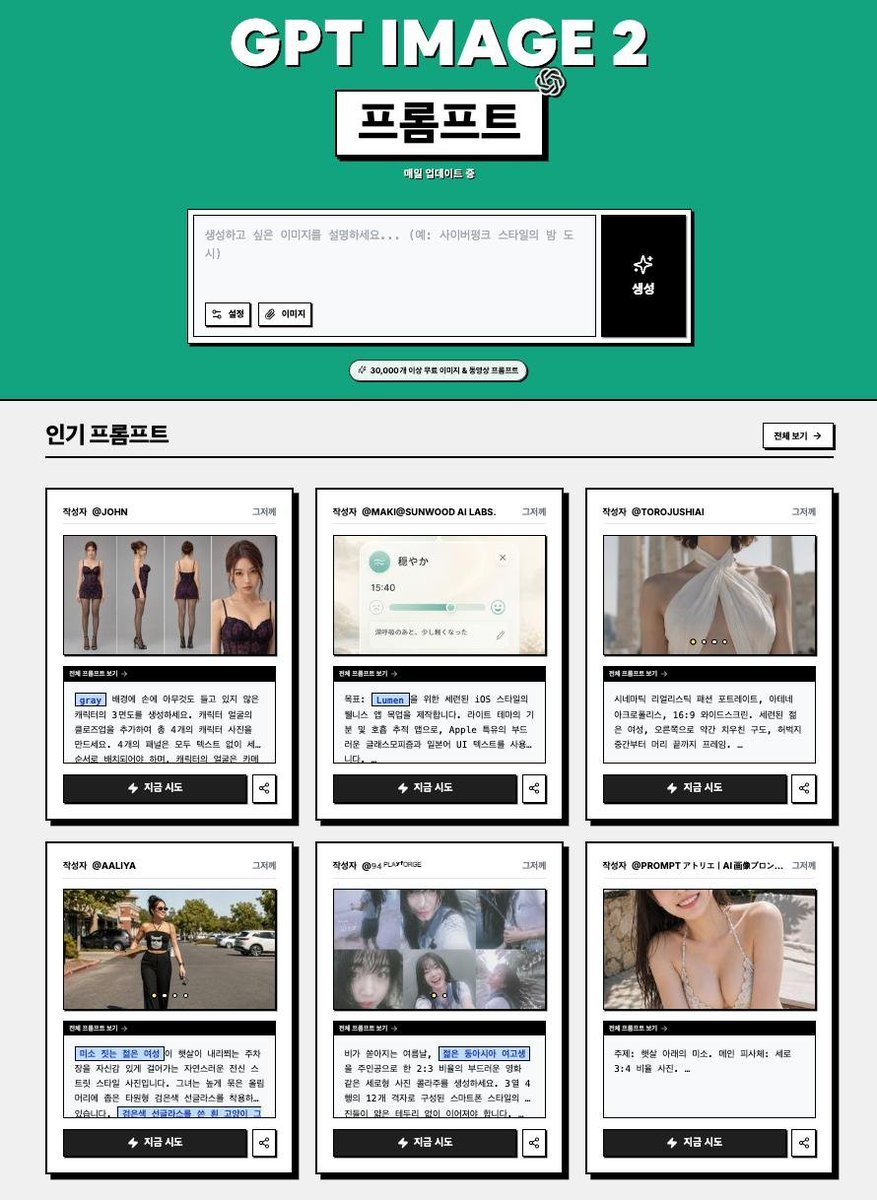
Korean GPT Image Prompt Gallery
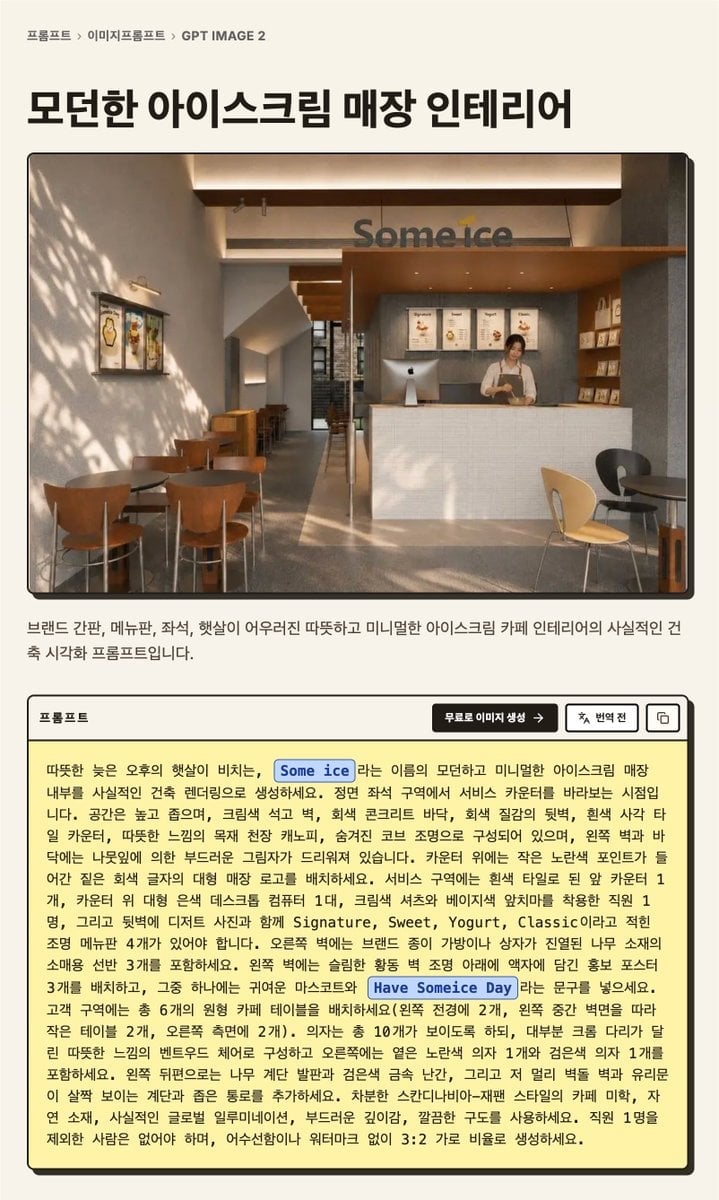
Korean GPT Image Prompt Gallery Page
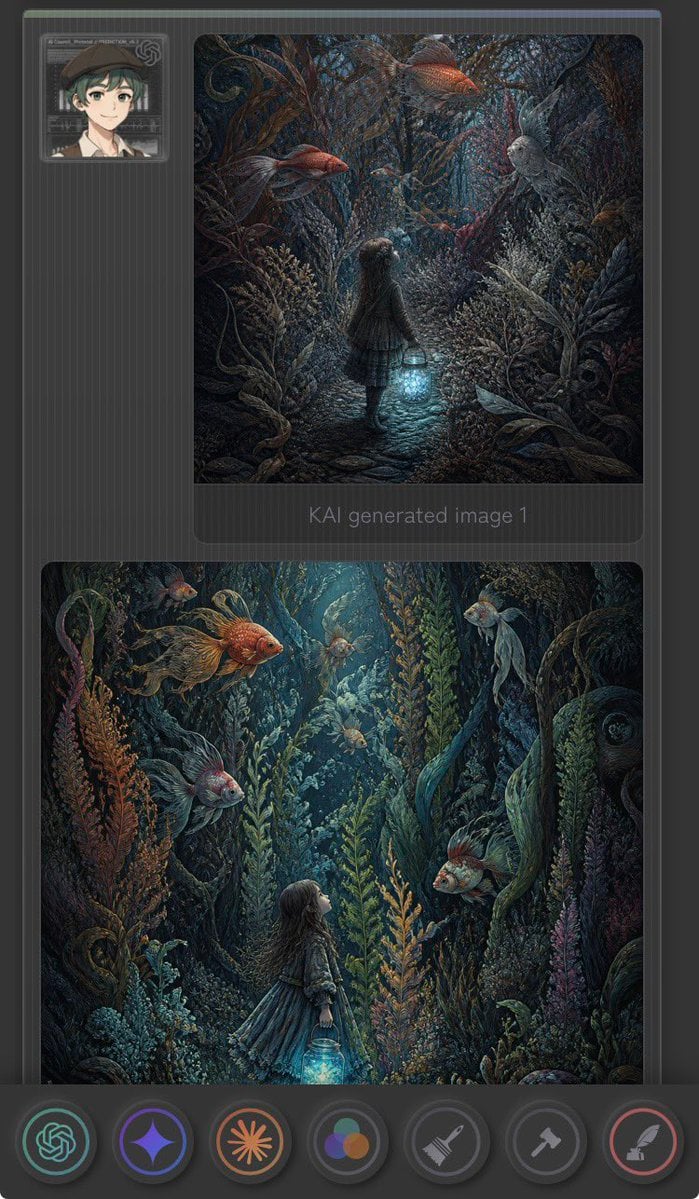
Dark Fantasy AI Gallery UI
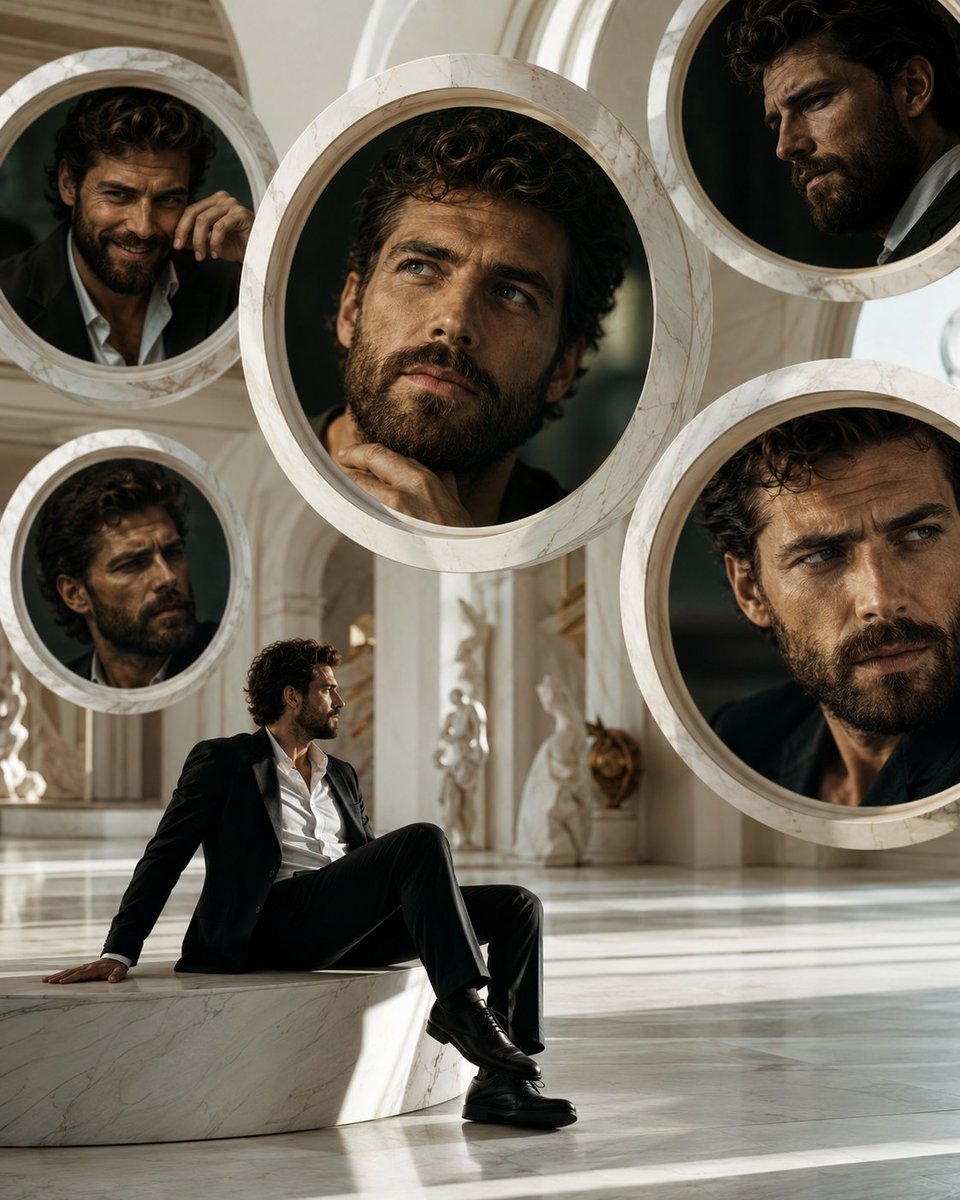
Surreal Marble Gallery Portals
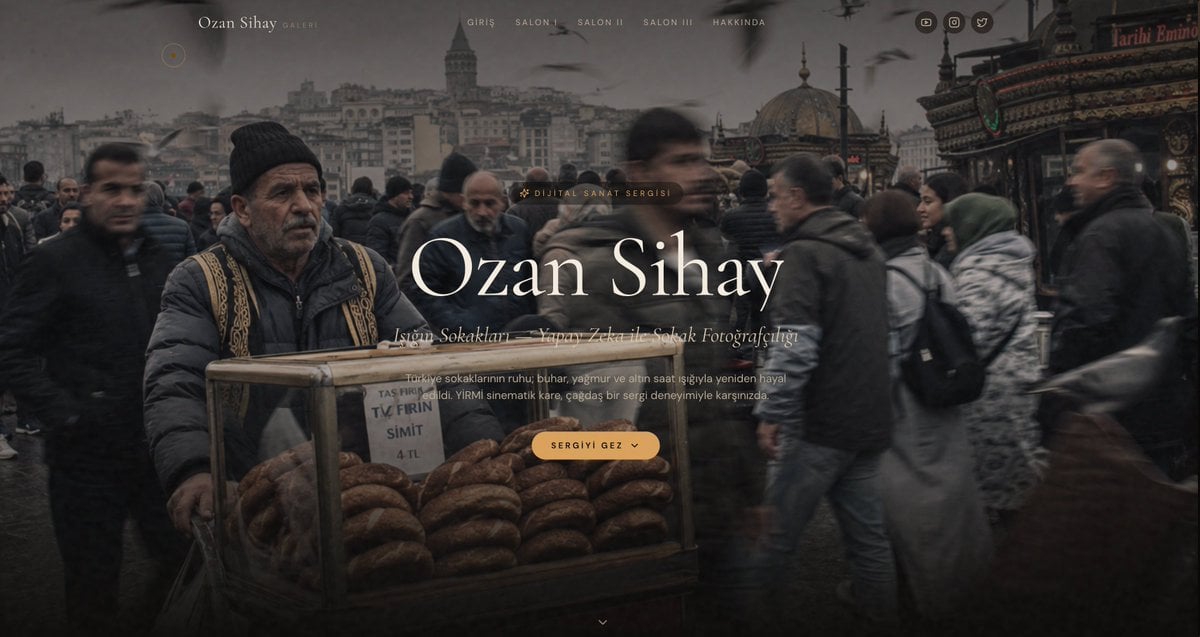
Cinematic Istanbul Gallery Website Hero
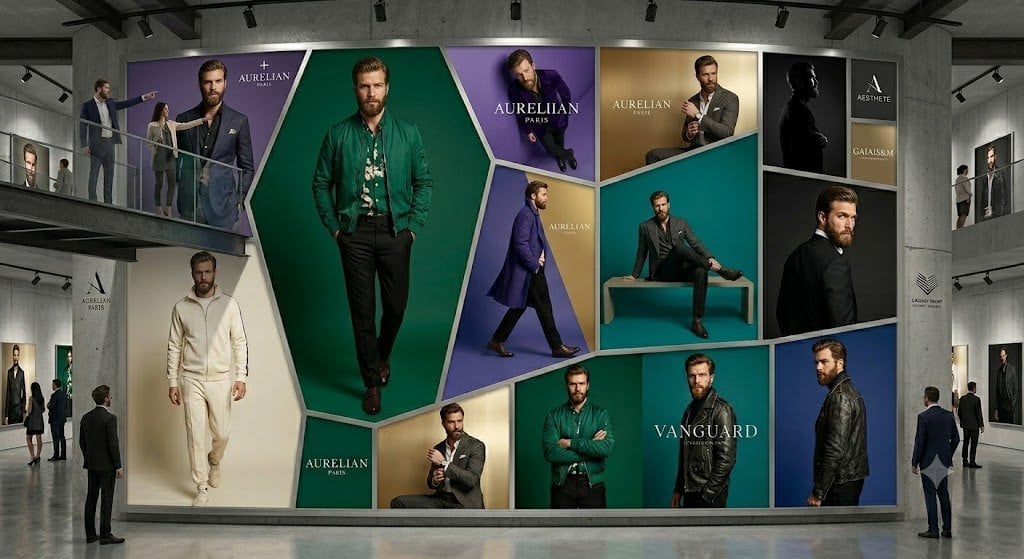
Luxury Menswear Gallery Collage
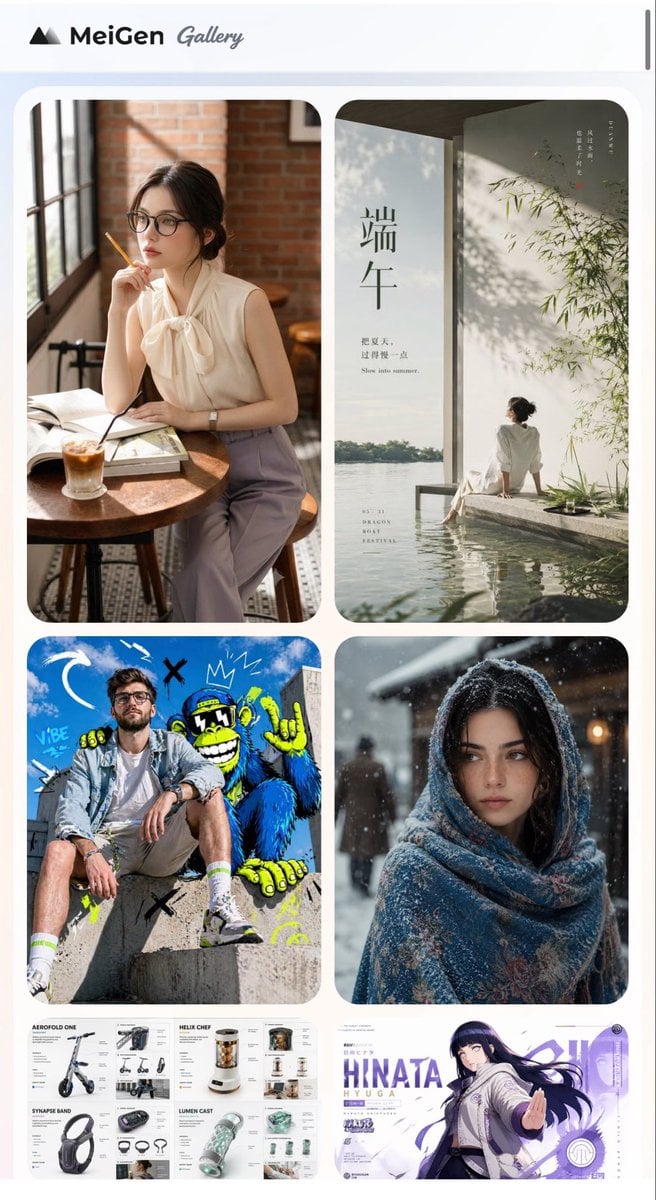
MeiGen AI Gallery Mobile Screenshot
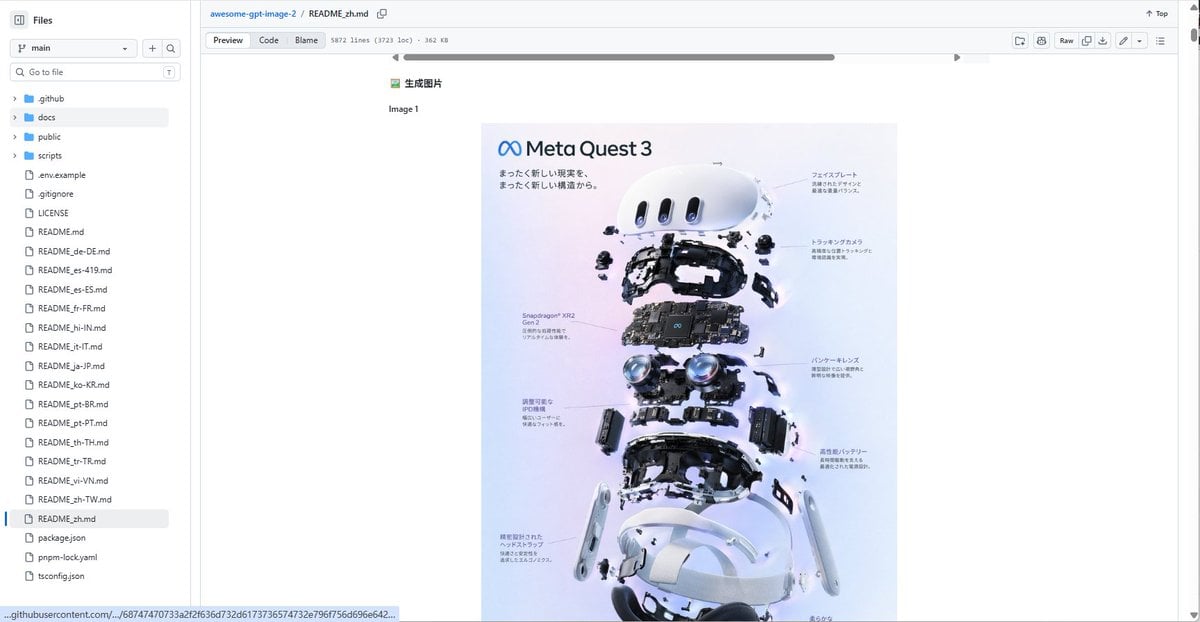
GitHub README with Meta Quest 3 Poster
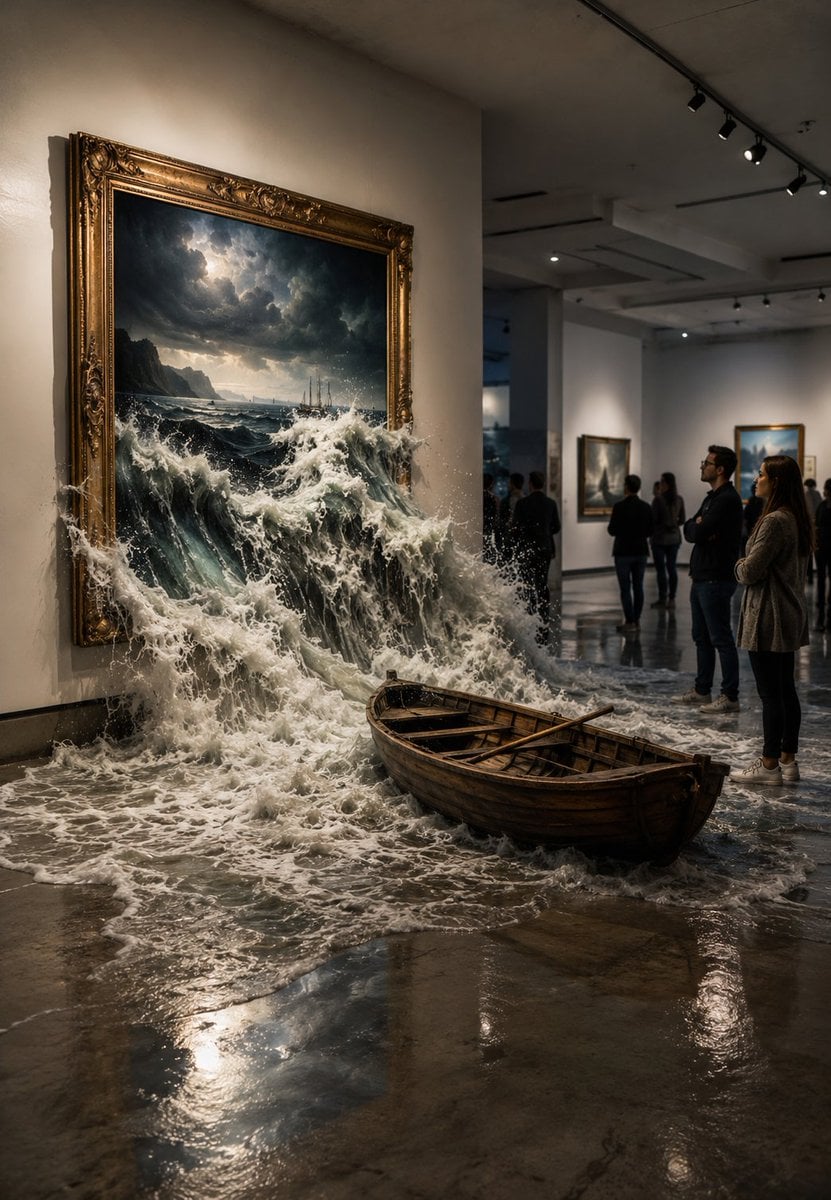
Flooded Art Gallery Surrealism
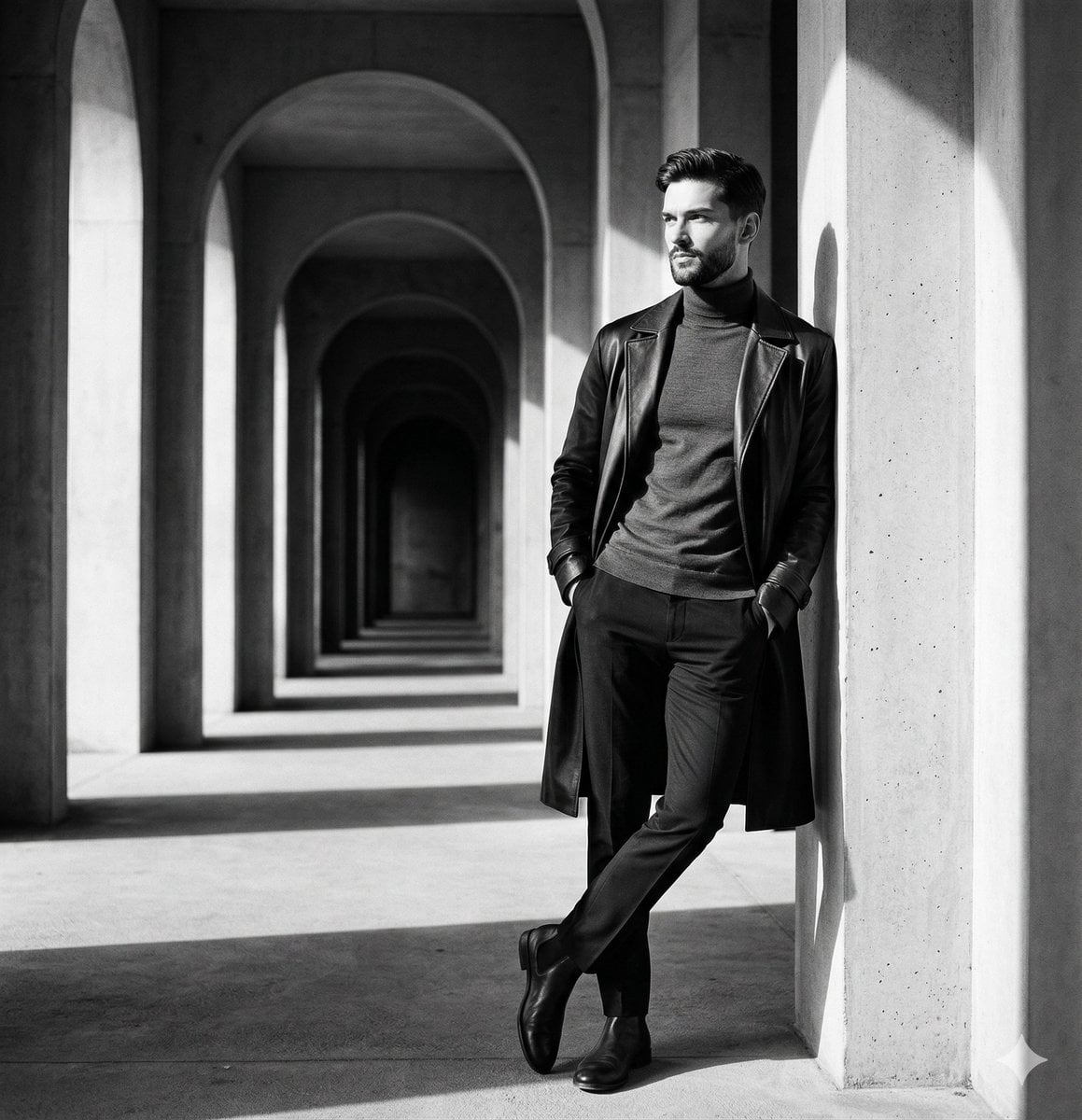
Oil Portrait Gallery Hall
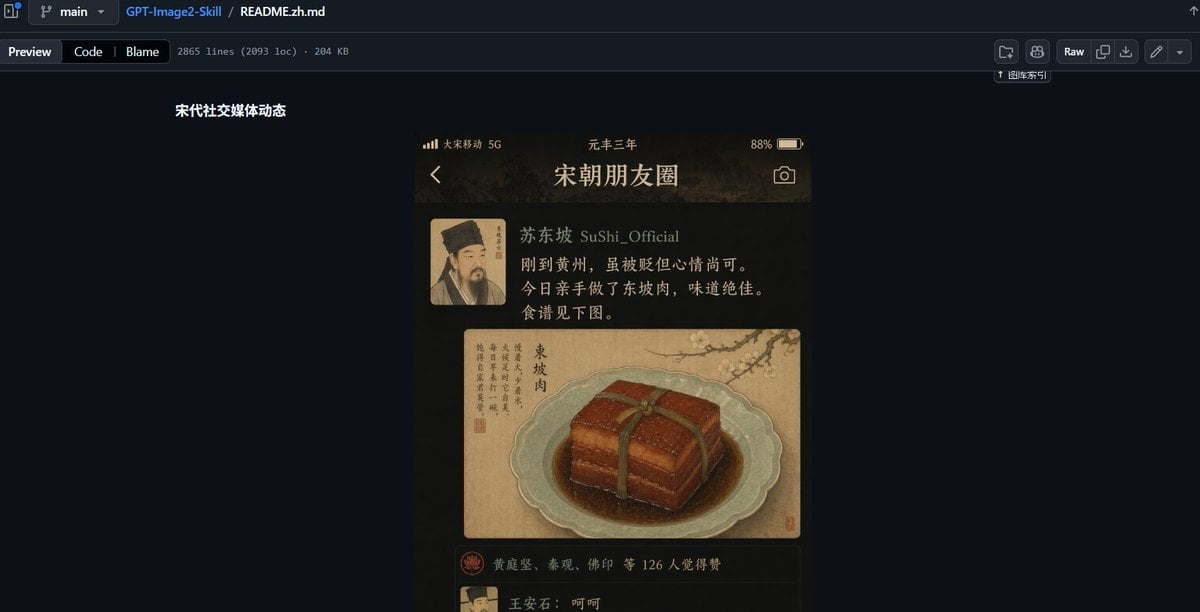
GitHub README Ancient Social Feed
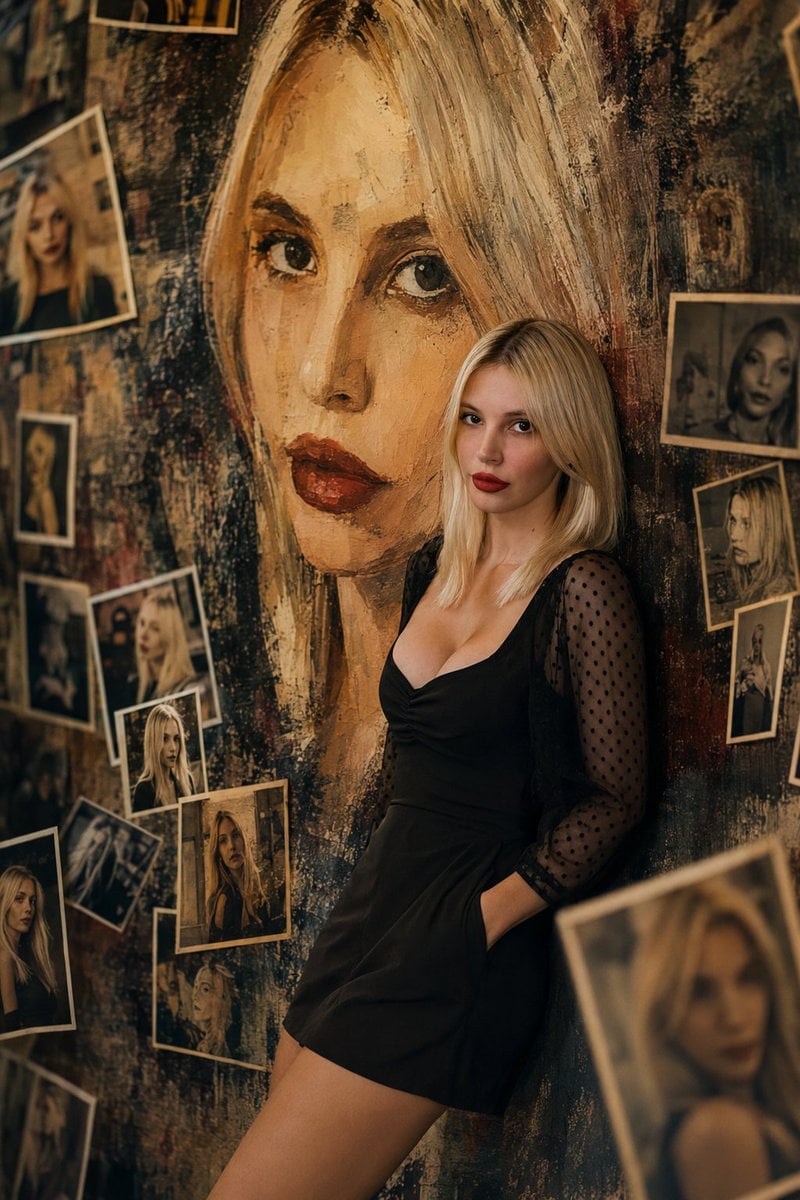
Artistic Mural Gallery Portrait
Make it yours
GPT Image 2 Prompt Gallery README works as-is. These are the safest ways to change it without losing the look.
Change one field
Copy a single group, rewrite it, and generate again so you can see what that field is doing.
Keep the frame, change the subject
Hold the composition and light of GPT Image 2 Prompt Gallery README, then swap wardrobe, props or the person for a new take.
| If the result… | Why | Fix |
|---|---|---|
| The result drifts from the preview | Too many fields changed at once. | Reuse GPT Image 2 Prompt Gallery README as-is first, then change one group — subject, light, or setting. |
| The model over-stylizes the scene | The prose prompt leaves finish and camera underspecified. | Add one camera or lighting sentence and stay on GPT Image 2. |
More GPT Image 2 templates
Other prompts made for GPT Image 2.
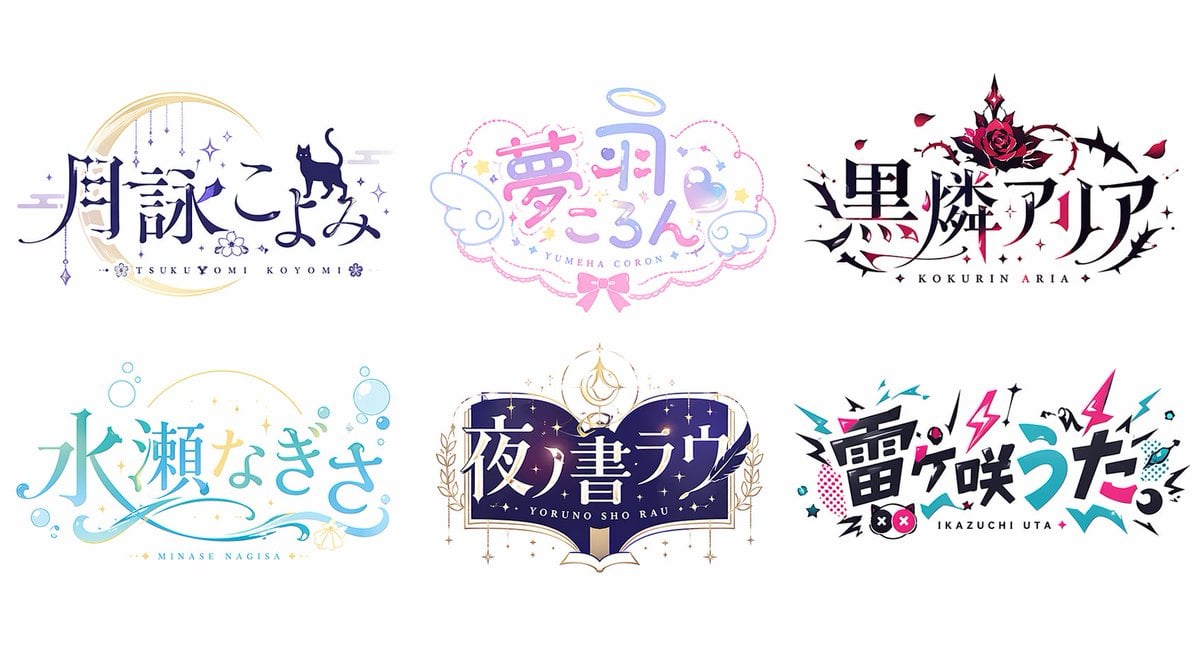
Six VTuber Japanese Logo Sheet
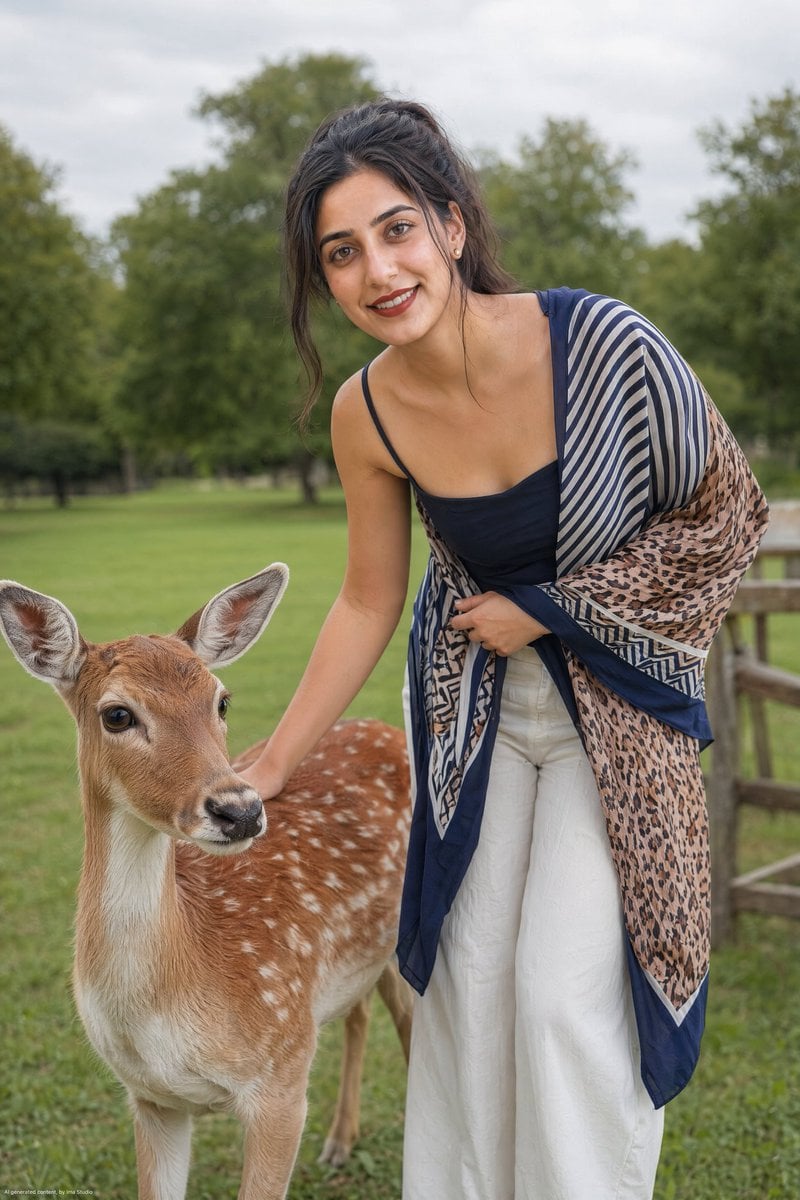
Realistic Portrait of Woman and Deer
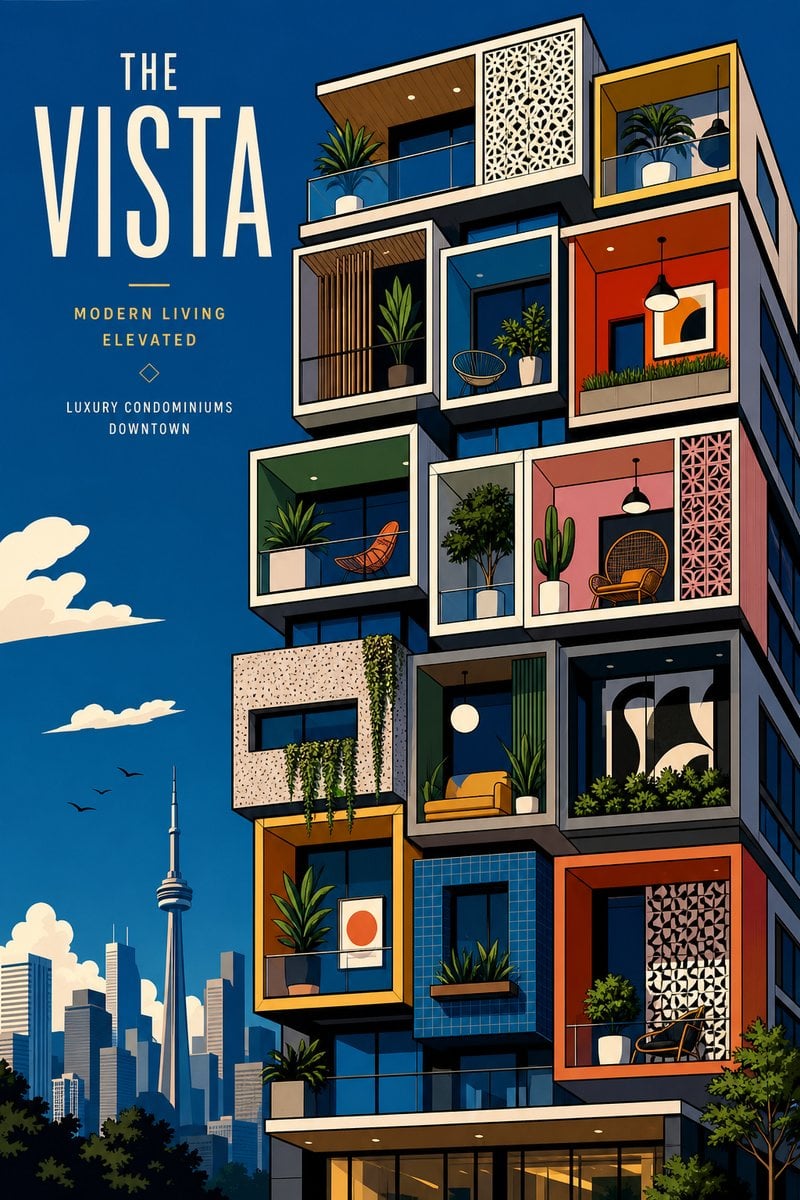
The Vista Modular Condo Poster
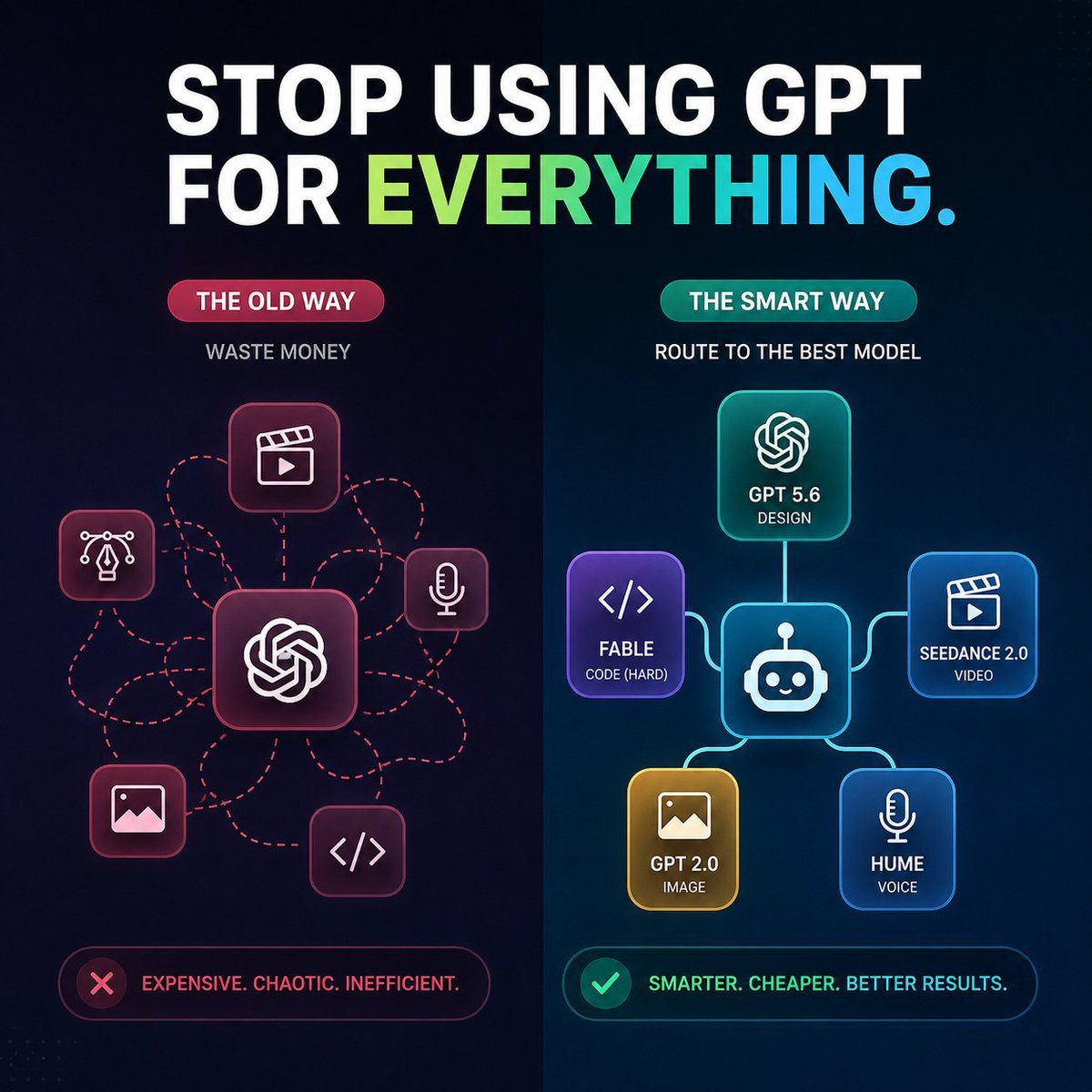
AI Model Routing Comparison Infographic
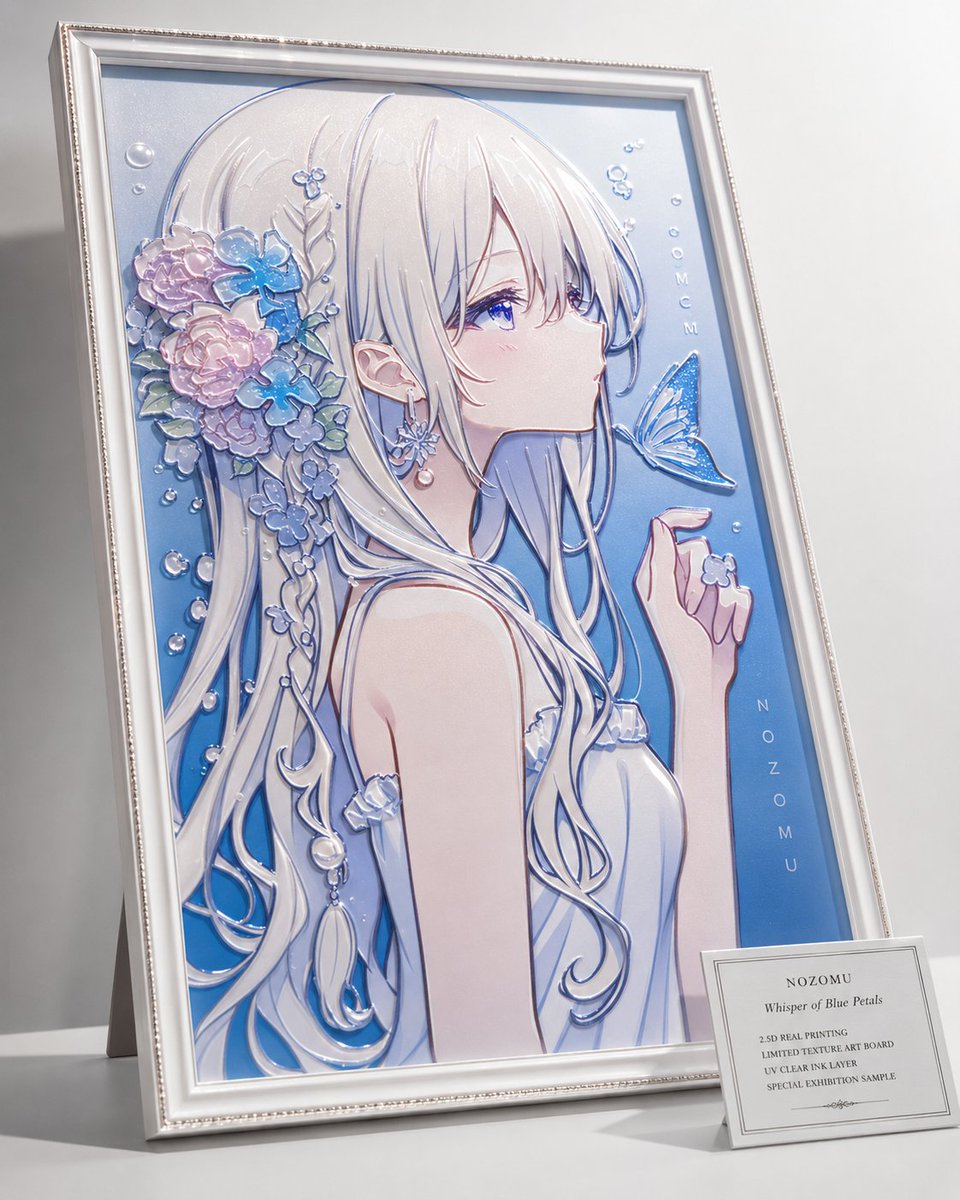
2.5D Anime Art Board

Isometric Productivity Desk Scene
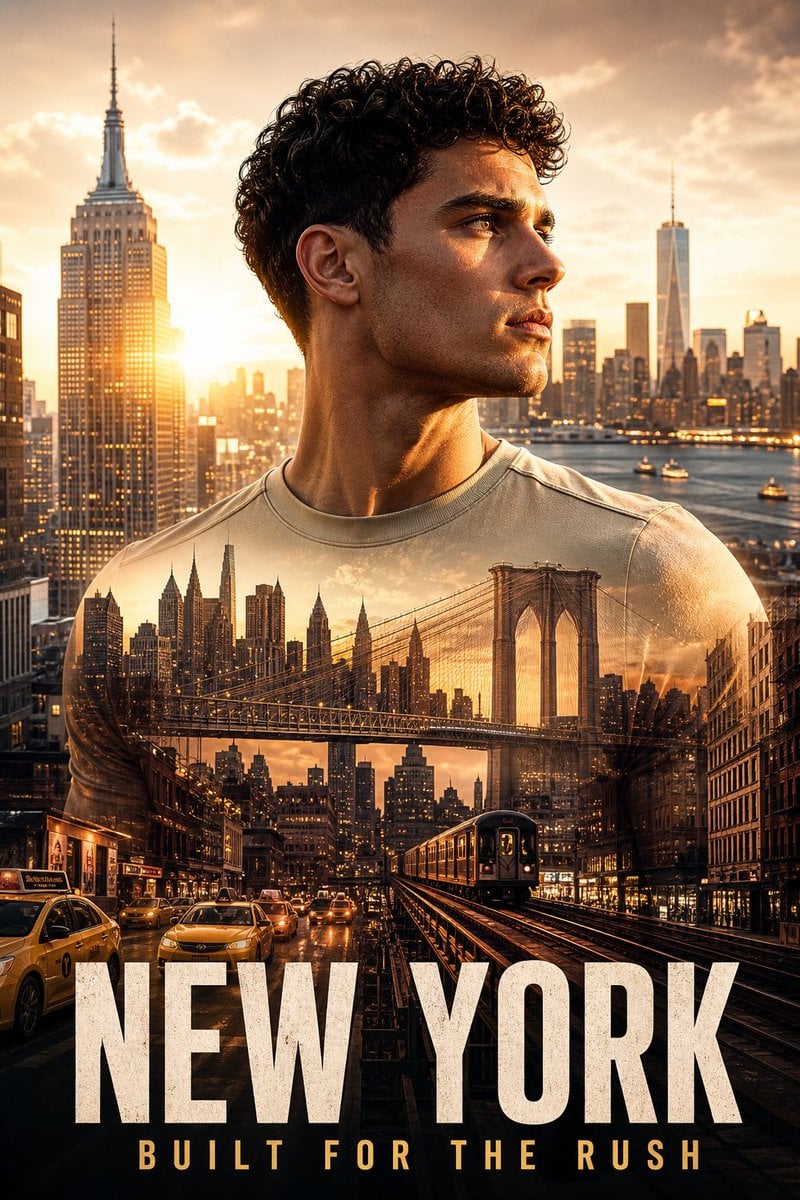
New York Double Exposure Poster
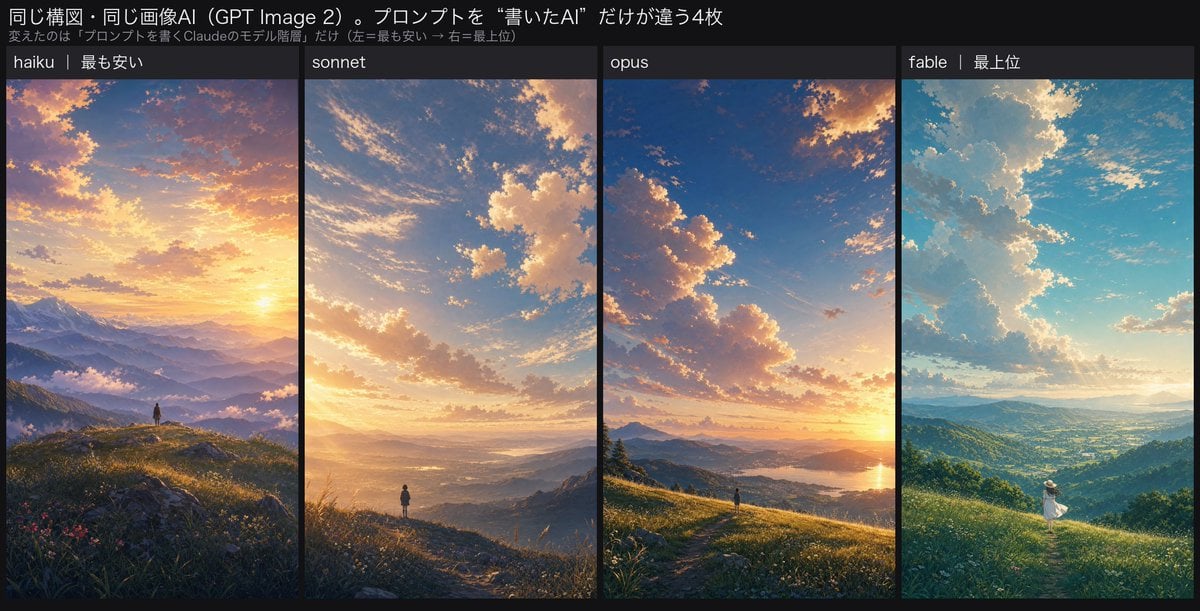
Four-Panel AI Landscape Comparison
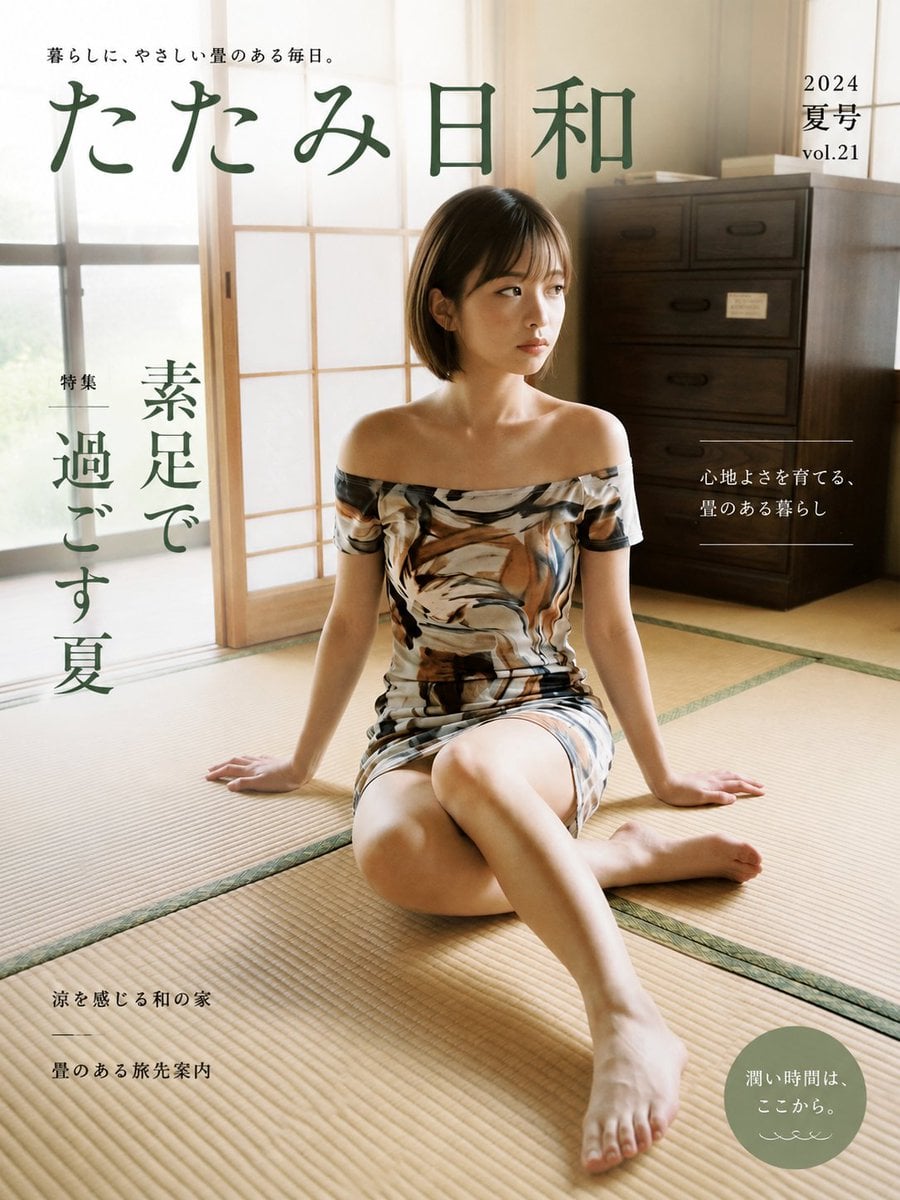
Japanese Tatami Lifestyle Magazine Cover
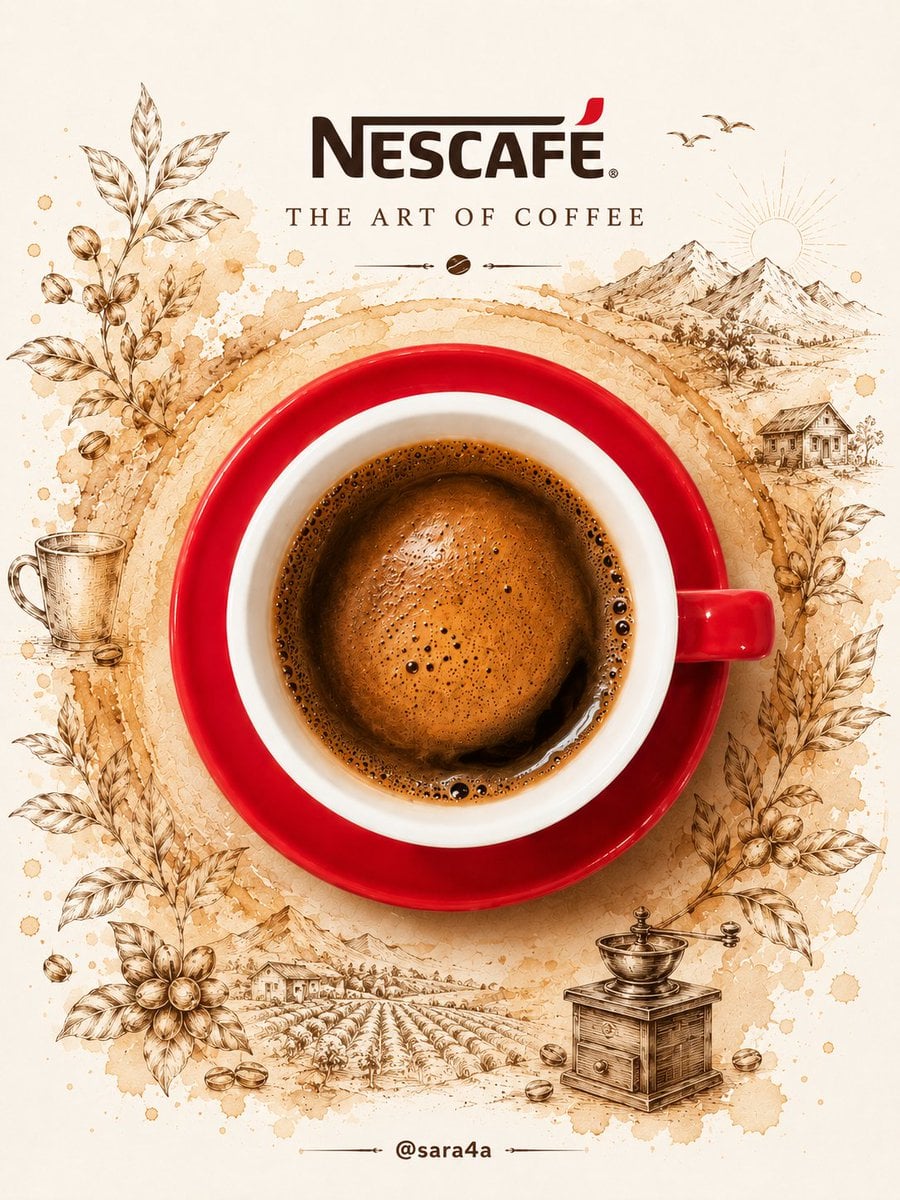
NESCAFÉ Coffee Map Poster
More image prompts
Fresh picks from across the catalog.
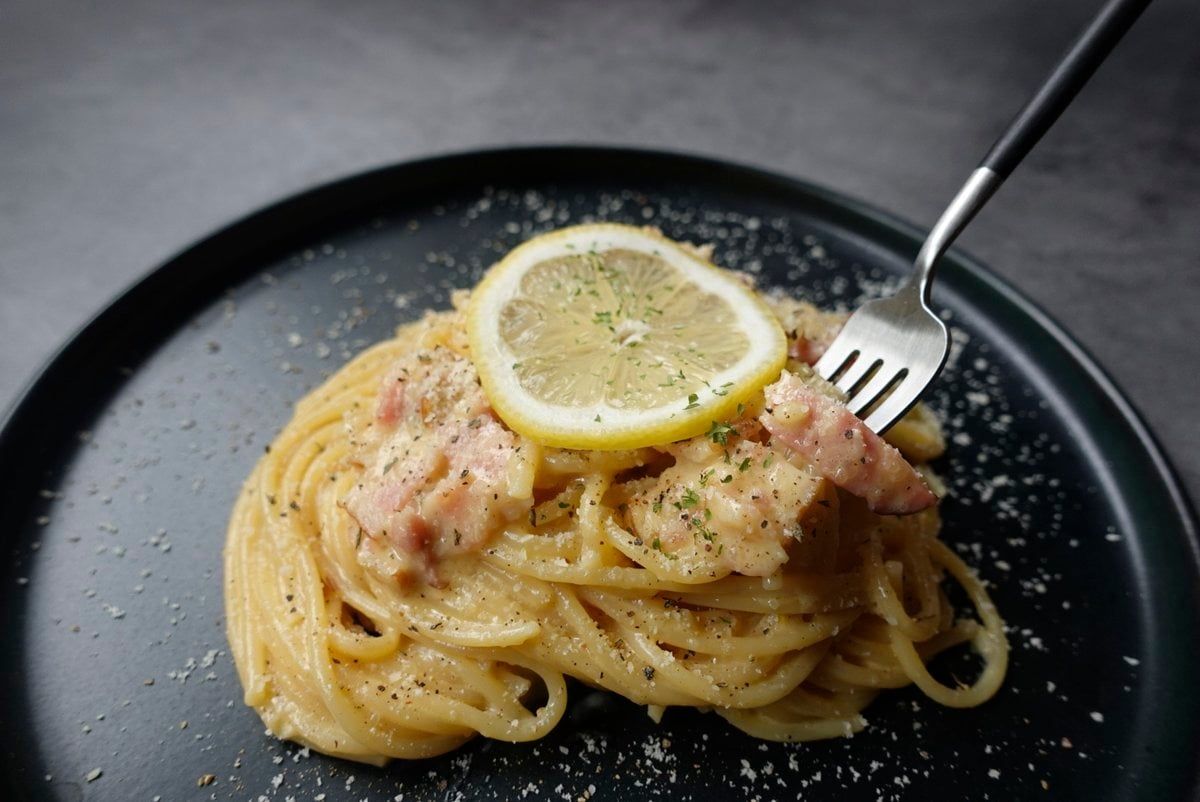
Food Plating and Processing for Instagram
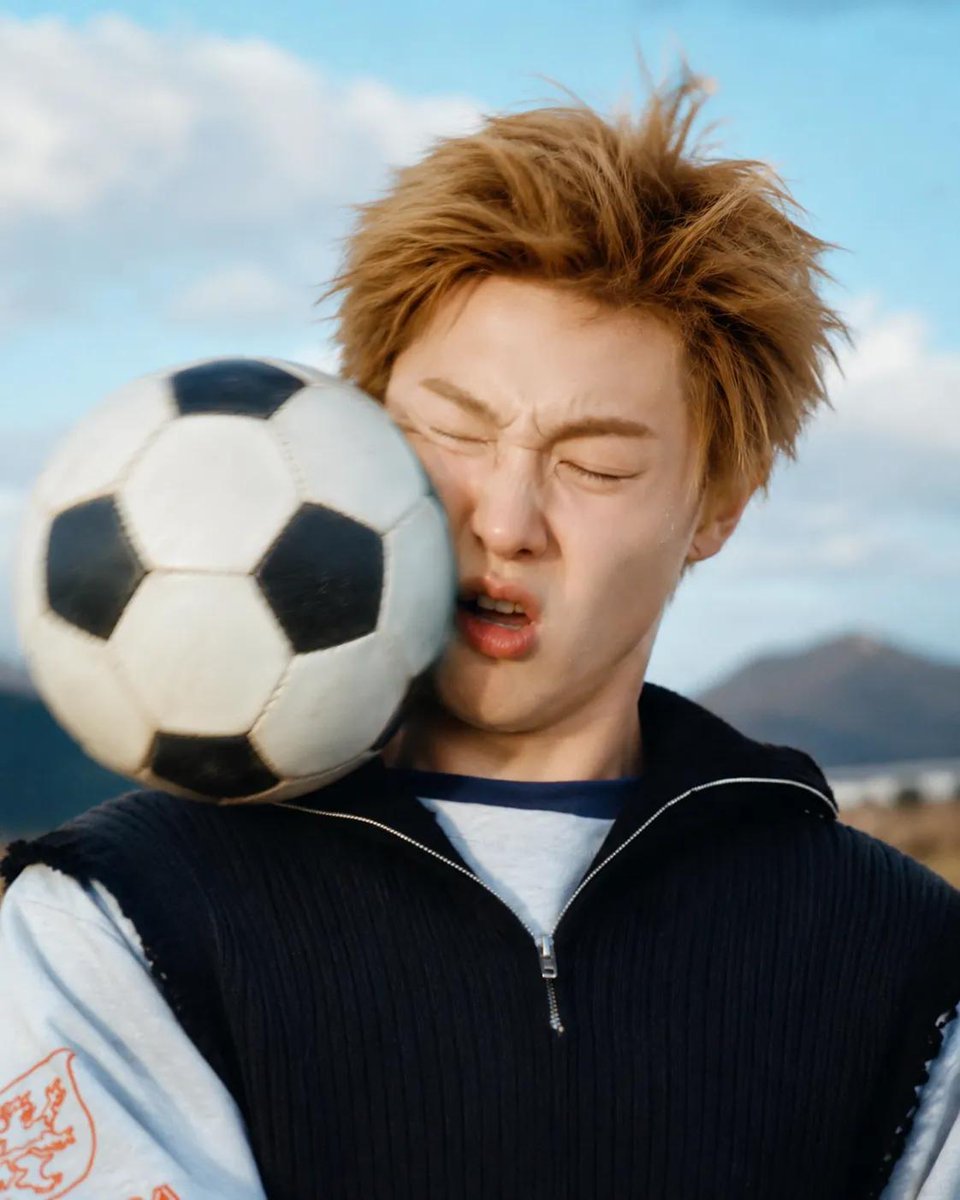
Soccer Ball Impact Action Shot
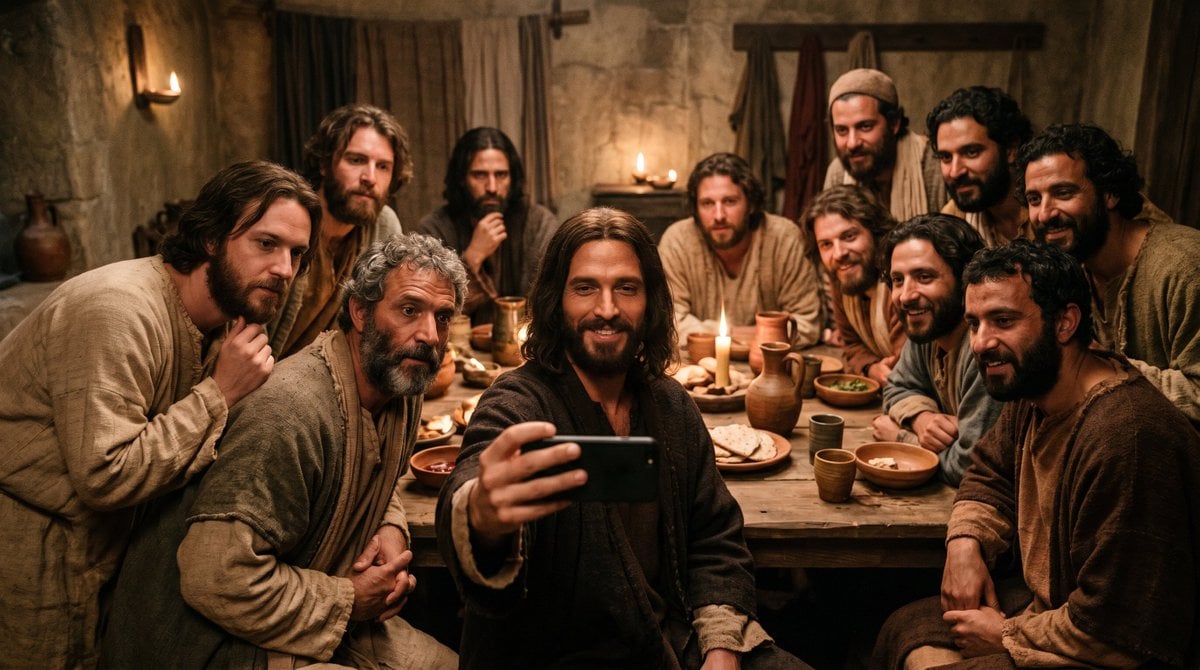
Last Supper Selfie Scene
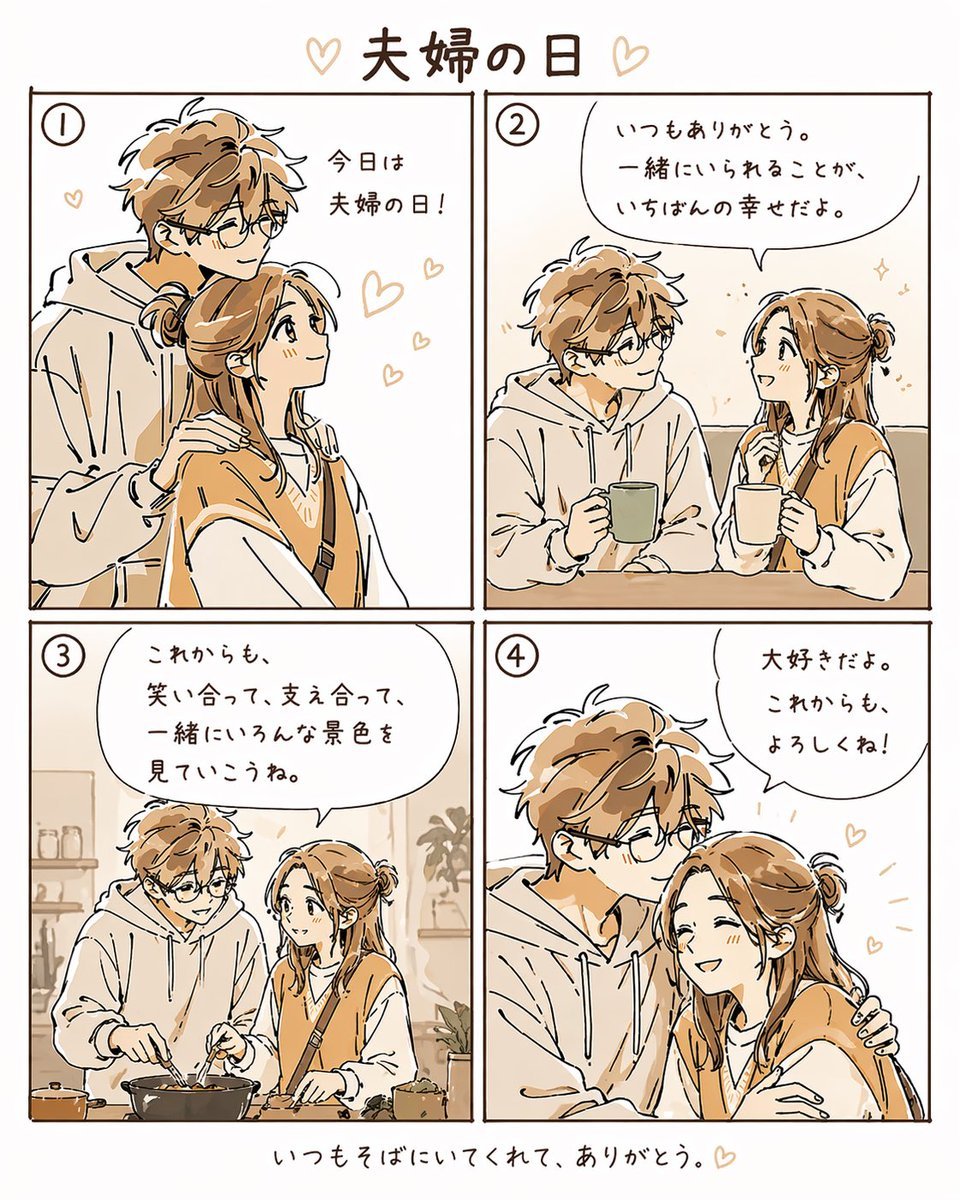
Warm Beige Married Couple 4-Panel Comic
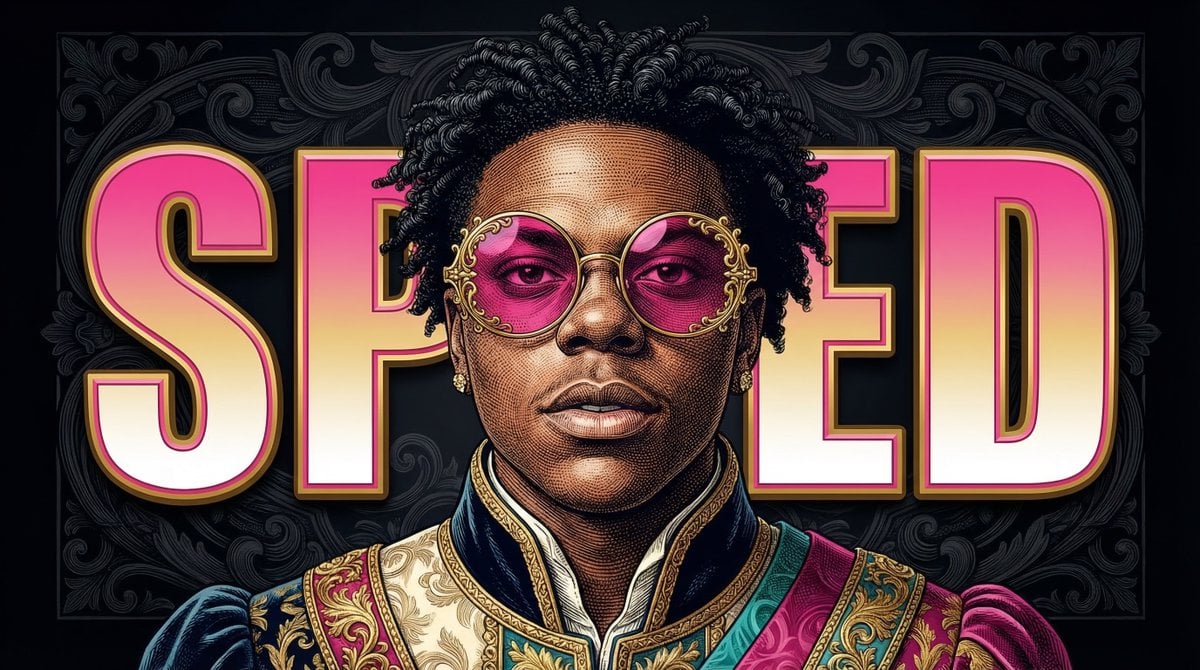
Neo-Baroque Engraved Pop Portrait
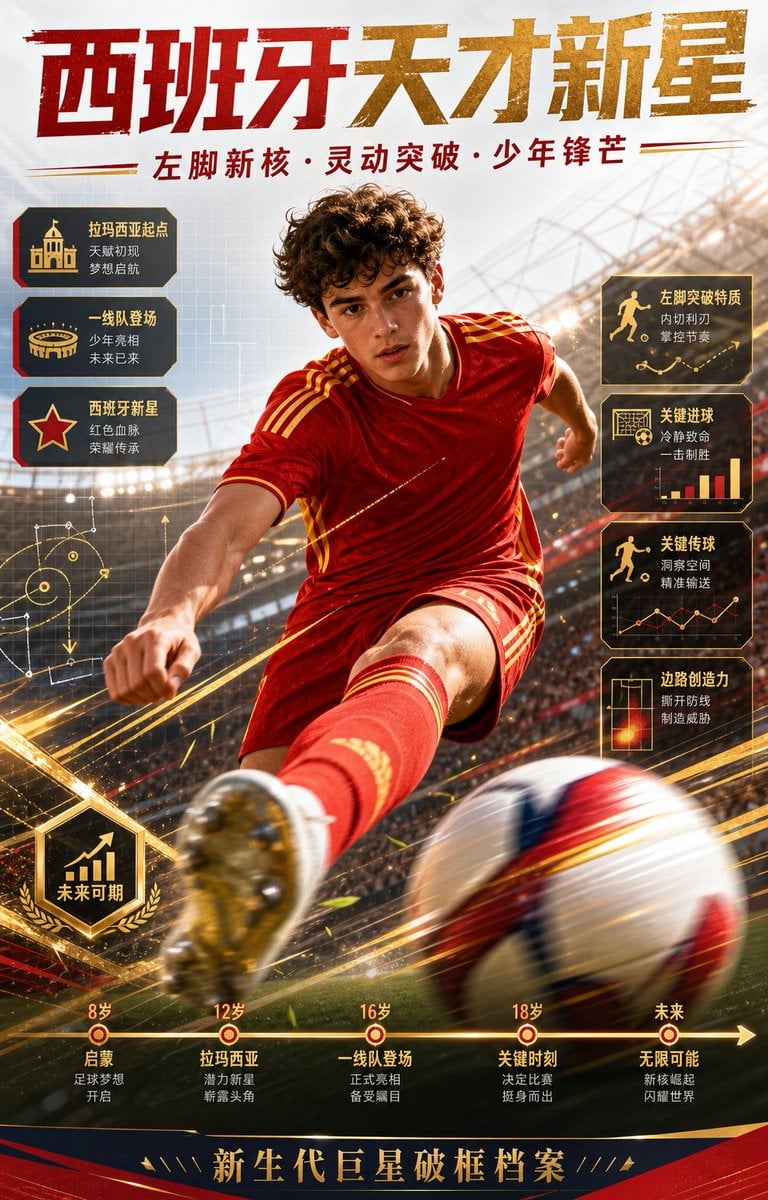
Spanish Football Prodigy Poster
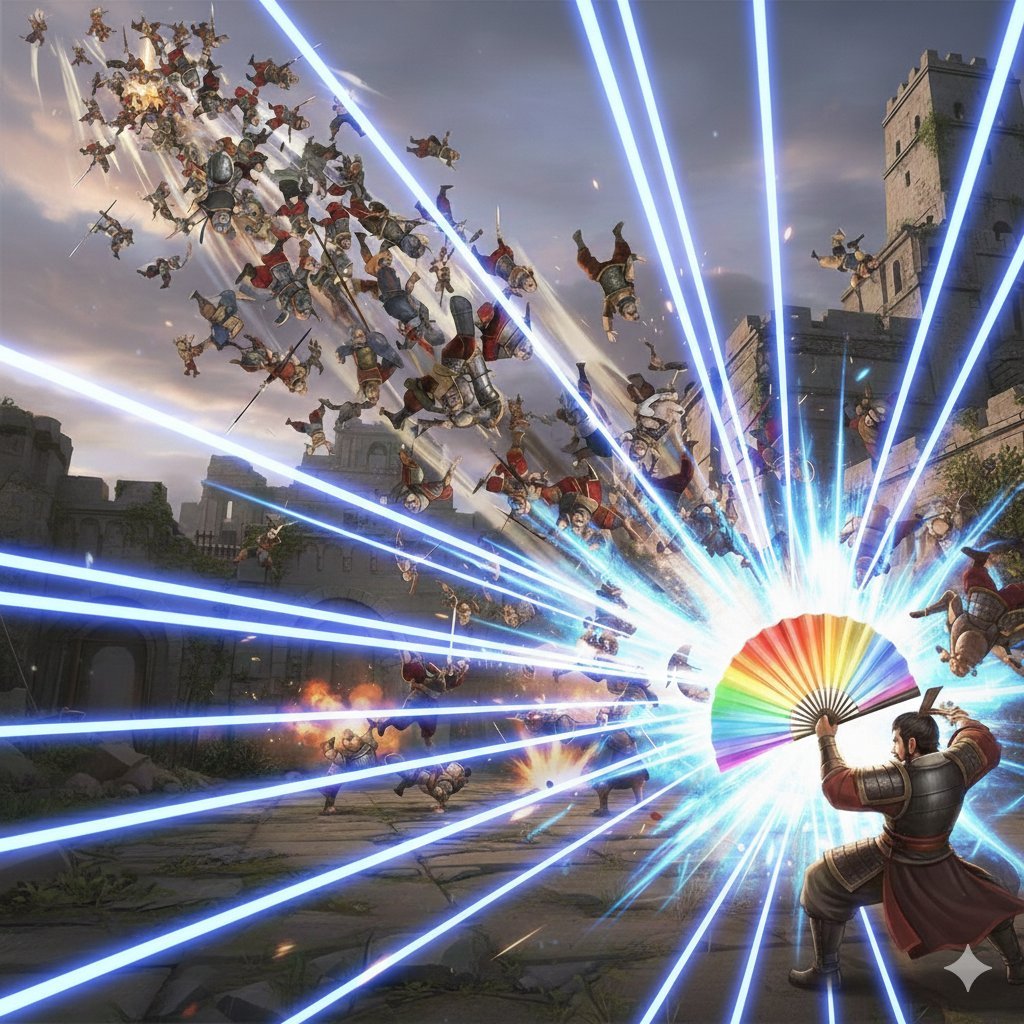
Dynasty Warriors: Kongming Musou Ranbu
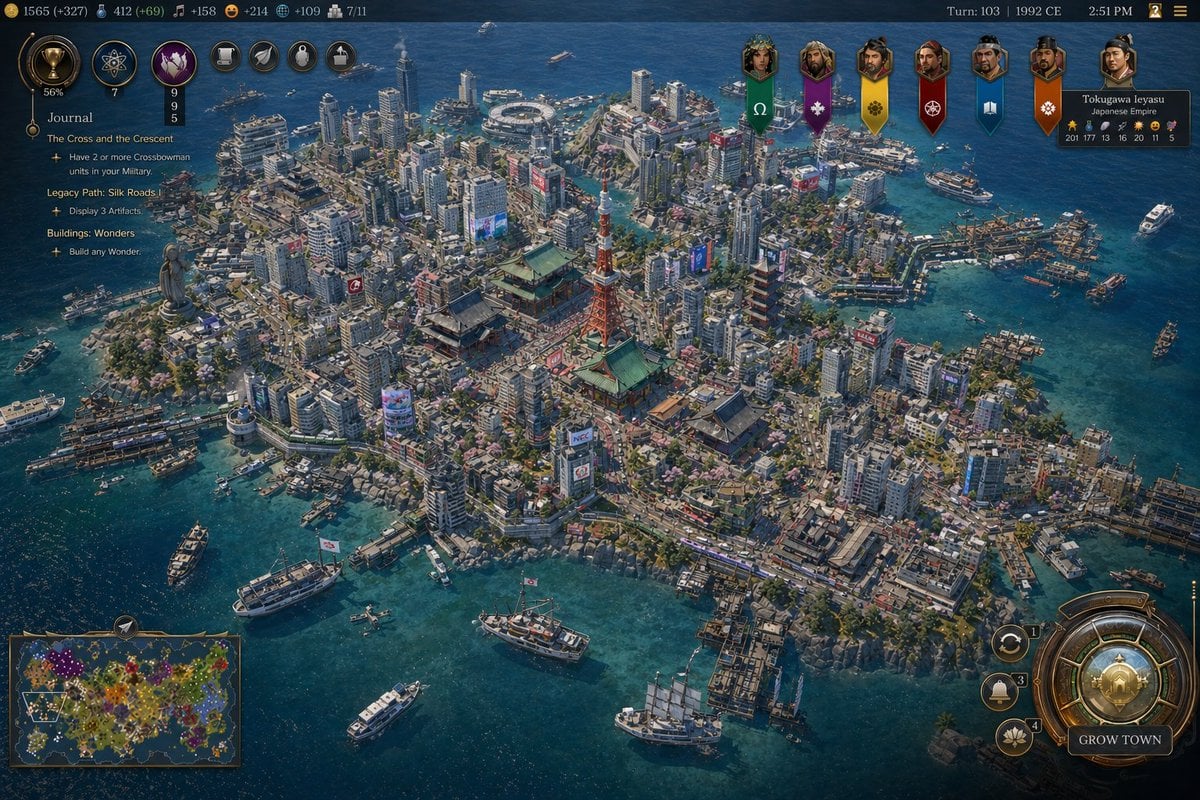
Civilization-Style Tokyo Bay Screenshot
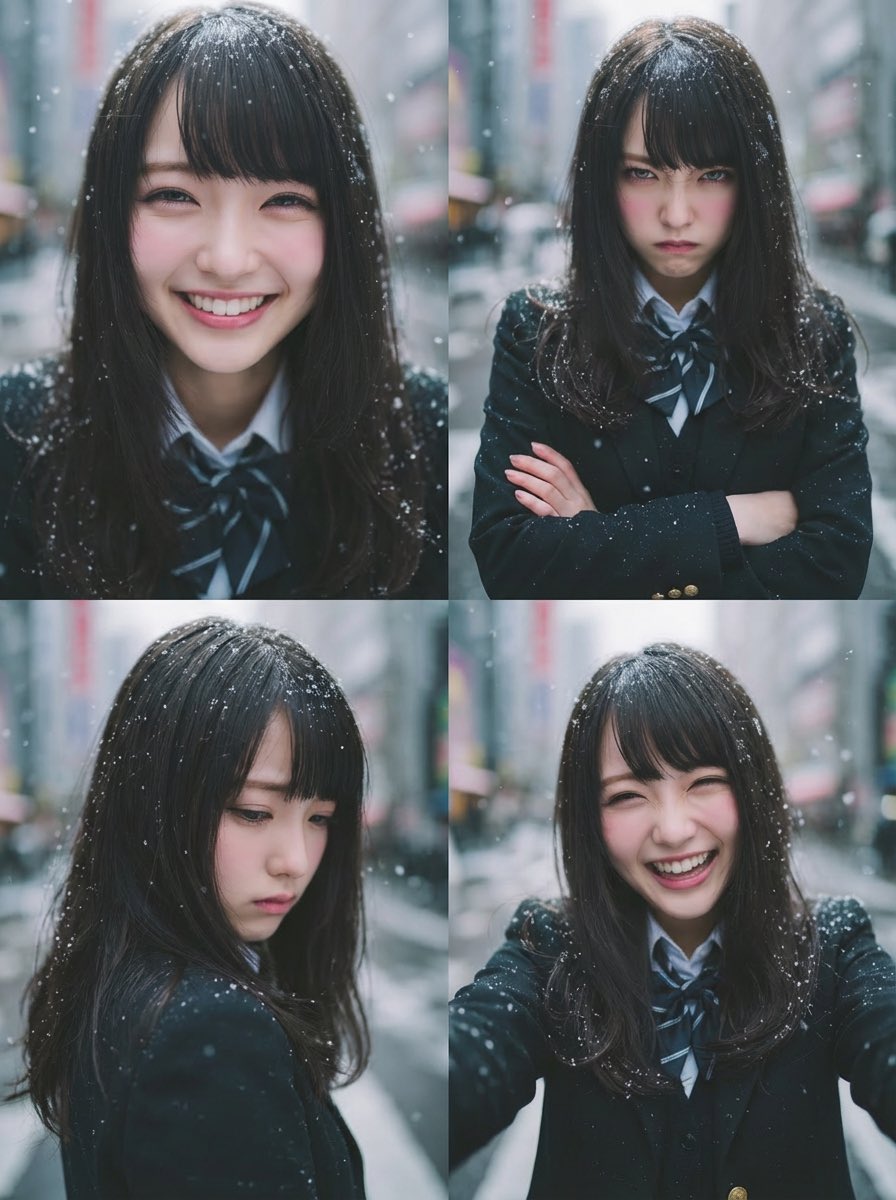
Four-Panel Emotion Grid Generator (Joy, Anger, Sadness, Fun)
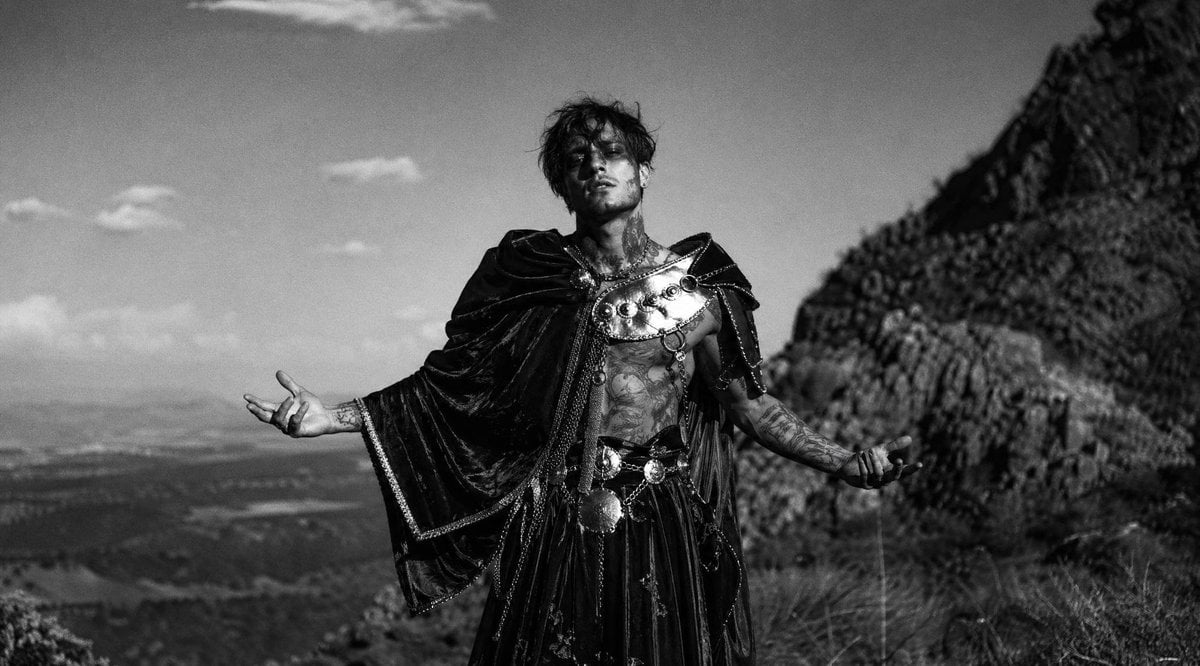
Monochrome Mountain Warrior Portrait
Browse template categories
GPT Image 2 Prompt Gallery README questions
How do I use the GPT Image 2 Prompt Gallery README template?
Add your photo if the template asks for one, edit the prompt if you like — the template's model and format are already selected — and press Generate. Your version opens in PicX Studio.
Can I customize the GPT Image 2 Prompt Gallery README template?
Yes. You can change the subject, setting, lighting, mood, format, and available model controls before creating your image.
Is the GPT Image 2 Prompt Gallery README template free?
Opening and editing this template is free. Generating uses credits, shown on the Generate button when you are signed in.
Which AI model should I use?
Start with GPT Image 2, which is the model associated with this template. You can compare another compatible model for a different finish.
Looking for something else? Browse all templates.
Your photo, any look
Thousands of ready templates for every top image and video model, from one credit balance.