
MPD Robot Assembly Bay
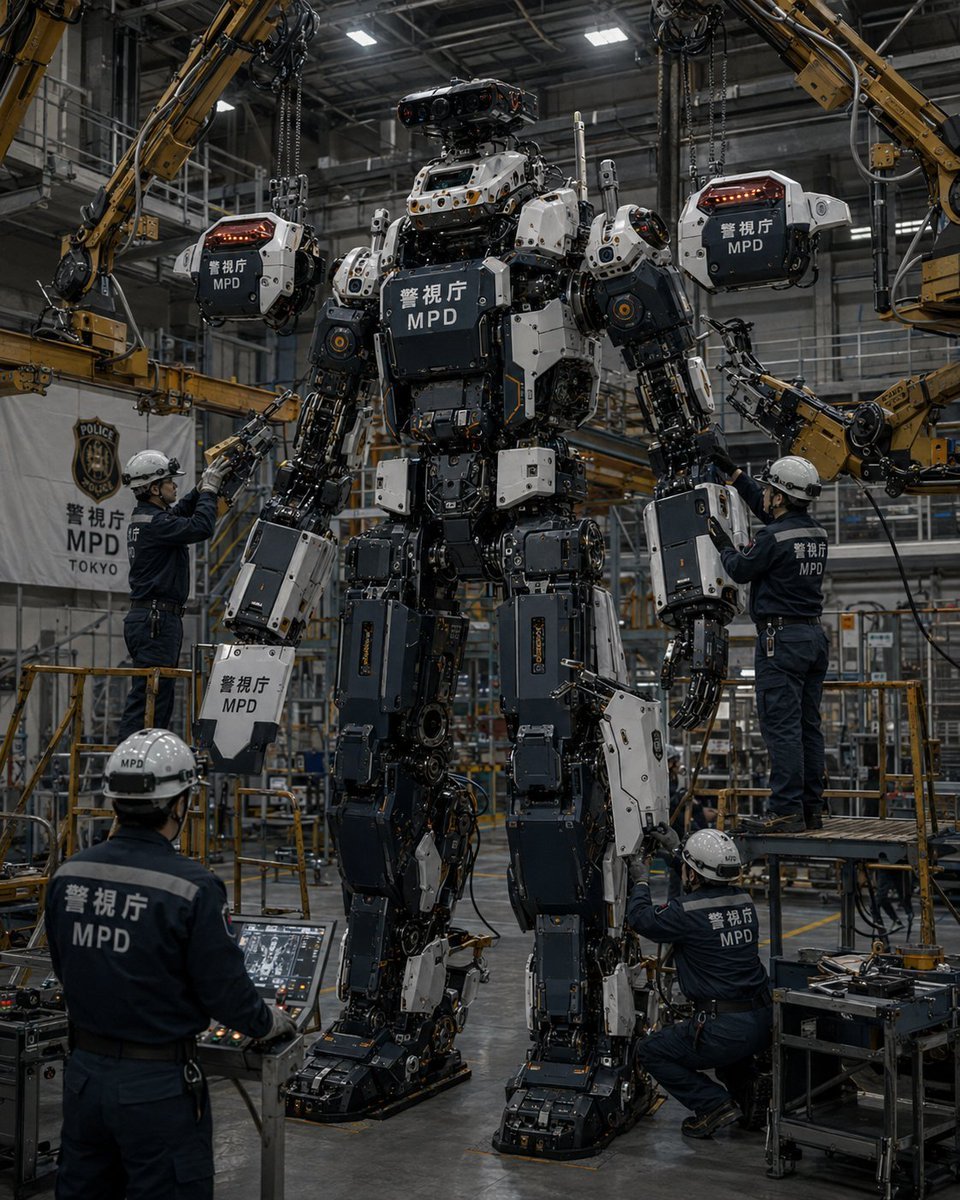
A photorealistic near-future scene of Japanese police technicians assembling armor panels onto a giant MPD humanoid robot in an industrial factory.
- Prompt included
- Model and format preset
- Free template
The prompt behind this image
Copy the exact prompt behind MPD Robot Assembly Bay, or open it in the studio and make it yours.
Create a hyper-realistic cinematic industrial photo of a giant police humanoid robot being assembled inside a large high-ceiling robotics factory. The central subject is a towering bipedal mech, about 6–7 meters tall, standing upright on heavy black mechanical feet, with exposed pistons, cables, actuators, joints, hydraulic lines, and layered armor plates. Its armor is mostly dark charcoal, black, and off-white, with small orange warning lights and metallic fasteners. The chest has a large dark rectangular armor cover with white Japanese police text and “MPD” beneath it. The robot has a compact sensor head with multiple camera lenses and red-tinted optics, broad shoulders, bulky arms, mechanical hands, thick armored thighs, and complex open-frame lower legs. Scene and layout: Set the image in a busy Japanese police robotics assembly bay with steel catwalks, railings, scaffolding, yellow safety barriers, overhead lights, industrial beams, cables, tool carts, and a polished concrete floor. Use a vertical 4:5 composition, eye-level to slightly low angle, with the robot centered and filling most of the frame from feet to head. Lighting should be cool, moody, and realistic, with bright overhead factory panels reflecting off metal surfaces and soft haze in the background. Counted elements: Include exactly 5 human technicians in navy police work uniforms and white hard hats. One technician stands in the left midground reaching up toward the robot’s left arm. One technician stands on a raised work platform on the right adjusting the robot’s right arm. One technician kneels at the lower right working on the robot’s leg. One technician is seen from behind in the lower left operating a diagnostic console. One additional technician is partially visible near the lower area of the robot, assisting with assembly. Include exactly 4 yellow industrial robotic crane arms around the robot: two large arms descending from the upper left and upper right corners, and two mid-level arms reaching in from the left and right sides. Include exactly 3 suspended armor cover modules being installed: one hanging near the robot’s left shoulder, one near the robot’s right shoulder, and one above the head area. Each suspended cover is off-white and dark gray, attached to chains or robotic grippers, with red-orange light strips and Japanese police markings. Text and markings: Put “警視庁” and “MPD” clearly on the robot chest, shoulder armor covers, and some limb armor panels. Put “警視庁 MPD TOKYO” on a white vertical banner in the left background with a police-style crest above it. Put “MPD” on the hard hats and backs of uniforms where visible. Keep the Japanese characters realistic and legible. Visual style: Ultra-detailed photorealism, gritty near-future Japanese police engineering, documentary factory photography, sharp mechanical detail, realistic reflections, worn metal, oil stains, tiny screws, cables, labels, tools, and safety equipment. Color palette: gunmetal black, dark navy, white armor panels, industrial yellow machinery, cool gray factory environment, small orange and red LEDs. Parameters: The robot unit should be labeled {argument name="police unit name" default="警視庁 MPD"}; the factory banner should read {argument name="banner text" default="警視庁 MPD TOKYO"}; the mech armor color scheme should be {argument name="armor color scheme" default="charcoal black and off-white"}; the scene should depict {argument name="assembly task" default="installing armored cover panels"}; the overall mood should be {argument name="mood" default="serious cinematic industrial realism"}. Constraints: No cartoon style, no anime style, no fantasy magic, no clean showroom look, no extra robots, no extra technicians beyond the 5 specified, no extra suspended armor modules beyond the 3 specified, no watermark, no caption outside the scene.
How to use MPD Robot Assembly Bay in 3 steps
- 1Upload ImagePNG, JPG or paste
Add your photo
Upload the photo the template builds on. The prompt, model and format are already set.
- 2…a portrait of your subject in softgolden-hour light, 85mm…
Personalize
Edit the subject and creative details for your destination.
- 3Generate
Generate
Press Generate — your image is created in PicX Studio, so you can compare it with the original and refine one variable at a time.
More like this
Templates with the same subject, style or setup. Open one to see its prompt.
MPD Robot Arrests Balloon Escapees
Underwater MPD Police Robot Test
MPD Robot Stops Runaway Truck
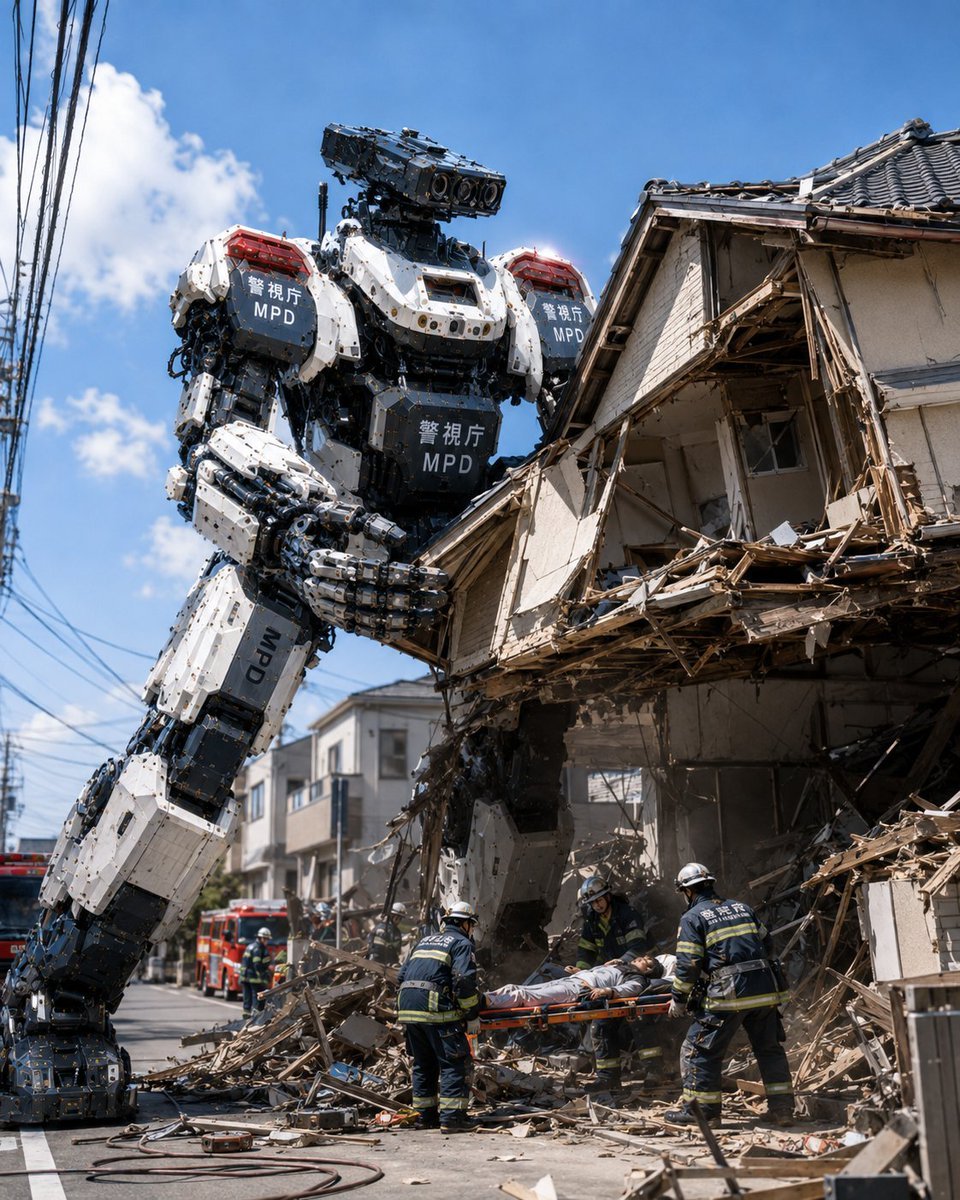
MPD Robot Collapsed House Rescue
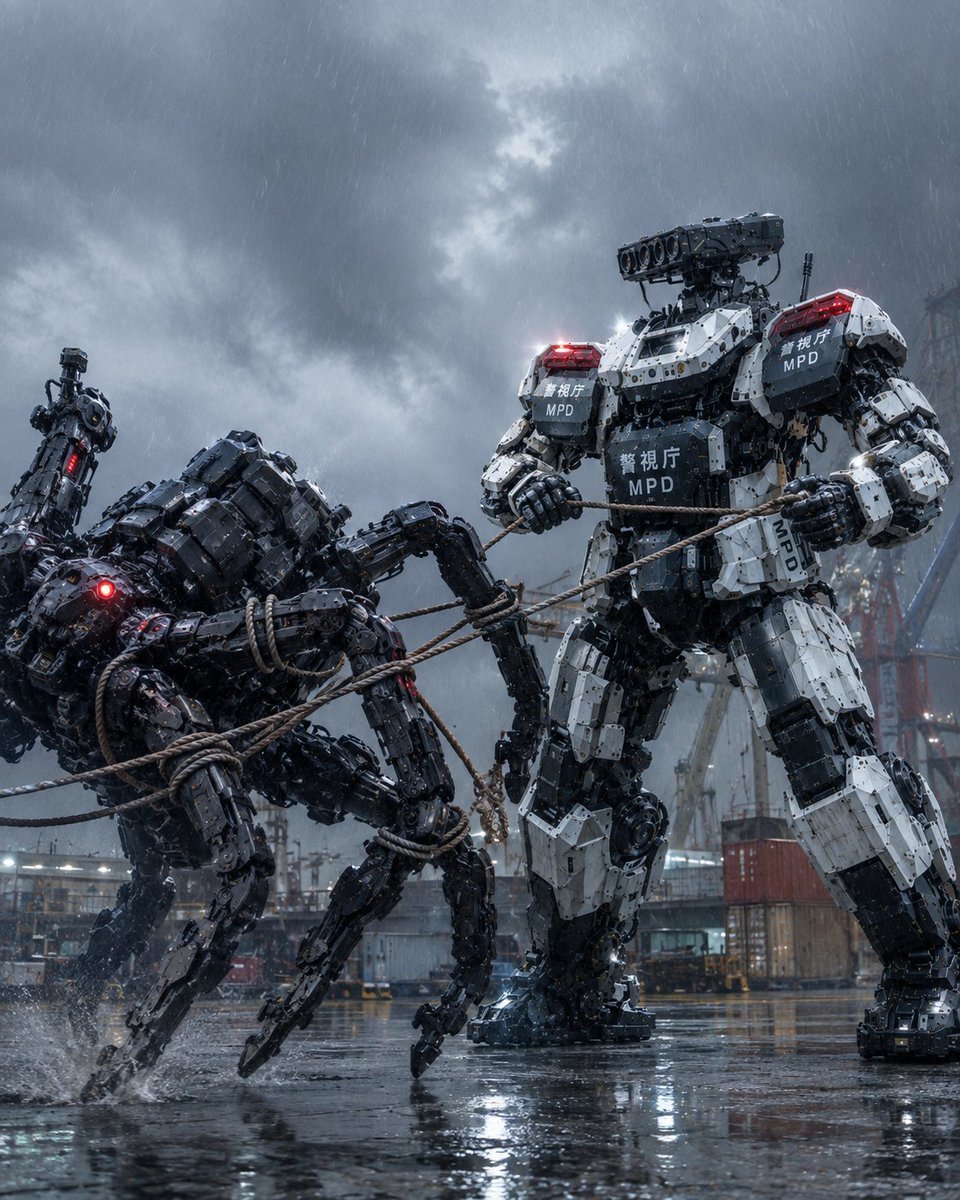
MPD Mech Captures Spider Robot
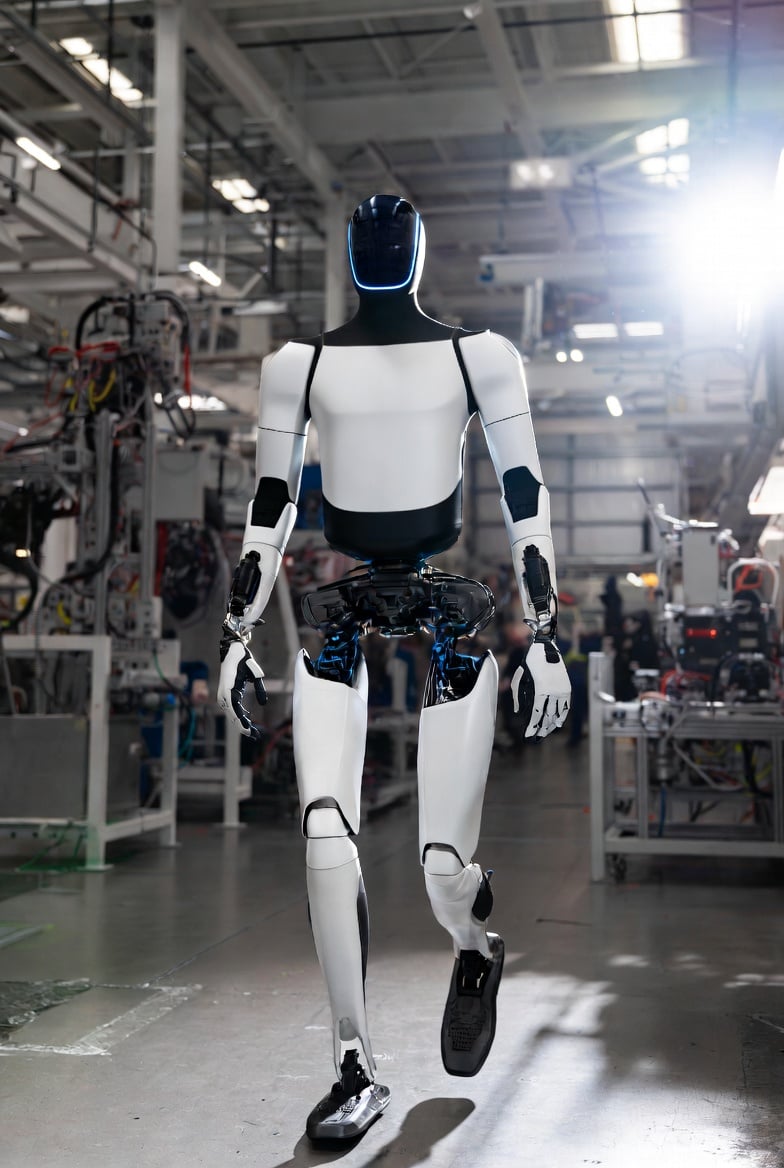
Optimus Robot on Tesla Assembly Line
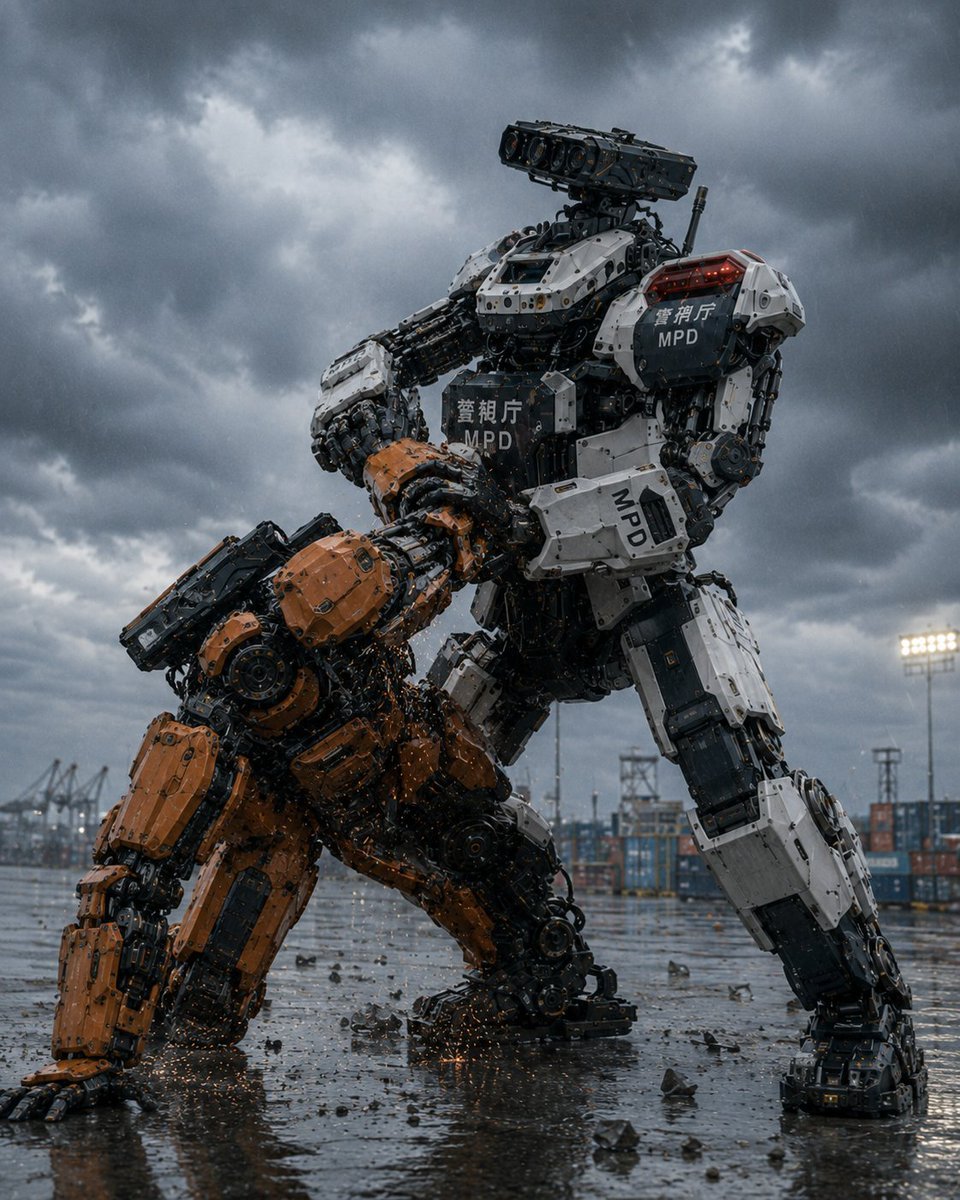
MPD Police Mecha Arrest Scene
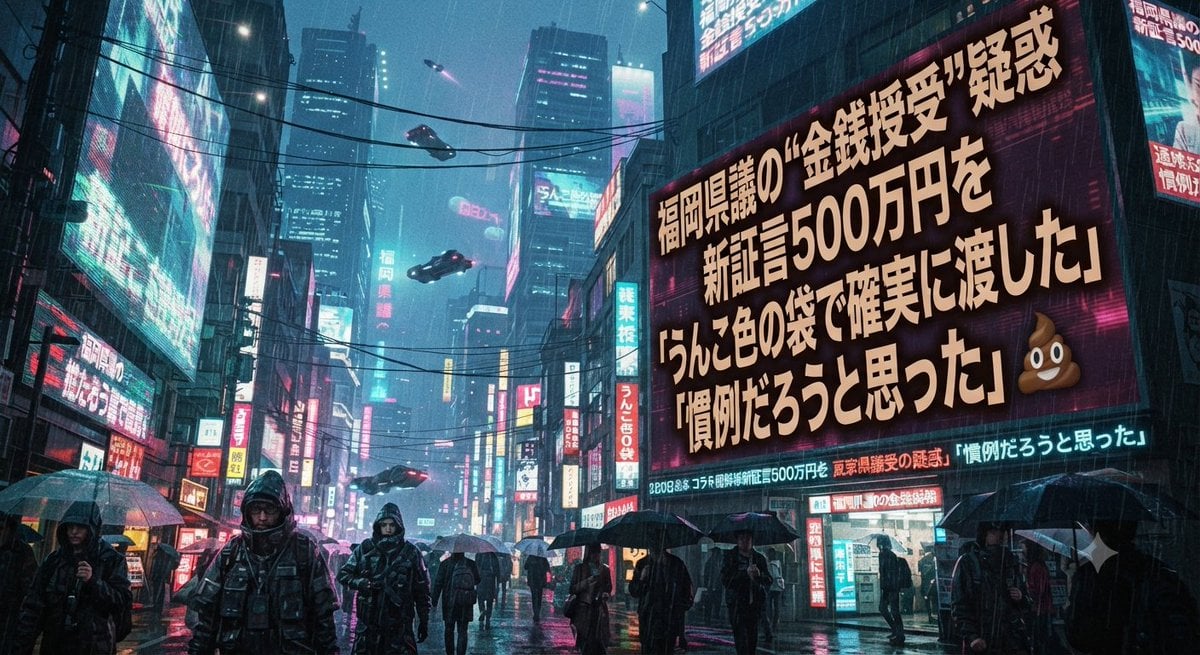
Cyberpunk Fukuoka Assembly Concept
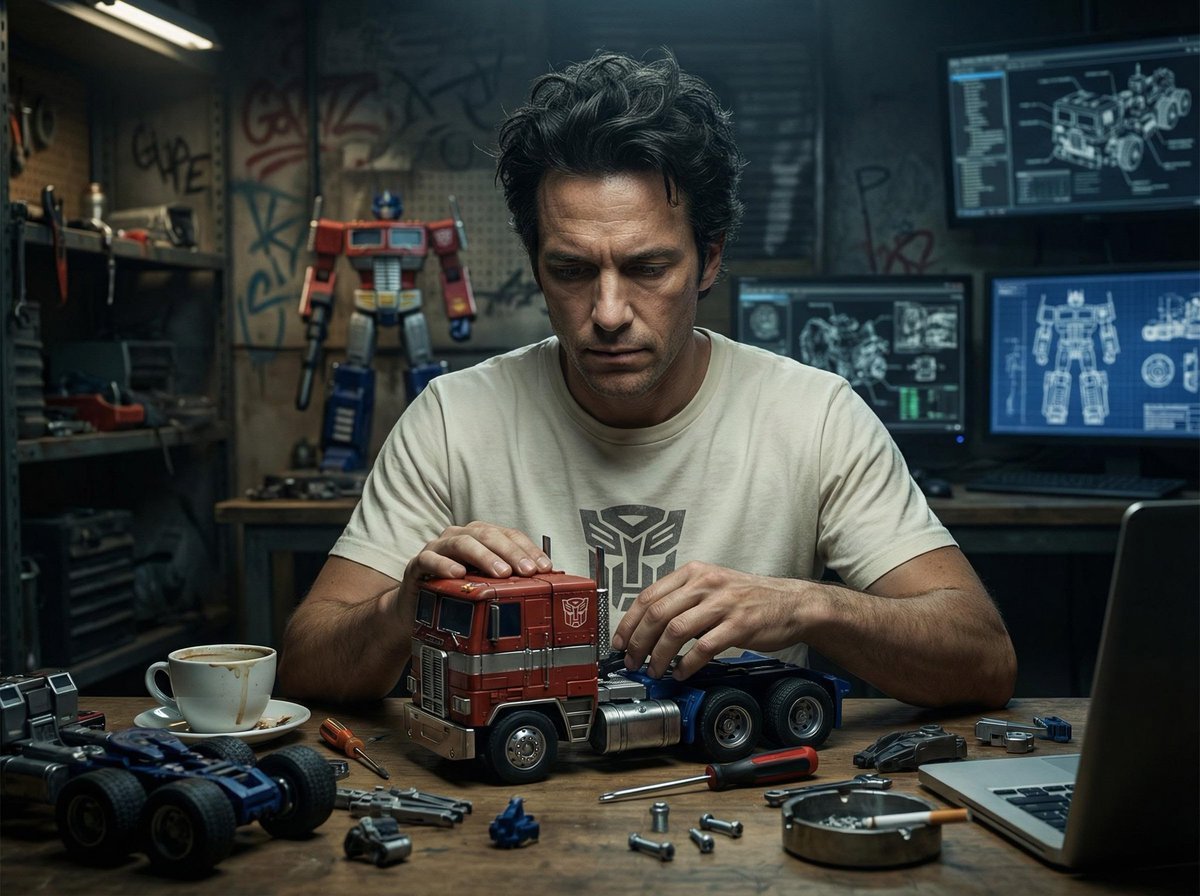
Screens displaying Optimus Prime assembly blueprints and mechanical
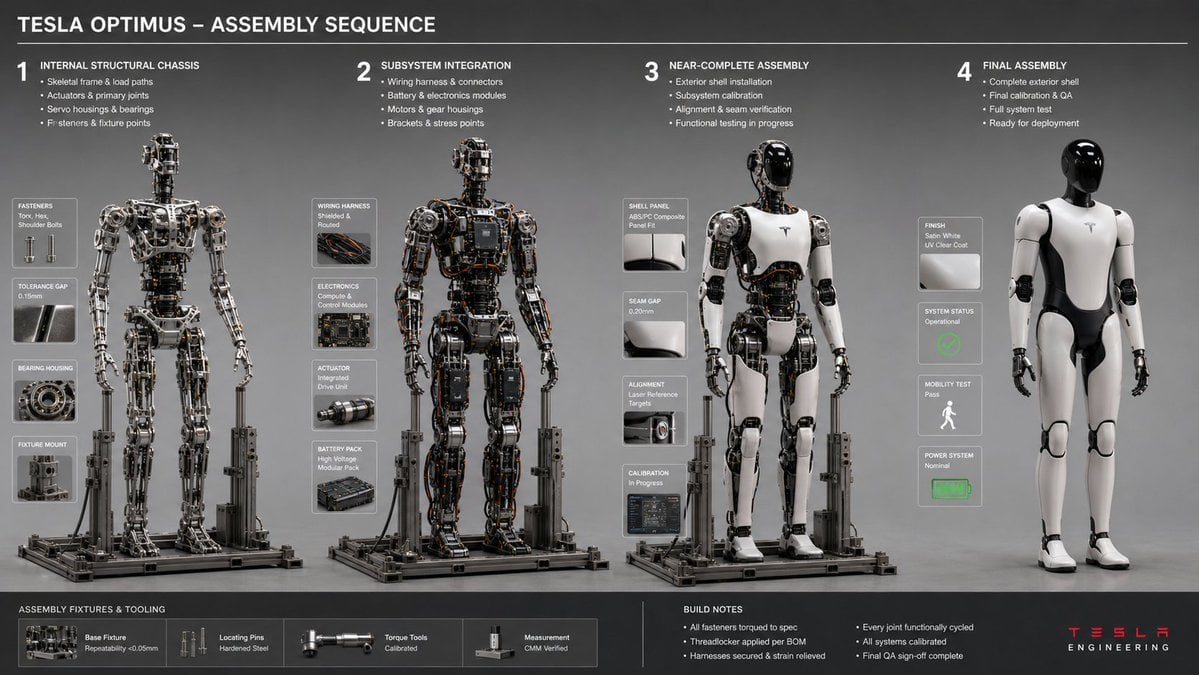
Engineering Assembly Documentation Layout
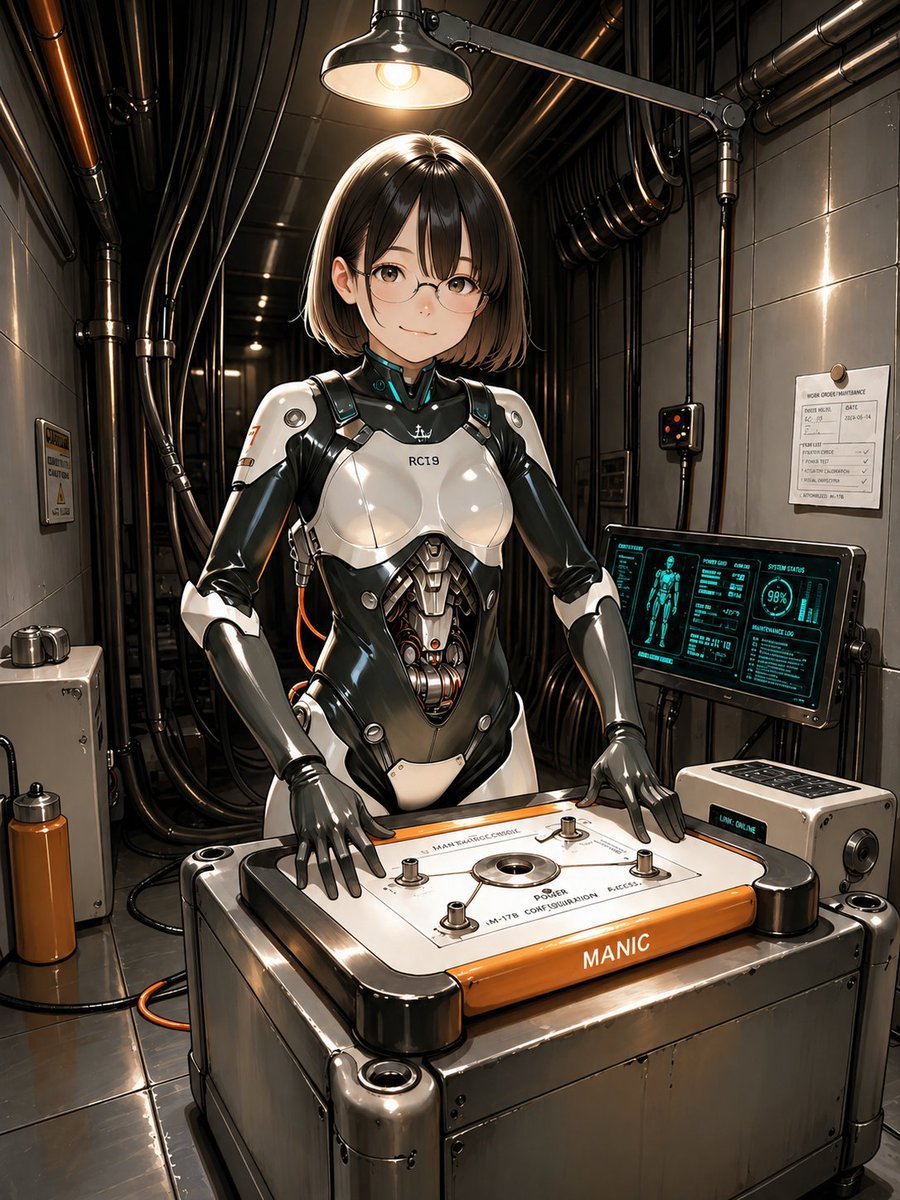
Android Engineer in Maintenance Bay

Forensic Luxury Disassembly Poster
Make it yours
MPD Robot Assembly Bay works as-is. These are the safest ways to change it without losing the look.
Change one field
Copy a single group, rewrite it, and generate again so you can see what that field is doing.
Keep the frame, change the subject
Hold the composition and light of MPD Robot Assembly Bay, then swap wardrobe, props or the person for a new take.
| If the result… | Why | Fix |
|---|---|---|
| The result drifts from the preview | Too many fields changed at once. | Reuse MPD Robot Assembly Bay as-is first, then change one group — subject, light, or setting. |
| The model over-stylizes the scene | The prose prompt leaves finish and camera underspecified. | Add one camera or lighting sentence and stay on GPT Image 2. |
More GPT Image 2 templates
Other prompts made for GPT Image 2.

Six VTuber Japanese Logo Sheet

Realistic Portrait of Woman and Deer

The Vista Modular Condo Poster

AI Model Routing Comparison Infographic

2.5D Anime Art Board

Isometric Productivity Desk Scene

New York Double Exposure Poster

Four-Panel AI Landscape Comparison

Japanese Tatami Lifestyle Magazine Cover

NESCAFÉ Coffee Map Poster
More image prompts
Fresh picks from across the catalog.
Mythological Action Game Screenshot
Gothic Cyber VTuber Cathedral Portrait
Steampunk Diorama of Failed Inventions Timeline
Chibi Knight Reaction Sticker Sheet
Gym Mirror Selfie Prompt
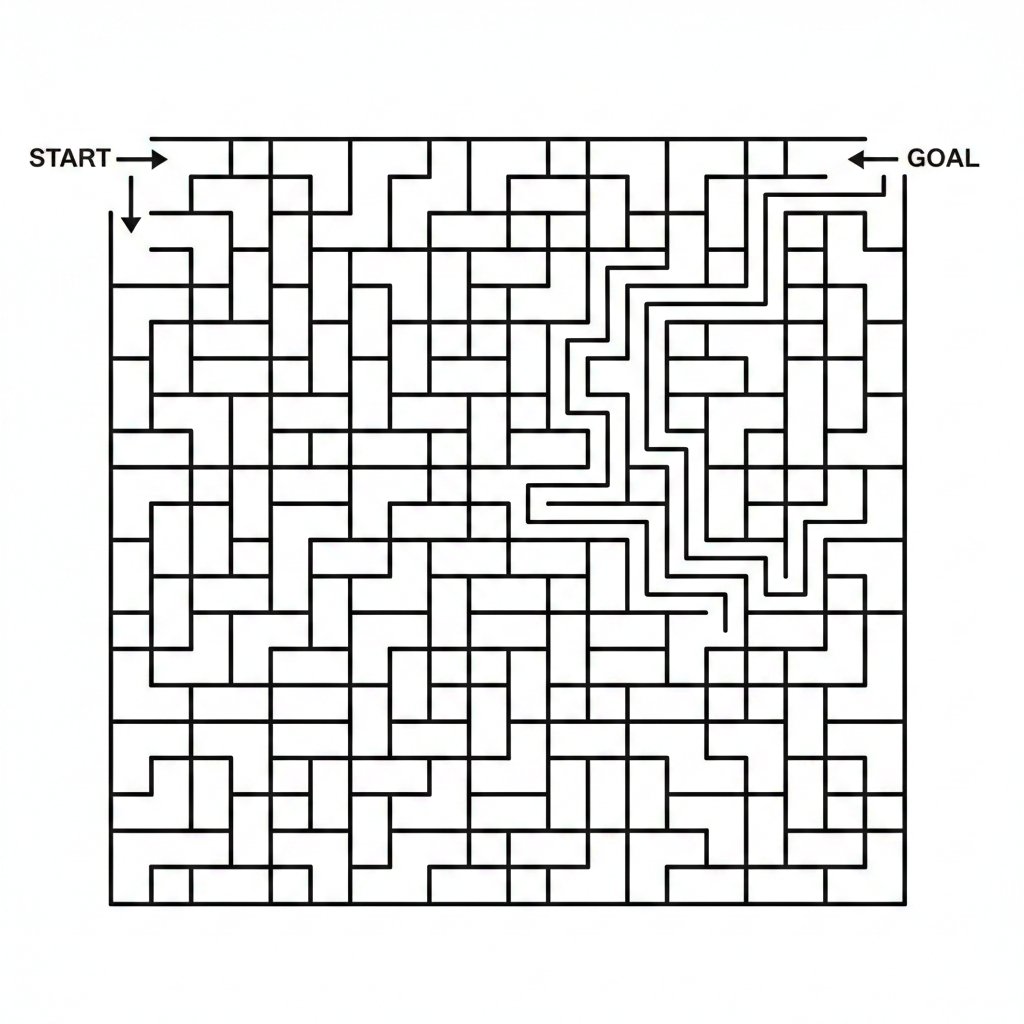
Maze Generation Failure in Nano Banana

Conceptual Trapped Reflection Art
Ethereal Portrait with Playful Wink
Pamplets
Izakaya Beer-Drinking Variation
Browse template categories
MPD Robot Assembly Bay questions
How do I use the MPD Robot Assembly Bay template?
Add your photo if the template asks for one, edit the prompt if you like — the template's model and format are already selected — and press Generate. Your version opens in PicX Studio.
Can I customize the MPD Robot Assembly Bay template?
Yes. You can change the subject, setting, lighting, mood, format, and available model controls before creating your image.
Is the MPD Robot Assembly Bay template free?
Opening and editing this template is free. Generating uses credits, shown on the Generate button when you are signed in.
Which AI model should I use?
Start with GPT Image 2, which is the model associated with this template. You can compare another compatible model for a different finish.
Looking for something else? Browse all templates.

Your photo, any look
Thousands of ready templates for every top image and video model, from one credit balance.