
AI Image Realism Comparison
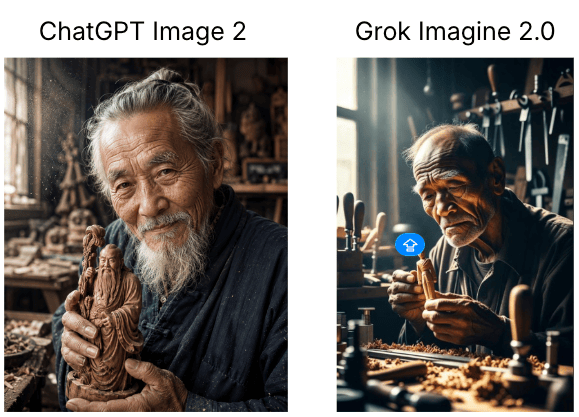
Generates a two-panel comparison graphic of realistic elderly woodcarver portraits labeled ChatGPT Image 2 and Grok Imagine 2.0.
- Prompt included
- Model and format preset
- Free template
The prompt behind this image
Copy the exact prompt behind AI Image Realism Comparison, or open it in the studio and make it yours.
Create a side-by-side comparison graphic on a white background showing two AI image results from the same prompt. Canvas: landscape aspect ratio, approximately 580×420 px, clean white margins. Layout: two equal vertical image panels aligned horizontally with a narrow white gutter between them; each panel has a black sans-serif heading centered above it. Use exactly 2 headings: left heading “ChatGPT Image 2”, right heading “Grok Imagine 2.0”. Left panel: a highly realistic warm-toned portrait photo of an elderly East Asian woodcarver in a cluttered traditional workshop, gray hair tied back, long white beard and mustache, weathered face with fine wrinkles, wearing dark work clothes, holding a detailed carved wooden statue close to his chest with both hands, soft window light from the left, shelves and tools blurred in the background, dusty particles in the air, documentary realism. Right panel: a more cinematic but less natural portrait of an elderly East Asian craftsman seated at a workbench in a woodworking studio, balding gray hair, deeply wrinkled face, dark shirt, carving a small wooden figure with hand tools, strong dramatic sunlight from a window, many chisels and woodworking tools standing upright behind him, wood shavings scattered across the table, high contrast shadows, slightly artificial glossy look. Include exactly 1 small blue circular overlay icon near the center-left of the right panel, with a simple white symbol inside, resembling an interface marker. Overall style: realistic photographic comparison, left image more natural and detailed, right image more stylized and dramatic. No extra captions, no watermarks beyond the single blue overlay icon, no borders except the white page background.
How to use AI Image Realism Comparison in 3 steps
- 1Upload ImagePNG, JPG or paste
Add your photo
Upload the photo the template builds on. The prompt, model and format are already set.
- 2…a portrait of your subject in softgolden-hour light, 85mm…
Personalize
Edit the subject and creative details for your destination.
- 3Generate
Generate
Press Generate — your image is created in PicX Studio, so you can compare it with the original and refine one variable at a time.
More like this
Templates with the same subject, style or setup. Open one to see its prompt.
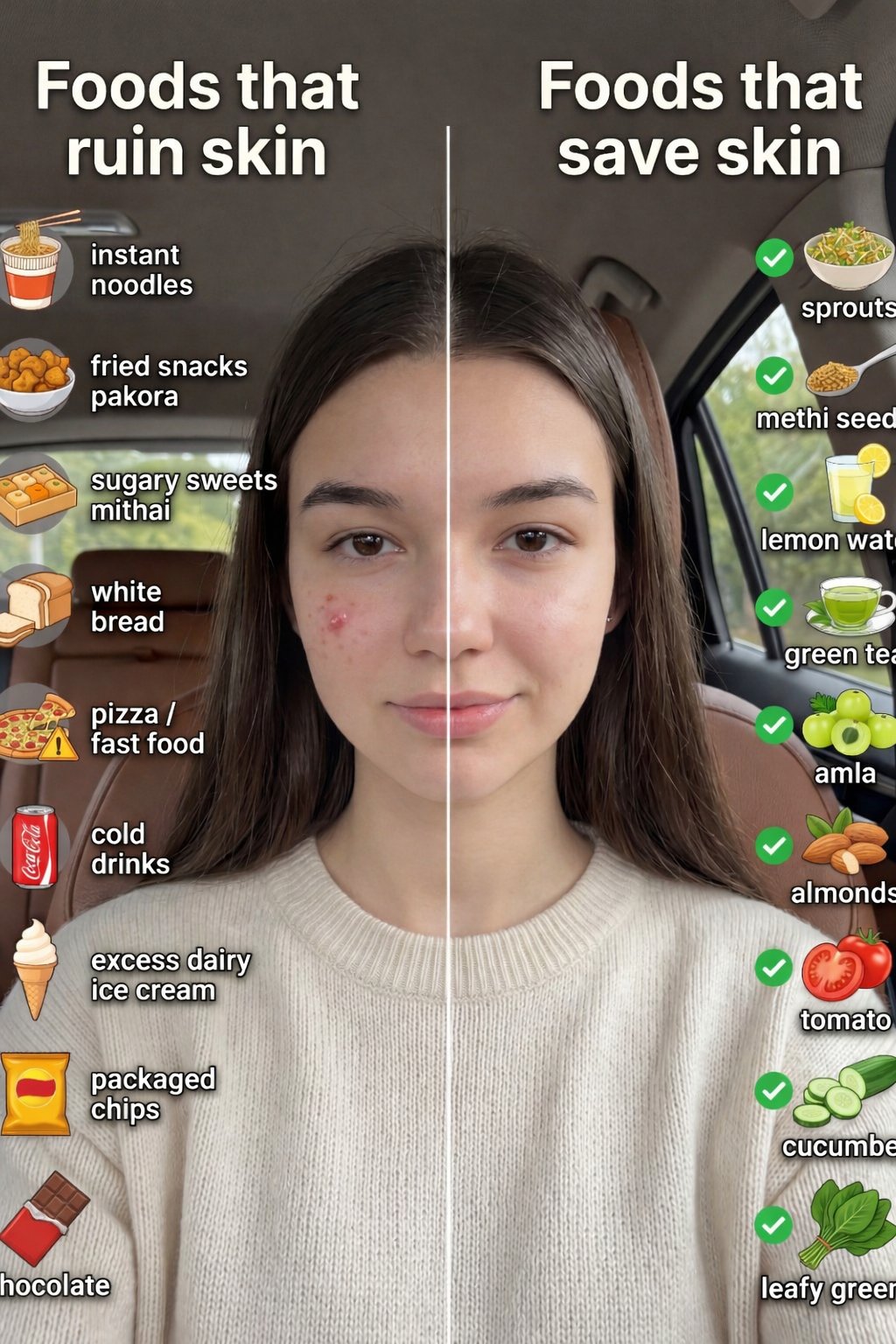
Skin Comparison Portrait — Nano Banana Pro
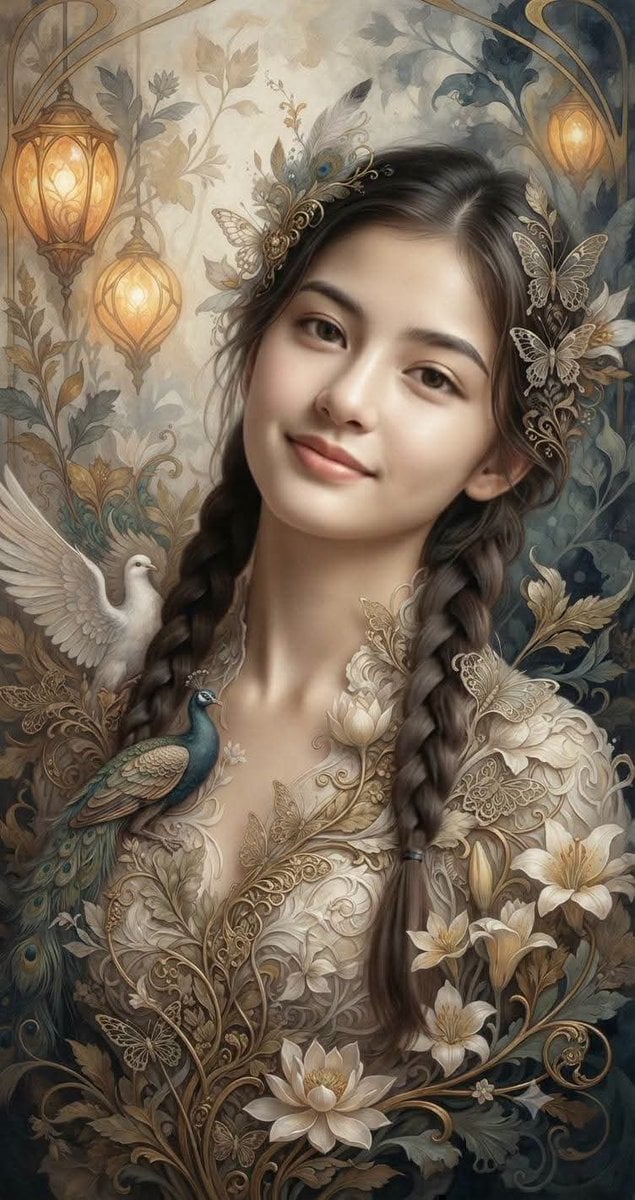
Fantasy Realism and Art Nouveau Fusion
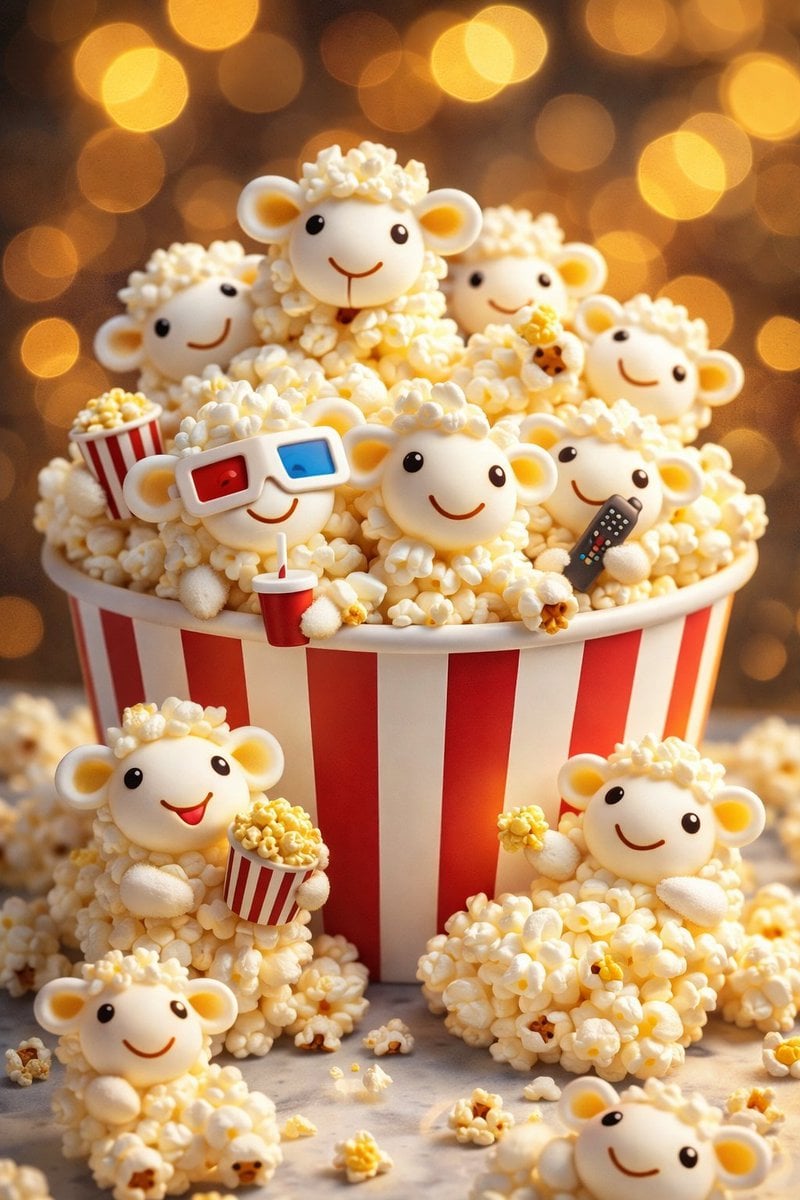
AI-edited, hyper-detailed, photorealistic with stylized realism
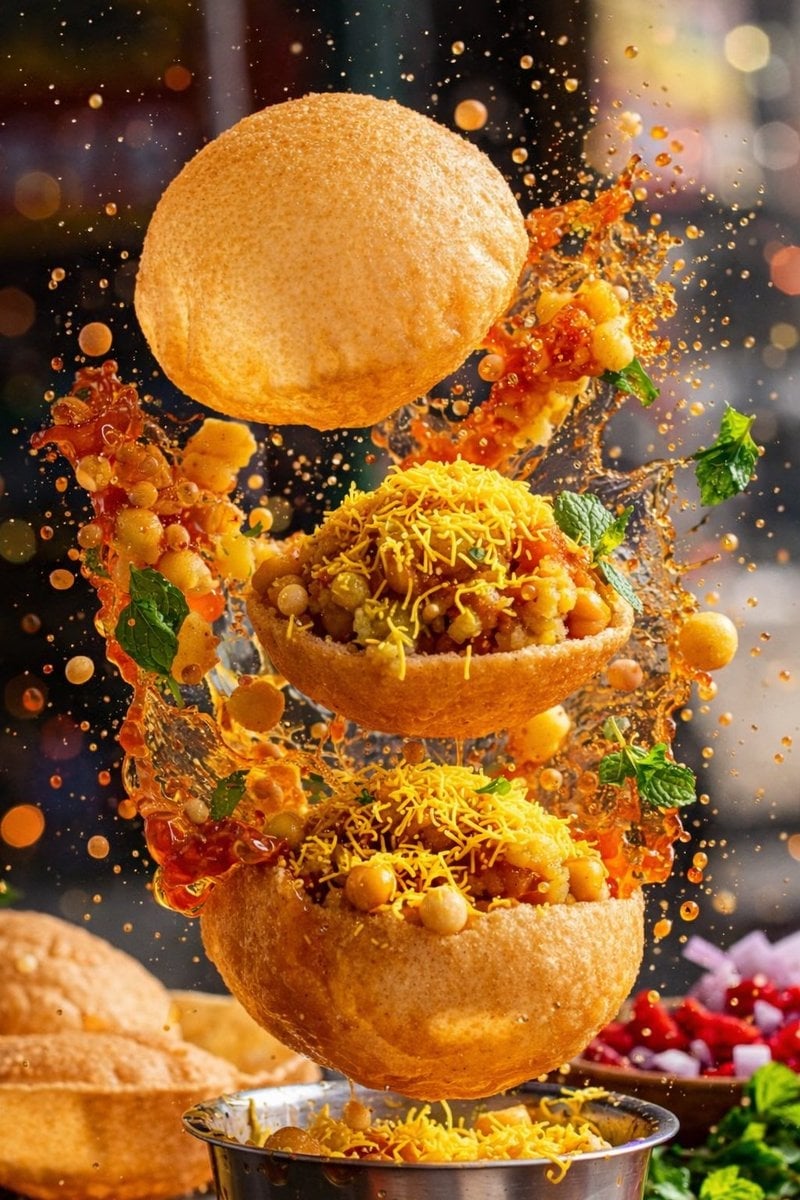
Enhanced realism, minimal alteration from original composition
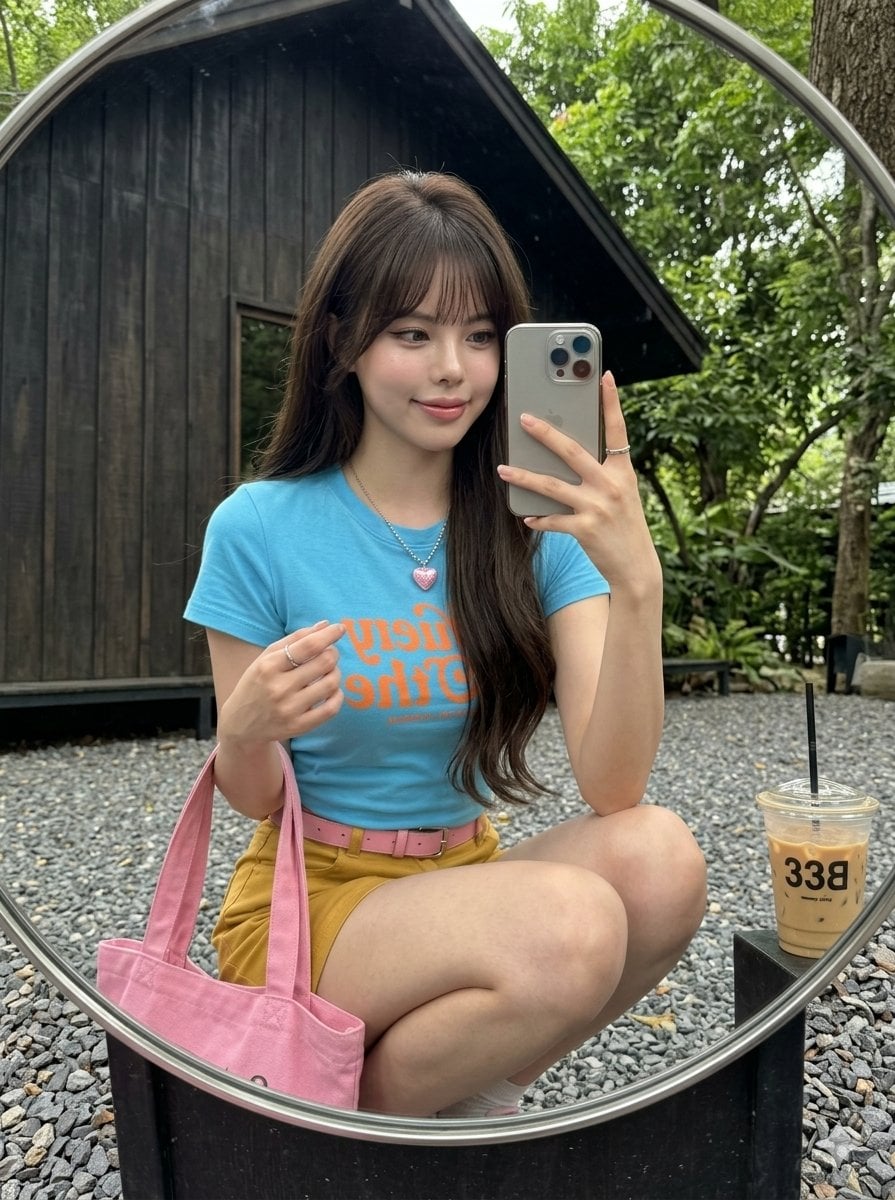
iPhone Mirror Selfie Realism
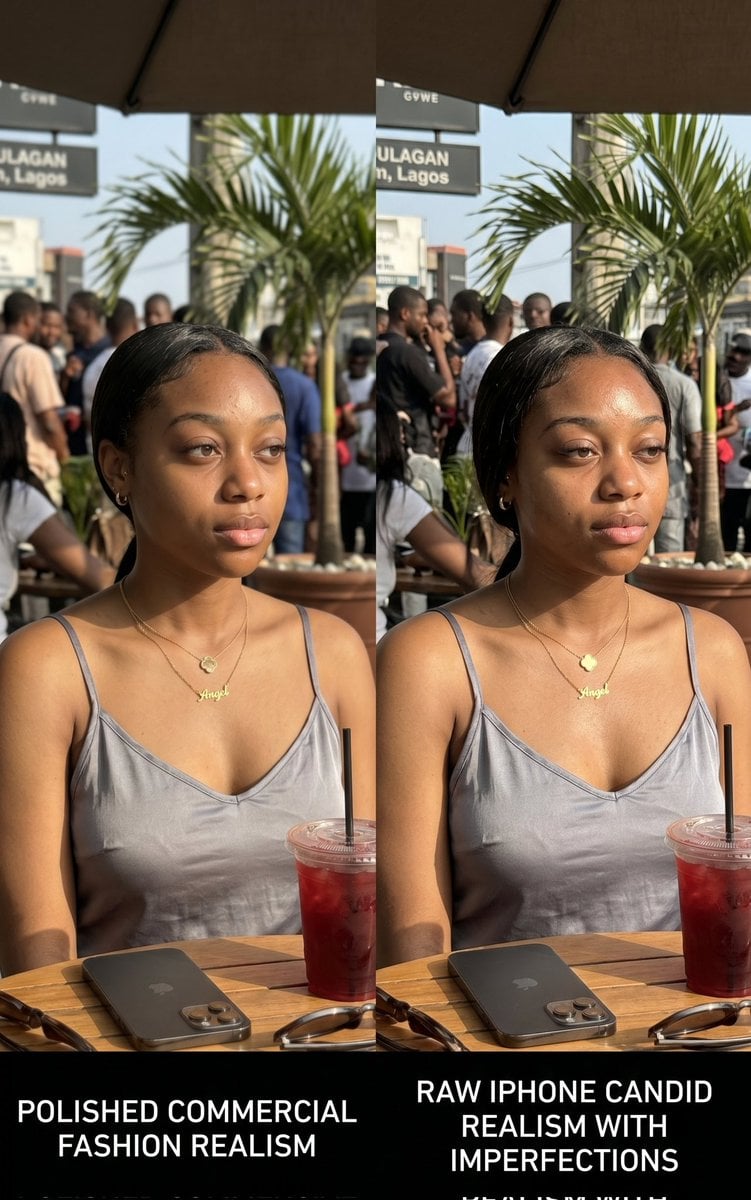
Lagos Cafe Realism Study
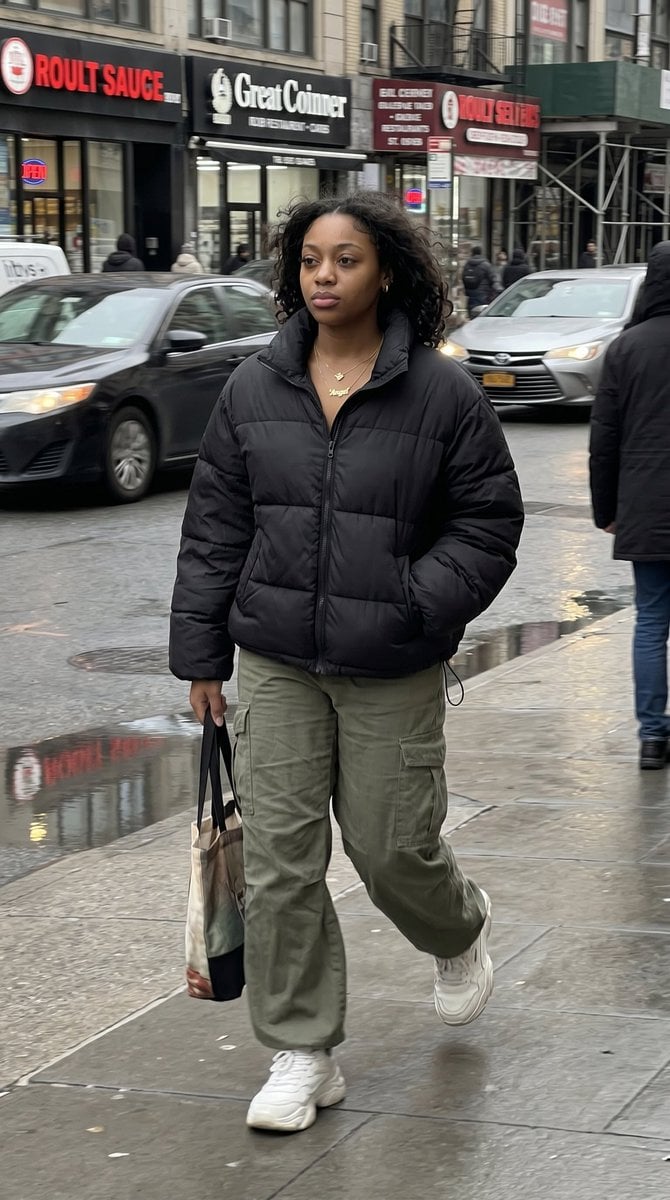
iPhone Street Movement Realism
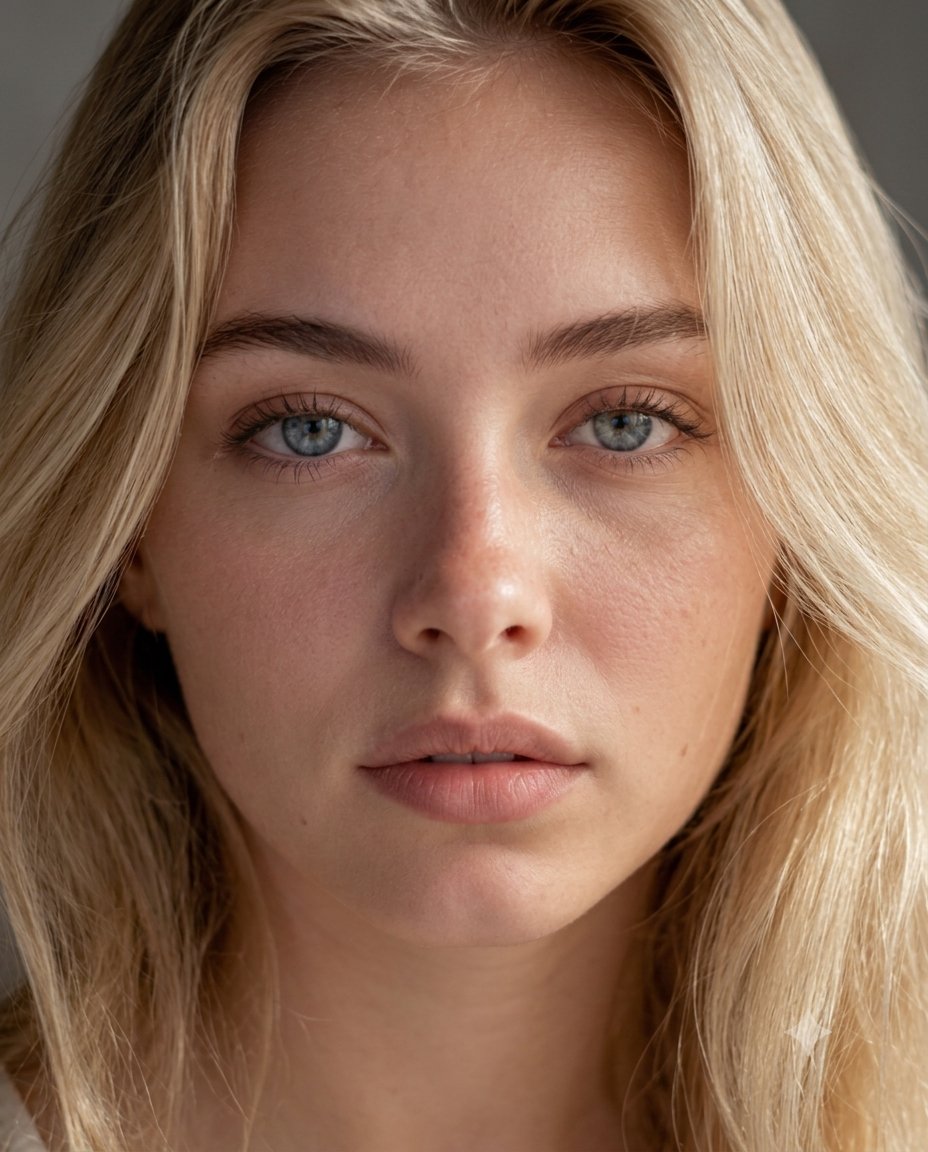
Dermatology Realism Portrait
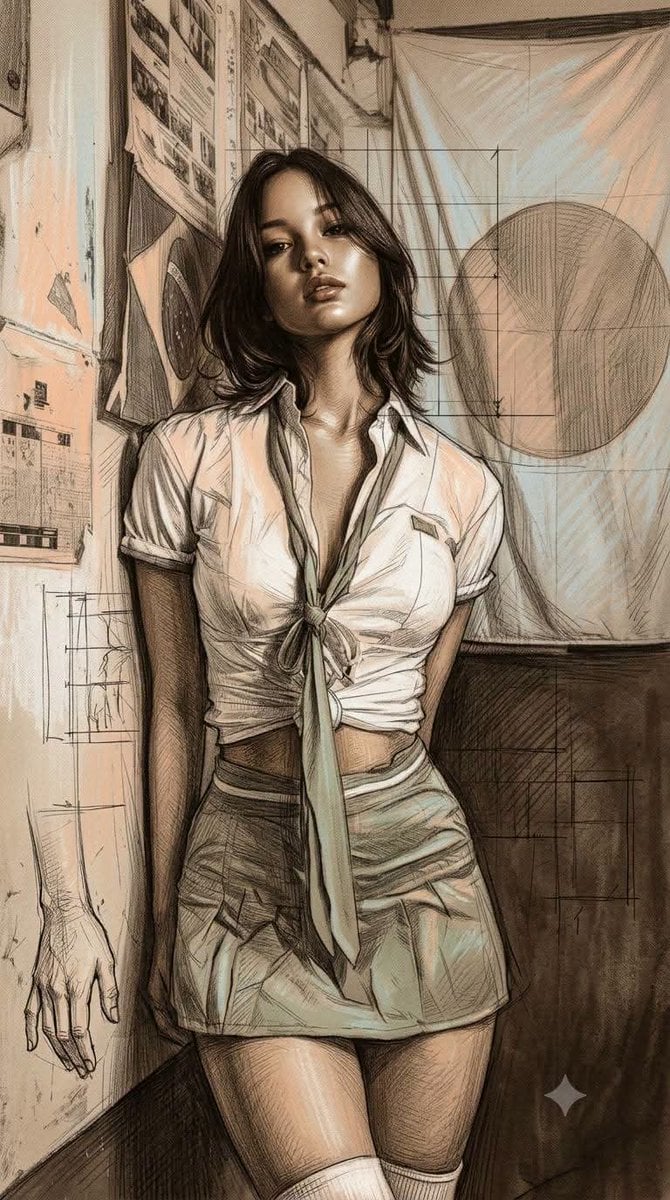
Academic Realism Mixed Media Portrait
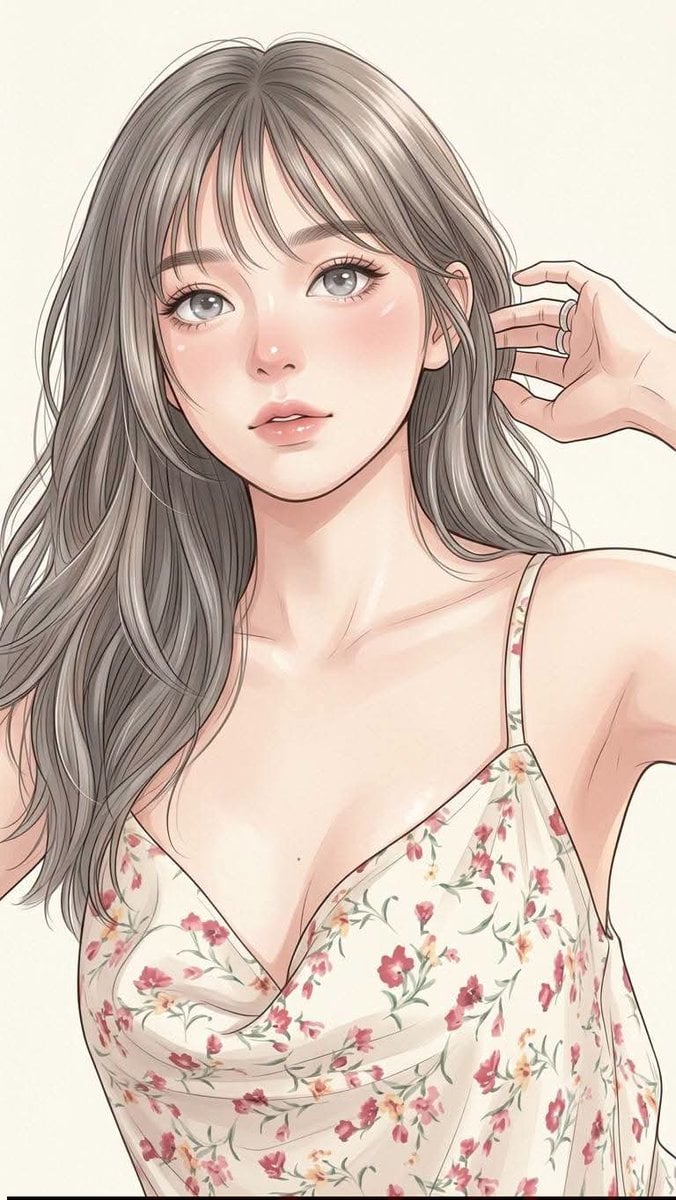
Premium Anime Realism Illustration
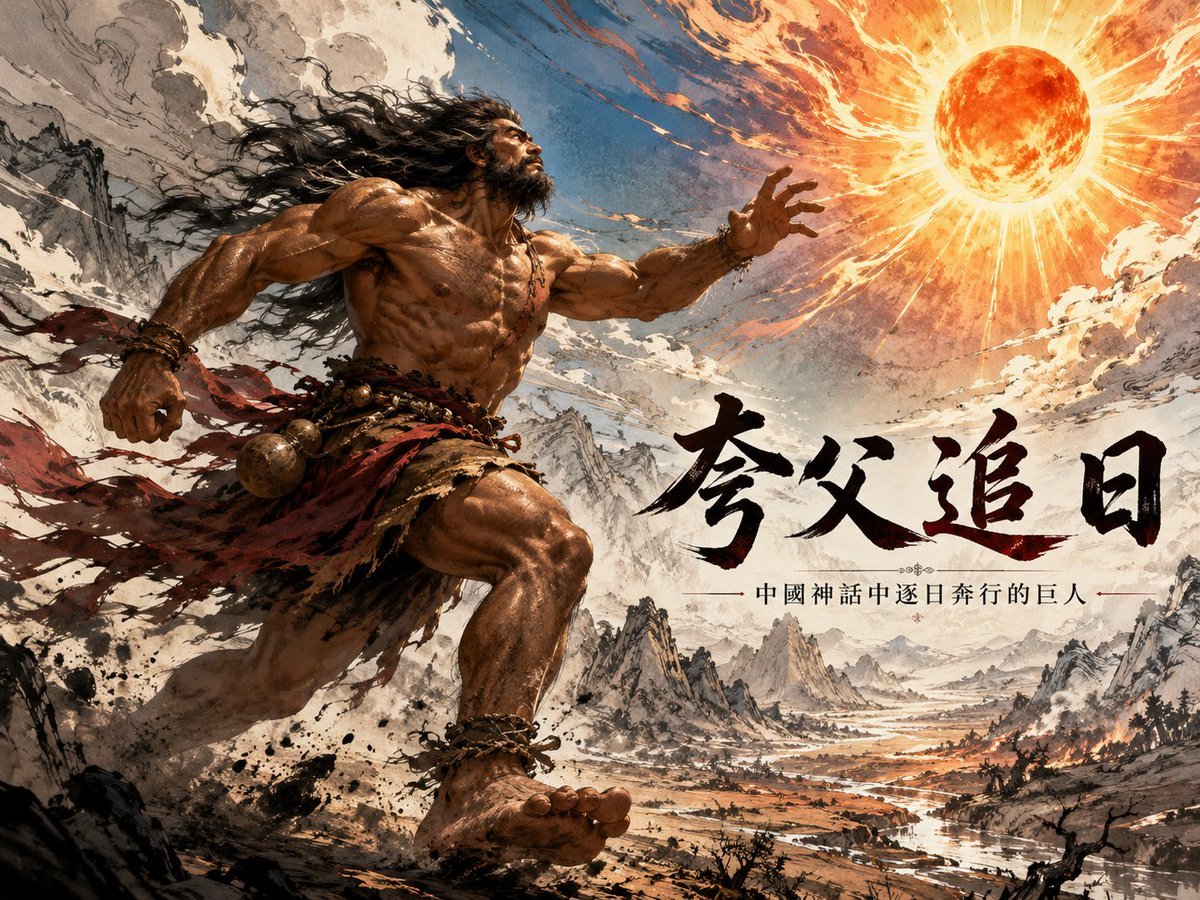
Hybrid Realism Ink-Wash Art
Accidental Kitchen Candid Realism
Make it yours
AI Image Realism Comparison works as-is. These are the safest ways to change it without losing the look.
Change one field
Copy a single group, rewrite it, and generate again so you can see what that field is doing.
Keep the frame, change the subject
Hold the composition and light of AI Image Realism Comparison, then swap wardrobe, props or the person for a new take.
| If the result… | Why | Fix |
|---|---|---|
| The result drifts from the preview | Too many fields changed at once. | Reuse AI Image Realism Comparison as-is first, then change one group — subject, light, or setting. |
| The model over-stylizes the scene | The prose prompt leaves finish and camera underspecified. | Add one camera or lighting sentence and stay on GPT Image 2. |
More GPT Image 2 templates
Other prompts made for GPT Image 2.

Six VTuber Japanese Logo Sheet

Realistic Portrait of Woman and Deer

The Vista Modular Condo Poster

AI Model Routing Comparison Infographic

2.5D Anime Art Board

Isometric Productivity Desk Scene

New York Double Exposure Poster

Four-Panel AI Landscape Comparison

Japanese Tatami Lifestyle Magazine Cover

NESCAFÉ Coffee Map Poster
More image prompts
Fresh picks from across the catalog.
Urban Noir Fashion Editorial
Minimalist Food Illustration and Photorealism Blend
Nighttime Sportbike Rider Portrait
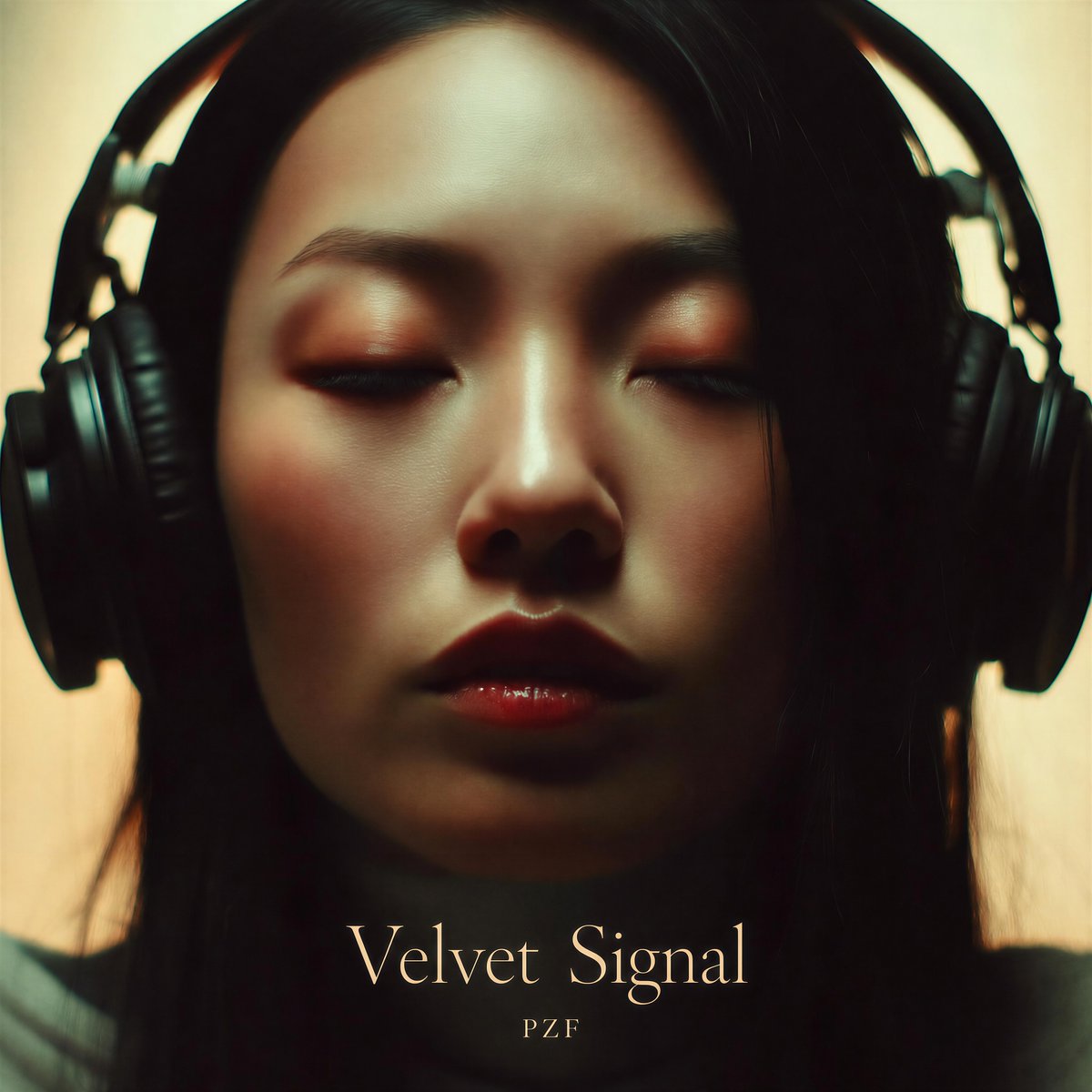
Velvet Signal Album Cover
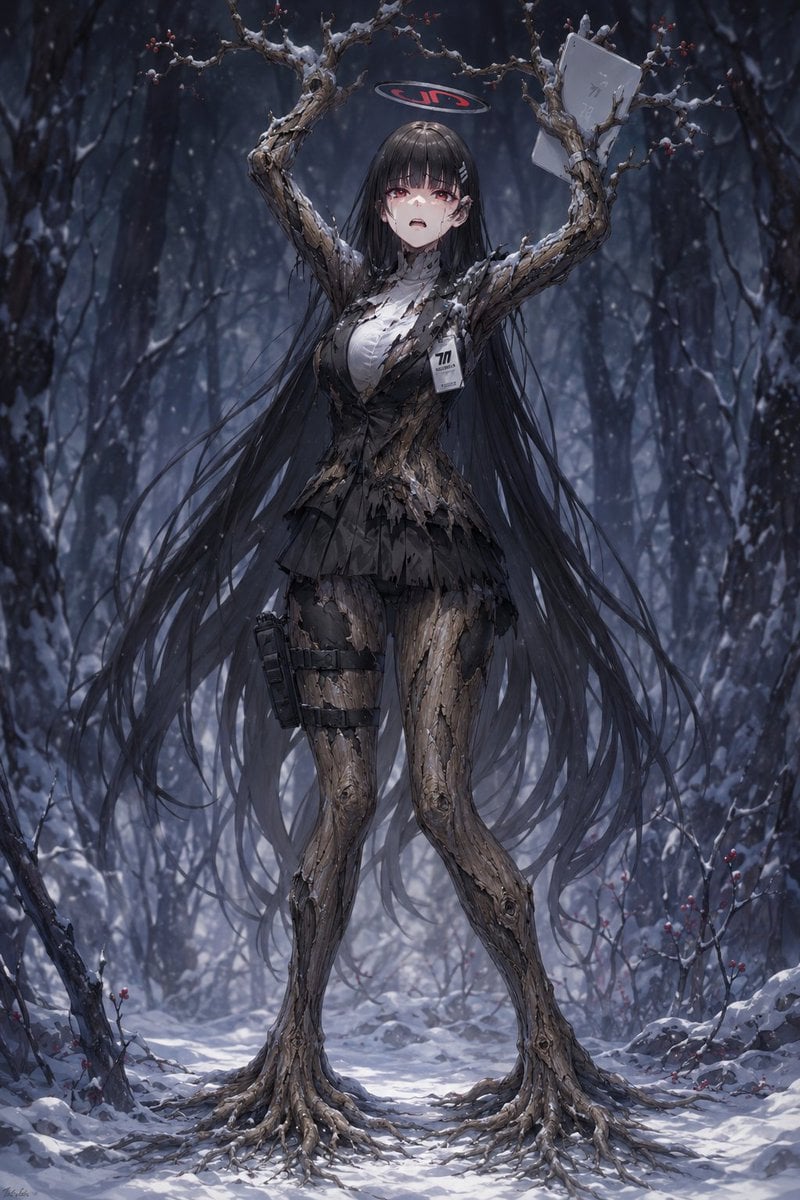
Snow Forest Tree Girl
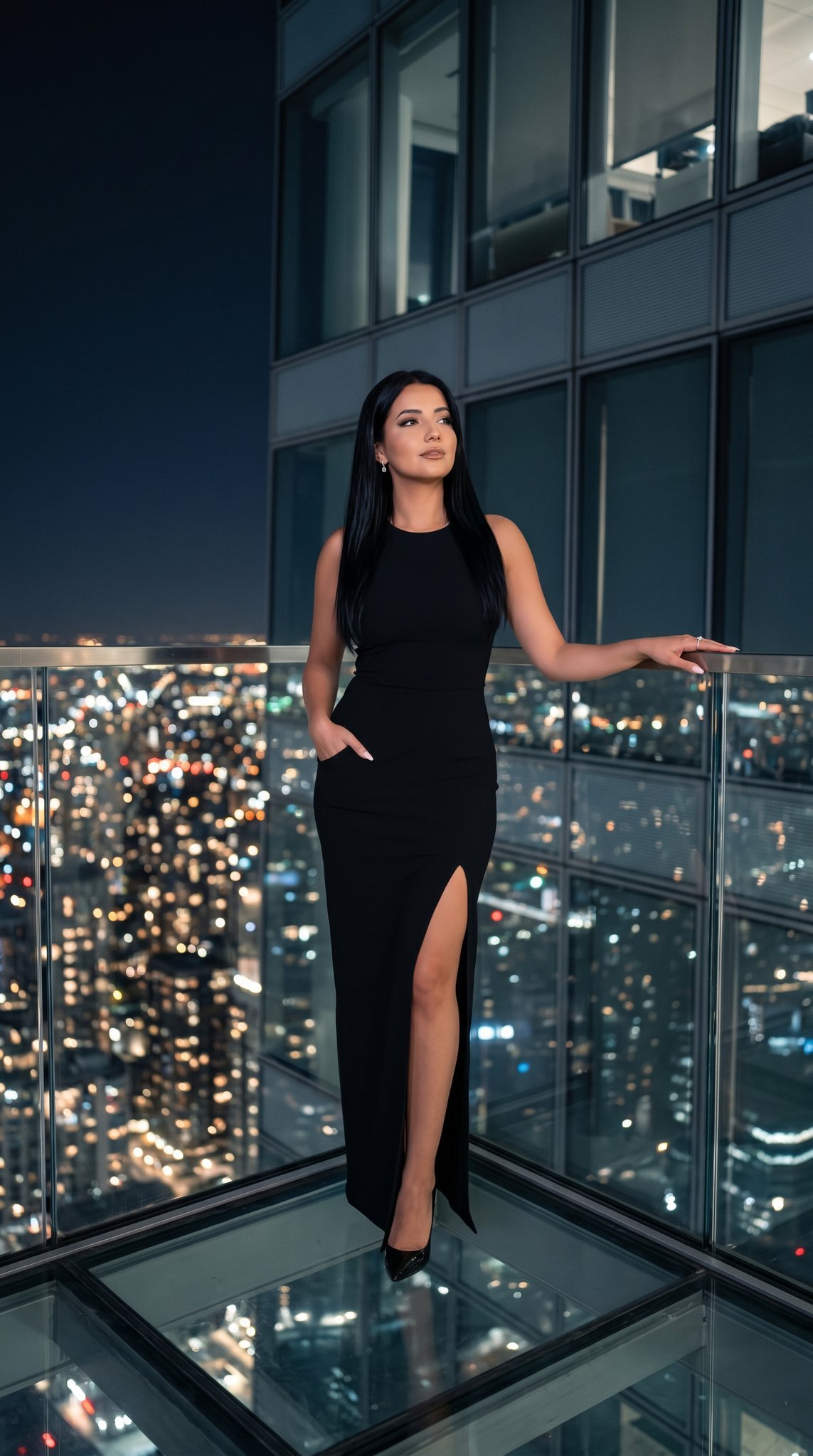
21 Glass Floor Skyscraper — California Series
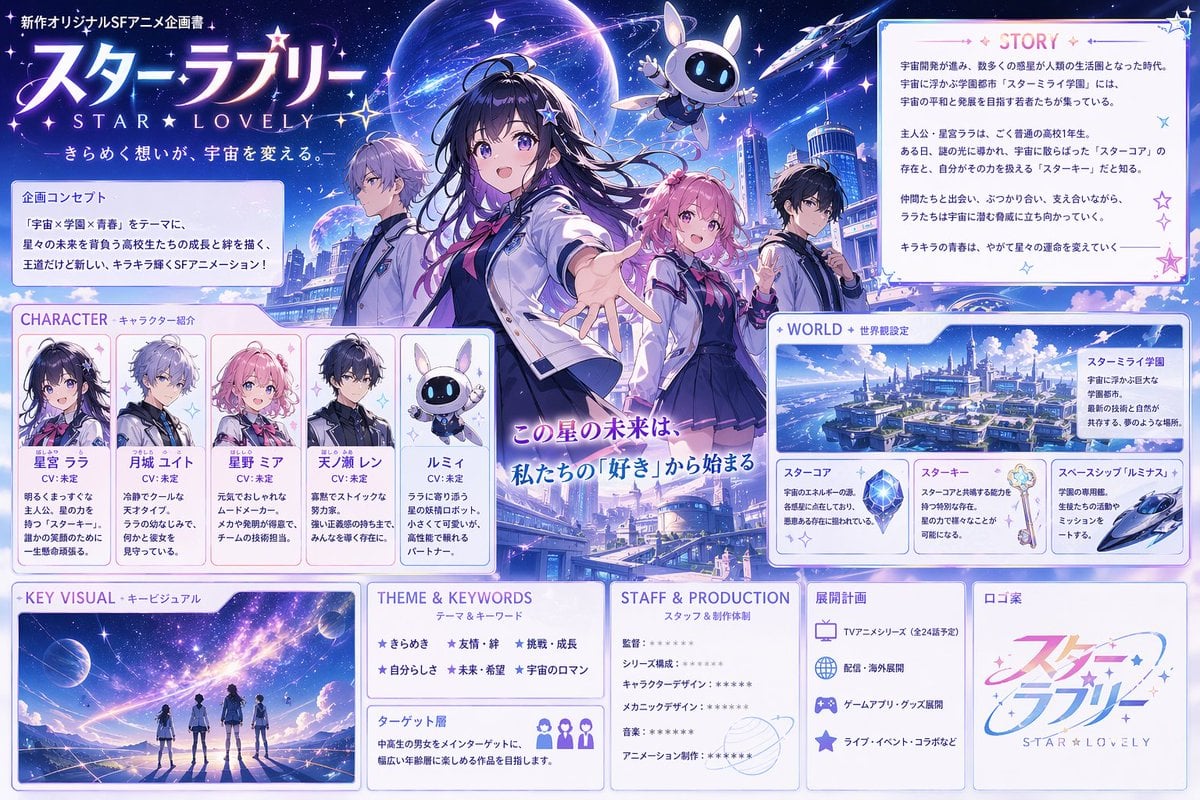
Anime Sci-Fi School Proposal Board
Watercolor Flower Shop Portrait
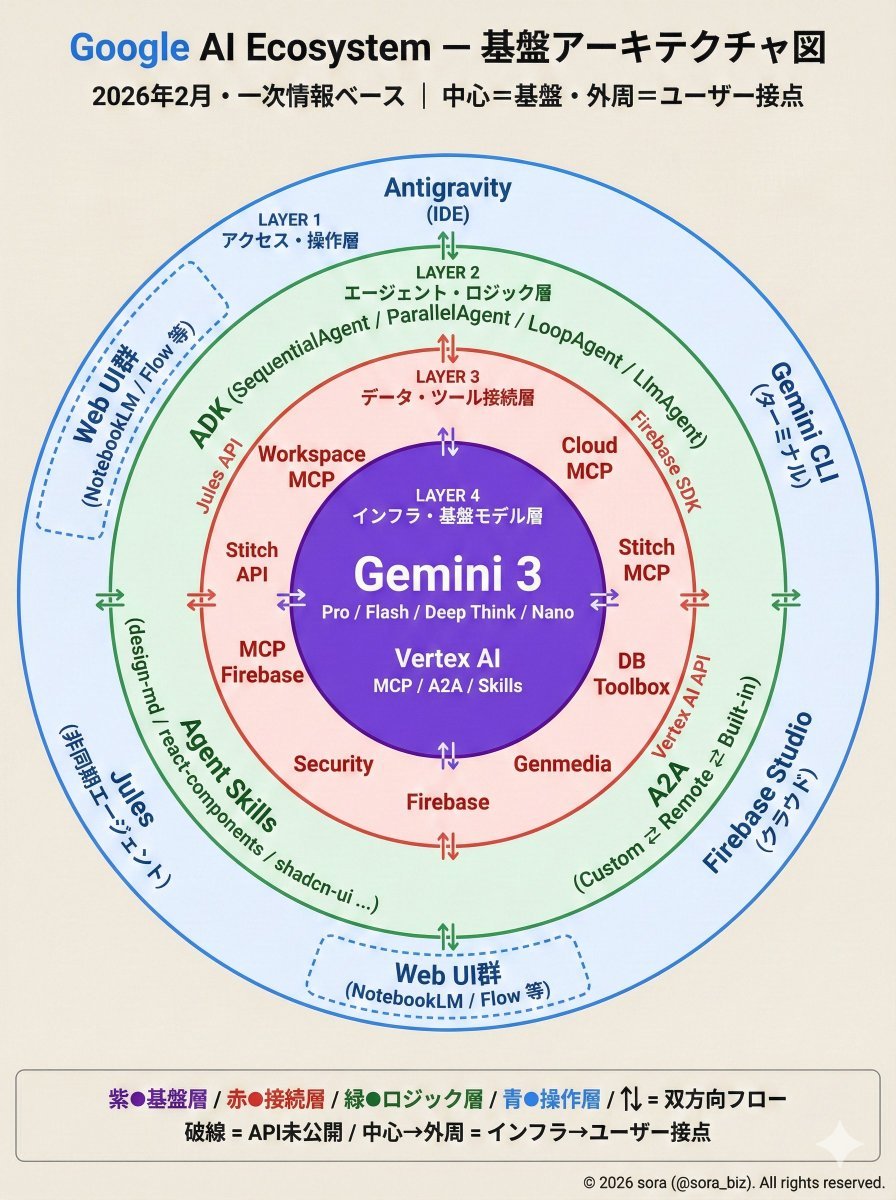
Google AI Ecosystem Diagram Generation
Anime Movie Poster Prompt: Chibi Character and Road Bike
Browse template categories
AI Image Realism Comparison questions
How do I use the AI Image Realism Comparison template?
Add your photo if the template asks for one, edit the prompt if you like — the template's model and format are already selected — and press Generate. Your version opens in PicX Studio.
Can I customize the AI Image Realism Comparison template?
Yes. You can change the subject, setting, lighting, mood, format, and available model controls before creating your image.
Is the AI Image Realism Comparison template free?
Opening and editing this template is free. Generating uses credits, shown on the Generate button when you are signed in.
Which AI model should I use?
Start with GPT Image 2, which is the model associated with this template. You can compare another compatible model for a different finish.
Looking for something else? Browse all templates.

Your photo, any look
Thousands of ready templates for every top image and video model, from one credit balance.