
Velvet Signal Album Cover
A moody square album cover featuring a headphone-wearing portrait obscured by a brown square with elegant serif title typography.
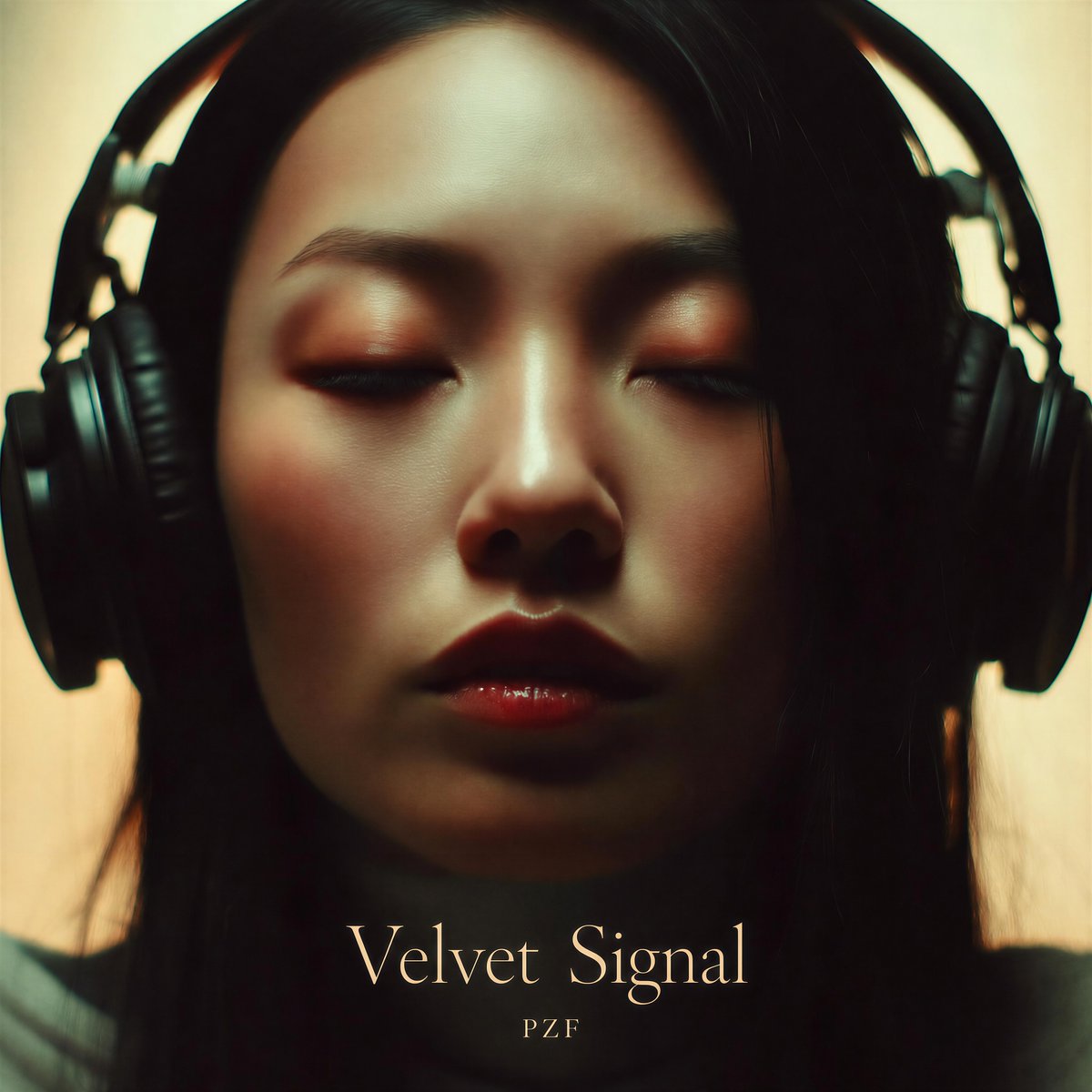
- Prompt included
- Model and format preset
- Free template
The prompt behind this image
Copy the exact prompt behind Velvet Signal Album Cover, or open it in the studio and make it yours.
Create a square album-cover image with a moody cinematic close-up of a person wearing large black over-ear studio headphones, centered and cropped tightly so the headphones fill the left and right edges and long dark hair falls down both sides. The face is intentionally hidden by one large opaque centered square block in a warm dark brown gradient, covering most of the upper and middle portrait from near the top edge to above the title area. Use soft warm backlighting, muted cream background, dark shadows, slight vintage film grain, shallow depth of field, and an intimate late-night listening-session mood. At the bottom center, add exactly two text elements: the large elegant serif title “{argument name="album title" default="Velvet Signal"}” in pale cream/gold lettering, and directly underneath it the smaller spaced artist name “{argument name="artist name" default="PZF"}”. Keep the typography refined, minimal, and centered, with the title occupying the lower third and no other text, logos, stickers, borders, or watermarks. Overall color palette: black headphones and hair, warm beige background, deep brown face-obscuring square, and soft ivory-gold typography.
How to use Velvet Signal Album Cover in 3 steps
- 1Upload ImagePNG, JPG or paste
Add your photo
Upload the photo the template builds on. The prompt, model and format are already set.
- 2…a portrait of your subject in softgolden-hour light, 85mm…
Personalize
Edit the subject and creative details for your destination.
- 3Generate
Generate
Press Generate — your image is created in PicX Studio, so you can compare it with the original and refine one variable at a time.
More like this
Templates with the same subject, style or setup. Open one to see its prompt.
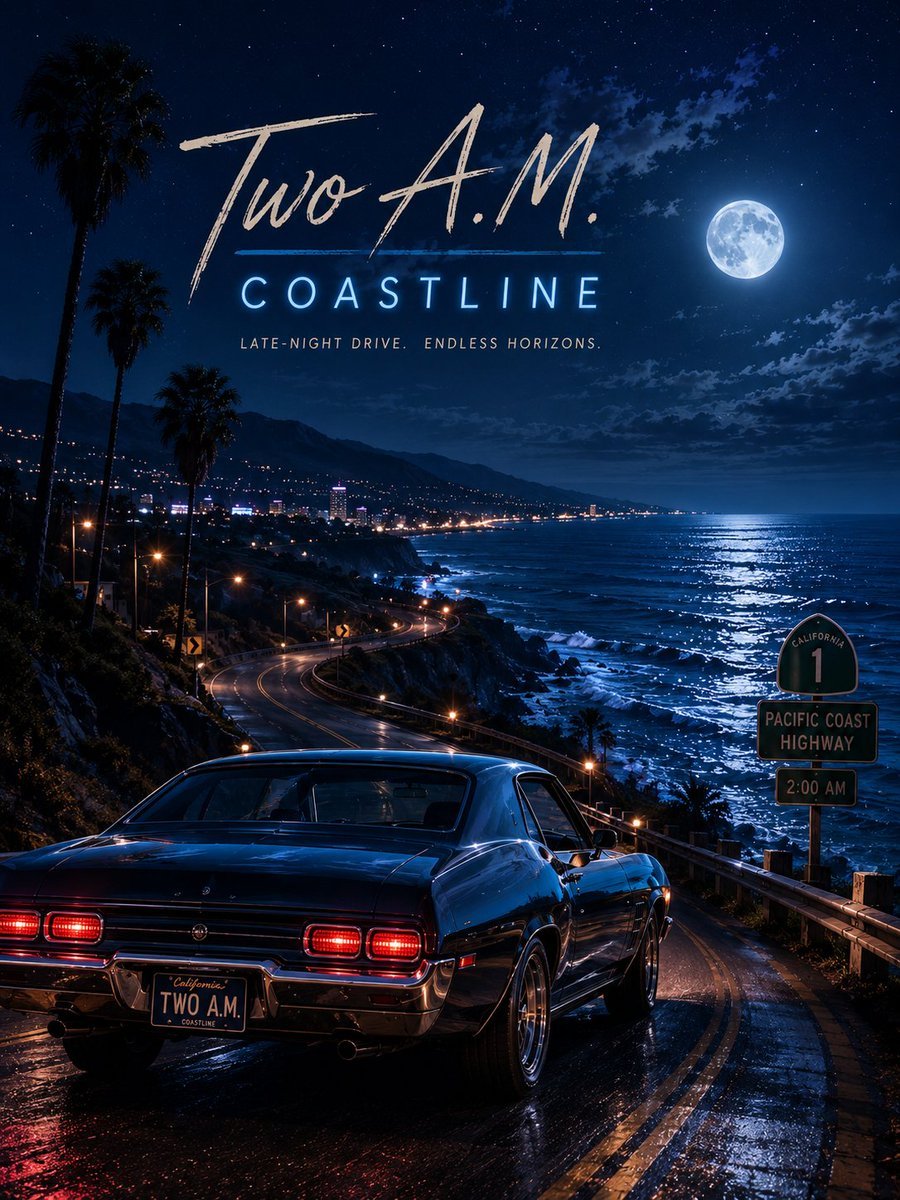
Two A.M. Coastline Album Cover
Music Album Cover Abstract Liquid Mercury
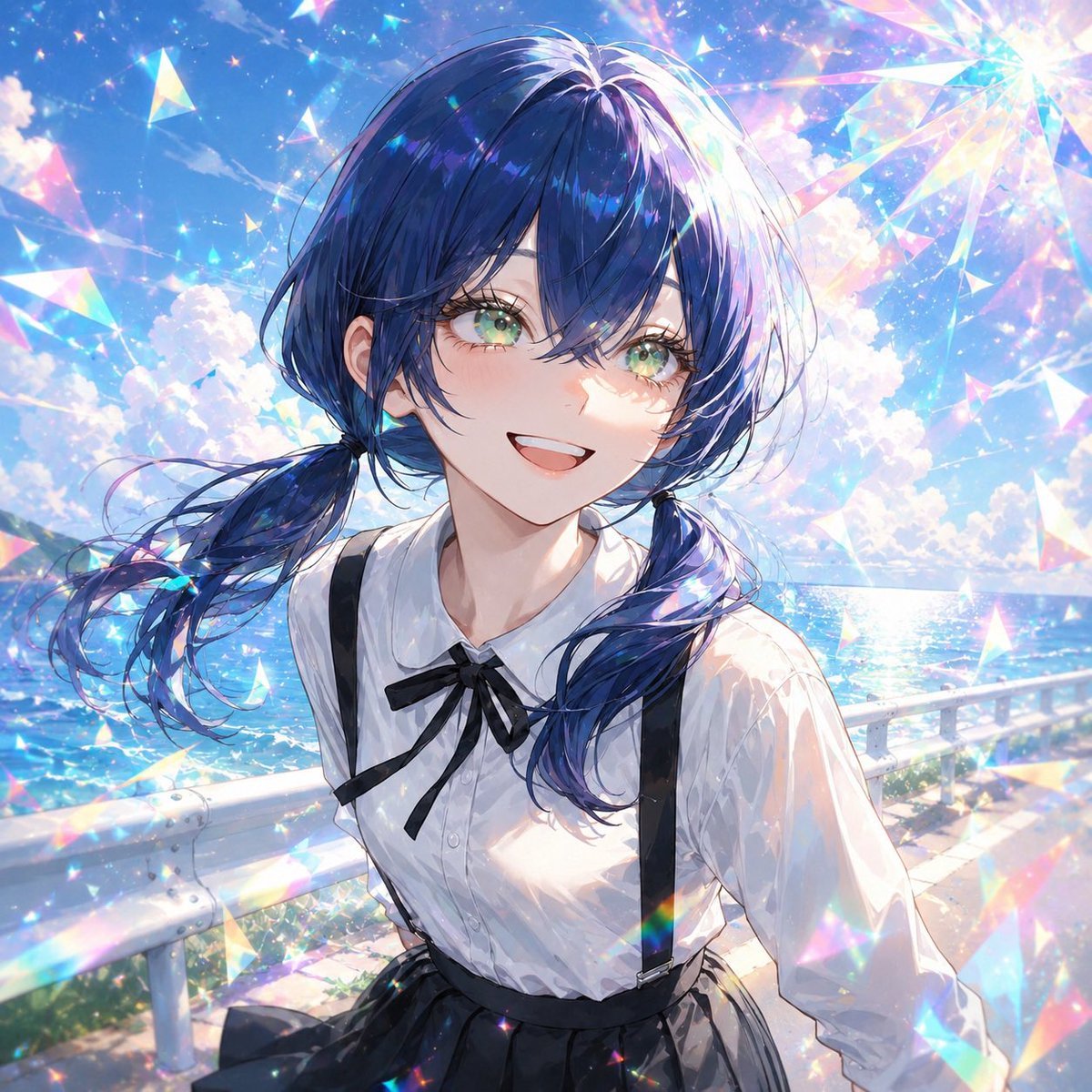
Sparkling Seaside Anime Album Cover

Japanese Musician Album Cover

Ornate A-Un Kimono Album Cover
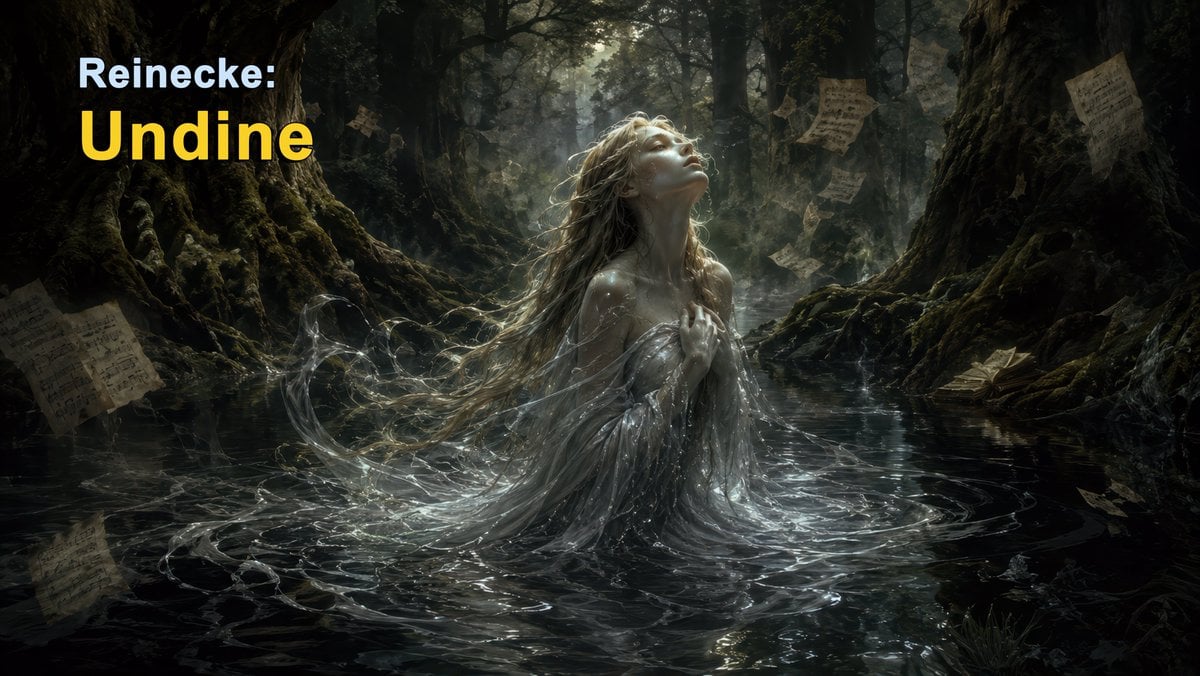
Dark Forest Undine Album Cover
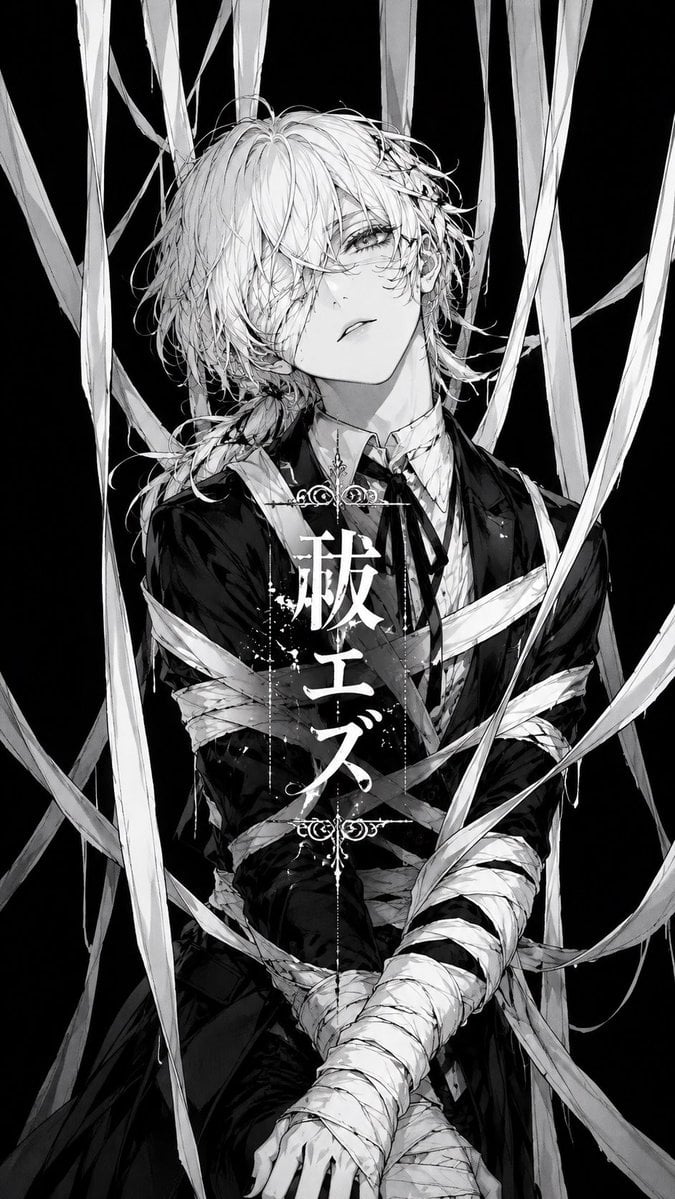
Monochrome Visual-Kei Album Cover
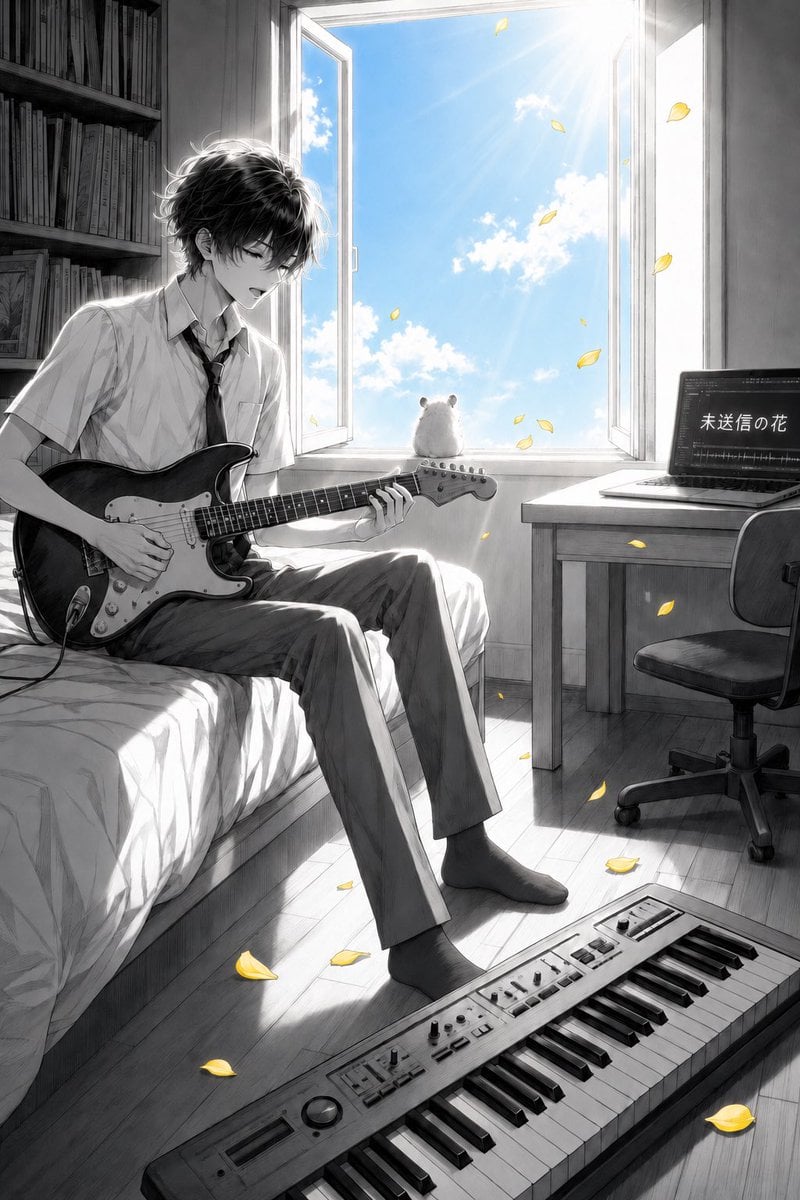
Anime Bedroom Guitar Album Cover
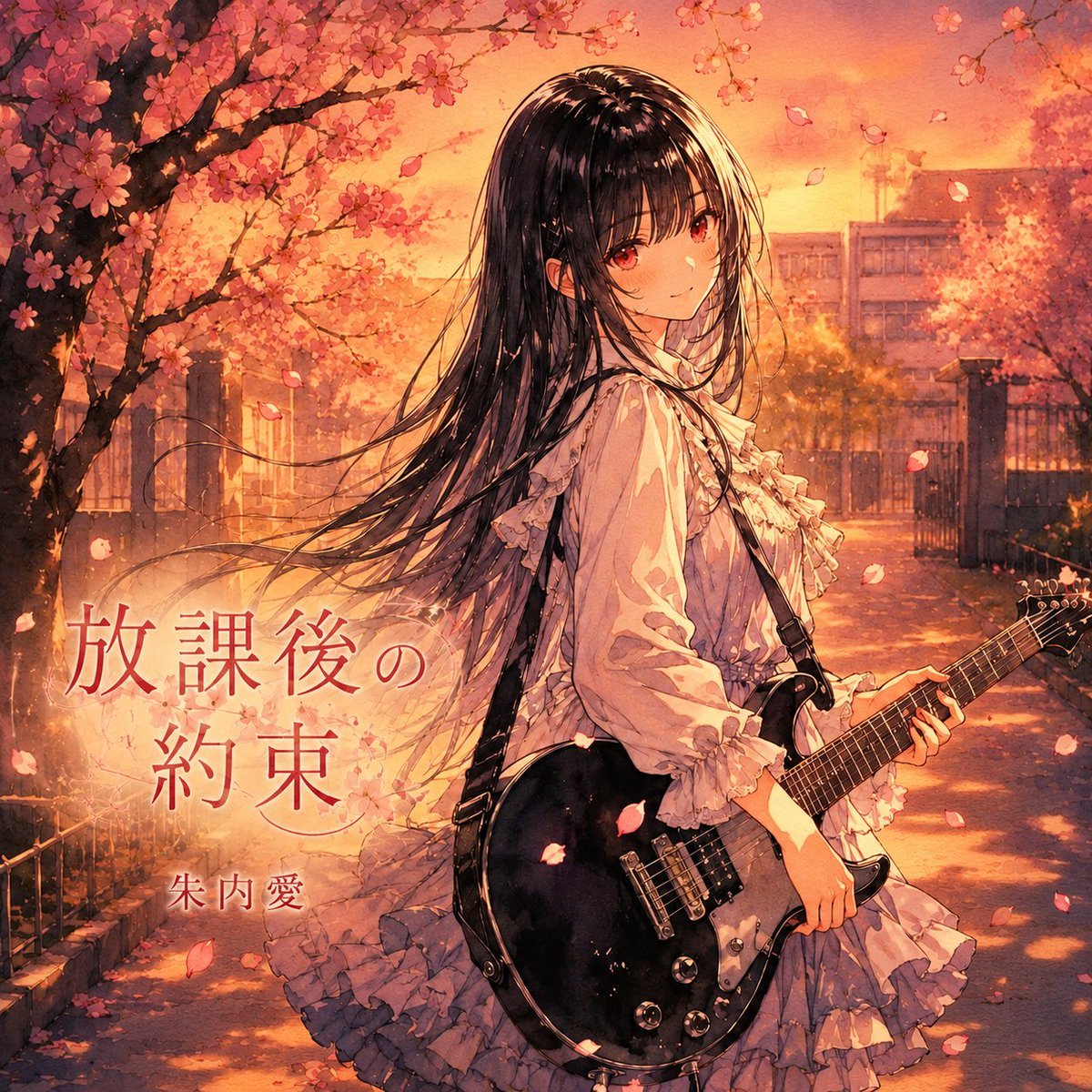
Anime Cherry Blossom Rock Album Cover
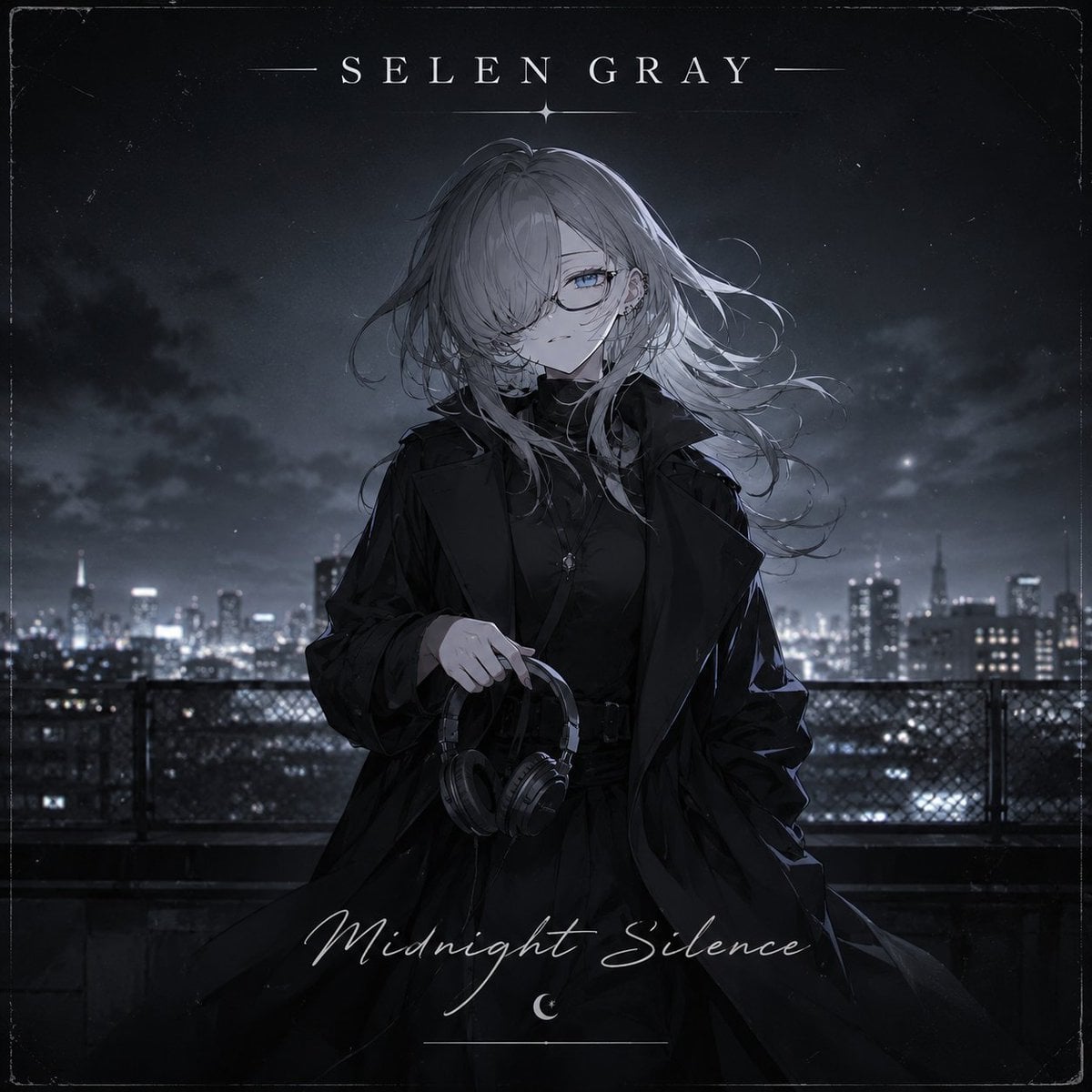
Midnight Anime Album Cover
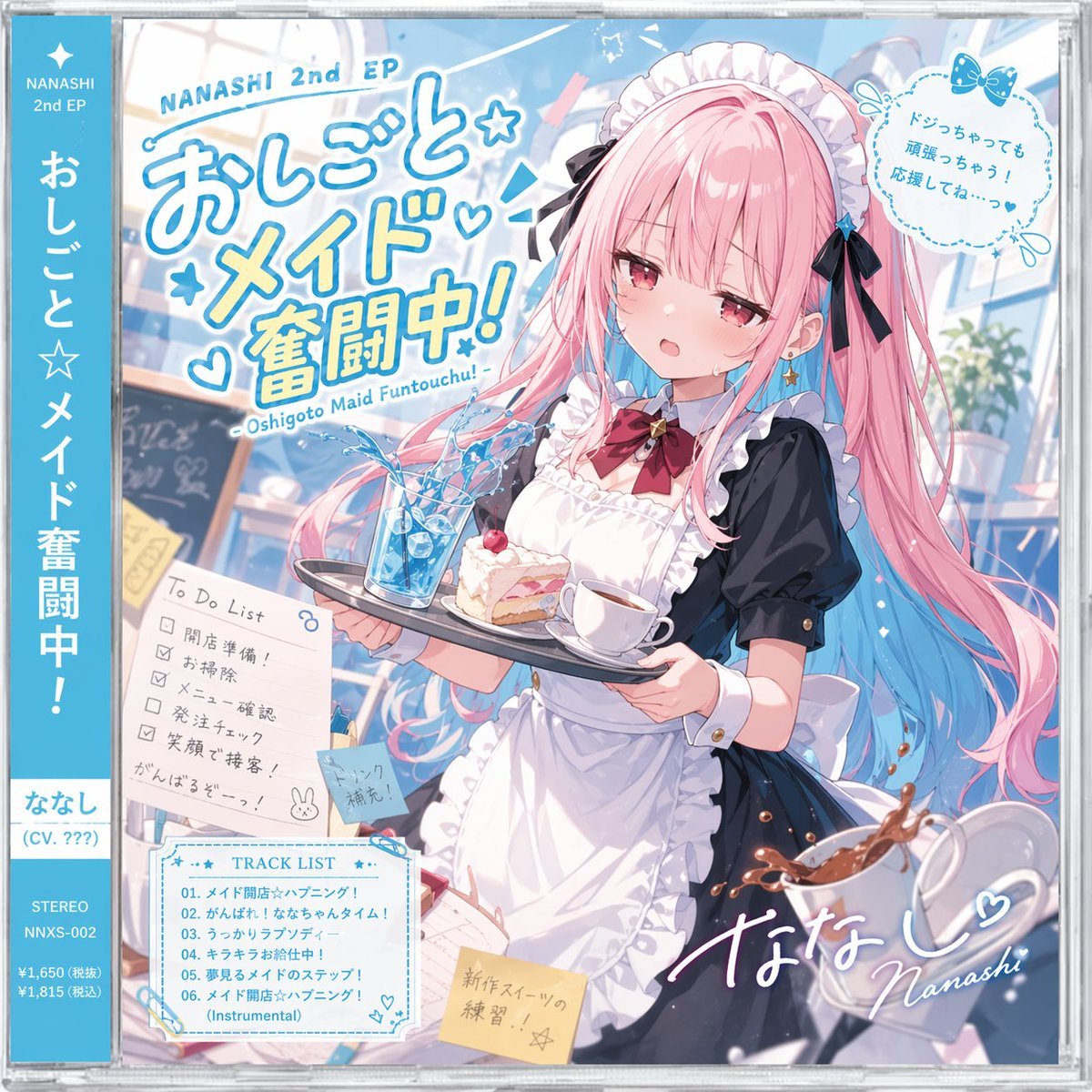
Anime Maid CD Album Cover
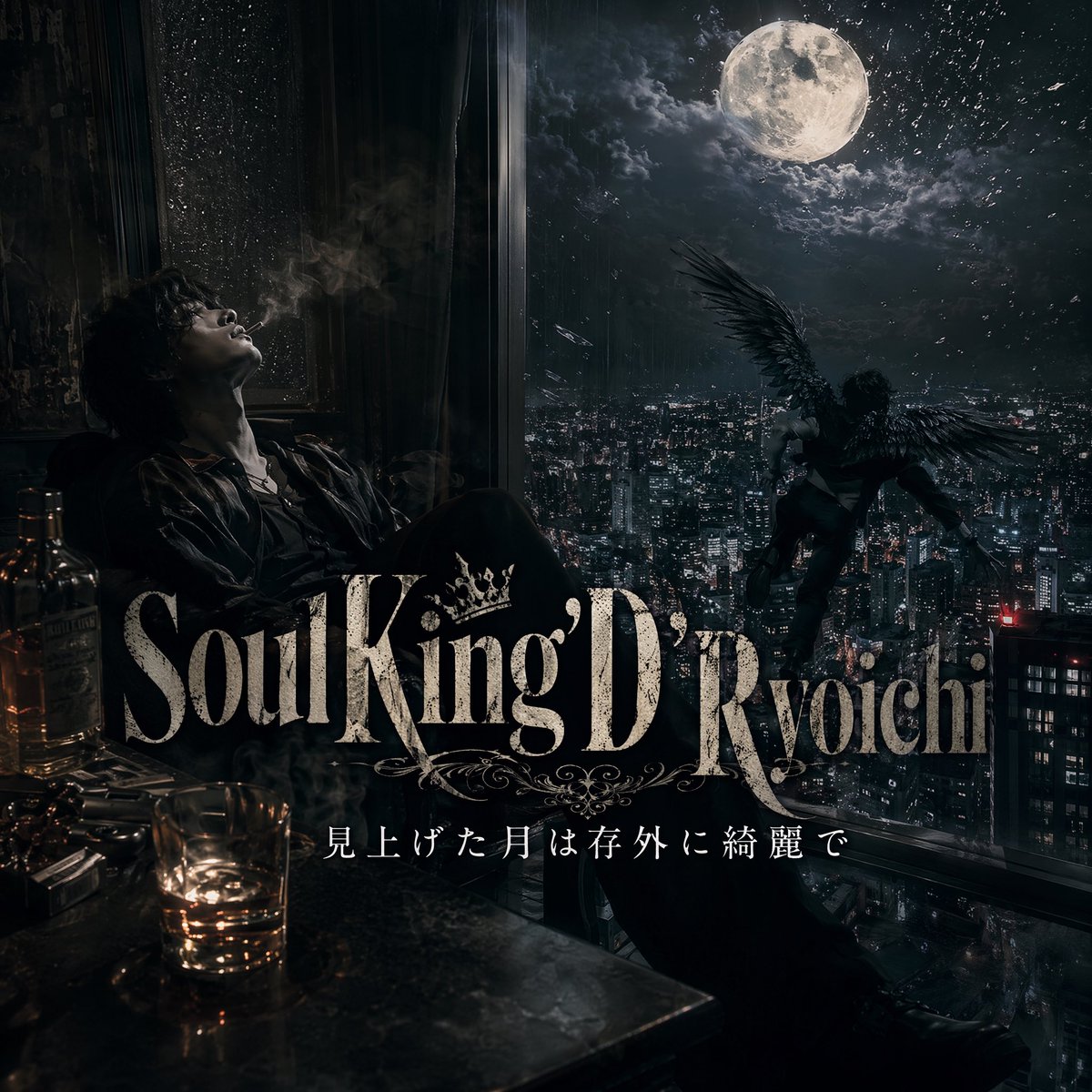
Dark Moonlit Noir Album Cover
Make it yours
Velvet Signal Album Cover works as-is. These are the safest ways to change it without losing the look.
Change one field
Copy a single group, rewrite it, and generate again so you can see what that field is doing.
Keep the frame, change the subject
Hold the composition and light of Velvet Signal Album Cover, then swap wardrobe, props or the person for a new take.
| If the result… | Why | Fix |
|---|---|---|
| The result drifts from the preview | Too many fields changed at once. | Reuse Velvet Signal Album Cover as-is first, then change one group — subject, light, or setting. |
| The model over-stylizes the scene | The prose prompt leaves finish and camera underspecified. | Add one camera or lighting sentence and stay on GPT Image 2. |
More GPT Image 2 templates
Other prompts made for GPT Image 2.

Six VTuber Japanese Logo Sheet

Realistic Portrait of Woman and Deer

The Vista Modular Condo Poster

AI Model Routing Comparison Infographic

2.5D Anime Art Board

Isometric Productivity Desk Scene

New York Double Exposure Poster

Four-Panel AI Landscape Comparison

Japanese Tatami Lifestyle Magazine Cover

NESCAFÉ Coffee Map Poster
More image prompts
Fresh picks from across the catalog.
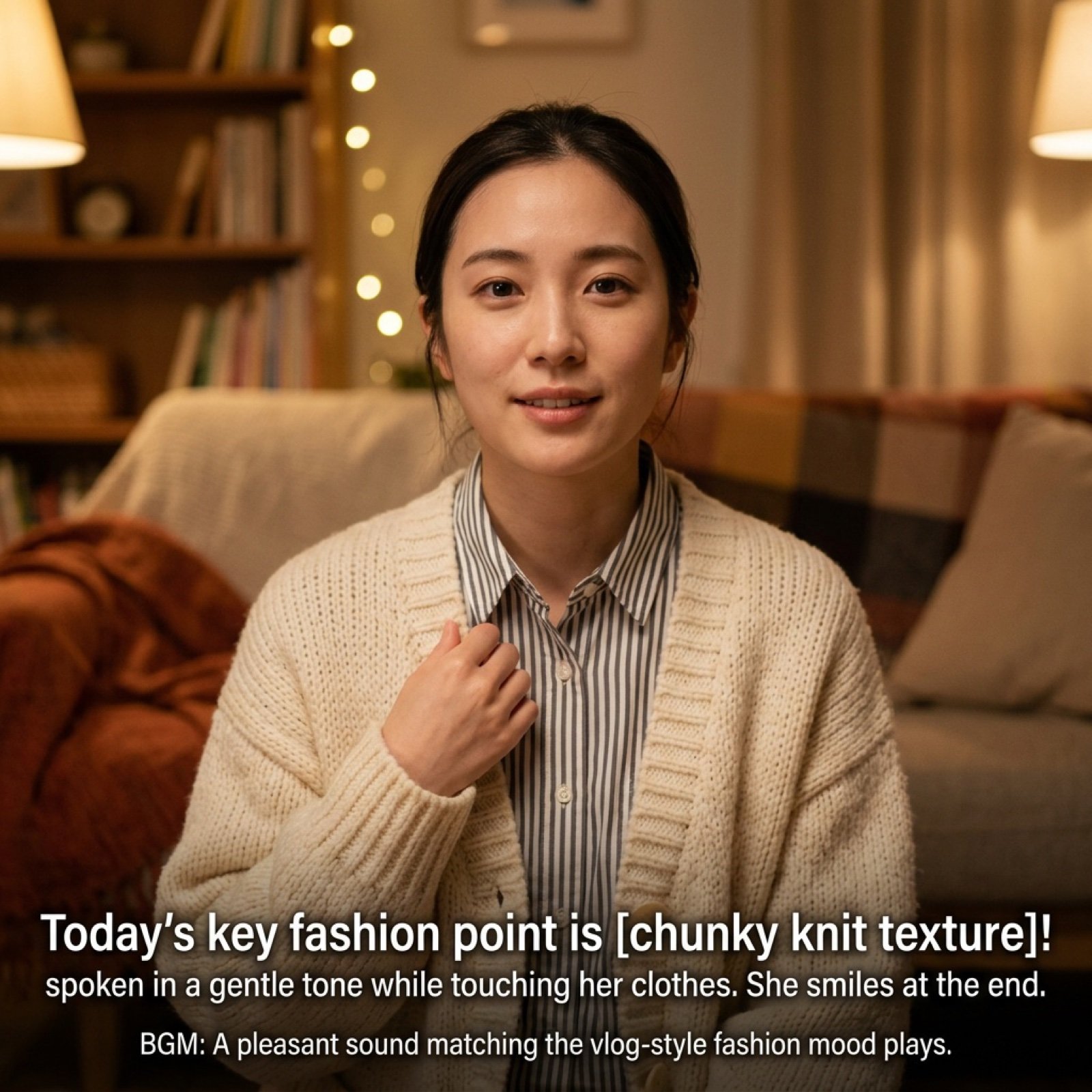
Vlog Style Video Generation Prompt
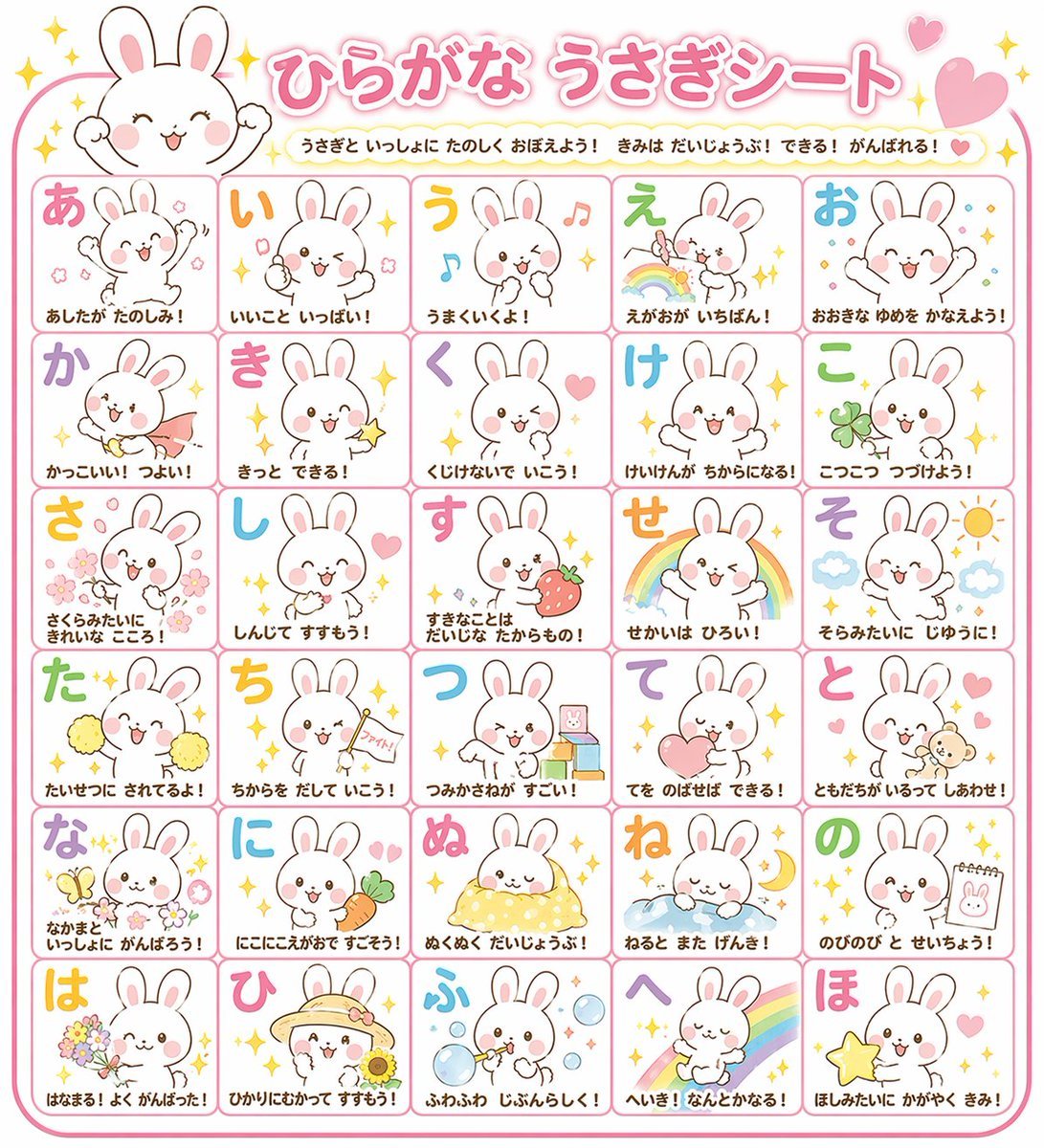
Educational Hiragana Sheet
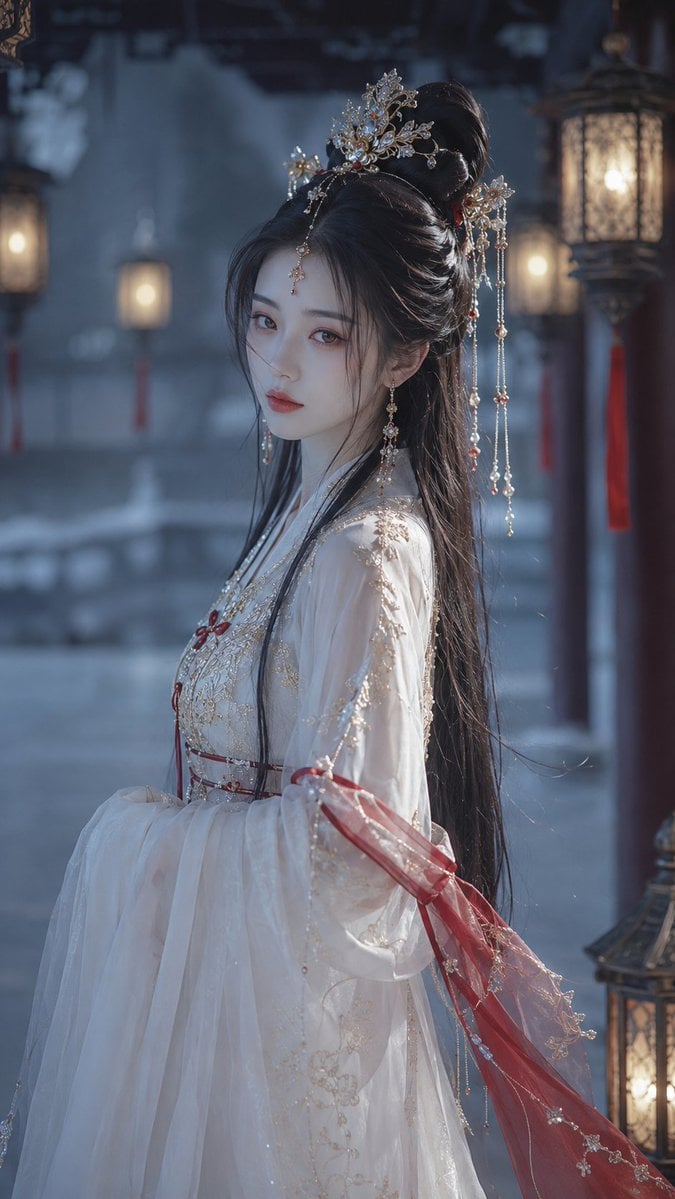
Cold Ethereal Chinese Fairy Portrait
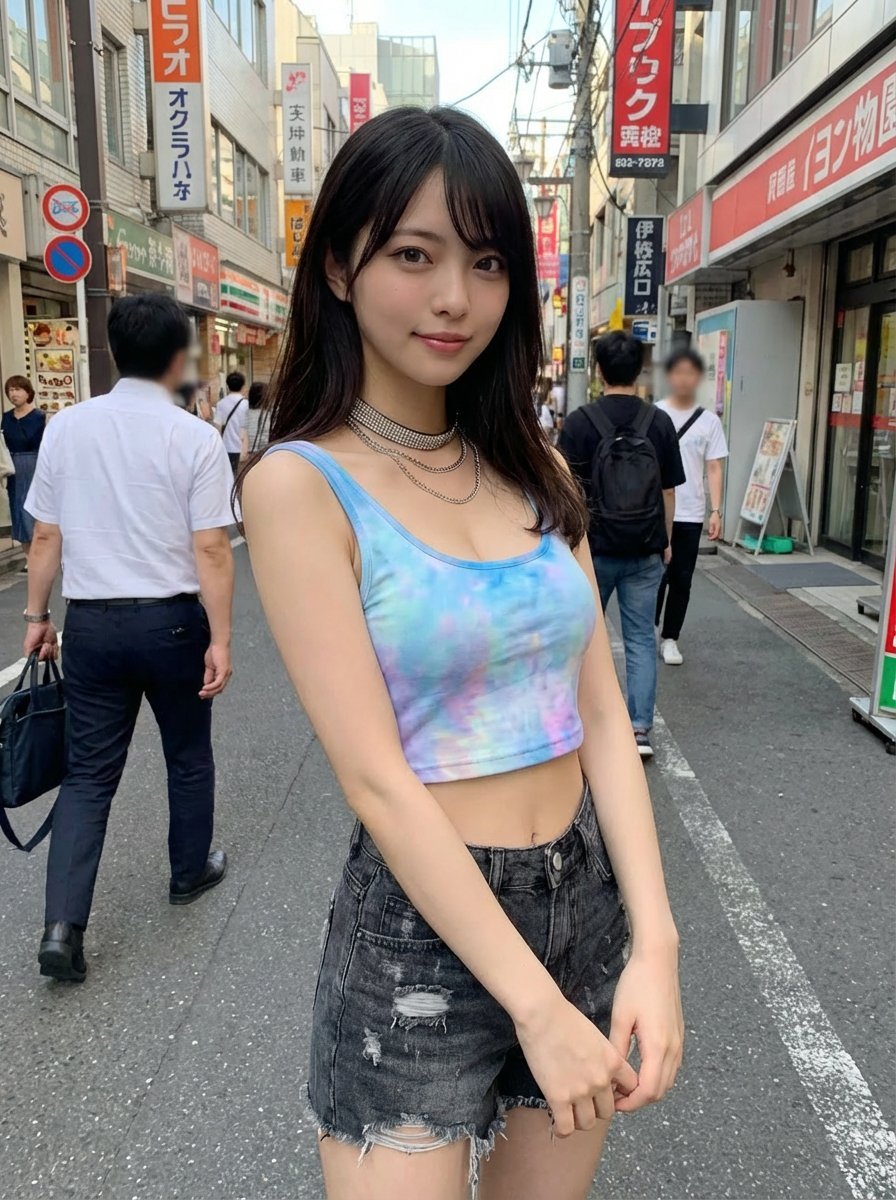
Virtual outfit try-on with Tokyo street option

Analog clock and Saudi kabsa meal still life
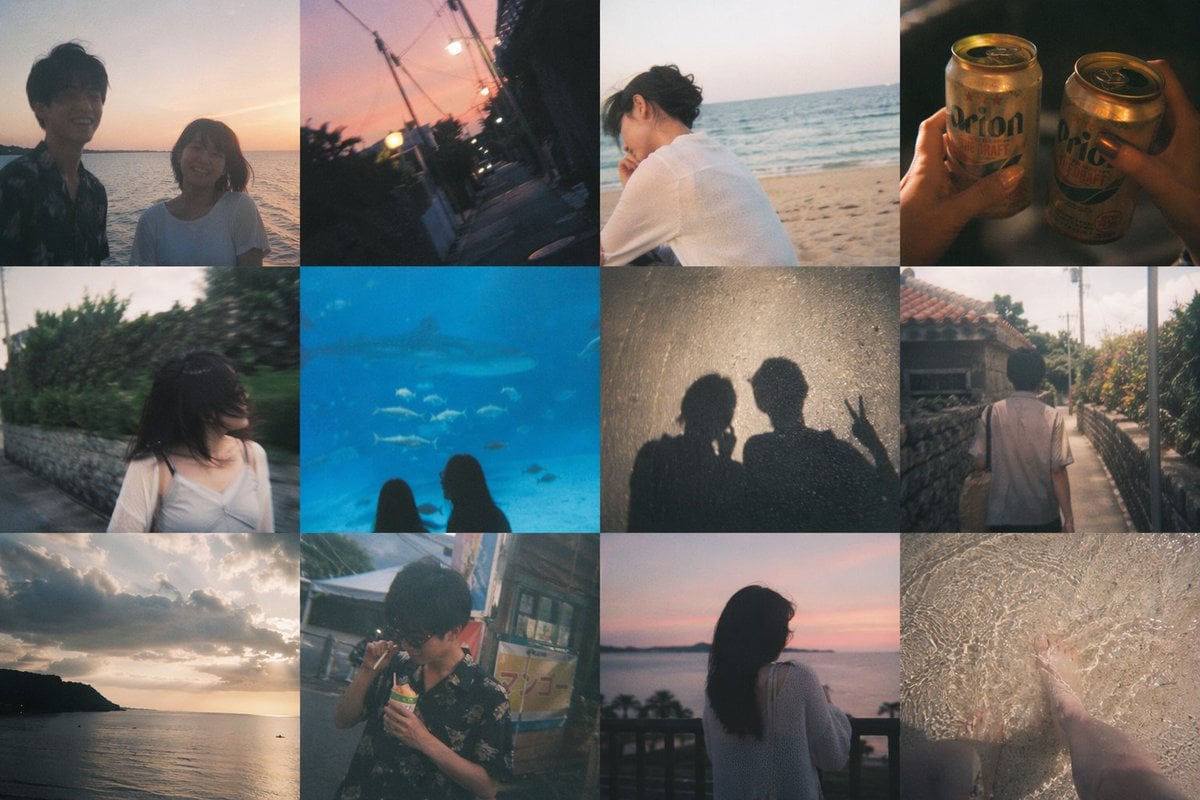
Okinawa Travel Memory Collage
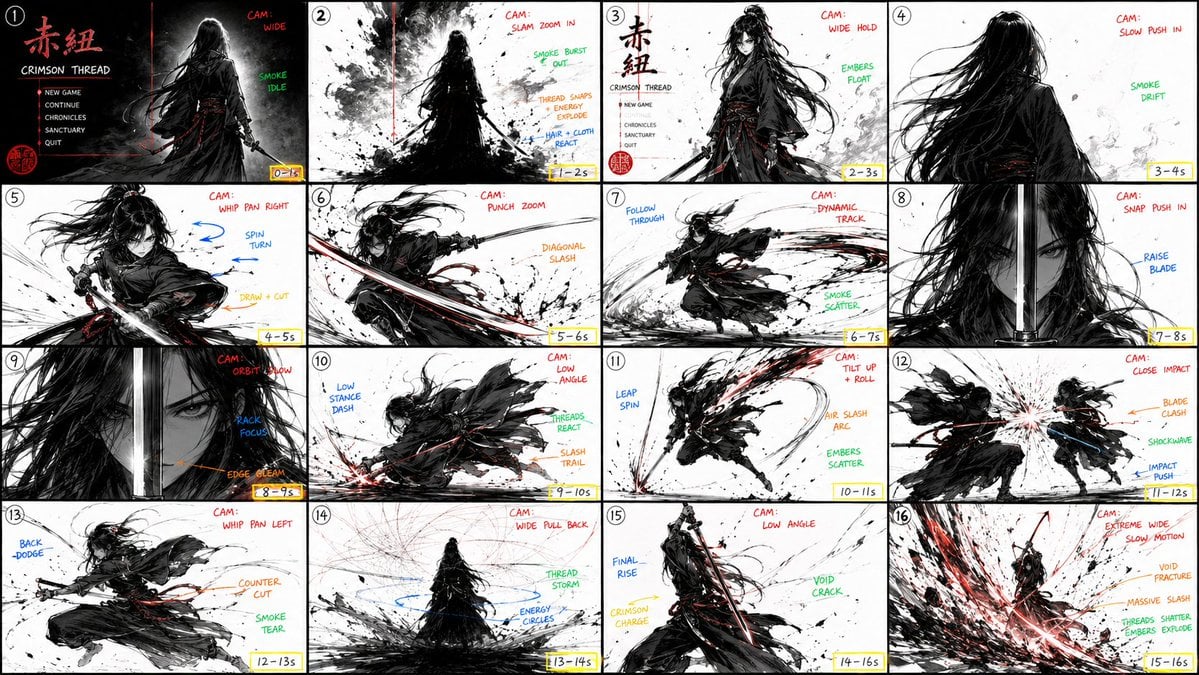
StoryBoard Prompt : Create a hyper-cinematic 16:9

Hand-drawn Infographic Card Prompt
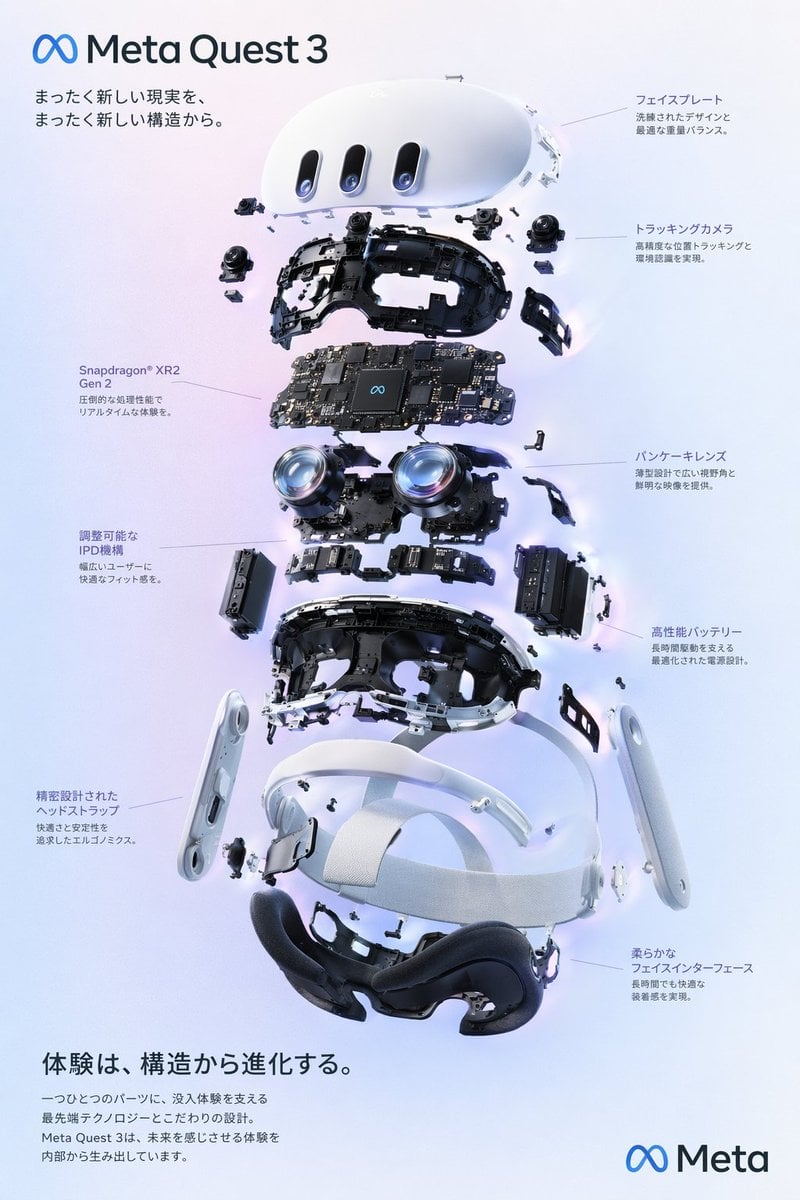
Gpt2 Vr Headset Exploded View Poster
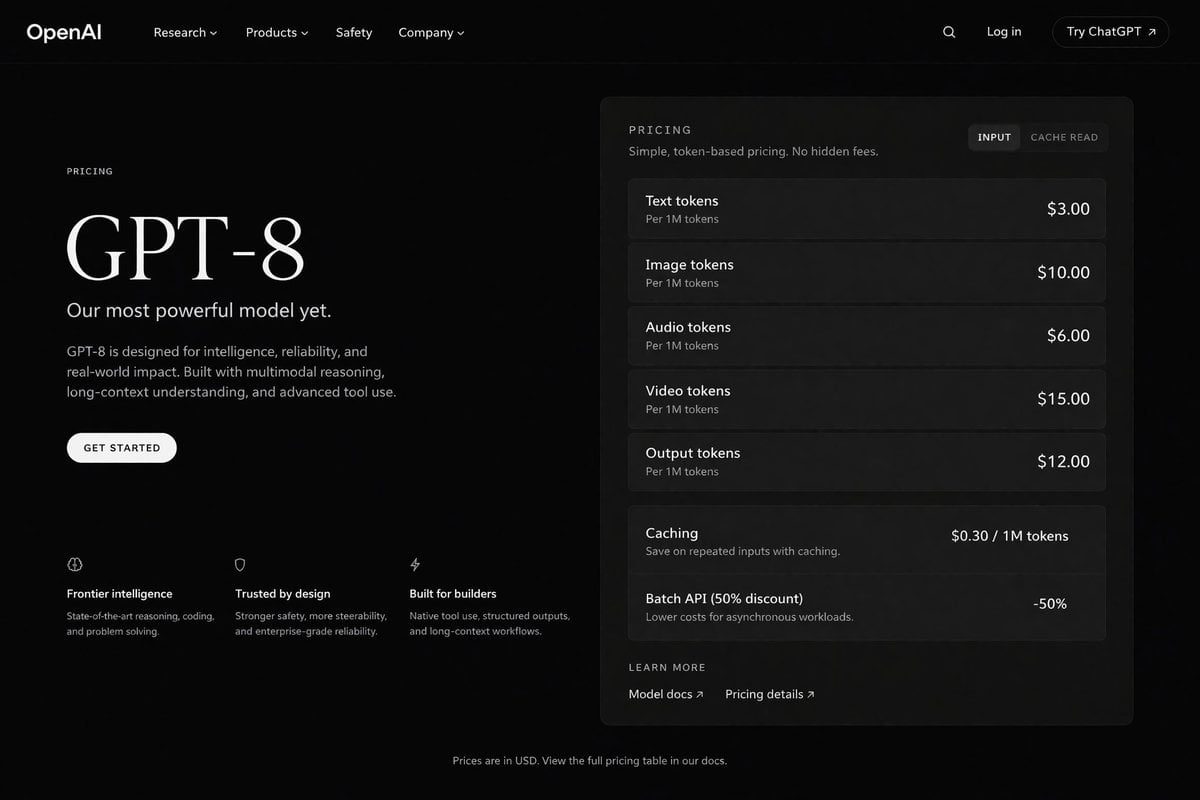
Dark Mode AI API Pricing Page Mockup
Browse template categories
Velvet Signal Album Cover questions
How do I use the Velvet Signal Album Cover template?
Add your photo if the template asks for one, edit the prompt if you like — the template's model and format are already selected — and press Generate. Your version opens in PicX Studio.
Can I customize the Velvet Signal Album Cover template?
Yes. You can change the subject, setting, lighting, mood, format, and available model controls before creating your image.
Is the Velvet Signal Album Cover template free?
Opening and editing this template is free. Generating uses credits, shown on the Generate button when you are signed in.
Which AI model should I use?
Start with GPT Image 2, which is the model associated with this template. You can compare another compatible model for a different finish.
Looking for something else? Browse all templates.

Your photo, any look
Thousands of ready templates for every top image and video model, from one credit balance.