
Qwen Image Model Review Banner
A luxury editorial social media banner template for promoting an AI image model review or benchmark comparison.
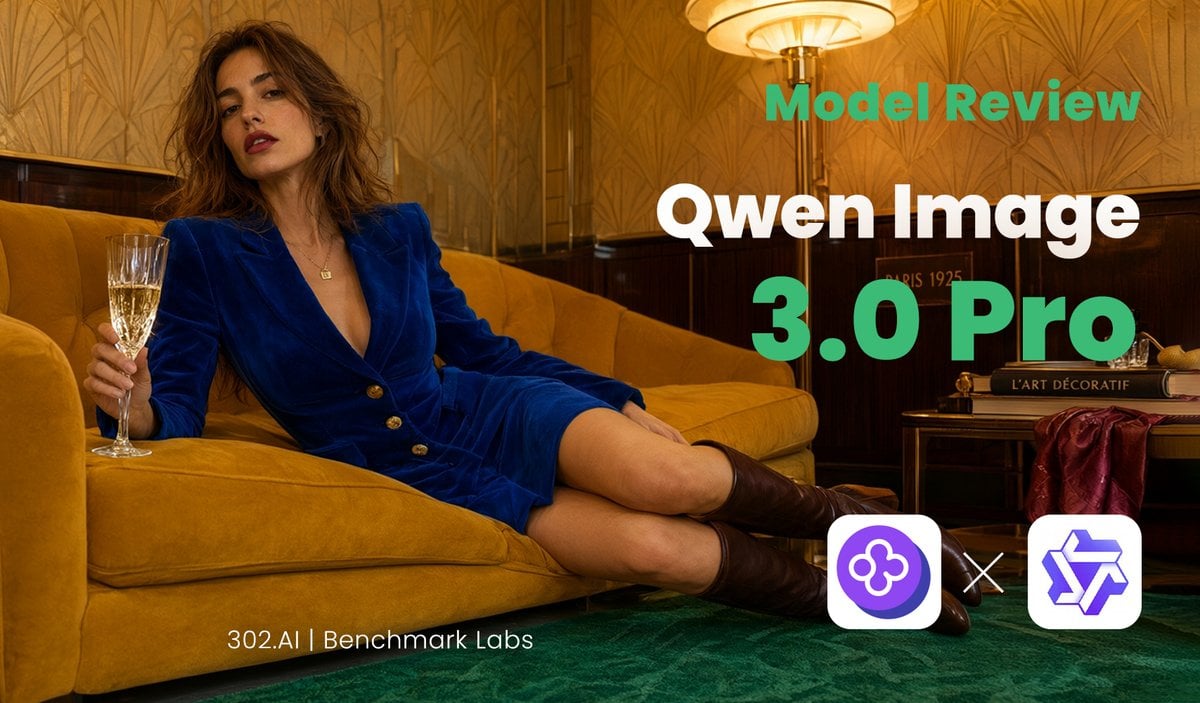
- Prompt included
- Model and format preset
- Free template
The prompt behind this image
Copy the exact prompt behind Qwen Image Model Review Banner, or open it in the studio and make it yours.
Goal: Create a cinematic editorial social media banner for an AI model review of {argument name="model name" default="Qwen Image 3.0 Pro"}, combining a luxury lounge fashion photograph with bold tech-review typography. Canvas: Wide landscape 16:9 banner, about 1200×675 px, optimized for X/Twitter link preview. Use a warm golden color grade with high contrast and shallow cinematic lighting. Main image: A fashionable adult woman lounges diagonally across a mustard-yellow velvet sofa in an art deco interior. She has loose wavy brown hair, red lipstick, and a confident relaxed expression, wearing a deep royal-blue velvet blazer dress with gold buttons, bare legs, and dark brown knee-high boots. Her left side is toward the viewer; she holds a champagne flute in one hand near the left edge while reclining with legs extended toward the lower right. The room has patterned gold wallpaper, dark wood wall paneling, a green carpet, and a glowing vintage floor lamp near the upper center-right. Include a small side table on the right with stacked art/design books and a draped burgundy fabric, creating a 1920s Parisian hotel lounge mood. Text layout: Place large review text on the right half, leaving the woman mostly unobstructed on the left. Use exactly 3 main text elements: top label “Model Review” in bold teal-green sans serif, main title “Qwen Image” in very large bold white sans serif, and version line “3.0 Pro” in extra-large bold teal-green sans serif. Add a small footer credit near the bottom left-center reading “{argument name="footer credit" default="302.AI | Benchmark Labs"}” in thin white sans serif. Logo area: At the bottom right, show exactly 3 discrete logo/comparison elements: a rounded white square containing a purple circular clover-like AI icon on the left, a white “×” multiplication sign in the middle, and a rounded white square containing a purple geometric star/cube-like logo on the right. Visual style: Luxury editorial photography blended with clean SaaS benchmark branding; crisp typography, warm amber highlights, teal accent text, deep green floor, mustard sofa, royal-blue outfit. Make the composition look like a polished review thumbnail for {argument name="review topic" default="Qwen Image 3.0 Pro versus GPT-Image-2"}. Constraints: Keep all visible text legible and spelled exactly as specified. Do not add extra captions, watermarks, interface chrome, or additional logos. Preserve the wide banner layout and the three-logo comparison cluster.
How to use Qwen Image Model Review Banner in 3 steps
- 1Upload ImagePNG, JPG or paste
Add your photo
Upload the photo the template builds on. The prompt, model and format are already set.
- 2…a portrait of your subject in softgolden-hour light, 85mm…
Personalize
Edit the subject and creative details for your destination.
- 3Generate
Generate
Press Generate — your image is created in PicX Studio, so you can compare it with the original and refine one variable at a time.
More like this
Templates with the same subject, style or setup. Open one to see its prompt.

Cyber Blue Qwen Tech Review Poster
Premium Vertical Product Campaign Poster
UGC Skincare Review - Seedance 2.0
Coffee Boba Product Poster
Avant-Garde Asian Fashion Model
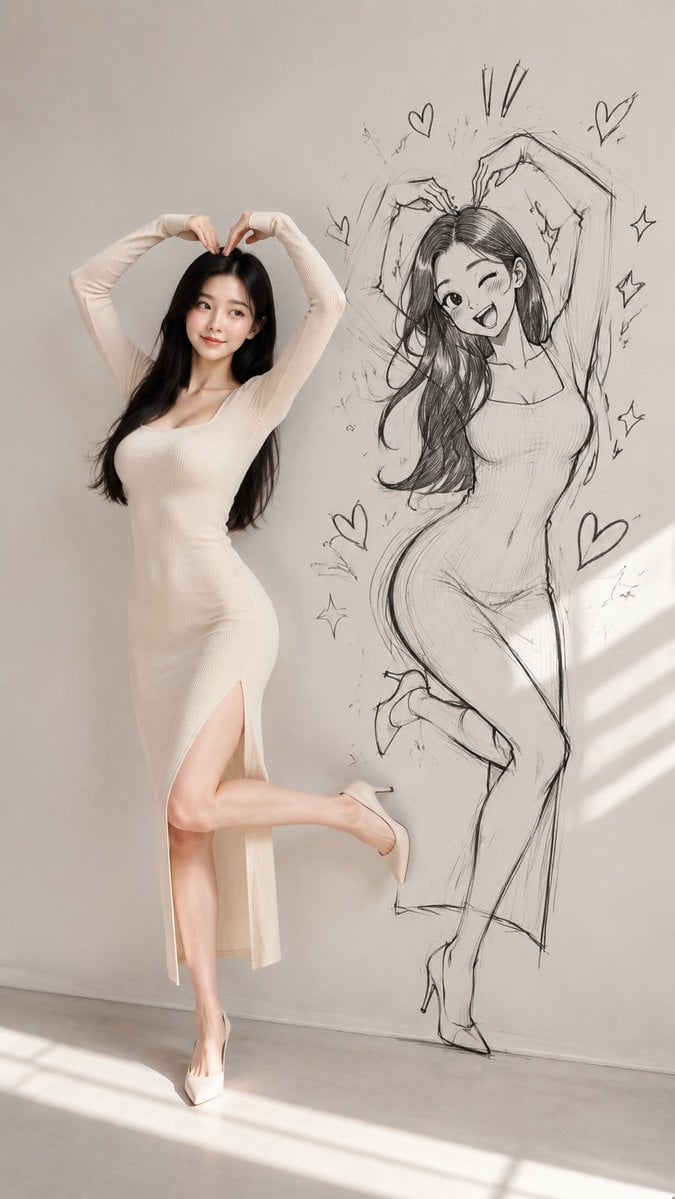
Model With Manga Wall Sketch

AI Model Routing Comparison Infographic
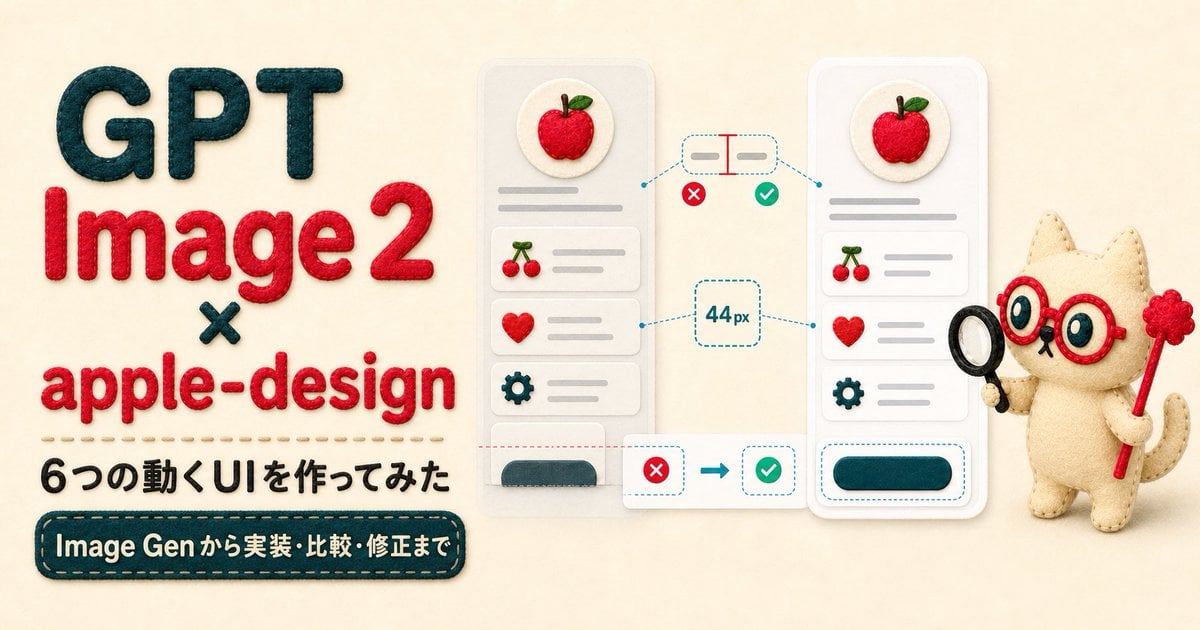
Felt GPT Image 2 Apple Design Banner
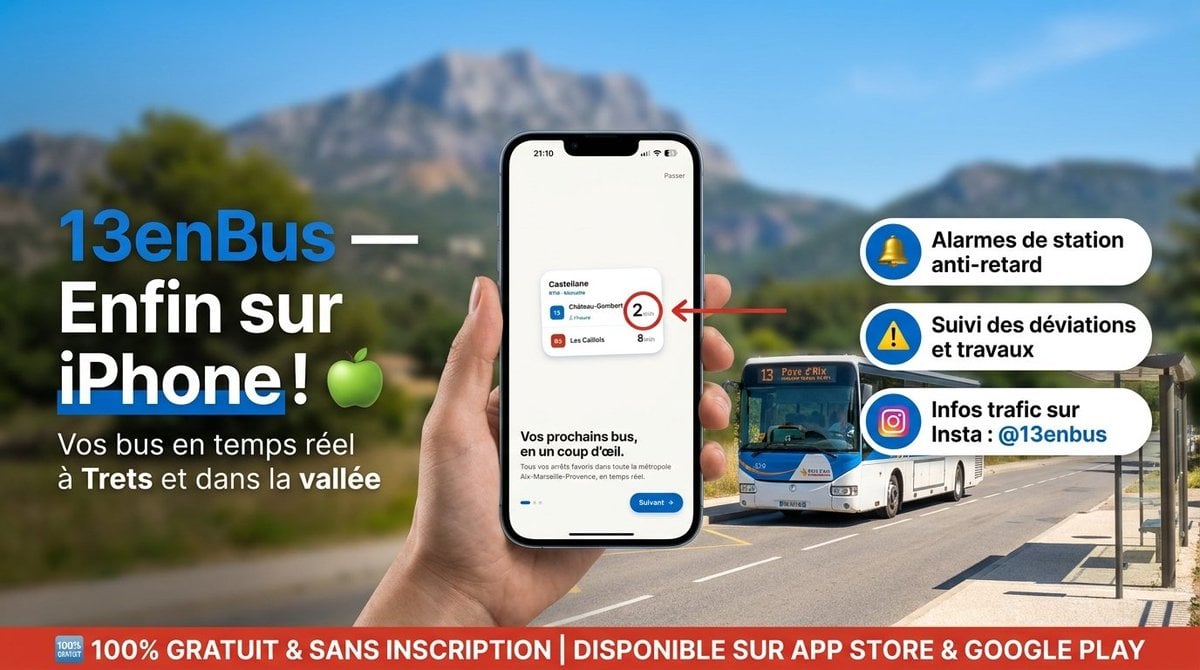
13enBus iPhone Launch Banner

ChatGPT Bonus Banner Screenshot

Felt Craft Apple Design UI Banner

Flashy AI Appearance Consulting Sales Banner
Make it yours
Qwen Image Model Review Banner works as-is. These are the safest ways to change it without losing the look.
Change one field
Copy a single group, rewrite it, and generate again so you can see what that field is doing.
Keep the frame, change the subject
Hold the composition and light of Qwen Image Model Review Banner, then swap wardrobe, props or the person for a new take.
| If the result… | Why | Fix |
|---|---|---|
| The result drifts from the preview | Too many fields changed at once. | Reuse Qwen Image Model Review Banner as-is first, then change one group — subject, light, or setting. |
| The model over-stylizes the scene | The prose prompt leaves finish and camera underspecified. | Add one camera or lighting sentence and stay on GPT Image 2. |
More GPT Image 2 templates
Other prompts made for GPT Image 2.

Six VTuber Japanese Logo Sheet

Realistic Portrait of Woman and Deer

The Vista Modular Condo Poster

2.5D Anime Art Board

Isometric Productivity Desk Scene

New York Double Exposure Poster

Four-Panel AI Landscape Comparison

Japanese Tatami Lifestyle Magazine Cover

NESCAFÉ Coffee Map Poster

Brutalist Cogito Chinese Typography Poster
More image prompts
Fresh picks from across the catalog.
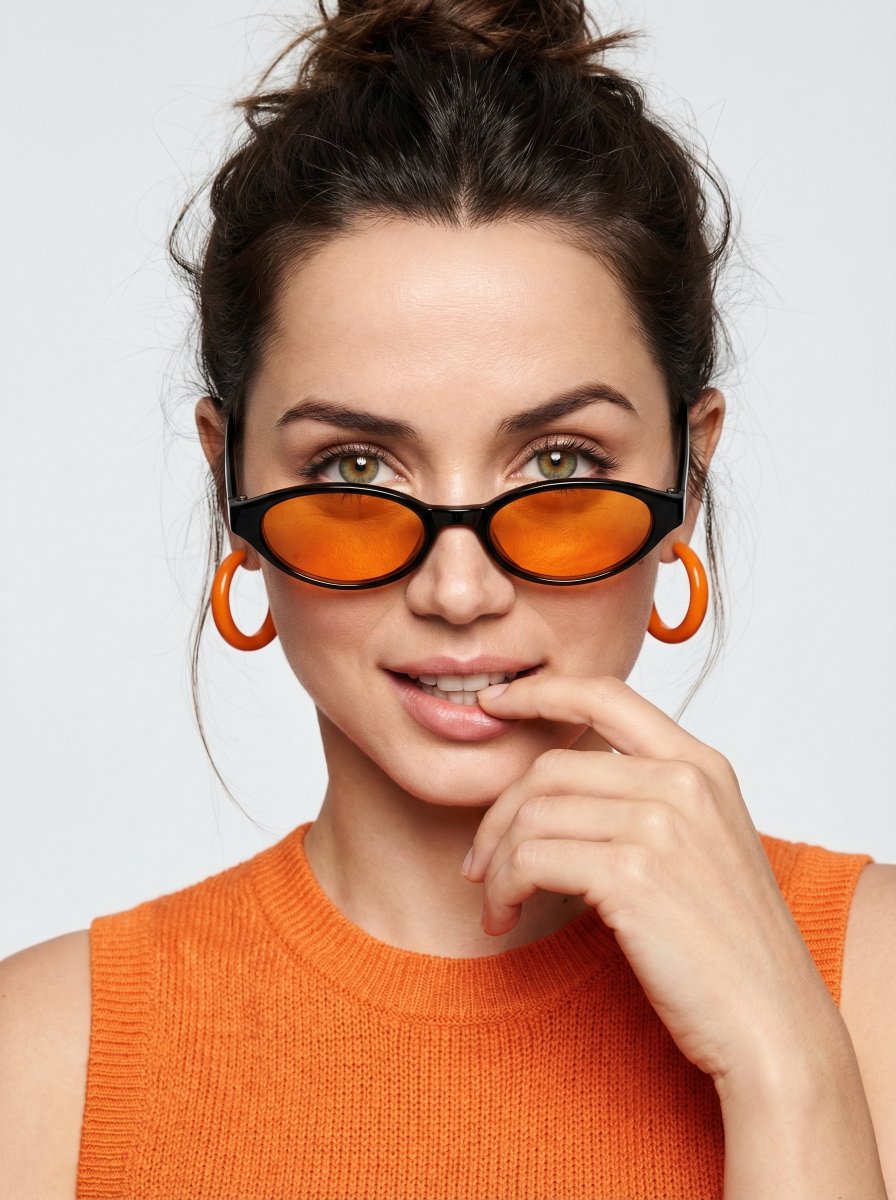
High-fashion editorial portrait with vivid orange accents
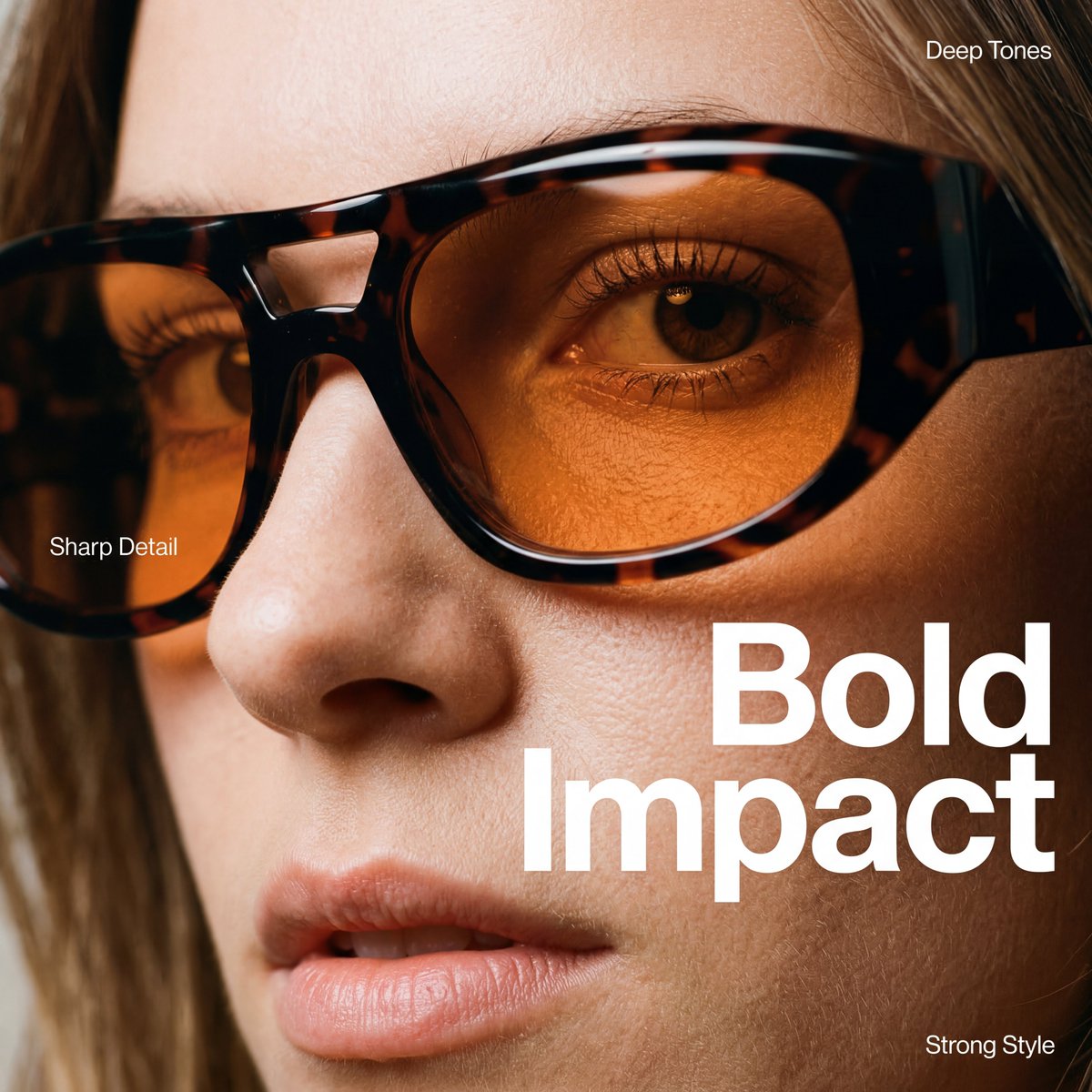
High-Fashion Eyewear Editorial Close-Up Prompt
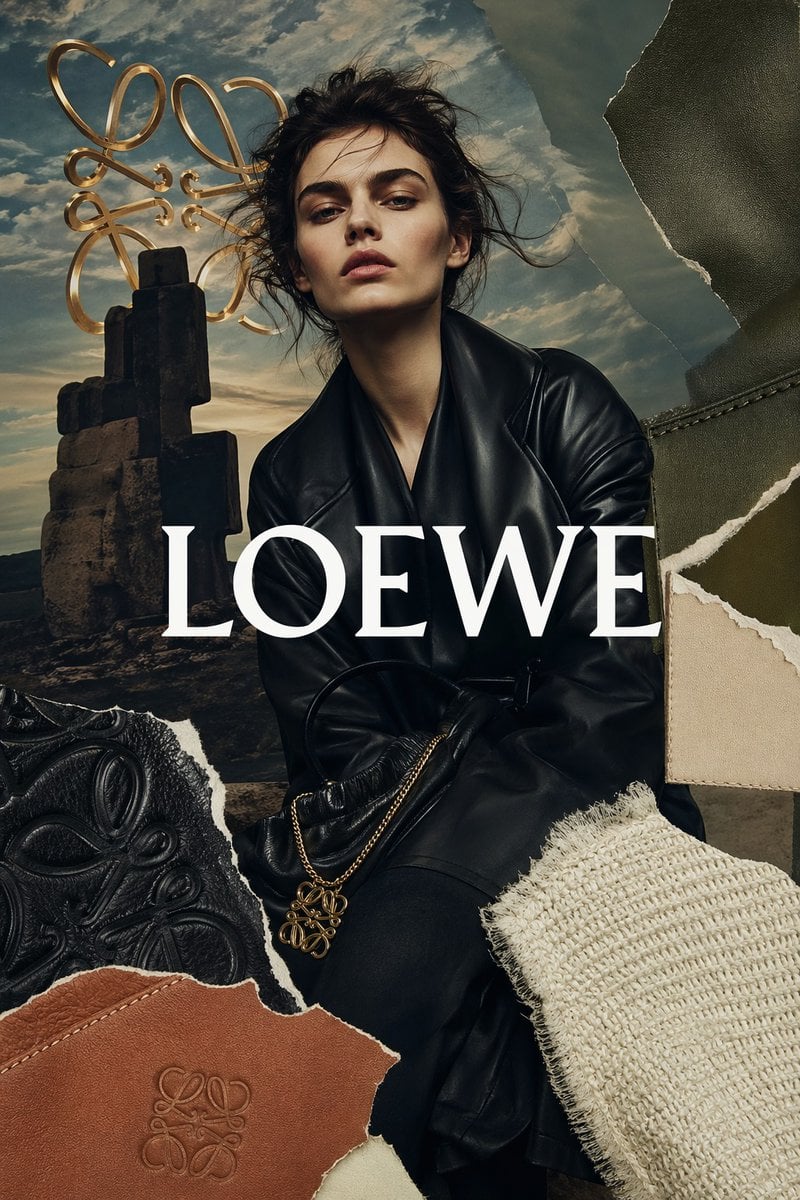
Luxury Leather Fashion Collage Ad

Magical Shadow Illusion Prompt for Nano Banana Pro
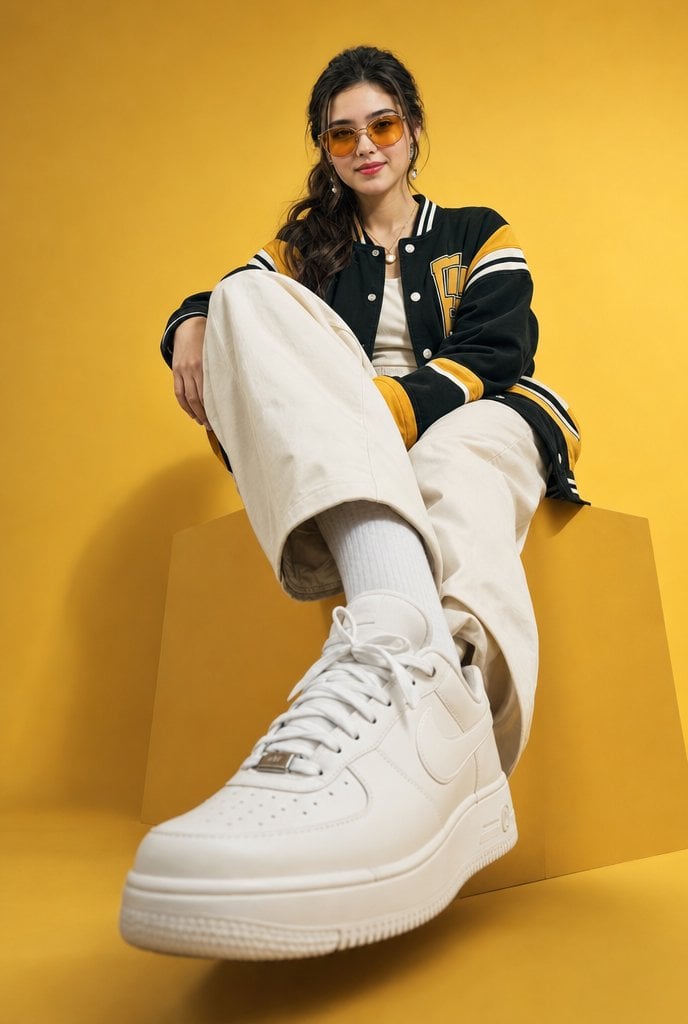
Low-Angle Varsity Fashion Portrait
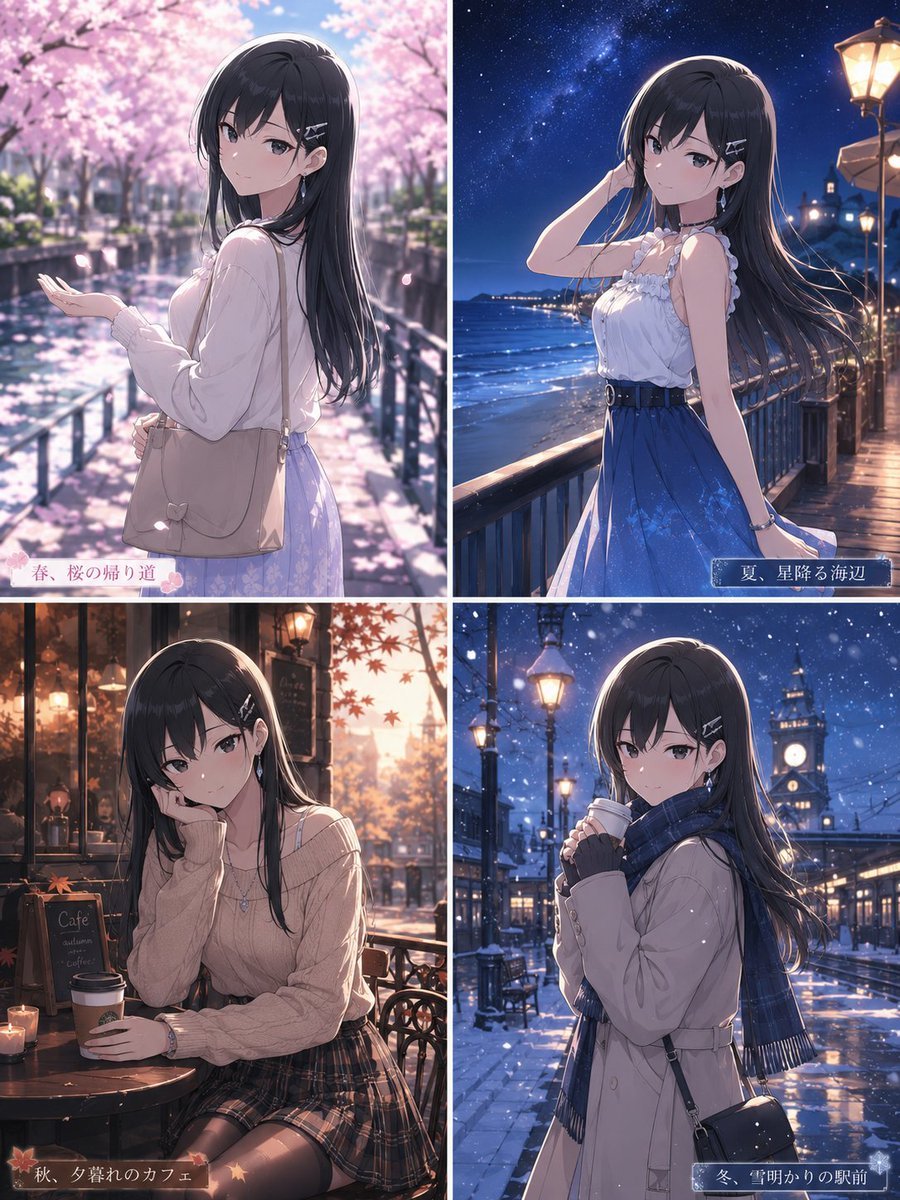
Four Seasons Anime Girl Collage
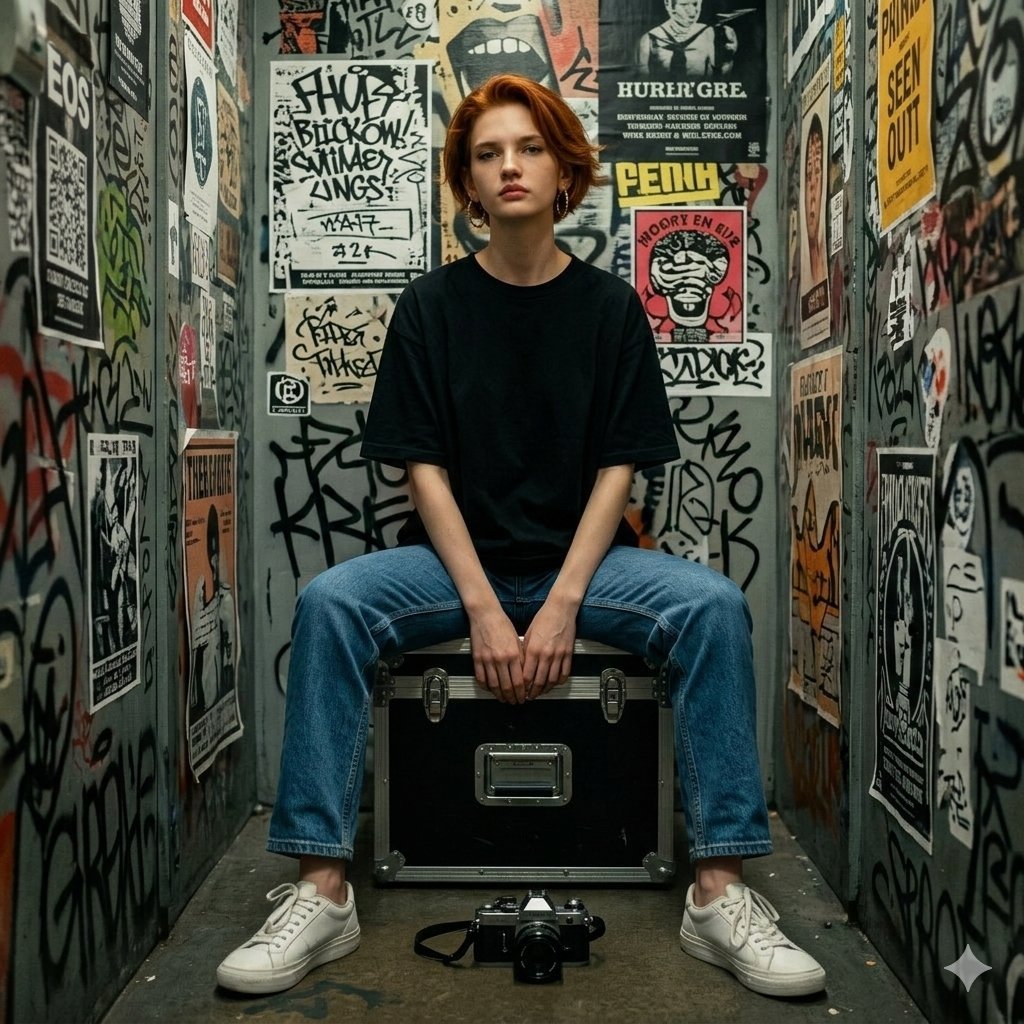
Hyper-realistic Portrait in Graffiti Room
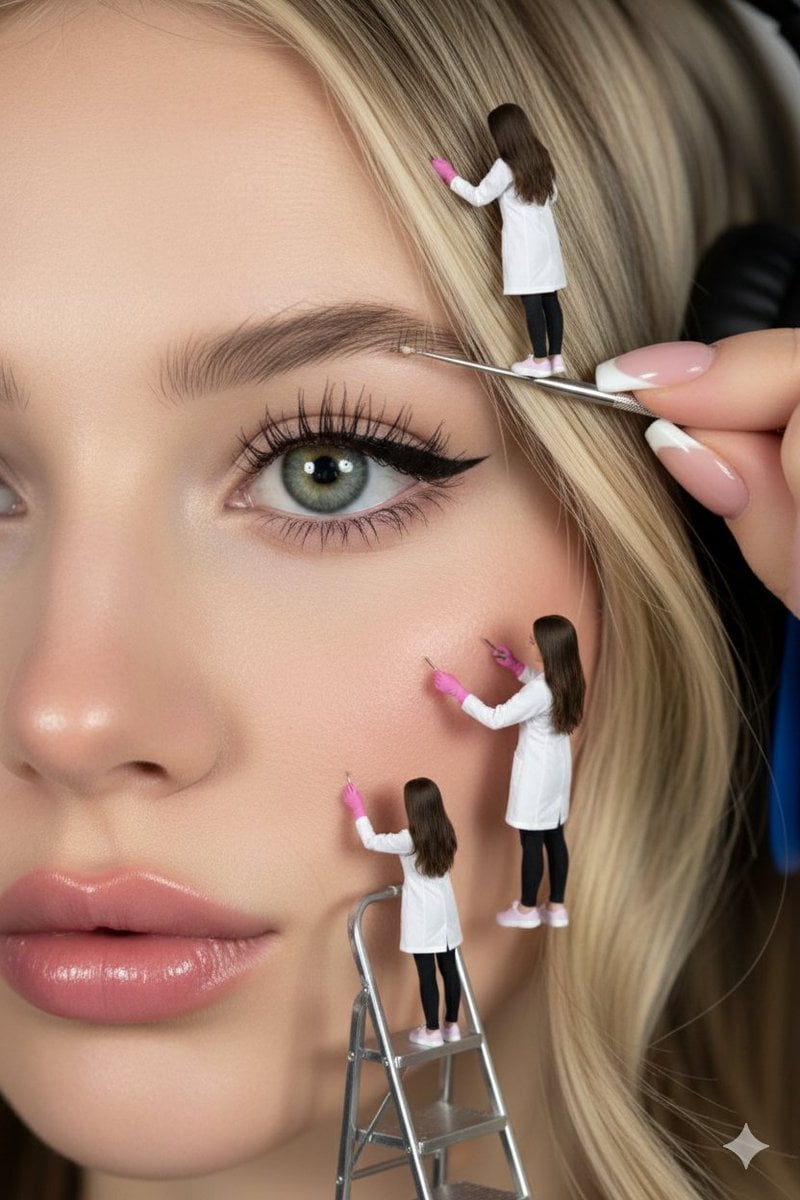
Hyper-realistic close-up of a woman's face being 'maintained' by miniature aesthetic doctors

Ultra-Detailed 3D Plush Cartoon Character Rendering

Cinematic Nightclub Portrait with Neon Lights Prompt
Browse template categories
Qwen Image Model Review Banner questions
How do I use the Qwen Image Model Review Banner template?
Add your photo if the template asks for one, edit the prompt if you like — the template's model and format are already selected — and press Generate. Your version opens in PicX Studio.
Can I customize the Qwen Image Model Review Banner template?
Yes. You can change the subject, setting, lighting, mood, format, and available model controls before creating your image.
Is the Qwen Image Model Review Banner template free?
Opening and editing this template is free. Generating uses credits, shown on the Generate button when you are signed in.
Which AI model should I use?
Start with GPT Image 2, which is the model associated with this template. You can compare another compatible model for a different finish.
Looking for something else? Browse all templates.

Your photo, any look
Thousands of ready templates for every top image and video model, from one credit balance.