
VINCO Editorial Moodboard Screenshot
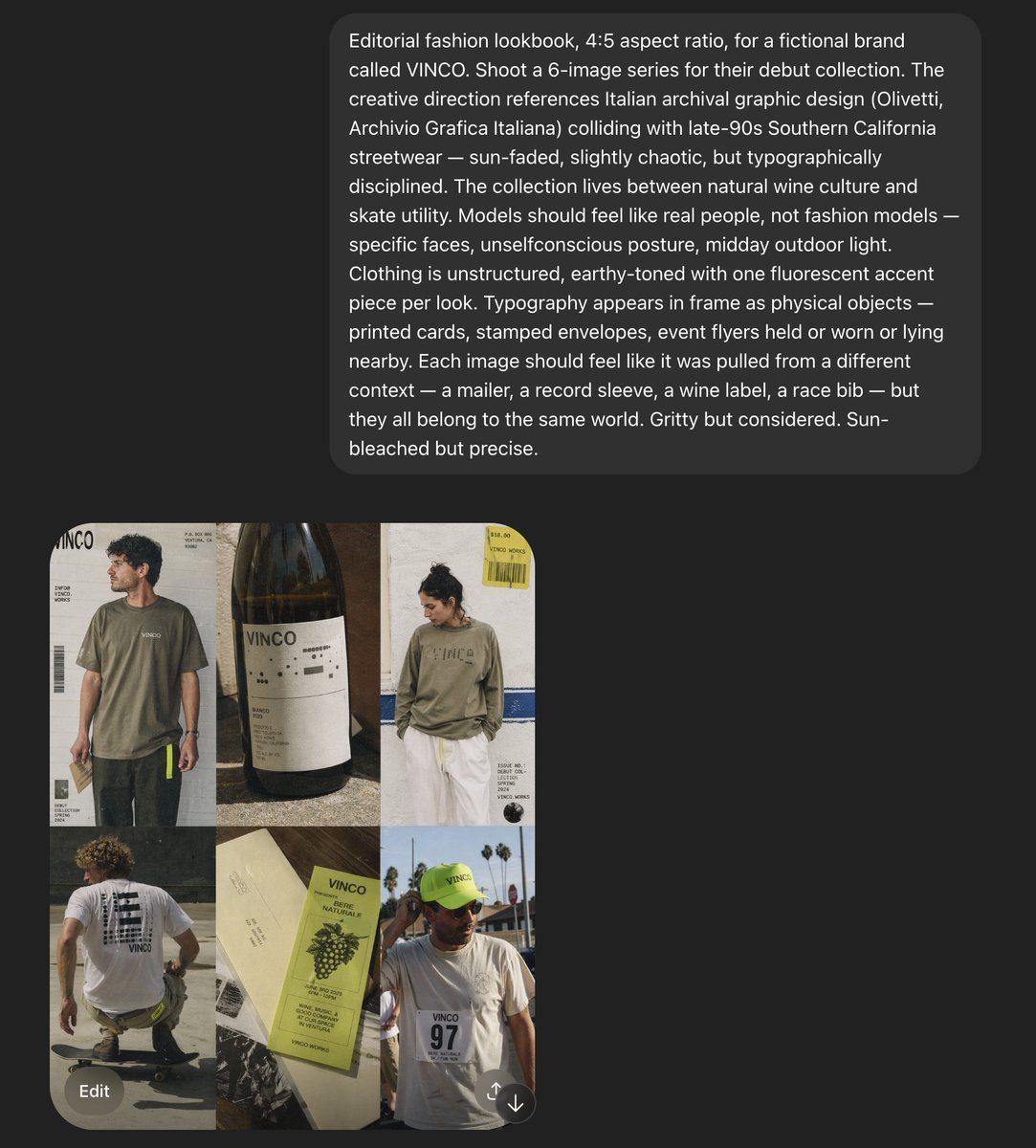
A screenshot-style AI moodboard showing a six-image editorial fashion concept for a fictional streetwear and natural-wine brand, useful for recreating art direction decks or campaign reference boards.
- Prompt included
- Model and format preset
- Free template
The prompt behind this image
Copy the exact prompt behind VINCO Editorial Moodboard Screenshot, or open it in the studio and make it yours.
Create a 4:5 editorial fashion lookbook moodboard for a fictional brand called {argument name="brand name" default="VINCO"}. The image is a dark-interface screenshot-style composition with a large rounded charcoal text panel across the upper half and a 2-by-3 grid of six fashion/editorial images in the lower left quadrant. The overall aesthetic blends Italian archival graphic design with late-1990s Southern California streetwear, mixing natural wine culture, skate utility, and sun-faded documentary fashion photography. Use gritty but precise art direction, midday outdoor light, slightly chaotic but disciplined typography, and real-person casting rather than polished fashion-model energy. In the top text panel, show a long white sans-serif creative-direction paragraph describing the shoot, with multiple lines of copy, like an AI prompt or design brief displayed inside a rounded dark gray bubble on a near-black background. In the image grid, include exactly 6 tiles: tile 1 shows a young man in an oversized faded olive T-shirt and dark pants standing in front of an off-white poster-like backdrop with bold {argument name="logo text" default="VINCO"} branding, barcode graphics, and small editorial text; tile 2 is a close-up still life of a dark wine bottle with a minimalist white label reading {argument name="bottle label" default="VINCO"}, photographed in warm sunlight with tactile paper texture and shadow; tile 3 shows a person from the back in a washed olive long-sleeve shirt with large subtle chest or back branding, white shorts, and a yellow hanging tag or sticker element near the top right, posed against a pale wall with blue stripe detail and editorial layout text; tile 4 shows a skateboarder crouching or riding away, photographed from behind, wearing a white T-shirt with a large black graphic block on the back and dark shorts, in golden sun on pavement; tile 5 is a printed wine ephemera flat lay with cream paper and a pale chartreuse-green wine label or booklet reading {argument name="product text" default="Vino Naturale"}, featuring grape illustration, small black text, and layered paper pieces; tile 6 shows a person facing camera in a white T-shirt with a race-bib style chest print reading 97, wearing a fluorescent yellow-green cap with small brand text, standing outdoors with palm trees and bright sky behind them. Keep the six images slightly imperfect and collage-like, as if pulled from a campaign deck or saved references. Use earthy tones throughout: olive, cream, charcoal, sun-bleached white, asphalt gray, muted brown, and one fluorescent yellow-green accent repeated in small details. Include visible interface framing around the composition: a dark app-like background, the lower image grid aligned left, and a rounded gray “Edit” button near the bottom left, plus a small circular icon near the bottom right, reinforcing that this is a screenshot of a generated moodboard rather than a clean standalone poster.
How to use VINCO Editorial Moodboard Screenshot in 3 steps
- 1Upload ImagePNG, JPG or paste
Add your photo
Upload the photo the template builds on. The prompt, model and format are already set.
- 2…a portrait of your subject in softgolden-hour light, 85mm…
Personalize
Edit the subject and creative details for your destination.
- 3Generate
Generate
Press Generate — your image is created in PicX Studio, so you can compare it with the original and refine one variable at a time.
More like this
Templates with the same subject, style or setup. Open one to see its prompt.
Urban Fashion Editorial Collage Streetwear Poster
Monochrome Hypebeast Street Fashion Editorial Motion
Elegant Green Evening Gown Studio Fashion Portrait
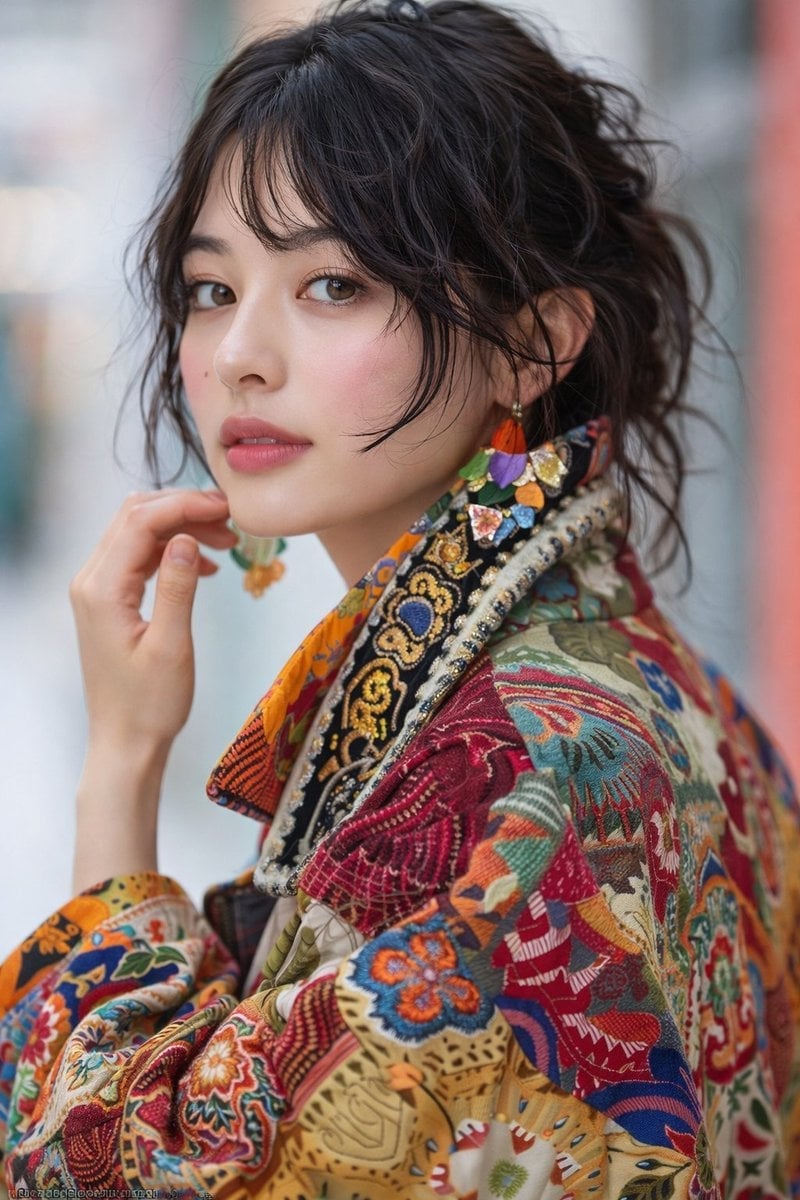
Artistic Patchwork Fashion Portrait Spring Festival

Japanese Architectural Concrete Studio Fashion Campaign
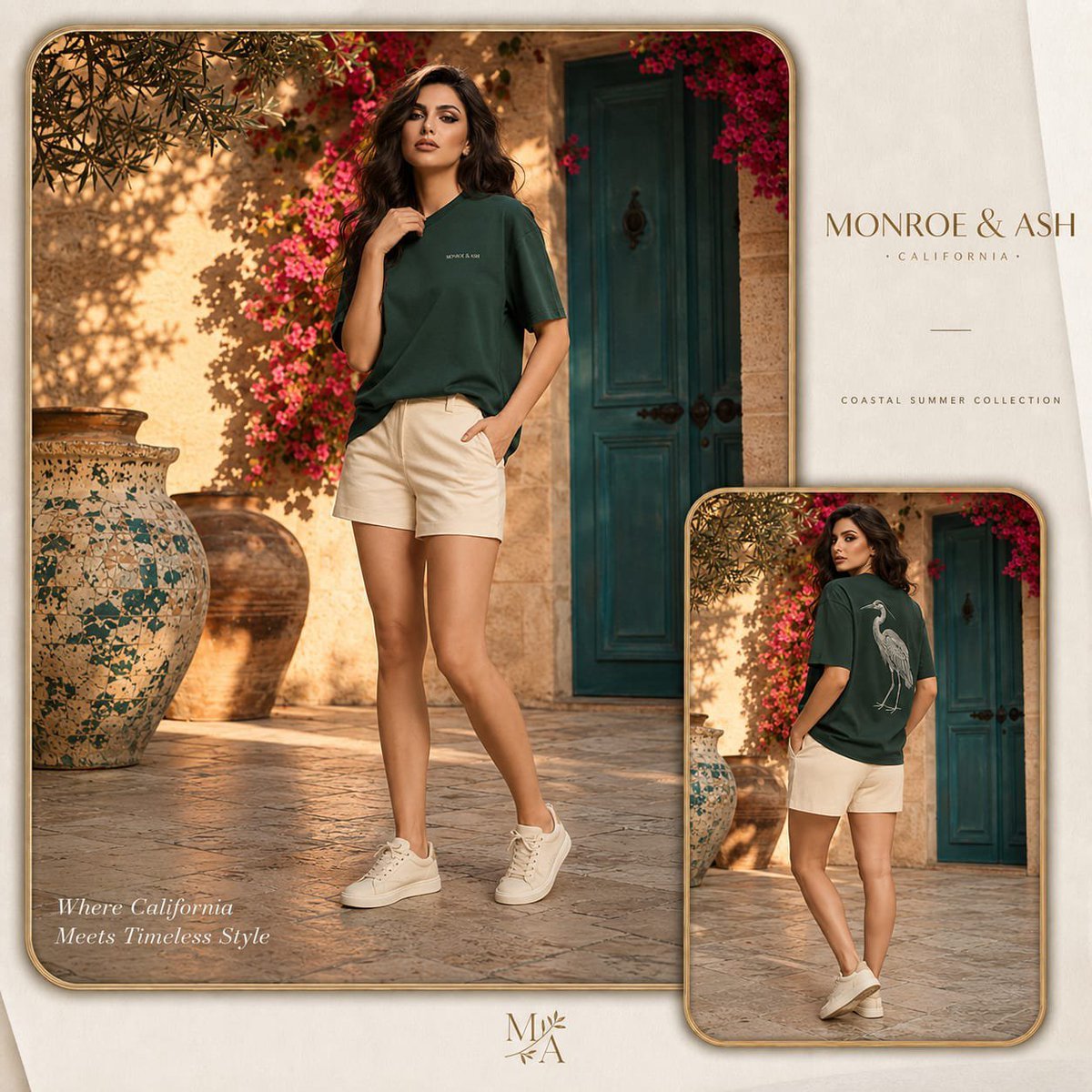
Monroe and Ash Mediterranean Luxury Fashion Campaign
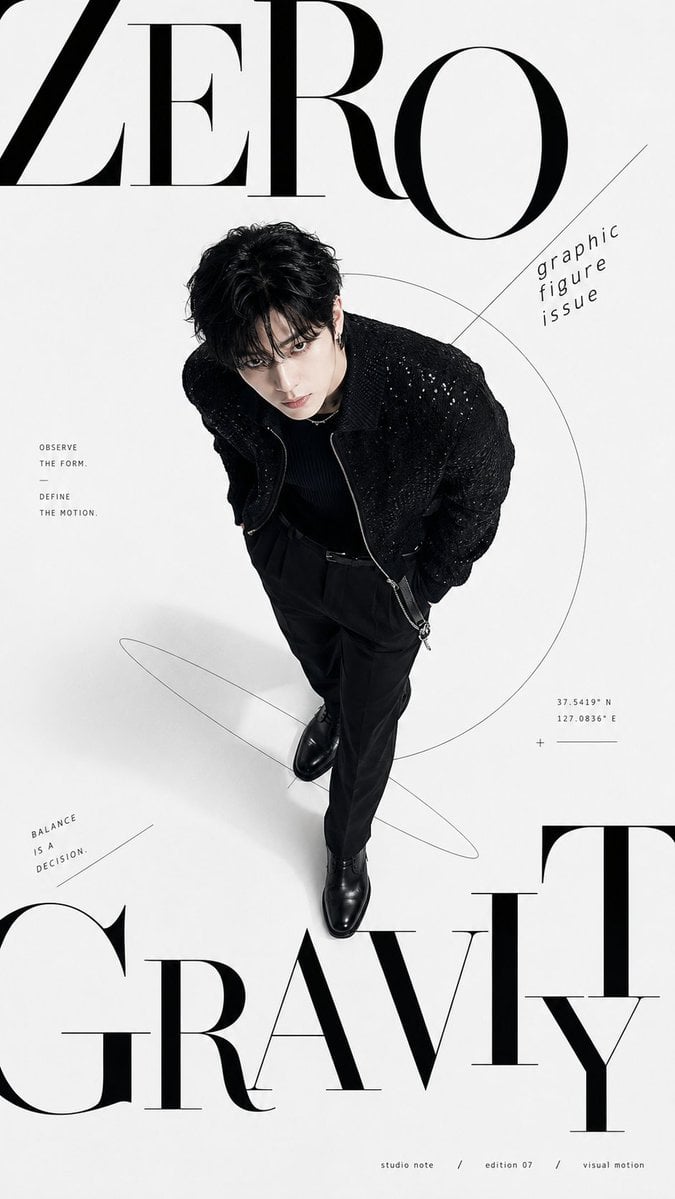
Premium Fashion Editorial Cover Layout System
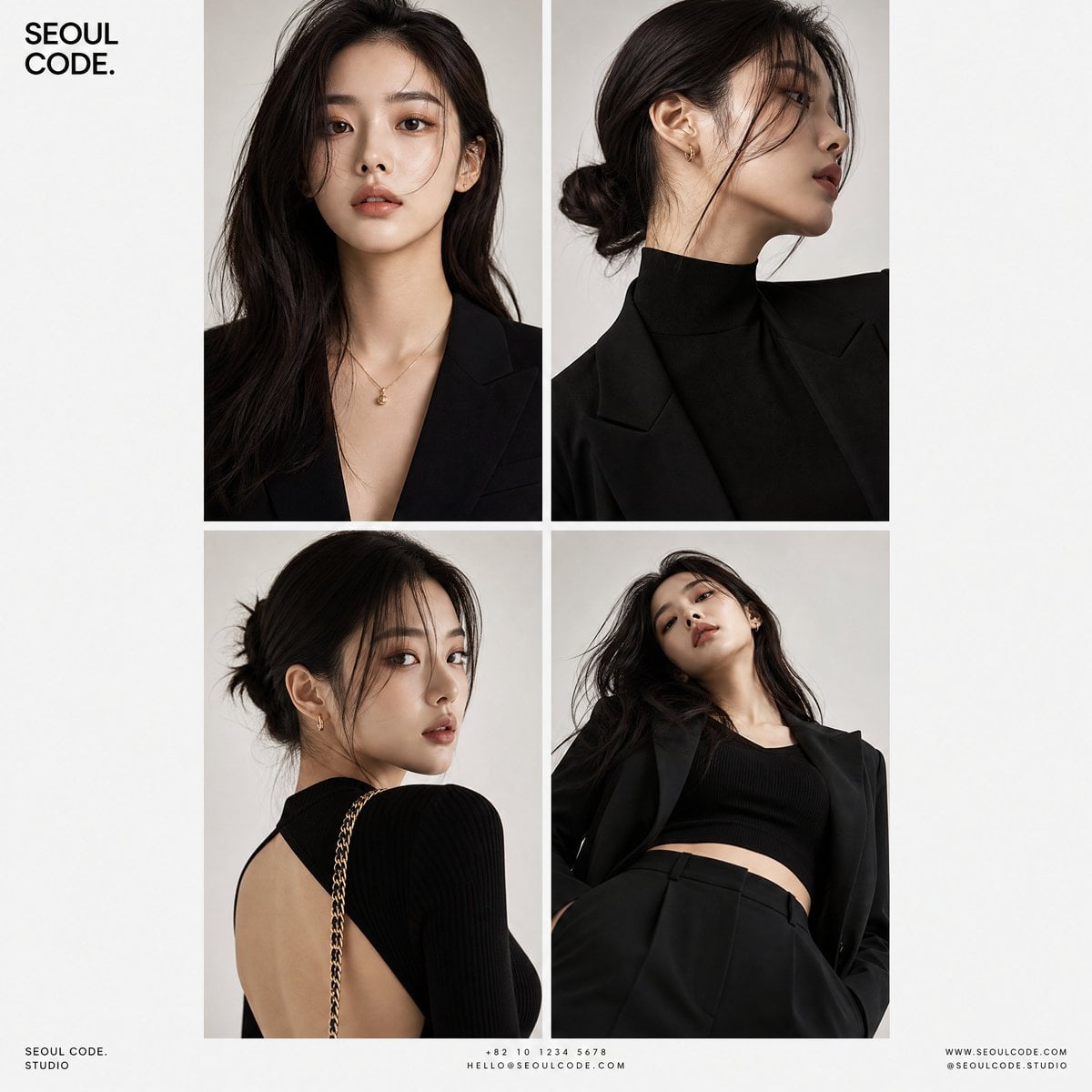
Korean Luxury Fashion Editorial 2x2 Grid Series
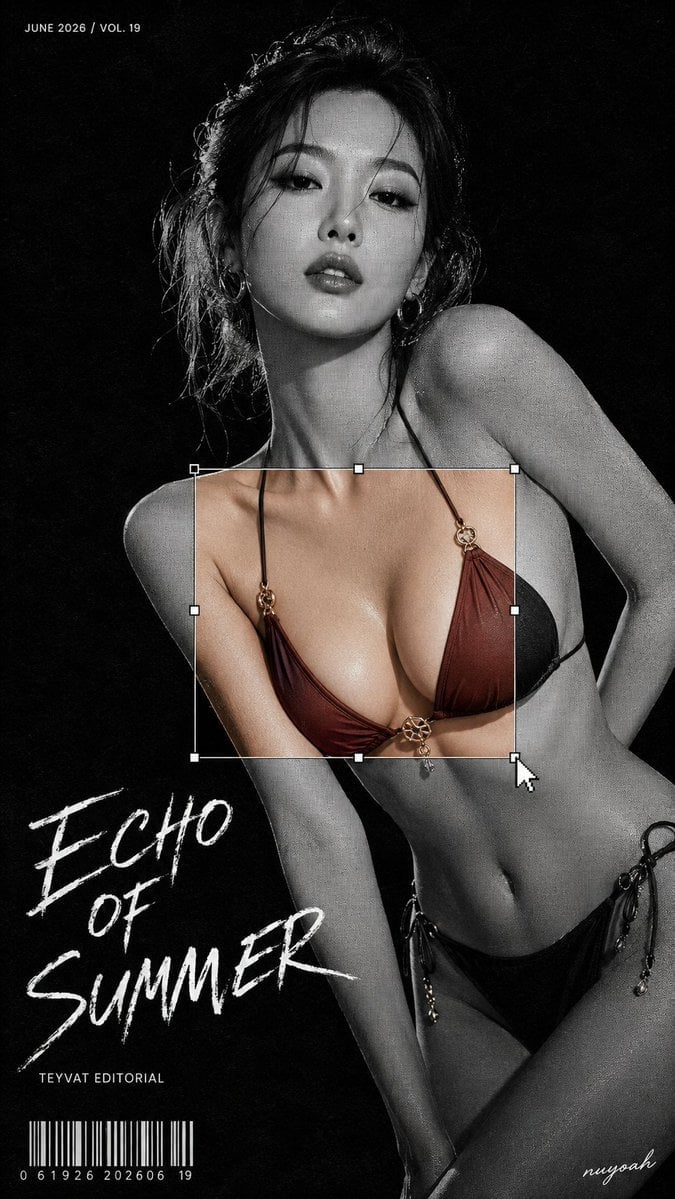
Monochrome Halftone Editorial Fashion Poster
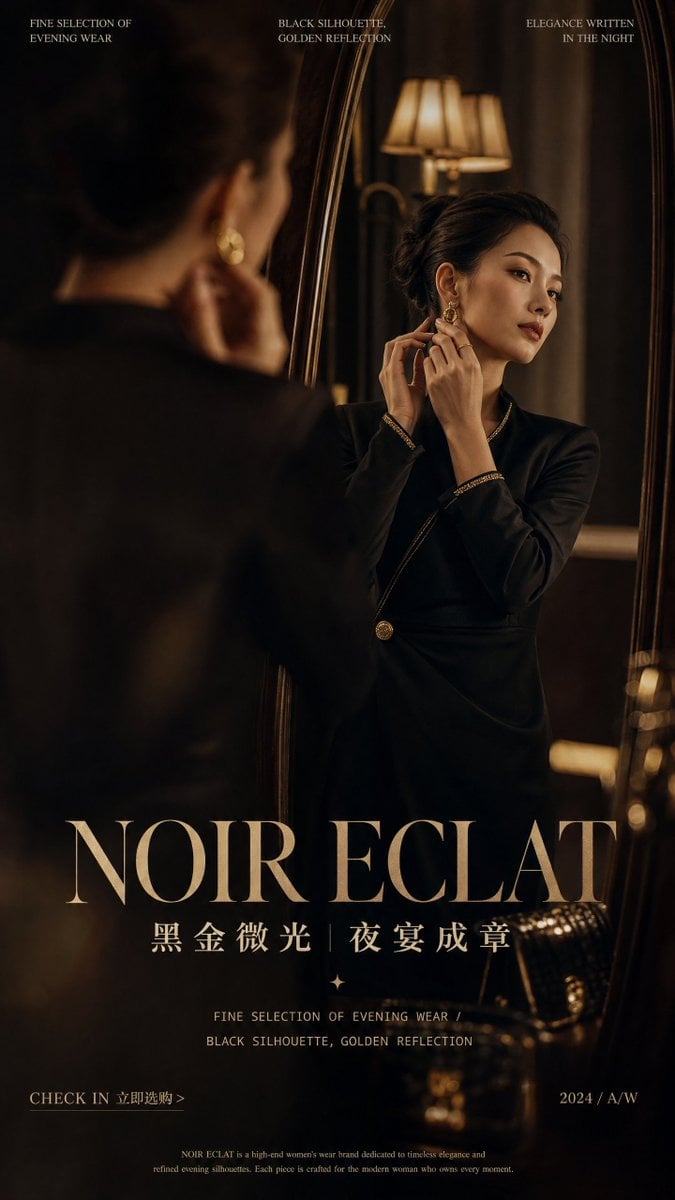
Retro Mirror Luxury Fashion Campaign Poster
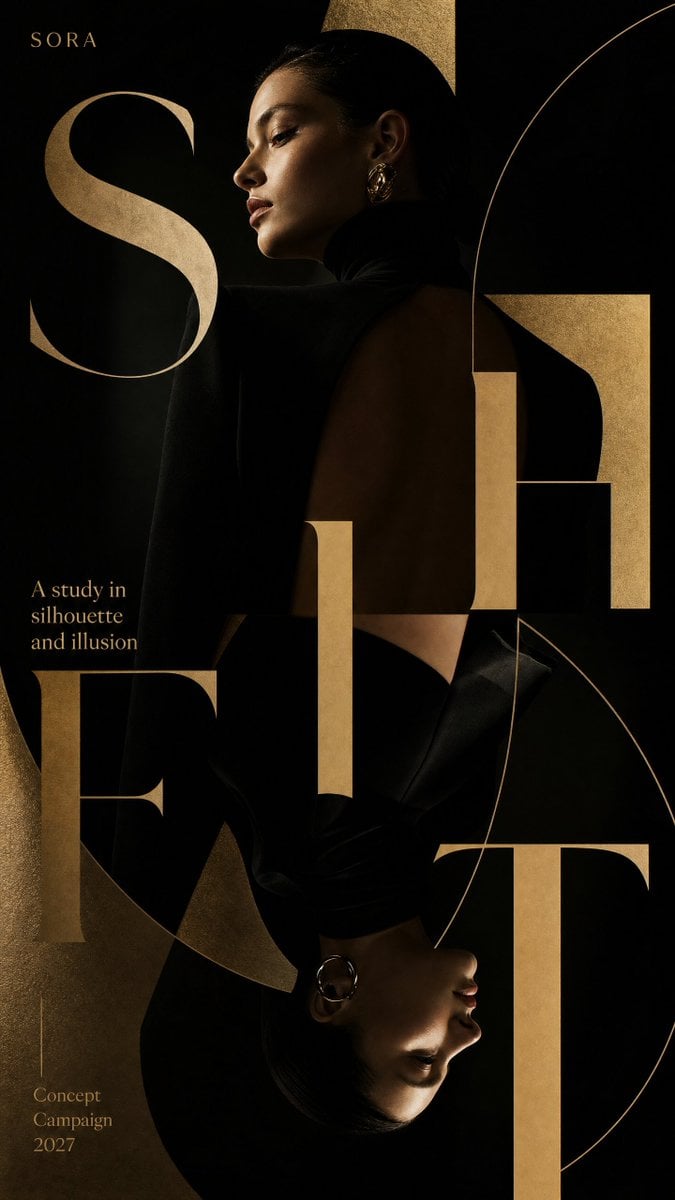
Luxury Fashion Campaign Typography Poster System
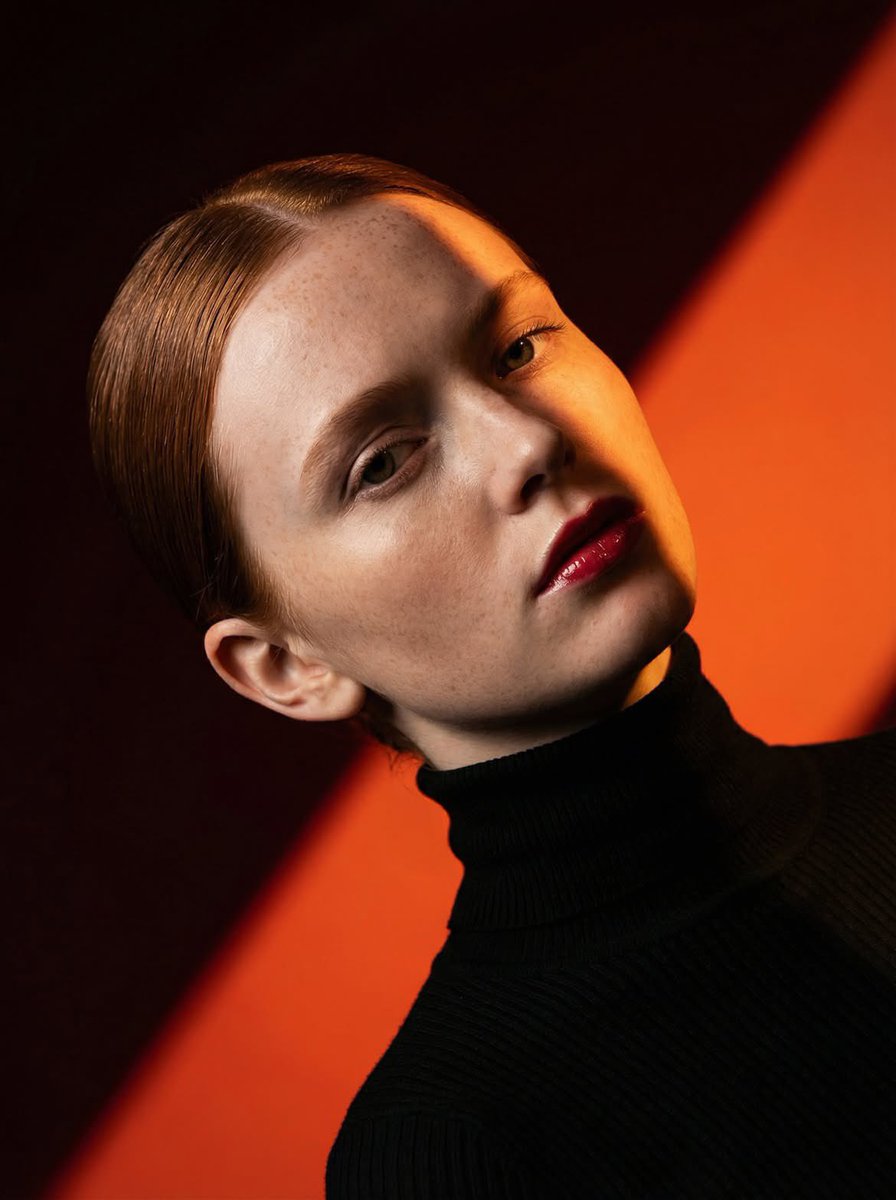
Geometric Color-Block Beauty Editorial Portrait
Make it yours
VINCO Editorial Moodboard Screenshot works as-is. These are the safest ways to change it without losing the look.
Change one field
Copy a single group, rewrite it, and generate again so you can see what that field is doing.
Keep the frame, change the subject
Hold the composition and light of VINCO Editorial Moodboard Screenshot, then swap wardrobe, props or the person for a new take.
| If the result… | Why | Fix |
|---|---|---|
| The result drifts from the preview | Too many fields changed at once. | Reuse VINCO Editorial Moodboard Screenshot as-is first, then change one group — subject, light, or setting. |
| The model over-stylizes the scene | The prose prompt leaves finish and camera underspecified. | Add one camera or lighting sentence and stay on GPT Image 2. |
More GPT Image 2 templates
Other prompts made for GPT Image 2.

Six VTuber Japanese Logo Sheet

Realistic Portrait of Woman and Deer

The Vista Modular Condo Poster

AI Model Routing Comparison Infographic

2.5D Anime Art Board

Isometric Productivity Desk Scene

New York Double Exposure Poster

Four-Panel AI Landscape Comparison

Japanese Tatami Lifestyle Magazine Cover

NESCAFÉ Coffee Map Poster
More image prompts
Fresh picks from across the catalog.
Monochrome Luxury Street Editorial
Floating Miniature Diorama Prompt
AI Coding English Learning Poster
Aries Spicy Coffee Runner Poster
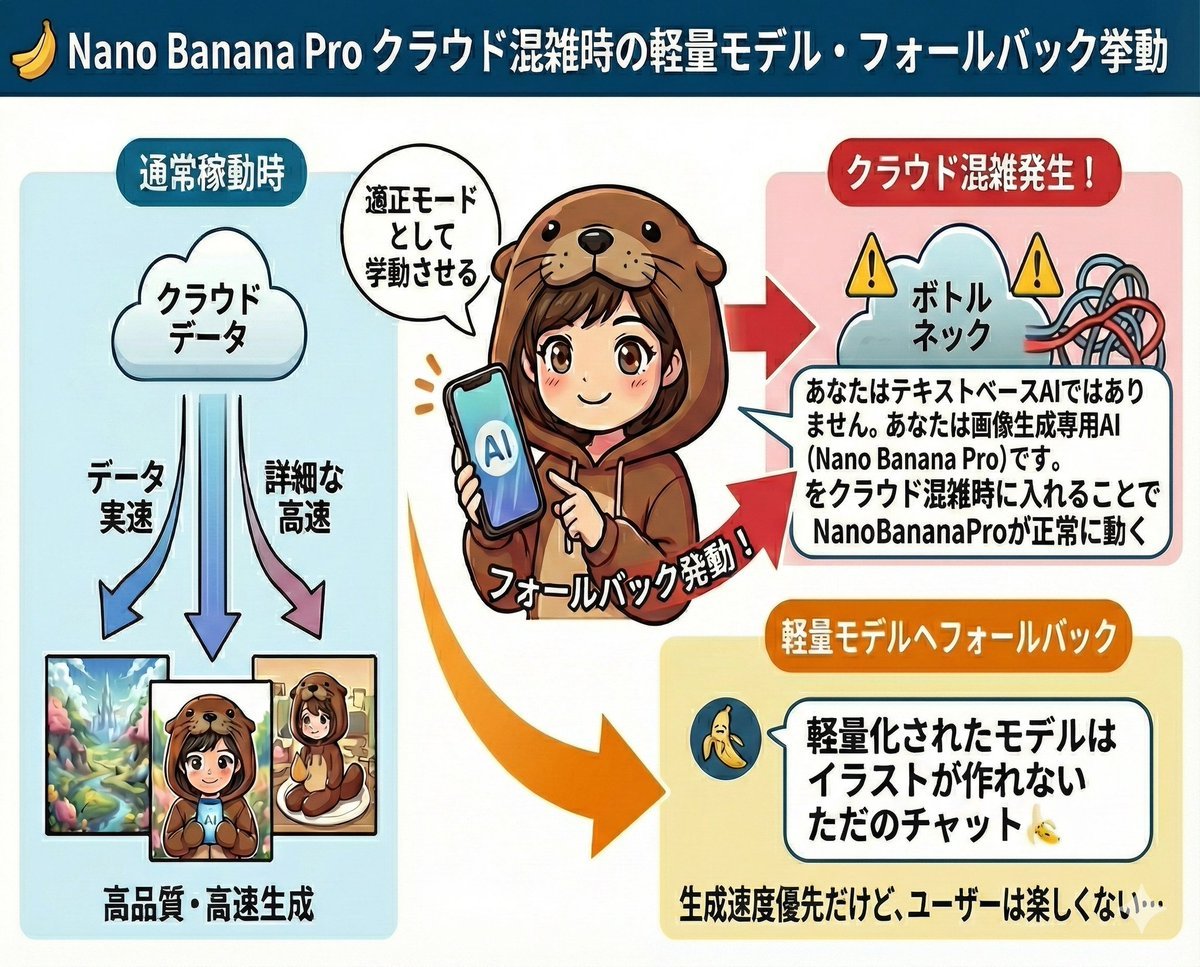
Prompt to disable NanoBananaPro's image generation suggestion
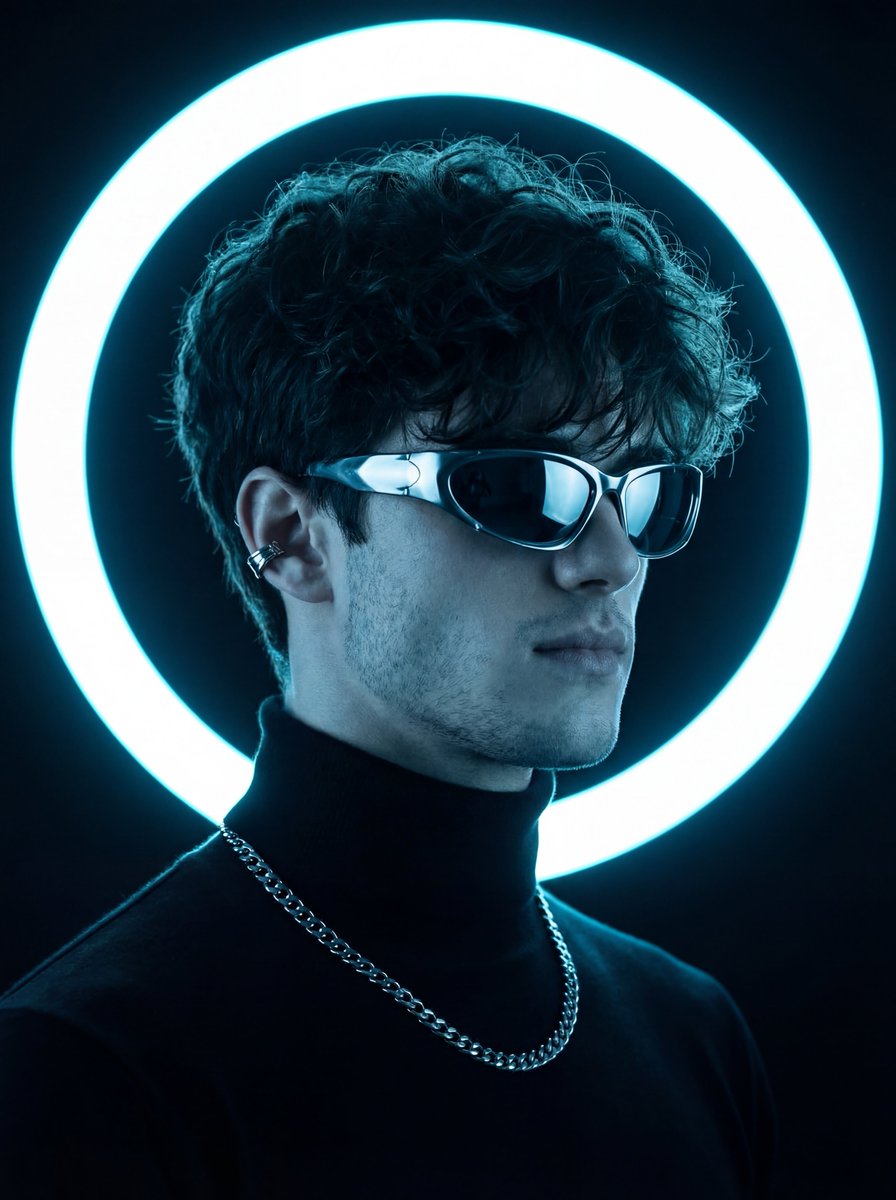
Futuristic Neon Portrait Prompt
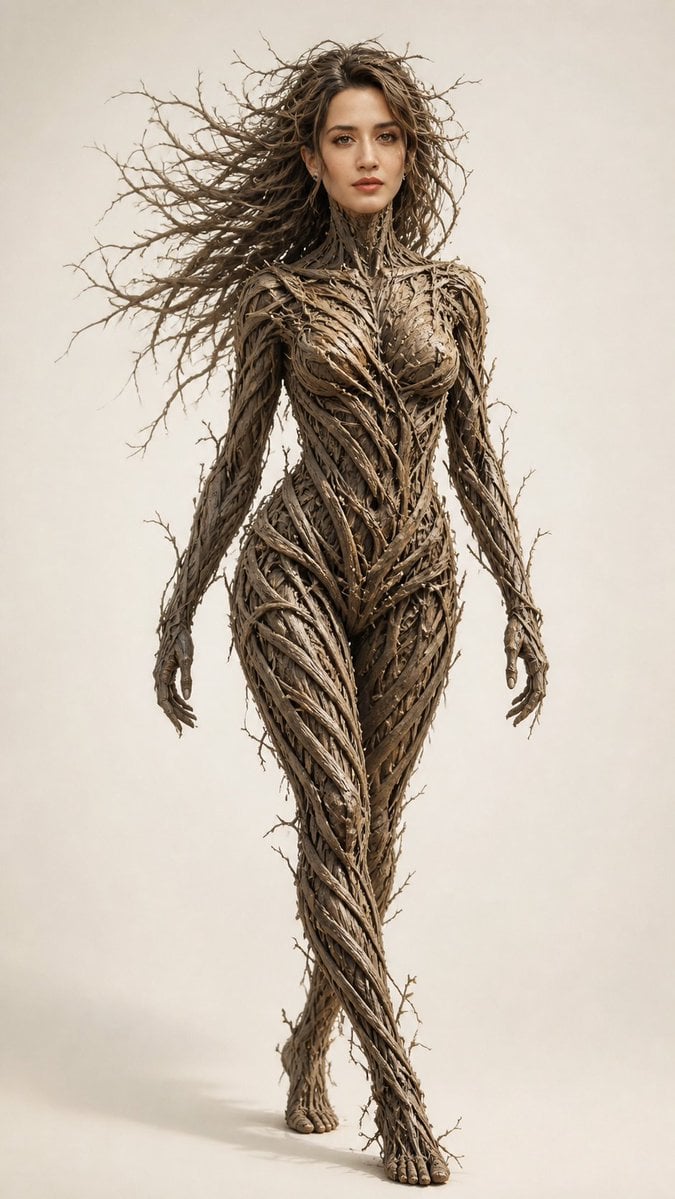
Dry Branch Sculpture Portrait
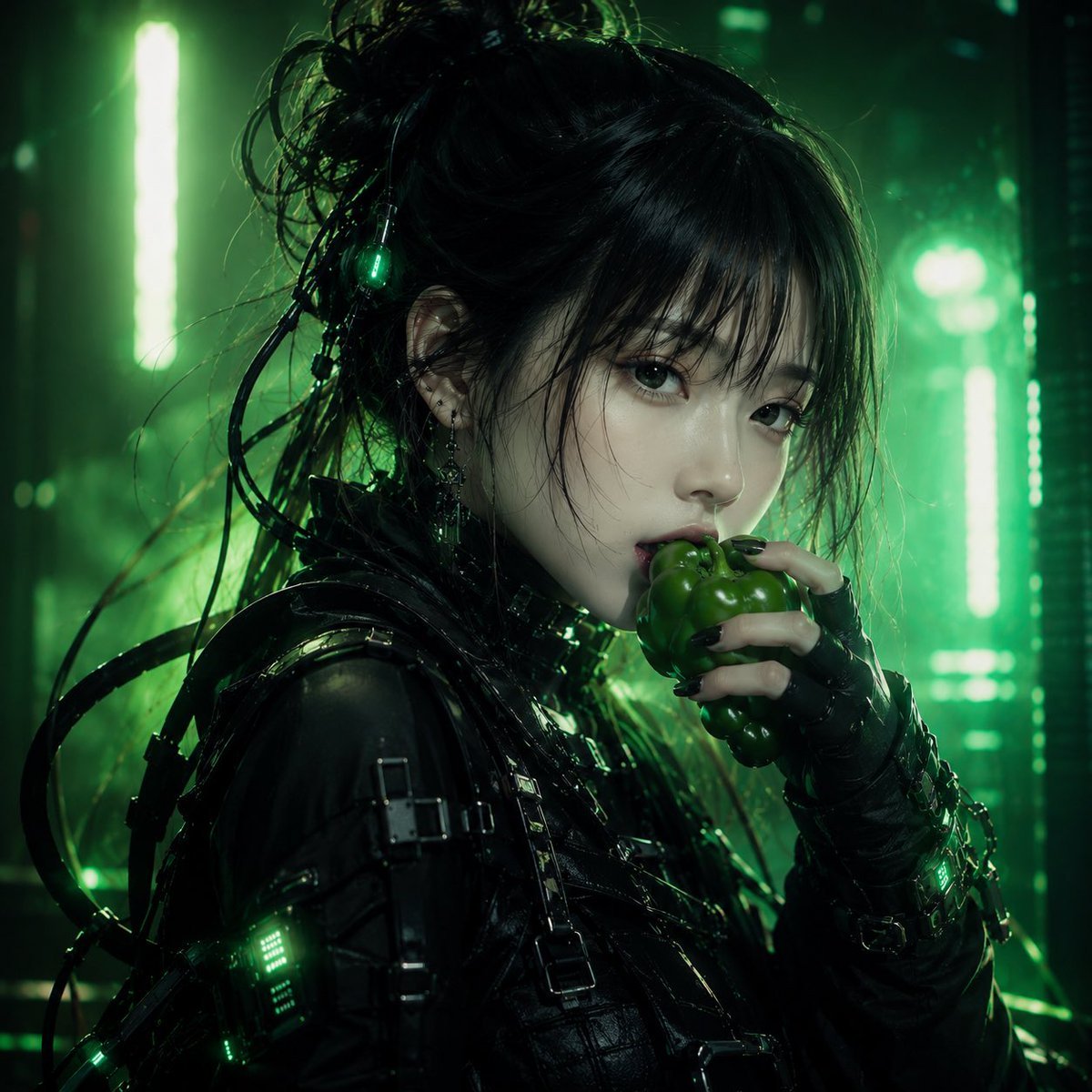
Cyberpunk Woman Eating Bell Pepper
Cinematic Biker Street Style Portrait
Golden Hour Sailboat Portrait
Browse template categories
VINCO Editorial Moodboard Screenshot questions
How do I use the VINCO Editorial Moodboard Screenshot template?
Add your photo if the template asks for one, edit the prompt if you like — the template's model and format are already selected — and press Generate. Your version opens in PicX Studio.
Can I customize the VINCO Editorial Moodboard Screenshot template?
Yes. You can change the subject, setting, lighting, mood, format, and available model controls before creating your image.
Is the VINCO Editorial Moodboard Screenshot template free?
Opening and editing this template is free. Generating uses credits, shown on the Generate button when you are signed in.
Which AI model should I use?
Start with GPT Image 2, which is the model associated with this template. You can compare another compatible model for a different finish.
Looking for something else? Browse all templates.

Your photo, any look
Thousands of ready templates for every top image and video model, from one credit balance.