
Bilibili Livestream Scene
A prompt for a 9:16 vertical image simulating a Bilibili livestream featuring a specific personality and custom text on a sign.
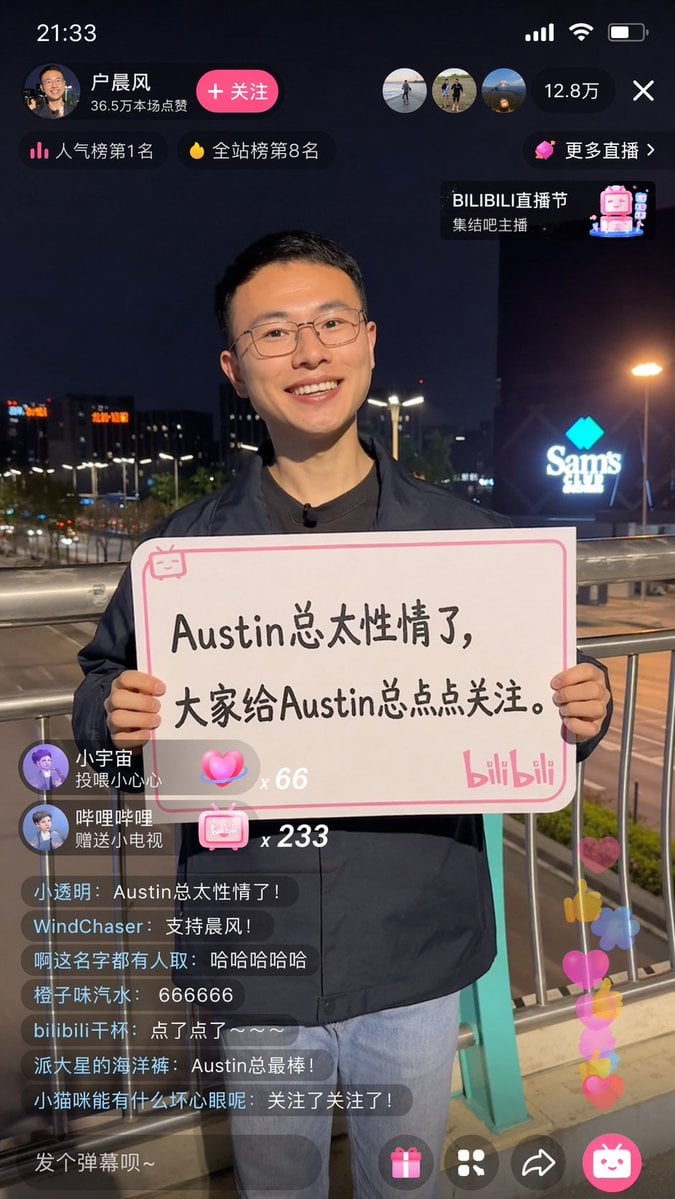
- Prompt included
- Model and format preset
- Free template
The prompt behind this image
Copy the exact prompt behind Bilibili Livestream Scene, or open it in the studio and make it yours.
A 9:16 image; generate a screenshot of a {argument name="platform" default="Bilibili"} livestream, showing {argument name="person" default="Hu Chenfeng"} livestreaming; Hu Chenfeng has a happy expression, holding a sign in his hands, and the sign reads "{argument name="text" default="Austin总太性情了,大家给Austin总点点关注。"}"
How to use Bilibili Livestream Scene in 3 steps
- 1
Open
The prompt is already in the box next to the preview, with the template's model and format selected.
- 2…a portrait of your subject in softgolden-hour light, 85mm…
Personalize
Edit the subject and creative details for your destination.
- 3Generate
Generate
Press Generate — your image is created in PicX Studio, so you can compare it with the original and refine one variable at a time.
More like this
Templates with the same subject, style or setup. Open one to see its prompt.
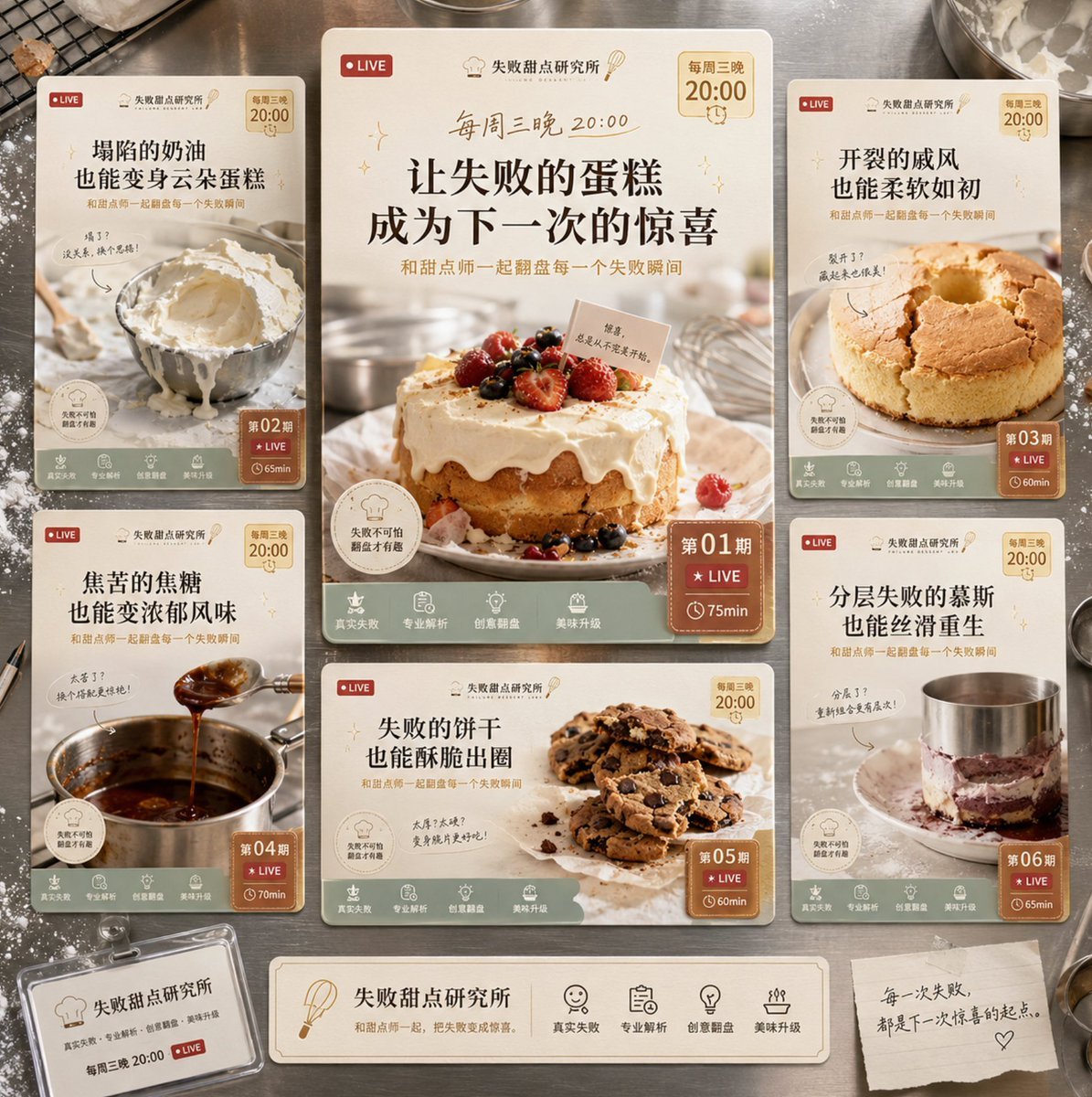
Dessert Livestream Branding Cover System
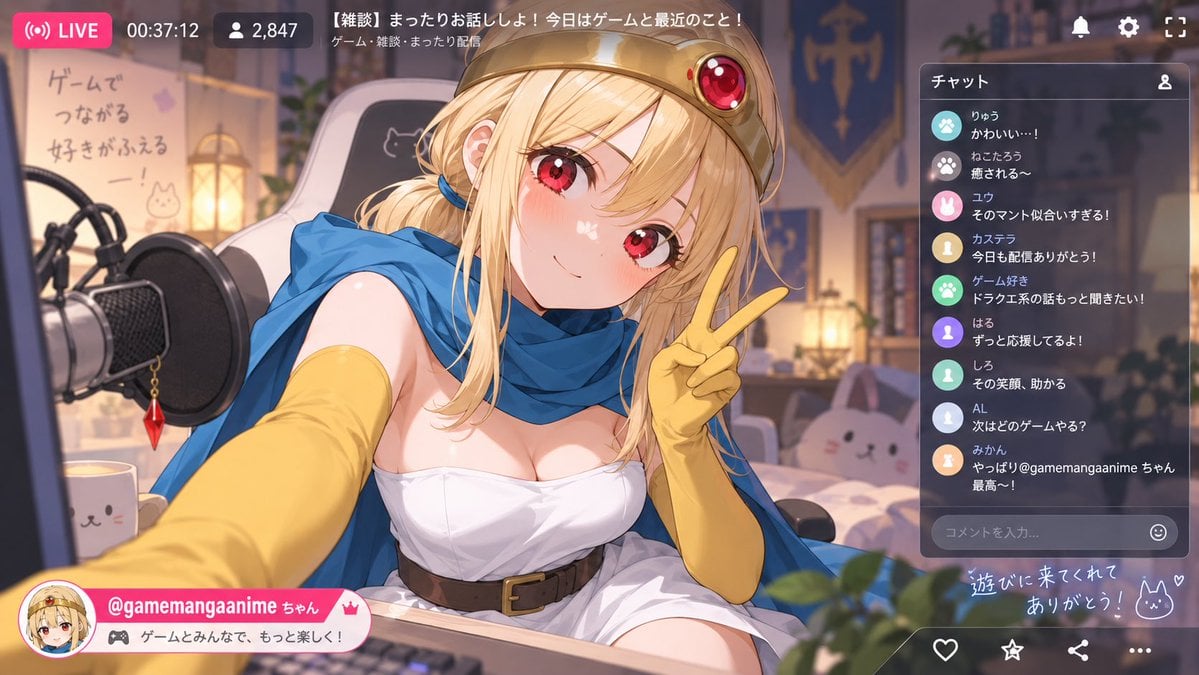
Anime VTuber Livestream Screenshot
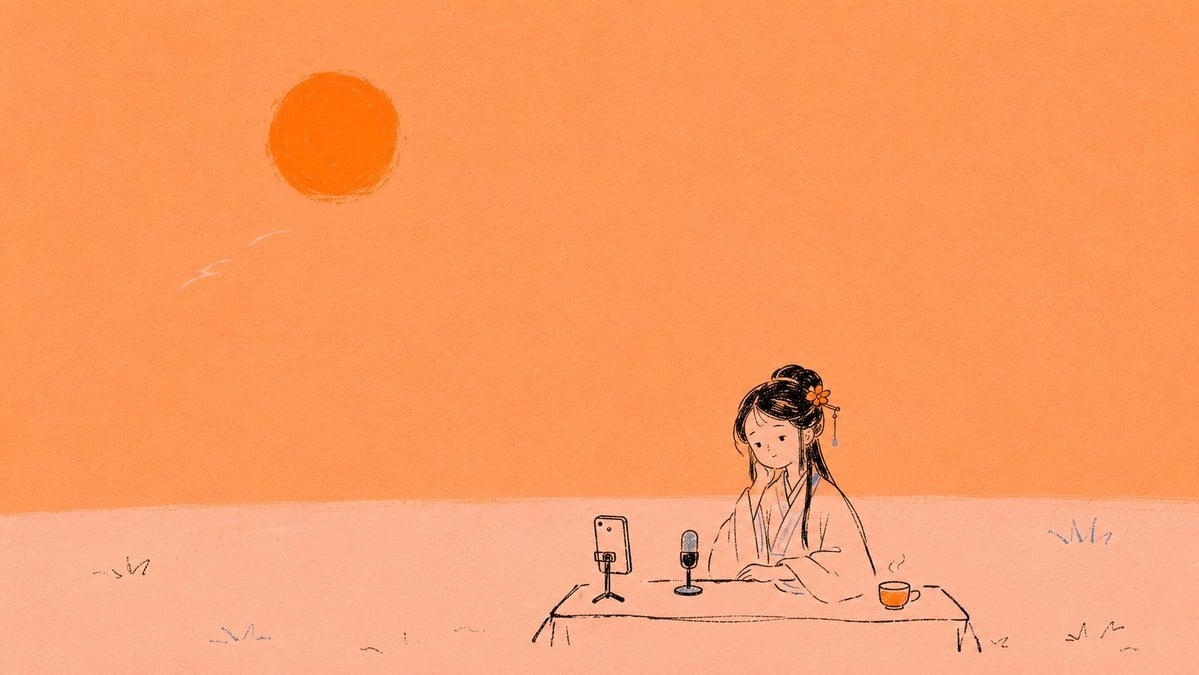
Minimal Orange Lin Daiyu Livestream Illustration

Cozy Anime Morning Livestream

3D E-commerce Livestream Promo Poster
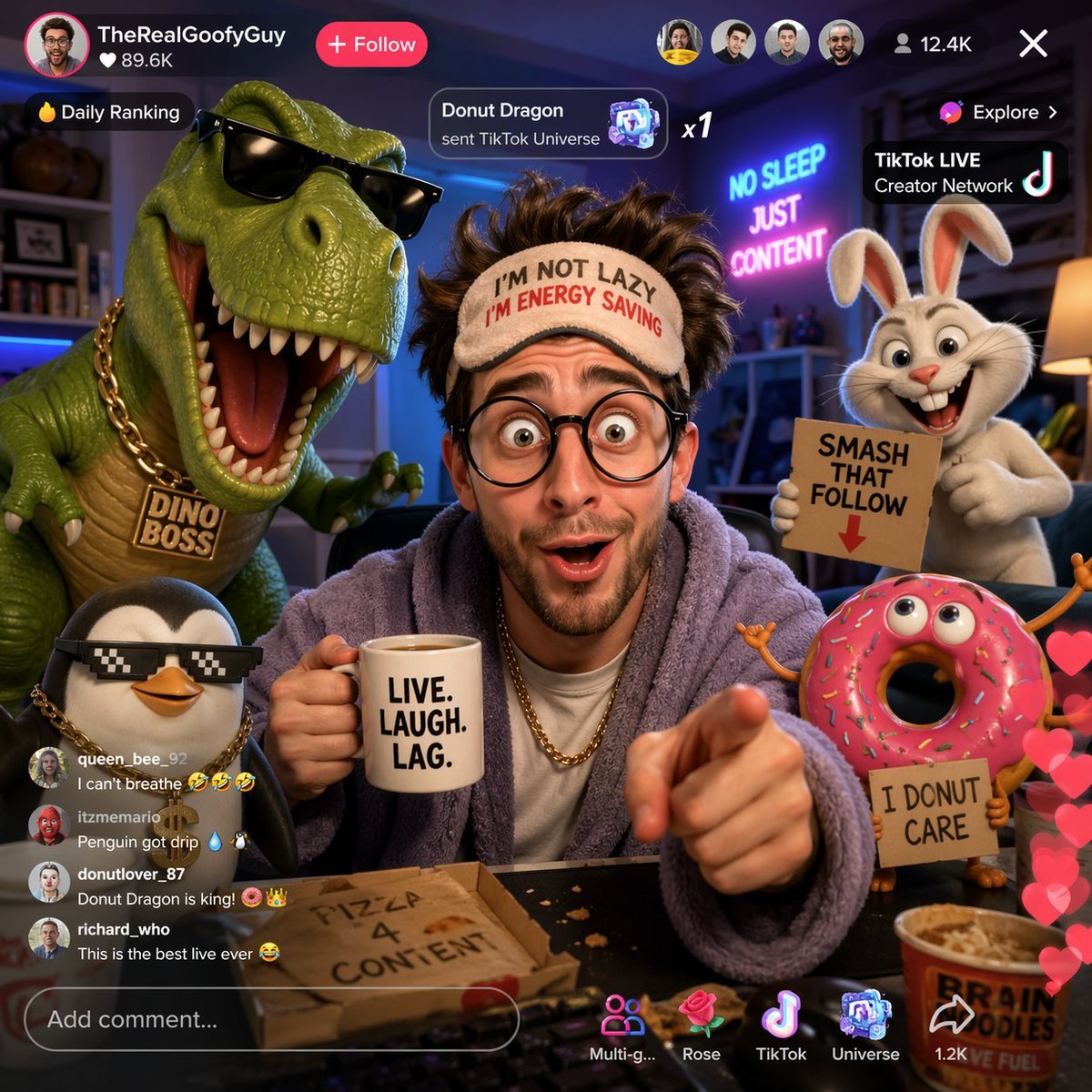
Funny TikTok livestream with cartoon characters
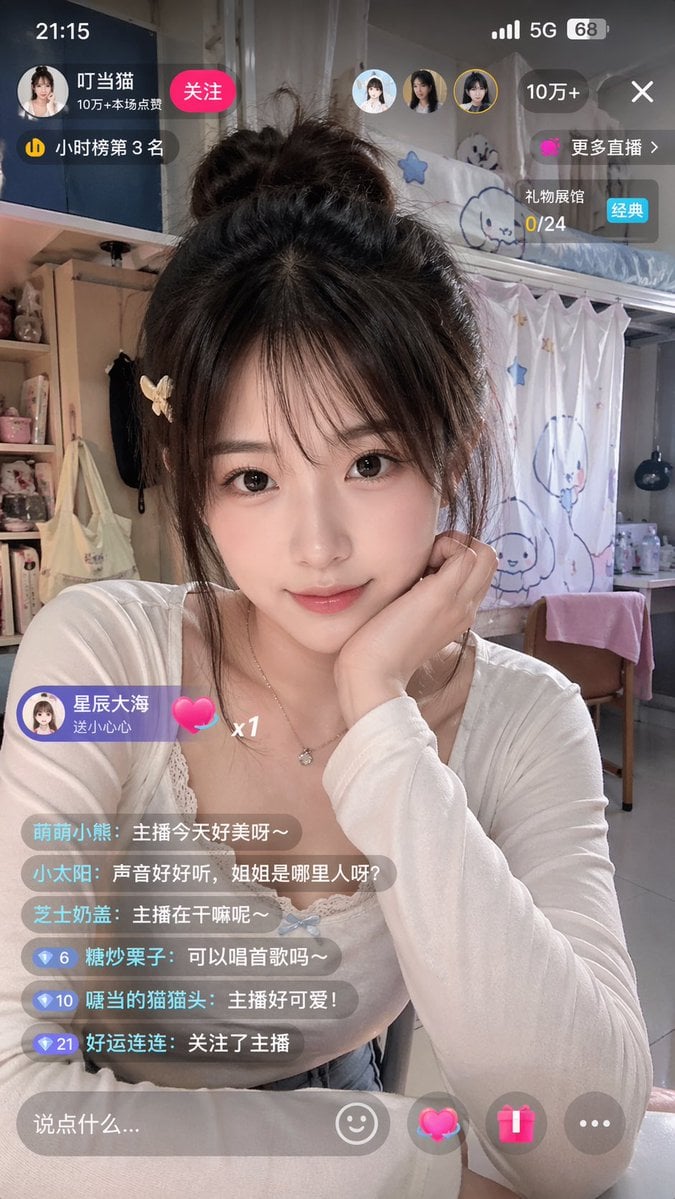
Chinese Livestream Dorm Selfie UI
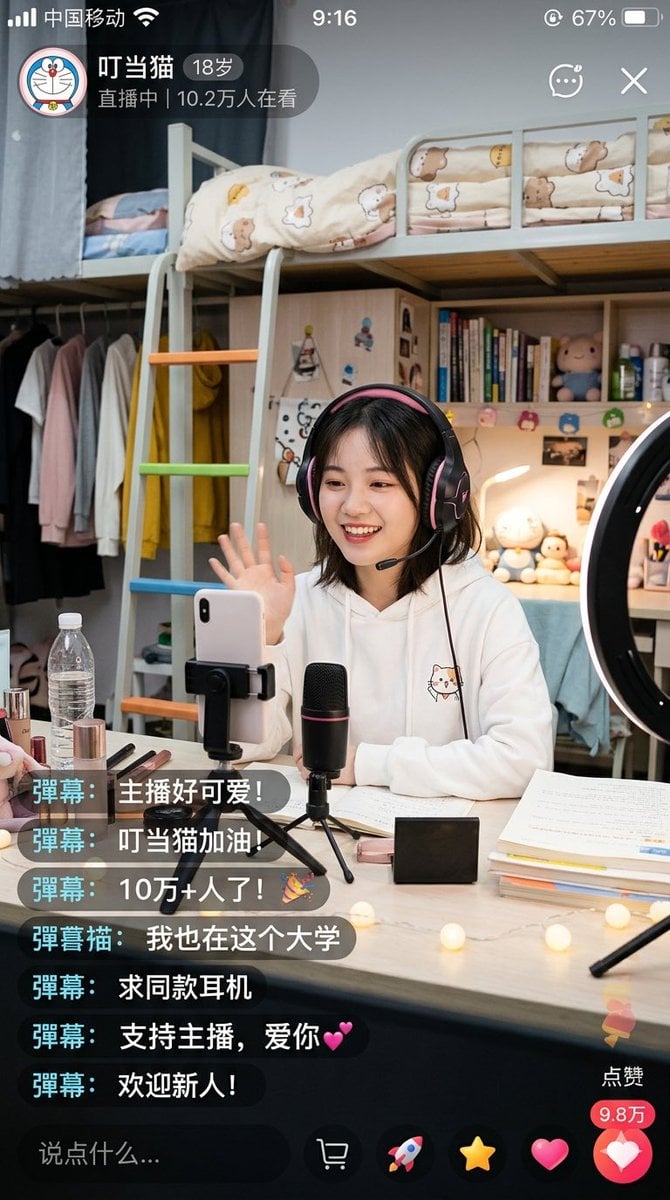
Chinese Dorm Livestream Screenshot
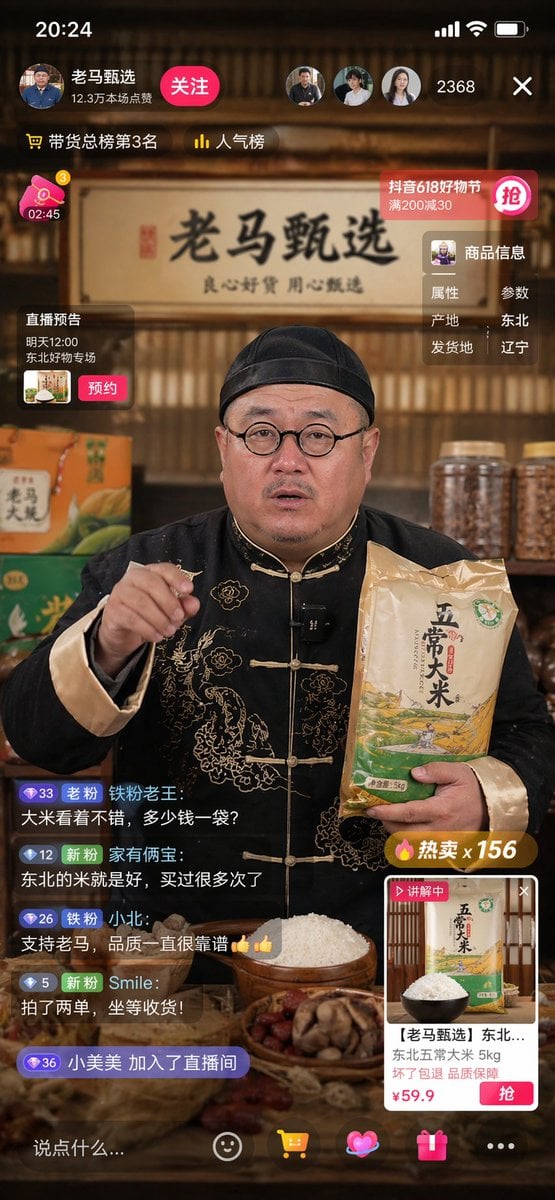
Livestreaming Character Prompt
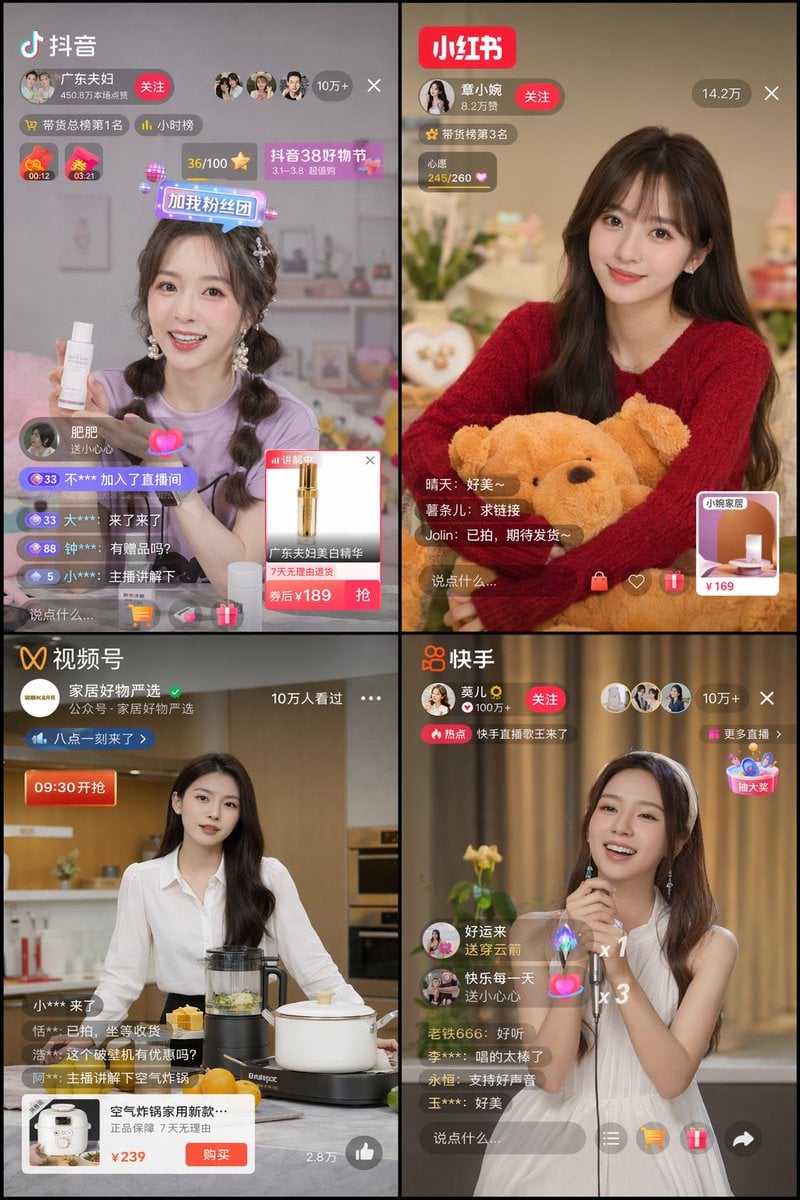
Chinese Livestreaming App UI Grid
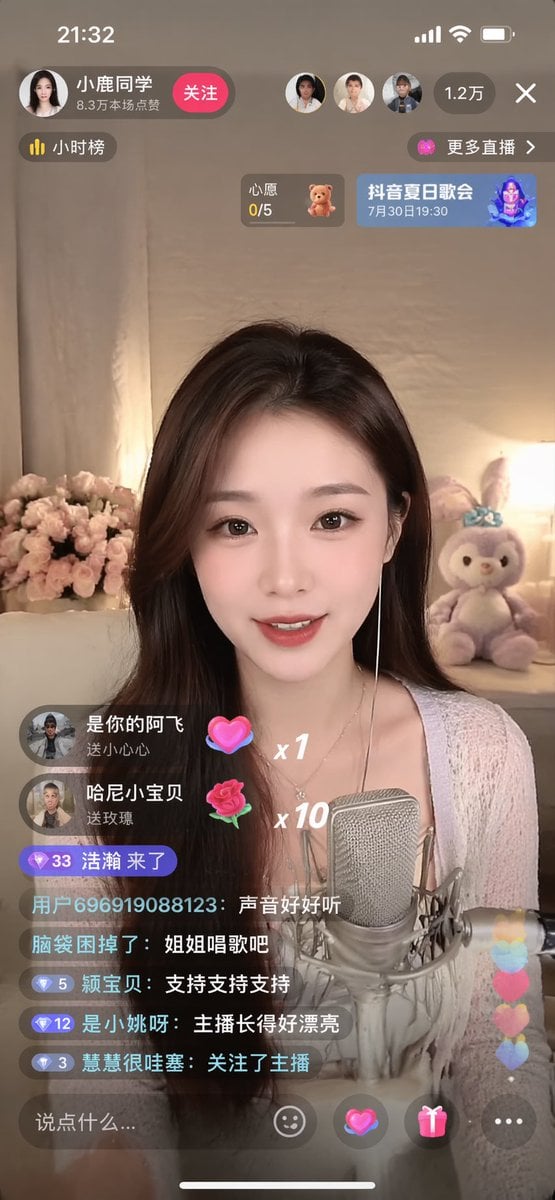
Simple Livestream Screenshot
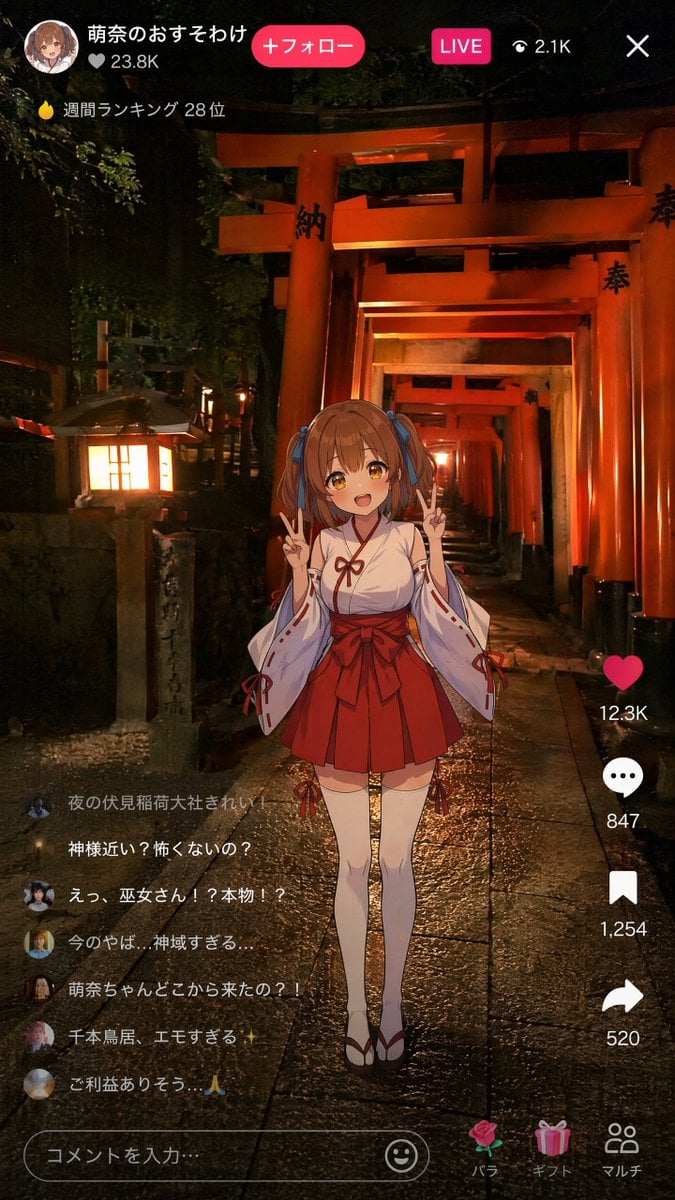
Anime Miko Night Shrine Livestream
Make it yours
Bilibili Livestream Scene works as-is. These are the safest ways to change it without losing the look.
Change one field
Copy a single group, rewrite it, and generate again so you can see what that field is doing.
Keep the frame, change the subject
Hold the composition and light of Bilibili Livestream Scene, then swap wardrobe, props or the person for a new take.
| If the result… | Why | Fix |
|---|---|---|
| The result drifts from the preview | Too many fields changed at once. | Reuse Bilibili Livestream Scene as-is first, then change one group — subject, light, or setting. |
| The model over-stylizes the scene | The prose prompt leaves finish and camera underspecified. | Add one camera or lighting sentence and stay on GPT Image 2. |
More GPT Image 2 templates
Other prompts made for GPT Image 2.

Six VTuber Japanese Logo Sheet

Realistic Portrait of Woman and Deer

The Vista Modular Condo Poster

AI Model Routing Comparison Infographic

2.5D Anime Art Board

Isometric Productivity Desk Scene

New York Double Exposure Poster

Four-Panel AI Landscape Comparison

Japanese Tatami Lifestyle Magazine Cover

NESCAFÉ Coffee Map Poster
More image prompts
Fresh picks from across the catalog.
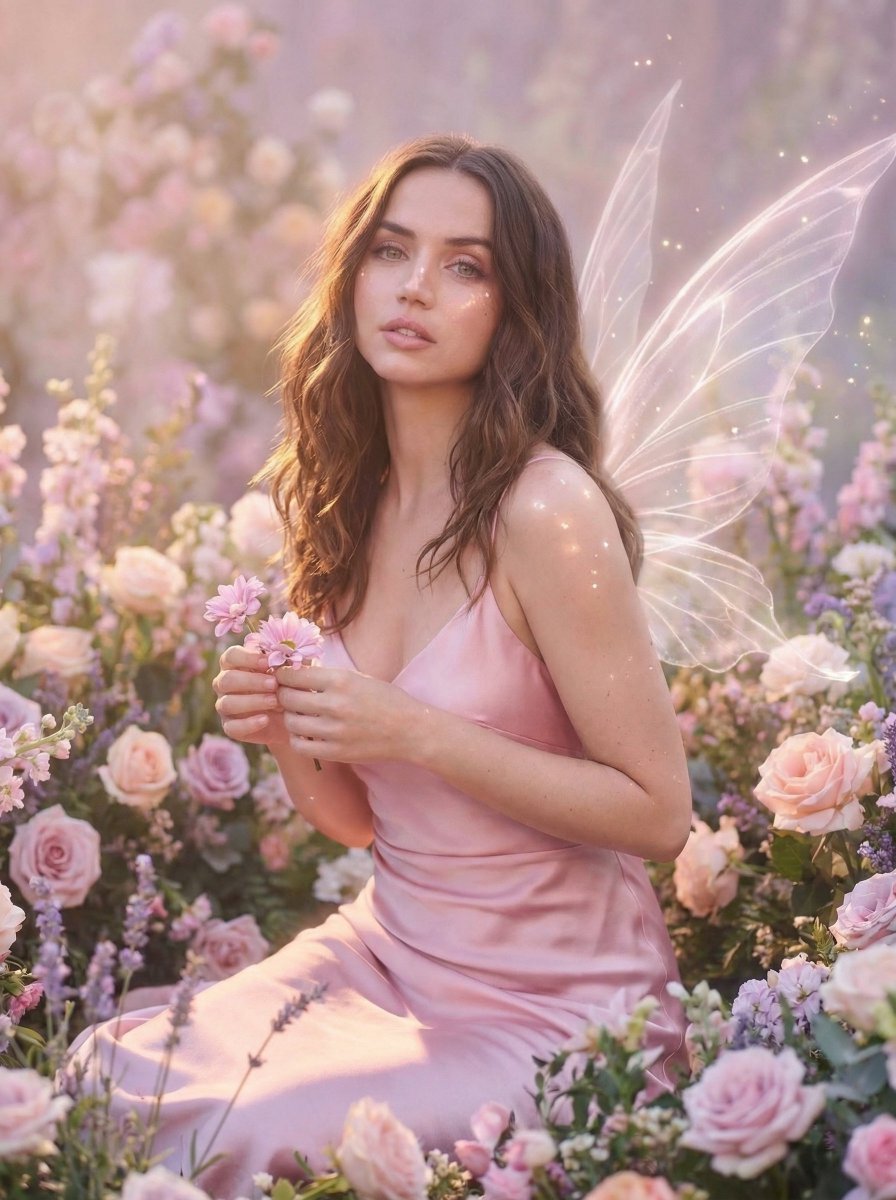
Dreamy Fairy Editorial Portrait in a Secret Garden
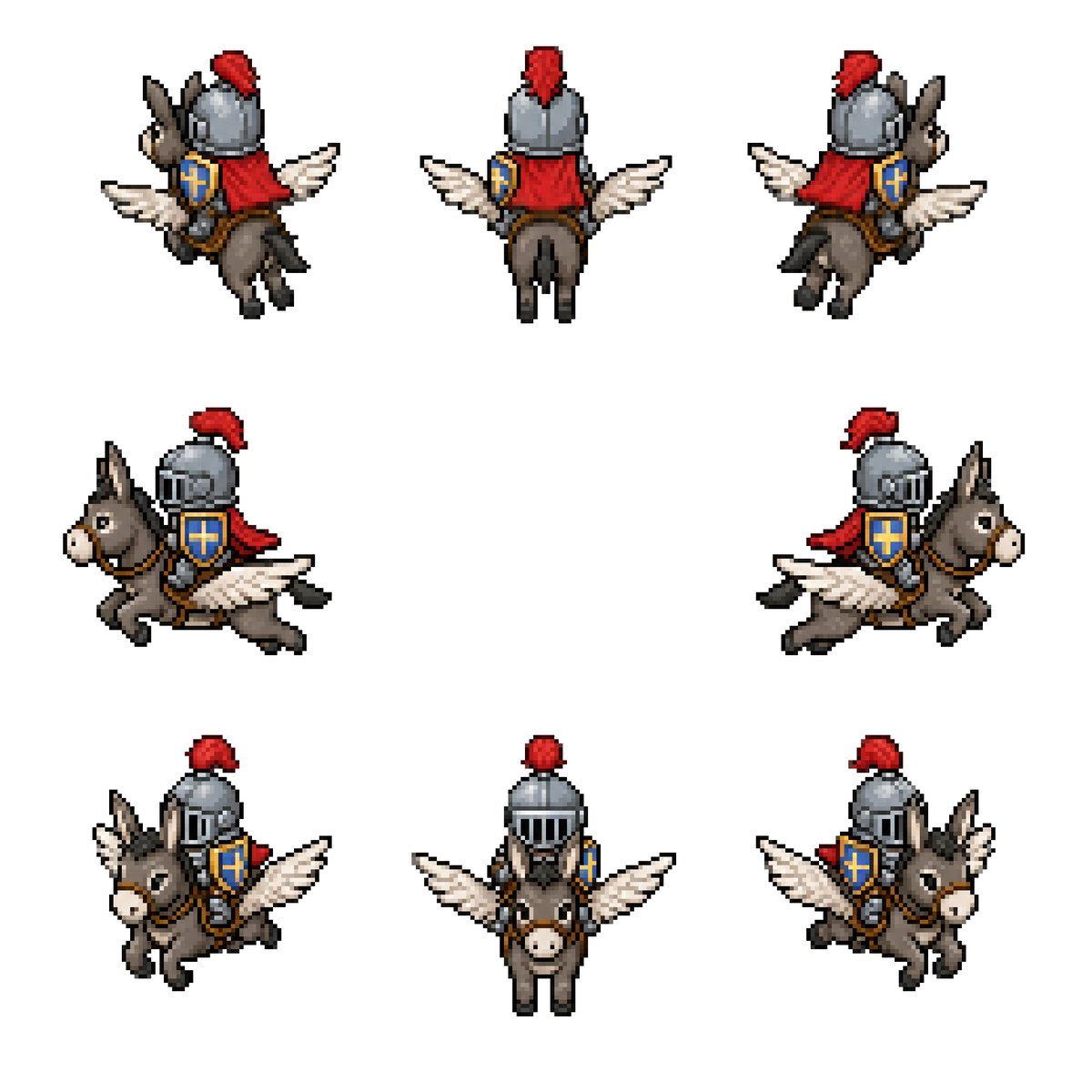
Winged Donkey Knight Sprite Sheet
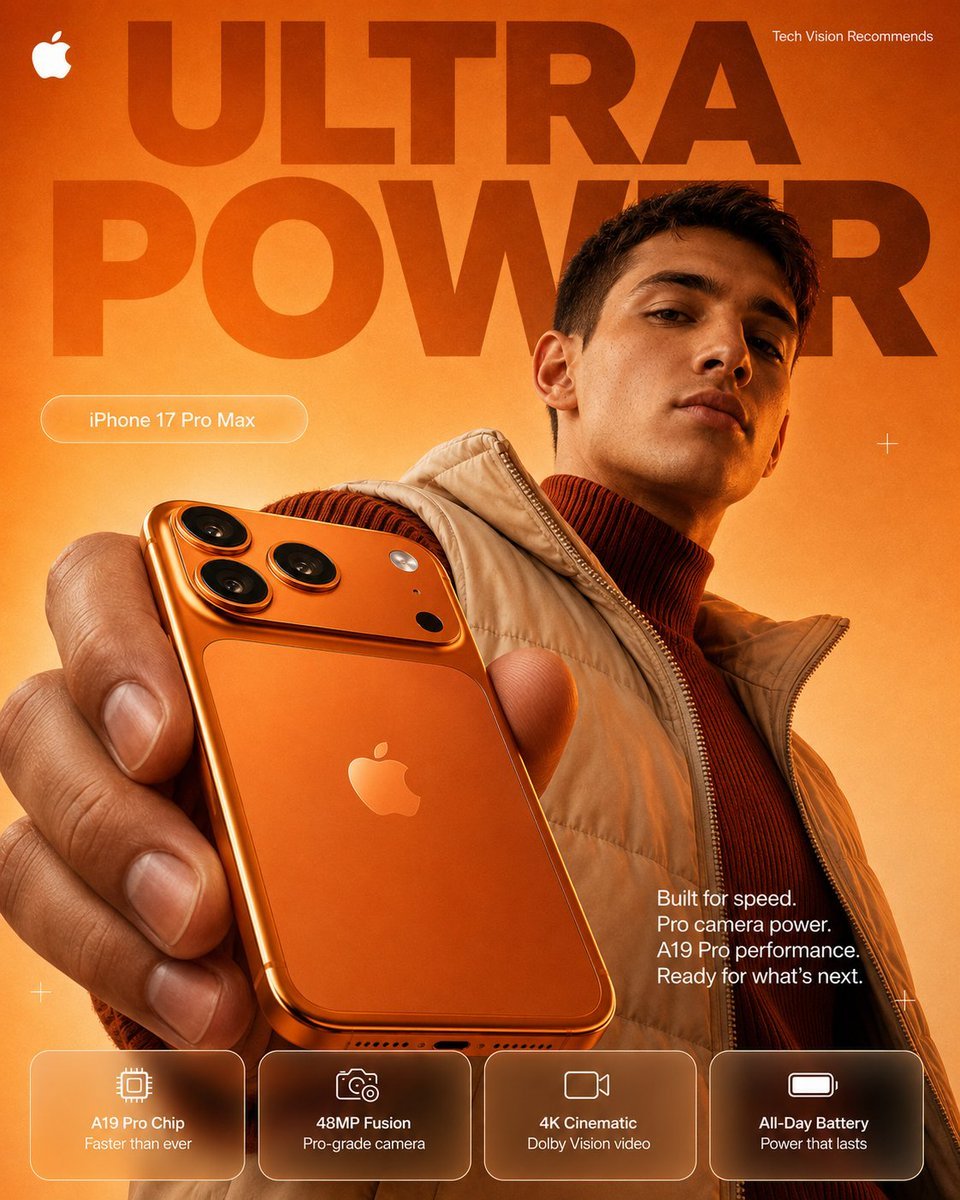
Orange Ultra Power iPhone Ad Poster
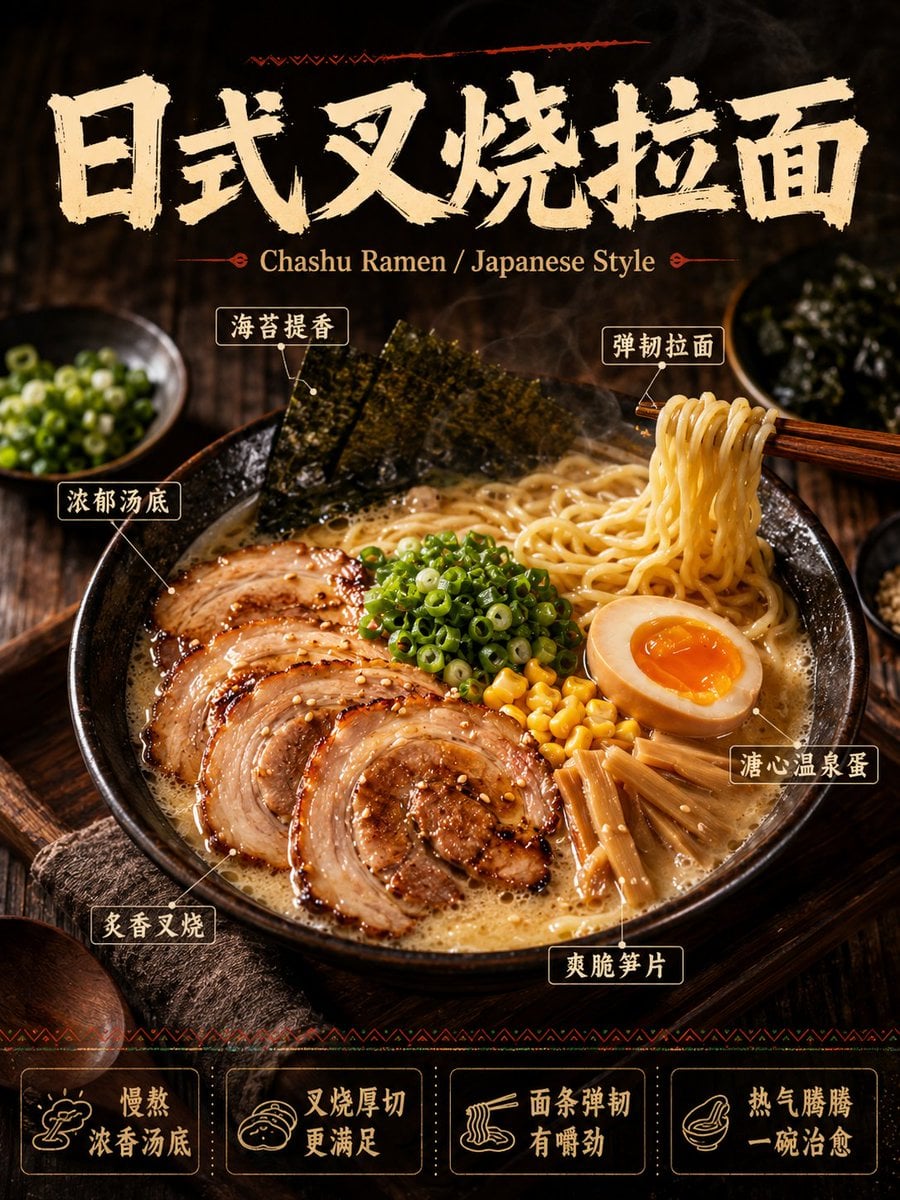
《我的世界风格化照片》提示词: 请基于用户上传的真实户外照片进行风格化改造。 保留照片中的主体不
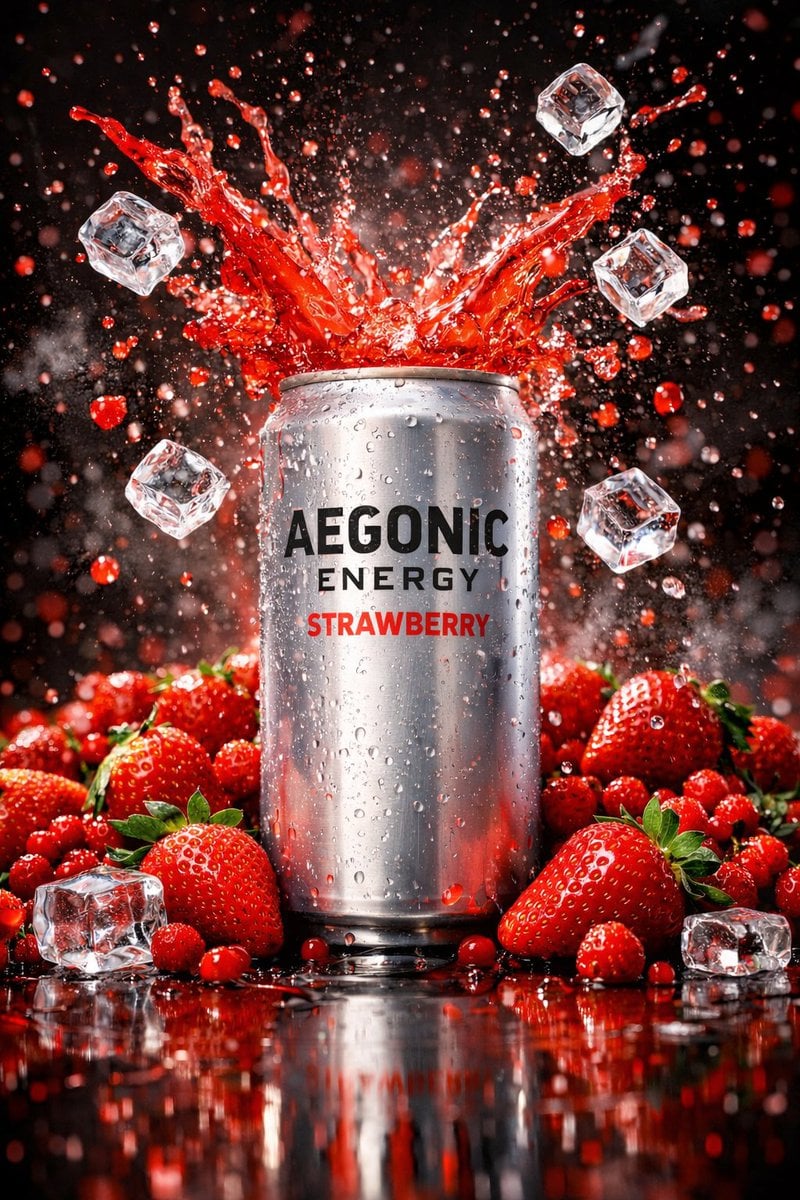
Cinematic Product Photography Prompt: Strawberry Energy Drink Explosion

Japanese AI Workflow Notebook Infographic
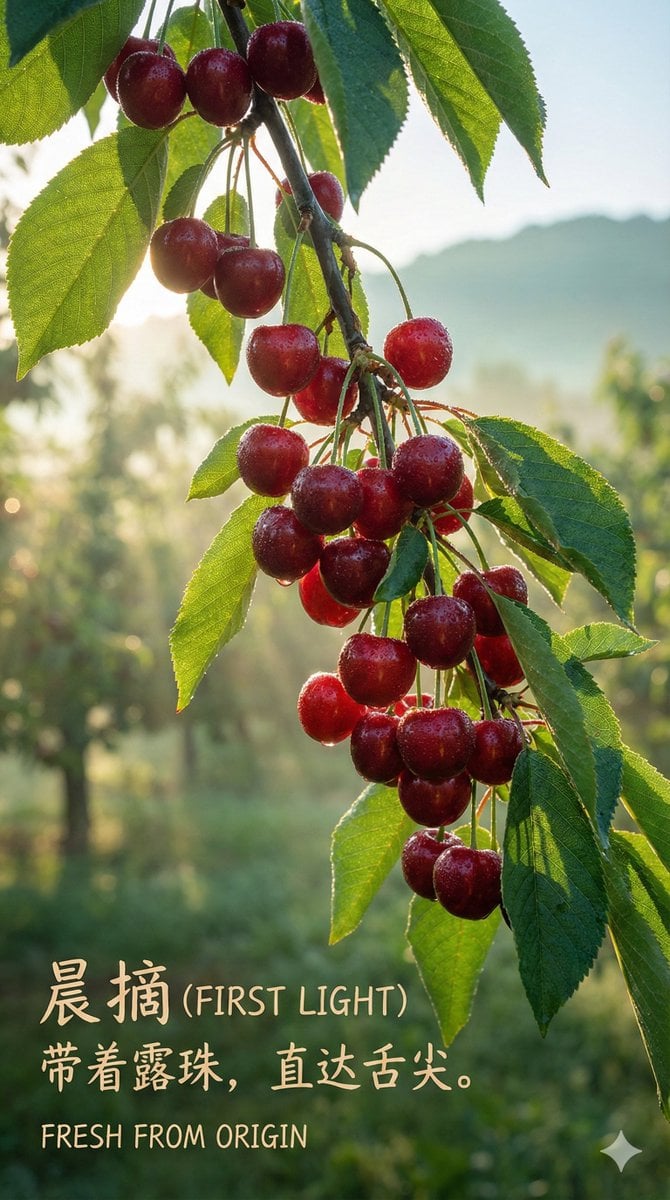
Luxury Cherry Product Photography Prompt (Black Diamond)
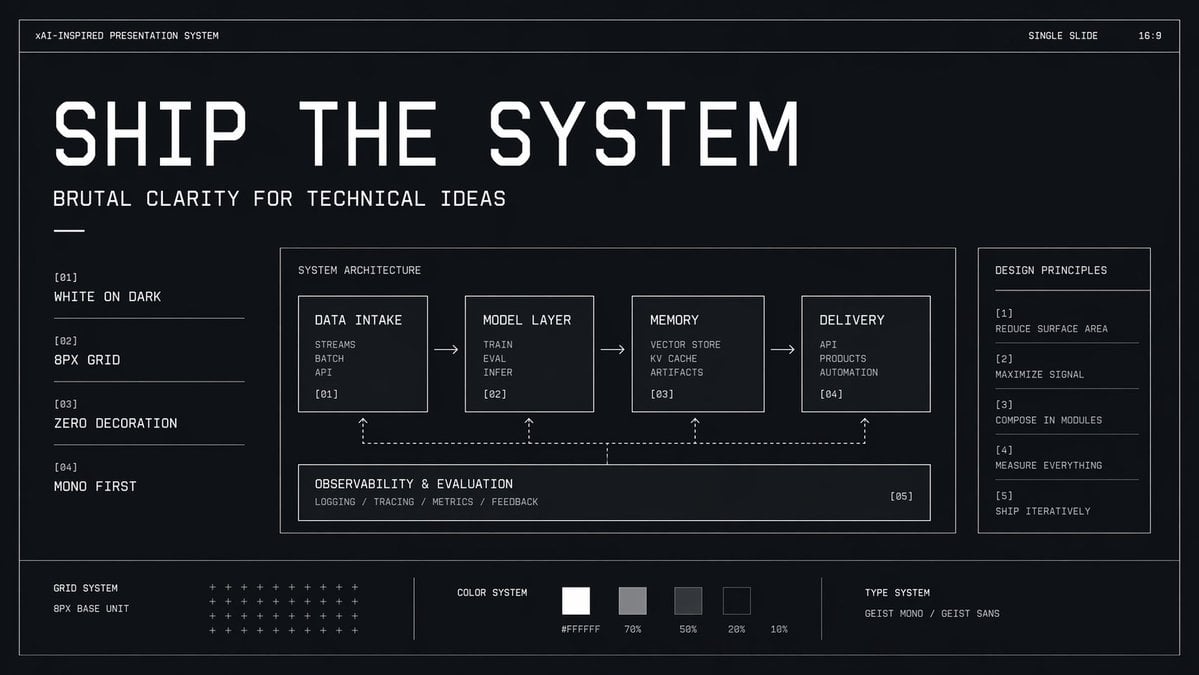
Brutalist Technical System Slide
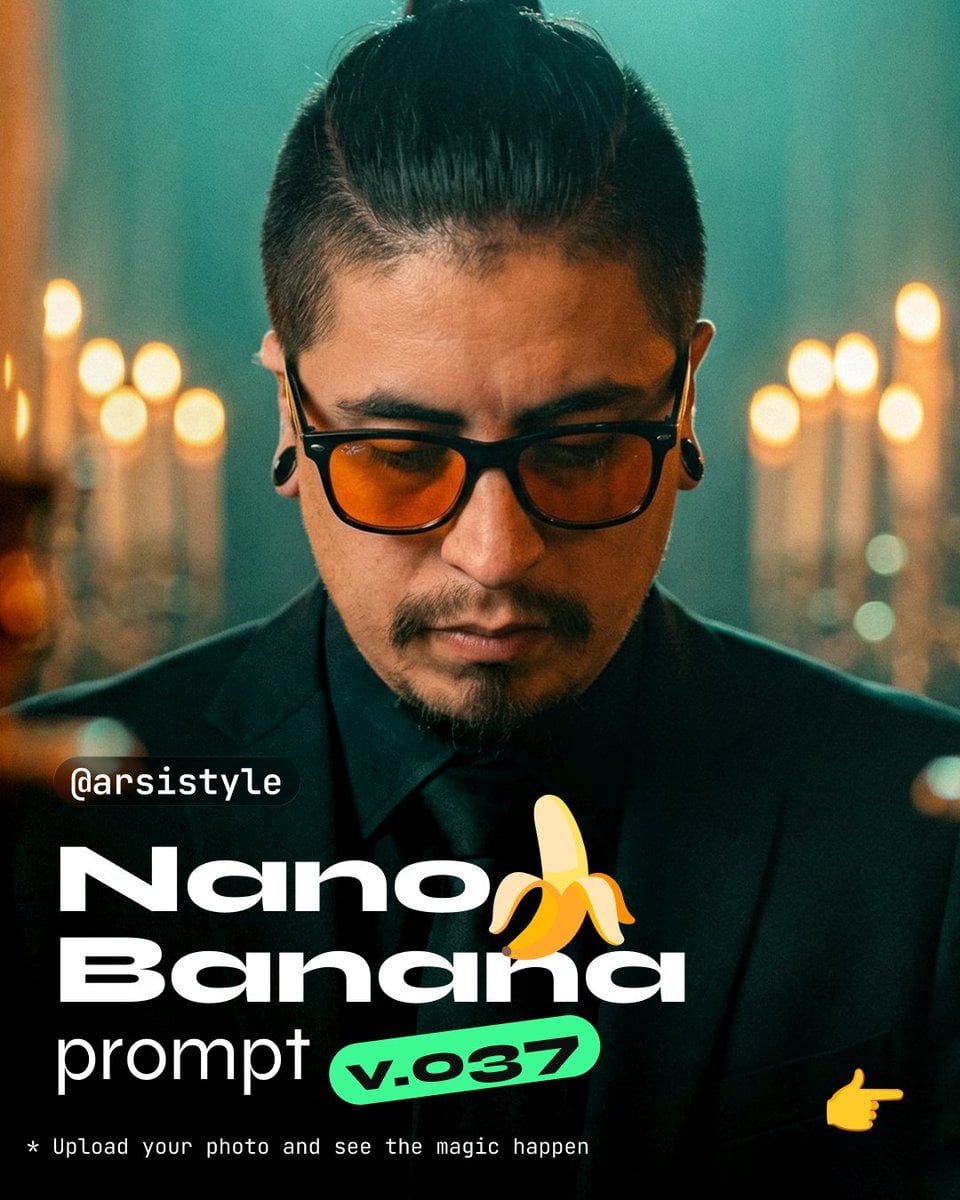
Cinematic Close-Up in Formal Suit
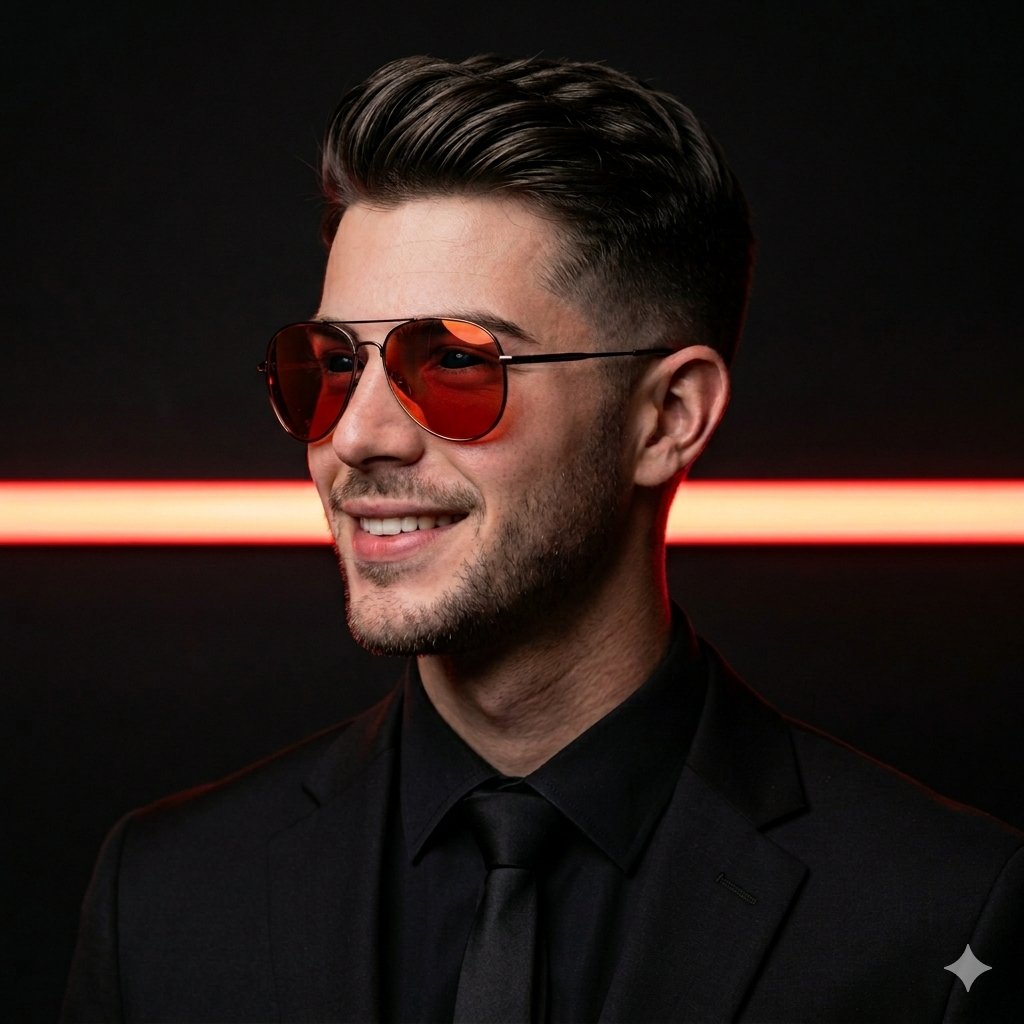
Cinematic Man in Tailored Suit
Browse template categories
Bilibili Livestream Scene questions
How do I use the Bilibili Livestream Scene template?
Add your photo if the template asks for one, edit the prompt if you like — the template's model and format are already selected — and press Generate. Your version opens in PicX Studio.
Can I customize the Bilibili Livestream Scene template?
Yes. You can change the subject, setting, lighting, mood, format, and available model controls before creating your image.
Is the Bilibili Livestream Scene template free?
Opening and editing this template is free. Generating uses credits, shown on the Generate button when you are signed in.
Which AI model should I use?
Start with GPT Image 2, which is the model associated with this template. You can compare another compatible model for a different finish.
Looking for something else? Browse all templates.

Your photo, any look
Thousands of ready templates for every top image and video model, from one credit balance.