
Winged Mecha Beam Cannon Battle
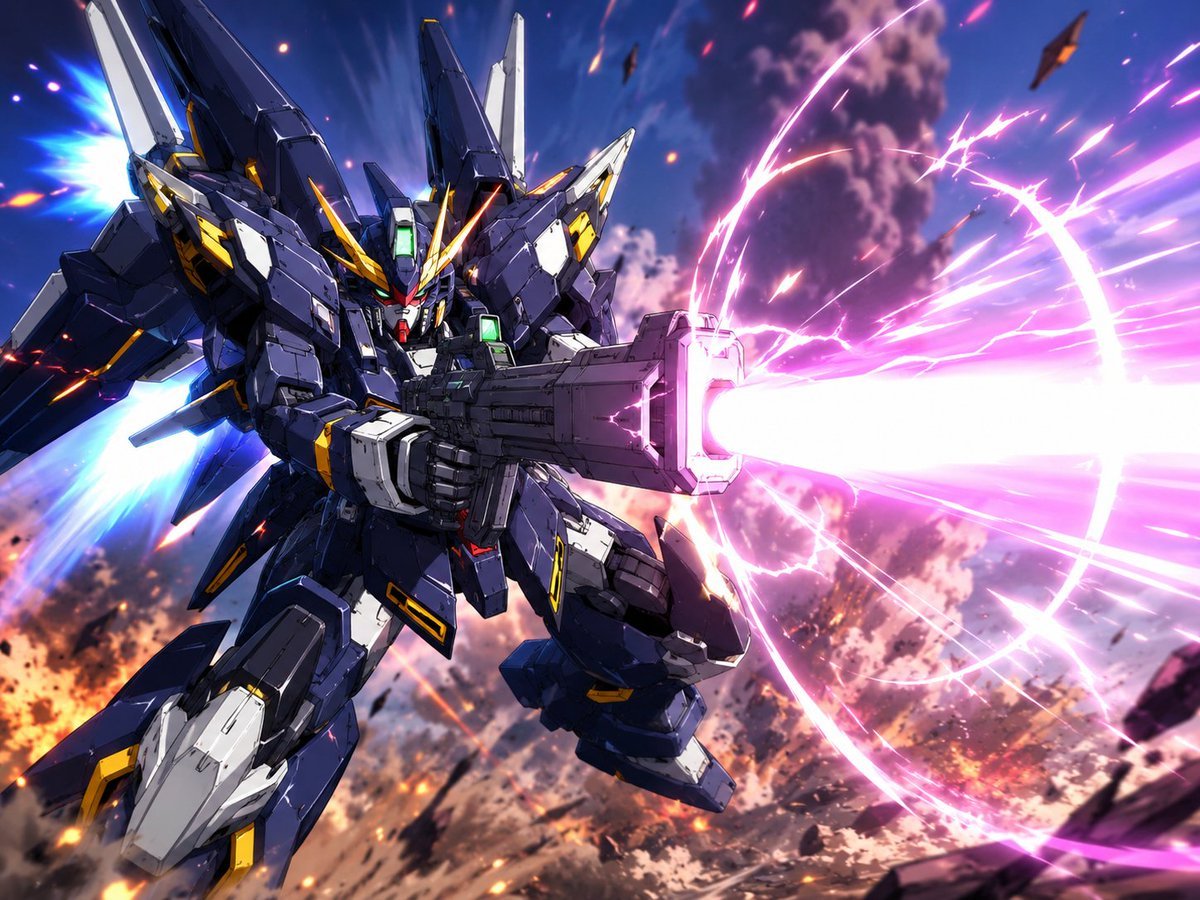
A cinematic anime sci-fi action illustration of a winged giant robot firing a massive neon beam cannon in a smoky battlefield sky.
- Prompt included
- Model and format preset
- Free template
The prompt behind this image
Copy the exact prompt behind Winged Mecha Beam Cannon Battle, or open it in the studio and make it yours.
Create a dynamic high-detail anime mecha battle illustration in a cinematic 4:3 landscape frame. Show a single futuristic humanoid giant robot resembling a dark navy blue and white super robot, with angular Gundam-like armor, sharp V-fin helmet, glowing green forehead and chest sensors, yellow accent panels, red chin detail, layered shoulder armor, large wing-like backpack thrusters, and bulky mechanical legs. The mecha is flying diagonally from the upper left toward the lower right, viewed from a low three-quarter front angle, gripping an oversized rectangular beam cannon with both hands. The cannon fires one enormous blinding {argument name="beam color" default="hot pink and white"} energy blast to the right edge of the image, surrounded by a circular glowing energy ring, electric arcs, streaking particles, and radial motion lines. Add two bright blue thruster flames from the rear backpack on the left side. The background is a chaotic aerial battlefield at sunset or dusk with smoky purple clouds, orange explosions, burning debris, sparks, and small dark fragments flying through the sky. Use dramatic foreshortening, intense motion blur on the energy beam, crisp cel-shaded anime linework, highly polished mechanical panel detail, high contrast lighting, vibrant neon effects, and epic sci-fi action composition. The main subject should be {argument name="mecha design" default="dark navy angular winged humanoid battle robot"}; keep exactly one robot, one beam cannon, one main energy beam, one circular energy ring, and two visible blue thruster plumes. No text, no logos, no watermark.
How to use Winged Mecha Beam Cannon Battle in 3 steps
- 1Upload ImagePNG, JPG or paste
Add your photo
Upload the photo the template builds on. The prompt, model and format are already set.
- 2…a portrait of your subject in softgolden-hour light, 85mm…
Personalize
Edit the subject and creative details for your destination.
- 3Generate
Generate
Press Generate — your image is created in PicX Studio, so you can compare it with the original and refine one variable at a time.
More like this
Templates with the same subject, style or setup. Open one to see its prompt.
Insect Mecha Cannon Attack
Japanese Webtoon Mecha Battle Page
Cyber Angel Mecha Battle HUD
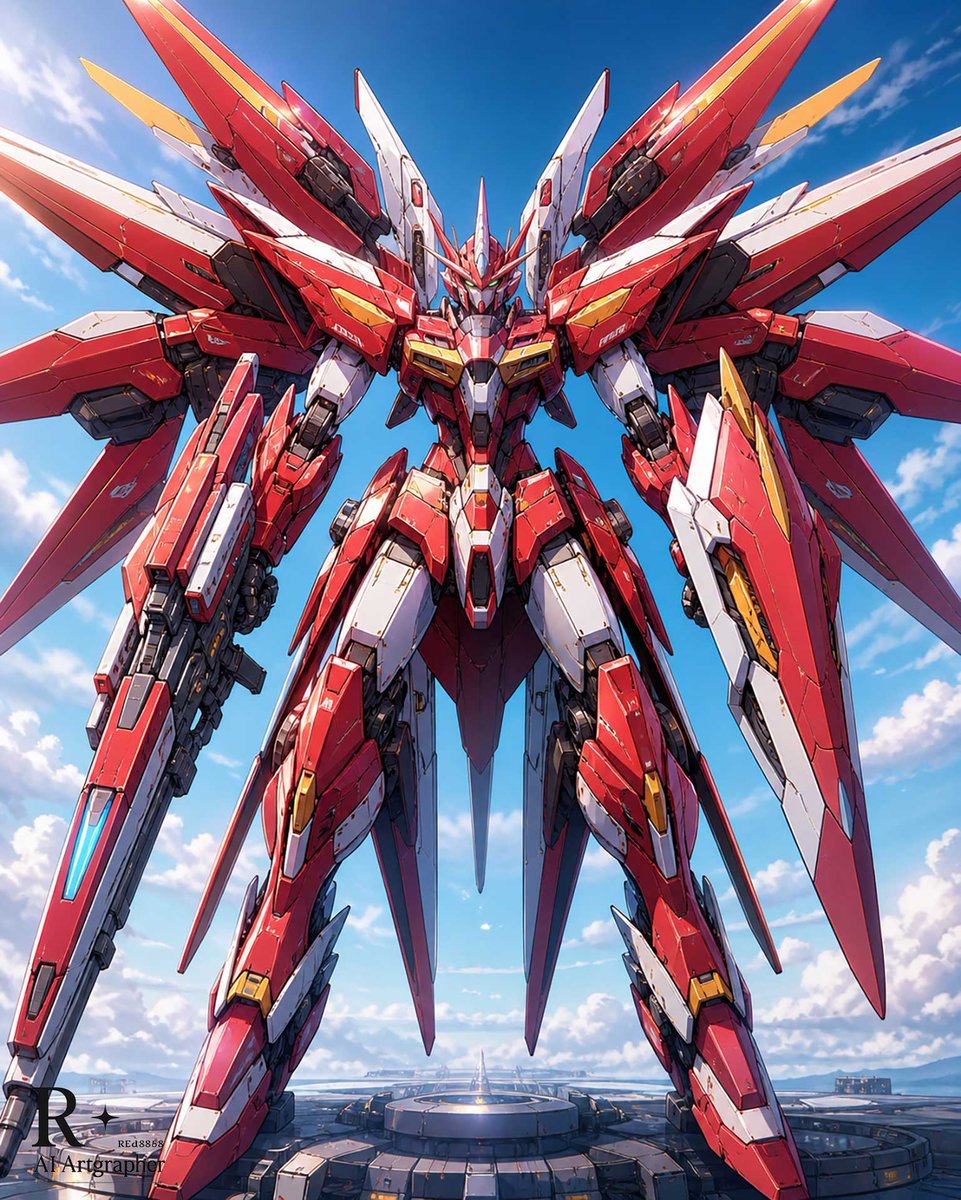
Crimson Winged Giant Mecha
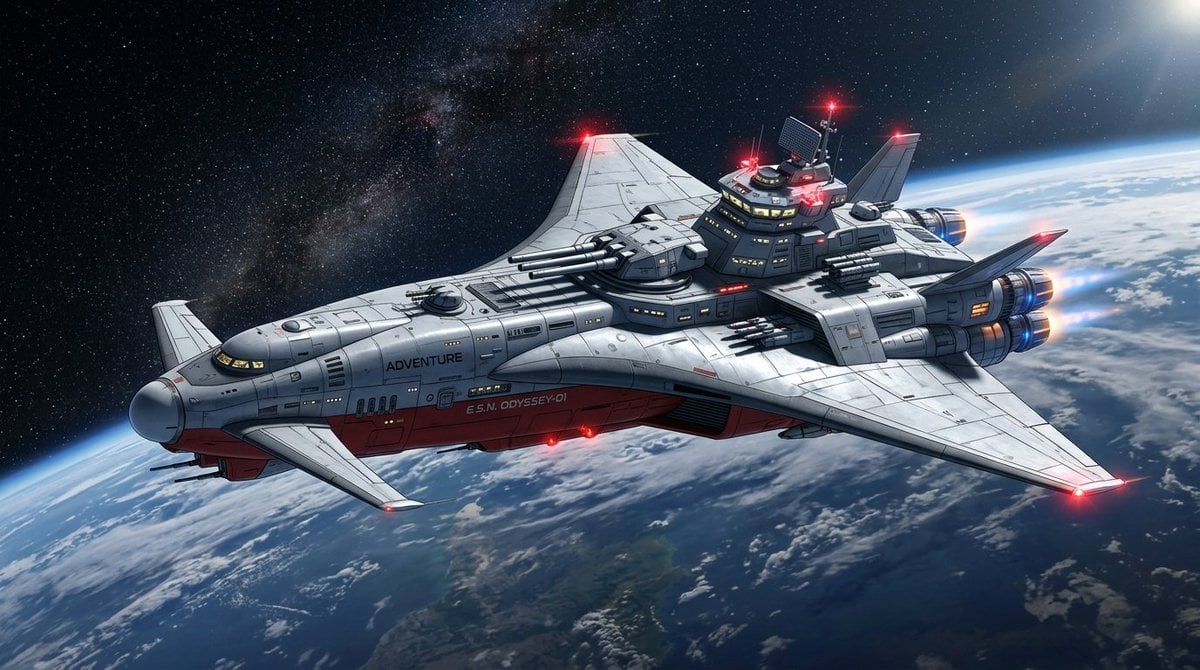
High-Resolution 2.5D Illustration Prompt for Winged Space Battleship
Seedance - Dragon vs Python Battle
Seedance - Arrow Microscopic Battle
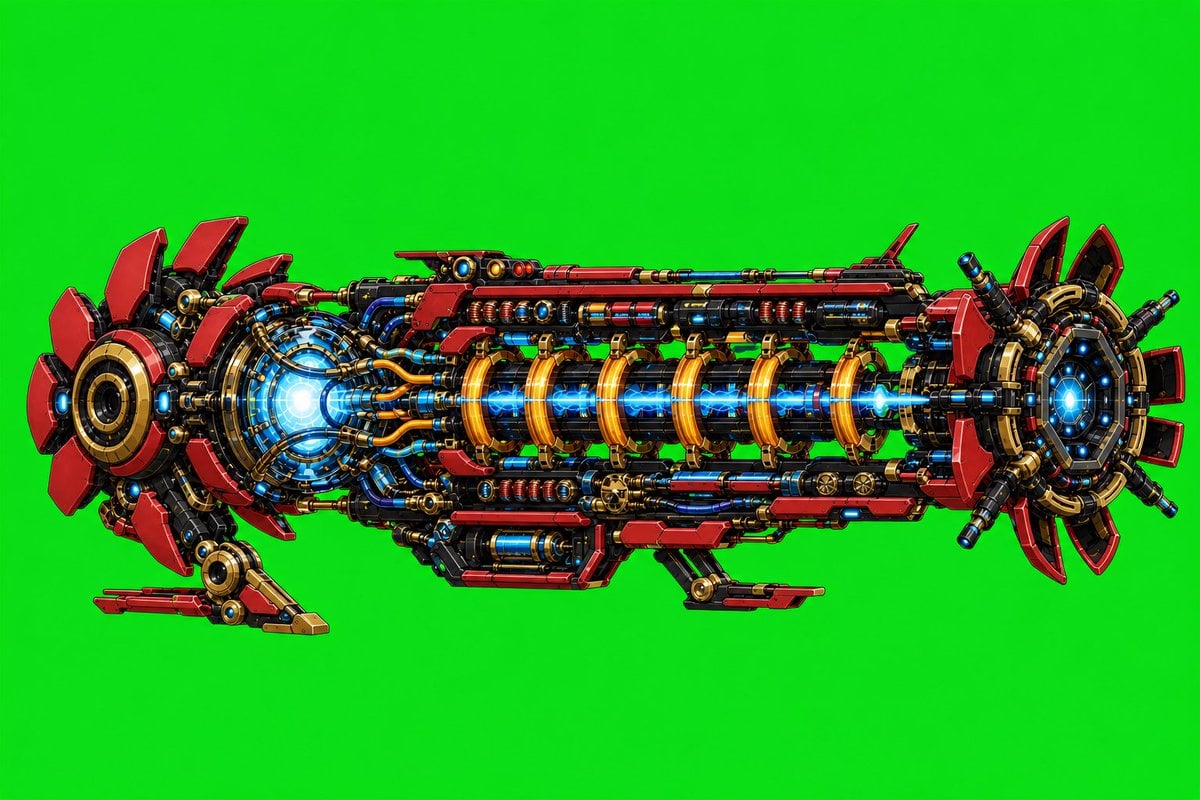
Futuristic Electromagnetic Cannon
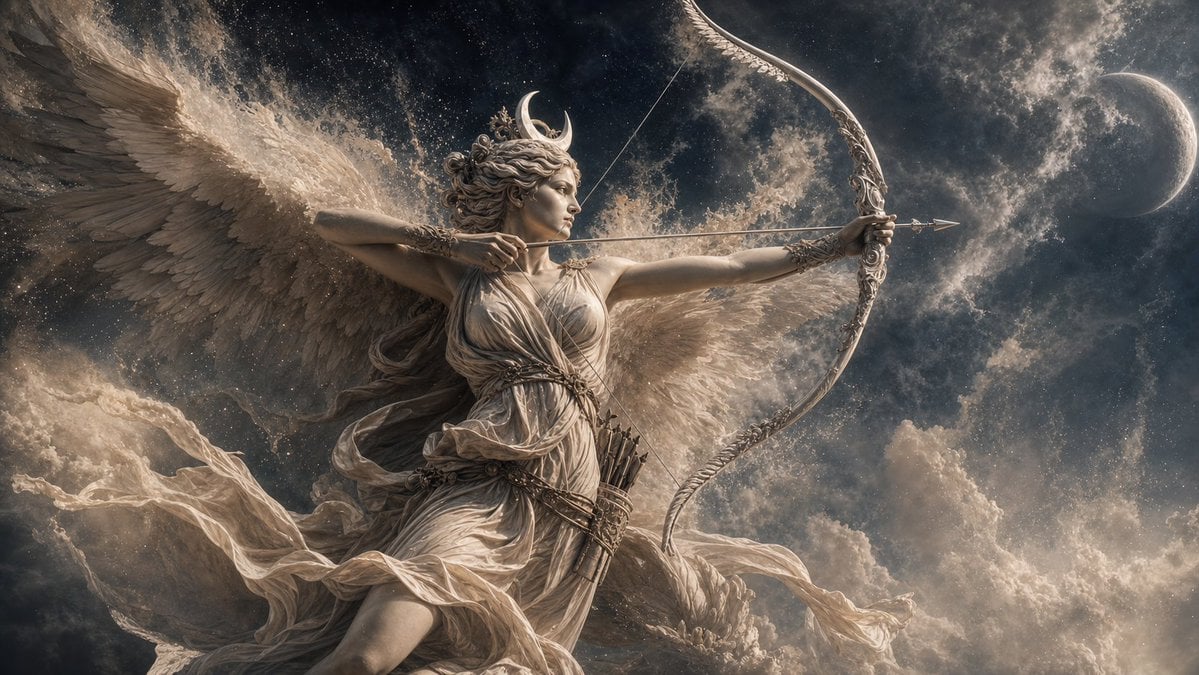
Winged Moon Goddess Archer Wallpaper
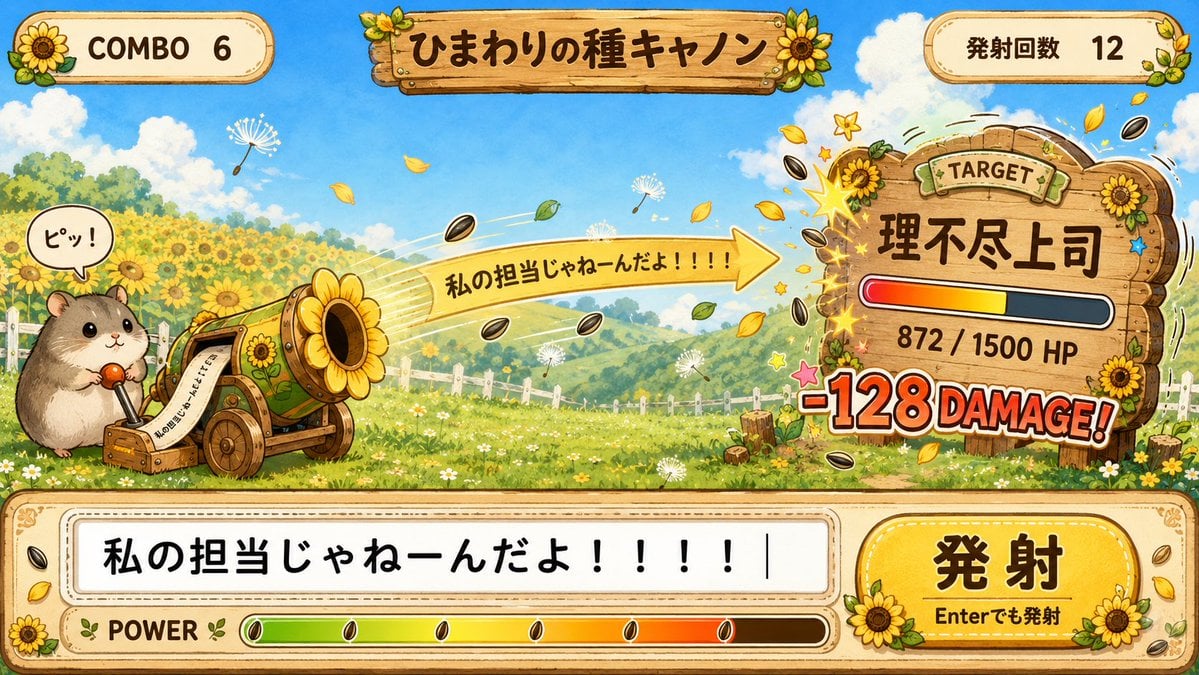
Hamster Sunflower Cannon Game UI
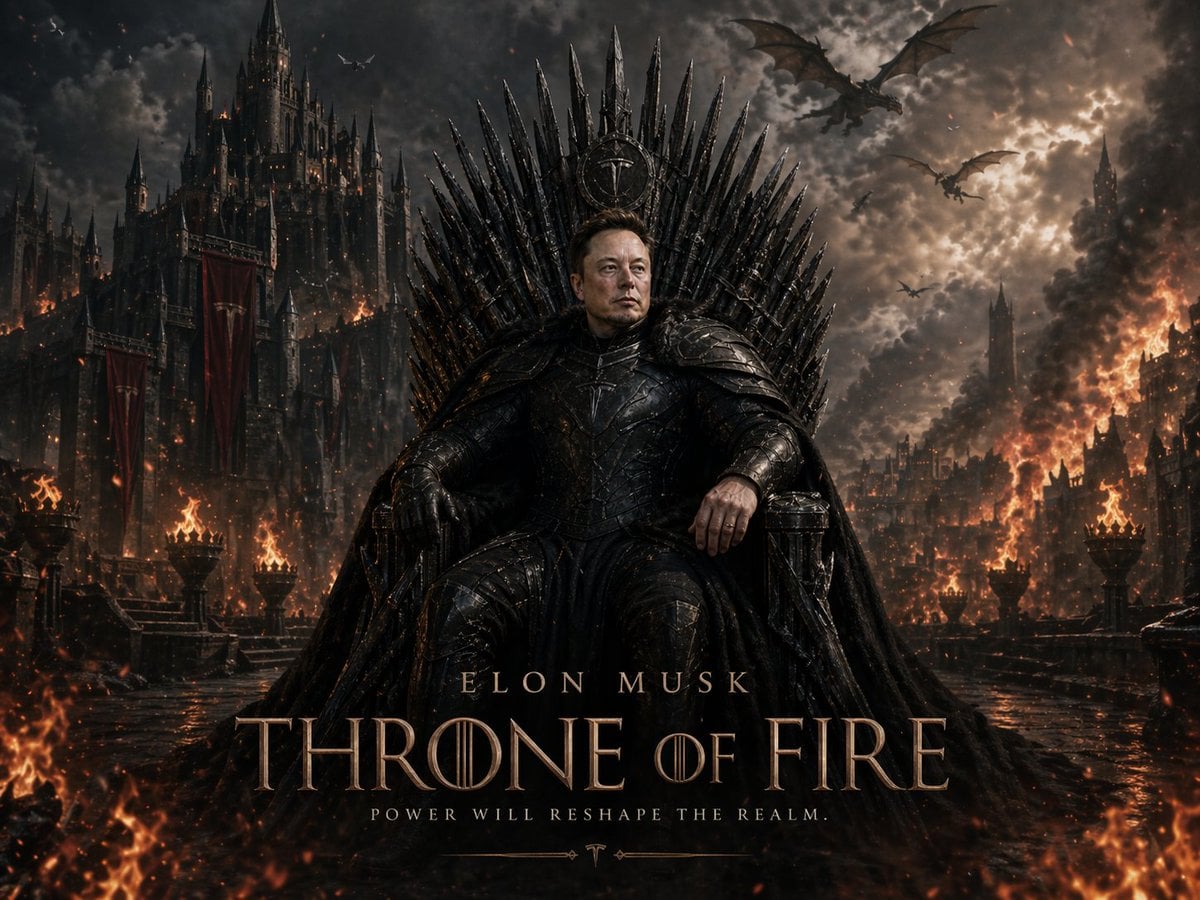
Sci-Fi AI Battle Movie Poster
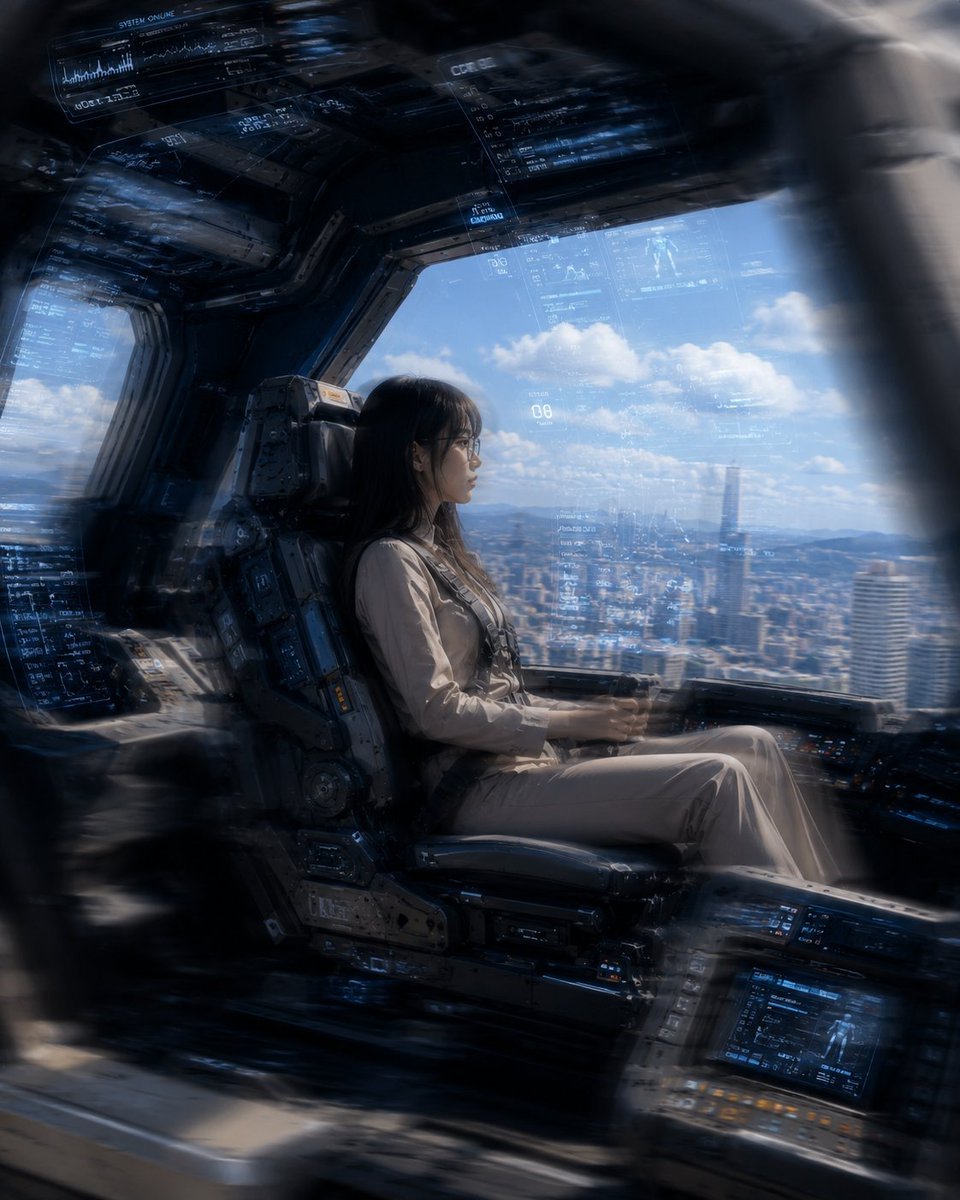
Mecha Cockpit Pilot Scene
Make it yours
Winged Mecha Beam Cannon Battle works as-is. These are the safest ways to change it without losing the look.
Change one field
Copy a single group, rewrite it, and generate again so you can see what that field is doing.
Keep the frame, change the subject
Hold the composition and light of Winged Mecha Beam Cannon Battle, then swap wardrobe, props or the person for a new take.
| If the result… | Why | Fix |
|---|---|---|
| The result drifts from the preview | Too many fields changed at once. | Reuse Winged Mecha Beam Cannon Battle as-is first, then change one group — subject, light, or setting. |
| The model over-stylizes the scene | The prose prompt leaves finish and camera underspecified. | Add one camera or lighting sentence and stay on GPT Image 2. |
More GPT Image 2 templates
Other prompts made for GPT Image 2.

Six VTuber Japanese Logo Sheet

Realistic Portrait of Woman and Deer

The Vista Modular Condo Poster

AI Model Routing Comparison Infographic

2.5D Anime Art Board

Isometric Productivity Desk Scene

New York Double Exposure Poster

Four-Panel AI Landscape Comparison

Japanese Tatami Lifestyle Magazine Cover

NESCAFÉ Coffee Map Poster
More image prompts
Fresh picks from across the catalog.
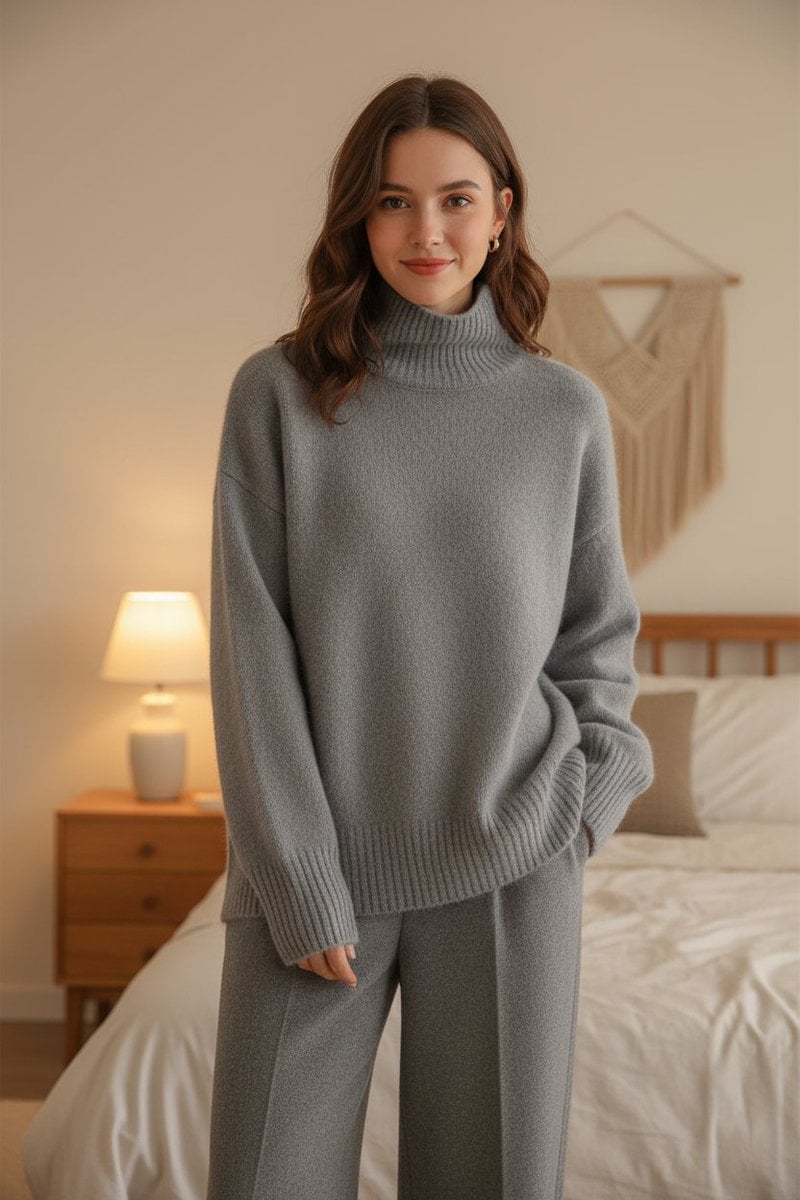
Cozy Indoor Fashion Shot Prompt (Gray Turtleneck Set)
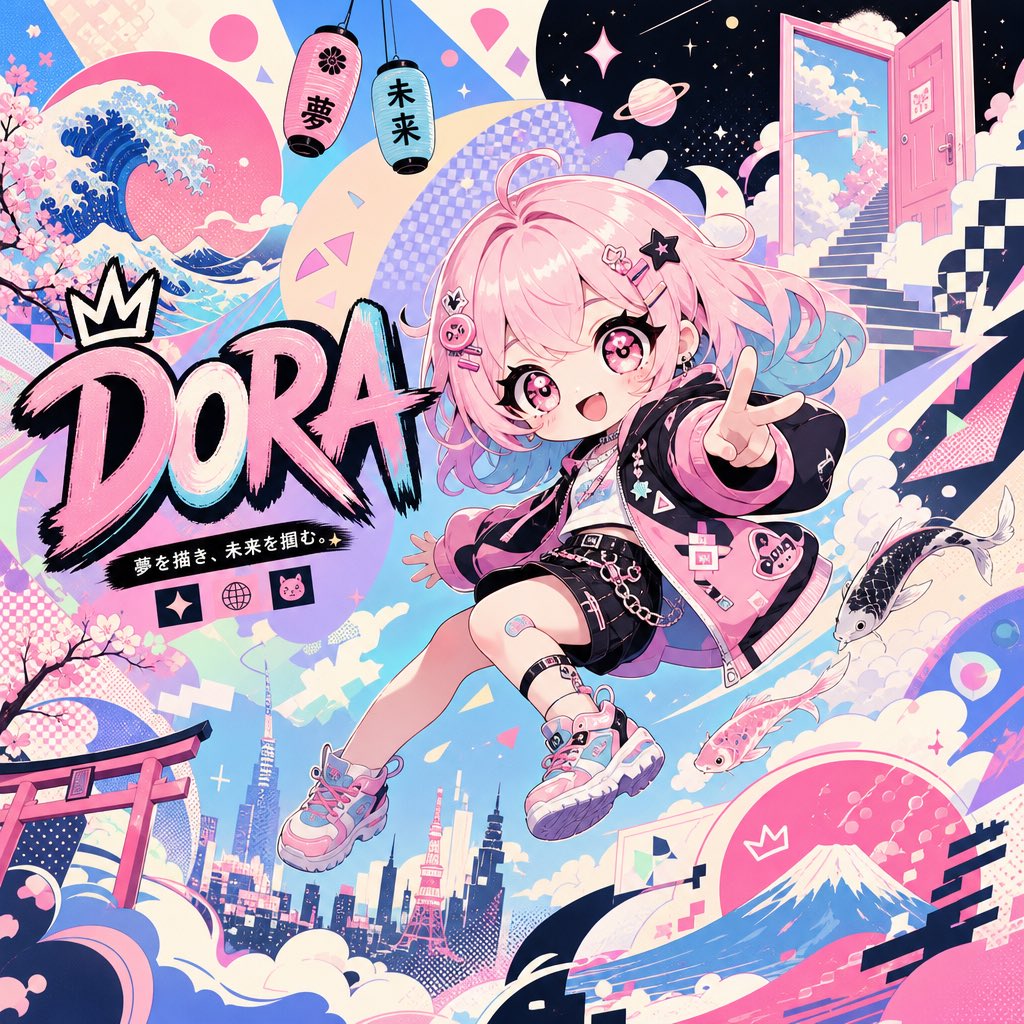
Surreal Japanese Pop Art Twitter Banner
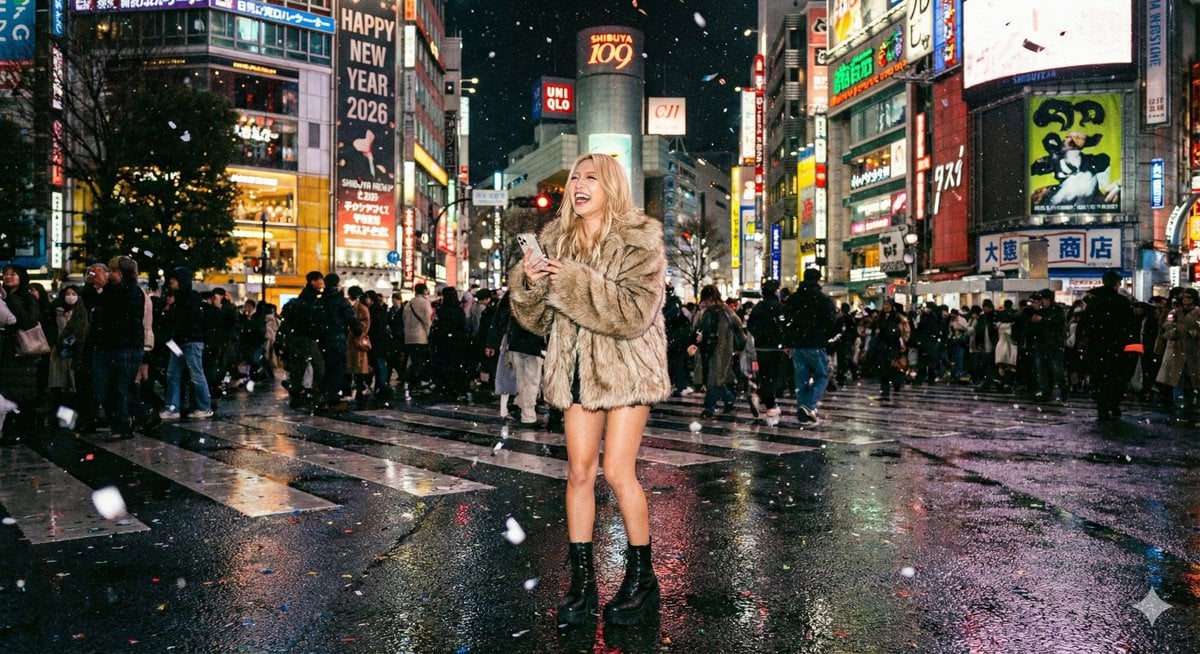
Shibuya New Year's Eve Beauty
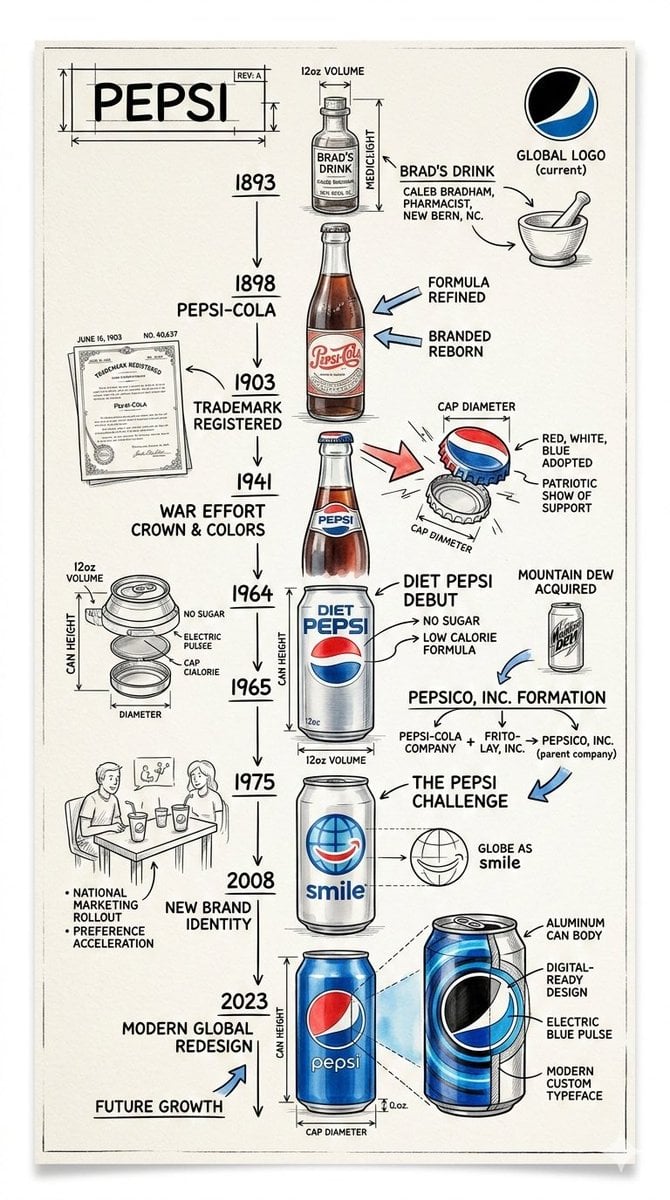
Vintage Blueprint Timeline Infographic Poster Prompt
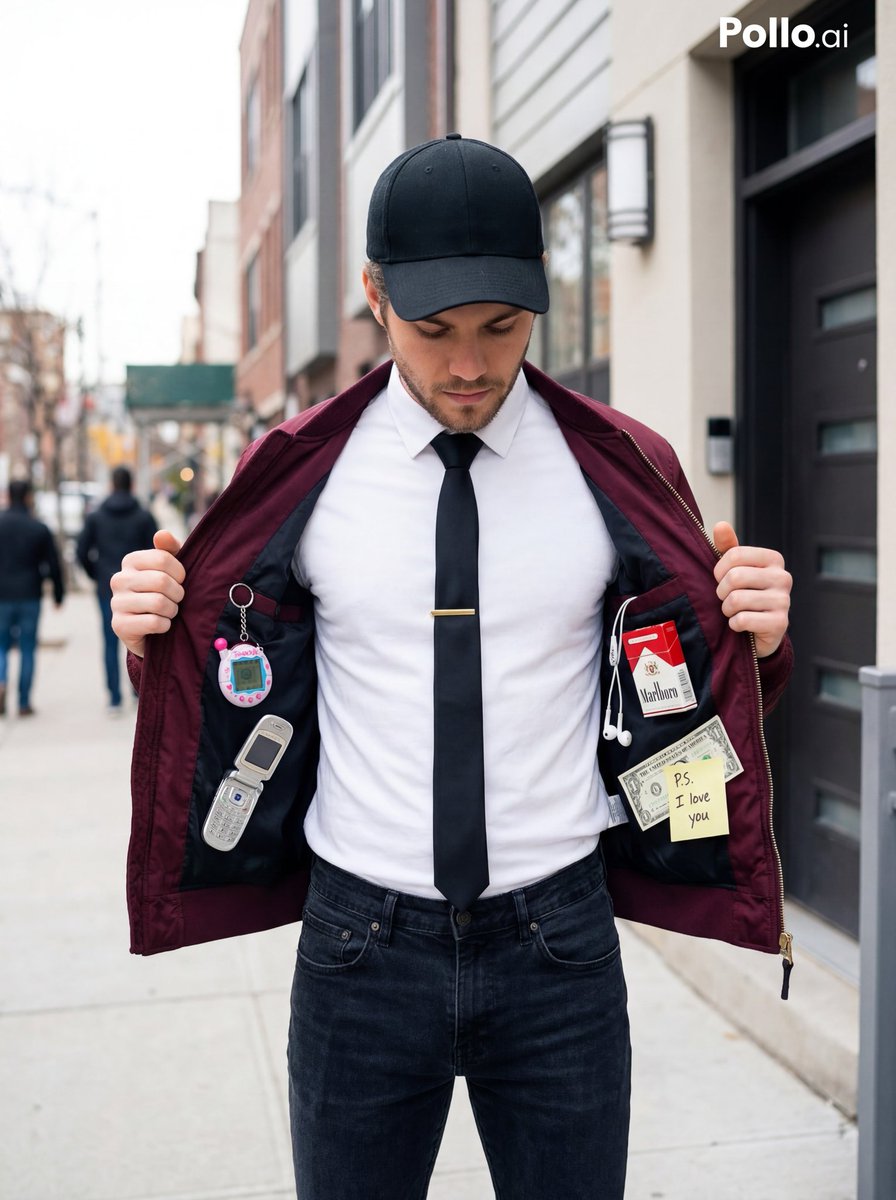
Street Fashion Editorial with 90s Nostalgia Items
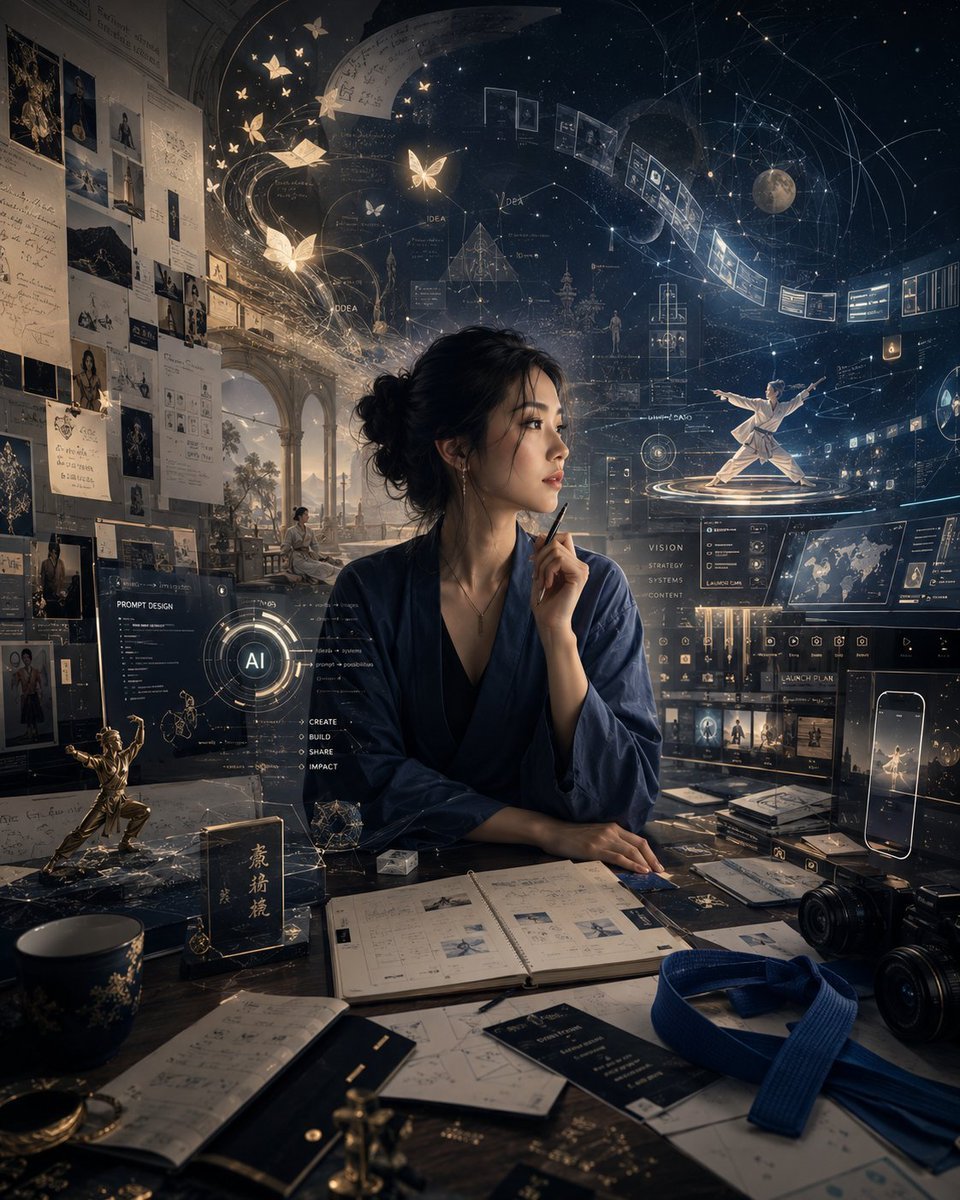
Personal High-Concept Portrait Generator
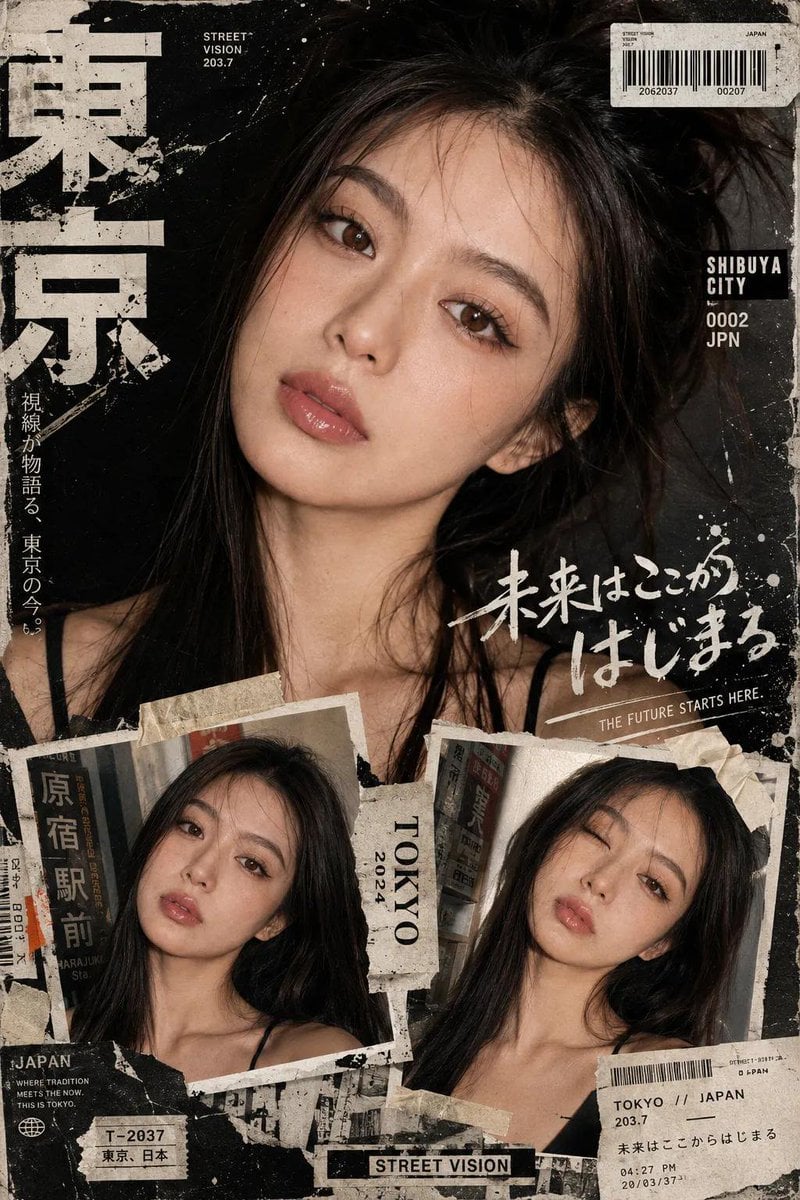
Y2K Japanese Street Editorial Collage Poster
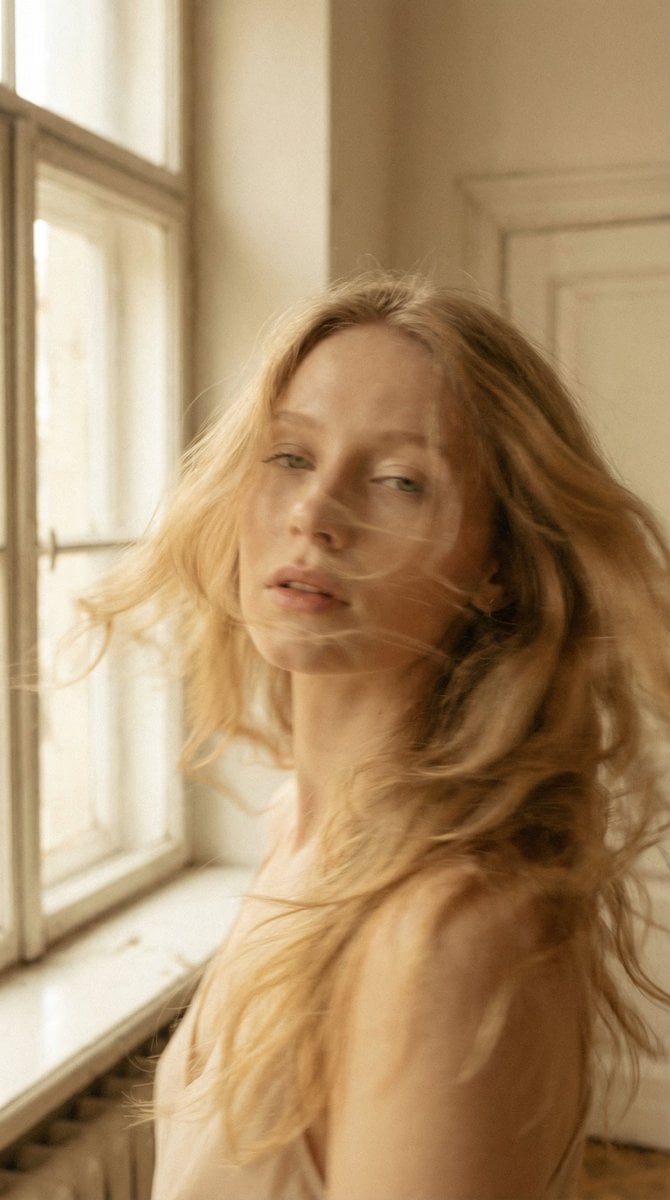
Soft Cinematic Portrait with Motion Blur
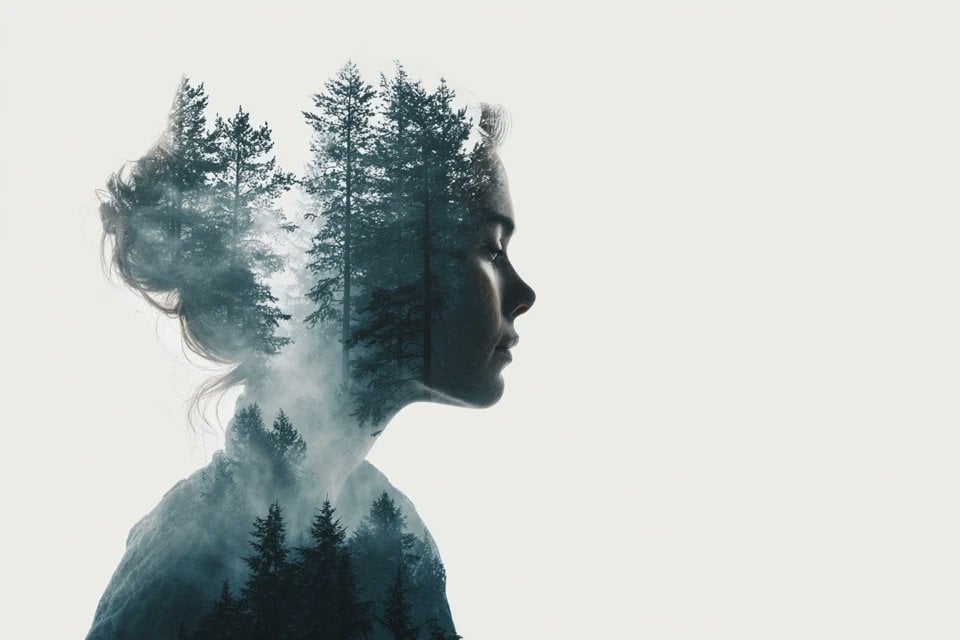
Azed Double Exposure
Structured Prompt for Automated Manga Generation
Browse template categories
Winged Mecha Beam Cannon Battle questions
How do I use the Winged Mecha Beam Cannon Battle template?
Add your photo if the template asks for one, edit the prompt if you like — the template's model and format are already selected — and press Generate. Your version opens in PicX Studio.
Can I customize the Winged Mecha Beam Cannon Battle template?
Yes. You can change the subject, setting, lighting, mood, format, and available model controls before creating your image.
Is the Winged Mecha Beam Cannon Battle template free?
Opening and editing this template is free. Generating uses credits, shown on the Generate button when you are signed in.
Which AI model should I use?
Start with GPT Image 2, which is the model associated with this template. You can compare another compatible model for a different finish.
Looking for something else? Browse all templates.

Your photo, any look
Thousands of ready templates for every top image and video model, from one credit balance.