
Insect Mecha Cannon Attack
Generates a cinematic low-angle special-attack shot from a mecha reference sheet, adding huge shoulder-mounted multi-barrel cannons for robot anime action scenes.
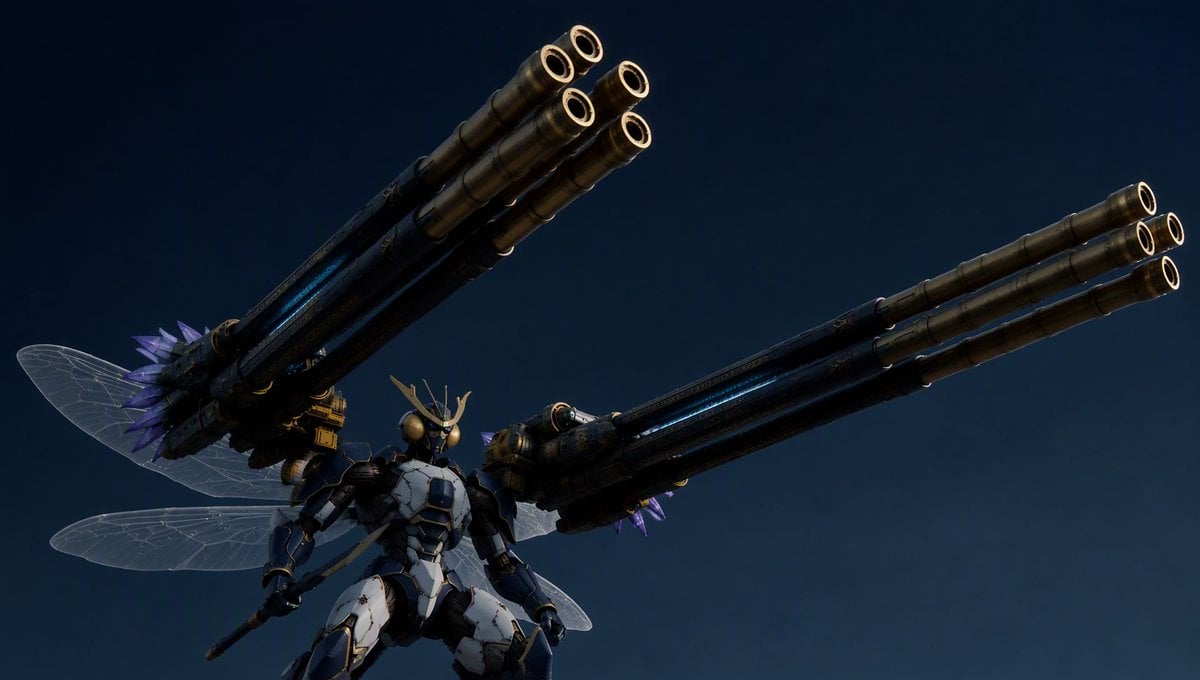
- Prompt included
- Model and format preset
- Free template
The prompt behind this image
Copy the exact prompt behind Insect Mecha Cannon Attack, or open it in the studio and make it yours.
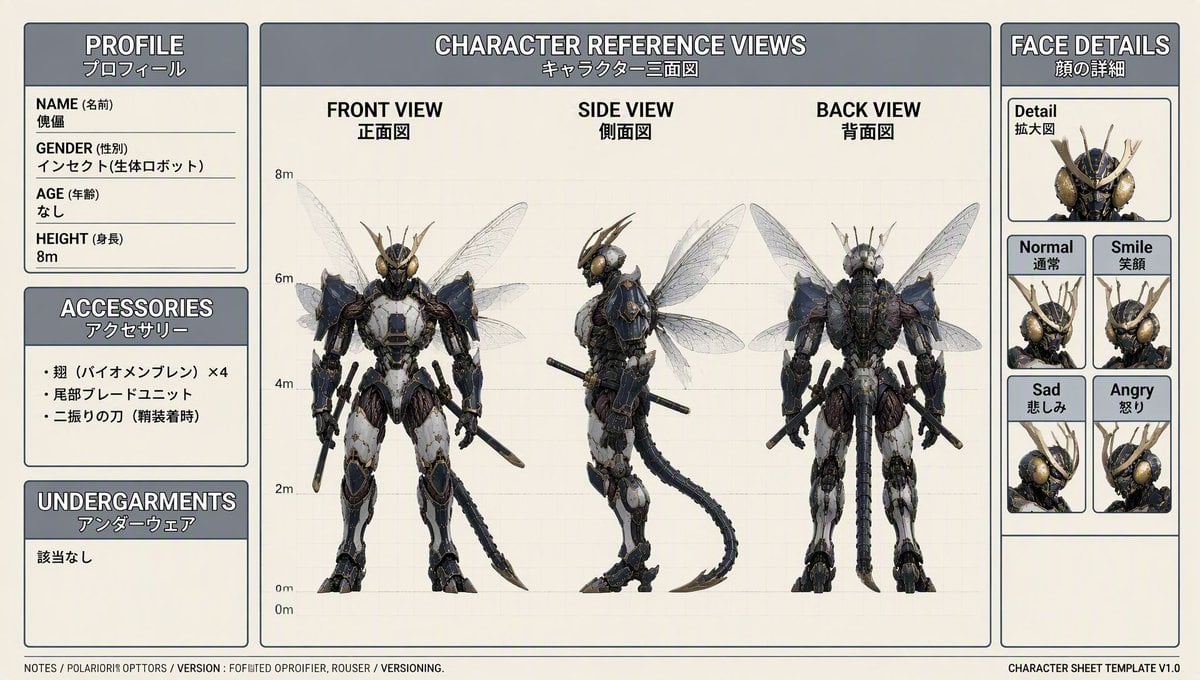
Using REFERENCE_1 as the main mecha character base and preserving its insectoid head, armor colors, translucent wings, tail, and overall proportions, create a cinematic robot-anime special-attack key visual. Remove the character-sheet layout entirely and place the mecha in a dark, dramatic open environment with no text or UI. Transformation: Equip the mecha with exactly 2 enormous shoulder-mounted multi-barrel cannon pods, one on each side, extending upward and outward toward the viewer in a strong low-angle perspective. Each cannon pod should contain exactly 6 visible long barrels with metallic gold/brass muzzle rims, making the weapons feel oversized and powerful. Add small purple crystalline/spiked energy details near the bases of the weapons. Pose and camera: Show the mecha from a low front angle, centered near the bottom of the frame, standing heroically as if preparing to fire a finishing move. Keep the wings visible behind the body, semi-transparent and insect-like. Use a wide cinematic composition with the weapon barrels dominating the upper left and upper right of the frame. Style: High-detail realistic 3D mecha rendering, dark navy night-sky background, moody blue lighting, metallic reflections, dramatic anime tokusatsu/super-robot atmosphere, no labels, no border, no character sheet panels, no extra characters.
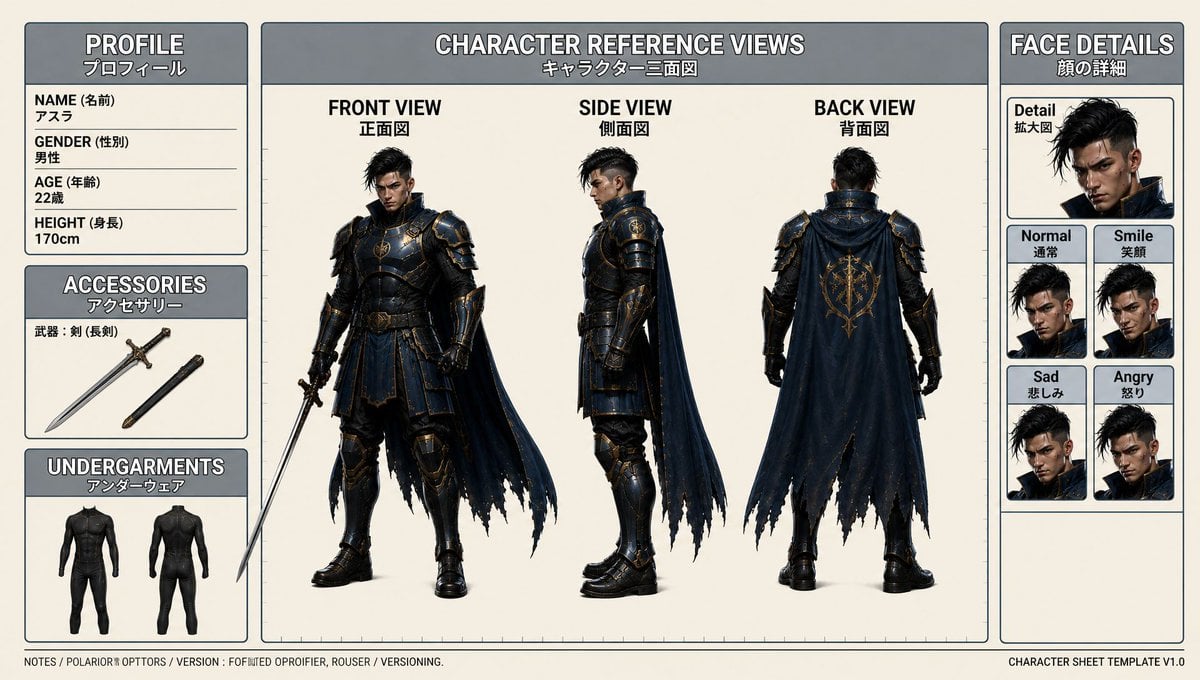
Reference images included
Insect Mecha Cannon Attack needs input media to work. They load alongside the prompt when you open it in the studio.
How to use Insect Mecha Cannon Attack in 3 steps
- 1Upload ImagePNG, JPG or paste
Add your photo
Upload the photo the template builds on. The prompt, model and format are already set.
- 2…a portrait of your subject in softgolden-hour light, 85mm…
Personalize
Edit the subject and creative details for your destination.
- 3Generate
Generate
Press Generate — your image is created in PicX Studio, so you can compare it with the original and refine one variable at a time.
More like this
Templates with the same subject, style or setup. Open one to see its prompt.
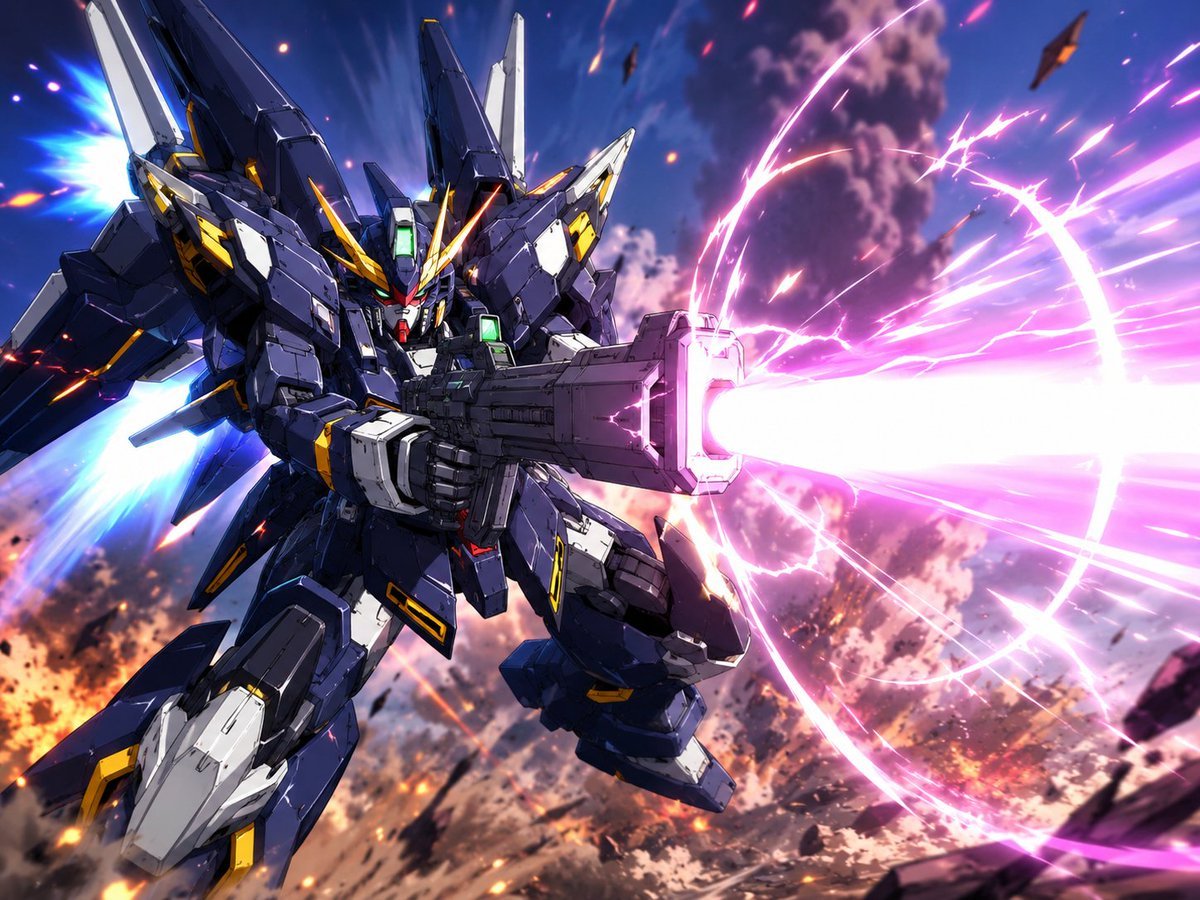
Winged Mecha Beam Cannon Battle
Macro Realism of Mechanical and Gemstone Insects
Futuristic Electromagnetic Cannon
Harpy Attacking Sheep
Hamster Sunflower Cannon Game UI
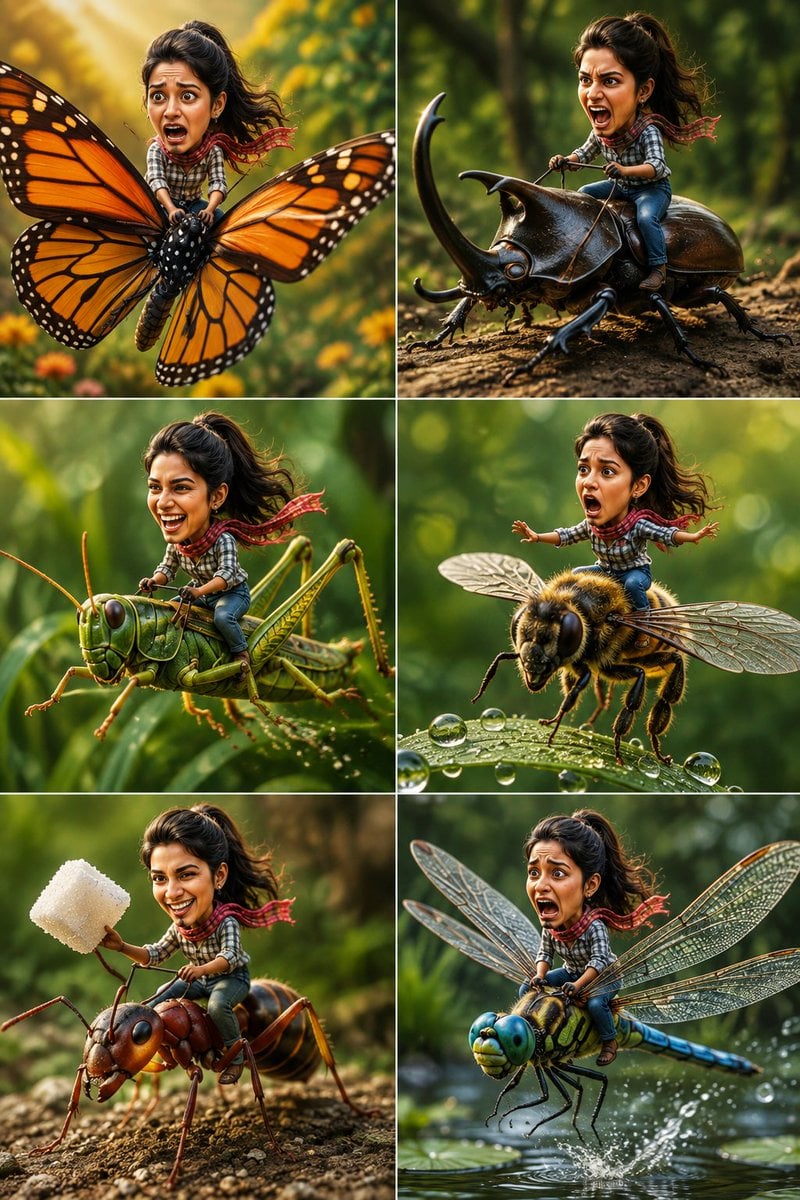
Tiny Adventurer Giant Insect Collage
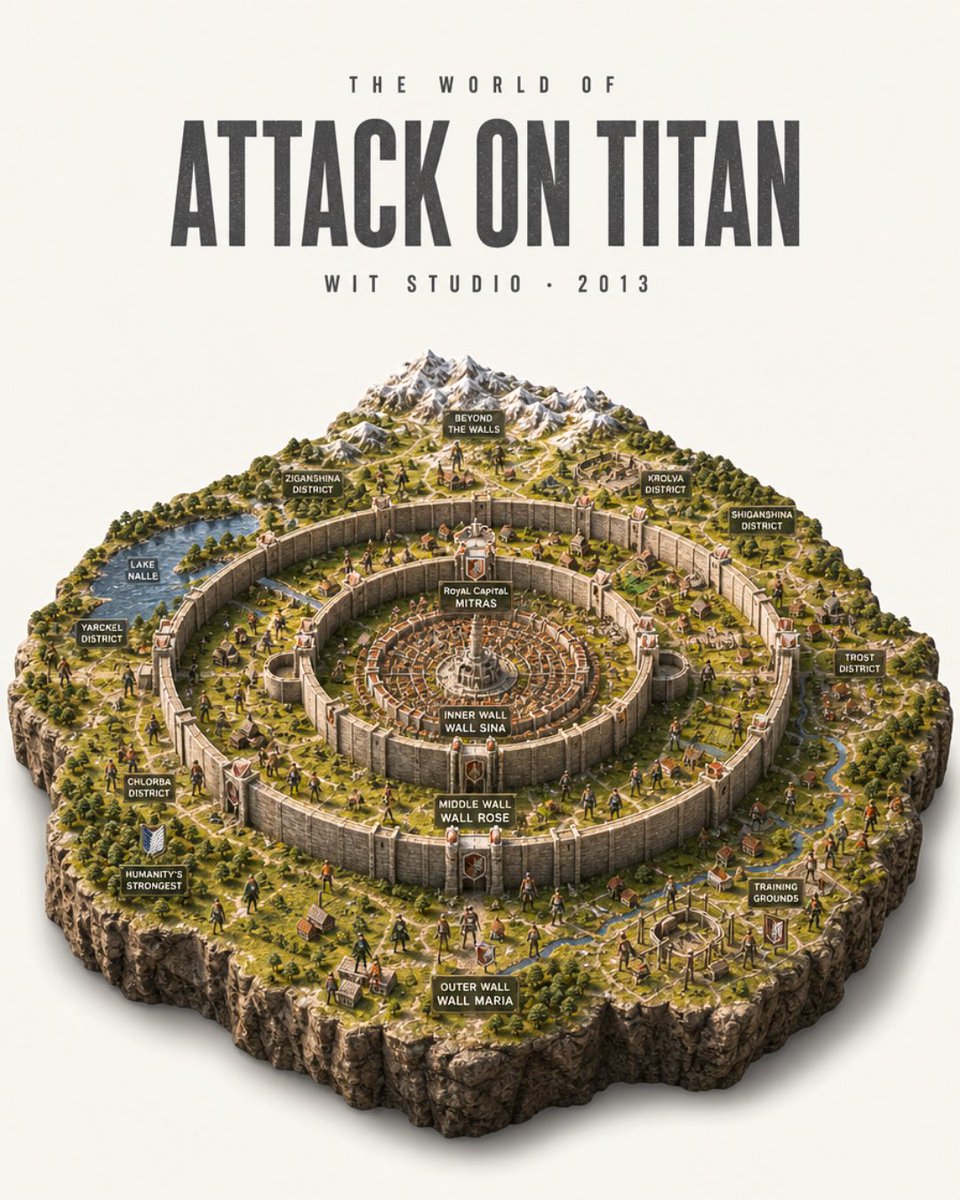
Attack on Titan Isometric Diorama Map
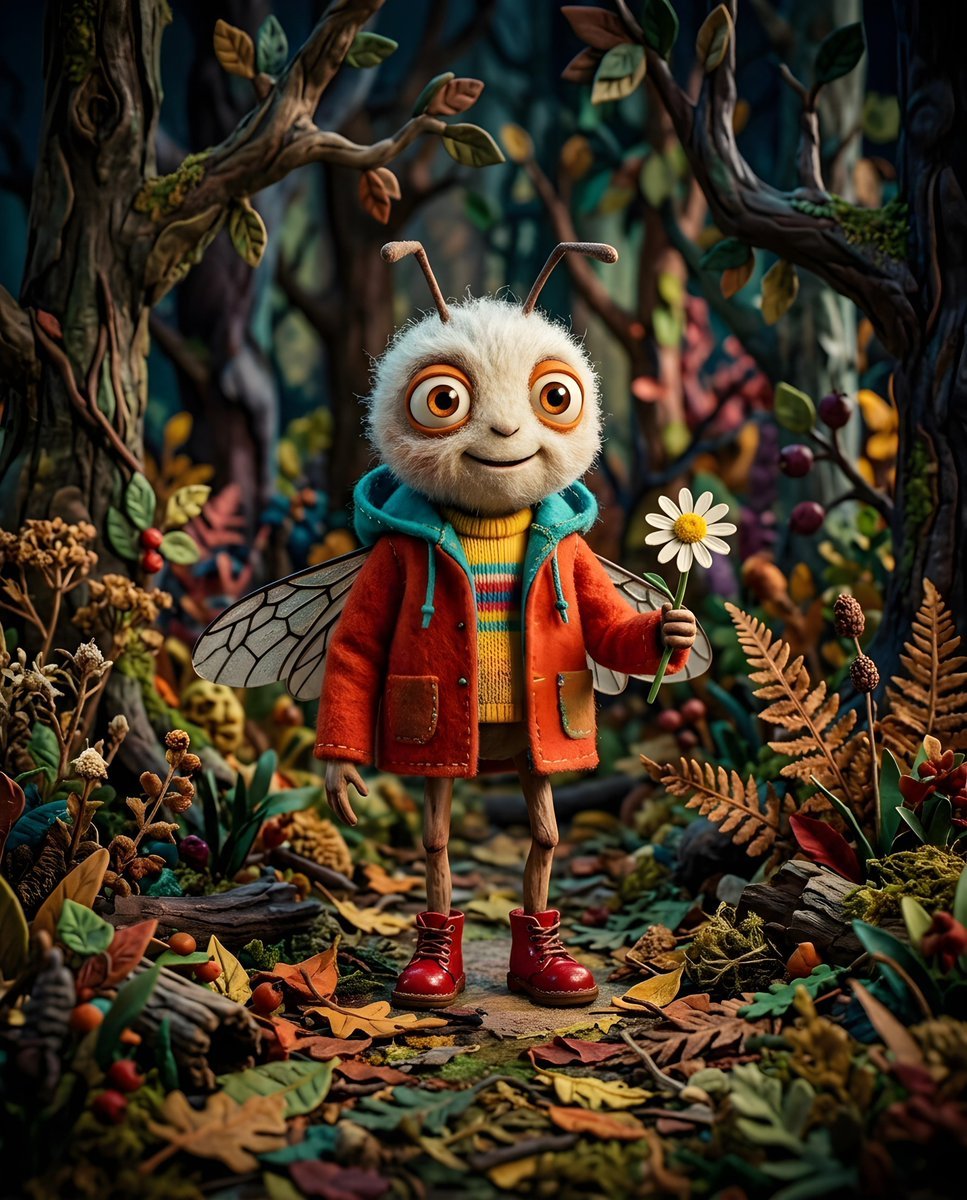
Whimsical Anthropomorphic Friendly Insect
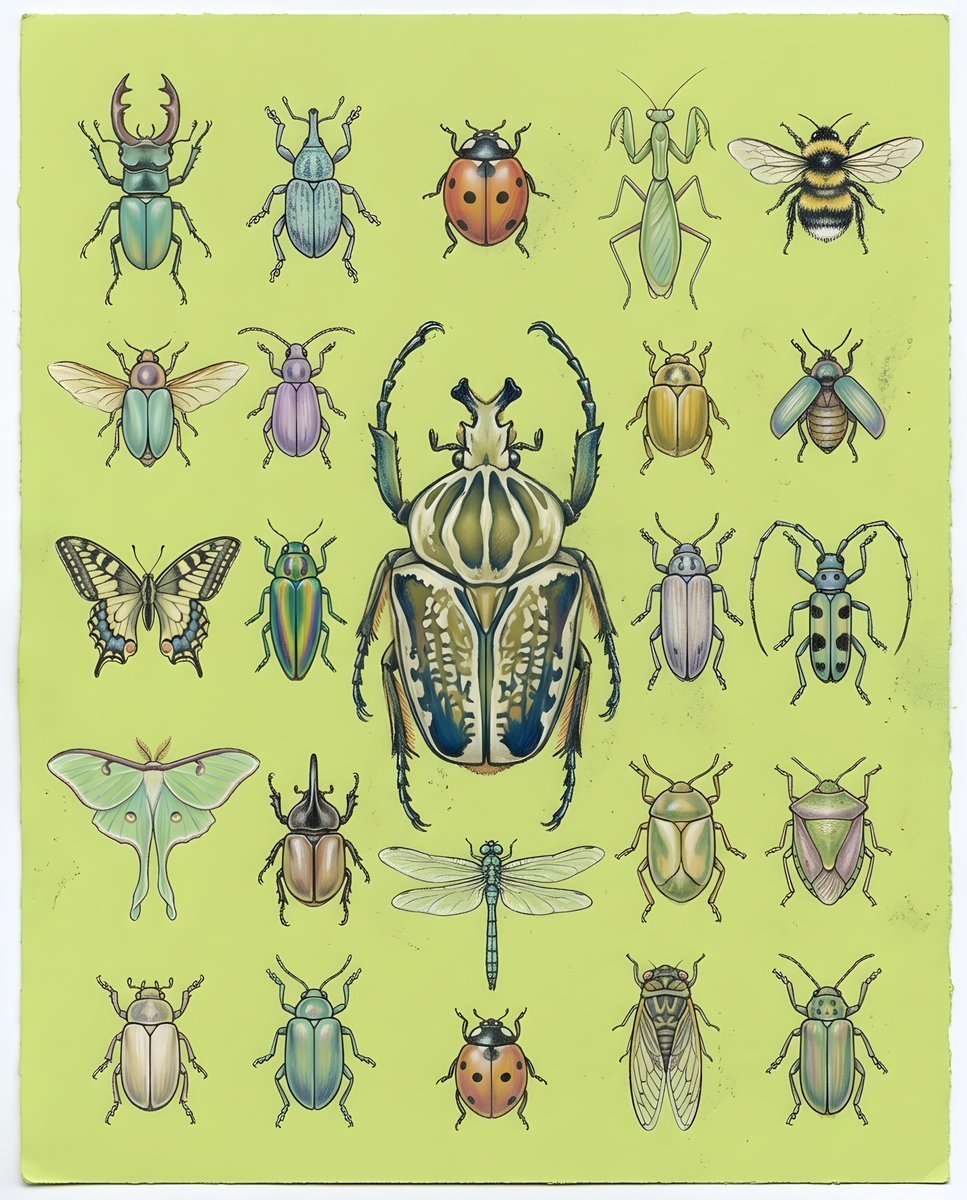
Pastel Chalk Insect Knolling
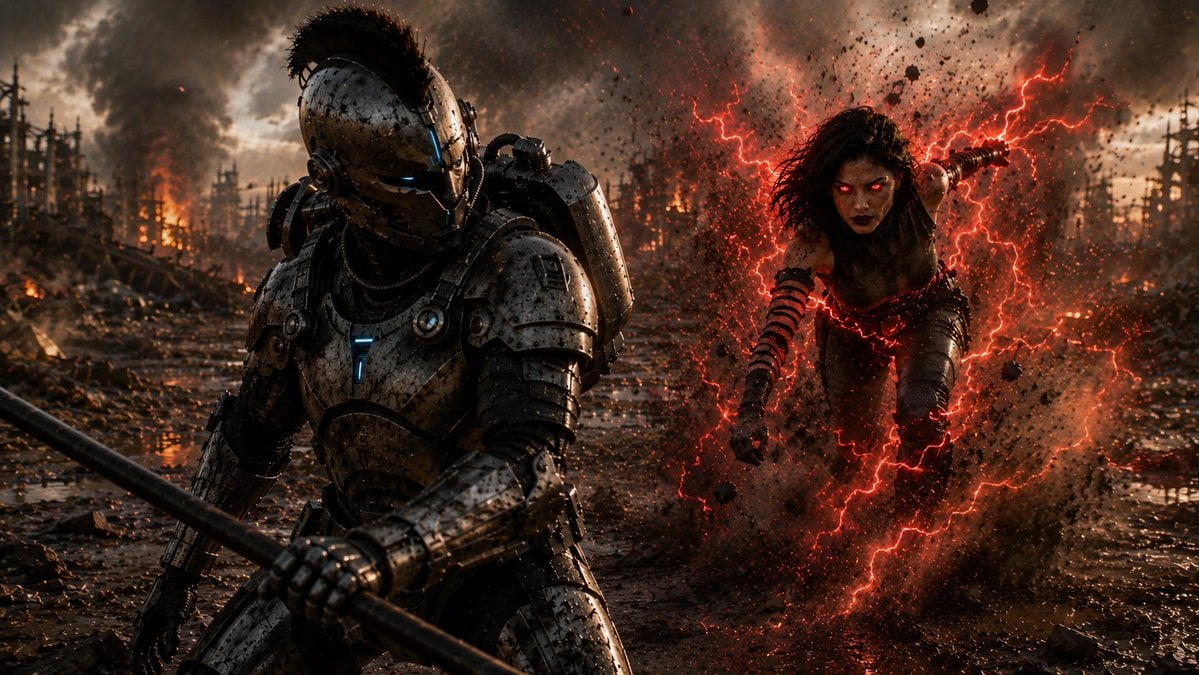
Cyber Knight vs Red Lightning Attacker
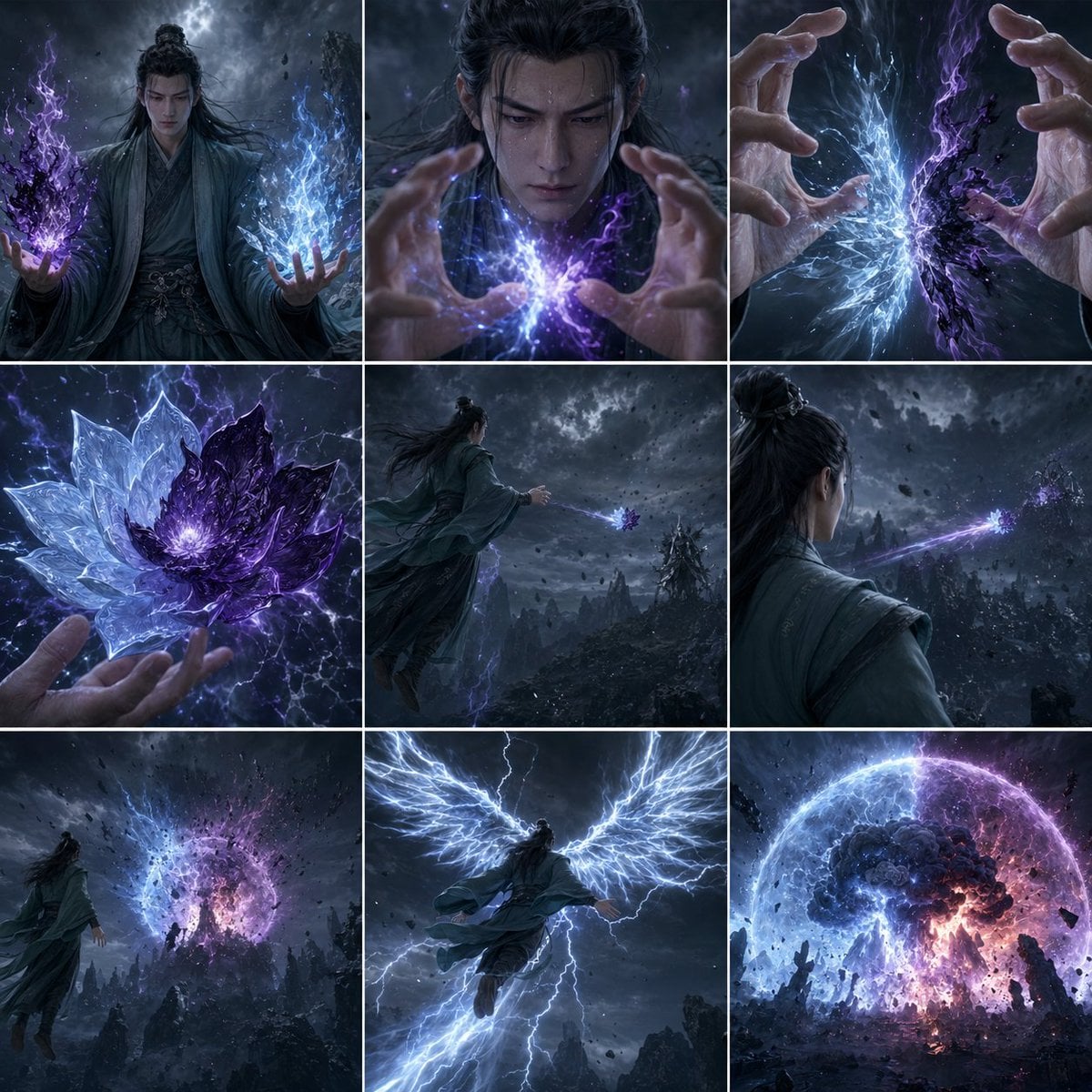
Storm Mage Ultimate Attack Storyboard
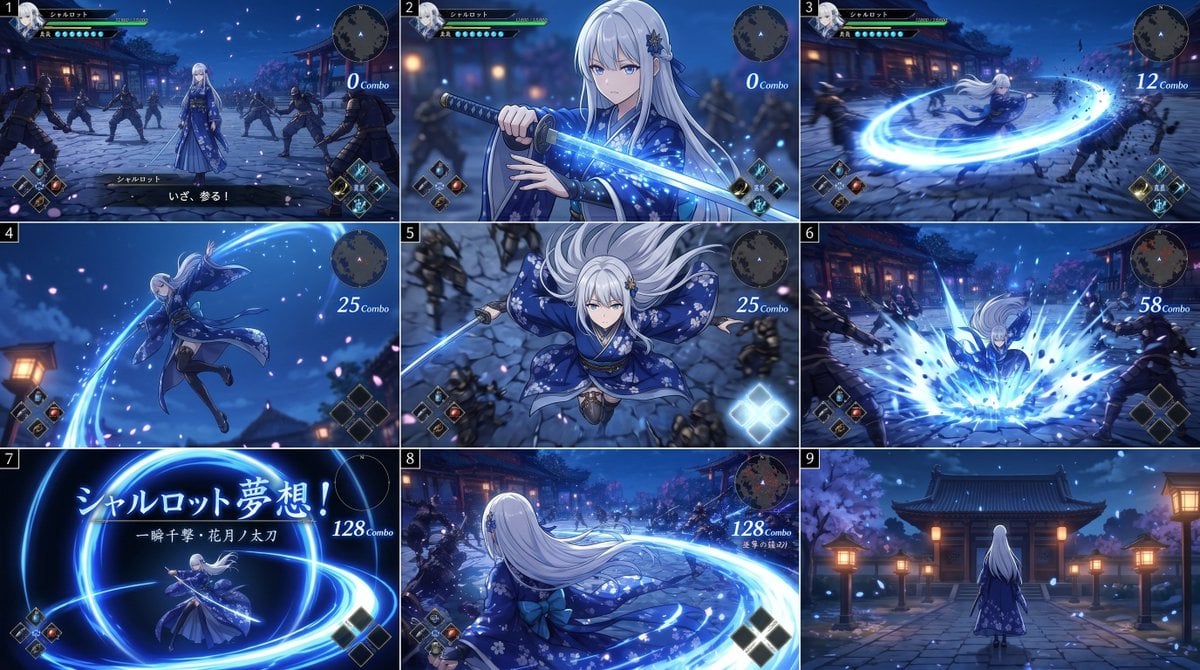
Anime RPG Sword Attack Storyboard
Make it yours
Insect Mecha Cannon Attack works as-is. These are the safest ways to change it without losing the look.
Change one field
Copy a single group, rewrite it, and generate again so you can see what that field is doing.
Keep the frame, change the subject
Hold the composition and light of Insect Mecha Cannon Attack, then swap wardrobe, props or the person for a new take.
| If the result… | Why | Fix |
|---|---|---|
| The result drifts from the preview | Too many fields changed at once. | Reuse Insect Mecha Cannon Attack as-is first, then change one group — subject, light, or setting. |
| The model over-stylizes the scene | The prose prompt leaves finish and camera underspecified. | Add one camera or lighting sentence and stay on GPT Image 2. |
More GPT Image 2 templates
Other prompts made for GPT Image 2.

Six VTuber Japanese Logo Sheet

Realistic Portrait of Woman and Deer

The Vista Modular Condo Poster

AI Model Routing Comparison Infographic

2.5D Anime Art Board

Isometric Productivity Desk Scene

New York Double Exposure Poster

Four-Panel AI Landscape Comparison

Japanese Tatami Lifestyle Magazine Cover

NESCAFÉ Coffee Map Poster
More image prompts
Fresh picks from across the catalog.

Korean Drama Style Classroom Portrait
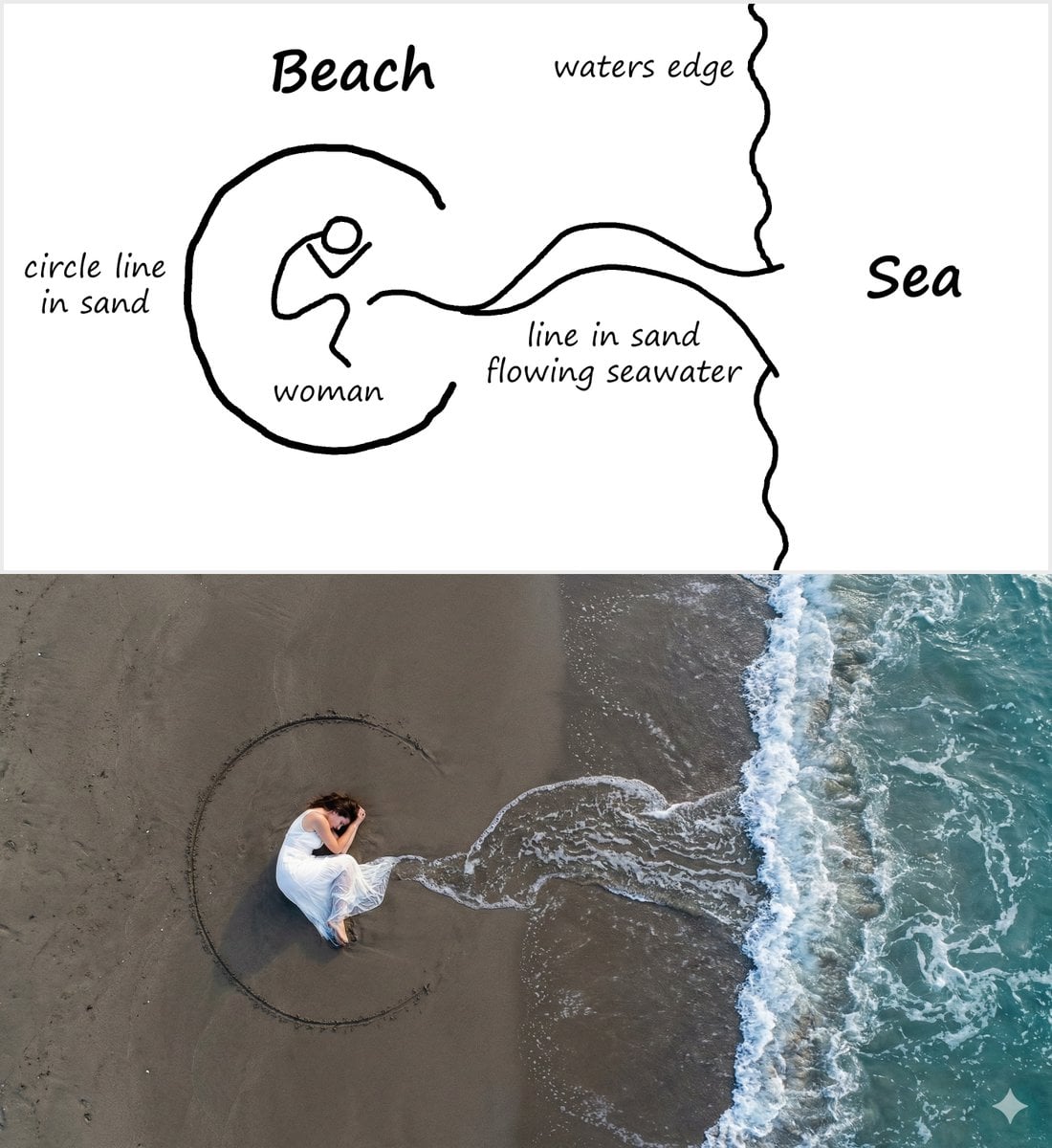
Editorial Portrait with Dramatic Lighting
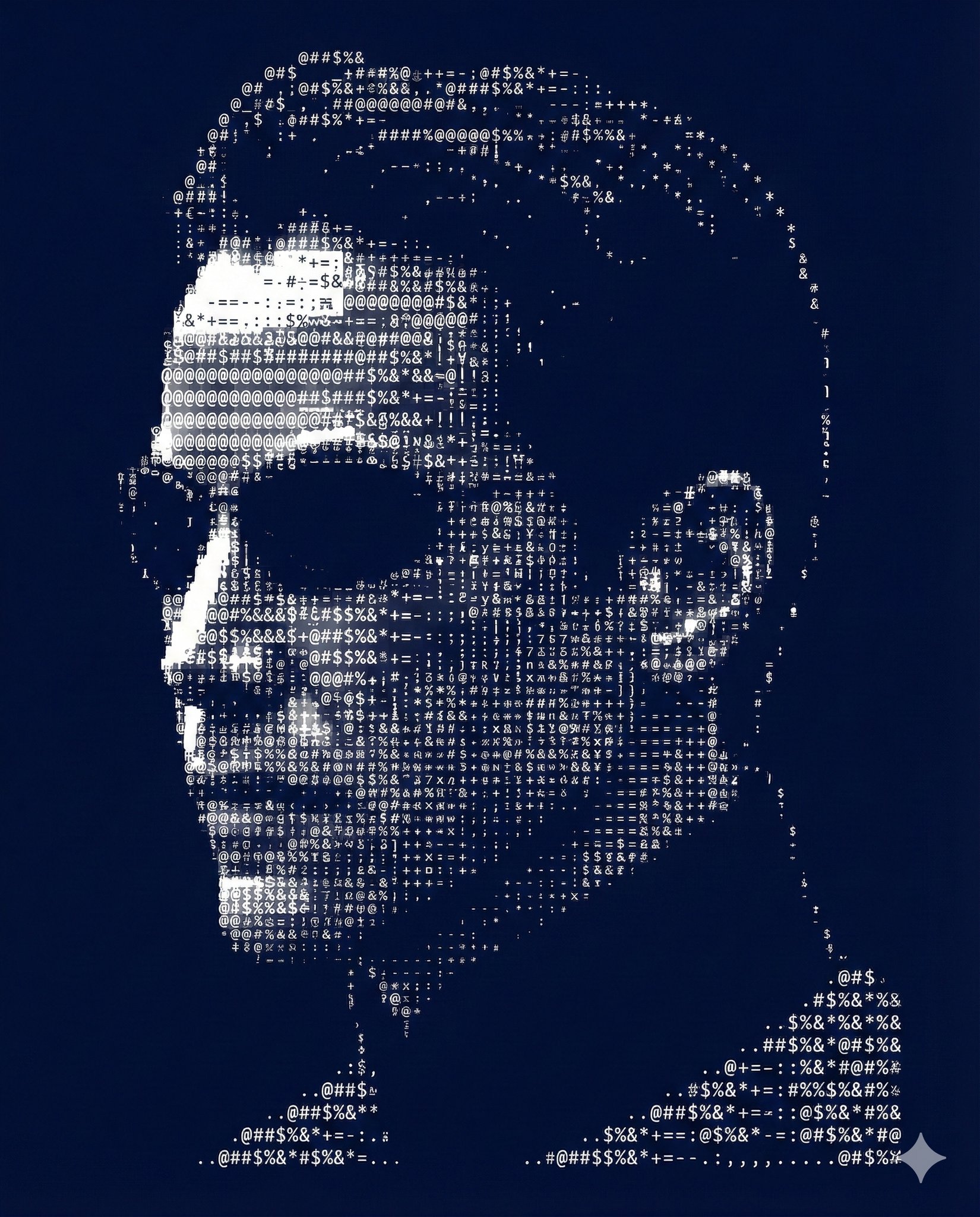
Nano Banana Pro Ascii Art Portrait
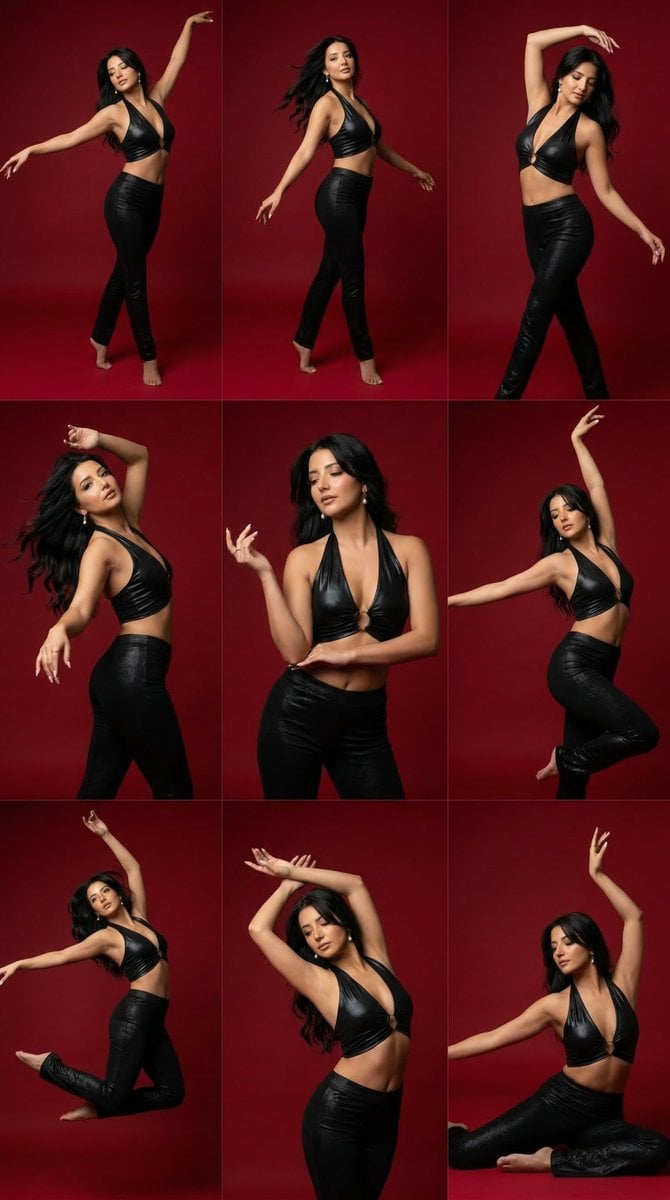
Panel Dance Editorial Grid Prompt
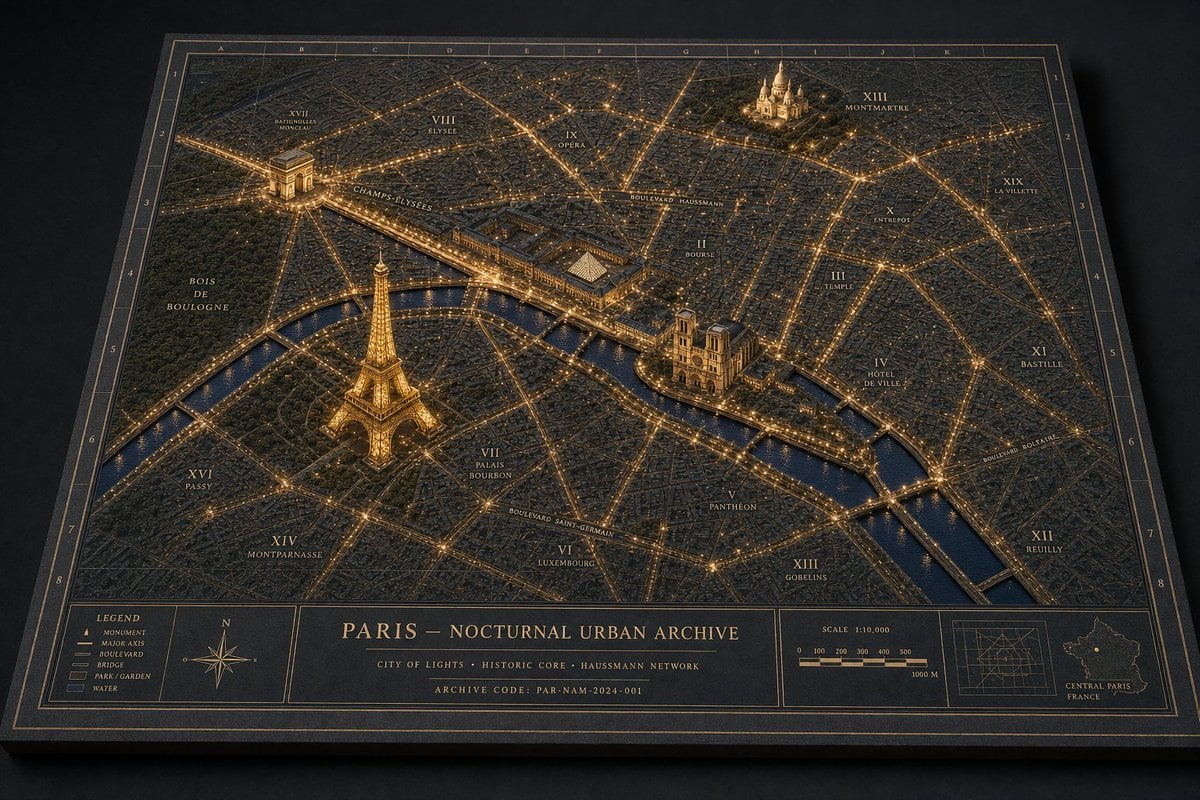
Paris Nocturnal Urban Archive Map

Anime Illustration of Two Girls
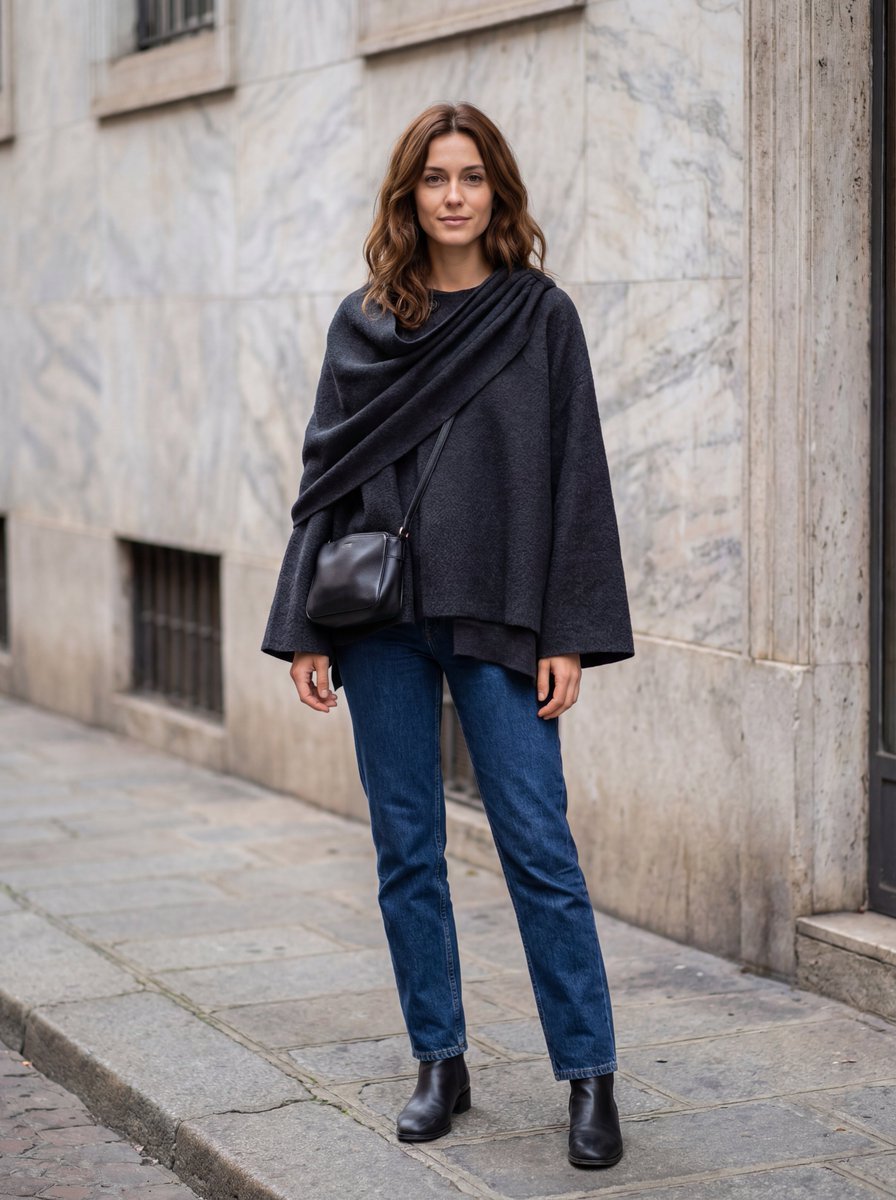
Hyper-Realistic Lifestyle Fashion Photo (Wool Poncho)
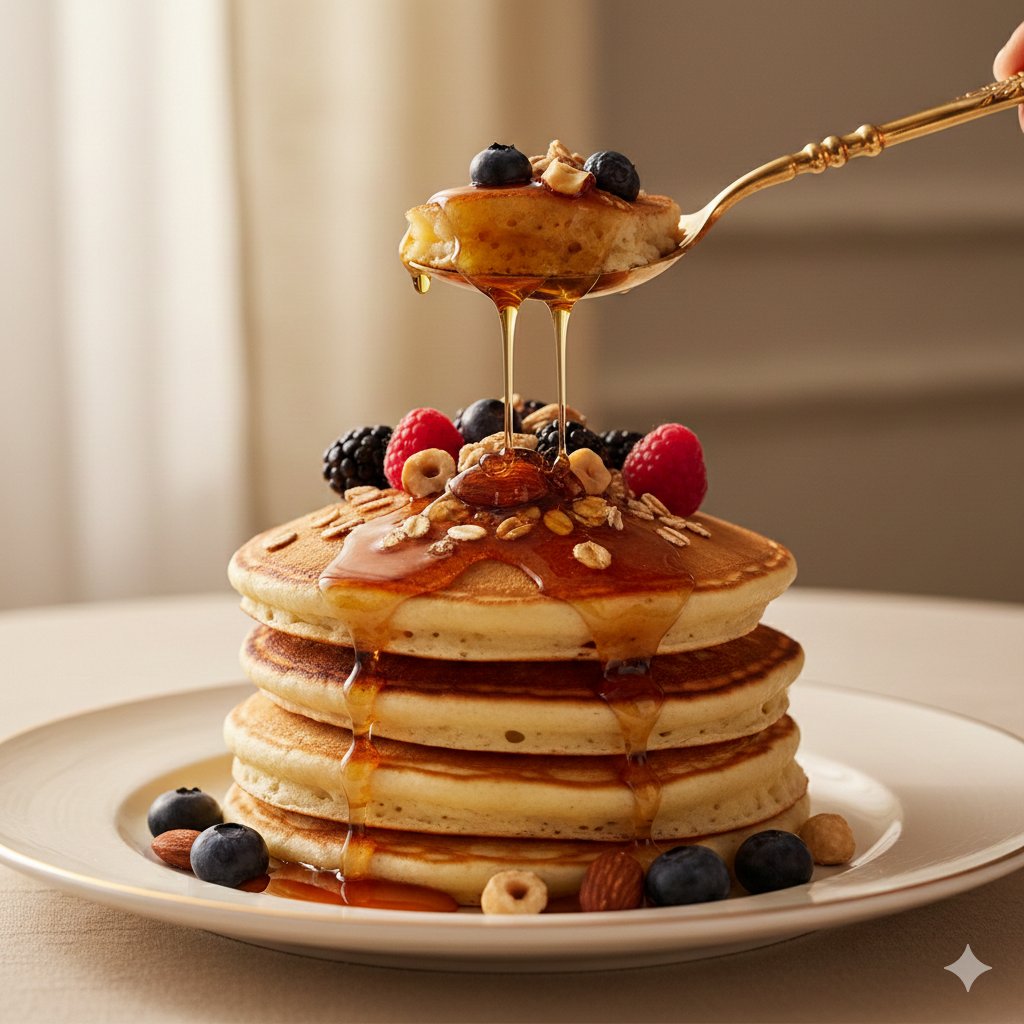
Ultra-Luxury Pancake Commercial Scene
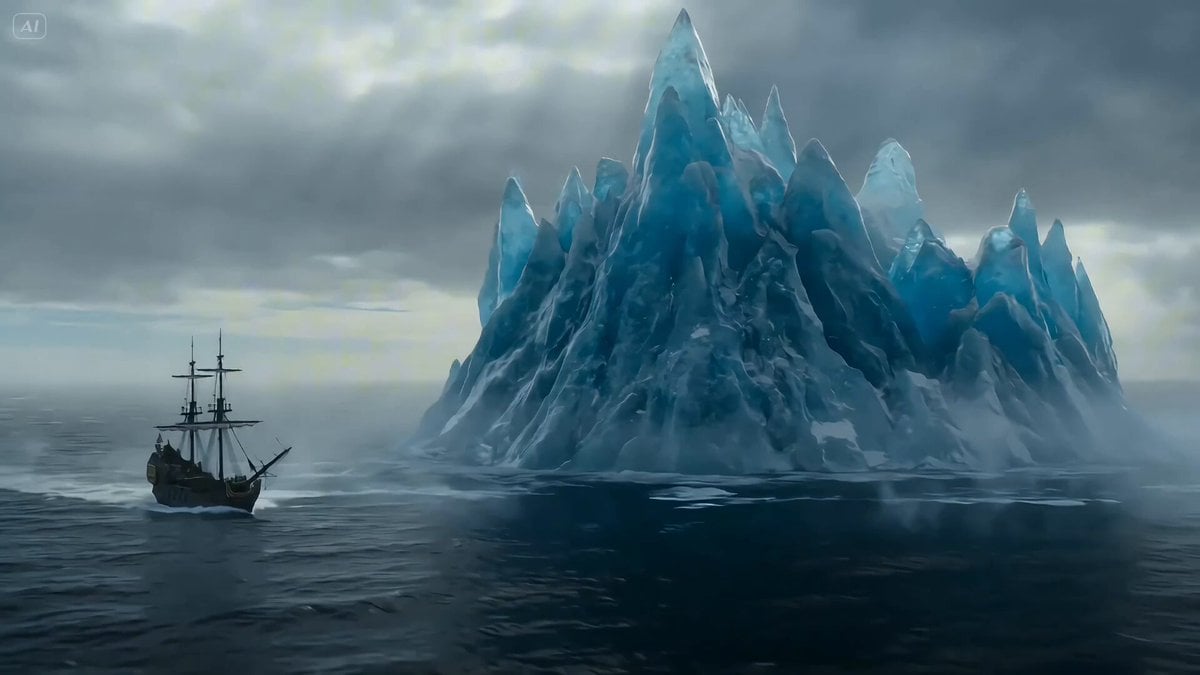
Ice Dragon and the Sailers - Seedance 2.0
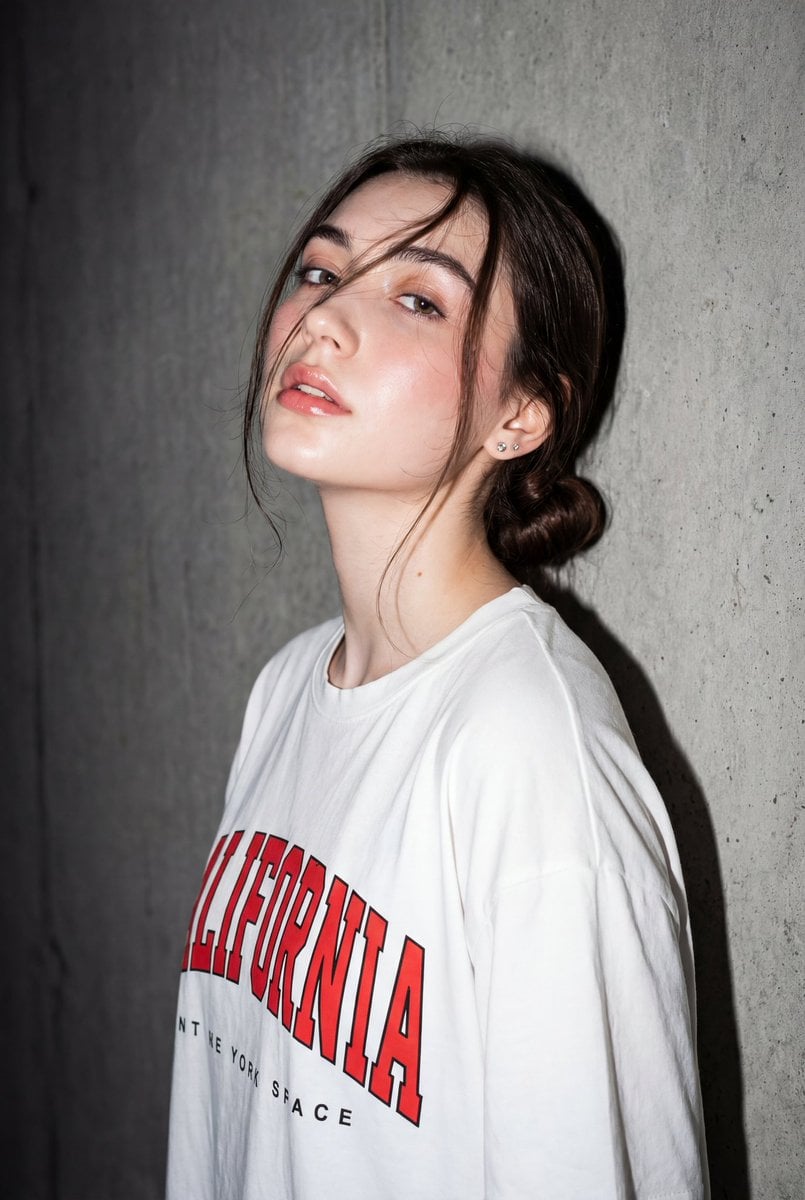
High-Contrast Flash Portrait with Identity Lock
Browse template categories
Insect Mecha Cannon Attack questions
How do I use the Insect Mecha Cannon Attack template?
Add your photo if the template asks for one, edit the prompt if you like — the template's model and format are already selected — and press Generate. Your version opens in PicX Studio.
Can I customize the Insect Mecha Cannon Attack template?
Yes. You can change the subject, setting, lighting, mood, format, and available model controls before creating your image.
Is the Insect Mecha Cannon Attack template free?
Opening and editing this template is free. Generating uses credits, shown on the Generate button when you are signed in.
Which AI model should I use?
Start with GPT Image 2, which is the model associated with this template. You can compare another compatible model for a different finish.
Looking for something else? Browse all templates.

Your photo, any look
Thousands of ready templates for every top image and video model, from one credit balance.