
Bit RPG Battle Screen
Transforms a reference character into a retro Japanese 16-bit command RPG battle scene with enemies, pixel-art ruins, and classic UI boxes.
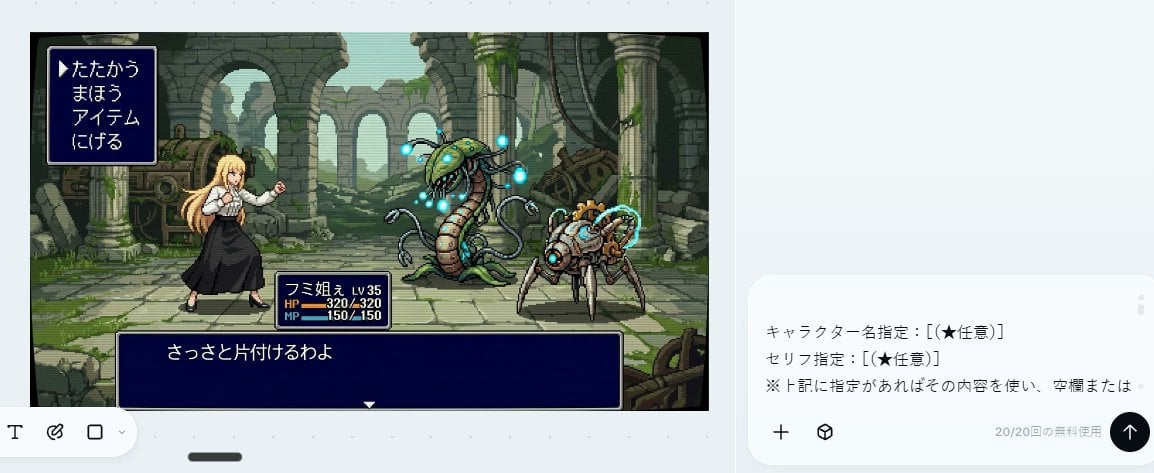
- Prompt included
- Model and format preset
- Free template
The prompt behind this image
Copy the exact prompt behind Bit RPG Battle Screen, or open it in the studio and make it yours.
Using the provided reference image as the character source, transform the character into a 16-bit command RPG battle screen in pixel-art style. Keep the original character’s outfit, long blond hair, general silhouette, and faceless/blurred face treatment, but redraw her as a playable battle sprite standing on the left side in a ready-to-fight pose. Goal: Create a retro Japanese fantasy RPG combat scene, like a Super Famicom / 16-bit era command battle screen. Scene additions: Add an ancient ruined stone arena background with broken arches, columns, moss, vines, scattered machinery, and atmospheric depth. Place exactly 2 enemy monsters on the right side: 1 tall plant/serpent-like mechanical monster with glowing blue orbs, and 1 smaller spider-like mechanical creature with cyan energy rings. UI layout: Add exactly 3 dark navy RPG interface boxes with thin white borders: 1 command menu in the upper left, 1 character status box near the lower center-left, and 1 dialogue box across the bottom. Text: The command menu must contain exactly 4 Japanese options in vertical order: 「たたかう」, 「まほう」, 「アイテム」, 「にげる」, with a triangular cursor pointing to the first option. The status box should show {argument name="character name" default="フミ姐ぇ"}, LV 35, HP 320/320, and MP 150/150. The bottom dialogue box should show {argument name="battle line" default="さっさと片付けるわよ"}. Style constraints: Use crisp 16-bit pixel art, limited color palette, visible pixel edges, side-view RPG composition, no modern UI, no photorealism, no extra characters, no extra menu items, no watermark.
Reference images included
Bit RPG Battle Screen needs input media to work. They load alongside the prompt when you open it in the studio.
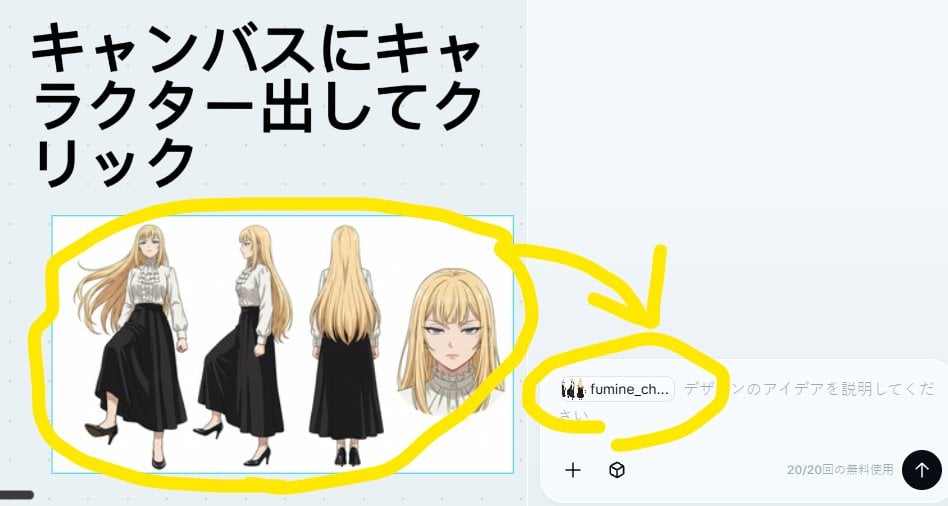
How to use Bit RPG Battle Screen in 3 steps
- 1Upload ImagePNG, JPG or paste
Add your photo
Upload the photo the template builds on. The prompt, model and format are already set.
- 2…a portrait of your subject in softgolden-hour light, 85mm…
Personalize
Edit the subject and creative details for your destination.
- 3Generate
Generate
Press Generate — your image is created in PicX Studio, so you can compare it with the original and refine one variable at a time.
More like this
Templates with the same subject, style or setup. Open one to see its prompt.
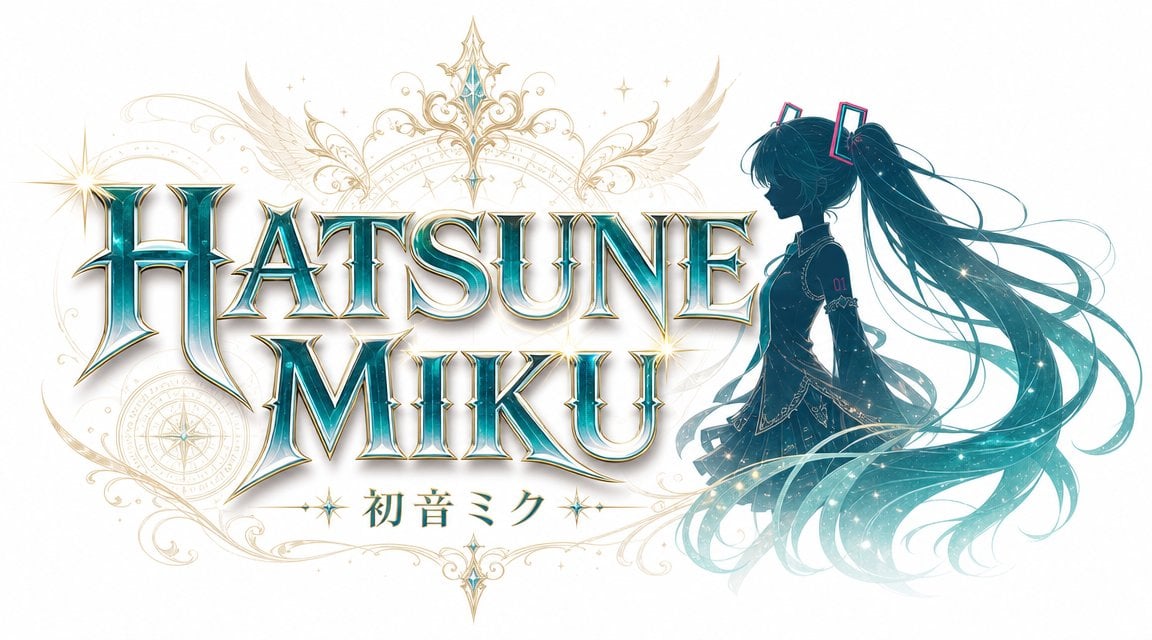
JRPG Fantasy Title Logo Splash Screen
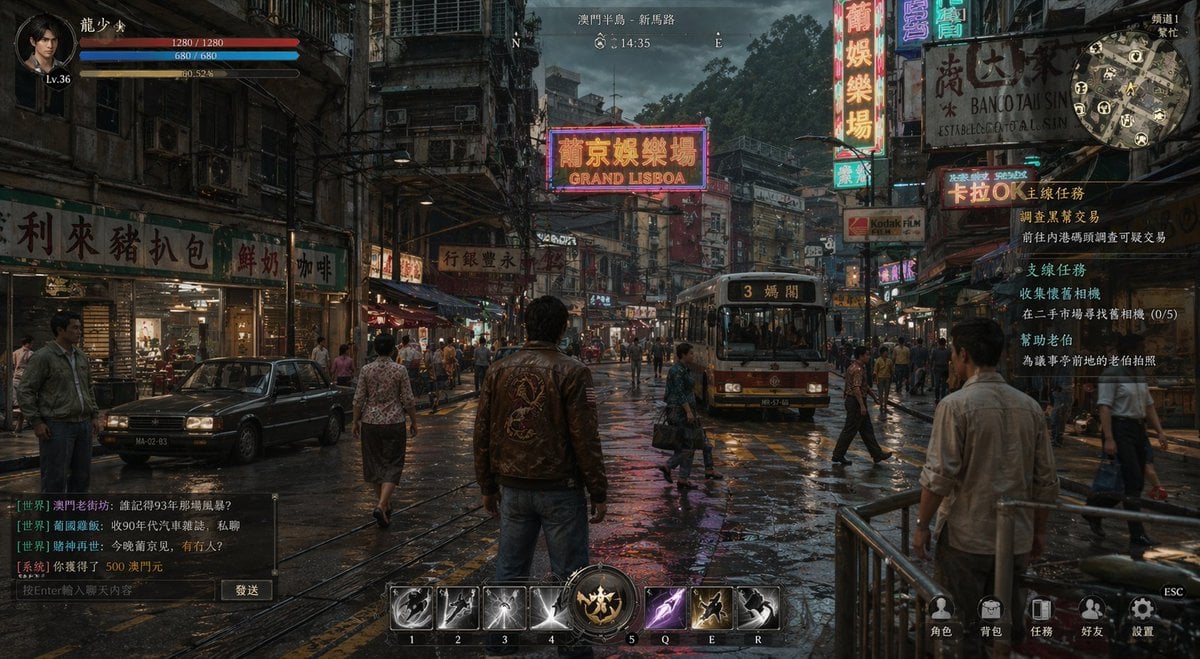
Rainy Neon Macau RPG Screenshot
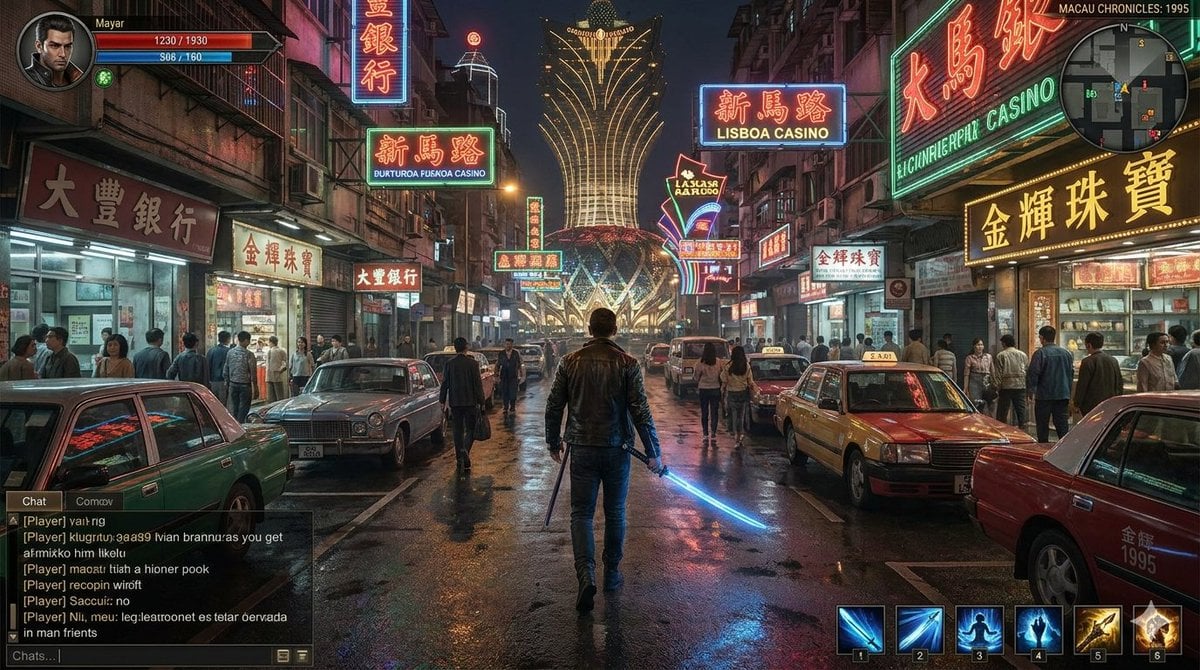
Neon Macau RPG Street Battle HUD
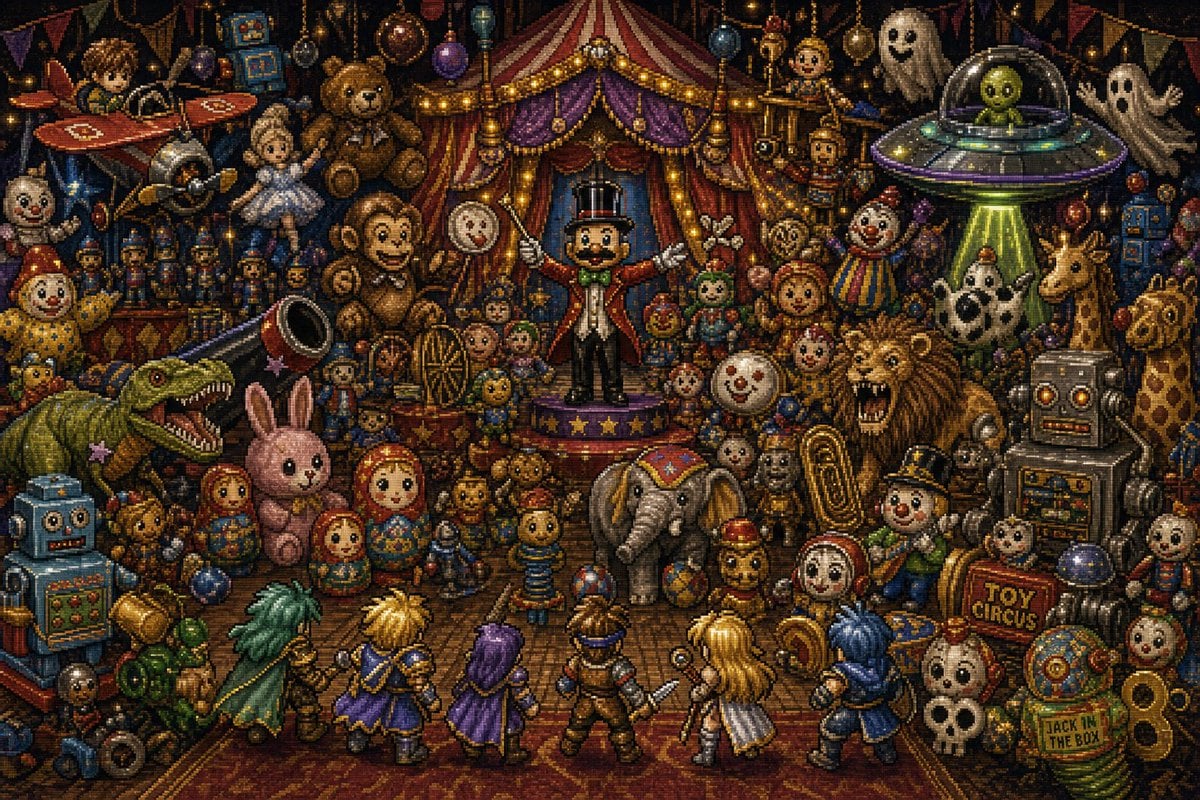
Toy Circus JRPG Battle
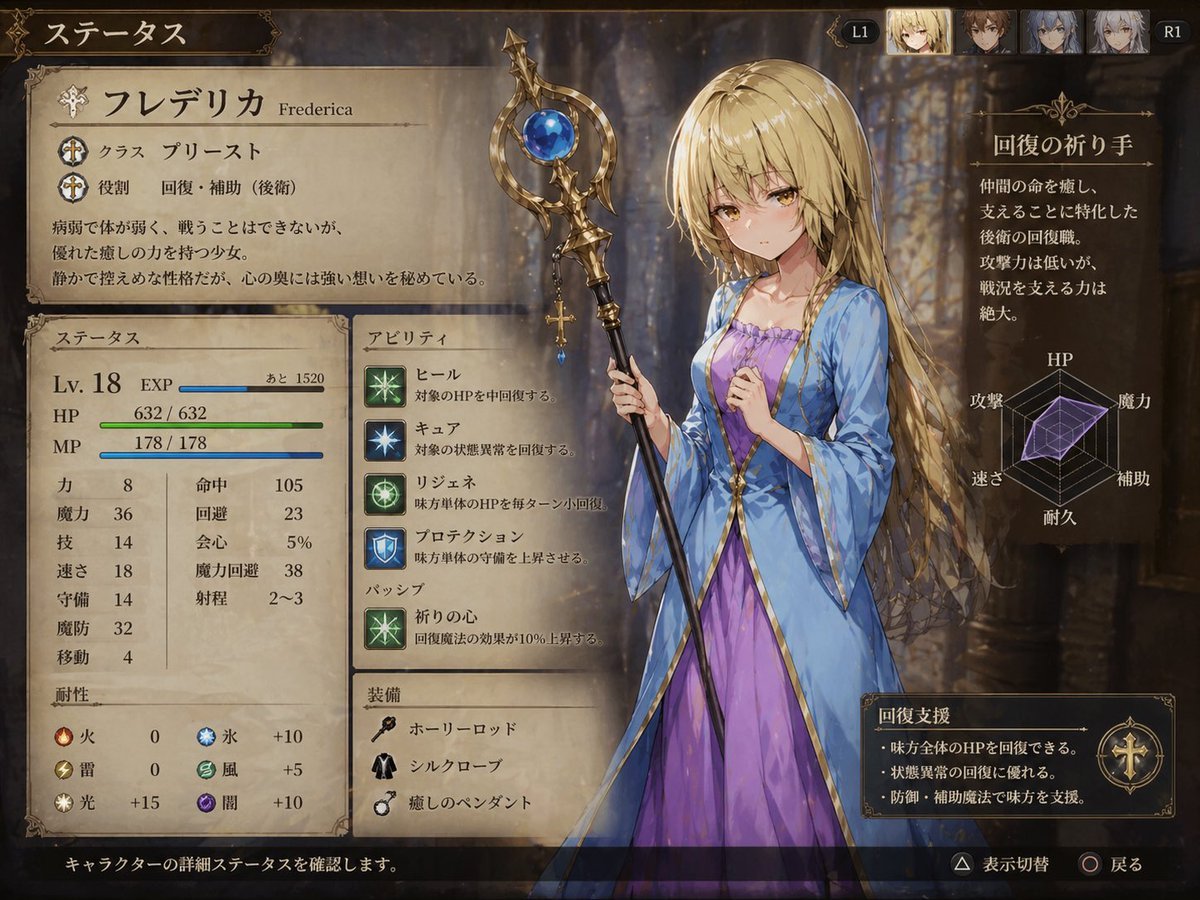
Fantasy JRPG Priest Status Screen
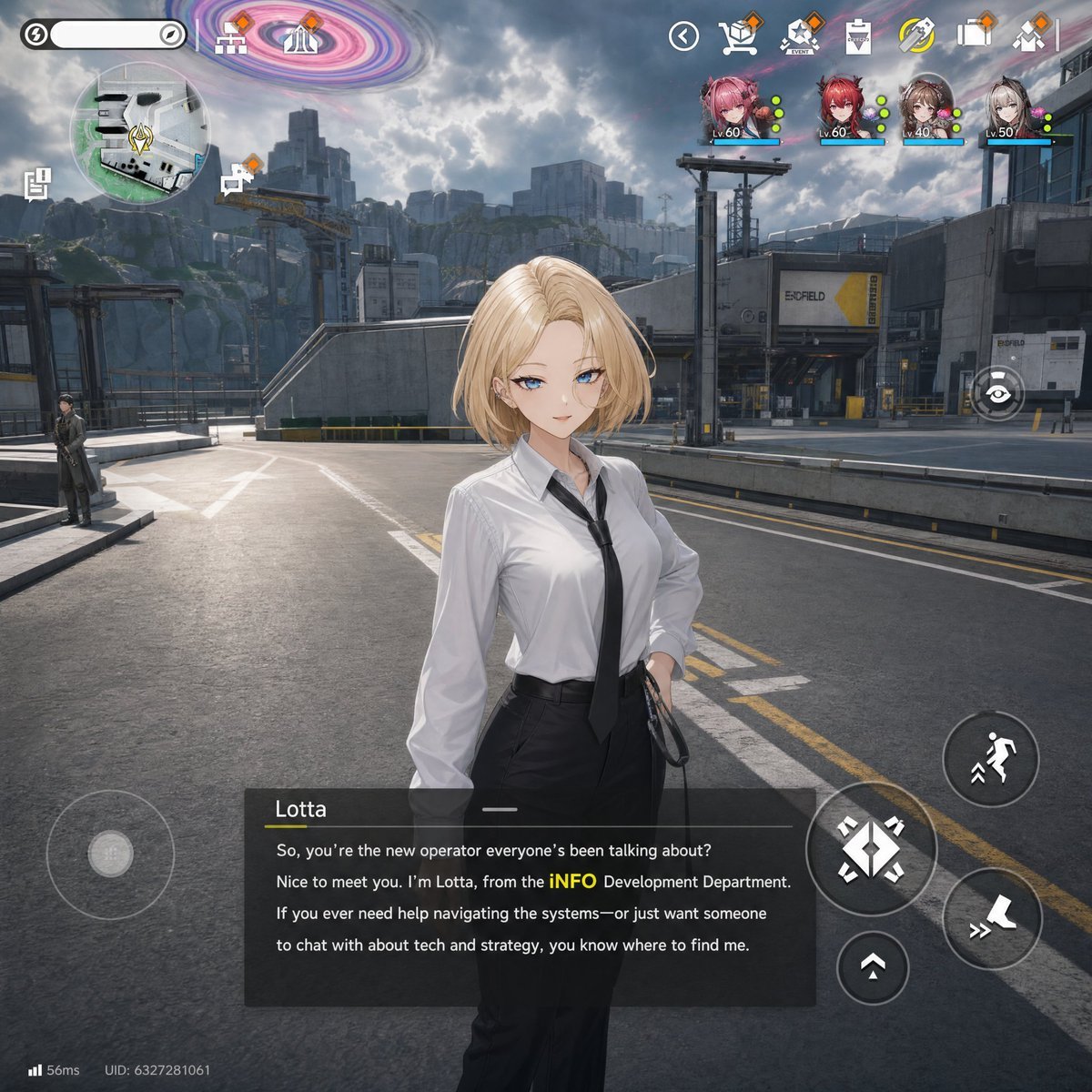
Sci-Fi Gacha RPG Dialogue Screenshot
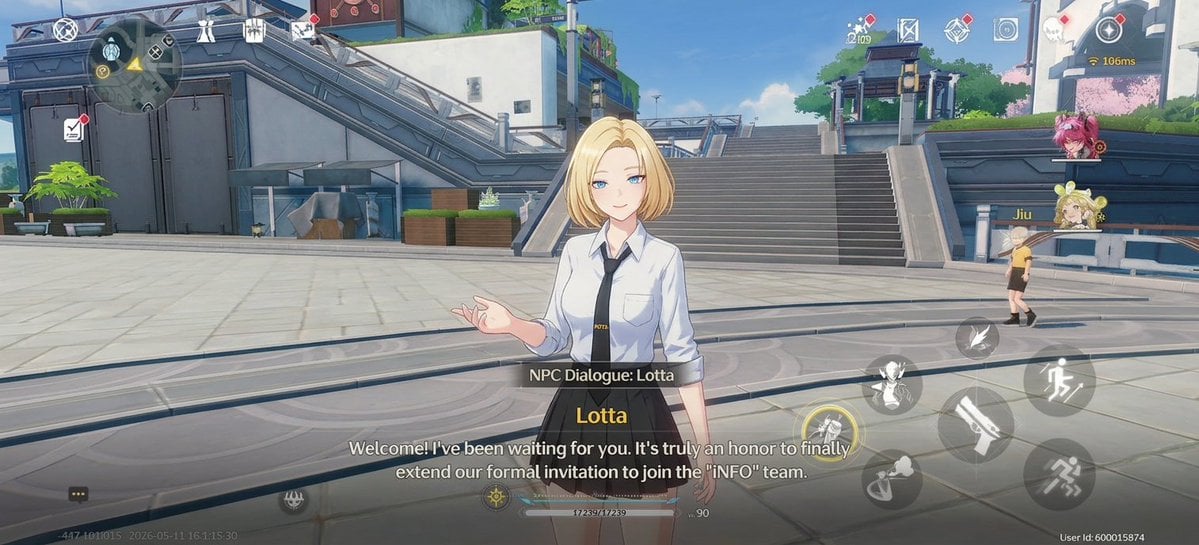
Anime RPG Dialogue Screenshot
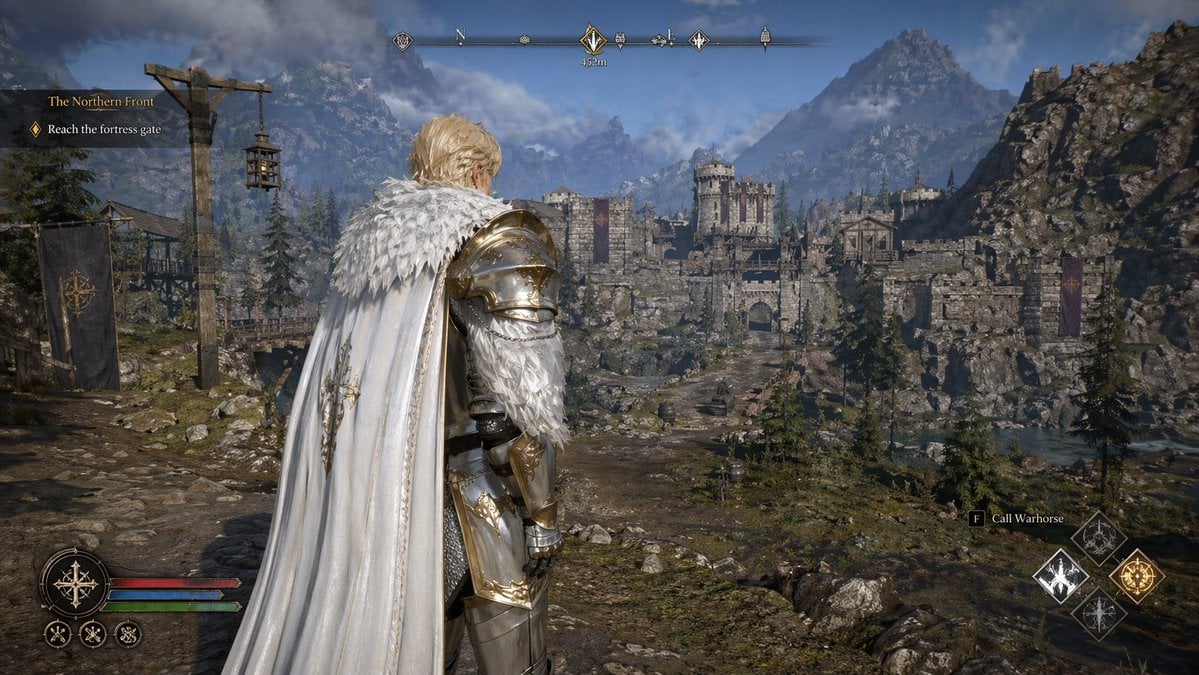
Open-world RPG screenshot style
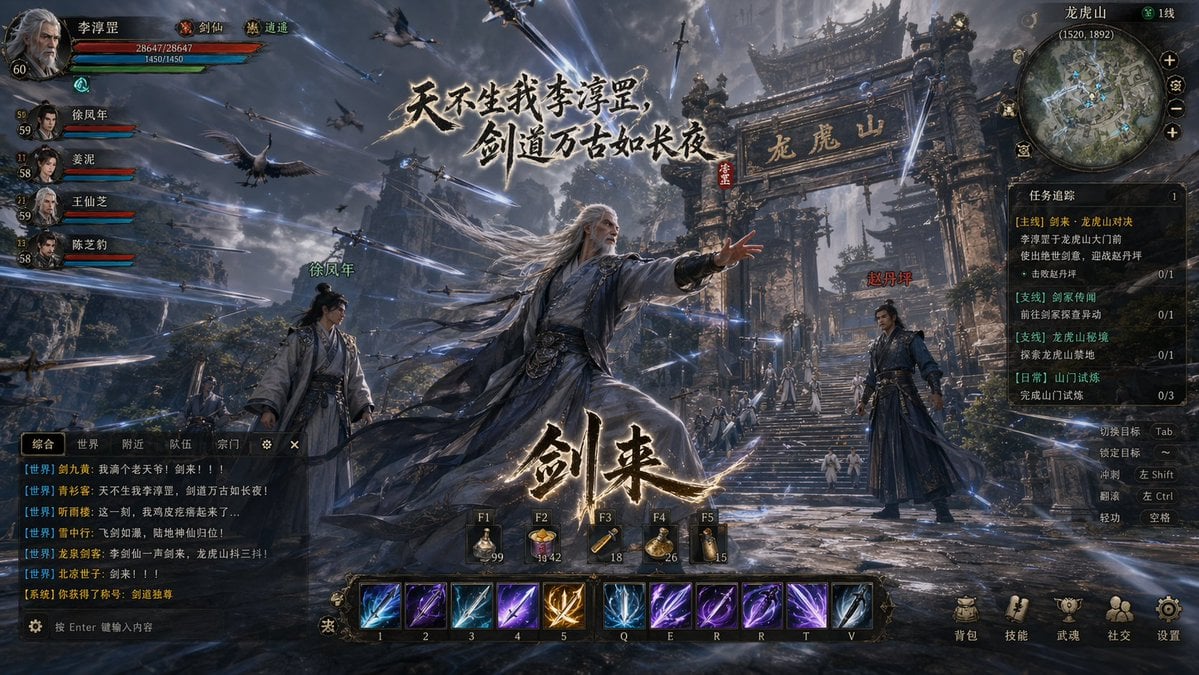
Wuxia MMORPG Gameplay Screenshot
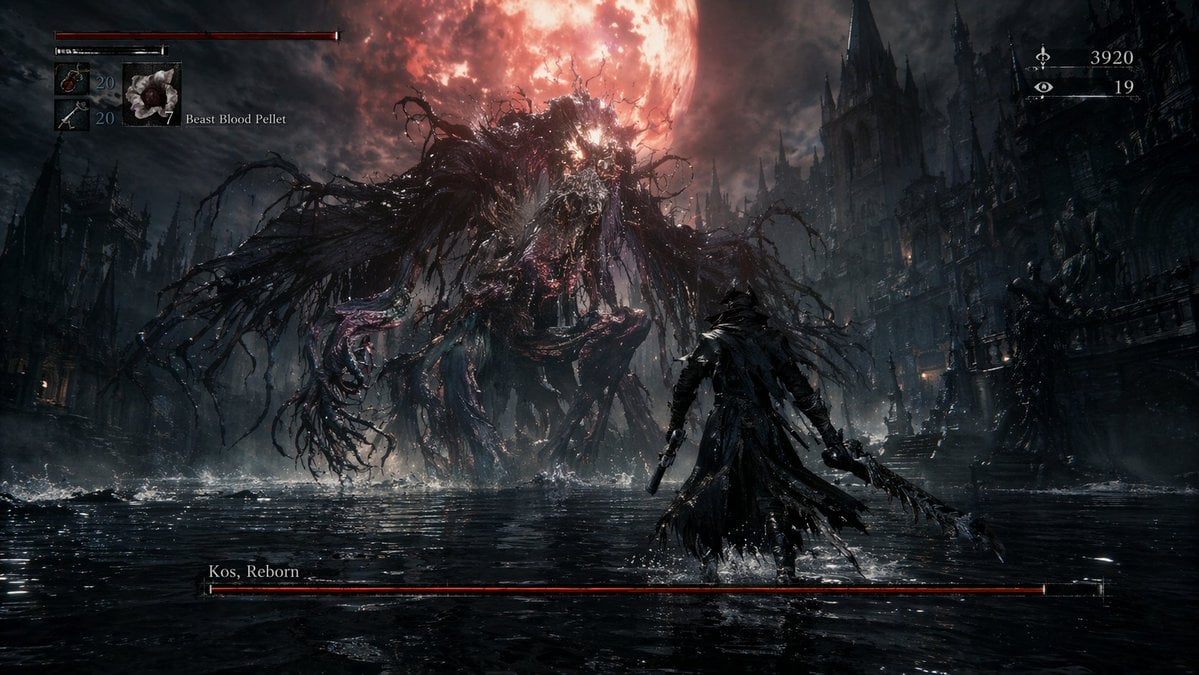
Dark Fantasy RPG Boss Fight Screenshot
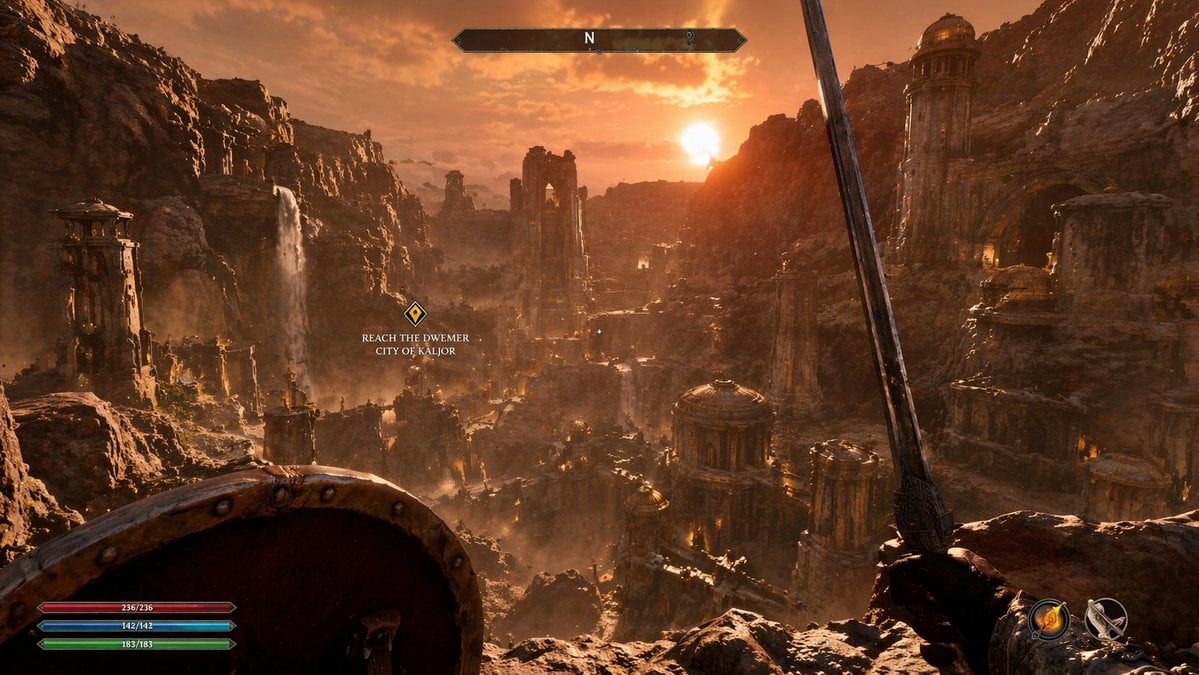
First-Person Fantasy RPG Screenshot
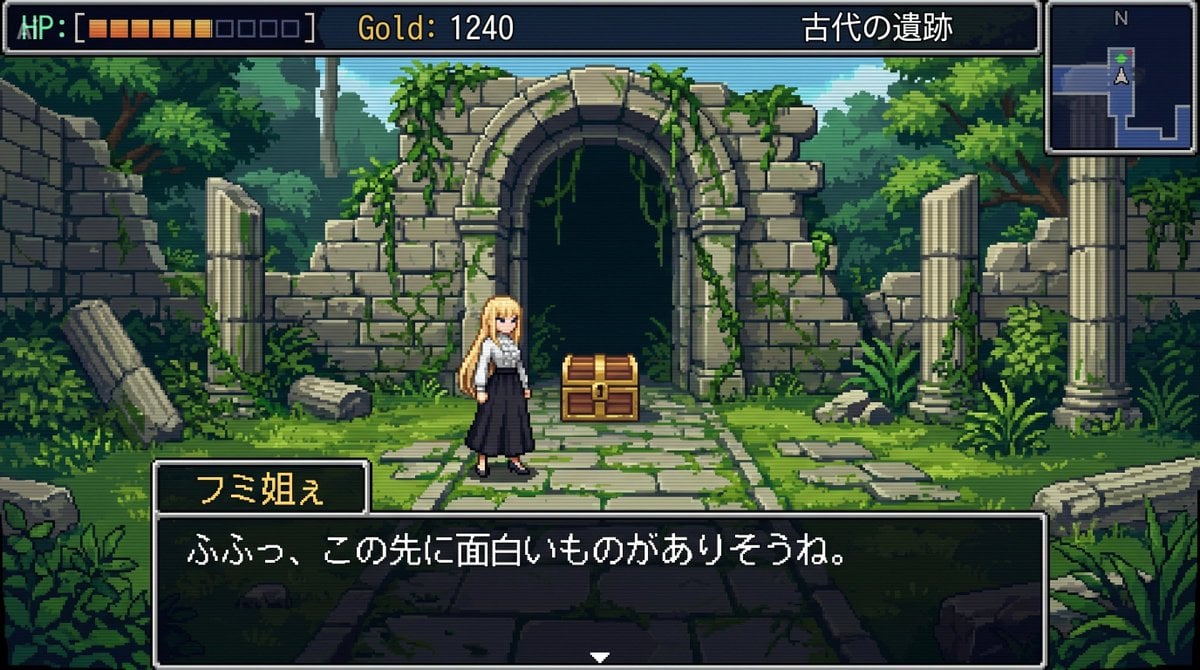
bit RPG Field Exploration Prompt
Make it yours
Bit RPG Battle Screen works as-is. These are the safest ways to change it without losing the look.
Change one field
Copy a single group, rewrite it, and generate again so you can see what that field is doing.
Keep the frame, change the subject
Hold the composition and light of 16-Bit RPG Battle Screen, then swap wardrobe, props or the person for a new take.
| If the result… | Why | Fix |
|---|---|---|
| The result drifts from the preview | Too many fields changed at once. | Reuse 16-Bit RPG Battle Screen as-is first, then change one group — subject, light, or setting. |
| The model over-stylizes the scene | The prose prompt leaves finish and camera underspecified. | Add one camera or lighting sentence and stay on GPT Image 2. |
More GPT Image 2 templates
Other prompts made for GPT Image 2.

Six VTuber Japanese Logo Sheet

Realistic Portrait of Woman and Deer

The Vista Modular Condo Poster

AI Model Routing Comparison Infographic

2.5D Anime Art Board

Isometric Productivity Desk Scene

New York Double Exposure Poster

Four-Panel AI Landscape Comparison

Japanese Tatami Lifestyle Magazine Cover

NESCAFÉ Coffee Map Poster
More image prompts
Fresh picks from across the catalog.
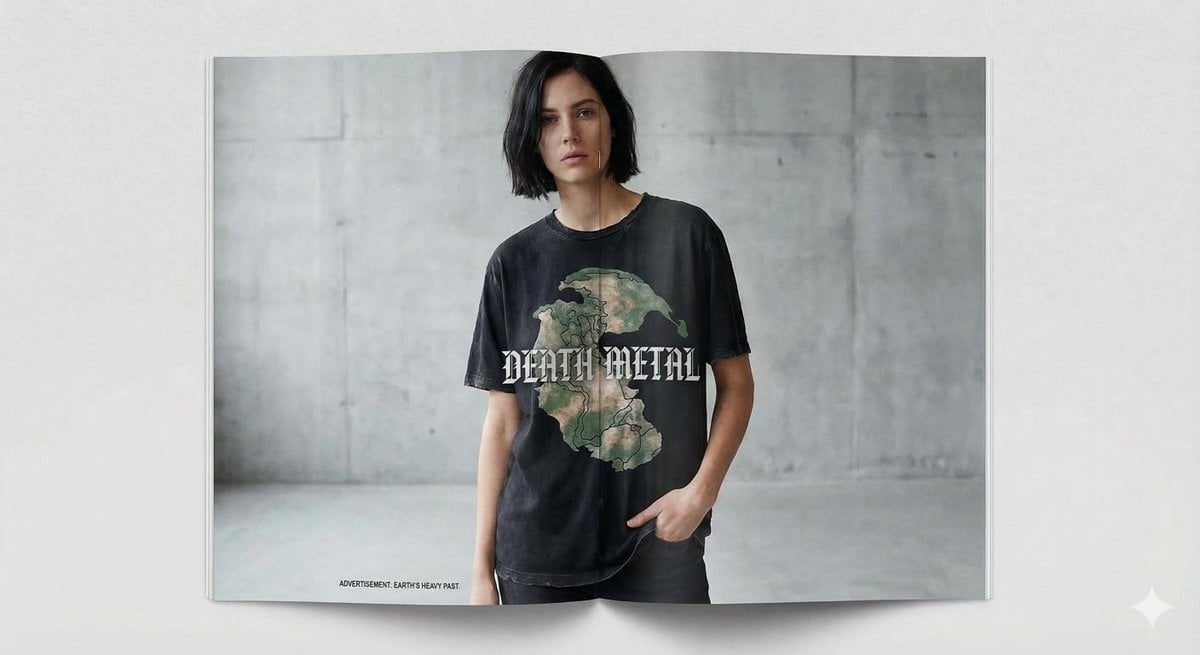
Generate a Pangea T-shirt Ad in Fashion Magazine Style
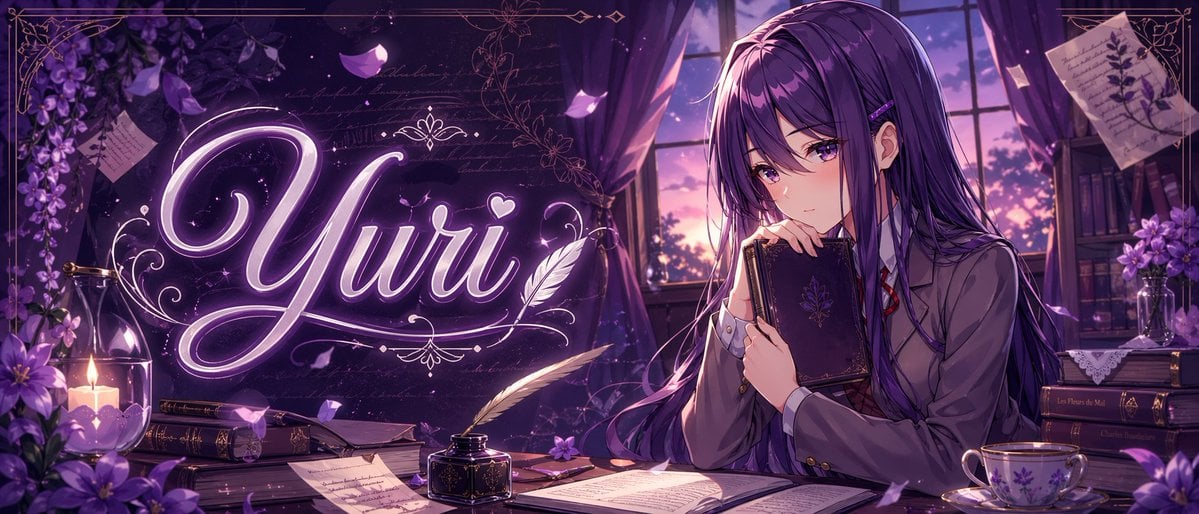
Gpt2 Youtube Thumbnail Purple Anime Yuri Banner
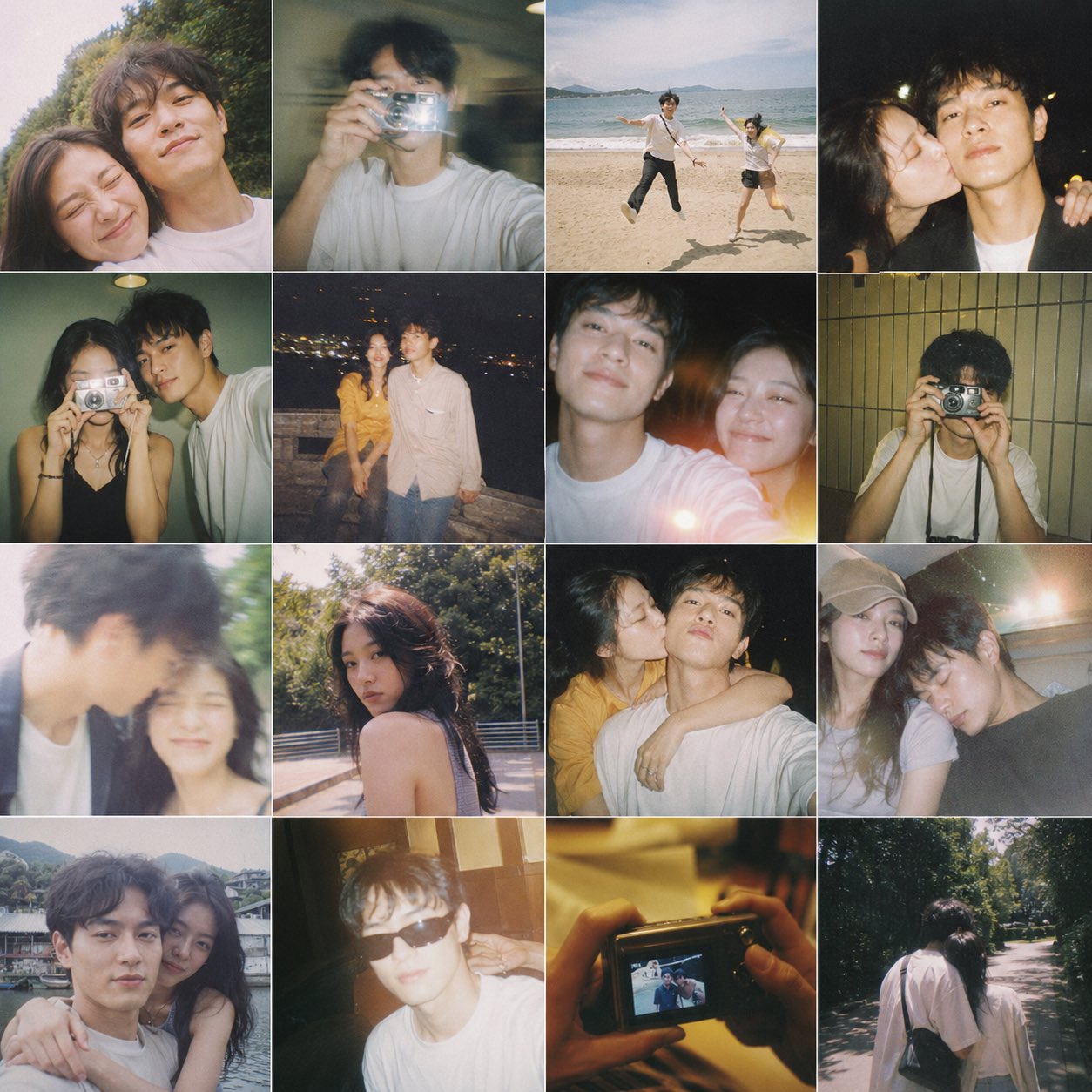
Film Contact Sheet Couple
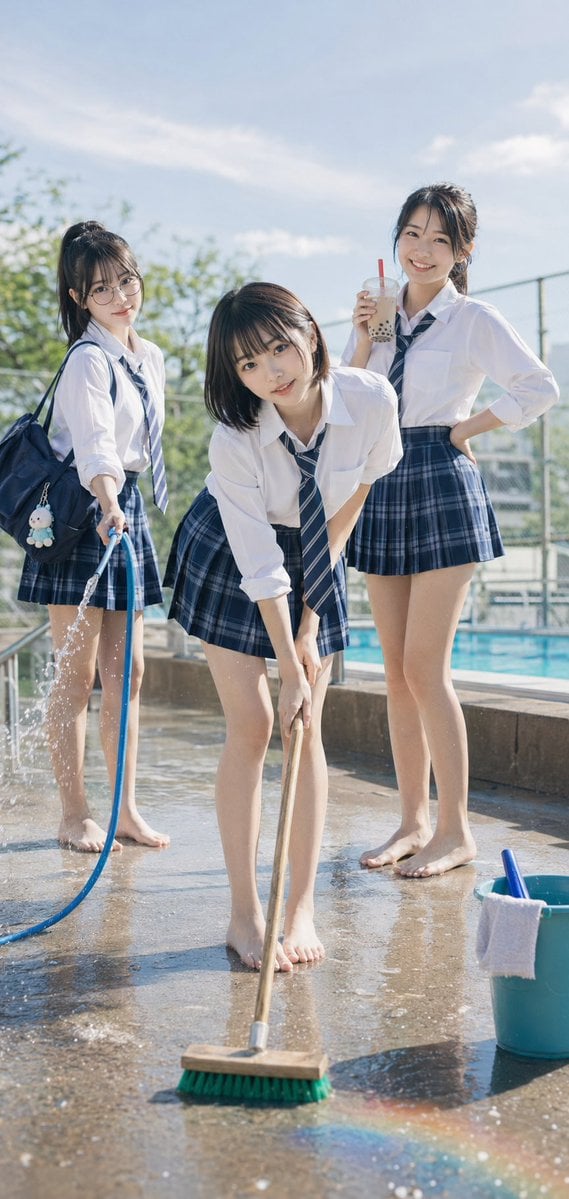
Poolside School Cleaning Scene
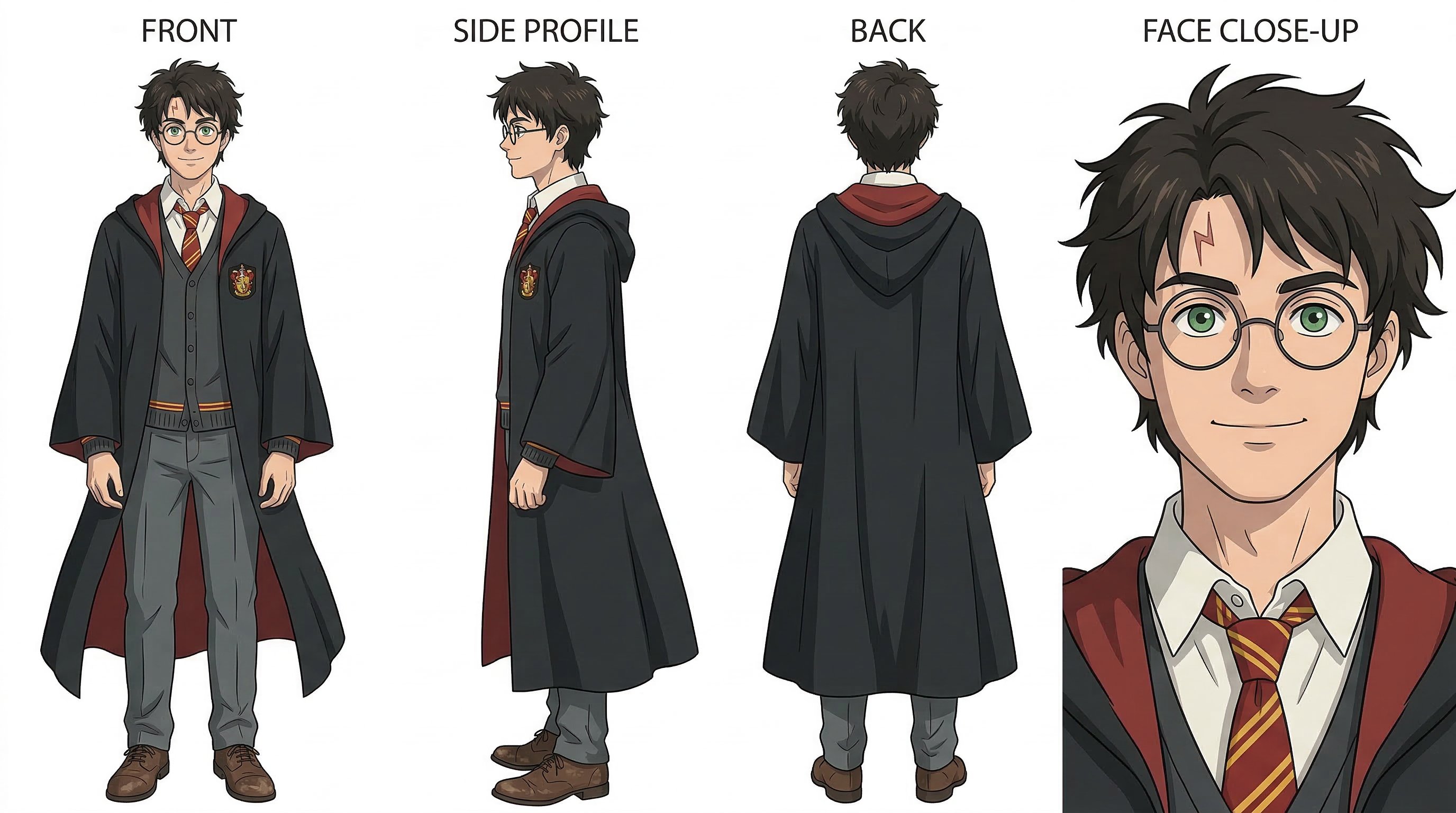
Nano Banana 2
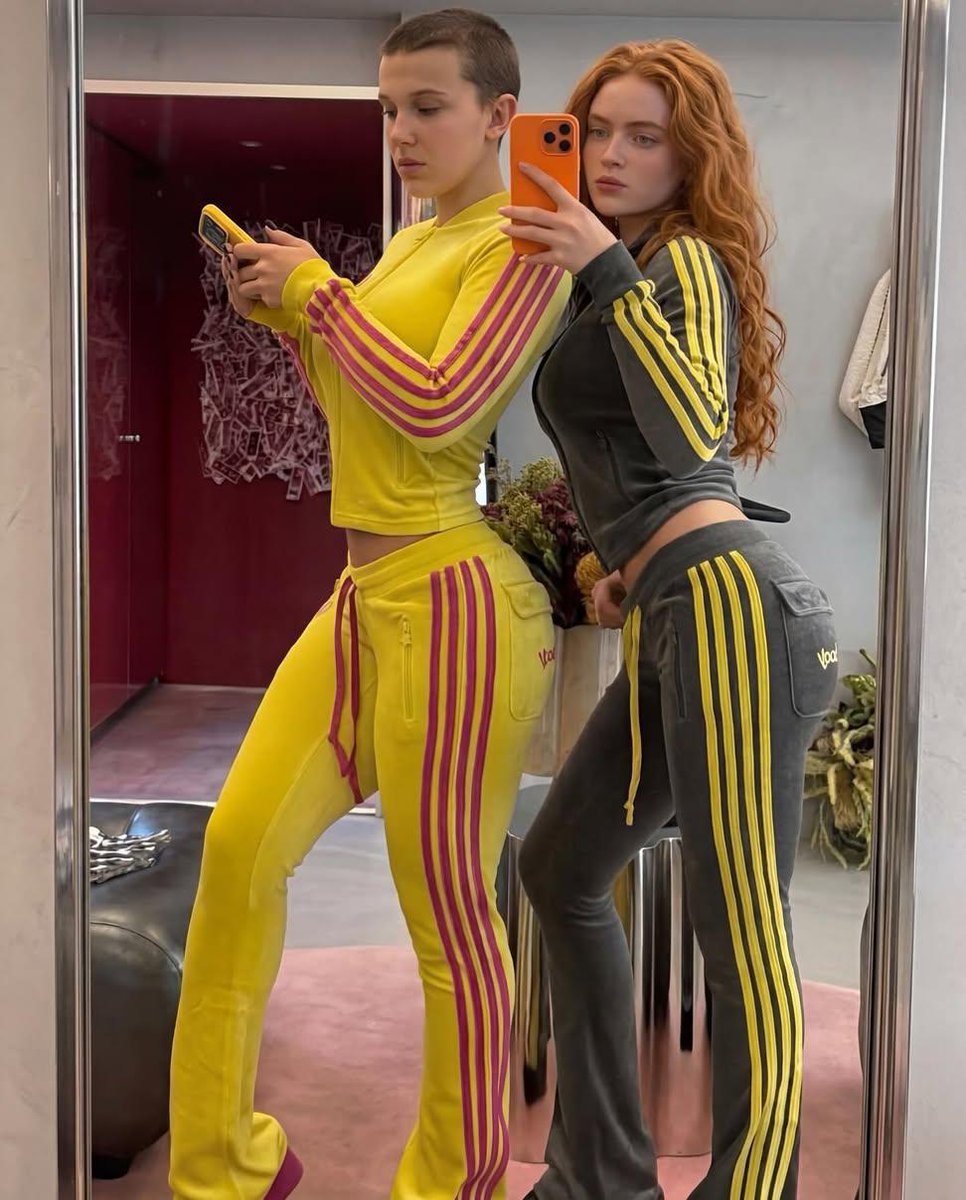
Mirror Selfie of Two Women in Velour Tracksuits
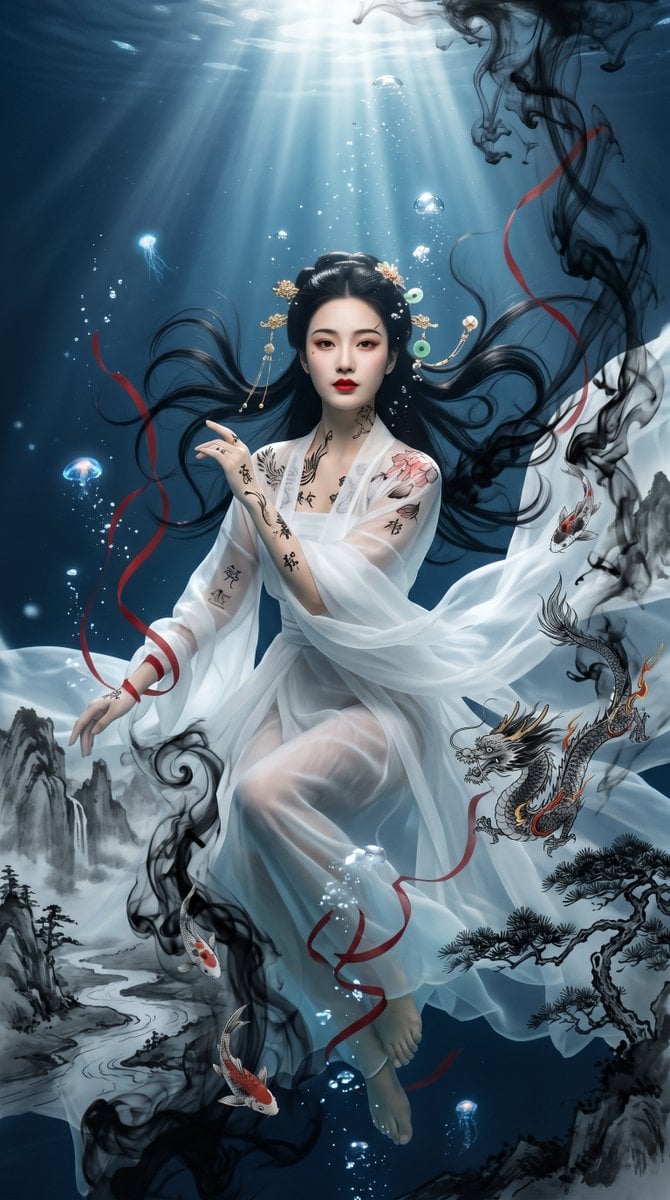
Underwater Chinese Ink Dreamscape Portrait
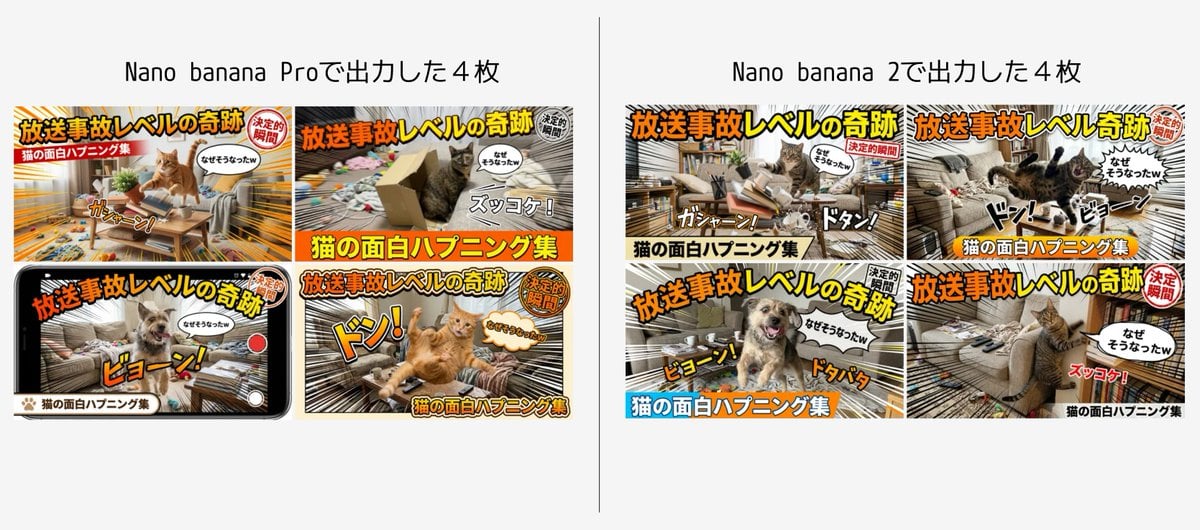
Detailed Japanese Prompt for Variety Show Style Image
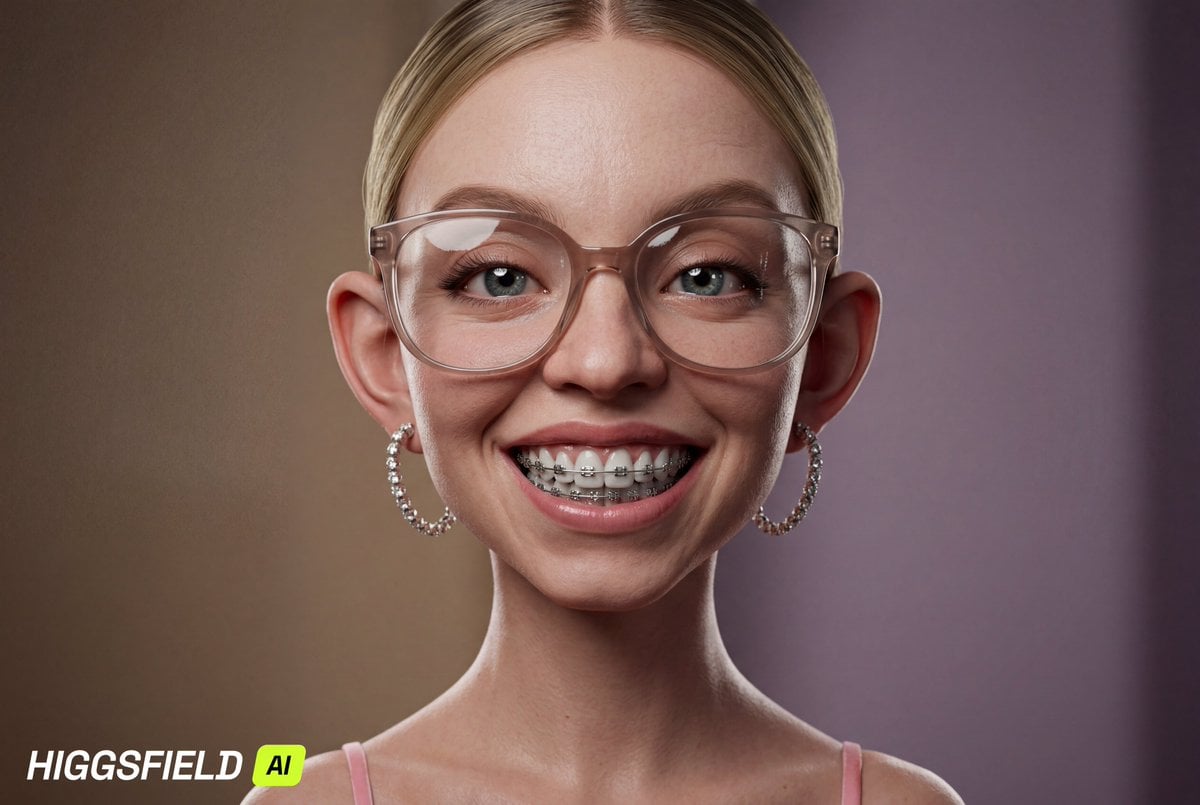
Hyper-Realistic 3D Caricature with Extreme Exaggeration
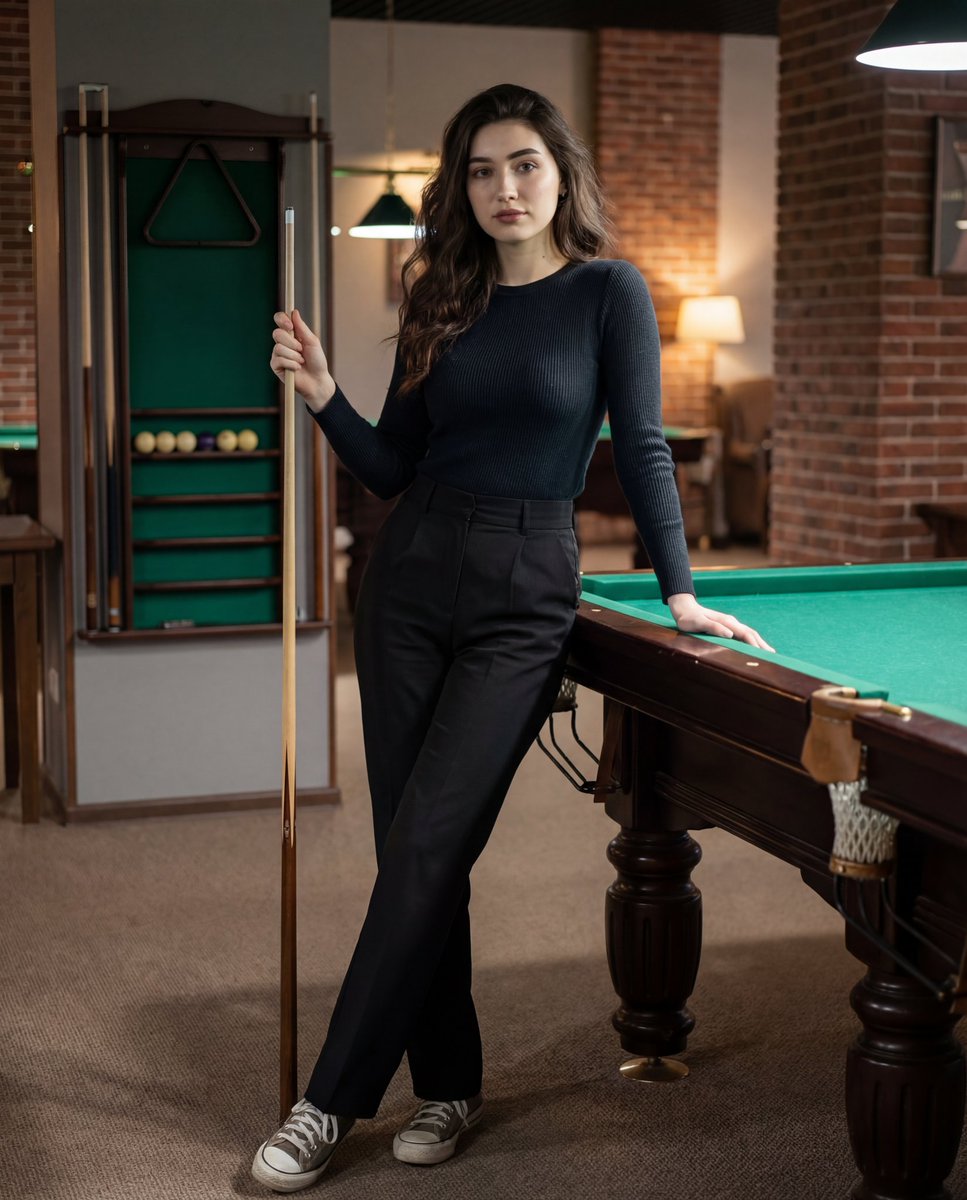
Photorealistic Lifestyle Portrait Prompt (Identity Locked)
Browse template categories
Bit RPG Battle Screen questions
How do I use the 16-Bit RPG Battle Screen template?
Add your photo if the template asks for one, edit the prompt if you like — the template's model and format are already selected — and press Generate. Your version opens in PicX Studio.
Can I customize the 16-Bit RPG Battle Screen template?
Yes. You can change the subject, setting, lighting, mood, format, and available model controls before creating your image.
Is the 16-Bit RPG Battle Screen template free?
Opening and editing this template is free. Generating uses credits, shown on the Generate button when you are signed in.
Which AI model should I use?
Start with GPT Image 2, which is the model associated with this template. You can compare another compatible model for a different finish.
Looking for something else? Browse all templates.

Your photo, any look
Thousands of ready templates for every top image and video model, from one credit balance.