How do I use the Dark Fantasy Storyboard and Video Preview template?
Choose the primary action to open PicX Studio with the available template settings. Review the model and format, personalize the creative direction, and generate when ready.
Generates a cinematic 3×3 gothic xianxia storyboard beside a matching video-player preview for showcasing an AI drama production workflow. Change the subject, setting, or lighting one variable at a time.
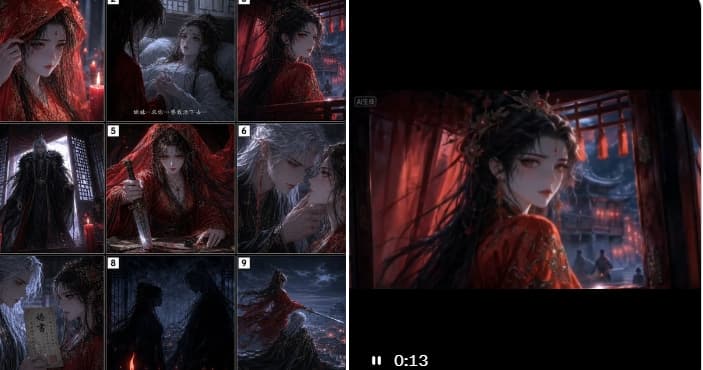
Goal: Create a dark cinematic AI-drama workflow showcase image: a 3×3 fantasy storyboard grid on the left and a widescreen video-preview frame on the right, demonstrating how a still storyboard becomes an animated scene. Canvas: Wide horizontal composition, roughly 2:1 aspect ratio, with a black background and thin white outer border. The left half contains a square storyboard contact sheet; the right half contains a large embedded video-player still with black letterboxing and a small playback time indicator. Left storyboard layout: Use exactly 9 numbered panels arranged in a 3×3 grid, each separated by thin white borders and marked with small white number tags from 1 to 9 in the upper-left corner. The panels should depict a gothic xianxia / dark fantasy romance narrative featuring {argument name="female character" default="a veiled bride in ornate crimson robes"} and {argument name="male character" default="a cold white-haired immortal man in dark robes"}. Add small cinematic Chinese-style subtitle text in one or two panels, but keep it tiny and secondary. The 9 panels are: 1) extreme close-up of the crimson veiled bride covering part of her face with her sleeve, red candlelight and rainlike texture; 2) the bride seated or leaning in a dim chamber near a window, a pale white-haired figure behind her, faint subtitle line near the bottom; 3) the bride turning toward a red-lit palace interior with long black hair and red veil flowing; 4) a tall dark-robed figure standing before a lattice window, backlit by cold blue moonlight; 5) the bride kneeling or collapsing beneath a red veil, one hand on the floor, dramatic red fabric; 6) intimate close-up of the white-haired immortal touching the bride’s chin, their faces close, tense romantic mood; 7) close-up of the white-haired man holding a vertical talisman or paper slip with Chinese characters; 8) two dark silhouettes facing each other in rain or mist, a red candle or ember glowing at the bottom; 9) the bride in red standing on a high balcony or rooftop, long robe and hair blown by wind, overlooking a stormy blue cityscape. Right video-preview layout: Place one large widescreen cinematic frame occupying the right half. It shows the same crimson bride from behind or three-quarter view inside a red wooden palace chamber, with black hair and a thorny dark headdress or tangled veil, red robes glittering with embroidery, blue moonlight visible through lattice windows, and tiny distant figures in the background. Add thick black letterbox space above and below the frame. In the lower-left of the black player area, show a white pause icon and the timestamp “0:13”. Include a small faint label in the top-left of the video frame, like an AI-generation tag. Visual style: Ultra-dramatic Chinese dark fantasy, gothic romance, high-contrast red and blue lighting, candlelit interiors, rain, mist, ornate robes, cinematic depth of field, moody shadows, film still texture, high detail, atmospheric fantasy drama. Use {argument name="primary color palette" default="crimson red, cold blue, black, and pale silver"}. Face treatment: Every visible human face should be deliberately obscured by a soft square gray blur, as if anonymized in a screenshot. Keep the blur blocks centered over faces and consistent across both storyboard and video frame. Text constraints: Keep all text minimal and small, except the visible timestamp “0:13” and the storyboard numbers 1 through 9. Do not add logos, watermarks, extra UI panels, or additional storyboard frames.
Choose the primary action to open PicX Studio with the available template settings. Review the model and format, personalize the creative direction, and generate when ready.
Yes. You can change the subject, setting, lighting, mood, format, and available model controls before creating your image.
This template is free to open and customize. Generation usage is shown in PicX Studio before you create.
Start with GPT Image 2, which is the model associated with this template. You can compare another compatible model for a different finish.
© 2026 PicX Studio. All rights reserved.

Follow a topic to a crawlable collection of related PicX Studio templates.
43,474 public templates available. Verified via the PicX Studio public templates API; refreshed hourly.







![Minimalist Flat Vector Travel Poster — Premium minimalist flat-vector travel poster for {argument name="city name" default="[CITY_NAME]"}, 3:4 vertical format.](https://cms-assets.youmind.com/media/1787917359711_3ug846_HQX205cbMAA6F6S-300x400.jpg)


























![Stone-Carved Statue Prompt for Nano Banana Pro — A tiny stone-carved statue of {argument name="姓名" default="[NAME]"}, with chisel marks and uneven surfaces, sit](https://pbs.twimg.com/media/G-guzz1asAAzWAC.jpg)