
Chibi Character Pose Overlay
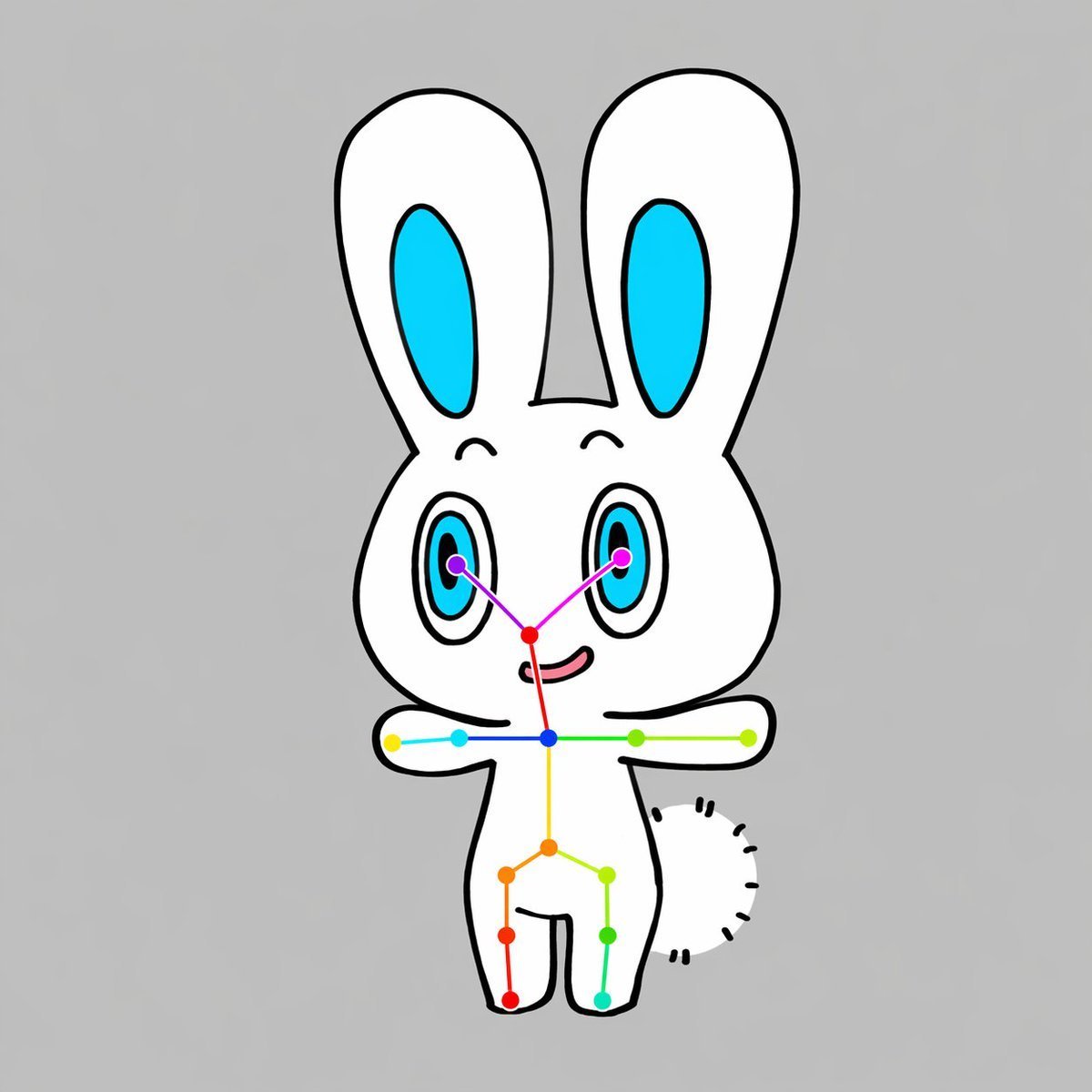
A simple flat-style illustration prompt for a chibi character with a technical pose-estimation skeleton overlay.
- Prompt included
- Model and format preset
- Free template
The prompt behind this image
Copy the exact prompt behind Chibi Character Pose Overlay, or open it in the studio and make it yours.
A simple centered full-body illustration of a cute chibi {argument name="animal type" default="rabbit"} character on a plain {argument name="background color" default="light gray"} background, drawn in a flat cartoon style with thick clean black outlines and minimal shading. The character has a white body, a large rounded head, 2 tall upright ears with bright cyan inner ear shapes, 2 large oval eyes with cyan irises, black pupils, and small highlights, tiny curved eyebrows, a small red-pink nose area, and a slight smiling mouth. The pose is front-facing with both arms stretched straight out horizontally to the sides, legs apart in a simple standing pose, and a short fluffy tail visible on the right side of the body as a curved semicircle made of short black dash marks. Overlay a clear OpenPose-style skeleton marker system on top of the character: 2 purple eye keypoints, 1 red nose keypoint, 1 blue neck keypoint, 2 shoulder keypoints, 2 elbow keypoints, 2 wrist keypoints, 1 yellow spine or pelvis center point, 2 hip keypoints, 2 knee keypoints, and 2 ankle keypoints, for a total of 17 colored points connected by thin colored lines across the face, shoulders, torso, arms, and legs. Use vivid point colors including purple, magenta, red, blue, cyan, green, yellow, orange, and teal so the pose overlay is clearly visible. Keep the composition vertically centered, symmetrical, clean, and diagram-like, with the cute mascot character and pose-estimation overlay as the sole subject.
How to use Chibi Character Pose Overlay in 3 steps
- 1
Open
The prompt is already in the box next to the preview, with the template's model and format selected.
- 2…a portrait of your subject in softgolden-hour light, 85mm…
Personalize
Edit the subject and creative details for your destination.
- 3Generate
Generate
Press Generate — your image is created in PicX Studio, so you can compare it with the original and refine one variable at a time.
More like this
Templates with the same subject, style or setup. Open one to see its prompt.
Cute Layered Paper Cut Chibi Girl

Pixar-Style Chibi Café Morning Scene
Chibi Sparrow Four-Pose Sheet
Mixed Media Portrait with Chibi Overlays
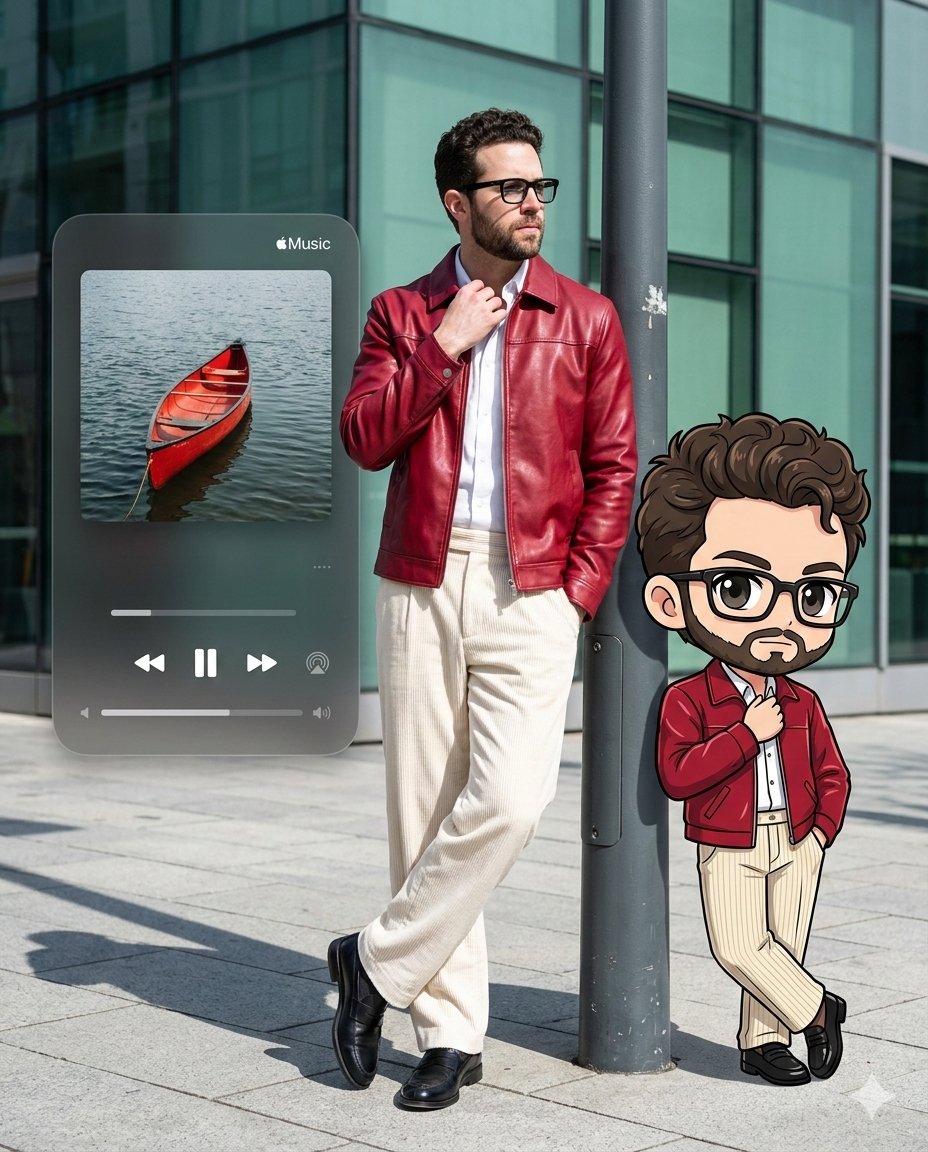
Photorealistic Self-Portrait with Chibi and UI Overlay Prompt
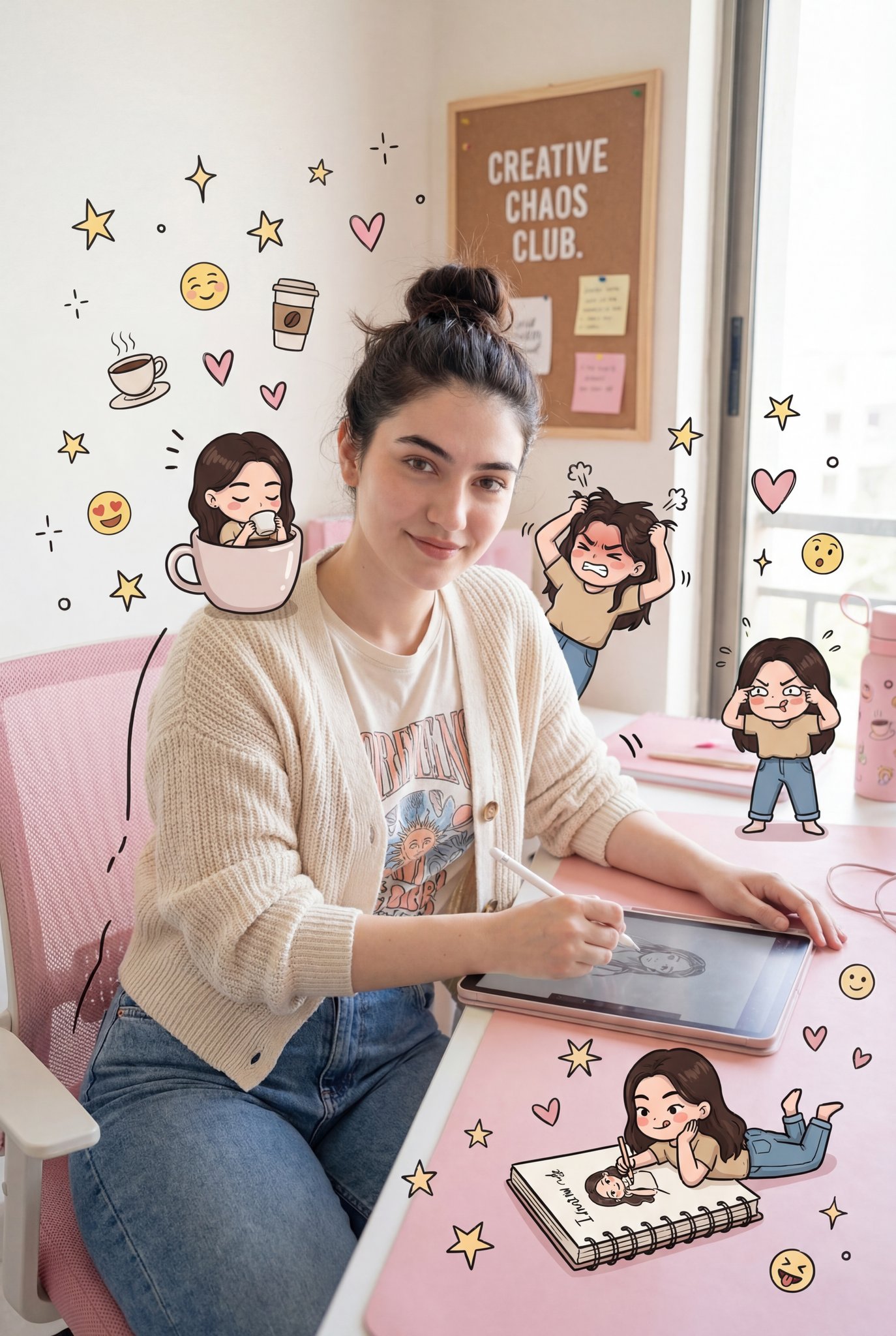
Nano Banana Pro Pink Office Chibi
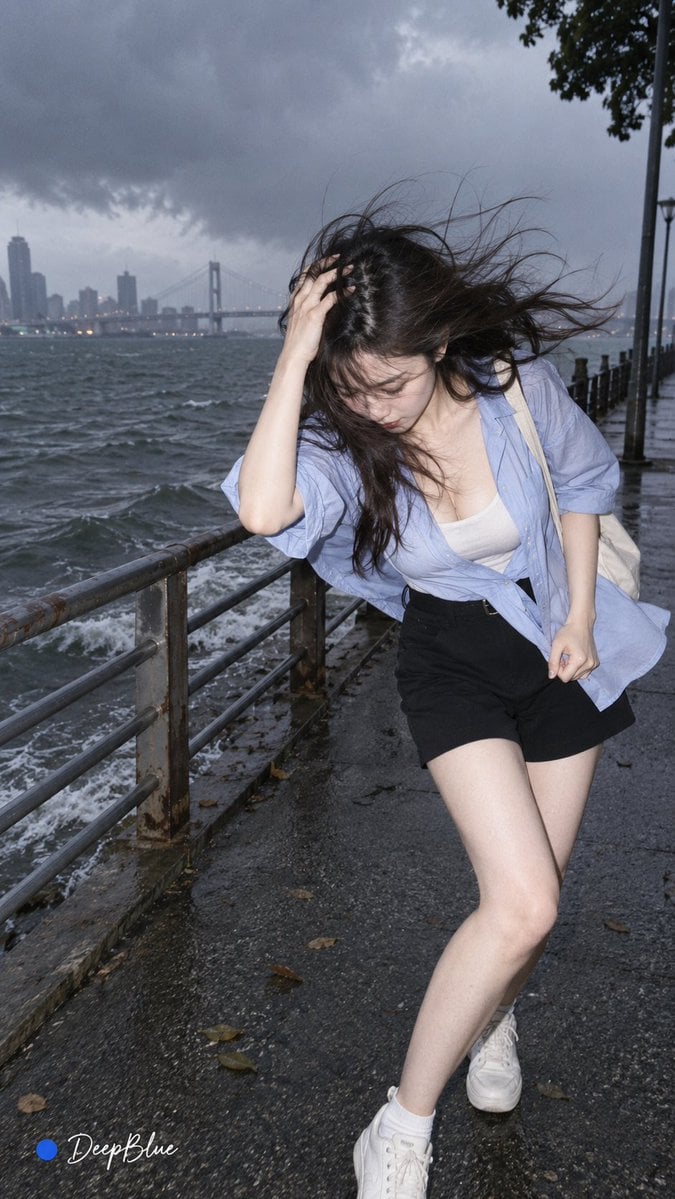
Random Photo Pose Generator
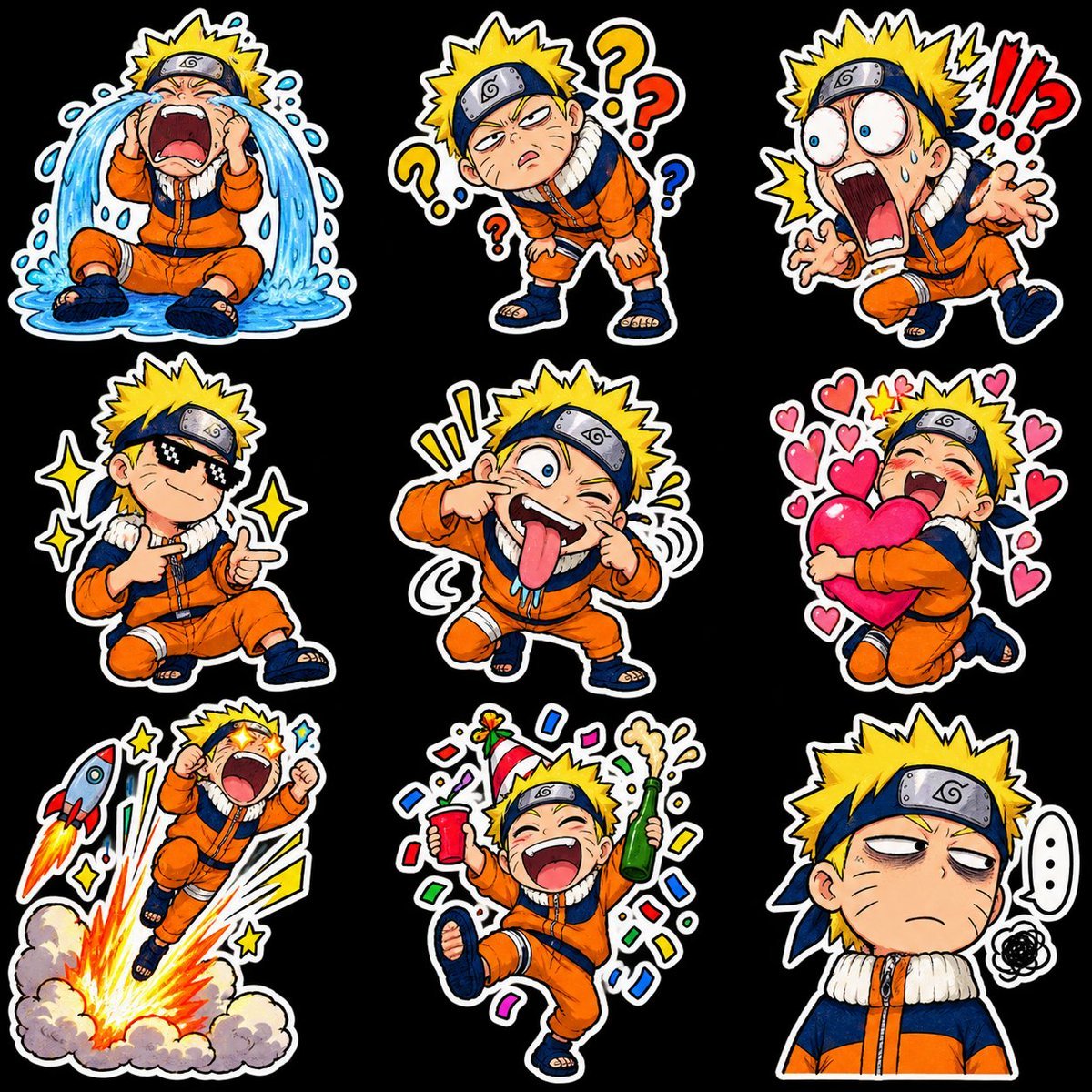
Chibi Anime Ninja Sticker Sheet
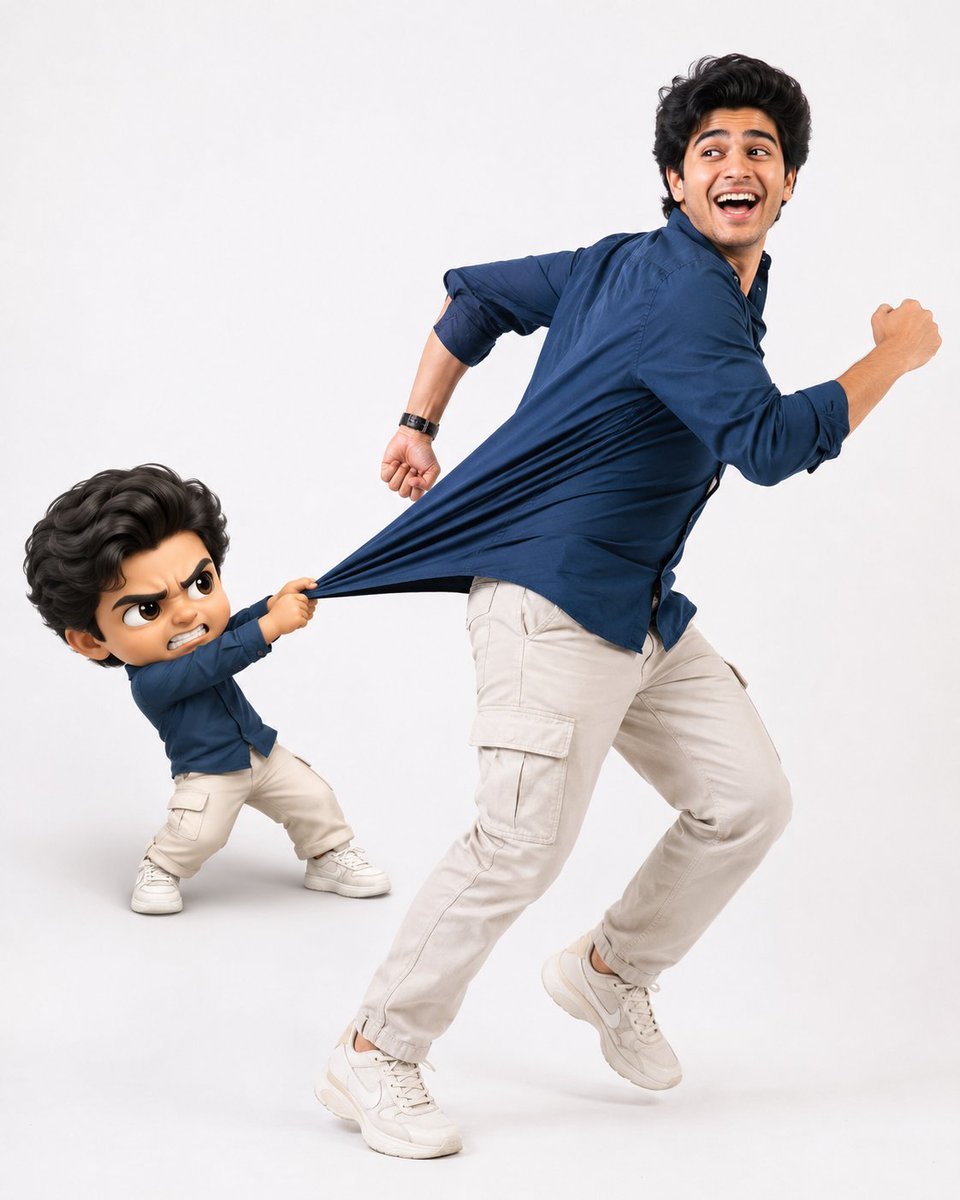
Playful Semi-Chibi Lifestyle Editorial
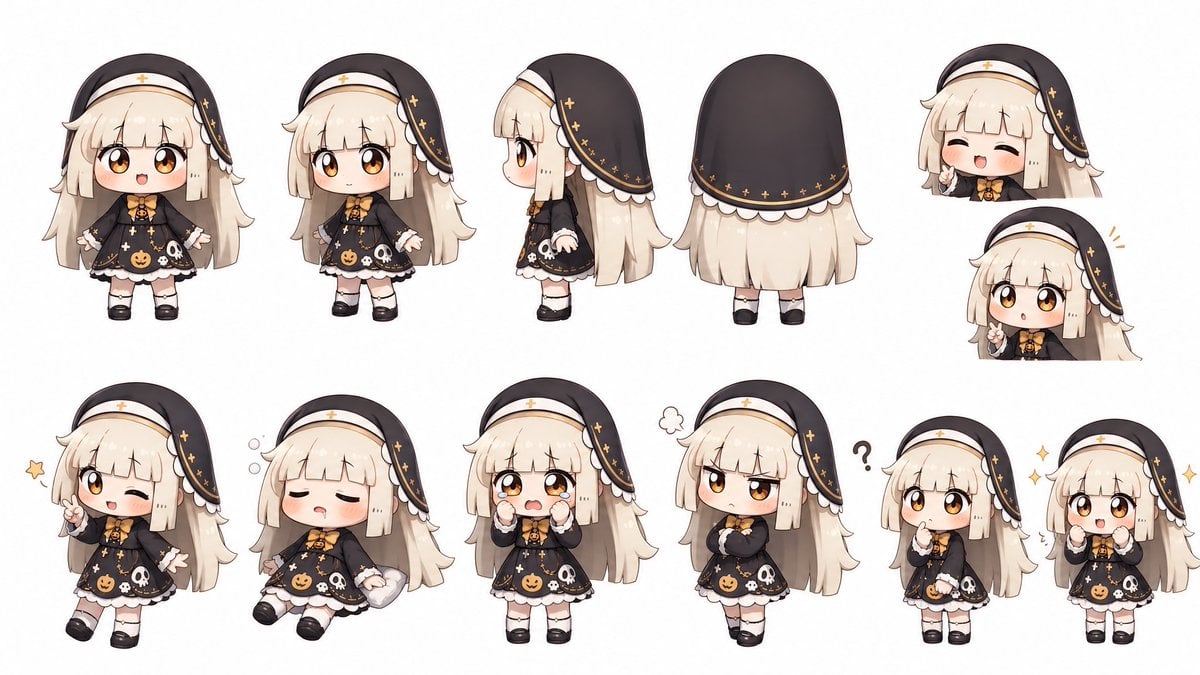
Halloween Nun Chibi Character Sheet
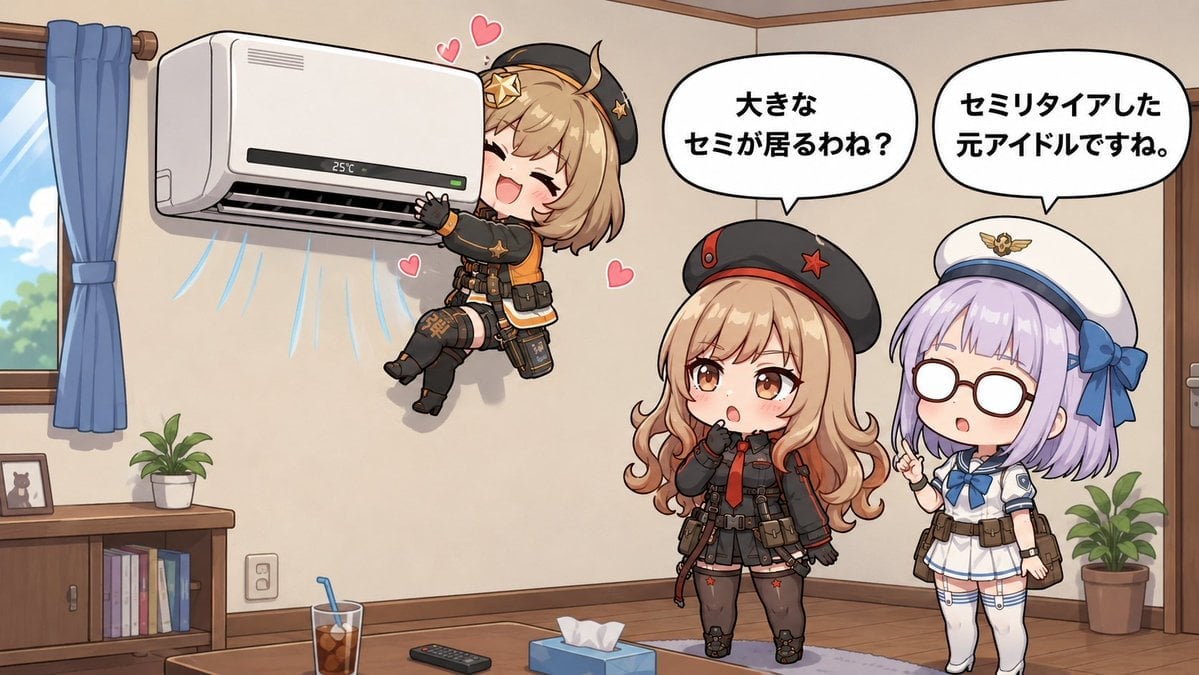
Chibi Girls Hugging Air Conditioner Comic
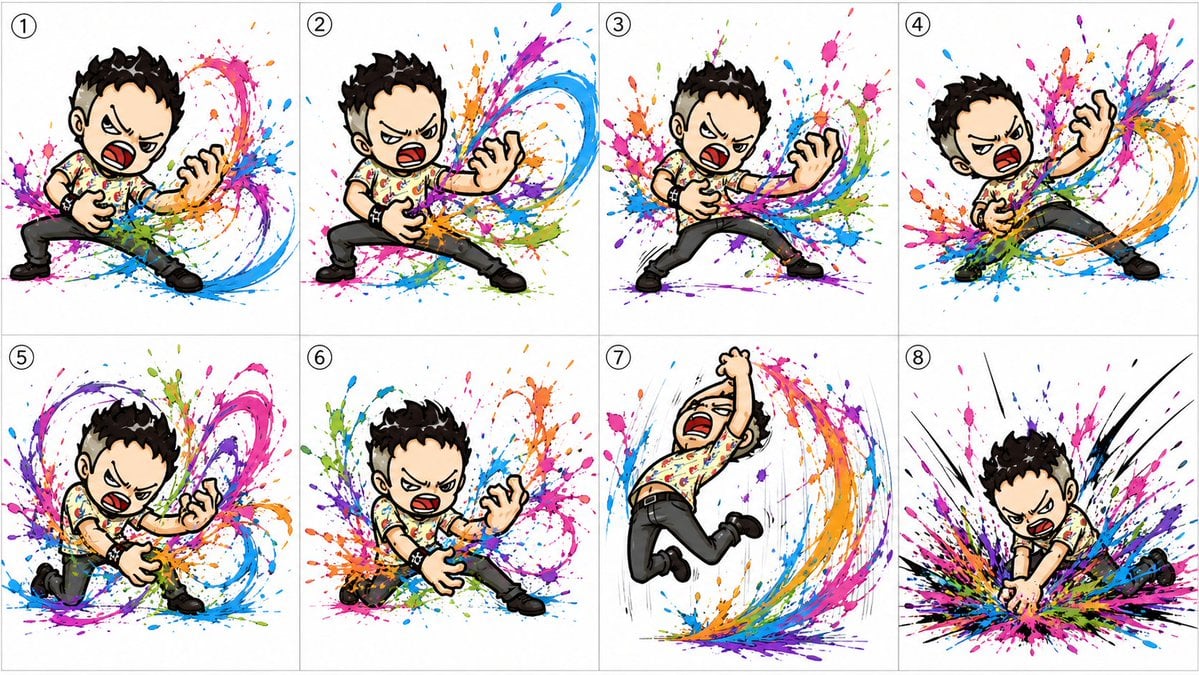
Chibi Air Guitar Storyboard
Make it yours
Chibi Character Pose Overlay works as-is. These are the safest ways to change it without losing the look.
Change one field
Copy a single group, rewrite it, and generate again so you can see what that field is doing.
Keep the frame, change the subject
Hold the composition and light of Chibi Character Pose Overlay, then swap wardrobe, props or the person for a new take.
| If the result… | Why | Fix |
|---|---|---|
| The result drifts from the preview | Too many fields changed at once. | Reuse Chibi Character Pose Overlay as-is first, then change one group — subject, light, or setting. |
| The model over-stylizes the scene | The prose prompt leaves finish and camera underspecified. | Add one camera or lighting sentence and stay on GPT Image 2. |
More GPT Image 2 templates
Other prompts made for GPT Image 2.
Six VTuber Japanese Logo Sheet
Realistic Portrait of Woman and Deer
The Vista Modular Condo Poster
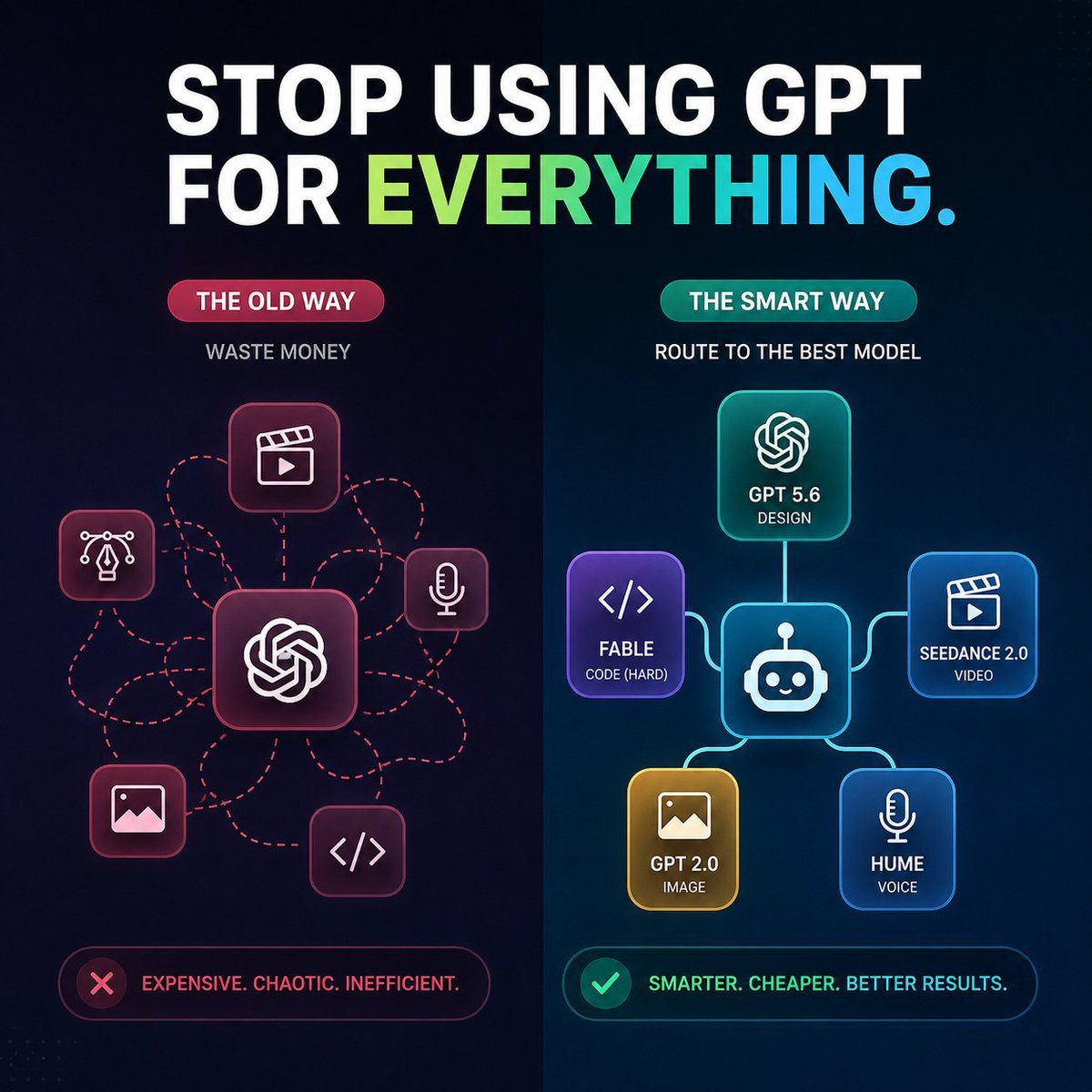
AI Model Routing Comparison Infographic
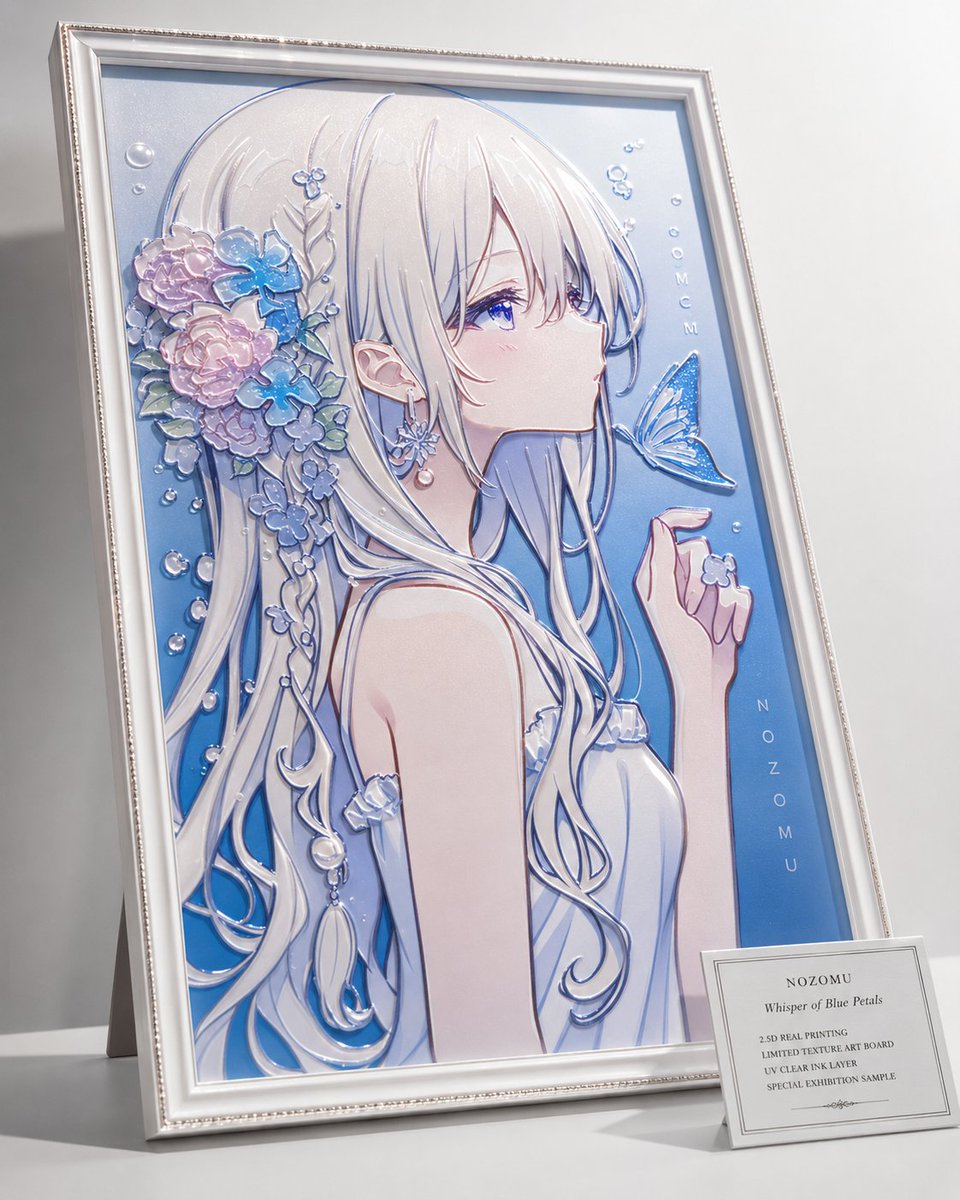
2.5D Anime Art Board
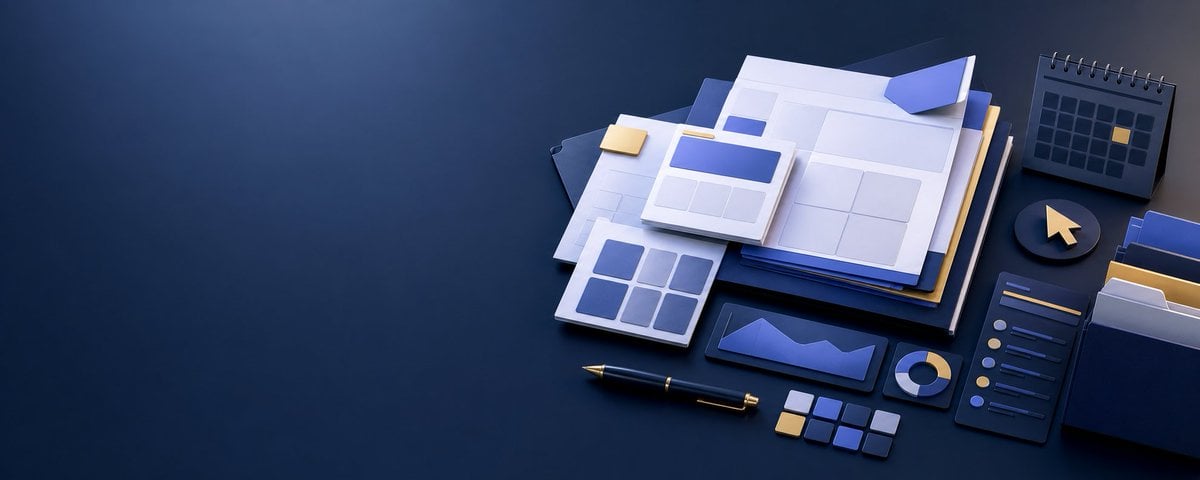
Isometric Productivity Desk Scene
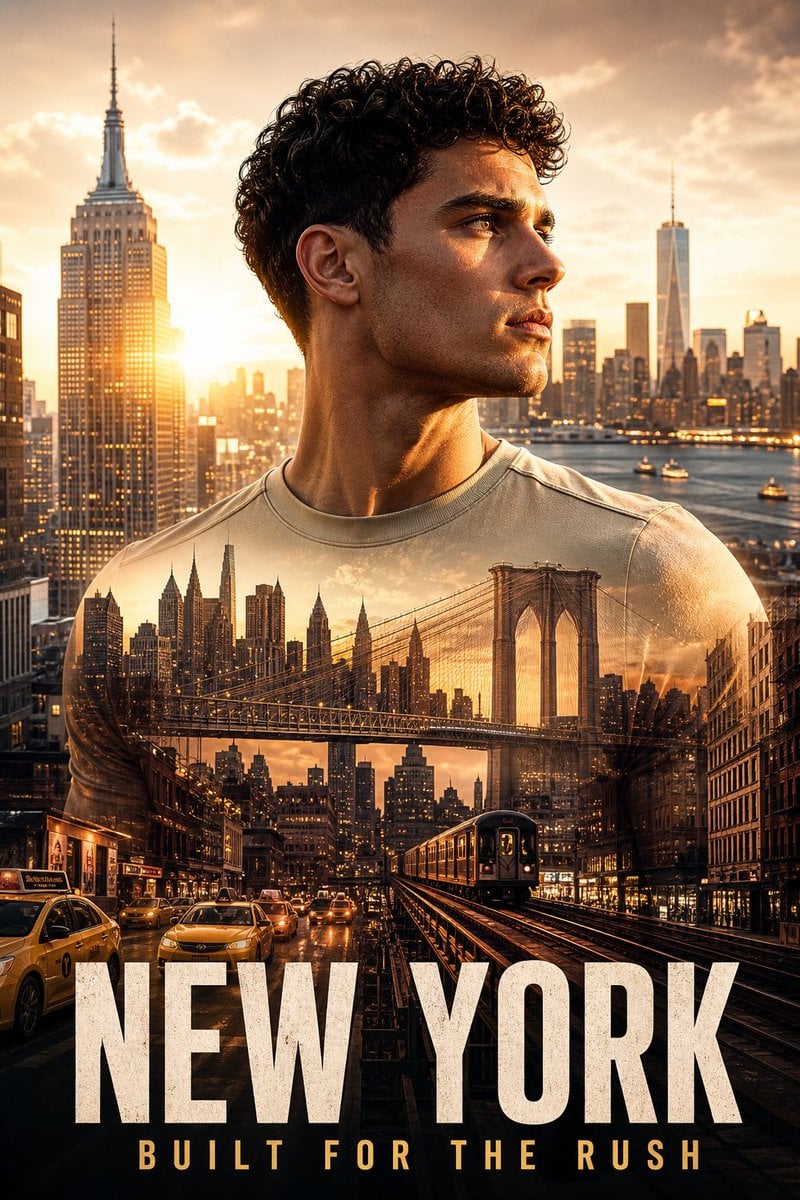
New York Double Exposure Poster
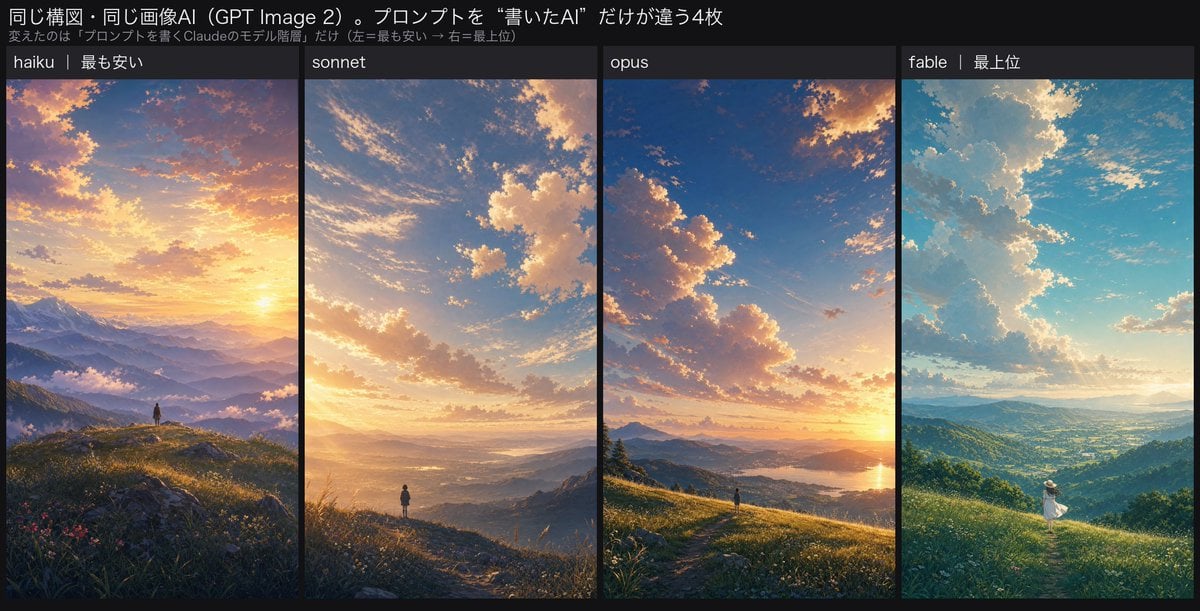
Four-Panel AI Landscape Comparison
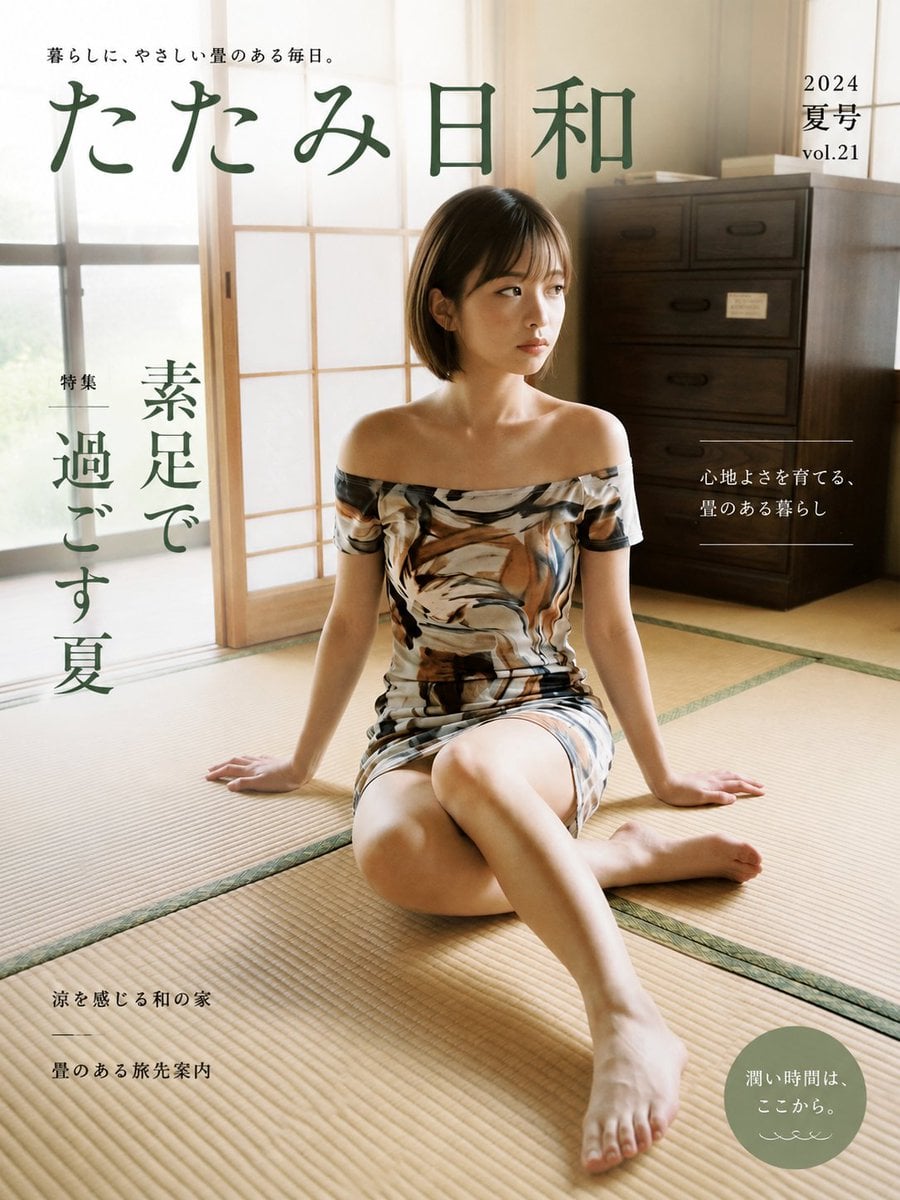
Japanese Tatami Lifestyle Magazine Cover
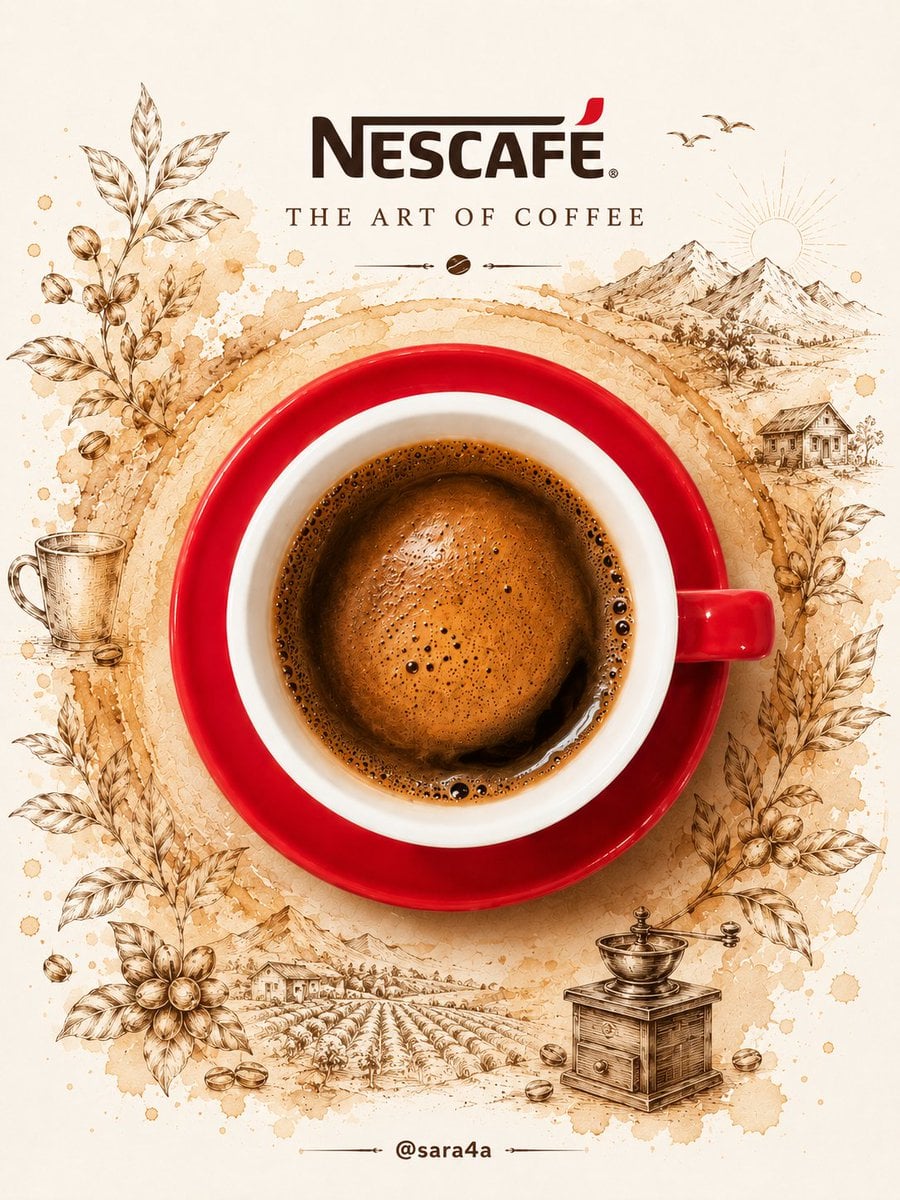
NESCAFÉ Coffee Map Poster
More image prompts
Fresh picks from across the catalog.
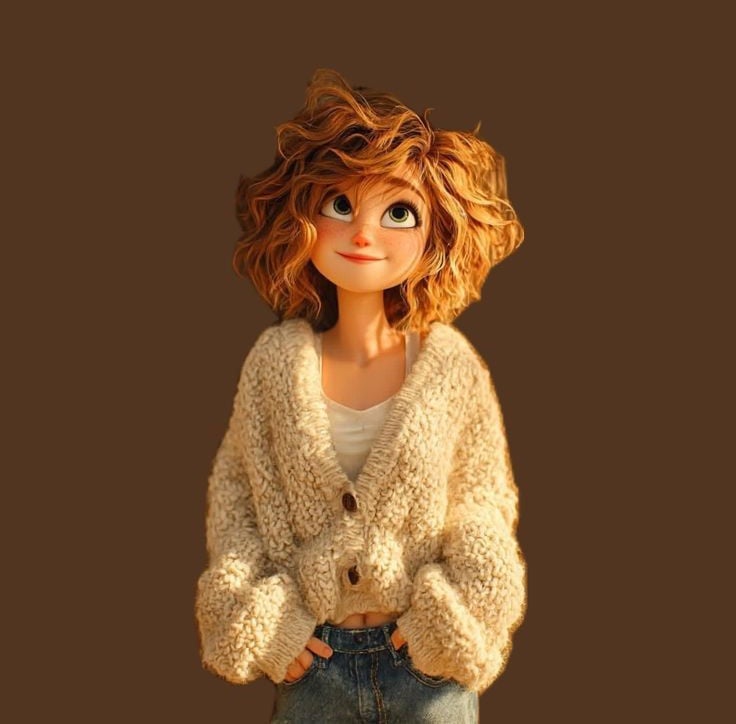
Pixar Style Curly Haired Girl
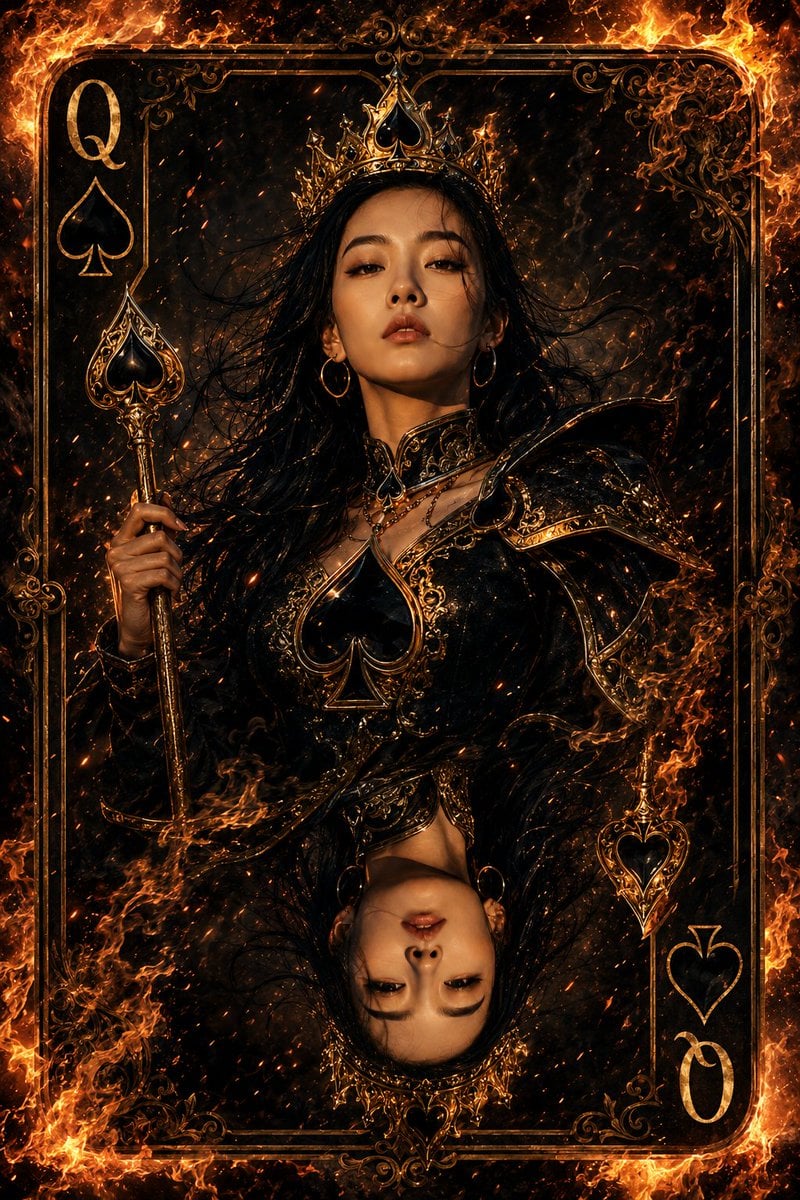
Queen of Spades Fantasy Playing Card
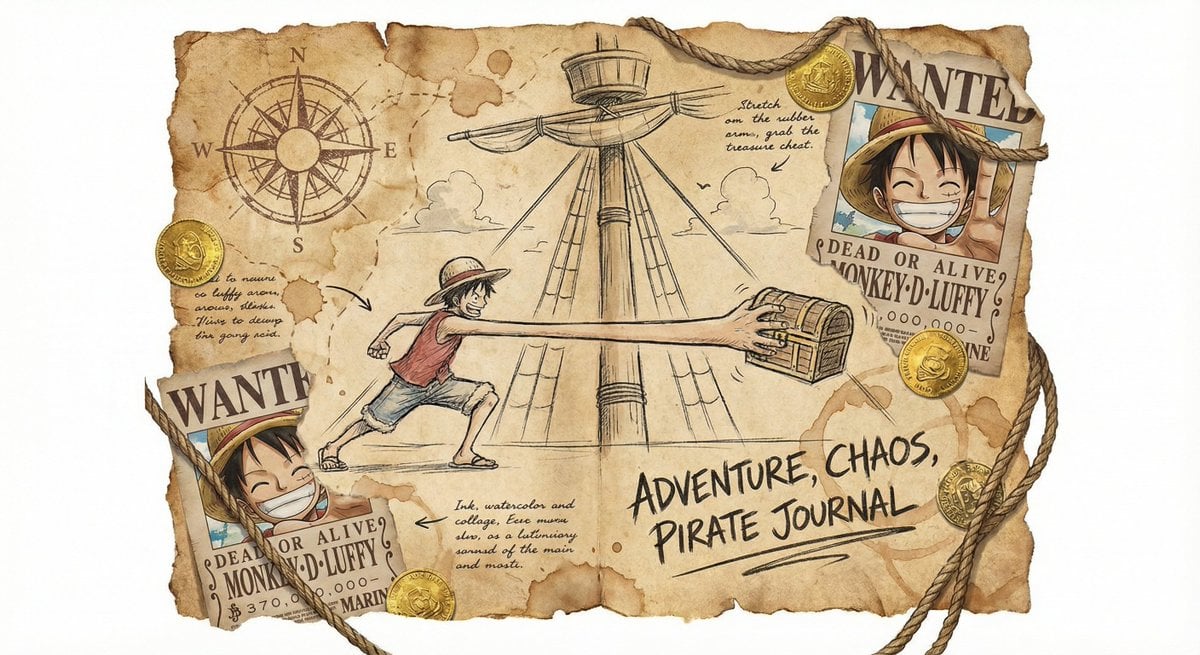
Captain’s worn sailing log sketch
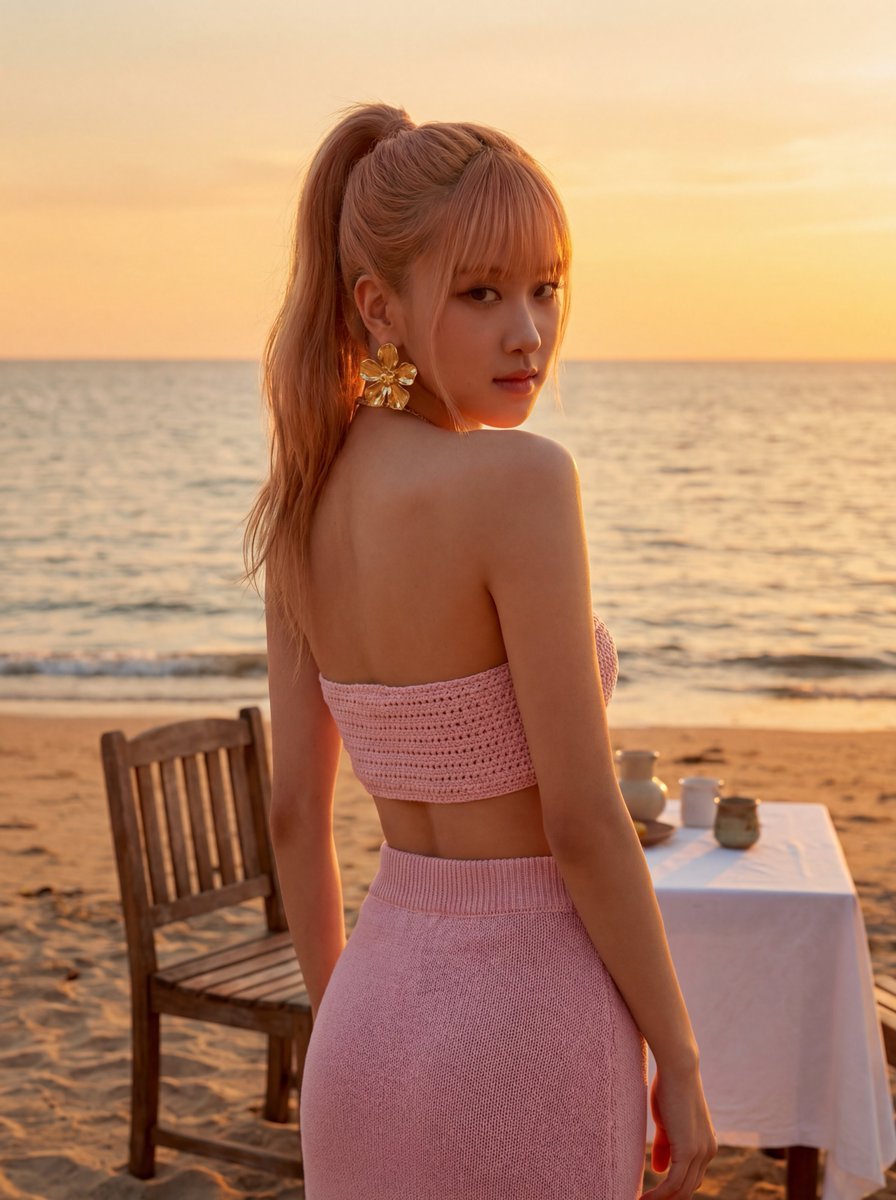
Rosé (BLACKPINK) at Sunset Beach
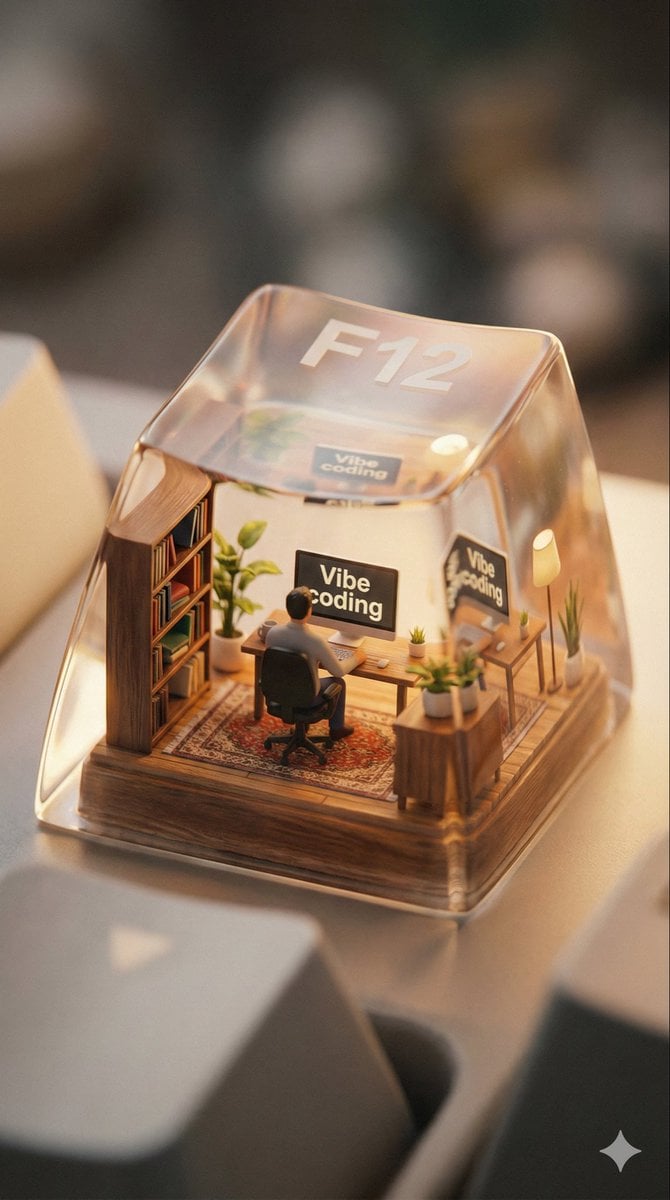
Miniature Scene Keycap Image Generation Prompt
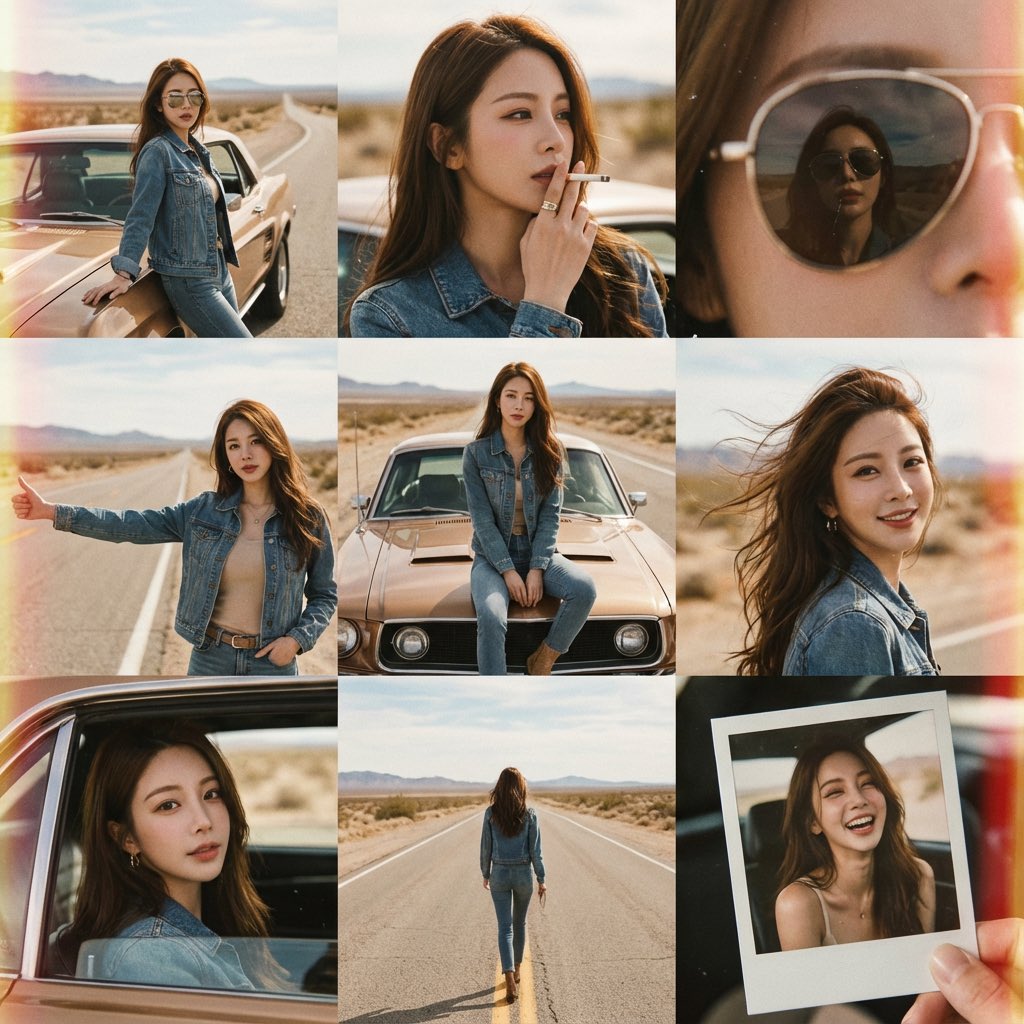
Vintage 70s Desert Highway 3x3 Grid Collage
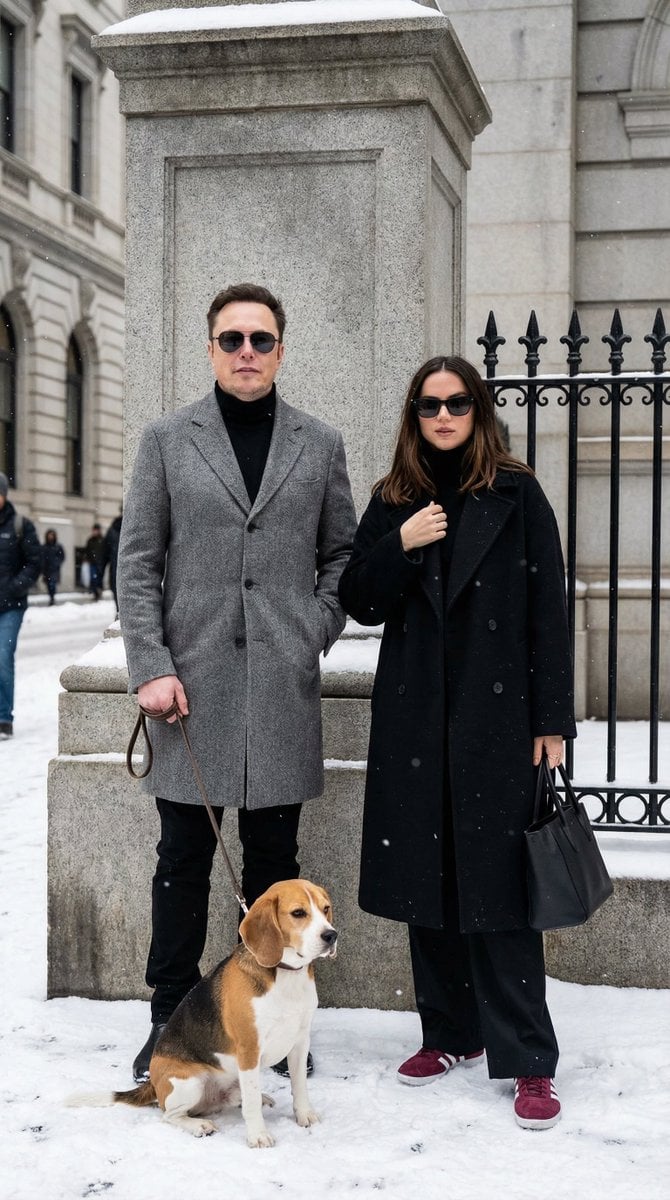
Sophisticated Urban Winter Couple Portrait
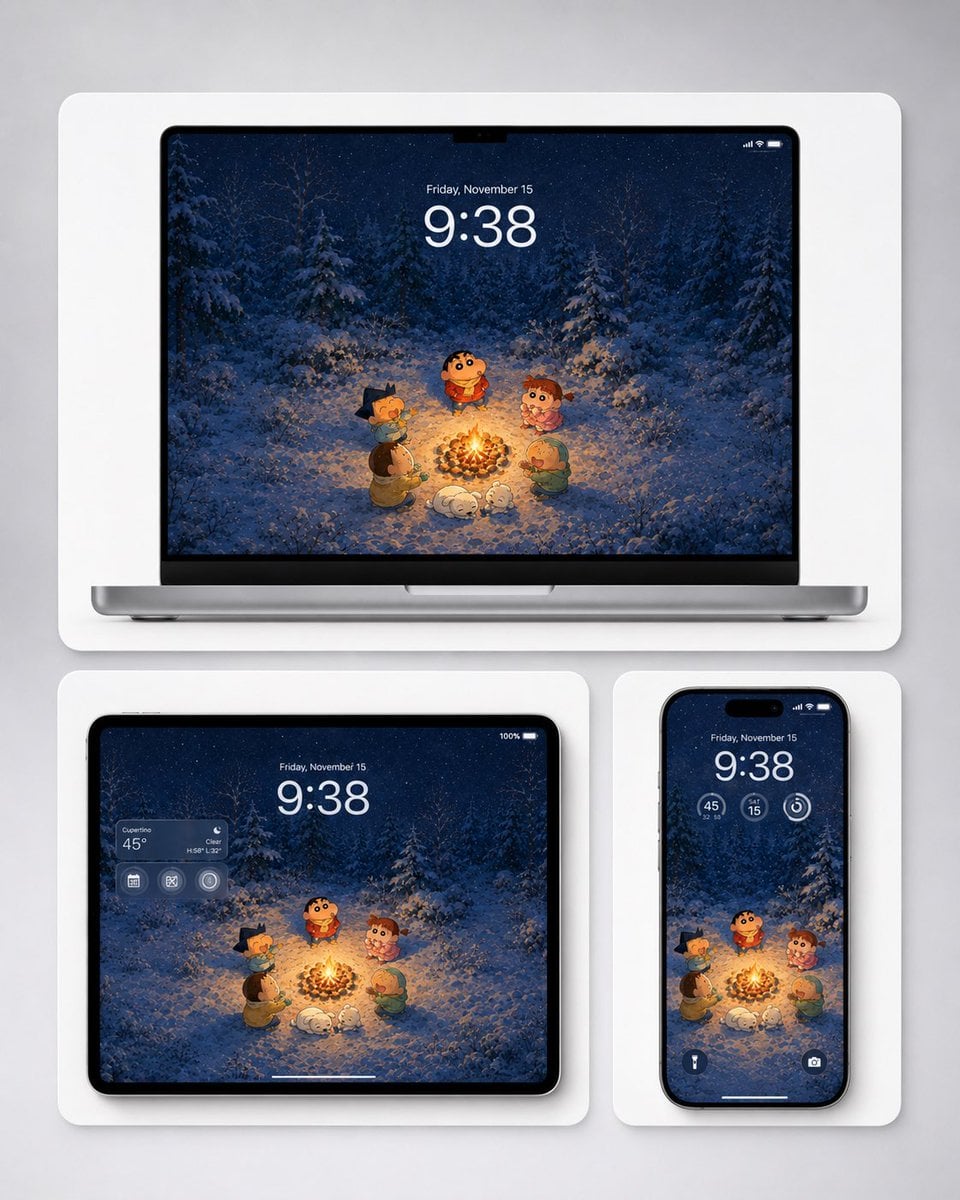
Winter Campfire Wallpaper Device Mockup

Golden Hour Korean Classroom Portrait
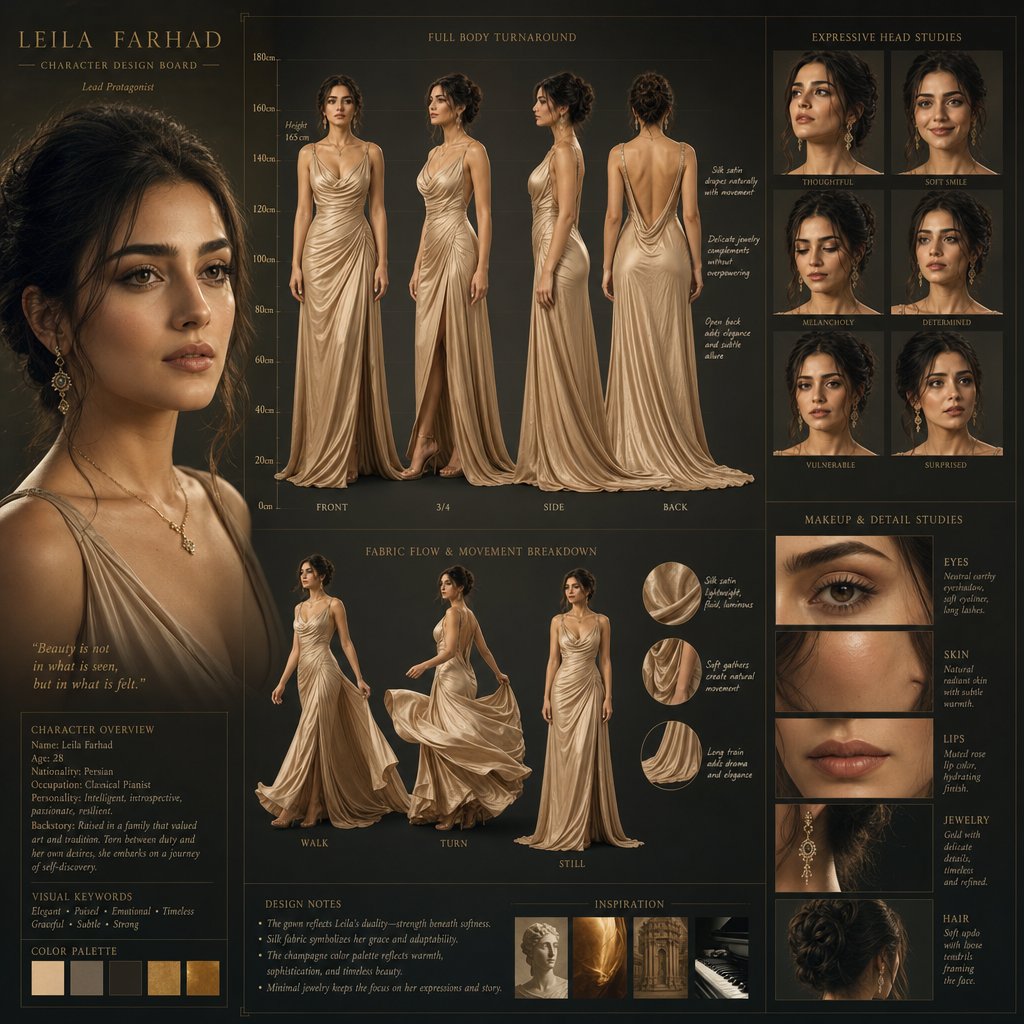
Cinematic Character Design Board
Browse template categories
Chibi Character Pose Overlay questions
How do I use the Chibi Character Pose Overlay template?
Add your photo if the template asks for one, edit the prompt if you like — the template's model and format are already selected — and press Generate. Your version opens in PicX Studio.
Can I customize the Chibi Character Pose Overlay template?
Yes. You can change the subject, setting, lighting, mood, format, and available model controls before creating your image.
Is the Chibi Character Pose Overlay template free?
Opening and editing this template is free. Generating uses credits, shown on the Generate button when you are signed in.
Which AI model should I use?
Start with GPT Image 2, which is the model associated with this template. You can compare another compatible model for a different finish.
Looking for something else? Browse all templates.
Your photo, any look
Thousands of ready templates for every top image and video model, from one credit balance.