How do I use the Anime Magazine Cover Transformation template?
Choose the primary action to open PicX Studio with the available template settings. Review the model and format, personalize the creative direction, and generate when ready.
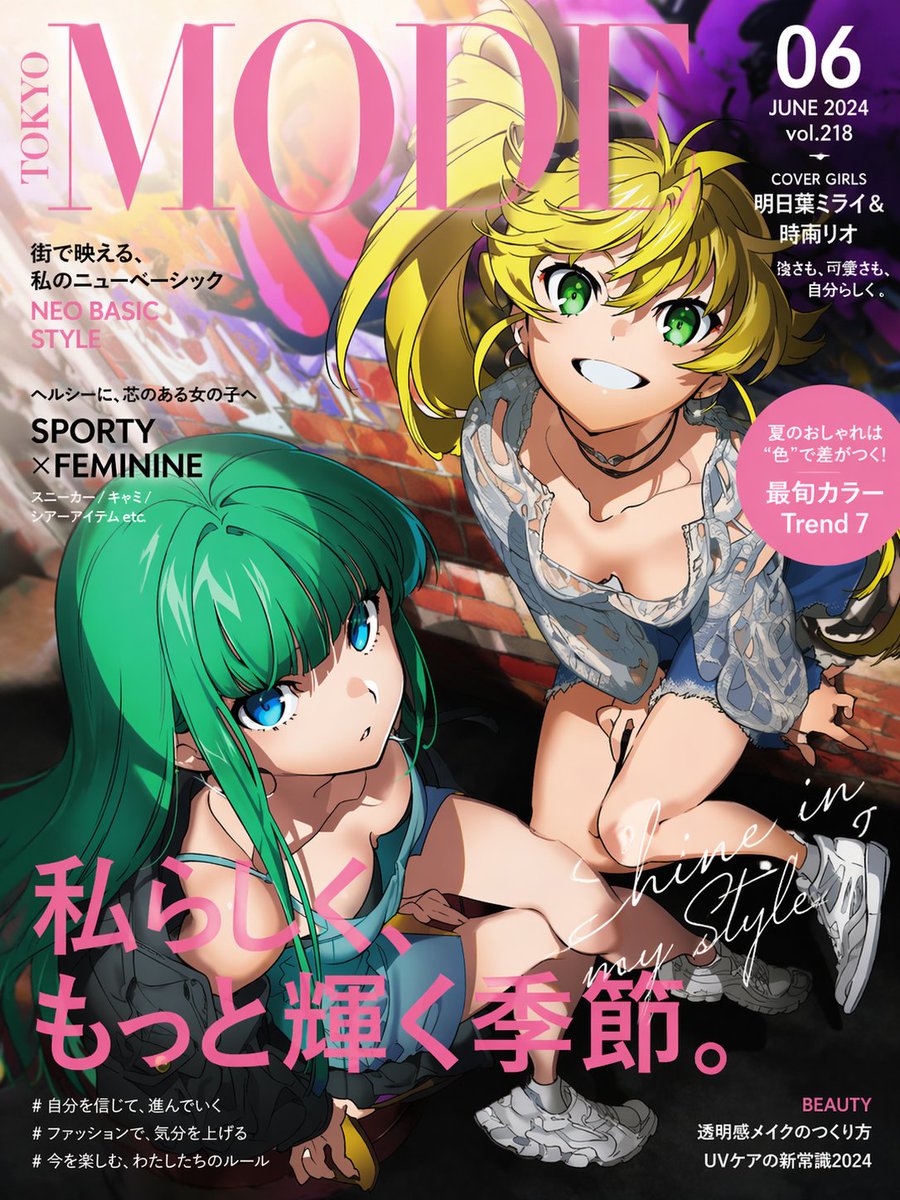
Transforms a cosplay reference into a dynamic anime-style fashion magazine cover with editorial text, barcode, and white poster background.

Using REFERENCE_0 as the character and outfit base, transform the cosplay photo into a polished Japanese anime magazine-cover illustration. Keep the same character identity, silver hair with blue ribbon, blue qipao-style dress, red hip cord, black thigh-high stockings, heels, and elegant gold details, but redraw everything as crisp 2D anime art with clean linework, glossy highlights, and flowing dynamic hair. Pose and composition: change the seated reaching pose into a full-body floating/leaping pin-up pose on a clean white background. Show the character angled diagonally, one leg bent upward across the foreground and the other leg extending down, with arms relaxed outward and hair/ribbons sweeping dramatically around her. Add scattered blue petal shapes for motion. Magazine design additions: make it look like a fashion/anime cover with a large red serif masthead across the top reading {argument name="masthead text" default="HOKUE U"}. Add small decorative English cover text in red/gray near the top, including two short blocks, one on the left and one near the upper right. Add a bottom-left magazine info block with red text reading {argument name="issue label" default="IREYREY 2.0"}, tiny Japanese-style subtext, and a barcode. Style: high-end anime key visual, bright white negative space, saturated deep blue clothing, pale luminous skin, red eyes, delicate blush, sharp fabric shine, detailed hair strands, editorial poster layout. Avoid photorealism; do not retain the original floor or camera perspective.
Anime Magazine Cover Transformation needs input media to work. Open it in the studio and these load alongside the prompt — pick whichever ones your chosen model can take.
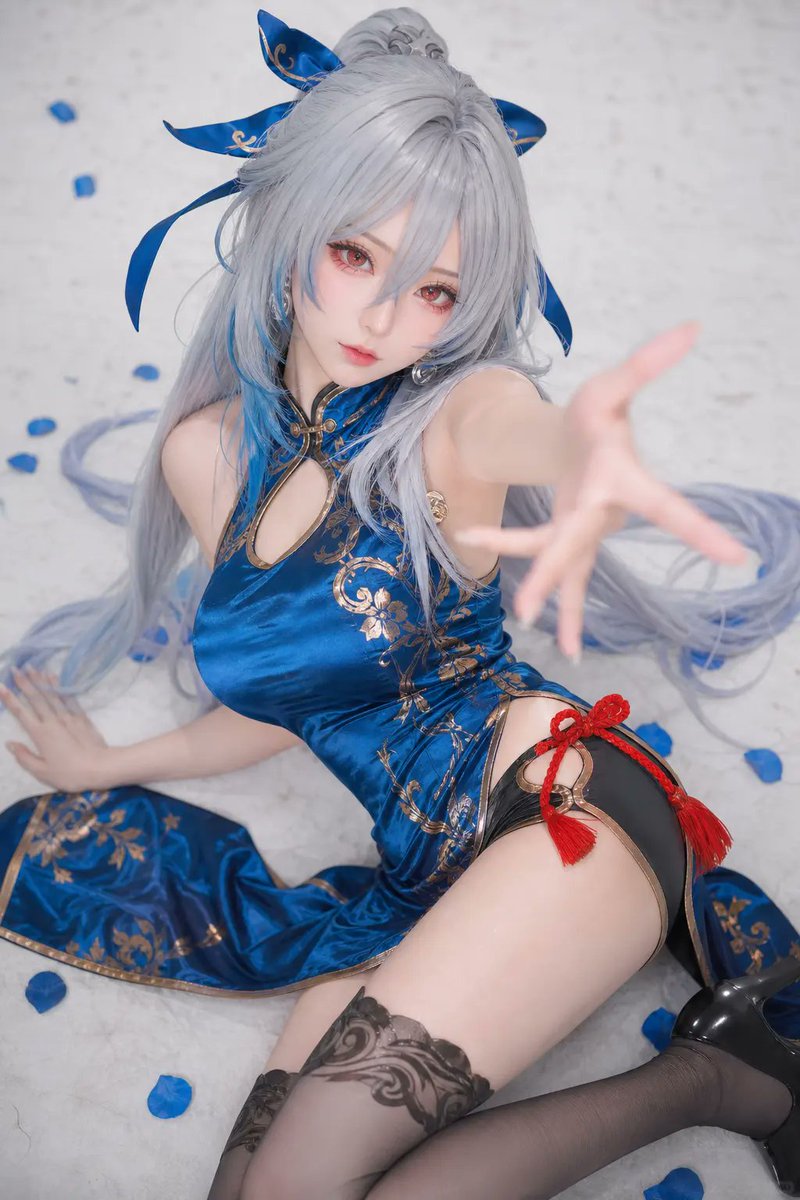
Choose the primary action to open PicX Studio with the available template settings. Review the model and format, personalize the creative direction, and generate when ready.
Yes. You can change the subject, setting, lighting, mood, format, and available model controls before creating your image.
This template is free to open and customize. Generation usage is shown in PicX Studio before you create.
Start with GPT Image 2, which is the model associated with this template. You can compare another compatible model for a different finish.
Follow a topic to a crawlable collection of related PicX Studio templates.