How do I use the Black and White Japanese Portrait template?
Choose the primary action to open PicX Studio with the available template settings. Review the model and format, personalize the creative direction, and generate when ready.
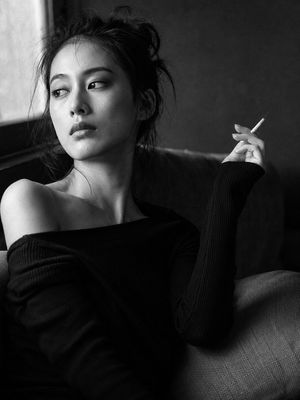
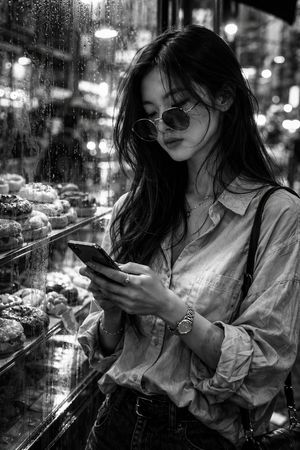
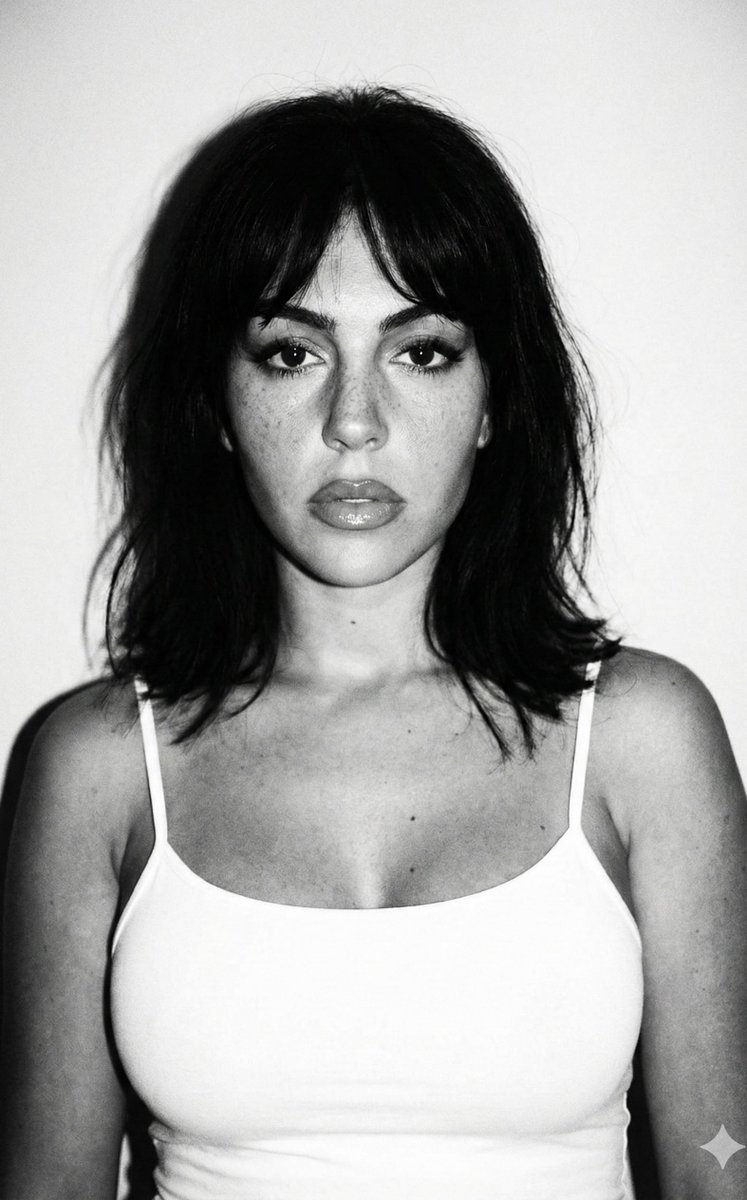
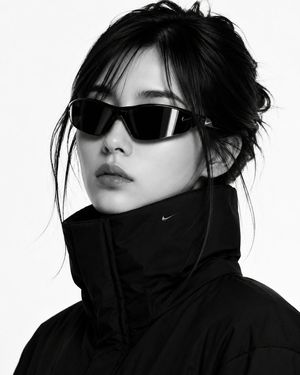
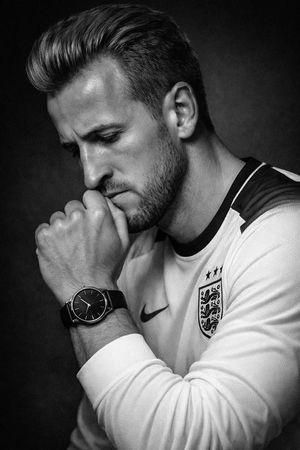
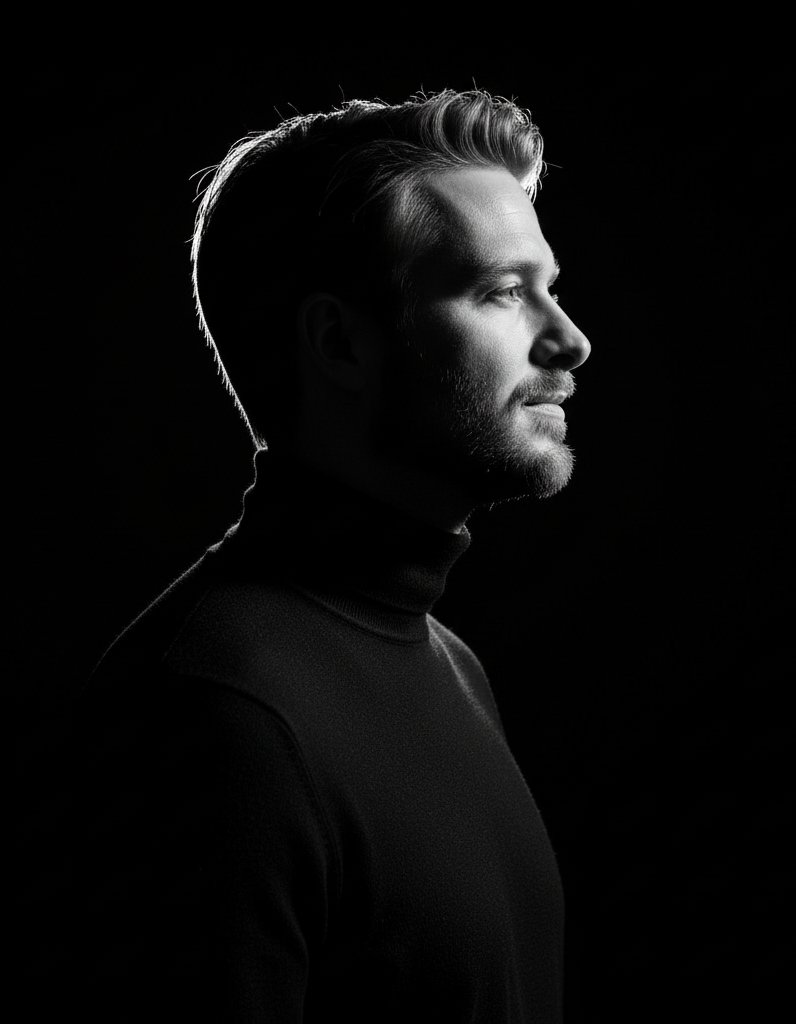
A grainy black and white photography prompt mimicking 1990s Japanese photo books, featuring a woman by a window with strong side lighting.
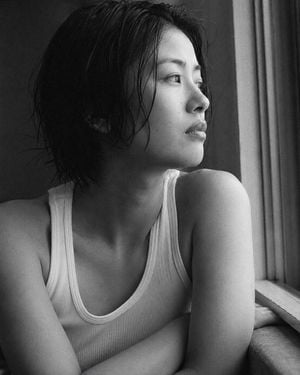
Portrait shot on 85mm f/1.4, close-up of a {argument name="subject" default="Japanese woman in her mid-20s"}, short dark wet-looking hair, slightly damp texture, strong cheekbones, angular jawline, eyes with deep direct gaze toward window, expression neutral and contained. She wears a {argument name="clothing" default="plain white ribbed tank top"}, bare shoulders visible. Upper body portrait, side profile leaning slightly toward window, arms folded on windowsill, subject occupies 60% of frame, window light as only source. Black and white rendering, {argument name="style" default="high-grain film aesthetic"}, strong directional side lighting from window, soft falloff on shadow side, reminiscent of 1990s Japanese photography books. Photographic texture and quality: visible film grain especially in shadow, skin texture with natural pores and slight imperfection, stray hairs not perfectly groomed, photographic texture not CG render smoothness. Avoid: color, AI-smoothed skin, overly dramatic shadows. --ar 4:5
Choose the primary action to open PicX Studio with the available template settings. Review the model and format, personalize the creative direction, and generate when ready.
Yes. You can change the subject, setting, lighting, mood, format, and available model controls before creating your image.
This template is free to open and customize. Generation usage is shown in PicX Studio before you create.
Start with GPT Image 2, which is the model associated with this template. You can compare another compatible model for a different finish.
Follow a topic to a crawlable collection of related PicX Studio templates.