
Mixed-Media Morandi Memory Card
A creative prompt that transforms a photo into a 50/50 split memory card, featuring the original photo on top and a wax-crayon sketch on the bottom in a nostalgic Morandi aesthetic.
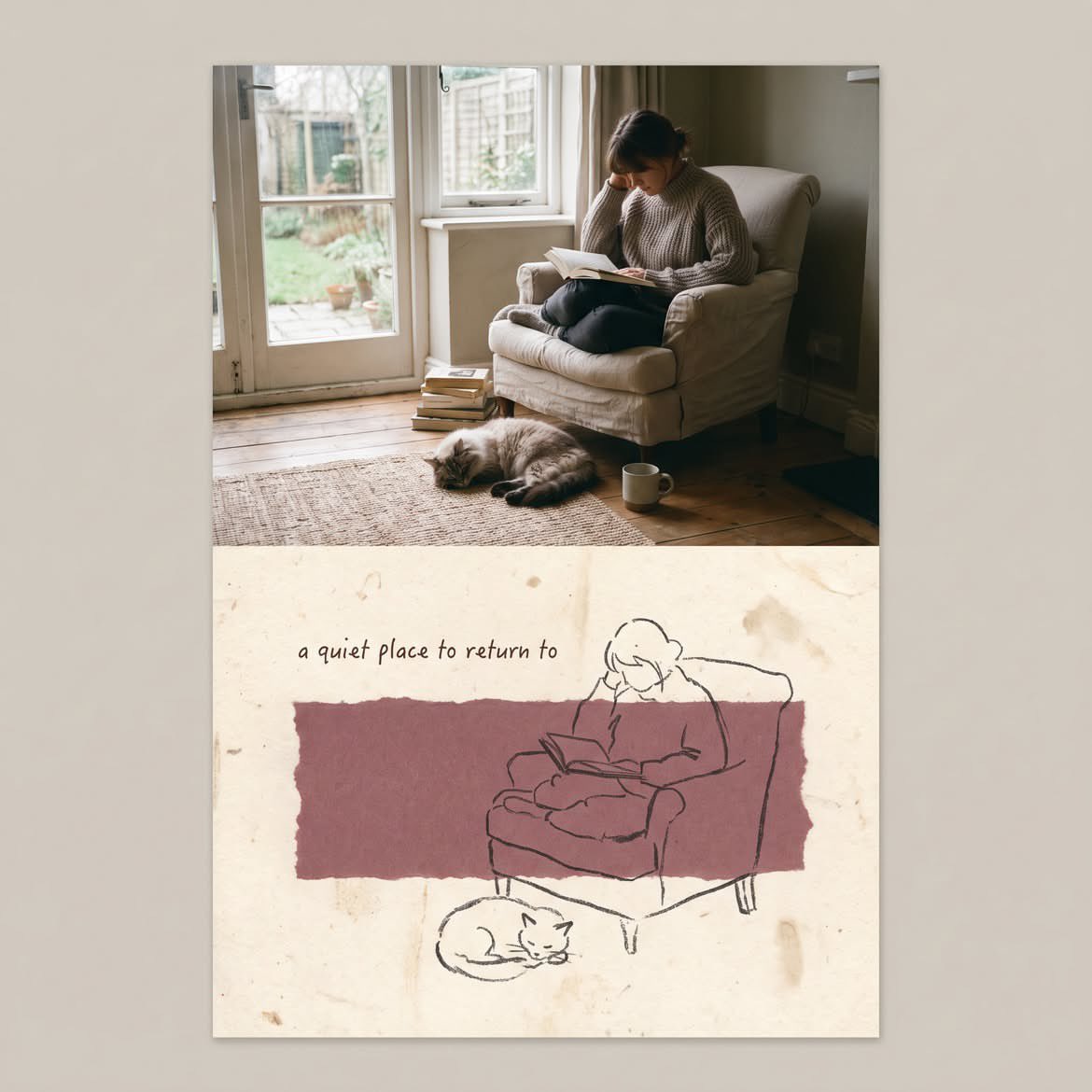
- Prompt included
- Model and format preset
- Free template
The prompt behind this image
Copy the exact prompt behind Mixed-Media Morandi Memory Card, or open it in the studio and make it yours.
Transform the uploaded photo into a vertical mixed-media memory card with a strict 50/50 split. Keep the original photo unchanged in the top half. In the bottom half, use {argument name="paper type" default="textured off-white handmade paper"} and add a {argument name="color patch" default="muted, irregular color patch"} matching the photo’s tones. Redraw the main subjects as a simple {argument name="drawing style" default="dark wax-crayon sketch"} with loose, imperfect lines and minimal details. Add a short handwritten English phrase and subtle Risograph grain. Create a quiet, nostalgic Morandi-style aesthetic with generous negative space. Do not add extra elements or copy the reference composition exactly.
Reference images included
Mixed-Media Morandi Memory Card needs input media to work. They load alongside the prompt when you open it in the studio.
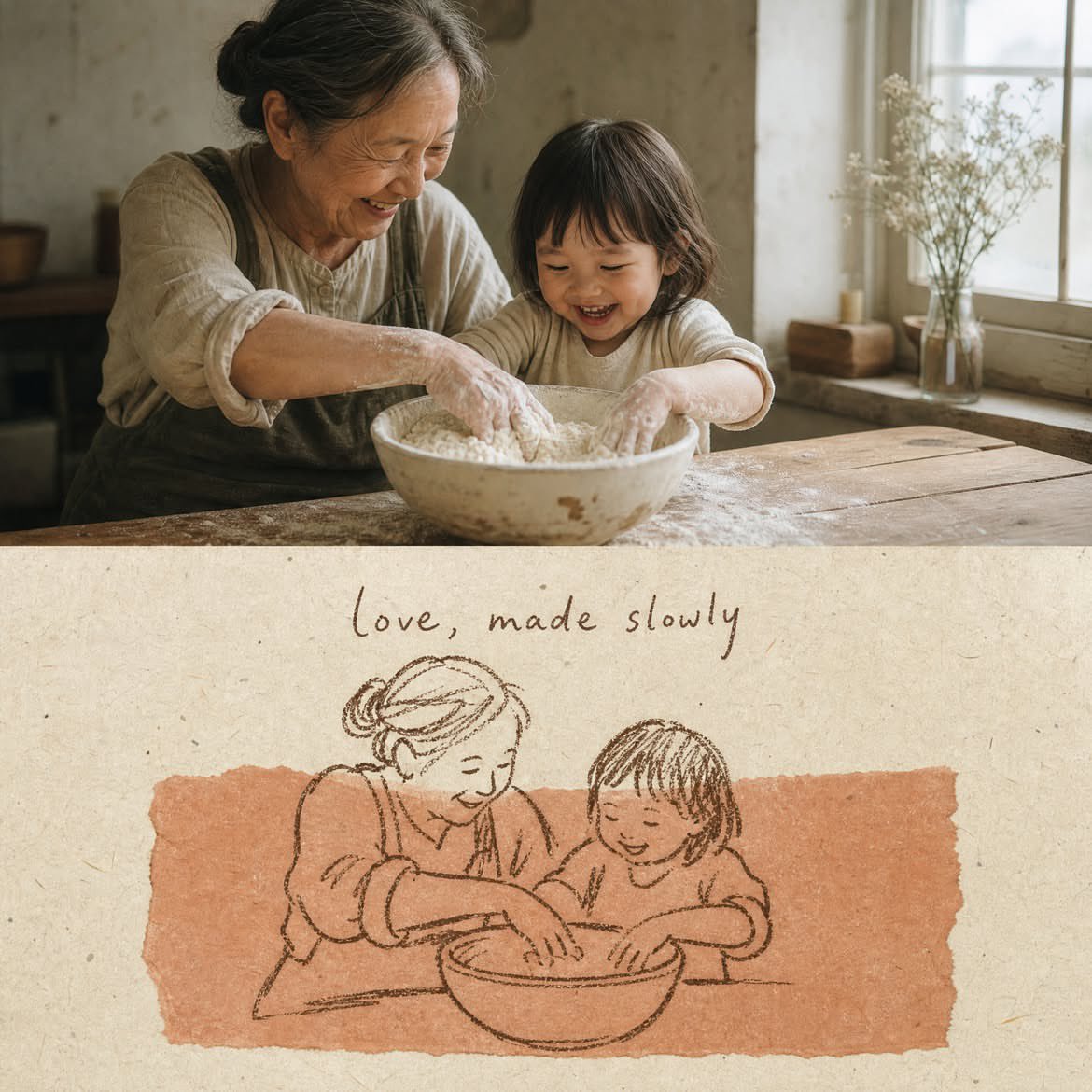
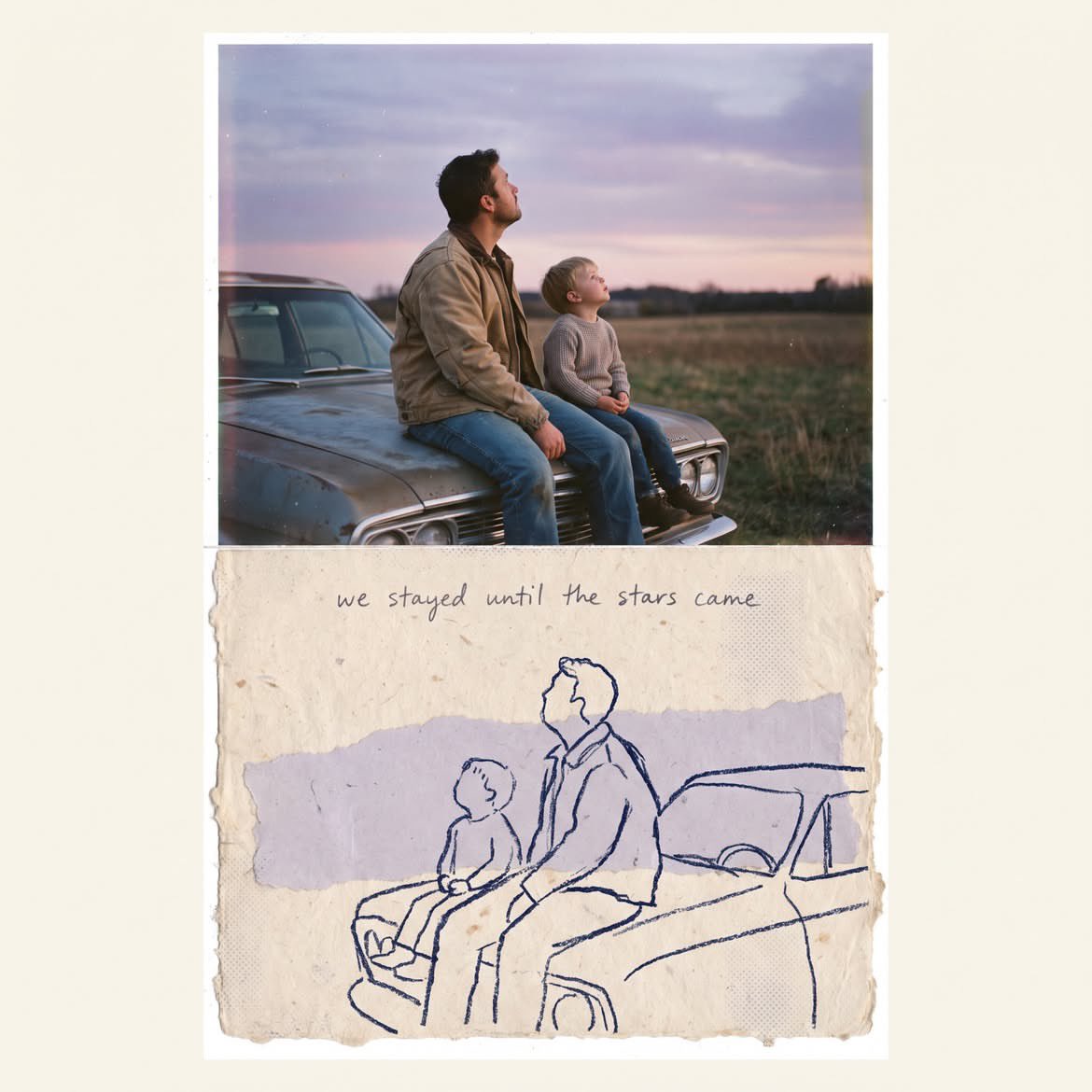
How to use Mixed-Media Morandi Memory Card in 3 steps
- 1Upload ImagePNG, JPG or paste
Add your photo
Upload the photo the template builds on. The prompt, model and format are already set.
- 2…a portrait of your subject in softgolden-hour light, 85mm…
Personalize
Edit the subject and creative details for your destination.
- 3Generate
Generate
Press Generate — your image is created in PicX Studio, so you can compare it with the original and refine one variable at a time.
More like this
Templates with the same subject, style or setup. Open one to see its prompt.
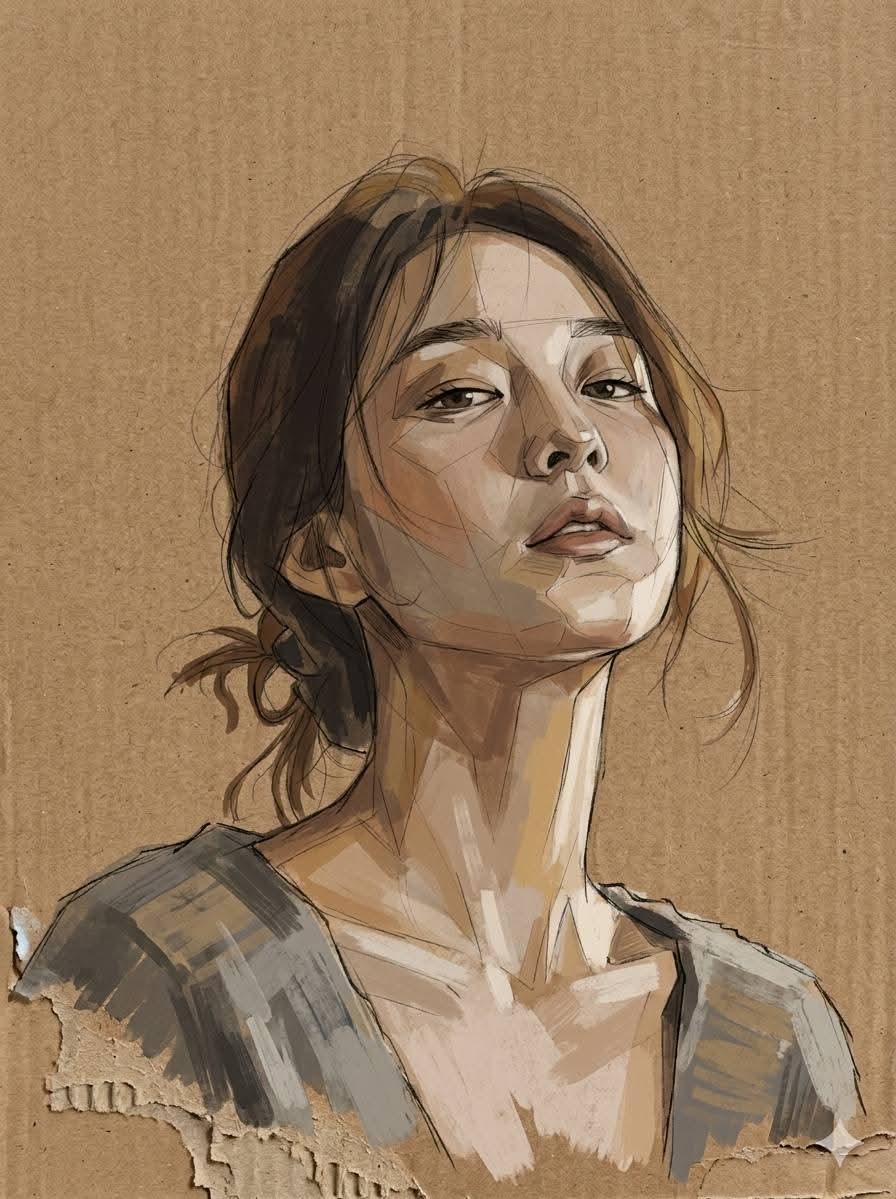
Cardboard Mixed Media Portrait
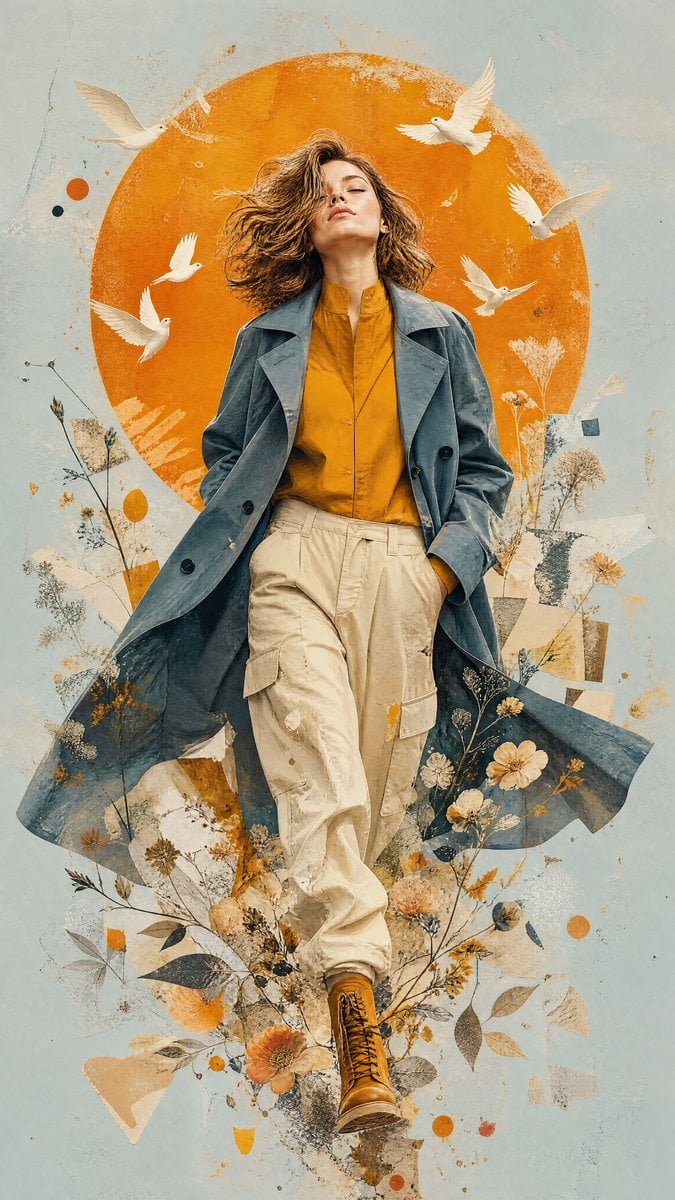
Mixed-Media Editorial Illustration
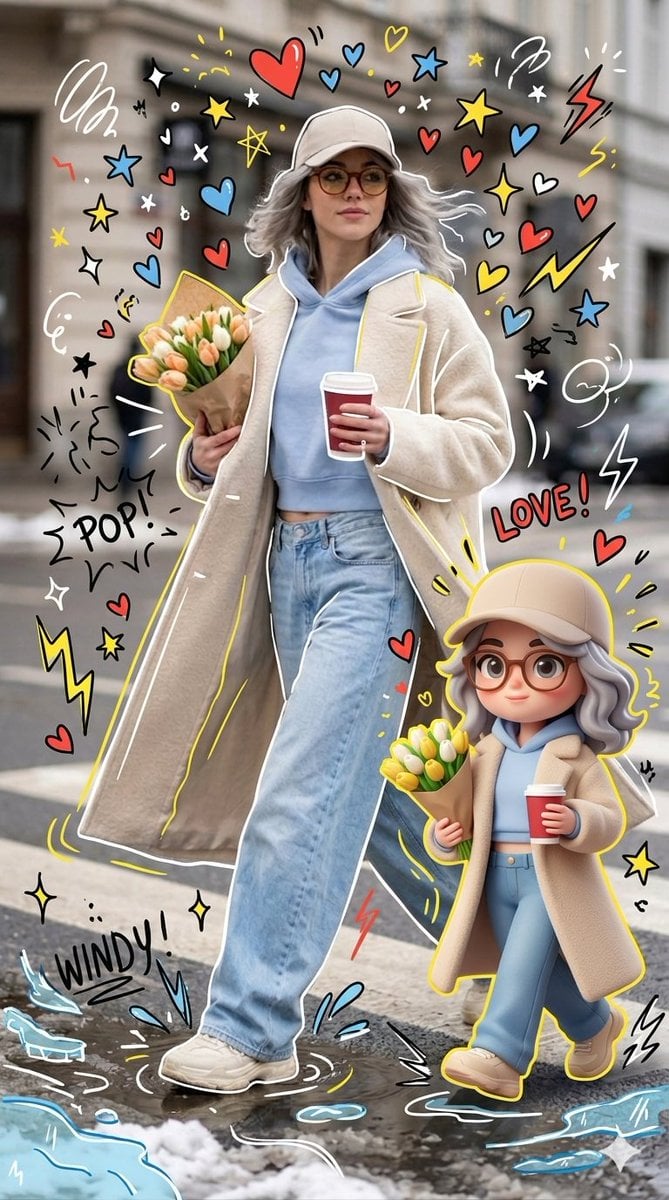
Mixed-media Chibi portrait
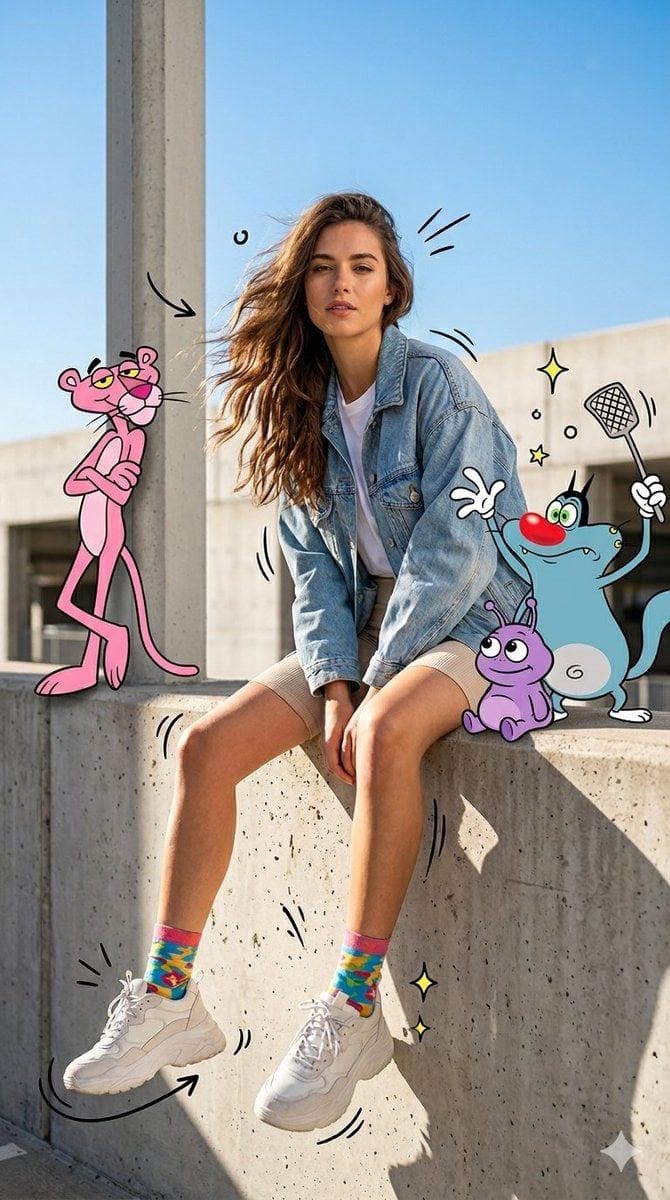
Mixed Media Urban Fashion Editorial
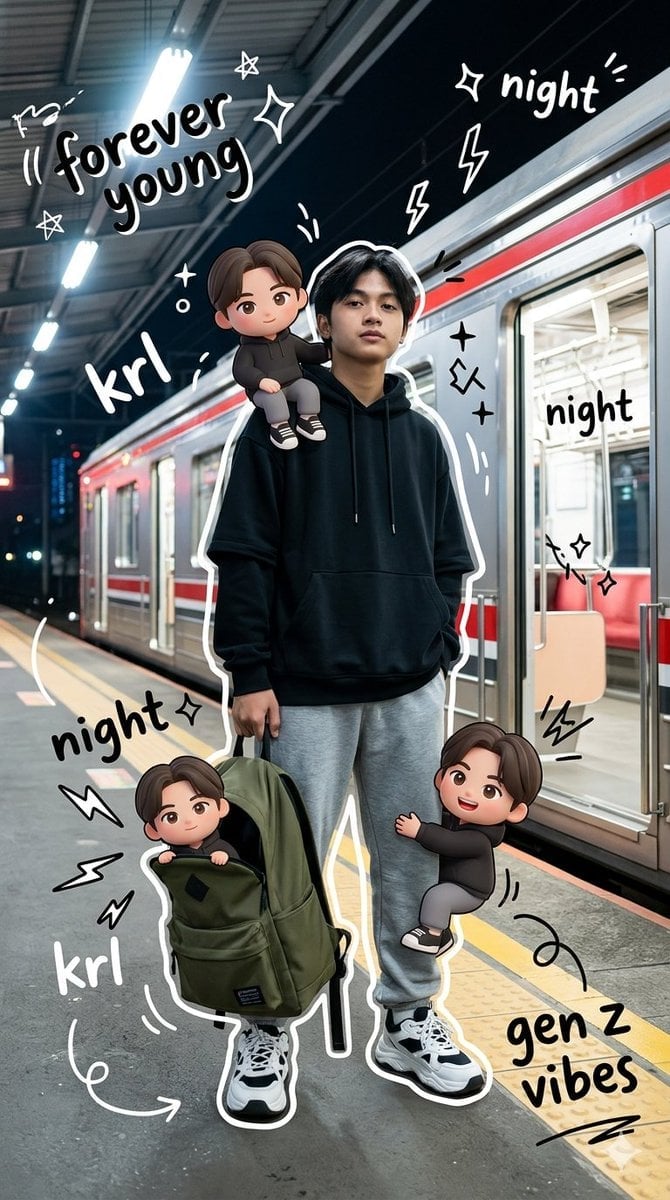
Gen Z Mixed-Media Portrait with Chibi Effects
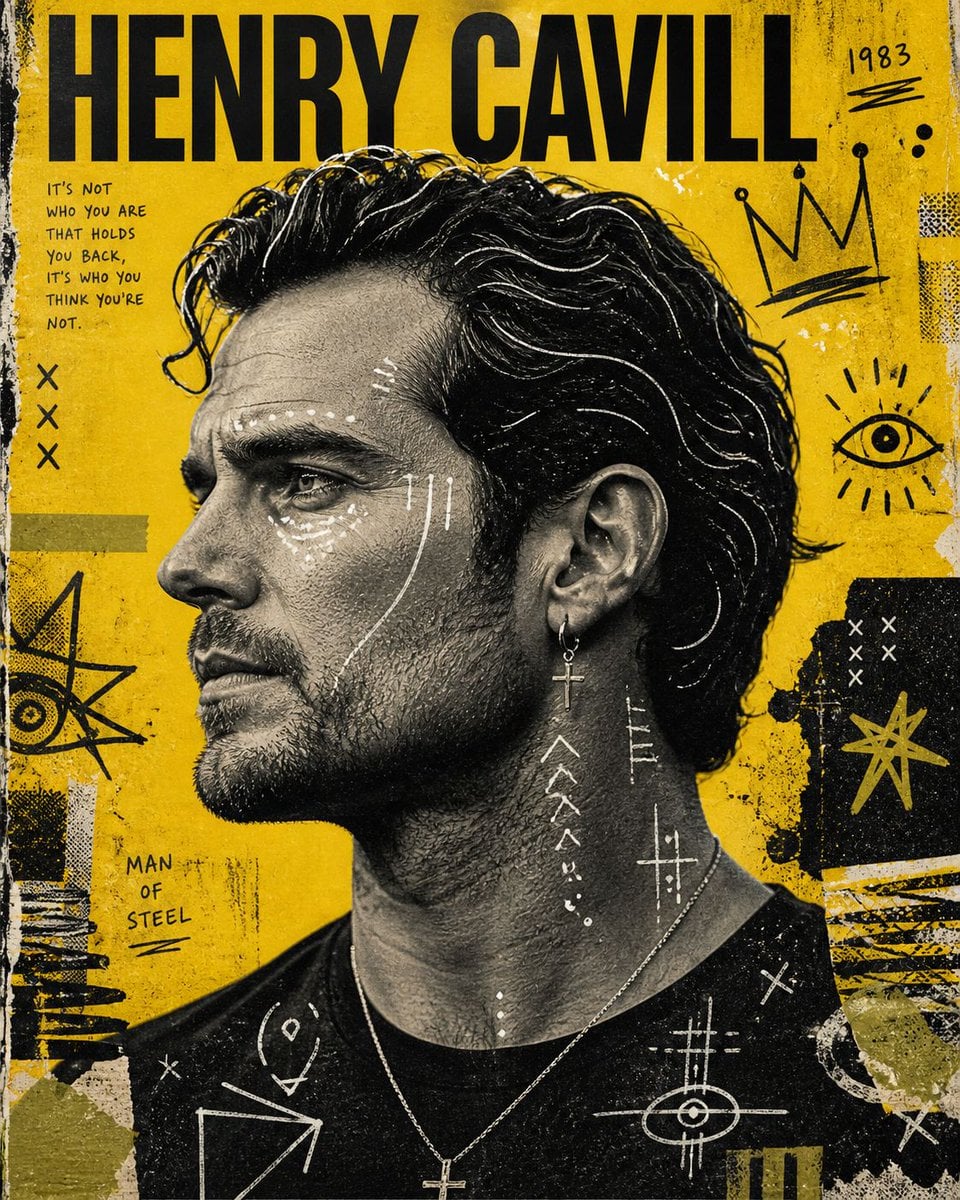
Raw Mixed-Media Street Art Poster
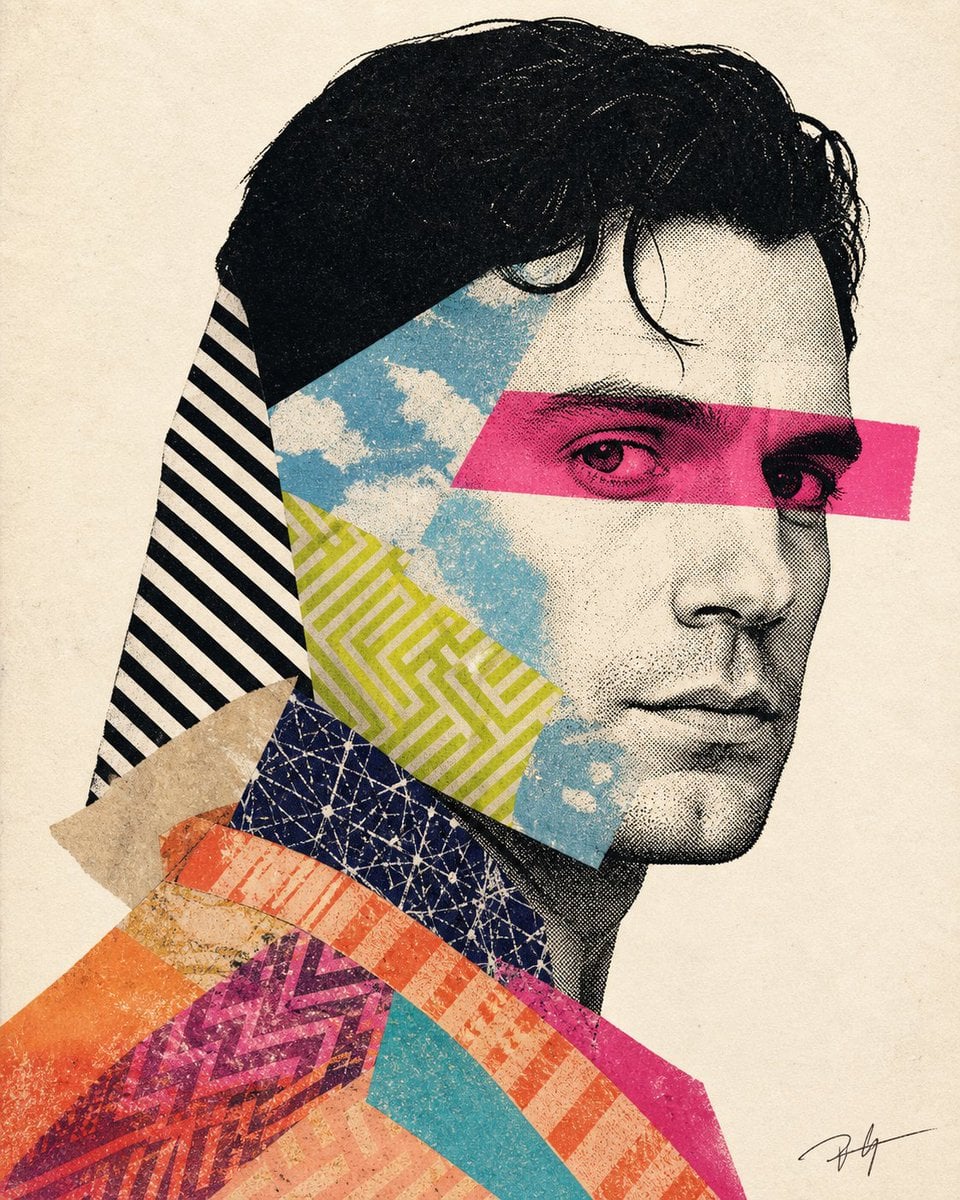
Mixed-media collage portrait illustration
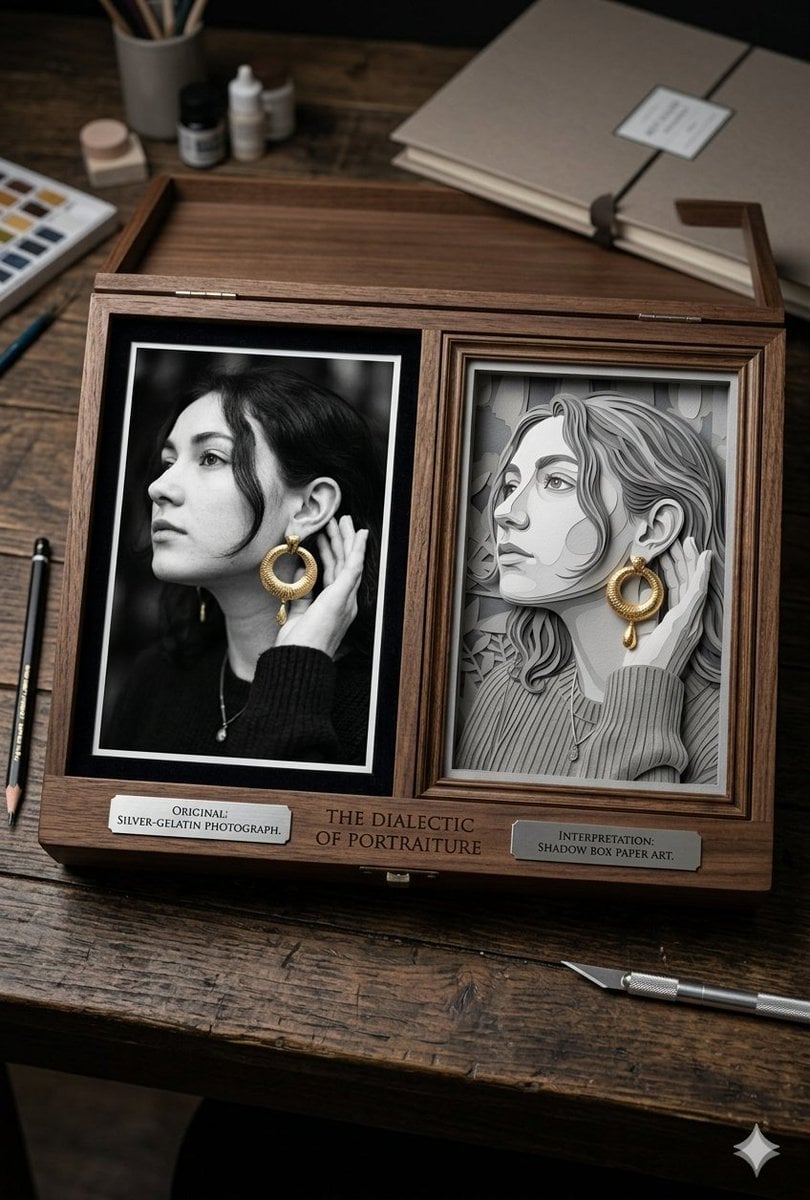
Mixed Media Artist Studio Display
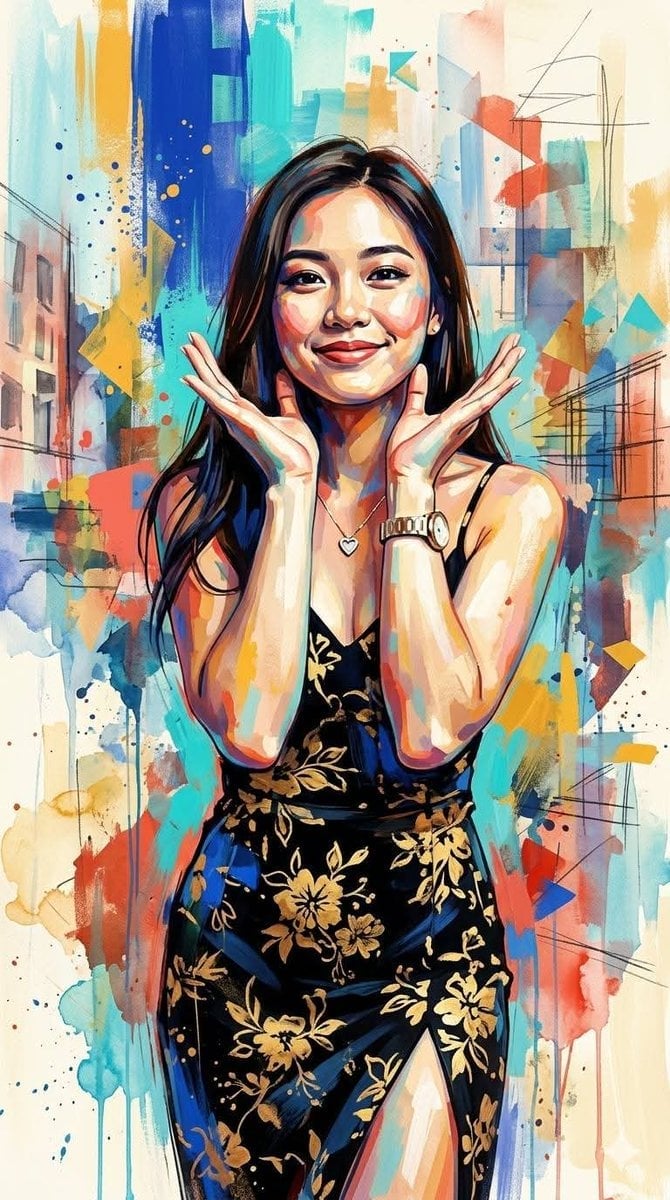
Contemporary Mixed-Media Abstract Portrait
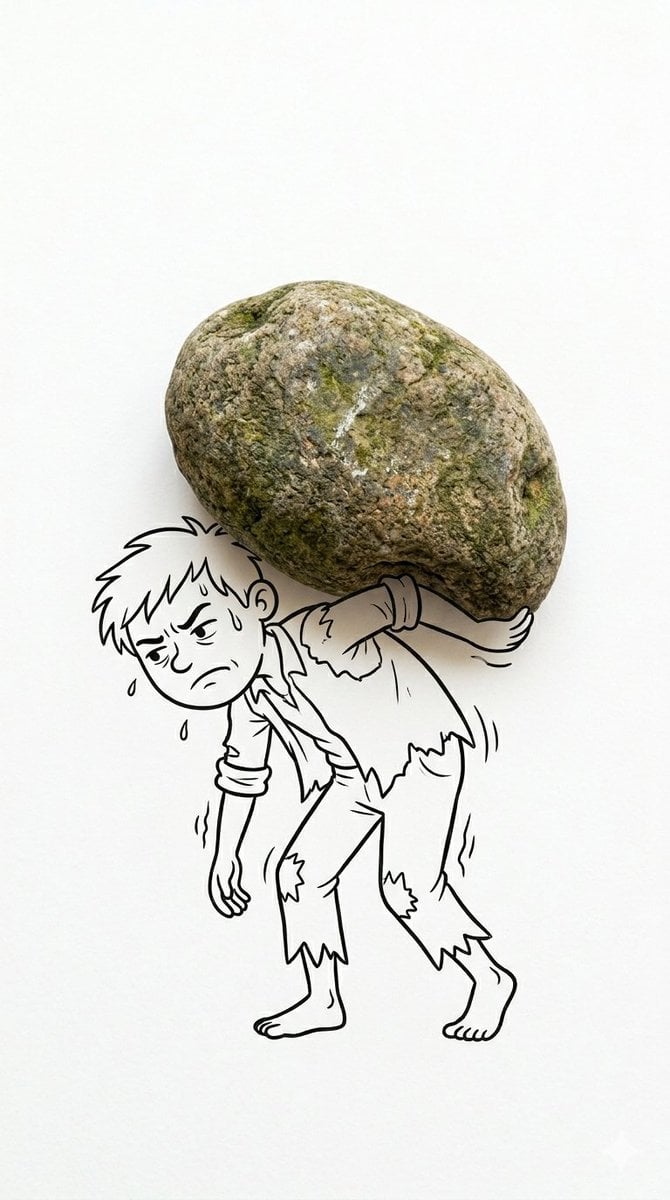
Creative Mixed Media Photo and Ink Illustration Fusion
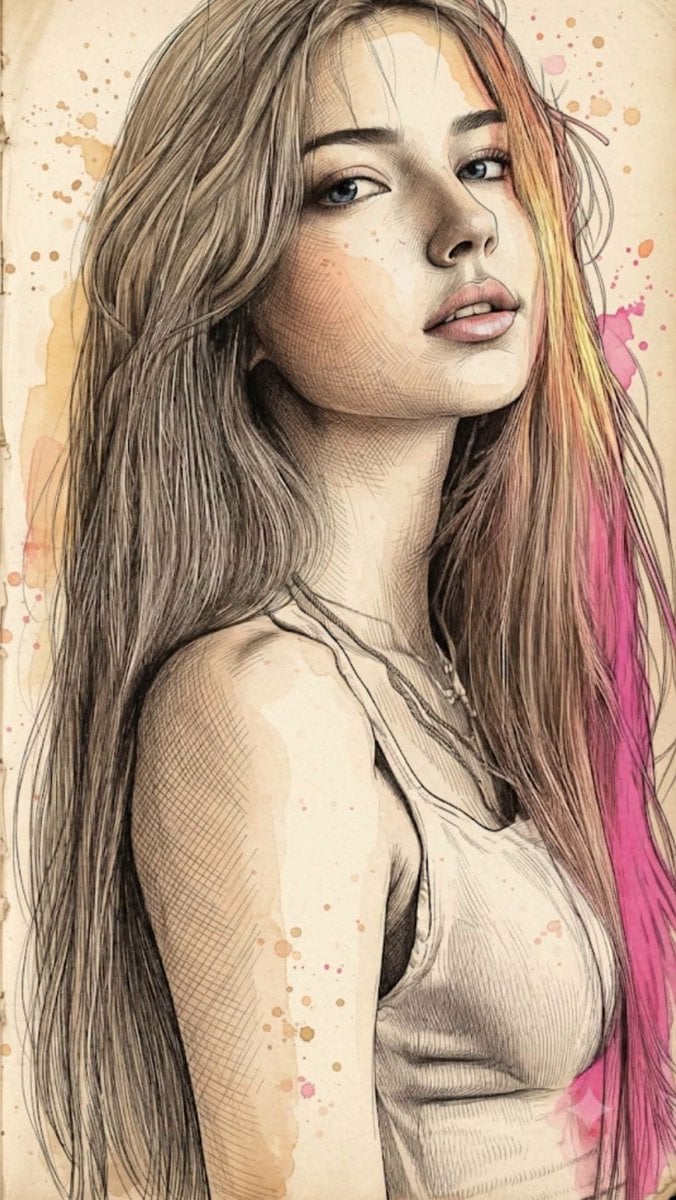
Fine Art Mixed-Media Portrait Illustration
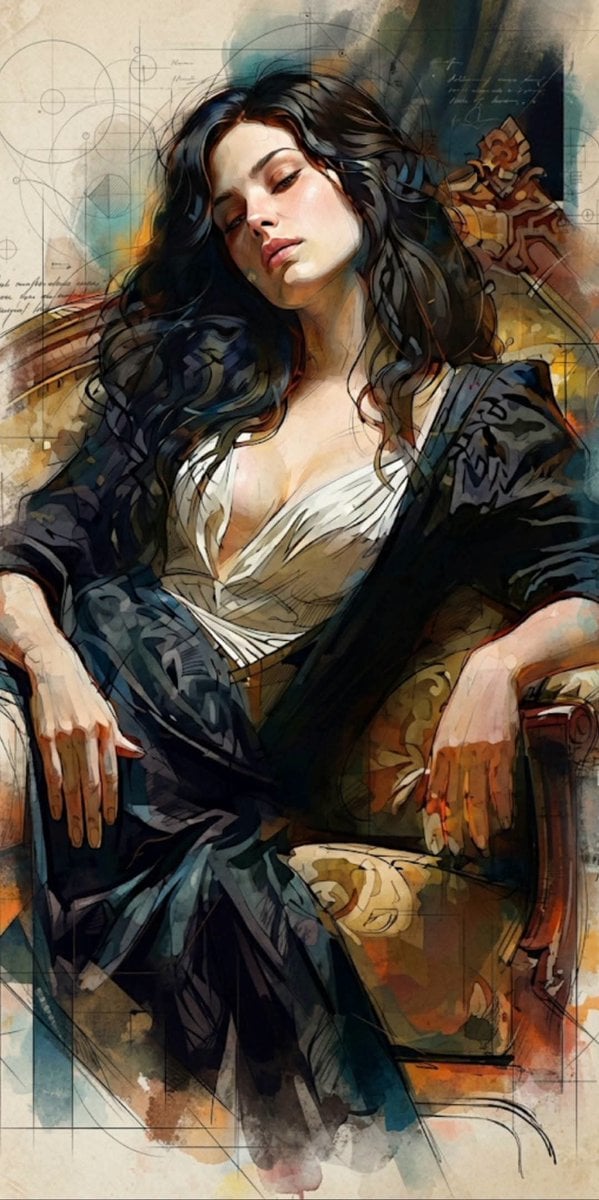
Mixed Media Cinematic Portrait Illustration
Make it yours
Mixed-Media Morandi Memory Card works as-is. These are the safest ways to change it without losing the look.
Change one field
Copy a single group, rewrite it, and generate again so you can see what that field is doing.
Keep the frame, change the subject
Hold the composition and light of Mixed-Media Morandi Memory Card, then swap wardrobe, props or the person for a new take.
| If the result… | Why | Fix |
|---|---|---|
| The result drifts from the preview | Too many fields changed at once. | Reuse Mixed-Media Morandi Memory Card as-is first, then change one group — subject, light, or setting. |
| The model over-stylizes the scene | The prose prompt leaves finish and camera underspecified. | Add one camera or lighting sentence and stay on GPT Image 2. |
More GPT Image 2 templates
Other prompts made for GPT Image 2.

Six VTuber Japanese Logo Sheet

Realistic Portrait of Woman and Deer

The Vista Modular Condo Poster

AI Model Routing Comparison Infographic

2.5D Anime Art Board

Isometric Productivity Desk Scene

New York Double Exposure Poster

Four-Panel AI Landscape Comparison

Japanese Tatami Lifestyle Magazine Cover

NESCAFÉ Coffee Map Poster
More image prompts
Fresh picks from across the catalog.
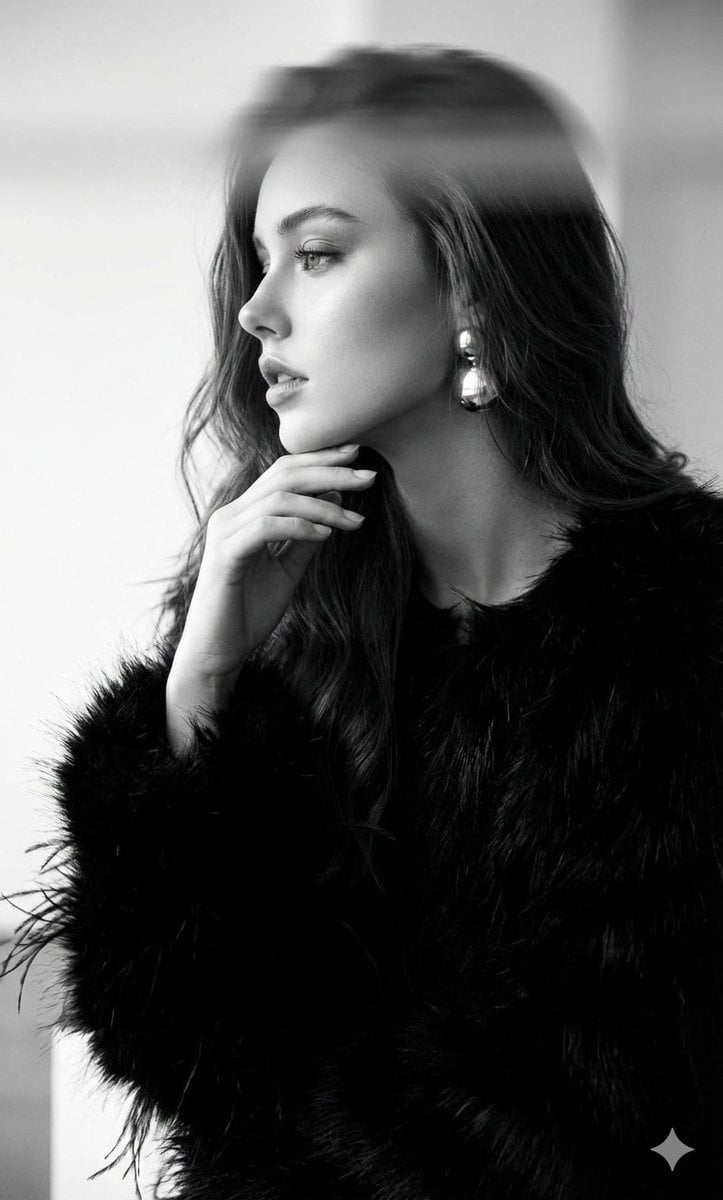
Black-and-White Surreal Editorial Portrait
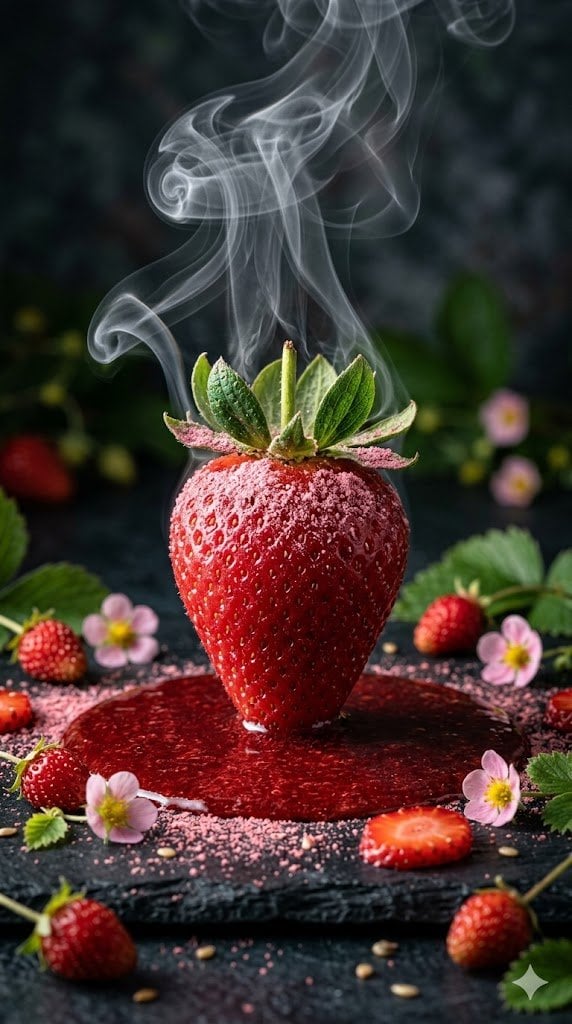
Cinematic Macro Photograph of a Strawberry in Syrup
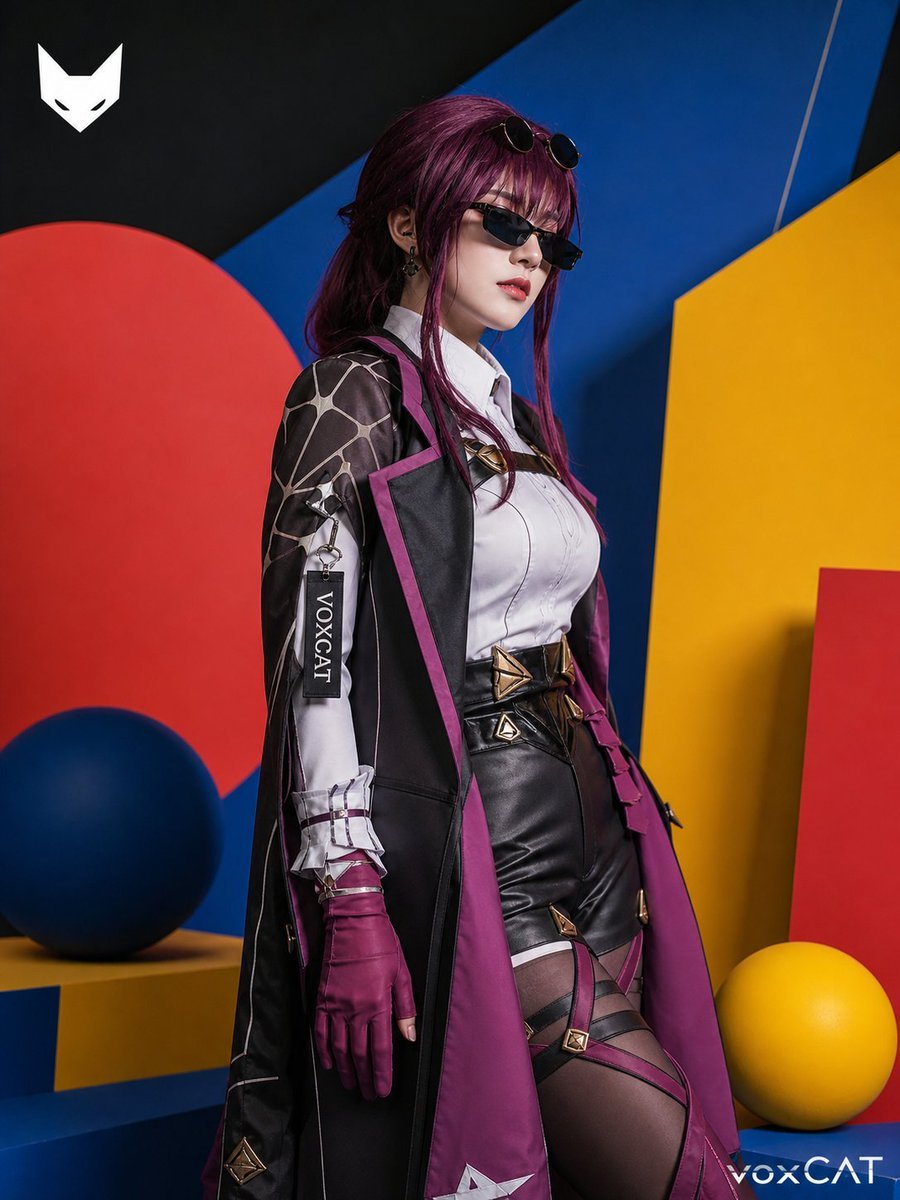
Bauhaus Style Fashion Editorial Poster
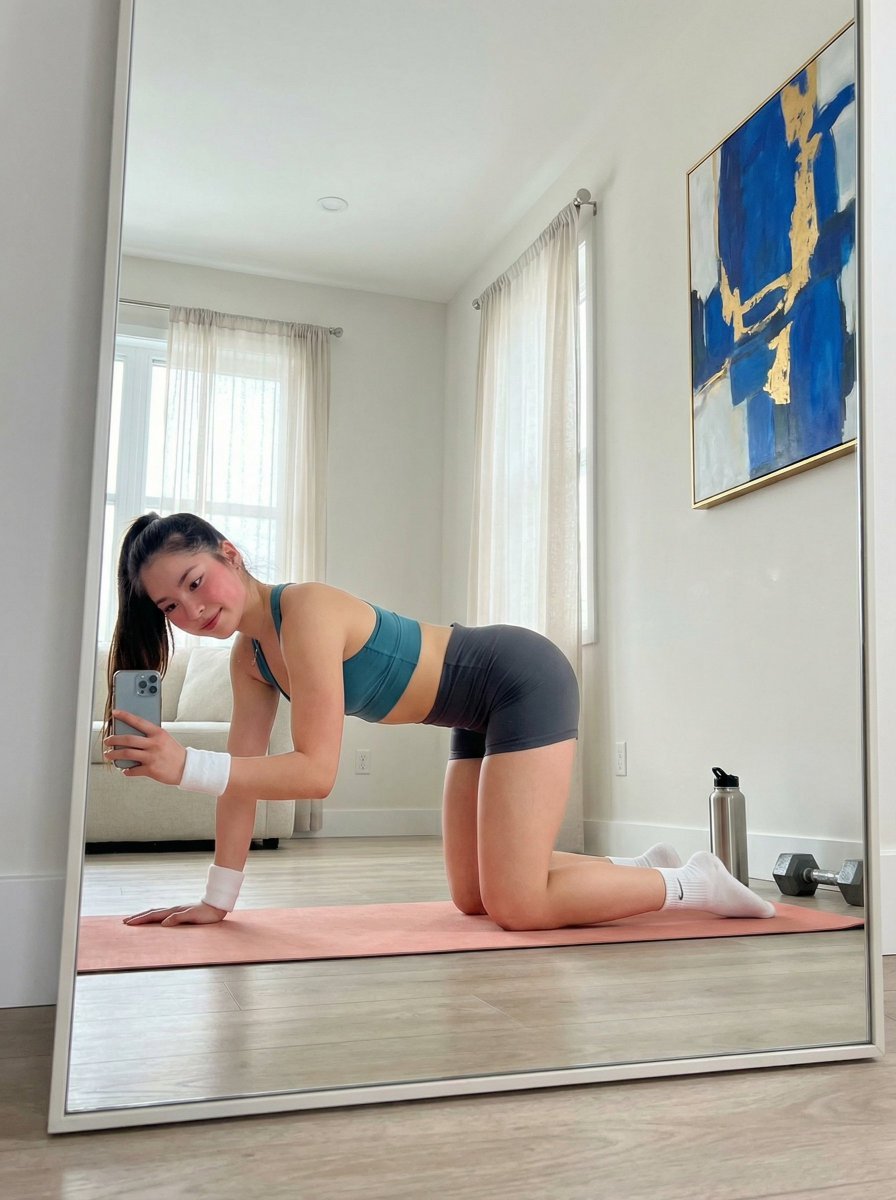
Yoga Mat Mirror Selfie Prompt (JSON)
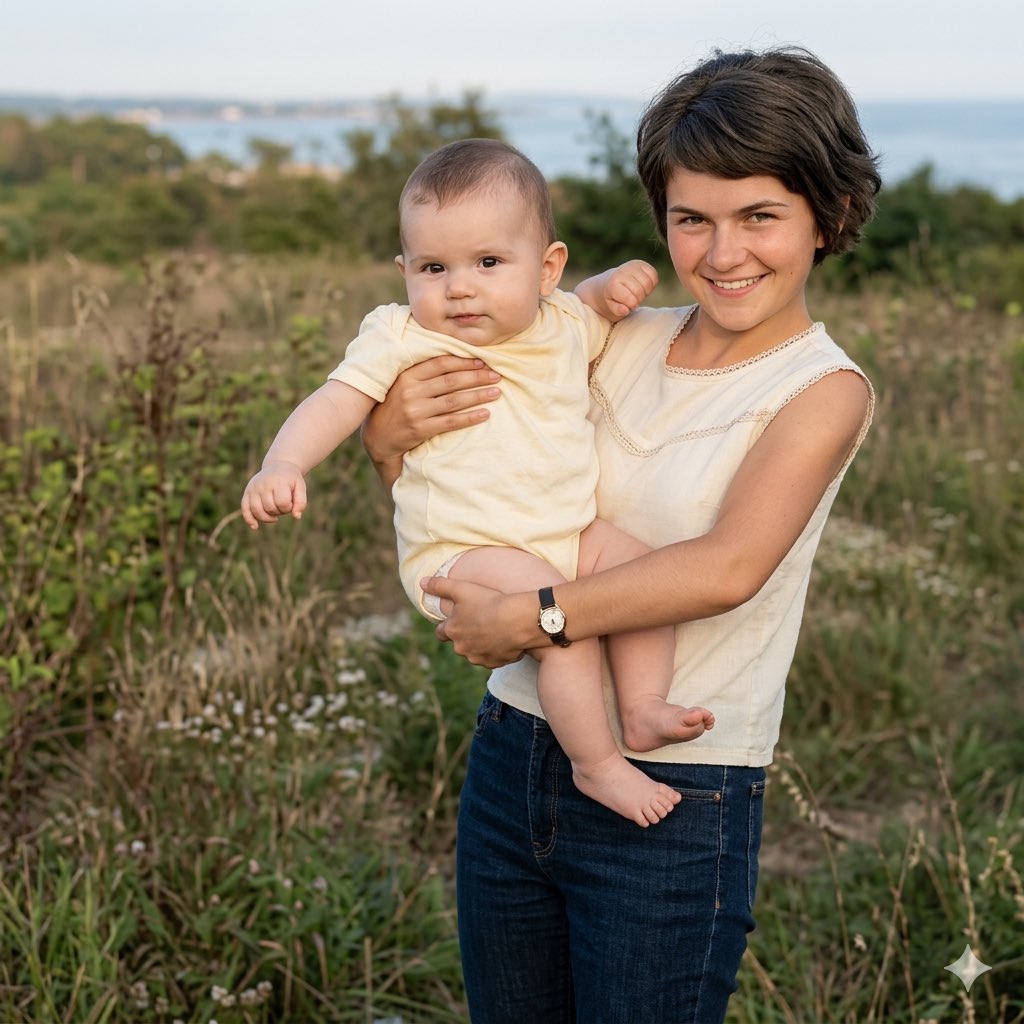
Vintage Keepsake Photo Restoration
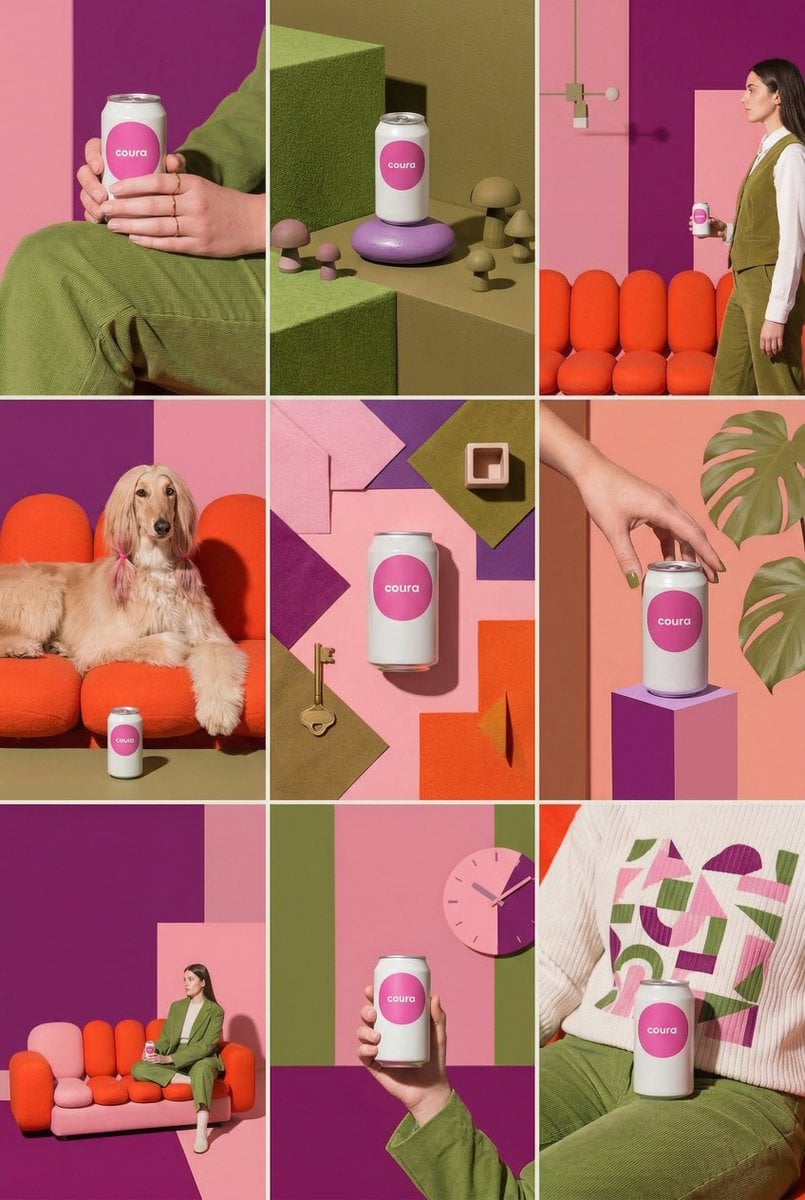
Instagram Feed Generation Prompt (Aesthetic Cohesion Test)
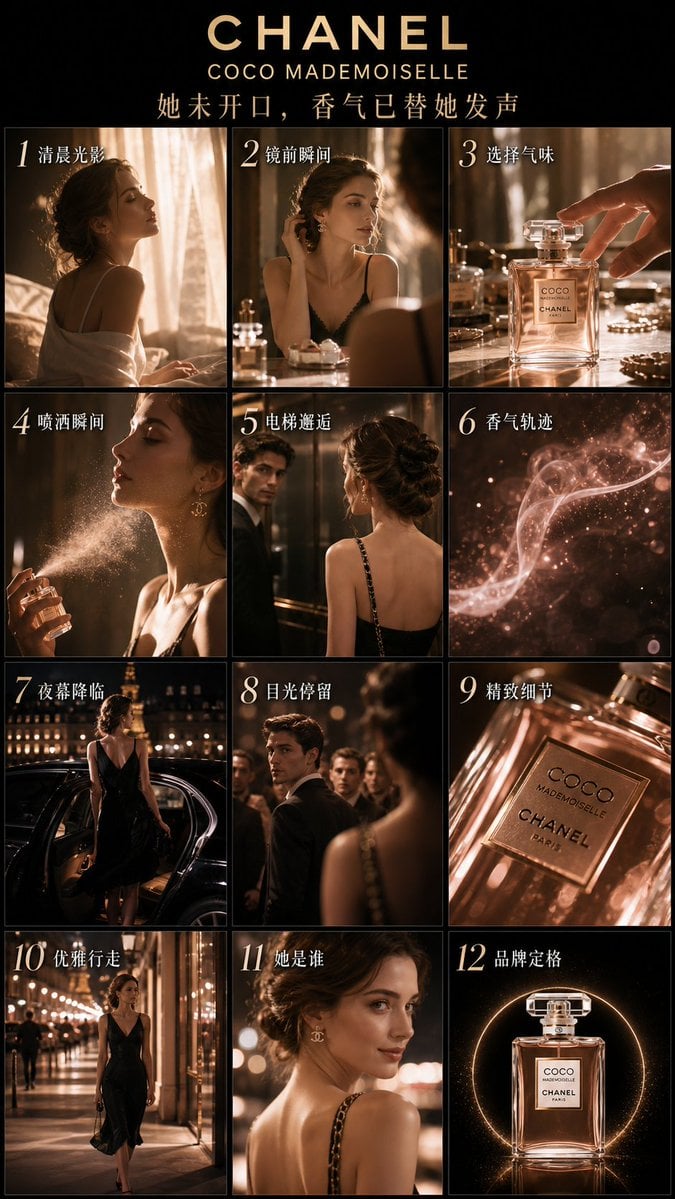
Luxury Perfume Advertising Storyboard
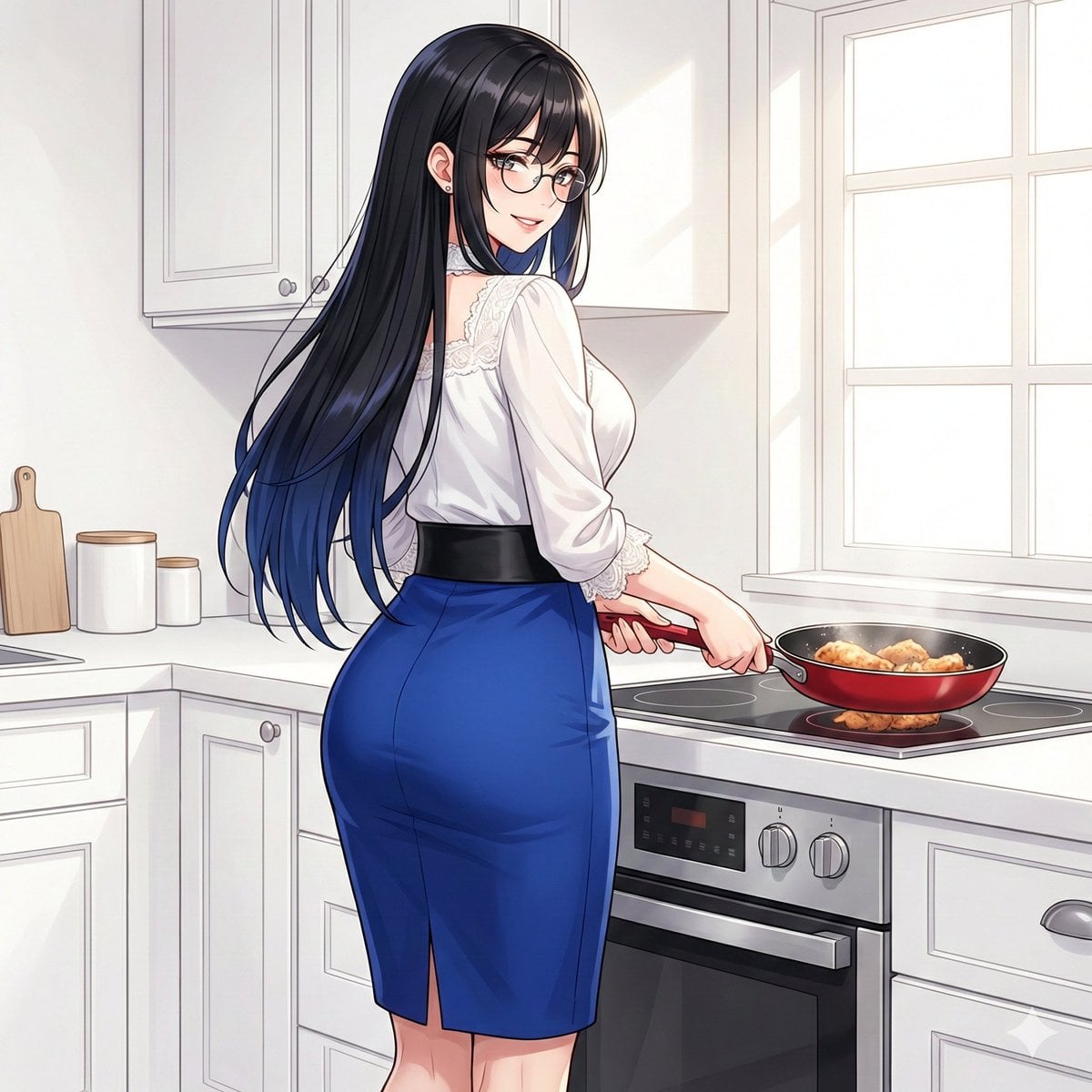
Larin: Dinner is almost ready
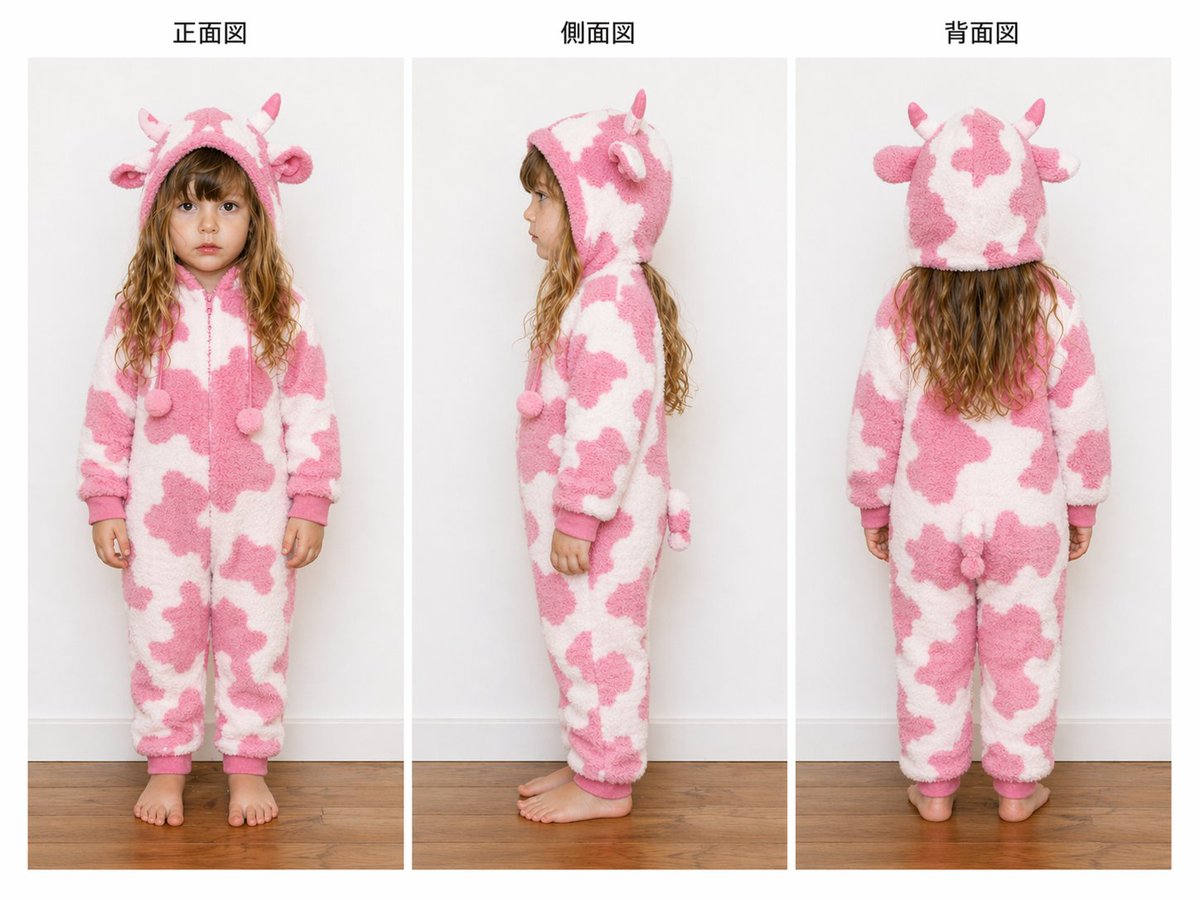
Child Cow Onesie Three-View Sheet
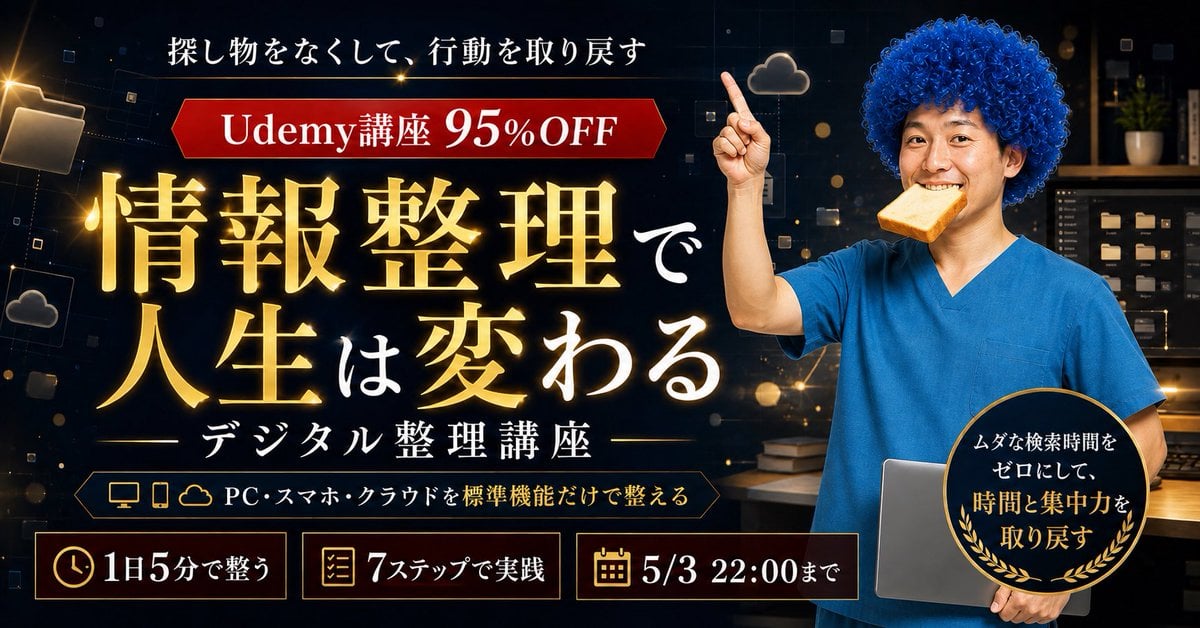
Japanese Udemy Course Sale Thumbnail
Browse template categories
Mixed-Media Morandi Memory Card questions
How do I use the Mixed-Media Morandi Memory Card template?
Add your photo if the template asks for one, edit the prompt if you like — the template's model and format are already selected — and press Generate. Your version opens in PicX Studio.
Can I customize the Mixed-Media Morandi Memory Card template?
Yes. You can change the subject, setting, lighting, mood, format, and available model controls before creating your image.
Is the Mixed-Media Morandi Memory Card template free?
Opening and editing this template is free. Generating uses credits, shown on the Generate button when you are signed in.
Which AI model should I use?
Start with GPT Image 2, which is the model associated with this template. You can compare another compatible model for a different finish.
Looking for something else? Browse all templates.

Your photo, any look
Thousands of ready templates for every top image and video model, from one credit balance.