
Kawaii AI Model Switch Machine
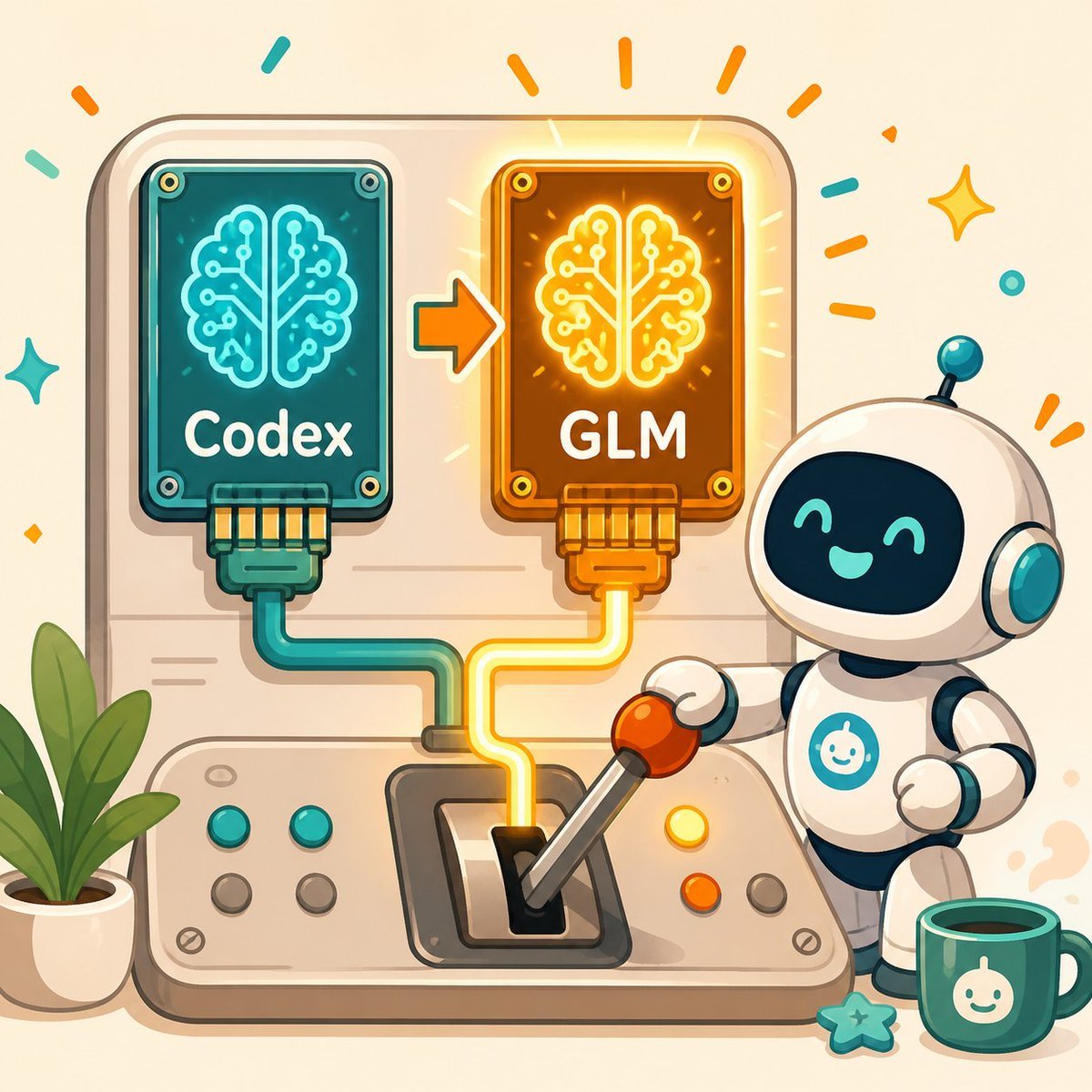
A cheerful square tech mascot illustration showing a robot switching an AI brain chip from Codex to GLM, useful for blog or social posts about changing AI models.
- Prompt included
- Model and format preset
- Free template
The prompt behind this image
Copy the exact prompt behind Kawaii AI Model Switch Machine, or open it in the studio and make it yours.
Create a cheerful square 1:1 kawaii tech illustration showing an AI model switch-over machine. The scene is a rounded beige control panel on a warm cream background. On the upper left of the panel, place a teal circuit-board chip labeled {argument name="left chip label" default="Codex"}, with a glowing cyan brain-shaped circuit icon, four visible corner screws, and a teal cable plugged into its bottom. On the upper right, place an orange/gold circuit-board chip labeled {argument name="right chip label" default="GLM"}, with a glowing yellow brain-shaped circuit icon, four visible corner screws, and a yellow cable plugged into its bottom. Between the chips, draw one orange arrow pointing from the left chip to the right chip to indicate switching. The right chip should emit warm glow rays and celebratory orange marks. At the bottom center, show a physical lever console with the yellow cable routed into the lever slot; the lever is tilted toward the right and has an orange ball handle held by a cute small white robot on the right side. The robot has a glossy white rounded body, a black face screen with turquoise smiling eyes and mouth, teal ear-like side disks, a tiny antenna with a teal ball, dark blue joints, and a teal circular chest emblem with a simple smiling bot icon. Include exactly six round console buttons: two teal buttons on the left row, two gray buttons below them, one yellow button near the robot, and one orange button below it, plus one gray button further right. Add a potted green plant on the lower left, a teal mug with the same white smiling bot icon on the lower right, and a small teal star charm near the mug. Decorate the background with confetti strokes and sparkles in orange and teal. Use soft rounded shapes, clean outlines, gentle shadows, warm highlights, vector-like digital art, friendly startup mascot style, no photorealism, no extra text beyond the two chip labels.
How to use Kawaii AI Model Switch Machine in 3 steps
- 1Upload ImagePNG, JPG or paste
Add your photo
Upload the photo the template builds on. The prompt, model and format are already set.
- 2…a portrait of your subject in softgolden-hour light, 85mm…
Personalize
Edit the subject and creative details for your destination.
- 3Generate
Generate
Press Generate — your image is created in PicX Studio, so you can compare it with the original and refine one variable at a time.
More like this
Templates with the same subject, style or setup. Open one to see its prompt.

Cute Layered Paper Cut Chibi Girl

Premium Vertical Product Campaign Poster
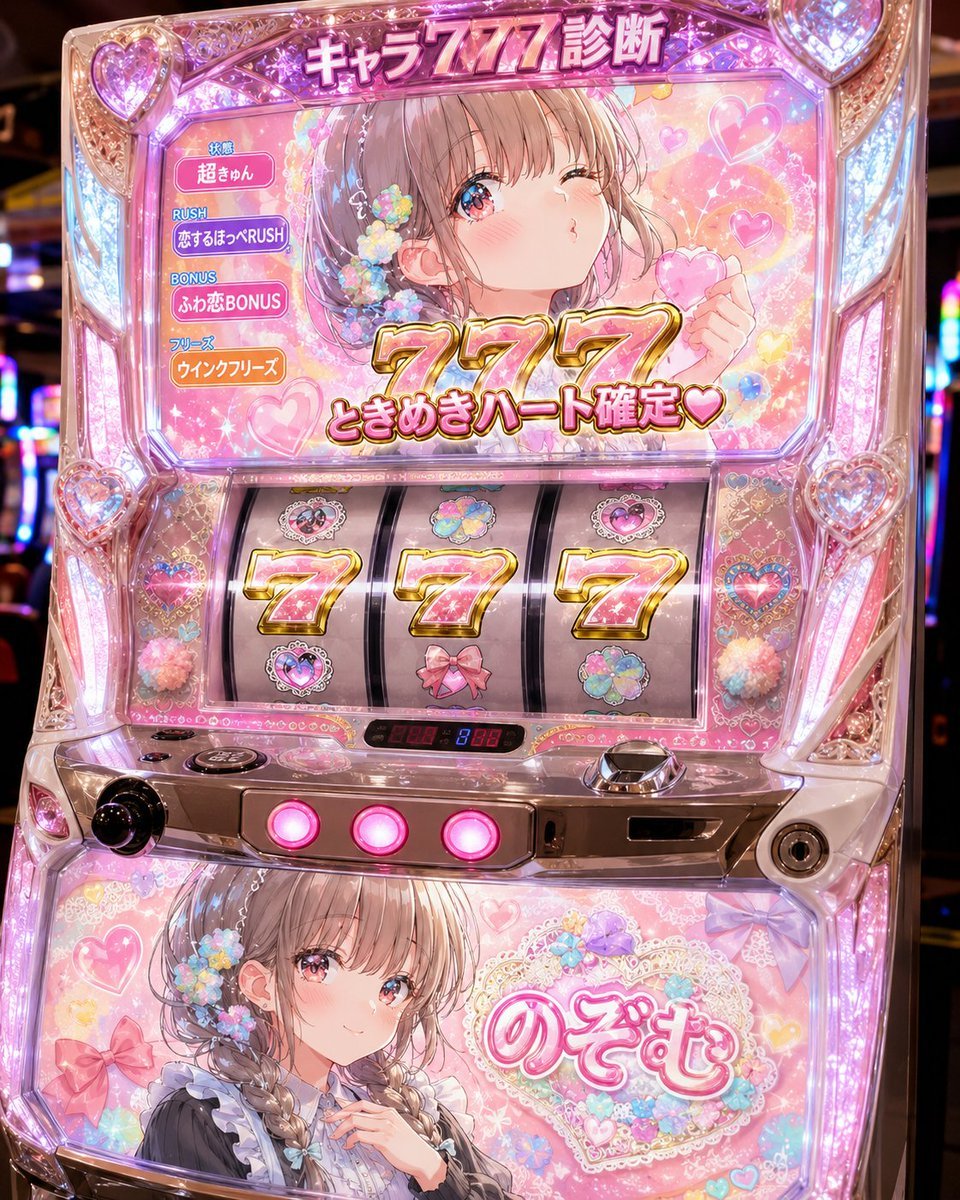
Kawaii Character 777 Slot Machine

Pepsi Vending Machine Ad
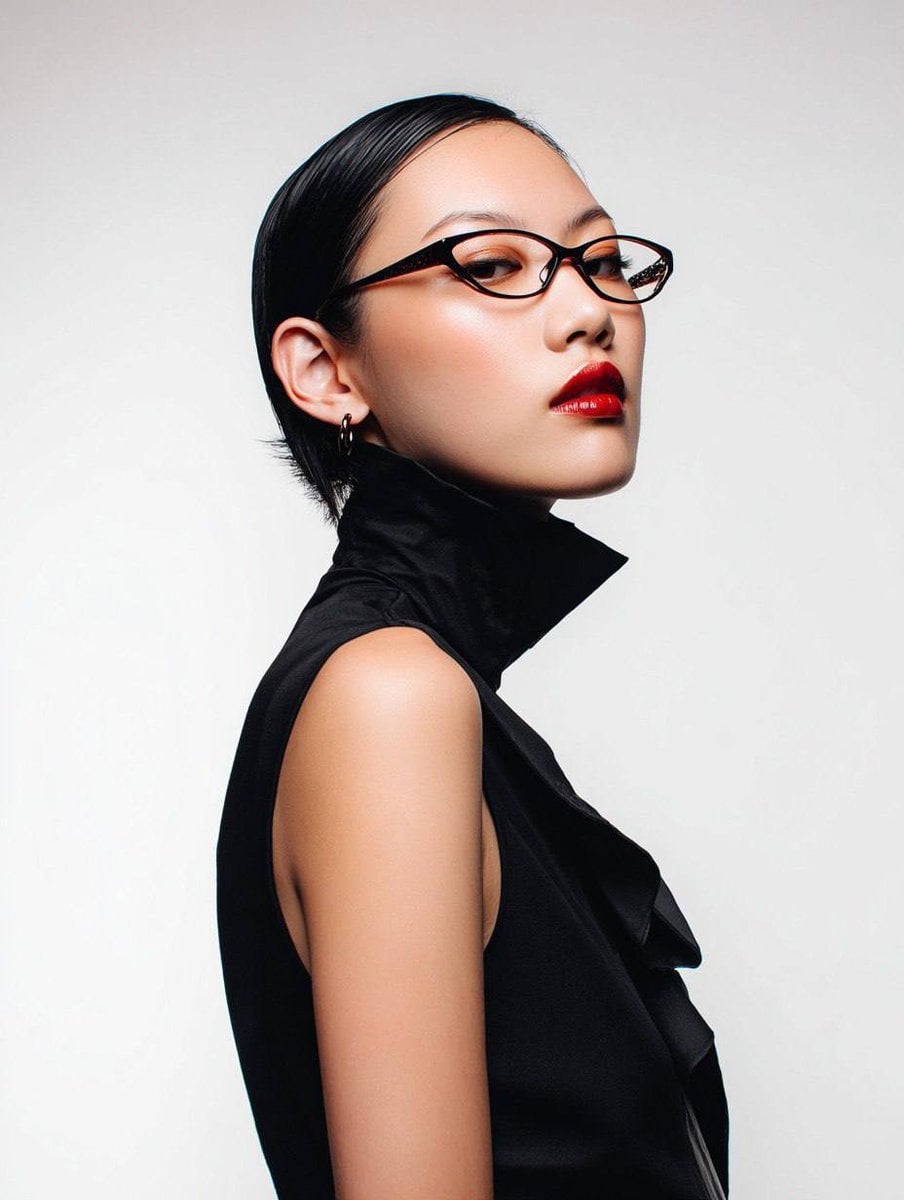
Avant-Garde Asian Fashion Model
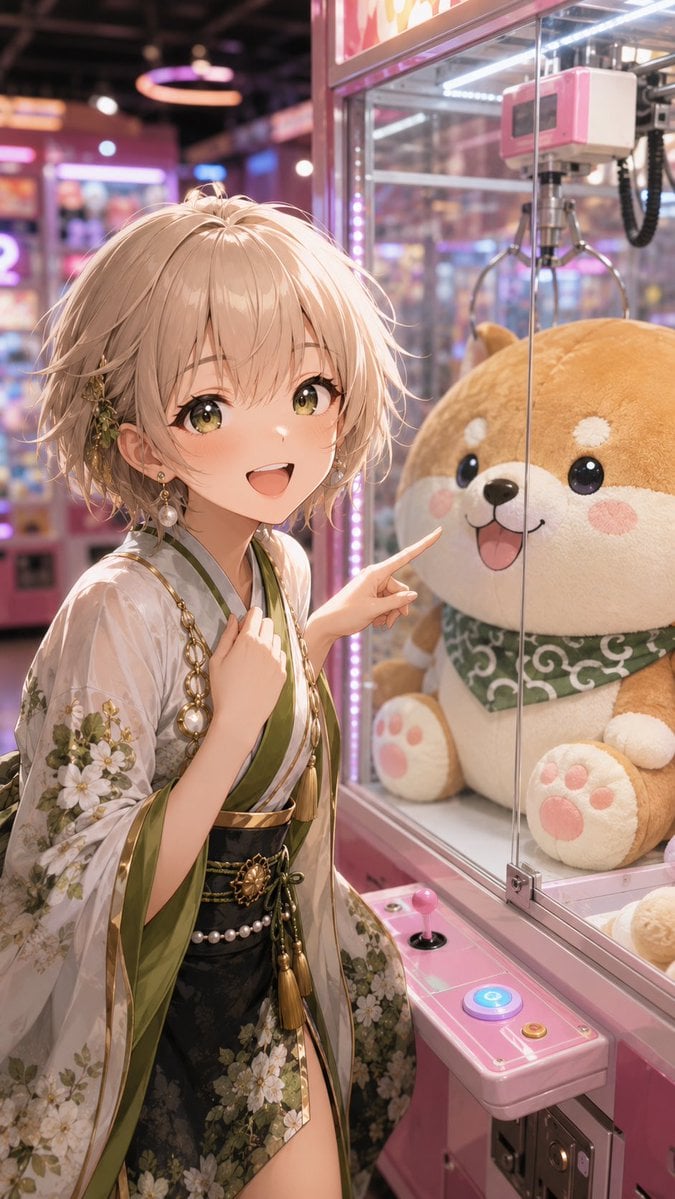
Anime Girl at Claw Machine
Kawaii Brick Moon Chibi Diorama
Model With Manga Wall Sketch

AI Model Routing Comparison Infographic
Vending Machine Alley at Night
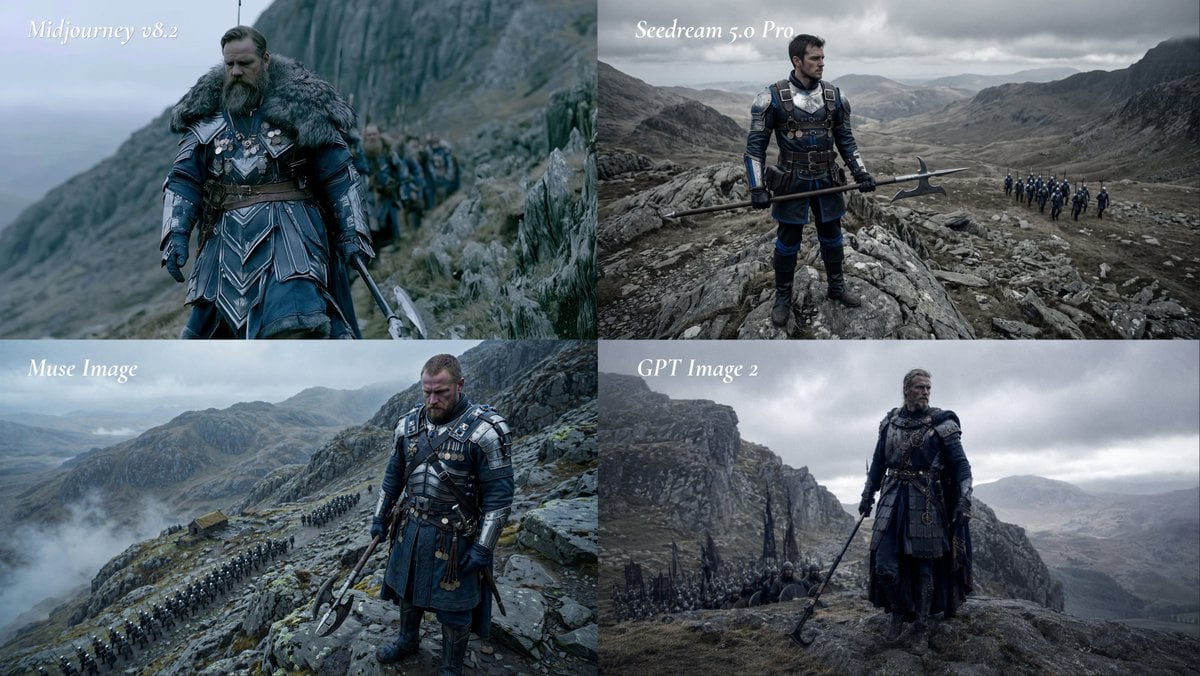
Fantasy Model Comparison Grid
Cyber-Kawaii Influencer Portrait Grid
Make it yours
Kawaii AI Model Switch Machine works as-is. These are the safest ways to change it without losing the look.
Change one field
Copy a single group, rewrite it, and generate again so you can see what that field is doing.
Keep the frame, change the subject
Hold the composition and light of Kawaii AI Model Switch Machine, then swap wardrobe, props or the person for a new take.
| If the result… | Why | Fix |
|---|---|---|
| The result drifts from the preview | Too many fields changed at once. | Reuse Kawaii AI Model Switch Machine as-is first, then change one group — subject, light, or setting. |
| The model over-stylizes the scene | The prose prompt leaves finish and camera underspecified. | Add one camera or lighting sentence and stay on GPT Image 2. |
More GPT Image 2 templates
Other prompts made for GPT Image 2.

Six VTuber Japanese Logo Sheet

Realistic Portrait of Woman and Deer

The Vista Modular Condo Poster

2.5D Anime Art Board

Isometric Productivity Desk Scene

New York Double Exposure Poster

Four-Panel AI Landscape Comparison

Japanese Tatami Lifestyle Magazine Cover

NESCAFÉ Coffee Map Poster

Brutalist Cogito Chinese Typography Poster
More image prompts
Fresh picks from across the catalog.
Y2K Coquette Streetwear in a Vintage Record Store

Editorial poolside fashion photoshoot of a man
3D Radial Explosion Product Visualization Prompt for Nano Banana 2
Nostalgic Polaroid Corkboard Collage

Stunning Photo Prompt for Gemini Nano Banana
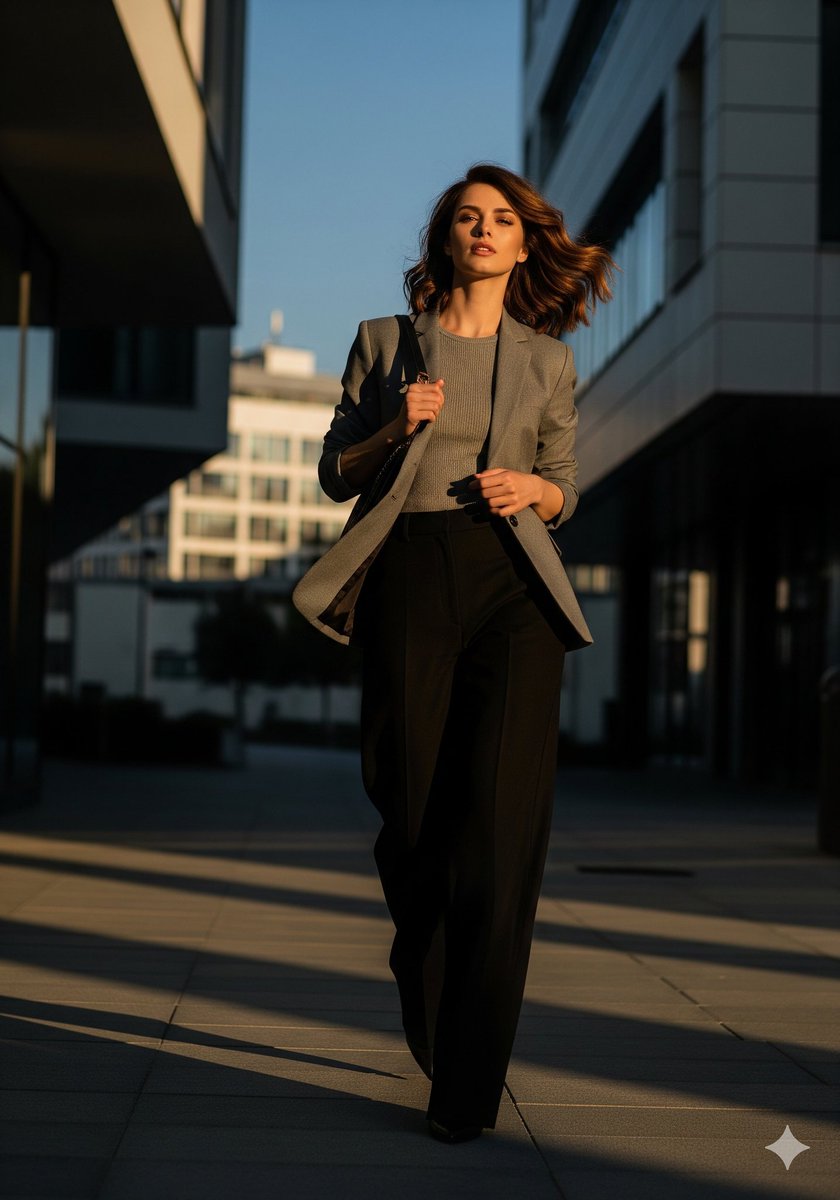
Urban Golden Hour Fashion Editorial

Industrial Design Presentation Sheet

3D Fluffy Toy About Me Poster

Cinematic Portrait in a Wildflower Meado
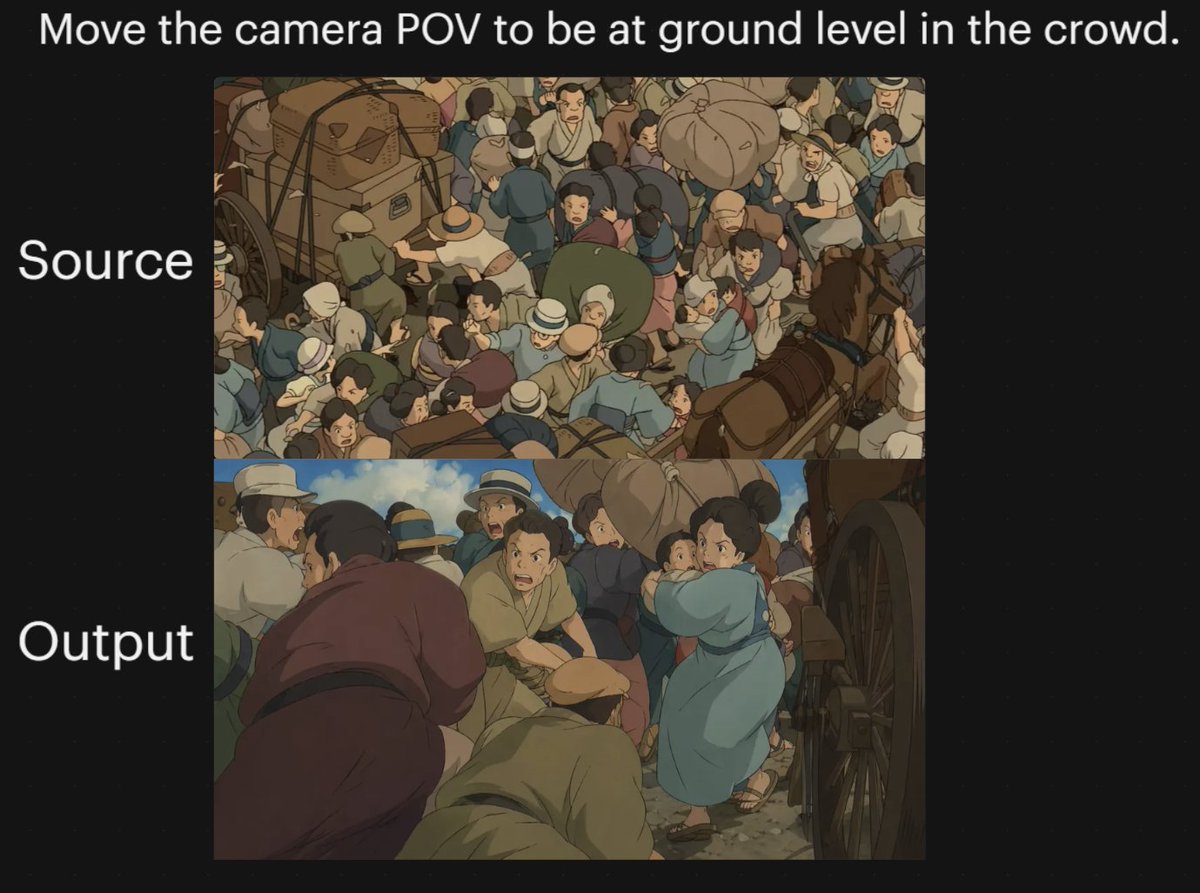
Anime Crowd Camera POV Comparison
Browse template categories
Kawaii AI Model Switch Machine questions
How do I use the Kawaii AI Model Switch Machine template?
Add your photo if the template asks for one, edit the prompt if you like — the template's model and format are already selected — and press Generate. Your version opens in PicX Studio.
Can I customize the Kawaii AI Model Switch Machine template?
Yes. You can change the subject, setting, lighting, mood, format, and available model controls before creating your image.
Is the Kawaii AI Model Switch Machine template free?
Opening and editing this template is free. Generating uses credits, shown on the Generate button when you are signed in.
Which AI model should I use?
Start with GPT Image 2, which is the model associated with this template. You can compare another compatible model for a different finish.
Looking for something else? Browse all templates.

Your photo, any look
Thousands of ready templates for every top image and video model, from one credit balance.