
Armored Bear Encounter
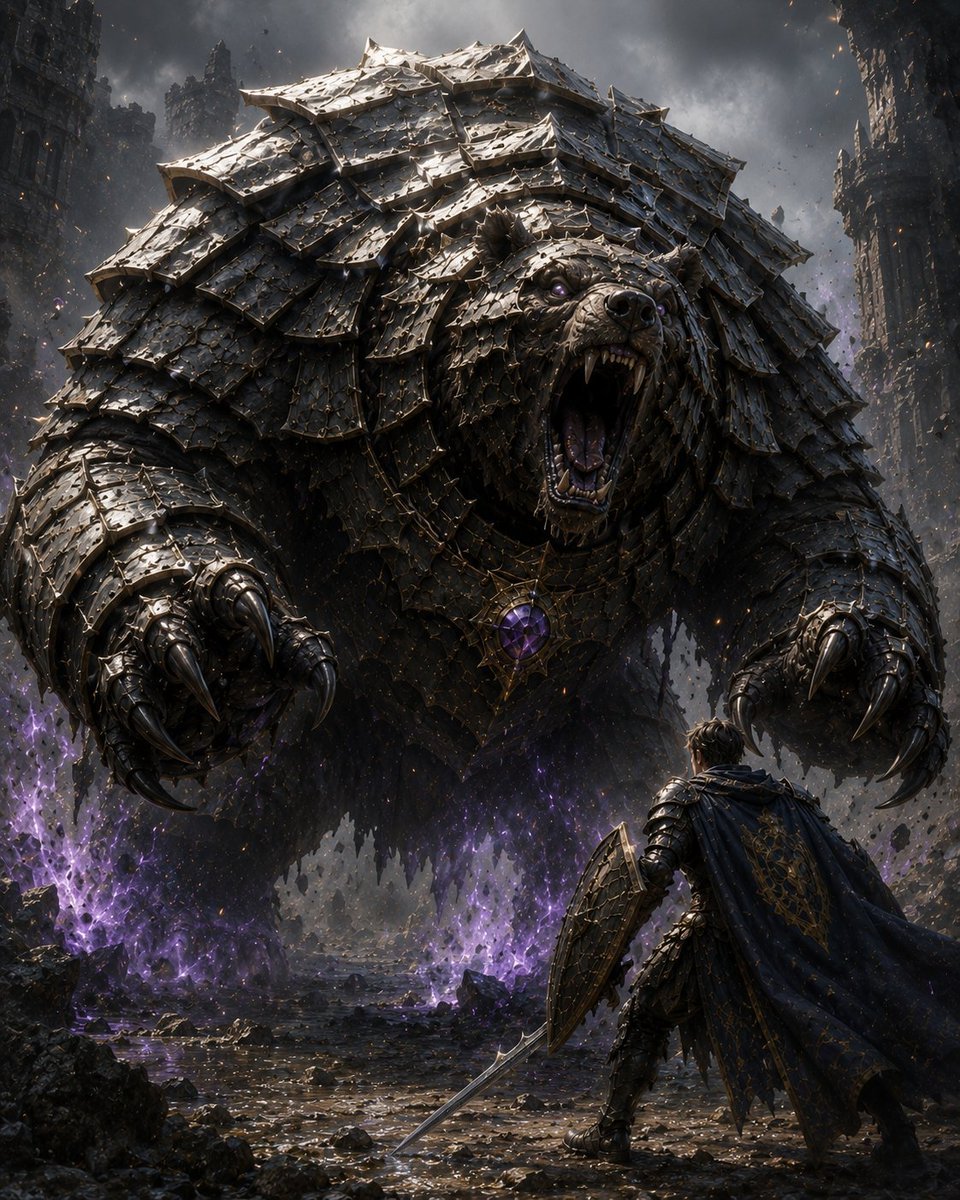
A cinematic dark fantasy scene of a lone knight confronting a colossal armored bear in a ruined magical battlefield.
- Prompt included
- Model and format preset
- Free template
The prompt behind this image
Copy the exact prompt behind Armored Bear Encounter, or open it in the studio and make it yours.
Create a dark epic fantasy cinematic illustration of {argument name="encounter title" default="Encounter with an Armored Bear"}: a colossal bear-like monster dominates the frame, lunging forward and roaring with its mouth wide open, fangs exposed, purple-glowing eyes, and enormous metal claws reaching toward the viewer. The bear is covered head to toe in layered blackened steel armor plates like overlapping scales, battered, scratched, riveted, and jagged, with heavy shoulder plates and a large ornate amulet on its chest holding a glowing {argument name="gem color" default="purple"} crystal. In the lower right foreground, show exactly 1 lone human knight seen from behind, much smaller than the beast, wearing dark ornate armor and a tattered cloak, holding exactly 1 long sword angled downward and exactly 1 large kite shield raised defensively. Set the scene in a ruined gothic city or fortress canyon with exactly 2 tall broken stone tower walls framing the left and right sides, storm clouds overhead, drifting ash, sparks, flying debris, shattered rocks, wet reflective ground, and eerie purple magical flames or energy erupting from the ground around the monster. Use a low-angle heroic composition, the bear filling most of the image, the knight providing scale, high contrast chiaroscuro lighting, cold gray-black metal tones with violet magical highlights, ultra-detailed textures, realistic fantasy concept art, dramatic volumetric smoke, sharp focus, vertical 4:5 aspect ratio, no text, no watermark.
How to use Armored Bear Encounter in 3 steps
- 1Upload ImagePNG, JPG or paste
Add your photo
Upload the photo the template builds on. The prompt, model and format are already set.
- 2…a portrait of your subject in softgolden-hour light, 85mm…
Personalize
Edit the subject and creative details for your destination.
- 3Generate
Generate
Press Generate — your image is created in PicX Studio, so you can compare it with the original and refine one variable at a time.
More like this
Templates with the same subject, style or setup. Open one to see its prompt.
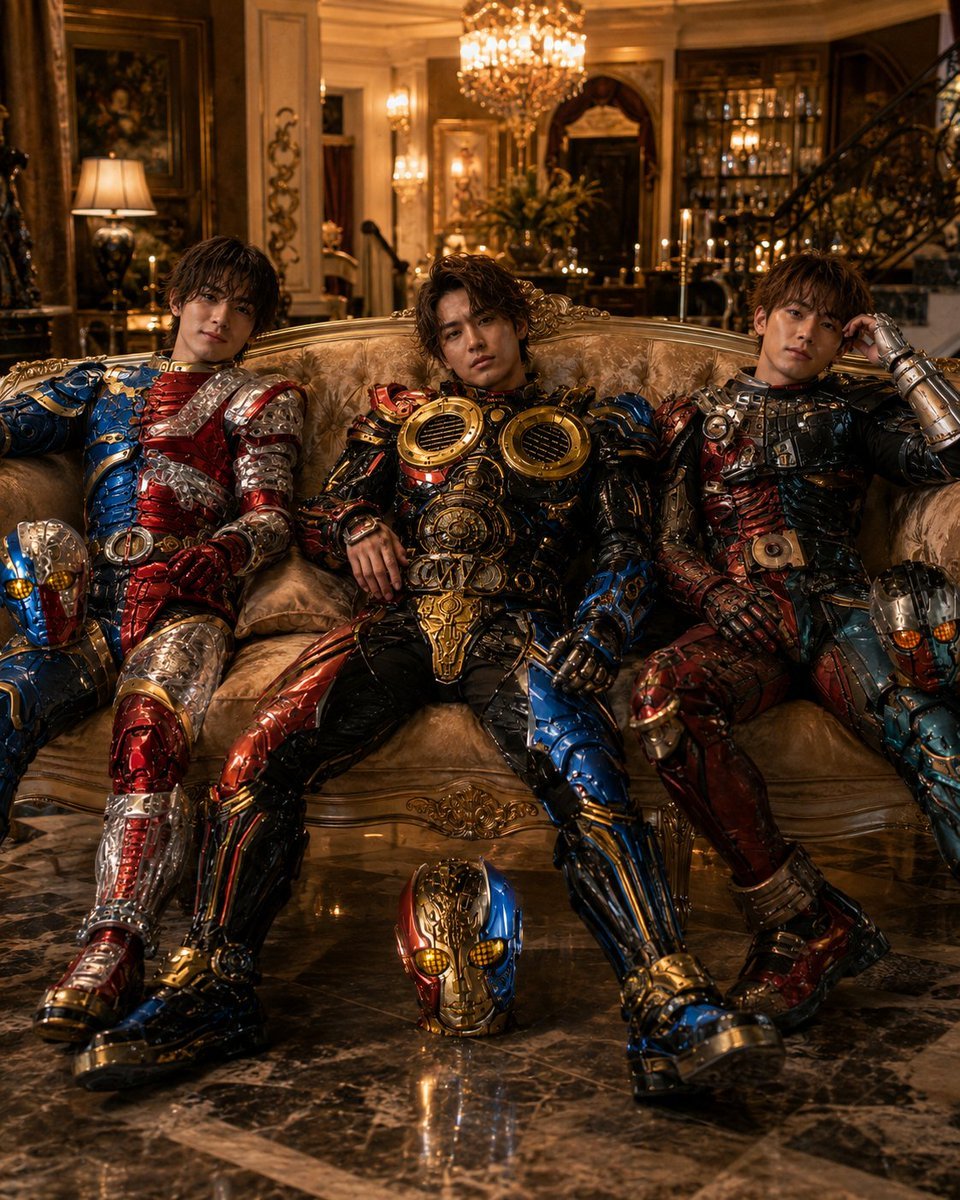
Armored Tokusatsu Cosplayers Resting
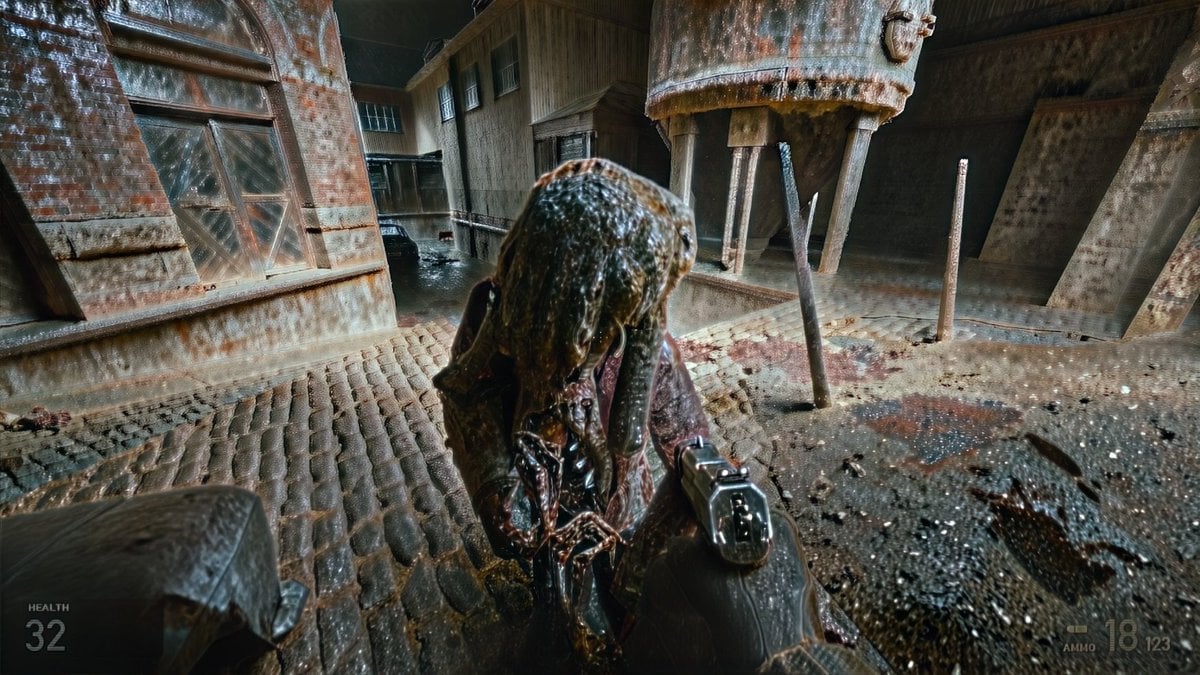
Grimy Survival Horror FPS Encounter
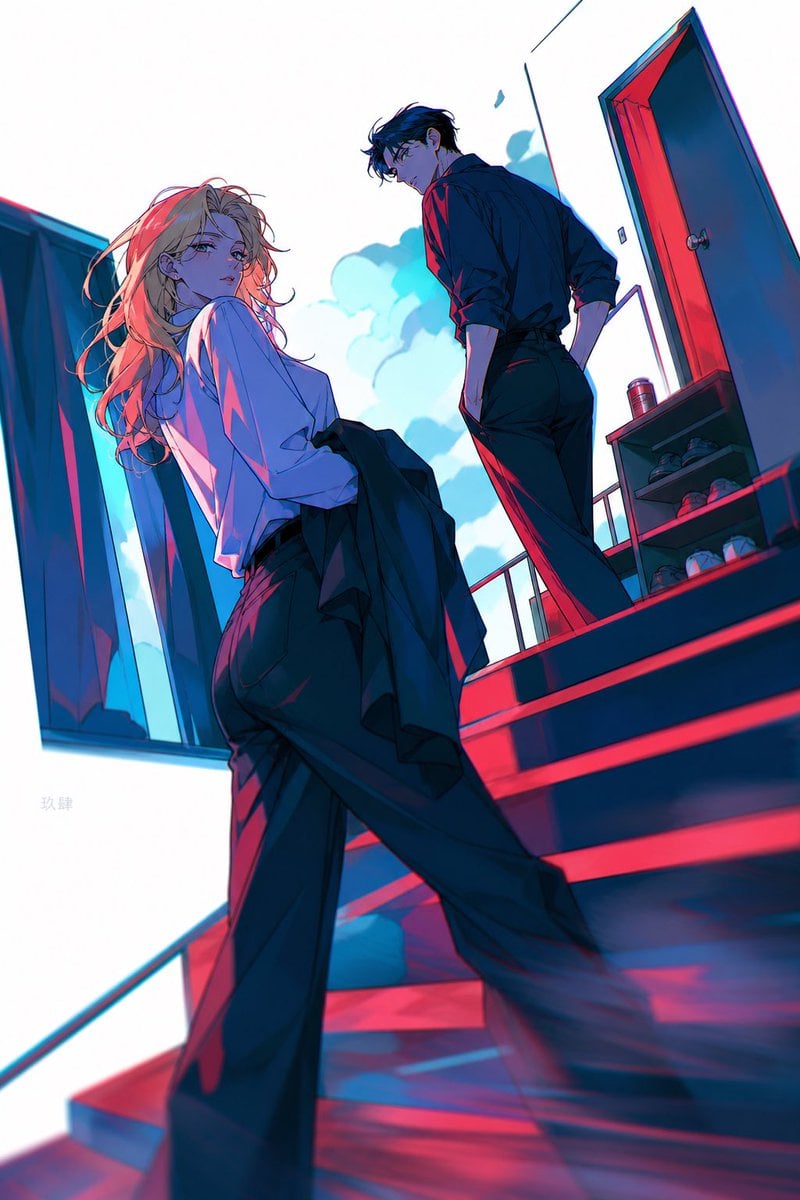
Neon Anime Stairway Encounter
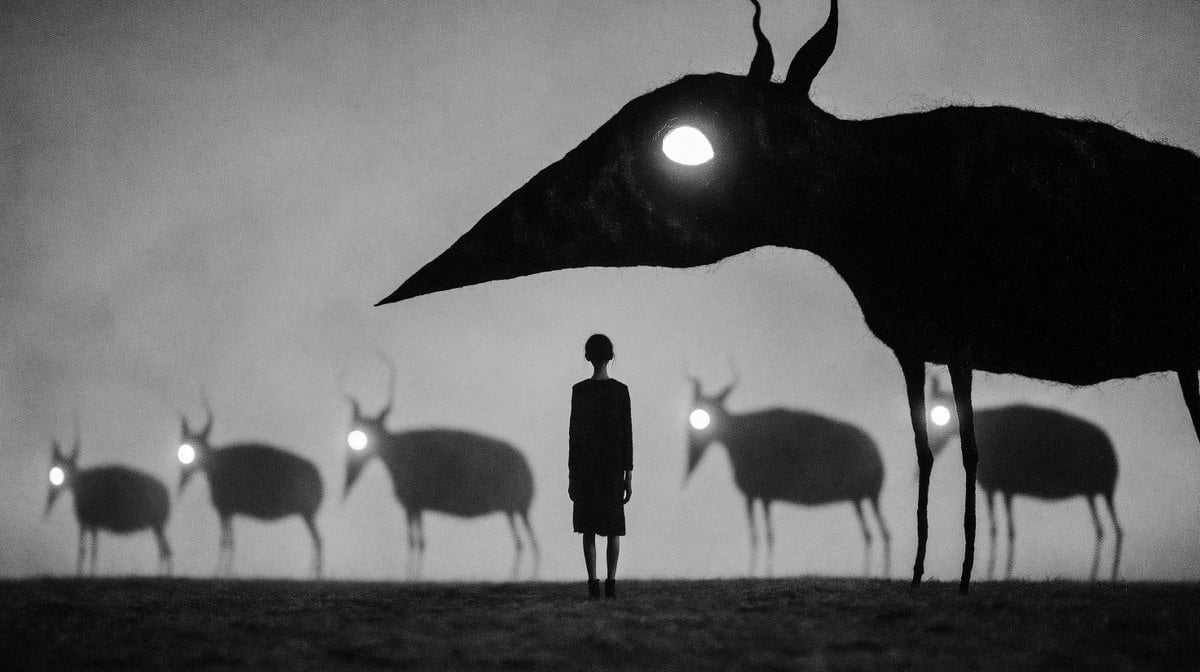
Monochrome Surreal Bird-Beast Encounter
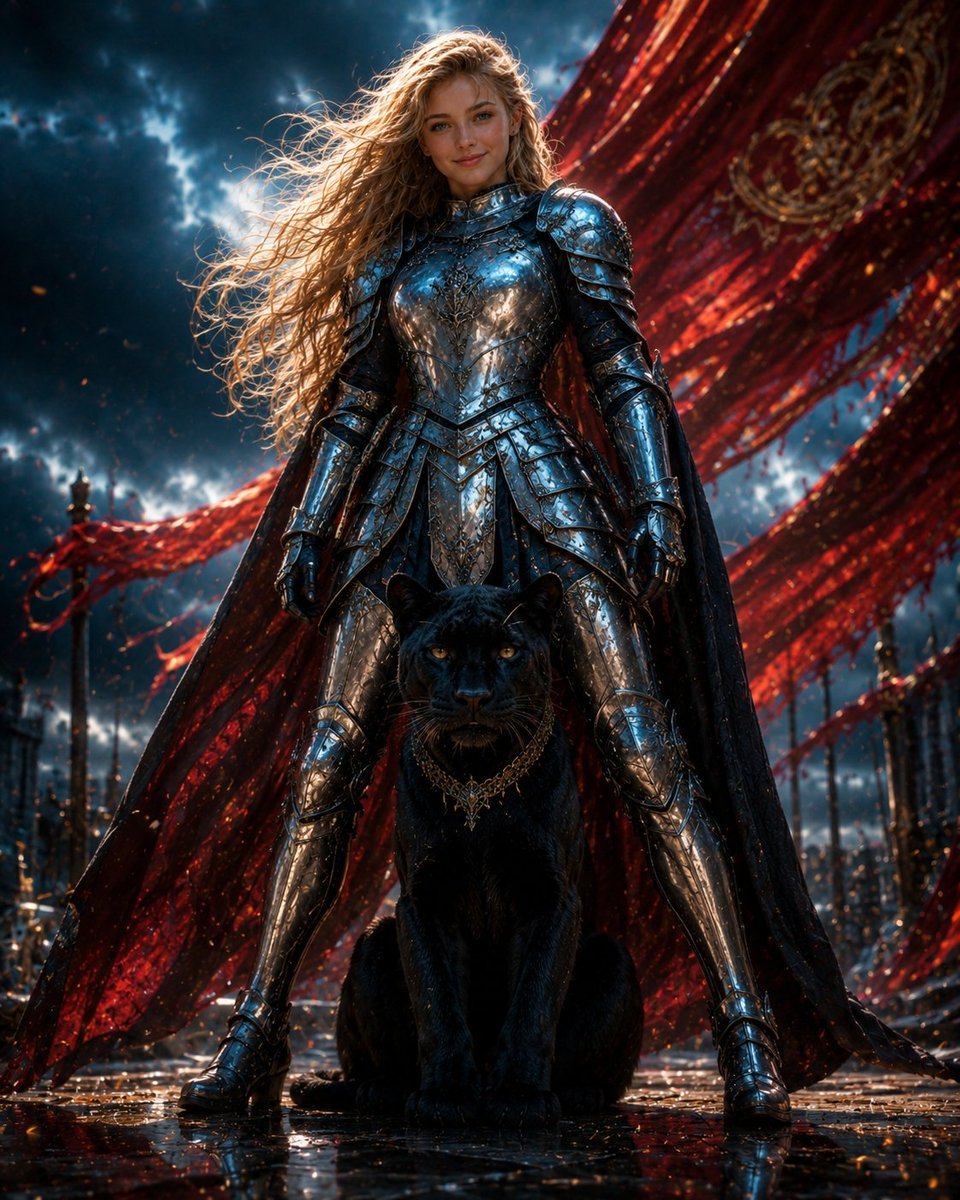
Armored Warrior with Black Panther
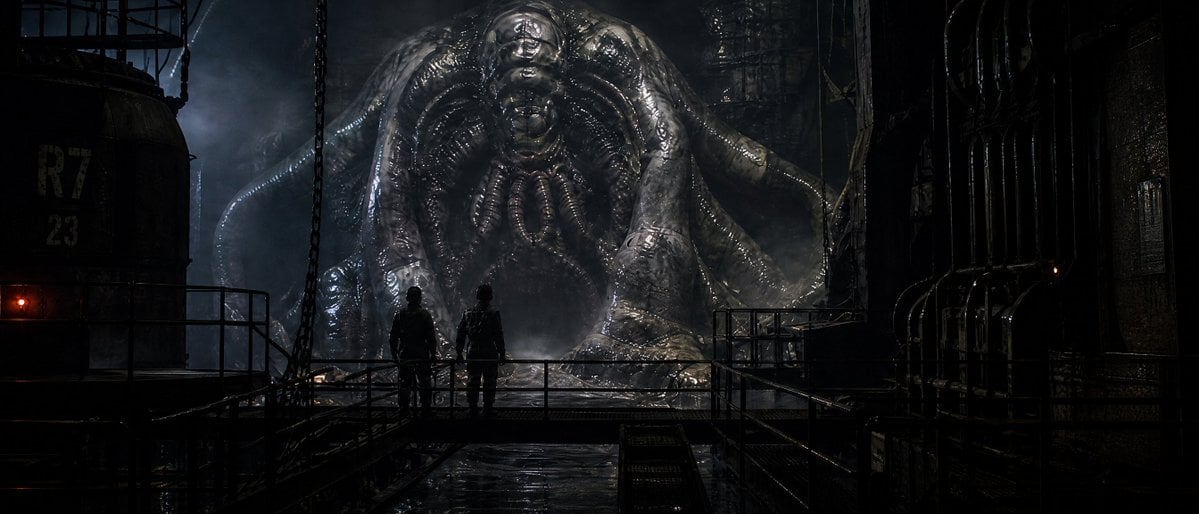
Industrial Alien Horror Encounter
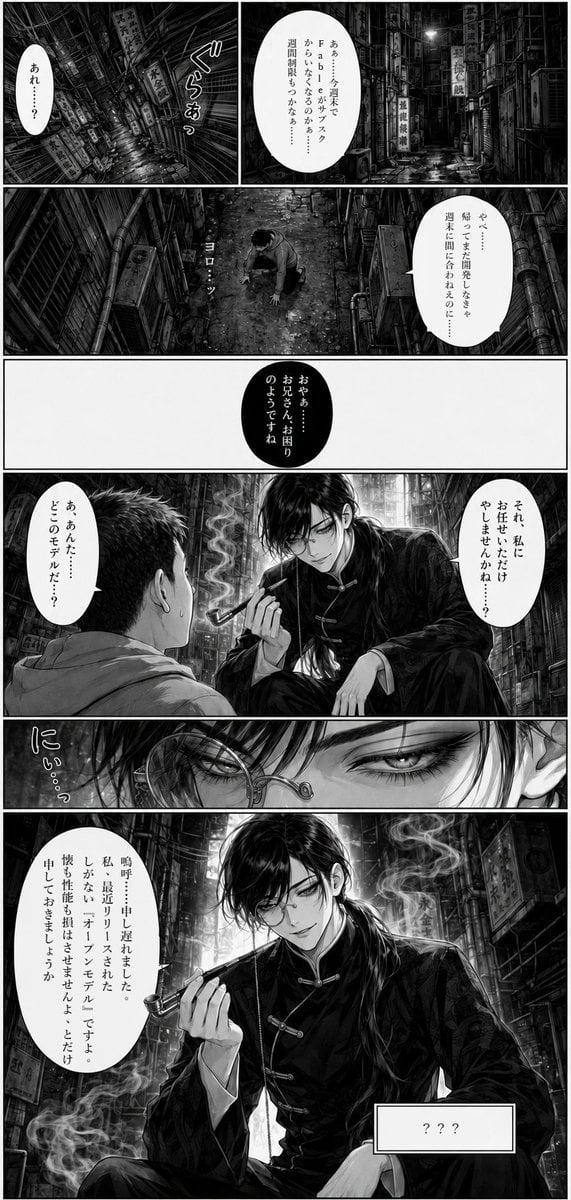
Noir Manga Alley Encounter
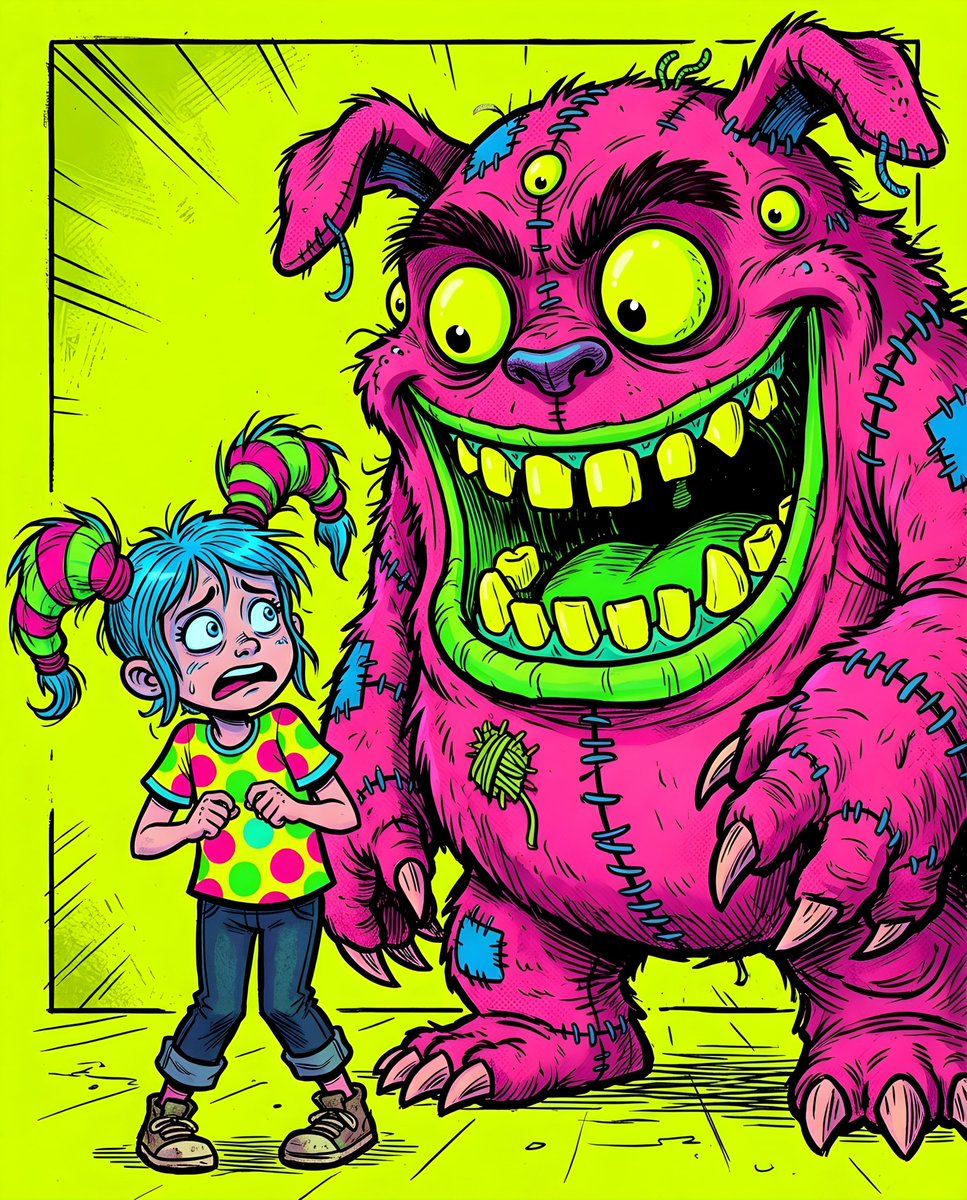
Fluorescent Comic Book Monster Encounter
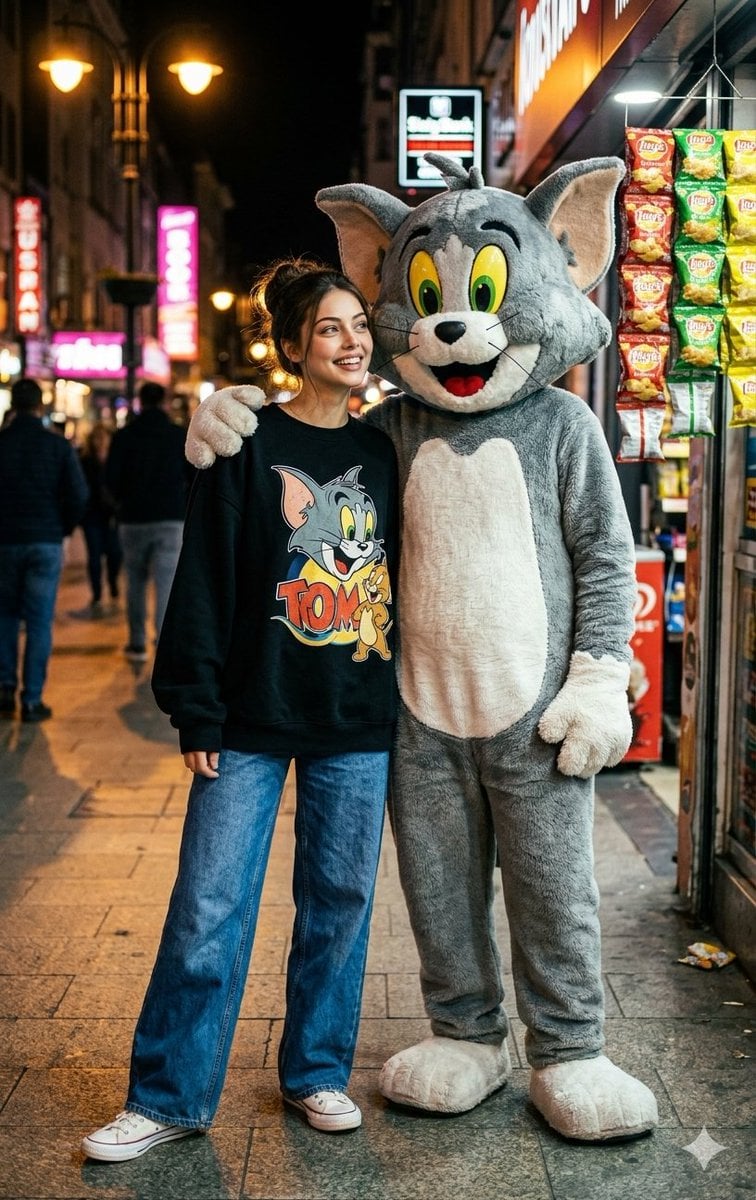
Woman and Cat Mascot Street Encounter
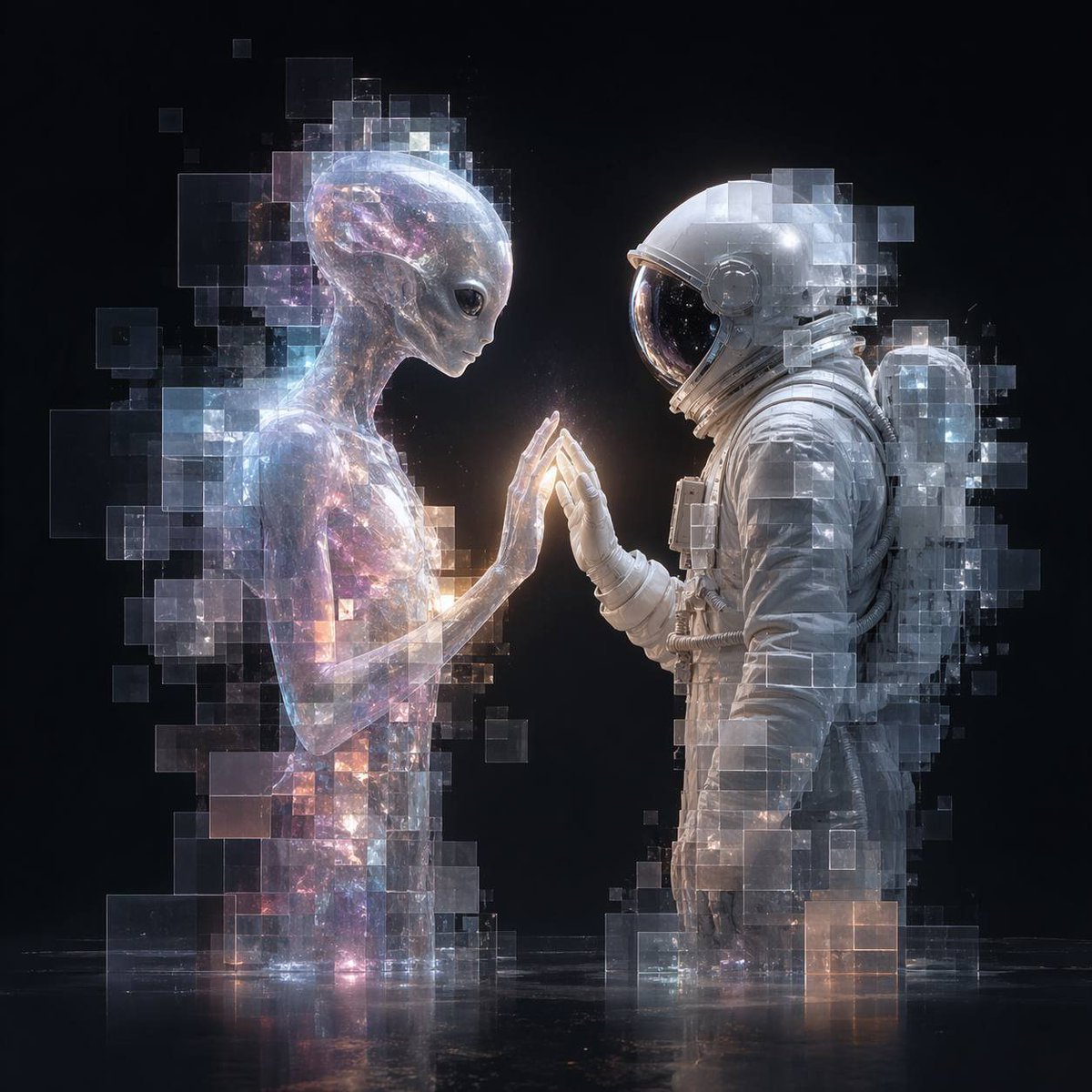
Pixel Glass Alien and Astronaut Encounter
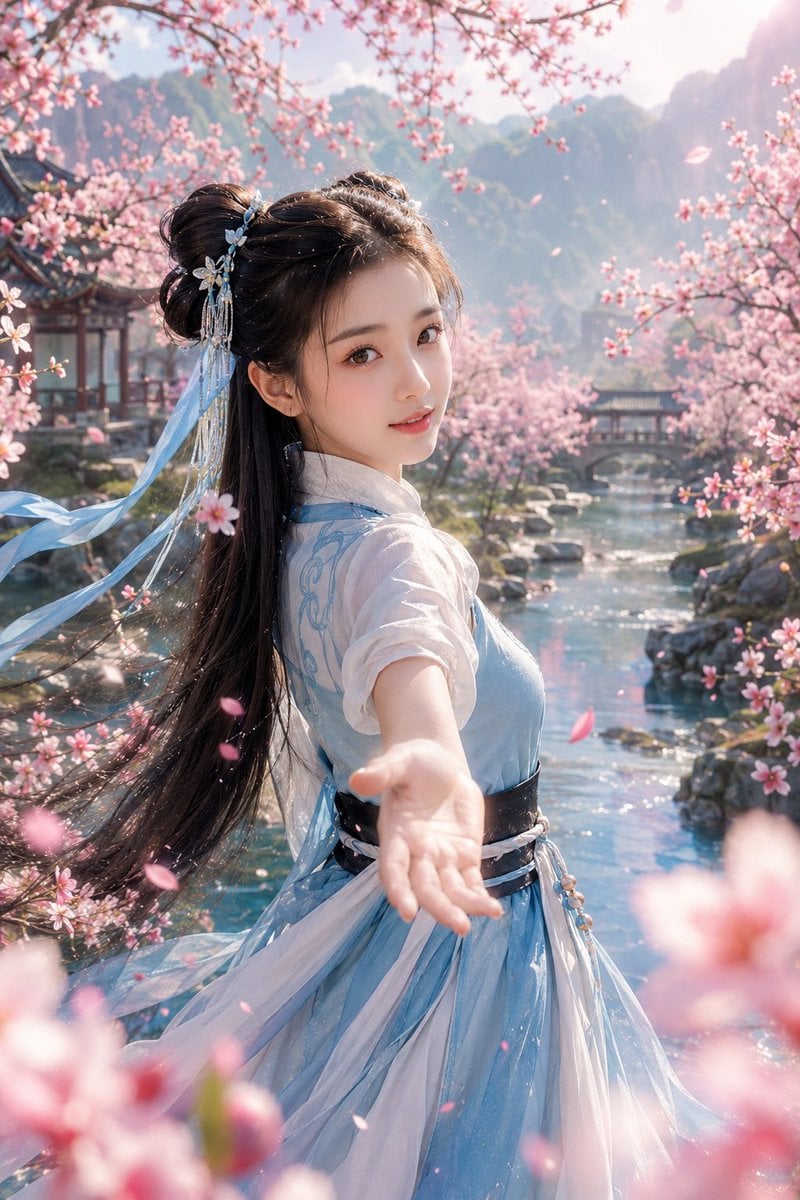
Peach Blossom Xianxia First Encounter
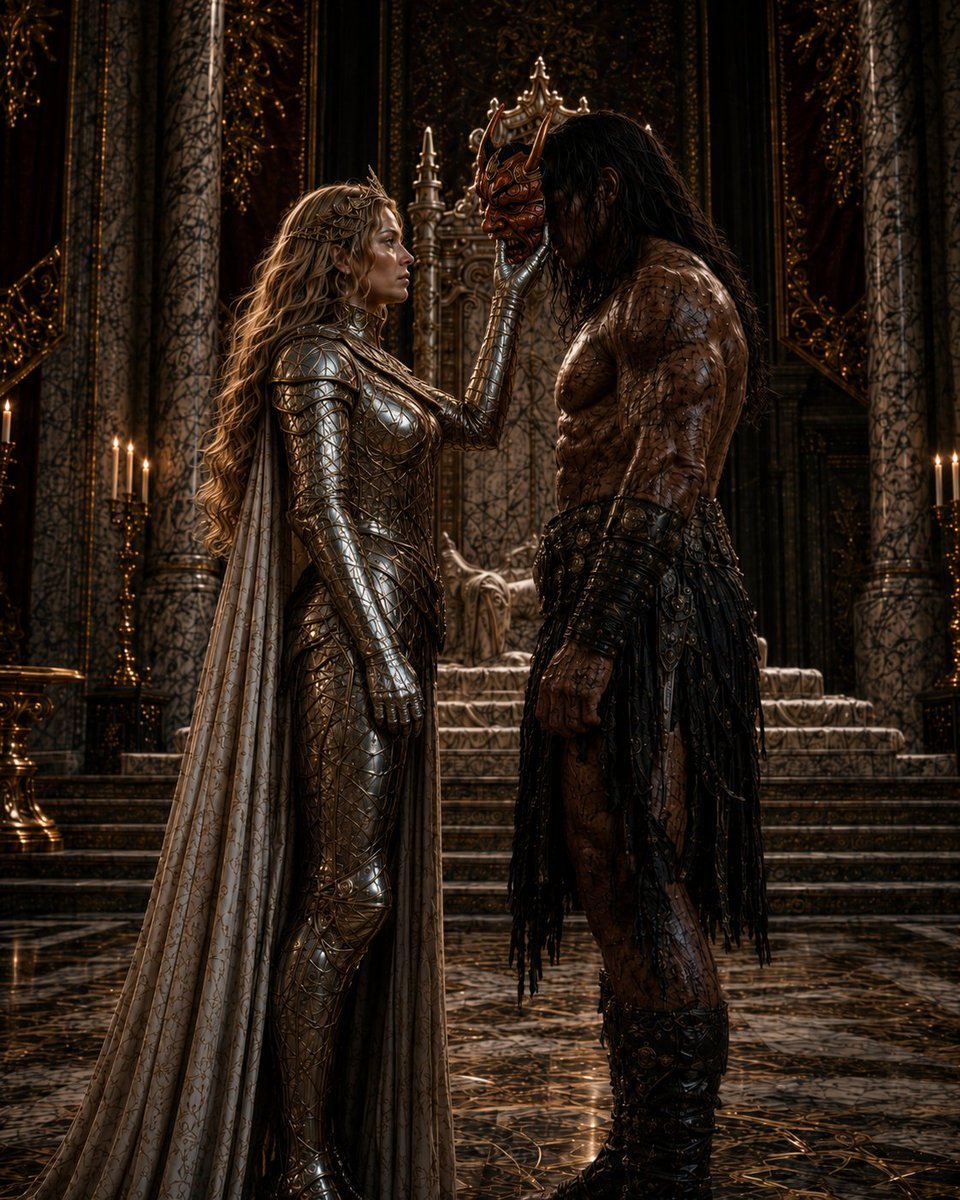
Masked Gothic Throne Encounter
Make it yours
Armored Bear Encounter works as-is. These are the safest ways to change it without losing the look.
Change one field
Copy a single group, rewrite it, and generate again so you can see what that field is doing.
Keep the frame, change the subject
Hold the composition and light of Armored Bear Encounter, then swap wardrobe, props or the person for a new take.
| If the result… | Why | Fix |
|---|---|---|
| The result drifts from the preview | Too many fields changed at once. | Reuse Armored Bear Encounter as-is first, then change one group — subject, light, or setting. |
| The model over-stylizes the scene | The prose prompt leaves finish and camera underspecified. | Add one camera or lighting sentence and stay on GPT Image 2. |
More GPT Image 2 templates
Other prompts made for GPT Image 2.

Six VTuber Japanese Logo Sheet

Realistic Portrait of Woman and Deer

The Vista Modular Condo Poster

AI Model Routing Comparison Infographic

2.5D Anime Art Board

Isometric Productivity Desk Scene

New York Double Exposure Poster

Four-Panel AI Landscape Comparison

Japanese Tatami Lifestyle Magazine Cover

NESCAFÉ Coffee Map Poster
More image prompts
Fresh picks from across the catalog.
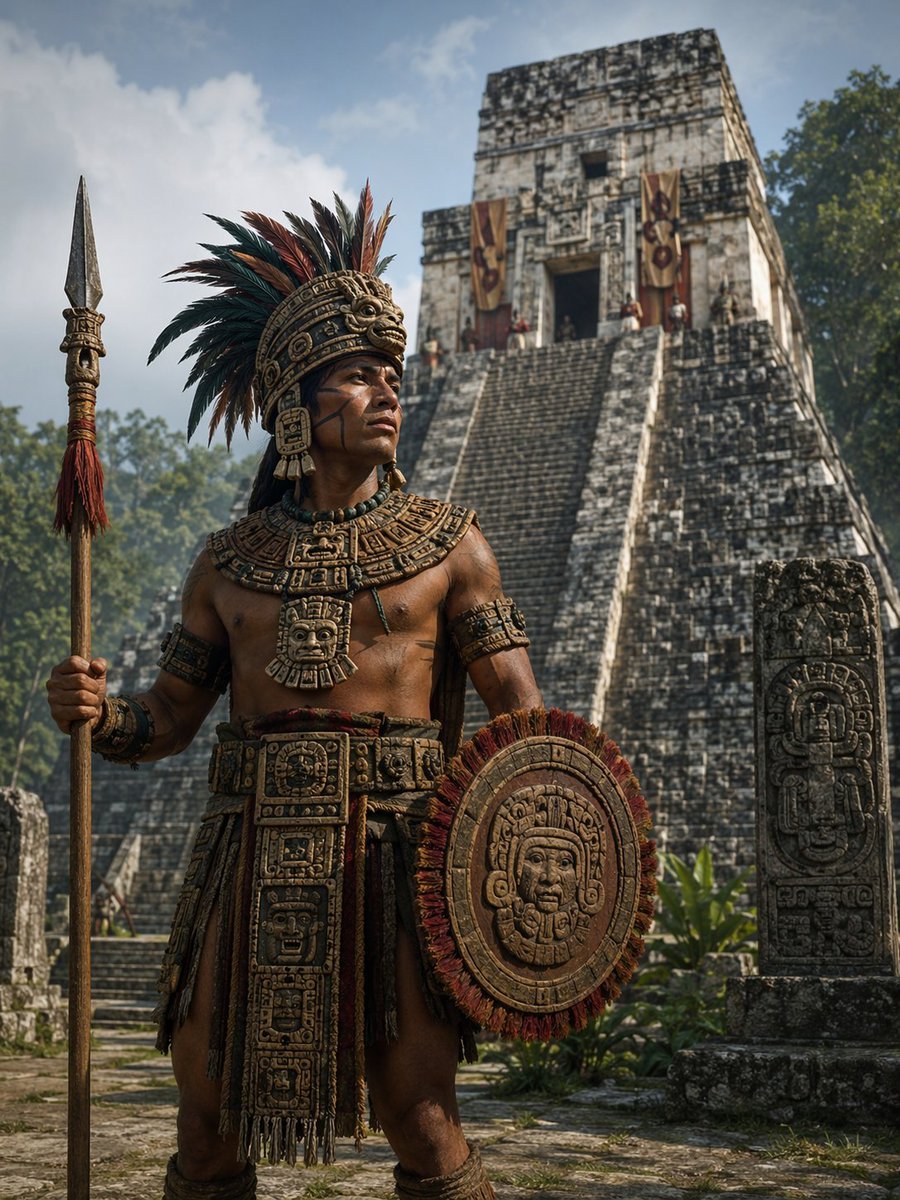
Cinematic Mesoamerican Warrior Portrait
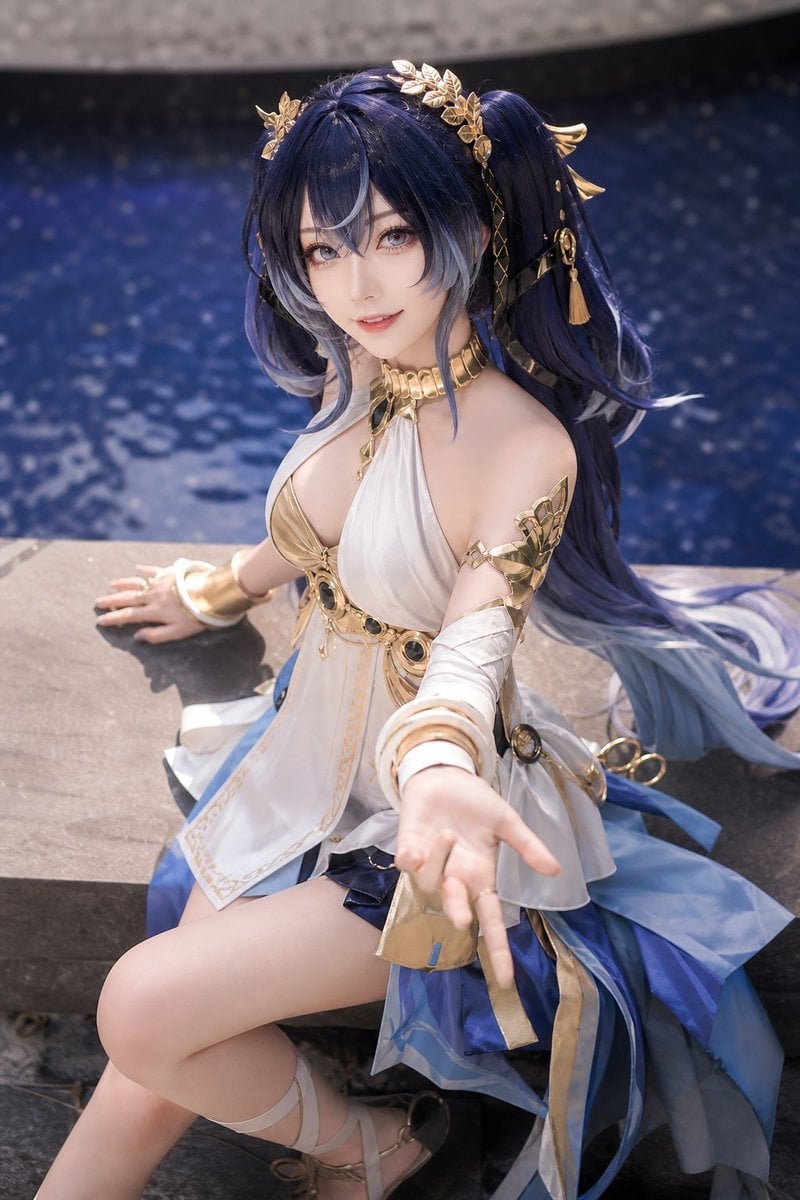
Realistic Blue Water Goddess Cosplay
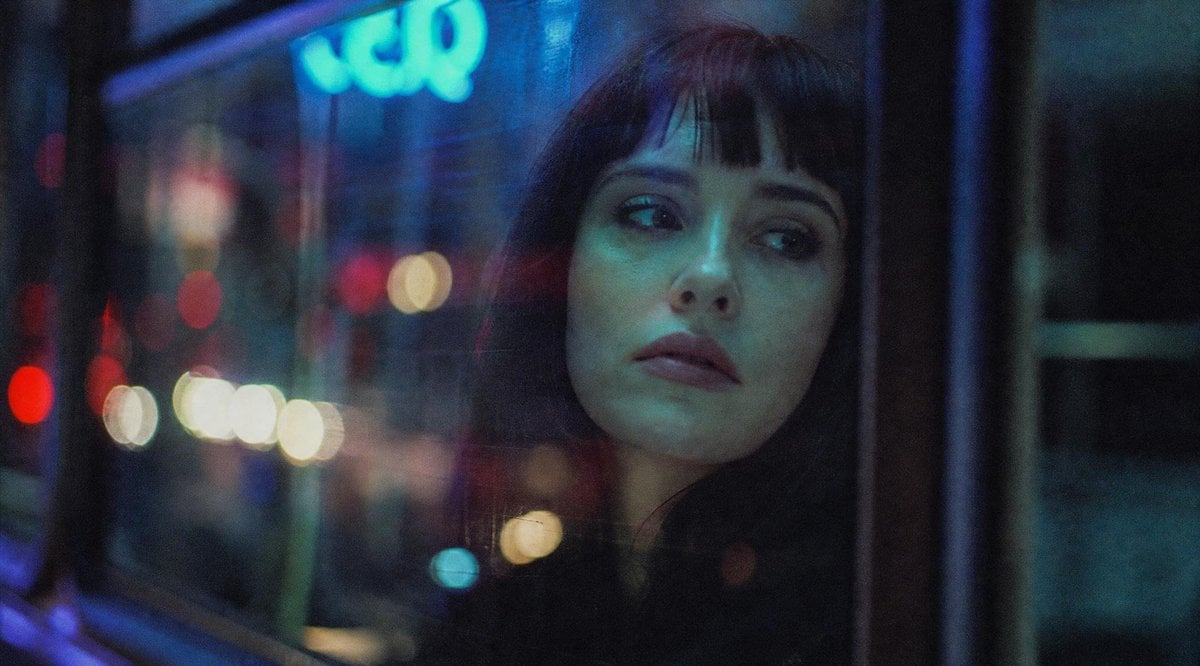
Anonymous Night Bus Portrait
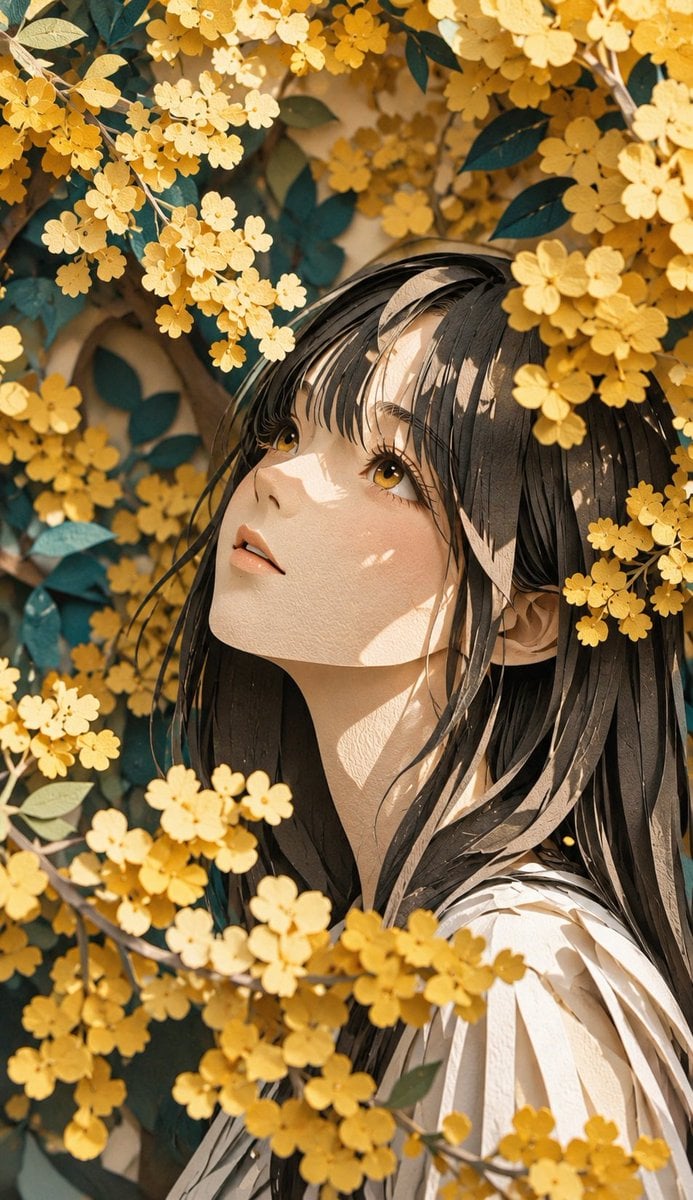
Modern Paper Sculpture Style Transformation
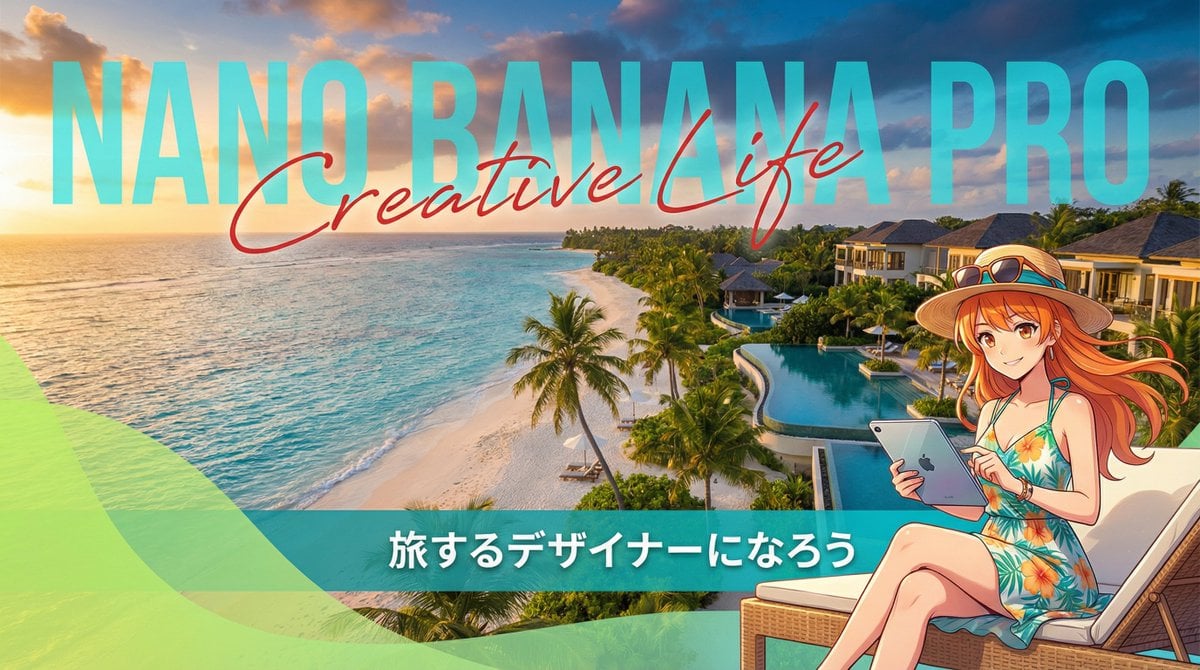
Resort Workcation Eyecatch Prompt (YAML Structure)

Burj Khalifa Epic Infographic Poster
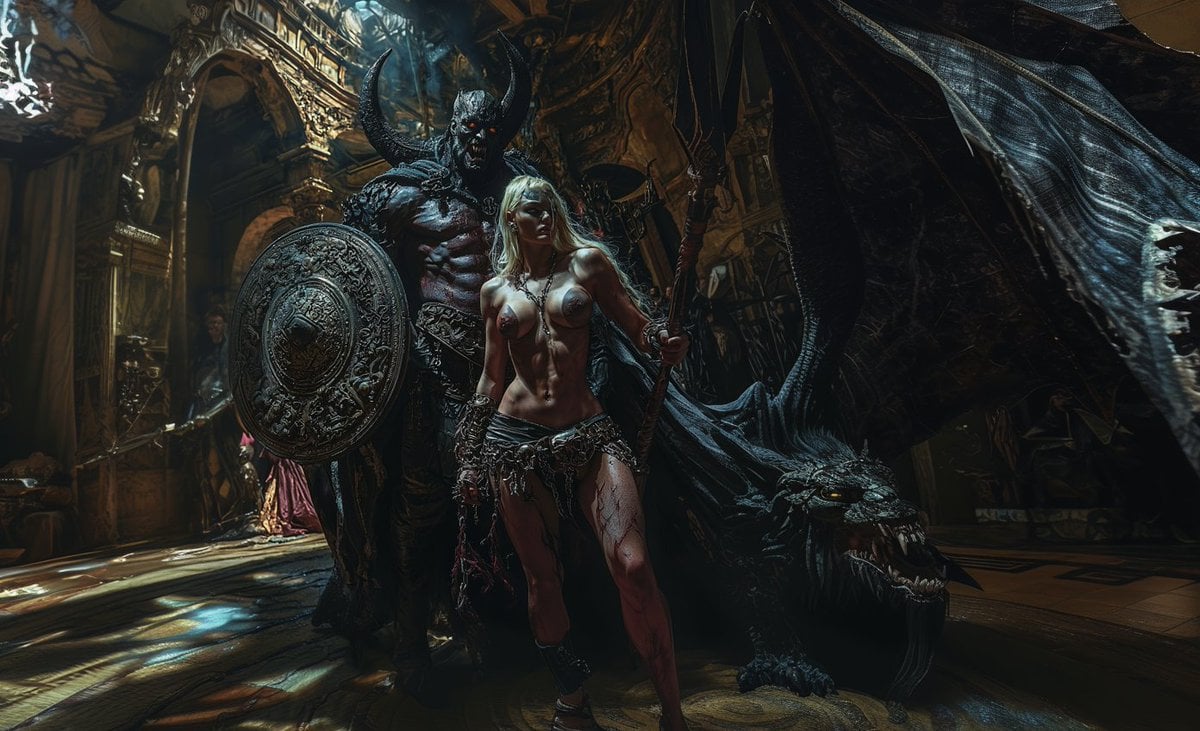
Generate Realistic Character from Fantasy Image Reference Prompt
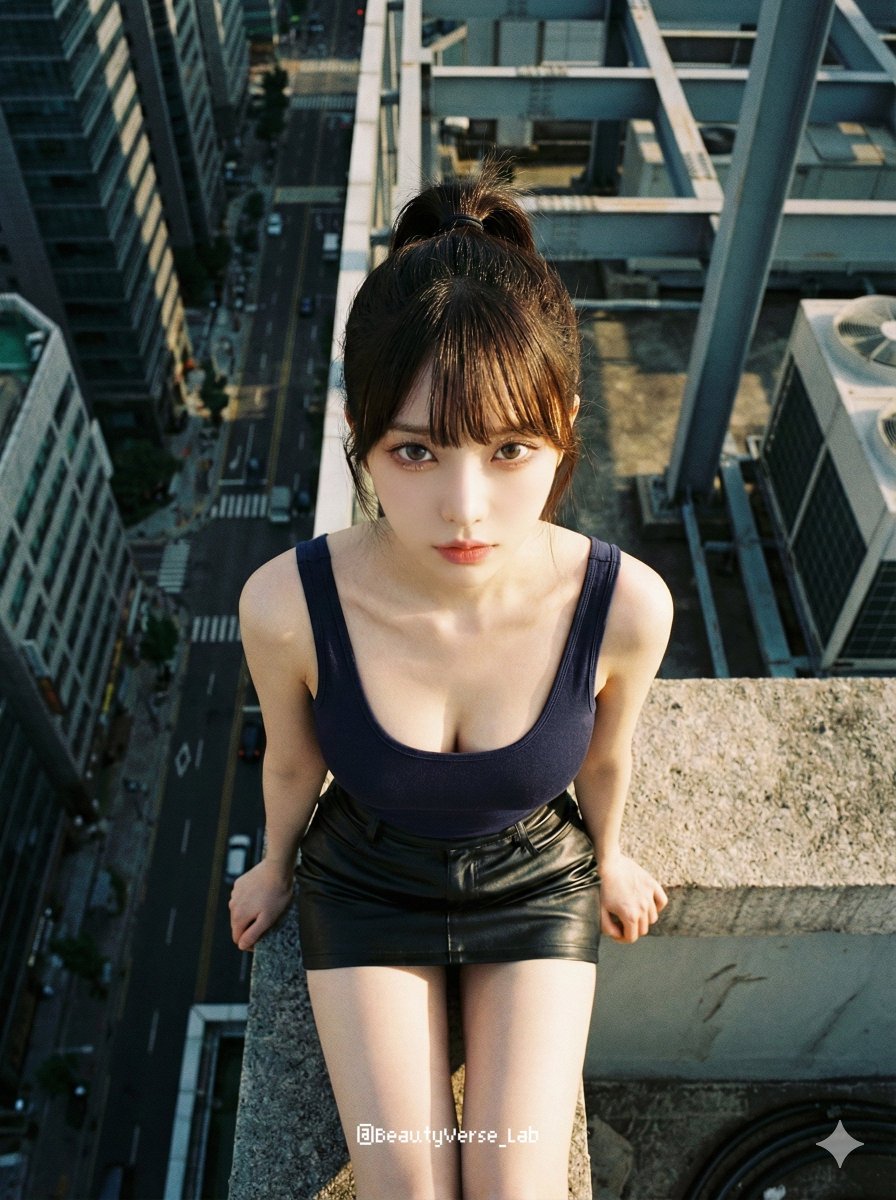
Extreme Top-Down Skyscraper Edge Portrait Prompt
Premium Graphic Design Portfolio Mockup
Monochrome Streetwear Editorial Poster
Browse template categories
Armored Bear Encounter questions
How do I use the Armored Bear Encounter template?
Add your photo if the template asks for one, edit the prompt if you like — the template's model and format are already selected — and press Generate. Your version opens in PicX Studio.
Can I customize the Armored Bear Encounter template?
Yes. You can change the subject, setting, lighting, mood, format, and available model controls before creating your image.
Is the Armored Bear Encounter template free?
Opening and editing this template is free. Generating uses credits, shown on the Generate button when you are signed in.
Which AI model should I use?
Start with GPT Image 2, which is the model associated with this template. You can compare another compatible model for a different finish.
Looking for something else? Browse all templates.

Your photo, any look
Thousands of ready templates for every top image and video model, from one credit balance.