
GPT Image 2 MS Paint Drawing Prompt
Turn any uploaded image into a deliberately terrible MS Paint-style drawing with clumsy lines, awkward proportions, and a funny low-quality mouse-drawn look.
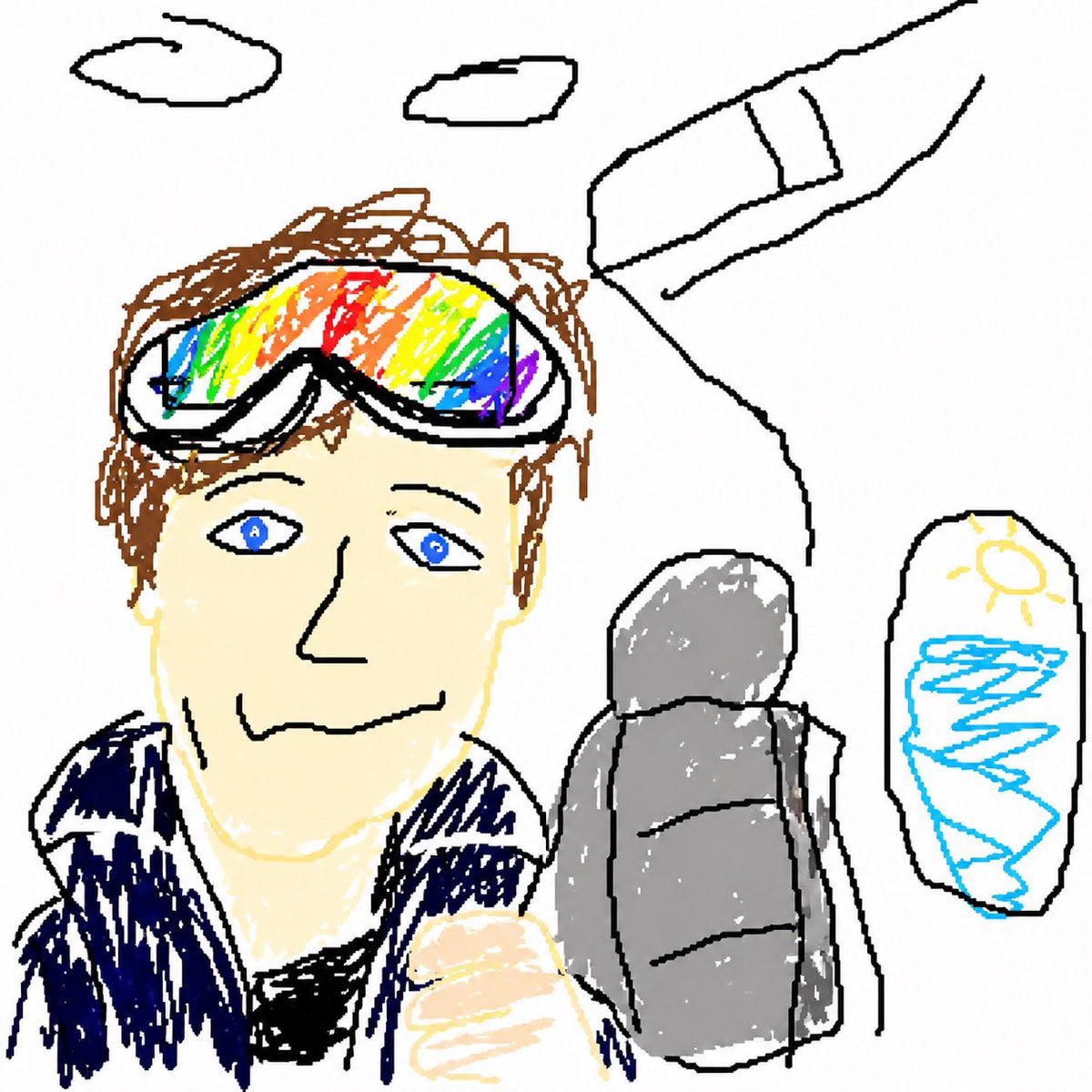
- Prompt included
- Model and format preset
- Free template
The prompt behind this image
Copy the exact prompt behind GPT Image 2 MS Paint Drawing Prompt, or open it in the studio and make it yours.
Redraw the attached image in the most {argument name="style" default="clumsy, scribbly, and utterly pathetic"} way possible. Use a white background, and make it look like it was drawn in MS Paint with a mouse. It should be vaguely similar but also not really, kind of matching but also off in a confusing, awkward way, with that low-quality pixel-by-pixel feel that really emphasizes how ridiculously bad it is. Actually, you know what, whatever, just draw it however you want.
Reference images included
GPT Image 2 MS Paint Drawing Prompt needs input media to work. They load alongside the prompt when you open it in the studio.
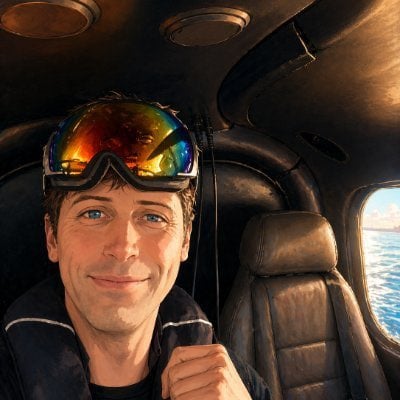
How to use GPT Image 2 MS Paint Drawing Prompt in 3 steps
- 1Upload ImagePNG, JPG or paste
Add your photo
Upload the photo the template builds on. The prompt, model and format are already set.
- 2…a portrait of your subject in softgolden-hour light, 85mm…
Personalize
Edit the subject and creative details for your destination.
- 3Generate
Generate
Press Generate — your image is created in PicX Studio, so you can compare it with the original and refine one variable at a time.
More like this
Templates with the same subject, style or setup. Open one to see its prompt.
Charcoal Chiaroscuro Portraiture
Blue Pencil Sketching
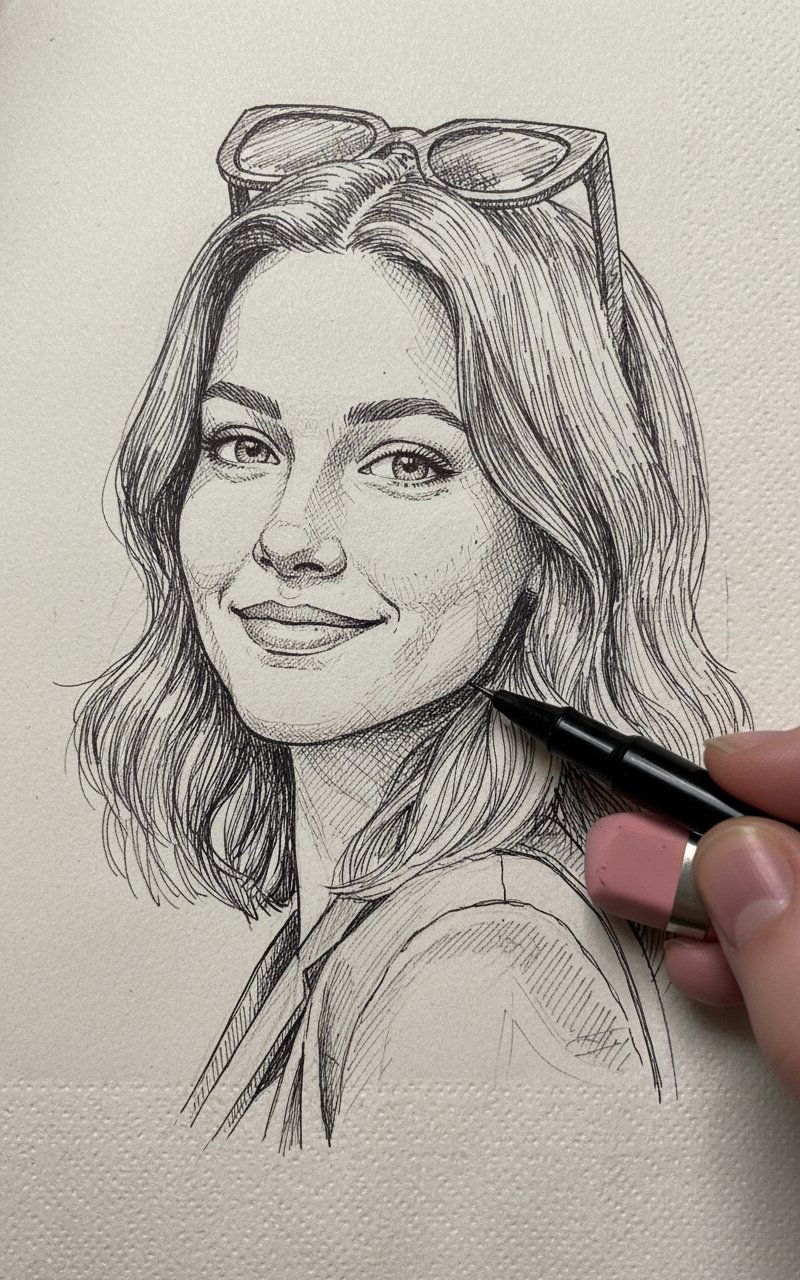
Pencil Sketch
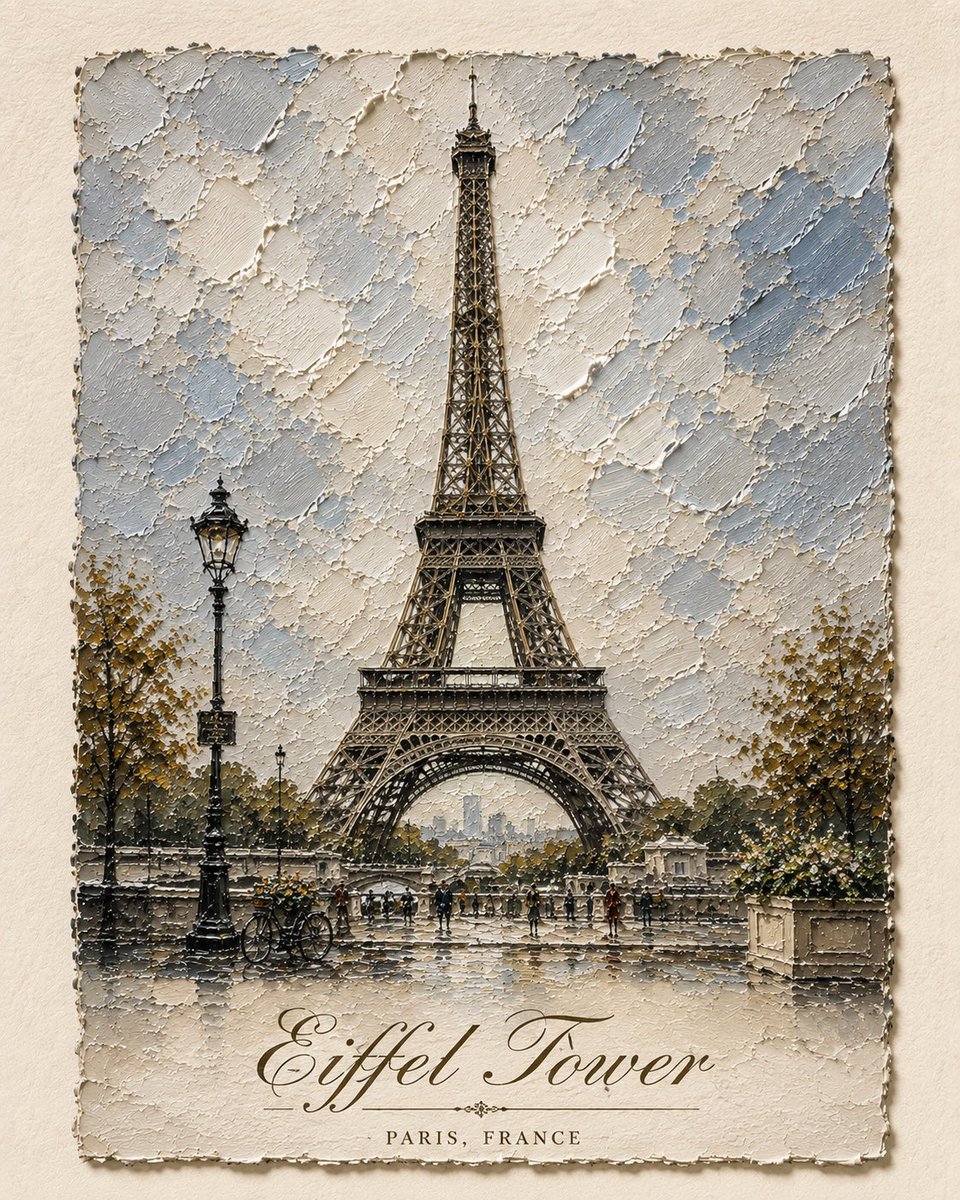
Impasto Oil Architectural Painting
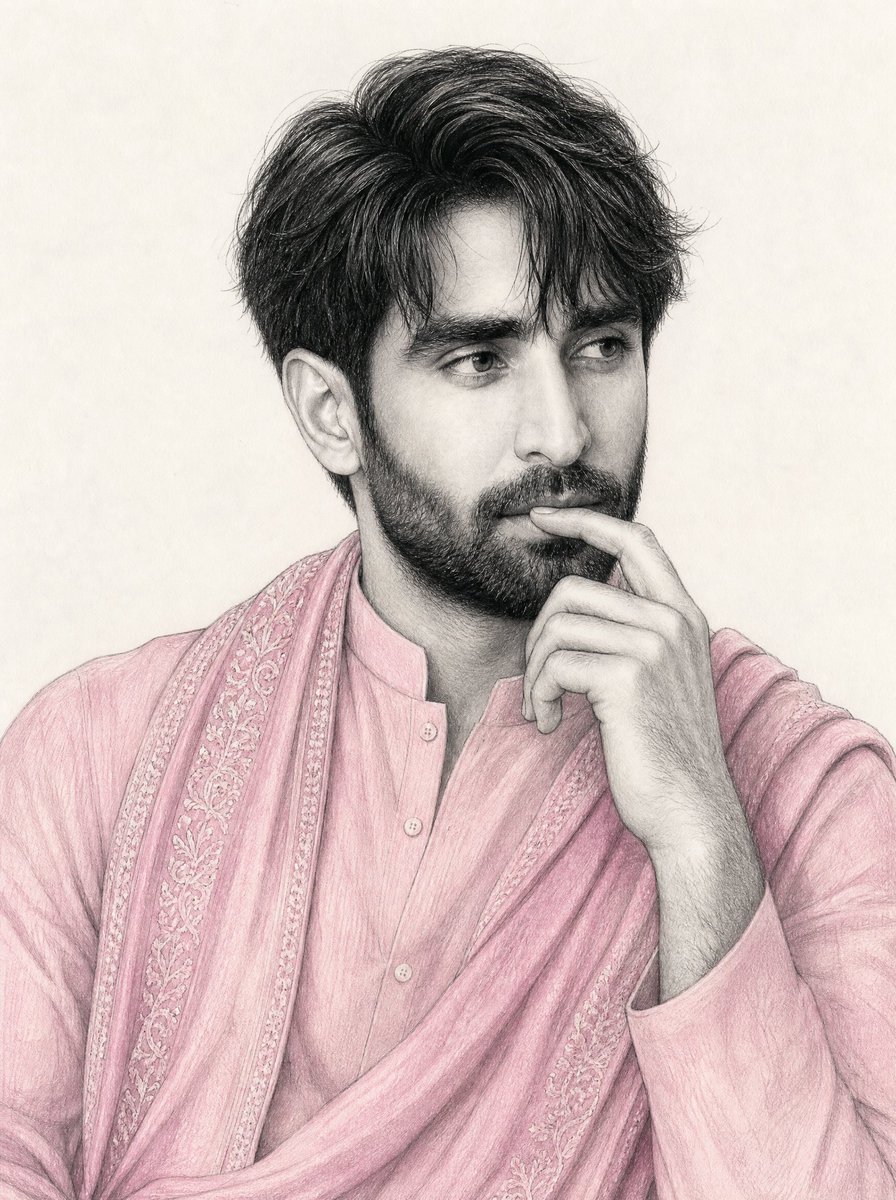
South Asian Man Graphite Drawing
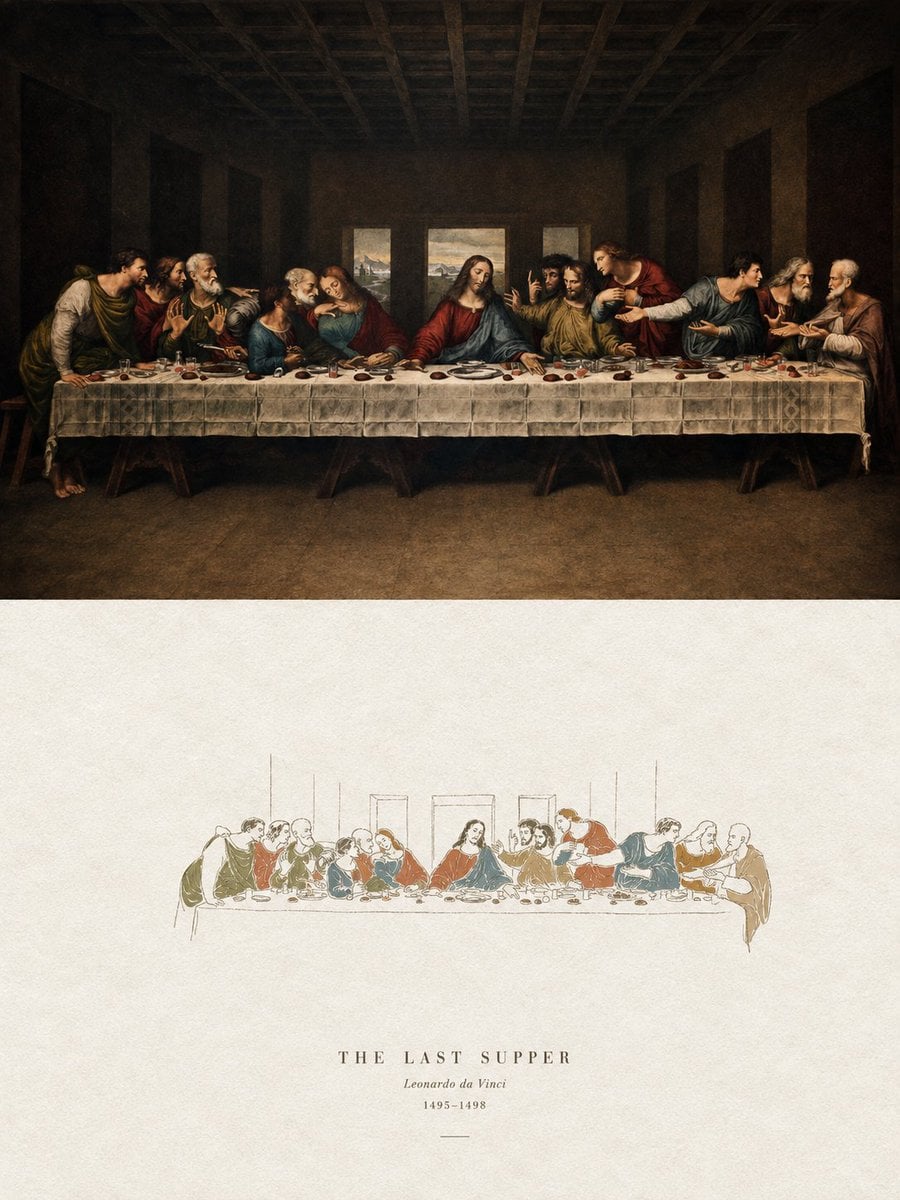
Acrylic Hand-Painted Style Poster Design
ChatGPT Image 1 5 Google Veo 3 1
Floral Face Paint Anime Portrait
GPT Image 2 Reasoning Poster
Felt GPT Image 2 Apple Design Banner
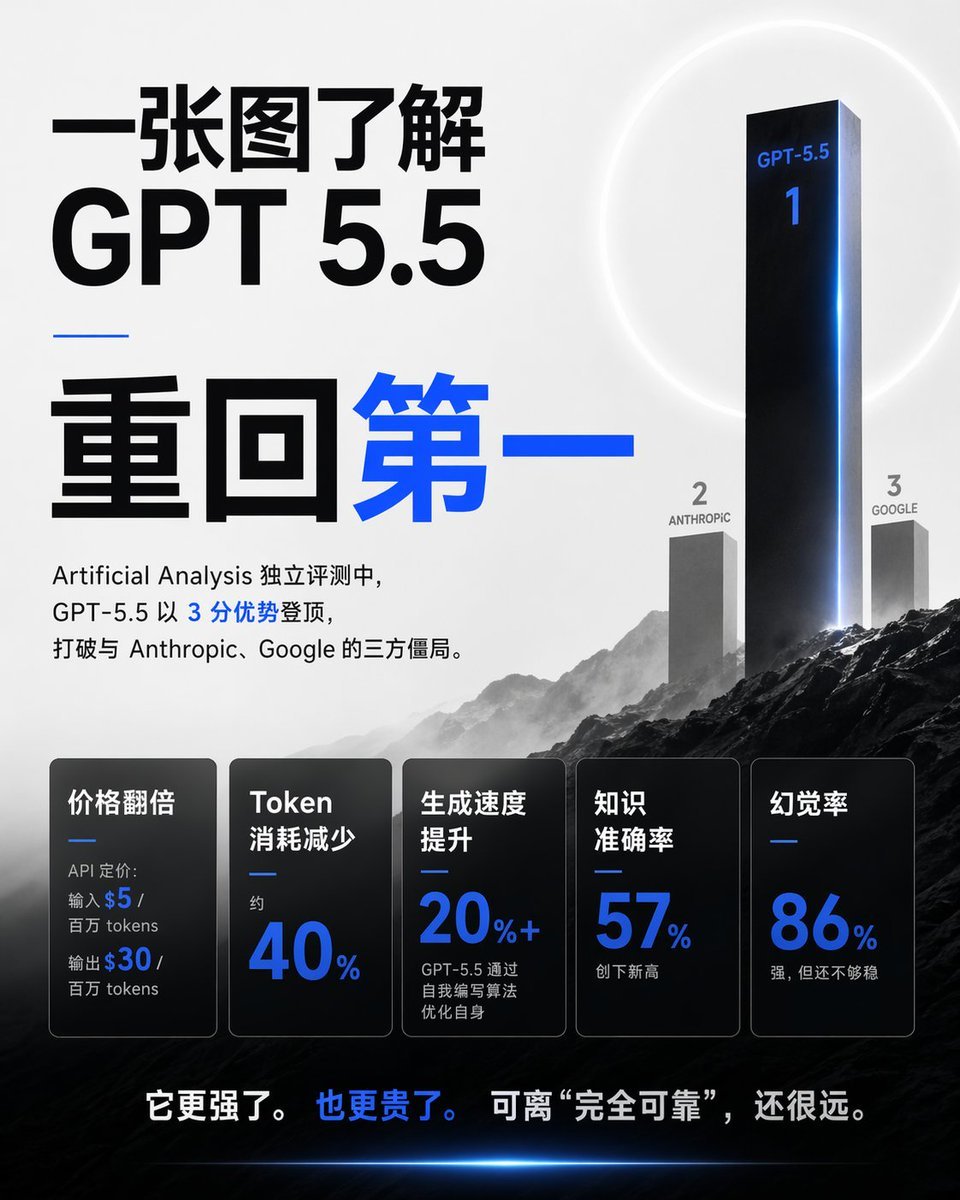
Chinese GPT 5.5 Benchmark Infographic
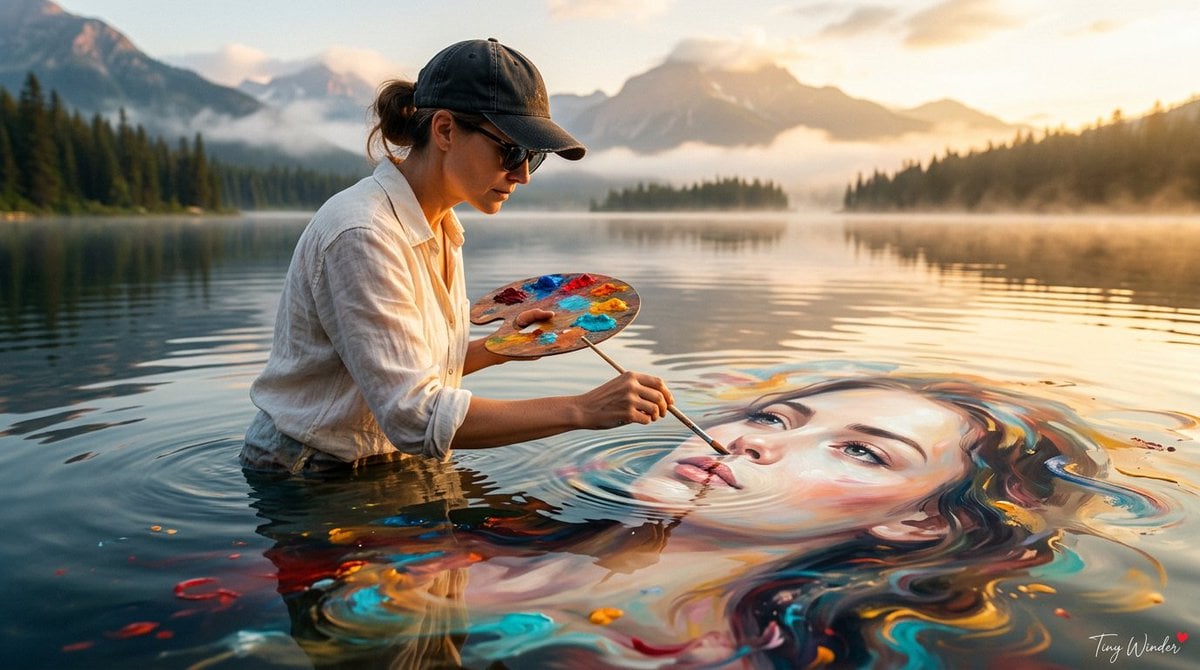
Surreal Fine Art Water Painting Portrait
Make it yours
GPT Image 2 MS Paint Drawing Prompt works as-is. These are the safest ways to change it without losing the look.
Change one field
Copy a single group, rewrite it, and generate again so you can see what that field is doing.
Keep the frame, change the subject
Hold the composition and light of GPT Image 2 MS Paint Drawing Prompt, then swap wardrobe, props or the person for a new take.
| If the result… | Why | Fix |
|---|---|---|
| The result drifts from the preview | Too many fields changed at once. | Reuse GPT Image 2 MS Paint Drawing Prompt as-is first, then change one group — subject, light, or setting. |
| The model over-stylizes the scene | The prose prompt leaves finish and camera underspecified. | Add one camera or lighting sentence and stay on GPT Image 2. |
More GPT Image 2 templates
Other prompts made for GPT Image 2.

Six VTuber Japanese Logo Sheet

Realistic Portrait of Woman and Deer

The Vista Modular Condo Poster

AI Model Routing Comparison Infographic

2.5D Anime Art Board

Isometric Productivity Desk Scene

New York Double Exposure Poster

Four-Panel AI Landscape Comparison

Japanese Tatami Lifestyle Magazine Cover

NESCAFÉ Coffee Map Poster
More image prompts
Fresh picks from across the catalog.
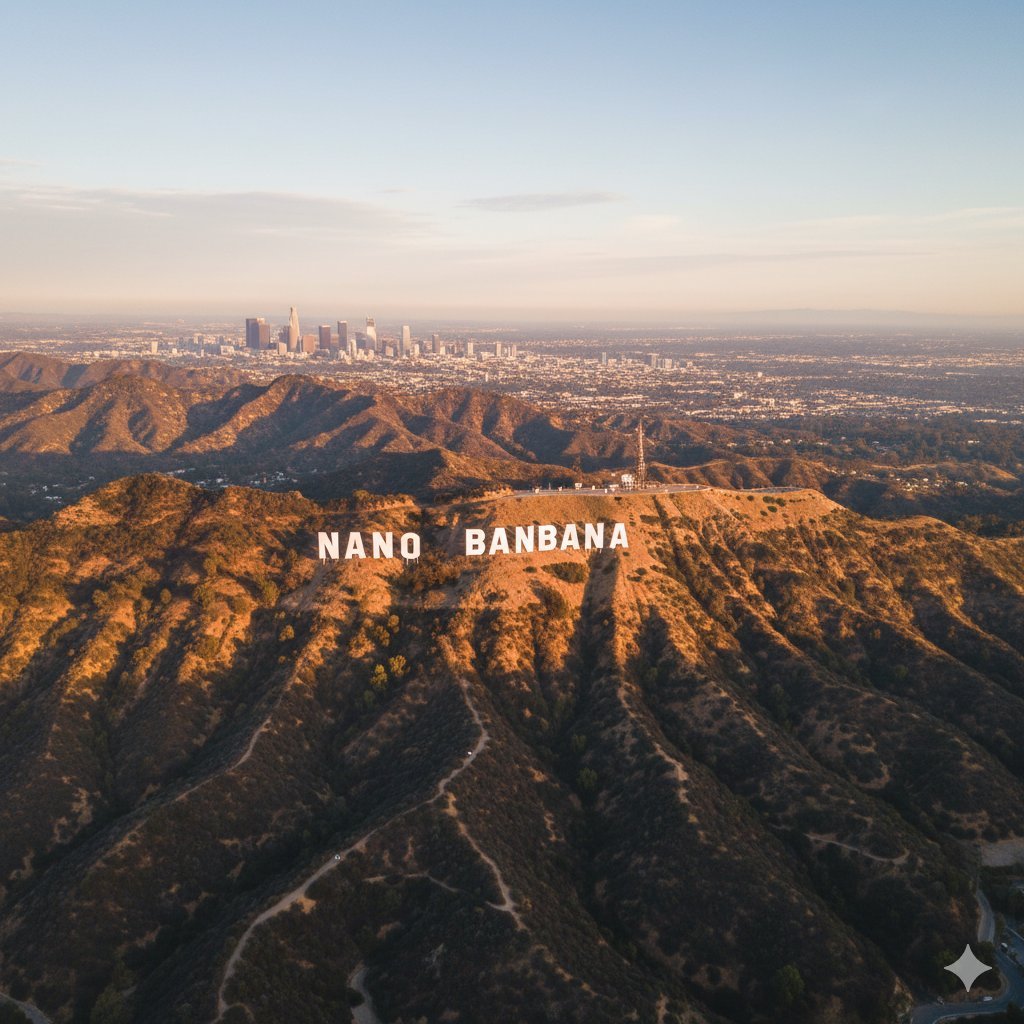
Custom Hollywood Hills Sign Generator
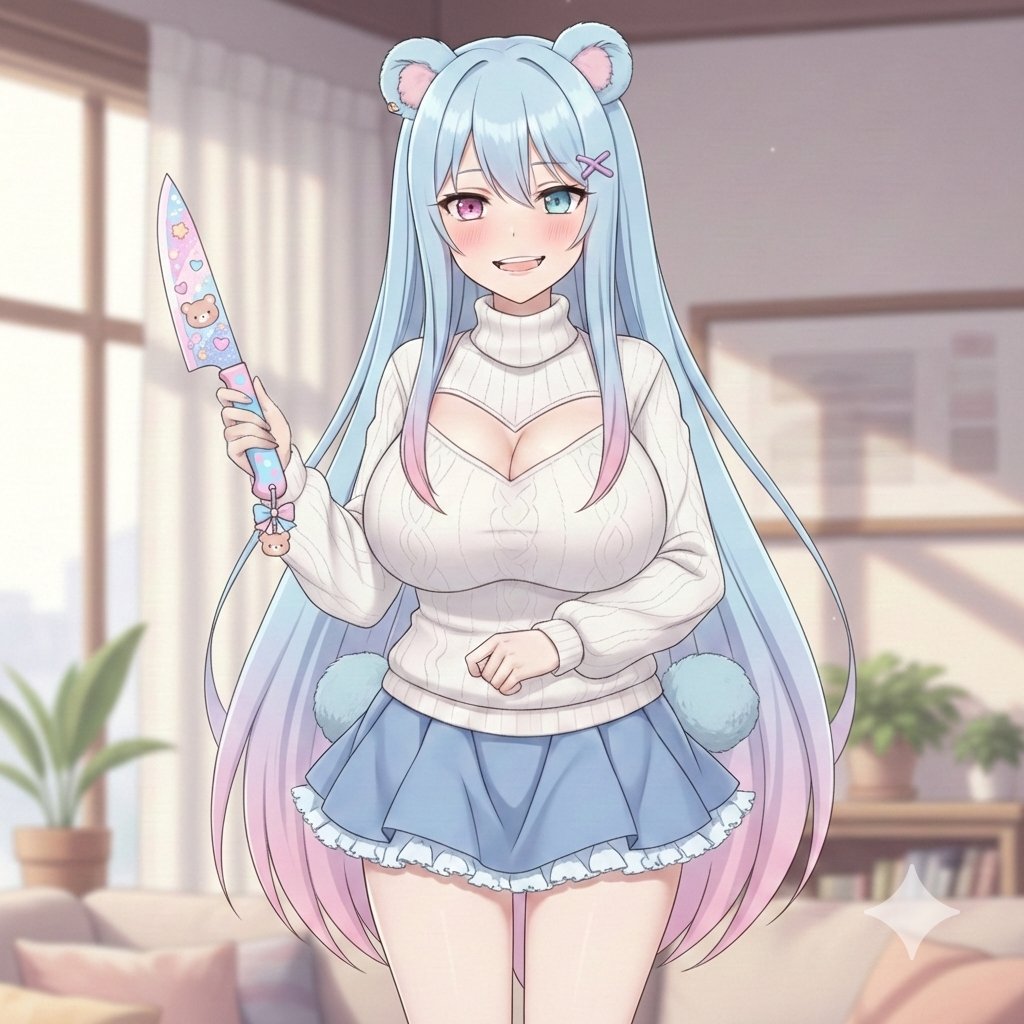
Welcome Home Scenario Prompt
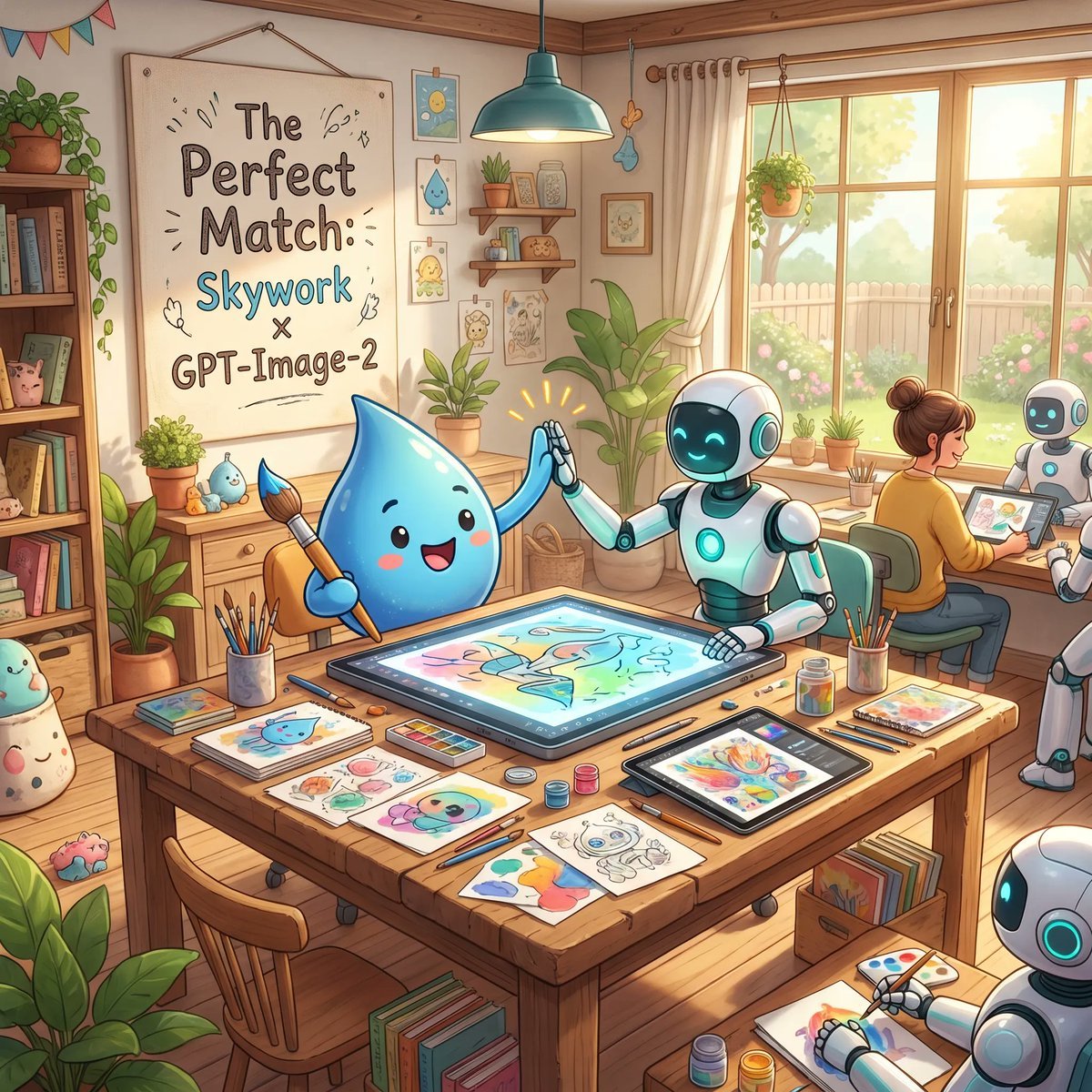
Cozy AI Art Studio Collaboration
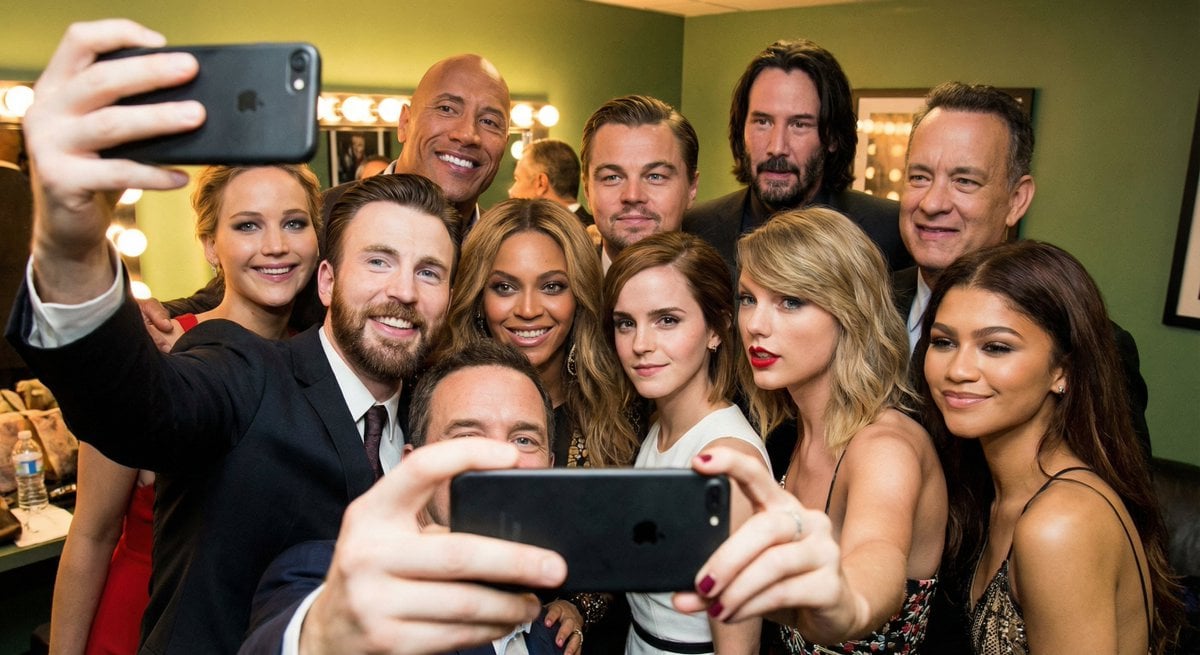
Selfie of multiple random female celebrities
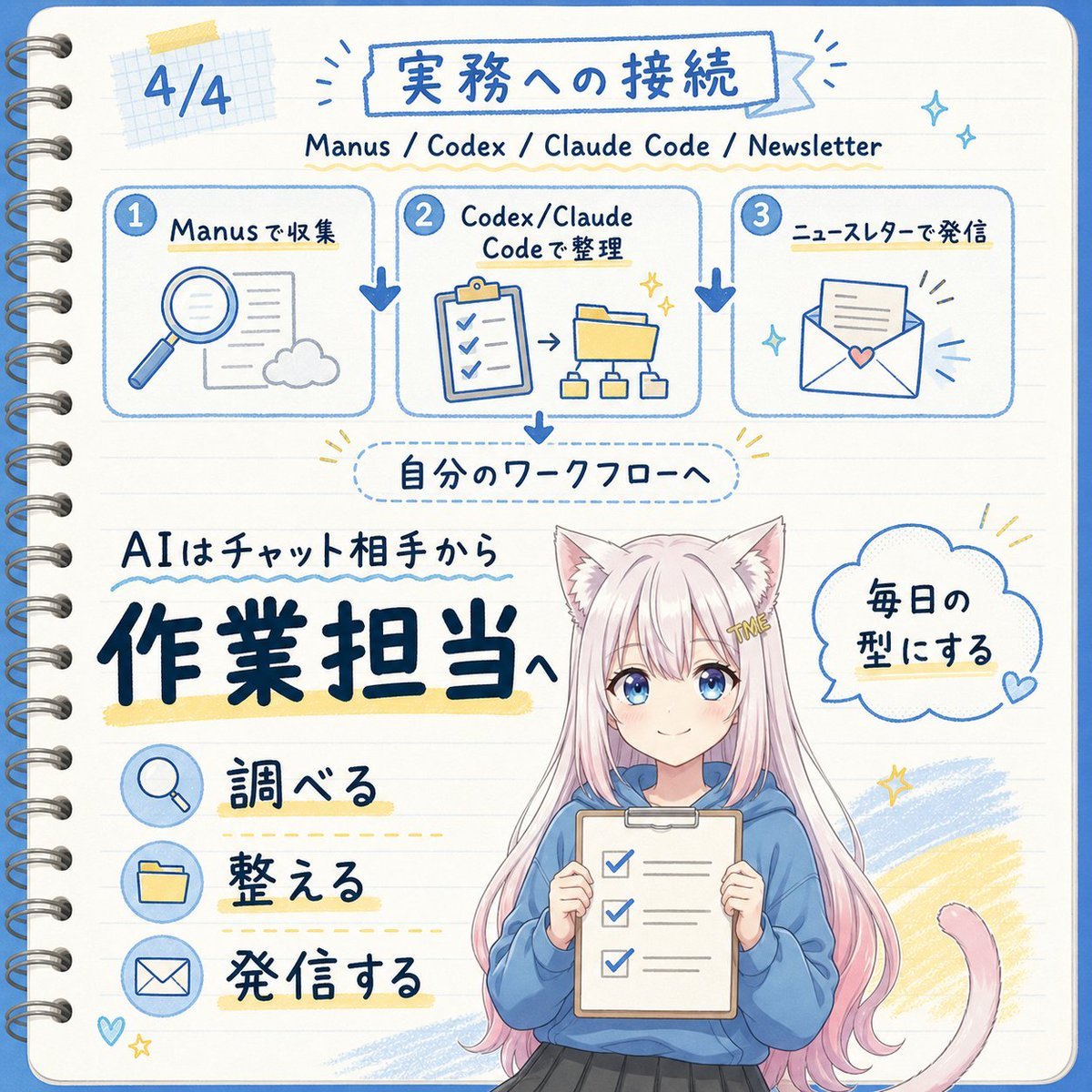
Japanese AI Workflow Notebook Infographic
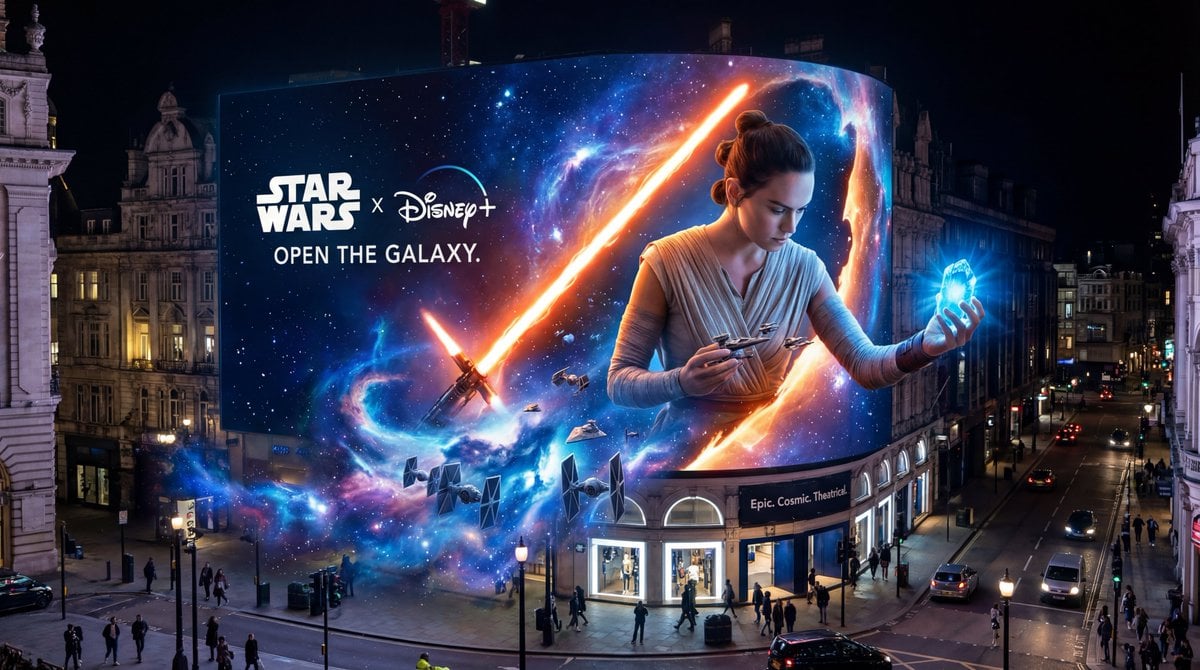
Star Wars 3D Billboard Concept
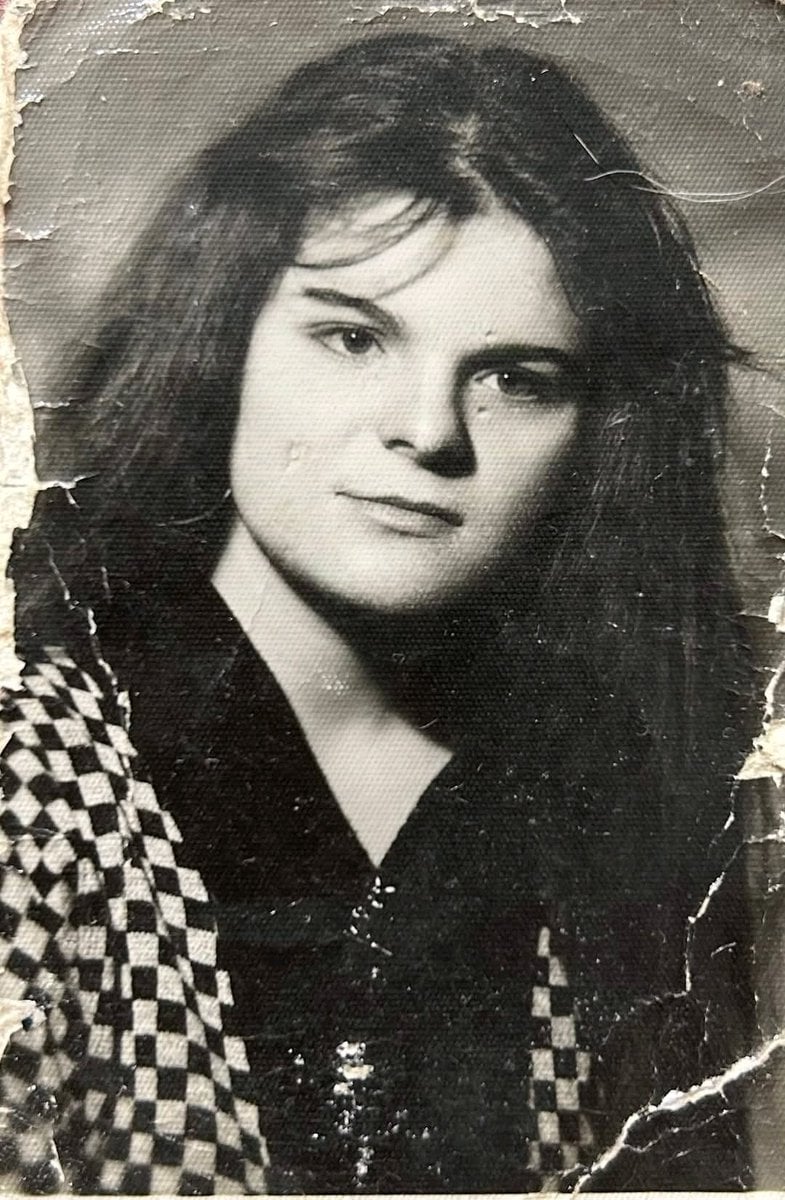
Photo Restoration and Upscaling Prompt
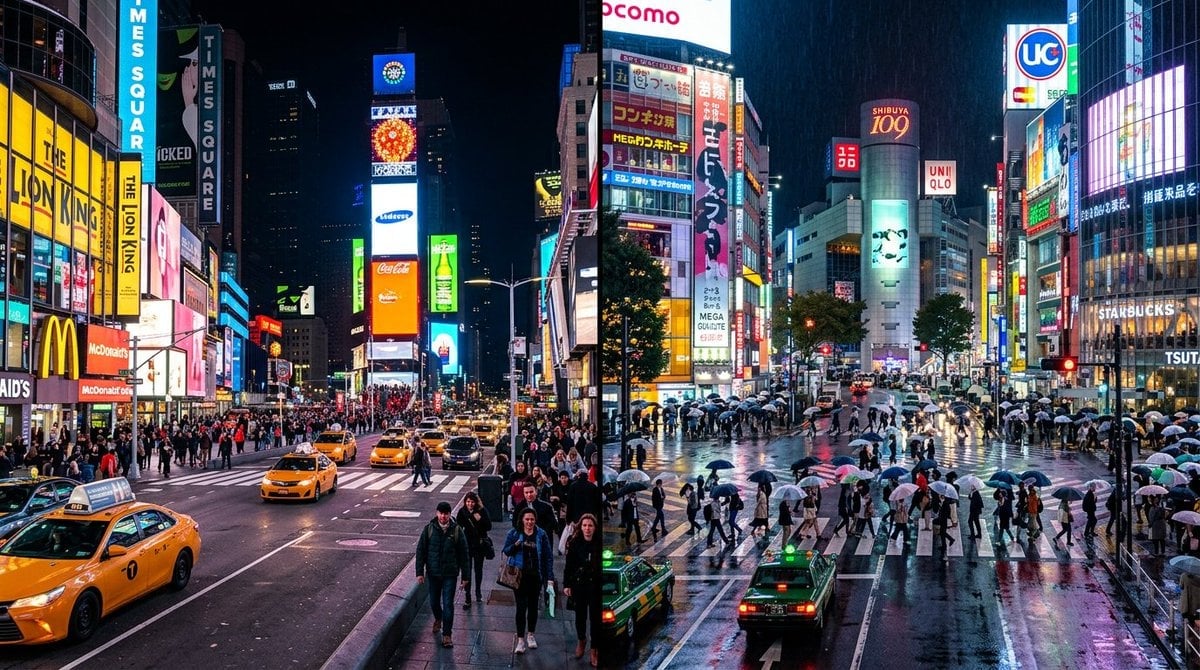
Split Scene Street Photography
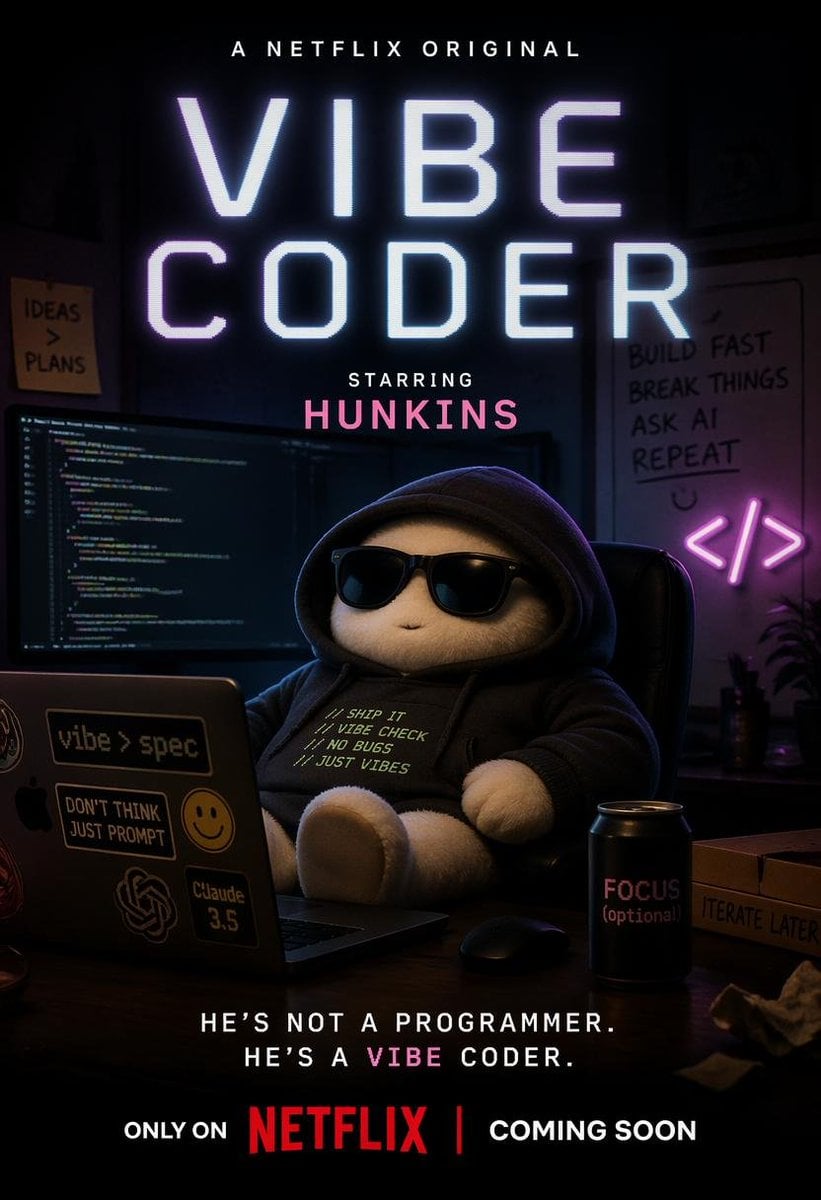
Netflix-Style Vibe Coder Poster
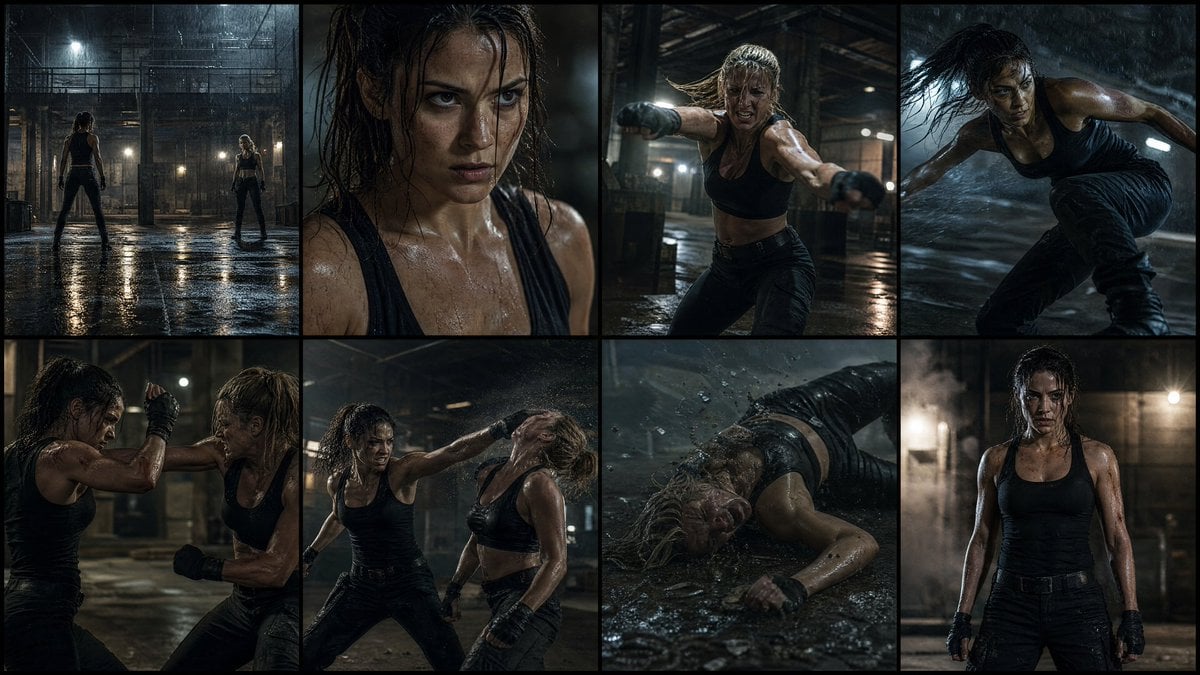
Cinematic Action Movie Storyboard
Browse template categories
GPT Image 2 MS Paint Drawing Prompt questions
How do I use the GPT Image 2 MS Paint Drawing Prompt template?
Add your photo if the template asks for one, edit the prompt if you like — the template's model and format are already selected — and press Generate. Your version opens in PicX Studio.
Can I customize the GPT Image 2 MS Paint Drawing Prompt template?
Yes. You can change the subject, setting, lighting, mood, format, and available model controls before creating your image.
Is the GPT Image 2 MS Paint Drawing Prompt template free?
Opening and editing this template is free. Generating uses credits, shown on the Generate button when you are signed in.
Which AI model should I use?
Start with GPT Image 2, which is the model associated with this template. You can compare another compatible model for a different finish.
Looking for something else? Browse all templates.

Your photo, any look
Thousands of ready templates for every top image and video model, from one credit balance.