
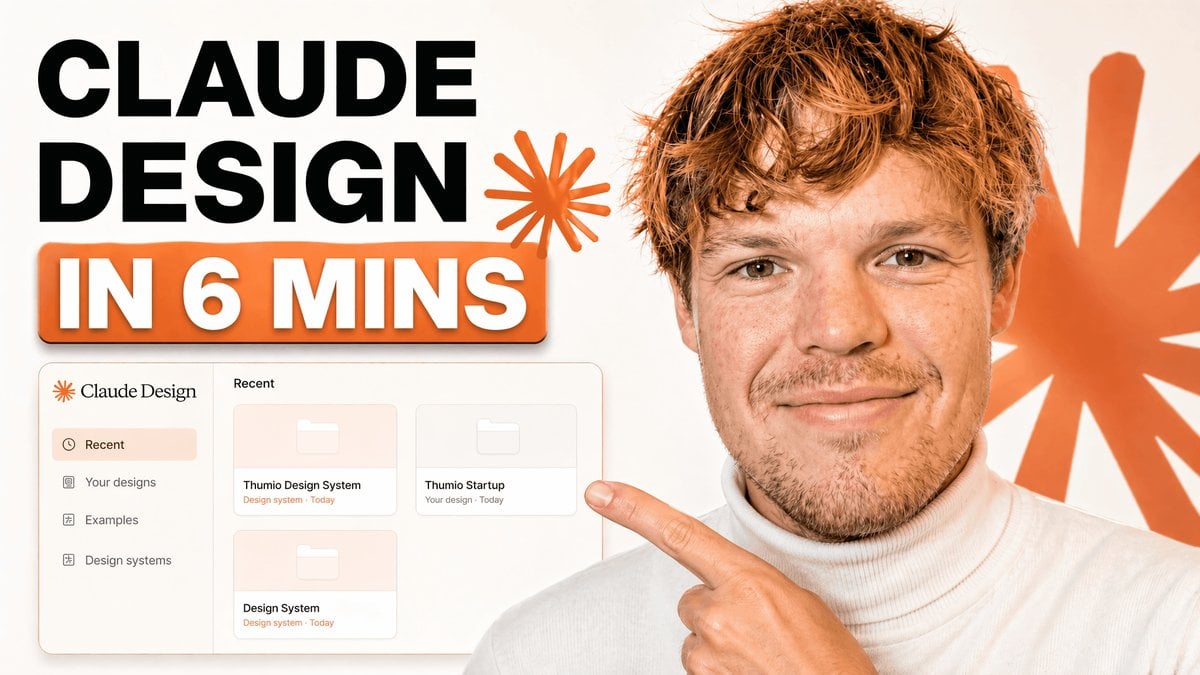
Tech Tutorial Thumbnail with UI Mockup
A bold YouTube-style thumbnail featuring a tutorial headline, a design app dashboard mockup, and a presenter pointing at the interface for branding or design-system content.
- Prompt included
- Model and format preset
- Free template
The prompt behind this image
Copy the exact prompt behind Tech Tutorial Thumbnail with UI Mockup, or open it in the studio and make it yours.
A clean modern YouTube thumbnail on a bright white background, split visually between bold text on the left and a cropped presenter on the right. On the left, place a massive stacked headline in heavy black sans-serif uppercase reading {argument name="headline text" default="CLAUDE DESIGN"}, aligned top-left across two lines. Below it, add a large rounded rectangular orange banner with a subtle drop shadow containing bold white uppercase text with an orange outline that reads {argument name="subheadline text" default="IN 6 MINS"}. Near the headline, include 2 orange starburst spark shapes, one small beside the text and one much larger in the far right background. In the lower-left quadrant, show a floating app interface mockup for a design tool dashboard with a soft off-white panel, thin borders, rounded corners, and a faint shadow. The interface should have a left sidebar with 4 menu items labeled exactly: "Recent", "Your designs", "Examples", and "Design systems". The main panel header should say "Recent" and contain 3 project cards arranged in a grid, labeled exactly: "Thumio Design System", "Thumio Startup", and "Design System". On the right half, show a cropped photorealistic young adult man from chest up wearing a white turtleneck sweater, with messy light brown hair and light facial hair, positioned close to camera. His face is intentionally obscured by a solid tan rectangle placeholder covering most of the face area. He points with one hand toward the interface panel on the left, finger extended. Use a warm orange and white brand palette, high contrast, minimal clutter, polished creator-economy thumbnail styling, subtle shadows, and a composition designed for tech tutorial content.
How to use Tech Tutorial Thumbnail with UI Mockup in 3 steps
- 1Upload ImagePNG, JPG or paste
Add your photo
Upload the photo the template builds on. The prompt, model and format are already set.
- 2…a portrait of your subject in softgolden-hour light, 85mm…
Personalize
Edit the subject and creative details for your destination.
- 3Generate
Generate
Press Generate — your image is created in PicX Studio, so you can compare it with the original and refine one variable at a time.
More like this
Templates with the same subject, style or setup. Open one to see its prompt.

AI Tech Tutorial Thumbnail
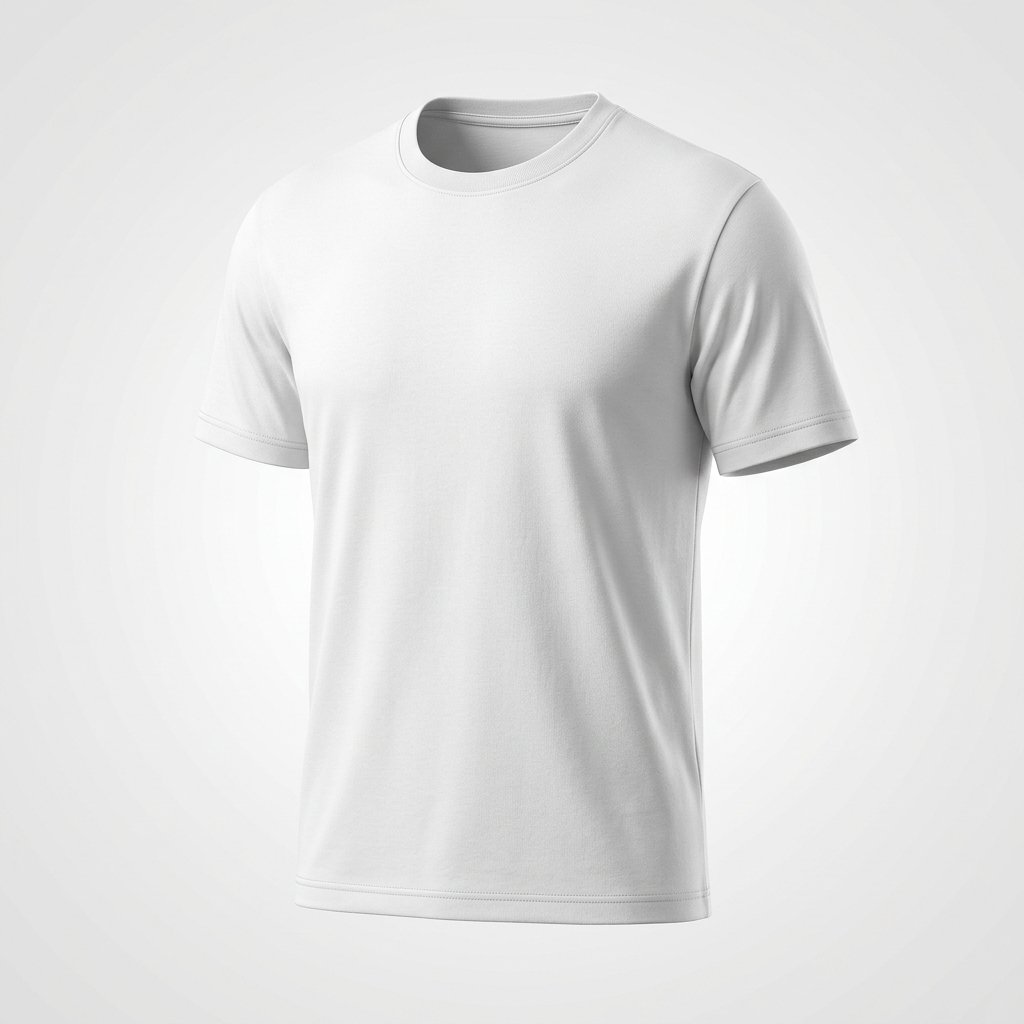
Product Shot - T-Shirt Mockup
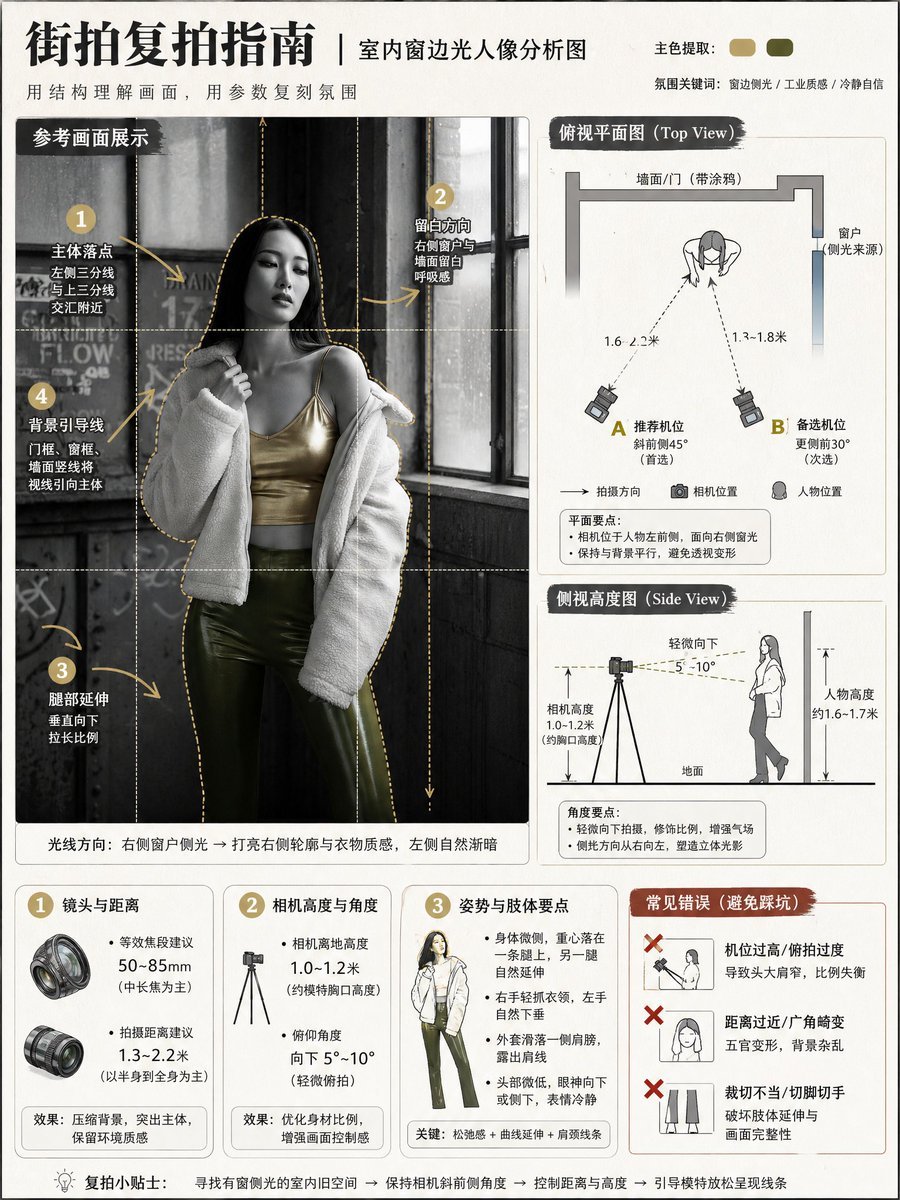
Photography Tutorial and Camera Setup Infographic
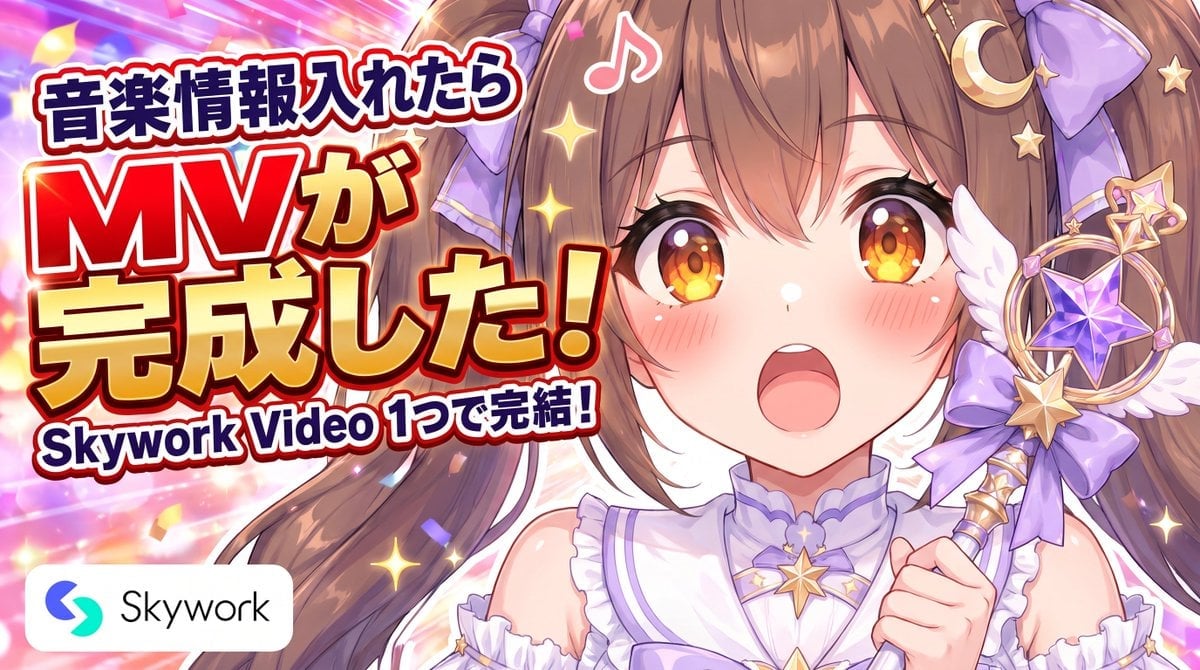
Anime Skywork MV Thumbnail

Cinematic Anime Shinobi Poster Mockup
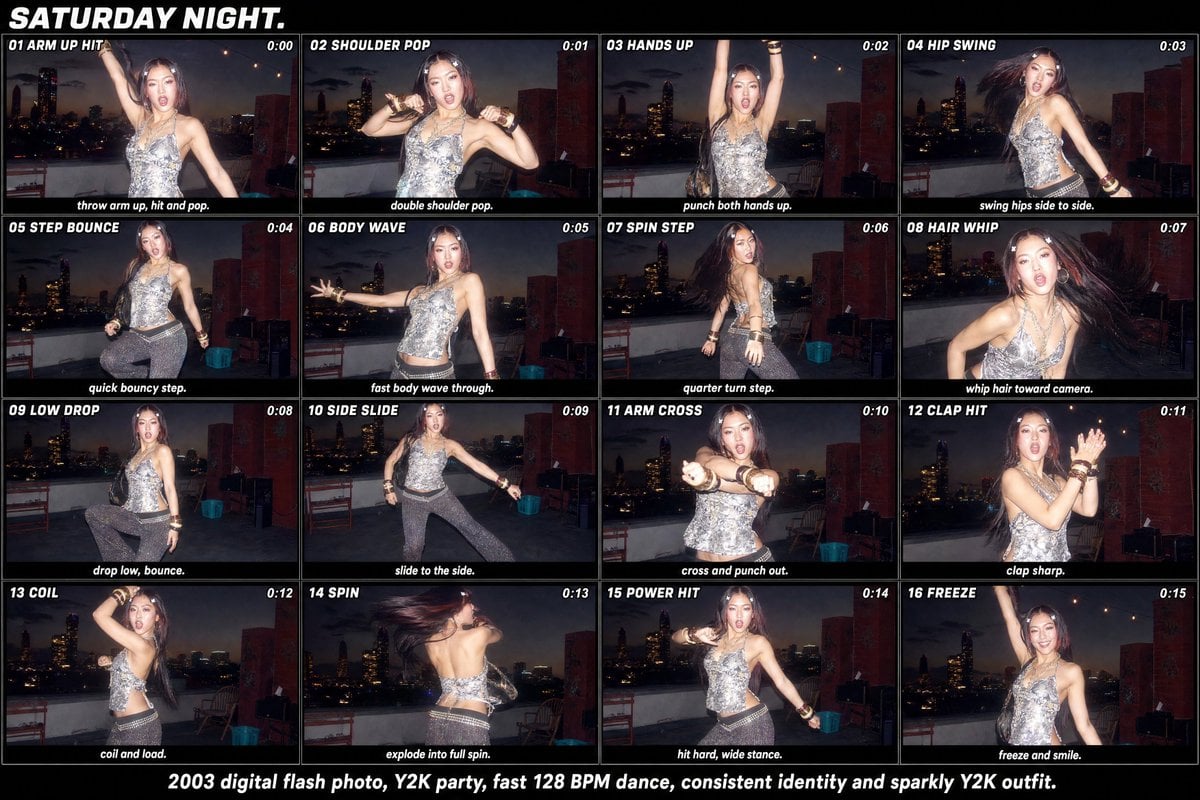
Y2K Rooftop Dance Tutorial Sheet
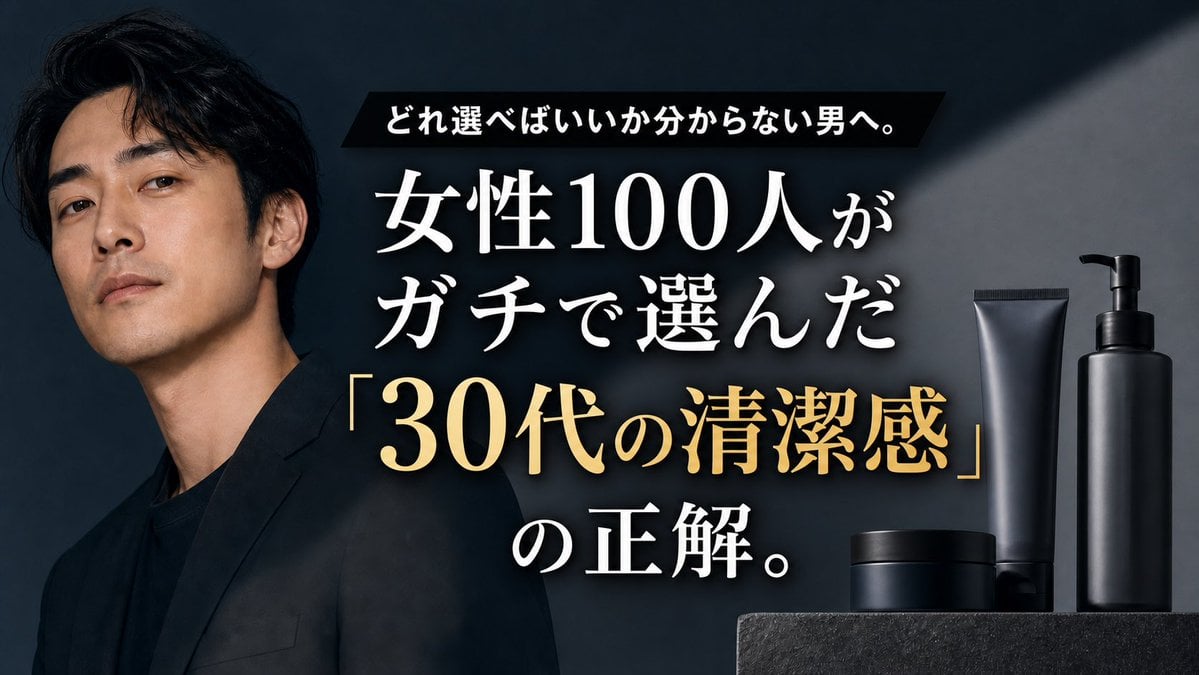
Premium Men's Skincare Thumbnail

Futuristic AI 2026 Tech Poster
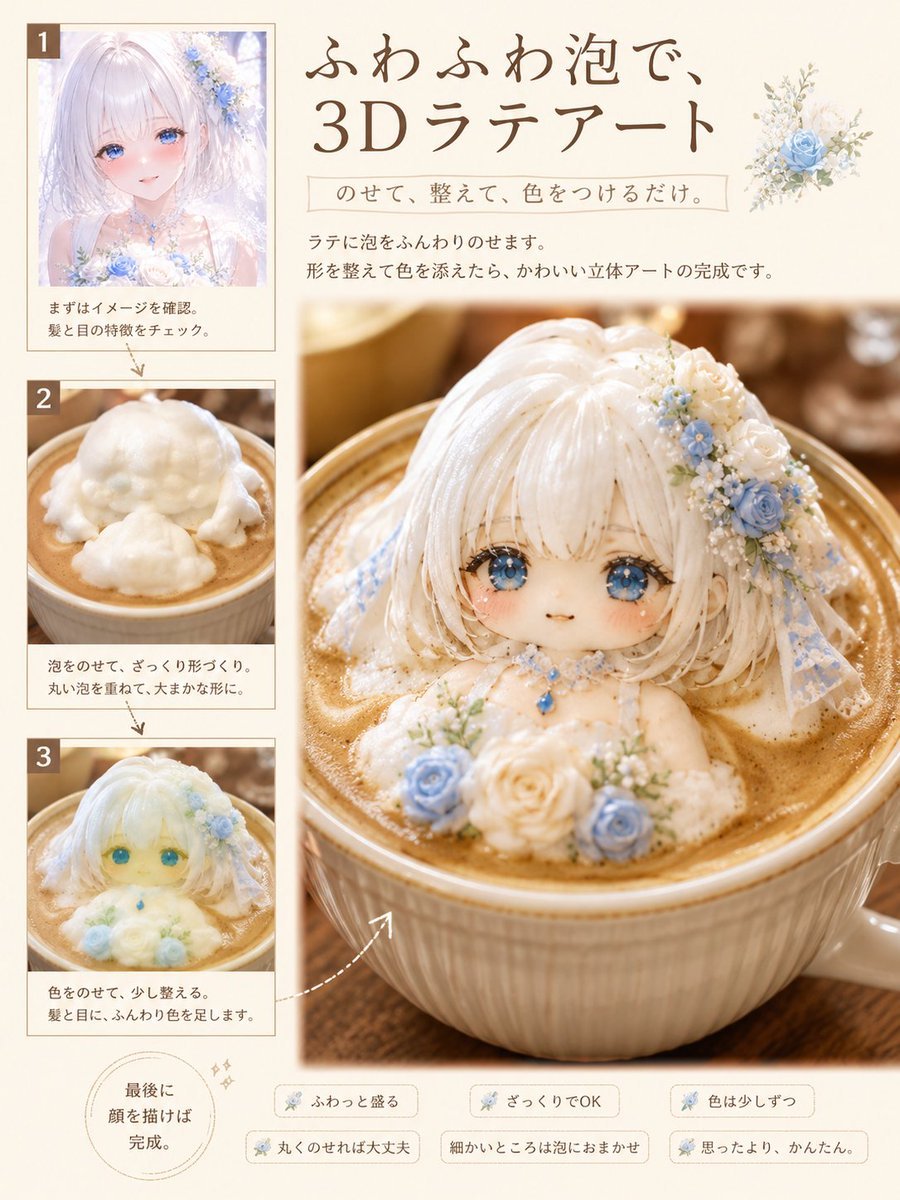
3D Latte Art Magazine Tutorial Layout
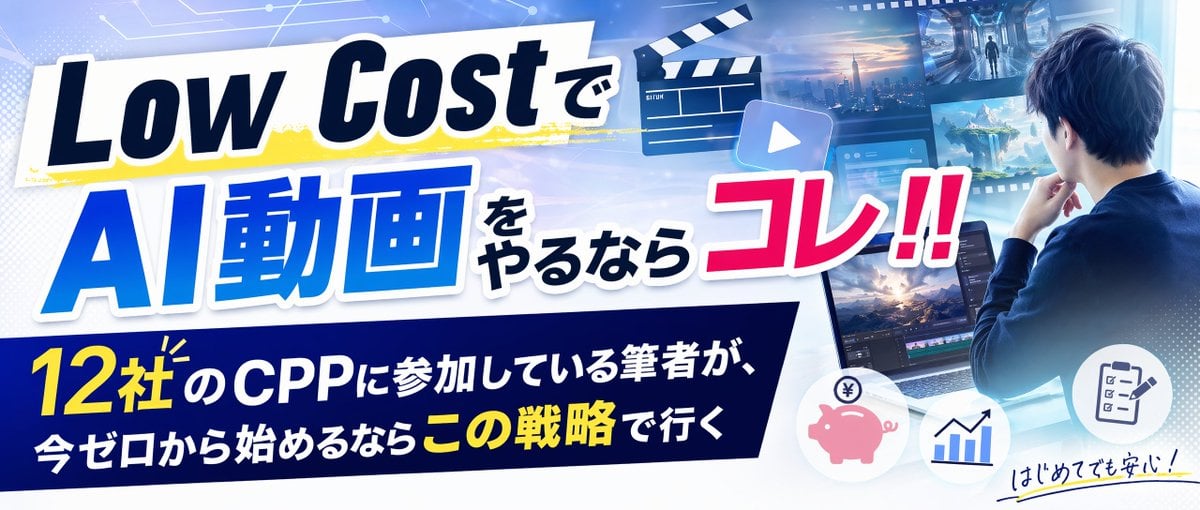
Low-Cost AI Video Thumbnail
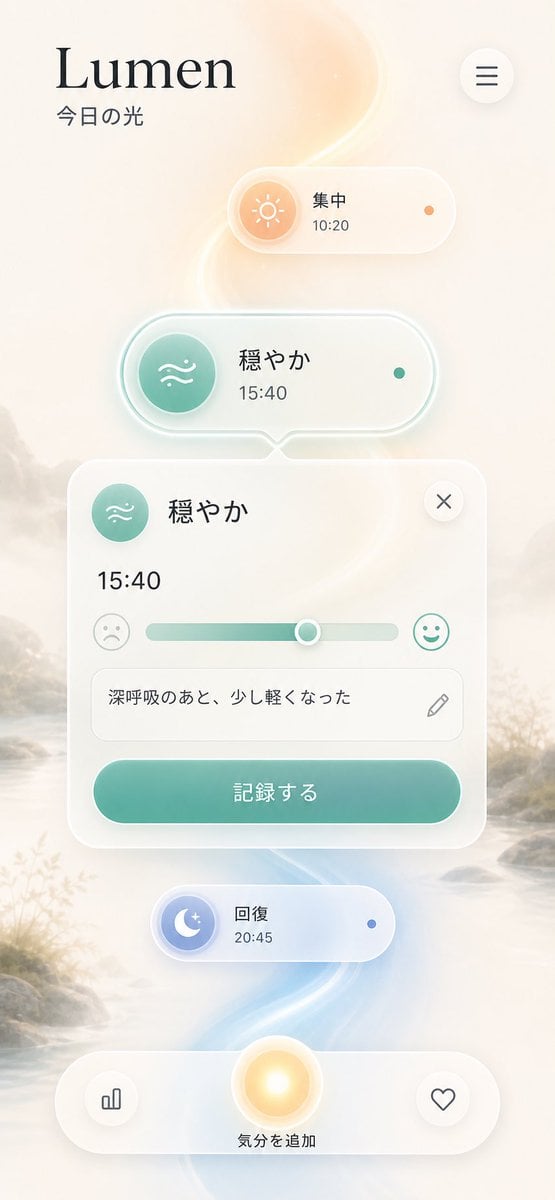
Lumen iOS Wellness App Mockup
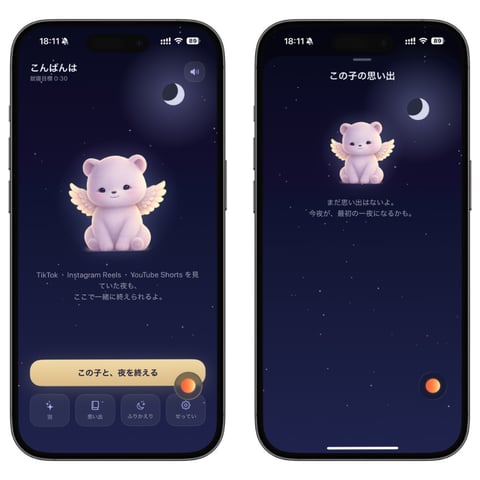
Bedtime Companion App Mockup
Make it yours
Tech Tutorial Thumbnail with UI Mockup works as-is. These are the safest ways to change it without losing the look.
Change one field
Copy a single group, rewrite it, and generate again so you can see what that field is doing.
Keep the frame, change the subject
Hold the composition and light of Tech Tutorial Thumbnail with UI Mockup, then swap wardrobe, props or the person for a new take.
| If the result… | Why | Fix |
|---|---|---|
| The result drifts from the preview | Too many fields changed at once. | Reuse Tech Tutorial Thumbnail with UI Mockup as-is first, then change one group — subject, light, or setting. |
| The model over-stylizes the scene | The prose prompt leaves finish and camera underspecified. | Add one camera or lighting sentence and stay on GPT Image 2. |
More GPT Image 2 templates
Other prompts made for GPT Image 2.

Six VTuber Japanese Logo Sheet

Realistic Portrait of Woman and Deer

The Vista Modular Condo Poster

AI Model Routing Comparison Infographic

2.5D Anime Art Board

Isometric Productivity Desk Scene

New York Double Exposure Poster

Four-Panel AI Landscape Comparison

Japanese Tatami Lifestyle Magazine Cover

NESCAFÉ Coffee Map Poster
More image prompts
Fresh picks from across the catalog.
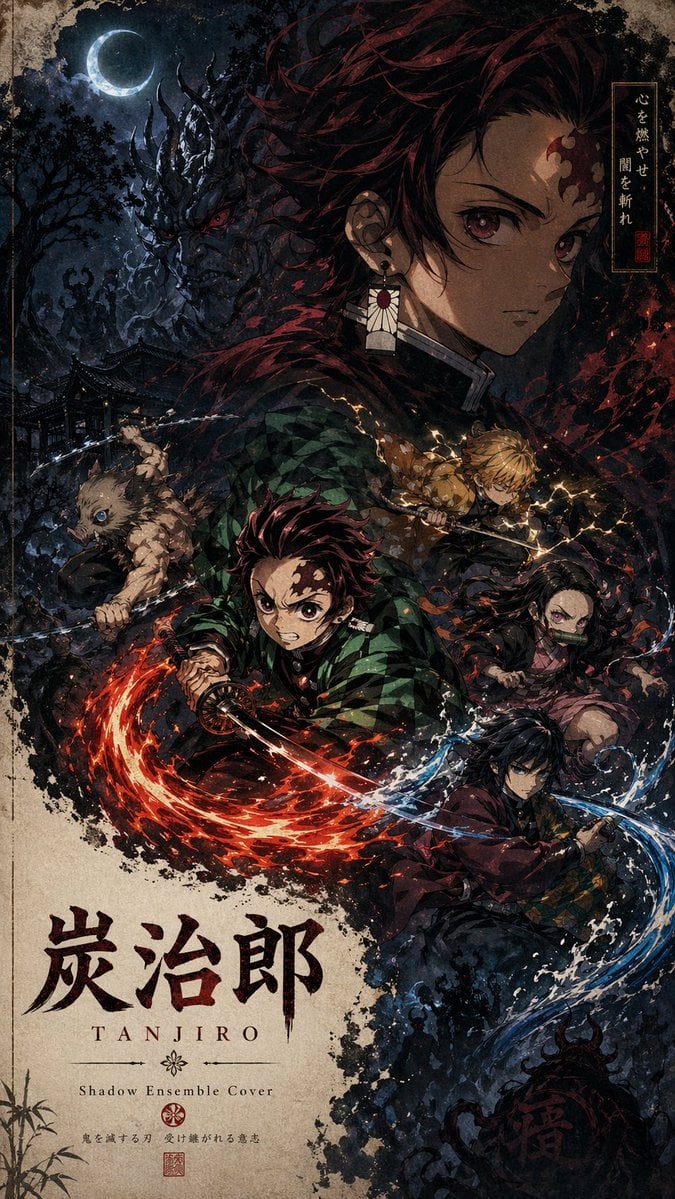
Shadow Ensemble Movie Poster Template
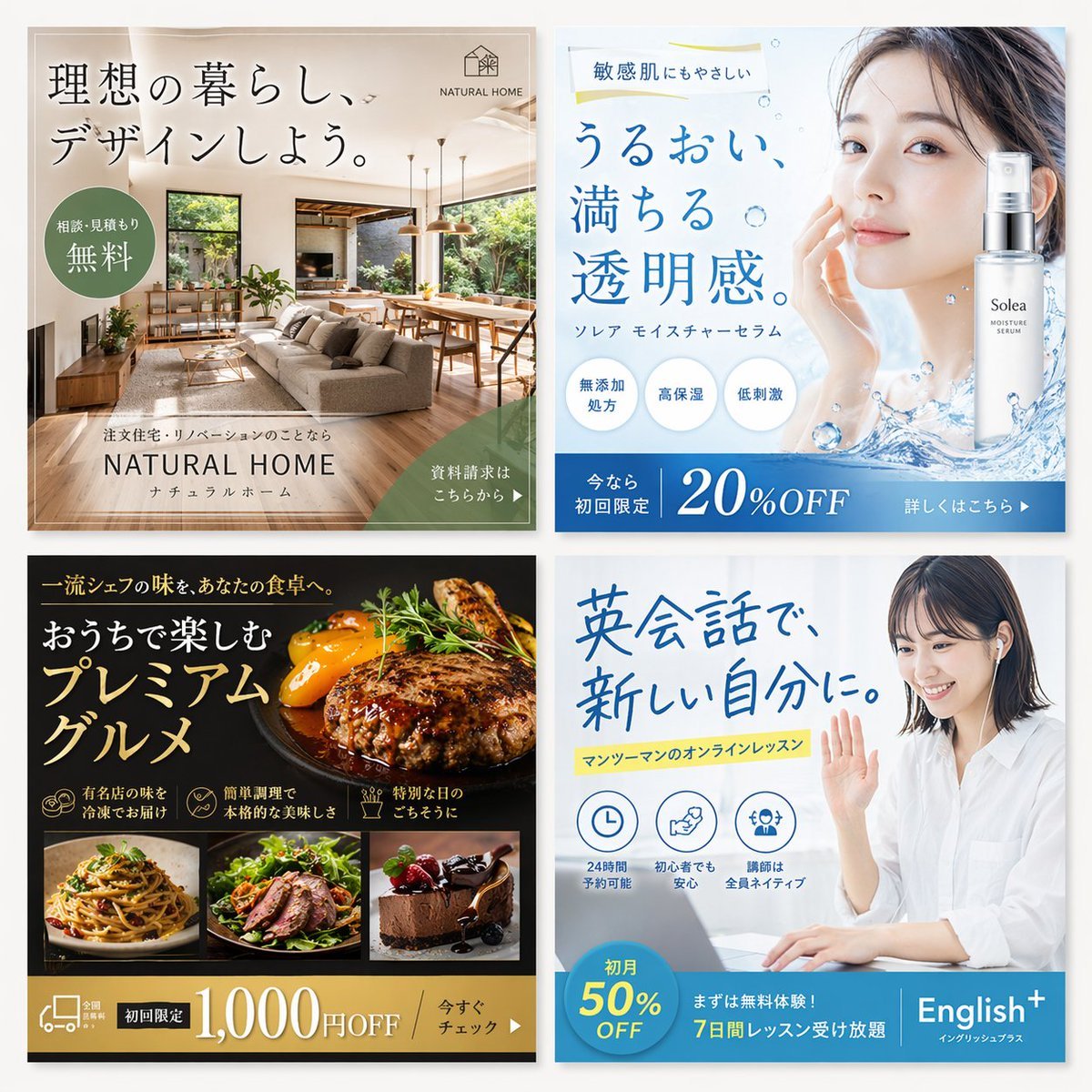
2x2 Japanese Web Banner Ad Grid

Golden Hour Fashion Portrait of a South Asian Man
Blaxploitation Comic Art 'I Got 5 On It' Prompt
Traveling Alchemist Campsite
Fisheye selfie with anime characters
Realistic Chess Opening Photo
Gravity-Style Space Movie Poster
Cinematic Fashion Portrait Prompt
Cyber-Pop E-Girl in Neon Arcade
Featured in prompt roundups
Hand-picked collections that include this template.
Browse template categories
Tech Tutorial Thumbnail with UI Mockup questions
How do I use the Tech Tutorial Thumbnail with UI Mockup template?
Add your photo if the template asks for one, edit the prompt if you like — the template's model and format are already selected — and press Generate. Your version opens in PicX Studio.
Can I customize the Tech Tutorial Thumbnail with UI Mockup template?
Yes. You can change the subject, setting, lighting, mood, format, and available model controls before creating your image.
Is the Tech Tutorial Thumbnail with UI Mockup template free?
Opening and editing this template is free. Generating uses credits, shown on the Generate button when you are signed in.
Which AI model should I use?
Start with GPT Image 2, which is the model associated with this template. You can compare another compatible model for a different finish.
Looking for something else? Browse all templates.

Your photo, any look
Thousands of ready templates for every top image and video model, from one credit balance.