
Gray Kitten Sticker Pack Sheet
Generates a six-pose cute kitten sticker-pack preview from a reference pet photo for chat emoticons or WeChat-style stickers.
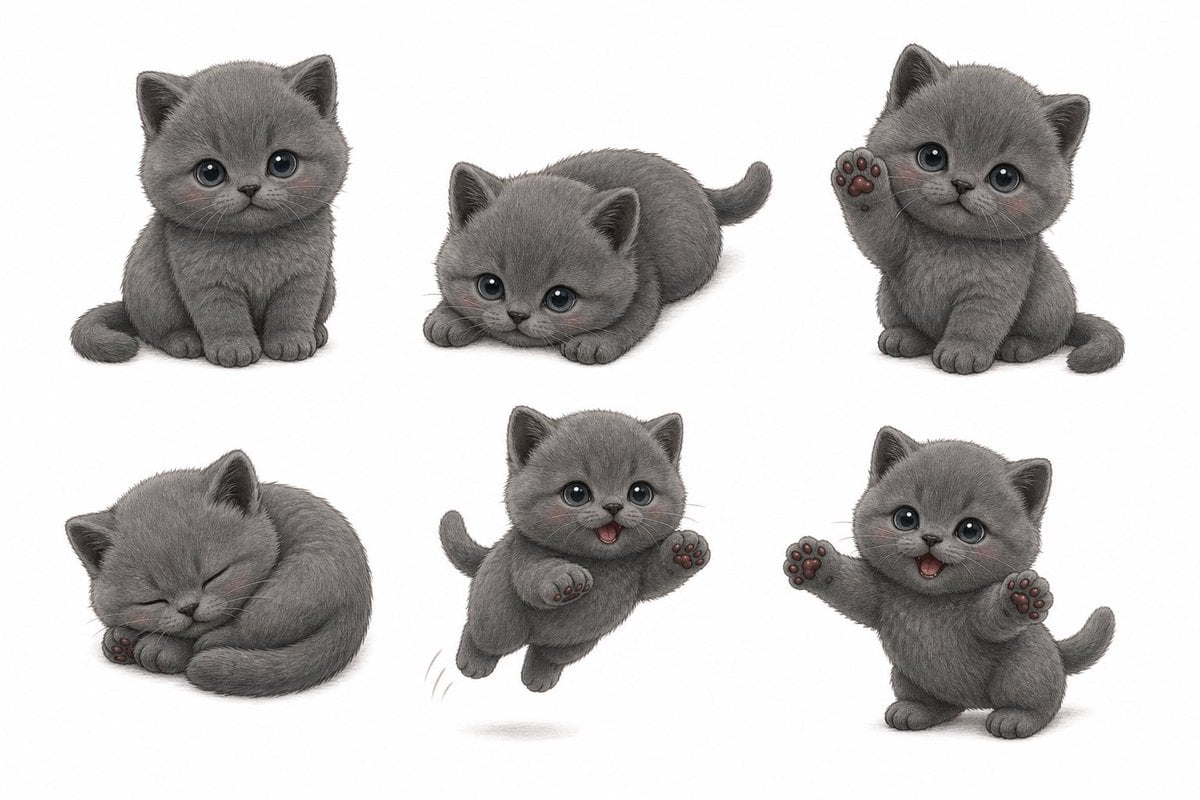
- Prompt included
- Model and format preset
- Free template
The prompt behind this image
Copy the exact prompt behind Gray Kitten Sticker Pack Sheet, or open it in the studio and make it yours.
Using REFERENCE_0 as the kitten identity, create a clean WeChat-style sticker-pack preview sheet on a plain white background. Transform the real photo into a soft, semi-realistic cute 3D/cartoon gray kitten with plush fur, round proportions, and gentle expressive body language, while preserving the kitten’s overall gray color, small ears, baby face, and soft fragile look. Layout: Arrange exactly 6 separate sticker poses in a 3-by-2 grid with generous white spacing and no borders. Sticker poses, exactly 6: 1. Sitting upright facing forward, paws together, tail curled beside the body. 2. Crouching low and peeking forward with wide eyes, playful and timid. 3. Sitting upright with one paw raised high, showing pink-and-dark paw pads. 4. Curled up sleeping peacefully, eyes closed, tail wrapped around body. 5. Jumping upward with both paws forward, small motion lines and a faint oval shadow underneath. 6. Standing on hind legs with both paws raised outward, showing paw pads, cheerful greeting pose. Add a solid medium-gray square placeholder over the face area of poses 1, 3, 5, and 6 only, as if censoring or reserving space for future text/expressions. Do not add any text. Keep the sheet polished, adorable, consistent in character design, and suitable for a finished sticker/emoticon set preview. Use {argument name="sticker count" default="6"} stickers, with {argument name="background color" default="plain white"}, in a {argument name="art style" default="soft semi-realistic cute 3D cartoon"} style, based on {argument name="character" default="the gray kitten from the reference photo"}.
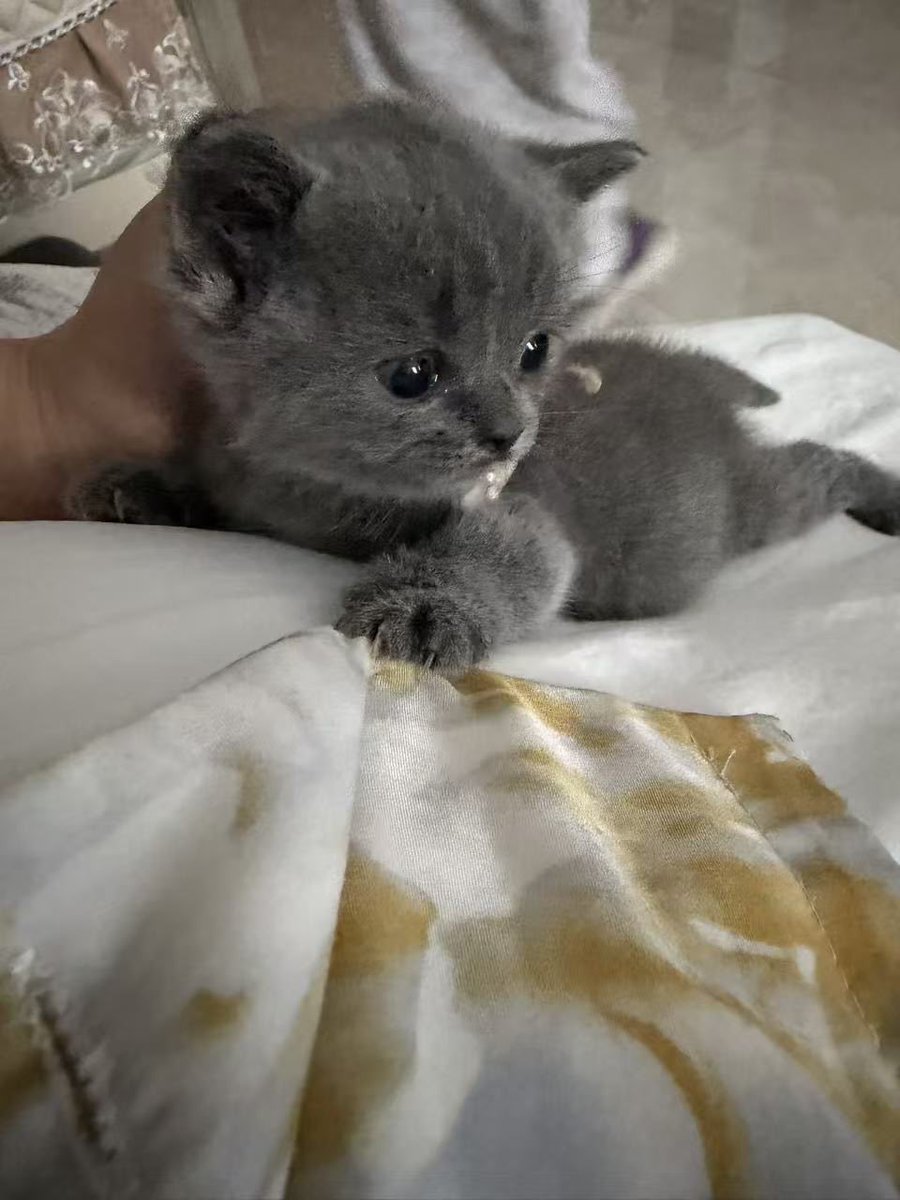
Reference images included
Gray Kitten Sticker Pack Sheet needs input media to work. They load alongside the prompt when you open it in the studio.
How to use Gray Kitten Sticker Pack Sheet in 3 steps
- 1Upload ImagePNG, JPG or paste
Add your photo
Upload the photo the template builds on. The prompt, model and format are already set.
- 2…a portrait of your subject in softgolden-hour light, 85mm…
Personalize
Edit the subject and creative details for your destination.
- 3Generate
Generate
Press Generate — your image is created in PicX Studio, so you can compare it with the original and refine one variable at a time.
More like this
Templates with the same subject, style or setup. Open one to see its prompt.
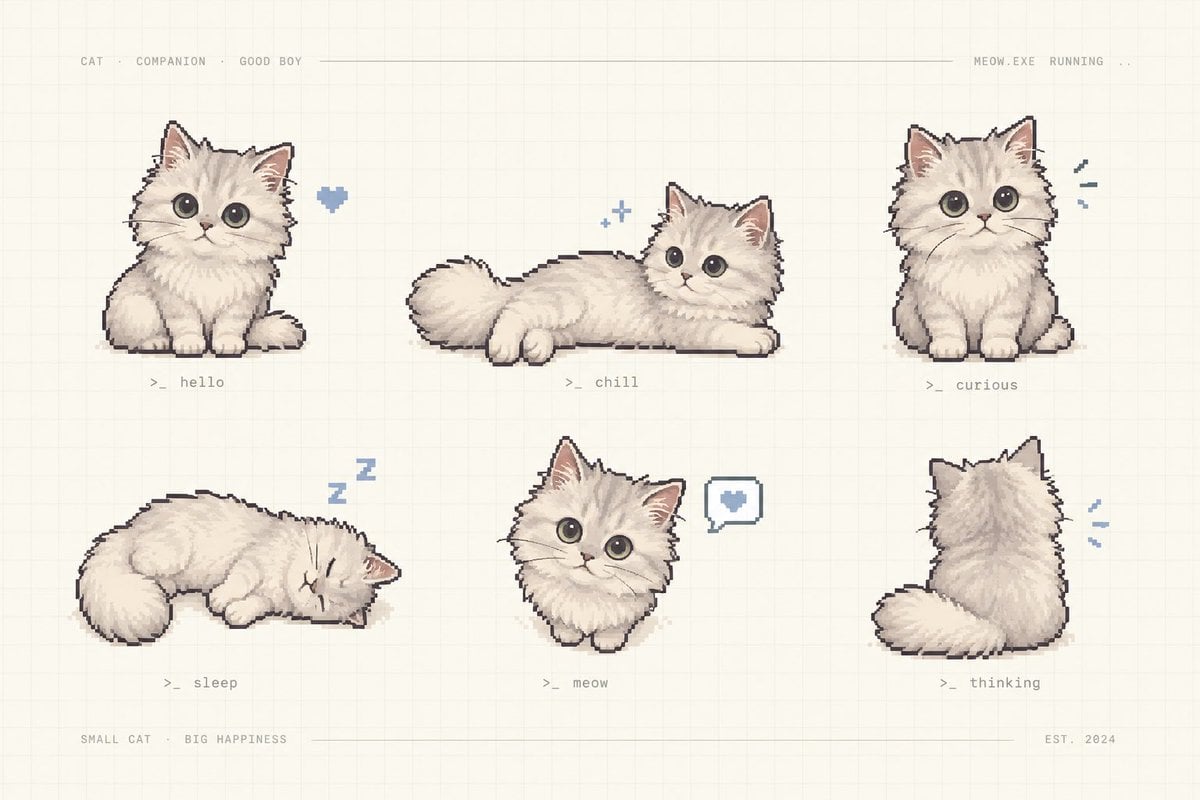
Pixel Art Kitten Companion Sheet
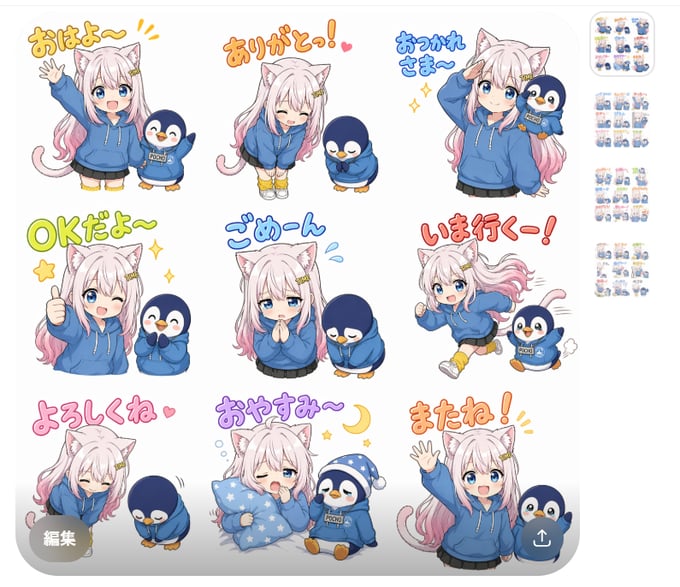
Chibi Cat Girl Sticker Pack
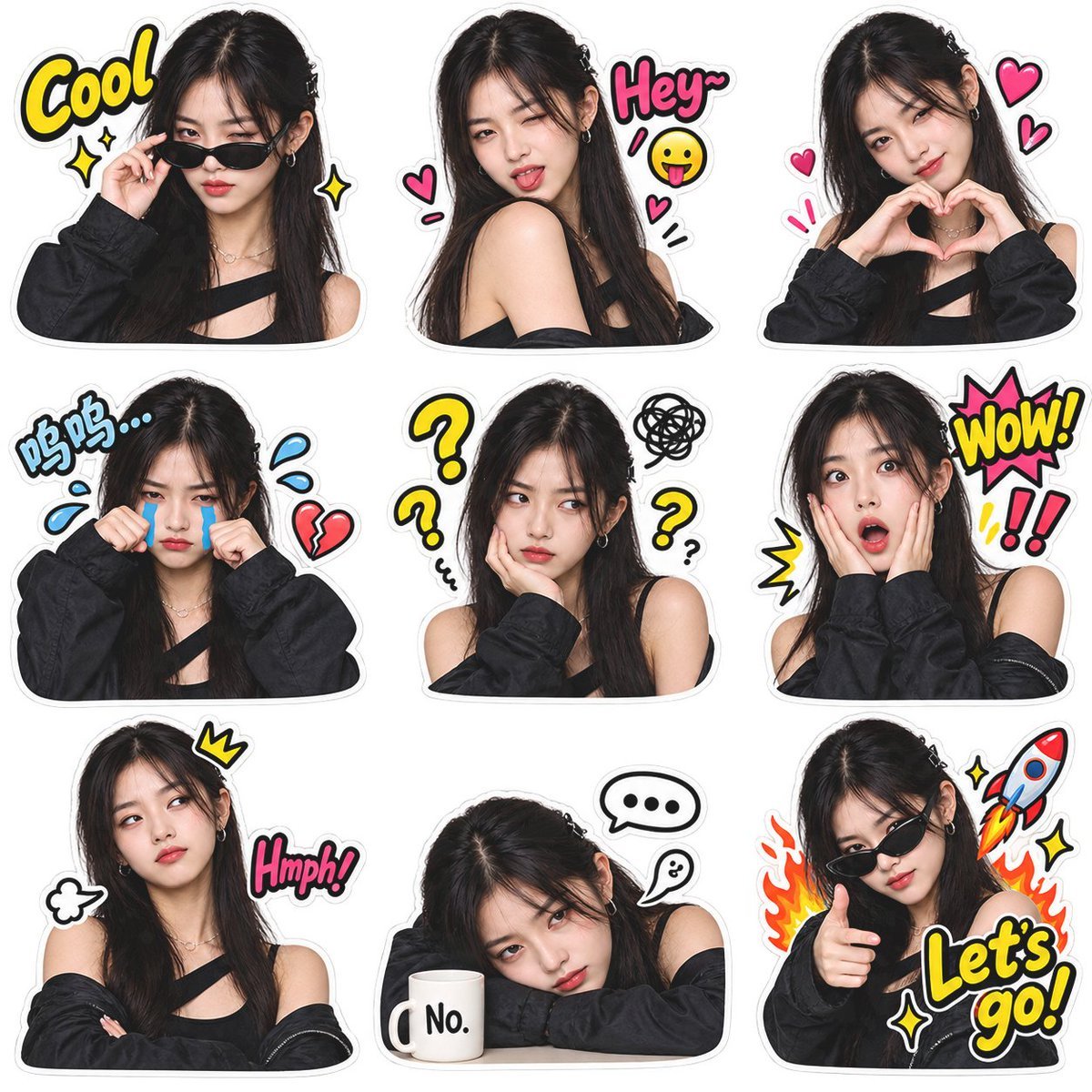
Meme Sticker Pack Generator
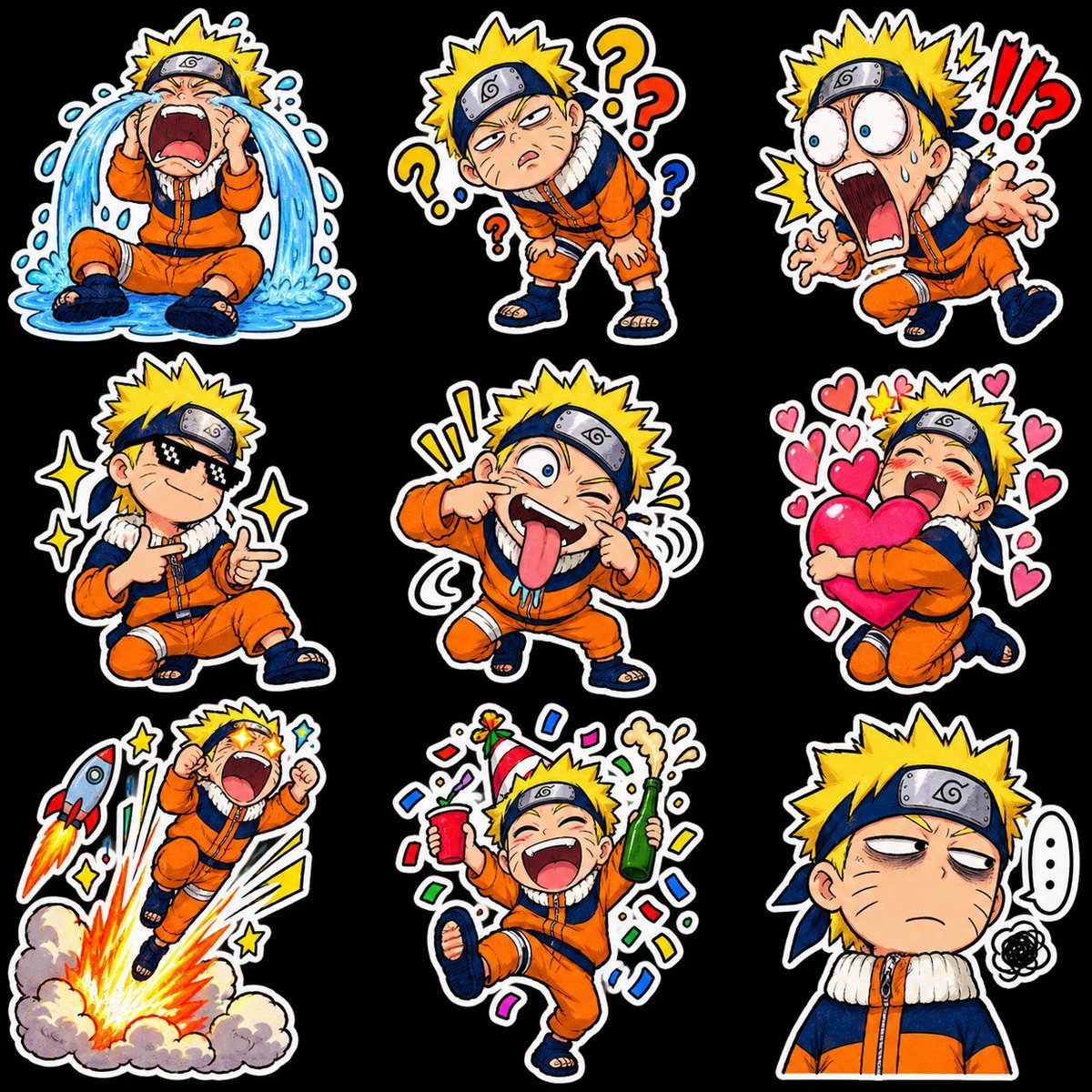
Chibi Anime Ninja Sticker Sheet
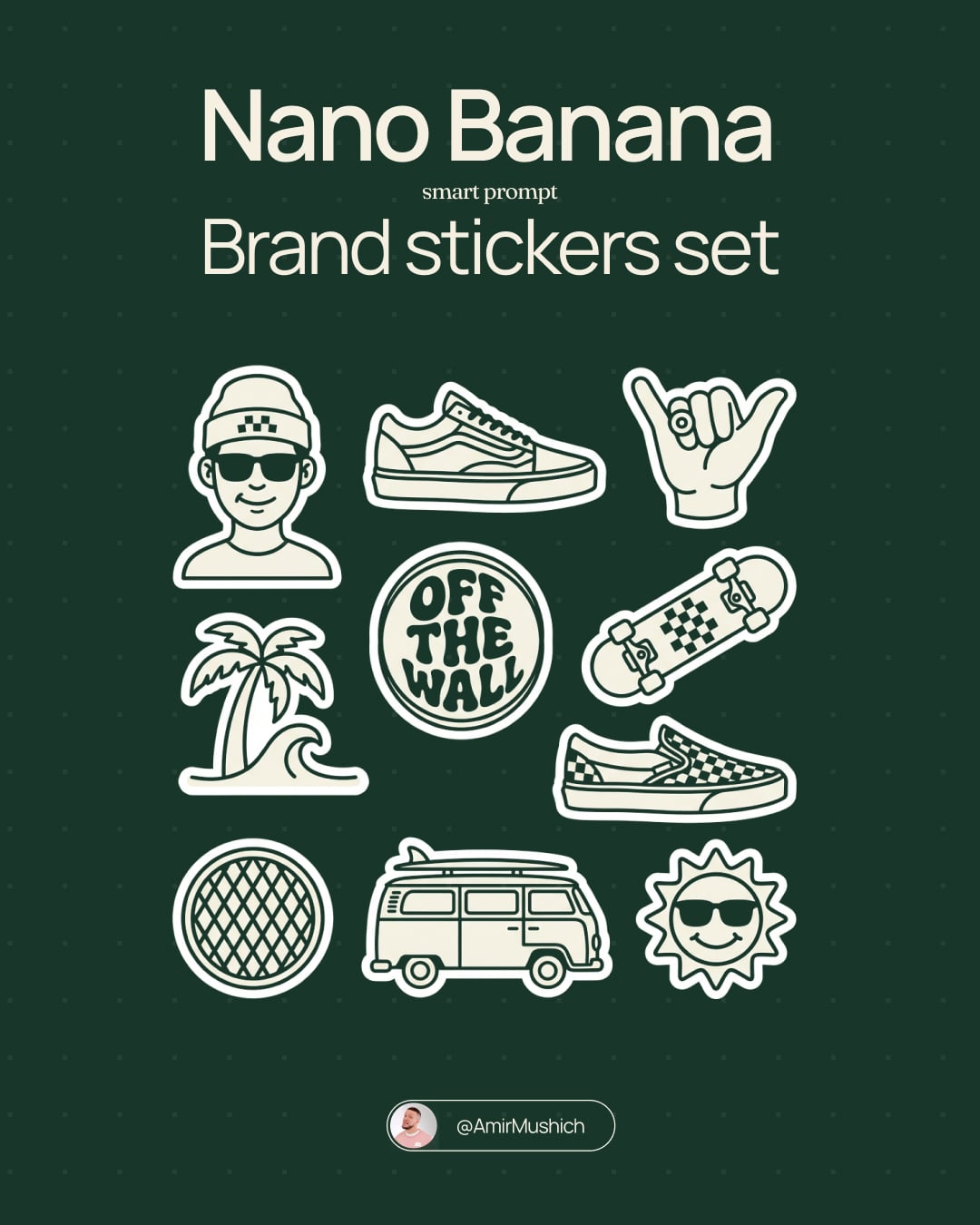
Brand Sticker Sheet Monoline Vector
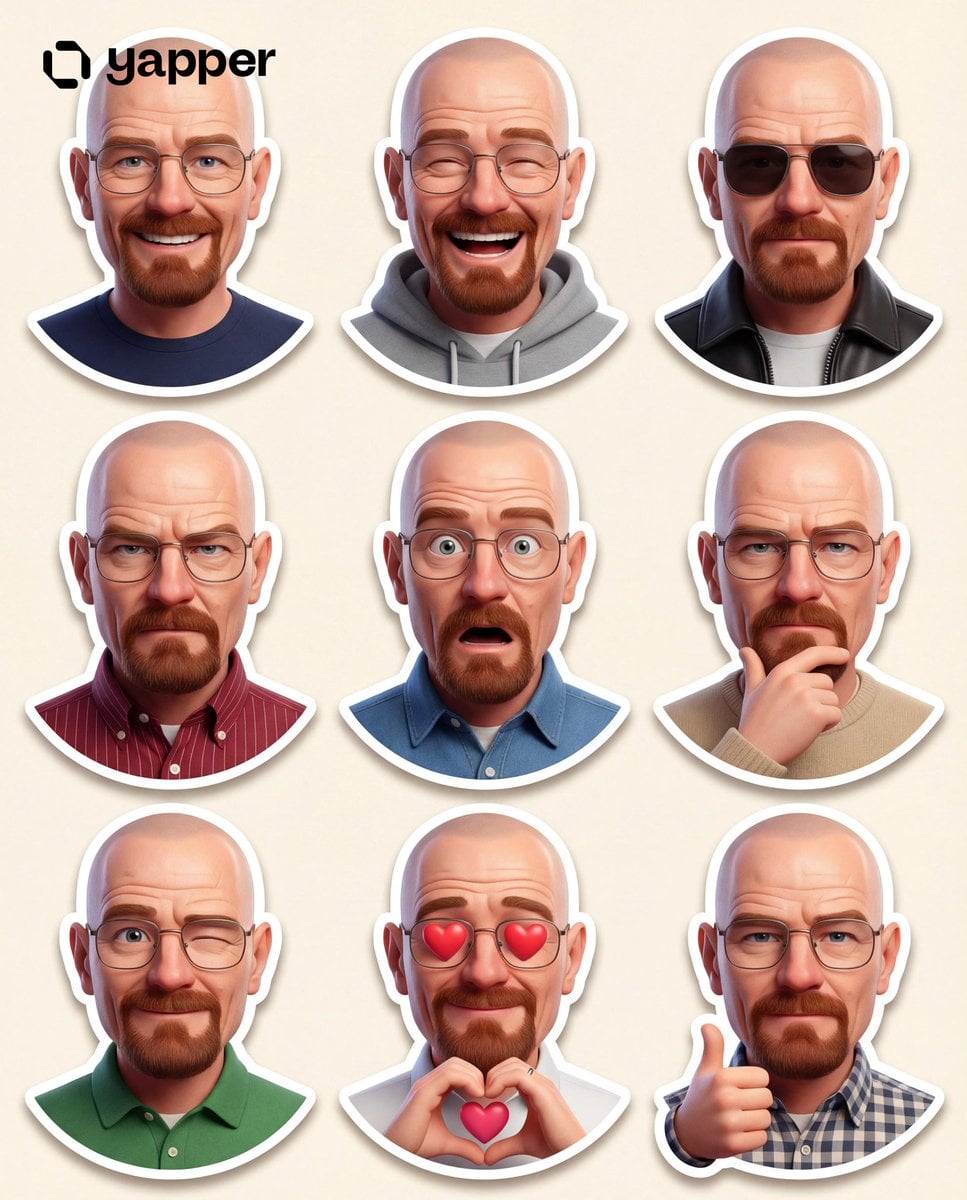
Pixar 3D Character Sticker Pack 3x3
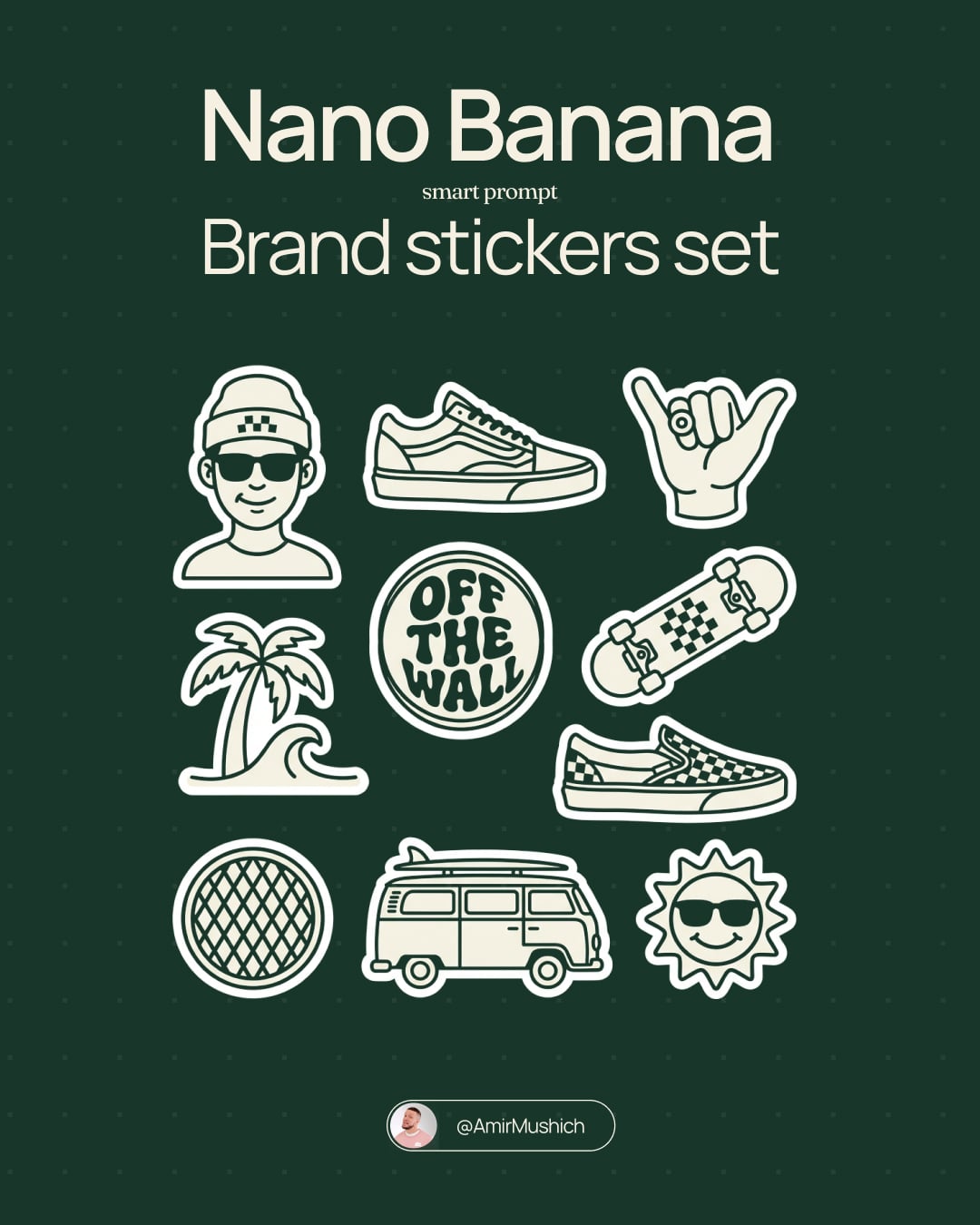
A trendy, high-end Sticker Sheet set
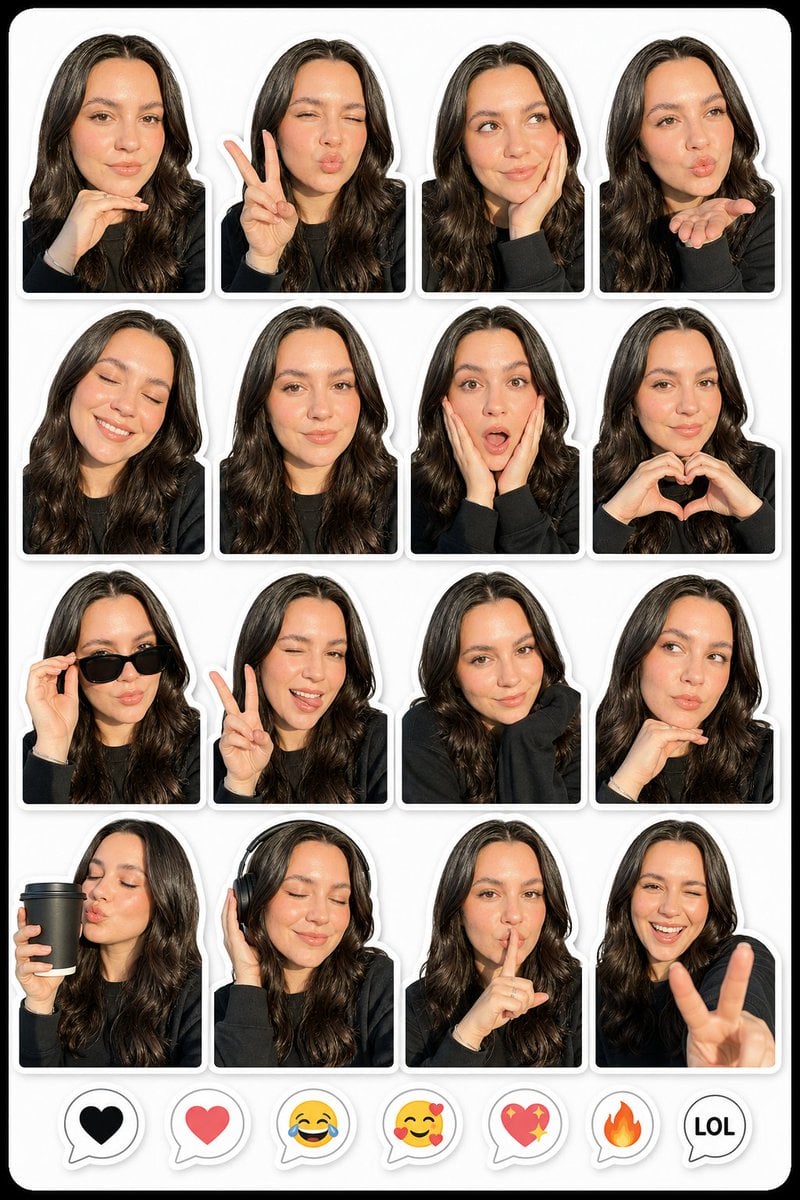
Photo to Realistic Sticker Pack
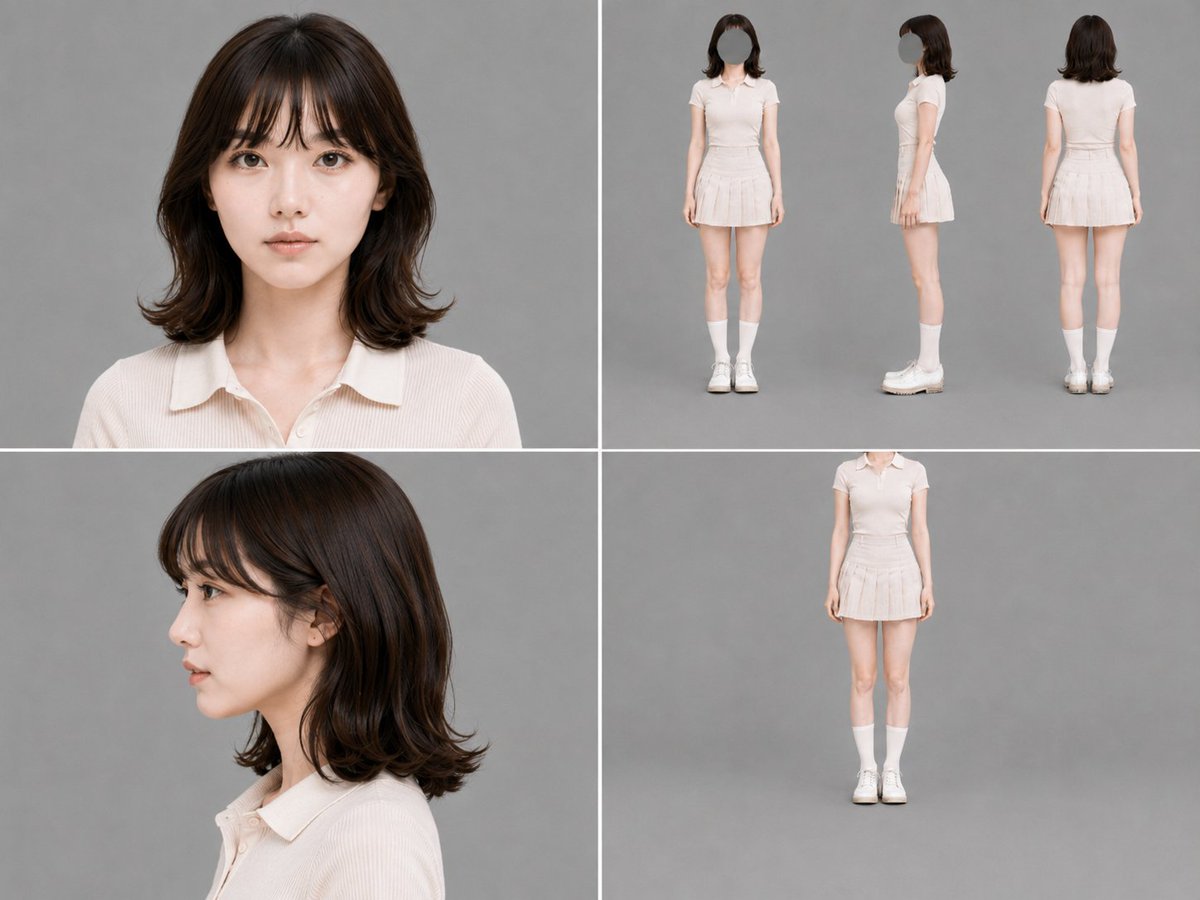
Gray Studio Character Reference Sheet
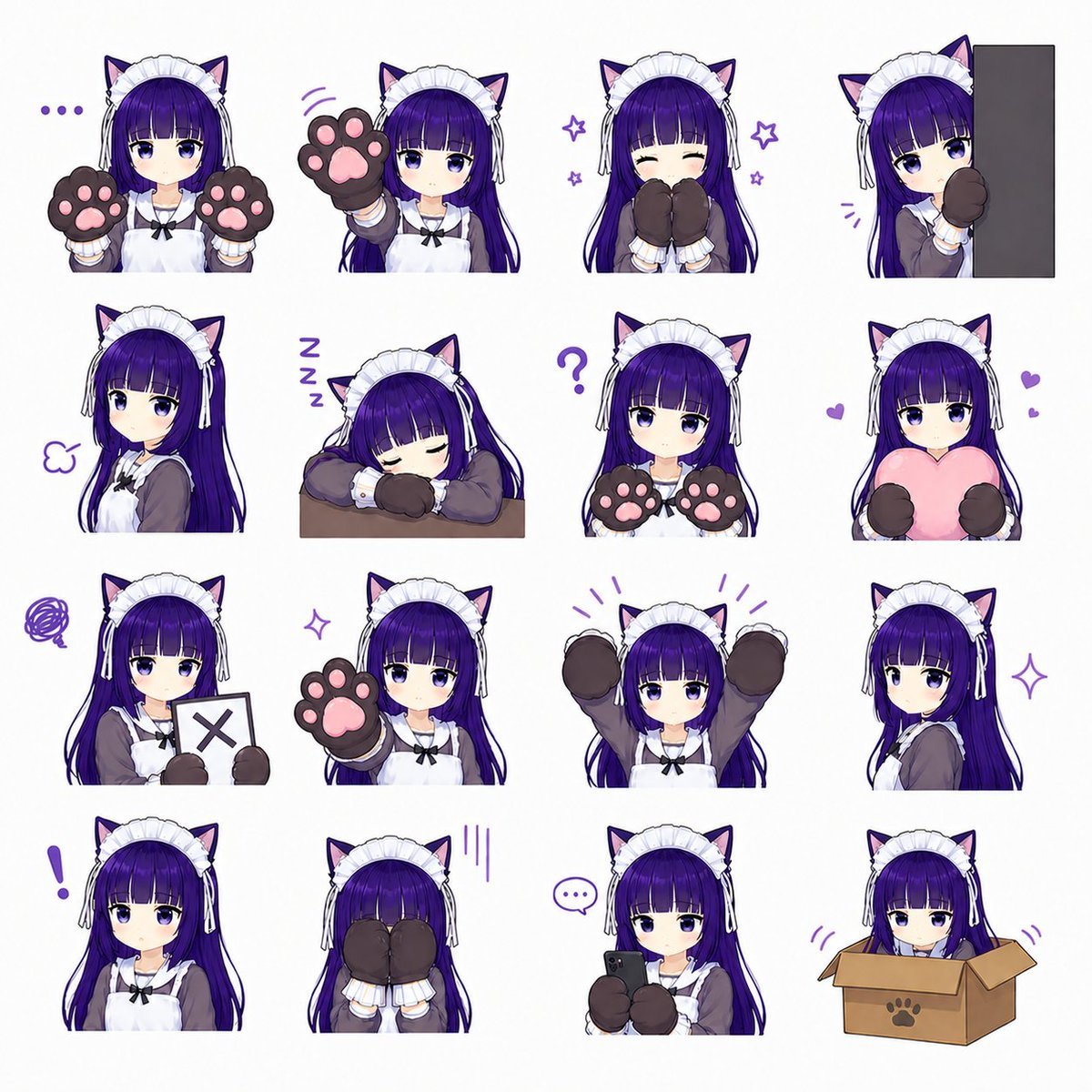
Cat-Eared Maid Emote Sticker Sheet
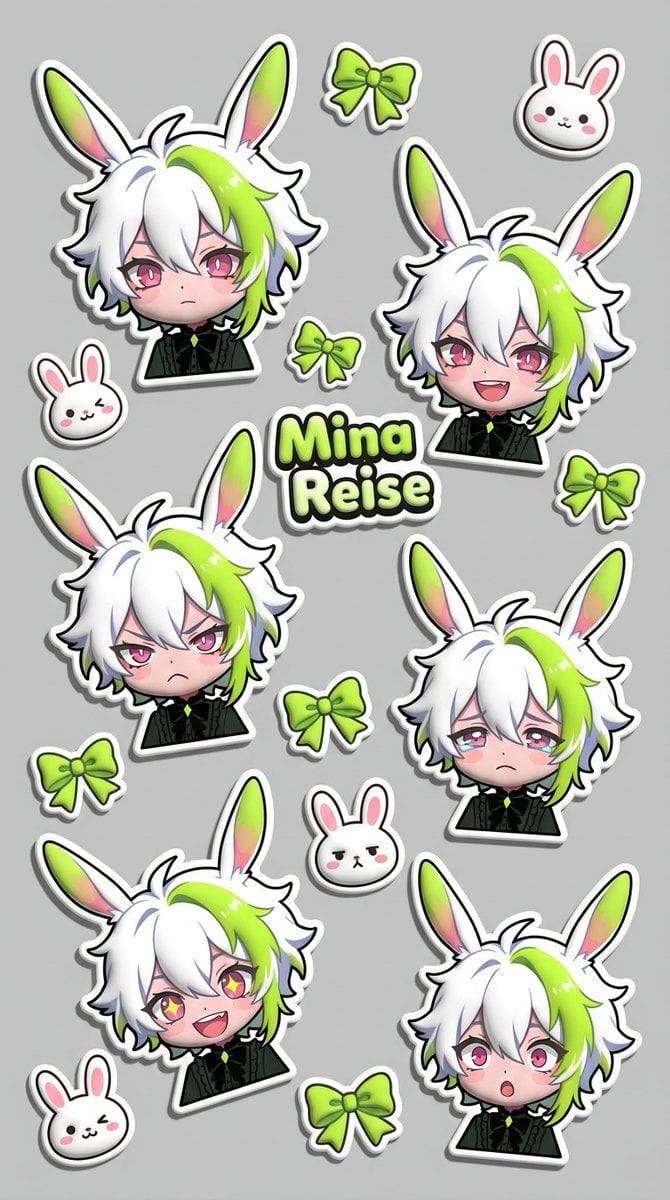
Puffy Chibi Sticker Sheet
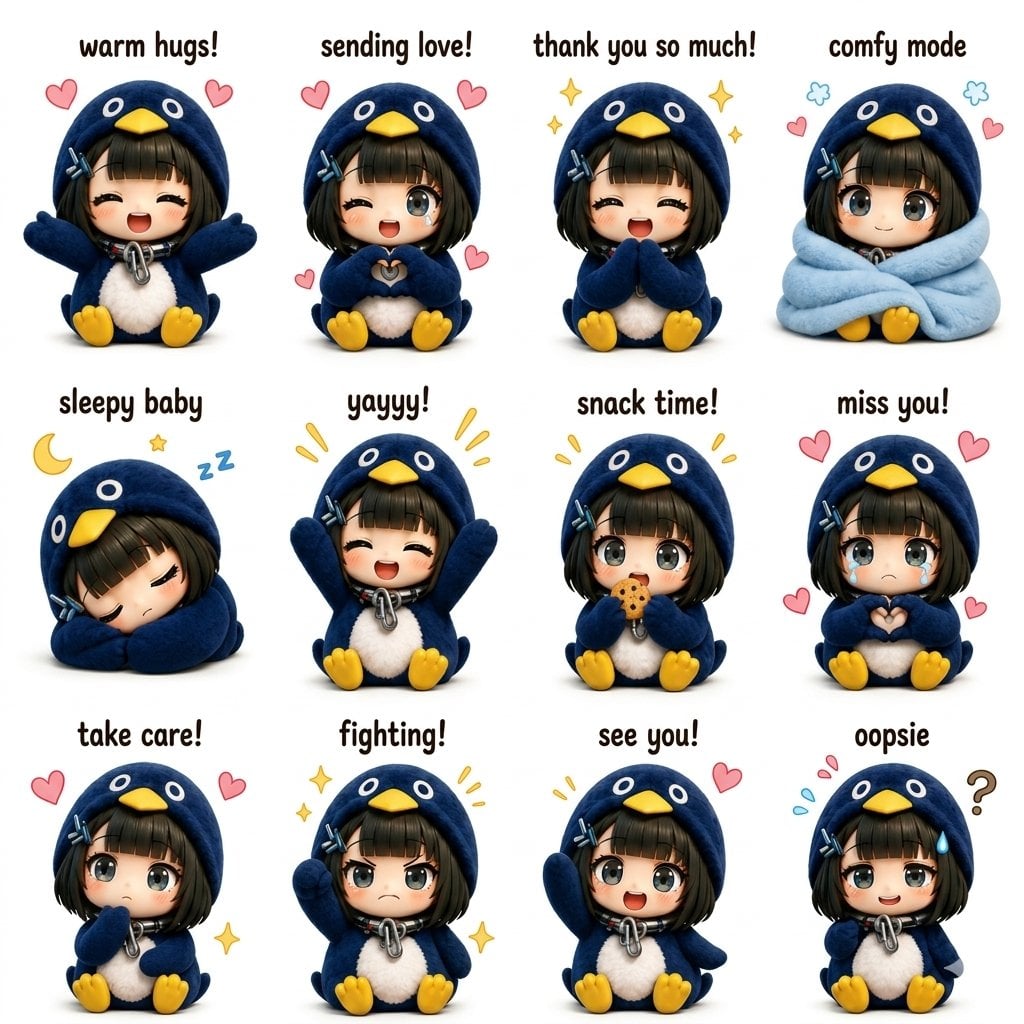
Kawaii Chibi Sticker Sheet
Make it yours
Gray Kitten Sticker Pack Sheet works as-is. These are the safest ways to change it without losing the look.
Change one field
Copy a single group, rewrite it, and generate again so you can see what that field is doing.
Keep the frame, change the subject
Hold the composition and light of Gray Kitten Sticker Pack Sheet, then swap wardrobe, props or the person for a new take.
| If the result… | Why | Fix |
|---|---|---|
| The result drifts from the preview | Too many fields changed at once. | Reuse Gray Kitten Sticker Pack Sheet as-is first, then change one group — subject, light, or setting. |
| The model over-stylizes the scene | The prose prompt leaves finish and camera underspecified. | Add one camera or lighting sentence and stay on GPT Image 2. |
More GPT Image 2 templates
Other prompts made for GPT Image 2.

Six VTuber Japanese Logo Sheet

Realistic Portrait of Woman and Deer

The Vista Modular Condo Poster

AI Model Routing Comparison Infographic

2.5D Anime Art Board

Isometric Productivity Desk Scene

New York Double Exposure Poster

Four-Panel AI Landscape Comparison

Japanese Tatami Lifestyle Magazine Cover

NESCAFÉ Coffee Map Poster
More image prompts
Fresh picks from across the catalog.

Mecha Girl figure concept generated by Nano Banana Pro

Cinematic Winter Scene of Judy Hopps Prompt
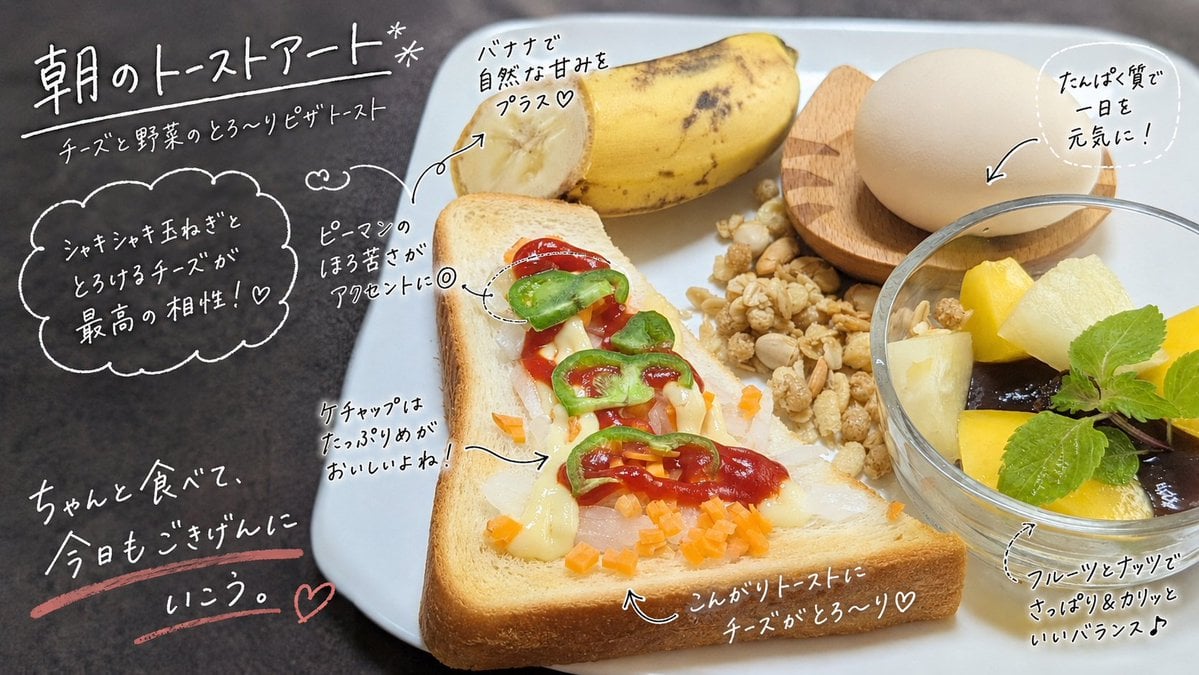
Handwritten Breakfast Photo Annotations
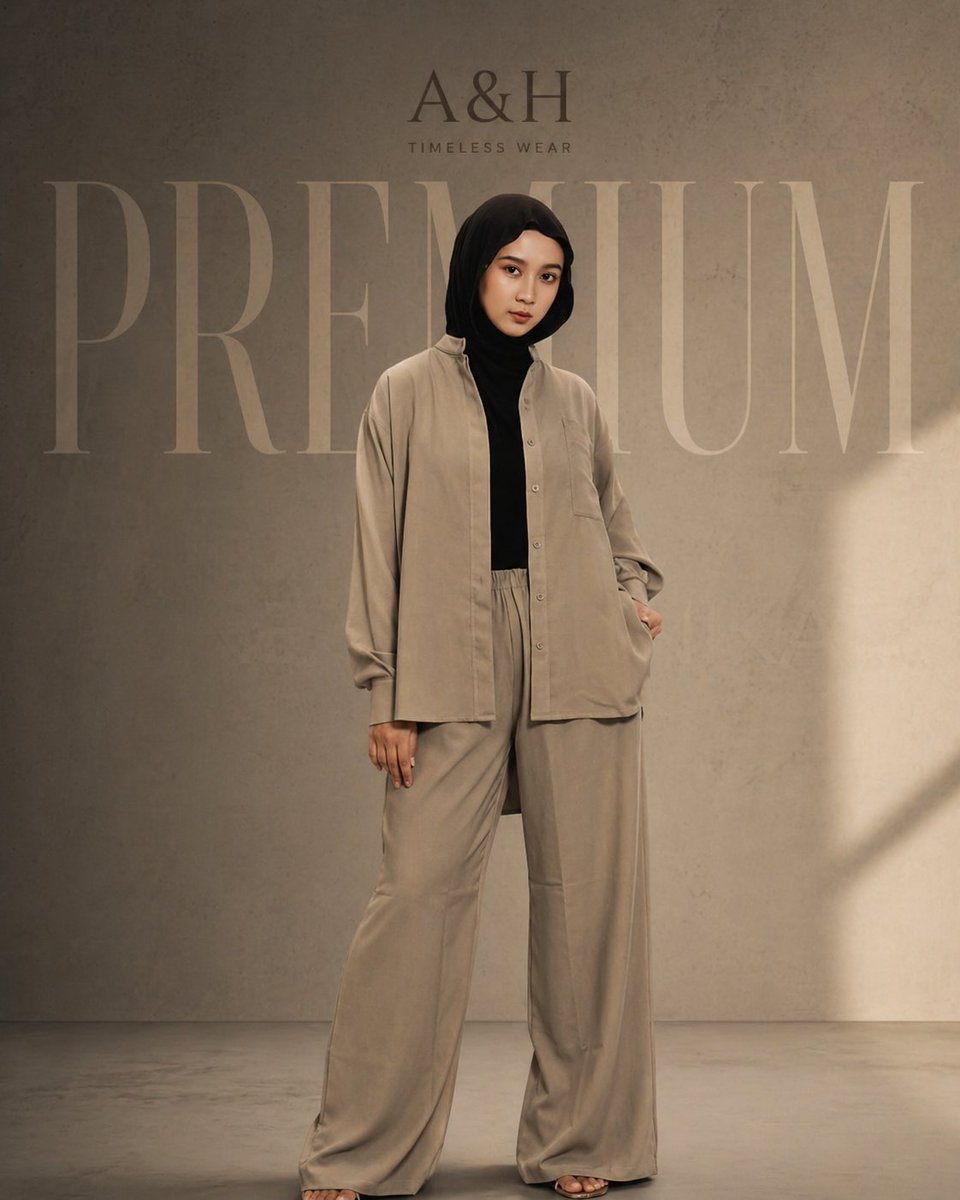
Modest Fashion Studio Editorial Prompt
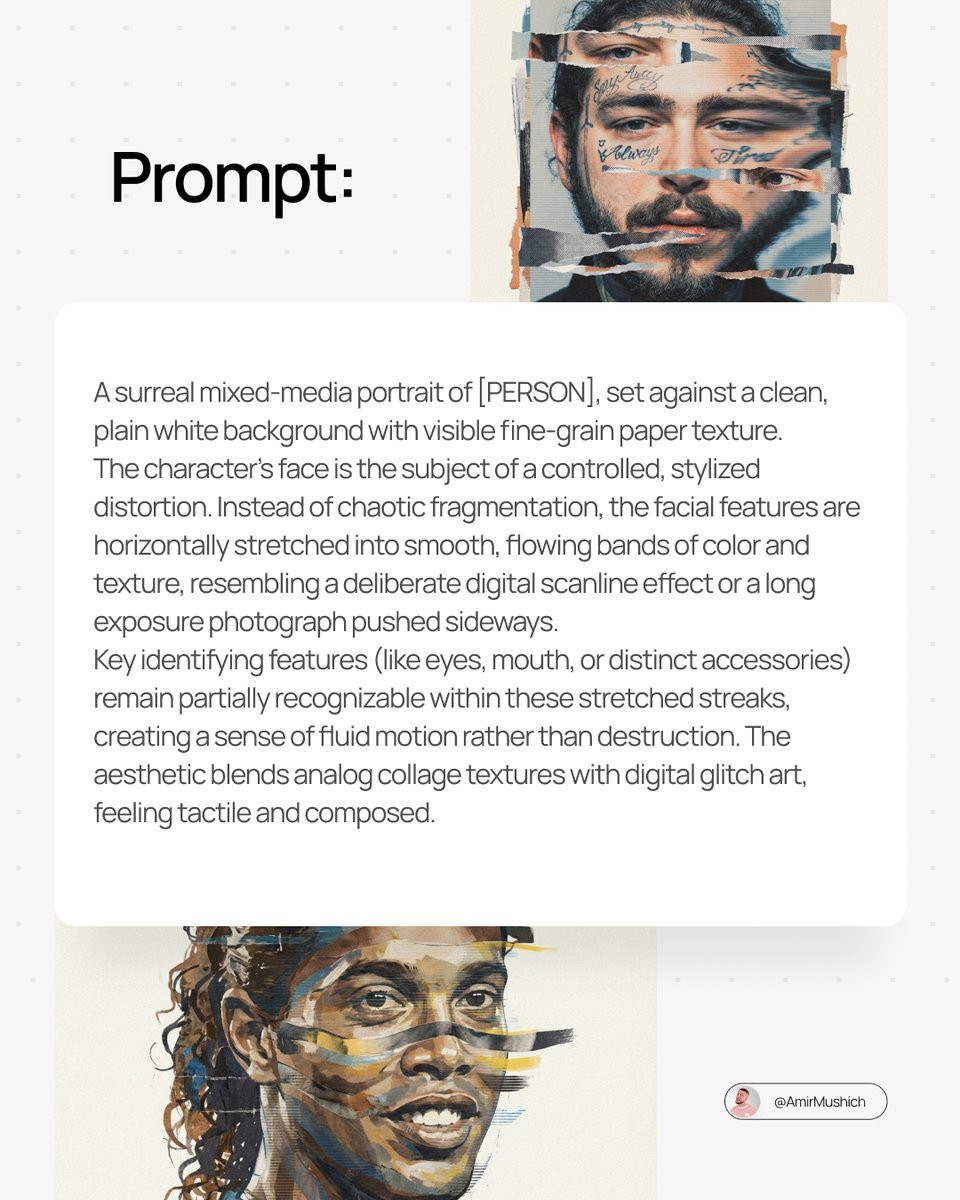
Surreal Mixed-Media Glitch Portrait Prompt
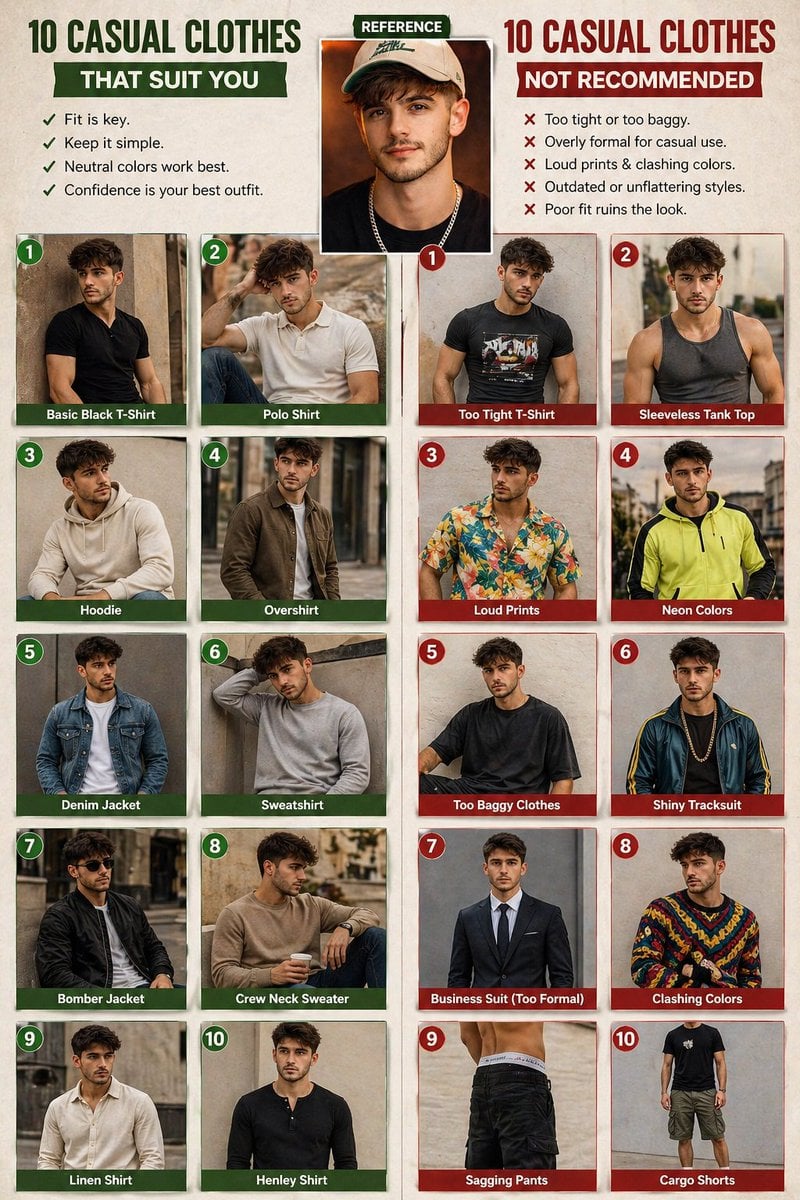
Casual fashion lookbook poster prompt
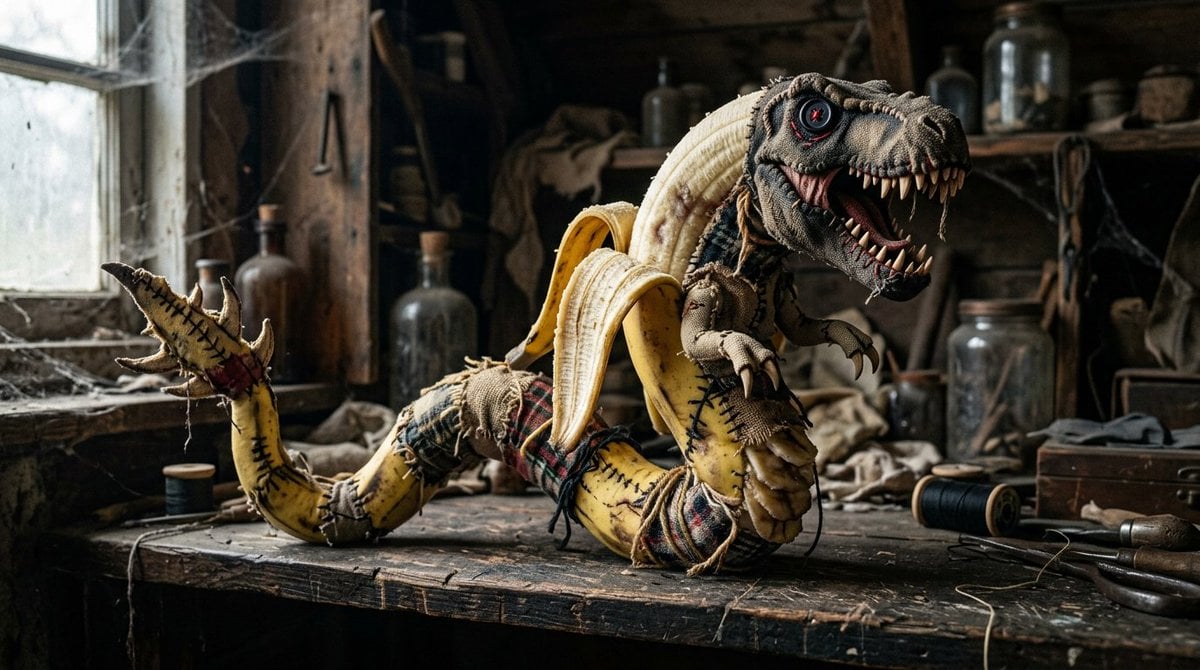
Rag Doll Banana T-Rex Monster

Japanese 4-Panel Ad Collage
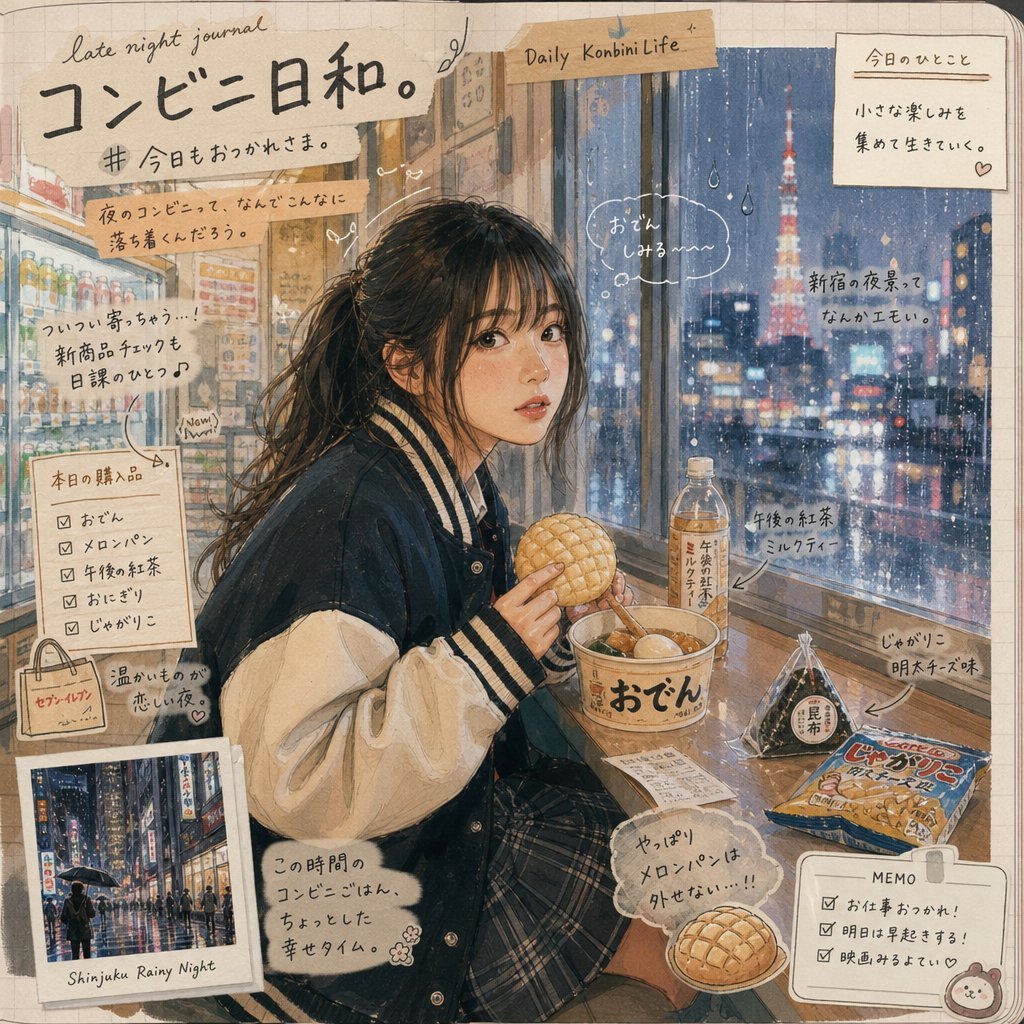
Japanese Konbini Journal Illustration
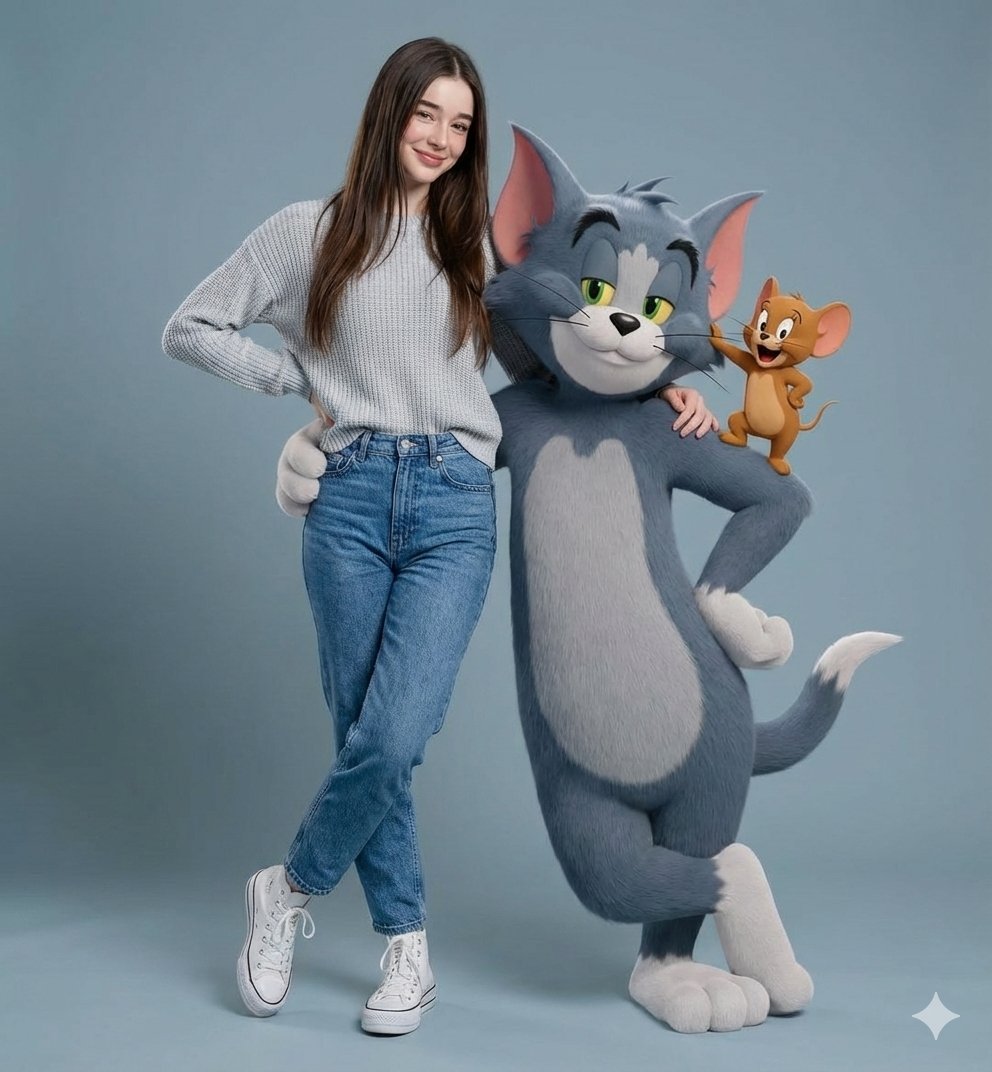
Hyper-realistic Portrait with Tom & Jerry 3D Characters
Browse template categories
Gray Kitten Sticker Pack Sheet questions
How do I use the Gray Kitten Sticker Pack Sheet template?
Add your photo if the template asks for one, edit the prompt if you like — the template's model and format are already selected — and press Generate. Your version opens in PicX Studio.
Can I customize the Gray Kitten Sticker Pack Sheet template?
Yes. You can change the subject, setting, lighting, mood, format, and available model controls before creating your image.
Is the Gray Kitten Sticker Pack Sheet template free?
Opening and editing this template is free. Generating uses credits, shown on the Generate button when you are signed in.
Which AI model should I use?
Start with GPT Image 2, which is the model associated with this template. You can compare another compatible model for a different finish.
Looking for something else? Browse all templates.

Your photo, any look
Thousands of ready templates for every top image and video model, from one credit balance.