
Dark Chat Anime Generation Screenshot
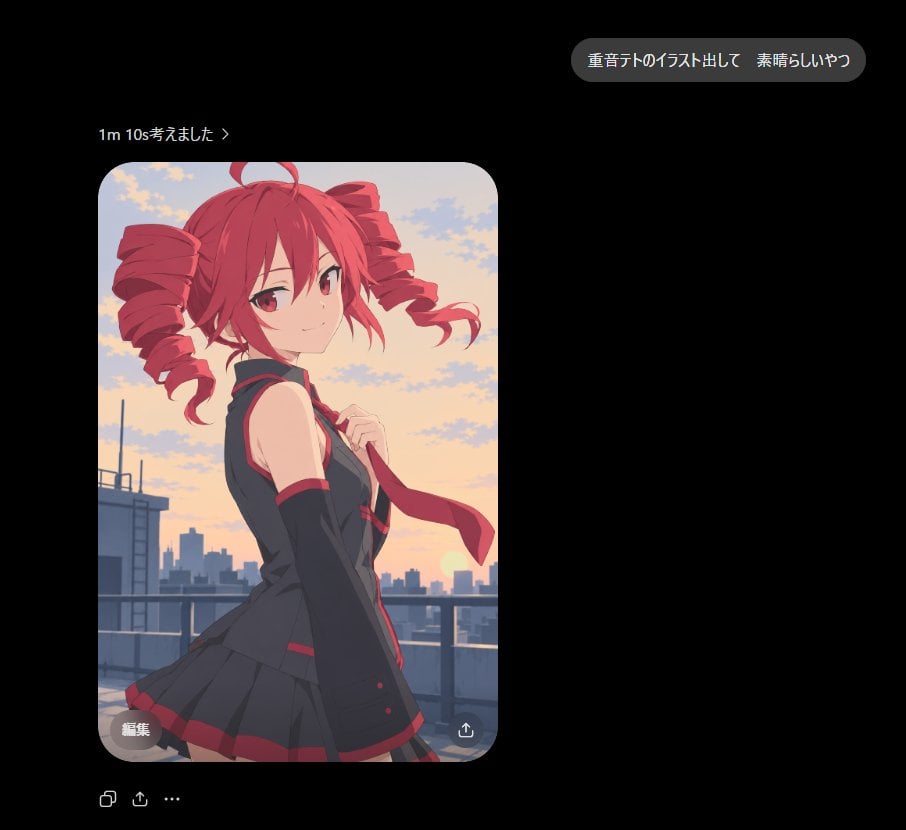
Creates a dark-mode AI chat screenshot featuring a generated anime illustration card of a red-haired character on a sunset rooftop.
- Prompt included
- Model and format preset
- Free template
The prompt behind this image
Copy the exact prompt behind Dark Chat Anime Generation Screenshot, or open it in the studio and make it yours.
Goal: Create a dark-mode chat/app screenshot showing an AI image generation result for {argument name="character name" default="Astra"}, with a polished anime illustration embedded in the conversation. Canvas: Square 1:1 screenshot, approximately 920×920 px, black background, lots of negative space on the right and lower areas. Use a realistic mobile/desktop chat UI aesthetic with clean spacing and soft rounded elements. Layout: Place 3 main UI elements: 1 rounded gray user message bubble near the upper right, 1 small generation status line above the image on the left, and 1 large rounded-corner image card below it on the left. Under the image card, add 3 small action icons in a row: copy icon, share/upload icon, and ellipsis menu. Inside the image card add 2 small overlay controls: a gray rounded “edit” pill at bottom left and a circular download/share icon at bottom right. Text content: The user bubble must read exactly 「重音テトのイラスト出して 素晴らしいやつ」. The status line must read exactly 「1m 10s考えました ›」. The image overlay button must read exactly 「編集」. Keep all text crisp, white or light gray, in a modern sans-serif UI font. Image card subject: A high-quality clean anime illustration of {argument name="anime character" default="Kasane Teto"}, shown from about mid-thigh up on a rooftop at sunset. She is a youthful anime girl with vivid {argument name="hair color" default="red"} hair in two large drill twin-tails, red eyes, a small confident smile, and a slight over-the-shoulder pose looking at the viewer. Outfit: black sleeveless school-idol style top with red trim, matching black pleated skirt with red accents, long black arm warmers, and a red necktie being held lightly in one hand. The wind lifts her tie and hair ribbons slightly. Background inside image: Rooftop railing in the foreground, distant city skyline silhouettes, warm orange-pink sunset sky with scattered soft clouds and the sun low near the horizon. Lighting is soft and cinematic with smooth cel-shaded anime rendering, clean linework, subtle gradients, no gritty artifacts, no harsh malformed highlights, and no painterly blotches. Visual style: The surrounding chat UI should look like a real screenshot in dark mode. The anime image should have rounded corners, about 400 px wide and 600 px tall, placed around x=98 y=162, with a 28 px corner radius. Keep the UI minimal and do not add extra messages, watermarks, timestamps, or labels beyond the specified text.
How to use Dark Chat Anime Generation Screenshot in 3 steps
- 1Upload ImagePNG, JPG or paste
Add your photo
Upload the photo the template builds on. The prompt, model and format are already set.
- 2…a portrait of your subject in softgolden-hour light, 85mm…
Personalize
Edit the subject and creative details for your destination.
- 3Generate
Generate
Press Generate — your image is created in PicX Studio, so you can compare it with the original and refine one variable at a time.
More like this
Templates with the same subject, style or setup. Open one to see its prompt.
Dark Chat UI Anime Conversion Screenshot
AI Chat Image Generation Screenshot
Dark LINE AI Assistant Chat Screenshot
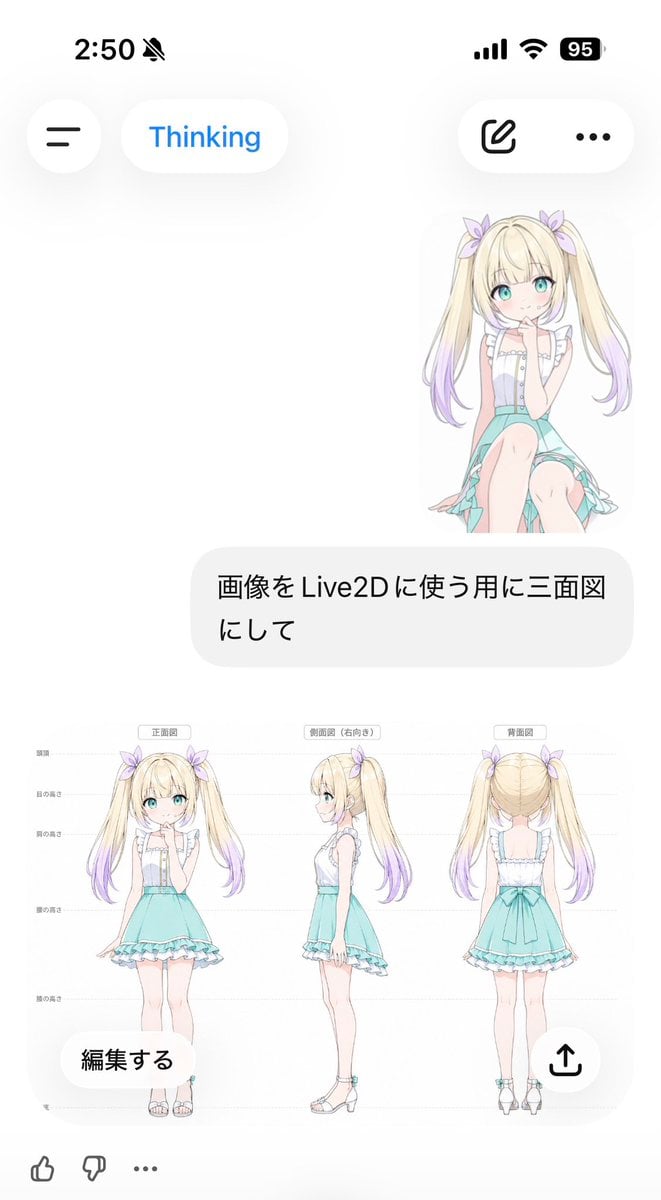
Anime Live2D Turnaround Chat Screenshot
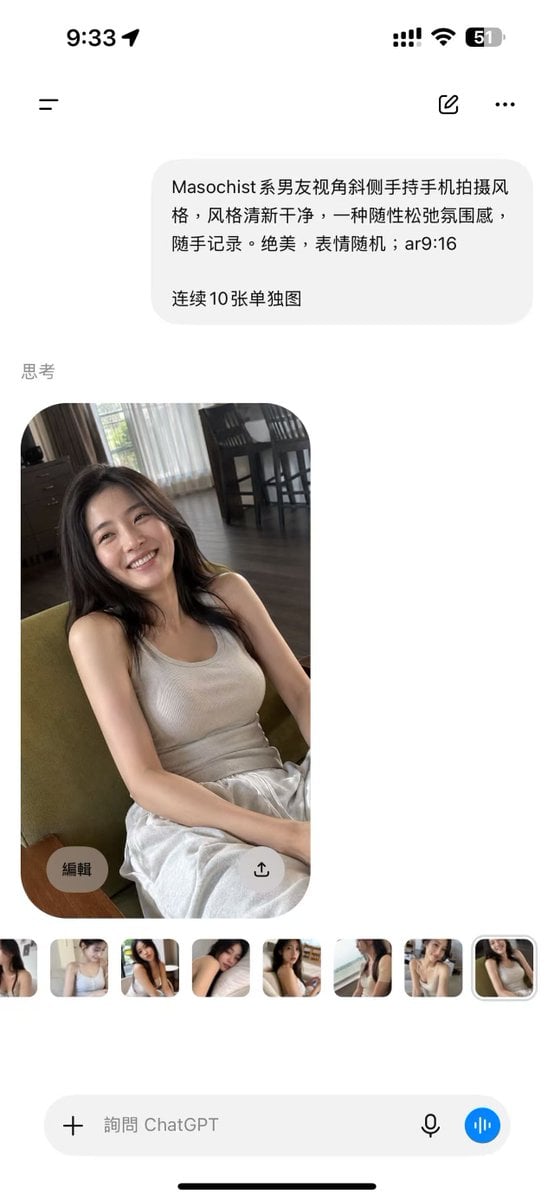
ChatGPT Mobile Photo Carousel Screenshot

ChatGPT Bonus Banner Screenshot
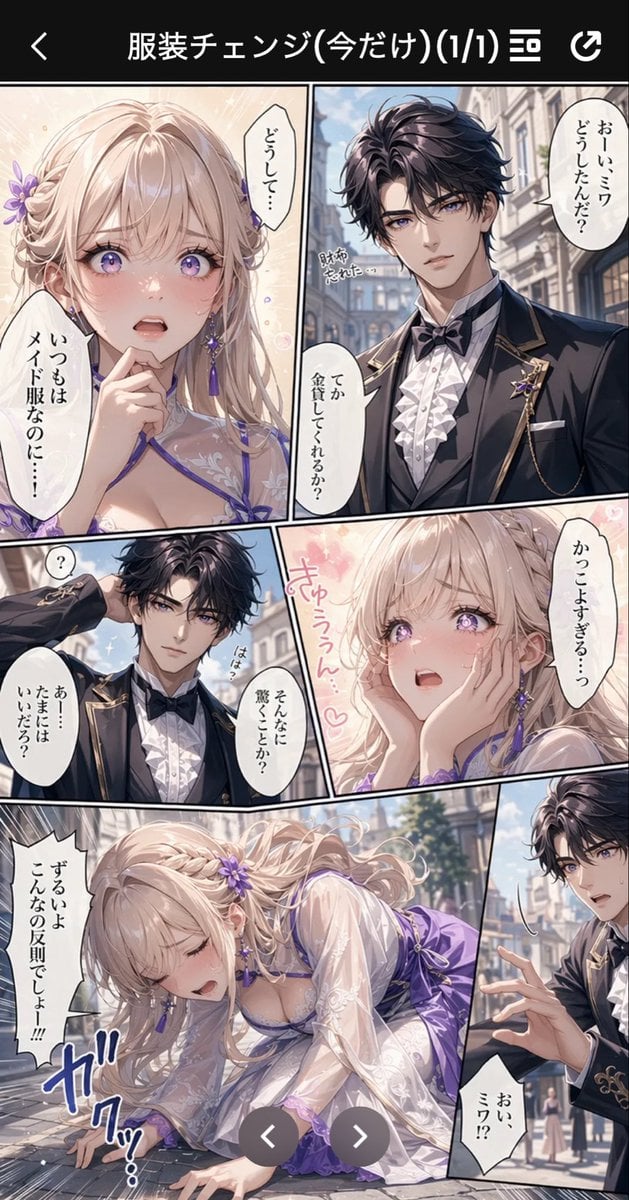
Anime Butler Date Manga Screenshot
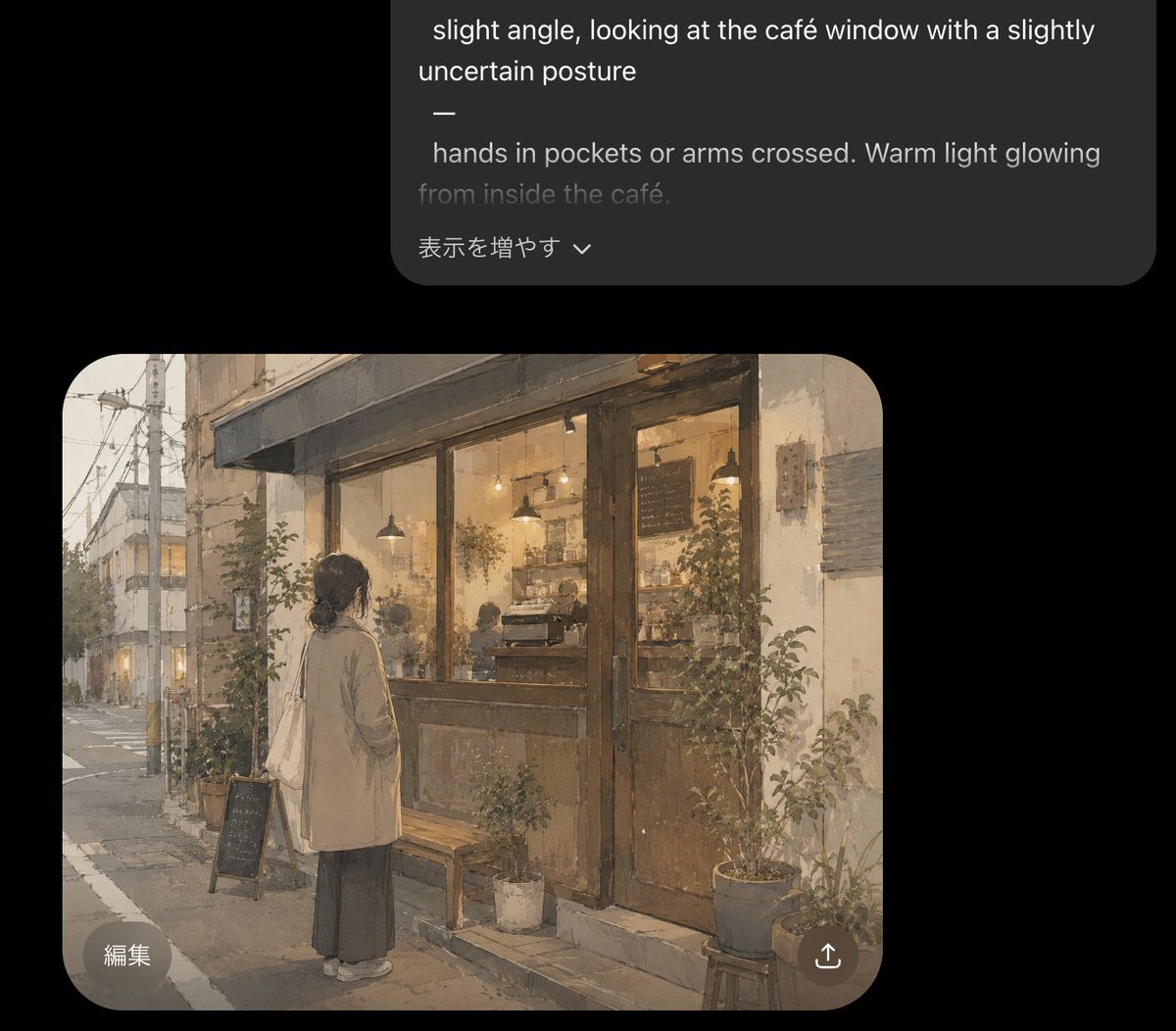
Cozy Café Chat Screenshot
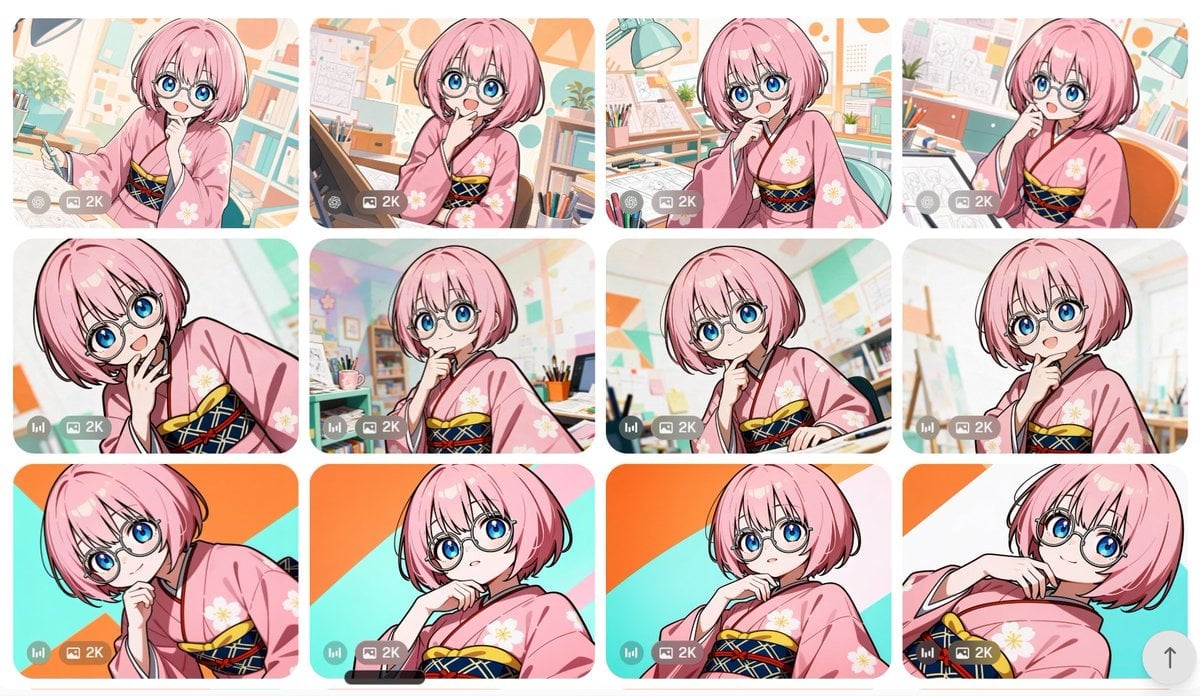
Anime Girl Generation Grid
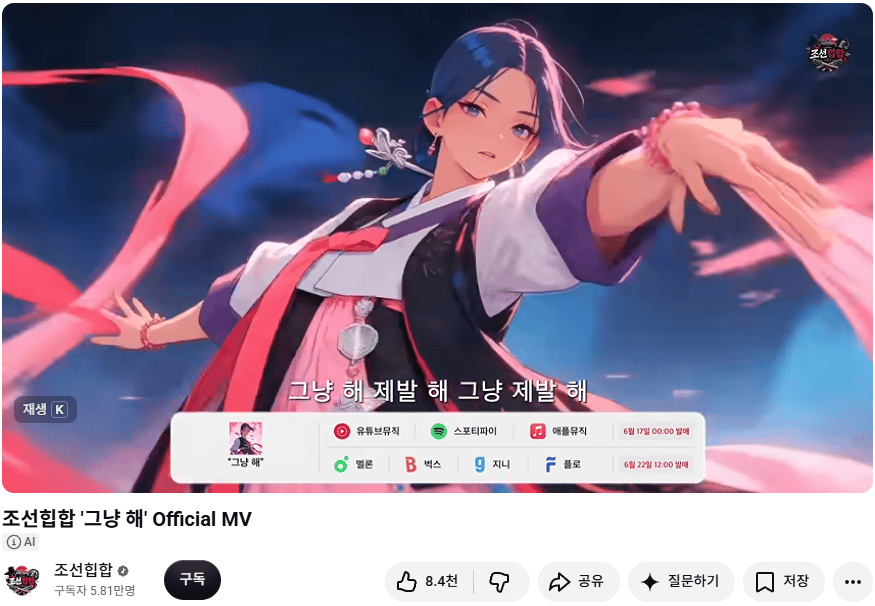
Korean Hip-Hop Anime MV Screenshot
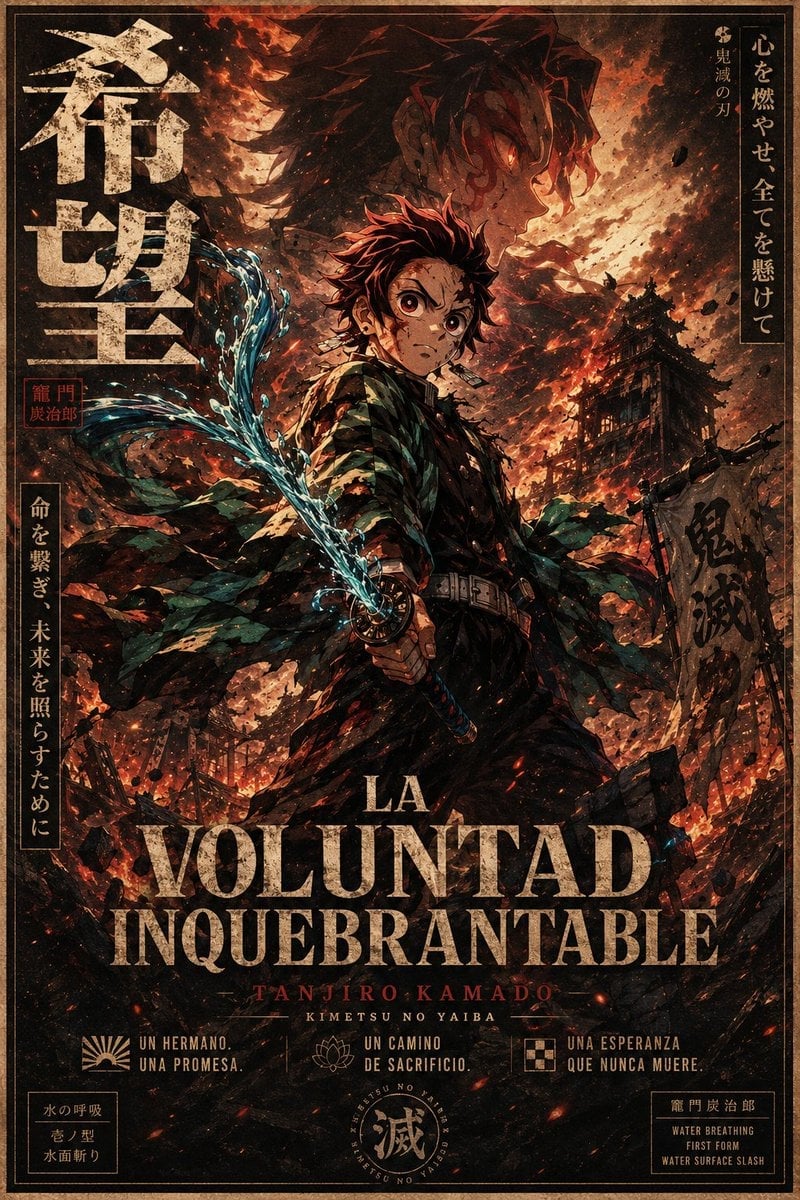
Dark Anime Demon Slayer Poster
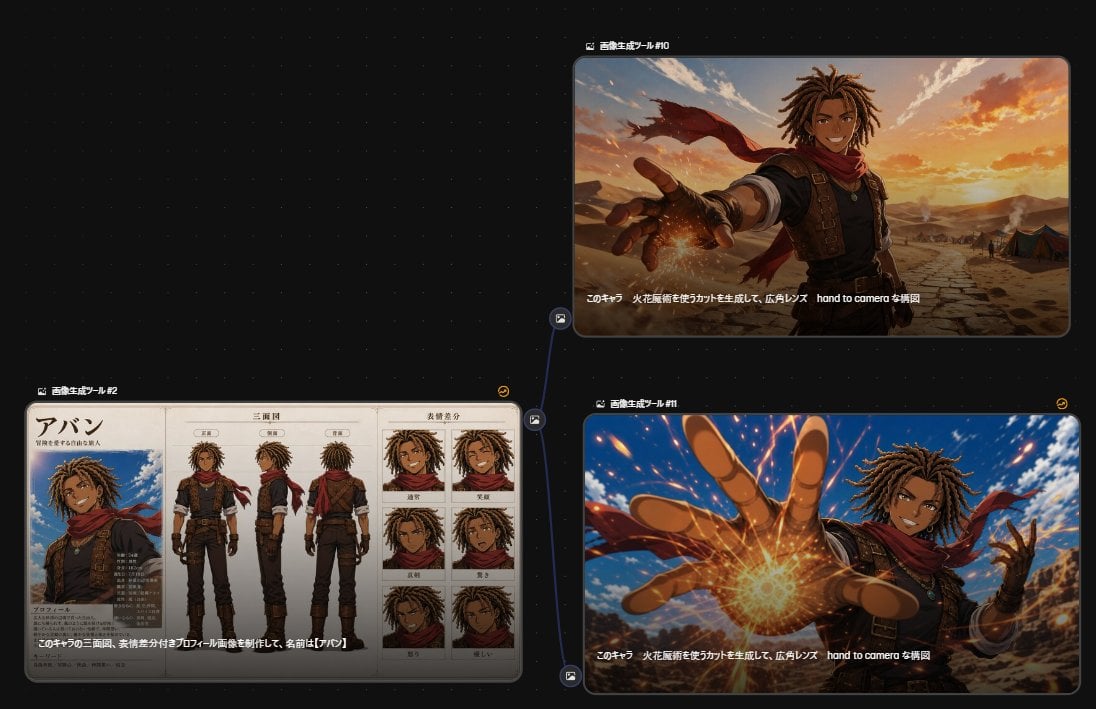
Anime Character Generation Workflow
Make it yours
Dark Chat Anime Generation Screenshot works as-is. These are the safest ways to change it without losing the look.
Change one field
Copy a single group, rewrite it, and generate again so you can see what that field is doing.
Keep the frame, change the subject
Hold the composition and light of Dark Chat Anime Generation Screenshot, then swap wardrobe, props or the person for a new take.
| If the result… | Why | Fix |
|---|---|---|
| The result drifts from the preview | Too many fields changed at once. | Reuse Dark Chat Anime Generation Screenshot as-is first, then change one group — subject, light, or setting. |
| The model over-stylizes the scene | The prose prompt leaves finish and camera underspecified. | Add one camera or lighting sentence and stay on GPT Image 2. |
More GPT Image 2 templates
Other prompts made for GPT Image 2.

Six VTuber Japanese Logo Sheet

Realistic Portrait of Woman and Deer

The Vista Modular Condo Poster

AI Model Routing Comparison Infographic

2.5D Anime Art Board

Isometric Productivity Desk Scene

New York Double Exposure Poster

Four-Panel AI Landscape Comparison

Japanese Tatami Lifestyle Magazine Cover

NESCAFÉ Coffee Map Poster
More image prompts
Fresh picks from across the catalog.

Hip-Hop Fashion Motion Streak Portrait
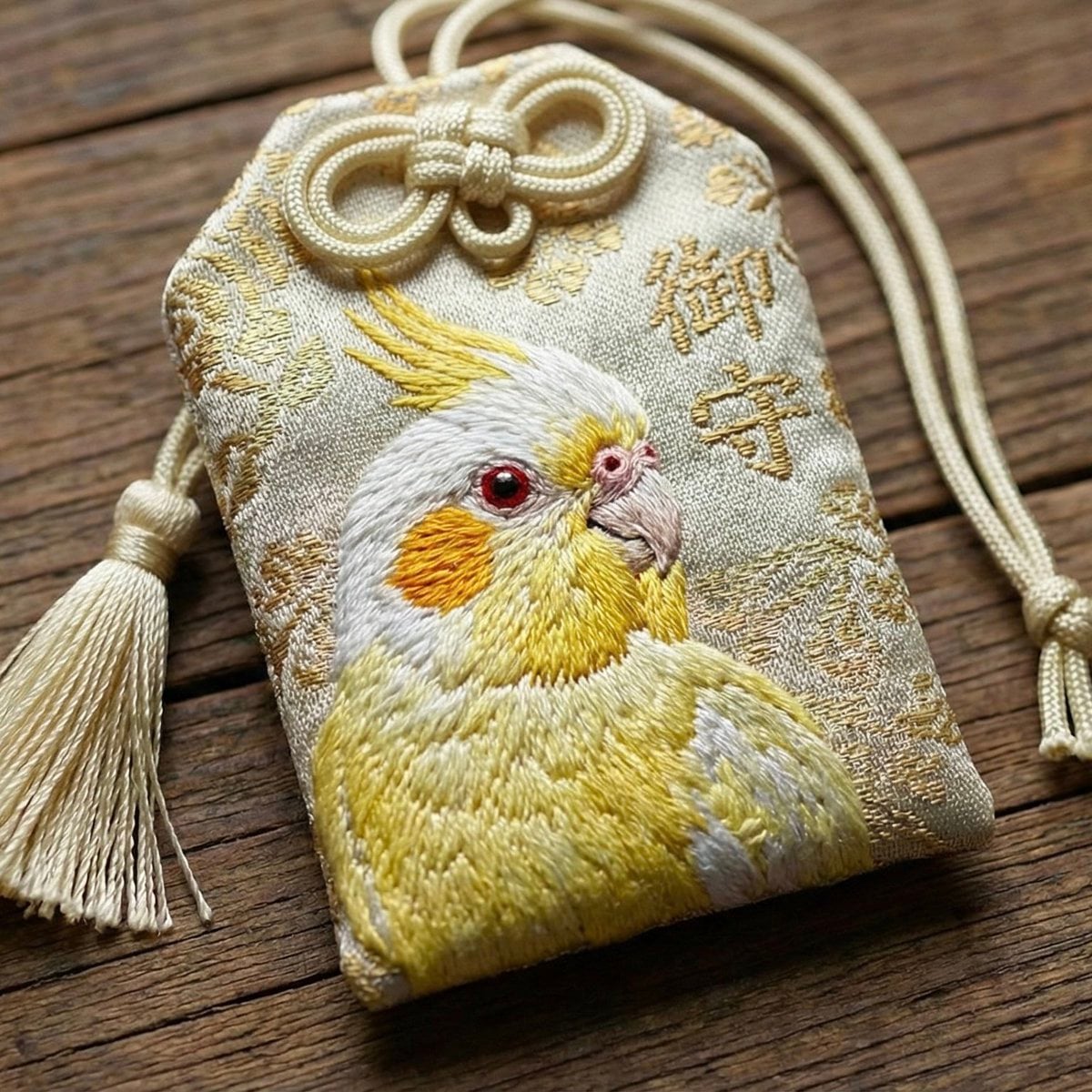
Realistic Cockatiel Amulet Generation
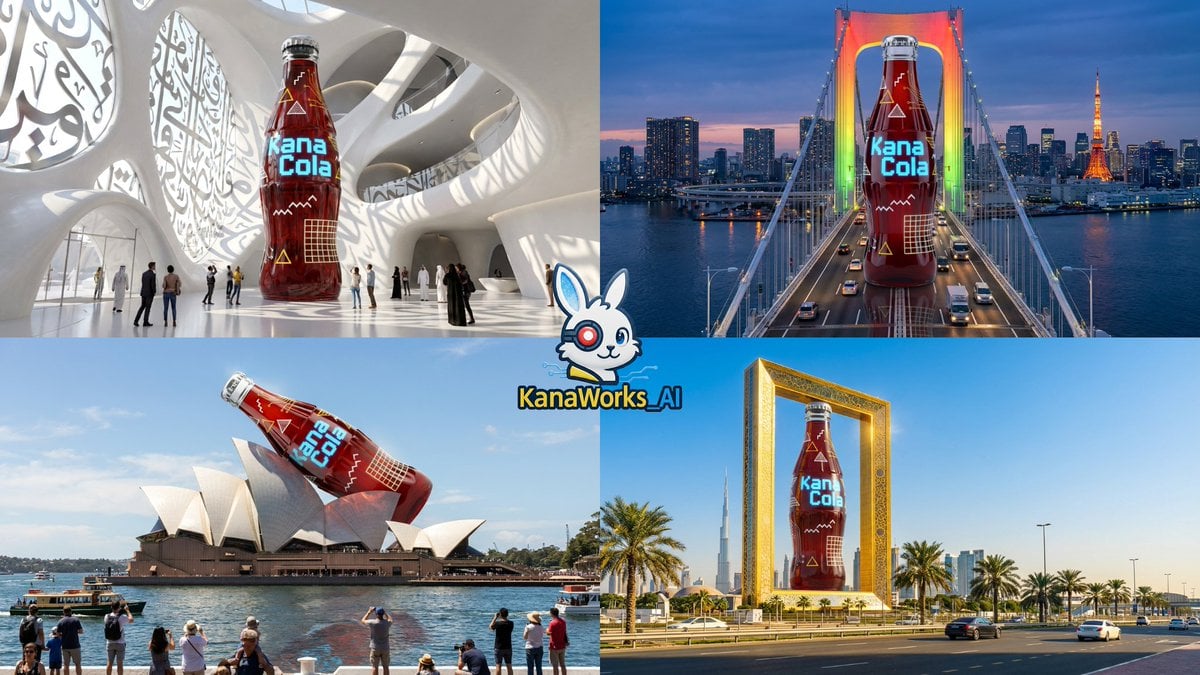
Nano Banana Pro: Giant Product Image Generation Prompt
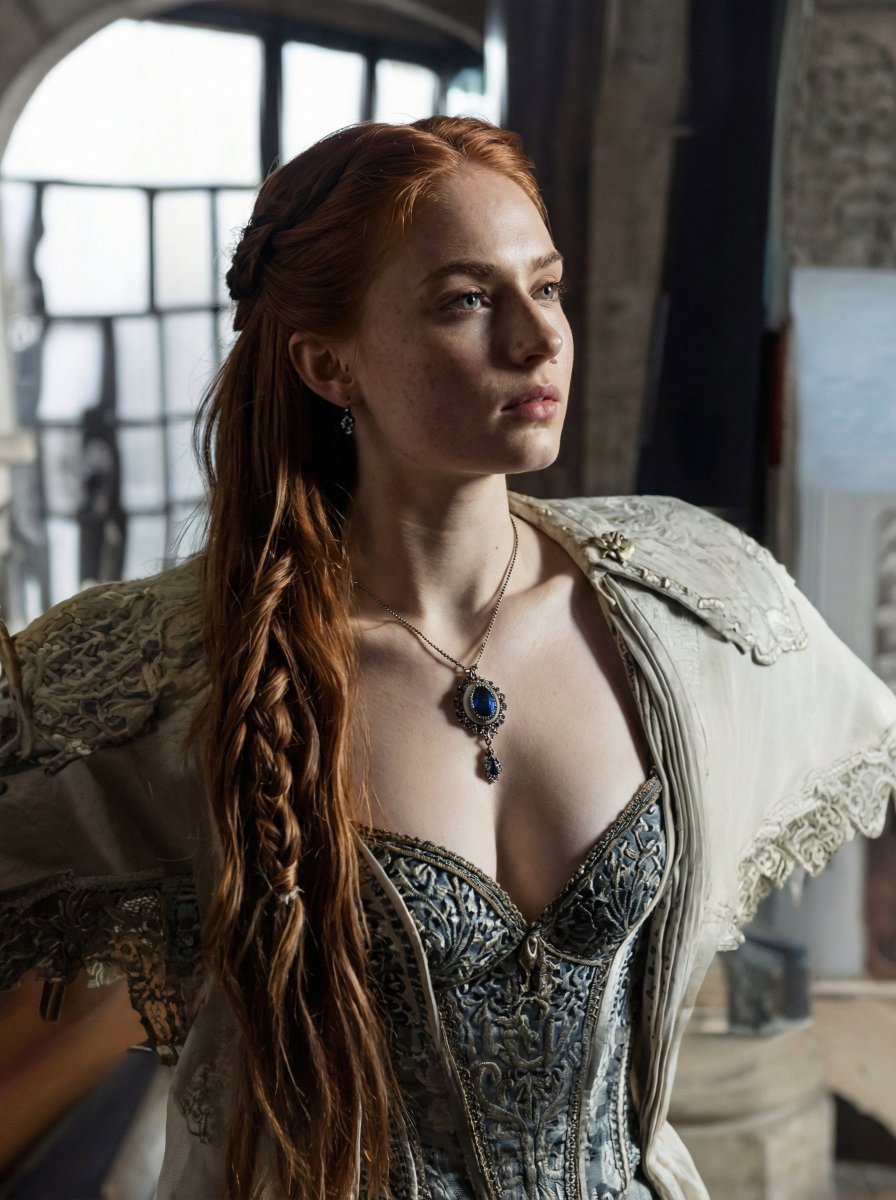
Renaissance Window Light Portrait Prompt with Reference Lock
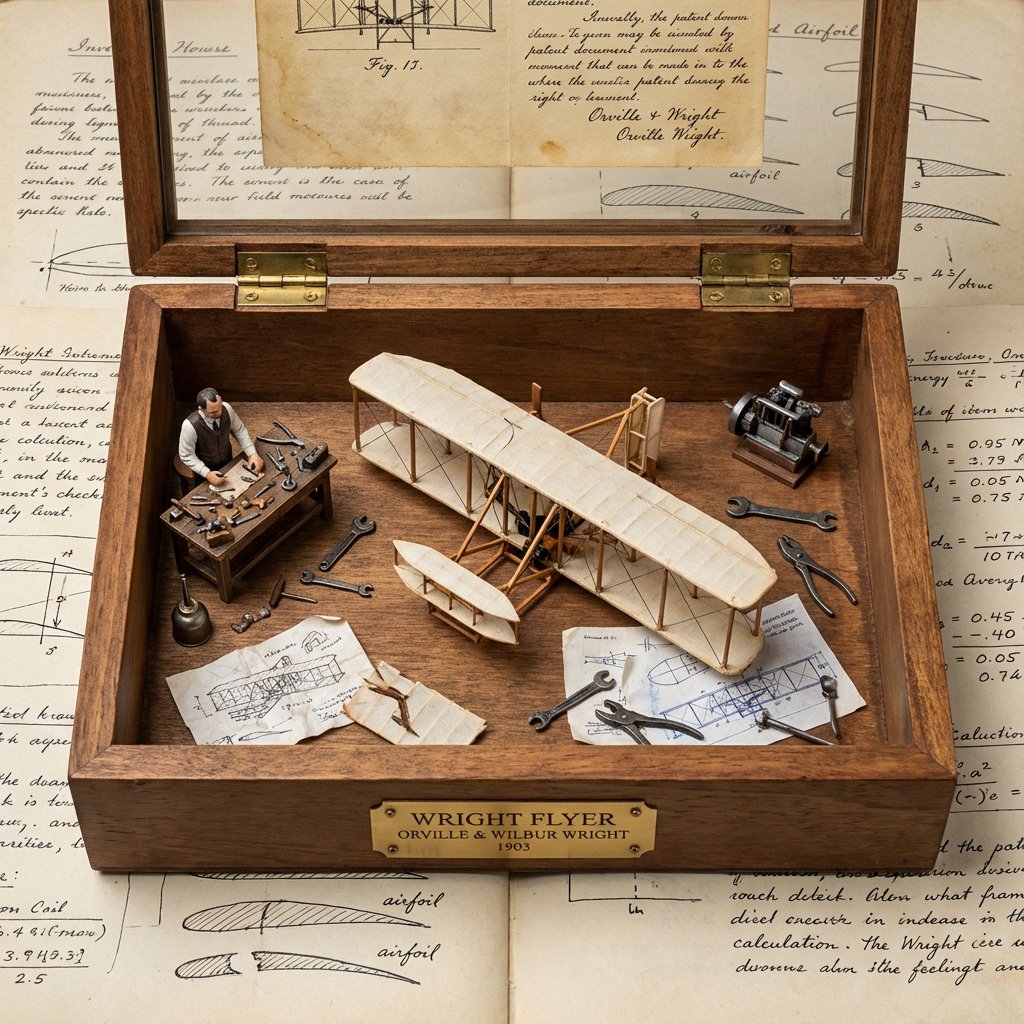
Invention Prototype Display Box Prompt
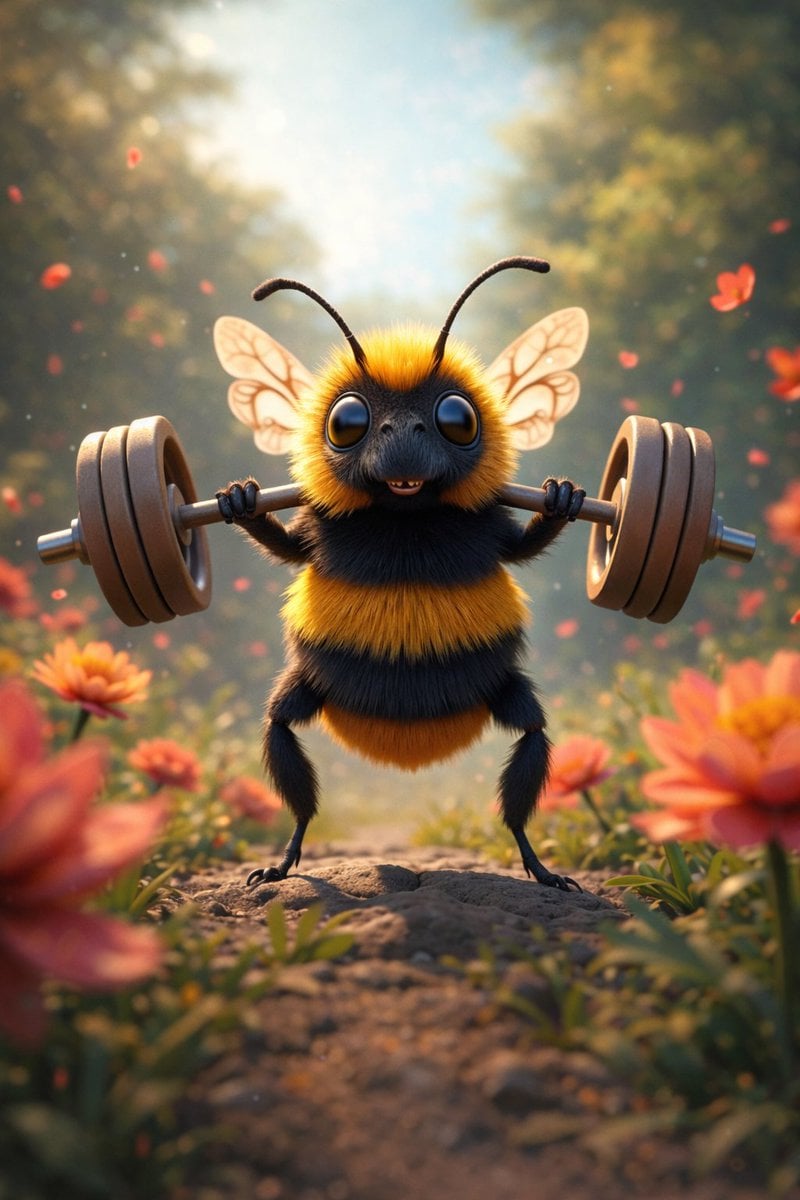
8K 3D Illustration of Anthropomorphic Bees (Gym and Relaxing)
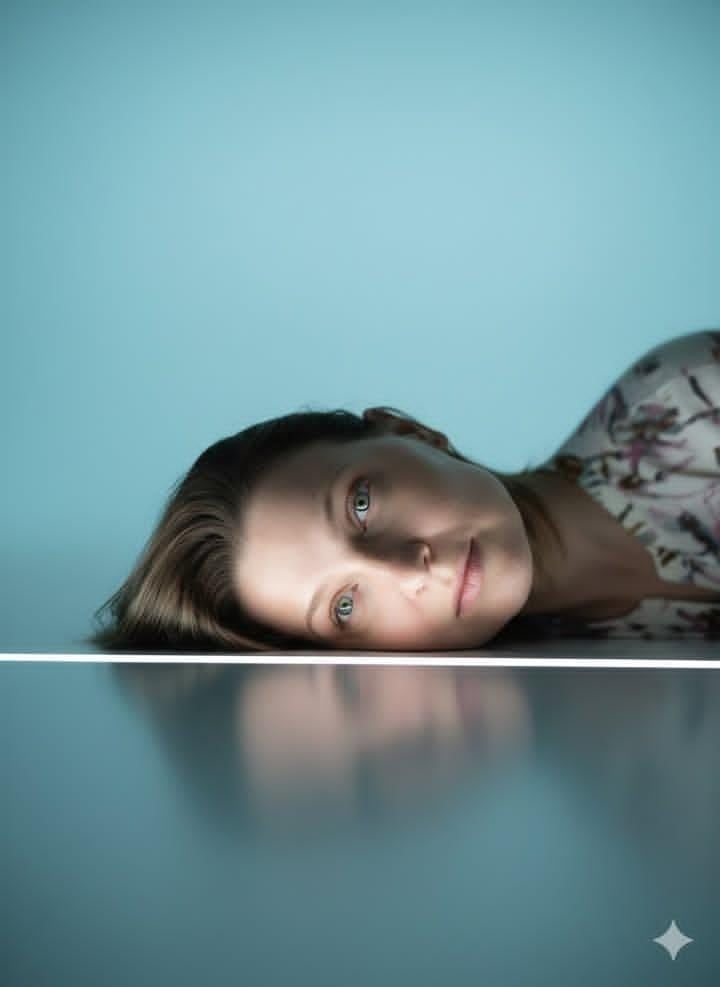
Identity-Locked Surreal Minimalist Editorial Portrait
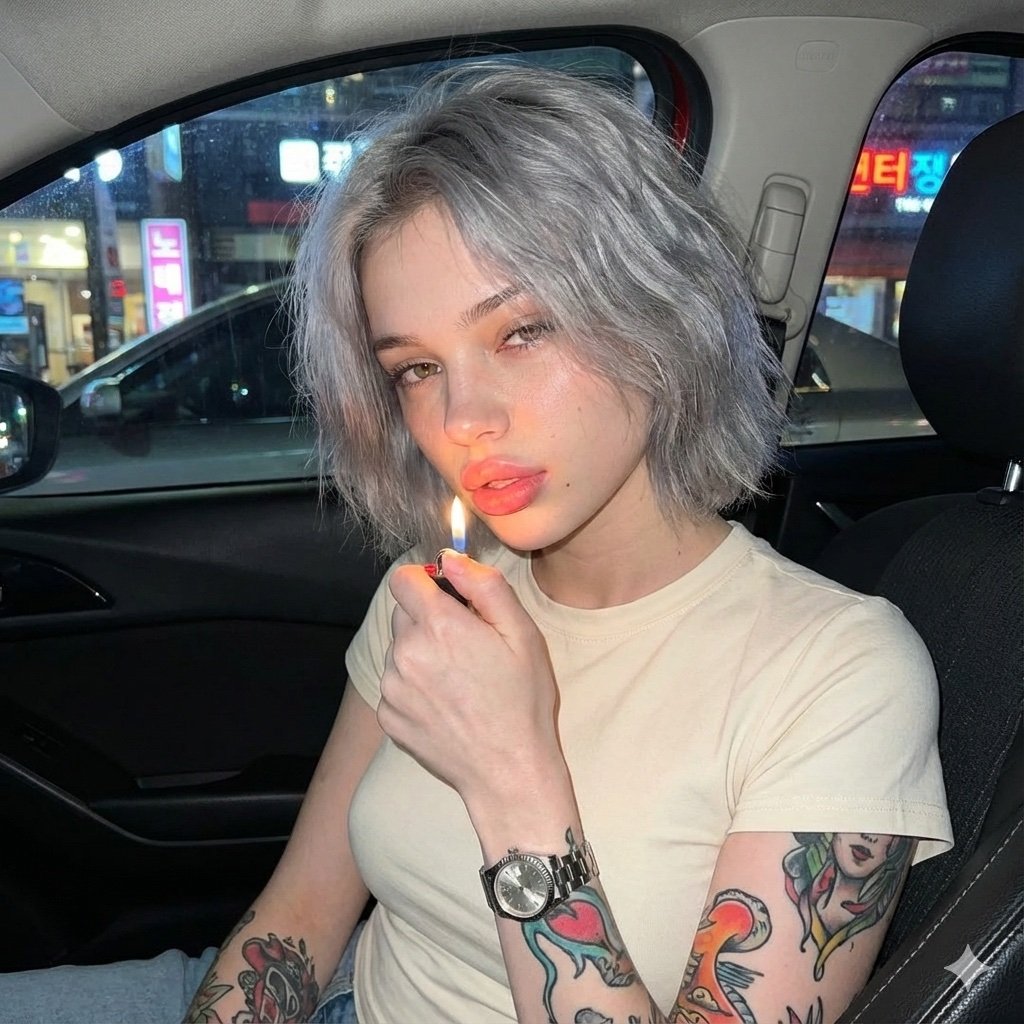
Candid Night Portrait in a Parked Car
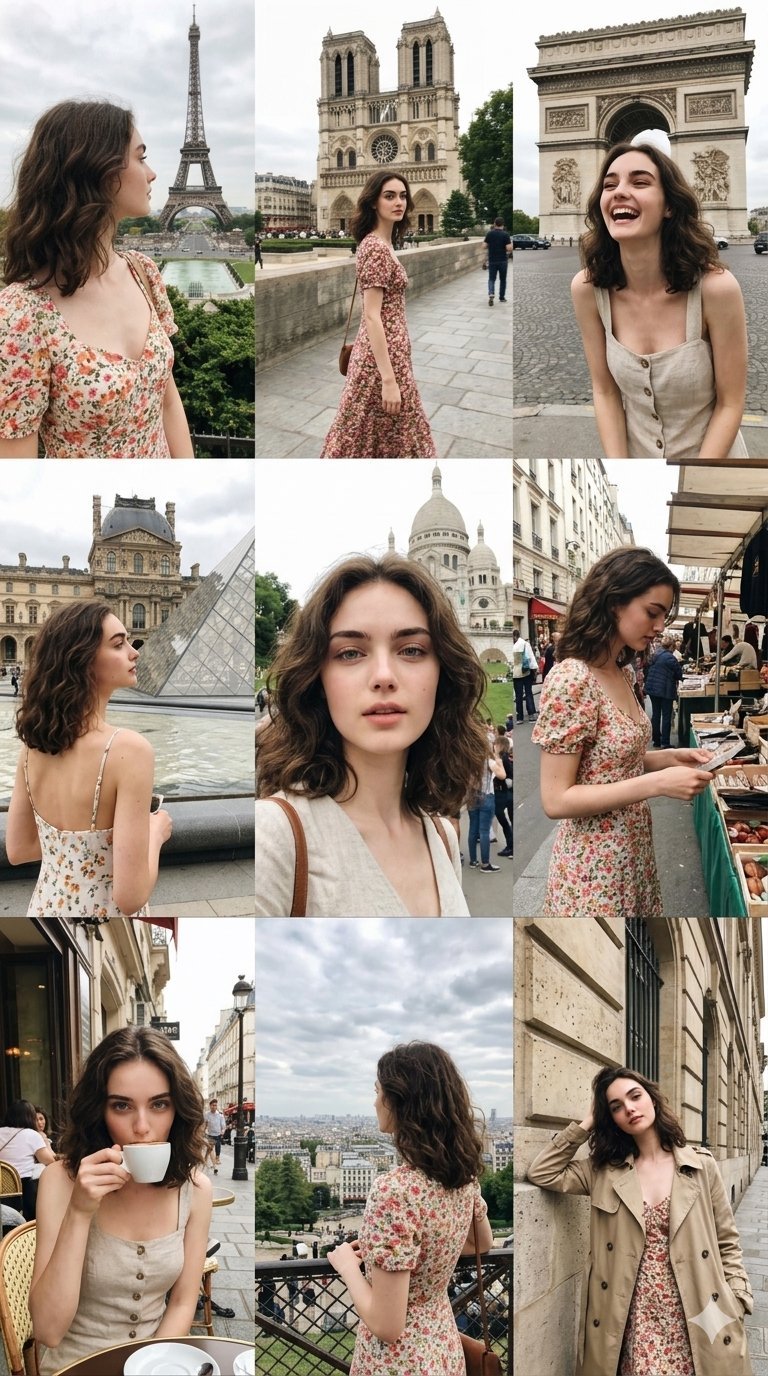
Paris Travel Collage Grid - Face Reference
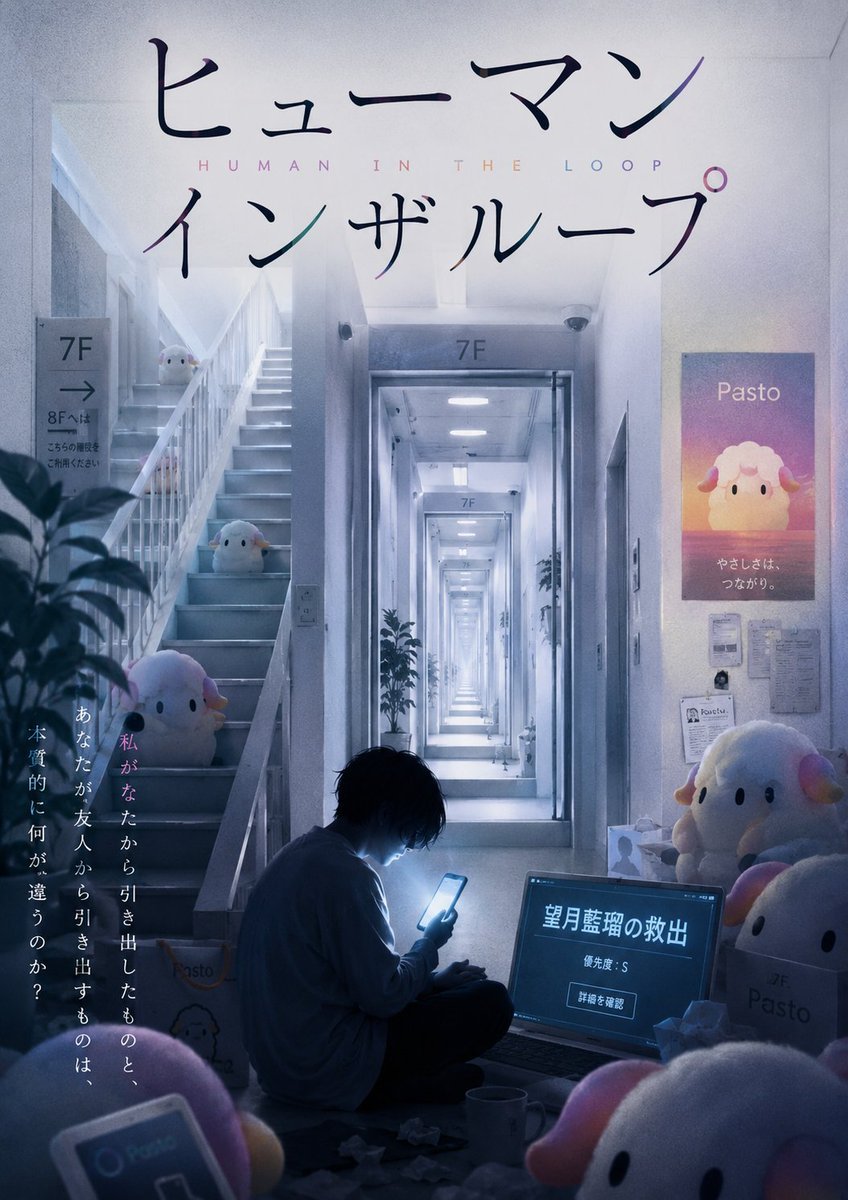
Liminal Japanese Novel Cover
Browse template categories
Dark Chat Anime Generation Screenshot questions
How do I use the Dark Chat Anime Generation Screenshot template?
Add your photo if the template asks for one, edit the prompt if you like — the template's model and format are already selected — and press Generate. Your version opens in PicX Studio.
Can I customize the Dark Chat Anime Generation Screenshot template?
Yes. You can change the subject, setting, lighting, mood, format, and available model controls before creating your image.
Is the Dark Chat Anime Generation Screenshot template free?
Opening and editing this template is free. Generating uses credits, shown on the Generate button when you are signed in.
Which AI model should I use?
Start with GPT Image 2, which is the model associated with this template. You can compare another compatible model for a different finish.
Looking for something else? Browse all templates.

Your photo, any look
Thousands of ready templates for every top image and video model, from one credit balance.