How do I use the AI Artifact Removal Instruction template?
Choose the primary action to open PicX Studio with the available template settings. Review the model and format, personalize the creative direction, and generate when ready.
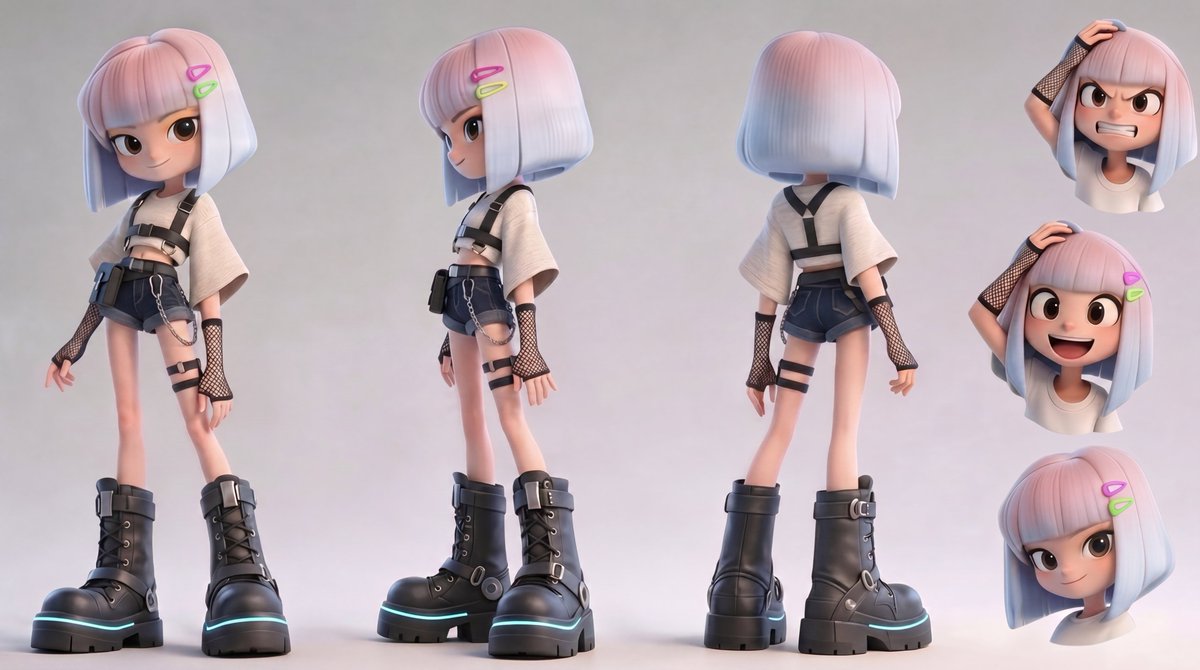
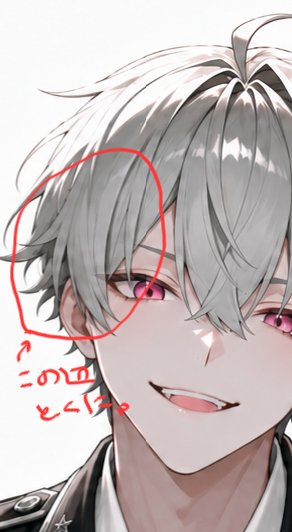
Technical instructions for removing unwanted hair artifacts from character shots using GPT Image 2 by referencing character sheets. Change the subject, setting, or lighting one variable at a time.
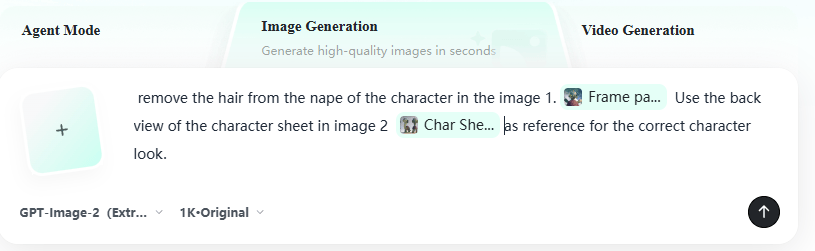
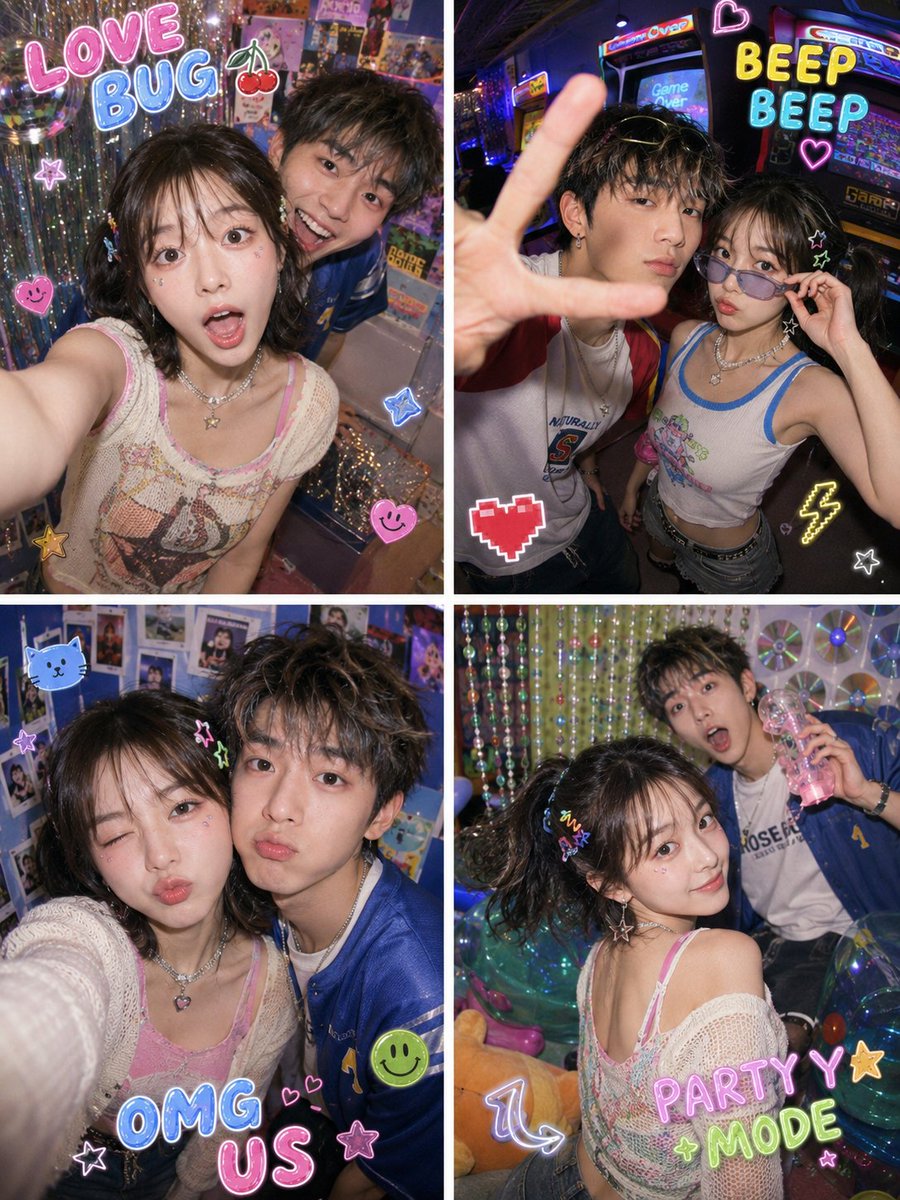
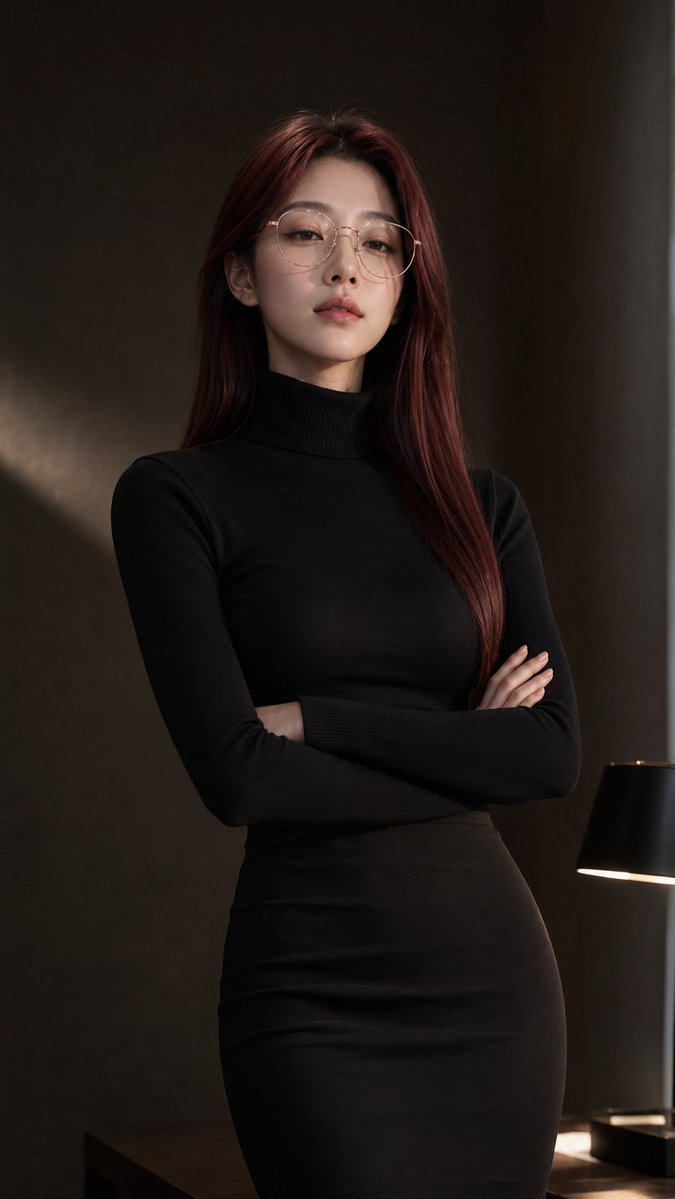
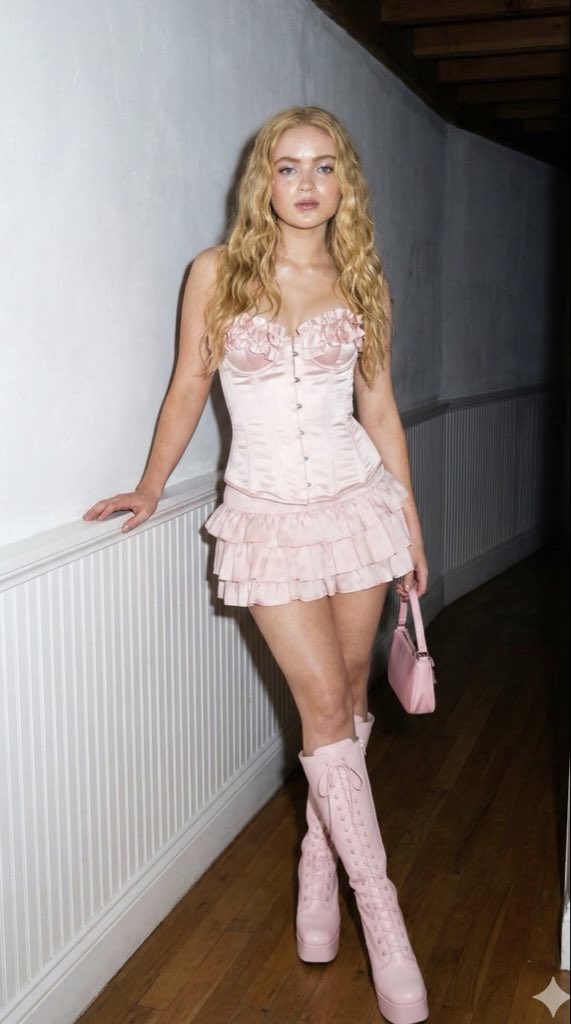
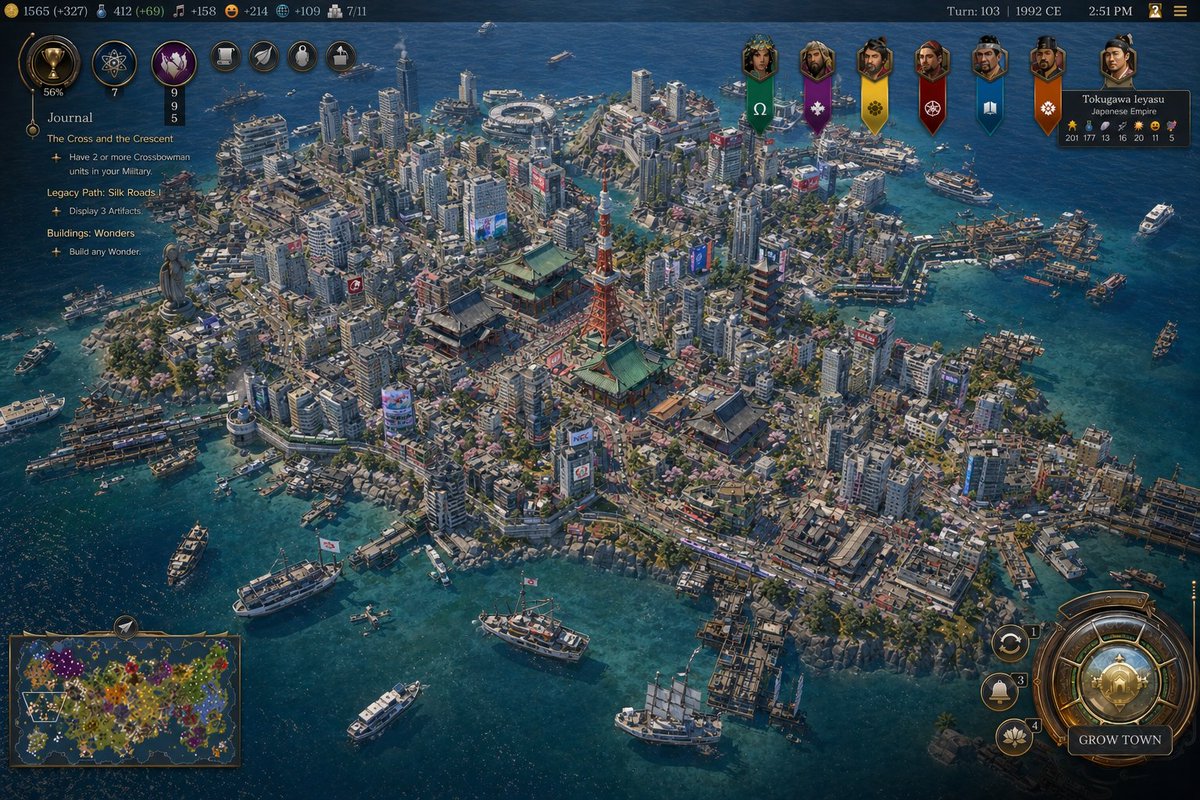
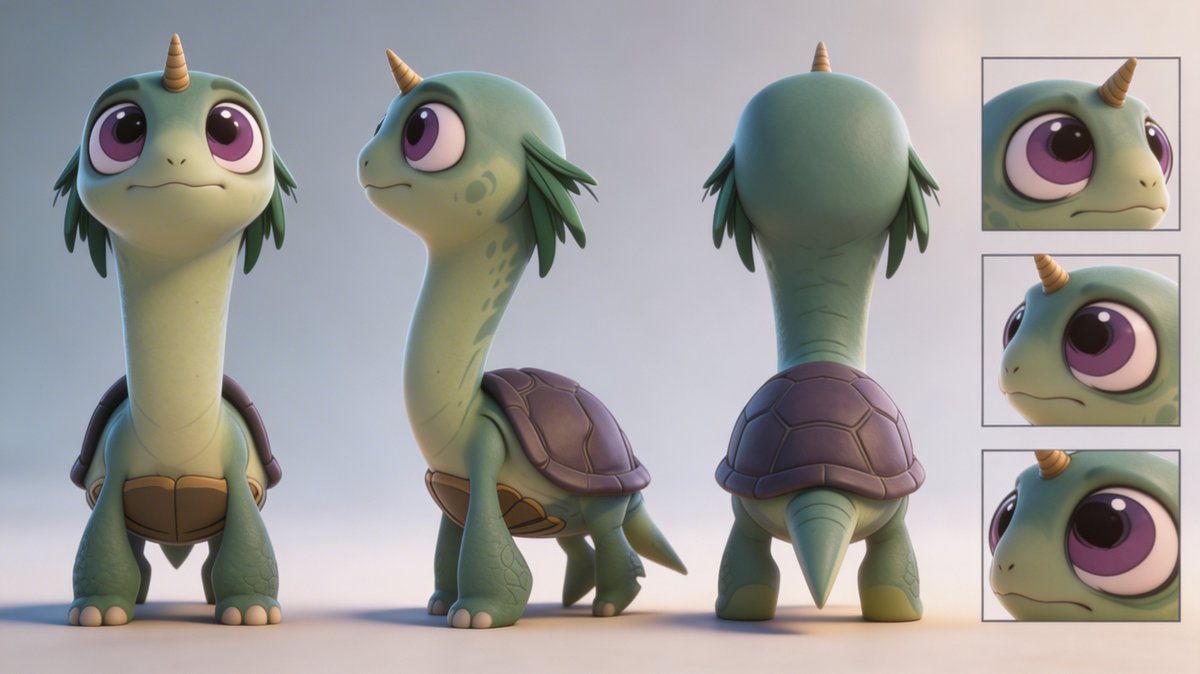
remove the hair from the nape of the character in the image 1. Use the back view of the character sheet in image 2 as reference for the correct character look. remove the blue strand of hair from the character of image 1, located just above the hand on her head. Use the back view of the character sheet in image 2 as reference for the correct character look.
AI Artifact Removal Instruction needs input media to work. Open it in the studio and these load alongside the prompt — pick whichever ones your chosen model can take.
Choose the primary action to open PicX Studio with the available template settings. Review the model and format, personalize the creative direction, and generate when ready.
Yes. You can change the subject, setting, lighting, mood, format, and available model controls before creating your image.
This template is free to open and customize. Generation usage is shown in PicX Studio before you create.
Start with GPT Image 2, which is the model associated with this template. You can compare another compatible model for a different finish.
© 2026 PicX Studio. All rights reserved.

Follow a topic to a crawlable collection of related PicX Studio templates.
43,474 public templates available. Verified via the PicX Studio public templates API; refreshed hourly.


![Intense film grain, analog noise, and scanline artifacts — [BRAND NAME]. Act as a Creative Director and Brand Strategist.
PHASE 1: CONCEPT & COMPOSITION.
Crea](https://images.meigen.ai/tweets/2022753970704286181/0.jpg)






![Artifact Diorama SQL Generation — 16:9 select * from artifact_diorama_archives where subject_media = '{argument name="media title" default="[media_title]"}' and](https://cms-assets.youmind.com/media/1788591089116_kxrbhm_HRNiaKKWgAMDb5j-300x169.jpg)

![Space Mission Technical Artifacts — 16:9, do this for 4 famous space missions: void main() { string[] subjects = {"{argument name="subject one" default="[SUB_1]](https://cms-assets.youmind.com/media/1779096592895_53y1uu_HIfXbkRW4AAaI4v.jpg)


![Minimalist Flat Vector Travel Poster — Premium minimalist flat-vector travel poster for {argument name="city name" default="[CITY_NAME]"}, 3:4 vertical format.](https://cms-assets.youmind.com/media/1787917359711_3ug846_HQX205cbMAA6F6S-300x400.jpg)