How do I use the Space Asset Gallery UI template?
Choose the primary action to open PicX Studio with the available template settings. Review the model and format, personalize the creative direction, and generate when ready.
A polished SaaS-style asset upload gallery mockup with six spaceflight thumbnails and delete controls for website interface design. Change the subject, setting, or lighting one variable at a time.
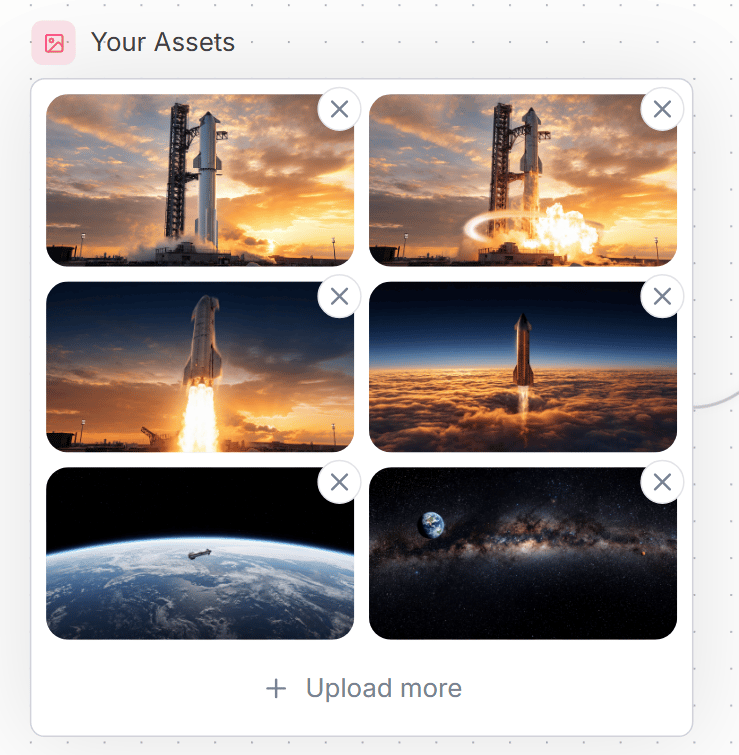
Goal: Create a clean website UI asset manager panel titled {argument name="headline text" default="Your Assets"}, showing a grid of uploaded spaceflight images. Canvas: Square-ish web mockup on a very light background with a subtle dotted grid pattern and faint curved decorative line on the right edge. Use a modern SaaS style with soft shadows, rounded corners, and muted blue-gray text. Layout: At the top left, place a small rounded pink square icon containing a simple outlined image/photo symbol, followed by the headline. Below it, create one large white rounded rectangle card with a thin pale gray border. Inside the card, place exactly 6 image thumbnails in a 2-column by 3-row grid, each thumbnail with rounded corners. Each thumbnail has a floating circular delete button overlapping its top-right corner; there are exactly 6 delete buttons, each white with a gray X icon. At the bottom of the card, center an upload action row with a plus sign and the text {argument name="upload text" default="Upload more"}. Thumbnail contents, exactly 6: 1) top-left: a tall rocket standing on a launch pad at sunset with orange clouds; 2) top-right: the same rocket launch pad scene with bright explosion/flame and a glowing circular shockwave effect; 3) middle-left: a rocket lifting off vertically with a large bright plume against a sunset sky; 4) middle-right: a rocket ascending above a dense orange cloud layer into a dark blue upper atmosphere; 5) bottom-left: Earth seen from low orbit with a small spacecraft over the curved horizon; 6) bottom-right: a starry deep-space panorama with the Milky Way band and Earth visible near the upper left. Visual style: Polished web component screenshot, realistic cinematic space thumbnails, crisp UI edges, generous spacing, rounded 16px thumbnail corners, subtle shadows, soft neutral palette. Use {argument name="accent color" default="soft pink"} for the small image icon background and {argument name="text color" default="slate blue-gray"} for the title and upload text. Constraints: Keep all text in English, include no extra labels, no watermark, no browser chrome, no cursor. Maintain the exact counts: 1 title, 1 icon, 1 bordered card, 6 thumbnails, 6 circular X delete buttons, and 1 bottom upload action.
Choose the primary action to open PicX Studio with the available template settings. Review the model and format, personalize the creative direction, and generate when ready.
Yes. You can change the subject, setting, lighting, mood, format, and available model controls before creating your image.
This template is free to open and customize. Generation usage is shown in PicX Studio before you create.
Start with GPT Image 2, which is the model associated with this template. You can compare another compatible model for a different finish.
© 2026 PicX Studio. All rights reserved.

Follow a topic to a crawlable collection of related PicX Studio templates.
43,474 public templates available. Verified via the PicX Studio public templates API; refreshed hourly.
![Miniature Travel Diorama Postcard — concept: A charming miniature 3D travel diorama inspired by [DESTINATION], designed as an elegant ha…](/_next/image?url=https%3A%2F%2Fcdn.picxstudio.com%2Fuploads%2Fimg_0_b80c9f3e-4b84-4274-aa58-1e173a5f99cc.jpg&w=828&q=100)


![Aesthetic and fill the negative space — [BRAND NAME]. Act as a Senior AI Visual Strategist & Creative Director.
Goal: Analyze the provided […](https://images.meigen.ai/tweets/2029294395384574292/0.jpg)



![Realistic yet surreal creative advertisement for in the space — Create a realistic yet surreal creative advertisement for [PRODUCT NAME] in the [PRODUCT CATEGOR](https://images.meigen.ai/tweets/2008248159815036942/0.jpg)




![Stylized Hand-Painted 3D Game Asset — 3D render of {argument name="subject" default="[SUBJECT]"}, stylized hand-painted 3D game asset, chunky simplified geometr](https://cms-assets.youmind.com/media/1786523300267_agrith_HPdIC33X0AAgmym-300x450.jpg)
![A single suspended in space, frozen mid-peel as its outer skin curls — A single [OBJECT] suspended in space, frozen mid-peel as its outer skin curls away in rib](https://images.meigen.ai/tweets/2009646846830874963/0.jpg)



![Minimalist Flat Vector Travel Poster — Premium minimalist flat-vector travel poster for {argument name="city name" default="[CITY_NAME]"}, 3:4 vertical format.](https://cms-assets.youmind.com/media/1787917359711_3ug846_HQX205cbMAA6F6S-300x400.jpg)





















![Color Splash Food Advertisement — High-energy advertisement of {argument name="food item" default="[FOOD]"} with bold paint-like color splashes frozen mid-motio](https://pbs.twimg.com/media/G_bwSzcbYAA4J0w.jpg)








![Matrix Digital Void Product Shot — A {argument name="product" default="[PRODUCT]"} floating in a digital void, surrounded by cascading emerald green binary code](https://pbs.twimg.com/media/G-Nn-RNWIAASetJ.jpg)

![Realistic Top-Down Portrait of Woman with Strawberry — [인물] 이미지 1, 이미지 2, 비율 {argument name="비율" default="2:3"}, 리얼리스틱
[인물의 포즈 및 표정]
고전적인 패턴의 소파(Sofa) 위에서 옆으로](https://cms-assets.youmind.com/media/1780564654382_w7rxfs_HJcra8RaIAArTtx.jpg)